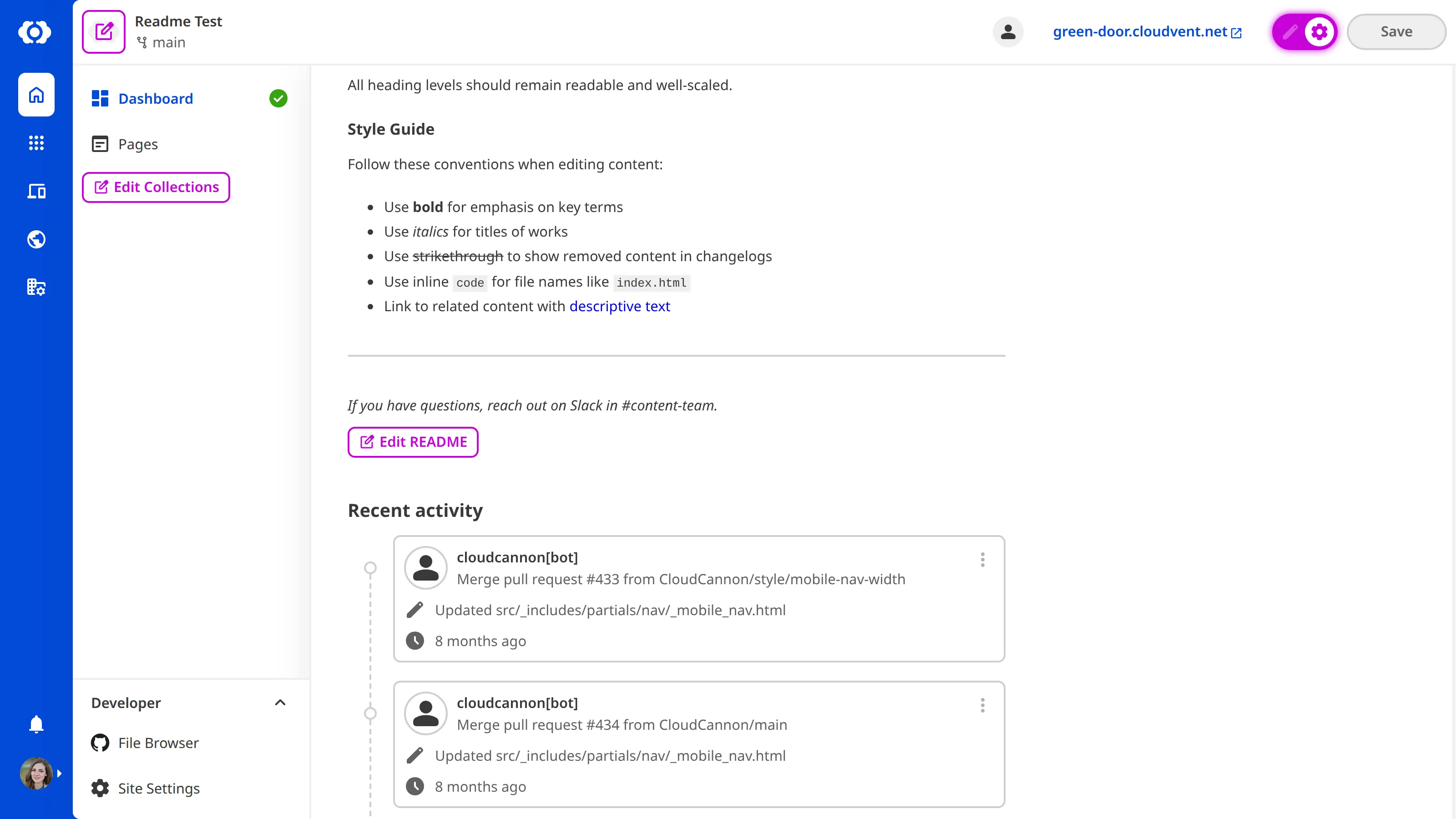
The Site Dashboard README file displays custom Markdown content on the Summary tab of your Site Dashboard, giving your team immediate access to project information.
You can add a README to your Site Dashboard from the Site Dashboard using Configuration Mode Configuration Mode allows you to modify your Configuration File from any page in the app, allowing you to see your changes in real time. The Configuration Mode switch is on the right side of the Site Header. An abbreviation of Integrated Development Environment, an IDE is software that provides developers with tools for writing, editing, and managing code. Common examples include VS Code, Cursor, and JetBrains IDEs. When developers edit website files in an IDE and push changes to their Git Repository, CloudCannon automatically syncs those updates to your Site.Configuration Mode
IDE
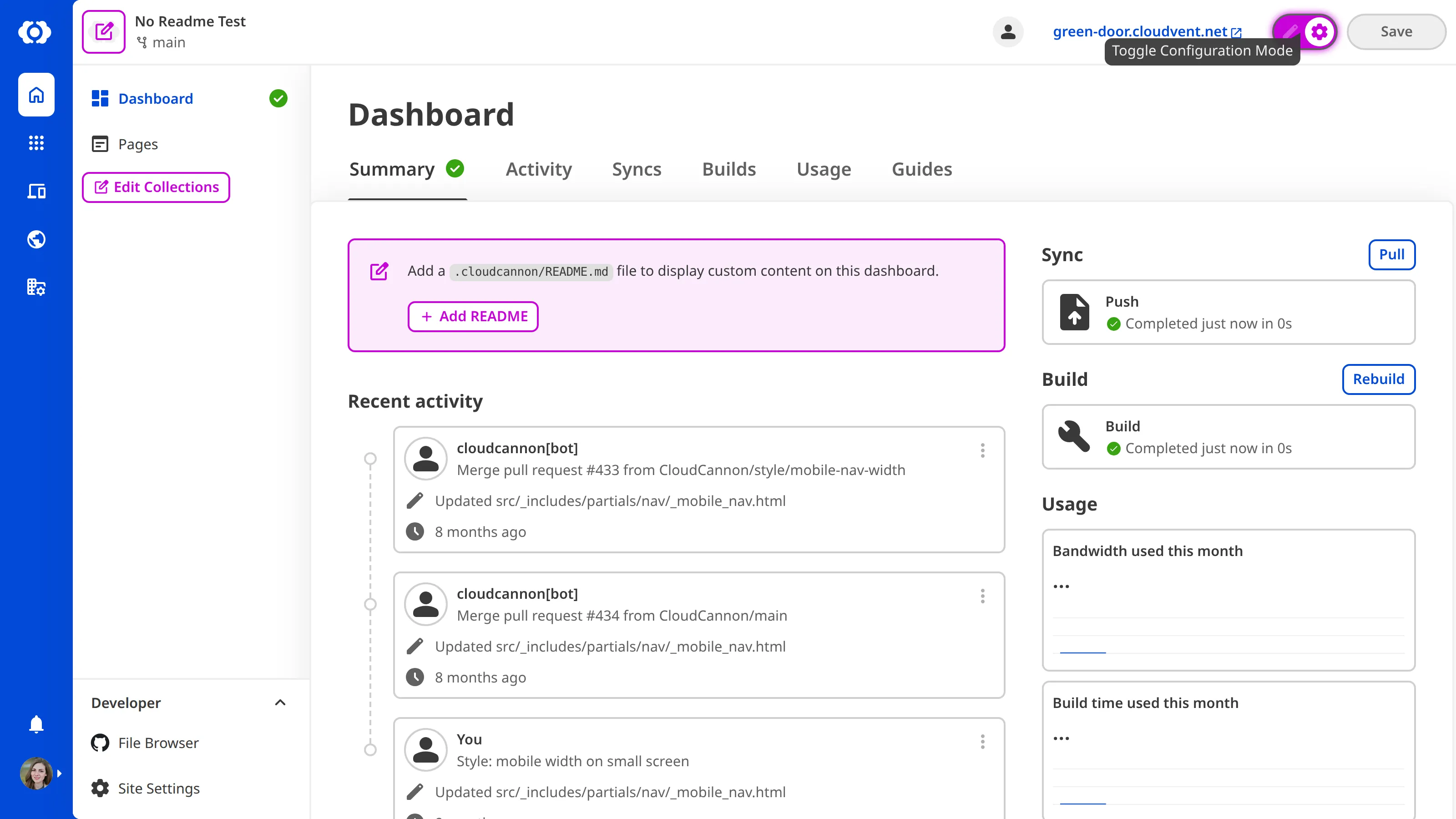
Add a README from the Site Dashboard#
To add a README using Configuration Mode:
- Navigate to the Summary tab on your Site Dashboard.
- Click the Configuration Mode switch on the right of the Site Header to turn it on.
- Click the Add README button. CloudCannon will create a
.cloudcannon/README.mdfile and open it in the Content Editor.Glossary termContent Editor
CloudCannon's rich text editor for clean, distraction-free editing of content-heavy files. This editing interface is most useful for Markdown and MDX files, with or without Front Matter.
- Add your content.
CloudCannon will automatically display your README content on the Summary tab of the Site Dashboard. When you are happy with your content, save your file back to your Git Repository.
Add a README from your IDE#
To add a README directly in your repository:
- Create a file at
.cloudcannon/README.mdin your Git repository. - Add your Markdown content and commit the file Git Repository.
CloudCannon will automatically sync the changes to your Git Repository and display your README content on the Summary tab of the Site Dashboard.
The file path is case-insensitive. CloudCannon recognizes .cloudcannon/README.md, .cloudcannon/readme.md, and other case variations.
Edit your README#
You can edit your README file in CloudCannon using the Content Editor. To open your README for in the Content Editor, turn on Configuration Mode and click the Edit README button on the Site Dashboard.
You can also edit the file directly in your IDE or through the File Browser in CloudCannon.