When you build your Site, CloudCannon will run the build command appropriate for your Static Site Generator (SSG). Your SSG will build your source files into your output files. These output files are what your website visitors see on the Internet, with each file served on a unique output URL.
You can view your output files after each successful build using your Testing Domain, or Custom Domain if you have one configured.
How does CloudCannon use your output files?#
CloudCannon uses your Site's output files in two places within the app: as the interactive webpage preview in the Visual Editor and as the webpage screenshots on File Cards in the Collection Browser.
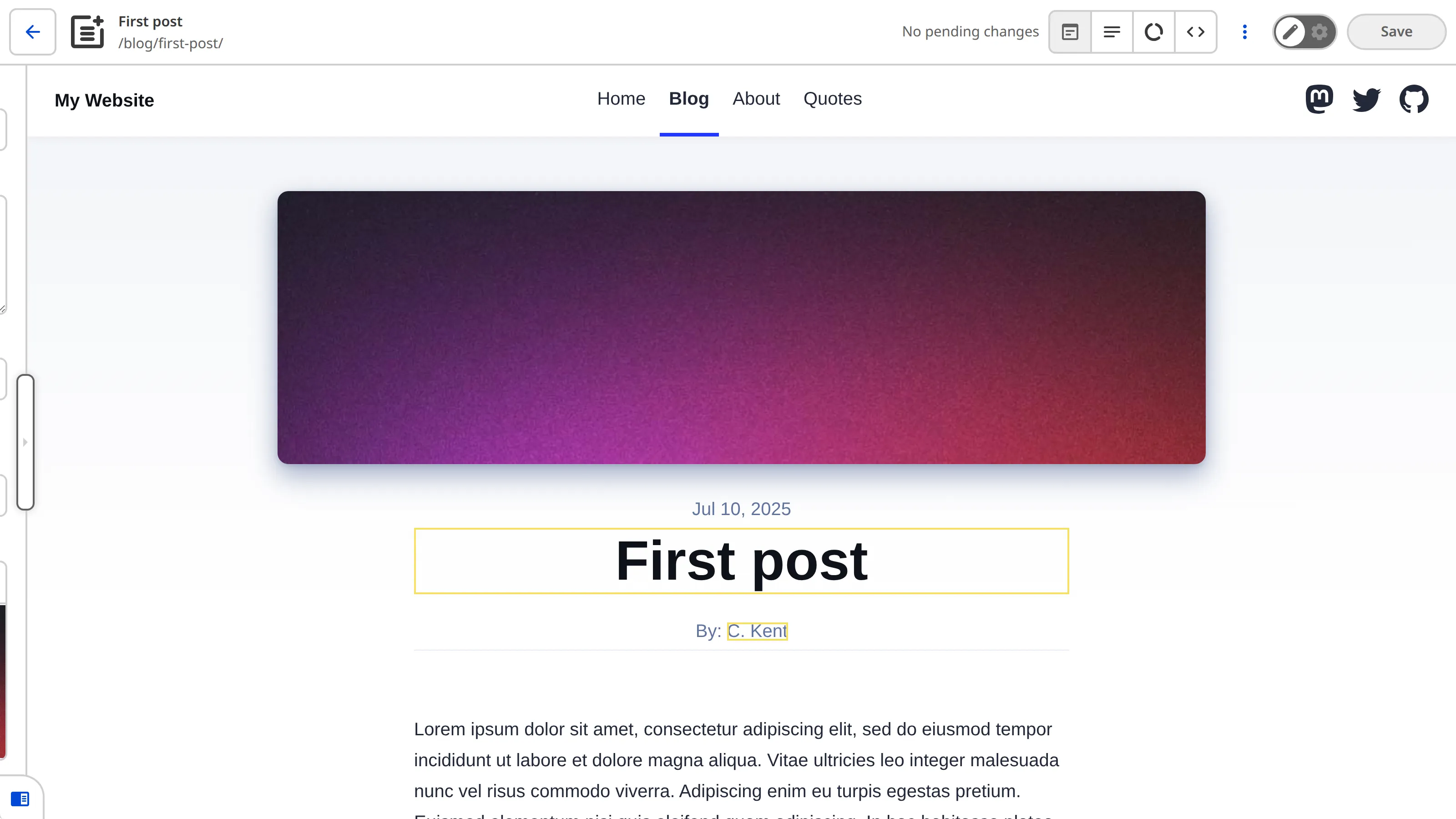
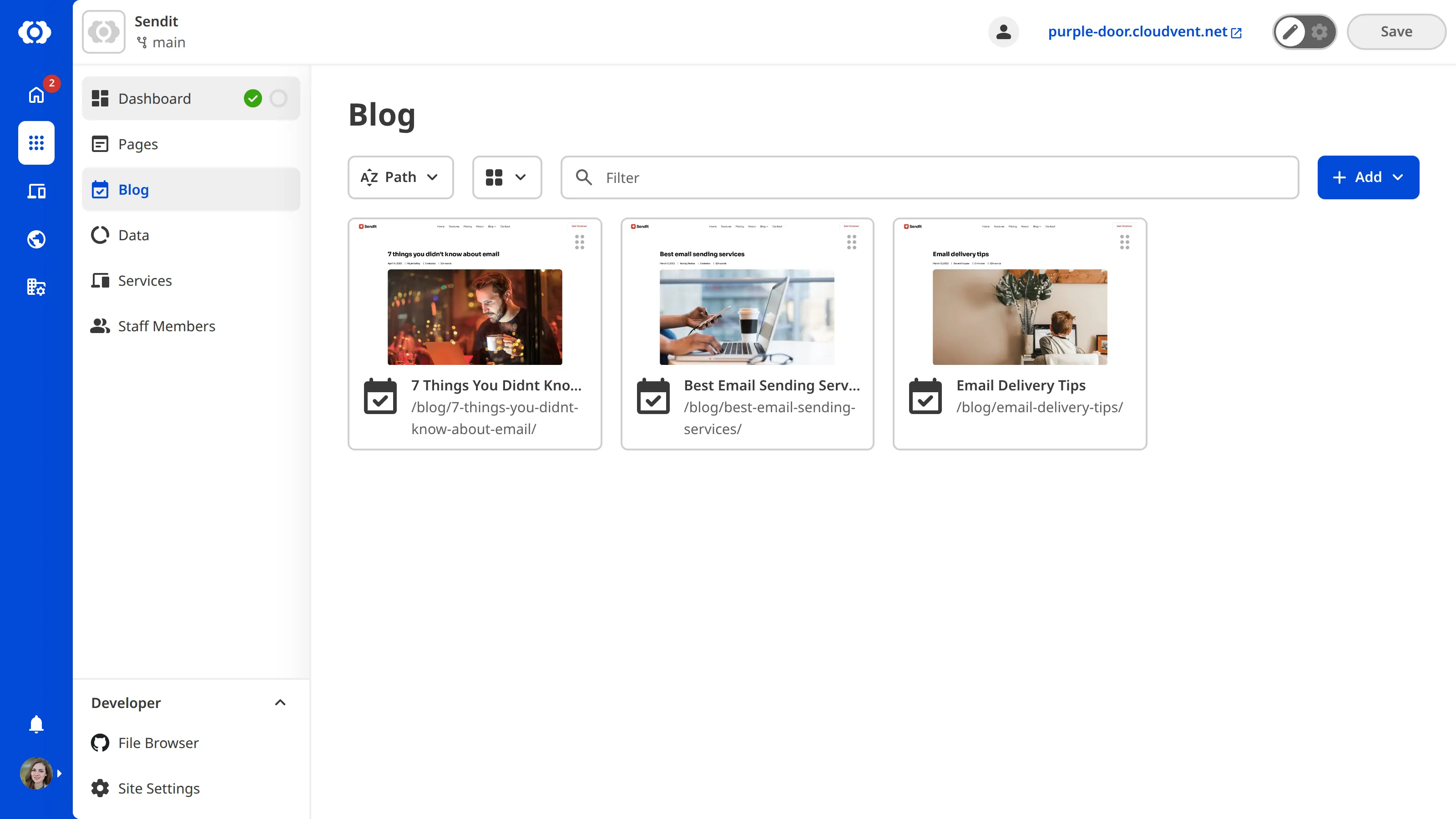
To open the correct output file in the Visual Editor and show the correct screenshot on a File Card, CloudCannon needs to match the output files to the source files. However, most modern websites do not have a one-to-one relationship between source files and output files. For example, the output file for your "Home" page will be index.html, but the content for this file could be stored across multiple source files (e.g., one for navigation, another for the footer, and a third for page content).
Once your SSG has built your Site, CloudCannon automatically matches output files with their corresponding source files by determining the likely output URL for each file.
If CloudCannon did not determine the correct output URL for your source files, you may notice the wrong webpage screenshot in the gallery section of your File Cards (or no screenshot), or that the Visual Editor opens to an incorrect webpage. You can fix this issue by updating the output URL CloudCannon uses to match an output file to a source file.
If you don't want a Collection to use the Visual Editor or see screenshots in the Collection Browser, or if CloudCannon has incorrectly determined an output URL for a non-output Collection, you can disable output URL matching for a Collection.