An output URL is the URL your SSG outputs your files to during a Site build. After each successful build, CloudCannon automatically determines the likely output URL to match an output file to a source file, enabling the Visual Editor and screenshots in the Collection Browser.
You can disable this behavior for any Collection if you do not want CloudCannon to attempt to match output files to source files. If you disable the output URL for a Collection, files from that Collection will not be visible in the Visual Editor, or have screenshots in the Collection Browser, even if you have a template string configured for the Collection.
These instructions assume you want to build your Site, and have already grouped your files into Collections.
To disable output URL matching for a Collection:
- Navigate to the Collection for which you want to disable output URL matching.
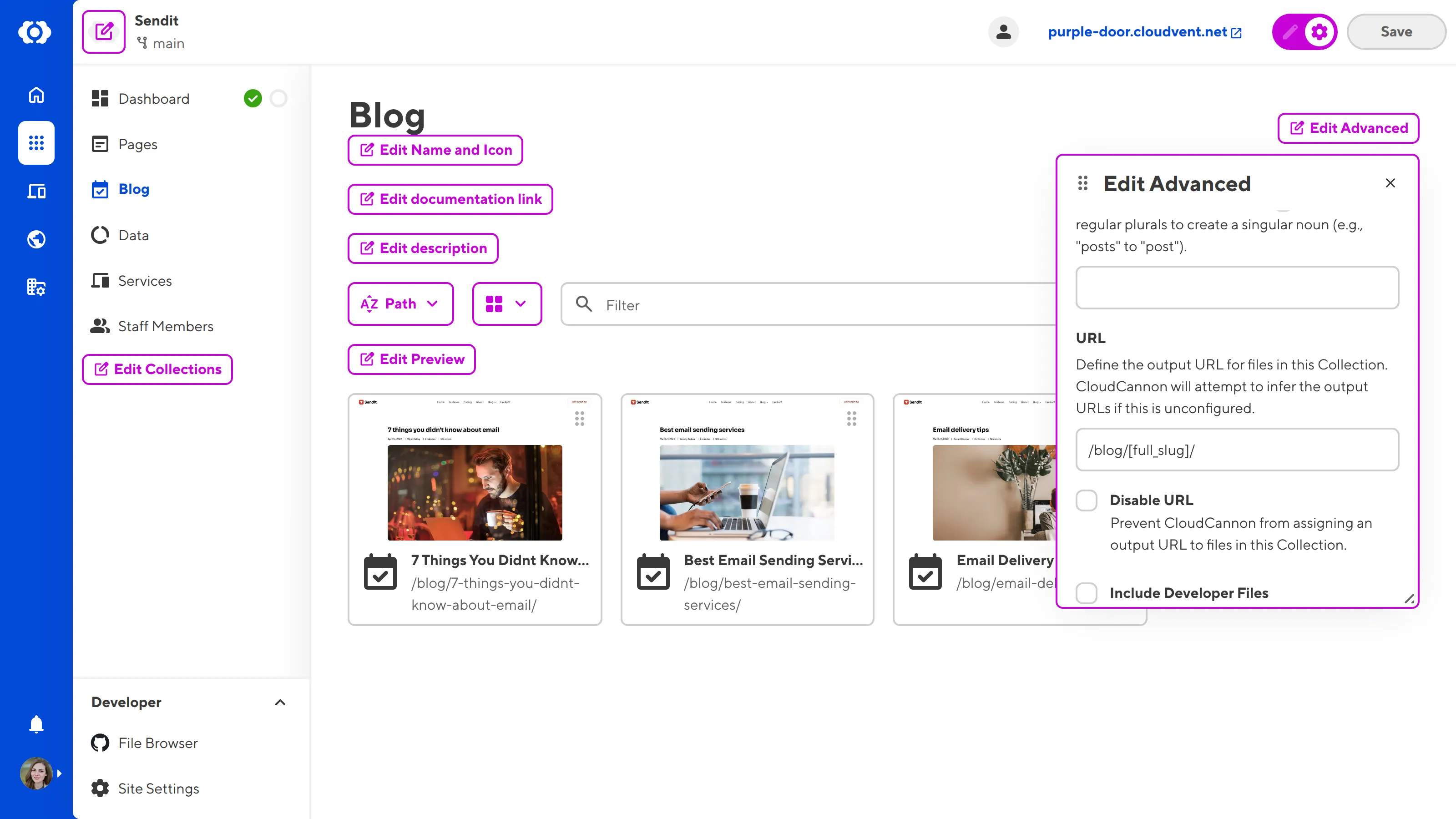
- Turn on Configuration Mode using the switch on the right of the Site Header. Purple Edit Configuration buttons will appear in the Collection Browser.
- Click the Edit Advanced in the top right of the Collection Browser. CloudCannon will open the Edit Advanced data panel.
- Identify the Disable URL checkbox and ensure it is ticked.
- Save the change to your Site.
CloudCannon will stop matching output files to source files, and disable the Visual Editor and webpage screenshots for that Collection.
The disable_url key does not determine whether your SSG will output a Collection.