Everyone who works on a Client Organization reaches it through a Permission Group A group that defines what permissions Organization Members have in CloudCannon. Permission Groups allow you to make Resources available to your Organization Members and define what actions are allowed (Read, Write, or Create) for each resource. CloudCannon provides several Default Permission Groups (including Owners, Developers, Technical Editors, Editors, and Billing) and you can create Custom Permission Groups for more granular control. A workspace in CloudCannon that groups together Sites, Organization Members, and shared resources. It is also the unit CloudCannon bills for. You can define permissions for your Organization, controlling the access each Organization Member has to resources on CloudCannon. You can create and be a part of multiple Organizations. A CloudCannon Organization that belongs to a member of the Partner Program and serves as their base for managing client work. From their Partner Organization, Partners create and manage Client Organizations and track their Partner Points.Permission Group
Organization
Partner Organization
The Partner Permission Group#
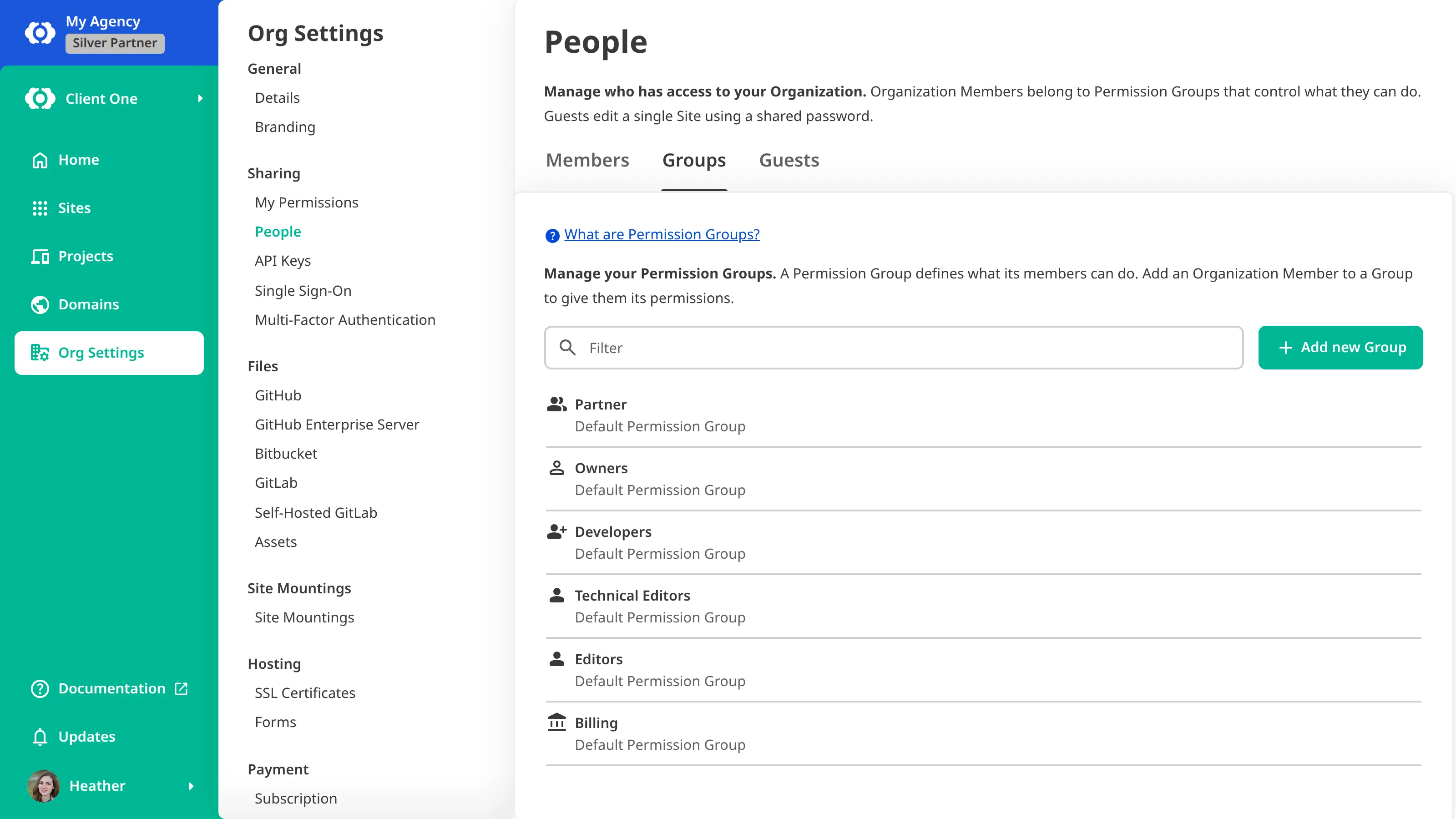
When you first create a Client Organization, CloudCannon automatically adds a Partner Permission Group to it, and populates that group with the members of the Owners Permission Group in your Partner Organization. It is one of the Default Permission Groups CloudCannon's pre-configured sets of permissions that define common levels of access like Owner, Developer, Technical Editor, Editor, and Billing, along with the groups for Site Sharing, Guest Access, and the Partner group in a Client Organization. CloudCannon creates these groups for you and defines what they can do, whichever Subscription Plan you are on. Team members who are added to these groups will have the permissions defined by the group.Default Permission Groups
graph TD
  subgraph PARTNER["Your Partner Organization"]
    POW["Owners<br/>Permission Group"]
    POD["Other<br/>Permission Groups"]
  end
  subgraph CLIENT["Client Organization"]
    CPG["Partner<br/>Permission Group"]
    COW["Owners<br/>Permission Group"]
    COD["Other<br/>Permission Groups"]
  end
  PARTNER -->|Manages| CLIENT
  POW -->|Membership mirrored into| CPG
Every time you update the members in your Partner Organization's Owners Permission Group, CloudCannon will also update the membership of the Partner Permission Group in every Client Organization you manage. Unlike other Permission Groups, you cannot edit or delete the Partner Permission Group from the Client Organization's People page.
Keep your Partner Organization's Owners group membership as small as possible to prevent unneeded access to every Client Organization you manage.
As a member of the Partner Permission Group, you are granted the same permissions as the Owners Permission Group in the Client Organization. This means you can:
- Create and configure Sites, Projects, and Custom DomainsGlossary term
Site
A website in CloudCannon that includes all the files, content, configuration, and settings needed to edit, build, and host a complete website.
.Glossary termCustom Domain
A unique address used to identify a website, such as cloudcannon.com. You can purchase a domain from a Domain Registrar and add it as a Custom Domain to your CloudCannon Organization before connecting it to any number of Sites hosted on CloudCannon.
- Edit, save, and publish content on every Site.
- Add Organization Membersto the Client Organization, and manage its Permission Groups.Glossary term
Organization Member
A person who belongs to the same Organization as you. Organization Members are other CloudCannon users who have been invited to your Organization to collaborate on Sites, edit content, or manage settings. Each Organization Member has their own CloudCannon account with individual permissions assigned through Permission Groups, and uses one Seat in your Subscription Plan. Organization Members were previously called Team Members.
- Change Organization settings, including its branding, and create and delete API Keys.
- Manage the client's Subscription Plan, payment methods, and invoices.
You can also take the actions that no other Permission Group can be granted, however much access it is given:
- Configure SAML on the Single Sign-On page under Org Settings, available on our Enterprise Plan.
- Set a date after which Organization Members must use MFA, on the Multi-Factor Authentication page under Org Settings, available on our Team or Enterprise Plan.
- Export an Access Review for the Client Organization from the Members tab on the People page under Org Settings.
- Use View As mode to see the Client Organization as one of its Organization Members.
- Add Organization Members to, and remove them from, the Client Organization's Owners Permission Group. This is how you hand a Client Organization over to your client.
- Delete the Client Organization.
Everyone in the Client Organization who can read Permission Group members can see who is in the Partner Permission Group, and no one in the Client Organization can change it.
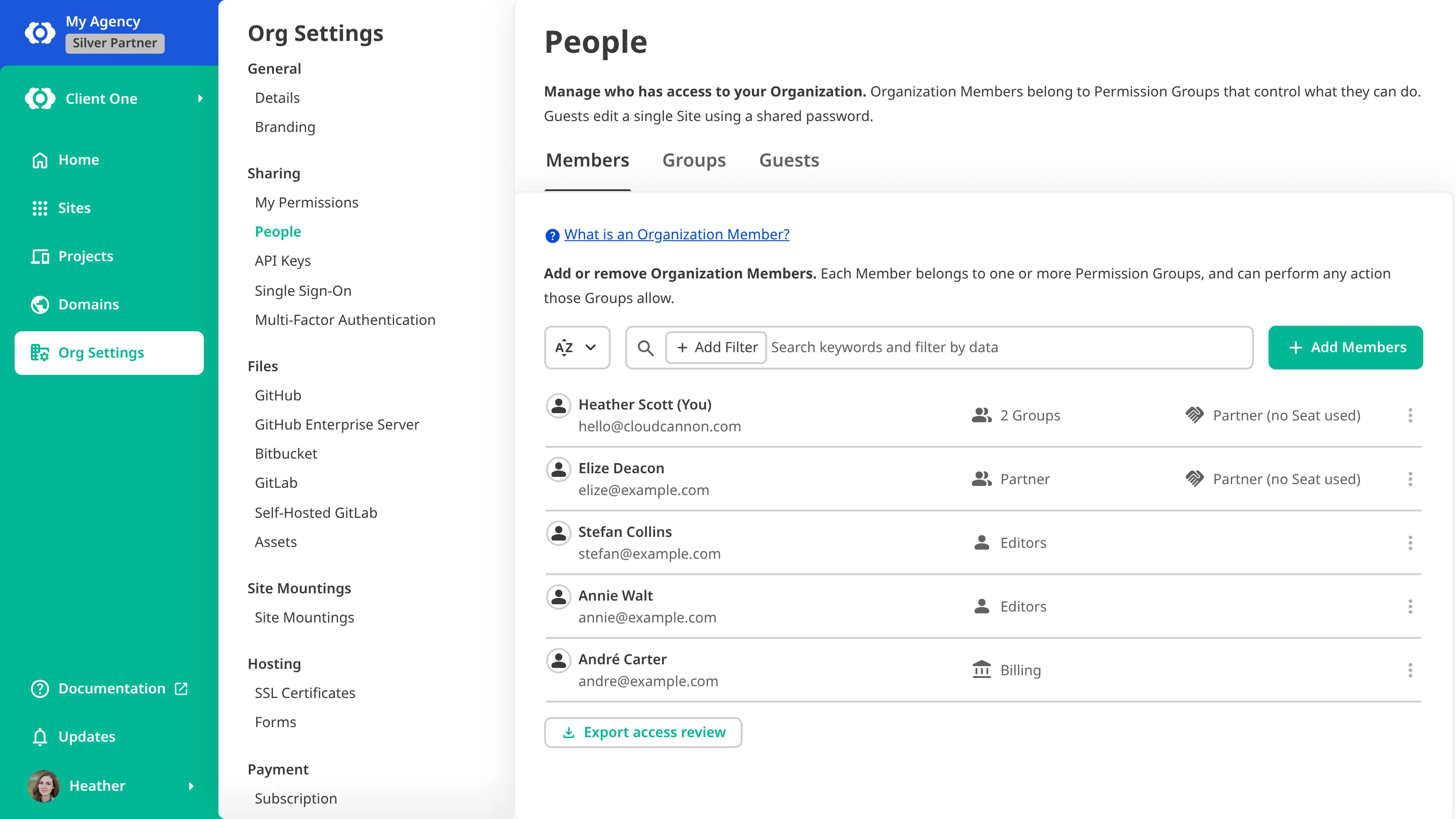
Members of your Partner Organization appear on the Members tab alongside the client's own Organization Members, marked as not counting toward billing.
Inviting other Partner Organization members#
To add more Organization Members from your Partner Organization to the Client Organization, you can invite them to any Default Permission Group the same way you would in your own Organization. The one exception is the Partner group, which CloudCannon manages for you. If the Client Organization is on our Team or Enterprise Plan, you can also invite them to a Custom Permission Group.
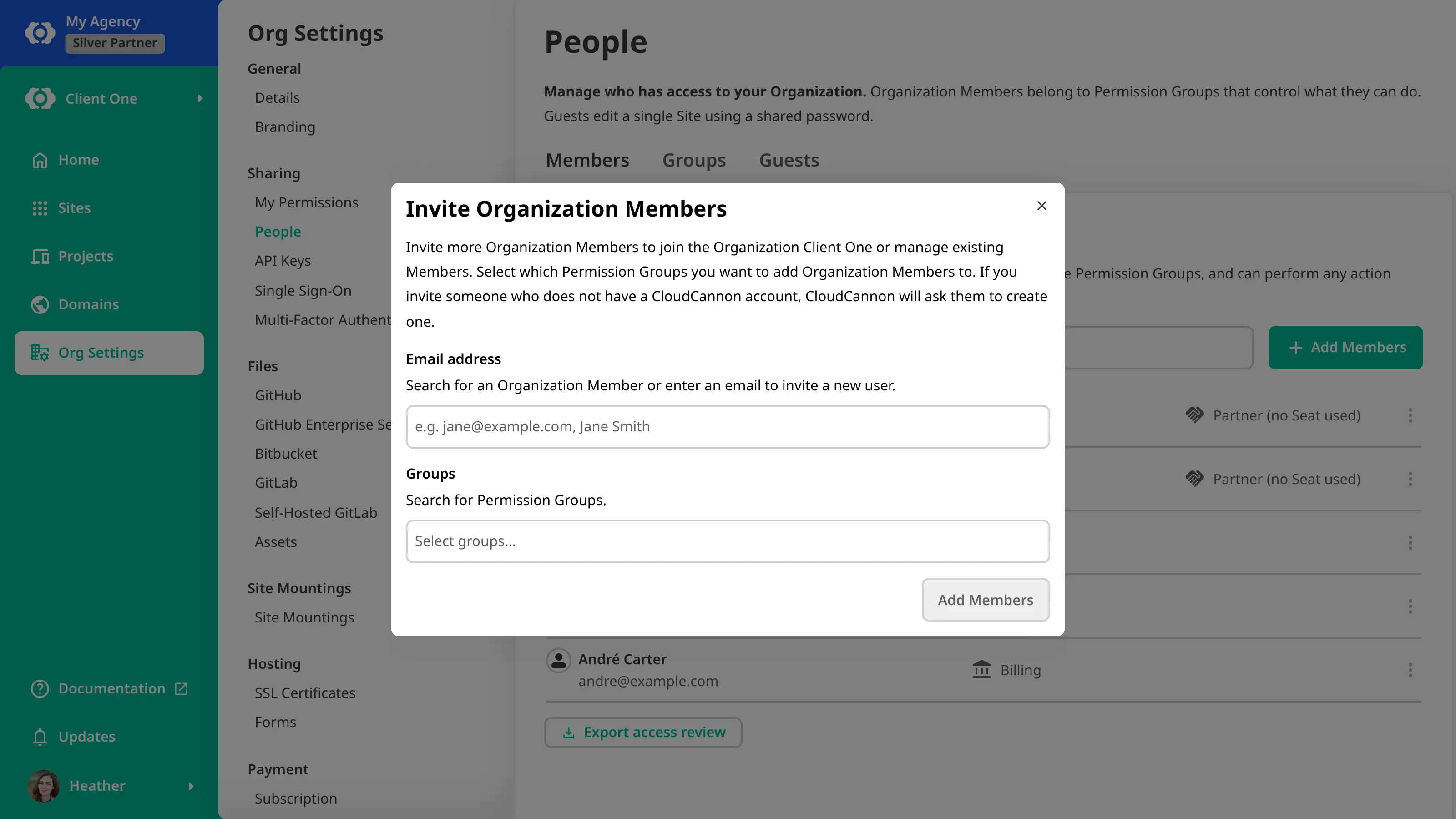
Members of your Partner Organization added this way do not count toward the number of Organization Members included in the Client Organization's Subscription Plan. This way you can add as many people as you need to manage it without increasing the invoice with Add-Ons Extra capacity (Organization Members, bandwidth, custom domains, or build time) that extends a plan's included limits. When Overages are enabled, CloudCannon automatically adds capacity as your Organization exceeds its plan's included limits.Add-On
Any actions a Partner A member of the CloudCannon Partner Program, typically an agency or freelancer specializing in web design and development. Partners manage client work from their own Organization, can create and manage Client Organizations for their clients, and earn Partner Points.Partner
Client Organization Owners#
When you create a Client Organization, CloudCannon also adds you to the Owners Permission Group for the Client Organization. That means you start out in both the Partner and Owners groups. While you are the only member of the Owners group, you cannot leave it, because every Organization must have at least one Owner.
Once the Owners group has another member, you can leave it without reducing your access, because the Partner group already grants everything the Owners group does. For more information, please read our documentation on leaving a Permission Group.
Leaving the Owners group is not the same as leaving the Client Organization. CloudCannon mirrors your Partner group membership from your Partner Organization, so you cannot remove yourself from a Client Organization while you are one of your Partner Organization's Owners. To end your access, either leave your Partner Organization's Owners group, which also removes you from every other Client Organization you manage, or detach the Client Organization.
For how to give your client control of a Client Organization, and what detaching changes, please read our documentation on handing over or detaching a Client Organization.