Managing your Client Organizations A separate Organization that a Partner Organization manages but that the client uses and pays for. Client Organizations are part of the CloudCannon Partner Program and give each client their own team, billing, and login. Unlike Guest Access, which shares a single Site with someone who doesn't have a CloudCannon account, a Client Organization is a full, independent Organization. A website in CloudCannon that includes all the files, content, configuration, and settings needed to edit, build, and host a complete website. A workspace in CloudCannon that groups together Sites, Organization Members, and shared resources. It is also the unit CloudCannon bills for. You can define permissions for your Organization, controlling the access each Organization Member has to resources on CloudCannon. You can create and be a part of multiple Organizations.Client Organization
Site
Organization
However, it is important to know how to find and open each Client Organization, and determine what needs your attention, especially if you manage several clients.
Find and open a Client Organization#
You can view the Client Organizations managed by your Partner Organization A CloudCannon Organization that belongs to a member of the Partner Program and serves as their base for managing client work. From their Partner Organization, Partners create and manage Client Organizations and track their Partner Points.Partner Organization
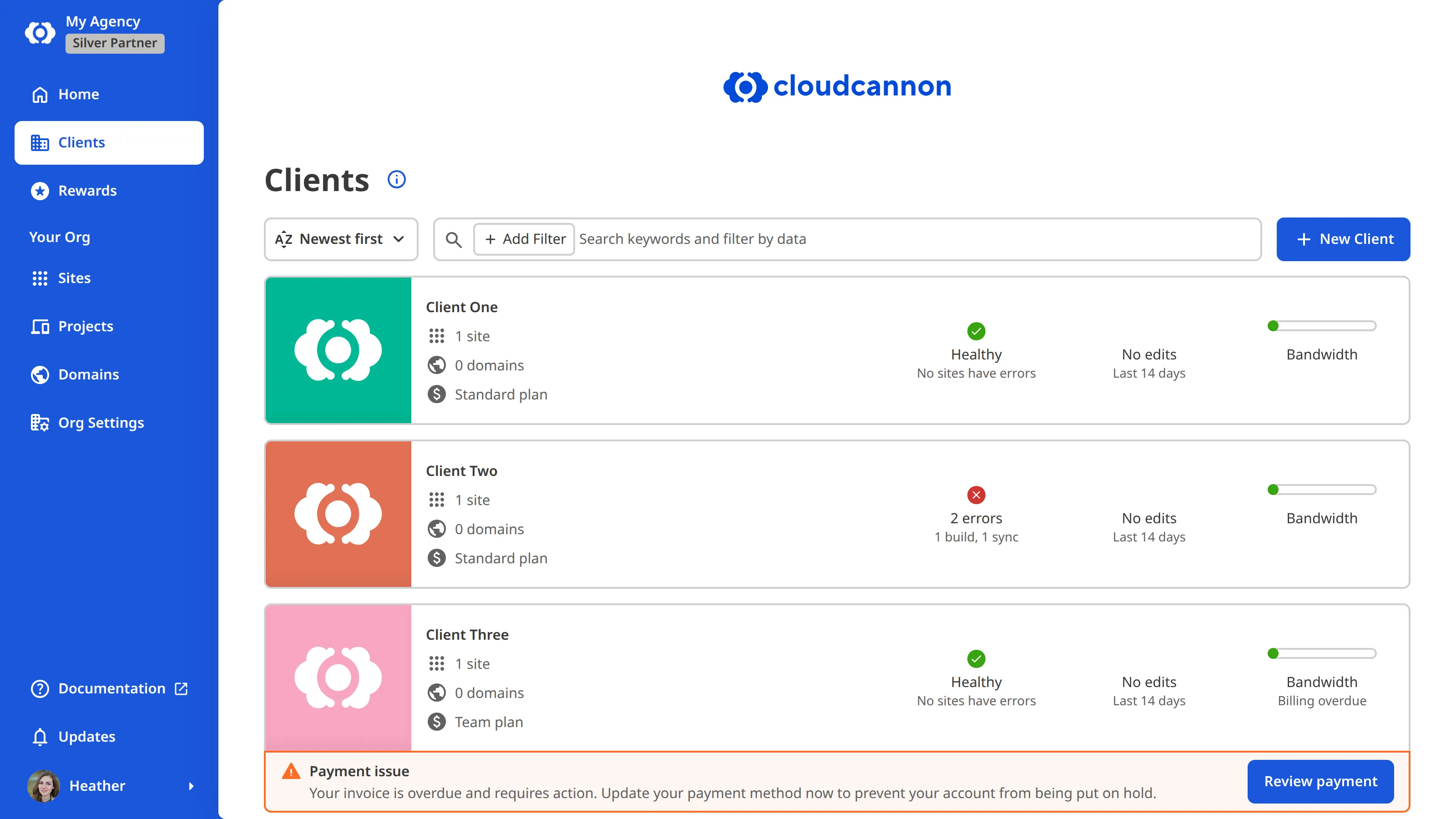
The Client Organizations Browser works in the same way as the Organizations Browser, except it lists only the Client Organizations managed by your Partner Organization. It shows the Client Organizations you are a member of, so if you have not been added to any, the Client Organizations Browser is empty. Members of the Owners Permission Group in your Partner Organization see every client, because CloudCannon adds them to the Partner Permission Group in each Client Organization automatically. For more information, please read our documentation on how Partners access their Client Organizations.
You can use the Filter Bar at the top of the Client Organizations Browser to narrow your results further. Alongside searching by name, you can filter for the clients that need attention, such as those with failing Sites, a payment issue, a Free Trial A trial period that gives a new Organization access to Standard Plan features without requiring a payment method. A unique address used to identify a website, such as cloudcannon.com. You can purchase a domain from a Domain Registrar and add it as a Custom Domain to your CloudCannon Organization before connecting it to any number of Sites hosted on CloudCannon.Free Trial
Custom Domain
Each Client Organization appears as a Card, showing how many Sites and Base Domains The primary domain name for a website, without any subdomains. For example, in "www.example.com", the base domain is "example.com". A set of features available to your Organization, the monthly usage limits for resources, and the price you pay for access to those features and resources, monthly or annually. Each Organization in CloudCannon can have one Subscription Plan, and can update or cancel at any time. The amount of data transferred from your hosted Site to visitors' browsers, determined by visitor count and webpage size. Each Subscription Plan includes a set amount, and you can enable Overages to keep your Sites live if you go over this amount. You can review your usage under the Usage tab of your Site Dashboard or Organization Home page.Base Domain
Subscription Plan
Hosting Bandwidth
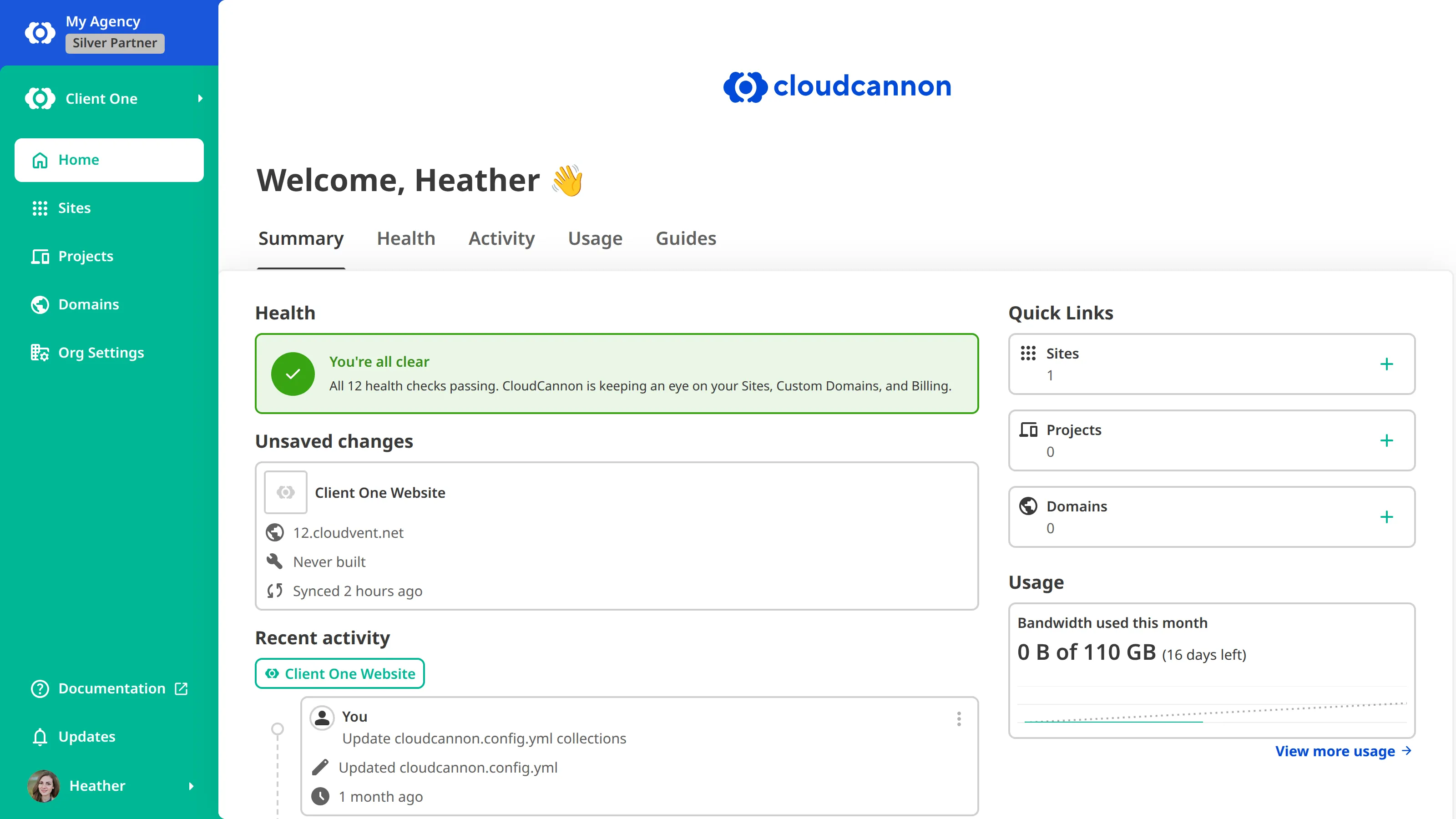
To open a Client Organization, click its Card in the Client Organizations Browser. CloudCannon opens the Organization Home page for that client. For more information, please read our documentation on switching between your Organizations.
Monitor the health of your Client Organizations#
This feature is available through a private Beta.
Health checks across your Client Organizations are currently available through a private Beta. To request access, please contact our friendly support team.
CloudCannon enables the Beta for individual accounts rather than for a whole Organization, so everyone on your team who needs the Health tab must request it separately.
The Health tab on your Partner Organization's Organization Home page shows the results of several health checks across your own Organization and every Client Organization you manage, so you can review them all from one place.
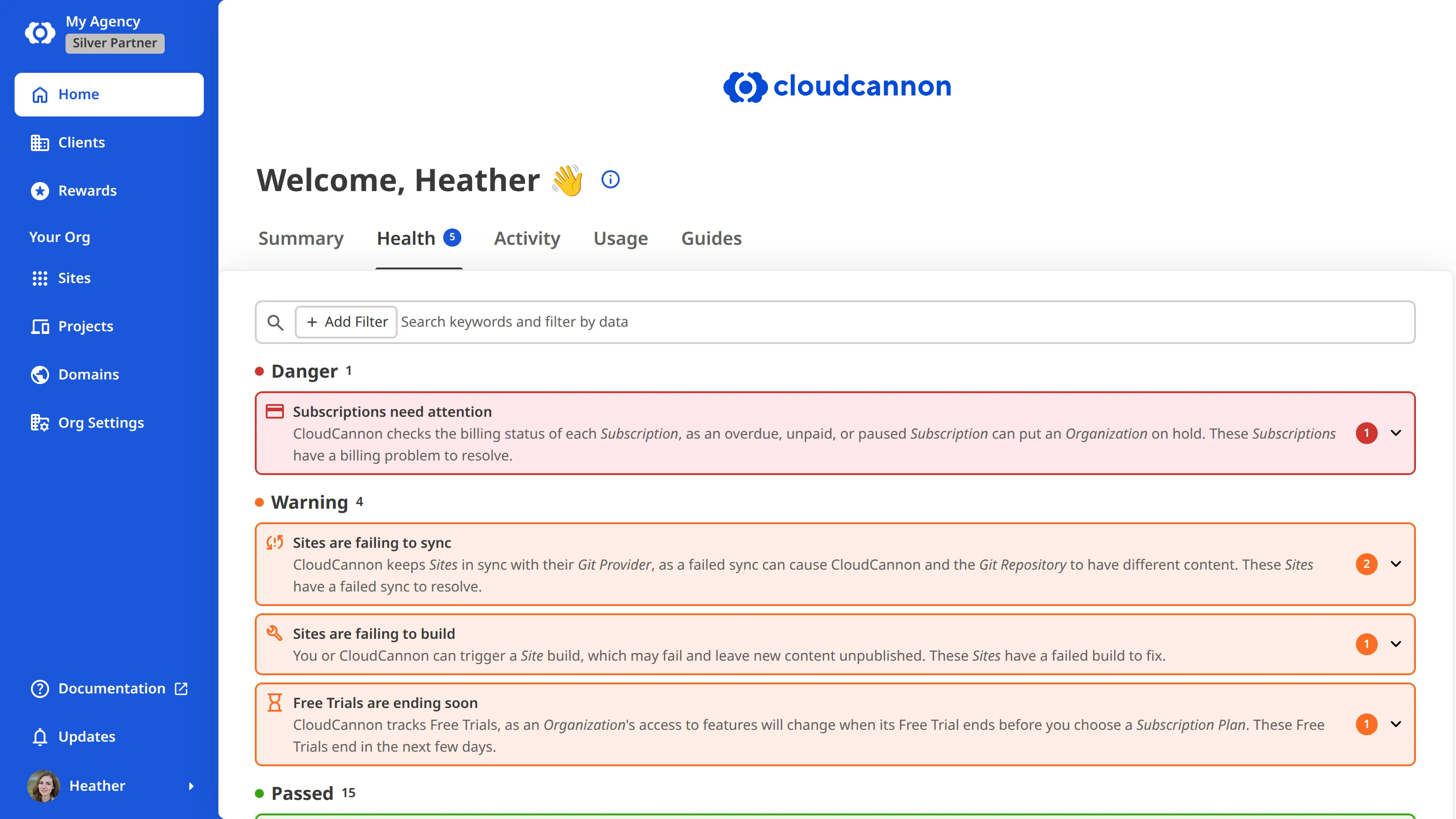
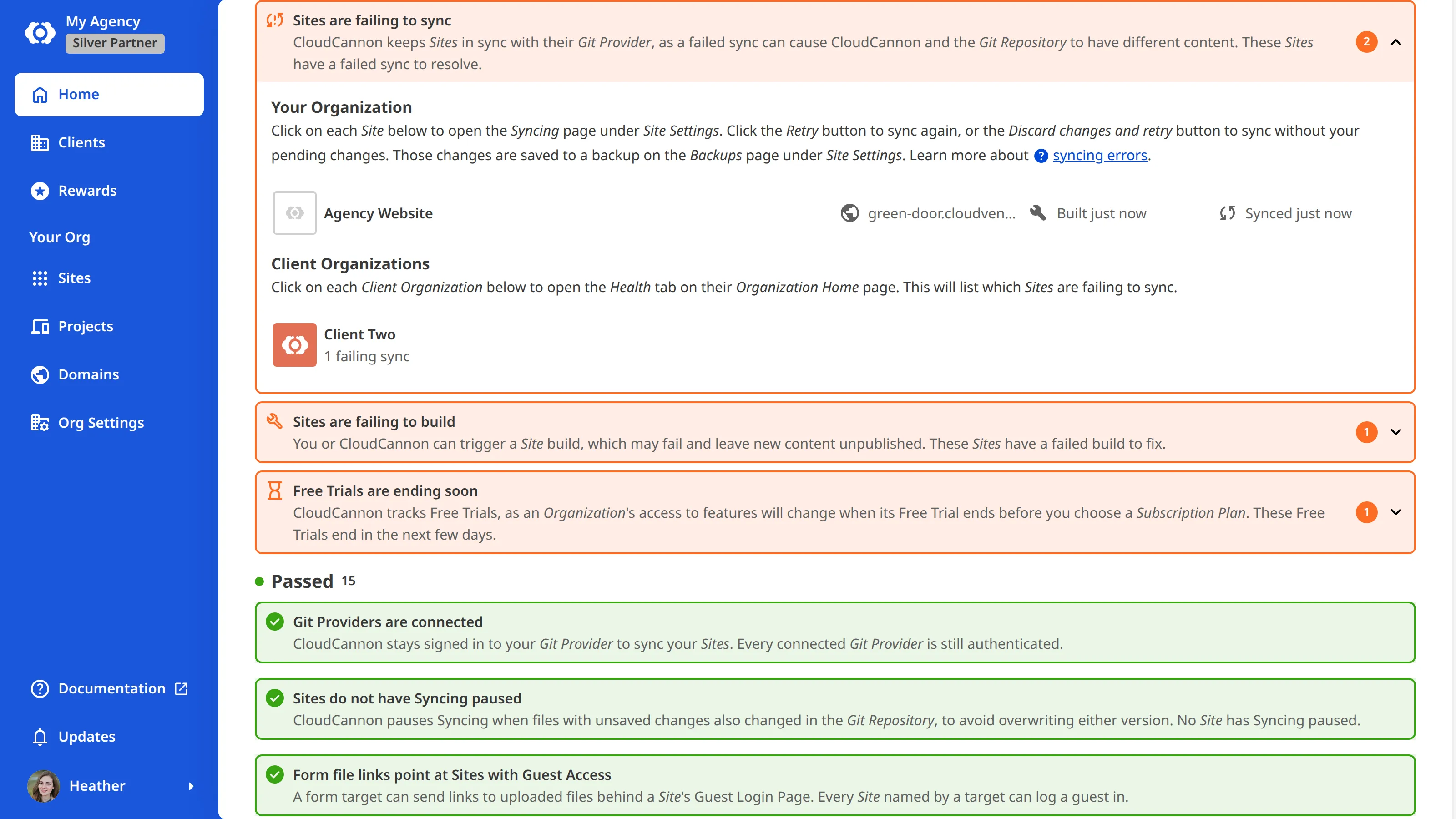
CloudCannon lists your health checks under Danger, Warning, Informational, and Passed, and only shows a heading when at least one check falls under it. Click on each Health Check Card to expand it and see more details about what it affects. These can be your own Sites and Custom Domains, under Your Organization, or the affected clients, under Client Organizations.
The Client Organizations group lists each affected client as a Card, with a note of what triggered the check, such as "3 failing builds" or when a Free Trial ends. A client appears under only one of the payment, Free Trial, and inactivity checks at a time, so the same client is never counted twice.
Clicking a client's Card opens that Client Organization's Health tab, or their Activity tab for the Clients are inactive check.
The error counts on the Cards in the Client Organizations Browser are separate from this, and are available to every Partner Organization. What the Health tab adds is the aggregated view across every client you manage.