A Client Organization A separate Organization that a Partner Organization manages but that the client uses and pays for. Client Organizations are part of the CloudCannon Partner Program and give each client their own team, billing, and login. Unlike Guest Access, which shares a single Site with someone who doesn't have a CloudCannon account, a Client Organization is a full, independent Organization. A workspace in CloudCannon that groups together Sites, Organization Members, and shared resources. It is also the unit CloudCannon bills for. You can define permissions for your Organization, controlling the access each Organization Member has to resources on CloudCannon. You can create and be a part of multiple Organizations. A CloudCannon Organization that belongs to a member of the Partner Program and serves as their base for managing client work. From their Partner Organization, Partners create and manage Client Organizations and track their Partner Points. A set of features available to your Organization, the monthly usage limits for resources, and the price you pay for access to those features and resources, monthly or annually. Each Organization in CloudCannon can have one Subscription Plan, and can update or cancel at any time. A person who belongs to the same Organization as you. Organization Members are other CloudCannon users who have been invited to your Organization to collaborate on Sites, edit content, or manage settings. Each Organization Member has their own CloudCannon account with individual permissions assigned through Permission Groups, and uses one Seat in your Subscription Plan. Organization Members were previously called Team Members. A website in CloudCannon that includes all the files, content, configuration, and settings needed to edit, build, and host a complete website.Client Organization
Organization
Partner Organization
Subscription Plan
Organization Member
Site
CloudCannon puts a new Client Organization on the Standard Plan by default, so you only need to change it when another Subscription Plan suits your client better.
Partners can also choose the Lite Plan, a low-cost, pay-as-you-go option that does not appear for other Organizations. For more information, please read our documentation on what Partner Points and Rewards are.
The Enterprise Plan isn't self-serve. In the Select a plan modal, it has a Get in touch button that opens our contact sales page rather than selecting the plan. To put a Client Organization on the Enterprise Plan, contact our sales team with your Partner Organization name and your client's requirements.
Before we begin, this article assumes your Organization is enrolled in the CloudCannon Partner Program. For more information, please read our documentation on what the CloudCannon Partner Program is.
If you are creating a new Organization that is not connected to your Partner Organization, we recommend creating a new Organization instead.
When you create a Client Organization, use the name of your client's business.
To create a new Client Organization:
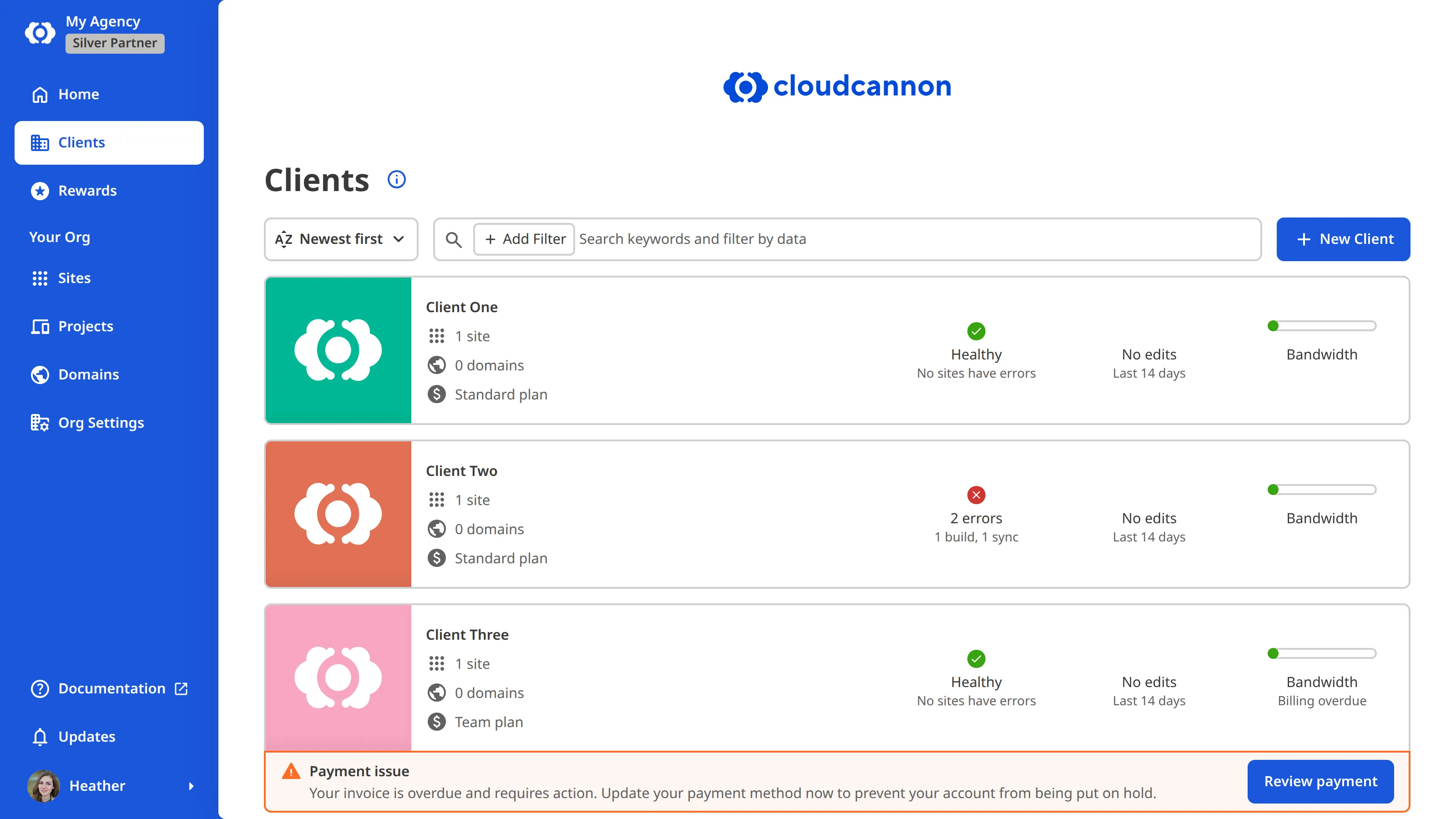
- In your Partner Organization, click the Clients link in the App Sidebar. CloudCannon will open the Client Organizations Browser.
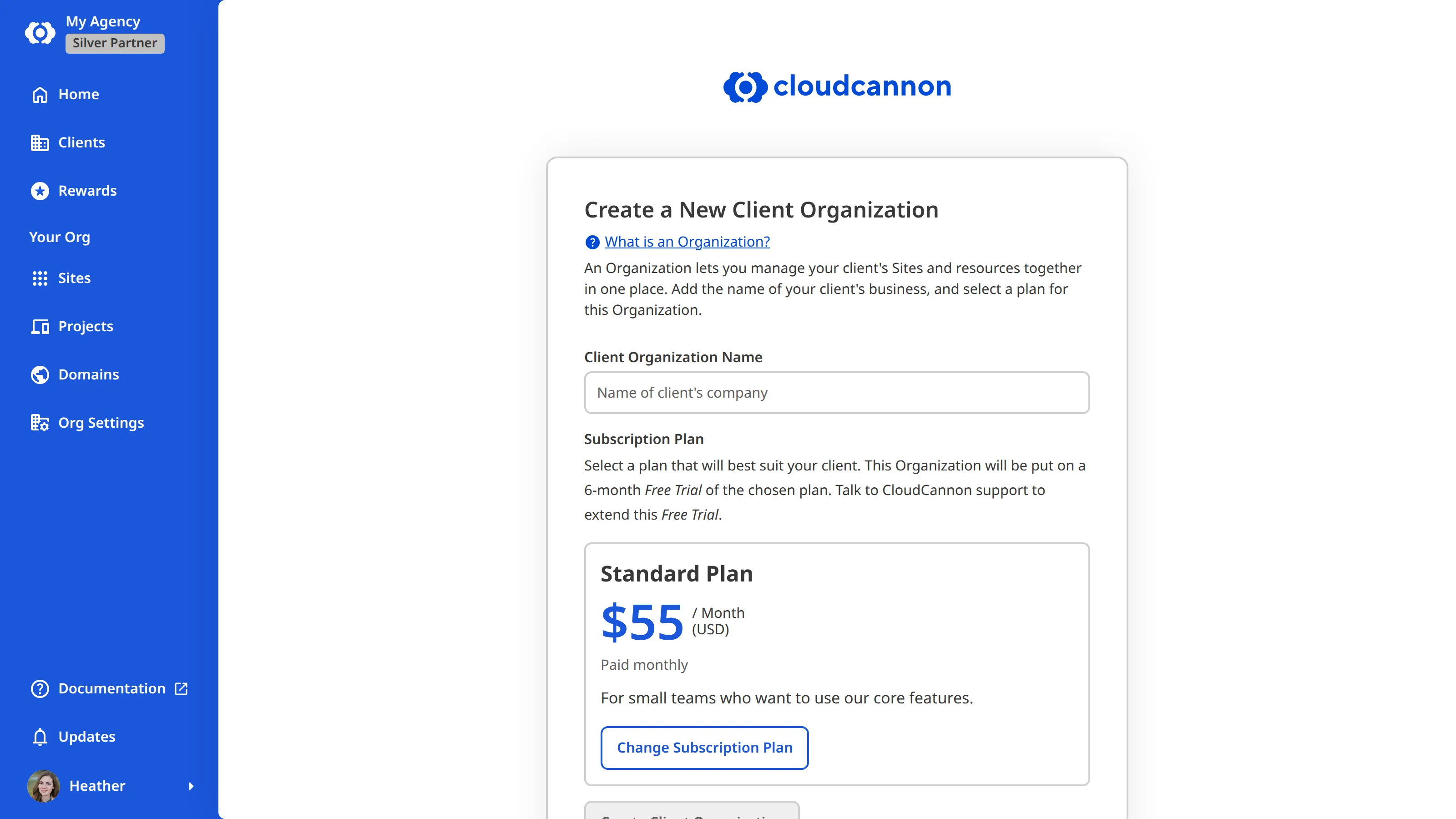
- Click the New Client button. CloudCannon will open the Create a New Client Organization page.
- Enter a name in the Client Organization Name field.
- Under Subscription Plan, click the Change Subscription Plan button. CloudCannon will open the Select a plan modal.
- Use the Billing Period toggle at the top of the modal to choose Monthly or Yearly billing.
- Click the Select [Plan Name] button on the Subscription Plan that best suits your client. CloudCannon will close the modal and show your choice on the Create a New Client Organization page.
- Click the Create Client Organization button.
CloudCannon will create the Client Organization, add you to its Owners Permission Group, and open its Organization Home page, ready for you to add the client's first Site. CloudCannon also adds a Partner Permission Group to the Client Organization, holding the Owners of your Partner Organization. For more information, please read our documentation on how Partners access their Client Organizations.
Alternatively, you can also create a Client Organization from your Organization Home page, by clicking the Create a Client icon on the Clients card.
Every Client Organization you create starts on an extended six-month Free Trial A trial period that gives a new Organization access to Standard Plan features without requiring a payment method.Free Trial