Some features are only available on our Team and Enterprise plans.
Want to chat about whether this feature is right for you? Our support team is always happy to hear from you.
A Project A way to group multiple Sites from the same Git Repository, allowing you to define a main branch, as well as branching and publishing rules. You can access the Projects Browser using the Projects link in the App Sidebar. A website in CloudCannon that includes all the files, content, configuration, and settings needed to edit, build, and host a complete website. A storage location for the code and files that make up your website. CloudCannon supports the repository providers GitHub, GitLab, and Bitbucket, and highly recommends using a repository to store your website's files for better version control and collaboration.Project
Site
Git Repository
The Projects Browser#
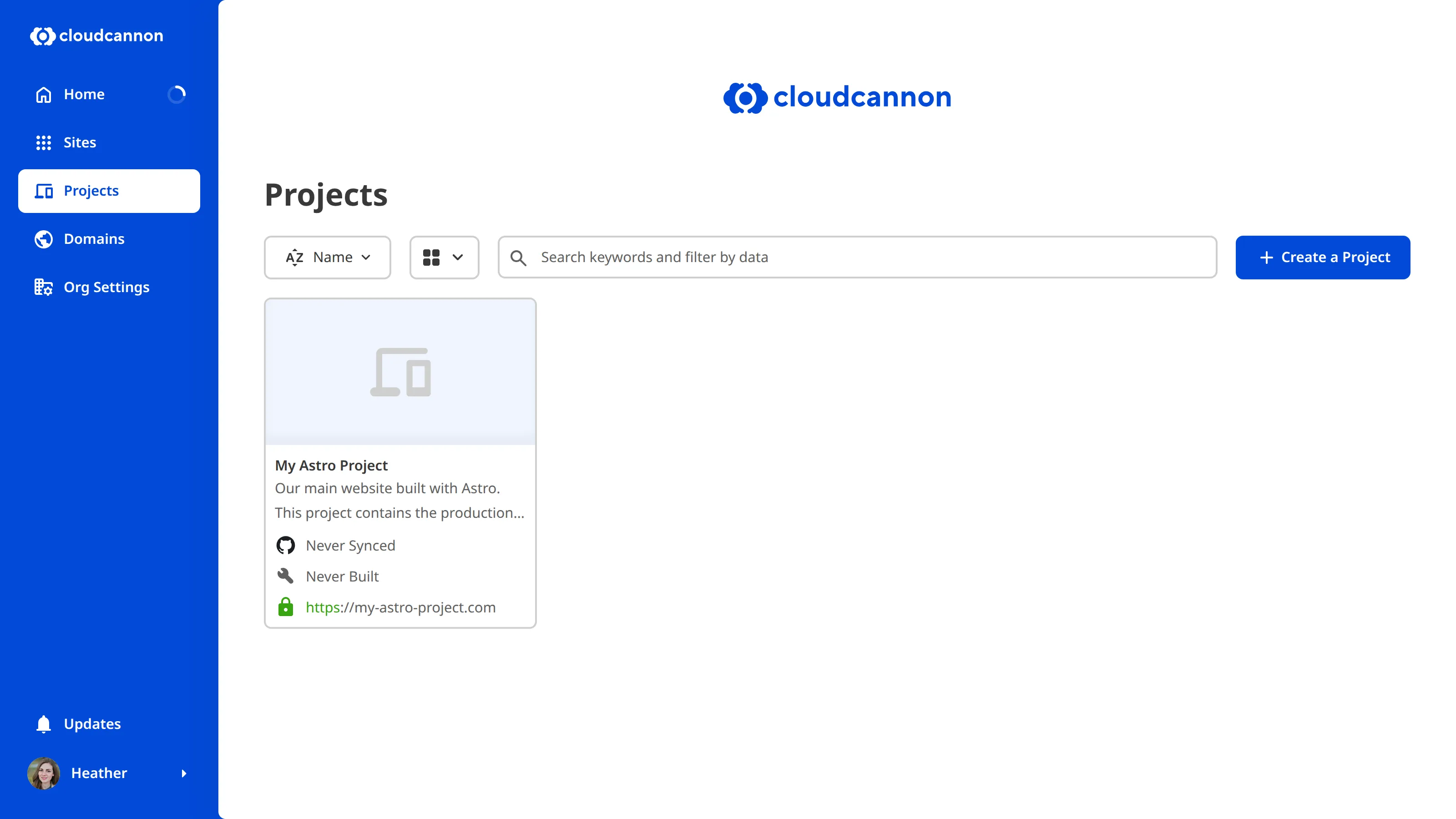
The Projects Browser lists all the Projects in your Organization. You can access the Projects Browser by clicking the Projects link in the App Sidebar.
From the Projects Browser, you can:
- View all your Projects at a glance
- Sort and filter Projects by name, URL, or last synced date
- Click a Project Card to open the Project Sites Browser
- Create a new Project using the Create a Project button
The Project Sites Browser#
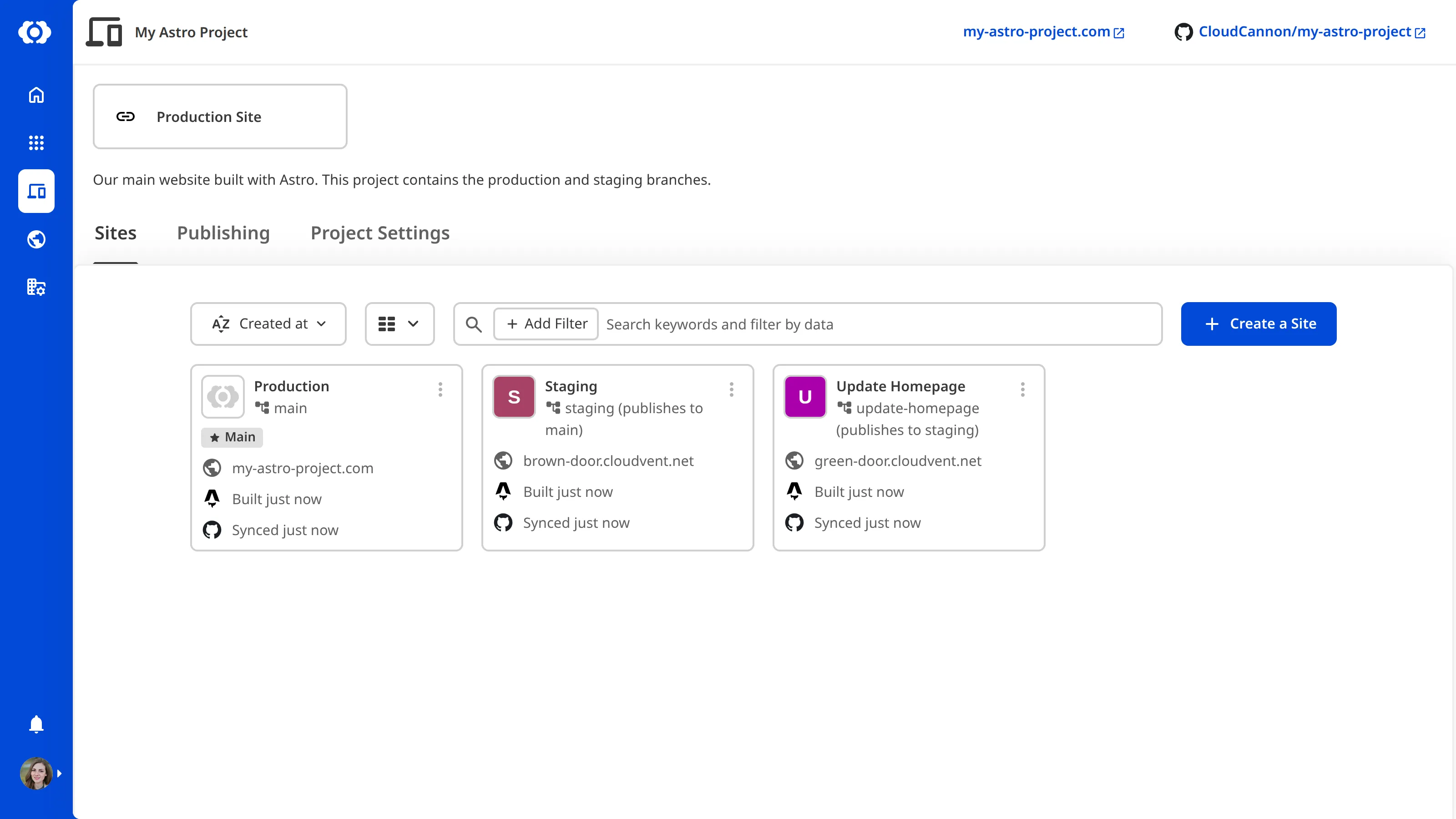
The Project Sites Browser is the main page for an individual Project. It shows all the Sites connected to your Project and provides access to the Publishing and Project Settings tabs.
For each Site, the Project Sites Browser shows:
- The Site name and branch name
- The domain or testing URL
- The build and sync status
- Which branch the Site publishes to (e.g., "publishes to main")
You can switch between card and list views, and use the Create a Site button to add a new Site to your Project.
The Publishing tab#
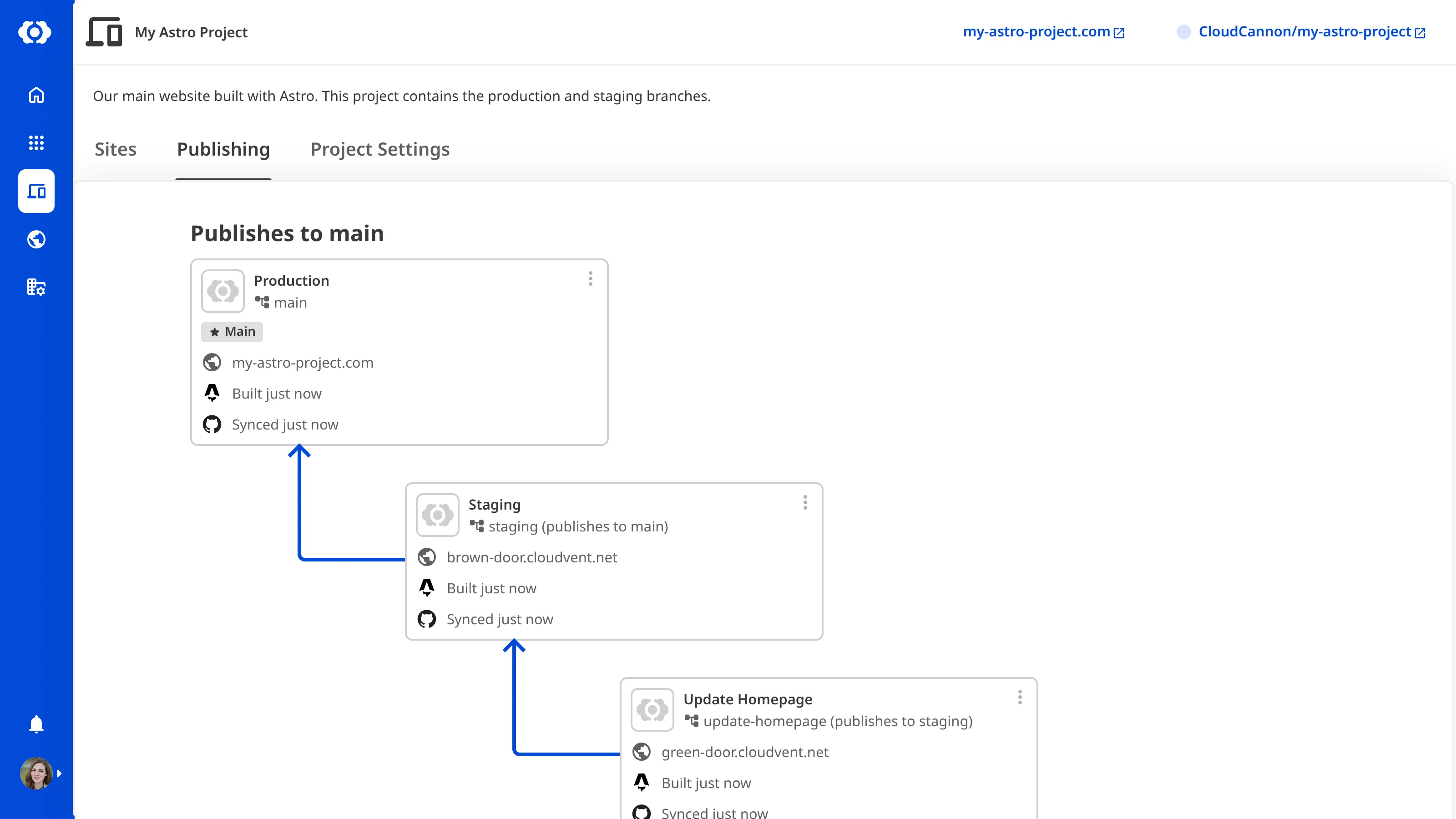
The Publishing tab on your Project page gives you a visual overview of how your Sites relate to each other. It displays a graph showing each Site, which branch it is connected to, and which branch it publishes to. This makes it easy to see the full publishing workflow at a glance.
This is especially helpful for Projects with multiple levels of branching, where it can be difficult to remember the publishing relationships between Sites.
For more information on configuring publishing behavior for individual Sites, please read our documentation on connecting a Publish Branch.
The Project Settings tab#
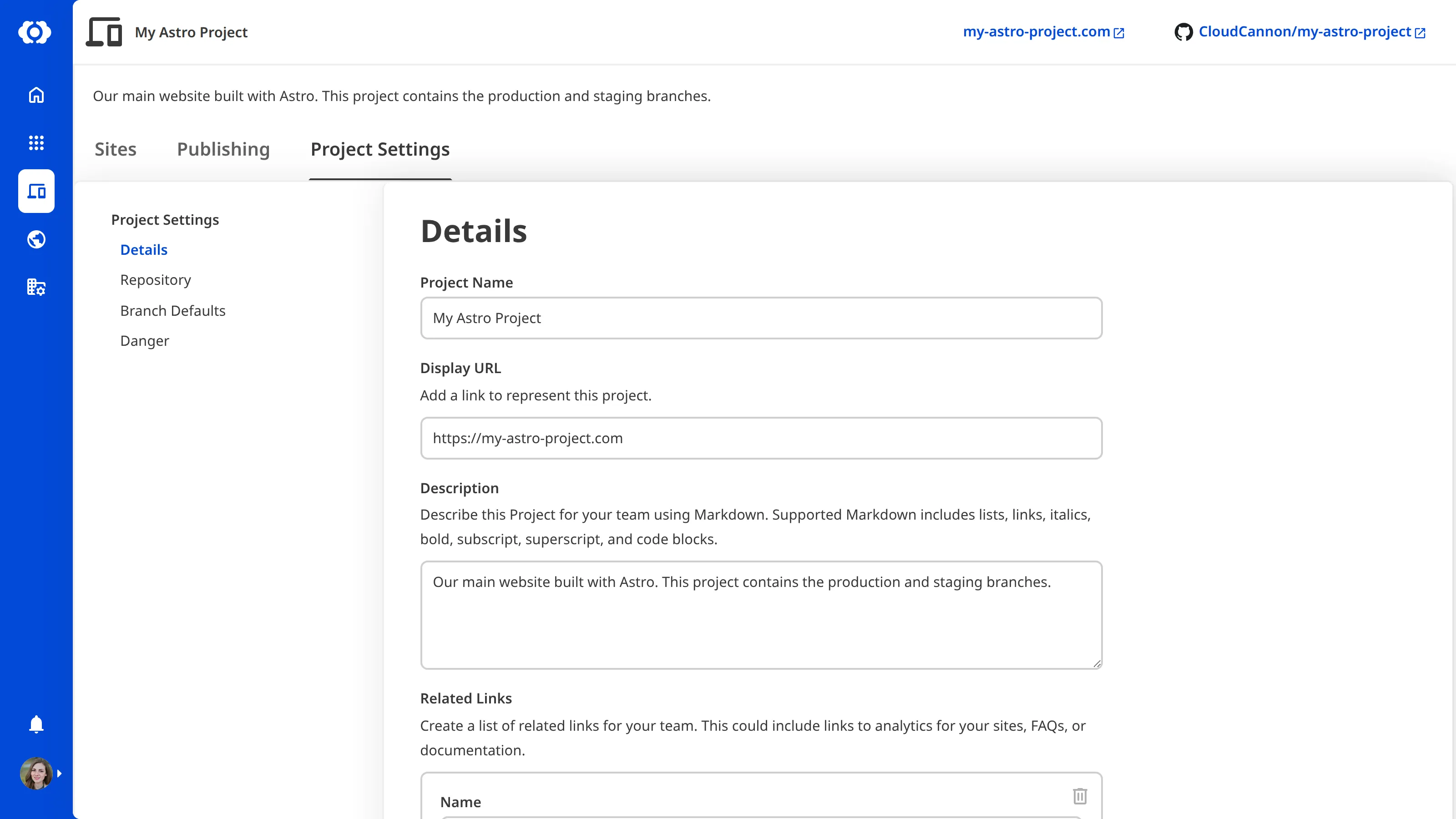
The Project Settings tab allows you to manage your Project across four sections:
- Details — Update your Project Name, Display URL, Description, and Related Links.
- Repository — View or change the connected Git Provider and Repository, toggle Allow all branching, and set the Main Branch.
- Branch Defaults — Configure default settings for new branch Sites, including the publishing method, authentication, and permissions.
- Danger — Delete your Project. This does not delete the Sites within it.