Error pages in the CloudCannon app, on hosted Sites, and in the Visual Editor preview show an error code, such as FS-402-02. Most of these pages also show a Reference and the time the error happened. The error code tells you which situation caused the error, and this page explains what each code means, who sees it, and what you can do about it.
Error pages in the CloudCannon app, and preview error pages that open in a browser tab of their own, link the error code to its entry on this page. Error pages on a hosted Site A website in CloudCannon that includes all the files, content, configuration, and settings needed to edit, build, and host a complete website. CloudCannon's visual editing interface provides a user-friendly way of updating your website files on an interactive preview of your webpage. You can navigate around your website preview using links/buttons, as you would on the live version, and edit your content inline on the page, or with the data panel or sidebar. What you see in the Visual Editor is what your website visitors will see on your live webpages.Site
Visual Editor
If you see an error on a website that you don't manage, contact the website's owner. Only the owner can change the website's settings.
How to read an error code#
Each error code has three parts. For example, in FS-402-02:
FSis the system that showed the error page.402is the HTTP status code of the response.02is the case number, which identifies the exact situation that caused the error.
The system prefix tells you where the error happened:
APPis the CloudCannon app at app.cloudcannon.com.FSandRTare the servers that host your Site.VCandNGare CloudCannon's hosting edge, which filters traffic before it reaches the servers that host your Site.PXis the preview of your Site that the Visual Editor loads.
Two case numbers have a fixed meaning:
00is an error without a more specific code. For example,FS-403-00is a request the servers that host your Site refused for a reason that has no code of its own.10on aPXcode is a page shown inside the preview in the Visual Editor, rather than in a browser tab of its own.
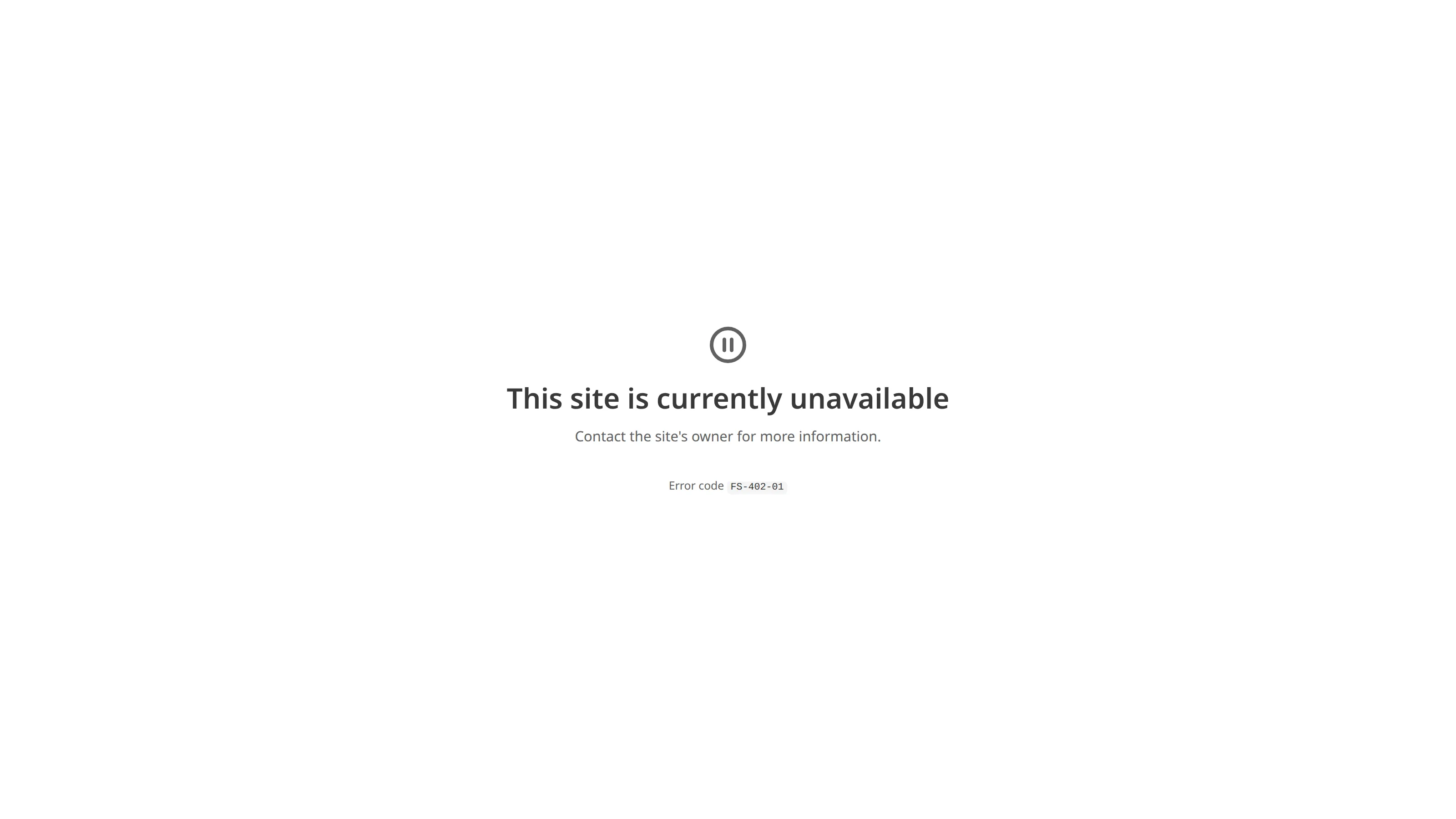
Several error codes can share a page title. For example, every 402 page reads This site is currently unavailable, and the case number tells you which situation caused it.
Reference and time#
Below the error code, most error pages show a Reference and the time of the error in UTC. The Reference identifies your request, so our support team can find exactly what happened.
Some pages show only the error code. These are pages that many visitors can see at once, such as Page not found, This site is currently unavailable, and This page can't be shown right now on a hosted Site, along with the pages CloudCannon shows while the app is unavailable.
If you contact our support team about an error, include the error code, the Reference, and the time exactly as they appear on the page.
CloudCannon app (APP)#
You see these pages in the CloudCannon app while you are logged in or logging in. People who open a Site through a Guest Access A CloudCannon feature that allows you to invite someone from outside your Organization to view, edit, and publish content for a specific Site. Unlike Site Sharing, Guests invited through Guest Access do not need a CloudCannon account. Instead, they log in using a Guest Password through a dedicated Guest Login Page. Each Site with Guest Access enabled uses one Seat, regardless of how many Guests use its password. The Guest Access feature was previously called Client Sharing.Guest Access
APP-403-04 and APP-404-02 without logging in.
These pages appear only in a web browser. Scripts and API clients that don't ask for an HTML page receive a plain response without an error code instead.
A request your browser sent to CloudCannon included data that isn't valid JSON. This is rare in normal use of the CloudCannon app, and usually means a browser extension, bookmarklet, or custom tool sent the request.
Go back to CloudCannon and try again. If you built the tool that sent the request, check that the request body is valid JSON. Scripts and API clients receive a plain 400 response without an error code instead of this page. For more information, please read our documentation on the CloudCannon API.
A request to CloudCannon was malformed, so CloudCannon couldn't read it. This usually means a link was cut short or edited by hand.
Check the link and try again, or go back to CloudCannon and find the page from there.
You opened a page that your CloudCannon account doesn't have permission to view.
Check that you are logged in to the right account. If you need access, ask someone who manages your Organization's A workspace in CloudCannon that groups together Sites, Organization Members, and shared resources. It is also the unit CloudCannon bills for. You can define permissions for your Organization, controlling the access each Organization Member has to resources on CloudCannon. You can create and be a part of multiple Organizations. A person who belongs to the same Organization as you. Organization Members are other CloudCannon users who have been invited to your Organization to collaborate on Sites, edit content, or manage settings. Each Organization Member has their own CloudCannon account with individual permissions assigned through Permission Groups, and uses one Seat in your Subscription Plan. Organization Members were previously called Team Members. A group that defines what permissions Organization Members have in CloudCannon. Permission Groups allow you to make Resources available to your Organization Members and define what actions are allowed (Read, Write, or Create) for each resource. CloudCannon provides several Default Permission Groups (including Owners, Developers, Technical Editors, Editors, and Billing) and you can create Custom Permission Groups for more granular control.Organization
Organization Member
Permission Group
You followed a link to log in to the CloudCannon Community, but CloudCannon couldn't verify the link.
Go back to the CloudCannon Community and start the login again.
CloudCannon couldn't complete your request. The message on the page explains why. Most often, a Git Provider A web-based service that hosts Git Repositories. CloudCannon supports GitHub, GitLab, and Bitbucket as Git Providers for syncing your website's code and content files.Git Provider
Follow the message on the page. If it names a Git Provider, try reconnecting that provider to CloudCannon, then try again. For more information, please read our documentation on authenticating your Git Provider.
CloudCannon couldn't verify the page from which you sent the request. This happens when a page has been open for a long time, or when your browser blocks cookies for CloudCannon.
Reload the page and try again. If it keeps happening, check that your browser allows cookies for app.cloudcannon.com.
Access to your CloudCannon account or Organization is locked.
Email our support team at support@cloudcannon.com to find out why and how to restore access. The page also has a Log out button if you want to log in with a different account.
You opened a Site through a Guest Access link, but the Organization that owns the Site no longer has Guest Access.
Ask the person who shared the Site with you to restore access. If you own the Site, check your Organization's Subscription The ongoing payment to CloudCannon for your Organization's Subscription Plan. A Subscription can be active, paused, or canceled. Canceling a Subscription will prevent you from paying for further use of features and resources without deleting the Organization, its Sites, or files. A set of features available to your Organization, the monthly usage limits for resources, and the price you pay for access to those features and resources, monthly or annually. Each Organization in CloudCannon can have one Subscription Plan, and can update or cancel at any time.Subscription
Subscription Plan
Your login through Single Sign-On (SSO) with SAML failed. The page reads Access denied when CloudCannon can explain the problem, and We couldn't complete that request otherwise. The message on the page describes what went wrong, for example that your login details are no longer available, that your email address isn't set up for your Organization's SAML account, or that the email address your identity provider sent doesn't match your CloudCannon account.
Follow the instructions on the page, then start the login again. If you manage SSO/SAML for your Organization, check your SAML settings in CloudCannon and the email address your identity provider sends for this person. For more information, please read our documentation on editing SSO/SAML authentication.
A request to CloudCannon contained characters CloudCannon couldn't read, or asked for a content type CloudCannon doesn't support. The message on the page says which.
If you see this page in your browser, check the link and try again. If the request came from your own script or API client, check the request's parameters and its Content-Type and Accept headers.
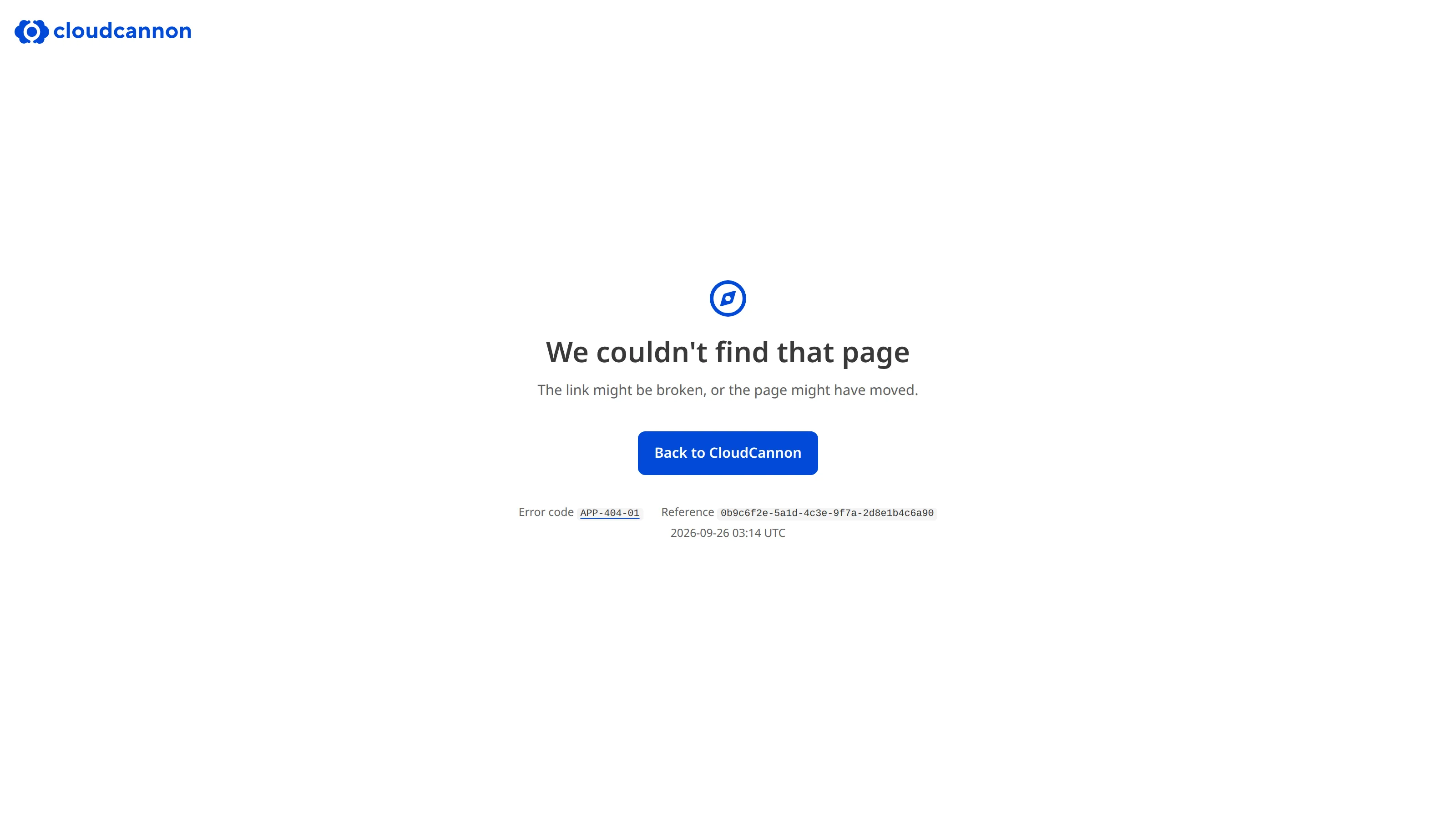
There is no page at the URL you opened. The link might be broken or out of date, or the page might have moved.
Check the URL, or go back to CloudCannon and find the page from there.
You opened a Guest Access link for a Site that doesn't have a Guest Access password.
Ask the person who shared the link with you to check their Guest Access settings. If you own the Site, please read our documentation on turning on Guest Access for a Site.
Something in your request wasn't valid, so CloudCannon didn't make the change. For example, a link asked for a page number that doesn't exist in a list.
Go back and try again.
CloudCannon received too many requests of one kind from your browser in a short time, for example password reset requests, email address changes, sign-ups, verification or discount codes, or syncs of a hosting provider.
Wait for the time shown on the page, then try again. Scripts and API clients receive a plain 429 response without an error code instead of this page. For more information, please read our documentation on API rate limiting.
CloudCannon received too many login attempts for your account or from your network in a short time.
Wait for the time shown on the page, then try again.
CloudCannon ran into an unexpected error while loading the page.
Try again in a few minutes. If it keeps happening, contact our support team with the error code, Reference, and time from the page.
CloudCannon ran into an unexpected error and couldn't load its normal error page. This page shows only the error code.
Try again in a few minutes. If it keeps happening, contact our support team with the URL you were opening and the time the error happened.
CloudCannon is temporarily unavailable for planned maintenance.
Check the CloudCannon status page for updates, then try again when maintenance is complete.
CloudCannon is temporarily unavailable. This page shows only the error code.
Check the CloudCannon status page for updates, then try again later.
Hosted Sites (FS and RT)#
Visitors see these pages on your Site's Custom Domain A unique address used to identify a website, such as cloudcannon.com. You can purchase a domain from a Domain Registrar and add it as a Custom Domain to your CloudCannon Organization before connecting it to any number of Sites hosted on CloudCannon. A free .cloudvent.net URL that CloudCannon assigns to every Site for reviewing your live website content after a successful Site build. Each Testing Domain uses a randomly generated adjective and noun separated by a hyphen. By default, CloudCannon automatically de-indexes Testing Domains so that they do not appear in search engines.Custom Domain
Testing Domain
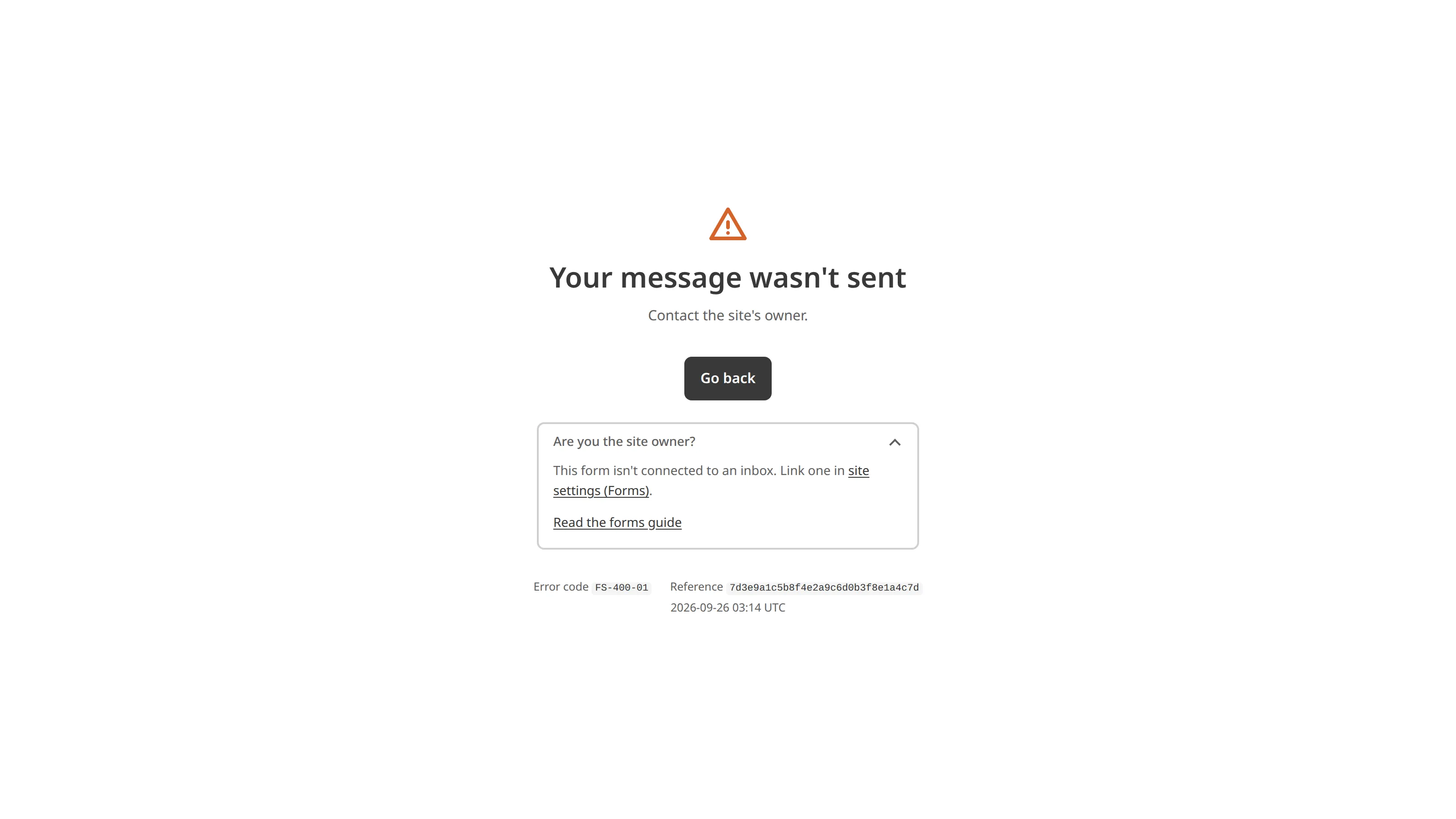
Many of these pages appear after a visitor submits a form. In each of those cases, CloudCannon doesn't store the submission.
The servers that host your Site couldn't accept the request, and the error has no more specific code.
The visitor can go back and try again. If it keeps happening, contact our support team with the error code, Reference, and time from the page.
A visitor submitted a form on your Site, but the form doesn't name an Inbox The page on your Site where CloudCannon collects and displays form submissions, allowing you to view, manage, and export form data submitted by website visitors. You can access each Inbox from the Inboxes link in your Site Navigation. Each Inbox is limited to 2250 submissions per month, however you can have multiple Inboxes on your Site.Inbox
inbox_key input, and your Site has no default Inbox.
To fix this, add an inbox_key input to the form that names an Inbox linked to your Site. You can also send these submissions to a default Inbox, although CloudCannon does not recommend it.
A visitor submitted a form on your Site, but the Inbox named in the form's inbox_key input isn't linked to your Site.
Check that the inbox_key value matches the key of an Inbox, and link that Inbox to your Site on the Forms page under Site Settings.
A visitor submitted a form on your Site, but forms aren't included in your Organization's Subscription Plan.
To receive form submissions, change to a Subscription Plan that includes forms. For more information, please read our documentation on updating your Subscription Plan.
A visitor submitted a form with a file attached, but file uploads aren't included in your Organization's Subscription Plan.
Change to a Subscription Plan that includes file uploads, or remove the file input from the form. For more information, please read our documentation on updating your Subscription Plan.
A visitor submitted a form with a file larger than 5 MB attached.
The visitor can go back and try a smaller file.
A visitor submitted a form with the _gotcha honeypot field filled in. CloudCannon treats these submissions as spam.
A visitor who sees this page can go back, reload the page, and try again. If real visitors see it, check that the _gotcha field is hidden, so that neither visitors nor their browser's autofill can fill it in.
A visitor submitted a legacy form, but CloudCannon couldn't read the form's _encrypted_details value.
Check that the _encrypted_details value was generated for this Site. For more information, please read our documentation on legacy forms.
A visitor submitted a form to an Inbox that expects legacy form details, but the form didn't include an _encrypted_details field.
Add the _encrypted_details field to the form, or name an Inbox with an inbox_key input instead. For more information, please read our documentation on legacy forms.
A visitor submitted a form with more than five files attached.
The visitor can go back, remove some files, and try again.
A visitor submitted a form with more than 100 fields.
Remove fields from the form until it has 100 or fewer.
A visitor submitted a form with a field longer than 10 KB.
The visitor can go back, shorten the field, and try again.
A visitor submitted a form with a file attached, but the Inbox to which the form sends submissions doesn't accept file uploads.
To accept files, select the Accept file uploads checkbox on the Inbox's Settings tab. Otherwise, remove the file input from the form.
A SAML login response was sent to your Site, but your Site doesn't use SAML authentication.
If you want visitors to log in through SAML, choose SAML on the Authentication page under Site Settings. SAML authentication is available on our Team Plan and Enterprise Plan. Otherwise, check why your identity provider sends login responses to this Site. For more information, please read our documentation on enabling SAML authentication.
A SAML login response was sent to the wrong path on your Site.
Set the reply URL in your identity provider to /login/consume on your Site, after your Site's subpath if it has one. The page shows the exact path under Are you the site owner?. For more information, please read our documentation on enabling SAML authentication.
A regular expression in your Site's routing file, .cloudcannon/routing.json, isn't valid. The page shows the error from the regular expression under Are you the site owner?.
Fix the regular expression in .cloudcannon/routing.json. For more information, please read our documentation on configuring custom routing.
The request named a domain that isn't valid. Visitors using a normal link shouldn't see this page.
The visitor can check the link and try again.
A visitor opened a password reset link for your Site, but the link is incomplete.
The visitor can request a new link to reset their password. For more information, please read our documentation on enabling user account authentication.
A visitor opened a link to a file in CloudCannon's older file storage, but the link contains characters that couldn't be read.
The visitor can check the link and try again. If the link comes from your Site, check that it is encoded correctly.
The visitor needs to log in to see this page, and the error has no more specific code.
If the visitor should have access, check the settings on the Authentication page under Site Settings. For more information, please read our documentation on what authentication is.
A visitor submitted a form on your Site without a CAPTCHA response. Your Site requires a CAPTCHA for the Inbox to which the form sends submissions. This happens when the form doesn't include the CAPTCHA widget, or when the widget didn't load for the visitor.
The visitor can go back and try again. To fix this, add your CAPTCHA provider's widget to the form, or turn off the Require Captcha option for that Inbox on the Forms page under Site Settings.
Your Site uses SAML authentication, and the visitor's identity provider declined or couldn't complete their login.
If the visitor should have access, check your SAML settings on the Authentication page under Site Settings, and check that your identity provider allows this person to log in. For more information, please read our documentation on enabling SAML authentication.
A visitor submitted a form, but the Inbox to which it sends submissions uses a CAPTCHA provider that hosted Sites don't support.
Choose Google reCAPTCHA, hCaptcha, or Cloudflare Turnstile as the CAPTCHA provider on the Inbox's Settings tab.
CloudCannon isn't serving your Site, and the error has no more specific code.
Check the Subscription page under Org Settings for billing or usage warnings. If there are none, contact our support team.
Your Organization's Subscription is on hold, paused, or canceled, so CloudCannon isn't serving your Site. Visitors see this page on every page of the Site.
To restore your Site, resolve the payment issue or restart your Subscription. For more information, please read our documentation on what happens when a payment fails.
Your Organization has used all the Hosting Bandwidth The amount of data transferred from your hosted Site to visitors' browsers, determined by visitor count and webpage size. Each Subscription Plan includes a set amount, and you can enable Overages to keep your Sites live if you go over this amount. You can review your usage under the Usage tab of your Site Dashboard or Organization Home page. The extra usage charged when your Organization exceeds its plan's included limits and Overages are enabled. Overage usage appears on your next invoice.Hosting Bandwidth
Overage
To restore your Site, enable Overages or change your Subscription Plan. Otherwise, your Site comes back at the start of next month. For more information, please read our documentation on what Hosting Bandwidth is.
Your Organization uses more Custom Domains than its Subscription Plan and Add-Ons Extra capacity (Organization Members, bandwidth, custom domains, or build time) that extends a plan's included limits. When Overages are enabled, CloudCannon automatically adds capacity as your Organization exceeds its plan's included limits.Add-On
To restore your Site, remove Custom Domains you no longer need, add more with an Add-On, or change your Subscription Plan. For more information, please read our documentation on what a Custom Domain is.
The servers that host your Site refused the request, and the error has no more specific code.
If a visitor thinks this is a mistake, they can contact the site's owner. If you own the Site and can't find a cause, contact our support team with the error code, Reference, and time from the page.
Your Site requires visitors to log in with a CloudCannon account, and the account the visitor logged in with doesn't have access to the Site.
The visitor can log out of CloudCannon, log in with an account that has access, then open the page again. If this person should have access, give their CloudCannon account access to the Site. For more information, please read our documentation on what authentication is.
A visitor submitted a form on your Site, but CloudCannon couldn't confirm that the form ran in a browser with JavaScript turned on.
The visitor can turn on JavaScript, then try again. If visitors with JavaScript turned on see this page, check that the scripts on the form's page load without errors.
Your Site's routing file, .cloudcannon/routing.json, isn't valid JSON, so CloudCannon can't work out how to serve the page.
Fix the JSON in A storage location for the code and files that make up your website. CloudCannon supports the repository providers GitHub, GitLab, and Bitbucket, and highly recommends using a repository to store your website's files for better version control and collaboration..cloudcannon/routing.json. You can edit the file in CloudCannon or in your Git RepositoryGit Repository
Authentication is turned on for your Site, but some of its settings are missing, so CloudCannon can't check who is allowed to see the page.
Complete the settings for your authentication method on the Authentication page under Site Settings. For more information, please read our documentation on what authentication is.
Your Site uses an authentication method that isn't included in your Organization's Subscription Plan, so CloudCannon isn't serving the protected pages of your Site.
Choose another authentication method on the Authentication page under Site Settings, or change your Subscription Plan. Password authentication is available on all Subscription Plans. User accounts and SAML authentication are available on our Team Plan and Enterprise Plan. For more information, please read our documentation on what authentication is and updating your Subscription Plan.
A visitor opened a link to a file in CloudCannon's older file storage, but the link doesn't point to a location from which files are served.
The visitor can check the link and try again. If the link comes from your Site, check that it is complete.
There is no page at the URL the visitor opened, or the domain isn't serving a Site.
The visitor can check the link or go to your Site's homepage. If the page should exist, check that it is in your Site's build output and that links to it use the right URL. To send visitors from an old URL to a new one, please read our documentation on configuring custom routing.
A visitor sent a request, usually a form submission with a file, that is too large for your Site to accept.
The visitor can try a smaller file.
A visitor sent a request in a format your Site can't accept.
The visitor can go back and try again. If this happens when visitors submit a form, check the form's enctype attribute. A form that sends files needs enctype="multipart/form-data".
The visitor's browser asked for part of a file that doesn't exist, for example when it resumed a download of a file that has since changed.
The visitor can reload the page to load the whole file.
CloudCannon couldn't process a form submission, and the error has no more specific code.
The visitor can go back and try again. If it keeps happening, contact our support team with the error code, Reference, and time from the page.
A visitor submitted a form with every field empty.
The visitor can go back, fill in the form, and try again.
Your Site uses SAML authentication, but CloudCannon couldn't verify the login response from the identity provider.
Check that the SAML settings on the Authentication page under Site Settings match your identity provider. For more information, please read our documentation on enabling SAML authentication.
A visitor submitted a form, but CloudCannon couldn't read the submission, for example because the upload was interrupted.
The visitor can go back and try again.
CloudCannon ran into an unexpected error while serving the page.
The visitor can try again in a few minutes. If it keeps happening, contact our support team with the error code, Reference, and time from the page.
A route in your Site's routing file, .cloudcannon/routing.json, has a regular expression that isn't valid. The page shows the error from the regular expression under Are you the site owner?.
Fix the regular expression in .cloudcannon/routing.json. For more information, please read our documentation on configuring custom routing.
There is no page or route at the URL the visitor opened. The causes and fixes are the same as for FS-404-01.
A visitor sent a request that is too large for your Site to accept. The causes and fixes are the same as for FS-413-01.
CloudCannon couldn't process a form submission. When a more specific reason is known, the page shows it.
The visitor can go back and try again.
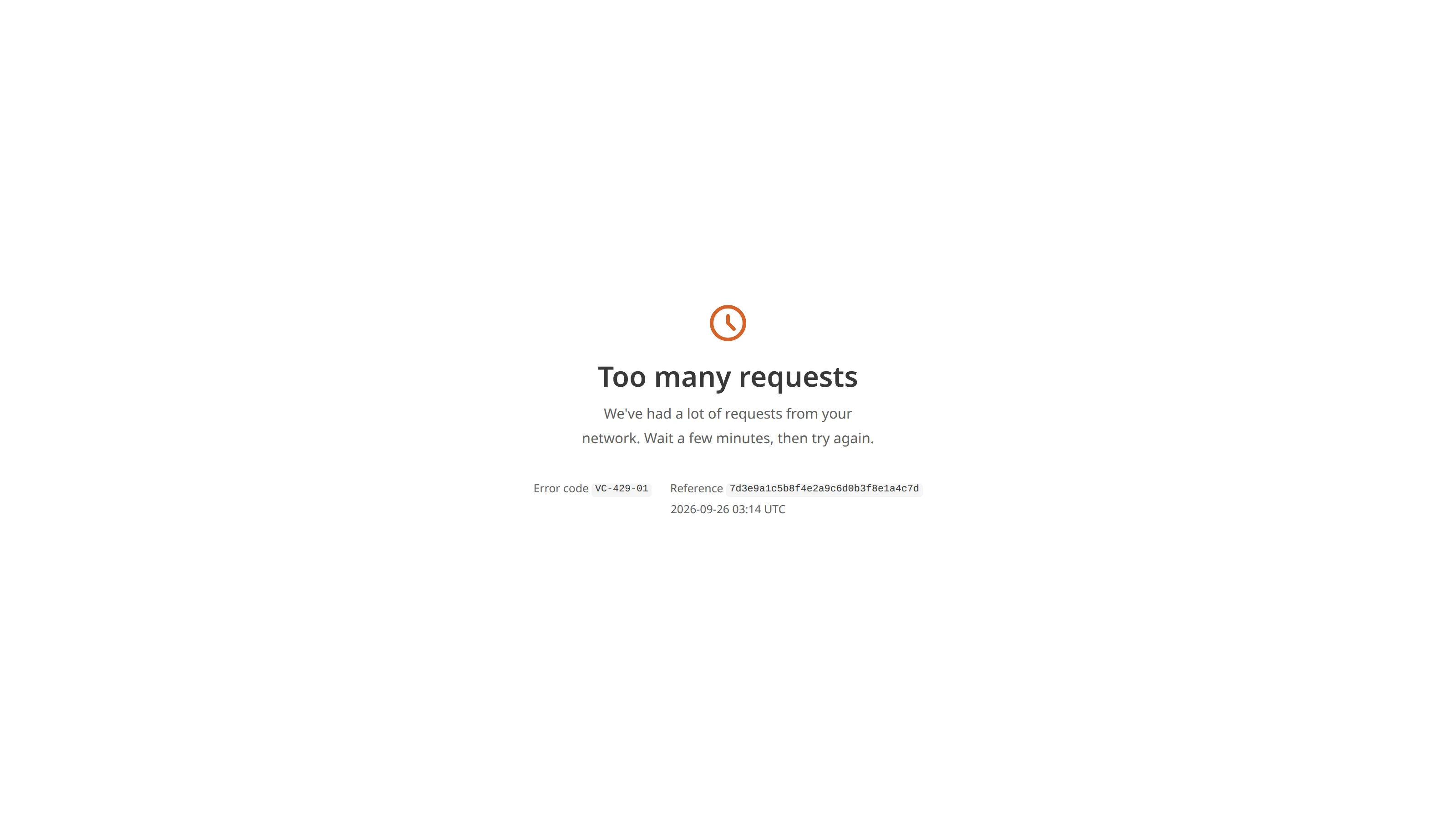
Your Site received too many requests from the visitor's network in a short time.
The visitor can wait a few minutes, then try again.
Hosting edge (VC and NG)#
CloudCannon's hosting edge filters traffic before it reaches the servers that host your Site. Most of these pages protect your Site from automated traffic, such as scanners, crawlers, and spam bots. Visitors see these pages on your Site's Custom Domain or Testing Domain.
If a real visitor sees one of these pages when they shouldn't, contact our support team with the error code, Reference, and time from the page.
CloudCannon has blocked the domain the visitor opened.
If this is your Site's domain, contact our support team.
The request used a method reserved for CloudCannon's internal use. Visitors don't see this page during normal browsing.
No action is needed.
CloudCannon blocked the request because it came from software that identifies itself as a known security scanner.
Visitors using a normal browser shouldn't see this page. If one does, the visitor can contact the site's owner.
CloudCannon blocked the request because it came from a link on a known spam website.
Visitors who reach your Site from other websites aren't affected. If a visitor thinks this is a mistake, they can contact the site's owner.
The visitor requested a path that automated scanners commonly probe, such as a .php file, and CloudCannon blocked the request before it reached your Site.
The visitor can check the link or go to your Site's homepage.
The URL the visitor opened is 2,000 characters or longer.
The visitor can check the link and try again. If a link on your Site or in your emails produces a URL this long, shorten it.
Your Site received too many requests from the visitor's IP address in a short time. Many people sharing one network, such as an office or a VPN, or a crawler can cause this.
The visitor can wait a few minutes, then try again.
The visitor's IP address received too many login prompts from your Site in a short time. Failed login attempts count toward this limit, and so does opening pages that require a login without logging in first.
The visitor can wait a few minutes, then try again. If a script requests your Site's protected pages, check that it logs in with the right credentials or sends a valid bearer token, and doesn't retry repeatedly.
CloudCannon received too many requests for pages that don't exist from the visitor's IP address in a short time. This is usually a crawler, or a page with many broken links.
The visitor can wait a few minutes, then try again. Check your Site for broken links, such as links to images or files that no longer exist.
CloudCannon received too many form submissions from the visitor's IP address in a short time. This is usually form spam, or a visitor submitting the same form repeatedly.
The visitor can wait a few minutes, then try again.
Your Site received too many requests for paths that automated scanners commonly probe, such as .php files, from the visitor's IP address in a short time.
Visitors using a normal browser shouldn't see this page. If one does, the visitor can wait a few minutes, then try again.
Your Site received too many requests for pages that couldn't be served from the cache from the visitor's IP address in a short time. This is usually a crawler.
The visitor can wait a few minutes, then try again.
The hosting edge couldn't reach the servers that host your Site, or they didn't respond in time.
The visitor can try again in a few minutes. Check the CloudCannon status page for any ongoing issues.
The hosting edge ran into an error while loading your Site, and the error has no more specific code.
The visitor can try again in a few minutes. Check the CloudCannon status page for any ongoing issues.
CloudCannon blocked the request because it came from software that identifies itself as a known web fuzzing tool, which sends many requests to find hidden pages.
Visitors using a normal browser shouldn't see this page. If one does, the visitor can contact the site's owner.
The request used an HTTP method that hosted Sites don't accept. Hosted Sites accept only GET, POST, OPTIONS, and HEAD requests.
If your own code sends requests to your Site, change it to use one of the supported methods.
The visitor sent a request larger than 10 MB, usually a form submission with a large file.
The visitor can go back and try a smaller file.
Your Site received too many requests or form submissions from the visitor's IP address in a short time. Many people sharing one network, or a crawler, can cause this.
The visitor can wait a few minutes, then try again.
The hosting edge couldn't reach the servers that host your Site.
The visitor can try again in a few minutes. Check the CloudCannon status page for any ongoing issues.
The servers that host your Site didn't respond within 90 seconds.
The visitor can try again in a few minutes. Check the CloudCannon status page for any ongoing issues.
Visual Editor preview (PX)#
You see these pages in the preview of your Site in the Visual Editor, or when you open a preview link directly in your browser. Some appear when the Visual Editor can't load a file through the preview, such as an image, a screenshot of a page, or a file's details.
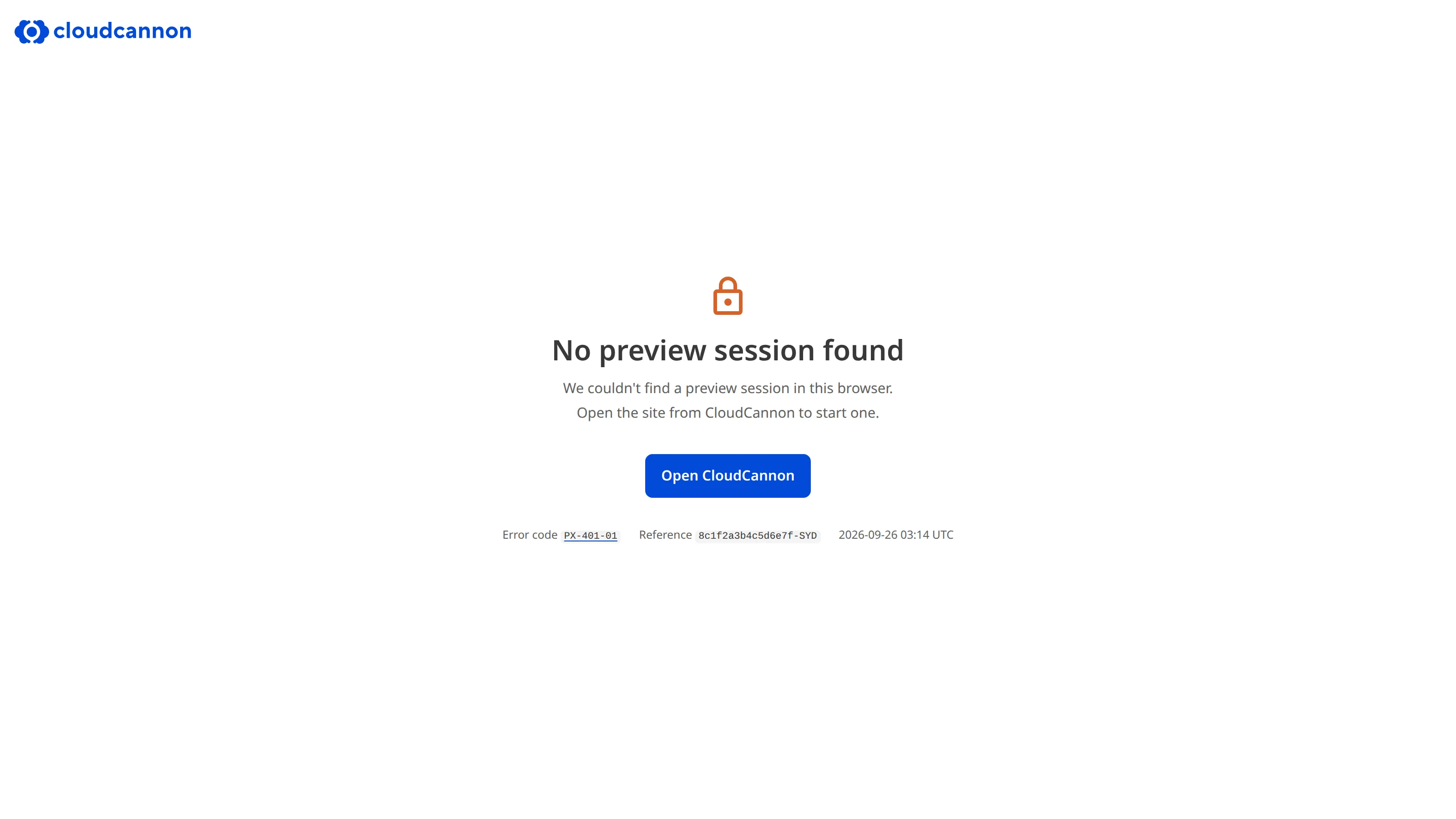
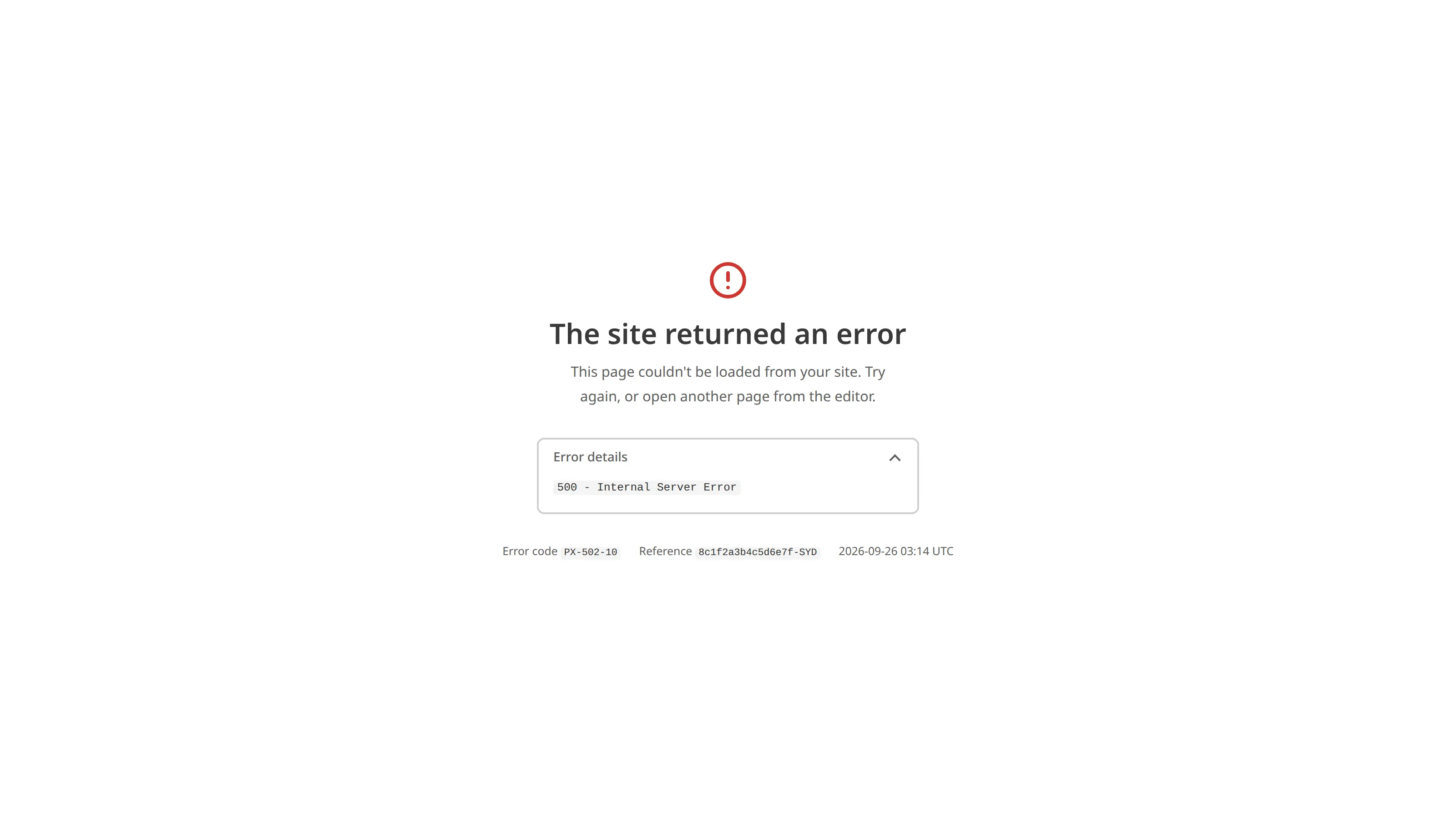
Pages with a 10 case number appear inside the preview, in place of the page the Visual Editor tried to load. They have no CloudCannon logo, and some include an Error details section with the reason.
The Visual Editor couldn't prepare a resized copy of a file from your Site.
Open the file again from CloudCannon. If it keeps happening, check that the file isn't damaged.
The Visual Editor couldn't resize a screenshot of a page on your Site.
Open the file again from CloudCannon.
The Visual Editor couldn't load the details of a file on your Site.
Open the file again from CloudCannon.
Your browser doesn't have a preview session for this Site. This happens when you open a preview link in a different browser, or when your browser blocks third-party cookies.
Open the Site from CloudCannon to start a new preview session. If it keeps happening, check that your browser allows third-party cookies for CloudCannon.
The Visual Editor couldn't find a preview session for this Site, so it couldn't load the preview. The Error details section on the page shows the reason.
Reload the Visual Editor to start a new preview session.
Your preview session doesn't include this Site.
Open the Site from CloudCannon to refresh your access.
CloudCannon couldn't verify your preview session, for example because it has expired.
Open the Site from CloudCannon to start a new preview session.
CloudCannon couldn't verify the login it uses to start your preview session.
Open the Site from CloudCannon to start a new preview session.
The request used an HTTP method the preview doesn't accept. Previews accept only GET and HEAD requests.
If your own code sends requests to the preview, change it to use GET or HEAD.
The Visual Editor asked for a file without the access token that proves it may load the file.
Open the file again from CloudCannon.
The access token for a file isn't valid, for example because it has expired.
Open the file again from CloudCannon.
The access token for a file was issued to a different IP address. This can happen when your network changes, for example when you connect to or disconnect from a VPN.
Open the file again from CloudCannon.
The access token for a file was issued for a different Site.
Open the file again from the Site it belongs to in CloudCannon.
A request for a screenshot of a page on your Site was missing some of the details it needs.
Open the file again from CloudCannon.
The Visual Editor couldn't verify your preview session for this Site, so it couldn't load the preview. The Error details section on the page shows the reason.
Reload the Visual Editor to start a new preview session.
A screenshot of a page was requested, but your preview session isn't linked to an Organization.
Open the Site from CloudCannon to start a new preview session.
A request for a file's details didn't say which file.
Open the file again from CloudCannon.
A request asked for the details of a file that the preview doesn't make available.
Open the file again from CloudCannon.
Your Site doesn't have the page the Visual Editor tried to load.
Check that the page exists in your Site's build output, or open another page from the Visual Editor.
CloudCannon ran into an unexpected error while loading the preview.
Try again in a few minutes. If it keeps happening, contact our support team with the error code, Reference, and time from the page.
Your Site returned an error when the Visual Editor tried to load a page. The Error details section on the page shows the status your Site returned.
Try again, or open another page from the Visual Editor. If the error details point to your Site's settings, such as authentication or routing, check the matching FS code on this page.