Use View As mode to check a client's permissions


View As mode lets you load your Organization with another Team Member’s permissions, so you can view their settings before you hand over the site. But why would you use it?
Let's imagine your site buildout is complete. The content’s migrated, the collections are configured, and you’ve added the client’s marketing lead as a Team Member in a Permission Group that lets them edit what they need to, but keeps them well away from build settings and DNS.
That leaves the part you can’t easily check from your own screen. When they log in on Monday, can they actually reach the blog collection? Is there a settings page they need that you’ve accidentally locked them out of? Or is there one they can reach that you’d rather they couldn’t?
Your own view is the problem. As an Owner, or as an agency developer working in a Client Organization, you see every site, every setting, and every menu item. That’s great, but it’s probably the least useful vantage point for answering a question about someone else’s access.
What View As does Direct link to this section
From the Team page under Org Settings, open the context menu on any Team Member’s card and select View as [name]. Confirm, and CloudCannon reloads your Organization with their Permission Groups applied. A Viewing as banner pins itself to the top of the page so you always know which set of eyes you’re borrowing.
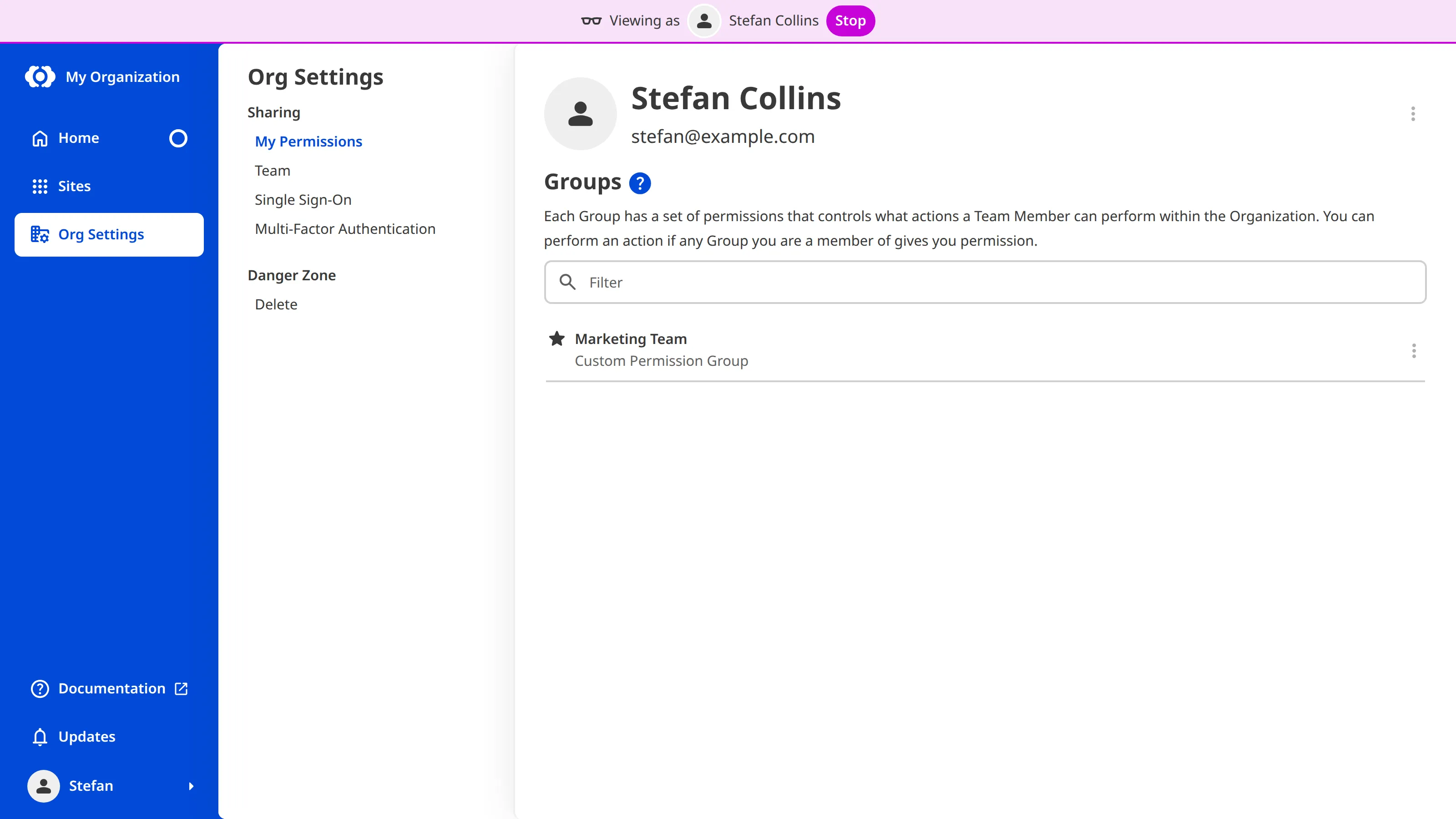
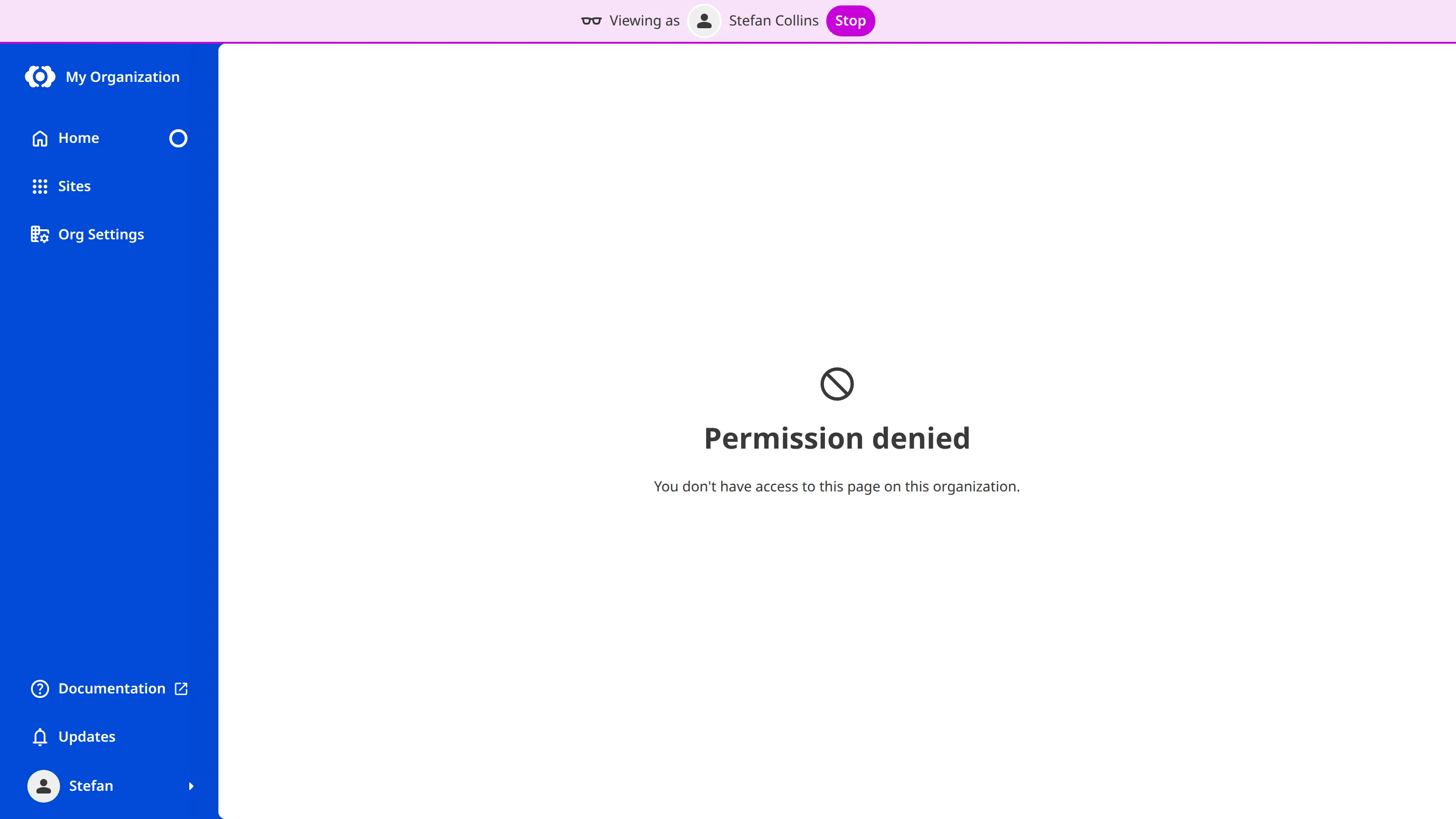
From there it behaves the way it would for them. Options their Permissions don’t cover are hidden from the interface. If you go looking for a page they can’t open, you’ll see the same Permission denied message they’d get. Click Stop in the banner when you’re done, or use the Stop viewing as option in your account menu.
Agency developers don’t need to be an Owner of the client’s Organization to do this. Membership of the Partner Permission Group in a Client Organization is enough.
What are the limits? Direct link to this section
It's worth noting that this is a view only; you aren’t signed in as that person. View As changes which resources you can open and edit, nothing else. Anything you do while you’re in it still gets logged under your name, so there’s no ambiguity in the audit trail later. Switching Organizations or logging out ends the session.
View As isn’t a replacement for actual client testing. It can answer questions about Permissions, for example, but it won’t tell you whether an input in the Visual Editor is labeled clearly, or whether your schema makes sense to a non-developer. Those still need a real person clicking around.
What happens when permissions get complicated? Direct link to this section
The handover case, above, is the simple one. It gets more "interesting" when your client is a bigger operation with significant staff turnover and shifting responsibilities.
Picture an Organization running eight sites. Two internal marketers publish across all of them. A freelance writer should only be able to touch drafts on the blog. An SEO consultant needs to read four sites and edit one. Developers need build settings and have no business anywhere near billing. Everyone sits in two or three custom Permission Groups, and a couple of those groups were set up by someone who left the company last March.
Each group is legible on its own. You open it and you read the checkboxes. What any one person ends up with after you combine their permissions or change their groups might be a different question.
View As turns this question into something you can quickly check. Pick the person, load the Organization as them, and try the pages they shouldn’t reach. If the Permission denied message shows up, you’re done wondering.
Where I’d use it Direct link to this section
The obvious moment to test out View As mode is right before handover, as a final pass. Set up the Permission Groups, view as each of your Team Members in turn, and walk the paths they’ll actually use. Ten minutes of that beats a support thread on their first morning.
After that, or in more complex Organizations, I’d check any time you change someone’s access, and again perhaps once a quarter for any Organizations where a lot of people have come and gone.
Read the full details
Learn how to view your Organization as one of your Team Members to preview their exact permission set.


