Whenever you edit your files, CloudCannon will remember any updates you make in-app. To see your updates live on your site or commit them to your Git repository, you must save your changes.
Any team member can review and save file changes, even if they did not contribute to those edits.
It is important to save your changes often, as unsaved changes can prevent other updates to your site. We recommend saving your site after every editing session.

To save your changes:
- Click the Save button in the Site navigation sidebar or the top right of your editing interface. CloudCannon will open the Review changes modal.
- Review all unsaved changes and select the files you would like to save. Any file you contributed to will be selected by default.
- Once you are happy with your selection, click the Save selected button.
CloudCannon will rebuild your site and commit your changes to your Git repository. Once the build is complete, your changes will be live on your Testing Domain and any Custom Domain connected to your site.
Review your changes#
Clicking the Save button will open the Review changes modal and provide a comprehensive list of the unsaved changes to your site.
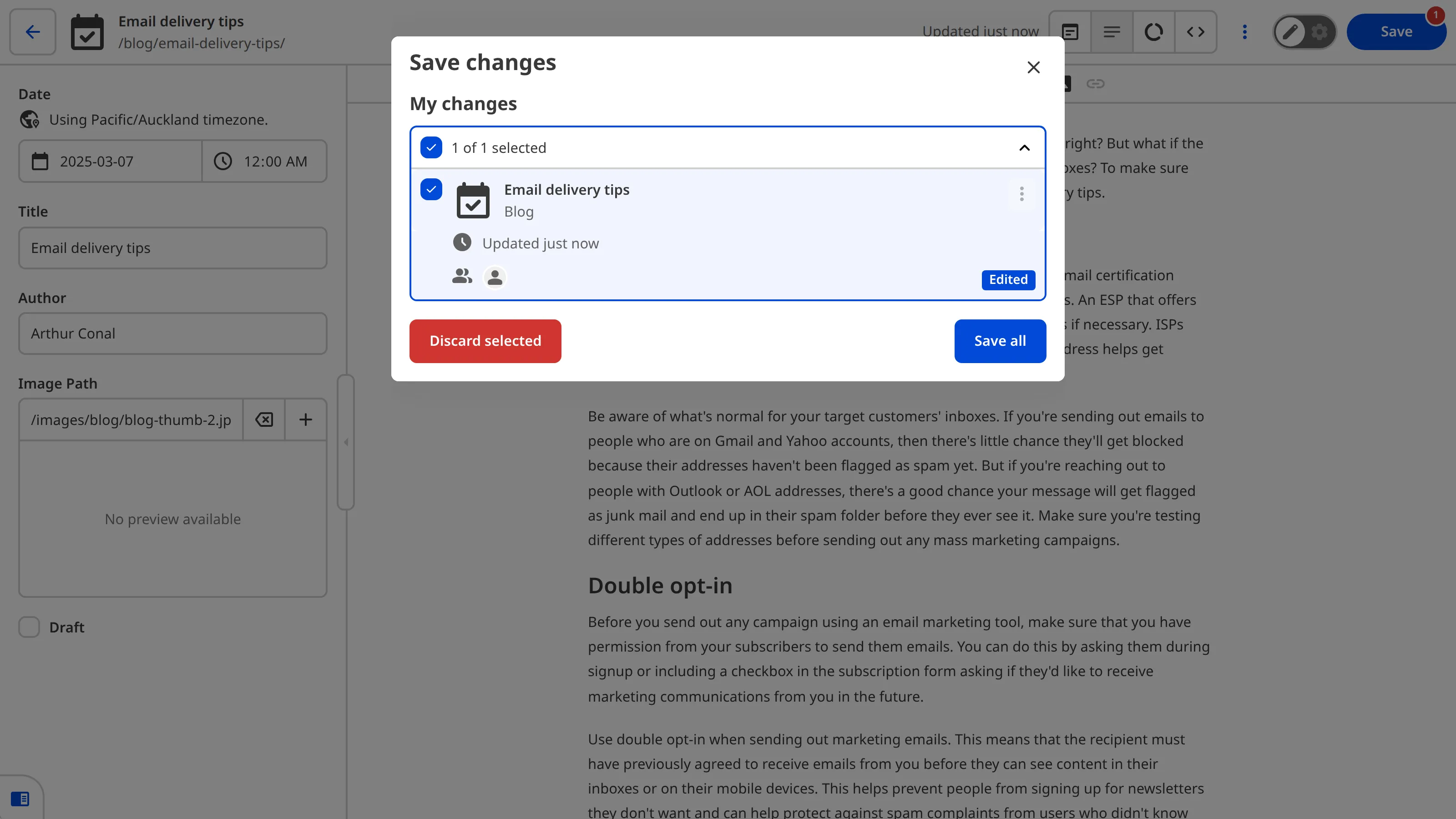
Each file with unsaved changes appears in the Review changes modal as a file card. Each card shows the title, collection (if applicable), filename, the avatar of each team member who contributed to unsaved changes, and when the file was last updated. The file card will also show a New, Edited, or Deleted badge to summarize the unsaved changes to that file.
Each file is grouped into one of three headings: My changes, Other changes, and Needs attention. The My changes heading lists all the files where you contributed to unsaved changes. These files are selected by default when you open the Review changes modal. The Other changes heading lists all the files where you have not contributed to unsaved changes.
You can select as many or as few files as you like using the checkboxes by each heading or file card. The Save selected and Discard selected buttons at the bottom of the modal allow you to save or discard your selected files as a group. You can also discard unsaved change on individual items using the Context Menu in the top right of the file card.
Needs Attention
In some cases, you may see a Needs attention heading. This occurs when an incoming change from outside your Site (i.e., from your Developer's coding environment or another connected CloudCannon Site) conflicts with your unsaved changes. To protect your unsaved changes, CloudCannon will pause Syncing.
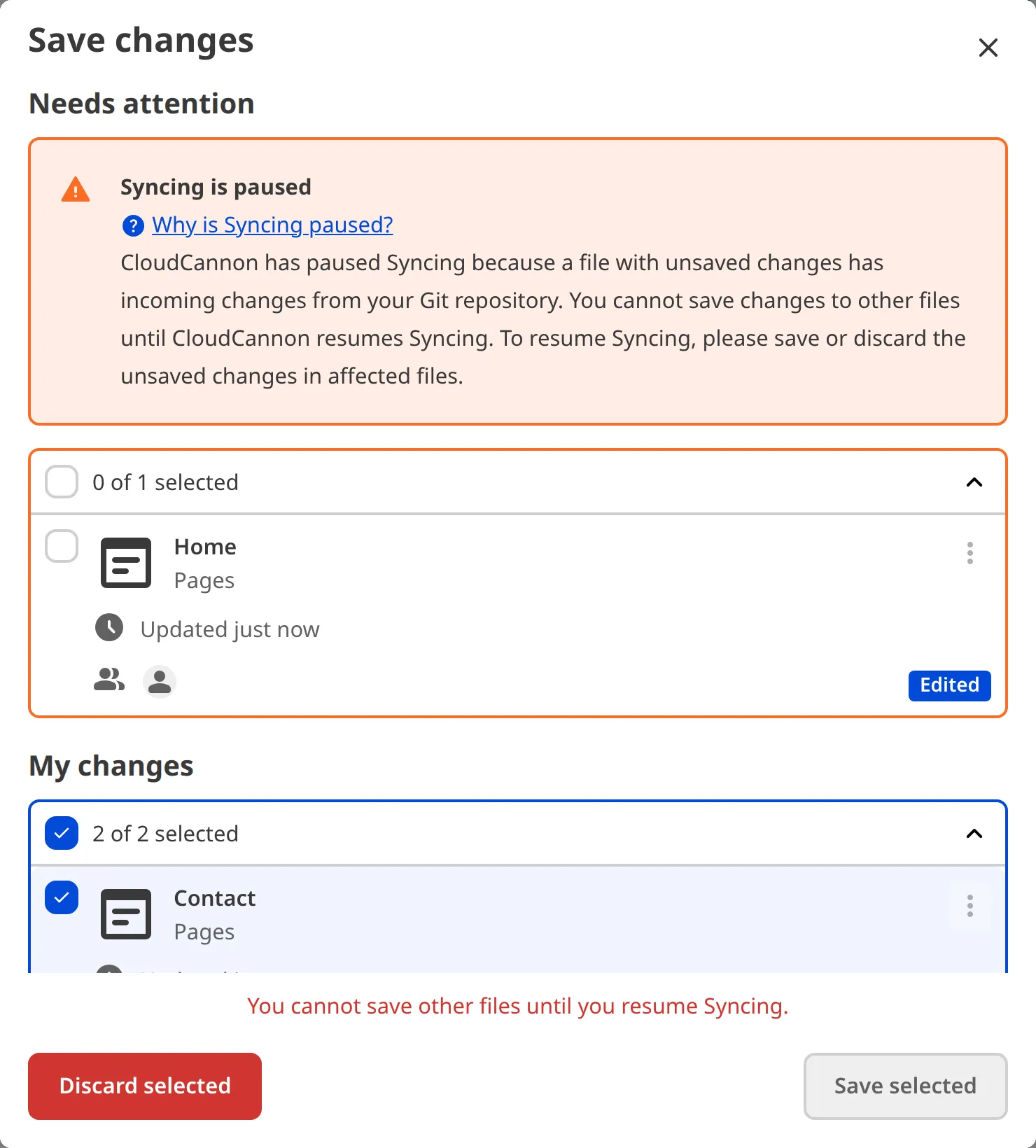
To resume syncing and save changes to other files on your Site, you must save the changes in the affected files or discard those changes. For more information, read our documentation on resuming Syncing.
Inputs
Depending on how your developer have configured your Site, some file cards may have required input fields before you can save your changes.
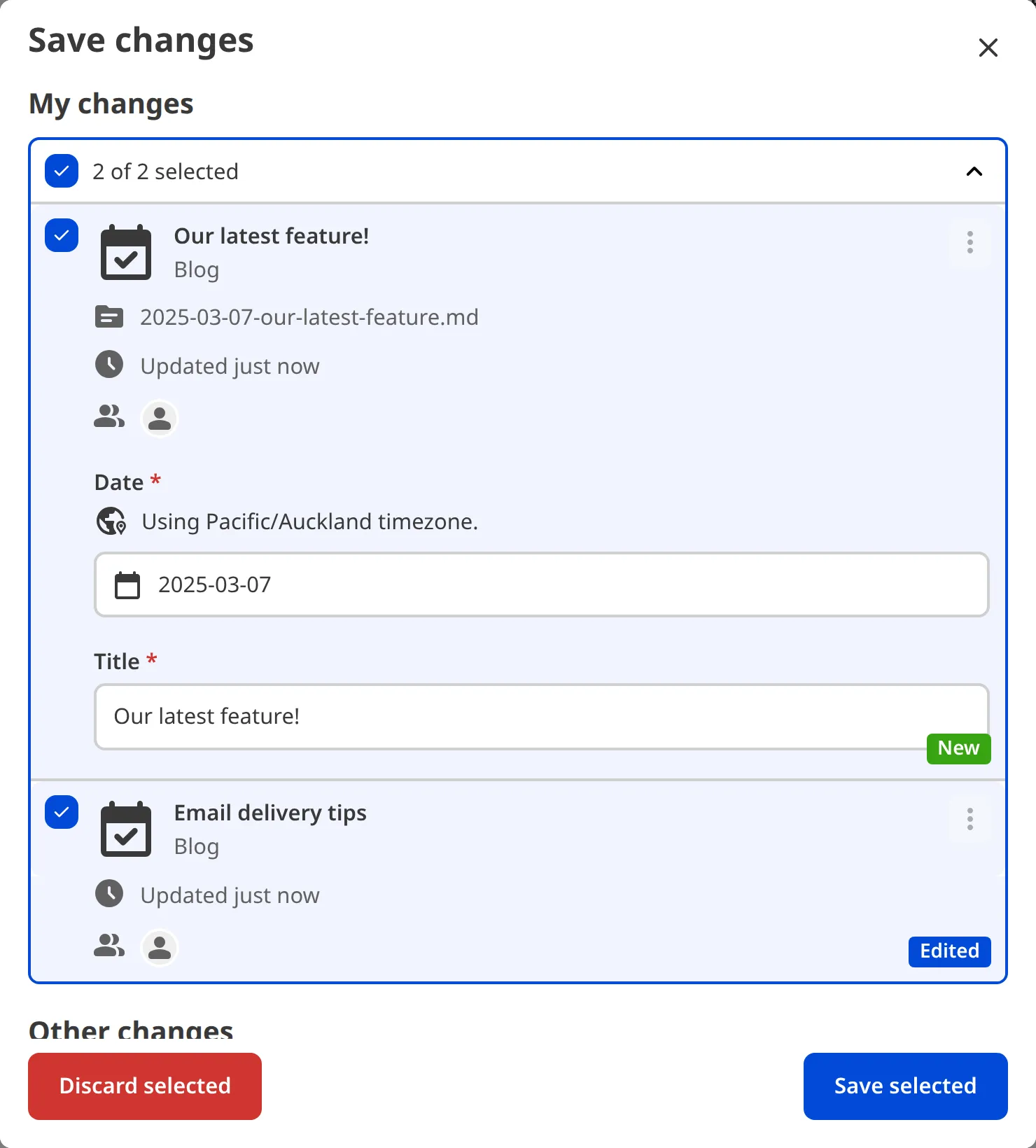
Common examples of required inputs are file name, title, and date. Which inputs are required depends on how you have configured your site, particularly the default path for new files.
Commit messages
If you or a team member has configured commit messages for your site, your Review changes modal will have a commit message field. This field may be required before you can save your changes.
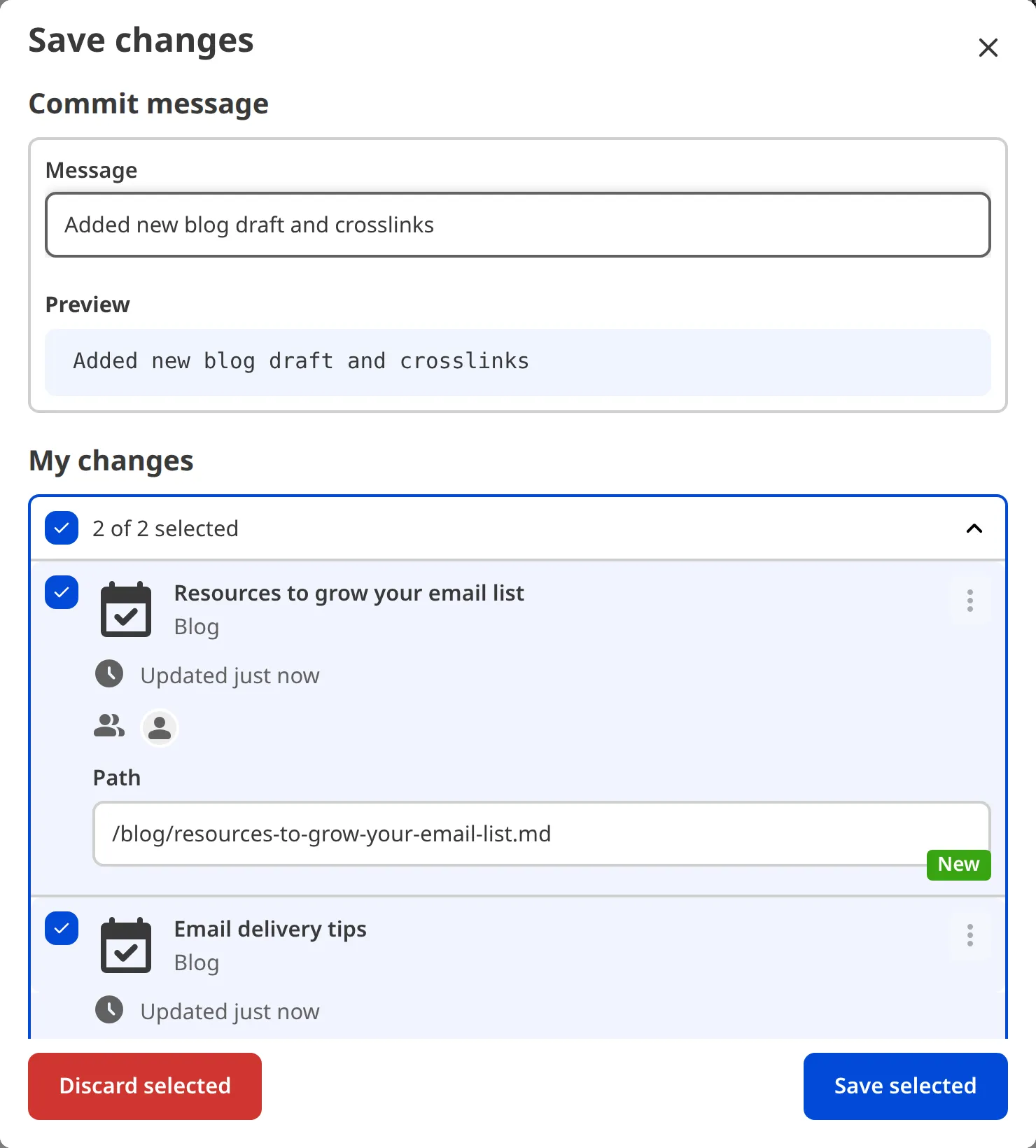
A commit message should summarize the theme of your changes. Good commit messages will help you and other team members in the future by providing a record of why you updated your site. For example:
“Added a profile image and updated the Staff and Contact pages to include our new consultant, Deborah.”
We recommend the following best practices for commit messages:
- Clearly state the purpose of your changes by using verbs (e.g., Added, Updated, Deleted, Fixed, etc.).
- Avoid vague descriptions like “updated code” or “fixed typo”. Be specific.
- Reference any relevant context, such as issue numbers, discussions, or contacts.