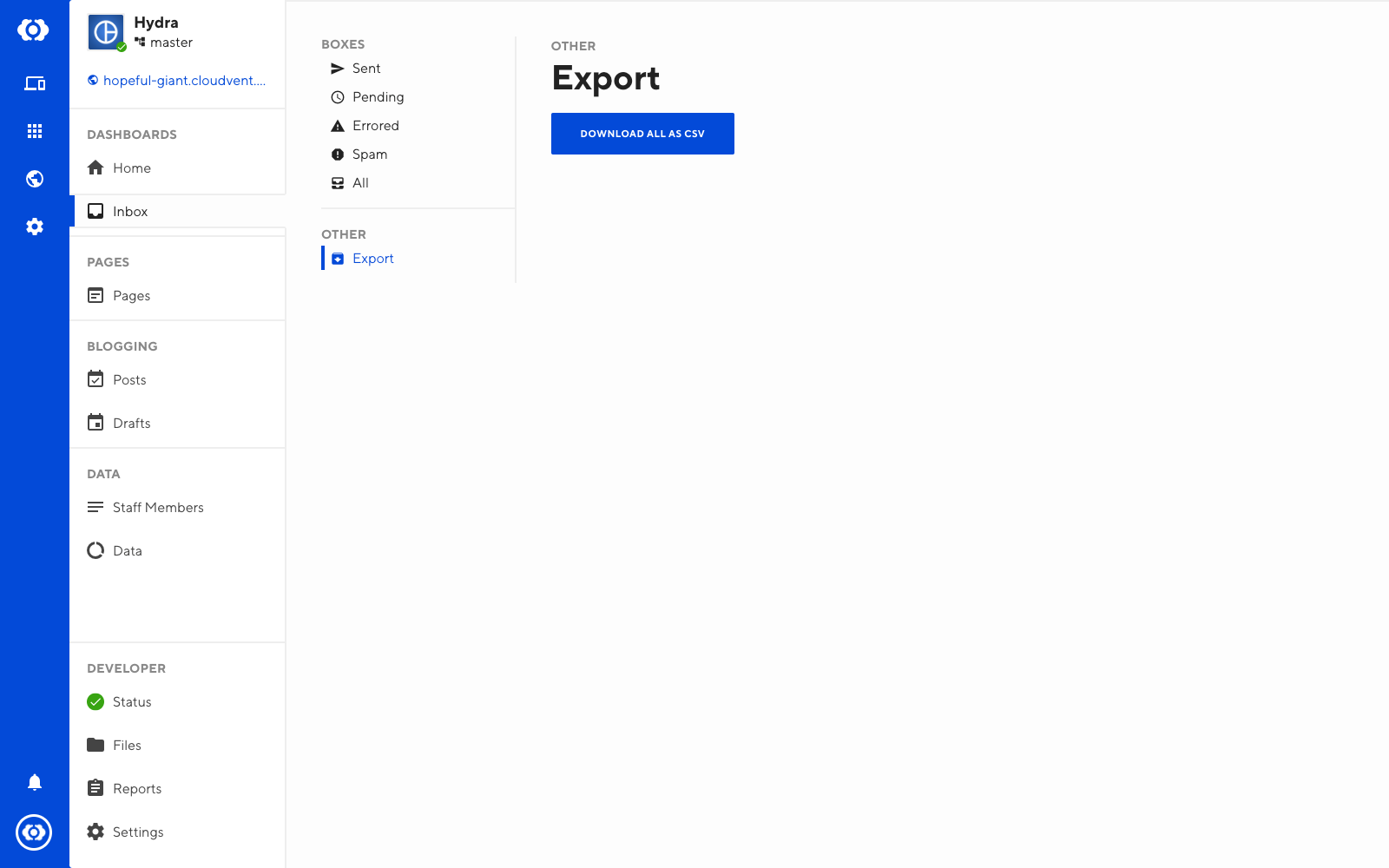
Once you have correctly added an Inbox to your site, the Inbox tab will appear under Dashboards in the sidebar. In that tab, you can view all submissions to that Inbox.
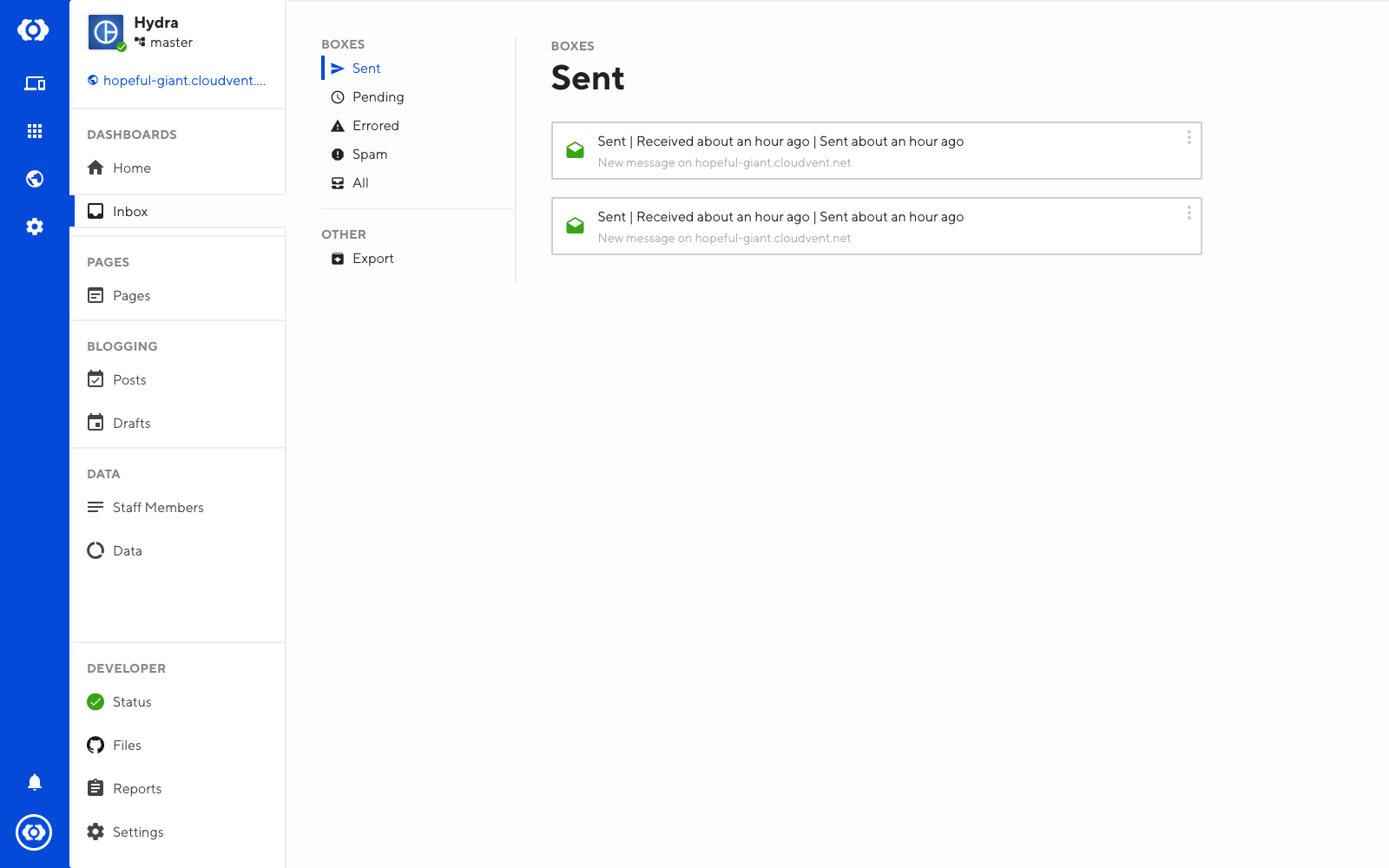
You can view more details about each submission by clicking it in your Inbox.
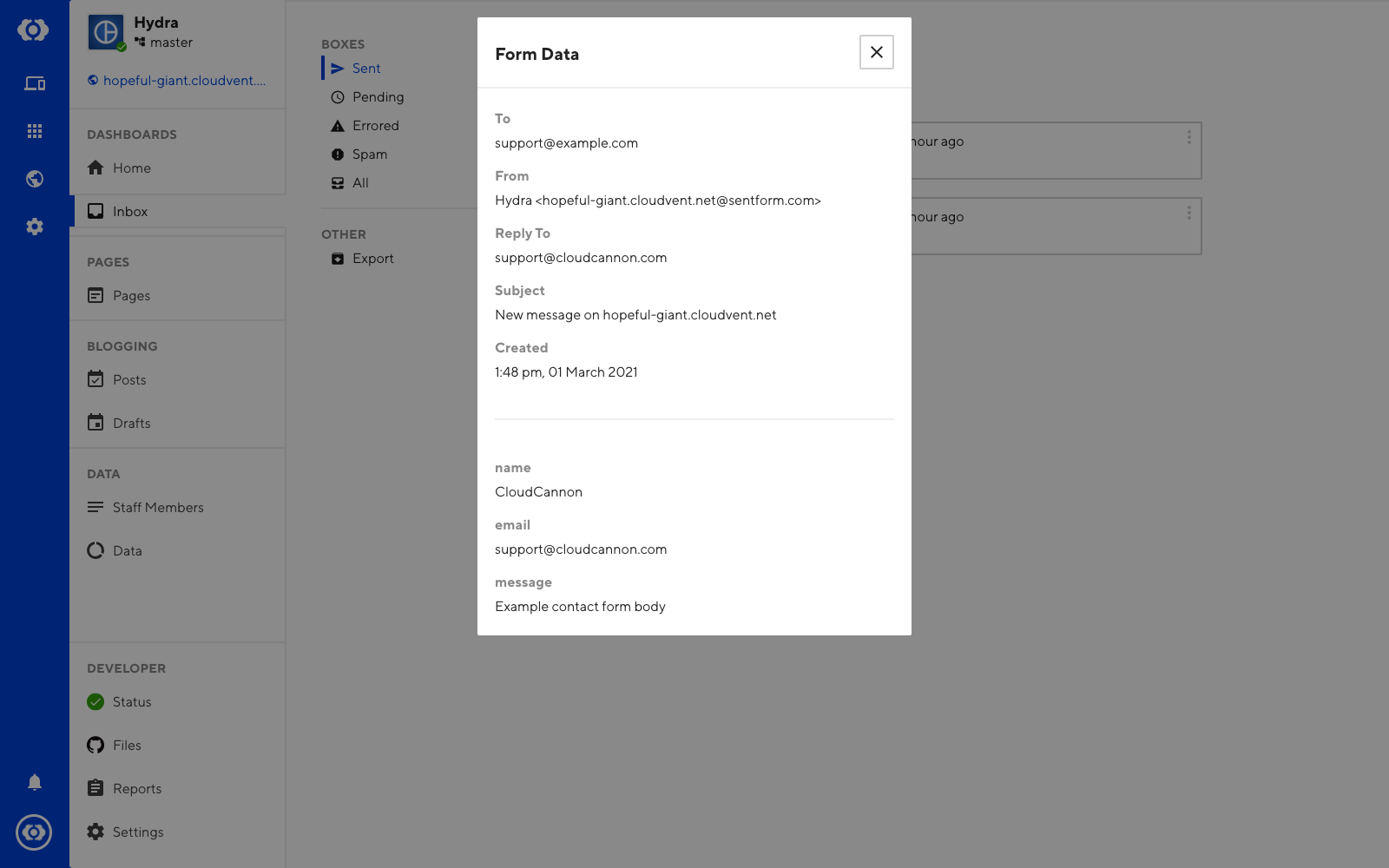
You can also see the details of individual target integrations under the Targets tab.
Each submission has a context menu that contains more options. You can open it by clicking the three dots in the top-right corner of the submission.
Categories
Your Inbox is organized into several categories. You can see these in the Inbox view near the top left of the screen. Below is a brief overview of each category:
- Sent — All submissions to the Inbox that were successfully sent.
- Pending — Submissions that are currently in the process of sending and being processed.
- Errored — Submissions that have failed to send.
- Spam — Submissions that were detected as spam by a spam filter.
- All — All of the above in one Inbox.
Spam
CloudCannon puts your form responses through a spam filter. Submissions flagged as spam are hidden from your Sent box.
If you see a submission here that is not spam, you can open the context menu for that submission and select Mark as not spam. This will move the submission from Spam to Sent.
If a spam submission makes it into your Inbox, open the context menu for that submission and select Mark as spam.
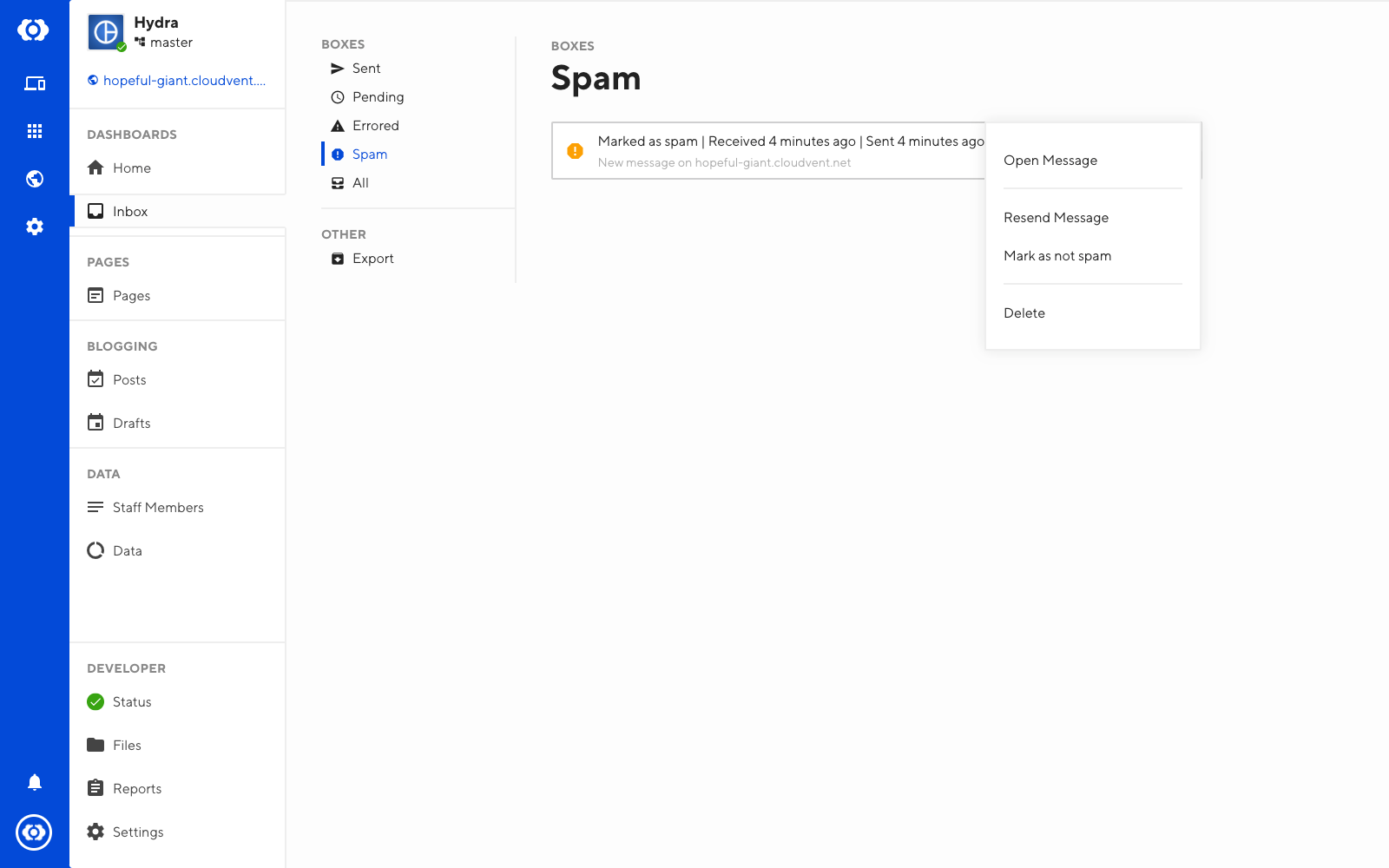
Marking as spam or ham will help the spam filter improve at spam detection.
Errored
Sometimes a form will fail to send. These will show up in the Errored box in the Inbox. A common reason for errored submissions is an incorrectly configured webhook.
You can try and resolve the issue by resending the form.
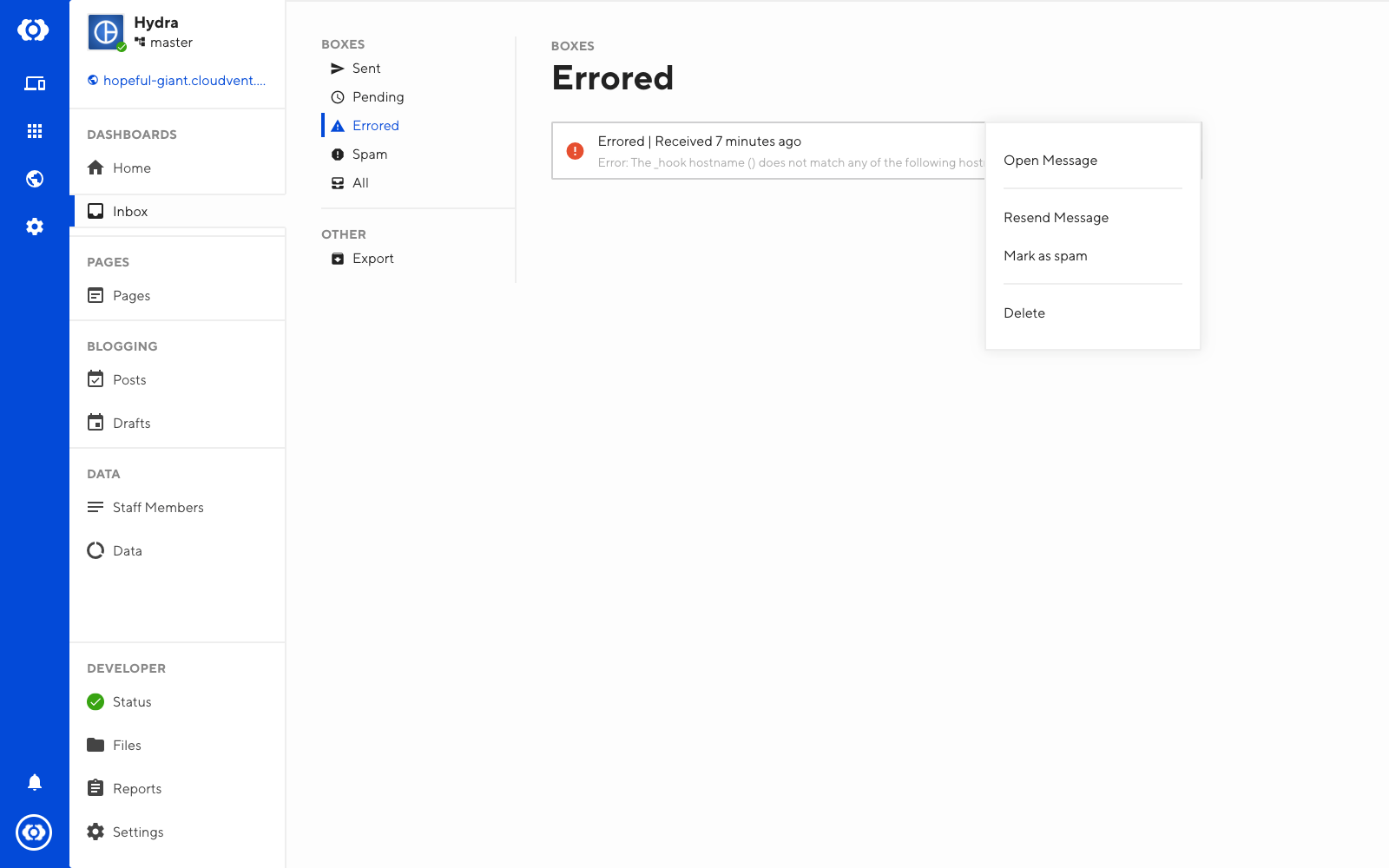
You can do this by opening the context menu for the desired target under the Sends tab and selecting Resend Message.
Export
You can download your entire Inbox as a .csv file.
To do this:
- Navigate to Dashboards / Inbox
- Click the Export tab
- Click the Download All as CSV button