This release rebuilt Custom Domains around Subdomains, introducing two types of Subdomain: Site and Redirect. Redirect Subdomains are free, allowing you to forward visitors from any address on your Custom Domain to another domain at no extra cost. Every Subdomain, including your Base Domain, now has its own page and tools for configuring hosting, HTTPS, and DNS settings.
It also addressed several issues, including those affecting new files, file sorting, and the Details page under Site Settings.
Features & Improvements#
Custom Domain and Subdomain UI
- Added Subdomains UI to Custom Domains, allowing you to manage each address on your Custom Domain, including your Base Domain, with its own hosting, HTTPS, and DNS settings.
- Subdomains can be one of two types: Site or Redirect. A Site Subdomain serves one or more Sites, and a Redirect Subdomain sends visitors to another domain (e.g.,
www.to your Base Domain). Each Site Subdomain that serves a Site counts toward the Custom Domains allowance of your Subscription Plan. Site Subdomains with no Site and Redirect Subdomains don't count. - Moved the hosting options, such as CloudCannon Hosting, Cloudflare Proxy, or Single Origin, from each Site to each Subdomain. For more information, please read our documentation on configuring a Subdomain's hosting, HTTPS, and DNS.
- Subdomains can be one of two types: Site or Redirect. A Site Subdomain serves one or more Sites, and a Redirect Subdomain sends visitors to another domain (e.g.,
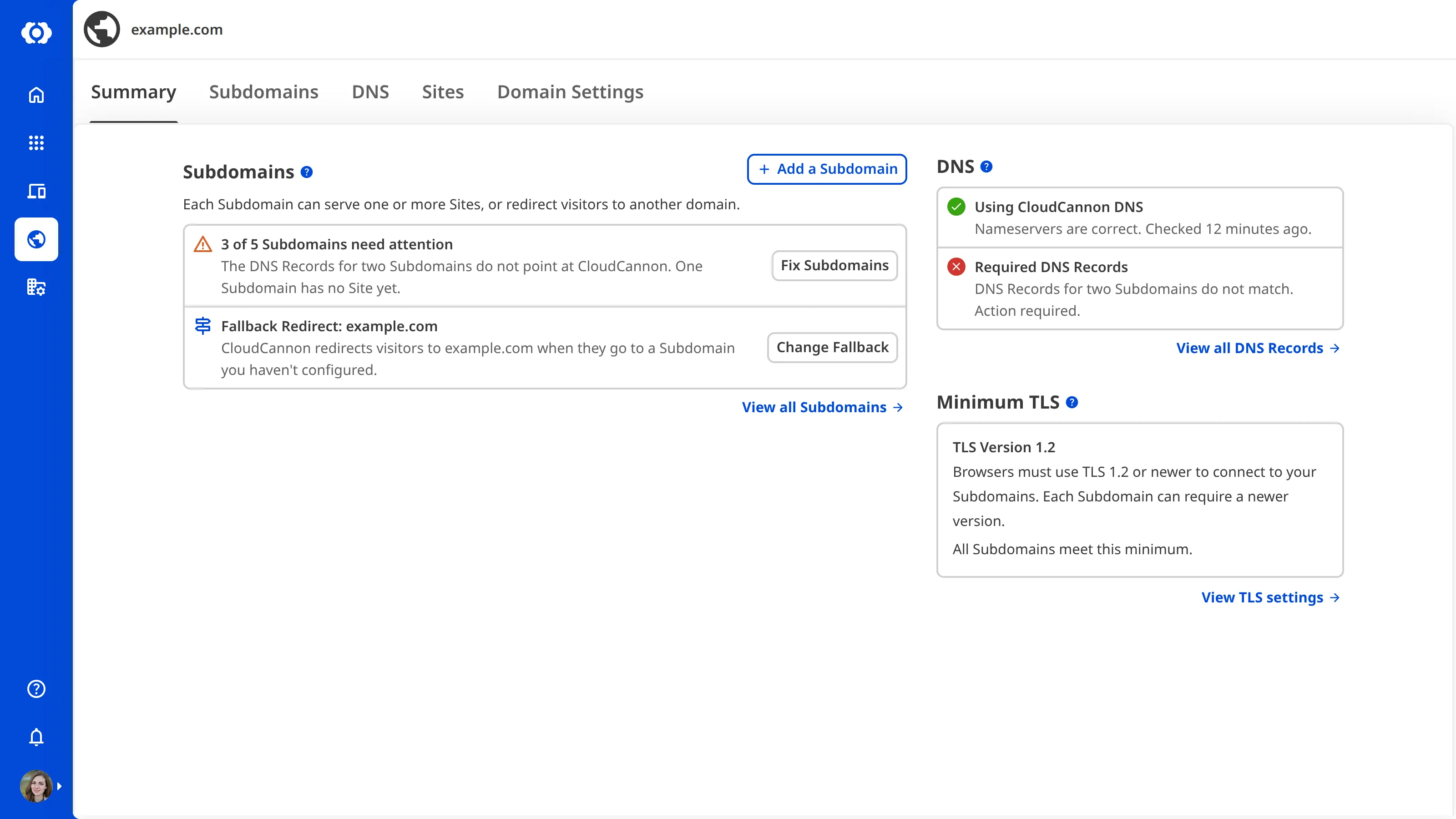
- Added the Summary tab to the Domain page, allowing you to see at a glance whether your Custom Domain is healthy. For more information, please read our documentation on what the Domain page is.
- The Summary tab shows how many Subdomains need attention and why, your Fallback Redirect, whether your nameservers and DNS records are correct, and how many Subdomains are below your minimum TLS version. The Subdomains, DNS, and Minimum TLS sections link to where you can fix each problem.
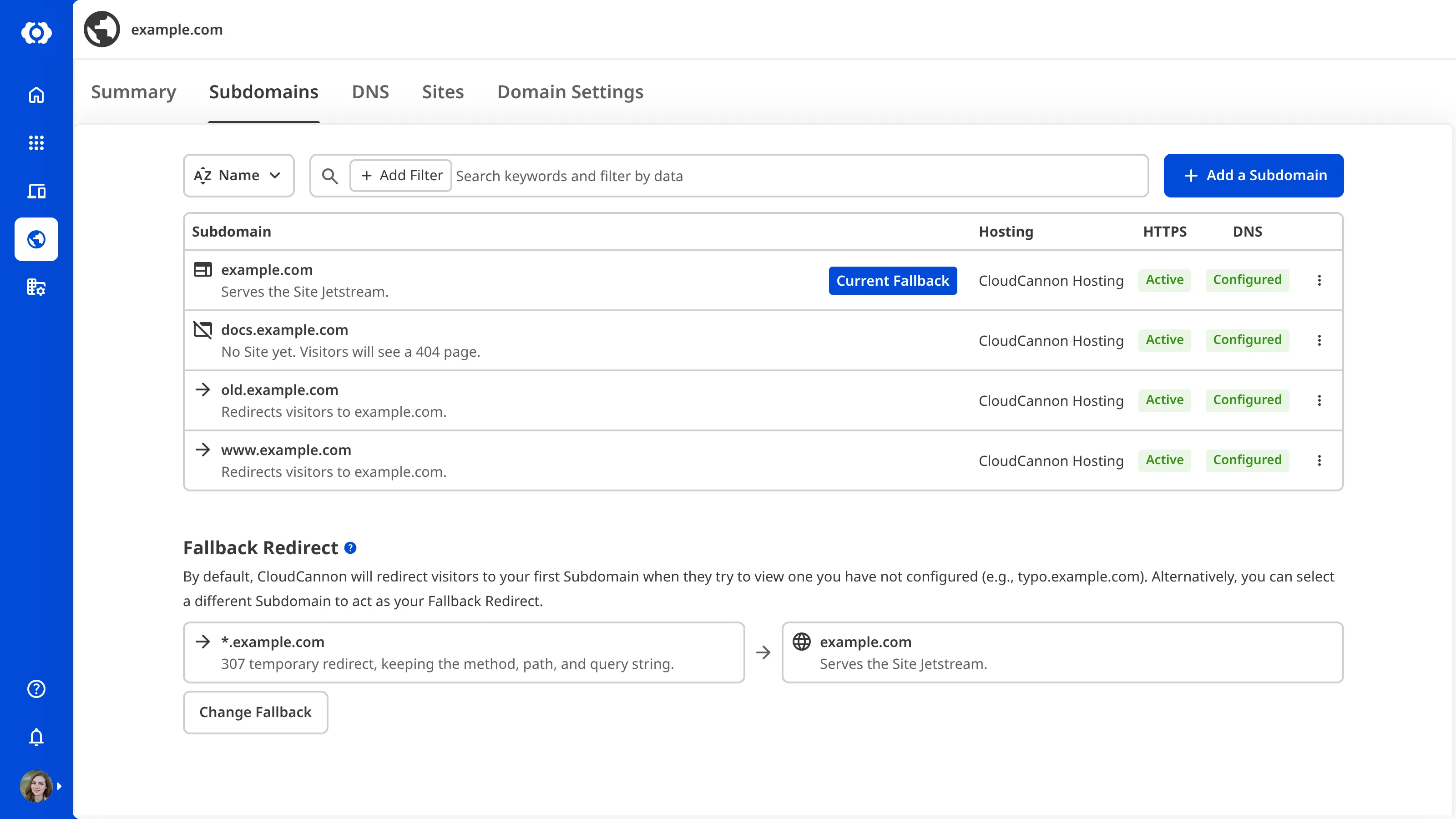
- Added the Subdomains tab to the Domain page, replacing the Network tab. For more information, please read our documentation on what the Subdomains tab shows.
- The Subdomains tab has a browser for all the Subdomains you have configured, including their Hosting, HTTPS, and DNS status. You can search, sort, and filter by Attention, Type, Hosting, HTTPS, and DNS Record. Clicking each row in the browser opens the corresponding Subdomain page.
- The Subdomains tab also allows you to configure your Fallback Redirect for visitors who open a subdomain you haven't configured, such as typo.example.com. Your Fallback Redirect can be any Subdomain, including a Redirect Subdomain, with the status code of your choice.
- The Change Fallback button on the Summary and Subdomains tabs, and the Use as Fallback Redirect option in the Context Menu for each Subdomain, change your Fallback Redirect.
- By default, CloudCannon uses your first Subdomain as the Fallback Redirect. For more information, please read our documentation on updating the Fallback Redirect for your Custom Domain.
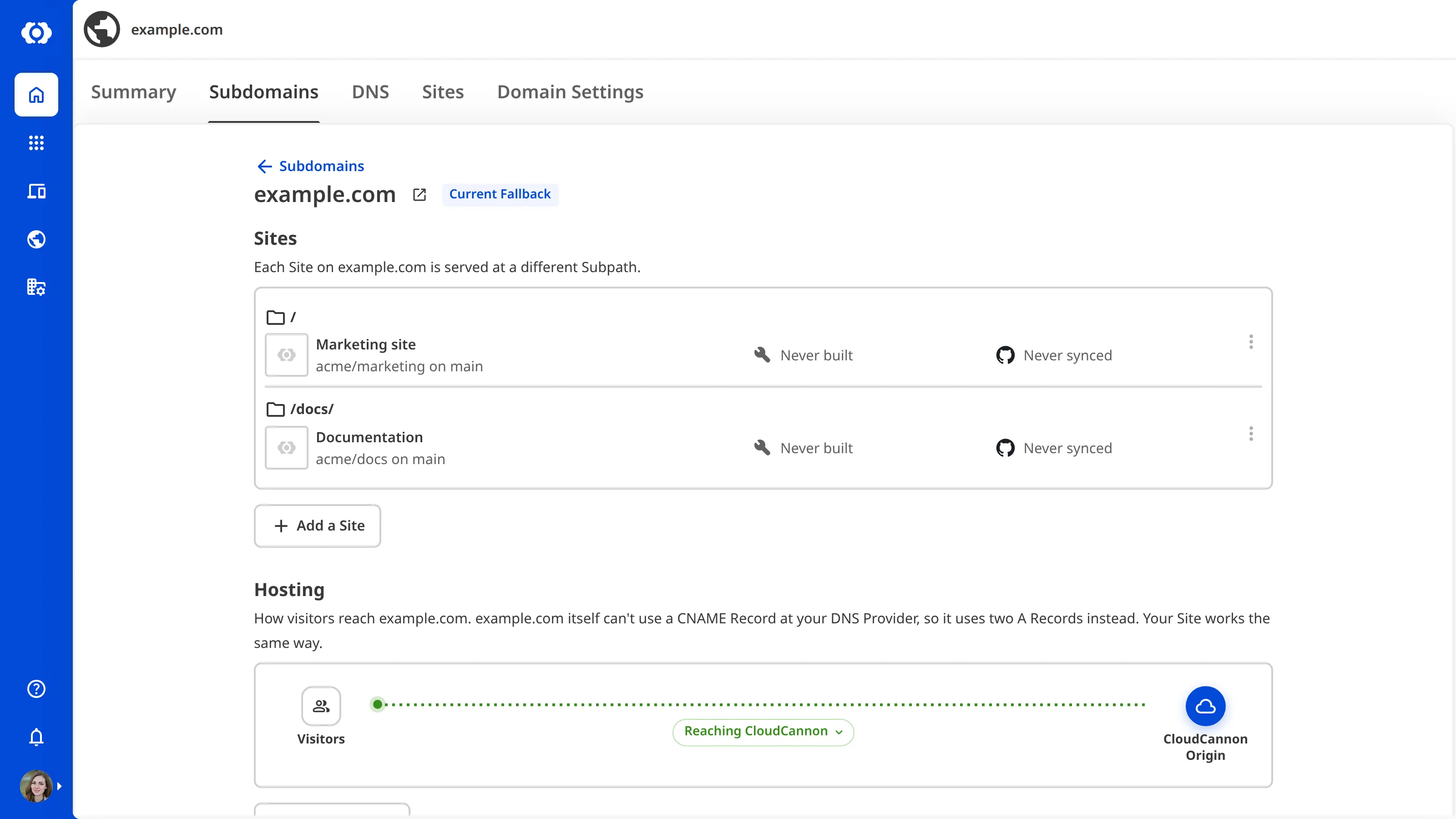
- Added a dedicated Subdomain page for each Subdomain.
- Every Subdomain page shows you which Sites it serves, or where it redirects visitors to, its Hosting, HTTPS, and DNS status, and a Danger zone where you can change its type or delete it.
- Added a Sites section to the Subdomain page, allowing you to manage the Sites a Subdomain serves, each at its own subpath, such as a marketing Site at example.com and a documentation Site at example.com/docs/. The section lets you add a Site, change its Subpath, swap it for another Site in one step, or remove it. For more information, please read our documentation on managing the Sites on a Subdomain.
- When you remove the last Site from a Subdomain, CloudCannon asks whether to Leave it set up, Redirect visitors, or Delete the Subdomain. A Site Subdomain with no Site shows visitors a 404 page.
- Added a Redirect section to the Subdomain page of each Redirect Subdomain, allowing you to send every visitor to that Subdomain on to another domain with a 301, 302, 307, or 308 status code. All four keep the path and query string. CloudCannon warns you about a redirect to another redirect, and refuses a redirect that would create a loop. For more information, please read our documentation on managing your Redirect Subdomains.
- A redirect target on one of your own Base Domains must already be a Subdomain.
- Deleting a Subdomain lists any other Redirect Subdomains that point at it, and deletes them too unless you uncheck the Delete these other Redirect Subdomains checkbox (Delete this other Redirect Subdomain for one).
- The Hosting section of each Subdomain page shows a diagram of the path visitors take to your Site through the option it uses.
- Changed the Card for each Custom Domain in your Domains Browser, allowing you to see which domains still need setting up without opening each one. Each Card shows the domain's DNS type, how many Subdomains and Sites it has, and where it is in setting up CloudCannon DNS.
- Changed the Domains link in the App Sidebar to Custom Domains, and the Connect a Domain button to Connect a Custom Domain, so the area is named for what you connect there.
New Subdomains
- Added the Add a Subdomain button to the Summary and Subdomains tabs of the Domain page, allowing you to add each address you want CloudCannon to serve or redirect. For more information, please read our documentation on what a Subdomain is.
- Added automatic www pairing, allowing you to set up both versions of an address in one step. When you add example.com as a Site Subdomain for the first time, CloudCannon also adds www.example.com as a Redirect Subdomain to it, and vice versa. You can change or delete the added Redirect Subdomain afterwards.
DNS onboarding and configuration
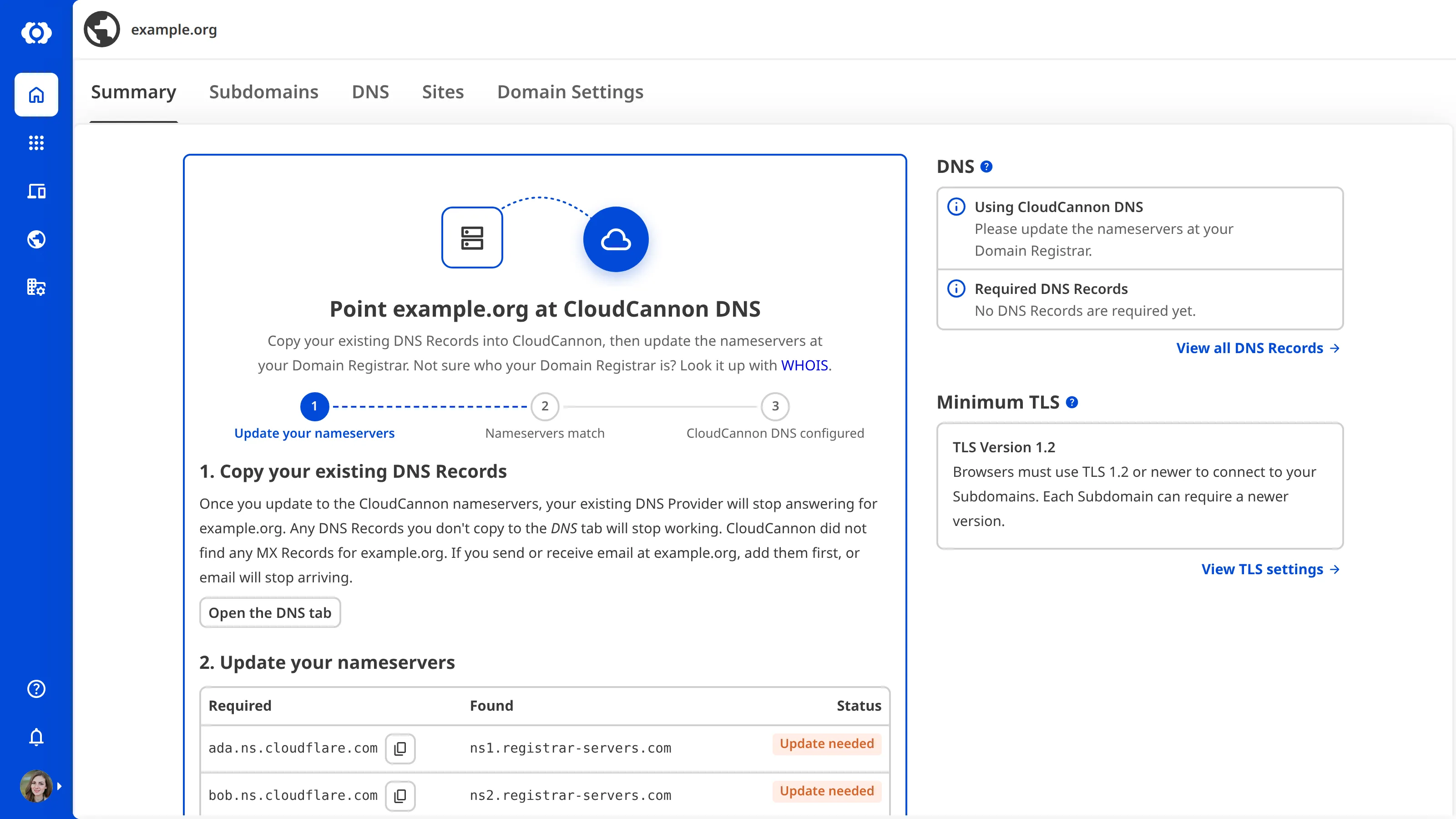
- Added a setup guide for CloudCannon DNS, allowing you to move your Custom Domain to CloudCannon DNS in three steps. For more information, please read our documentation on configuring CloudCannon DNS.
- The guide asks you to copy your existing DNS records, such as MX records for email and TXT records for domain verification, then shows the nameservers to set at your domain registrar.
- After you click the I've updated my nameservers button, CloudCannon checks your nameservers every hour for 48 hours, then daily, and emails you when your domain is live.
- Added the DNS records each Subdomain needs on external DNS, allowing you to see what to add at your DNS Provider and what CloudCannon found instead, with a copy button for each value. After you click the I've updated it button, CloudCannon checks the record every hour for seven days. For more information, please read our documentation on configuring external DNS.
- Added a footer to every DNS table CloudCannon checks, allowing you to see when CloudCannon last checked and check again with the Check now button, at most once a minute. On the nameserver table and on CloudCannon DNS record tables, the footer also says how often CloudCannon checks. On the nameserver table and the DNS section of each Subdomain page, it also shows the history of those checks.
- Changed the DNS tab of the Custom Domain page to show your nameserver status, then the records your Subdomains still need, allowing you to see next action before your website will go live. On CloudCannon DNS, a Fix button adds, removes, or replaces a record for you. On external DNS, the DNS tab also lists the optional wildcard record, which sends visitors to subdomains you haven't configured to your Fallback Redirect.
- Changed Domain Settings to preview what happens before you switch your DNS Provider. When you can't disconnect a Custom Domain, Domain Settings now names everything stopping you, including Sites that still use it and redirects that point into it from your other domains. For more information, please read our documentation on disconnecting a Custom Domain from your Organization.
- Added the Move to the new CloudCannon DNS button, allowing you to move a Custom Domain from the legacy CloudCannon DNS to the new CloudCannon DNS without re-entering your DNS records. For more information, please read our documentation on moving from the legacy CloudCannon DNS.
- Changed CloudCannon DNS to keep a copy of your DNS records if your nameservers stop pointing at CloudCannon, so moving them away by mistake doesn't lose your records. If you change your nameservers back, CloudCannon restores the records.
- Updated every Base Domain that was set to use CloudCannon DNS to use external DNS, if its nameservers never pointed at CloudCannon and were first checked more than 30 days ago. The Domain page for each one now lists the DNS records its Subdomains need at the DNS Provider it actually uses.
HTTPS and SSL Certificates
- Changed the HTTPS status to show the SSL Certificate of each Subdomain rather than each Site, allowing you to see the status of each certificate, such as Active, Issuing, Renewing, Waiting, Failed, Expired, or Missing. When issuing fails, it shows the last error and a Retry now button. For more information, please read our documentation on resolving SSL Certificate errors.
- The HTTPS for [Subdomain] modal lets you choose between Let CloudCannon issue and renew it and Use an SSL certificate you upload. It also holds the Redirect http:// visitors to https:// checkbox, which moved from the Routing page under Site Settings so that it applies to every Site on the Subdomain. For more information, please read our documentation on redirecting HTTP to HTTPS.
- The Switch to TXT validation button in the HTTPS section lets CloudCannon issue a Subdomain's SSL Certificate before you point its DNS at CloudCannon, which reduces downtime when you switch the DNS of a live website.
- Your Base Domain has a wildcard SSL Certificate, so visitors to subdomains you haven't configured reach your Fallback Redirect over HTTPS. On external DNS, the DNS tab offers a CNAME record that lets Cloudflare renew it on its own. For more information, please read our documentation on renewing the wildcard SSL Certificate on external DNS.
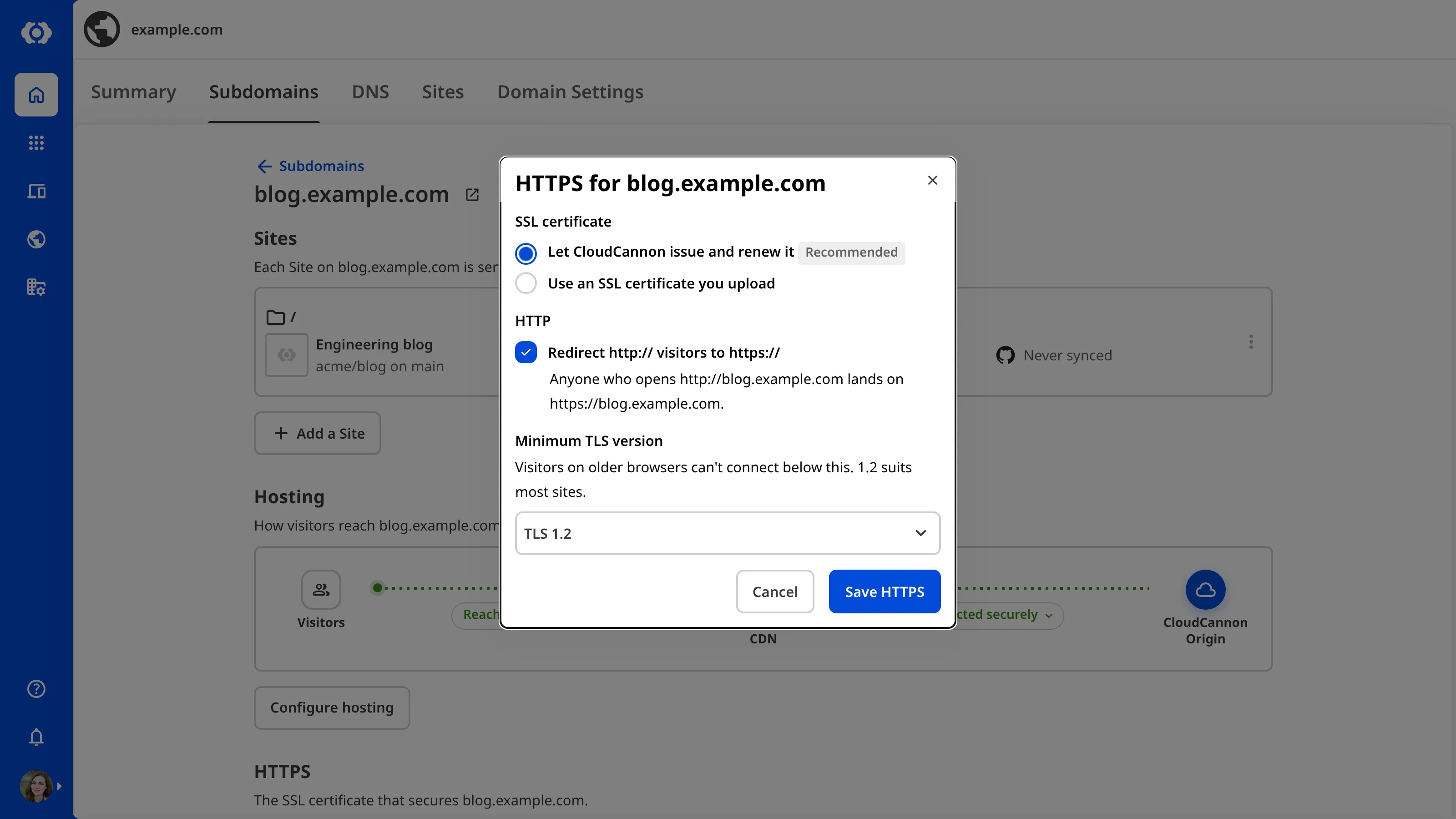
- Added a Minimum TLS version dropdown to the HTTPS for [Subdomain] modal, allowing you to raise the minimum TLS version of one Subdomain above the minimum for its Custom Domain. Raising the minimum under Domain Settings lists the Subdomains it changes, and lowering it leaves your Subdomains as they are unless you check the Also lower [Number] subdomains to TLS [Version] checkbox. For more information, please read our documentation on increasing the minimum TLS version for your domains.
- Changed the SSL Certificates page under Org Settings, allowing you to remove a Custom SSL Certificate that Subdomains still use, and to see which Subdomains use each certificate. Each certificate shows a Valid, Expires soon, Expired, Removing, or Renews automatically status and the domains it covers. For more information, please read our documentation on adding a Custom SSL Certificate.
- Removing a certificate that Subdomains still use switches them to a certificate CloudCannon issues, keeps HTTPS on while they switch, and then deletes the certificate.
- If a Subdomain still uses a Custom SSL Certificate when it expires, CloudCannon switches that Subdomain to a certificate CloudCannon issues.
- Viewing the page needs the
org:settings:certificate:readpermission, and adding or removing a certificate needs theorg:settings:certificate:writepermission.
Custom Domains on Sites
- Changed the Custom Domain page under Site Settings to show the Subdomain your Site is on, allowing you to change its hosting, HTTPS, and DNS without leaving your Site. While the DNS for your Custom Domain is being set up, the page also shows the setup guide. For more information, please read our documentation on adding a Custom Domain to your Site.
- Changed adding a Custom Domain to a Site to require its Base Domain to be connected to your Organization first, because each Site is now served from a Subdomain of a connected Base Domain. You can connect the Base Domain from the same form. For more information, please read our documentation on connecting a Custom Domain to your Organization.
Emails
- Added eight emails about your Custom Domains, and rewrote the emails CloudCannon sends when an SSL Certificate is failing to issue and when it is active again. Unless noted below, they go to everyone with the
base-domain:settings:details:writepermission for the domain. For more information, please read our documentation on what emails CloudCannon sends about your domains.- CloudCannon emails you when someone else connects a Custom Domain to your Organization.
- On CloudCannon DNS, CloudCannon emails you when your Custom Domain is live, when its nameservers still don't match after 48 hours, and when they stop pointing at CloudCannon DNS.
- On external DNS, CloudCannon emails you when a Subdomain is live, when its DNS record still doesn't point at CloudCannon after 48 hours, and when it stops pointing at CloudCannon.
- CloudCannon emails you 14 days and three days before a Custom SSL Certificate expires, if it is used by a Subdomain on a domain whose settings you can edit.
Billing and Subscription Plans
- Changed billing for Custom Domains to count each Subdomain that serves a Site. Redirect Subdomains and Subdomains with no Site are free. On a Subscription Plan that includes a Custom Domains allowance, adding a Subdomain that takes you over it asks you to confirm the change. While you are over the allowance, CloudCannon emails everyone who can view your billing, except the person who made the change, each time the number of Subdomains serving Sites goes up or down. For more information, please read our documentation on what Add-Ons and Overages are.
- In a Client Organization on an extended Free Trial, the trial now ends five days after a Subdomain starts serving a Site, rather than after a Custom Domain is added to a Site.
- Added the Hosting Bandwidth, Custom Domains, and Build Time allowances to each Subscription Plan on the Update your Subscription Plan page, alongside Seats, allowing you to compare what each Subscription Plan includes and what extra capacity costs.
Other improvements
- Changed the Sites Not Resolving filter in the Client Organizations Browser to Subdomains Not Pointing, and the domain filters to check the Subdomains of each client's Custom Domains rather than its Sites. The domain checks on the Health tab now report Subdomains rather than Sites.
- Changed "Authenticate" to "Authorize" wherever you give CloudCannon access to a Git Provider, a DAM, or a storage provider account, so each label better describes what you are doing. The renamed labels include:
- The Authentication tab, now the Authorization tab.
- The Authenticate with GitLab button, now Authorize with GitLab.
- The Authenticate a new DAM button, now Authorize a new DAM.
- The Unauthenticate DAM button, now Revoke authorization.
- Updated the CloudCannon API, which is in Public Beta. For more information, please read our API changelog.
Fixes#
- Fixed an issue where saving a new file left it marked as New and counted as an unsaved change.
- Fixed an issue where files in a Collection appeared in a scrambled order when sorted by anything other than their path.
- Fixed an issue where the Details page under Site Settings stayed locked after a failed update. The result of an update now appears at the top of the page.
- Updated dependencies to patch security vulnerabilities.