Your first invoice arrives when your CloudCannon Subscription The ongoing payment to CloudCannon for your Organization's Subscription Plan. A Subscription can be active, paused, or canceled. Canceling a Subscription will prevent you from paying for further use of features and resources without deleting the Organization, its Sites, or files. A trial period that gives a new Organization access to Standard Plan features without requiring a payment method.Subscription
Free Trial
- During your Free Trial — CloudCannon doesn't charge you until the trial ends, so your first invoice is generated once your Free Trial is over. Until then, you keep full access but haven't been charged.
- After your Free Trial has ended — Your billing starts immediately, so CloudCannon generates your first invoice right away.
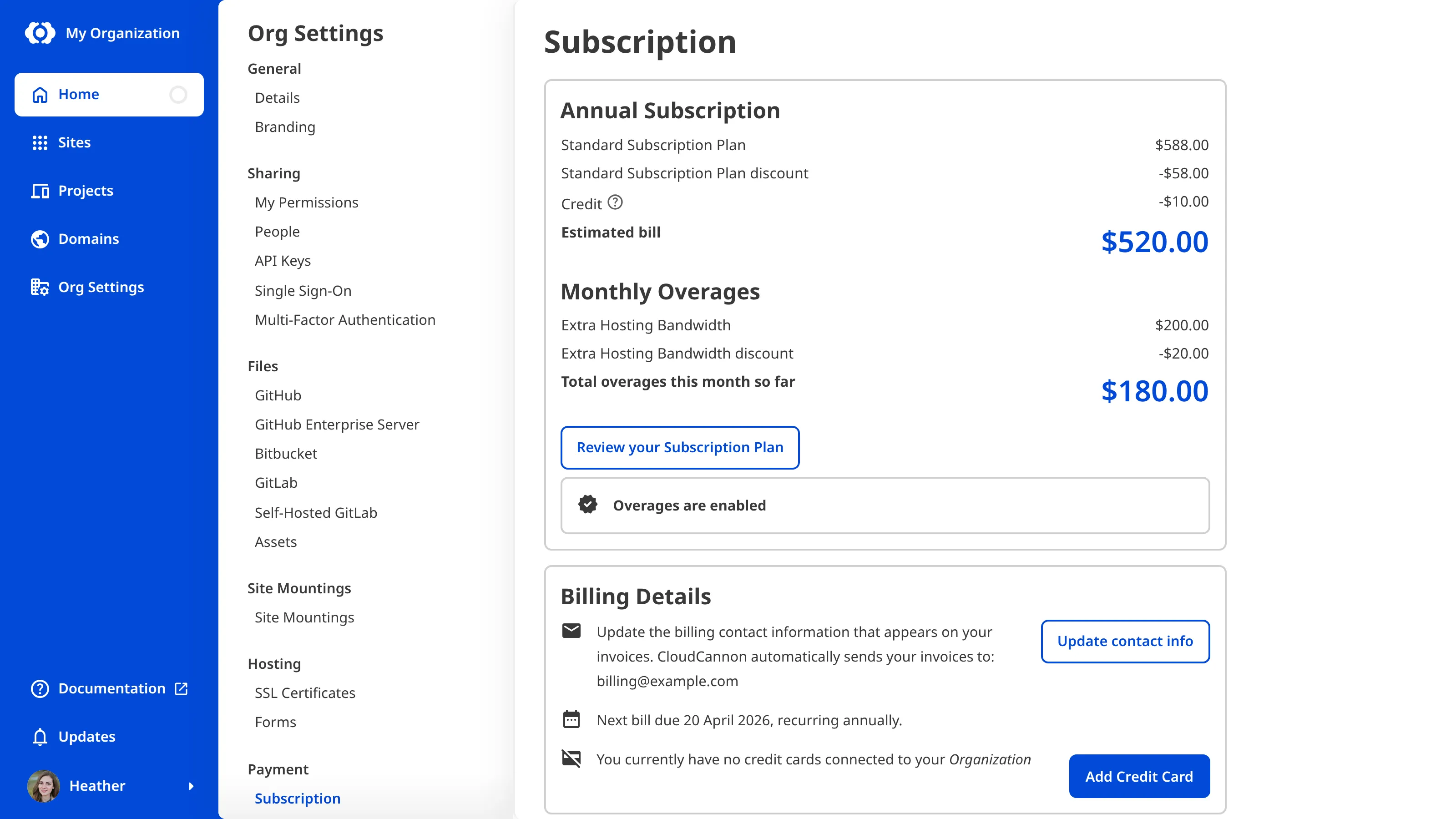
The Subscription page shows your current Subscription Plan A set of features available to your Organization, the monthly usage limits for resources, and the price you pay for access to those features and resources, monthly or annually. Each Organization in CloudCannon can have one Subscription Plan, and can update or cancel at any time. The recurring cycle CloudCannon bills your Organization on for its Subscription Plan, either monthly or yearly. You can switch between billing periods at any time, and CloudCannon prorates the difference on your next invoice.Subscription Plan
Billing Period
Your invoices#
CloudCannon keeps a record of your invoices. To find them, click Org Settings The settings page for a CloudCannon Organization, where organization administrators can manage organization-wide settings, including billing, team permissions, integrations, branding, and security policies. You can access this page using the Organization Settings link in the App Sidebar. The left-most UI panel in the CloudCannon app. This panel contains links to your Organization Home, Sites, Projects, Domains, and Org Settings pages, as well as app Updates and your Avatar.Org Settings
App Sidebar
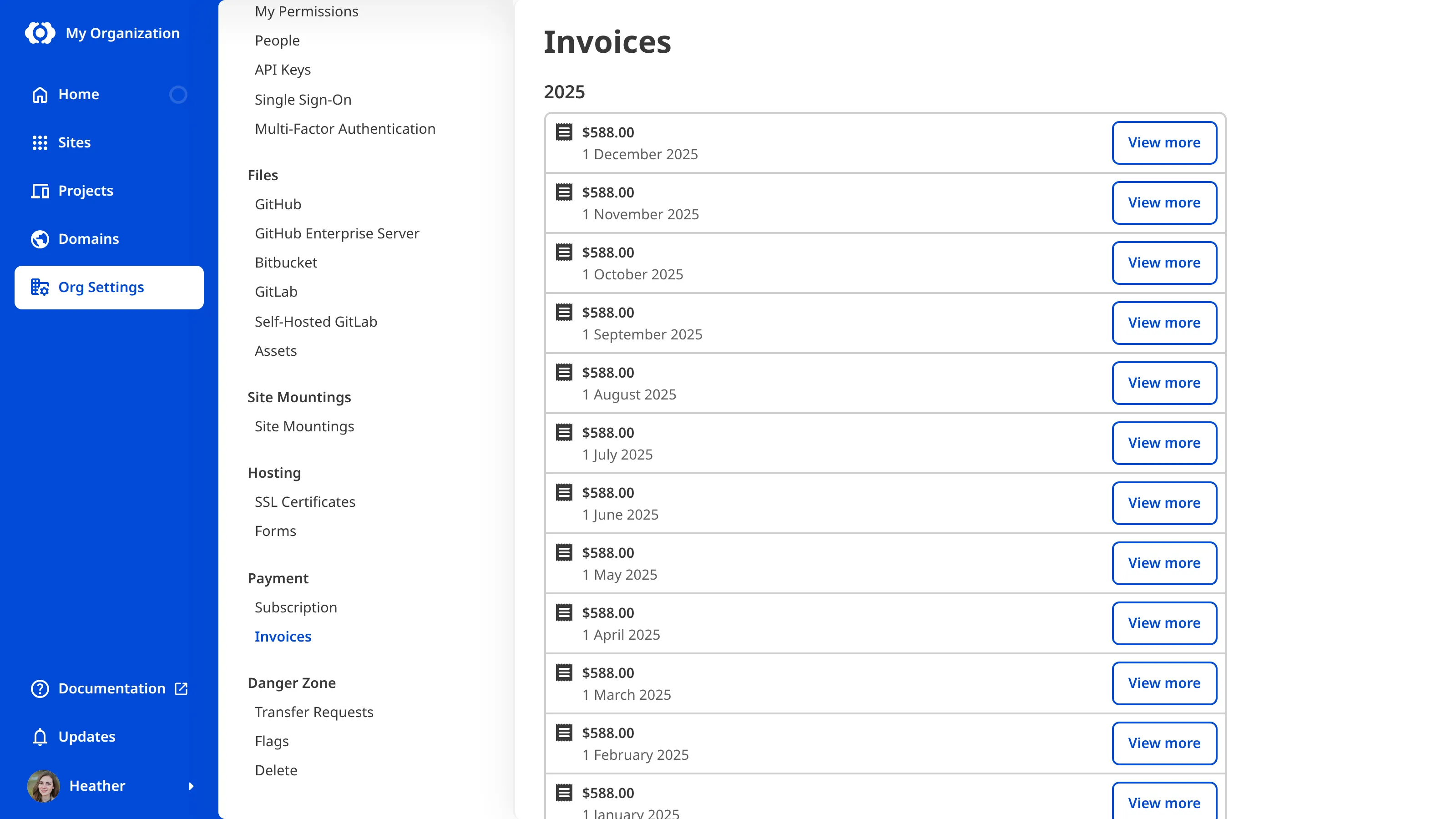
A recently issued invoice shows a Pending button until it is finalized, after which the View more button appears. Click the View more button on an invoice to open it on a Stripe page, where you can download the invoice or receipt as a PDF. The invoice records the date your payment was due, and its matching receipt records the date it was paid.
Your invoice total is the cost of your Subscription Plan, plus any Add-Ons Extra capacity (Organization Members, bandwidth, custom domains, or build time) that extends a plan's included limits. When Overages are enabled, CloudCannon automatically adds capacity as your Organization exceeds its plan's included limits. The extra usage charged when your Organization exceeds its plan's included limits and Overages are enabled. Overage usage appears on your next invoice.Add-On
Overage
- Your Subscription Plan and Add-Ons are billed in advance for the coming Billing Period, and appear as "[name] Subscription Plan", "Organization Member", or "Custom Domain".
- Overages are billed at the end of each month, even on a yearly Billing Period, and appear as "[amount] x 100 GB Hosting Bandwidth Bundle" or "[amount] x 1 Hour Build Time Bundle".
- Credits from downgrading or removing an Add-On partway through a Billing Period, and discounts from a coupon, appear as negative line items that lower your total.
Billing contact details#
You can add billing contact details to your invoices and have CloudCannon send them to an email address automatically. On the Subscription page, under Billing Details, click the Update contact info button.
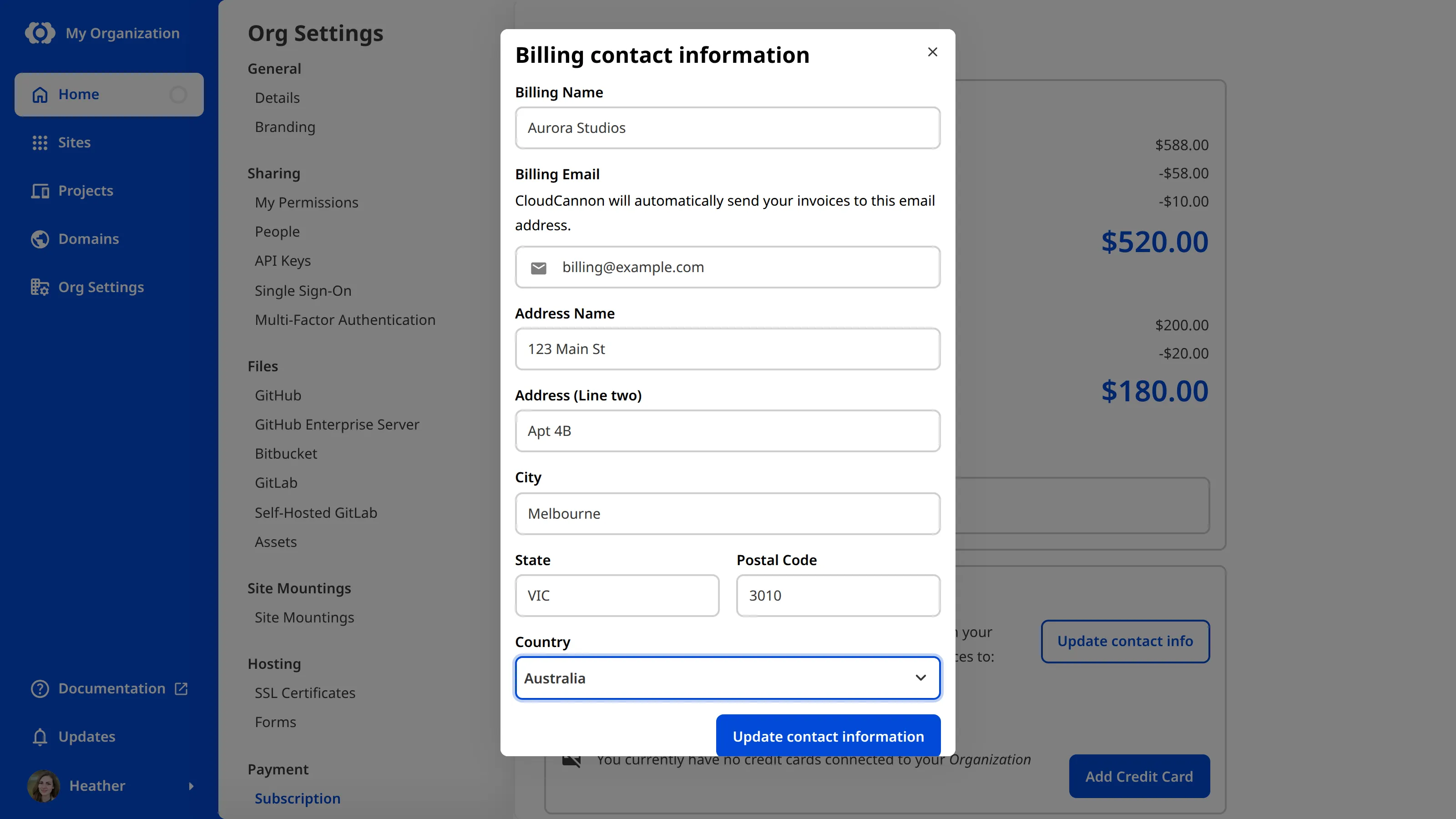
In the Billing contact information modal, enter the details you want on your invoices, then click the Update contact information button. If you added an email address, CloudCannon begins emailing your invoices to you automatically, and the Billing Details section then shows the address they are sent to and when your next invoice is due. CloudCannon only emails your invoices, so adding an address does not mean you will receive a physical copy.
In the next step of this guide, we'll cover what to do if a payment ever fails.