Before you can activate your CloudCannon Subscription The ongoing payment to CloudCannon for your Organization's Subscription Plan. A Subscription can be active, paused, or canceled. Canceling a Subscription will prevent you from paying for further use of features and resources without deleting the Organization, its Sites, or files. A workspace in CloudCannon that groups together Sites, Organization Members, and shared resources. It is also the unit CloudCannon bills for. You can define permissions for your Organization, controlling the access each Organization Member has to resources on CloudCannon. You can create and be a part of multiple Organizations.Subscription
Organization
CloudCannon accepts credit card payments on the Standard Plan and Team Plan.
Add your credit card#
You confirmed your Subscription Plan A set of features available to your Organization, the monthly usage limits for resources, and the price you pay for access to those features and resources, monthly or annually. Each Organization in CloudCannon can have one Subscription Plan, and can update or cancel at any time.Subscription Plan
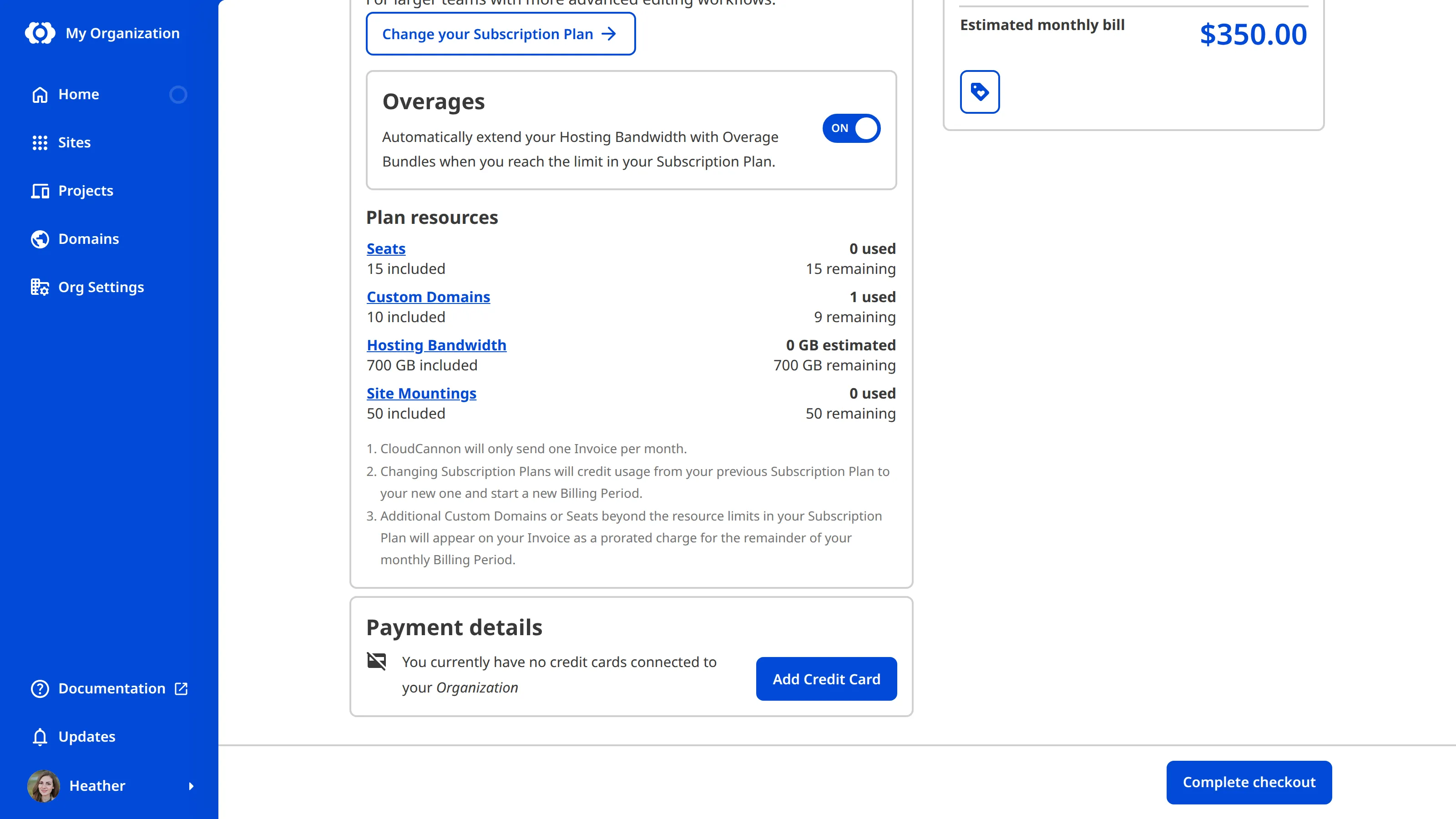
Scroll down to the Payment details section of the page and click the Add Credit Card button to open the Add your Credit Card modal.
Enter your card details. The card form checks your card number, expiry date, and security code as you type, and highlights anything that isn't valid so you can correct it before submitting.
Some banks also require your billing address to approve a card, so if you run into trouble, expand the Additional info section and add your address.
When you are ready, click the Add Credit Card button. CloudCannon will confirm your card with your bank and add it to your Organization.
Click the Complete checkout button to start your paid Subscription and apply the Overages The extra usage charged when your Organization exceeds its plan's included limits and Overages are enabled. Overage usage appears on your next invoice.Overage
In the next step of this guide, we'll look at your billing summary and invoices.