After you create your account, CloudCannon will automatically make you a default Organization and deliver you to your Organization Home page.
What is an Organization?#
An Organization A workspace in CloudCannon that groups together Sites, team members, and shared resources. You can define permissions for your Organization, controlling the access each team member has to resources on CloudCannon. You can create and be a part of multiple Organizations.Organization
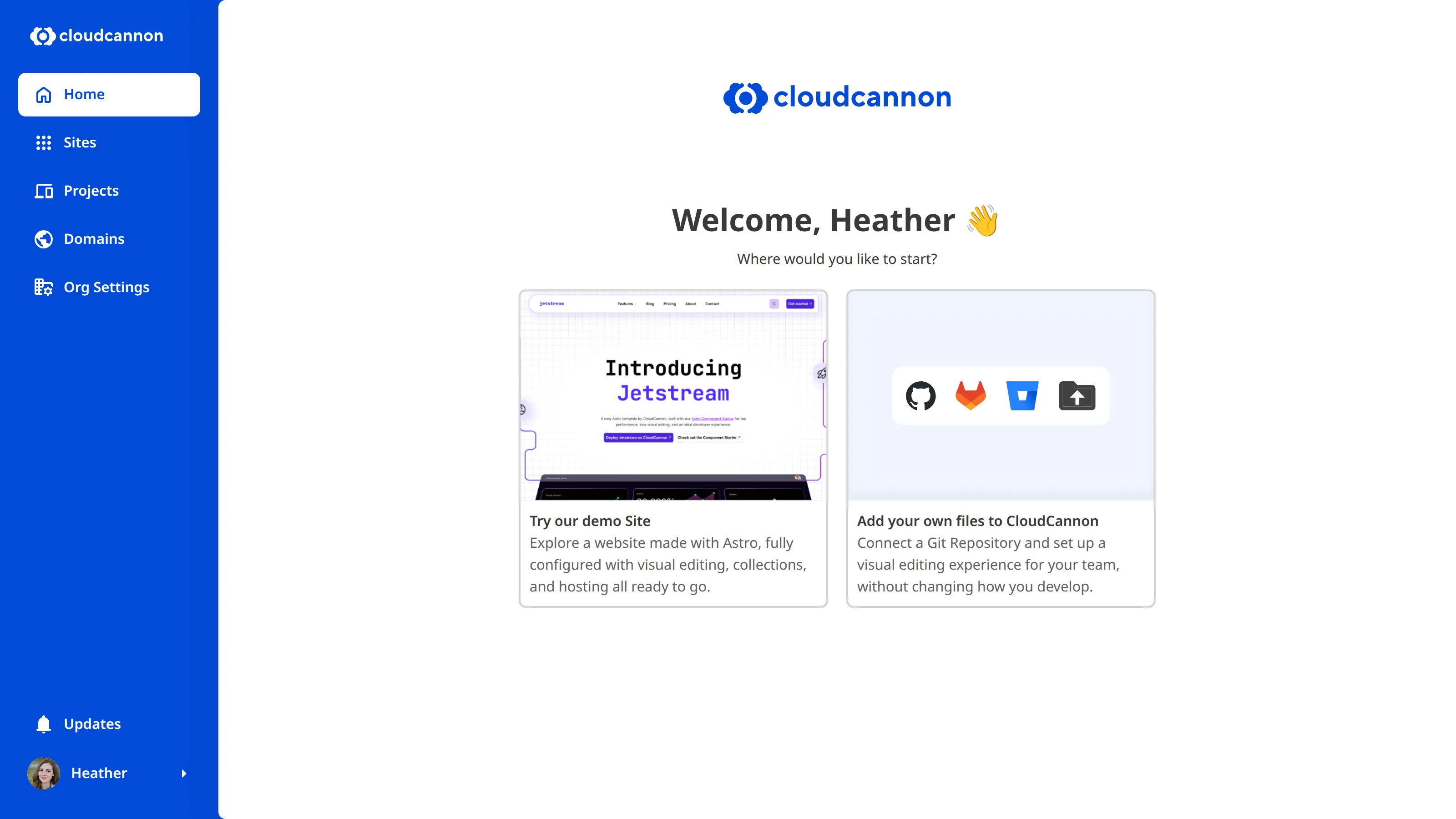
Organizations are also the billing unit in CloudCannon; each Organization has it's own subscription at one of CloudCannon's pricing tiers. As a new account, your Organization will be on a Free Trial, so you have time to explore CloudCannon and decide what tier is right for your team.
You can also join other people's Organizations by invitation, which will allow you to manage their content.
General Organization UI#
Let's take a look at some of the UI for your Organization.
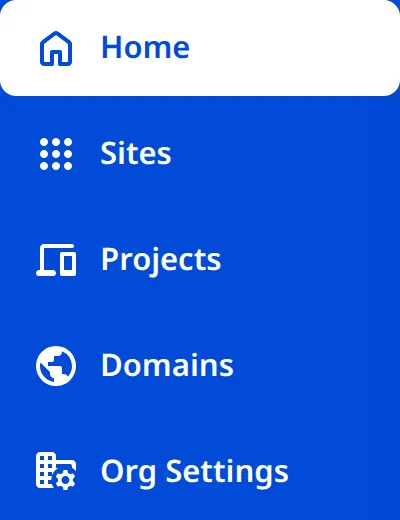
On the left is the App Sidebar. This contains several tools for managing your Organization and Account. At the top are links to your Home, Sites, Projects, Domains, and Org Settings pages. We'll cover each of these in greater detail later, or in other guides relevant to those sections. For now, it's important to note the link to the Home page at the top of the App Sidebar. If you get stuck, return to this page for more guidance.
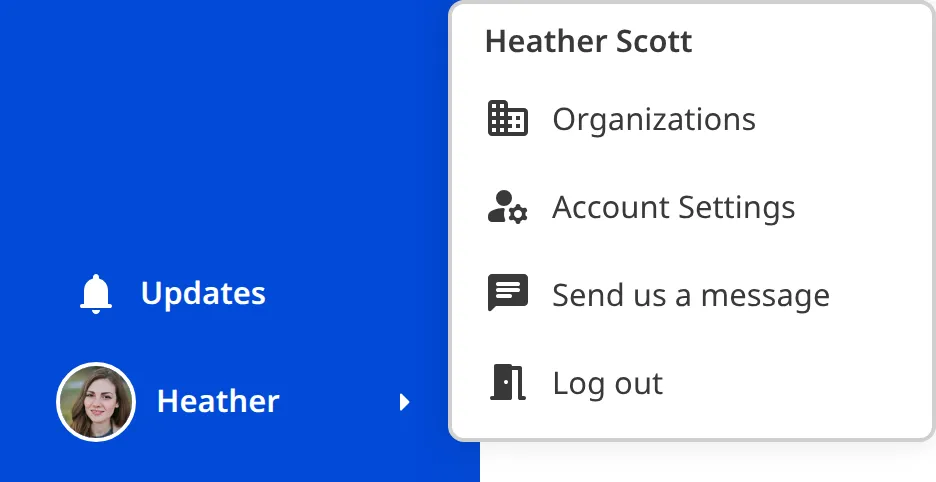
At the bottom of the App Sidebar is the Updates button and your Account Menu. Clicking on the Updates button will open the App Updates modal with a list of CloudCannon's most recent changelogs.
Clicking on your Avatar and Name will open the Account Menu. Here you can find a link to your Account Settings, message our friendly support team, and log out of CloudCannon with the Log Out button, as well as navigate to other Organizations (if you are a member of multiple Orgs).
Should I use a template or my own files?#
Your Organization Home page presents two options for creating your first Site: Try our demo Site or Add your own files to CloudCannon.
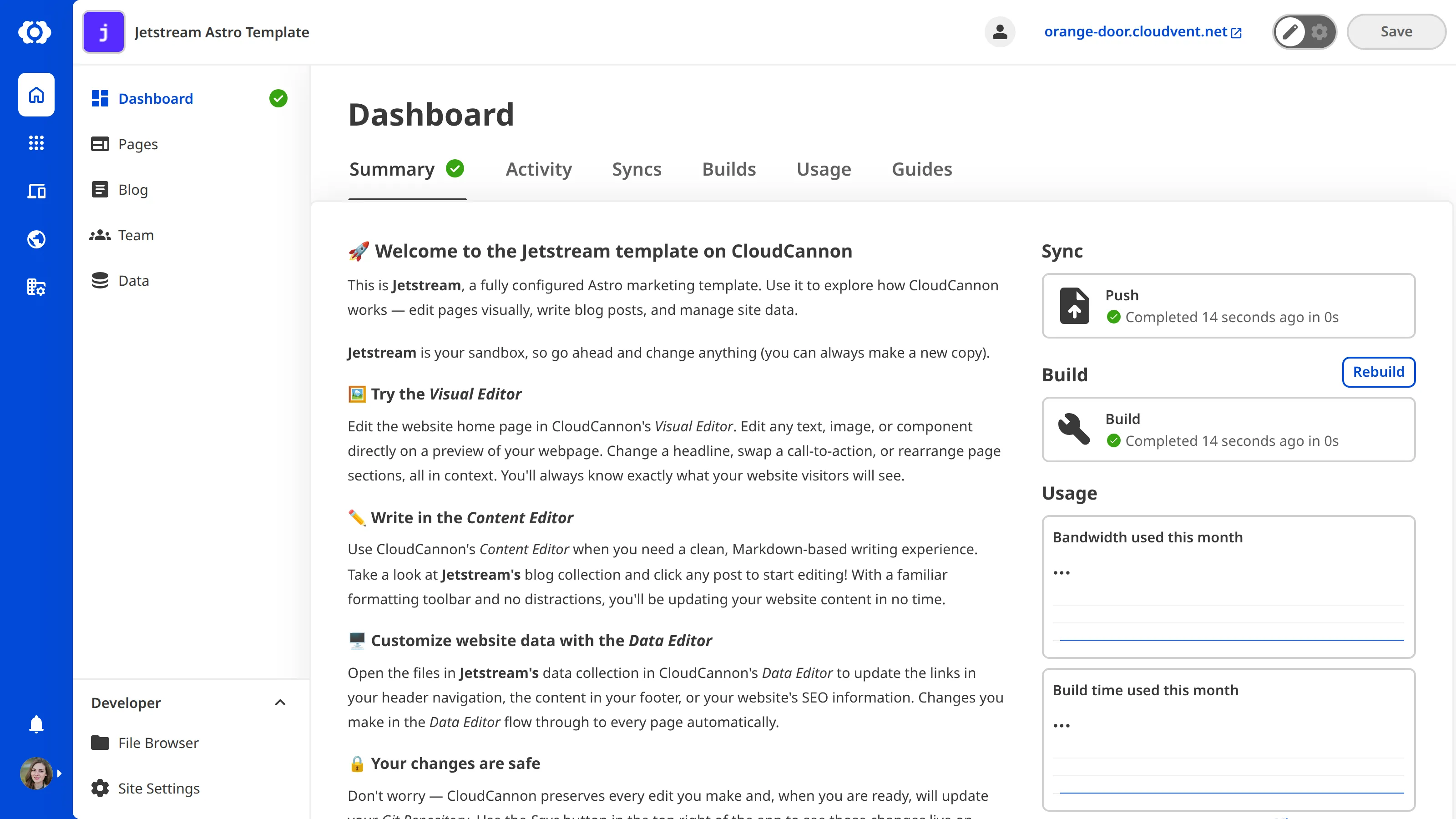
To help you experience all of CloudCannon's features without needing to set up anything yourself, we've made the Jetstream template: a fully configured Astro website with visual editing, blogging, page building, and hosting.
However, we highly recommend using your own files in CloudCannon.
Don't worry about choosing the "wrong" option here — you can always come back to your Organization Home page and try the other option later, and you can create as many Sites as you need.
In the next step of this guide, we'll create a Site by connecting a Git repository and syncing your files to CloudCannon.