Editing image data in the Visual Editor allows you to see how an image will look on your live webpage.
Image content can be stored in a structured data key and referenced by templating in a layout. You can add an Image Editable Region A designated area within a webpage where Organization Members can change an image in CloudCannon's Visual Editor. Image Editable Regions allow you to upload images from your local storage, select existing images from your repository or DAM, and manage image details like title or alt text.Image Editable Region
Nested image values
To avoid data-prop misconfiguration errors, it is best practice to define your Editable Regions from the root of your file first (i.e., from parent elements to child elements). If your image values are nested inside an array or a component, you should define Editable Regions for those parent elements first. We'll cover this more in later steps of this guide.
Image values in structured data#
Content files, which contain structured data keys that populate templating in a layout file at build time, often store image data.
Let's take a look at an example.
This file is a blog post, containing structured data keys for heroImage, heroImageTitle, and heroImageAlt in the front matter.
---
title: 'First post'
author: 'C. Kent'
heroImage: '../../assets/blog-banner.jpg'
heroImageTitle: 'Blog gradient'
heroImageAlt: 'An eye-catching color gradient banner.'
---

Lorem ipsum dolor sit amet, consectetur adipiscing elit, sed do eiusmod tempor incididunt ut labore et dolore magna aliqua. Vitae ultricies leo integer malesuada nunc vel risus commodo viverra.Here is an excerpt from our blog layout file, containing HTML for the blog webpage and templating to populate elements with the values from each blog file.
<div class="hero-image">
    {heroImage &&
      <img
        src={heroImage}
        title={heroImageTitle}
        alt={heroImageAlt}
      />
    }
</div>The value of the src attribute in the <img> element is {heroImage}, which is populated by the value of the heroImage key in the front matter of a blog file.
The value of the title attribute in the <img> element is {heroImageTitle}, which is populated by the value of the heroImageTitle key in the front matter of a blog file.
The value of the alt attribute in the <img> element is {heroImageAlt}, which is populated by the value of the heroImageAlt key in the front matter of a blog file.
The file type for your layouts will be different depending on your SSG (e.g., Astro uses .astro files, Eleventy uses .liquid files). You can add Editable Regions to any of these files as long as they output to an HTML file after a Site build.
Together, these files output a webpage that looks like this:

In this example, the front matter keys populate various attributes of the <img> tag in the blog layout at build time (i.e., src is set to {heroImage}, title is set to {heroImageTitle}, and alt is set to {heroImageAlt}). We can add an Image Editable Region to the blog layout file to enable visual editing for these image values in the entire Collection.
To define an Image Editable Region, we can add the data-editable and data-prop-* HTML attributes to the <img> DOM element. The data-editable HTML attribute defines which type of Editable Region you want to use which, in this case, is image. Alternatively, we could choose to wrap the <img> element in the equivalent web component <editable-image>, however that is not as convenient as adding attributes to existing elements.
The data-prop-* HTML attribute, like data-prop (see the previous step of this guide), defines where your data is stored. However, the data-prop-* attribute is an extension of the data-prop attribute behavior as it also passes a key name to the Editable Region.
Image Editable Regions expect an object containing src, alt, and title keys. The data-prop attribute passes whatever is stored at a location, so it works when your front matter already stores the image as an object with those keys. In our example, each value is stored in its own key (e.g., heroImage: "/example.jpg"), so data-prop="heroImage" would pass only the string "/example.jpg". The data-prop-* attributes solve this: data-prop-src="heroImage" passes the same value as "src: /example.jpg". For more information, please read our documentation on configuring Image Editable Regions.
To edit the image path, title, and alt text in the Visual Editor, let's add data-prop-src="heroImage", data-prop-title="heroImageTitle", and data-prop-alt="heroImageAlt" to the <img> tag.
You don't have to include the image title and alt text for the Image Editable Region to function, but we recommend it for website SEO.
Here's what our blog layout code should look like:
<div class="hero-image">
    {heroImage &&
      <img
        data-editable="image"
        data-prop-src="heroImage"
        data-prop-alt="heroImageAlt"
        data-prop-title="heroImageTitle"
        src={heroImage}
        title={heroImageTitle}
        alt={heroImageAlt}
      />
    }
</div>The data-editable attribute defines what kind of data this element contains. In this case, the value is image.
The data-prop-src attribute passes the value of heroImage to the Image Editable Region with the src key.
The data-prop-alt attribute passes the value of heroImageAlt to the Image Editable Region with the alt key.
The data-prop-title attribute passes the value of heroImageTitle to the Image Editable Region with the title key.
Once we save and rebuild our Site, CloudCannon will show a yellow Editable Region box around the image in the Visual Editor.
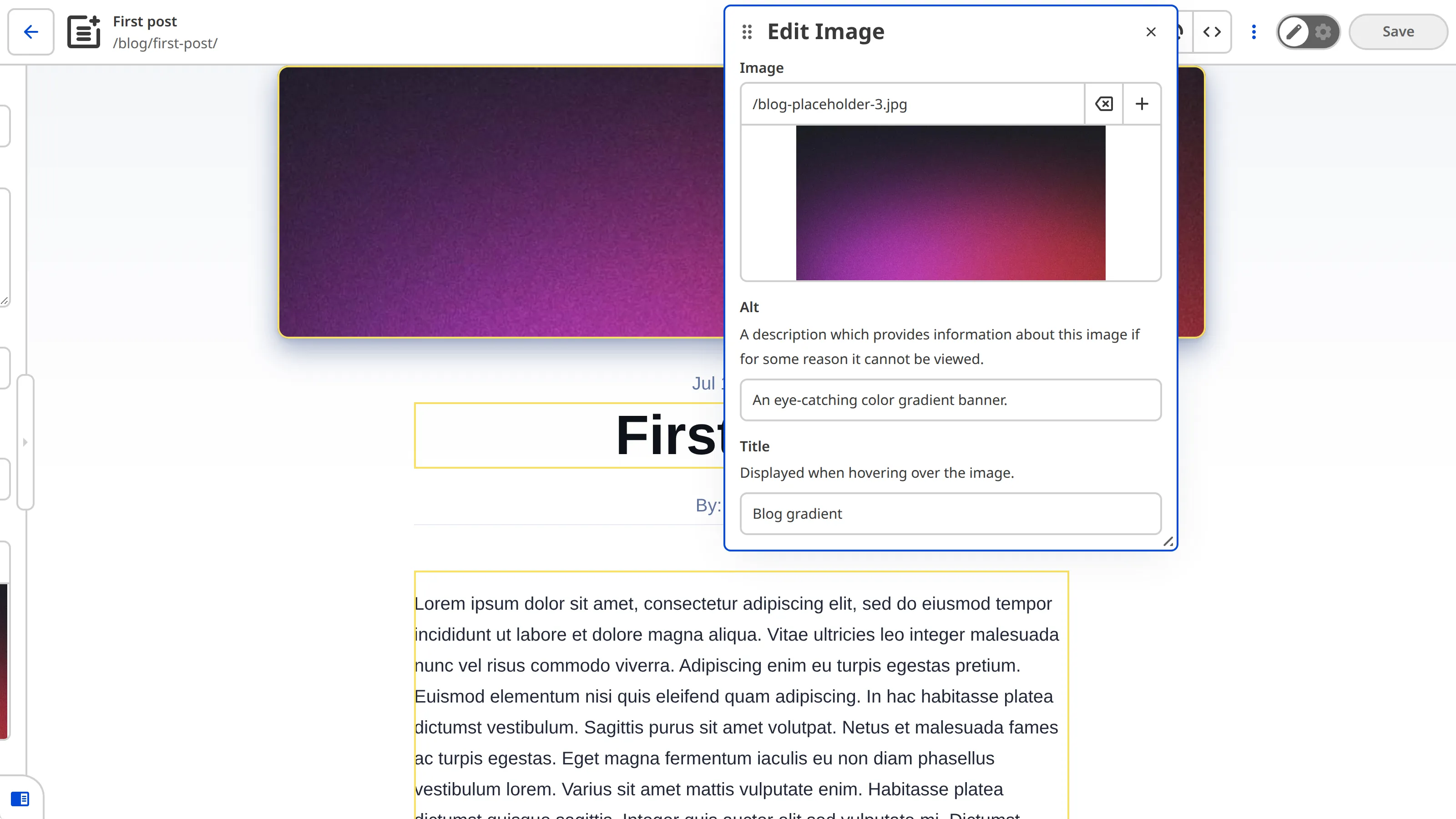
When you click the image, CloudCannon will open the Edit Image Data Panel, where you can change the image, alt text, and title. If your <img> element is inside a <picture> element, CloudCannon also updates the <source> elements in the <picture> element when you change the image.
If you upload a new image from your computer through the Edit Image Data Panel, CloudCannon will upload it to one of three locations. If your front matter key is configured as an Image Input, CloudCannon will upload your new image to the location defined by options.paths.uploads. If this option is not defined, CloudCannon will use the location defined by paths.uploads in the root of your CloudCannon Configuration File. Finally, if you do not have any uploads path defined, CloudCannon will upload the new image to the uploads folder in your Site's source folder (static/uploads for some Hugo Sites), or create one if the folder does not exist. If your Site has a connected DAM, you can also choose to upload the image to your DAM instead.
Common errors#
If you accidentally misconfigure your Editable Regions, CloudCannon will replace them in the Visual Editor with a red Error Card headed Failed to render image editable region, followed by a message describing the problem.
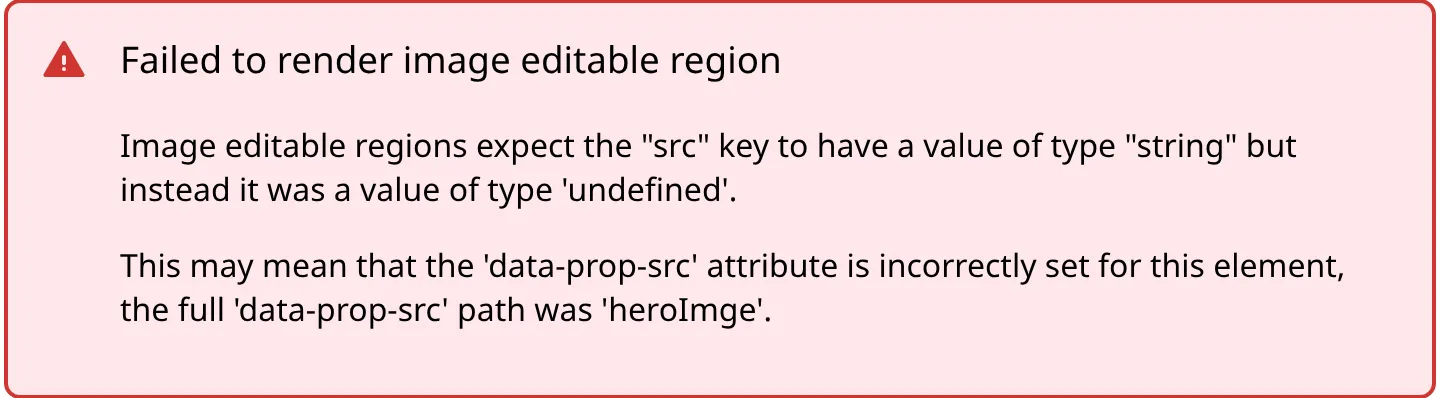
Here are a few common errors you might encounter with Image Editable Regions:
- You did not define any
data-prop-*HTML attribute, or thedata-propHTML attribute, for your Image Editable Region. - The Editable Region has an invalid data type (e.g., your image source is a number or object, instead of a string).
- There is no
<img>child element in the Image Editable Region web component. - Your Image Editable Region receives a key other than
src,alt, ortitle(e.g., from adata-prop-colorHTML attribute).
In the next step of this guide, we'll cover how to define Editable Regions for simple arrays.