Setting your agency up on CloudCannon starts with creating an account and an Organization A workspace in CloudCannon that groups together Sites, Organization Members, and shared resources. It is also the unit CloudCannon bills for. You can define permissions for your Organization, controlling the access each Organization Member has to resources on CloudCannon. You can create and be a part of multiple Organizations. CloudCannon's program for agencies and freelancers who build and maintain Sites for clients. The Partner Program gives you a single place to manage many clients, the option to run each client in a separate Client Organization, and Partner Points that unlock rewards as your client work grows. A separate Organization that a Partner Organization manages but that the client uses and pays for. Client Organizations are part of the CloudCannon Partner Program and give each client their own team, billing, and login. Unlike Guest Access, which shares a single Site with someone who doesn't have a CloudCannon account, a Client Organization is a full, independent Organization. One of CloudCannon's pricing plans offering basic features for individual users or small projects with limited requirements, good for testing CloudCannon features. The Lite Plan is only available through CloudCannon Partners.Organization
Partner Program
Client Organization
Lite Plan
Create an account#
If you already have a CloudCannon account, you can skip this step of the guide.
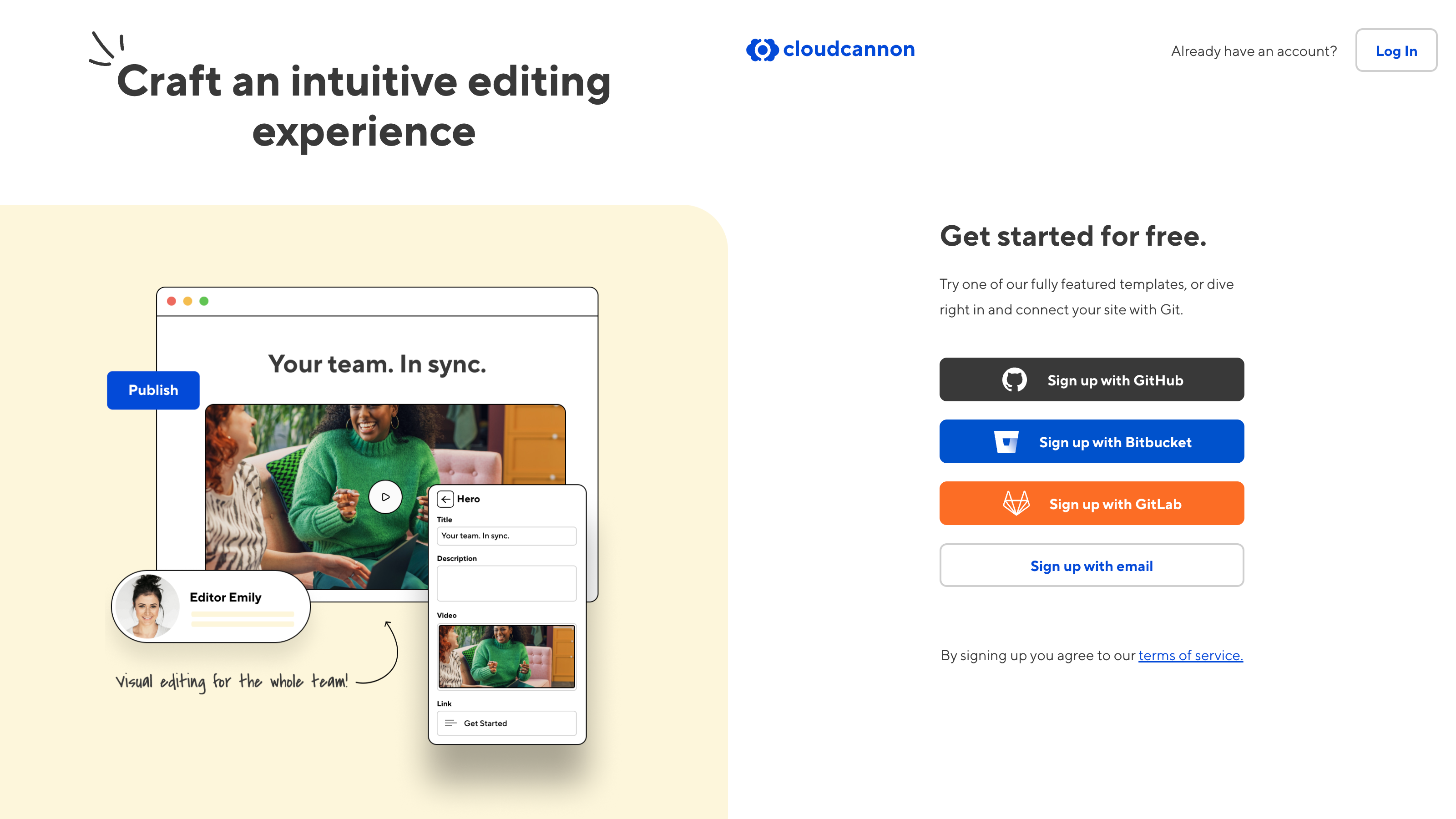
Open the CloudCannon app using your internet browser. You can create an account using your email, or your GitHub, Bitbucket, or GitLab account. In this guide, we'll create an account using email.
Click on the Sign up with email button.
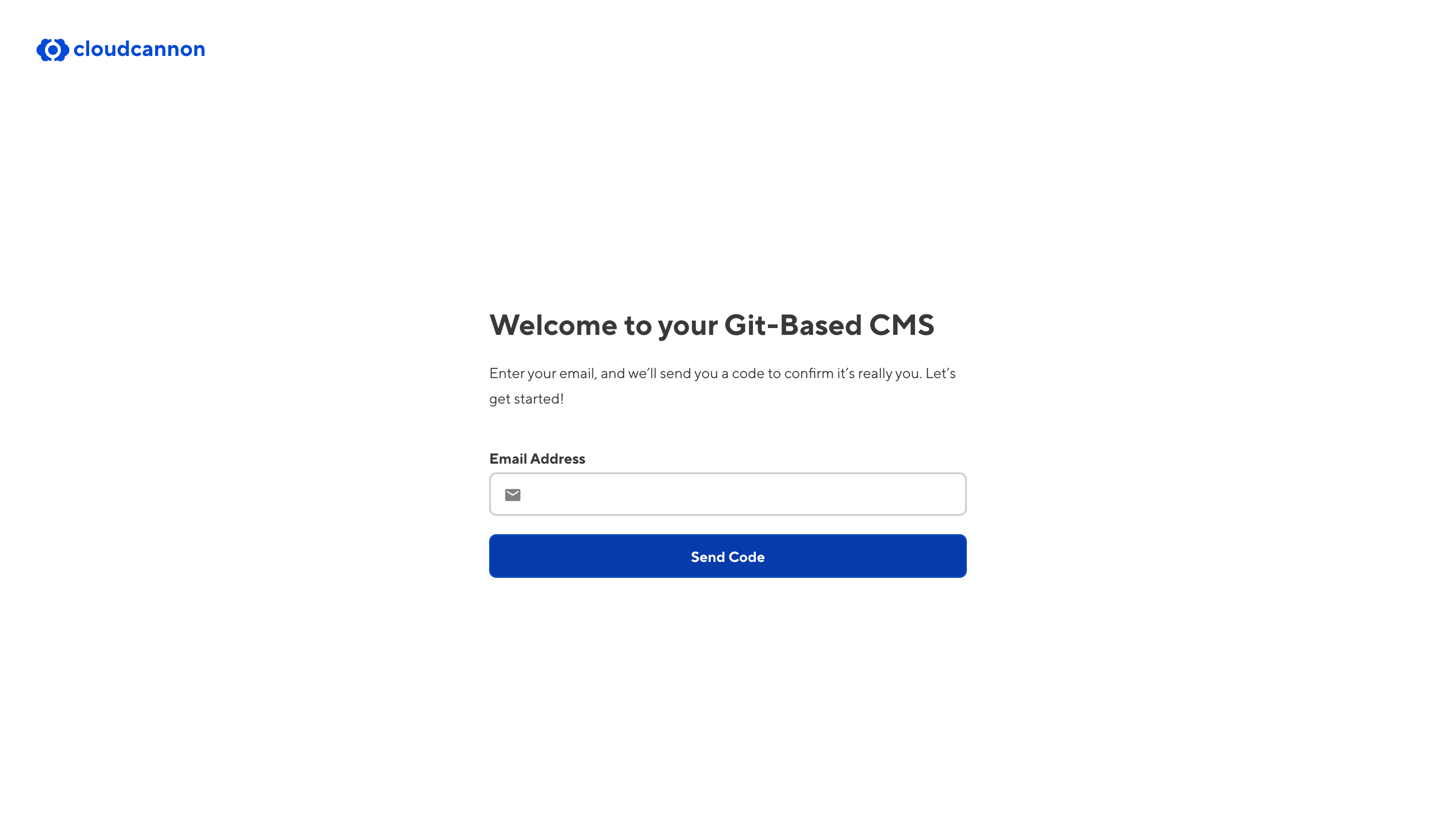
Enter your email in the Email Address field and click the Send Code button.
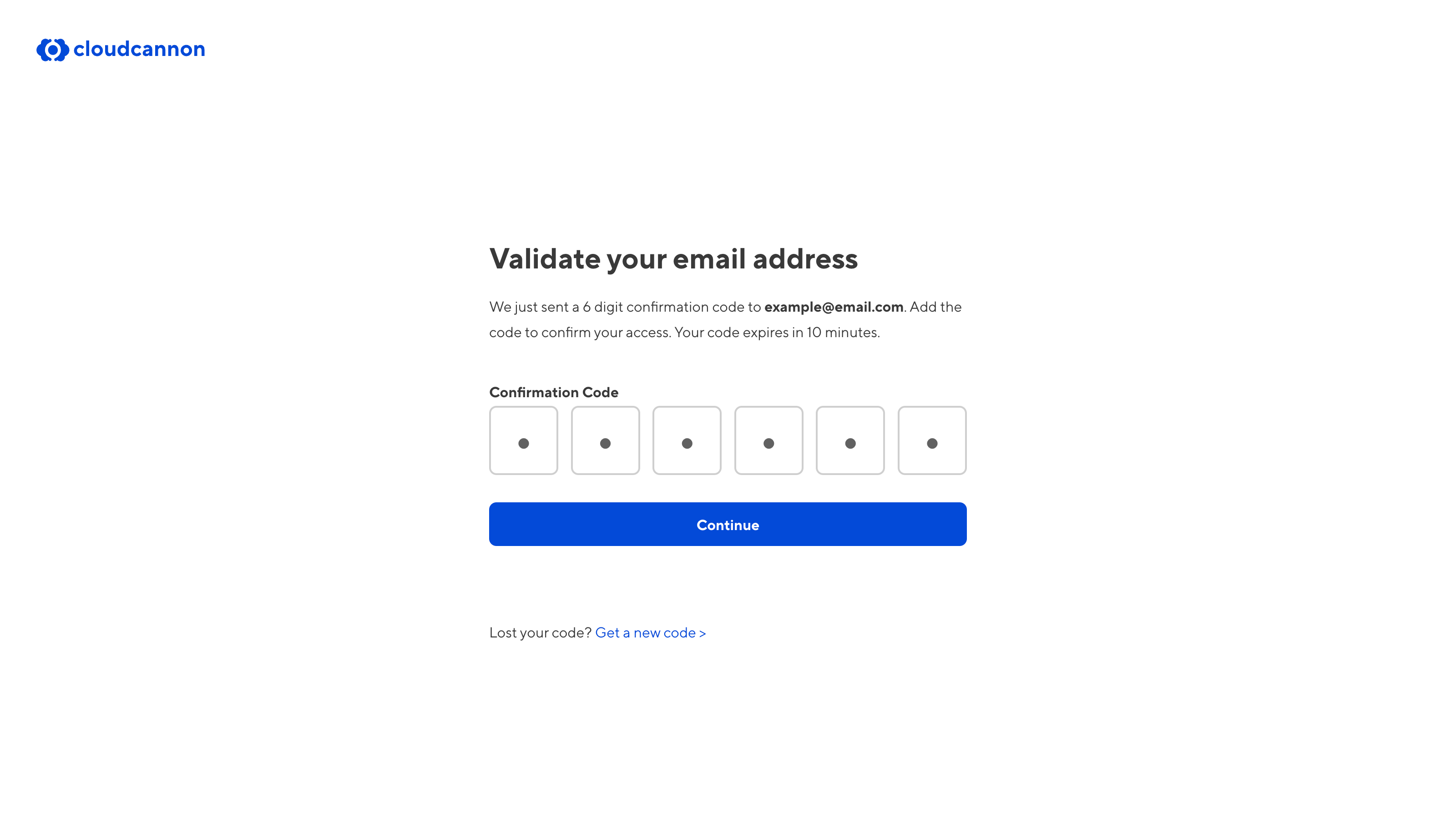
To validate your email address, CloudCannon will send a six-digit confirmation code to the email you provided. This validation email should arrive in your inbox quickly and will expire after 10 minutes.
Enter the code in the Confirmation Code field and click the Confirm my email button.
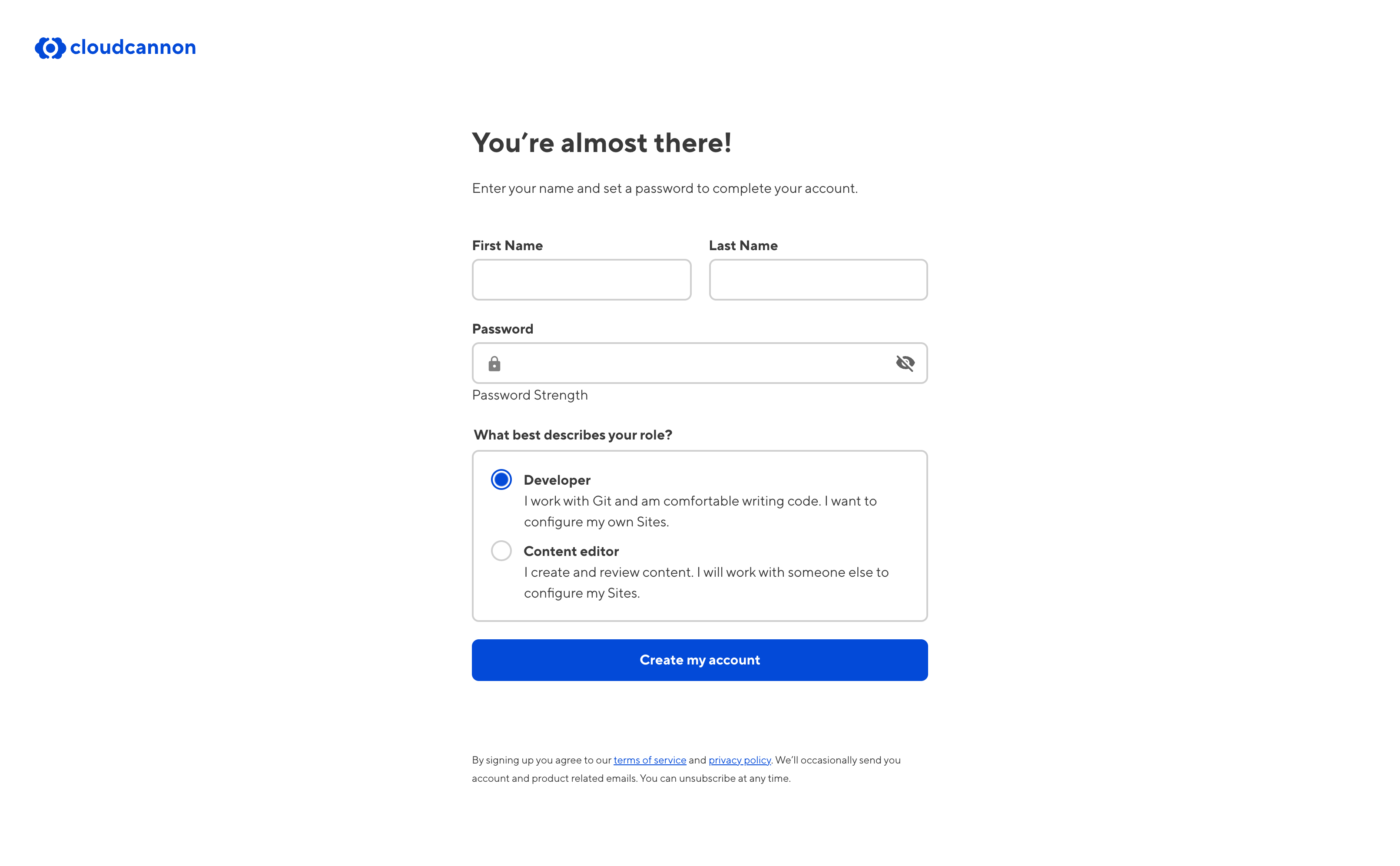
Once you have validated your email address, you can finish adding your account details, such as your first name, last name, and an account password, and whether you are a developer or a content editor. Your password must be at least nine characters long.
Do not share your CloudCannon password with anyone. CloudCannon employees will never ask you for your password.
Click the Create my account button to finish creating your account.
Your Organization#
CloudCannon will automatically create an Organization for you when you sign up, and add you to the Owners Permission Group One of CloudCannon's Default Permission Groups. Owners have complete control over everything in your Organization, including managing billing settings, deleting Organizations, and creating Custom Permission Groups.Owners
If someone had already invited your email address to their Organization when you signed up, CloudCannon will not create an Organization for you, and you join theirs when you accept the invitation. To run an agency you need one of your own. For more information, please read our documentation on creating a new Organization.

Your new Organization starts on a 21-day Free Trial A trial period that gives a new Organization access to Standard Plan features without requiring a payment method. One of CloudCannon's pricing Plans designed as the ideal starting point for all teams. The Standard Plan includes essential features for collaborative website management. A website in CloudCannon that includes all the files, content, configuration, and settings needed to edit, build, and host a complete website. The left-most UI panel in the CloudCannon app. This panel contains links to your Organization Home, Sites, Projects, Domains, and Org Settings pages, as well as app Updates and your Avatar.Free Trial
Standard Plan
Site
App Sidebar

Now that you have an Organization, you can pause this guide here. Your 21-day Free Trial is the time to connect a website of your own and see what editing on CloudCannon feels like before you enter any payment details. You have already created an account and an Organization, so please read our documentation on getting started with CloudCannon, starting at the Create a Site step. Come back here when you are ready to set up a Site for a client and pick your Subscription Plan A set of features available to your Organization, the monthly usage limits for resources, and the price you pay for access to those features and resources, monthly or annually. Each Organization in CloudCannon can have one Subscription Plan, and can update or cancel at any time.Subscription Plan
Join the Partner Program#
There is no fee to join the Partner Program, and you can join during the 21-day Free Trial on your own Organization. That gives you three weeks to create Client Organizations, try the benefits, and discuss your setup with our friendly support team before you pay for your agency's Subscription Plan.
To apply, visit the CloudCannon Partner Program page, which covers eligibility, what's included, and how to sign up. Once you're enrolled, CloudCannon will turn your Organization into a Partner Organization A CloudCannon Organization that belongs to a member of the Partner Program and serves as their base for managing client work. From their Partner Organization, Partners create and manage Client Organizations and track their Partner Points.Partner Organization

In the next step of this guide, we'll choose a Subscription Plan for your agency and start your Subscription.