The next task in the Getting Started with Editing in-app guide is Tour your new Site, which points out important UI on your new Site. If you would rather continue configuring CloudCannon, feel free to skip this task.
Click the Start your tour button and let CloudCannon show you around.
General Site UI#
At the top of your Site is the Site Header, and on the left is the Site Navigation and App Sidebar.

The Site Header displays key information about your Site in the top left, such as your Site icon, name, and branch, and important tools in the top right, such as the Avatars of all the team members viewing a Site and the Save button. More tools will appear in your Site Header as you set up your Site.
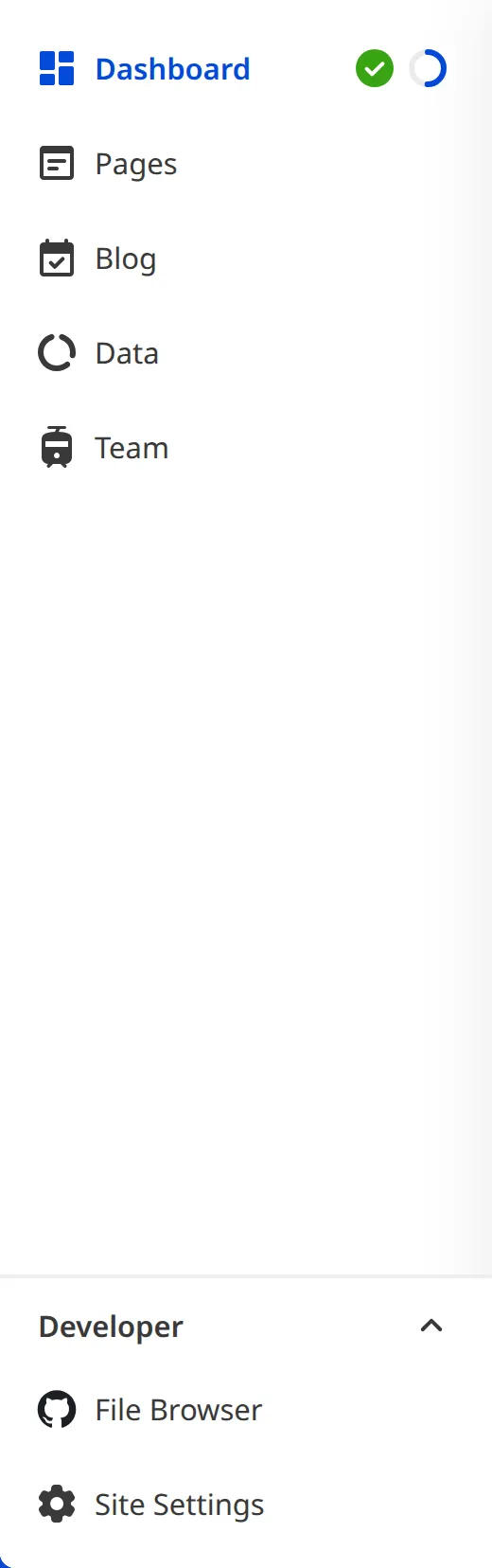
The Site Navigation lists important pages on your Site, such as your Site Dashboard, Collections, File Browser, and Site Settings. More links can appear in your Site Navigation depending on the CloudCannon features you configure (e.g., Publishing or Inbox).

Finally, we introduced the App Sidebar in a previous step of this guide (the blue navigation bar on the far left). If you ever navigate away from your Site and need to find it again, you can click the Sites button in your App sidebar and use the Sites Browser to find it again.
The Site Dashboard#
The majority of your screen is taken up by your current Site page: in this case, the Site Dashboard. Your Site Dashboard is the homepage for your Site.
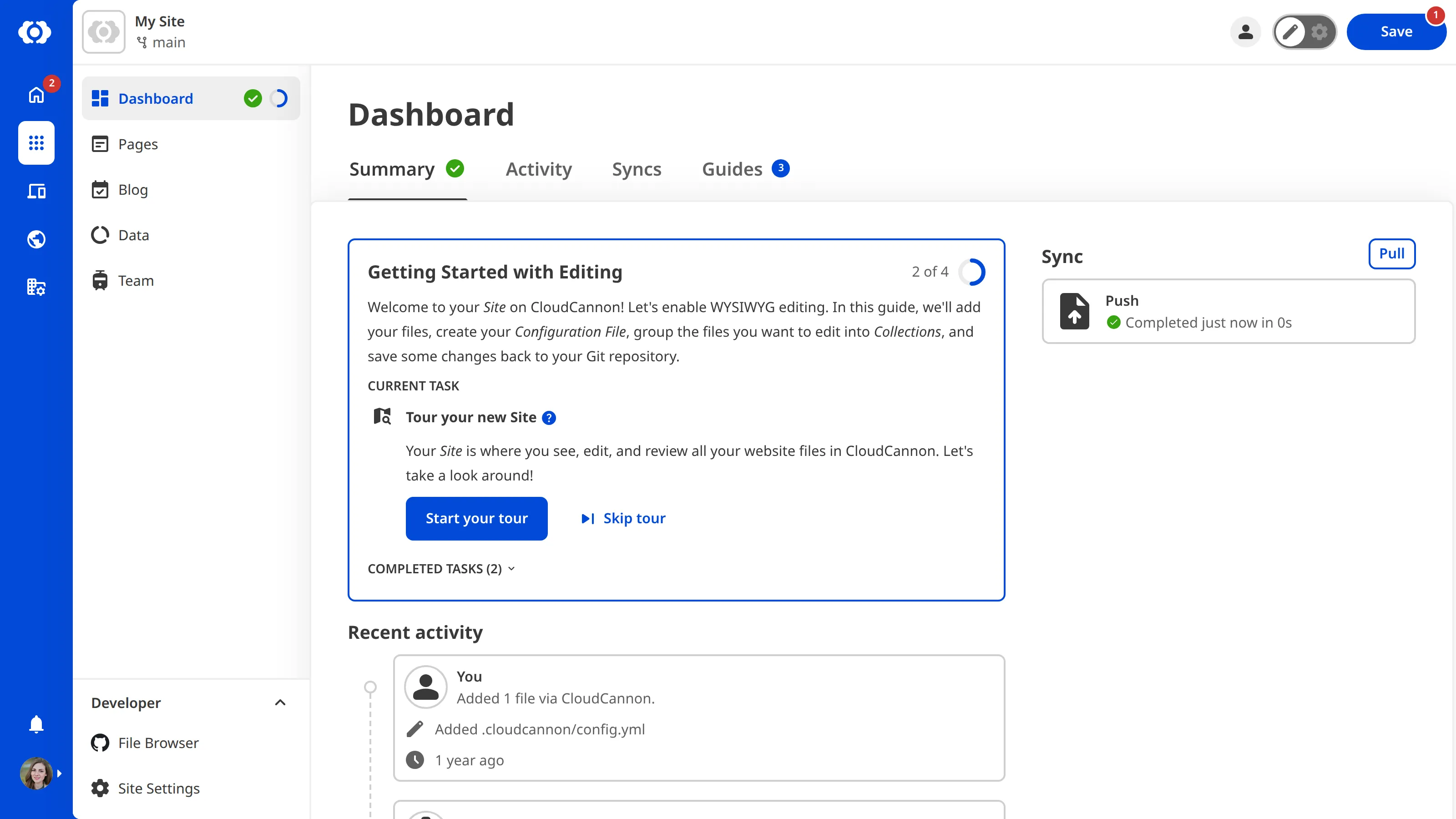
The Site Dashboard is the first link in your Site Navigation. Next to this link are the Status indicator and the Guide progress indicator, which show the status of your most recent sync or build, and how far you have progressed through your active in-app guide.

The Site Dashboard is broken down into several tabs, including Summary, Activity, Syncs, and Guides.

Depending on how you configure your Site, additional tabs, such as Builds and Build Deploys, can appear on your Site Dashboard.
On the Summary tab of your Site Dashboard, CloudCannon will display summary information about your Site. For new Sites, CloudCannon has the Getting Started with Editing in-app guide in the center, with suggested tasks for configuring your Site. Underneath the in-app guide is a list of your recent activity. On the right, the Summary tab also gives a preview of your most recent sync.
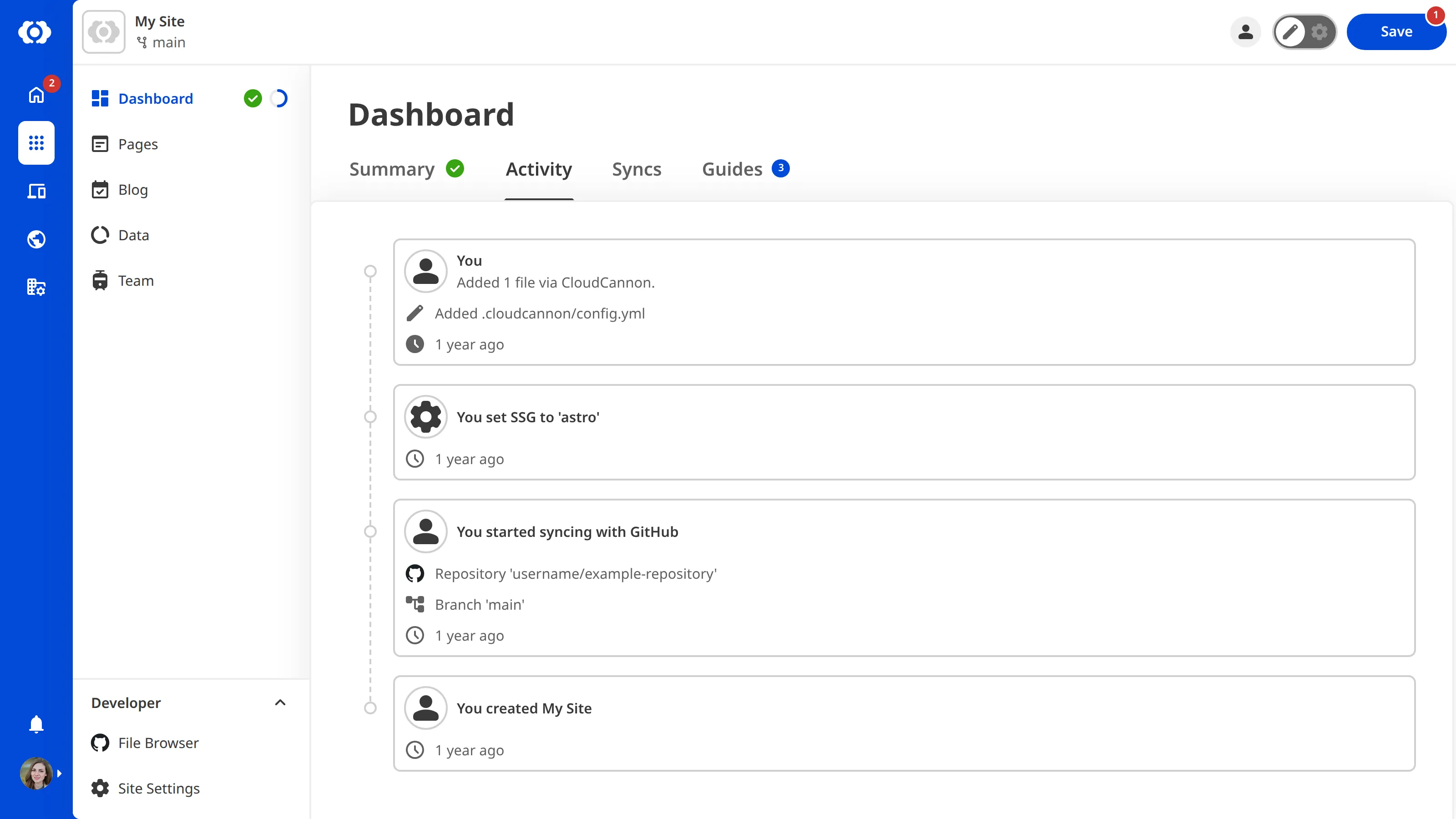
On the Activity tab of your Site Dashboard, CloudCannon will show you a list of recent activity on your Site in reverse chronological order. This list refreshes every time you sync your Site or update your Site Settings. This list includes:
- Every change made to your files from within CloudCannon or your Git provider (including the author, date, time, and commit message, if applicable).
- When your Site has Syncing or Output errors.
- Any changes made to your Site Settings, or Branch and Publish Branch settings.
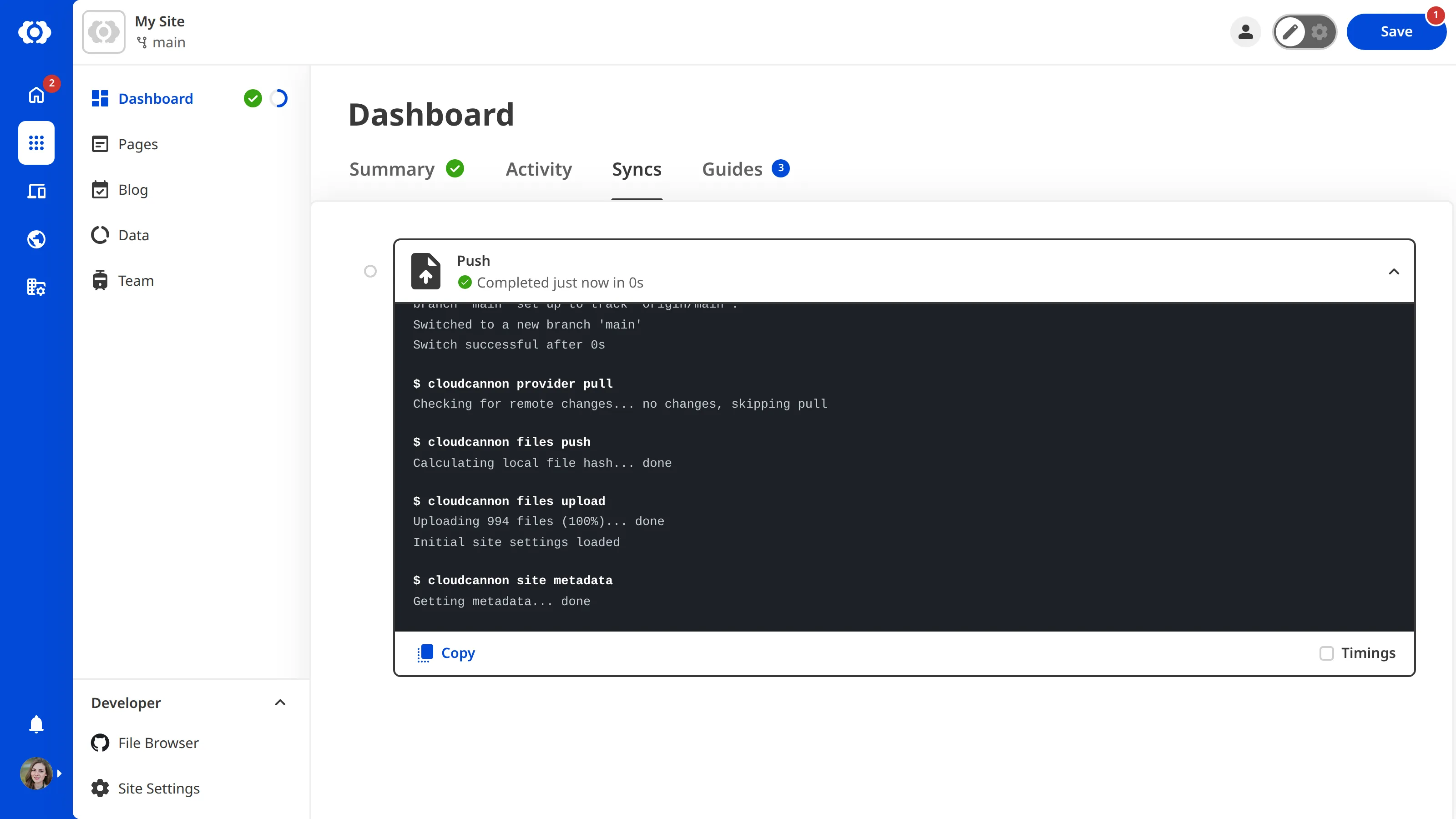
On the Syncs tab of your Site Dashboard, CloudCannon will show you a list of syncing logs for your Site in reverse chronological order.
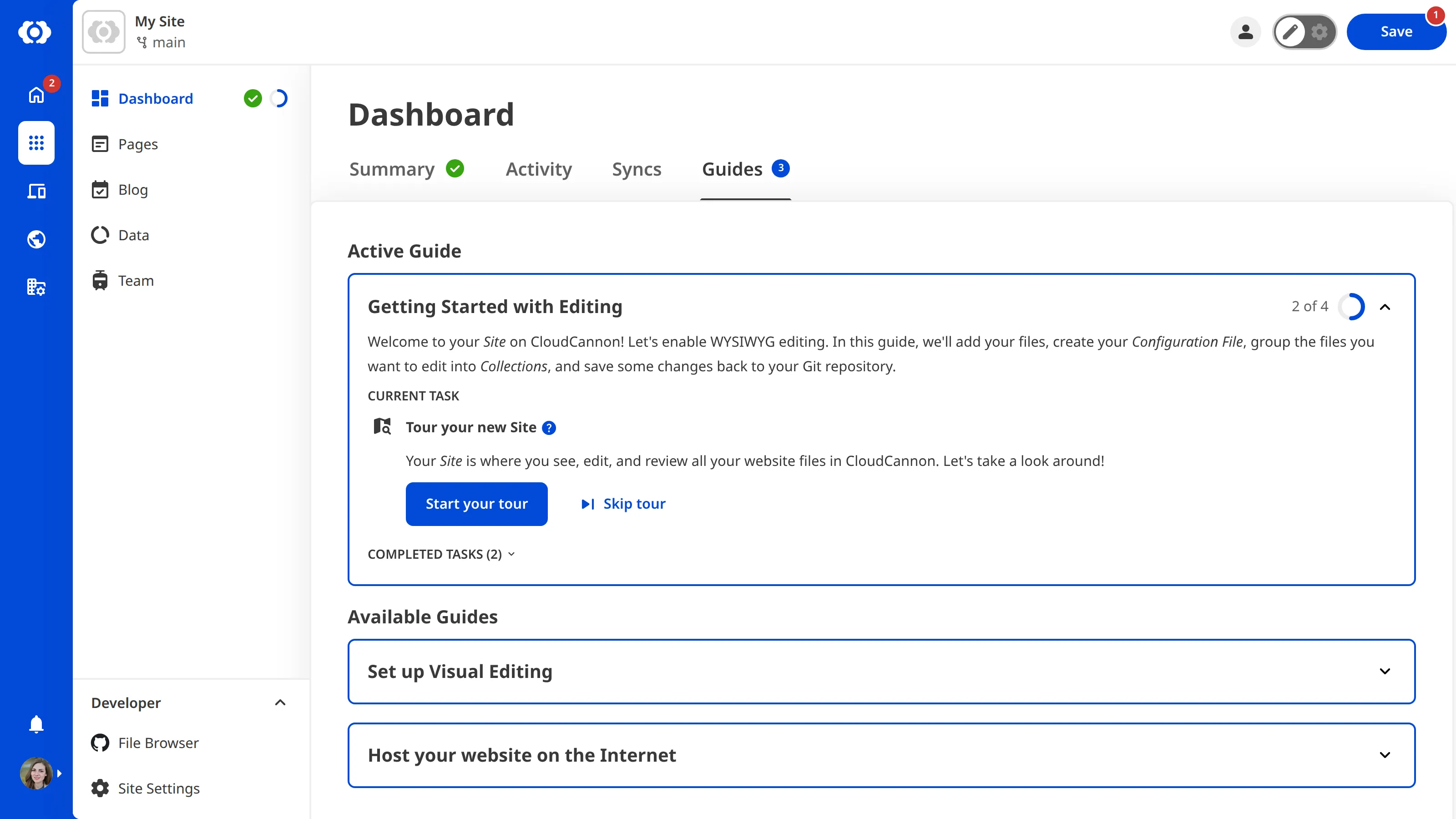
On the Guides tab of your Site Dashboard, CloudCannon will show you a list of in-app guides. You can see the number of available guides in a notification by the name of the tab.
Right now, we are working through Getting Started with Editing. There are several other guides you can follow to configure other features in CloudCannon after you have finished Getting Started with Editing.
The Collection Browser#
When you selected your Collections in the previous step of this guide, CloudCannon added them to your Site Navigation. Click on one to open your Collection Browser.
The Collection Browser allows you to browse, sort, and filter your Collection files, add new ones, and perform file actions like cloning or deleting. Each Collection Browser shows all the files in a single Collection, with each file represented by a customizable File Card.
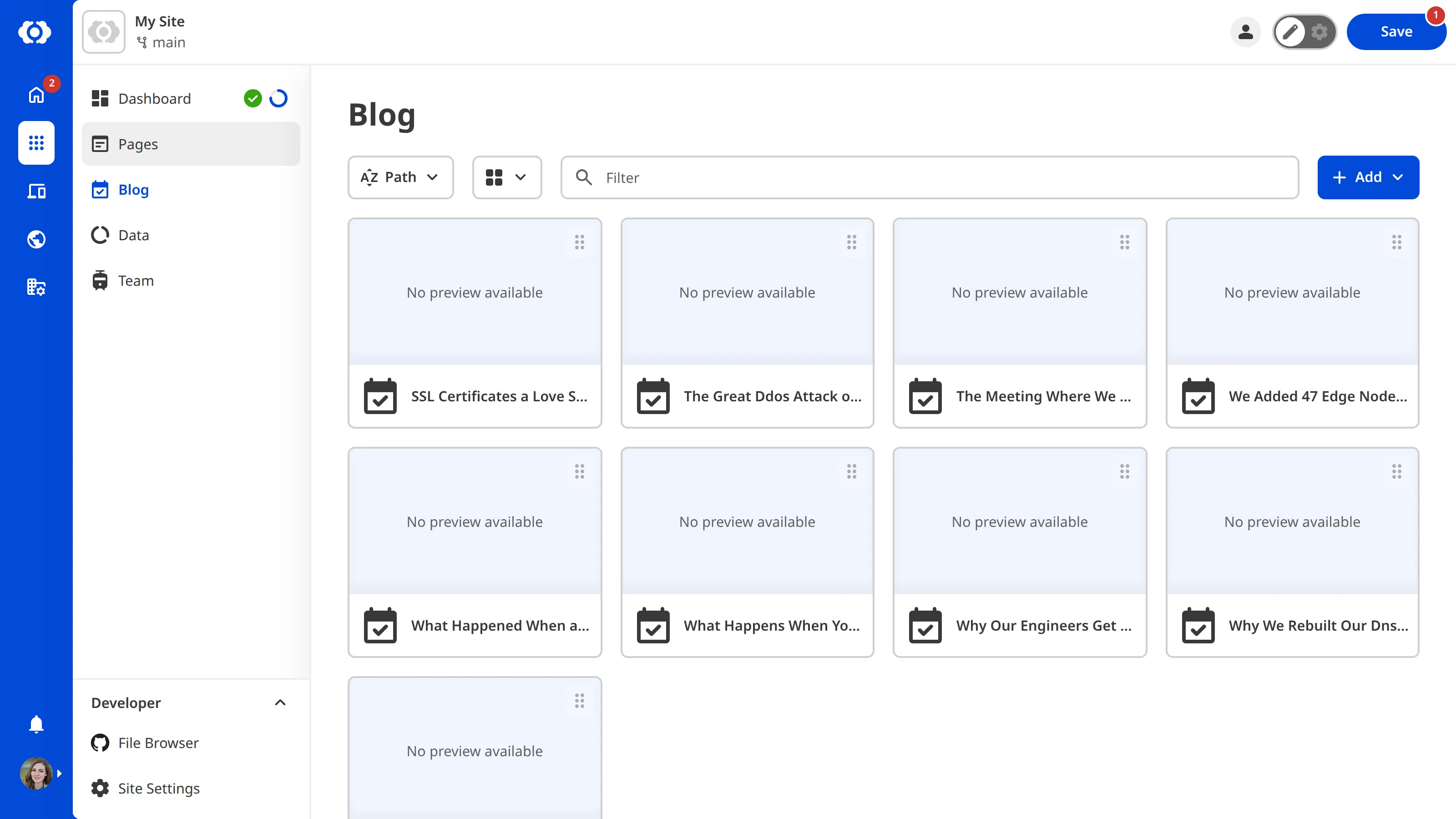
At the top of your Collection Browser, underneath your Site Header, is the Collection Header. This section contains important identifying information about your Collection, such as the Name, and Documentation Link or Description (if configured).
Under the Collection Header are the Collection Browser Controls: the Sort menu, View menu, Filter text field, and the + Add menu.

The Sort menu lets you change how CloudCannon sorts your files in the Collection Browser (e.g., alphabetically by file path, numerically by file size, by date and time of file creation, or by date and time of last modification).
The View menu allows you to change how your files appear in the Collection Browser. You can switch between three view options: List, Card, and Gallery. By default, your Collection Browser uses the Gallery view. The gallery section of the Card can display an image from within the file or a preview screenshot of the webpage.
The gallery section of your File Card can also display a "No preview available" or "Failed to load image" warning.
"No preview available" indicates that the preview screenshot has not been configured. This will be the case for Sites that have not been built. We'll cover screenshots more in the Set up Visual Editing guide.
"Failed to load image" indicates that an error has occurred, and CloudCannon could not load the preview screenshot. Refreshing your browser may fix this.
The Filter text field allows you to filter your Collection files to show file paths that match a given string.
The + Add button allows you to add new files and folders to a Collection, which you can save back to your Git repository.
Using Configuration Mode#
CloudCannon allows you to customize almost everything about your Site to create the best editing experience for your team. Turn on Configuration Mode to configure your Site using the switch on the right of the Site Header.

When Configuration Mode is on, CloudCannon displays purple Edit Configuration buttons throughout the app. Each of these buttons allows you to configure a different UI element.
Let's take a look at the Collection Browser. Using Configuration Mode, you can update the name, icon, and description, the default file sorting, the appearance of your File Cards, and more.
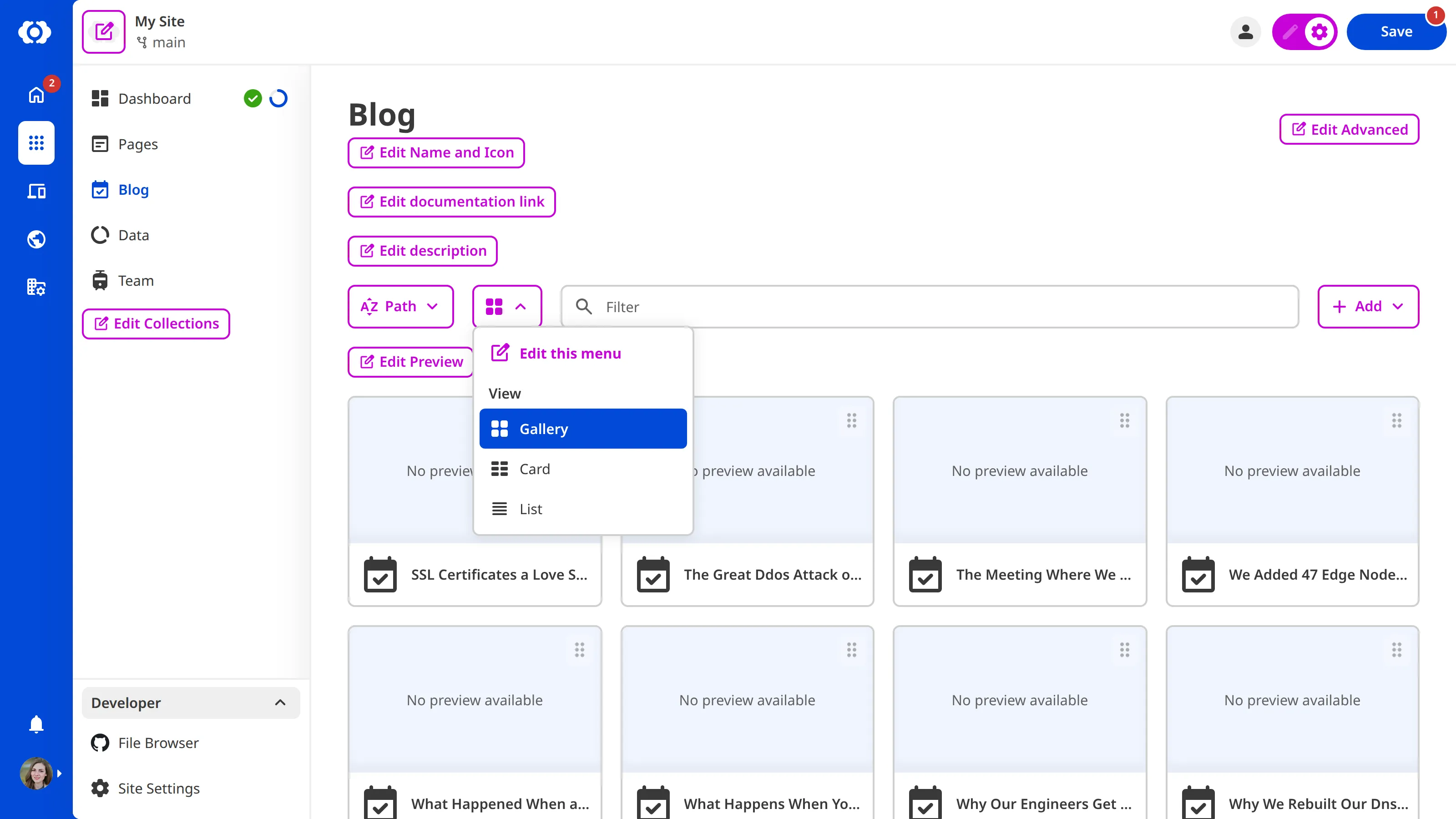
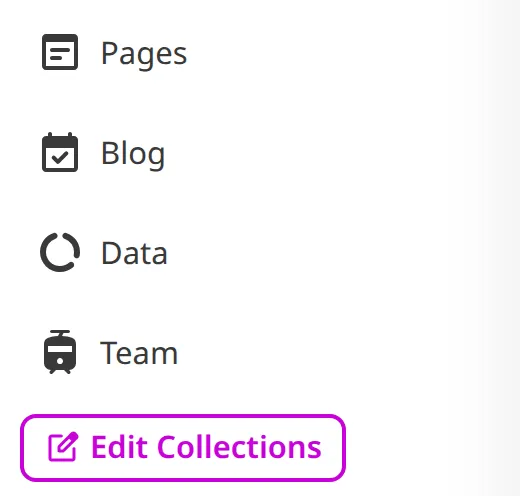
You can also change your Collections. If you decide you want to add or remove a Collection from CloudCannon, you can return to the Edit Collections modal by clicking the Edit Collections button in the Site Navigation.
Go ahead and try configuring your Collection, or open a Collection file in an Editing Interface by clicking on the File Card. When you are ready, we'll cover saving your Configuration File back to your Git Repository in the next step of this guide.