The next task in the Getting Started with Editing in-app guide is to Create your CloudCannon Configuration File.
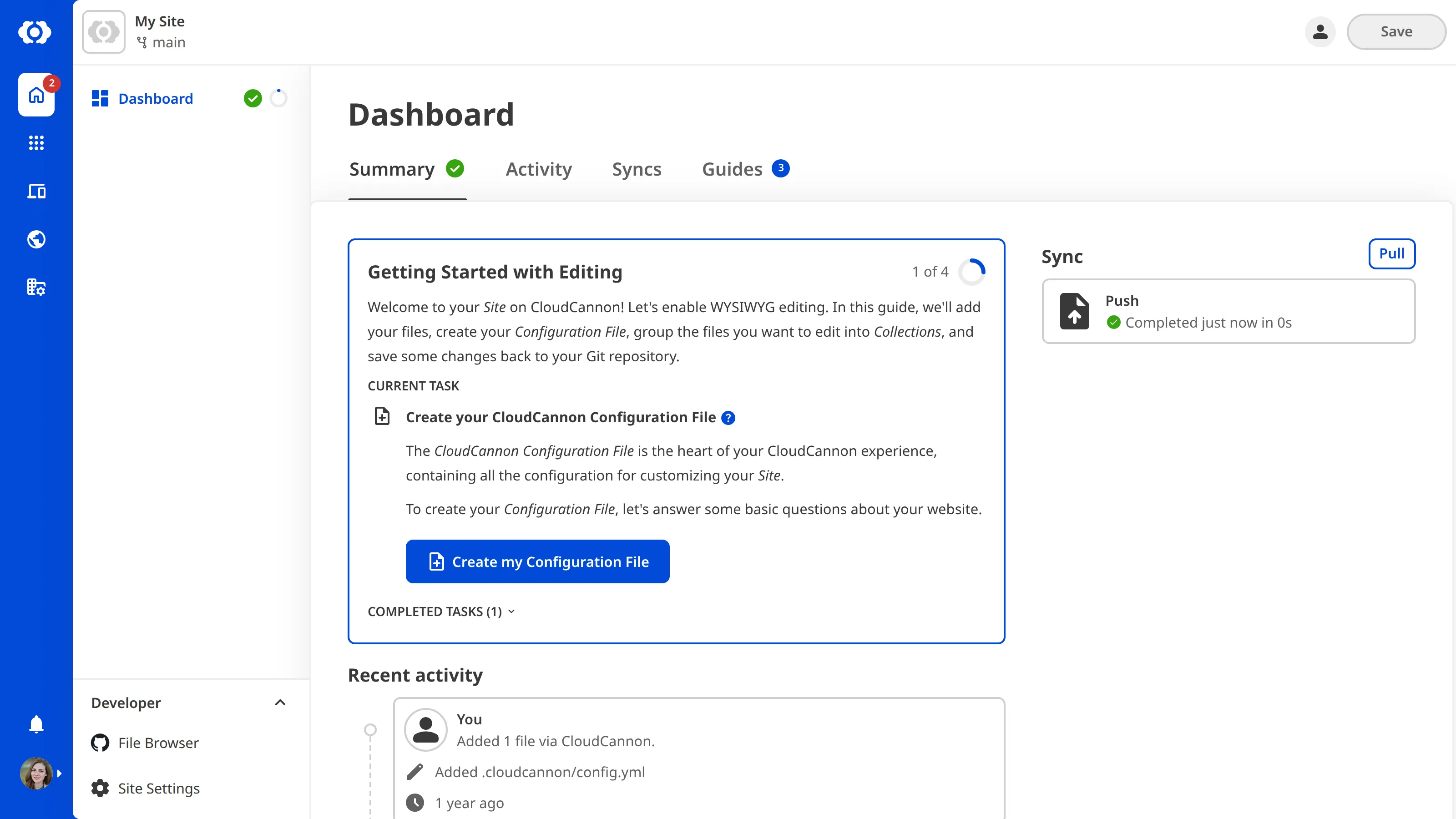
The CloudCannon Configuration File is the heart of your CloudCannon experience, allowing you to customize the functionality and appearance of your Site. You can configure your Site Navigation, Editing Interfaces, file appearance in the app, how CloudCannon adds new files, and more by adding formatted content to your Configuration File.
As we go through the later steps of this guide, we'll add more to our Configuration File. Let's create one.
Click the + Create my Configuration File button in your in-app guide under the Create your CloudCannon Configuration File task. CloudCannon will open the Create my Configuration File modal.
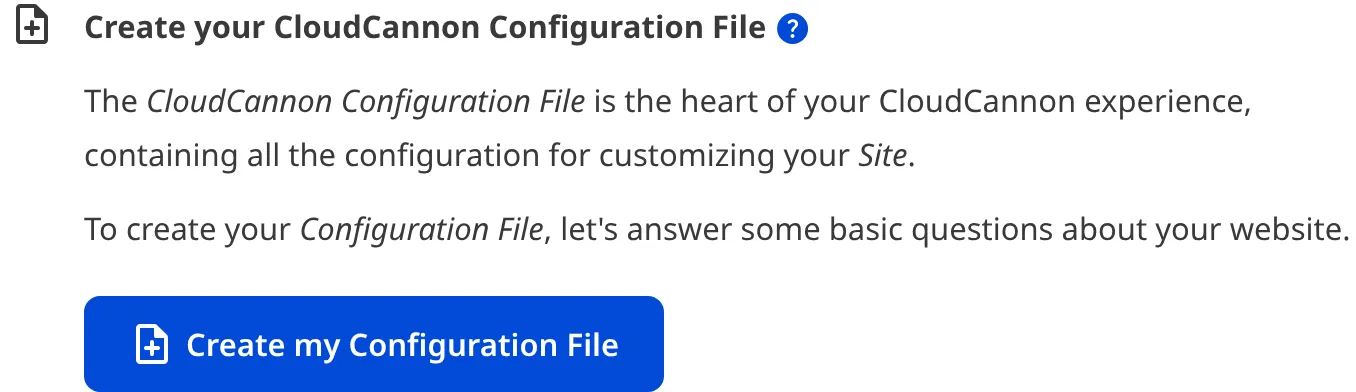
The CloudCannon Configuration File is stored at the root of your website directory by default and can be YAML or JSON. When you answer the questions in this modal, CloudCannon will create the /cloudcannon.config.yml file in the root of your repository.
A quick note about Documentation...
CloudCannon links to helpful documentation in multiple places throughout the App. When you see the question mark symbol next to a link, or on its own next to a title, clicking on it will open the relevant page on the CloudCannon Documentation website in a modal.

Select your Static Site Generator#
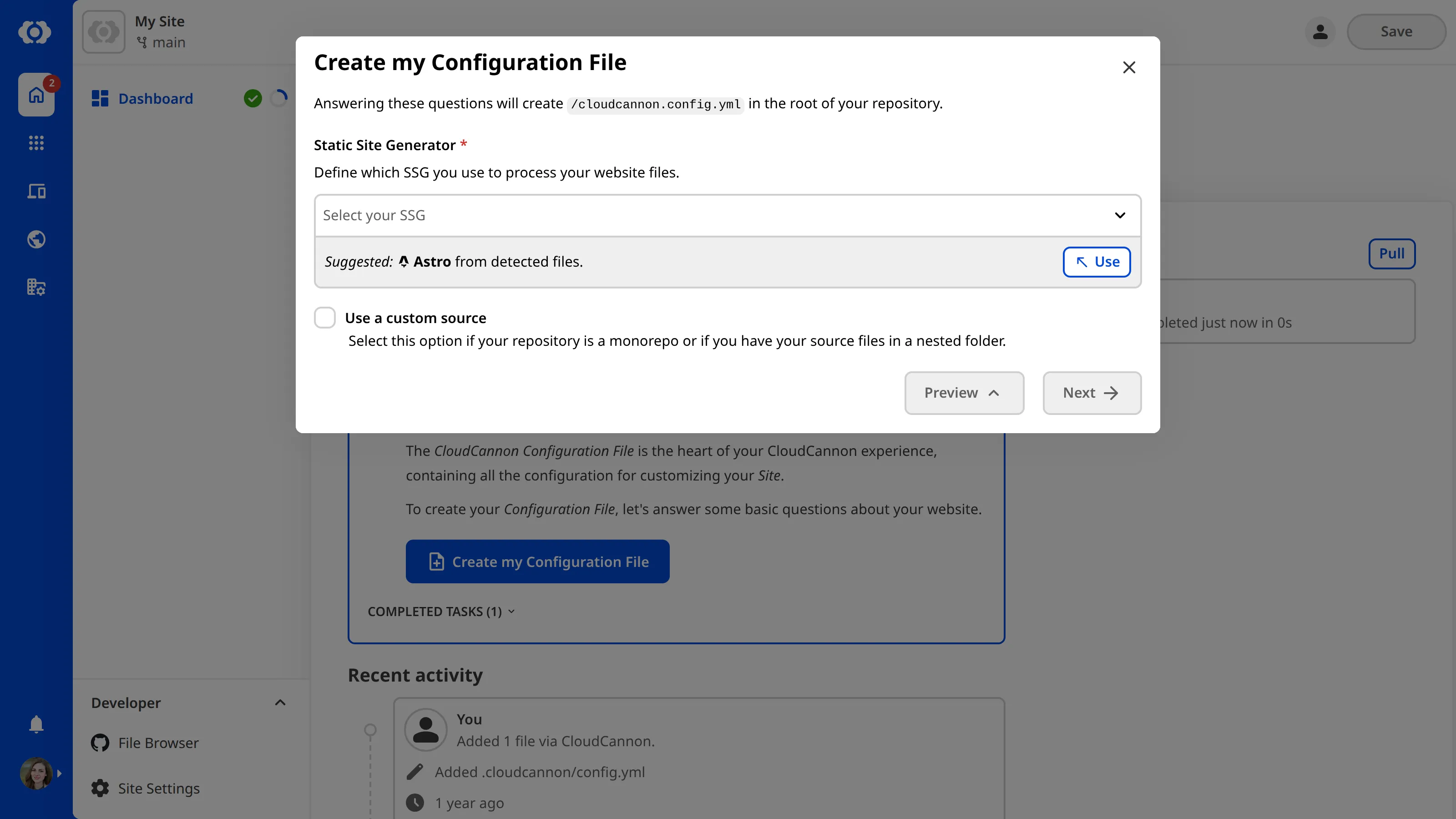
To start with, CloudCannon needs to know which Static Site Generator An abbreviation of Static Site Generator, an SSG is a tool that builds websites by processing templates, content, and data to create static HTML files. CloudCannon supports popular SSGs like Jekyll, Hugo, Eleventy, Next.js, and many others.SSG
CloudCannon will use the information found in your files to suggest an SSG. You can click on the Use button under the right side of the Static Site Generator dropdown to populate it with CloudCannon's suggestion, or select an option from the list of CloudCannon's supported SSGs.
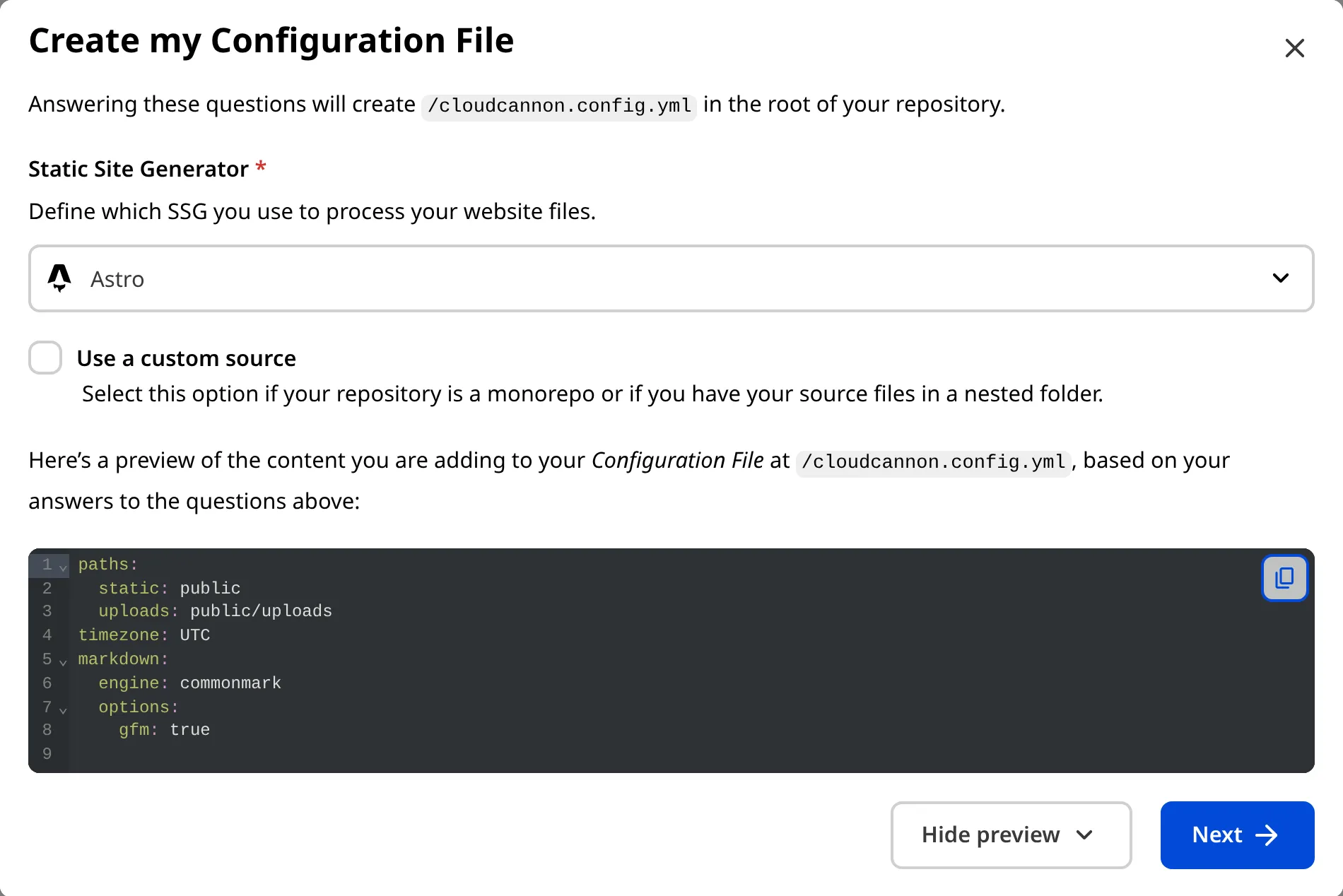
At the bottom of the Create my Configuration File modal is the Preview button. Clicking this button will show you a preview of the initial content of your CloudCannon Configuration File.
Select your Source Folder (optional)#
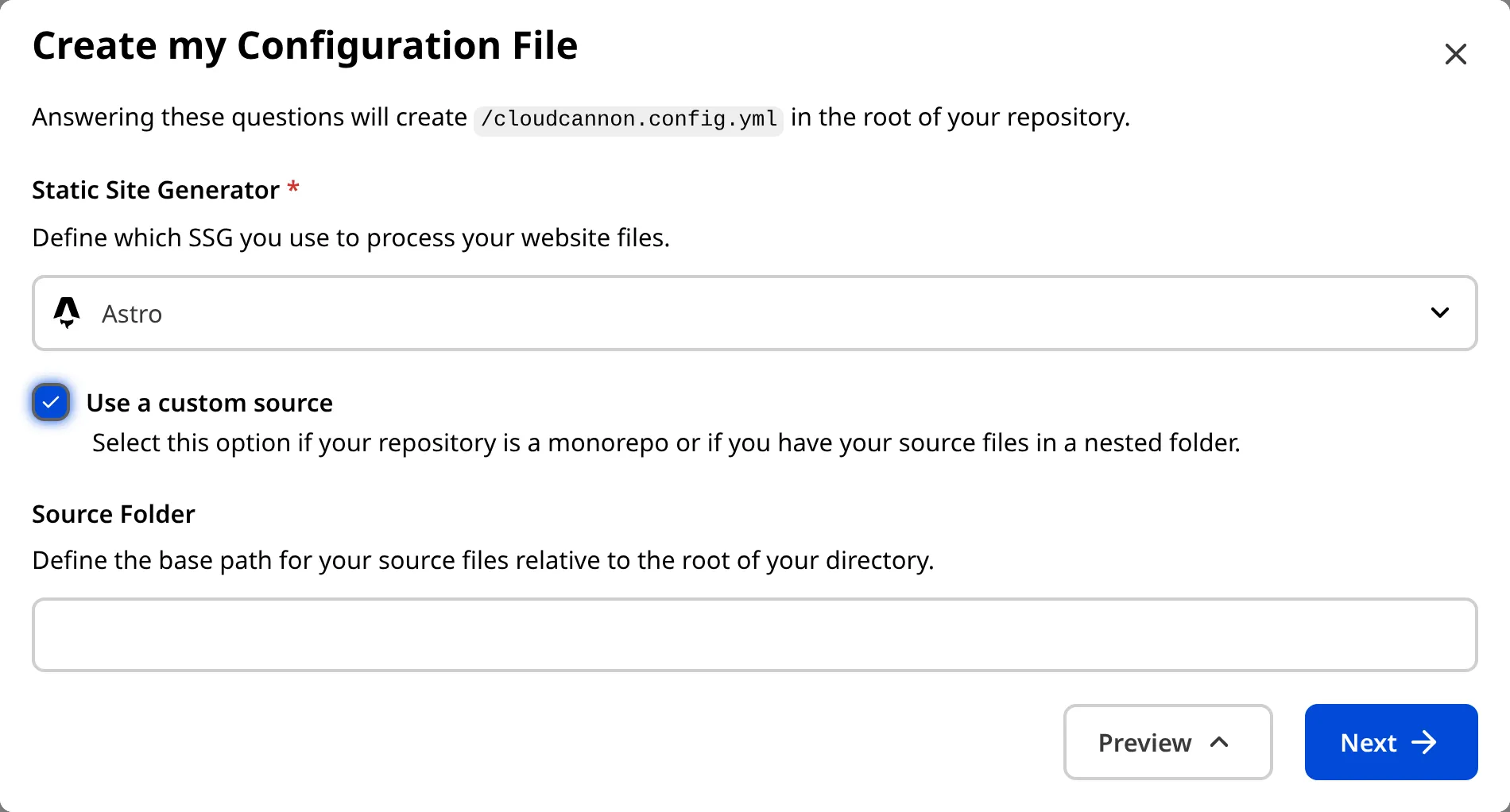
CloudCannon needs to know the base path for your SSG source files relative to the root of your directory, called the Source Folder. Most websites use the root of their repository as the Source Folder.
However, if your source is nested in your repository (such as if you have a mono-repo), you should check the Use a custom source box and enter the file path in the Source Folder text field.
Select your Collections#
Click the Next button on the bottom right of the Create my Configuration File modal.
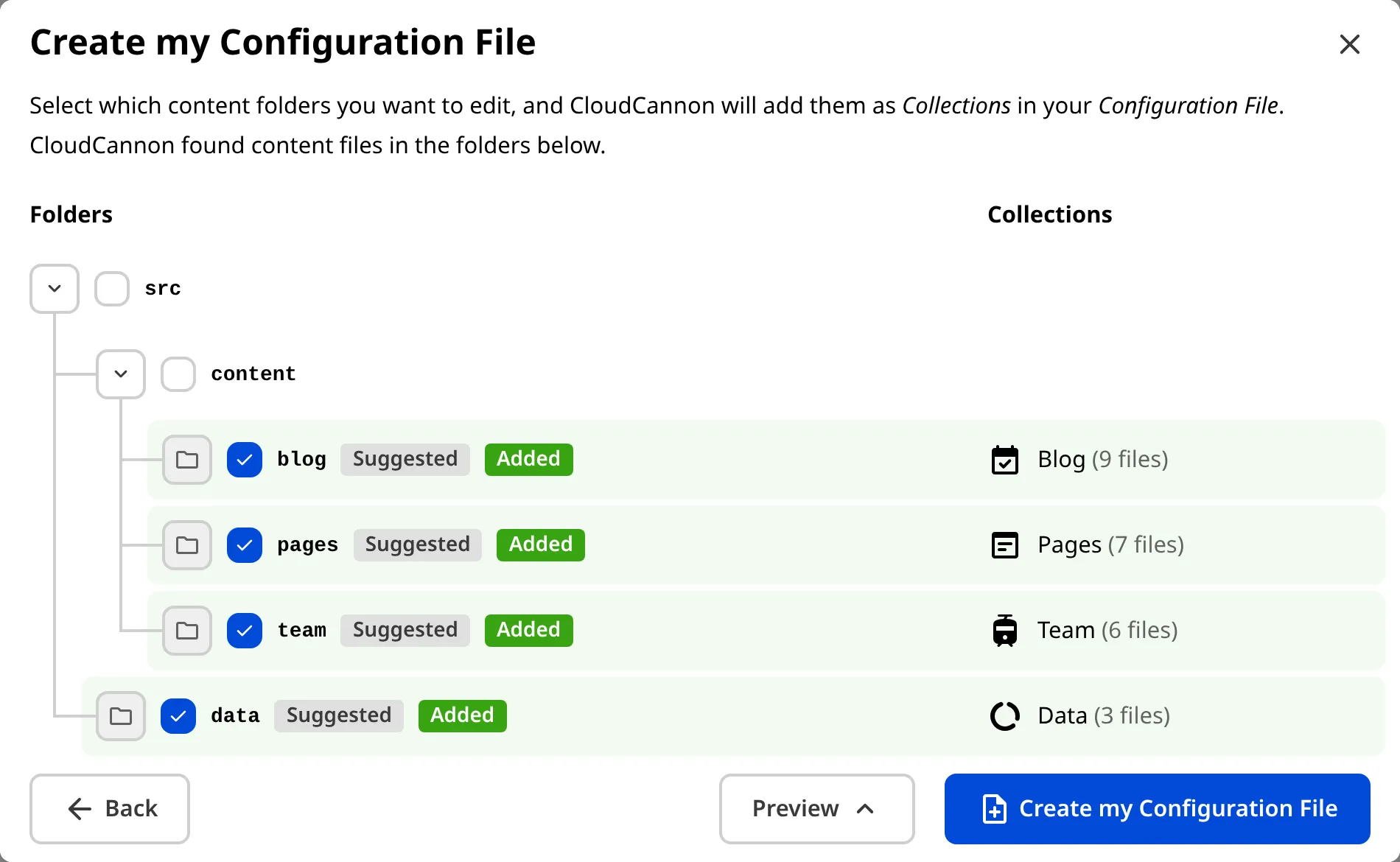
On the next page of the modal, CloudCannon asks you to select your Collections. A Collection A group of related files with a similar format (e.g., a folder of pages, blog posts, or data files). Once you group your files into Collections, they appear in the Site Navigation for easy access.Collection
Once you select your Collections, they will appear in your Site Navigation for easy access. On the right of the modal, you can see a preview of the default name and icon CloudCannon will assign to each Collection (you can change these later), along with the number of content files each Collection will contain.

CloudCannon will automatically detect which folders in your Git Repository contain content files and suggest that you turn these into Collections. By default, suggested Collections are checked in the Create my Configuration File modal. Alternatively, you can deselect any folders you don't want to edit in CloudCannon using the checkbox.
What happens when you select one Collection nested inside of another?
Files can only belong to one Collection at a time. If you select two Collections, one nested inside another, the files will appear in the Collection with the most specific Path.
Let's walk through an example.
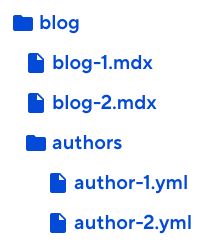
Assume you have an authors folder nested in your blog folder (i.e., /blog/authors/). The authors folder contains non-output data files with profile information about your various blog authors. In addition to the authors folder, the blog folder also contains all your output blog files. In this case, both the authors and blog folders could be Collections.
If you only add the "Blog" Collection with the path /blog/, all your output blog files will belong to this Collection, but so will all the data files inside /blog/authors/. All these files will appear as a sub-folder in your Blog Collection Browser.
Adding the "Blog" Collection and the "Authors" Collection will separate these files, keeping your output blog files in one Collection Browser and your non-output data files in another.
Like the previous section of the Create my Configuration File modal, you can click the Preview button in the bottom right to preview the contents you are adding to your CloudCannon Configuration File.
Here's an example of what that configuration code might look like for a Collection:
collections_config:
  news:
    path: /blog/news/
    icon: breaking_news
{
"collections_config": {
"news": {
"path": "/blog/news/",
"icon": "breaking_news"
}
}
}All Collections are defined under the collections_config key in your CloudCannon Configuration File.
The Key for this Collection is news. All the configuration for this Collection is stored nder this Key.
The Path for this Collection is /blog/news/, telling CloudCannon where to find the Collection files in your repository.
The Icon for this Collection is breaking_news.
When you are happy with your selection, click the Create my Configuration File button at the bottom of the modal, and CloudCannon will add cloudcannon.config.yml to the root of your repository. Your Collections will appear in the Site Navigation.
Congratulations! You've made your first change to your website content: adding a file. You might notice that the Save button in the top right now has a red "1" notification. This indicates that you have made a change to one file. Don't click the Save button just yet—we'll talk about saving changes to your Site in the save your Configuration File step of this guide.

You might also notice a new UI element next to the Save button. This is the Configuration Mode switch. Now that we have a Configuration File, we can use Configuration Mode to customize our Site and store our preferences.
In the next step of this guide, we'll look at your new Site and introduce you to some important UI.