Using the same submit() function, we need to add the new doodle to the gallery by writing the path to the uploaded image to the array in /src/data/doodles.json. This file is already referenced by our previous work: const file = cloudcannonApi.file('/src/data/doodles.json');.
{
    "doodles": [
        {
            "src": "/favicon.png",
            "caption": "COOL S"
        },
        {
            "src": "/doodles/doodle-1.png",
            "caption": "kat"
        }
    ]
}The Doodle Gallery integration can read the A person who belongs to the same Organization as you. Organization Members are other CloudCannon users who have been invited to your Organization to collaborate on Sites, edit content, or manage settings. Each Organization Member has their own CloudCannon account with individual permissions assigned through Permission Groups, and uses one Seat in your Subscription Plan. Organization Members were previously called Team Members.doodles array, then append a new item to it. Each item holds the uploaded image path and the caption a Organization MemberOrganization Member
const doodles = await file.data.get({ slug: 'doodles' });
  if (typeof doodles !== 'object' || typeof doodles.length !== 'number') {
    throw new Error('The data file is incorrectly formatted.');
  }

  await file.data.addArrayItem({
    slug: 'doodles',
    index: doodles.length,
    value: { src: uploadedPath, caption },
  });
}Read the current doodles array from the data file with file.data.get(), passing the slug of the field we want.
Add a new item to that array with file.data.addArrayItem().
Append to the end by using the current array length as the index.
The new item carries the uploaded image path and the caption, matching the shape of the other doodles in the file.
The integration uses CloudCannon's visual editing interface provides a user-friendly way of updating your website files on an interactive preview of your webpage. You can navigate around your website preview using links/buttons, as you would on the live version, and edit your content inline on the page, or with the data panel or sidebar. What you see in the Visual Editor is what your website visitors will see on your live webpages.file() with a path, rather than currentFile(), because we're writing to a specific data file instead of the page open in the Visual EditorVisual Editor
The submit() function is now complete, and its final job is to release the file lock on doodles.json. If your integration never releases the lock, other Organization Members stay locked out until they take the lock back manually.
The Doodle Gallery wraps the steps from the previous two pages in a try/catch/finally and calls releaseLock() in the finally block. A finally block runs no matter how submit() exits, so the lock is released whether the write succeeds or throws partway through. The file reference sits outside the try so the finally block can still reach it on any exit path.
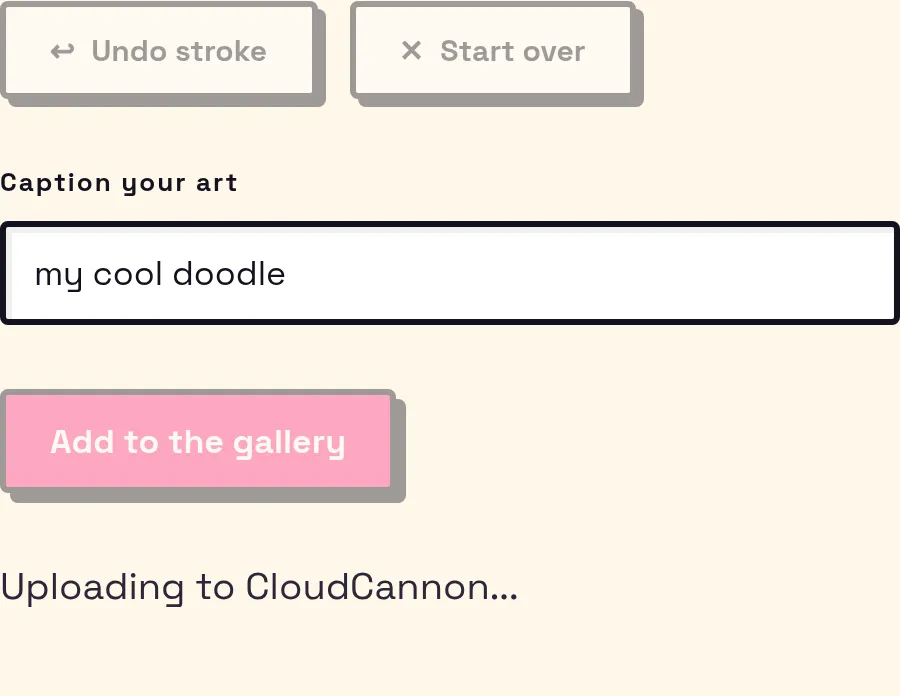
The same submit() function also keeps the Organization Member informed. Claiming the lock, uploading the image, and writing the data each run asynchronously and take a moment, so without feedback an Organization Member can't tell whether their doodle is saving, stuck, or failed. submit() updates a status message before each step, surfaces any error in the catch, and tells the Organization Member what to do next on success. The component renders this message in a live region (<p role="alert">), so it updates as the function runs.
async function submit() {
  const file = cloudcannonApi.file('/src/data/doodles.json');
  setCurrentStateMessage('Your doodle is being saved to the site...');

  try {
    setCurrentStateMessage('Claiming file lock...');
    // Claim the lock, upload the image, and write the data,
    // updating the message before each step.
  } catch (error) {
    const reason = error instanceof Error ? `: ${error.message}` : '';
    setCurrentStateMessage(`Something went wrong${reason}`);
    return;
  } finally {
    file.releaseLock();
  }

  setCurrentStateMessage(
    'Ready! Click "Save" in the top-right, select all the files and confirm. Your doodle will appear on the site shortly after.',
  );
}Declare the file reference before the try block so the finally block can release its lock, regardless of where the code inside try exits.
Set a message as soon as submit() starts, so the Organization Member gets immediate feedback when they click Add to the gallery.
Update the message before each asynchronous step (claiming the lock, uploading the image, and writing the data) so the Organization Member can follow what the integration is doing.
Surface the error in the catch block instead of failing silently. error.message gives the Organization Member the specific reason, such as another Organization Member holding the file lock.
Release the lock in the finally block so it runs even when the code above throws. This frees the lock on every exit path, so a failed write never leaves another Organization Member stranded with a read-only file.
On success, tell the Organization Member what to do next. The write marks the file as having unsaved changes but doesn't commit it. They still need to Save the Site for the doodle to go live.
As submit() runs, each status message appears in the live region in turn: when the Organization Member clicks Add to the gallery, again while the image uploads, and once more on success to tell them what to do next.
The new doodle now appears in any open Data Editor CloudCannon's editing interface for managing structured data files and the Front Matter of markup files. The Data Editor is most useful for YAML, TOML, JSON, CSV, and TSV file types, and Markdown or MDX files with Front Matter. This editing interface also doubles as the sidebar and data panels in the Visual Editor and Content Editor. A website in CloudCannon that includes all the files, content, configuration, and settings needed to edit, build, and host a complete website. The process of converting all your Site files into a single, functional website using the method specified by your SSG. Building on CloudCannon is optional, but is required for specific features, such as the Visual Editor, preview screenshots for output files in your Collection Browser, and the Testing Domain and Custom Domain.Data Editor
doodles.json, ready to commit when an Organization Member saves the SiteSite
Build
The same src/pages/index.astro page we set up earlier renders that gallery. It reads the doodles array and maps each item to an image, using the same src and caption fields that submit() writes, so every new doodle appears automatically.
---
import { doodles } from '../data/doodles.json';

const colors = ['pink', 'cyan', 'yellow', 'blue', 'lime'];
---

{doodles.length ? (
  <section class="wall">
    <div class="wall-head">
      <h2>Gallery</h2>
    </div>
    <div class="bento gallery">
      {doodles.map(({ src, caption }, index) => (
        <figure
          class="tile"
          style={{ '--accent': `var(--${colors[index % colors.length]})` }}
        >
          <div class="tile-img">
            <img src={src} alt={null} width="300" height="300" />
          </div>
          <figcaption class="tile-cap">{caption}</figcaption>
        </figure>
      ))}
    </div>
  </section>
) : undefined}Import the same doodles array your integration writes to. CloudCannon rebuilds the page from this file, so it always reflects the latest data.
Only render the gallery section once at least one doodle exists.
Map over the array, reading the src and caption fields that addArrayItem() wrote. The shape matches on both ends: the integration writes it, and the page reads it.
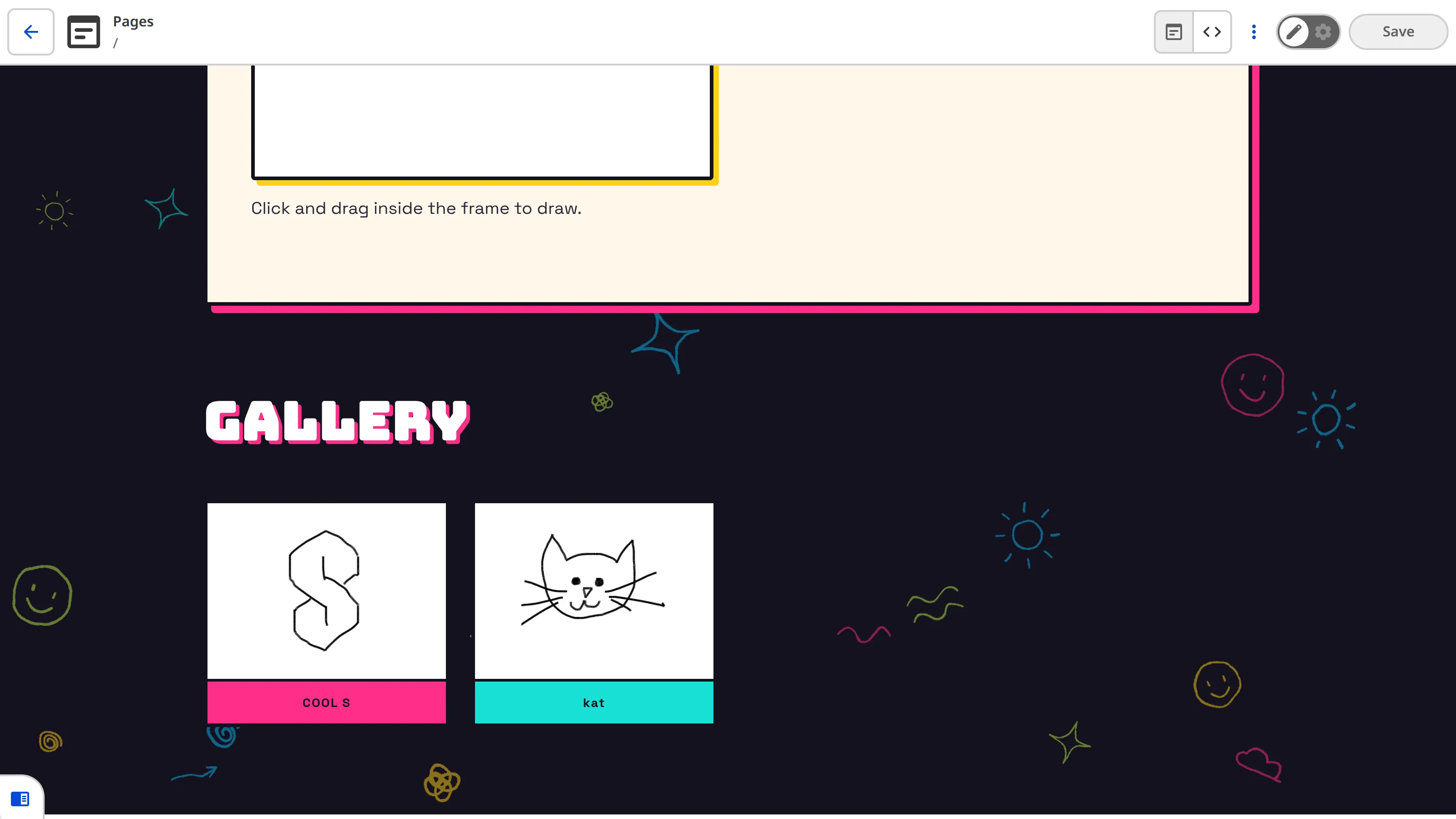
In the next step of this guide, we'll point you to the full Visual Editor API CloudCannon's Visual Editor API is a public JavaScript API for building custom integrations with the Visual Editor. It lets you run your own code inside the Visual Editor to read and write content, listen for changes, and upload files using code running inside your website files.Visual Editor API