Some webpages, or webpage components, are constructed from arrays. An array is an ordered list of data, where data is grouped into array items. Each array item could contain one or several structured data keys.
Arrays can be simple, where each item has the same structure (e.g., a testimonial component), or more complex, where each item has a different structure (e.g., a page with various components). For simple arrays, you can use Array and Array Item Editable Regions to enable your team to visually edit arrays, including adding, deleting, and reordering items. We'll cover complex arrays in a later step of this guide.
Nested text or image values in an array
To avoid data-prop misconfiguration errors, it is best practice to define your Editable Regions from the root of your file first (i.e., from parent elements to child elements). If you want to edit text or image values in an array using the Visual Editor, you should define your Array and Array Item Editable Regions on the parent element before Text and Image.
Arrays with identical array items#
Array content is defined using structured data keys in the front matter of hybrid files (e.g., .mdx) or in data files (e.g., .yml) and referenced by templating in a layout file. Simple arrays have the same structured data keys for every array item.
Let's take a look at an example.
Our website has a "Testimonials" page, where we display testimonials from customers. The page content is stored in the front matter of a Markdown file and populates a layout file.
Here is our content file, testimonials.md, containing the testimonials array with structured data keys for image, image_alt, name, job_title, and quote in each array item.
---
layout: ../layouts/TestimonialsLayout.astro
testimonials:
  - image: ../../assets/placeholder-1.jpg
    image_alt: Profile photo of D. Gale
    name: D. Gale
    job_title: CEO at Yellow Brick Industries
    quote: >-
      "In pretium libero sed velit posuere sagittis."
  - image: ../../assets/placeholder-2.jpg
    image_alt: Profile photo of S. Crow
    name: S. Crow
    job_title: CBO at Yellow Brick Industries
    quote: >-
      "Mauris at augue quis orci egestas eu in nulla."
  - image: ../../assets/placeholder-3.jpg
    image_alt: Profile photo of T. Man
    name: T. Man
    job_title: CHO at Yellow Brick Industries
    quote: >-
      "Nunc ut sem vitae tortor volutpat varius."
  - image: ../../assets/placeholder-4.jpg
    image_alt: Profile photo of C. Lion
    name: C. Lion
    job_title: CCO at Yellow Brick Industries
    quote: >-
      "Aenean pharetra orci ac tincidunt lobortis."
---Here is an excerpt from our layout file, TestimonialsLayout.astro. This section loops over all the items in the testimonials array, and populates the layout using the values.
---
const { testimonials } = Astro.props.frontmatter;
---

<ul>
  {
    testimonials.map((testimonial) => (
      <li>
        {testimonial.image && (
          <img
            src={testimonial.image}
            alt={testimonial.image_alt}
          />
        )}
        <h4>{testimonial.name}</h4>
        <p>{testimonial.job_title}</p>
        <p>{testimonial.quote}</p>
      </li>
    ))
  }
</ul>This <img> element contains image source and alt text attributes. The src and alt attributes are set to the template {testimonial.image} and {testimonial.image_alt} respectively.
This <h4> element surrounds the template value {testimonial.name}.
This <p> element surrounds the template value {testimonial.job_title}.
This <p> element surrounds the template value {testimonial.quote}.
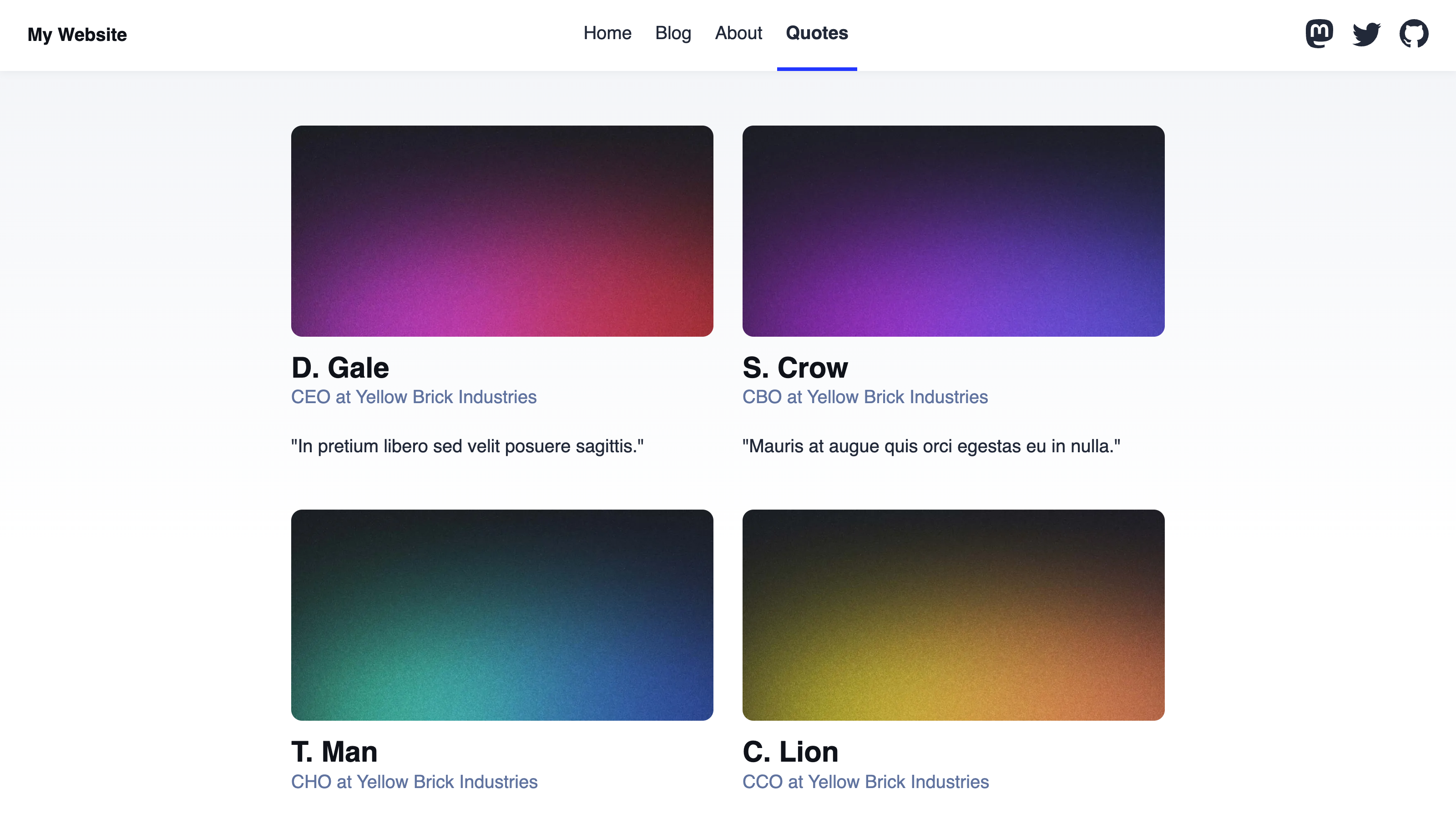
Together, these files output a webpage that looks like this:
To enable visual editing for this array, we can add Array and Array Item Editable Regions to our layout file. Array Editable Regions define the boundary of the array and Array Item Editable Regions define each array item. Array and Array Item Editable Regions work together, so we must always have both.
The <ul> element wraps the array in our layout file, with its contents looping over every array item stored under the testimonials key. To define an Array Editable Region, let's add the data-editable and data-prop HTML attributes to the <ul> DOM element. The data-editable HTML attribute defines which type of Editable Region you want to use which, in this case, is array. Alternatively, we could choose to wrap the array templating in the equivalent web component <editable-array>, however that is not as convenient as adding attributes to existing elements. Our Array Editable Region also needs a data-prop to define where our array data is stored which, in this case, will be the testimonials front matter key.
The <li> element wraps each array item in our layout file, containing the HTML structure for each testimonial's content. To define an Array Item Editable Region, let's add the data-editable HTML attributes to the <li> DOM element. The value of data-editable HTML attribute should be array-item.
Where should the Array and Array Item Editable Regions go?
The Array Editable Region attribute or web component should be the immediate parent element of your array templating. The Array Item Editable Region attribute or web component should be the first child element of your array templating. This way, Array and Array Item should flank the templating for looping over your array.
Try to avoid any nested elements between them; they should be as close together as possible, regardless of whether you use HTML attributes, web components, or both.
If we also want to visually edit the text and images inside each array item, we can define three Text Editable Regions for the name, job title, and quote, and an Image Editable Region for our image and alt text.
Here's what our layout file should look like:
---
const { testimonials } = Astro.props.frontmatter;
---

<ul data-editable="array" data-prop="testimonials">
  {
    testimonials.map((testimonial) => (
      <li data-editable="array-item">
        {testimonial.image && (
          <img
            data-editable="image"
            data-prop-src="image"
            data-prop-alt="image_alt"
            src={testimonial.image}
            alt={testimonial.image_alt}
          />
        )}
        <h4 data-editable="text" data-prop="name">{testimonial.name}</h4>
        <p data-editable="text" data-prop="job_title">{testimonial.job_title}</p>
        <p data-editable="text" data-prop="quote">{testimonial.quote}</p>
      </li>
    ))
  }
</ul>The data-editable attribute defines what kind of data this element contains, and the data-prop attribute defines the path to the data we want to edit. In this case, we want an Array Editable Region, so the value of data-editable is array, and we want to edit the testimonials structured data key in the file front matter.
This <img> element contains data-editable="image", data-prop-src="image", and data-prop-alt="image_alt" to define an Image Editable Region.
This <h4> element contains data-editable="text" and data-prop="name" to define a Text Editable Region.
This <p> element contains data-editable="text" and data-prop="job_title" to define a Text Editable Region.
This <p> element contains data-editable="text" and data-prop="quote" to define a Text Editable Region.
Once we save and rebuild our Site, CloudCannon will show a yellow Editable Regions box around each array item on the Testimonials page, and around each image and text field.
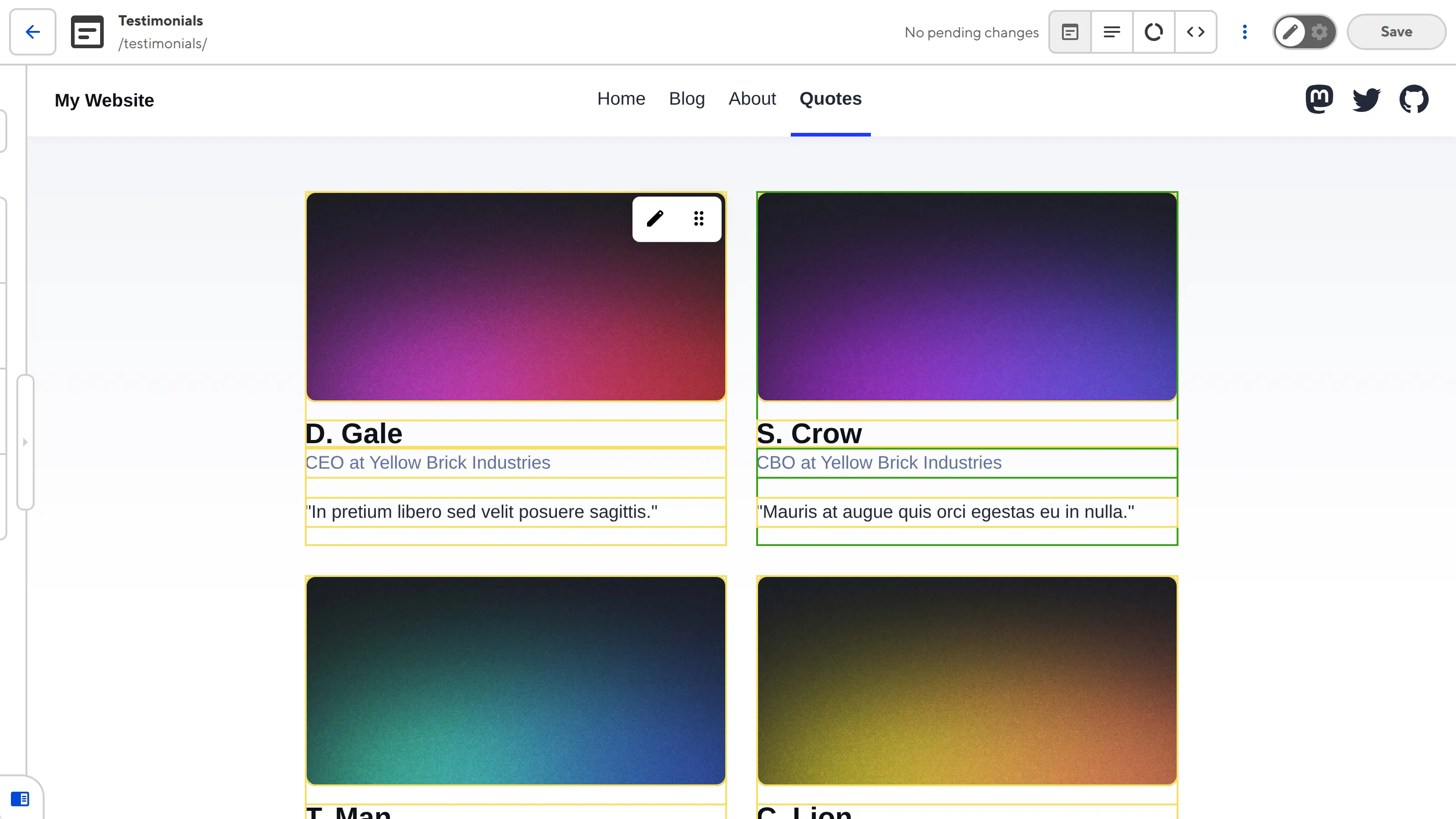
When you hover an array item, CloudCannon will show a small toolbar in the top right, containing an Edit button and a Drag handler. Clicking the Edit button will open a data panel containing your array item fields. Clicking the Drag handler will open a dropdown with options to move an array item one position to the left or right, and to delete the item, while clicking and holding the Drag handler allows you to visually move an array item to any position in the array.
Common errors#
If you accidentally misconfigure your Editable Regions, CloudCannon will display a red warning box in the Visual Editor.
Here are a few common errors you might encounter with Array Editable Regions:
- You did not define the
data-propHTML attribute. - The Editable Region has an invalid data type (e.g., your Text region has a number or object, instead of a string).
- You have one or more orphaned Array Item Editable Regions that are not contained within an Array Editable Region.
In the next step of this guide, we'll cover how to define Editable Regions for Astro or React components.