We've covered how to use Array, Array Item, and Component Editable Regions in the previous steps of this guide. We can use these Editable Regions in conjunction to enable visual editing for a complex array.
Array items in complex arrays can have different structured data keys. Complex arrays are often used to create a page-building experience, where each array item represents a block of content on your page. To enable visual editing for a complex array, including adding, deleting, and reordering items in the Visual Editor, we need to add Array, Array Item, and Component Editable Regions.
Nested text or image values in an array
To avoid data-prop misconfiguration errors, it is best practice to define your Editable Regions from the root of your file first (i.e., from parent elements to child elements). If you want to edit text or image values in an array using the Visual Editor, you should define your Array and Array Item Editable Regions on the parent element before Text and Image.
Arrays with different array items#
Just like simple arrays, complex array content is defined using structured data keys in the front matter of hybrid files (e.g., .mdx) or in data files (e.g., .yml) and referenced by templating in a layout file. Simple arrays have the same structured data keys for every array item.
Let's take a look at an example.
Our website has an "About" page, where we display information about our company. We use a complex array to build this page, allowing us to add several different kinds of content blocks. The data for these content blocks is stored in the front matter of a Markdown file using array items with different structured data keys.
Here is our content file, about.md, containing the contentBlocks array.
---
layout: ../layouts/AboutLayout.astro
contentBlocks:
  - _name: HeroBlock
    title: We're on a mission
    description: Lorem ipsum dolor sit amet, consectetur adipiscing elit. Fusce lobortis mi sed est dapibus, sit amet consectetur quam euismod. Cras pretium quam vitae malesuada placerat. Curabitur ac sagittis ligula. Nunc sed ultrices leo. Vestibulum malesuada lobortis nisl, a feugiat est viverra et.
  - _name: StatsBlock
    stats:
      - figure: $200m
        text: Venture capital raised
      - figure: "2016"
        text: Established in
      - figure: 40+
        text: Amazing team members
      - figure: 44325+
        text: Active users and growing
  - _name: ContactBlock
    text: Want to get in contact with us?
    button: Click here
    image: https://preview.astro.new/blog/_astro/blog-placeholder-about.BtEdEmGp_1cKsnD.webp
---Content from each array item in the contentBlocks array populates a component specific to that block. Here are the component files we use for our three blocks: Hero, Stats, and Contact.
---
const { title, description } = Astro.props;
---

<h2>{title}</h2>
<p>{description}</p>---
const { stats } = Astro.props;
---
<div>
{
stats.map(({ figure, text }) => {
return (
<div>
<p>{figure}</p>
<p>{text}</p>
</div>
);
})
}
</div>---
const { text, button, image } = Astro.props;
---
<img src={image} />
<p>{text}</p>
<button type="button">{button}</button>Finally, our page layout file, AboutLayout.astro, loops over all the items in the contentBlocks array, finds the appropriate layout for each item and populates that component using values from about.md. Here is an excerpt from our About layout file.
---
const components = {};
const componentImports = import.meta.glob("../components/**/*.astro", {
  eager: true,
});
Object.entries(componentImports).forEach(([path, obj]) => {
  const name = path.replace("../components/", "").split(".")[0];
  components[name] = obj.default;
});

const { contentBlocks } = Astro.props.frontmatter;
---

<main>
  {
    contentBlocks.map((block) => {
      const Component = components[block._name];
      return (
        <section>
          <Component {...block} />
        </section>
      );
    })
  }
</main>Together, these files output a webpage that looks like this:
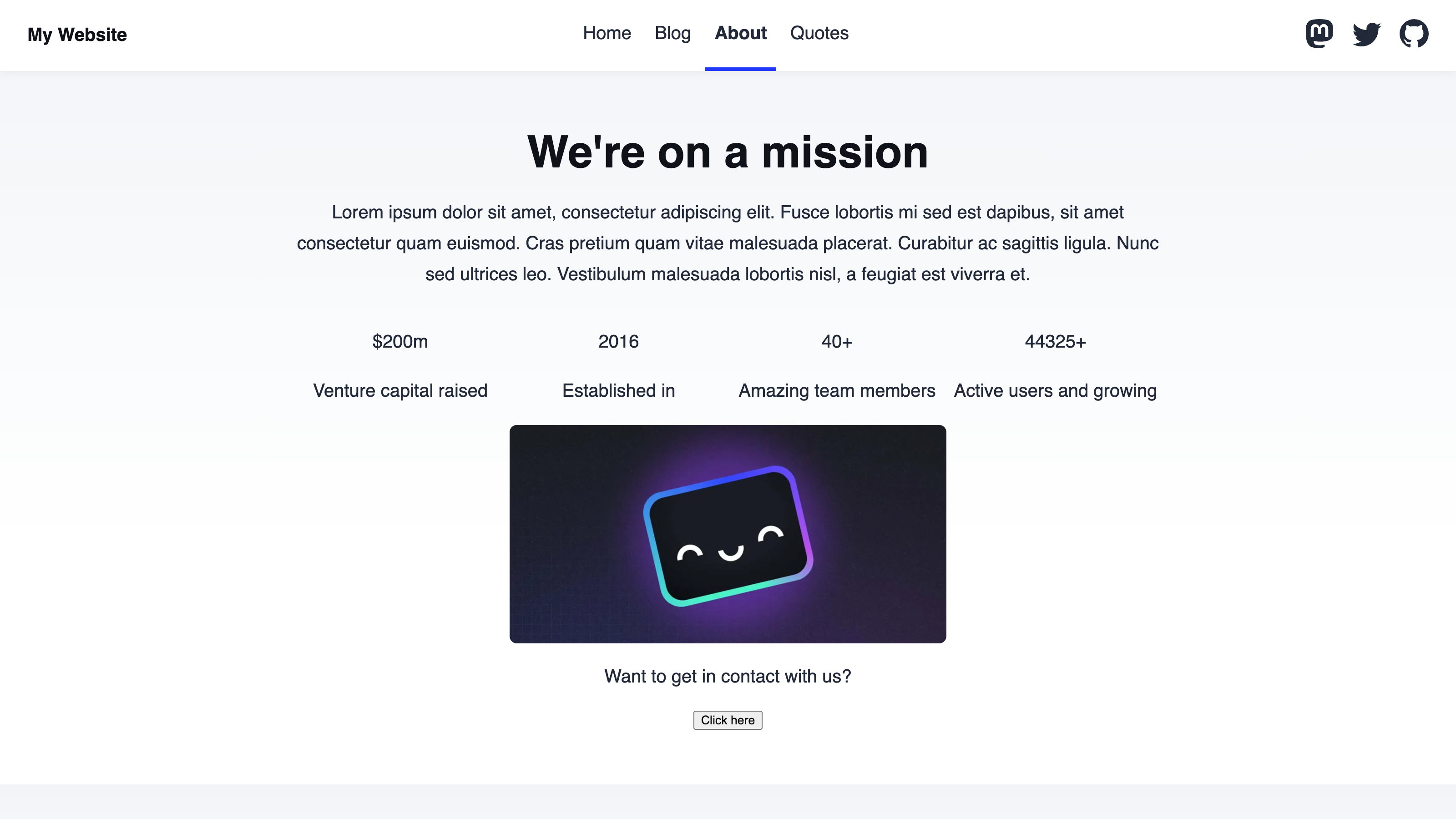
To enable visual editing for this complex array, we can add Array, Array Item, and Component Editable Regions.
Let's start by registering our content blocks as components.
Just like the previous step of this guide, we need to install CloudCannon's Editable Regions NPM package and update our Astro config file (if applicable). Next, we can create a registration script including each of our content blocks, informing CloudCannon that they should be bundled for client-side use in the Visual Editor.
import { registerAstroComponent } from '@cloudcannon/editable-regions/astro';
import '@cloudcannon/editable-regions/astro-react-renderer';
import HeroBlock from '../components/HeroBlock.astro';
import StatsBlock from '../components/StatsBlock.astro';
import ContactBlock from '../components/ContactBlock.astro';

// Register your components
registerAstroComponent('HeroBlock', HeroBlock);
registerAstroComponent('StatsBlock', StatsBlock);
registerAstroComponent('ContactBlock', ContactBlock);This import is only necessary if you use React components nested inside your Astro components.
Finally, we can add Editable Regions to our AboutLayout.astro file.
The <main> element wraps the array in our layout file, with its contents looping over every array item stored under the contentBlocks key. Like a simple array, let's add the data-editable="array" and data-prop="contentBlocks" HTML attributes to the <main> DOM element. For a complex array, we also need to add the data-id-key and data-component-key HTML attributes. The data-id-key attribute defines which structured data key CloudCannon should look at for each array item's unique identifier. The data-component-key defines which structured data key CloudCannon should look at for the name of the registered component. For simplicity's sake, we registered our components using the same name as the unique identifier, so the value for both these attributes is _name.
The <section> element wraps each array item in our layout file. Like a simple array, let's add the data-editable="array-item" HTML attribute to the <section> DOM element. For a complex array, we also need to add the data-id and data-component HTML attributes. These attributes define the unique identifier of an array item and the name of a component, respectively. We need these fields to populate for each array item at build time, so the value for both these attributes will be the templating {block._name}.
Here's what our layout file should look like:
---
const components = {};
const componentImports = import.meta.glob("../components/**/*.astro", {
  eager: true,
});
Object.entries(componentImports).forEach(([path, obj]) => {
  const name = path.replace("../components/", "").split(".")[0];
  components[name] = obj.default;
});

const { contentBlocks } = Astro.props.frontmatter;
---

<main data-editable="array" data-prop="contentBlocks" data-id-key="_name" data-component-key="_name">
  {
    contentBlocks.map((block) => {
      const Component = components[block._name];
      return (
        <section data-editable="array-item" data-id={block._name} data-component={block._name}>
          <Component {...block} />
        </section>
      );
    })
  }
</main>If we also want to visually edit the text and images inside each array item, we can define Text and Image Editable Regions for in each of the layout files defining our content blocks: HeroBlock.astro, StatsBlock.astro, and ContactBlock.astro.
Once we save and rebuild our Site, CloudCannon will show a yellow Editable Regions box around each array item, and around the content inside each array item.
We can now build pages in the Visual Editor. We can add or delete content blocks, and reorder the content blocks in the array using the options in the Edit menu, or the Drag handler.
Common errors#
If you accidentally misconfigure your Editable Regions, CloudCannon will display a red warning box in the Visual Editor.
Here are a few common errors you might encounter with Array Editable Regions:
- You did not define the
data-propHTML attribute. - You did not define the
data-id-keyordata-idHTML attributes for a complex array. - You cannot render new array items in the Visual Editor, because you did not define the
data-component-keyordata-componentHTML attributes. - The Editable Region has an invalid data type (e.g., your Text region has a number or object, instead of a string).
- You have one or more orphaned Array Item Editable Regions that are not contained within an Array Editable Region.
And that's it! Your Site is built, has output Collections, and you have learnt how to apply every type of Editable Region to enable visual editing. In the next step of this guide, we'll direct you to resources for further configuration or user guides on how to edit your files in CloudCannon.