Sometimes you will need to do more than edit the content of your files. You might want to add a new file, delete a file you no longer need, or make a copy of an existing file. You can use the tools in the Context Menu to perform these file actions. You can find the Context Menu in the top right of a File Card in your Collection Browser, or in the top right of the Editing Interface Header.
Adding new files#
You might want to add a new file when you're creating a new blog post, adding a new page to your website, or uploading an image or document. There are several ways to add new files to your website in CloudCannon.
Add a file to a Collection
The easiest way to add a new file is from the Collection Browser.
Navigate to the Collection to which you want to add the file and click the + Add button in the top right of the Collection Browser. CloudCannon will open a dropdown menu with the options to add files or Create a new folder.
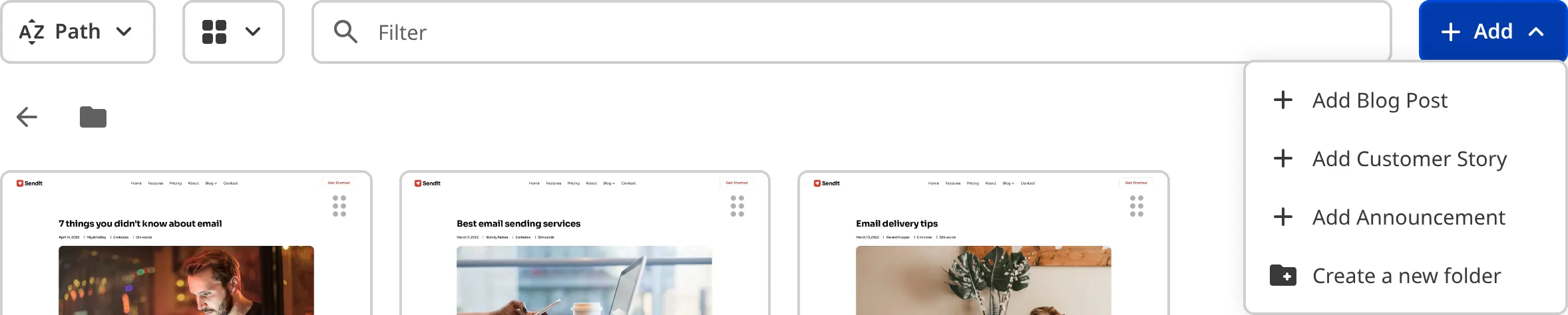
When you create a new file in the Collection Browser, CloudCannon will either copy the format of an existing file in your Collection or use a predefined template called a Schema. The default file format will often share the name of the Collection (e.g., the Blog Collection will have the + Add Blog option), but each Schema will have a different name. If you would like to add, remove, or edit your Schemas, please speak with your developer.
Clicking on an + Add option from this dropdown will create a new file, which CloudCannon will immediately open in an Editing Interface, ready for you to edit your content.
Duplicate an existing file
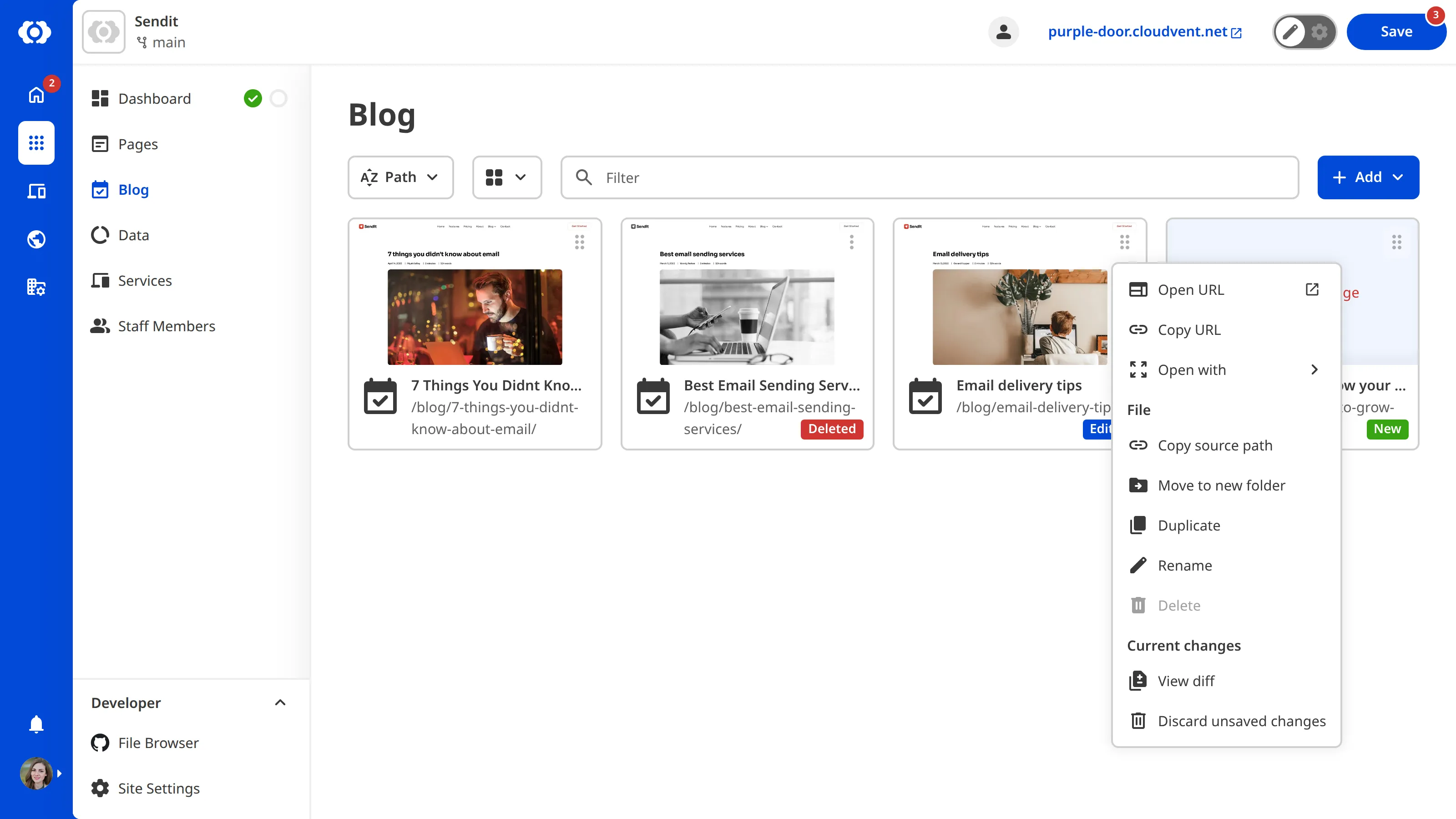
If you want to create a new file that's similar to an existing one, you can duplicate it. Navigate to the file you want to duplicate using the Collection Browser or File Browser and open the Context Menu by clicking on the six-dot icon in the top right of the File Card. The Duplicate file action will be an option in the Context Menu.
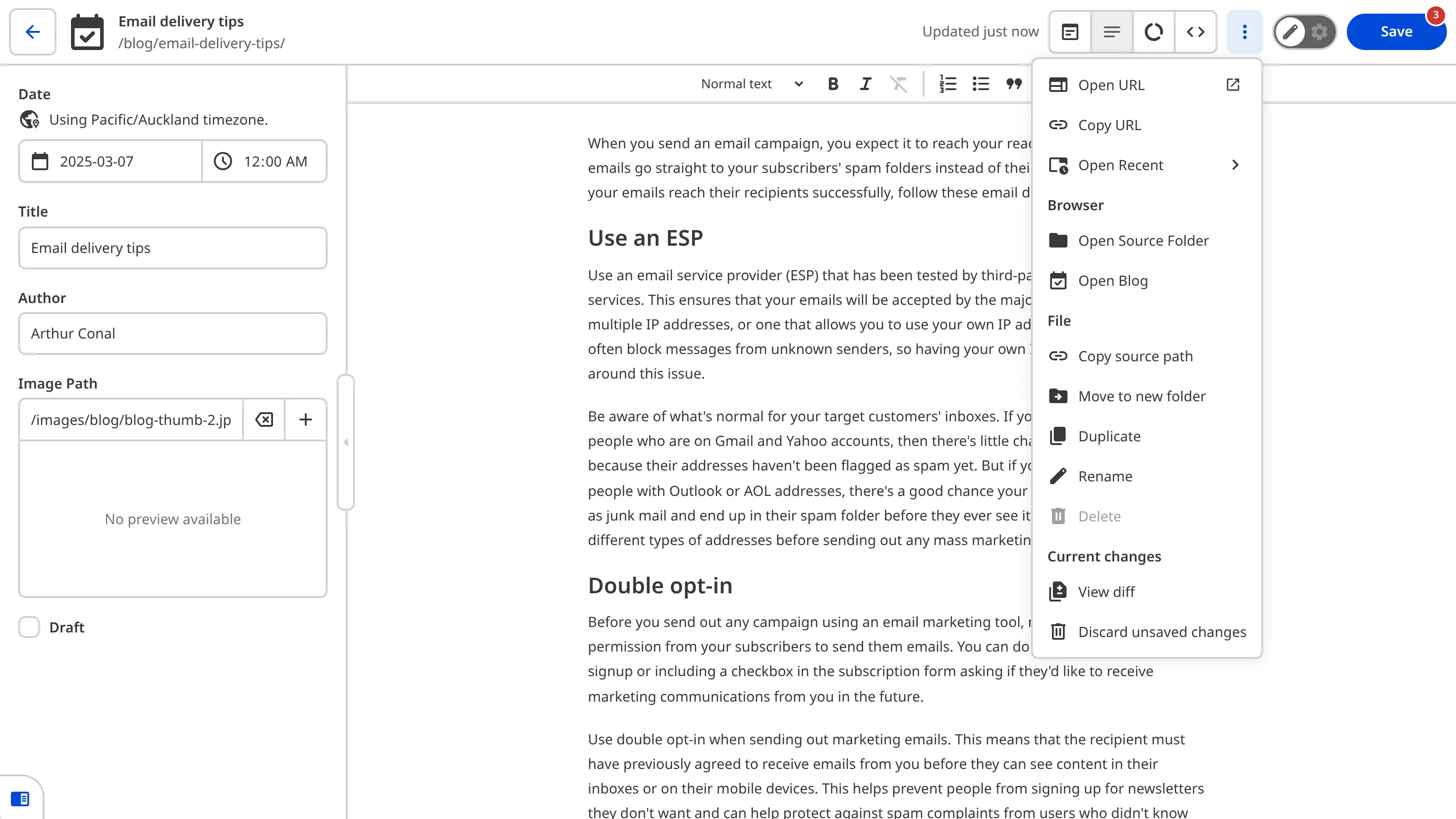
You can also find the Duplicate option in any Editing Interface by clicking on the three-dot icon in the Editing Interface Header and opening the Context Menu.
When you select the Duplicate option from the Context Menu, CloudCannon will create a copy of the file with "-copy" added to the filename and open it in an Editing Interface. We recommend changing the name of the file before saving it to your Site.
Upload a file
If you have files on your computer that you want to upload to your website, you can upload them using CloudCannon.
Navigate to the location to which you want to upload the file using the File Browser and click the + Add button in the top right. Select the Upload files or Upload a folder option from the dropdown menu.
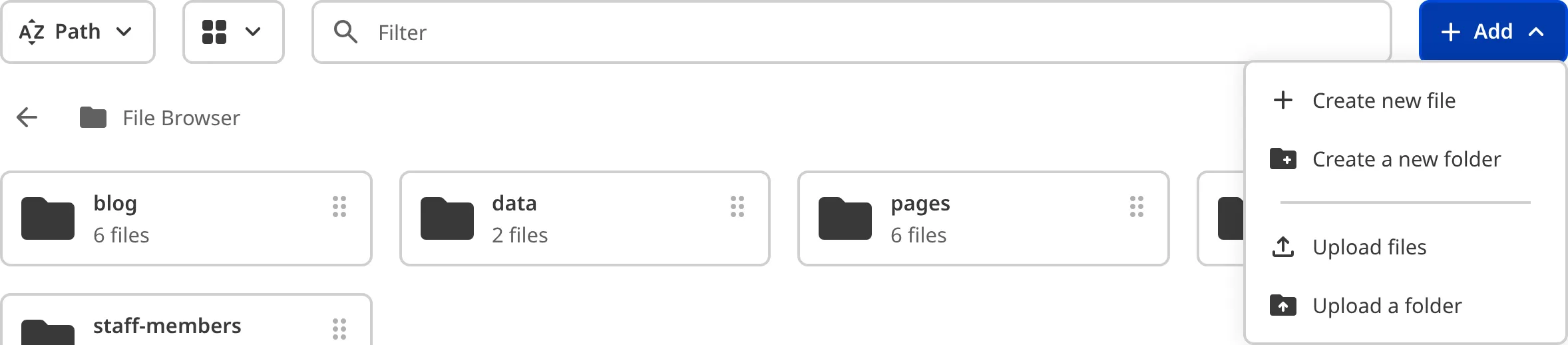
Next, select the file or folder from your computer. CloudCannon will ask you to review the files in a confirmation modal before you upload them to your Site.
CloudCannon will upload your files to the location you selected. You can also drag and drop files directly into the File Browser to upload them.
Deleting files#
You might want to delete a file when you no longer need it, such as removing an old blog post or an outdated page. When you delete a file in CloudCannon, it doesn't happen immediately. Instead, CloudCannon marks the file for deletion, which gives you a chance to change your mind before you save the changes to your Site. We'll cover saving your changes more later in this guide.
Marking a file for deletion
To delete a file, navigate to the file you want to delete using the Collection Browser or File Browser and open the Context Menu by clicking on the six-dot icon in the top right of the File Card.
Select the Delete option from the Context Menu. CloudCannon will mark the file for deletion the next time you save your changes.
You can also mark a file for deletion from any Editing Interface. Open the Context Menu by clicking the three dots icon in the top right of the Editing Interface Header, then select the Delete option from the dropdown menu.
Restoring a deleted file
If you have marked a file for deletion, you can restore it at any time before you save your changes.
Navigate to the file with the Deleted badge and open the Context Menu by clicking the six-dot icon in the top right of the File Card. Select the Restore file option from the Context Menu.
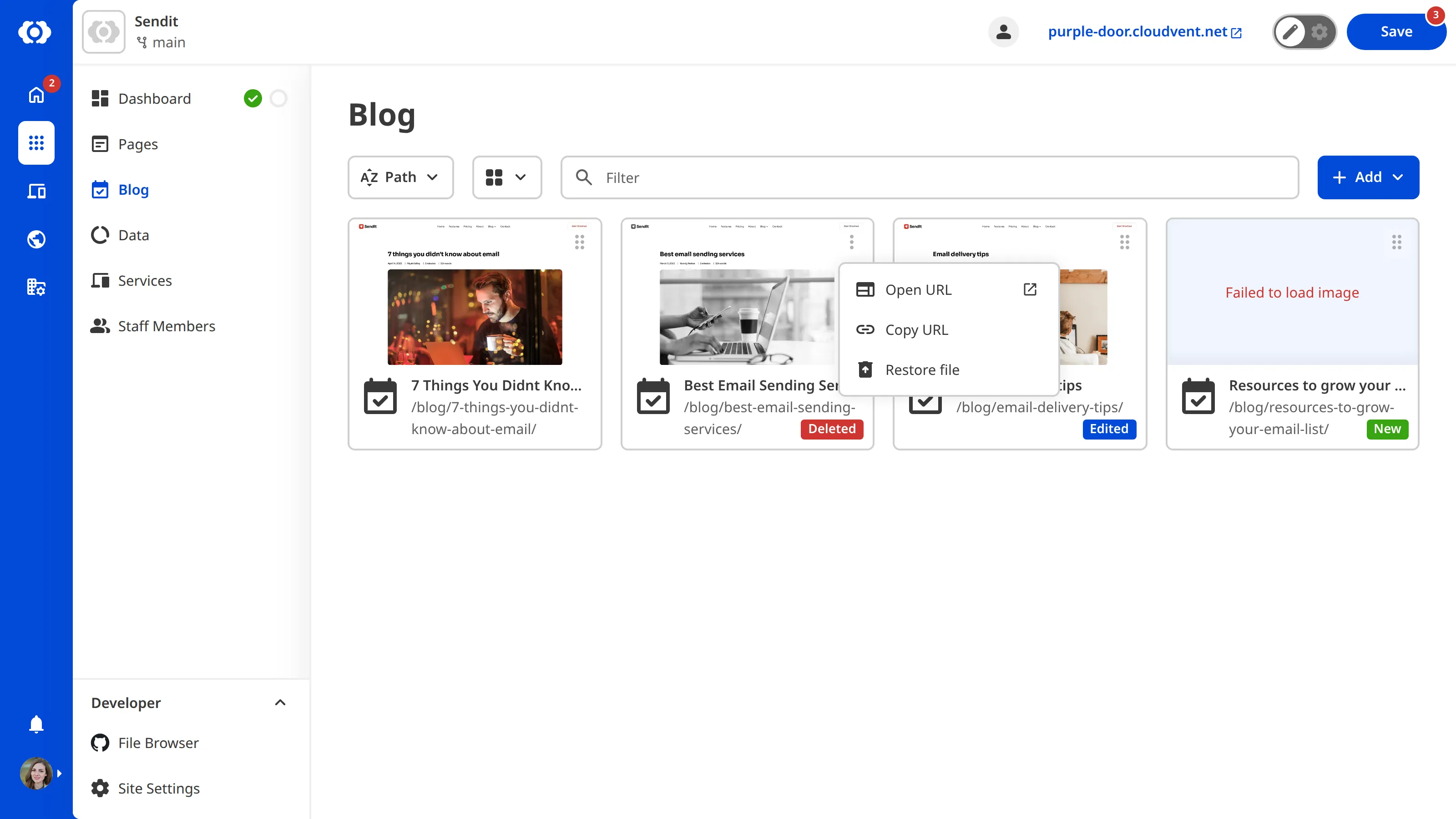
You can also restore a file from any Editing Interface. Open the Context Menu by clicking the three dots icon in the top right of the Editing Interface Header, then select the Restore file option from the dropdown menu.
You can also click the Restore file button in the banner at the bottom of the Editing Interface.
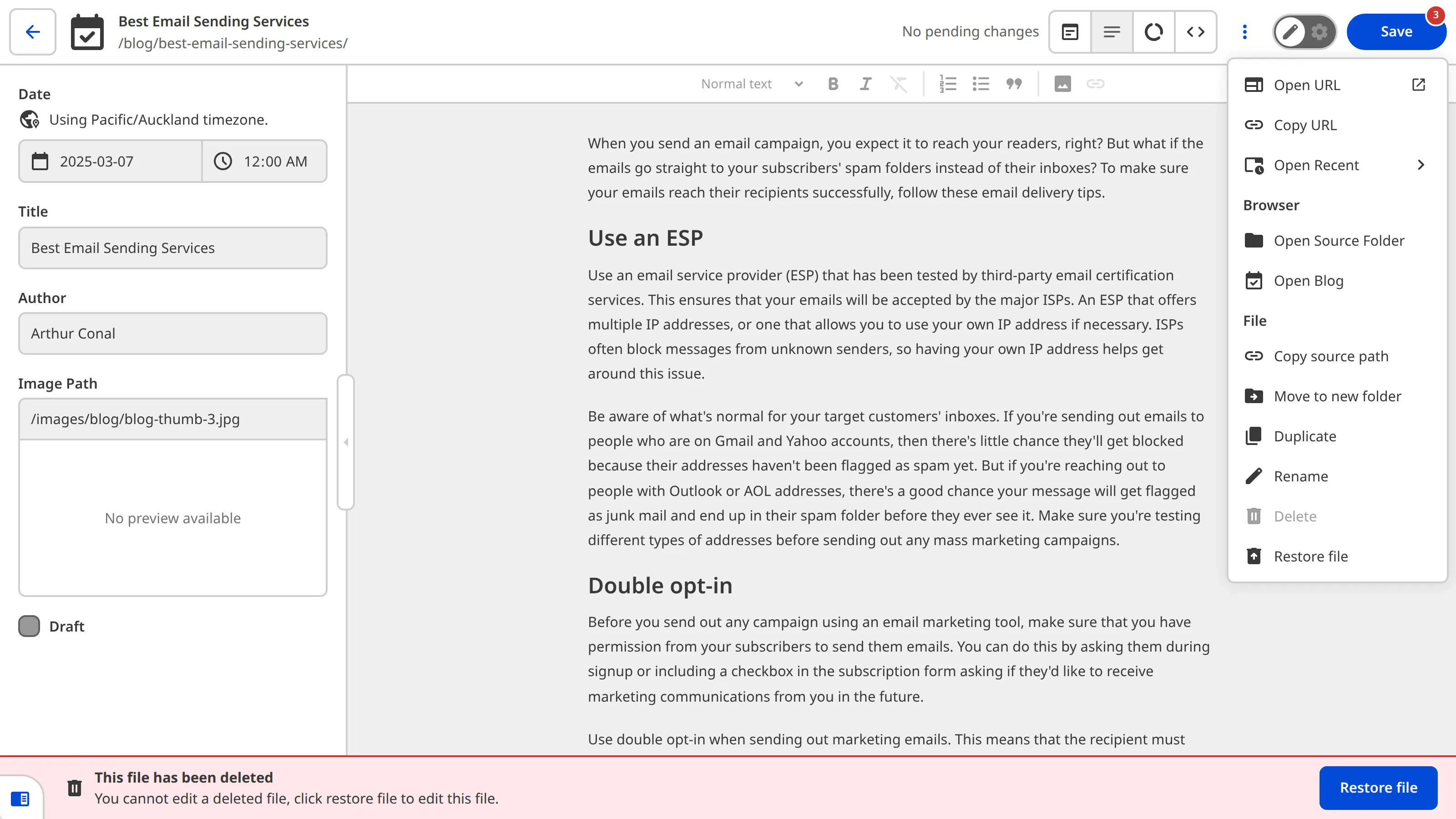
The Deleted badge will be removed, and the file will be restored.
Files with unsaved changes
If a file has unsaved changes, you will need to discard those changes before you can mark it for deletion. This protects your work from being accidentally lost.
To discard unsaved changes, open the Context Menu for the file using the Collection Browser or an Editing Interface. Select the Discard unsaved changes. CloudCannon will ask you to review the action in a confirmation modal before you discard those changes from your Site.
You can also discard unsaved changes from any Editing Interface. Open the Context Menu by clicking the three dots icon in the top right of the Editing Interface Header, then select the Discard unsaved changes option from the dropdown menu.
Discarding unsaved changes will destroy new files and content.
After discarding the changes, you will be able to delete the file using the option in the Context Menu.
Rename a file#
You might want to rename a file to better reflect its content, fix a typo in the filename, or organize your files more effectively.
To rename a file, navigate to the file you want to rename using the Collection Browser or File Browser and open the Context Menu by clicking on the six dot icon in the top right of the File Card.
Select the Rename option from the Context Menu. CloudCannon will open a pop-up window where you can edit the filename.
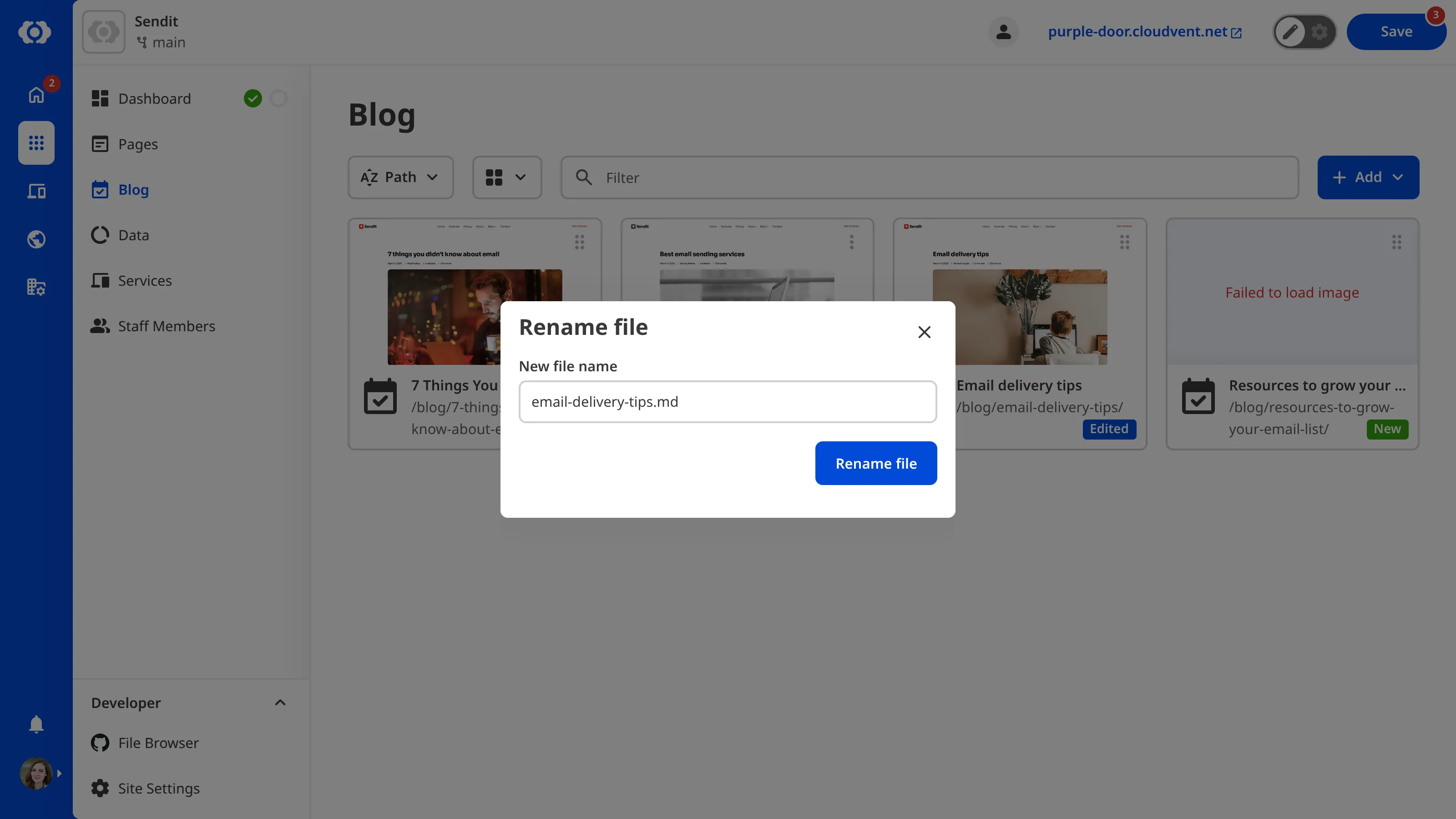
Enter the new filename and click Confirm to save your changes. The file will appear in your Collection Browser or File Browser with both the old and new filenames until you save your changes. The file with the new name will have a New badge, and the file with the old name will have a Deleted badge.
You can also rename a file from any Editing Interface. Open the Context Menu by clicking the three dots icon in the top right of the Editing Interface Header, then select the Rename option from the dropdown menu.
Understanding file badges#
CloudCannon uses badges on File Cards to help you keep track of which files have unsaved changes. These badges appear in your Collection Browser and File Browser to give you a quick visual indicator of each file's status.
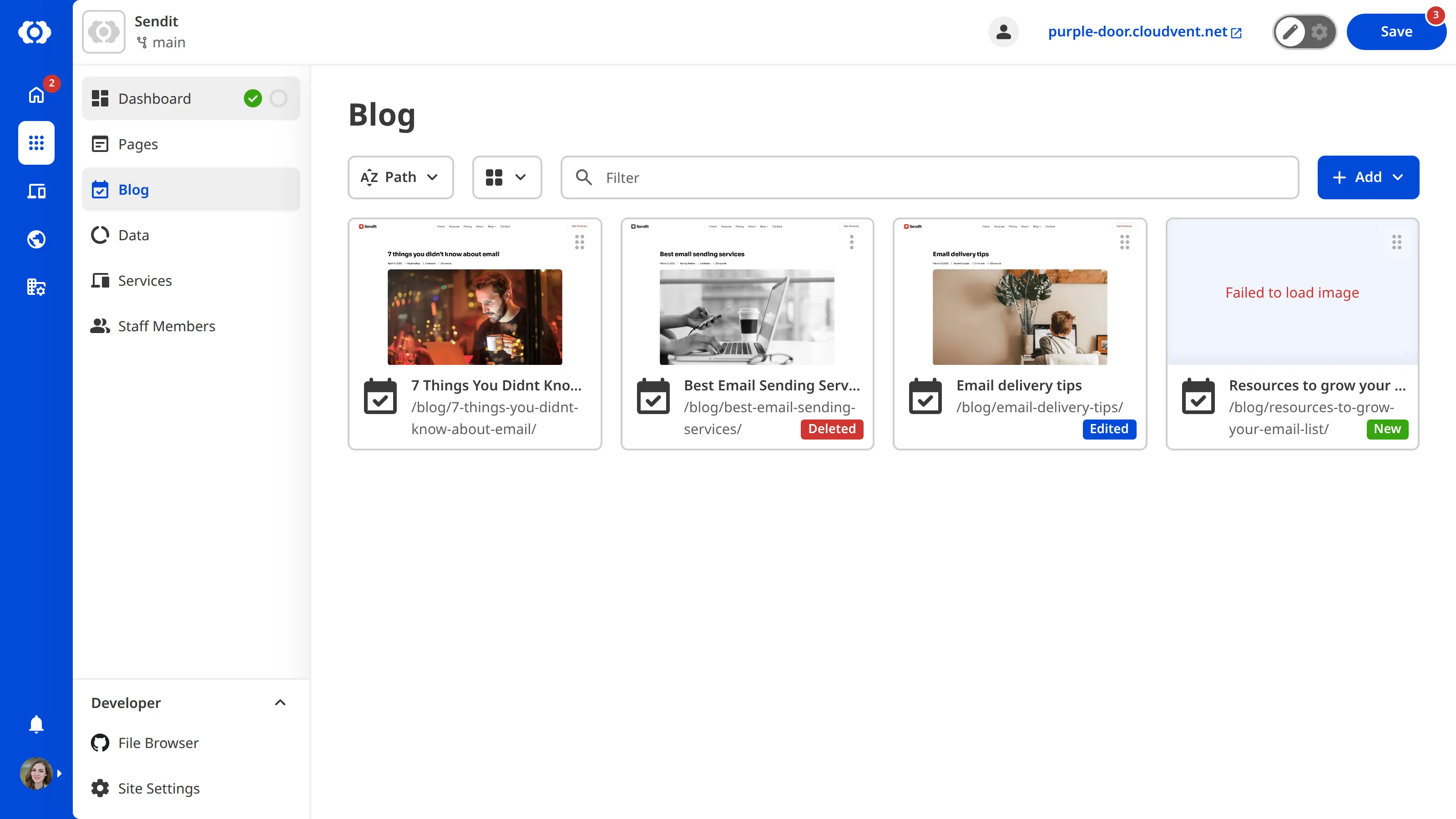
The New badge appears on files that you've created but haven't saved yet. This includes files you've added to a Collection using the + Add button, duplicated, uploaded, and renamed (the file with the new name will show a New badge).
The Edited badge appears on existing files that you've modified but haven't saved yet. This includes any changes you make to the file's content, whether you're editing text, images, structured data, or any other content.
The Deleted badge appears on files that you've marked for deletion but haven't saved yet. This includes files you've deleted using the Context Menu and files you've renamed (the file with the old name will show a Deleted badge).
We'll cover how to save your changes later in this guide.
In the next step of this guide, we'll learn about editing sessions and how to collaborate with your team members.