Once you are happy with the changes you have made to your files, you can save them so they appear on on the Internet. Saving your changes in CloudCannon is straightforward, but it's helpful to understand how the process works.
The Save button#
As you make changes, you'll notice a red notification appear on the Save button in the top right of your Editing Interface and Site Header. The Save button notification shows you how many files have unsaved changes.

Don't worry about saving after every single change. CloudCannon remembers all your edits, so you can make multiple changes across multiple files and save them all at once when you're ready.
Why save your changes?#
When you edit files in CloudCannon, your changes are stored temporarily until you save them. This means you can:
- Make multiple changes across different files
- Take breaks without losing your work, including closing the CloudCannon tab in your Internet browser
- Review all your changes before saving
- Work with your team on the same editing session
However, your changes won't appear on your live website until you save them. Saving your changes does two important things:
- It creates a permanent record of your changes in your website's files (your developer can undo these changes, if necessary)
- It triggers CloudCannon to rebuild your website, making your changes visible on your Testing Domain (your free preview URL) and any Custom Domain connected to your site
It's important to save your changes regularly, as unsaved changes can prevent other updates to your site. We recommend saving after every editing session.
How to save your changes#
Once you are finished making changes to your Site content, click the Save button in the top right of your Editing Interface or Site Header. A red notification on the Save button will show you how many files have unsaved changes.
CloudCannon will open the Review changes modal, which shows you all the files with unsaved changes, organized into two sections: My changes and Other changes. These sections help you identify which files you contributed to during the editing sessions, and which files only have unsaved changes from other team members.
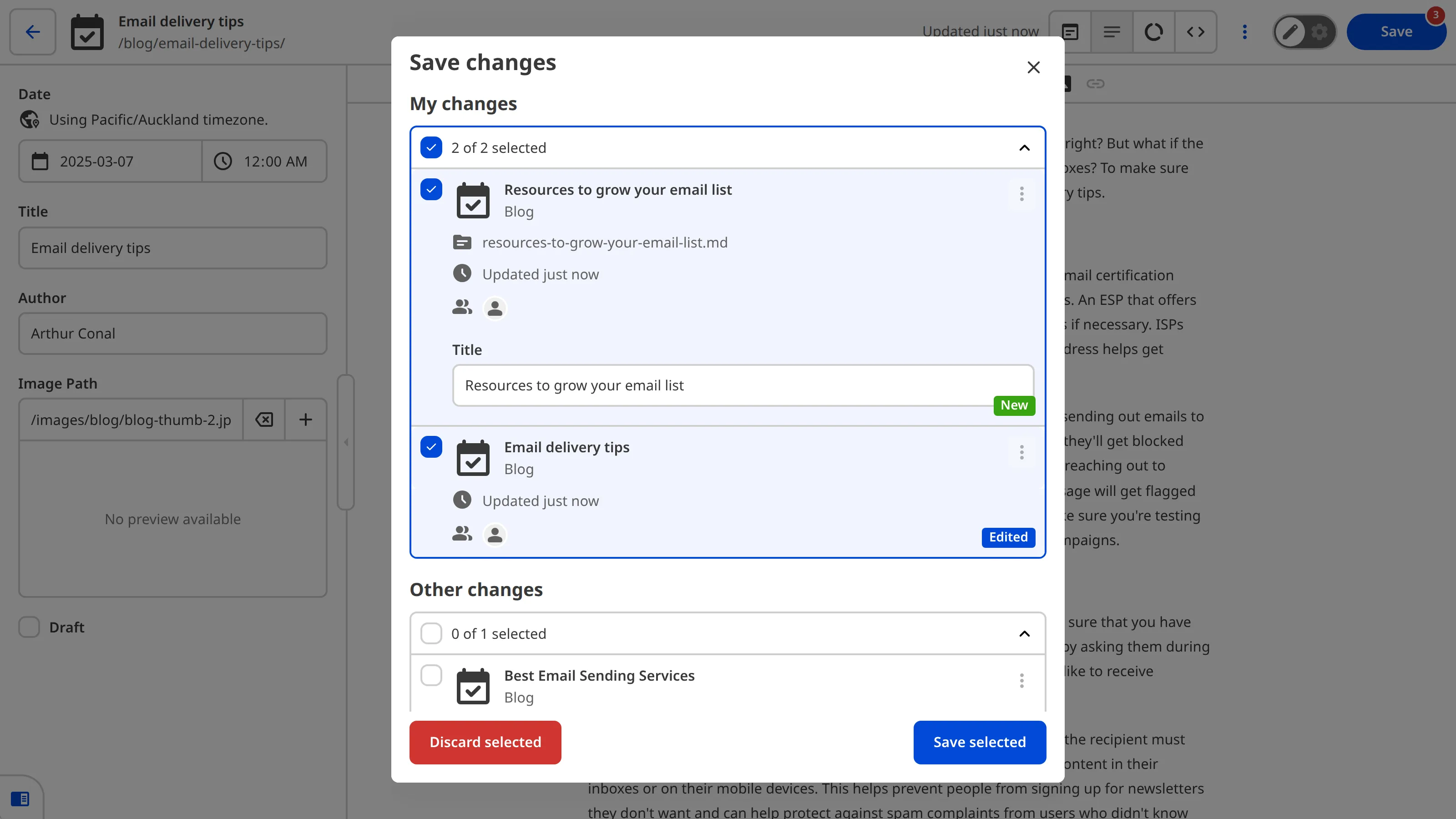
Review the list of files. Each file is represented by a File Card with the file name, Collection, which team members contributed to changes (shown as avatars), when the file was last updated, and a badge showing the type of change (New, Edited, or Deleted).
Select the files you want to save using the checkboxes in the top left of each File Card. By default, any files you contributed to will be selected. You can select or deselect individual files, or use the checkboxes under each section heading to select all files in that section.
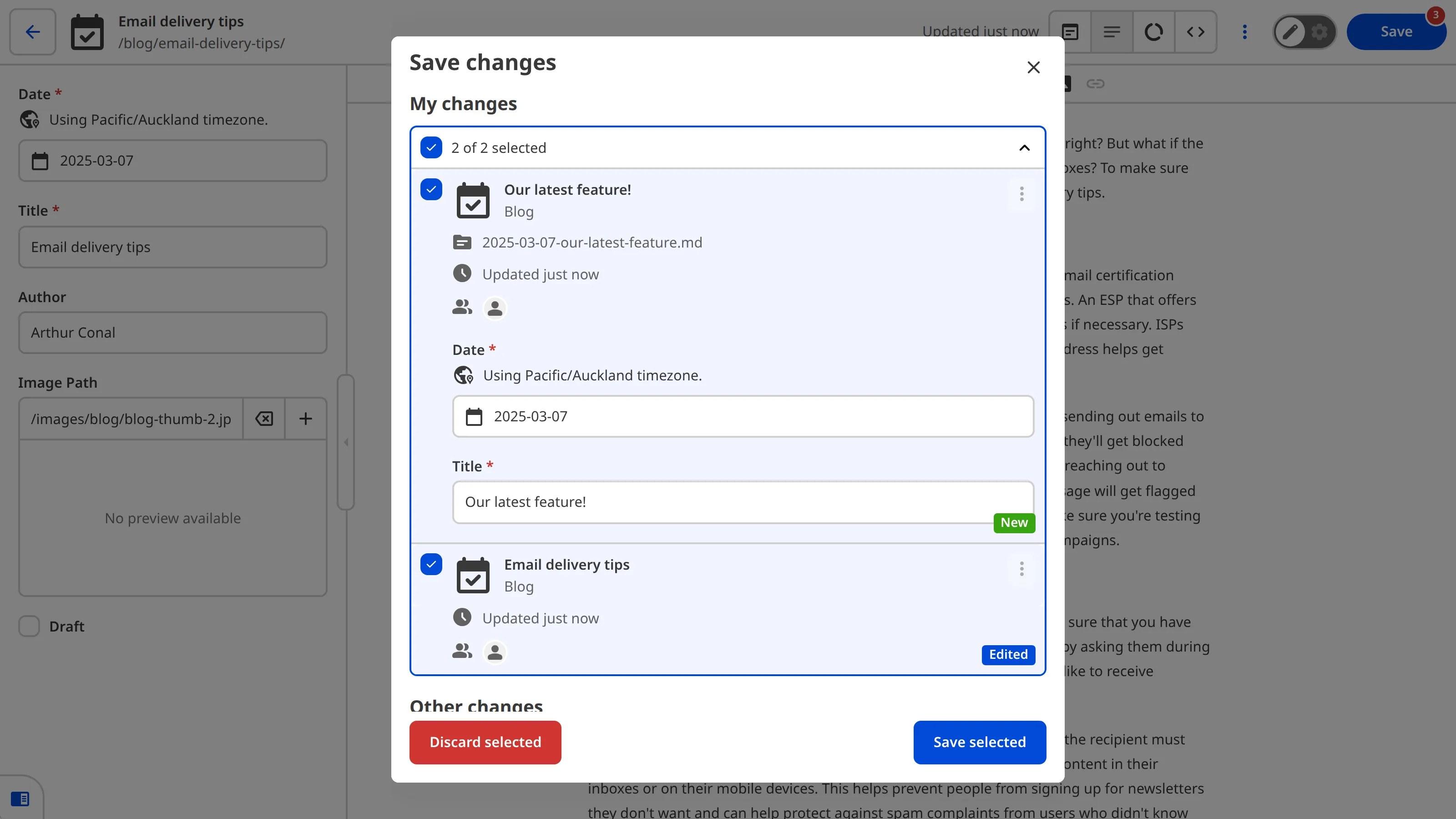
Sometimes, your file might require you to fill in some information before you can save them (for example, if you did not add a file name). Also, if your developer has added validation rules to an Input in a file, you will need to make sure those Inputs have valid values before you can save. An example of Input validation might be that a Date field requires you to enter a publishing date on a blog, or a list of relevant links can only have a maximum of three items.
Some Sites have Commit Messages configured. A Commit Message is a note that CloudCannon will attach to the record of changes to your Site. You should use it to describe what you have changed, and why, for your team (or your future self). For example, "Updated the About page with new team member information" or "Added three new blog posts about new product features."
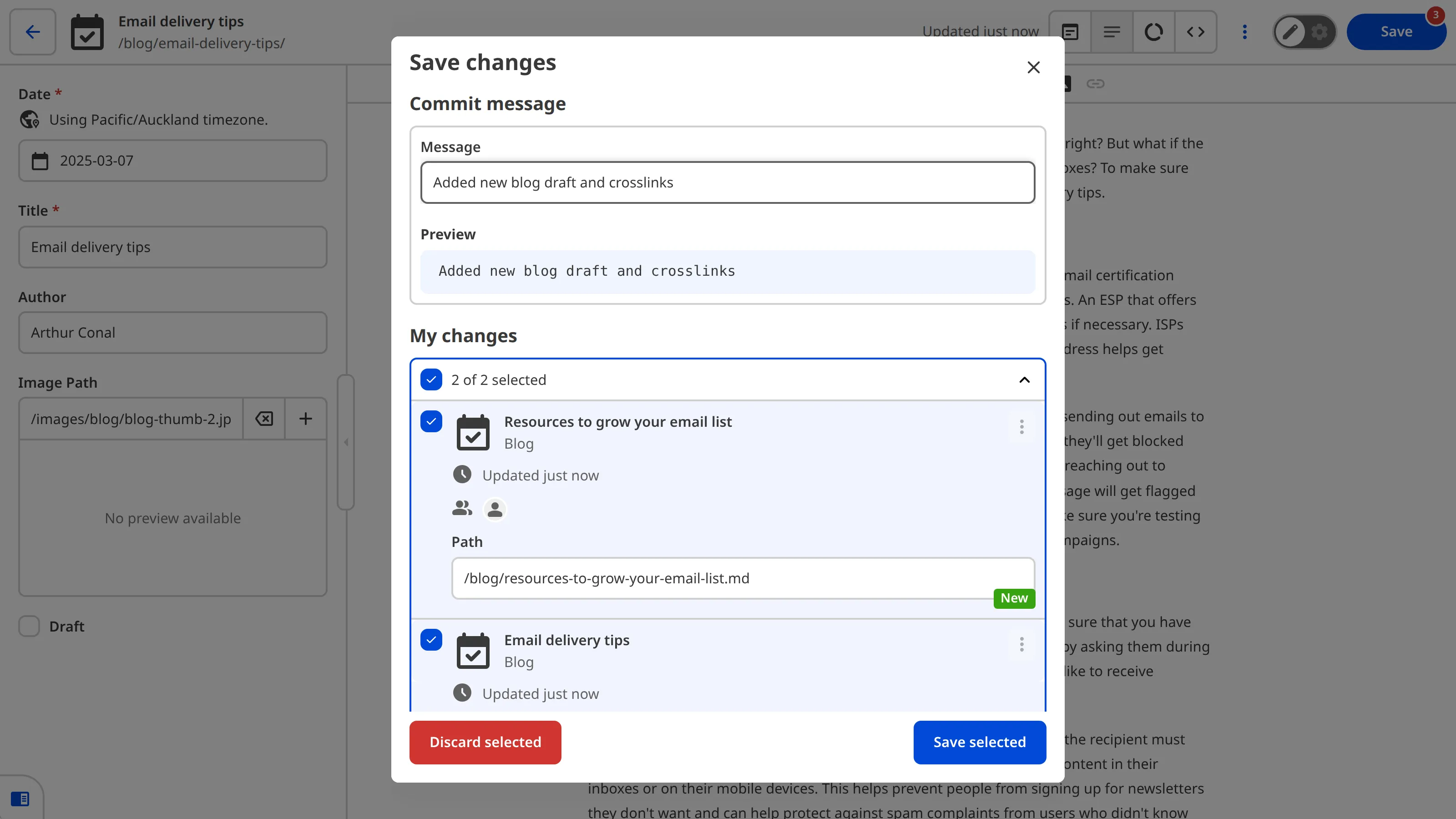
Once you're happy with the files you have selected, have filled in all the fields required by your developer, and added any Commit Messages, click the Save selected button.
CloudCannon will update your Site using your changes, remove the New, Edited, and Deleted badges from your File Cards, add a permanent record of your changes in your website's files, and make your changes live on your Testing Domain (your free preview URL) and any Custom Domain connected to your site.
The save process usually takes just a few moments, but it may take longer for larger sites or when many files have changed. You can then continue editing while your Site is saving, or take a break knowing your changes are safe.
What if you want to undo a saved change?#
If you accidentally save a change you didn't mean to, or change your mind, you can always undo that change by re-editing your files and saving again. However, if you need to return to a version of your files that was several changes ago, or undo a large change that would be difficult to do manually, talk to your developer. Because CloudCannon has a permanent record of all your changes, your developer will be able to help you restore a previous version.
View your changes live on the Internet#
Once you save your changes, CloudCannon will rebuild your Site and update the content live on the Internet. You can see your live website using your Testing Domain or Custom Domain.
A Testing Domain is a free preview website that CloudCannon gives to every Site. Each Testing Domain uses a randomly generated adjective and noun separated by a hyphen (e.g., grey-grouse.cloudvent.net or brave-submarine.cloudvent.net). A Custom Domain is a custom website URL chosen by your developer (e.g., cloudcannon.com). Your Custom Domain may also be the URL your visitors or customers use to see your content on the Internet.
You can open your Testing Domain or Custom Domain in a new tab by clicking the URL on the right of your Site Header. CloudCannon will open your live website in a new tab.

If your developer has set up a publishing workflow for your Site, the Testing Domain allows you to see your changes live on the Internet without affecting your public website. We'll cover what you need to know about publishing workflows in the next step of this guide.