CloudCannon provides four different Editing Interfaces, each designed for editing different types of content. Understanding these interfaces will help you choose the best one for what you're trying to do.
When you click on a file in a Collection Browser or the File Browser, CloudCannon will open that file in one of CloudCannon's Editing Interfaces. Which Editing Interface CloudCannon will open by default depends on your file type and how your Site is configured.
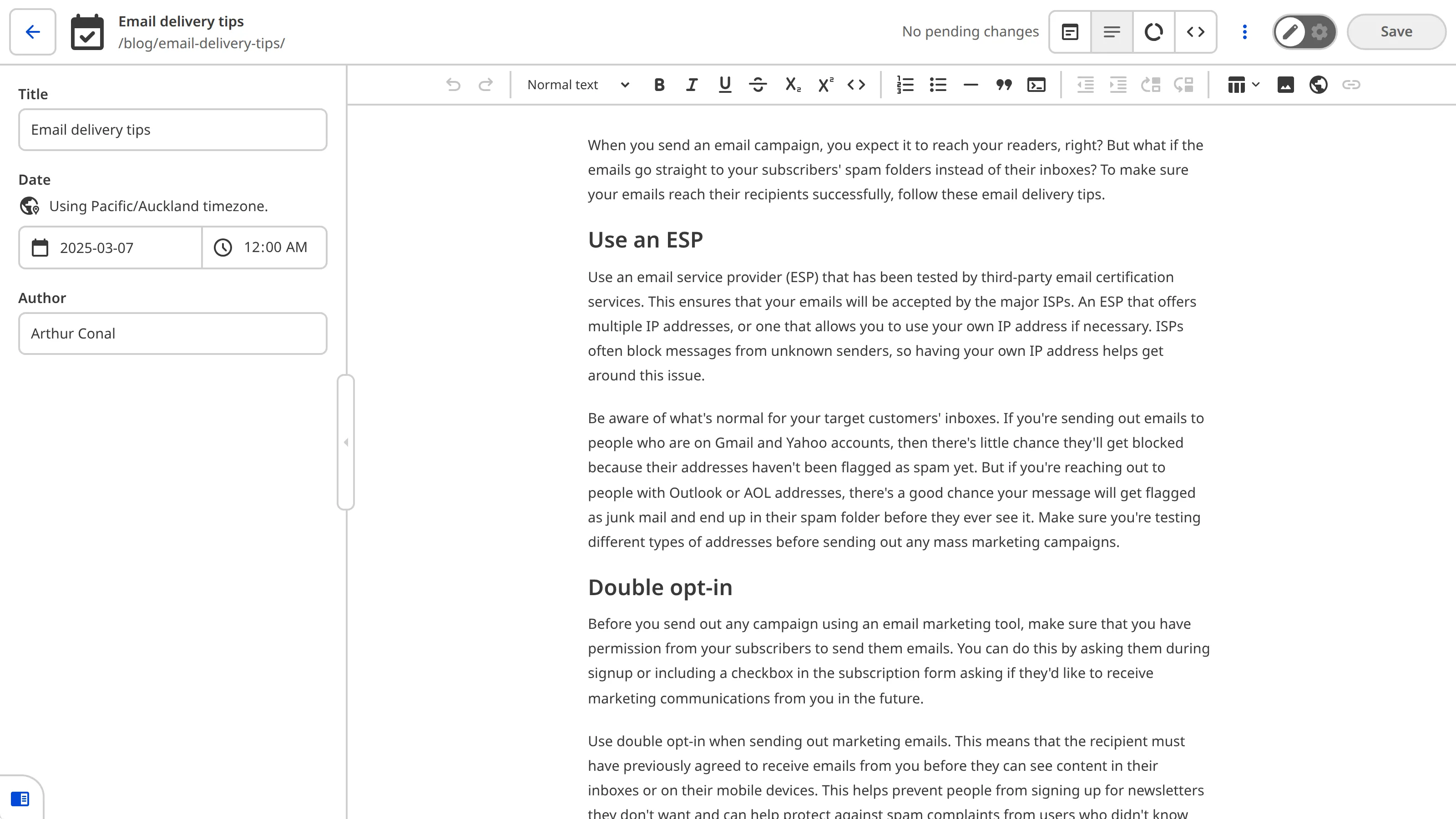
The Editing Interface Header#
At the top of every Editing Interface, you'll find the Editing Interface Header, which provides helpful information and tools.

From left to right, this includes:
- The Return to Site button — Returns you to the Collection Browser or File Browser where you opened the file.
- Your File details — The name and Output URL (if applicable) of the file you are editing.
- The Update status indicator — This shows you when CloudCannon last recorded an update to your file.
- The Avatars List — This displays the avatars of any team members who have this file open. One avatar is highlighted to show who is currently editing the file.
- The Interface buttons — These allow you to switch between CloudCannon's four Editing Interfaces: the Visual Editor, Content Editor, Data Editor, and Source Editor. You'll see between two and four options depending on your file type and Site configuration.
- The Context Menu — Clicking on the three dots icon will show you several file actions like duplicating, renaming, deleting, and more.
- The Save button — This opens the Save changes modal, allowing you to review all your unsaved changes before saving them to your website.
On smaller screen sizes, some of these tools will collapse into the Context Menu to save space.
The Configuration Mode switch

The Configuration Mode switch may also appear in your Editing Interface Header if you are a member of the Developer or Owner permission groups. This switch allows you to configure the editing experience for your Site, but it won't be visible to all users.
The Visual Editor#
The Visual Editor is the most intuitive way to edit your website. It allows you to edit your content directly on an interactive preview of your webpage. When you edit using the Visual Editor, you can see exactly what your visitors will see when they visit a webpage, and make editing decisions about your content in context. You can also navigate between pages by clicking links, just like on your live website.
The Visual Editor works best for files that output to a webpage. If your file doesn't create a webpage (like a data file), the Visual Editor won't be available for that file.
In the Visual Editor, content that you can edit is marked with yellow boxes called Editable Regions. These yellow boxes show you exactly which parts of your webpage you can edit. When you hover over or click on an Editable Region, the border will turn green to help you see the boundaries of that region.
Clicking into an Editable Region will do different things depending on what type of content it contains:
- For text content, you can type directly on the page to edit the text. If it is rich text (as opposed to plain text), CloudCannon will also give you a formatting toolbar with options like bold, italic, headings, and lists.
- For image content, CloudCannon will open a Data Panel with options to replace the image or edit its properties like alt text and title.
- For arrays or lists, you'll see tools to add, remove, or reorder items.
You can also use the sidebar in the Visual Editor to edit file information (also called structured data or front matter), which is the details about your file that don't appear in the main content. This could be your file title, a date, tags, or other information for your content. Each piece of file information has an Input field in your sidebar. To edit this information, use the fields, buttons, and sliders in each Input. If you would like to add, remove, or change the Inputs in the sidebar, please talk to your developer.
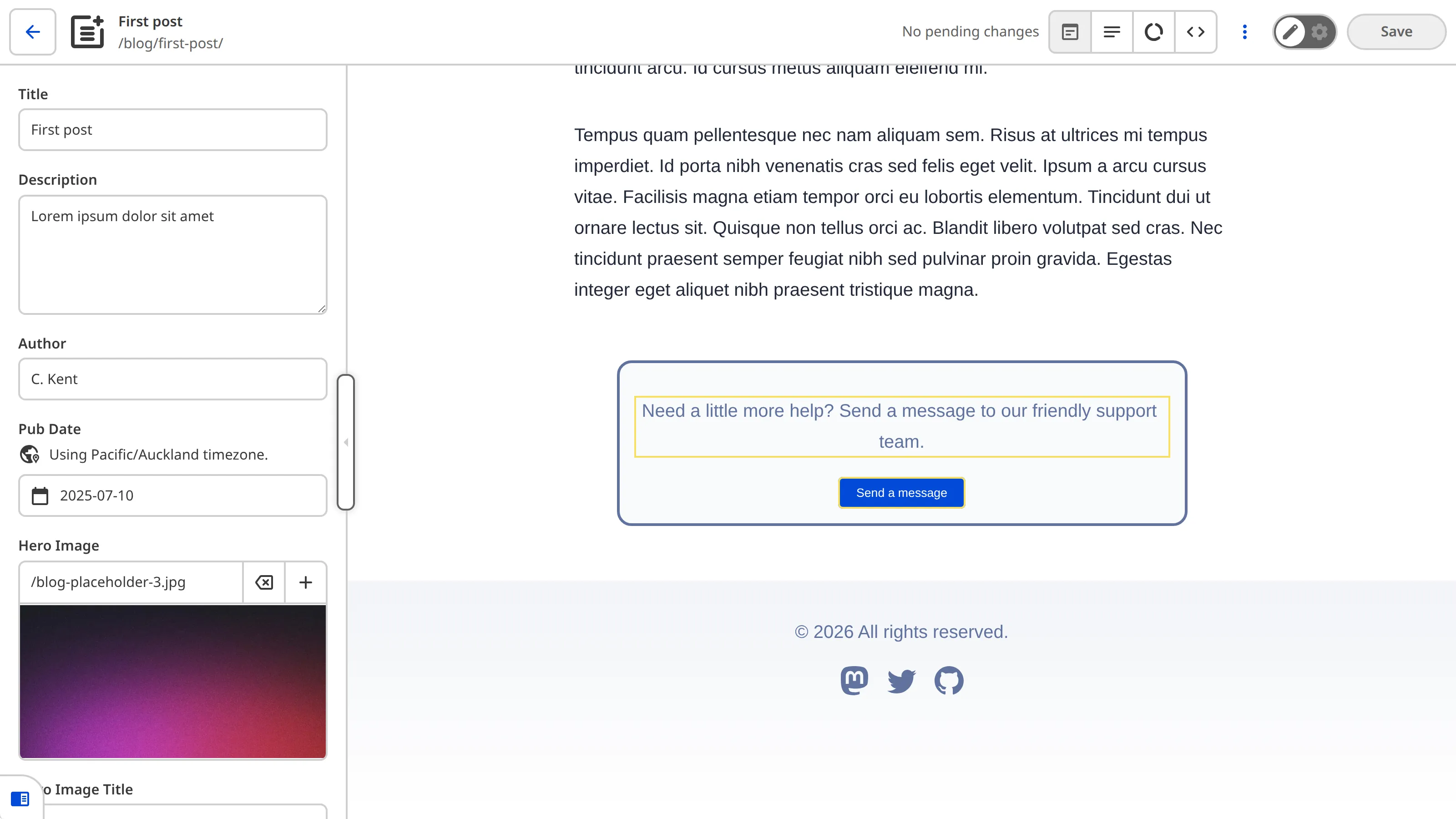
The Visual Editor does require some configuration, and may not be available for all file types. If you have any questions about using the Visual Editor for a specific file, talk to your developer or the friendly CloudCannon support team.
The Content Editor#
The Content Editor is a rich text editor that's perfect for editing content-heavy files like blog posts, articles, or documentation. It provides a clean, distraction-free interface that focuses on your content.
You can type directly into the editor. At the top of the Content Editor you will see the text formatting toolbar (also called a WYSIWYG toolbar, which stands for "What-You-See-Is-What-You-Get"). This toolbar might include adding images, links, or Snippets, changing the alignment of your text, or simple tools such as bolding, italicizing, or underlining text.

To use these tools, click to place your cursor in the content area of the editor (or, in some cases, highlight your existing text) and then click the icon for the tool you want to use. The number of tools available in your WYSIWYG toolbar will depend on how your Site is configured.
Snippets are pre-built content blocks that you can add to your content with just a click. They are reusable templates for common content types like testimonials, call-to-action sections, or product cards. Your developer sets up Snippets for your Site, so if you don't see any Snippets available or want to add new ones, talk to your developer.
Just like the Visual Editor, you can use Inputs in the Content Editor sidebar to edit file information (like title, date, and tags).
The Data Editor#
The Data Editor is a simple interface for managing organized information. It's perfect for editing files that contain data like your website navigation menus, staff profiles, product details, or file information. The Data Editor also appears as the sidebar in the Visual Editor and Content Editor, where it helps you manage the file information associated with your content files.
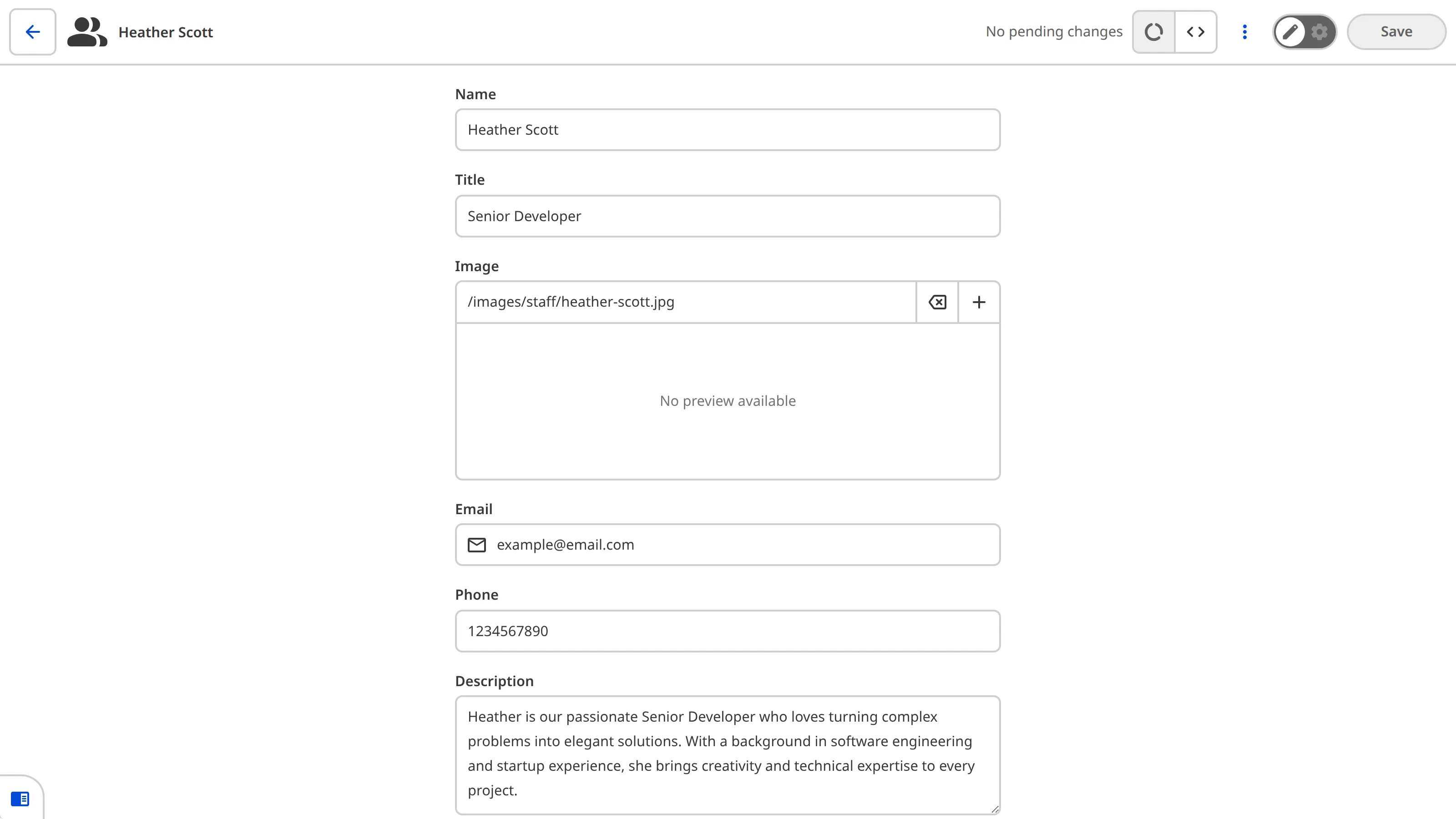
The Data Editor uses Inputs for each piece of information. To edit your information, use the fields, buttons, and sliders in each Input. If you would like to add, remove, or change the Inputs, please talk to your developer.
The Source Editor#
The Source Editor is an in-browser code editor that's great for making minor changes to the source code of your files. It displays the raw content of text-based files with automatic syntax highlighting based on the file extension. You can edit the content directly by typing, just like you would in any code editor.
The Source Editor is useful when you need to make small code changes or when you're comfortable working with raw file content. This Editing Interface is available to users in Technical Editor default Permission Group or higher. If you don't see the Source Editor as an option, you may not have the required permissions.
Which interface should you use?#
The best interface depends on what you're trying to do:
- Use the Visual Editor when you want to see your changes in context and edit directly on a preview of your webpage. This is great for seeing how your content will look to visitors.
- Use the Content Editor when you're working with longer written content like blog posts or articles and want a focused, distraction-free editing experience.
- Use the Data Editor when you're working with organized information files or need to update file details and settings. This is perfect for editing lists, menus, or product information.
- Use the Source Editor when you need to make small code changes or edit the raw content of your files. This interface is only available to users with higher permission levels.
Some interfaces may not be available depending on your Site's configuration or your permissions. If you don't see an interface you expect, talk to your developer.
Don't worry if you're not sure which interface to use; you can always switch between them. CloudCannon will remember your changes no matter which interface you use.
What if you make a mistake?#
If you make a change you don't want to keep, don't worry. CloudCannon makes it easy to undo your changes:
- Undo a single change: If you just made a change and want to undo it, you can use your browser's undo function (usually Ctrl+Z or Cmd+Z on Mac).
- Discard all changes to a file: If you want to discard all unsaved changes to a specific file, you can use the Context Menu (the three dots icon) in the Editing Interface Header and select Discard unsaved changes. This will revert the file back to its last saved state.
- Wait until you save: Remember, your changes aren't saved until you click the Save button, so you can always close the file and come back to it later without saving.
In the next step of this guide, we'll learn how to add, delete, rename, and duplicate files with file actions.