CloudCannon provides two ways to browse the files on your Site: the Collection Browser and the File Browser. The Collection Browser is available to all users, while the File Browser is available to users with Technical Editors permission levels and higher.
The Collection Browser#
Collections are groups of related files that have a similar format, making it easy to find and organize your content. For example, you might have a Collection for your blog posts, another for your webpages (e.g., Home, About, or Contact), and another for your product information.
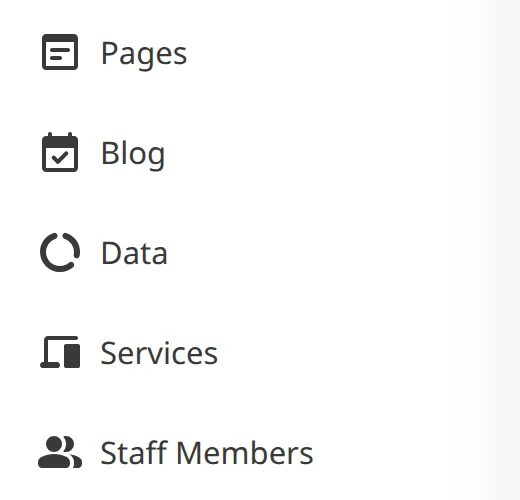
Your Collections appear in the Site Navigation on the left side of your screen. Each Collection has a name and an icon to help you identify it quickly.
When you click on a Collection, CloudCannon opens the Collection Browser. At the top of the Collection Browser, you'll see the Collection Header with the collection name and any description or documentation link that's been configured.
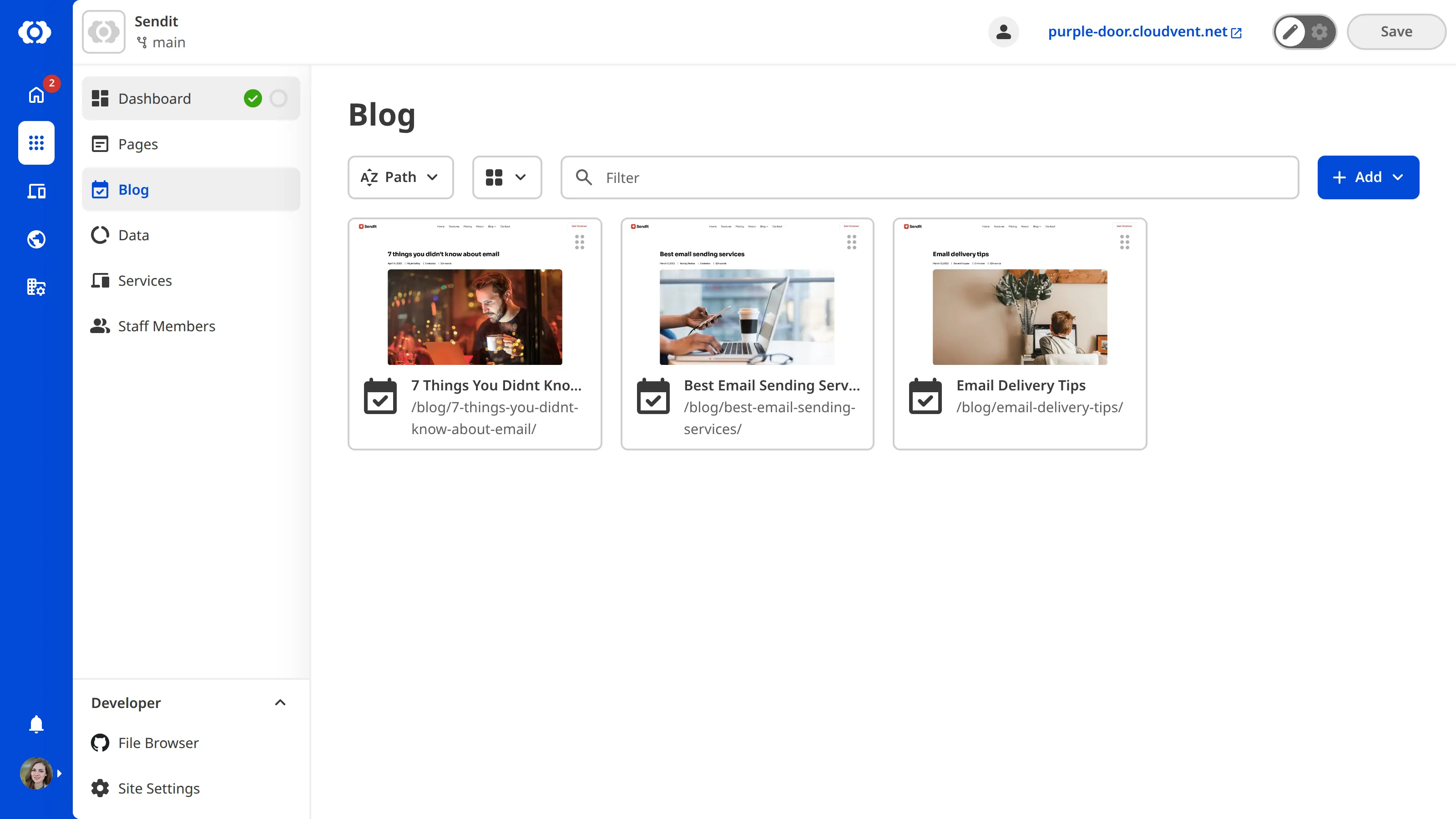
Below the Collection Header, you'll find the Collection Browser Controls with several tools to help you find and manage your files.
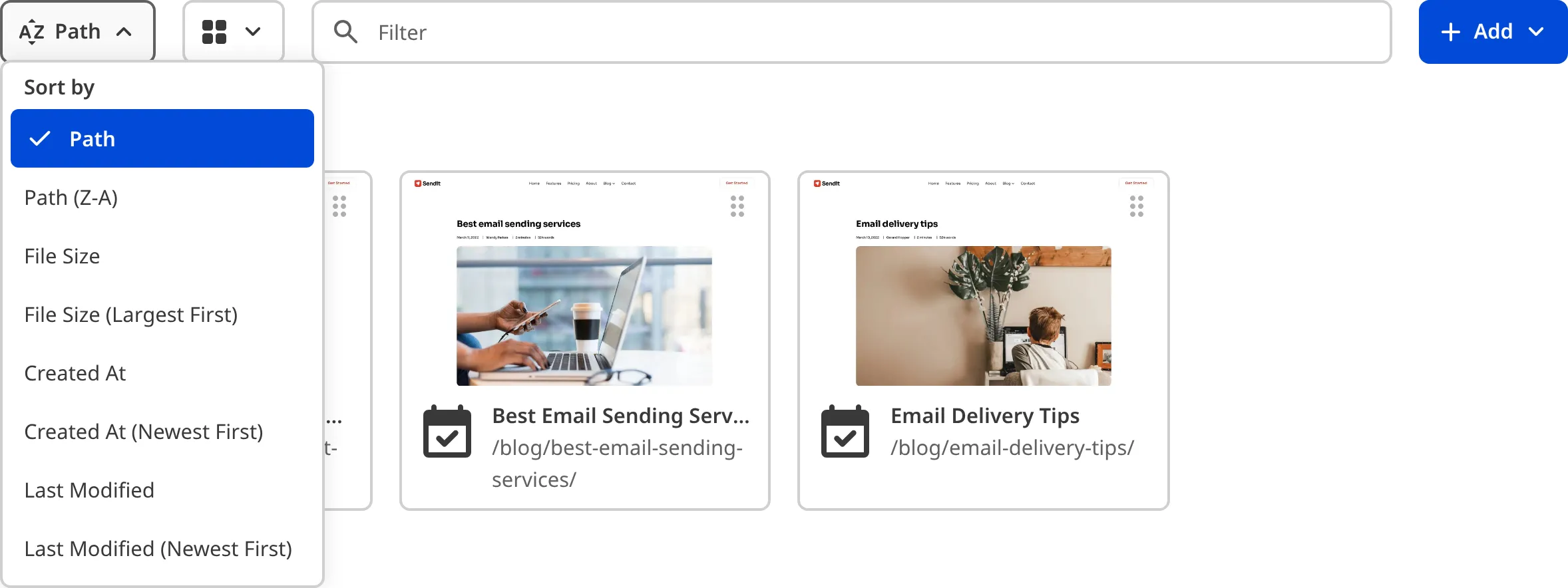
The Sort menu lets you change how your files are organized in the Collection Browser. You can sort alphabetically, by date created, by date modified, or by file size.
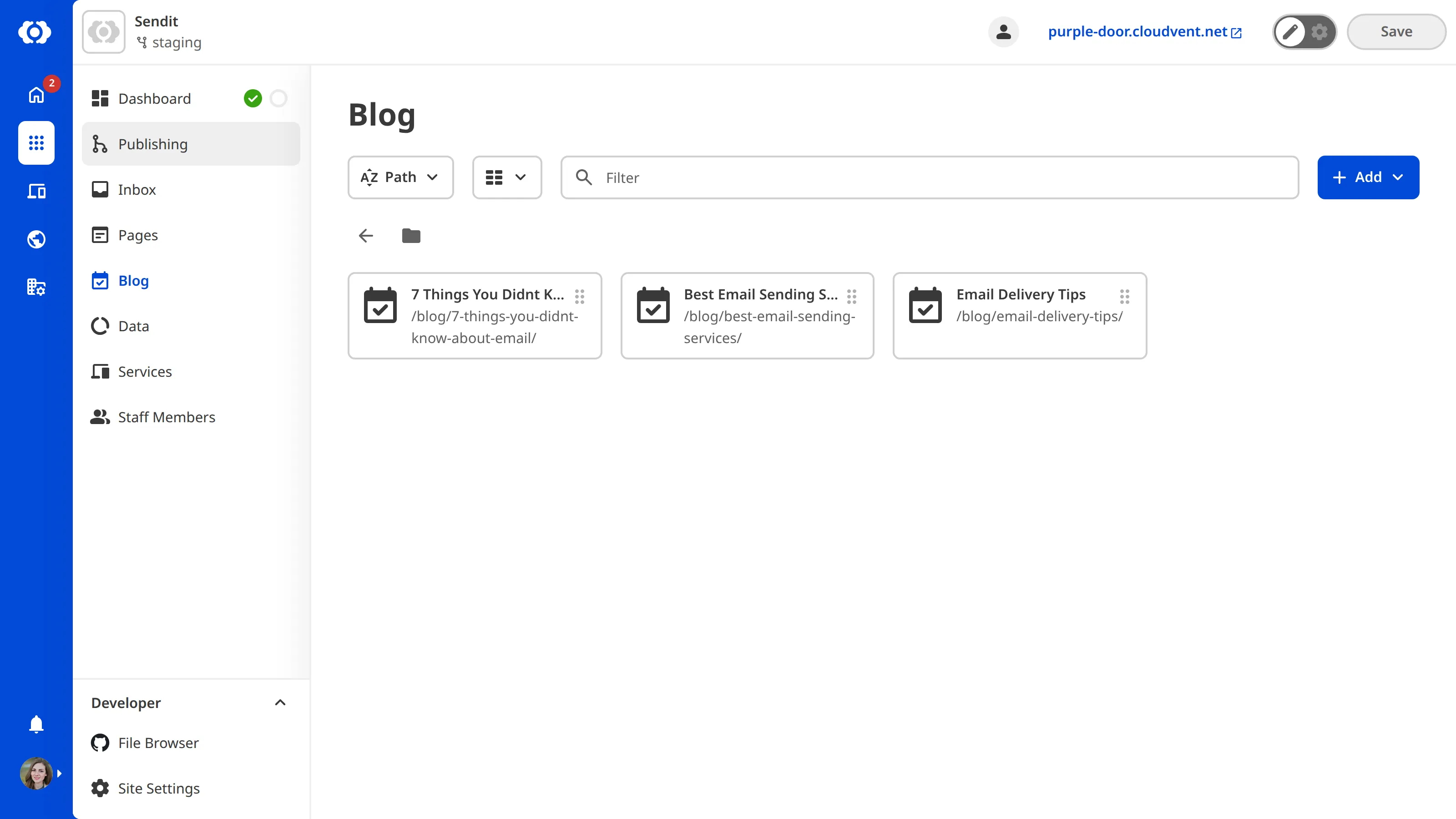
The View menu lets you switch between different File Card types: List view, Card view, or Gallery view.

The Filter text field lets you search for specific files by typing part of the file name.
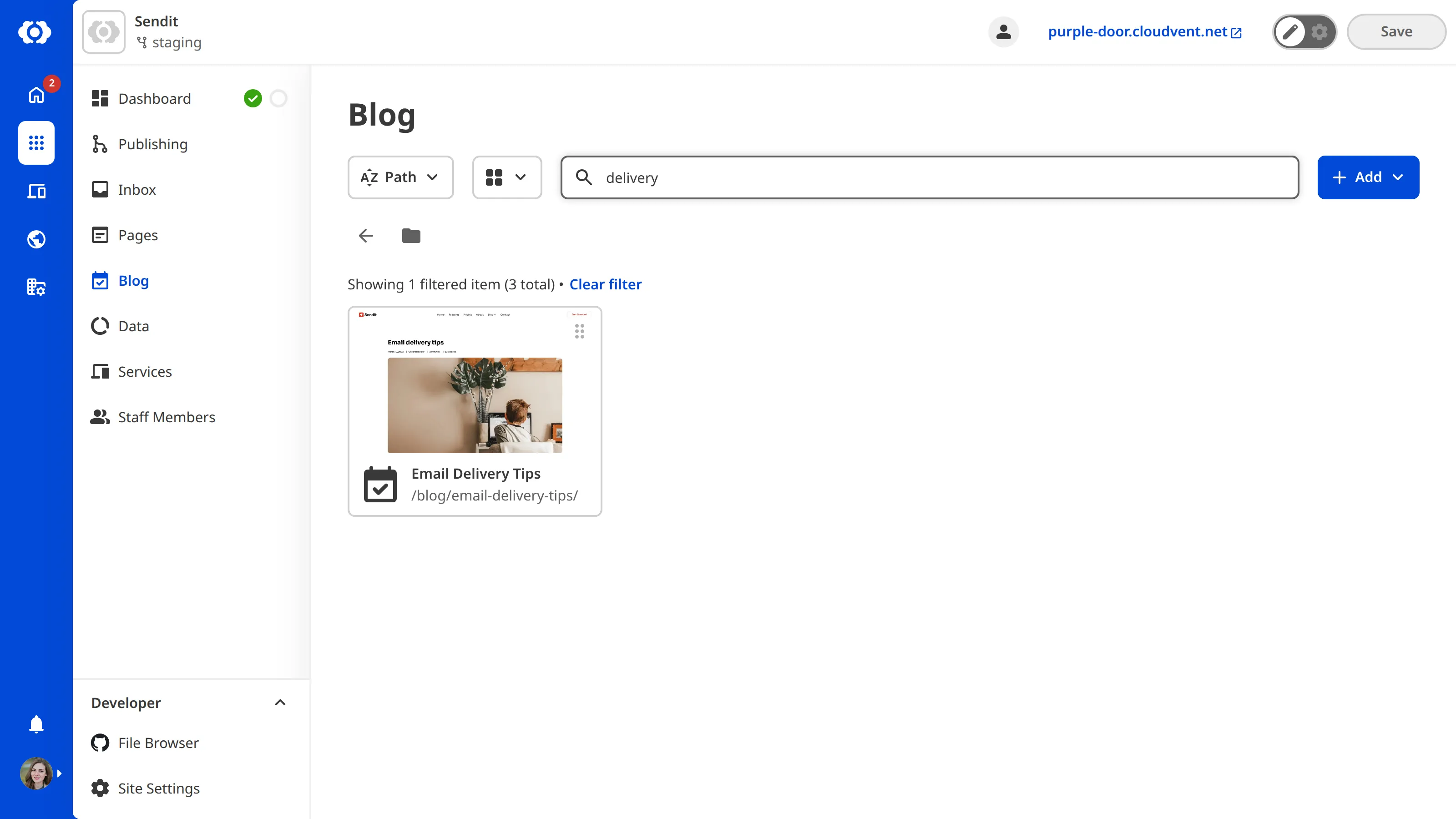
The + Add button lets you create new files or folders in the Collection. We'll discuss this further later in the guide.
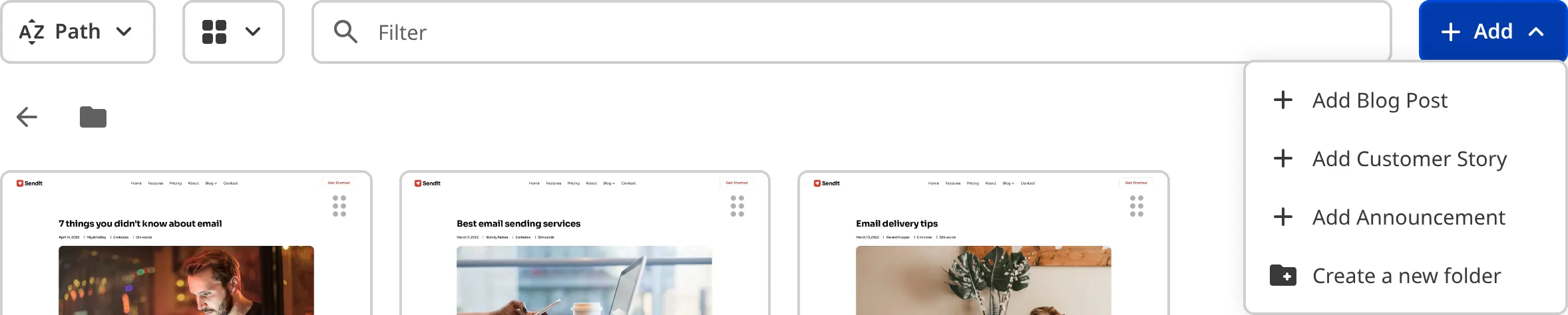
The main area of your Collection Browser shows you all the files in that Collection, with each file displayed as a File Card. File Cards show you helpful information like your file title, an image preview (if available), and when the file was last updated.
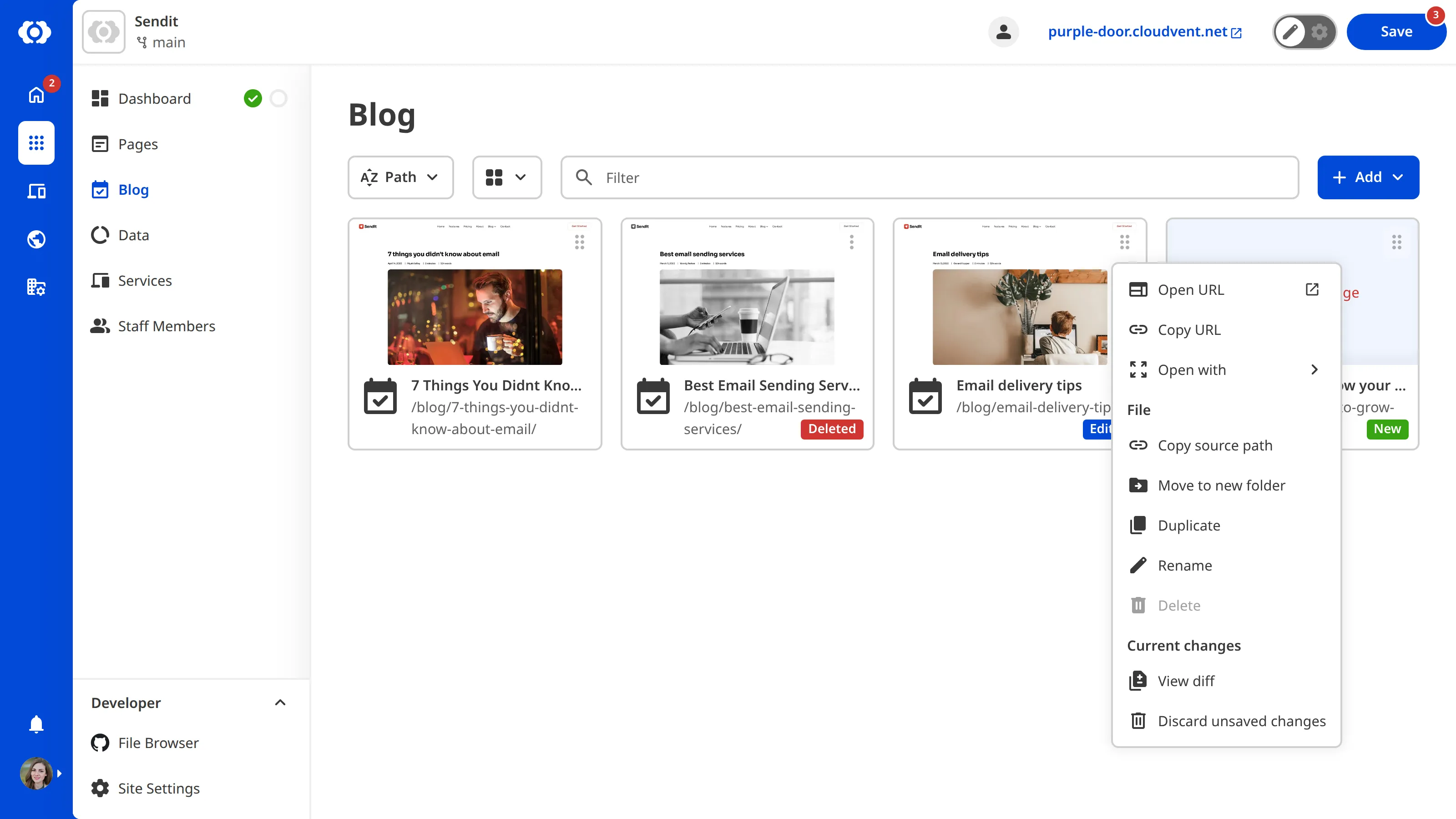
Clicking on a File Card will open that file in one of CloudCannon's four Editing Interfaces. Clicking on the six dots in the top right of a File Card will open the Context Menu, containing several file actions. We'll cover file actions later in this guide.
The File Browser#
Unlike Collections, which group similar files together, the File Browser shows you all the folders and files in your Site in a folder structure, similar to how files are organized on a computer.
You can access the File Browser by clicking File Browser in your Site Navigation under the Developer heading.
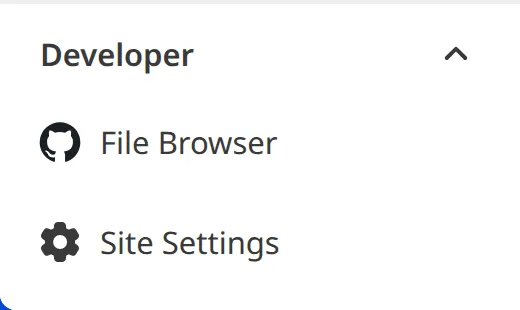
The File Browser is not visible to everyone. If you don't see the File Browser in your Site Navigation, you may not have the required permissions. Please contact your developer if you need access to the File Browser.
The File Browser also displays your files as File Cards, and you can use the Sort menu, View menu, and Filter text field to find the files you need.
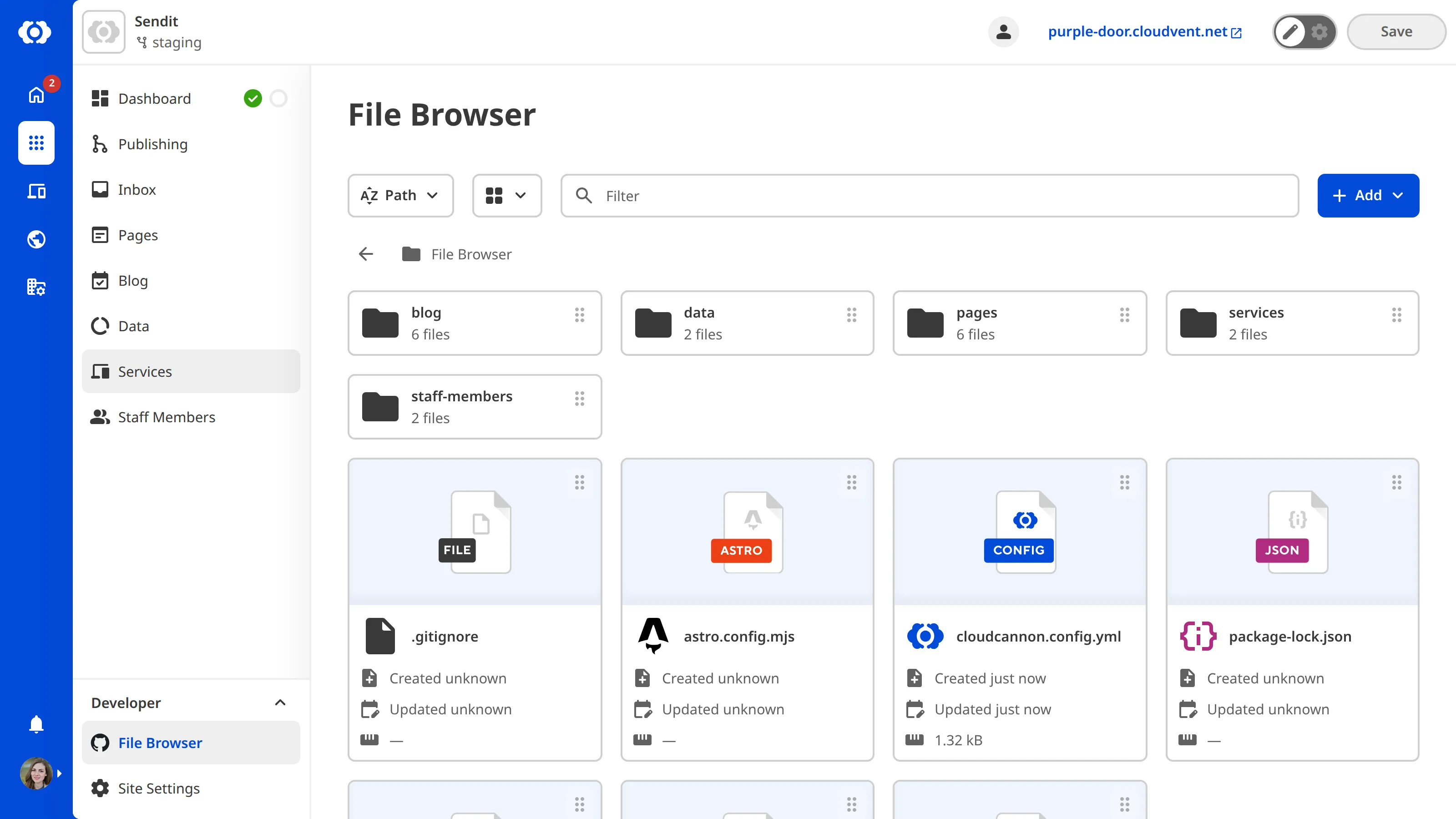
One key difference is that the File Browser shows every file on your website, including files that might not be part of any Collection and technical files that control how your website looks and works (rather than the content).
Which browser should you use?#
Both the Collection Browser and the File Browser are useful, and you'll likely use both depending on what you're trying to do.
- Use the Collection Browser when you want to work with a specific type of content, like all your blog posts or all your pages. Collections make it easy to see related files together and are perfect for most content editing tasks.
- Use the File Browser when you need to find a specific file by its location in your website's folder structure, or when you're working with files that aren't part of a Collection (like technical files).
In the next step of this guide, we'll learn about CloudCannon's Editing Interfaces and how to use them to update your content.