This step of the guide is optional.
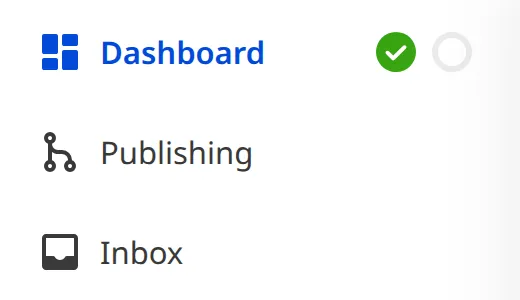
Publishing workflows are an optional feature on CloudCannon. You can tell if your Site uses a publishing workflow by looking for the Publishing link in your Site Navigation on the left side of your screen. If you don't see a Publishing link, your Site doesn't use a publishing workflow, and you can skip this page of the guide.
What is a Publishing workflow?#
Publishing workflows allow everyone on your team to work on their own copy of your website while protecting your public website from unreviewed content changes.
By setting up a Publishing workflow, you can:
- Make changes to your content on a copy of your Site and see what the changes look like on the Internet without impacting your public website.
- When you are ready, publish those changes to your public website, or ask for a review from a team member before publishing.
Because everyone can have their own copy of your Site in CloudCannon, you can work on different projects simultaneously (or you can have different Sites for different projects).
Where does CloudCannon publish your changes?
When you publish your changes, CloudCannon sends them to your Publish Branch. A Publish Branch is a copy of your website chosen by your developer. This could be:
- Your live public website
- A staging website where someone reviews changes made by multiple team members before making them public
- Another branch that other team members are also publishing to
When do you need to publish vs just save?
Understanding the difference between saving and publishing will help you know who can see your changes.
When you save your changes, CloudCannon will:
- Creates a permanent record of your changes in your website's files (your developer can undo these changes, if necessary)
- Makes your changes visible on your Testing Domain (anyone with this URL will see them)
When you publish your changes, CloudCannon will:
- Move your saved changes to your Publish Branch
- If your Publish Branch is your public website, all your visitors will see your changes
How to publish your changes#
Before you can publish your changes, you must first save them. If you have unsaved changes, save them first using the previous step of this guide.
Click the Publishing link in your Site Navigation. CloudCannon will open the Publishing page, which has three tabs: Summary, Changes, and Commits.
- The Summary tab gives you an overview of your publishing setup and buttons to publish your changes.
- The Changes and Commits tabs let you see all saved changes on your Site, organized by file or by editing session.

The Summary tab will always have an information box in the center that explains where CloudCannon will publish your changes. This information is mostly relevant to developers, but here is a quick overview:
- Status message: You'll see either "No changes available to publish" or "Changes available to publish" at the top of the box. If you see "No changes available to publish", you need to save your changes first before you can publish.
- Commit summary: The subtitle shows how many times you saved your editing session (called "commits") and the name of the Publish Branch CLoudCannon will publish to.
- Compare link: The "Compare changes on [Git provider]" link takes you to a detailed view of your changes. You may not have access to this because it requires access to your Git provider (a separate software your developer uses to manage your website's files).
Outside of the information box, the Publishing page will look slightly different depending on which Publishing Mode your developer configured for your Site: Merge Immediately or Pull Request.
Merge Immediately
Merge Immediately is a Publishing Mode that lets you publish your changes to your Publish Branch immediately, without needing approval from another team member. This is great for small teams or for publishing changes quickly.
If your Site uses the Merge Immediately mode, the Summary tab will have a Publish button.
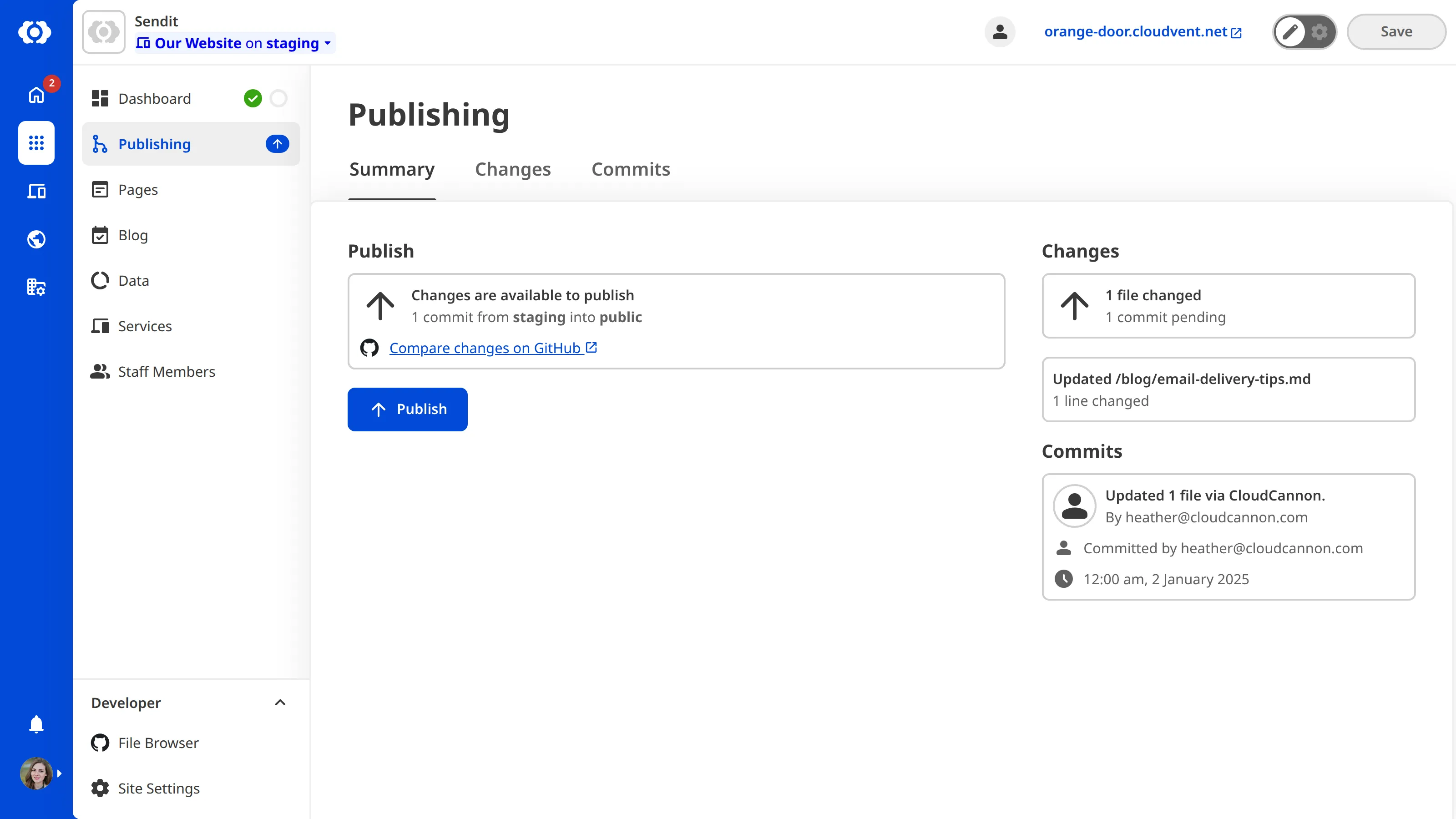
When you are ready, click the Publish button. CloudCannon will immediately publish your changes to your Publish Branch. Your changes will then be visible on your public website (or staging website, depending on what your Publish Branch is connected to).
Pull Request
Pull Request is a Publishing Mode that lets you submit your changes for review before publishing to your Publish Branch. This is good for larger teams or when you need content oversight to ensure quality or compliance.
If your Site uses the Pull Request mode, the Summary tab will include a Create Pull Request button and a few text fields for your request details.
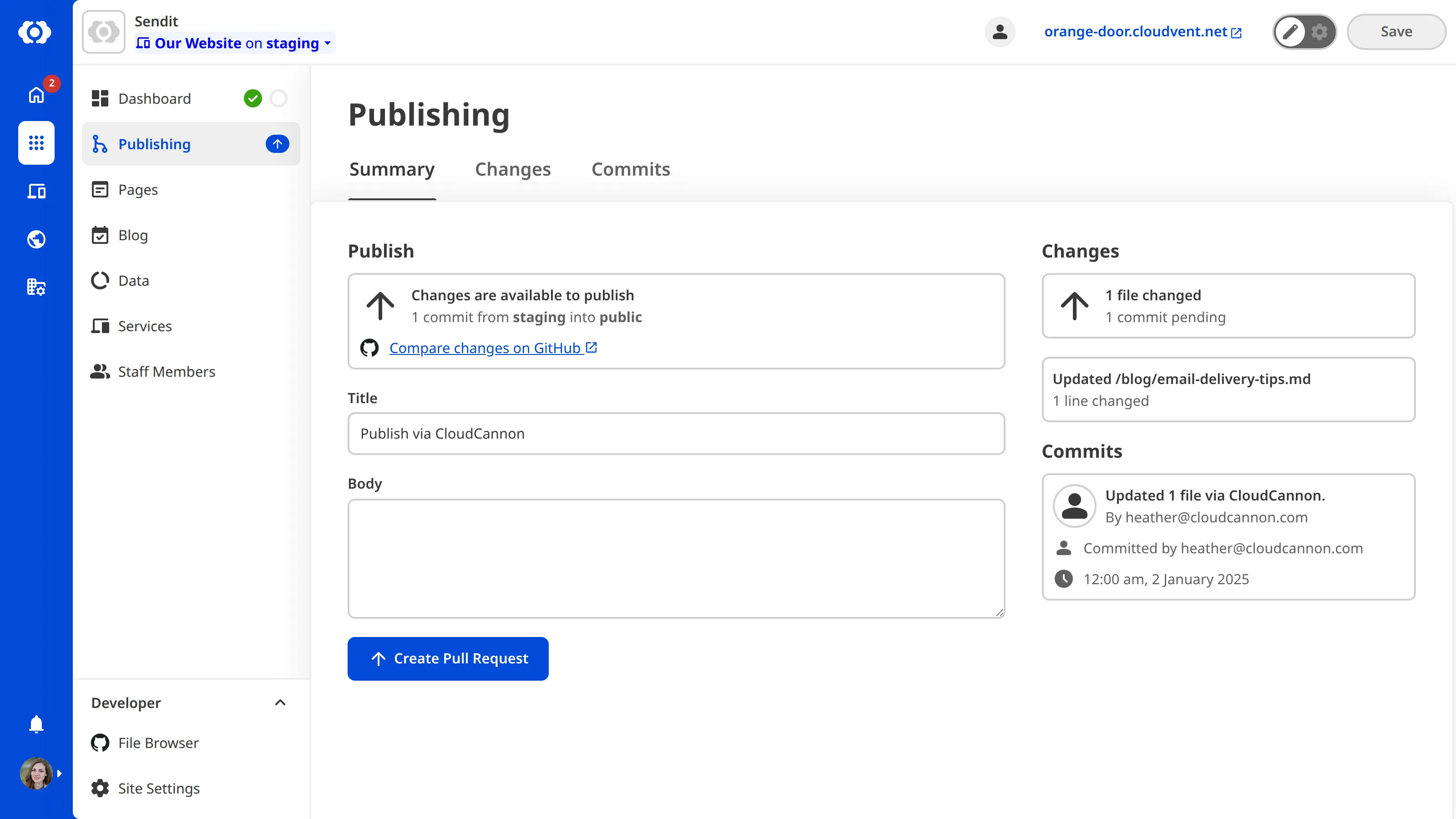
By default, CloudCannon will have a Title and a Body text field. Fill in these fields with information for the team member who will review your changes. This could be something like:
Title: Added new blog
Body: Wrote a new blog concerning our latest feature and updated other blog articles with crosslinks to the new blog.
Your developer may have set up custom fields for your Pull Request instead of the standard Title and Body. You should still fill these in before publishing.
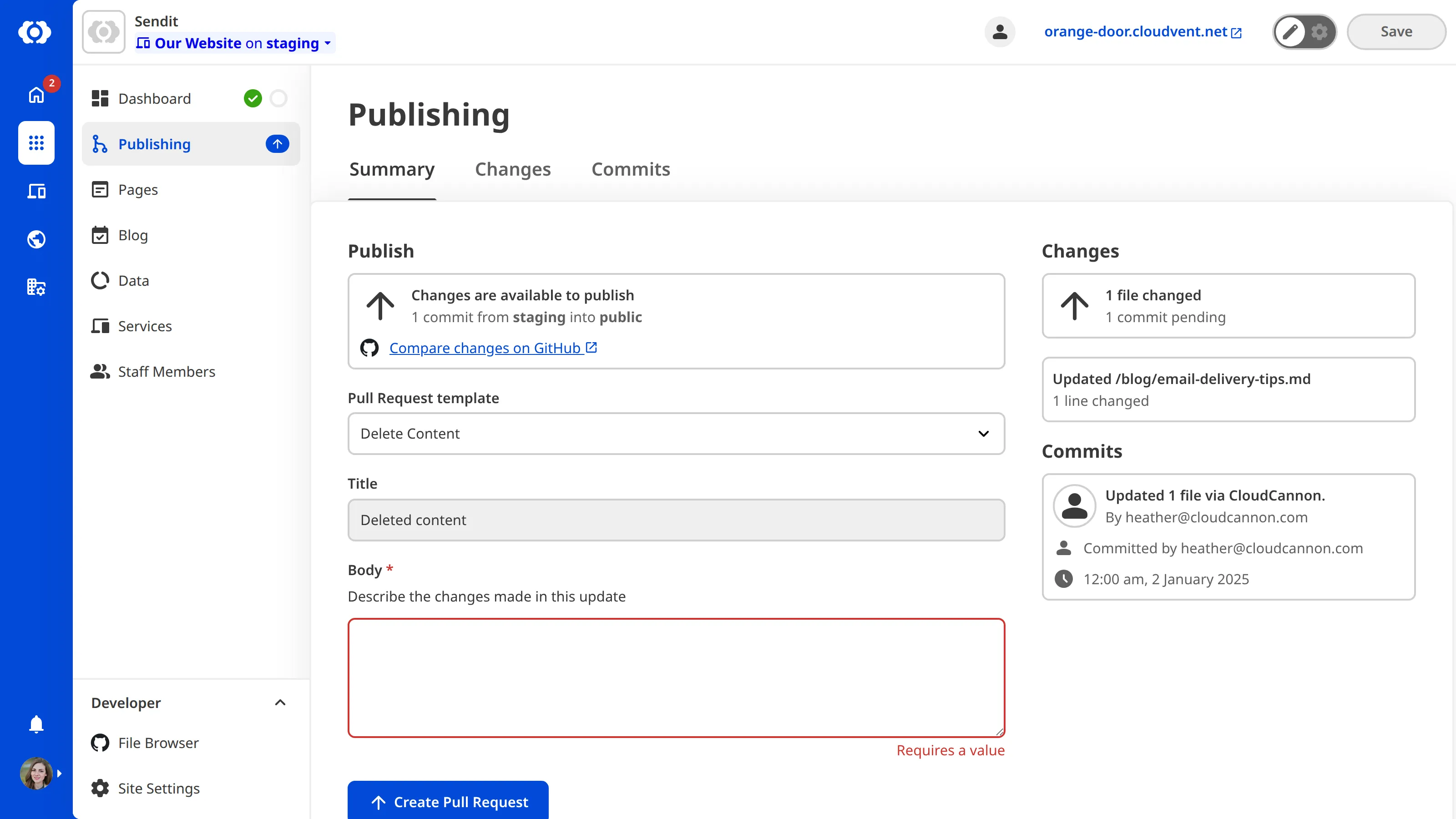
When you are ready, click the Create Pull Request button. CloudCannon will send your Pull Request to your developer for review.
Once your developer has reviewed and approved your Pull Request, click the Publish Pull Request button. CloudCannon will publish your changes to your Publish Branch. Alternatively, if you change your mind about publishing your changes, you can click the Close Pull Request button to cancel the request.
What's next?#
Once you've published your changes, CloudCannon will rebuild your Publish Branch with your changes (this is often your public website). The rebuild process usually takes just a few minutes.
You can continue to make more changes while you wait for someone to approve your Pull Request, or create a new Site to work on another part of your content.
Your developer may have configured CloudCannon to delete your Site once you publish your changes (i.e., click the Publish and delete or Publish Pull Request button).
Don't worry! This is part of the Publishing workflow. You can easily create a new copy of your Site for your next round of changes.
And that's it! You're ready to start editing your website content in CloudCannon. In the next step, we'll share some additional resources to help you continue learning.