Migrating to Rosey Rosey is a tool for internationalization (i18n) that helps create multilingual static websites by managing translations and generating localized versions of content. Rosey integrates with CloudCannon for multilingual site management.Rosey
CloudCannon uses your output files as the webpage preview in the Visual Editor. Because Rosey moves your output files from their original paths (e.g. /about/) to language-prefixed ones (e.g. /en/about/), the Visual Editor may no longer find them.
How you resolve this depends on where you want Rosey to serve your default language:
- Under a language prefix (e.g.
/en/about/), which is Rosey's default. Update your Collection URLs to match, using one of the methods below. - At the root path (e.g.
/about/), by settingdefault_language_at_rootin yourrosey.yml. Your default language's output URL doesn't change, so the Visual Editor continues to find those pages without a Collection URL update; only your non-default languages move to prefixed paths. Note that this disables Rosey's redirect page, so visitors landing on/get your default language instead of being sent to their locale.
If you prefer to keep your collection URLs un-prefixed, you can instead run Rosey only on your production branch and use a separate staging branch for content editing. See the staging workflow guide for guidance on setting this up.
Update Collection URLs in CloudCannon#
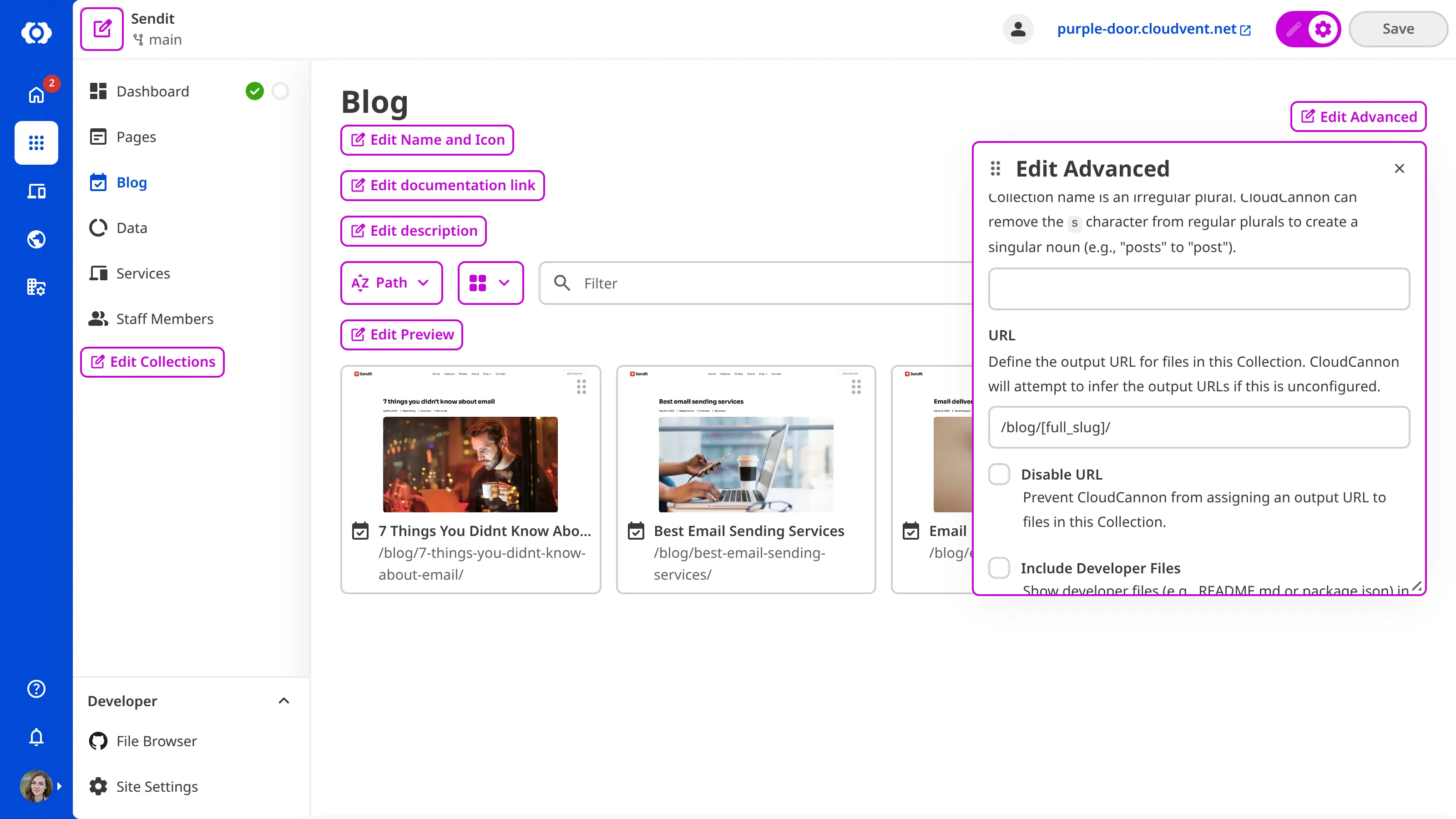
To update the URL in CloudCannon, navigate to the relevant Collection in the Collection Browser and enable Configuration Mode using the switch on the right of the Site Header — purple Edit Configuration buttons will appear. Click Edit Advanced in the top right to open the Edit Advanced data panel, enter the language-prefixed template string in the URL field, and save your Site. Repeat for each Collection.
Update Collection URLs in your Configuration File#
To update the URL in your local development environment, edit the url key for each Collection in cloudcannon.config.yml.
collections_config:
  pages:
url: /en/[slug]/Once you've updated the url key for each Collection, the Visual Editor will be able to locate your pages correctly after every build.
In the next step of this guide, we'll point you to further resources for going deeper with Rosey and CloudCannon.
