When you build your Site, CloudCannon will run the build command appropriate for your Static Site Generator (SSG). Your SSG will build your source files into your output files. These output files are what your website visitors will see on the Internet and what CloudCannon uses as the interactive webpage in the Visual Editor.
How does CloudCannon use your output files?#
When you click on a source file in the Collection Browser to open it in the Visual Editor, CloudCannon opens the appropriate output file. To open the correct output file in the Visual Editor, CloudCannon matches output files with source files using the output URL.
However, most modern websites do not have a one-to-one relationship between source files and output files. For example, the output file for your "Home" page will be index.html, but the content for this file could be stored across multiple source files (e.g., one for navigation, another for the footer, and a third for page content).
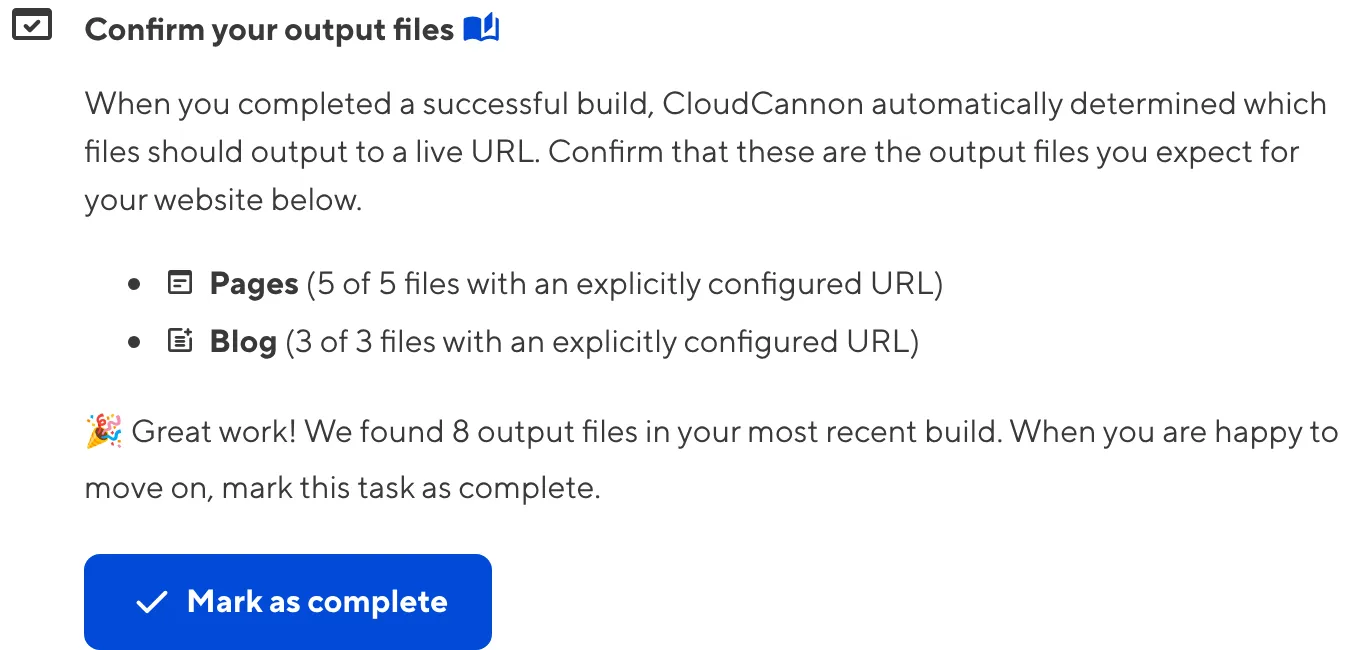
Whenever you finish a successful build, CloudCannon will automatically determine the likely output URL for each source file. The next task in the Set up Visual Editing in-app guide asks you to Confirm your output URLs, ensuring that CloudCannon is opening the correct output file for each source file in your Collection Browser.
Confirm CloudCannon matched your files correctly#
You can confirm that CloudCannon matched your output files and source files correctly by opening your source files in the Visual Editor.
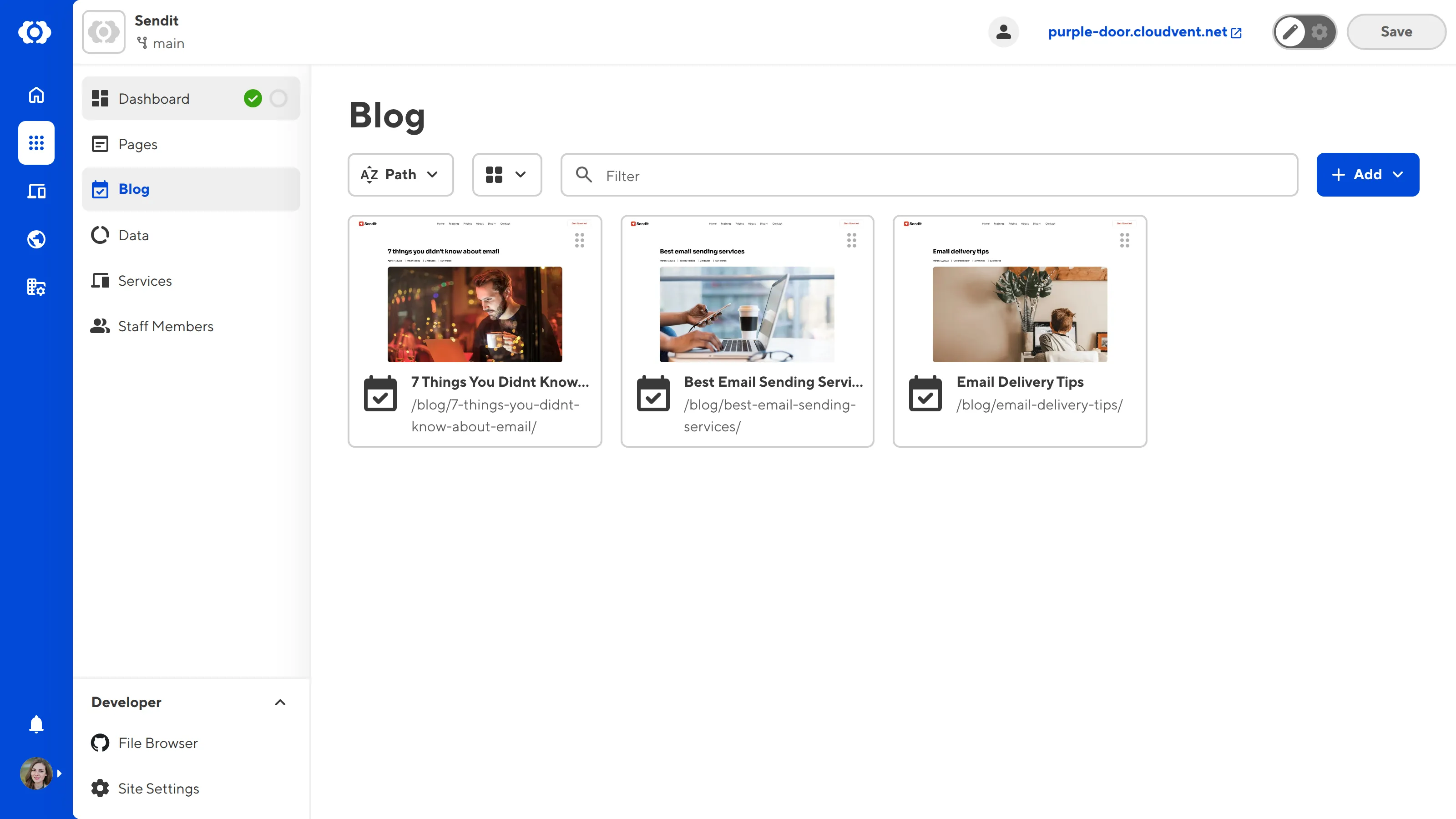
Click on a file in your Collection Browser to open it in an Editing Interface. If it doesn't open in the Visual Editor immediately, you can switch to the Switch to Visual Editor button in the Editing Interface Header.

The webpage preview shown in the Visual Editor is one of the output files made by your SSG. If this is the output file you expected to see when you opened your source file in the Visual Editor, then CloudCannon has correctly determined the output URL for matching your output and source files.
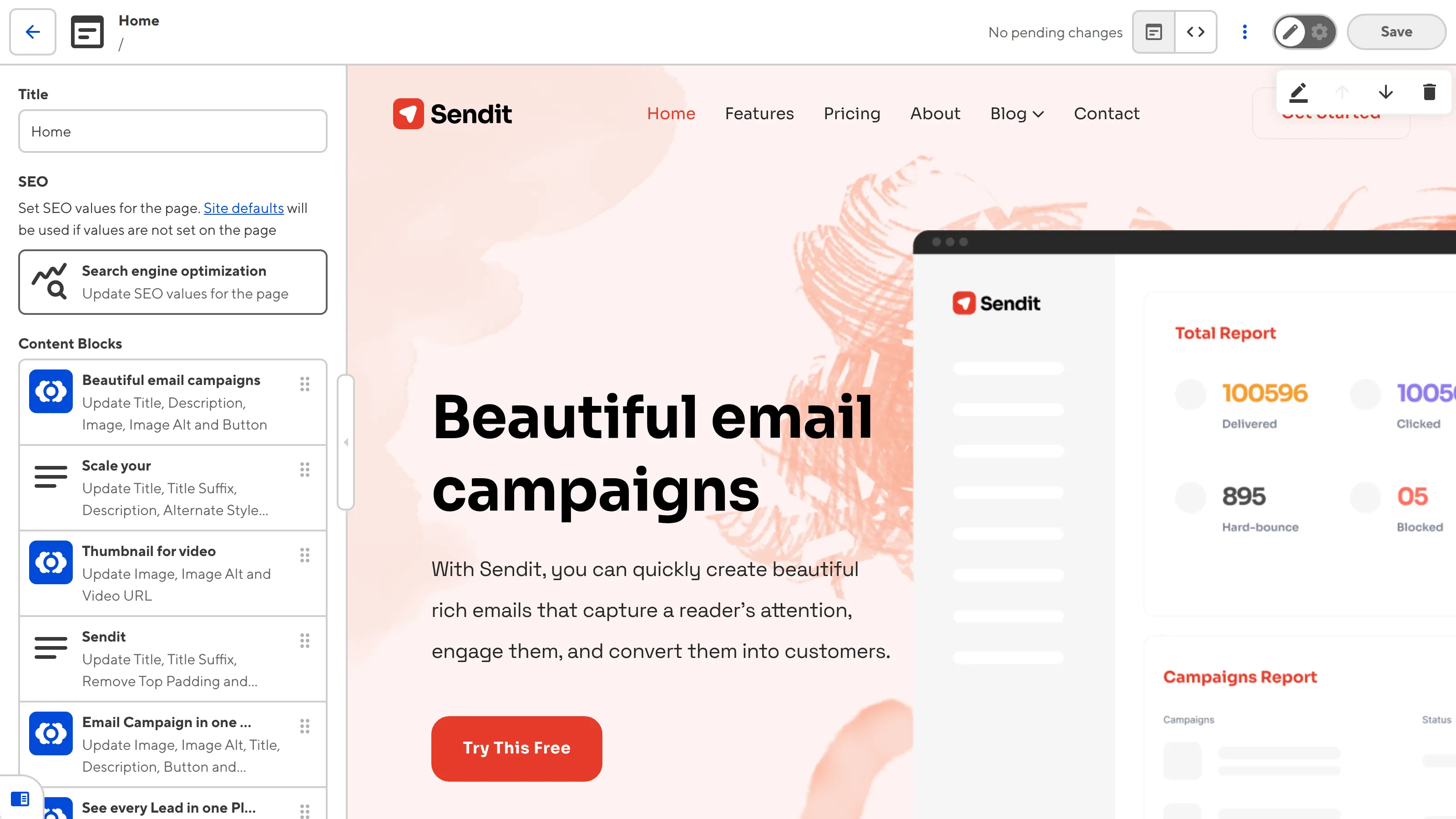
Try opening a few more files. If all your files open to the correct page in the Visual Editor, you can move on from this step of the guide and mark the in-app task as complete.
If a file will not open in the Visual Editor or opens to an incorrect webpage preview, it is most likely because CloudCannon has not determined the correct output URL. You can update the output URL for a Collection to fix this issue.
Update the output URL for a webpage preview#
To help CloudCannon match webpage previews to your output files, you can specify the output URL for each Collection using a template string. A template string is made of plain text and placeholder values, allowing you to use structured data from your files in the Collection.
Navigate to one of the Collections that does not correctly open in the Visual Editor and click the Configuration Mode switch on the right of the Site Header to turn it on. Purple Edit configuration buttons will appear in several places across the CloudCannon UI, including the Edit Advanced in the top right of the Collection Browser.
Click on the Edit Advanced button to open the data panel.
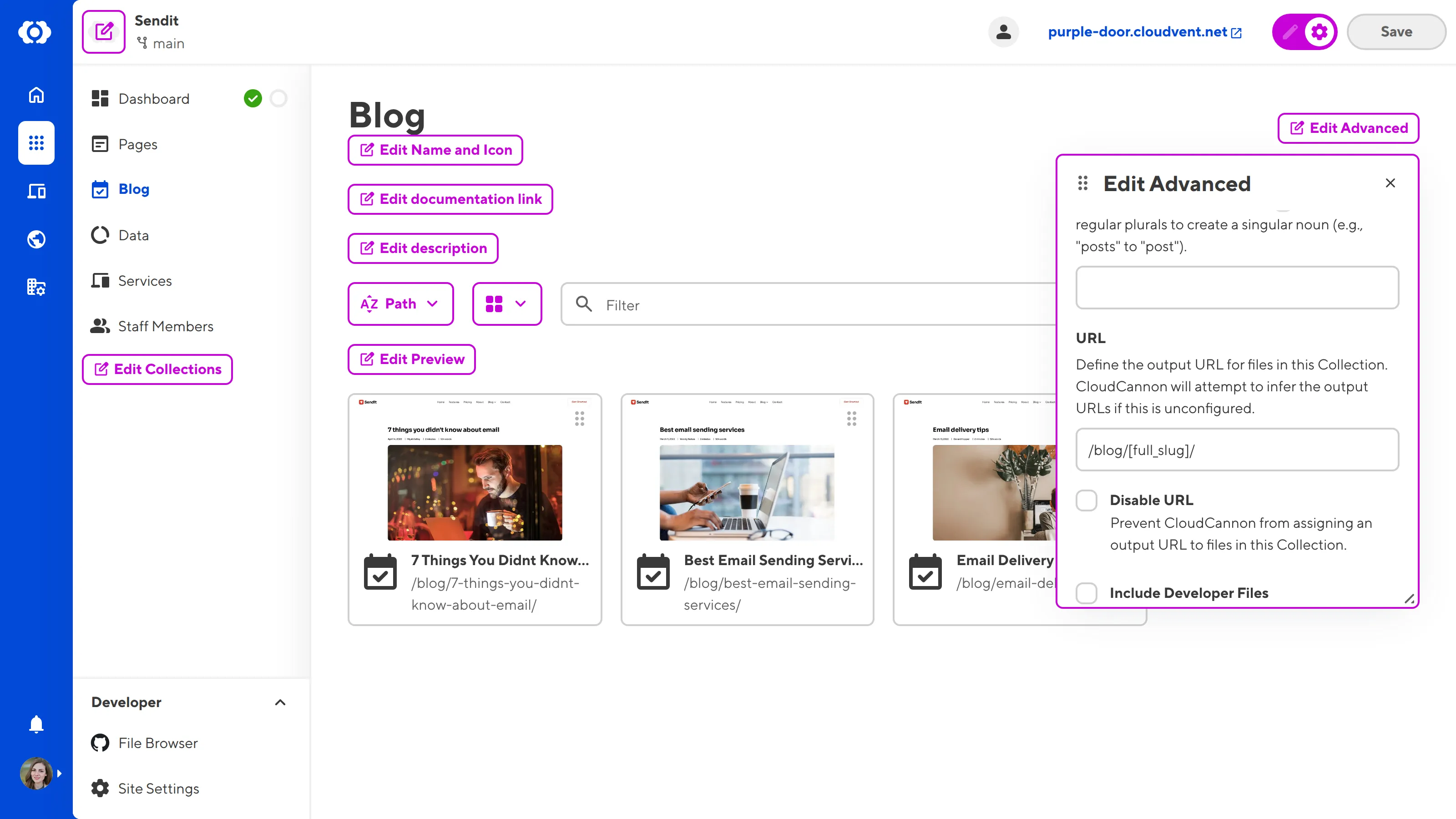
Find the URL text field in the Edit Advanced data panel. Here, you can specify which output URL CloudCannon should use to match webpage previews to the Collection using a template string.
Template strings allow you to use plain text, fixed or data placeholders, and filters to modify the value of data placeholders to create the correct URL format.
Fixed placeholders#
The following fixed placeholders are available for your output URL template string:
[filename]— Populated by the original filename including the file extension.[slug]— Populated by the original filename excluding the file extension. If the filename is "index", this will result in an empty string.[relative_path]— Populated by the original file name including the file extension, relative to the Collection path.[relative_base_path]— Populated by the original file name excluding the file extension, relative to the Collection path.[full_slug]— An alias for the template path[relative_base_path]/[slug].[path]— Populated by the original file name including the file extension, relative to your Site source.[base_path]— Populated by the original file name excluding the file extension, relative to your Site source.[collection]— Populated by the key for the Collection to which the file belongs.[ext]— Populated by the last file extension in the original file path.
Let's go through an example.
The url template string /[relative_bath_path]/[slug]/ for our "Pages" Collection will resolve to the following output URLs:
- The file
/pages/index.mdbecomes the output URL/(e.g., a Home landing page). - The file
/pages/about.mdbecomes the output URL/about. - The file
/pages/contact/index.mdbecomes the output URL/contact/. - The file
/pages/contact/book-an-appointment.mdbecomes the output URL/contact/book-an-appointment
Data placeholders#
You can reference any front matter field from your file in your output URL template string by using the key name in curly brackets (e.g., {key}).
You can also apply filters to your data placeholders by using the | character after your front matter key name, followed by the name of the filter.
Let's go through an example.
The url template string /news/{date|year}/{date|month}-{date|day}_{title|slugify}/ for our "News" Collection will resolve to the following output URLs:
- The file
/news/our-next-feature.mdwith the front matter fieldstitle: Our next feature!anddate:05/11/2026becomes the output URL/2026/05-11_our-next-feature.
For a complete list of filters available for data placeholders in your output URL template string, please read our documentation on template strings.
Once you have updated the template string in the URL text field, save the changes to your Configuration File. CloudCannon will automatically update which webpage previews it uses for that Collection.
When you are happy that all your output files open in the Visual Editor successfully, you can mark the Confirm your output files task as complete.
In the next step of this guide, we'll learn about Editable Regions, including their types and best practices for implementing them.