# CloudCannon Documentation (Full)
> Complete documentation content. See llms.txt for a structured index.
---
---
title: About User Articles
description: Learn about CloudCannon's User Documentation articles, which will aid you in using the app to manage your content, billing, and teams.
url: https://cloudcannon.com/documentation/user-articles/
content_type: user article
last_modified: 2026-08-13
---
Welcome to CloudCannon's User Documentation. These articles cover everything you need to know about using CloudCannon.
A User is anyone who uses CloudCannon to update their website content, review content changes made by others, organize their team members, or manage their CloudCannon subscription. A Developer can also be a User, but Developers also customize CloudCannon for use by their team members or clients (see our [Developer Articles](/documentation/developer-articles/)).
As a User, you'll be working in the CloudCannon web app ([https://app.cloudcannon.com/](https://app.cloudcannon.com/)) rather than a development environment. CloudCannon's **User Interface** provides you with all the tools you need. The articles in this section of our documentation are designed to explain CloudCannon concepts and provide instructions for achieving your content management goals.
If you need further assistance with your website on CloudCannon, contact your developer or our friendly [support team](https://cloudcannon.com/support/).
## CloudCannon UI
Articles in the [CloudCannon UI](/documentation/user-articles/introduction-to-cloudcannon-ui/) section provide a tour of the CloudCannon app. Learn your way around CloudCannon, including what different elements in the app are called and where you can find specific tools. These articles are a great place to start for new Users, or to return to when you see an element of UI referenced in another article and you need a refresher.
## Editing
Articles in the [Editing](/documentation/user-articles/introduction-to-editing/) section teach you everything you need to know about adding, editing, and deleting the content on your website. Learn about **Sites** in CloudCannon and how to find your **files** in the **Collection Browser**. Learn how to open your **files** in one of CloudCannon's *Editing Interfaces*, update your content, and **save** the changes to your website. These articles cover the majority of the CloudCannon experience for managing your content.
## Syncing & Publishing
Articles in the [Syncing & Publishing](/documentation/user-articles/introduction-to-syncing-and-publishing/) section will teach you the basics of **Git** (the technology CloudCannon uses to store your files securely and enable version control). Learn how CloudCannon syncs your files from your storage provider and how to publish your changes from a test copy of your website to the live version your visitors see. These articles are helpful for everyone, and they are also relevant to websites where a developer has set up a branching workflow for publishing changes.
## Sharing
Articles in the [Sharing](/documentation/user-articles/introduction-to-sharing/) section cover how you can collaborate with others on CloudCannon. Learn how to join or leave an **Organization**, invite and remove team members from an *Organization* you control, and manage the permissions that you and your team members have over your content, billing, and more. These articles are useful for Users who manage teams of content creators and need to ensure that everyone has the correct level of access to your website.
## Hosting
Articles in the [Hosting](/documentation/user-articles/introduction-to-hosting/) section cover the features available when you host your website on the Internet using CloudCannon. Learn what web hosting is, and how it can enable you to see a preview of your content on a **Testing Domain**, and collect visitor form submissions in a **Site Inbox**. These articles are relevant to websites where a developer has opted in to hosting through CloudCannon.
## Billing
Articles in the [Billing](/documentation/user-articles/introduction-to-billing/) section cover how billing works for your *Organization*, which is managed separately for each one. Learn how your subscription and Plan work, how to add extra capacity with *Add-Ons* and cover usage beyond your Plan's limits with *Overages*, and how to manage payment methods, invoices, and billing contact details. These articles are useful for anyone responsible for an *Organization's* subscription and costs.
## Accounts
Articles in the [Accounts](/documentation/user-articles/introduction-to-accounts/) section teach you everything you need to know about your account on CloudCannon, including how to create or delete one, manage your billing and subscription details, ensure a secure login, and determine who has ownership over your content. These articles are useful for everyone, but also for any Users who need financial oversight and ownership over *Organizations* on CloudCannon.
---
---
title: Add a coupon to your Subscription
description: Learn how to apply a coupon to your CloudCannon subscription for a discount on your Subscription Plan.
url: https://cloudcannon.com/documentation/user-articles/add-a-coupon-to-your-subscription/
content_type: user article
last_modified: 2026-08-04
---
> **Permissions required**
>
>
> Members of the *Owners* and *Billing* [Default Permission Groups](/documentation/user-articles/what-are-default-permission-groups/), or [Custom Permission Groups](/documentation/developer-articles/what-are-custom-permission-groups/) with the `org:billing:write` permission, can add a coupon to a subscription.
A coupon applies a discount to your **Subscription**, reducing what you pay for your **Subscription Plan**. Each coupon sets its own discount amount and how long the discount lasts. Once you apply a coupon, the discount appears on your billing summary and on your invoices.
> Each *Organization* can have one active coupon at a time. CloudCannon has no option to remove a coupon on its own. To change your coupon, apply a different one, which replaces the existing coupon on your *Subscription*.
To add a coupon to your *Subscription*:
1. Navigate to the *Subscription* page under **Org Settings**.
2. Click the *Review your Subscription Plan* button in the billing summary. CloudCannon will open the *Your Subscription Plan* page.
3. Click the *Add a coupon* icon in the billing summary. CloudCannon will open the *Add a coupon* modal.
4. Enter your coupon code in the *Coupon Code* field.
5. Click the *Apply Coupon* button. If your *Organization* already has a coupon, this button reads *Replace Coupon* instead.
CloudCannon will validate your coupon and apply the discount to your *Subscription*. The discount will appear as a line item on your billing summary.
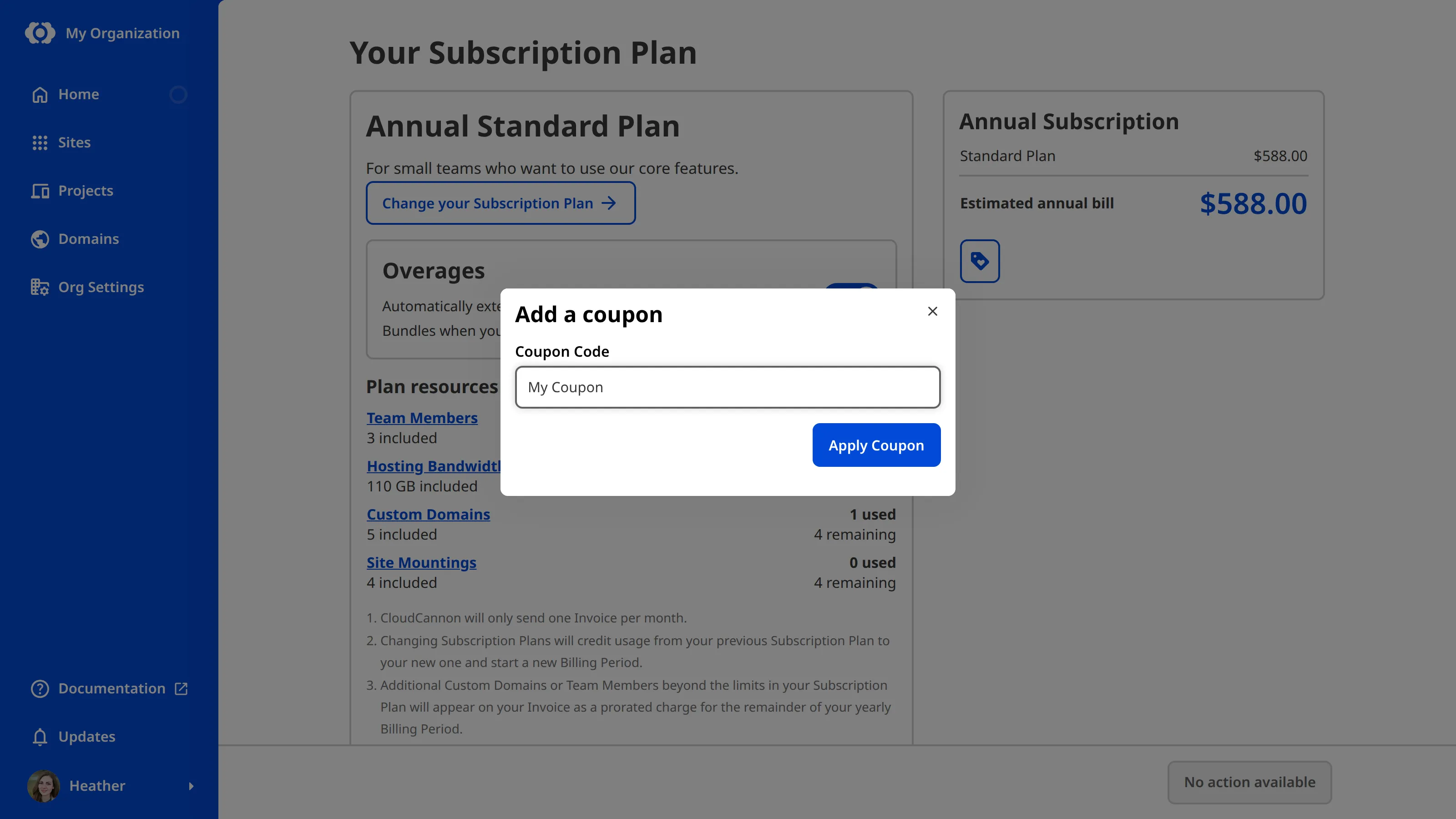
If your coupon code is not valid, CloudCannon shows an error message. Verify the code and try again. If the problem continues, contact our [support team](https://cloudcannon.com/support/) with your coupon code and the name of your *Organization*.
> Enterprise *Organizations* have custom billing arrangements organized directly with the CloudCannon team. If your *Organization* is on the *Enterprise Plan*, contact us via [support](https://cloudcannon.com/support/), Slack, or email.
---
---
title: Add a file
description: Learn how to add files in CloudCannon without opening your Git repository.
url: https://cloudcannon.com/documentation/user-articles/add-a-file/
content_type: user article
last_modified: 2026-03-29
---
There are multiple ways to add files in CloudCannon. When you add a file to your site and [save your changes](/documentation/user-articles/save-your-changes/), CloudCannon will push the new file to your Git repository. This way, technical and non-technical team members can contribute to your Git repository.
## Create a new file in the collection browser
You can create a new collection file using the *+ Add* button in the top right of the collection browser. The [+ Add dropdown](/documentation/developer-articles/configure-the-add-button-in-collections/) shows a list of available [Schemas](/documentation/developer-articles/what-is-a-schema/) for this collection or a default file template if no Schemas are configured.
- **Schema** - A Schema is a preconfigured file template that will populate new files with matching front matter and contents. You can configure your *+ Add* dropdown to list a library of Schemas for each collection.
- **Default file template** — If no Schemas are defined for a collection, CloudCannon will generate a default file template. The default template will copy the front matter (but not the contents) of the first alphabetical file in the collection. In the *+ Add* dropdown, the default template will appear as “+ Add [collection item]”, for example, “+ Add Blog” for a collection named “Blog”.

To create a file in the collection browser:
1. Navigate to the location you want to create the file using the collection or File Browser.
2. Click the *+ Add* button in the top right of the browser.
3. Select the Schema or template you want to use.
CloudCannon will open a new file in an editing interface and save it to the location open in your collection browser.
## Upload from the File Browser
Your File Browser uses the same file structure as your Git repository. You can upload an individual file or a folder of files using the *+ Add* button in the top right of the files browser. Uploading a folder uploads all files inside it rather than the folder itself.
> The File Browser is not available to team members in the [Editor Default Permission Group](/documentation/user-articles/what-are-default-permission-groups/#editors) or [Clients](/documentation/user-articles/what-is-client-sharing/).

To upload a file or folder from the File Browser:
1. Navigate to the location where you want to upload the file in your File Browser.
2. Click the *+ Add* button in the top right of the browser and select *Upload files* or *Upload a folder*.
3. CloudCannon will open a local File Browser. Select the file or folder you want to upload.
4. Review the files you want to upload in the *Confirm your files* modal.
5. Click the *Confirm selection* button.
CloudCannon will upload your file or folder to the location open in your File Browser.
> When uploading files to CloudCannon, the maximum size per file is 50 MB. Files synced from a Git provider have no maximum size.
Alternatively, you can also drag and drop files from your local computer into the CloudCannon File Browser to upload them to the location you have open.
## Duplicate a file
You can add a new file to your site by cloning an existing file. This method is useful if you need files with similar contents. You can also duplicate a folder to create a copy of every file in that folder.
> If your workflow requires many files with similar contents, we recommend setting up a [Schema](/documentation/developer-articles/what-is-a-schema/).
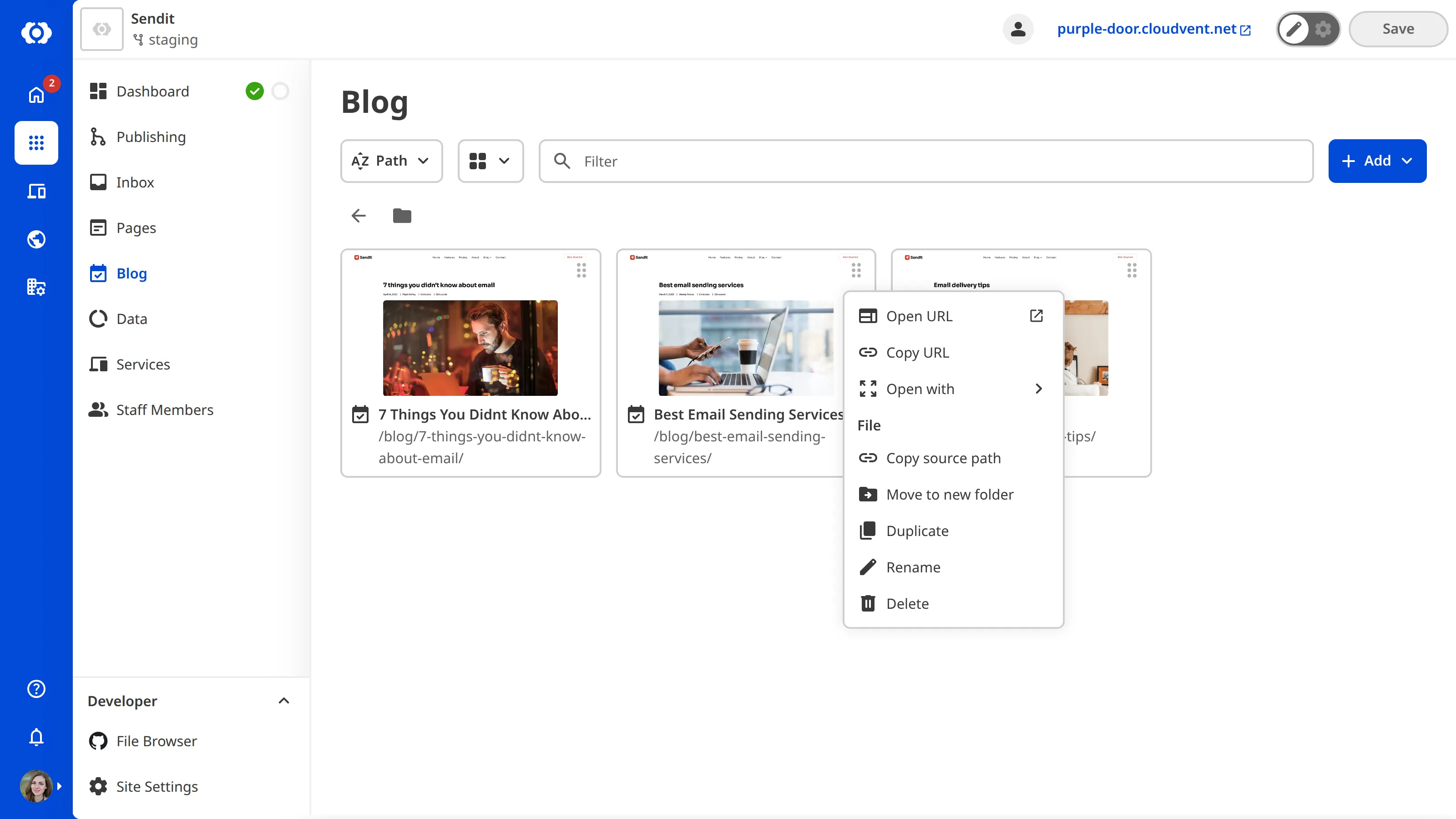
To Duplicate a file or folder:
1. Navigate to the item you want to Duplicate in your collection or File Browser.
2. Open the *Context Menu* by clicking the icon in the top right of the file card.
3. Select *Duplicate item/folder*.
CloudCannon will Duplicate your file or folder. Duplicated files and folders will have “-copy” added to the file or folder name. Filenames inside Duplicated folders will not change.
If you are cloning an individual file, CloudCannon will open that file in an editing interface.
Alternatively, you can duplicate a file from the editing interface using the *File menu* in the top left corner.
## Upload from an editing interface
While in the [Visual Editor](/documentation/user-articles/what-is-the-visual-editor/), [Content Editor](/documentation/user-articles/what-is-the-content-editor/), or [Data Editor](/documentation/user-articles/what-is-the-data-editor/), you can upload files through a file input. Uploading from a file input is a convenient way to add files without leaving the editing interface. We recommend this method for uploading images or other file types that you want to include within another file.
File inputs in the sidebar of the Visual or Content Editor, or in the Data Editor, allow you to select a file from your local computer or browse existing files stored in your repository or a remote DAM.
> Although you can upload videos this way, we recommend using external storage to prevent large files from affecting the size of your Git repository.
### Upload to the root directory from a file input
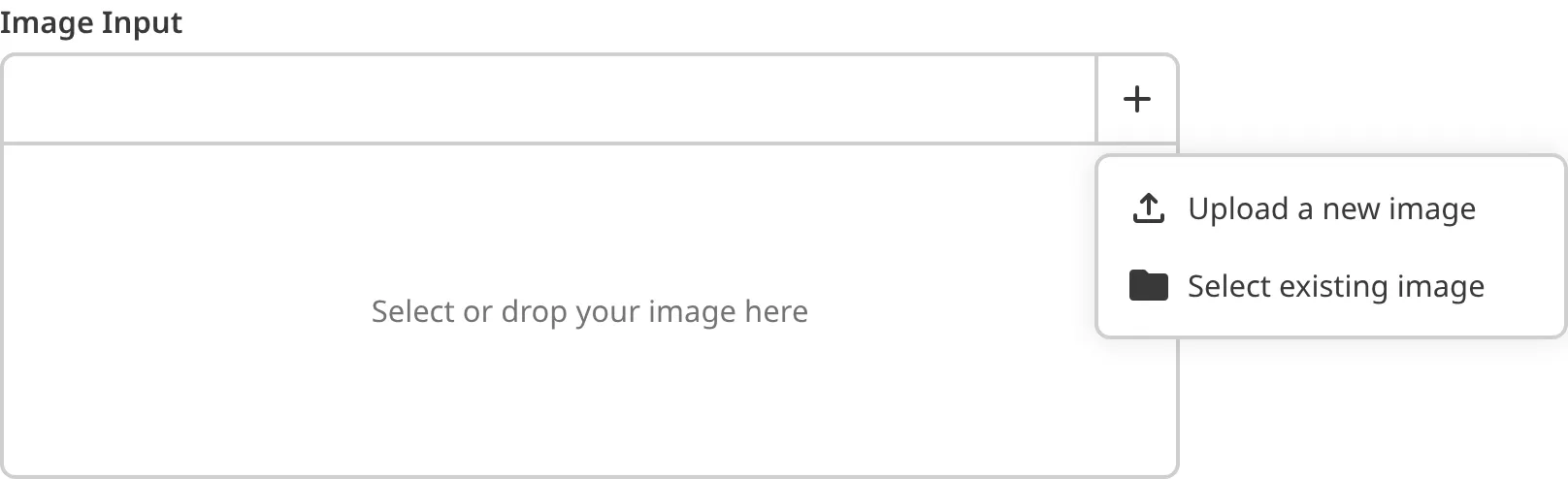
To upload a file to your root directory:
1. Navigate to the file you want to add another file to in your collection or File Browser.
2. Open that file in the Visual, Content, or Data Editor.
3. Click on the input where you want to upload your file in the sidebar or Data Editor and select *Upload a new file*.
4. If you have a DAM connected to your site, the *Choose your file destination* modal will prompt you to select either your DAM or *Site files*. Click *Confirm destination*. If you do not have a DAM, CloudCannon will upload your file to your *Site files*.
5. CloudCannon will open a local File Browser. Select the file you want to upload.
CloudCannon will upload your file to the root directory and add the file to the input you selected.
### Upload to a folder from a file input
Uploading a file to the root directory may not be ideal for some sites. You can choose where in your file structure to upload your file by using the *Explore existing files* option.
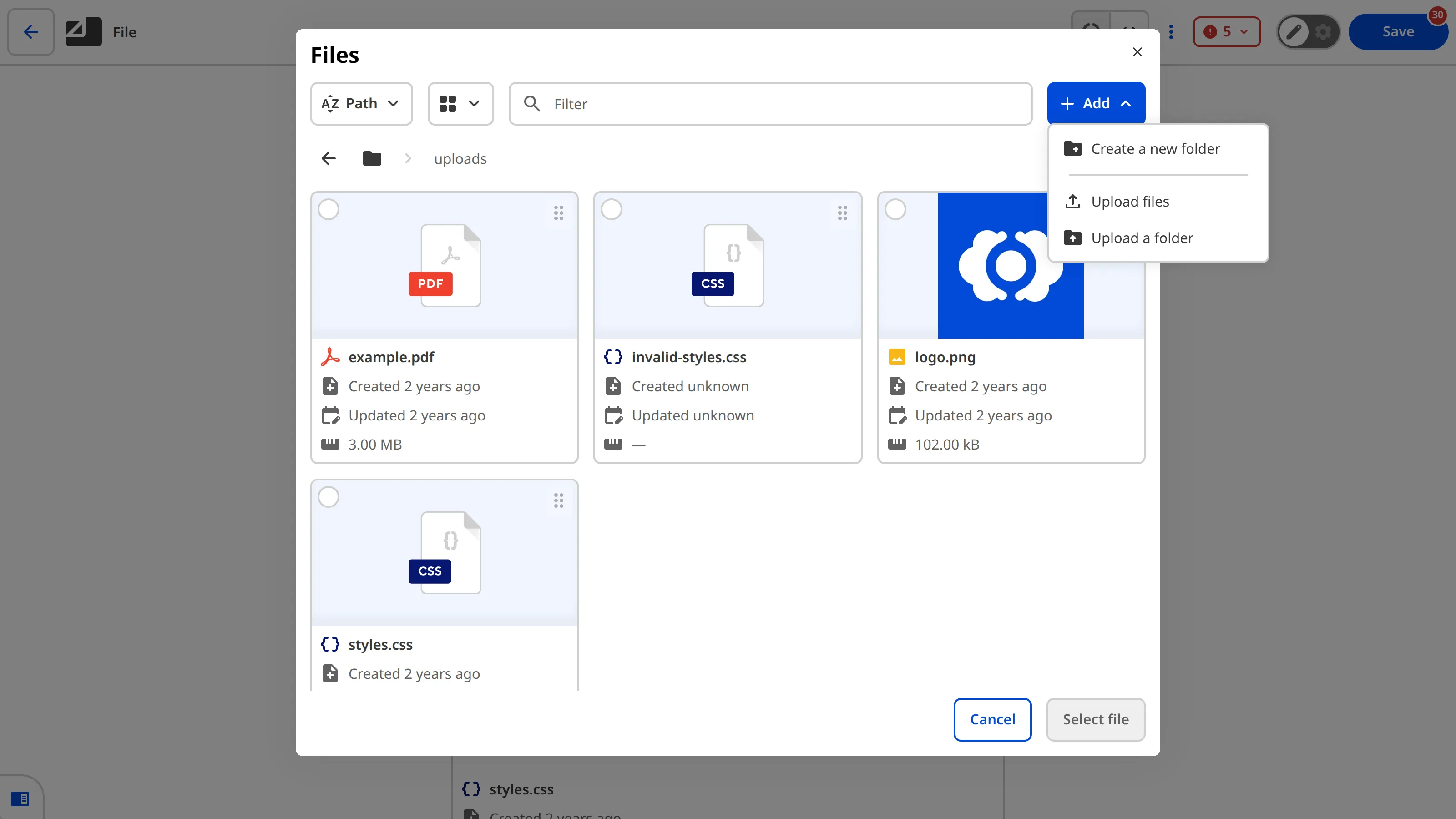
To upload a file to a folder in your file structure:
1. Navigate to the file you want to add another file to in your collection or File Browser.
2. Open that file in the Visual, Content, or Data Editor.
3. Click on the input where you want to upload your file in the sidebar or Data Editor and select *Explore existing files*.
4. CloudCannon will open a File Browser modal. If you have a DAM connected to your site, you can choose which location to browse using the *Select your source* dropdown.
5. Navigate to the location where you want to upload the file (you can create new folders using the *+ Add* button in the top right of the modal).
6. Click the *+ Add* button and select *Upload files*.
7. CloudCannon will open a local File Browser. Select the file you want to upload.
8. Review the files you want to upload in the *Confirm your files* modal.
9. Click the *Confirm selection* button.
CloudCannon will upload your file. To add that file to the input in your editing interface, select the file and click the *Select file* button.
---
---
title: Add a Team Member to a Permission Group
description: Learn how to add a Team Member to a Permission Group.
url: https://cloudcannon.com/documentation/user-articles/add-a-team-member-to-a-permission-group/
content_type: user article
last_modified: 2026-08-20
---
> **Permissions required**
>
> Members of the *Owners* and *Developers* [Default Permission Groups](/documentation/user-articles/what-are-default-permission-groups/), or [Custom Permission Groups](/documentation/developer-articles/what-are-custom-permission-groups/) with the `group:member:write` permission, can add *Team Members* to a *Permission Group*.
The [Permission Groups](/documentation/user-articles/what-are-permission-groups/) a [Team Member](/documentation/user-articles/what-is-a-team-member/) belongs to determine what they can do in your [Organization](/documentation/user-articles/what-is-an-organization/). *Permission Groups* are additive, so adding a *Team Member* to another *Group* grants them that *Group's* *Permissions* on top of any they already have. To confirm what a *Team Member* can access after you change their *Groups*, please read our documentation on [viewing your Organization as a Team Member](/documentation/user-articles/view-your-organization-as-a-team-member/).
There are three ways to add a *Team Member* to a *Permission Group*. The best method to use will depend on whether you want to:
- Add multiple *Team Members* to multiple *Permission Groups*.
- Add a specific *Team Member* to multiple *Permission Groups*.
- Add multiple *Team Members* to a specific *Permission Group*.
> Only members of the [Owners Permission Group](/documentation/user-articles/what-are-default-permission-groups/#owners) can update the members of the *Owners Group*.
## Add multiple Team Members to multiple Permission Groups
> **Adding a *Team Member* to multiple *Permission Groups* at once is available on our [Team or Enterprise Plan](https://cloudcannon.com/pricing/).**
>
> Want to chat about whether this feature is right for your team? Our support team is always [happy to hear from you](mailto:success@cloudcannon.com?subject=A%20question%20about%20Permission%20Groups).
To add *Team Members* to multiple *Permission Groups*:
1. Navigate to the *Team* page under *Org Settings*.
2. Under the *Members* tab, click the *+ Add members* button on the right. CloudCannon will open the *Invite team members to your Organization* modal.
3. In the *Email address* field, search for the *Team Member(s)* whose *Permissions* you want to update.
4. Enter the *Permission Group(s)* to which you want to add these *Team Members*. You must select at least one.
5. Click the *Add member(s)* button.
CloudCannon will add the *Team Members* to the selected *Permission Groups*.
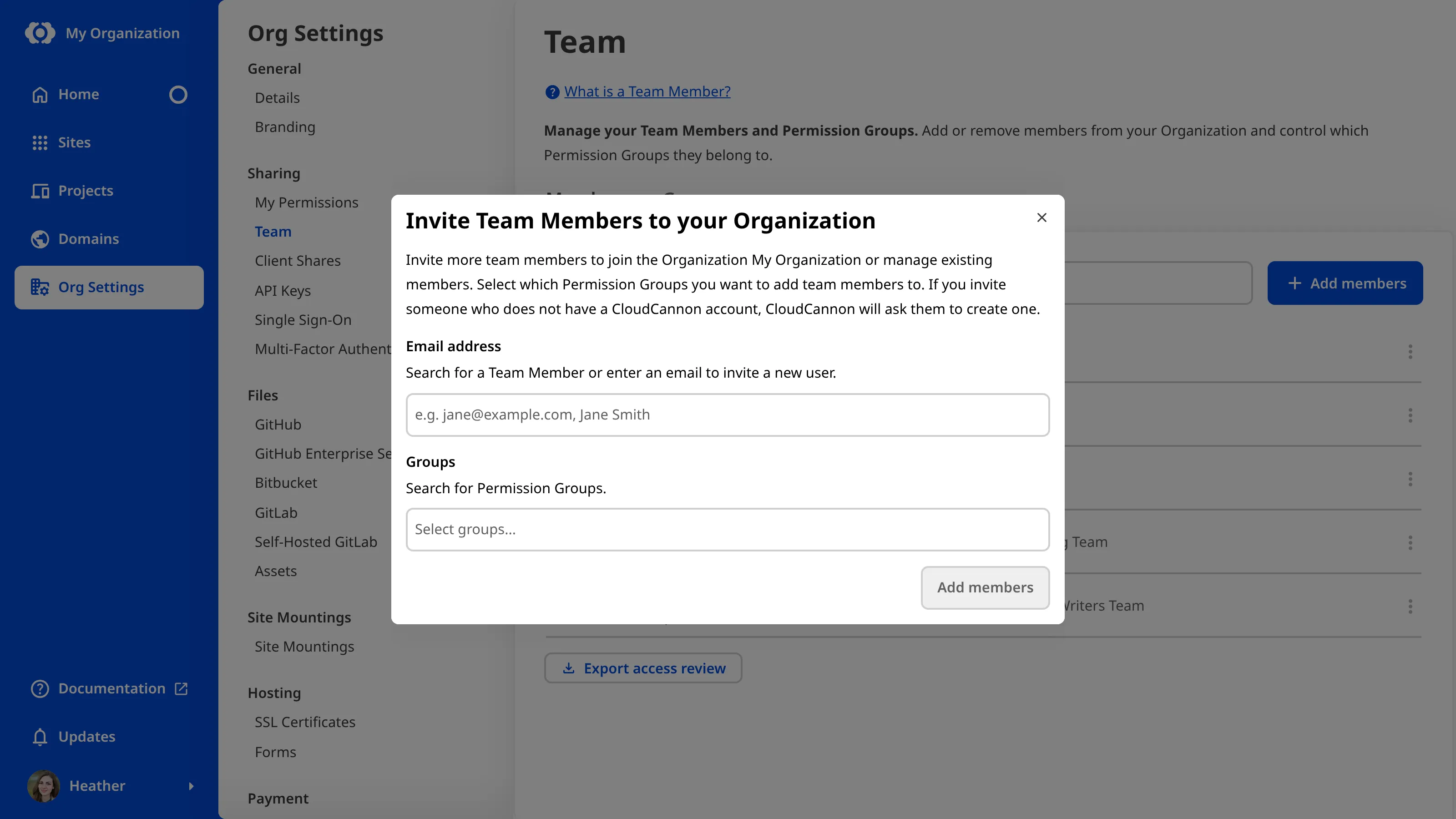
> You can use the *Invite team members to your Organization* modal to update the *Permissions* of existing *Team Members* at the same time as inviting new users.
## Add a specific Team Member to a Permission Group
To add a specific *Team Member* to a *Permission Group*:
1. Navigate to the *Team* page under *Org Settings*.
2. Under the *Members* tab, click on the member whose *Permissions* you want to update. This will open their *Team Member* page.
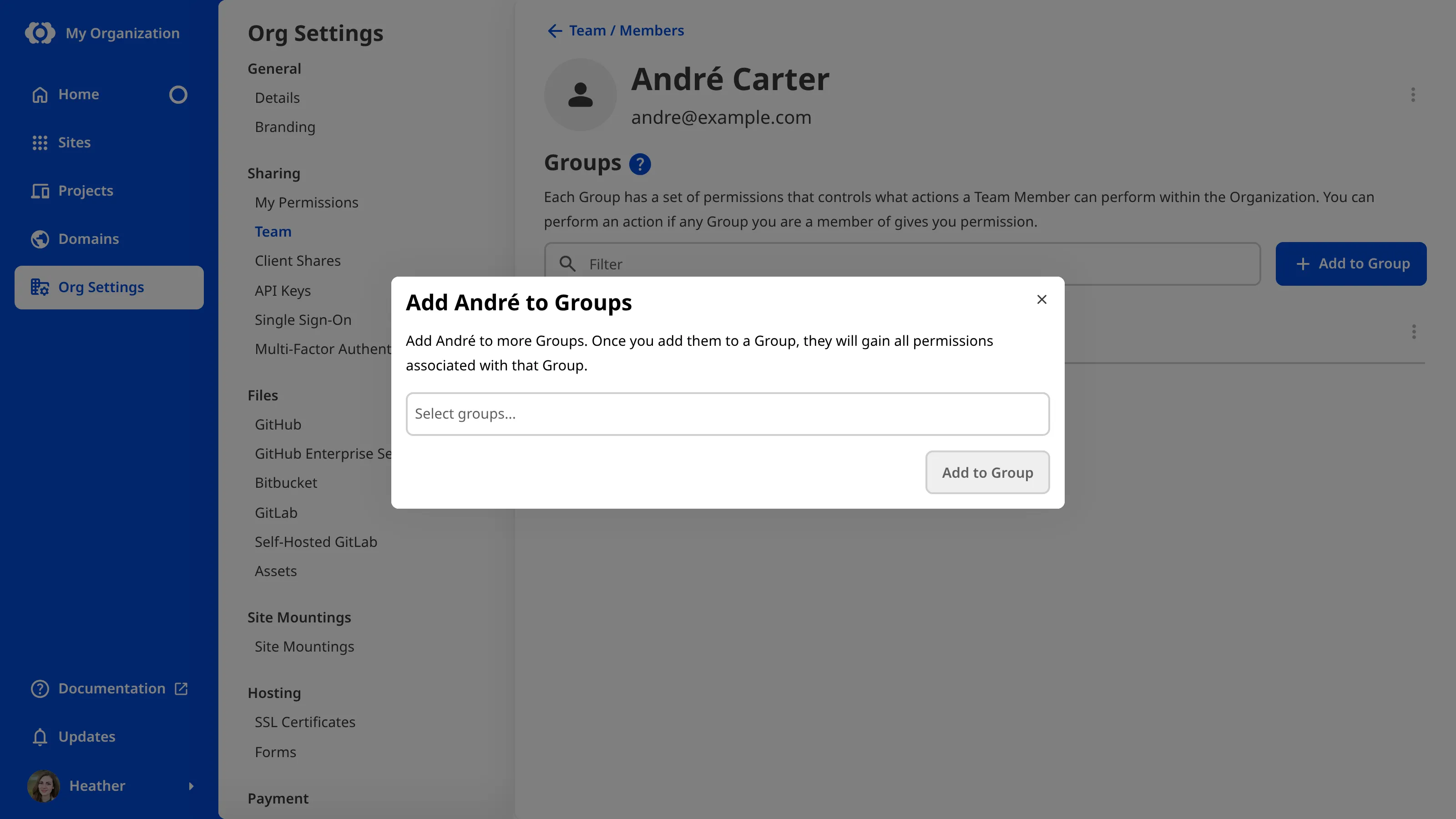
3. Click the *+ Add to Group* button on the right. CloudCannon will open the *Add [Team Member Name] to a Group* modal.
4. Enter the *Permission Group* to which you want to add this *Team Member*.
5. Click the *Add to Group* button.
CloudCannon will add the *Team Member* to the selected *Permission Group*.
## Add a Team Member to a specific Permission Group
To add one or more *Team Members* to a specific *Permission Group*:
1. Navigate to the *Team* page under *Org Settings*.
2. Click on the *Groups* tab.
3. Under the *Groups* tab, click on the *Permission Group* to which you want to add members. This will open the *Permission Group* page.
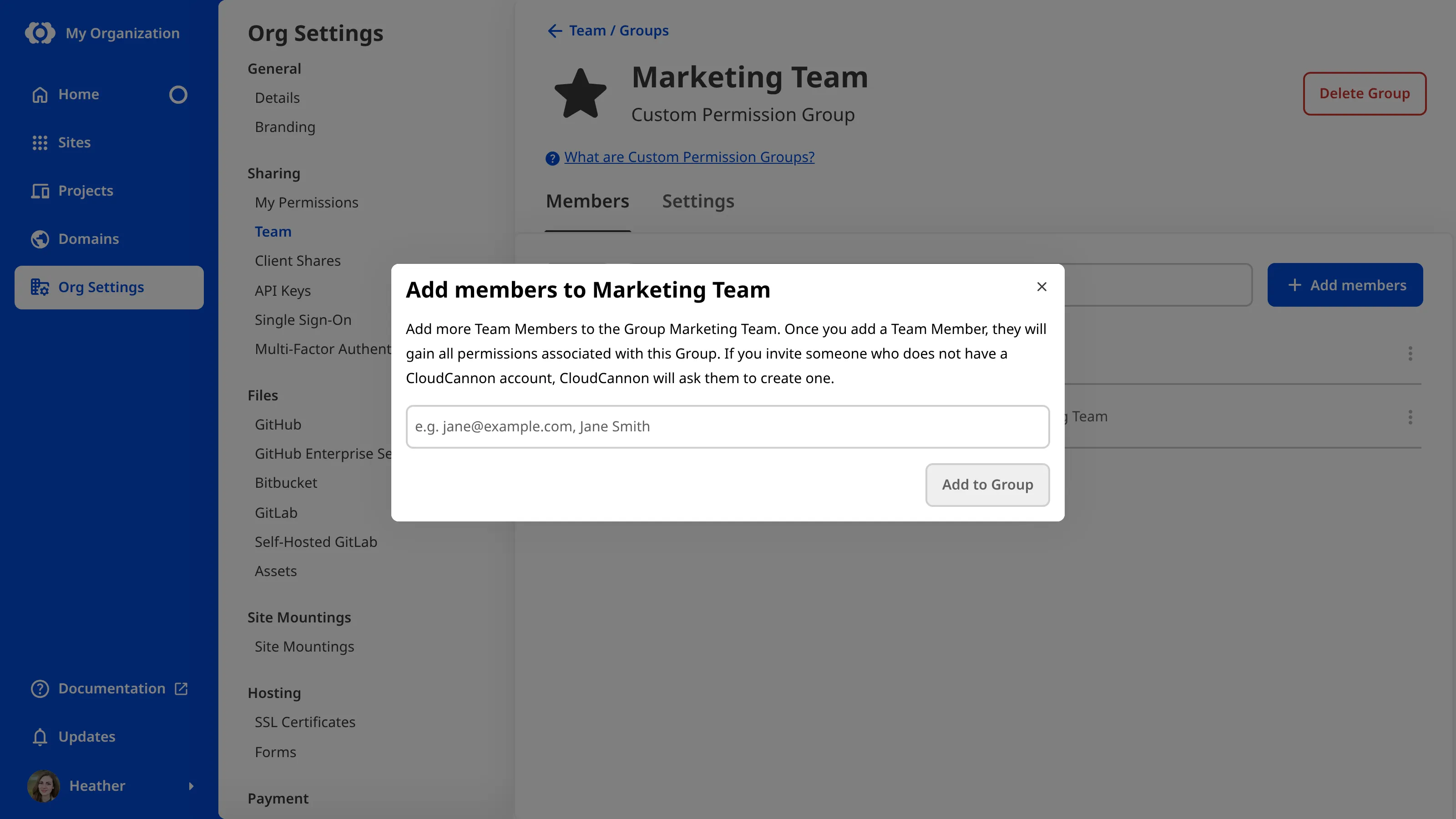
4. Click the *+ Add members* button on the right. CloudCannon will open the *Add members to [Group Name]* modal.
5. Enter the name of the *Team Member(s)* you want to add to this *Permission Group*. You can also enter the email addresses of new users you want to invite to your *Organization*.
6. Click the *Add to Group* button.
CloudCannon will add the *Team Members* to this *Permission Group*.
---
---
title: Add a Team Member to your Organization
description: Learn how to add a Team Member to your Organization.
url: https://cloudcannon.com/documentation/user-articles/add-a-team-member-to-your-organization/
content_type: user article
last_modified: 2026-09-09
---
> **Permissions required**
>
> Members of the *Owners* and *Developers* [Default Permission Groups](/documentation/user-articles/what-are-default-permission-groups/), or [Custom Permission Groups](/documentation/developer-articles/what-are-custom-permission-groups/) with the `group:member:write` permission, can add *Team Members* to your *Organization*.
To collaborate with someone in CloudCannon, invite them to your **Organization** as a **Team Member**. When you invite them, you assign them to one or more *Permission Groups*, which control what they can access.
To add a *Team Member* to your *Organization*:
1. Navigate to the *Team* page under *Org Settings*.
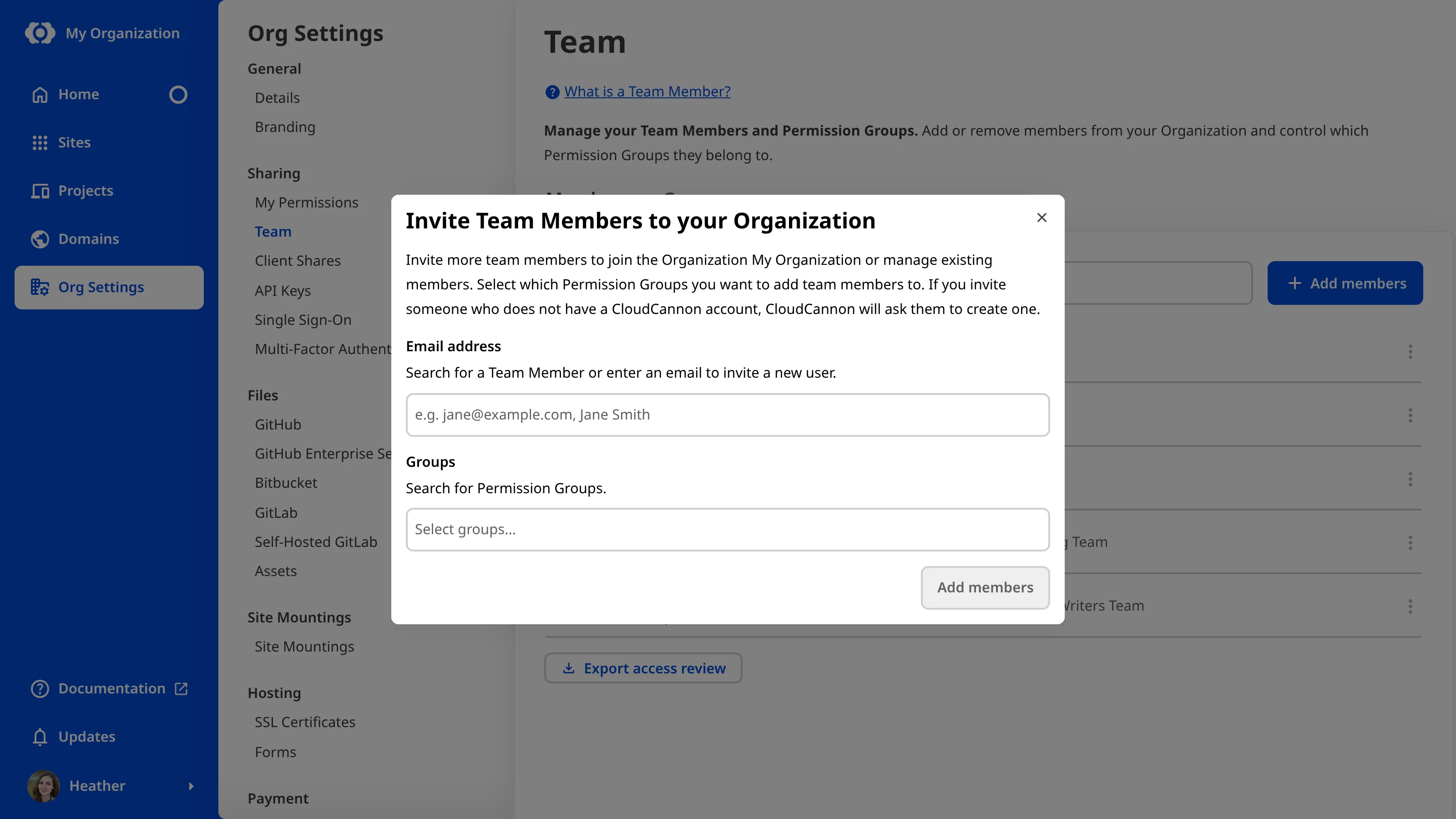
2. Under the *Members* tab, click the *Add members* button on the right. CloudCannon will open the *Invite team members to your Organization* modal.
3. Enter the email address of the person you want to add to your *Organization*.
4. Select the *Permission Group(s)* to which you want to add this *Team Member*. You must select at least one.
5. Click the *Add member(s)* button.

CloudCannon will send an email to your pending *Team Members*, inviting them to your *Organization*. If someone does not have a CloudCannon account, this email will prompt them to create one. While you wait for them to accept the invitation, their name will appear in the list of *Pending Members* under the *Members* tab of the *Team* page.
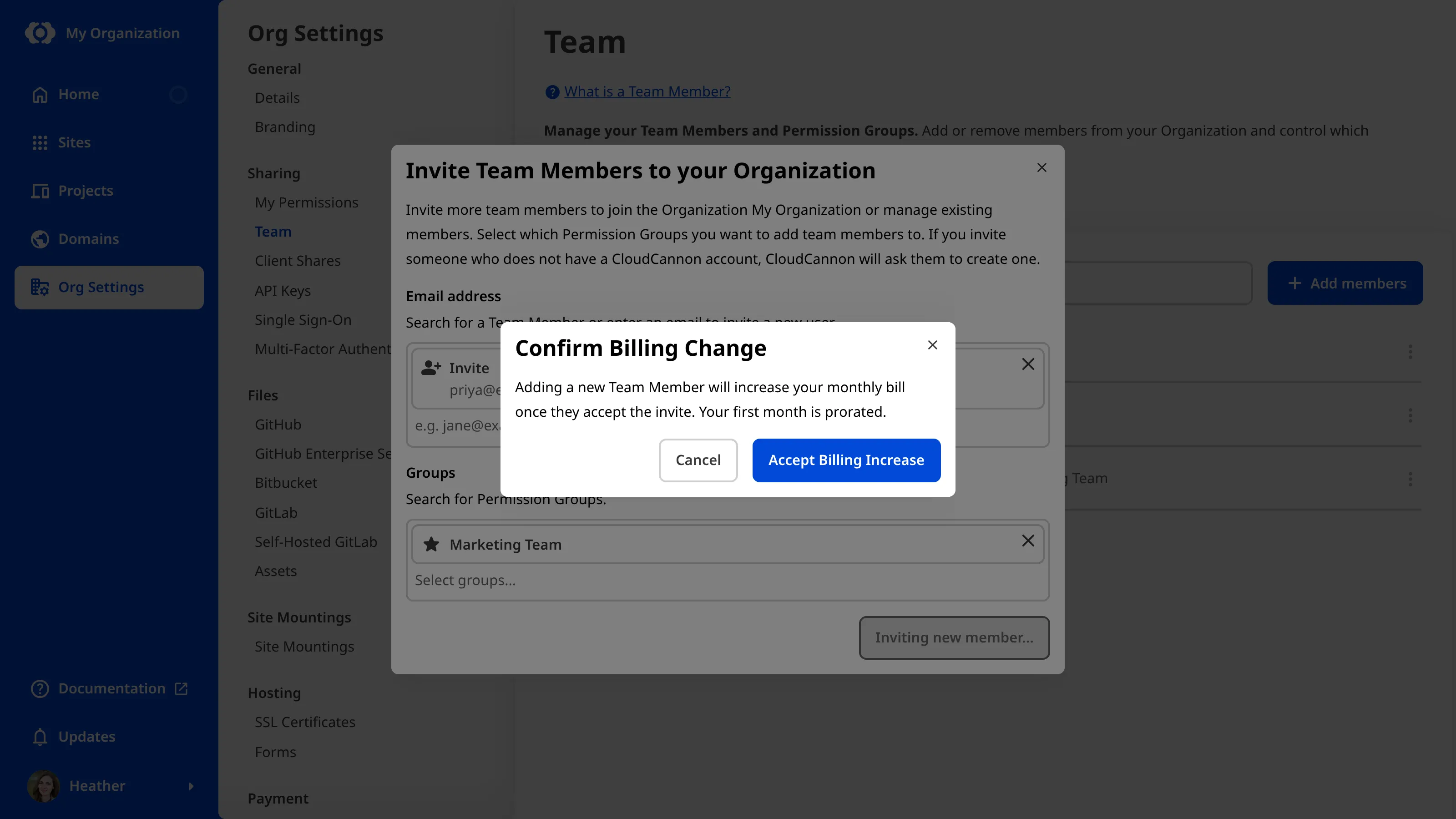
> Adding a new *Team Member* may cause your *Organization* to exceed the number of *Team Members* included in your [Subscription Plan](https://cloudcannon.com/pricing/). If adding a *Team Member* takes your *Organization* over that number, CloudCannon shows a *Confirm Billing Change* modal before the invite goes out.
>
> 
>
> Accepting that modal adds a seat to your *Subscription Plan*. Your bill increases once the new *Team Member* accepts their invite, with the first month prorated. *Client Sharing* invites count as a user in the same way. Anyone who can add *Team Members* can accept this change, so it does not require separate billing permissions.
If you need to re-send or cancel an invitation to a pending member, select the *Re-send invitation* or *Cancel invitation* options from the *Context Menu* at the top right of the member card.
You can paste a list of email addresses into the *Invite team members to your Organization* modal to quickly add multiple members to your *Organization*. When you enter multiple *Team Members* and multiple *Permission Groups*, CloudCannon will add all members to all *Groups*.
> If your *Organization* is a *Client Organization* on an extended *Free Trial* through the CloudCannon Partner Program, adding a *Team Member* shortens that *Free Trial* to three days once they accept.
---
---
title: Add billing contact information
description: Learn how to add billing contact information to your invoices and have CloudCannon email your invoices automatically.
url: https://cloudcannon.com/documentation/user-articles/add-billing-contact-information/
content_type: user article
last_modified: 2026-08-04
---
> **Permissions required**
>
>
> Members of the *Owners* and *Billing* [Default Permission Groups](/documentation/user-articles/what-are-default-permission-groups/), or [Custom Permission Groups](/documentation/developer-articles/what-are-custom-permission-groups/) with the `org:billing:write` permission, can update billing contact information.
You can add billing contact information to your invoices and set an email address for CloudCannon to send your invoices to. By default, your invoices have no billing contact information.
> CloudCannon does not post physical invoices, even if you add an address to your billing contact information.
To add billing contact information:
1. Navigate to the *Subscription* page under **Org Settings**.
2. Under *Billing Details*, click the *Update contact info* button. CloudCannon will open the *Billing contact information* modal.
3. Enter the contact details you want on your invoices.
4. Click the *Update contact information* button.
CloudCannon will update your billing contact information. If you added an email address, CloudCannon will begin emailing your invoices to you automatically.
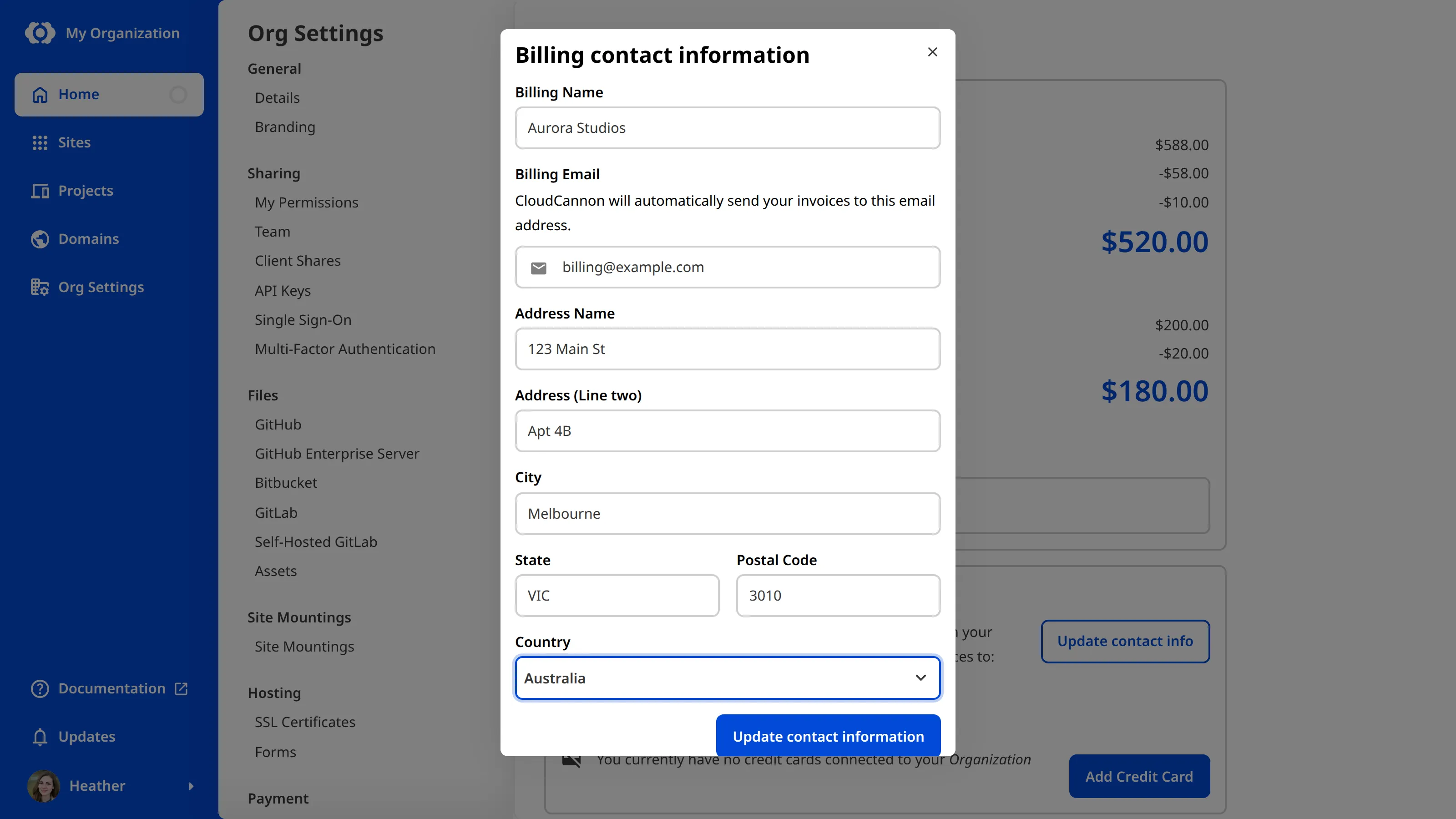
The *Billing Details* section of the *Subscription* page shows the email address your invoices are sent to and when your next invoice is due.
> Enterprise *Organizations* use custom billing, and the CloudCannon team sends invoices to you directly. If your *Organization* is on the *Enterprise Plan* and you need to update your billing contact information, contact us via [support](https://cloudcannon.com/support/), Slack, or email with your *Organization* name.
---
---
title: Add related links to your Project
description: Learn how to add related links to your CloudCannon Project page.
url: https://cloudcannon.com/documentation/user-articles/add-related-links-to-your-project/
content_type: user article
last_modified: 2026-06-03
---
Adding related links to your **Project** page is a great way to make common tasks quicker for your team. You can use these links to navigate to external resources, like analytics, documentation, FAQs, or often-used parts of the CloudCannon app.
If you want to add a single canonical URL to represent your *Project* — for example, the production website it deploys to — please read our documentation on [setting your Project's Display URL](/documentation/user-articles/set-your-projects-display-url/) instead.
To add related links to your *Project*:
1. Click the *Projects* button in the *App Sidebar*. CloudCannon will open the *Projects Browser*.
2. Select the *Project* to which you want to add related links by clicking on the *Project Card*. CloudCannon will open the *Project Sites Browser*.
3. Click the *Project Settings* tab.
4. Select *Details* from the *Section Navigation*, then scroll to the *Related Links* section.
5. Enter a display name for the link in the *Name* field.
6. Type or paste your desired link into the *URL* field.
7. (Optional.) To add more than one link, click the *Add Link* button. CloudCannon will add an extra *Name* and *URL* text field.
8. Click *Update Project*.
CloudCannon will display your link at the top of your *Project* page, above the *Project* description (if applicable).


You can remove a related link from your *Project* by clicking the *Delete* icon in the top right of the link on the *Project Settings* page.
---
---
title: Cancel your Subscription
description: Learn how to cancel your CloudCannon Subscription, what happens to your Organization and Sites, and how to resubscribe.
url: https://cloudcannon.com/documentation/user-articles/cancel-your-subscription/
content_type: user article
last_modified: 2026-08-04
---
> **Permissions required**
>
>
> Members of the *Owners* and *Billing* [Default Permission Groups](/documentation/user-articles/what-are-default-permission-groups/), or [Custom Permission Groups](/documentation/developer-articles/what-are-custom-permission-groups/) with the `org:billing:write` permission, can cancel the *Subscription* of an *Organization*.
You can cancel your paid **Subscription** at any time. Canceling ends your paid *Subscription* and stops further charges. It does not delete your **Organization**, **Sites**, or files, but you lose access to the features included in your **Subscription Plan**. After you cancel, your bill drops to zero and you receive no further invoices.
> When you cancel, you can no longer edit your *Sites*, your hosted domains (including **Testing Domains**) become unavailable, and any saved credit cards are removed from your *Organization*. Your *Sites* and files are not deleted.
To cancel your *Subscription*:
1. Navigate to the *Subscription* page under **Org Settings** in the **App Sidebar**.
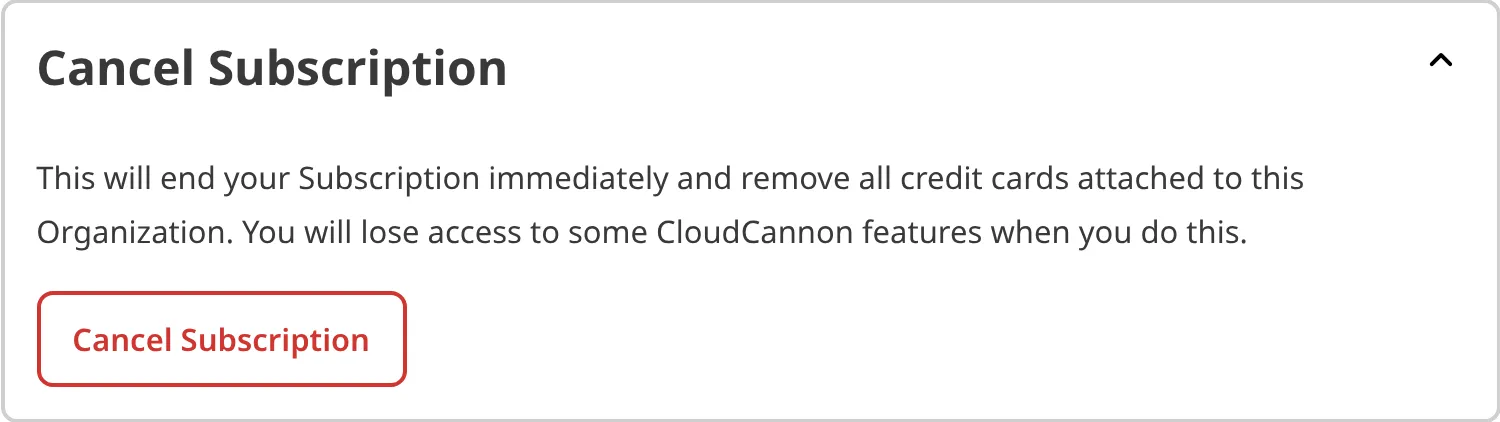
2. Expand the *Cancel Subscription* section.
3. Click the *Cancel Subscription* button.
4. In the *Cancel Subscription* modal, review what you lose, then click the *Cancel Subscription* button to confirm.
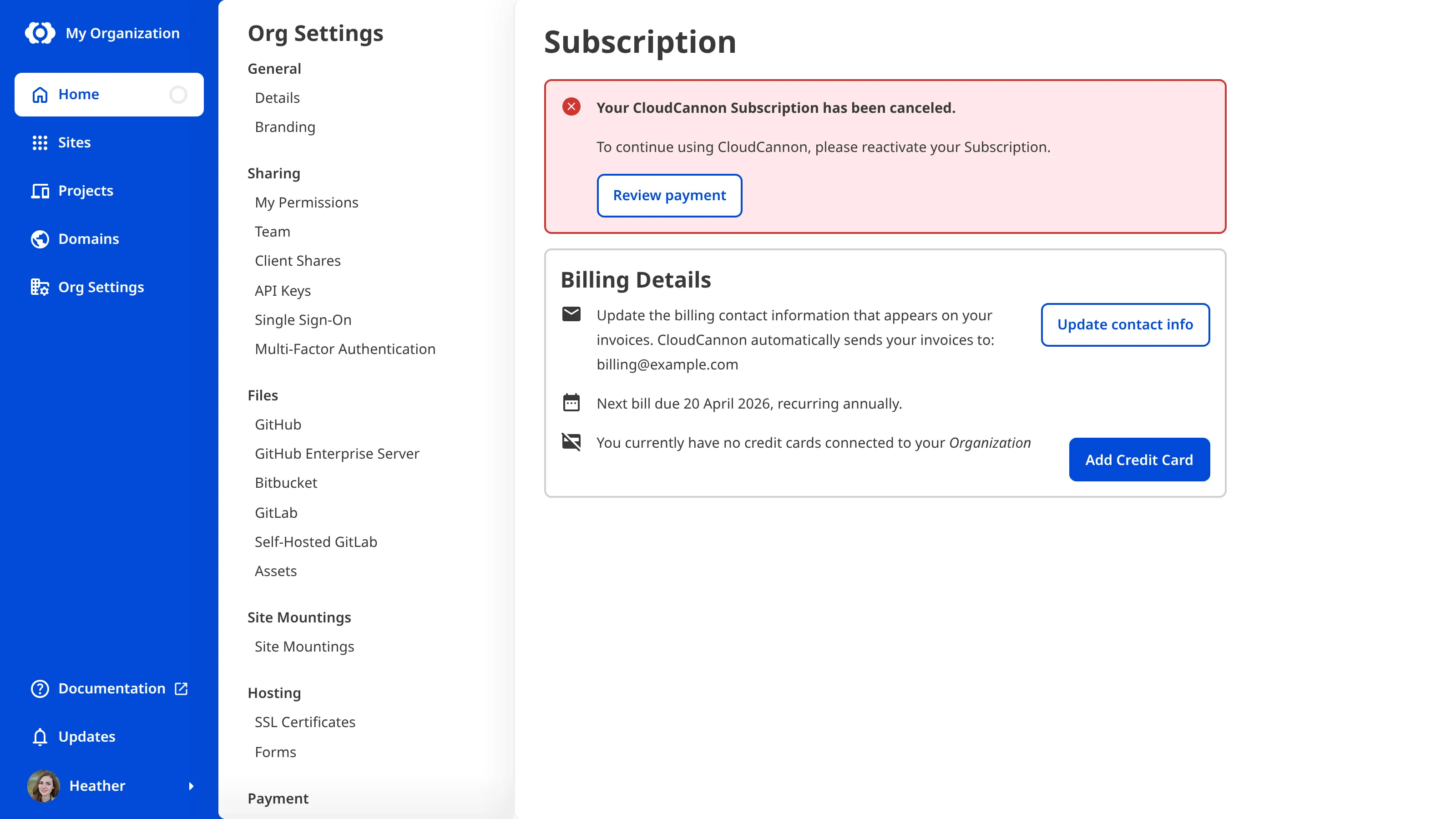
Once you confirm, CloudCannon will cancel your *Subscription* and stop further charges.
> Enterprise *Organizations* have custom billing arrangements. If you are on an *Enterprise Plan*, contact us via [support](https://cloudcannon.com/support/), Slack, or email to cancel.
## Resubscribe
You can start a new *Subscription* at any time. To get access to CloudCannon features again, return to the *Subscription* page and select a *Subscription Plan*. For more information, please read our documentation on [updating your Subscription Plan](/documentation/user-articles/update-your-subscription-plan/).
## Canceling is not the same as deleting
> Canceling your *Subscription* removes CloudCannon features but keeps your *Organization*, *Sites*, and files. Deleting your *Organization* removes all your data from CloudCannon's servers and is not reversible.
If your goal is to stop paying but keep your content, cancel your *Subscription* using the steps above. If you want to remove the *Organization* entirely, please read our documentation on [deleting an Organization](/documentation/user-articles/delete-an-organization/).
Canceling is also different from having your *Subscription* put on hold. CloudCannon puts your *Subscription* on hold automatically when it cannot collect payment after several attempts, rather than when you choose to cancel. If your *Subscription* stays on hold for a prolonged period, CloudCannon cancels it automatically. Unlike canceling manually, an automatic cancellation after a failed payment keeps your saved credit cards on file. For more information, please read our documentation on [what happens when a payment fails](/documentation/user-articles/what-happens-when-a-payment-fails/).
If you are having any issue with billing, please contact our friendly [support team](https://cloudcannon.com/support/).
---
---
title: Create a branched Site
description: Learn how to create a branched copy of a Site in your Project so you can work on changes independently from the rest of your team.
url: https://cloudcannon.com/documentation/user-articles/create-a-branched-site/
content_type: user article
last_modified: 2026-06-24
---
> **Branching is available on our [Team or Enterprise plan](https://cloudcannon.com/pricing/).**
>
> Want to chat about whether this feature is right for you? Our support team is always [happy to hear from you](mailto:success@cloudcannon.com?subject=A%20question%20about%20branching).
> **Permissions required**
>
> Members of the *Editors* and *Technical Editors* [Default Permission Groups](/documentation/user-articles/what-are-default-permission-groups/), or [Custom Permission Groups](/documentation/developer-articles/what-are-custom-permission-groups/) with the `site-branch:create` permission, can create a branched *Site*.
Branching a **Site** creates an independent copy where you can work on changes without affecting the live website or your *Team Members'* work. You can branch a *Site* at any time from your **Project**, without help from your developer. For more information, please read our documentation on [what branching is](/documentation/user-articles/what-is-branching/).
This article covers creating a branched *Site* inside an existing *Project*. If you need a brand new *Site* rather than a branched copy, your developer can set one up using our [Getting Started with CloudCannon](/documentation/developer-guides/getting-started-with-cloudcannon/create-a-site/) guide.
These instructions assume your developer has already [created a Project](/documentation/developer-articles/create-a-project/) for your website.
To create a branched *Site*:
1. Click *Projects* in the *App Sidebar*.
2. Select the *Project* you want to branch from. CloudCannon will open the *Project Sites Browser*.
3. Click the *Create a Site* button in the top right.
4. Enter a *New Site name*.
5. Under *Branch Setup*, select *Create a new branch*.
6. Choose your *Source branch*. By default, you can only branch from your *Project's* **Main Branch**. If your developer has turned on *Allow all branching*, you can choose any other *Site* in the *Project*.
7. (Optional.) Enter a *New branch name* if it should differ from the *Site* name. CloudCannon will use the *Site* name as the branch name by default.
8. Click *Create Site*.

CloudCannon will copy the content, code, and settings from the *Source branch* and open the new branched *Site*. Any changes you make on the branched *Site* stay separate from any other *Site* until you publish them back. Your new *Site* inherits settings from the *Source branch*, such as the **Publish Branch** it publishes to. For more information, please read our documentation on [what publishing is](/documentation/user-articles/what-is-publishing/).
---
---
title: Create a CloudCannon Account
description: Learn how to create a CloudCannon account.
url: https://cloudcannon.com/documentation/user-articles/create-a-cloudcannon-account/
content_type: user article
last_modified: 2026-06-30
---
When you create an account on CloudCannon, you can manage your own websites, experiment with a website template, or join someone else's team to manage their content.
If this is your first time creating a CloudCannon account, we highly recommend reading the [Getting Started with CloudCannon](/documentation/developer-guides/getting-started-with-cloudcannon/) guide.
> Do not share your CloudCannon password with anyone. CloudCannon employees will never ask you for your password.
To create a CloudCannon account:
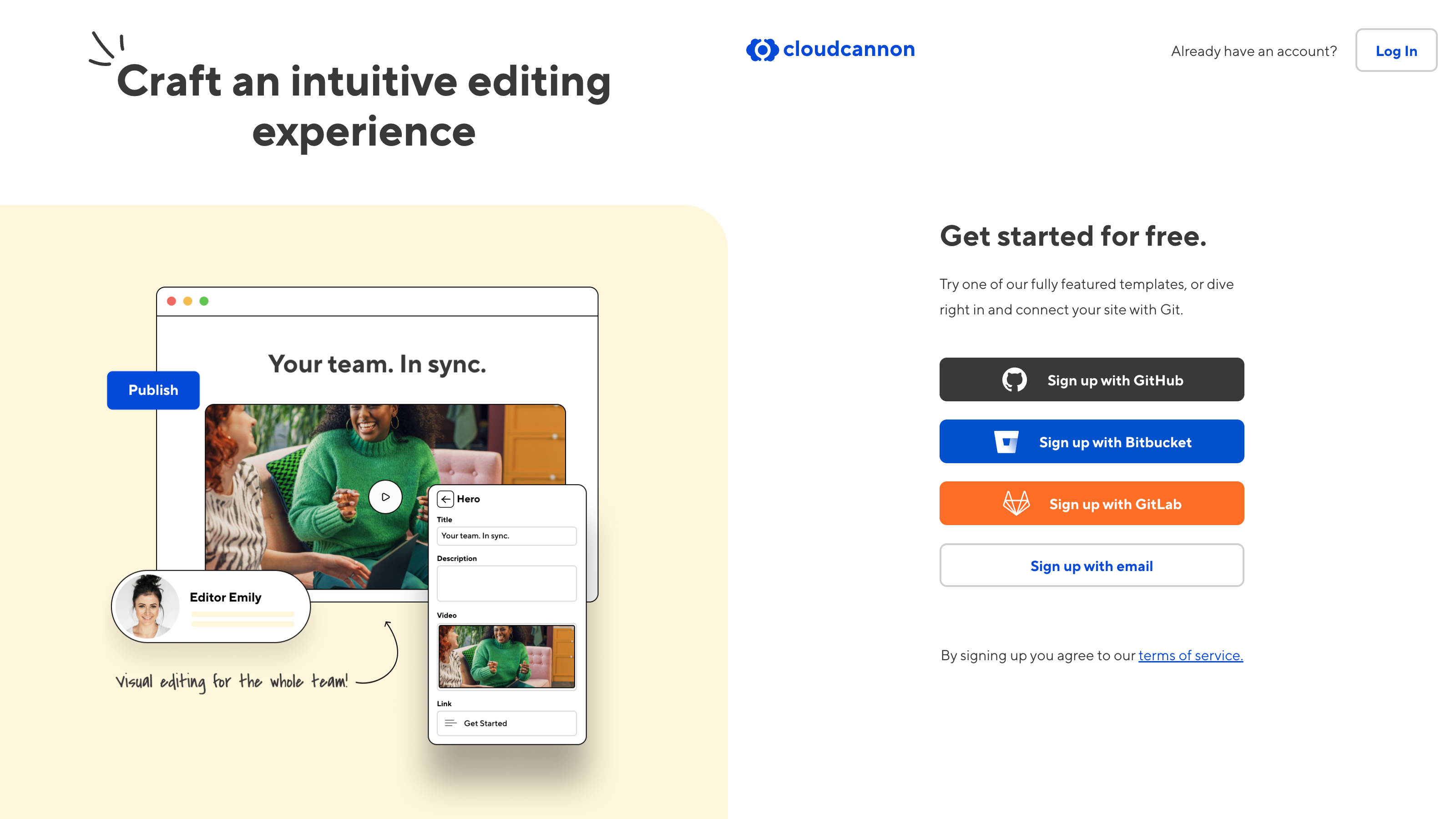
1. Open the [CloudCannon app](https://app.cloudcannon.com/register) using your Internet browser.
2. Click on the *Sign up with email* button.
3. Enter your email in the *Email address* field and click the *Send Code* button. CloudCannon will send a six-digit confirmation code to validate your email address. This validation email should arrive quickly and will expire after 10 minutes.
4. Enter the code in the *Confirmation Code* field and click *Continue*.
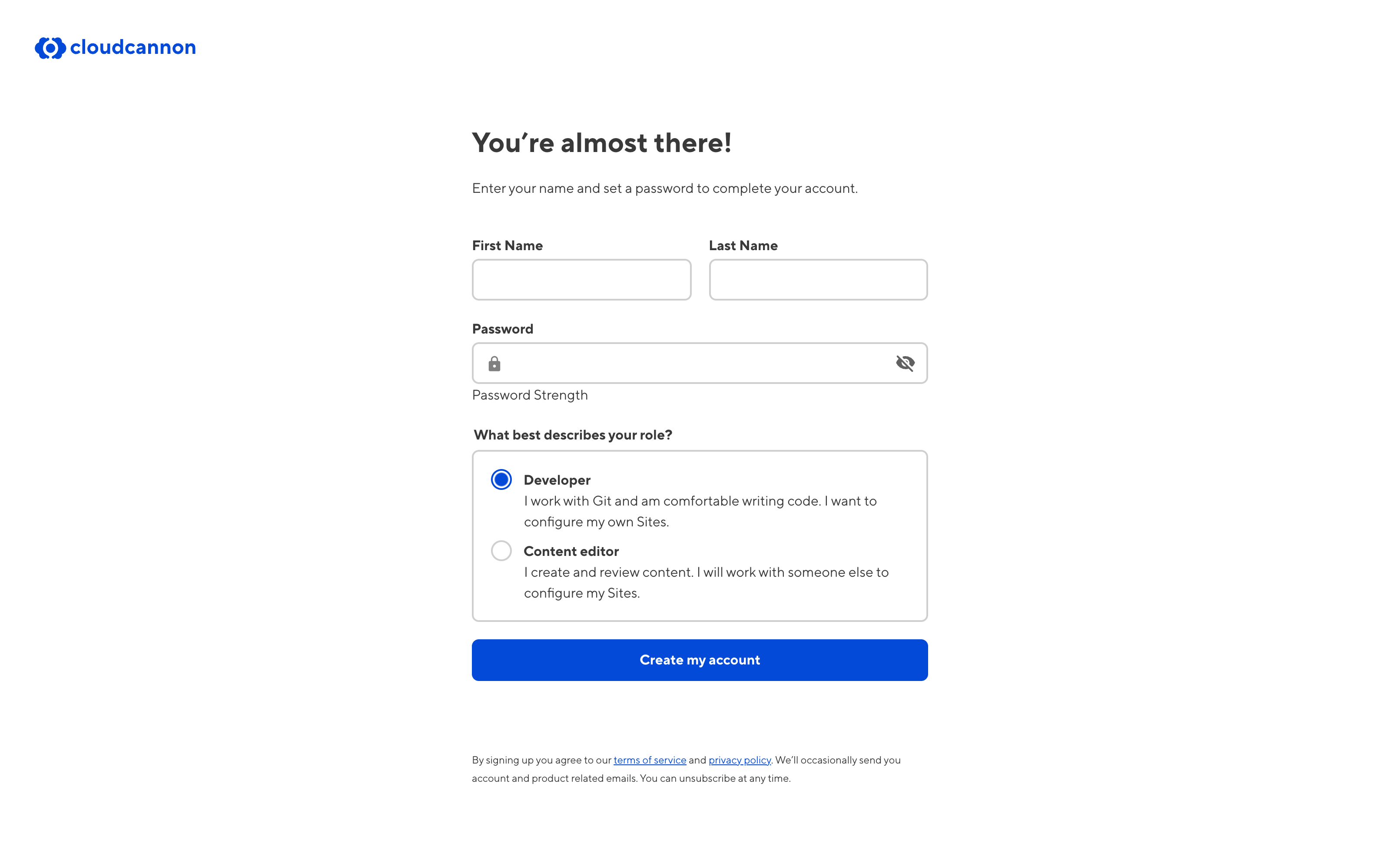
5. Enter your first name, last name, and an account password, and whether you are a developer or a content editor. Your password must be at least nine characters long.
6. Click *Create my account* button.
---
---
title: Create a new Organization
description: Learn how to create a new Organization in CloudCannon, whether it's your first or an additional one.
url: https://cloudcannon.com/documentation/user-articles/create-a-new-organization/
content_type: user article
last_modified: 2026-09-09
---
> **Permissions required**
>
> Anyone with a CloudCannon account can create a new *Organization*. When you do, CloudCannon adds you to the *Owners Permission Group* for that *Organization*.
You can create as many *Organizations* as you need, at any time. When you first create an account, CloudCannon creates an *Organization* for you unless you are [responding to an invitation](/documentation/user-articles/join-or-leave-an-organization/) to someone else's *Organization*. *Organizations* are entirely independent from one another. Unless someone is a member of both *Organizations*, or a member of a linked *Partner Organization*, they will not be able to access any resources in your new one.
> If you are a member of CloudCannon's Partner Program creating an *Organization* for a client, we recommend [creating a Client Organization](/documentation/partner-articles/create-a-client-organization/) instead.
When you create an *Organization*, use the name of your business or agency. To create a new *Organization*:
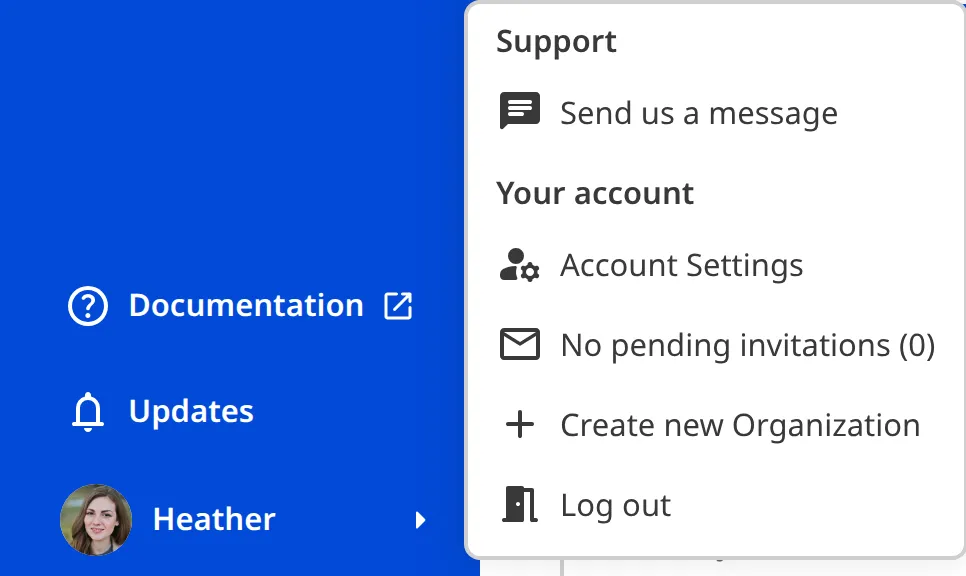
1. Click your *Avatar* in the *App Sidebar* to open the *Account Menu*.
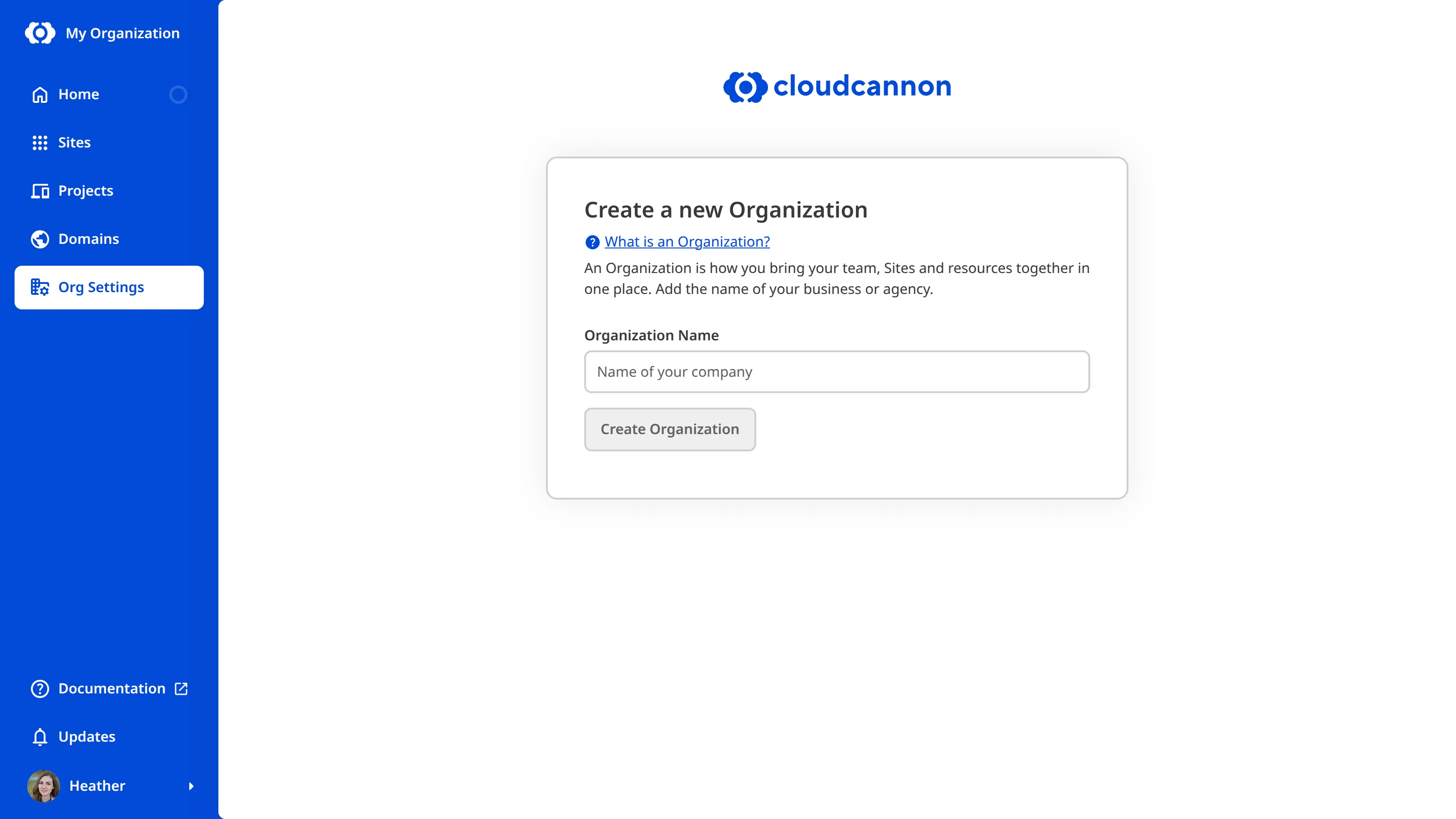
2. Select the *Create new Organization* option. CloudCannon will open the *Create a new Organization* page.
3. On the *Create a new Organization* page, enter a name in the *Organization Name* field.
4. Click *Create Organization*.
CloudCannon will create the *Organization*, add you to the *Owners Permission Group*, and open the *Organization Home* page.
> Every *Organization* you create starts its own 21-day *Free Trial* of the *Standard Plan* automatically, including *Organizations* beyond your first. For more information, please read our documentation on [what CloudCannon's Free Trial is](/documentation/user-articles/what-is-cloudcannons-free-trial/).
---
---
title: Customize your Organization branding
description: Learn how to customize your Organization's branding in CloudCannon by setting a brand color and adding a badge and logo.
url: https://cloudcannon.com/documentation/user-articles/customize-your-organization-branding/
content_type: user article
last_modified: 2026-07-22
---
> **Custom *Organization* branding is available on our [Standard, Team, or Enterprise Plan](https://cloudcannon.com/pricing/).**
>
> Want to chat about whether this feature is right for your team? Our support team is always [happy to hear from you](mailto:success@cloudcannon.com?subject=A%20question%20about%20Organization%20Branding).
> **Permissions required**
>
> Members of the *Owners* and *Developers* [Default Permission Groups](/documentation/user-articles/what-are-default-permission-groups/), or [Custom Permission Groups](/documentation/developer-articles/what-are-custom-permission-groups/) with the `org:settings:details:write` permission, can brand an *Organization*.
You can customize your **Organization**'s branding in CloudCannon by setting a brand color and adding a badge and logo. You manage these from the *Branding* page of *Org Settings*, which you open from the **App Sidebar**. To rename your *Organization*, please read our documentation on [renaming your Organization](/documentation/user-articles/rename-your-organization/).
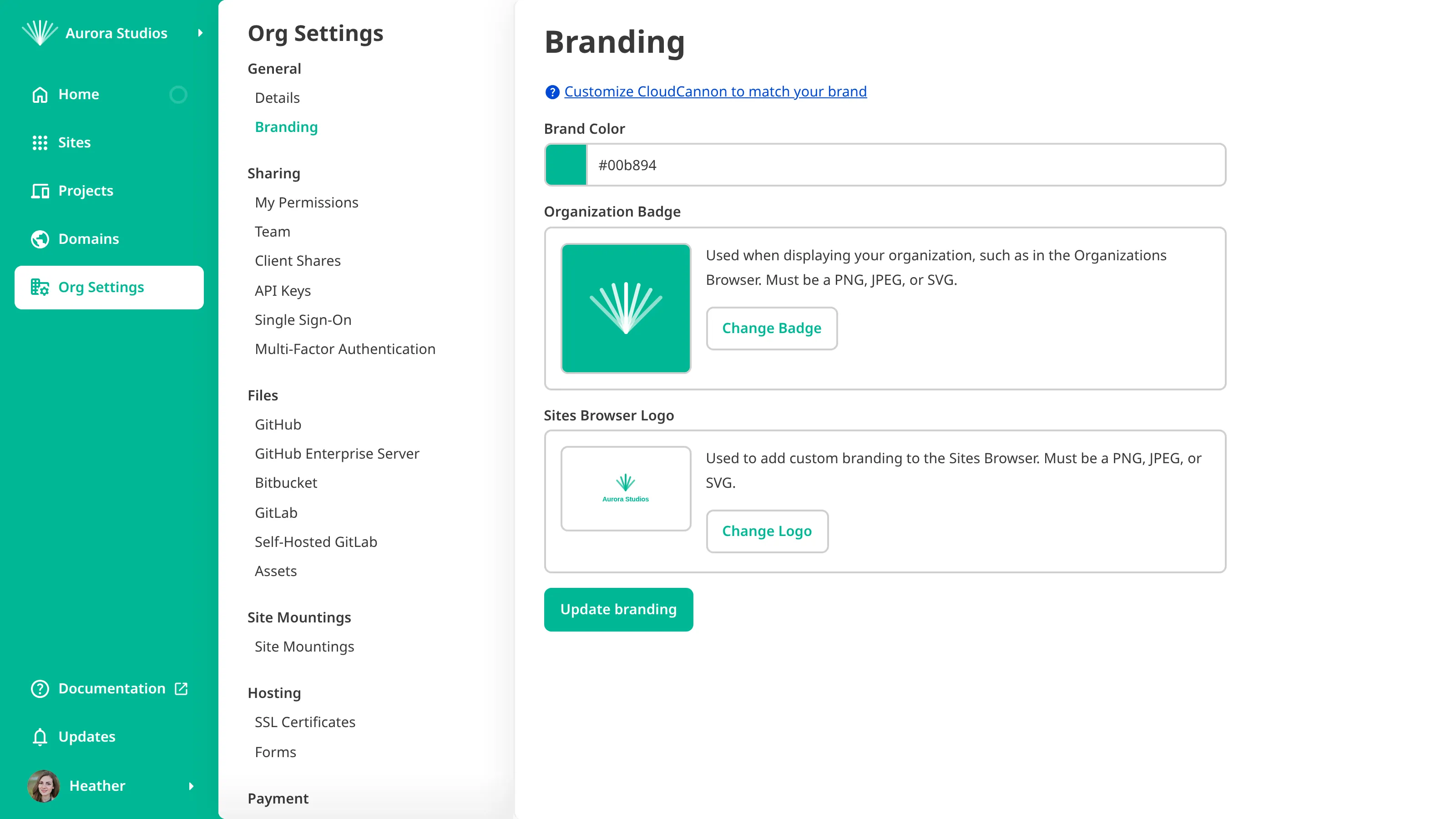
## Set your brand color
Your brand color sets the accent color used across CloudCannon. To set your brand color:
1. Navigate to the *Branding* page under *Org Settings*.
2. Choose a color in the *Brand Color* field.
3. Click *Update branding* to confirm.
CloudCannon will save and apply your new brand color.
## Add your brand assets
You can add two brand assets on the *Branding* page. Each must be a PNG, JPEG, or SVG:
- *Organization Badge* — appears in the *App Sidebar* and wherever CloudCannon displays your *Organization Card*, such as in the *Organizations Browser*.
- *Sites Browser Logo* — adds custom branding to your *Sites Browser*.
To add a brand asset:
1. Navigate to the *Branding* page under *Org Settings*.
2. Click *Change Badge* or *Change Logo* and upload your image.
3. Click *Update branding* to confirm.
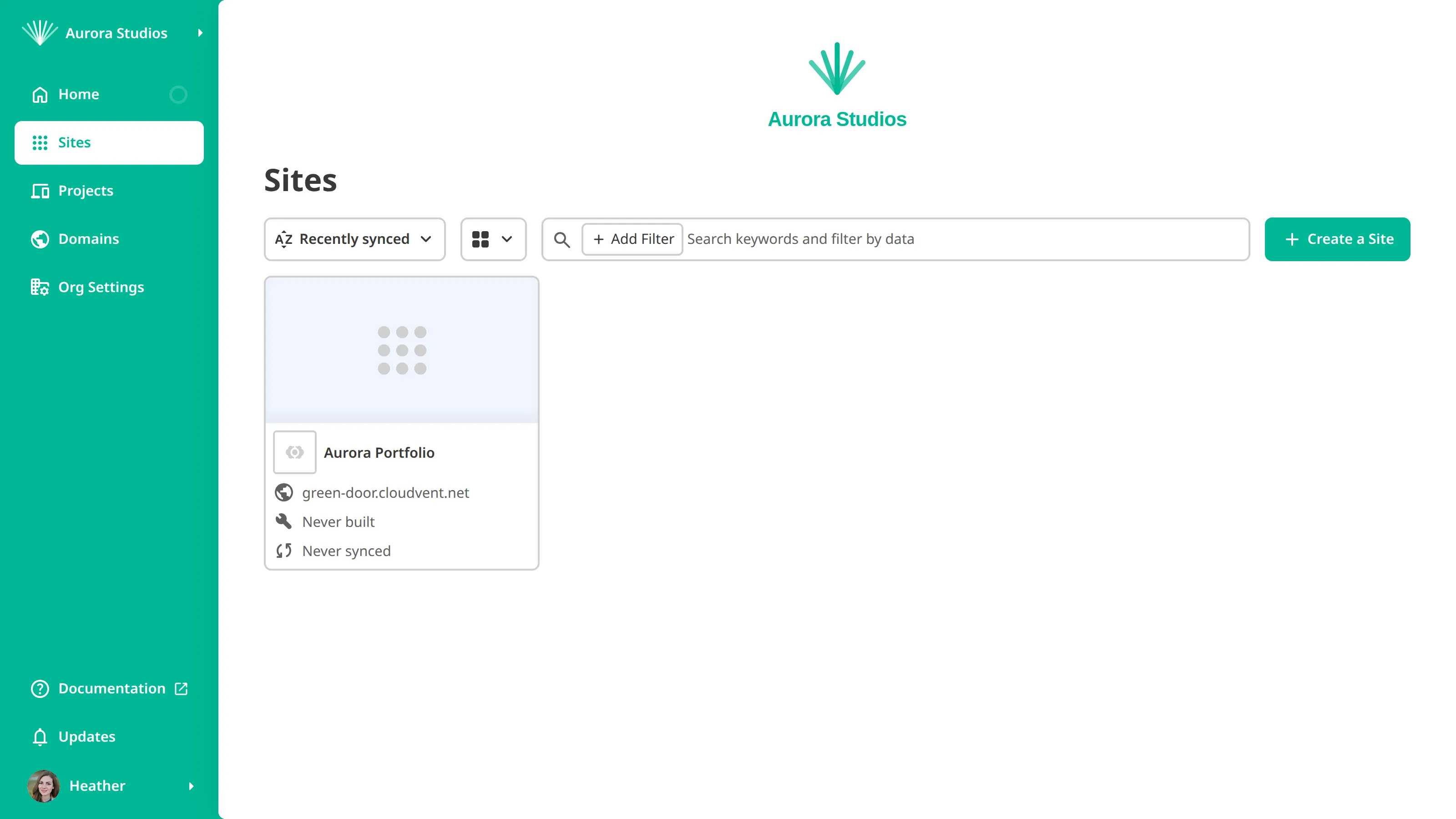
CloudCannon will show your *Organization Badge* in the *App Sidebar* and *Organizations Browser*, and your *Sites Browser Logo* above your *Sites* in the *Sites Browser*.
## Brand a Client Organization
If you manage **Client Organizations** through the CloudCannon Partner Program, you can brand each one with your client's own color and logo, so their editing experience feels like theirs rather than yours. Apply the same steps above from within the *Client Organization*. As with your own *Organization*, this requires that *Client Organization* to be on a plan that includes custom branding. To rename a *Client Organization*, please read our documentation on [renaming your Organization](/documentation/user-articles/rename-your-organization/) and follow the steps from within the *Client Organization*.
---
---
title: Delete a file
description: Learn how to delete files in CloudCannon without opening your Git repository.
url: https://cloudcannon.com/documentation/user-articles/delete-a-file/
content_type: user article
last_modified: 2026-03-29
---
Deleting files in CloudCannon does not occur immediately. Instead, the *Delete* file action will mark the file for deletion and add a *Deleted* [badge](/documentation/user-articles/edit-your-files/#file-badges) to the file card. CloudCannon will delete marked files the next time you [save your changes](/documentation/user-articles/save-your-changes/).
This workflow protects your site from unintentional file deletion by providing multiple opportunities to cancel the deletion.
To mark a file or folder for deletion:
1. Navigate to the item you want to delete in your collection or File Browser.
2. Open the *Context Menu* by clicking the icon in the top right of the file card.
3. Select *Delete item* or *Delete folder*.
CloudCannon will mark your item for deletion and add a *Deleted* badge to the file card.

Alternatively, you can delete a file using the *File menu* in the top left corner of the editing interface.
You can still open files marked for deletion in an editing interface. These files are in read-only mode, and a red *Deleted file banner* will appear at the bottom of the editing interface.

Once you save your changes, CloudCannon will sync to your Git repository and delete your files.
## Delete a file with unsaved changes
You cannot immediately delete a file with unsaved changes or folders that contain files with unsaved changes.
While there are unsaved changes, CloudCannon will disable the *Delete item* option in the *Context Menu* and the editing interface *File menu*. To protect your work, CloudCannon requires you to explicitly discard your unsaved changes before you can mark a file for deletion.
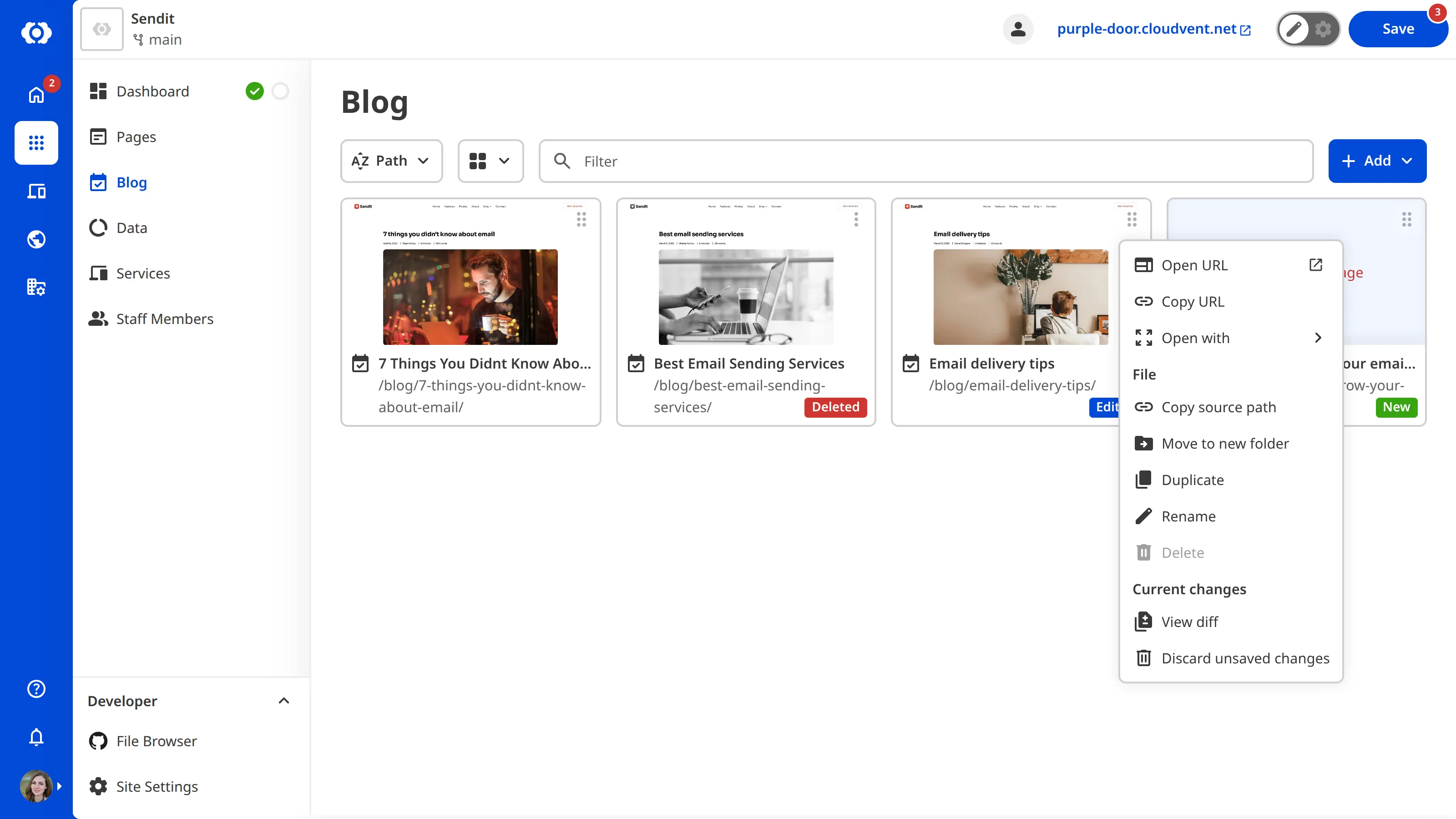
To discard unsaved changes:
1. Navigate to the item you want to delete in your collection or File Browser.
2. Open the *Context Menu* by clicking the icon in the top right of the file card.
3. Select *Discard unsaved changes*.
4. In the *Discard unsaved changes* modal, review the files that will be affected (if you are discarding a folder, this may affect many files).
5. Click *Discard unsaved changes*.
CloudCannon will discard your unsaved changes and enable the *Delete* option in the *Context Menu* and *File menu*.
Alternatively, you can discard unsaved changes from the editing interface using the *File menu* in the top left corner.
> *New* files will be destroyed when you discard unsaved changes.
## Restore a deleted file
You can restore files marked for deletion before you [save your site](/documentation/user-articles/save-your-changes/). Restoring a file does not restore any unsaved changes discarded before marking the file for deletion.
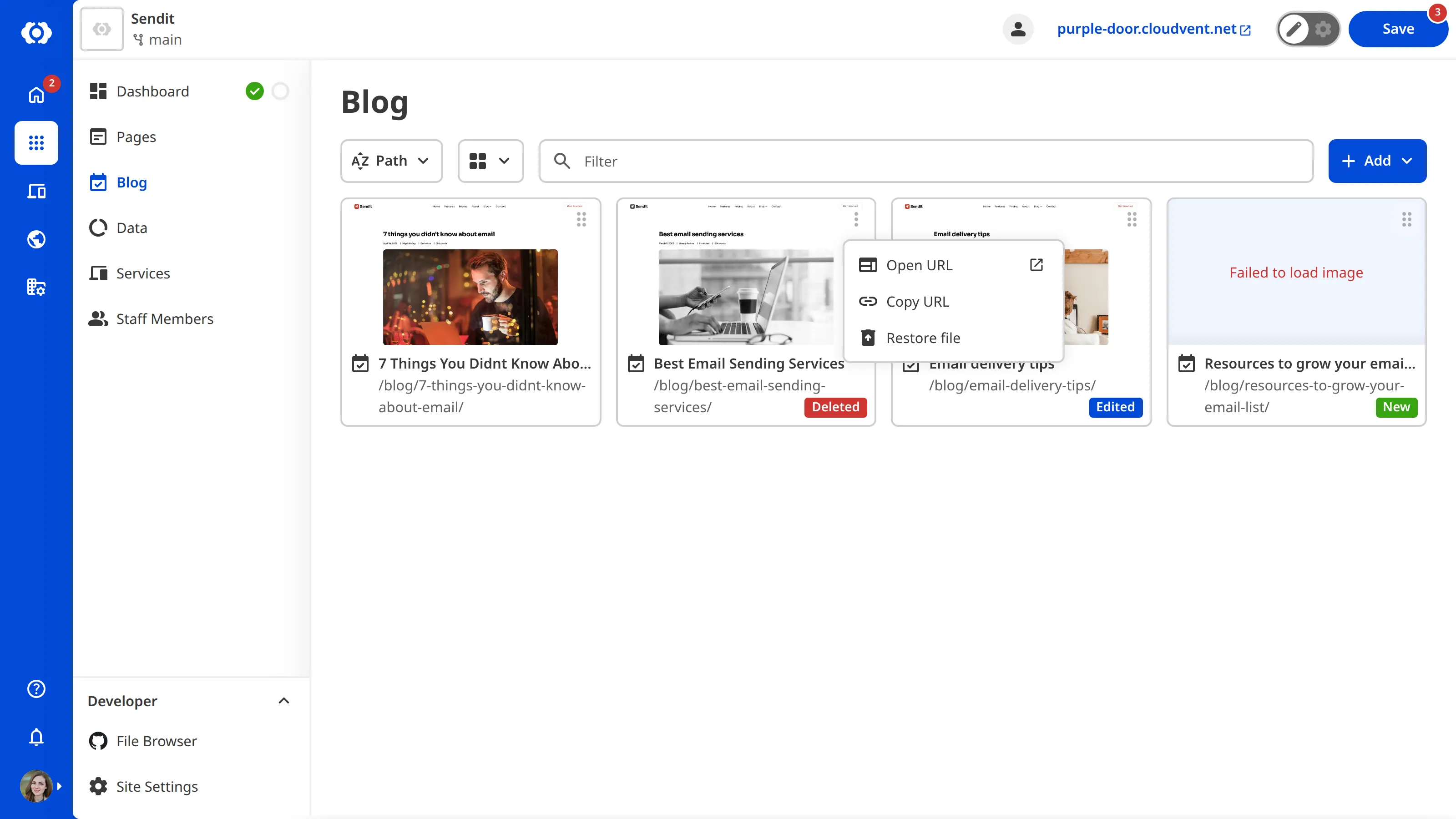
To restore a file:
1. Navigate to the item you want to delete in your collection or File Browser.
2. Open the *Context Menu* by clicking the icon in the top right of the file card.
3. Select *Restore file*.
CloudCannon will restore your file and remove the *Deleted* [badge](/documentation/user-articles/edit-your-files/#file-badges).
Alternatively, you can restore a file using the *File menu* in the top left of an editing interface or the *Restore file* button in the *Deleted file banner* at the bottom of an editing interface.
---
---
title: Delete an Organization
description: Learn how to permanently delete an Organization in CloudCannon, what's removed, and what you need to do first.
url: https://cloudcannon.com/documentation/user-articles/delete-an-organization/
content_type: user article
last_modified: 2026-09-10
---
> **Permissions required**
>
> Members of the *Owners* and *Partner* [Default Permission Groups](/documentation/user-articles/what-are-default-permission-groups/) can delete an *Organization*. [Custom Permission Groups](/documentation/developer-articles/what-are-custom-permission-groups/) cannot be granted this permission.
> Deleting an *Organization* is permanent and irreversible. It removes the *Organization* and **all** of its data, including every *Site*, *Project*, *Inbox*, and integration. CloudCannon's support team cannot recover a deleted *Organization* or its data. Make sure you have everything you need before you delete. If you have any doubts, [contact our support team](https://cloudcannon.com/support/) before you delete.
Deleting an *Organization* is different from canceling its *Subscription*. Canceling your *Subscription* ends paid billing and removes your access to paid features, but keeps the *Organization*, your *Sites*, and your files available. Your content and code stay accessible after you cancel.
However, deleting an *Organization* will remove your data from CloudCannon's servers entirely and immediately. There is no recovery period after you delete your *Organization*. We highly recommend using a *Git Repository* to store your code and content, so that a copy remains outside CloudCannon and stays with you after you delete the *Organization*.
## Before you delete
Before CloudCannon lets you delete an *Organization*, you must cancel its paid *Subscription*. CloudCannon blocks deletion until you do, to prevent accidental deletion. Canceling disconnects your *Custom Domains* and removes access for *Team Members*. If a domain uses CloudCannon DNS, [move your DNS to another provider](/documentation/developer-articles/configure-external-dns/) and back up your DNS records first, because the CloudCannon-assigned nameservers cannot be recovered once released. For these steps, please read our documentation on [canceling your Subscription](/documentation/user-articles/cancel-your-subscription/).
## Delete the Organization
To delete your *Organization*:
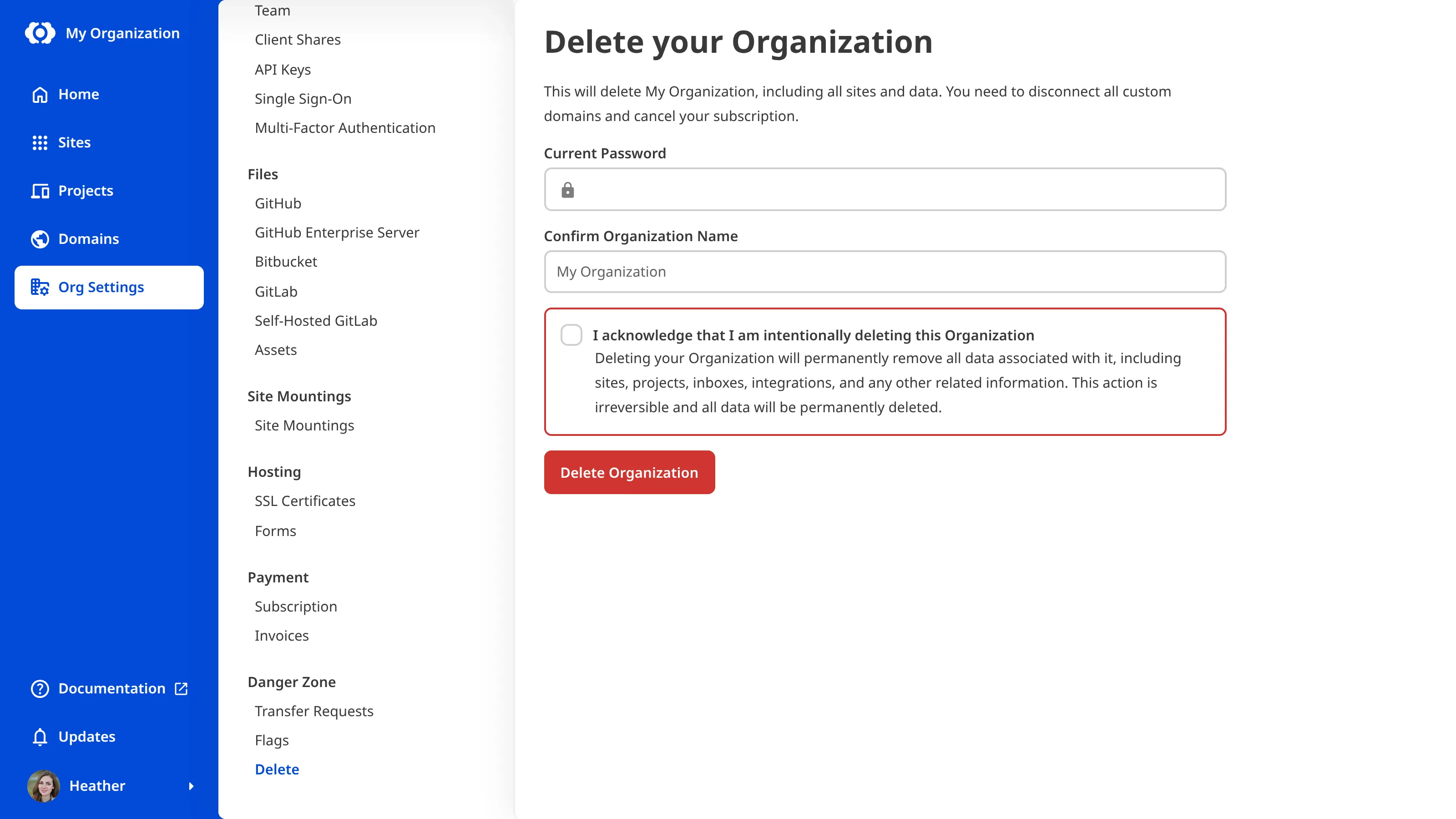
1. Navigate to the *Delete* page under *Org Settings*.
2. If your account has a password, enter it in the *Current Password* field.
3. In the *Confirm Organization Name* field, type the *Organization*'s name exactly.
4. Select the checkbox to acknowledge that you're intentionally deleting the *Organization*.
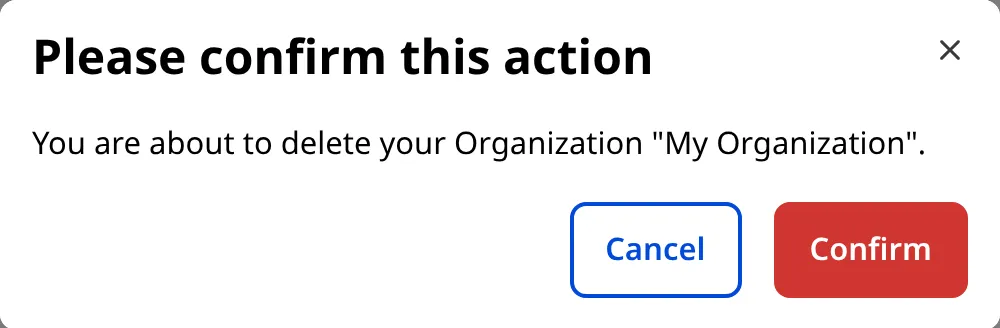
5. Click *Delete Organization*, then confirm.
CloudCannon will permanently delete the *Organization* and all of its data.
---
---
title: Download invoices and receipts
description: Learn how to view your CloudCannon invoices and download invoices and receipts as PDFs.
url: https://cloudcannon.com/documentation/user-articles/download-invoices-and-receipts/
content_type: user article
last_modified: 2026-08-04
---
> **Permissions required**
>
>
> Members of the *Owners* and *Billing* [Default Permission Groups](/documentation/user-articles/what-are-default-permission-groups/), or [Custom Permission Groups](/documentation/developer-articles/what-are-custom-permission-groups/) with the `org:billing:read` permission, can view invoices.
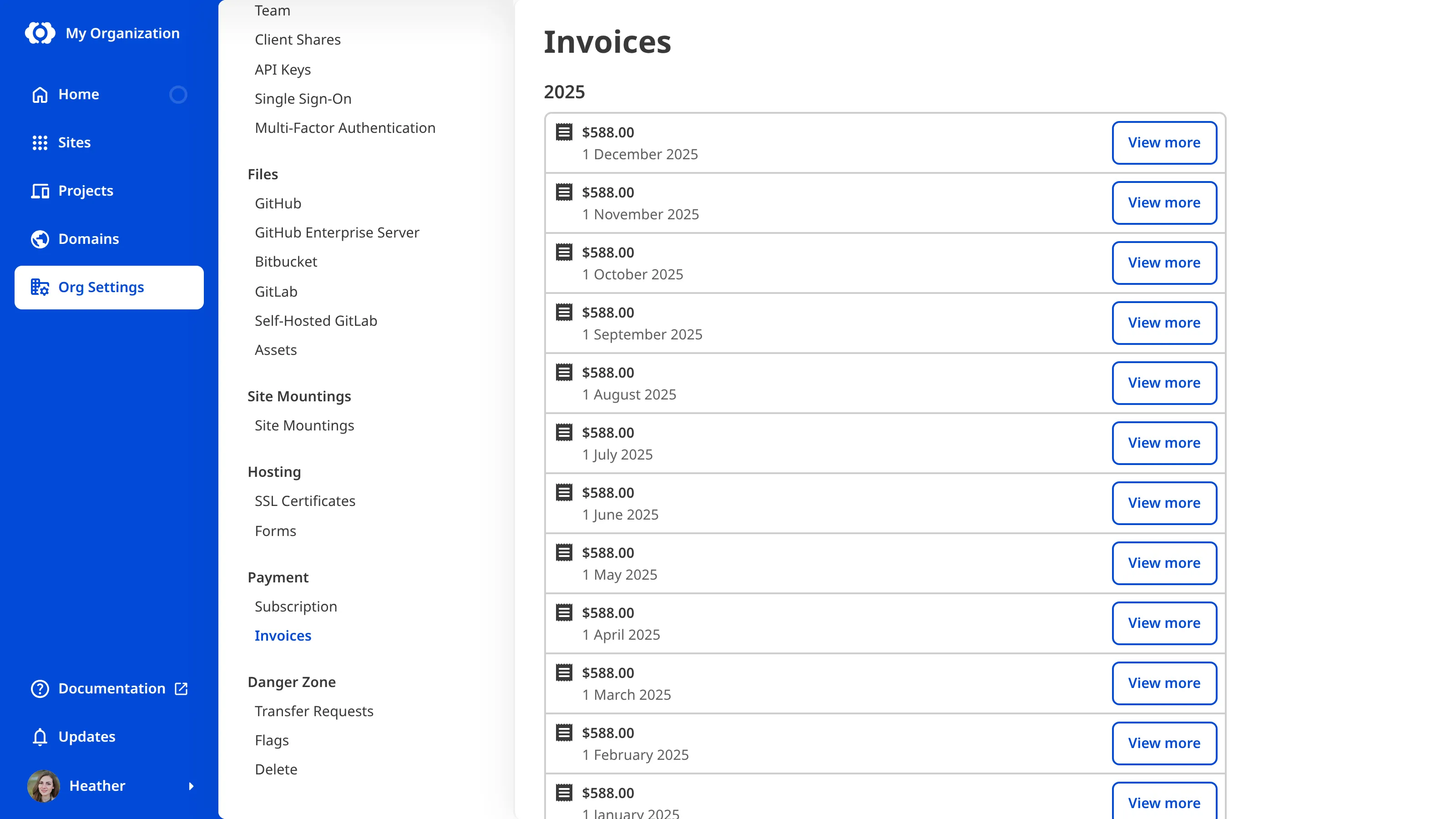
CloudCannon keeps a copy of each invoice on the *Invoices* page under **Org Settings**. Each invoice shows the date your **Subscription Plan** payment was due, and its receipt shows the date the payment was made. You can view or download them at any time.
To download an invoice or receipt:
1. Navigate to the *Invoices* page under *Org Settings*.
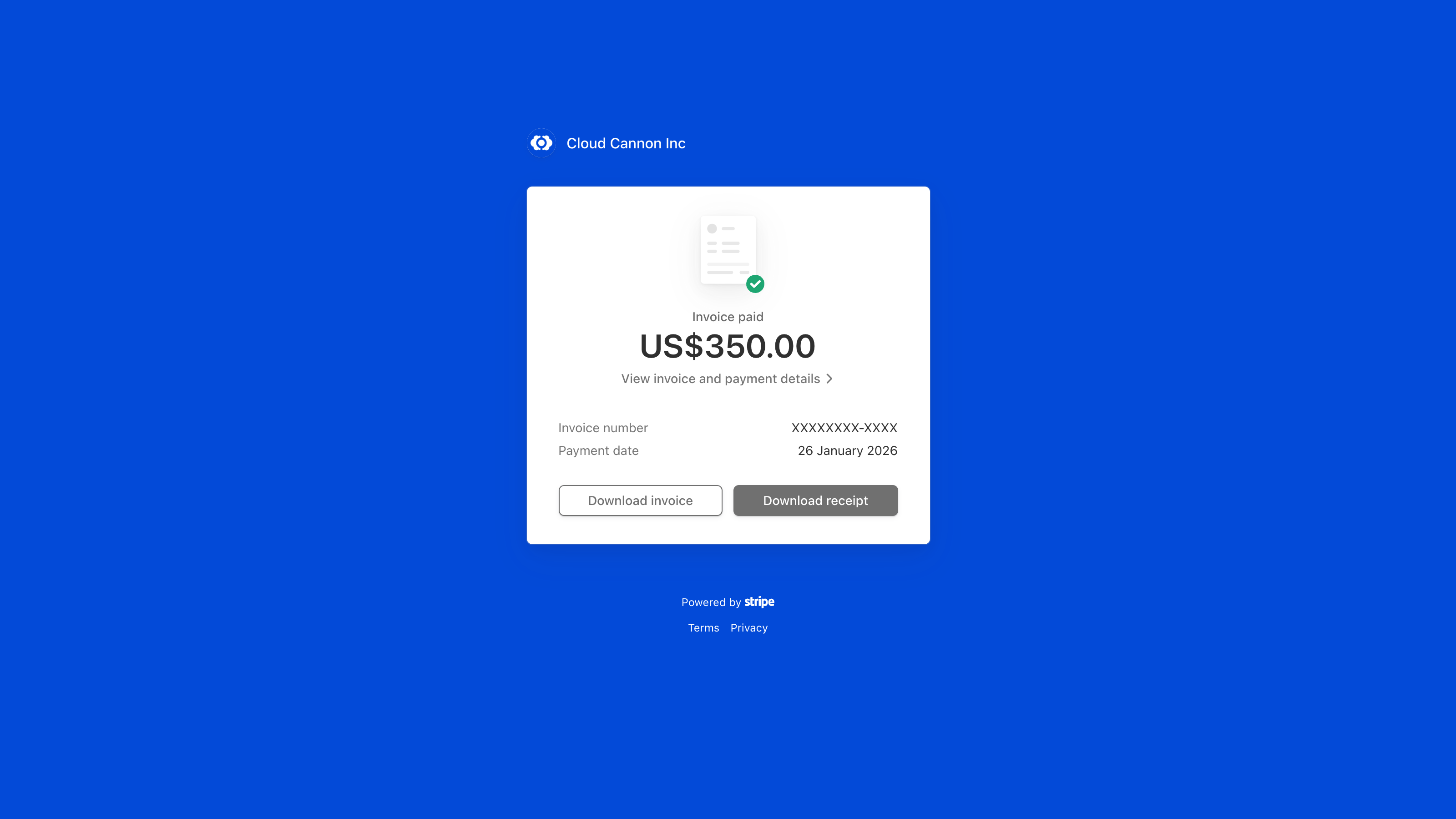
2. Click the *View more* button for the invoice you want. CloudCannon opens that invoice on a Stripe page in a new tab.
3. On the Stripe page, click the *Download invoice* or *Download receipt* button.
Your browser will download the invoice or the receipt as a PDF.
A recently issued invoice may show a *Pending* button until it is finalized. The *View more* button appears once the invoice is ready.
For a breakdown of what each charge means, please read our documentation on [understanding your CloudCannon invoice](/documentation/user-articles/understand-your-cloudcannon-invoice/).
To have CloudCannon email your invoices to you automatically, please read our documentation on [adding billing contact information](/documentation/user-articles/add-billing-contact-information/).
> Enterprise *Organizations* use custom billing, and the CloudCannon team sends invoices to you directly. If your *Organization* is on the *Enterprise Plan*, contact us via [support](https://cloudcannon.com/support/), Slack, or email.
---
---
title: Edit your files
description: Learn how to edit your files in CloudCannon, use the editing interfaces, and find files with unsaved changes.
url: https://cloudcannon.com/documentation/user-articles/edit-your-files/
content_type: user article
last_modified: 2026-03-29
---
Editing in CloudCannon is as easy as opening a file in one of our in-browser editing interfaces.
CloudCannon supports four editing interfaces:
- [The Visual Editor](/documentation/user-articles/what-is-the-visual-editor/) — This interface offers an interactive preview of your site for editing directly onto the page.
- [The Content Editor](/documentation/user-articles/what-is-the-content-editor/) — This interface offers a rich text editor useful for clean, distraction-free editing of content-heavy files.
- [The Data Editor](/documentation/user-articles/what-is-the-data-editor/) — This interface offers a simple way to manage structured data and doubles as the sidebar in the Visual and Content Editors.
- [The Source Editor](/documentation/user-articles/what-is-the-source-editor/) — This interface offers an in-browser code editor for minor changes.
> Depending on your SSG and site configuration, you may only have access to a subset of these editing interfaces. An editing interface may not be available because:
>
> - Some SSGs are incompatible with the Visual Editor (e.g., Docusaurus, MkDocs).
> - Some permission levels cannot access the Source Editor (e.g., unavailable to the [Editors Default Permission Group](/documentation/user-articles/what-are-default-permission-groups/#editors) or [Clients](/documentation/user-articles/what-is-client-sharing/)).
> - A Developer on your team has [specified which editing interfaces are enabled](/documentation/developer-articles/set-a-default-editing-interface/) for a particular collection or schema.
In CloudCannon, you can edit your files in editing sessions. An editing session is the period of time between the first change someone makes to any file and when someone clicks the *Save* button. Editing sessions can contain any number of changes to any number of files, with any number of team members contributing to those changes.
To edit your files:
1. Open any file in an editing interface by clicking on that file in the CloudCannon collection or File Browser.
2. Make changes to as many files as you want.
3. When you are done with your editing session, [save your changes](/documentation/user-articles/save-your-changes/) by clicking the *Save* button in the top right of an editing interface or in the *Site navigation*.
Every change you make is remembered by CloudCannon, so you are safe to take a break, close the editing interface, refresh the tab, change the editing interface, or switch who is editing the file any time.
## Editing interface navigation
The *Editing interface navigation* has a number of tools to help you edit your files.

From left to right, the navigation items are:
- The *Update status* indicator — This shows you the last time this file was last updated.
- *Avatars* — These appear when a team member opens a file in an editing interface. One avatar is highlighted as the file editor with a green circle and pencil icon.
- The *Editing/Viewing dropdown* — This dropdown allows you to switch between *Editing* and *Viewing* a file.
- The *Interface* buttons — This allows you to easily switch between CloudCannon’s four editing interfaces: the Visual, Content, Data, and Source Editors. You will see between two and four options depending on how your site is configured.
- The *File menu* — Sometimes called the *Context Menu*, this menu contains all your file actions.
- The *Information* button — This opens the *Editing help* modal, which provides a helpful walkthrough for the features of your editing interface.
- The *Save* button — When you are ready to [save the changes to your site](/documentation/user-articles/save-your-changes/), the *Save* button will open the *Review changes* modal. Saving your changes allows you to see them live on your [Testing Domain](/documentation/user-articles/what-is-a-testing-domain/) or [Custom Domain](/documentation/developer-articles/what-is-a-custom-domain/).
On smaller screen sizes, some of these options will collapse into the *File menu*.
## Context Menu
The *Context Menu* in the top right of the editing interface contains your file actions.
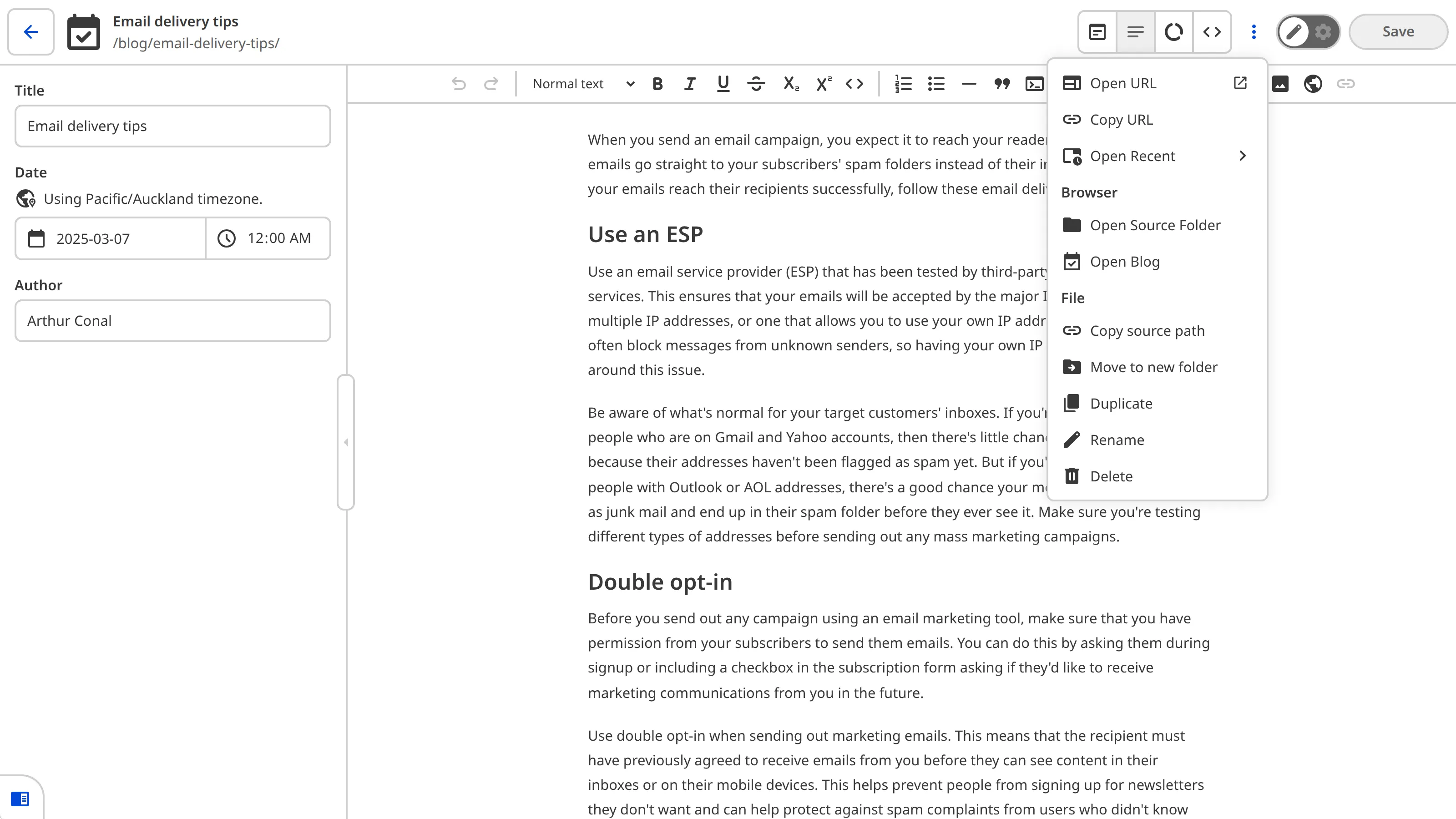
These actions include:
- *Open URL* — Open this file’s webpage in another tab, using your [Testing Domain](/documentation/user-articles/what-is-a-testing-domain/) or [Custom Domain](/documentation/developer-articles/what-is-a-custom-domain/). This will only show your [saved changes](/documentation/user-articles/save-your-changes/).
- *Copy output URL* — Copies the output URL for this file to your clipboard.
- *Open Source Folder* — Open the source folder for this file (not available to the [Editors Default Permission Group](/documentation/user-articles/what-are-default-permission-groups/#editors) or [Clients](/documentation/user-articles/what-is-client-sharing/)).
- *Open Collection* — Open the collection folder for this file. The word "collection" will be replaced with the name of your collection.
- *Move to new folder* — Create a new folder inside your current folder, and move this file to that new folder.
- *Clone item* — Create a duplicate copy of this file with "-copy" added to the filename.
- *Rename item* — Opens a pop-up window to edit the name of your file. Renamed files will appear in your browser twice. The file with the new name will have a *New* badge, and the file with the old name will have a *Deleted* badge.
- *Publish to posts* — Moves your current file to the Posts folder (Jekyll only).
- *Discard unsaved changes* — Discard any unsaved changes made to this file.
- *Delete item* — Mark this file for deletion next time you [save your changes](/documentation/user-articles/save-your-changes/). You cannot delete a file until you have discarded any unsaved changes.
You can also access some of these file actions in the collection browser using the *Context Menu* at the top right of a [file card](/documentation/developer-articles/configure-your-card-previews/).

## Collaborate with your team
Editing in CloudCannon is collaborative, enabling you to create content together with your team. You and your team can edit multiple files across your site concurrently.
For each file, one person can edit the file while any number of people view their edits live. You can switch which team member is *Editing* a file at any time, using the *Editing/Viewing dropdown* or the *Switch to editing* button in the banner at the bottom of the editing interface.
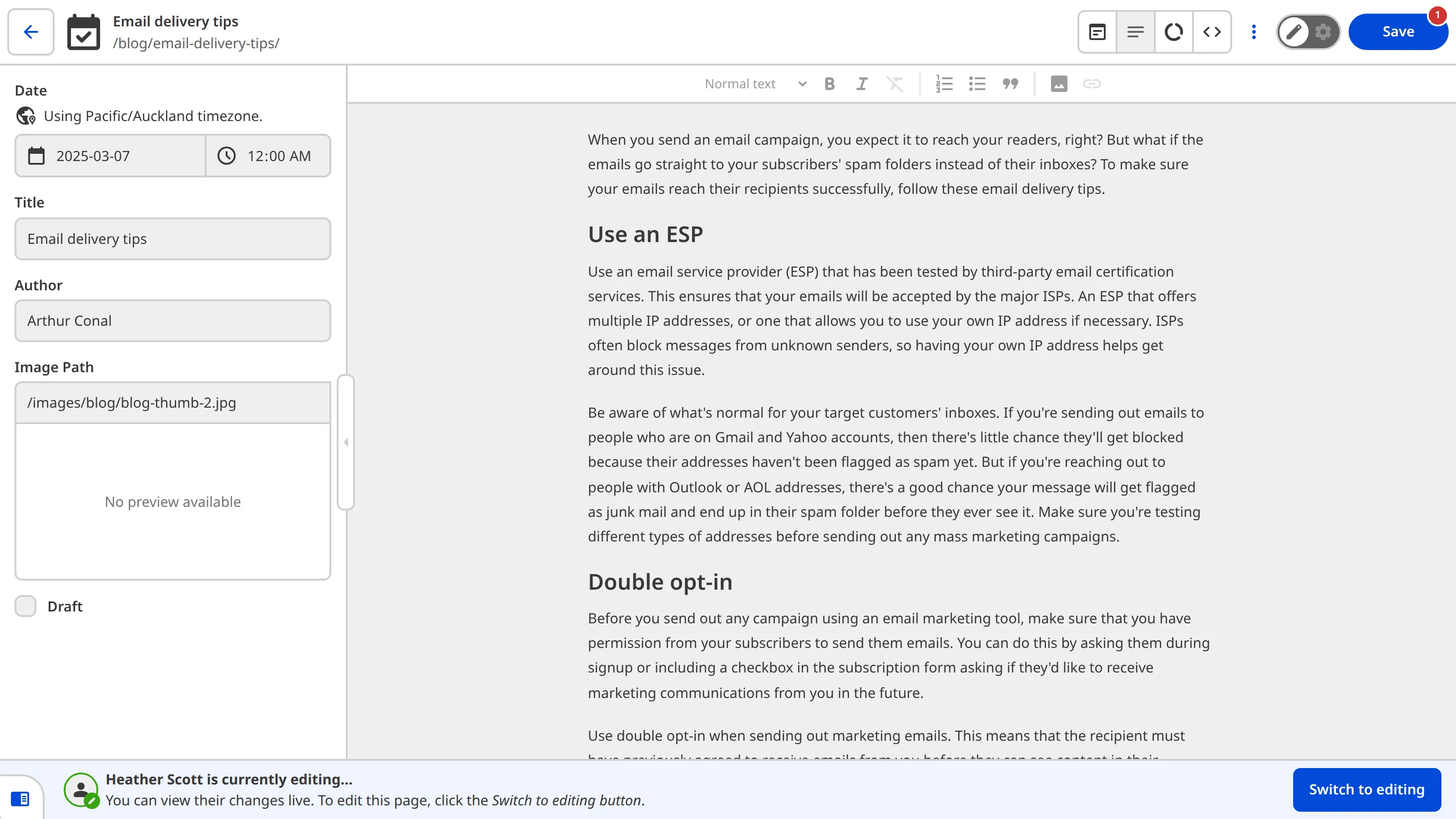
While *Editing*, all the changes you make to your file are visible to the rest of your team. While *Viewing*, you can interact with the file in read-only mode. You can switch between *Editing* and *Viewing* as many times as necessary.
CloudCannon will remember any updates you make in-app — your content is safe if you need to switch the editing interface or which team member is editing a file.
> Need to find the file a team member is working on? Click on their avatar to see a list of their open files.
## Split-screen
If you want to see your editing interface and collection browser simultaneously, you can use CloudCannon split-screen. Toggle split-screen using the *Toggle Split-screen* button in the bottom left of the editing interface. Split-screen is only available on screens 1600px or wider.

To close split-screen, click the *Close Split-screen* button in the top left of your editing interface.
## Close editing interface
When you are ready to leave the editing interface, you can click the *Return to Site* button in the top left of the editing interface.
## File badges in the collection browser
As you make changes, CloudCannon will add a file badge to each [file card](/documentation/developer-articles/configure-your-card-previews/) to summarize the type of changes. These badges are useful for understanding what type of unsaved changes your site has, particularly in the collection or File Browser or the *Review changes* modal when you [save your changes](/documentation/user-articles/save-your-changes/).
Changed files will receive a *New*, *Edited*, or *Deleted* badge to indicate the type of unsaved changes.
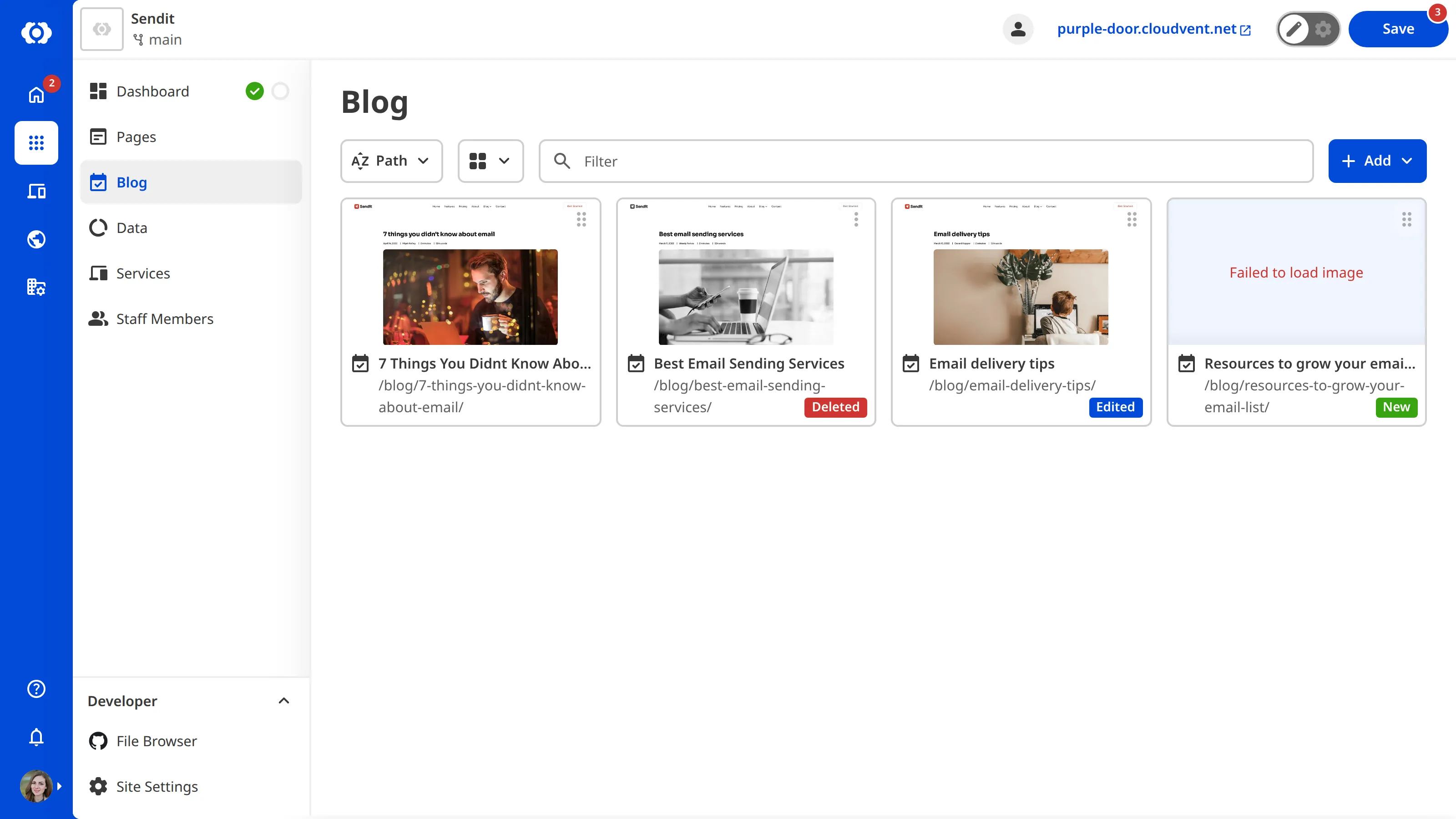
- The *New* badge indicates that this [file was recently uploaded](/documentation/user-articles/add-a-file/) or created.
- The *Edited* badge indicates that this file’s content has been updated.
- The *Deleted* badge indicates that you or a team member have marked this file for deletion. Saving your site will delete this file. You can [restore deleted files](/documentation/user-articles/delete-a-file/#restore-a-deleted-file) any time before you [save your changes](/documentation/user-articles/save-your-changes/) using the context menu in the top right of the file card.
> Renamed files will appear twice; the file with the new name will have a *New* badge, and the file with the old name will have a *Deleted* badge.
---
---
title: Edit your Project name and description
description: Learn how to update the name and description that identify your CloudCannon Project across the Projects Browser and Project page.
url: https://cloudcannon.com/documentation/user-articles/edit-your-project-name-and-description/
content_type: user article
last_modified: 2026-06-03
---
> **Permissions required**
>
> Members of the *Owners* and *Developers* [Default Permission Groups](/documentation/user-articles/what-are-default-permission-groups/), or [Custom Permission Groups](/documentation/developer-articles/what-are-custom-permission-groups/) with the `project:settings:details:write` permission, can edit your *Project's* name and description.
Your **Project's** name and description identify your *Project* across the CloudCannon app. The name appears as a heading on your *Project Card* in the *Projects Browser* and at the top of your *Project* page. The description appears on your *Project Card* and your *Project* page, giving your *Team Members* a short summary of what the *Project* is for.
To edit your *Project's* name and description:
1. Click *Projects* in the *App Sidebar*. CloudCannon will open the *Projects Browser*.
2. Select the *Project* you want to edit by clicking on the *Project Card*. CloudCannon will open the *Project Sites Browser*.
3. Click the *Project Settings* tab.
4. Select *Details* from the *Section Navigation*.
5. Edit the *Project Name* field.
6. Edit the *Description* field. CloudCannon supports Markdown in this field, including lists, links, italics, bold, subscript, superscript, and code blocks.
7. Click the *Update Project* button.
CloudCannon will save your changes and display them everywhere your *Project's* name and description appear in the app.

---
---
title: Export your Access Review
description: Learn how to export an Access Review, the CSV listing everyone with access to your Organization.
url: https://cloudcannon.com/documentation/user-articles/export-your-access-review/
content_type: user article
last_modified: 2026-09-10
---
> **Permissions required**
>
> Members of the *Owners* and *Partner* [Default Permission Groups](/documentation/user-articles/what-are-default-permission-groups/) can export an *Access Review*. [Custom Permission Groups](/documentation/developer-articles/what-are-custom-permission-groups/) cannot be granted this permission.
An **Access Review** is a **CSV** file listing everyone with access to your **Organization**. For who appears in the file and why you might export one, please read our documentation on [what an Access Review is](/documentation/user-articles/what-is-an-access-review/).
If you need an *Access Review* and you don't see the *Export access review* button, ask a member of the *Owners Permission Group* in your *Organization*, or the *Partner Permission Group* in a *Client Organization*, to export one for you.
To export an *Access Review*:
1. Navigate to the *Team* page under *Org Settings*.
2. Open the *Members* tab, if it is not already selected. CloudCannon will list your **Team Members**, followed by any *Pending Members*.
3. Scroll to the bottom of the *Members* tab.
4. Click the *Export access review* button.
CloudCannon will download a CSV file named after your *Organization*, ending in `-access-review.csv`.

---
---
title: Export your form submissions
description: Learn how to export your form submissions in CloudCannon.
url: https://cloudcannon.com/documentation/user-articles/export-your-form-submissions/
content_type: user article
last_modified: 2026-04-02
---
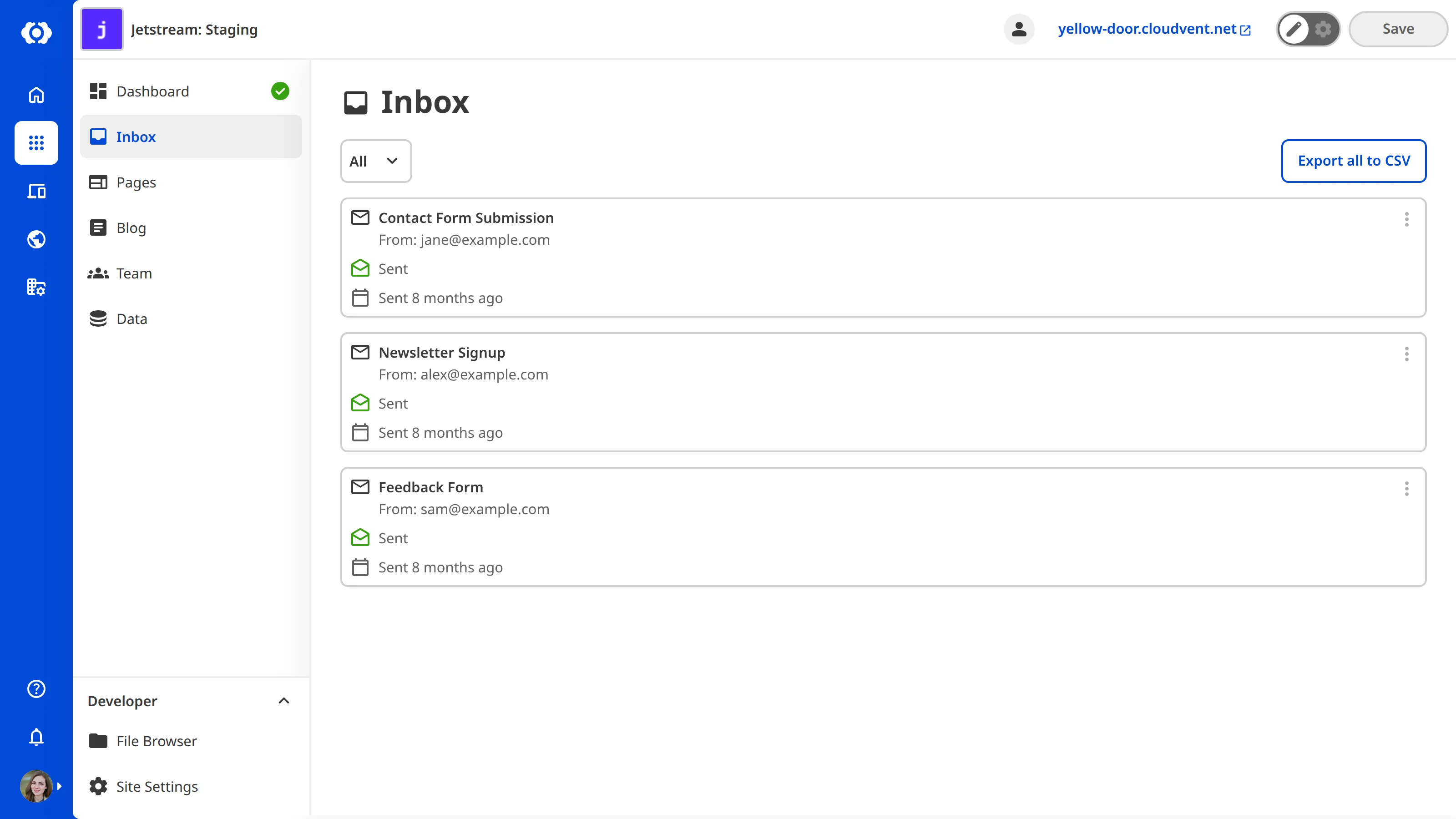
To export your *Inbox* submissions as a `.csv` file:
1. Select the category tab you want to export.
2. Click the *Export* button at the top of the *Inbox*.
CloudCannon will download the submissions for the selected category.
---
---
title: Generate new recovery codes
description: Learn how to generate new recovery codes for a CloudCannon account with multi-factor authentication.
url: https://cloudcannon.com/documentation/user-articles/generate-new-recovery-codes/
content_type: user article
last_modified: 2026-06-23
---
You may need to generate new recovery codes if:
- You have used all sixteen codes from your previous set.
- The secure location where you store your codes has been compromised.
> You cannot disable this feature once you enable MFA for your CloudCannon account. For more information about MFA, please contact our [support team](https://cloudcannon.com/support/).
To generate new recovery codes:
1. Log in to CloudCannon.
2. Navigate to the *Multi-factor Authentication* page under *Account Settings.*
3. Click the *Generate new recovery codes* button.
4. CloudCannon will generate sixteen recovery codes for your account. Copy these recovery codes and store them in a secure location.
5. Click the *I have saved my recovery codes* button. If you cancel or click away from this modal before clicking this button, your new recovery codes will not overwrite your existing recovery codes. You must explicitly agree that you have saved your recovery codes.
Your new recovery codes are now associated with your account.
> If you have lost your recovery codes, please generate a new set immediately.
>
> If you can no longer log in to your CloudCannon account because you do not have access to your device, authentication app, or recovery codes, please contact our [support team](https://cloudcannon.com/support/) as soon as possible.
---
---
title: Introduction to Accounts
description: Learn how to manage your CloudCannon account, including creating your account, Login Sessions, and Multi-factor Authentication.
url: https://cloudcannon.com/documentation/user-articles/introduction-to-accounts/
content_type: user article
last_modified: 2026-07-31
---
Your CloudCannon account is your personal identity in CloudCannon. You use it to log in, own or join **Organizations**, and secure your access with **Multi-factor Authentication**.
Articles in this section are useful for everyone with a CloudCannon account.
In the Accounts section of our User documentation, we cover:
- CloudCannon Account — Learn how to create your account and manage your Login Sessions
- Multi-factor Authentication — Learn how to protect your CloudCannon account with an additional identity verification step
Let's briefly introduce these topics.
## CloudCannon Account
To use CloudCannon, you need to have a CloudCannon account (unless you are using [Client Sharing](/documentation/user-articles/what-is-client-sharing/)). Your CloudCannon account allows you to own *Organizations* or be a member of someone else's *Organization*.
For a more in-depth explanation of your CloudCannon account, please read our documentation:
- [Create a CloudCannon Account](/documentation/user-articles/create-a-cloudcannon-account/)
- [What are Login Sessions?](/documentation/user-articles/what-are-login-sessions/)
- [Sign out of all Login Sessions](/documentation/user-articles/sign-out-of-all-login-sessions/)
## Multi-factor Authentication
Multi-factor Authentication adds an additional identity verification step when you log in to CloudCannon, such as entering a temporary code from an authenticator app. For security or auditing reasons, your *Organization* may require you to use MFA.
For a more in-depth explanation of Multi-factor Authentication, please read our documentation:
- [What is multi-factor authentication?](/documentation/user-articles/what-is-multi-factor-authentication/)
- [Generate new recovery codes](/documentation/user-articles/generate-new-recovery-codes/)
---
---
title: Introduction to Billing
description: Learn how billing works for your Organization, including your Subscription, Add-Ons and Overages, and payments and invoices.
url: https://cloudcannon.com/documentation/user-articles/introduction-to-billing/
content_type: user article
last_modified: 2026-09-09
---
Billing in CloudCannon is managed per *Organization*. Each *Organization* has its own **Subscription**, so your **Subscription Plan**, usage, payment methods, and invoices are all handled separately for each one.
Articles in this section are useful for anyone responsible for an *Organization's* subscription and costs. Members of the *Owners* and *Billing* [Default Permission Groups](/documentation/user-articles/what-are-default-permission-groups/) can manage billing through CloudCannon.
> **For the most up-to-date information on our *Subscription Plans* and pricing, please see our [pricing page](https://cloudcannon.com/pricing/).**
In the Billing section of our User documentation, we cover:
- Subscription — Learn how CloudCannon subscriptions work, including *Subscription Plans*, *Free Trials*, and **Billing Periods**
- Add-Ons and Overages — Learn how to add extra capacity to your *Subscription Plan* and what happens when you exceed your *Subscription Plan's* limits
- Payments and invoices — Learn how to manage payment methods, coupons, invoices, and billing contact information
Let's briefly introduce these topics.
## Subscription
Your *Subscription* is the ongoing paying relationship between your *Organization* and CloudCannon. Your *Subscription Plan* is the bundle of features, resource limits, and price it pays for. Every *Organization* has its own *Subscription*, which you can change as your needs grow.
For a more in-depth explanation of subscriptions, please read our documentation:
- [What is a Subscription Plan?](/documentation/user-articles/what-is-a-subscription-plan/)
- [What is CloudCannon's Free Trial?](/documentation/user-articles/what-is-cloudcannons-free-trial/)
- [Update your Subscription Plan](/documentation/user-articles/update-your-subscription-plan/)
- [Update your Billing Period](/documentation/user-articles/update-your-billing-period/)
- [Cancel your Subscription](/documentation/user-articles/cancel-your-subscription/)
## Add-Ons and Overages
**Add-Ons** let you extend your *Subscription Plan* with extra capacity, while **Overages** cover usage beyond what your *Subscription Plan* includes.
For a more in-depth explanation of Add-Ons and Overages, please read our documentation:
- [What are Add-Ons and Overages?](/documentation/user-articles/what-are-add-ons-and-overages/)
- [Manage your Add-Ons and Overages](/documentation/user-articles/manage-your-add-ons-and-overages/)
## Payments and invoices
CloudCannon keeps a record of your payment methods and invoices so you can manage how your *Organization* pays and access your billing history.
For a more in-depth explanation of payments and invoices, please read our documentation:
- [Manage your payment methods](/documentation/user-articles/manage-your-payment-methods/)
- [Add a coupon to your Subscription](/documentation/user-articles/add-a-coupon-to-your-subscription/)
- [Download invoices and receipts](/documentation/user-articles/download-invoices-and-receipts/)
- [Understand your CloudCannon invoice](/documentation/user-articles/understand-your-cloudcannon-invoice/)
- [Add billing contact information](/documentation/user-articles/add-billing-contact-information/)
- [What happens when a payment fails?](/documentation/user-articles/what-happens-when-a-payment-fails/)
---
---
title: Introduction to CloudCannon UI
description: Learn your way around the CloudCannon app, including Sites, Browsers, and Editing Interfaces.
url: https://cloudcannon.com/documentation/user-articles/introduction-to-cloudcannon-ui/
content_type: user article
last_modified: 2026-03-11
---
The CloudCannon **User Interface** is where you manage your website content. Whether you are editing a blog post, adding a new staff member to your "About Us" page, or browsing your **files**, familiarizing yourself with the CloudCannon interface will help you work efficiently.
Articles in this section are a great place for new Users to learn what UI elements are called, where to find specific tools, and how to navigate your content.
In the CloudCannon UI section of our User documentation, we cover:
- Sites — Learn how CloudCannon organizes your website(s)
- Browsers — Learn how to find your website content on a *Site* in CloudCannon, and how to navigate your *Projects*
- Editing Interfaces — Learn about CloudCannon's editing interfaces for updating your website content
Let's briefly introduce a few of these topics.
## Sites
Sites are the main way CloudCannon organizes your content. Each Site connects to a branch of your **Git repository**. The *Site Header* at the top of the screen shows which *Site* you are viewing and provides access to *Site* settings.
For a more in-depth explanation of the Site interface, please read our documentation:
- [What is the Site Header?](/documentation/user-articles/what-is-the-site-header/)
- [What is the Site Navigation?](/documentation/user-articles/what-is-the-site-navigation/)
## Browsers
Browsers in CloudCannon let you find, browse, sort, and open your website files. There are two main types of browsers: the *Collection Browser* for viewing collections of related content (like all your blog posts or all your product pages), and the *File Browser* for viewing your files by their location in your website's folder structure. If your developer has set up a **Project**, the *Project Browser* provides an overview of your *Project* and its *Sites*.
For a more in-depth explanation of these browsers, please read our documentation:
- [What is the File Browser?](/documentation/user-articles/the-file-browser/)
- [What is the Project Browser?](/documentation/user-articles/what-is-the-project-browser/)
## Editing Interfaces
CloudCannon offers four editing interfaces: the **Visual Editor**, **Content Editor**, **Data Editor**, and **Source Editor**. Each provides a different way to edit your content. The Visual Editor lets you click directly on your page; the Content Editor is a rich text editor; the Data Editor shows structured fields; and the Source Editor shows the raw file.
For a more in-depth explanation of the editing interfaces, please read our documentation:
- [What is the Visual Editor?](/documentation/user-articles/what-is-the-visual-editor/)
- [What is the Content Editor?](/documentation/user-articles/what-is-the-content-editor/)
- [What is the Data Editor?](/documentation/user-articles/what-is-the-data-editor/)
- [What is the Source Editor?](/documentation/user-articles/what-is-the-source-editor/)
---
---
title: Introduction to Editing
description: Learn how editing works in CloudCannon, including configuration, collections, editing and saving changes, and content collaboration.
url: https://cloudcannon.com/documentation/user-articles/introduction-to-editing/
content_type: user article
last_modified: 2026-02-18
---
Editing in CloudCannon allows anyone on your team to contribute to your website, regardless of technical expertise.
Articles in this section are useful for anyone who creates, edits, or manages content on your website.
> If this is your first time creating a site on CloudCannon, or you need a refresher, check out our [Editing in CloudCannon](/documentation/user-guides/editing-in-cloudcannon/) guide!
In the Editing section of our User documentation, we cover:
- Manage your files — Learn how to manage your website files through CloudCannon
- Using Inputs — Learn how to edit file data that isn't the main body of content
Let’s briefly introduce a few of these topics.
## Manage your files
Your website is made up of several files, from layout and developer files that control what each page looks like, to content files that control the text and images on a webpage. With CloudCannon, you can update your website content files easily.
For a more in-depth explanation of how to make changes to your content, please read our documentation:
- [Add a file](/documentation/user-articles/add-a-file/)
- [Edit your files](/documentation/user-articles/edit-your-files/)
- [Delete a file](/documentation/user-articles/delete-a-file/)
- [Save your changes](/documentation/user-articles/save-your-changes/)
## Using Inputs
In CloudCannon, you can use Inputs to edit file data that isn't the main body of content (e.g., titles, descriptions, authors, tags, etc.). These Inputs appear in the sidebar of the **Visual Editor** and **Content Editor**, and in the **Data Editor**. There are 12 types of Inputs, each with its own fields and controls for editing a specific kind of data.
For a more in-depth explanation of how to use Inputs for editing file data, please read our documentation:
- [What are Inputs?](/documentation/user-articles/what-are-inputs/)
- [What is an Array Input?](/documentation/user-articles/what-is-an-array-input/)
- [What is a Boolean Input?](/documentation/user-articles/what-is-a-boolean-input/)
- [What is a Code Input?](/documentation/user-articles/what-is-a-code-input/)
- [What is a Color Input?](/documentation/user-articles/what-is-a-color-input/)
- [What are Date and Time Inputs?](/documentation/user-articles/what-are-date-and-time-inputs/)
- [What is a File Input?](/documentation/user-articles/what-is-a-file-input/)
- [What is a Number Input?](/documentation/user-articles/what-is-a-number-input/)
- [What is an Object Input?](/documentation/user-articles/what-is-an-object-input/)
- [What is a Rich Text Input?](/documentation/user-articles/what-is-a-rich-text-input/)
- [What is a Select Input?](/documentation/user-articles/what-is-a-select-input/)
- [What is a Text Input?](/documentation/user-articles/what-is-a-text-input/)
- [What is a URL Input?](/documentation/user-articles/what-is-a-url-input/)
---
---
title: Introduction to Hosting
description: Learn how hosting works in CloudCannon, including web hosting, Hosting Bandwidth, Testing Domains, and form submissions.
url: https://cloudcannon.com/documentation/user-articles/introduction-to-hosting/
content_type: user article
last_modified: 2026-07-31
---
**Hosting** is the process of making your website available on the Internet for visitors to view. Hosting through CloudCannon is optional, and your developer may choose to host with a different service. However, CloudCannon offers additional features if you also host your *Site* here.
> Not all *Sites* are hosted on CloudCannon. Please talk to your developer about whether hosting is relevant to your website.
In the Hosting section of our User documentation, we cover:
- Web Hosting — Learn how web hosting works and how CloudCannon or another provider can make your website available to visitors on the Internet
- Testing Domain — Learn how CloudCannon assigns a free *Testing Domain* to each *Site* so you can preview your content before it goes live
- Forms — Learn how CloudCannon collects form submissions from visitors and how you can view them in your *Site Inbox*
Let's briefly introduce a few of these topics.
## Web Hosting
Web hosting is the process by which your website files are made available to visitors on the Internet. To host your website, you will need a web hosting service, such as CloudCannon or another third-party provider.
For a more in-depth explanation of how web hosting works, please read our documentation:
- [What is web hosting?](/documentation/user-articles/what-is-web-hosting/)
- [What is Hosting Bandwidth?](/documentation/user-articles/what-is-hosting-bandwidth/)
## Testing Domain
> This information is specific to *Sites* hosted through CloudCannon.
Every website has a **Domain Name** to allow visitors to access it online. On CloudCannon, every *Site* is assigned a free **Testing Domain**, for you to see your live content. This is particularly useful if you have a publishing workflow configured, providing each *Branch Site* with a dedicated *Domain*.
For a more in-depth explanation of Testing Domains, please read our documentation:
- [What is a Testing Domain?](/documentation/user-articles/what-is-a-testing-domain/)
- [View your Testing Domain](/documentation/user-articles/view-your-testing-domain/)
## Forms
> This information is specific to *Sites* hosted through CloudCannon, where your developer has configured forms.
If your website has **Forms** — for example, a contact form or newsletter signup — CloudCannon can collect the submissions. You can view submissions in the CloudCannon interface or have them sent to your email **inbox**.
For a more in-depth explanation of forms, please read our documentation:
- [Viewing your form submissions in CloudCannon](/documentation/user-articles/viewing-your-form-submissions-in-cloudcannon/)
---
---
title: Introduction to Sharing
description: Learn how to collaborate with others on CloudCannon, including Permission Groups, Site Sharing, and Client Sharing.
url: https://cloudcannon.com/documentation/user-articles/introduction-to-sharing/
content_type: user article
last_modified: 2026-02-24
---
CloudCannon allows you to collaborate with everyone who needs access to your website. This could include content writers, developers, product managers, finance teams, team leads, clients, project stakeholders, and more. For every person you invite, CloudCannon allows you to control which **Sites** they have access to, and which actions they can take.
Articles in this section are helpful for team leaders who need to manage access to CloudCannon, or for individual users to see what they have access to in CloudCannon.
In the Sharing section of our User documentation, we cover:
- Organizations — Learn about *Organizations*, including how to join or leave one, and add or remove a team member
- Permission Groups — Learn what actions you are permitted to take in CloudCannon, or manage a team members permissions
- Site Sharing — Learn how to share a specific *Site* (or *Sites*) on CloudCannon without inviting someone to your *Organization*
- Client Sharing — Learn how to share your *Site* on CloudCannon with an external collaborator, without them needing a CloudCannon account
Let's briefly introduce a few of these topics.
## Organizations
In CloudCannon, your **Organization** is the highest level of content management on CloudCannon. Each *Organization* has an associated CloudCannon subscription and can contain all your websites, team members, and resources. You can be a member of multiple *Organizations* in CloudCannon.
For a more in-depth explanation of Organizations, please read our documentation:
- [What is an Organization?](/documentation/user-articles/what-is-an-organization/)
- [What is a team member?](/documentation/user-articles/what-is-a-team-member/)
- [Join or leave an Organization](/documentation/user-articles/join-or-leave-an-organization/)
- [Add a team member to your Organization](/documentation/user-articles/add-a-team-member-to-your-organization/)
- [Remove a team member from your Organization](/documentation/user-articles/remove-a-team-member-from-your-organization/)
## Permission Groups
**Permission Groups** determine what actions a team member in your *Organization* can perform. Each *Permission Group* defines exactly what its members are allowed to see, edit, and create. Everyone in your *Organization* is a member of at least one *Permission Group*. CloudCannon provides five **Default Permission Groups** for every *Organization*: Owners, Developers, Technical Editors, Editors, and Billing.
For a more in-depth explanation of Permission Groups, please read our documentation:
- [What are Permission Groups?](/documentation/user-articles/what-are-permission-groups/)
- [What are Default Permission Groups?](/documentation/user-articles/what-are-default-permission-groups/)
- [Manage my permissions](/documentation/user-articles/manage-my-permissions/)
- [Add a team member to a Permission Group](/documentation/user-articles/add-a-team-member-to-a-permission-group/)
- [Remove a team member from a Permission Group](/documentation/user-articles/remove-a-team-member-from-a-permission-group/)
> Some *Sites* may have *Custom Permission Groups* configured. For more information, please read our Developer Documentation on [Custom Permission Groups](/documentation/developer-articles/what-are-custom-permission-groups/).
## Site Sharing
**Site Sharing** allows you to give someone access to specific *Sites* in your *Organization*. This is useful when you want to collaborate with someone who has a CloudCannon account, without giving them access to all the *Sites* in your *Organization*.
For a more in-depth explanation of Site Sharing, please read our documentation:
- [Share a Site with Site Sharing](/documentation/user-articles/share-a-site-with-site-sharing/)
## Client Sharing
**Client Sharing** allows you to give someone who does not have a CloudCannon account access to a specific *Site* in your *Organization*. *Clients* will log in using a site-specific password and edit or review content through a simplified interface.
For a more in-depth explanation of Client Sharing, please read our documentation:
- [What is Client Sharing?](/documentation/user-articles/what-is-client-sharing/)
---
---
title: Introduction to Syncing & Publishing
description: Learn how CloudCannon syncs your files and how to publish changes from a test copy to your live website.
url: https://cloudcannon.com/documentation/user-articles/introduction-to-syncing-and-publishing/
content_type: user article
last_modified: 2026-06-03
---
CloudCannon uses a technology called **Git**. Git safely stores your website files, lets you revert to previous versions of your **Site** (in case something goes wrong), allows you to maintain multiple copies of your *Site*, and tracks who made which changes and when. Most of the Git side of CloudCannon is managed by your developer, but it's important to know some Git terms for updating content, too.
- **Syncing** is when CloudCannon automatically synchronizes the content of your website stored in your **Git Repository** (the safe place where your developer stores your website files) and your *Site* on CloudCannon. This means that any changes made to your website are reflected in both places: whether it's a content update in CloudCannon or a code change by a developer.
- *Publishing* is when CloudCannon publishes changes from one copy of your website to another, allowing you to test your content updates on a dedicated copy of your website before they go public.
> Not all *Sites* will have a **Publishing Workflow** configured. Please talk to your developer about whether publishing is relevant to your website.
In the Syncing & Publishing section of our User documentation, we cover:
- Syncing Paused — Learn how CloudCannon protects your unsaved changes when someone saves changes to the same file
- *Projects* — Learn how branched *Sites* let you work on your own copy of a website and publish those changes back to your *Publish Branch*
- *Publishing Conflicts* — Learn how CloudCannon protects the saved changes on your *Site* when they conflict with changes from your *Publish Branch*
Let's briefly introduce a few of these topics.
## Syncing Paused
Sometimes, CloudCannon may pause syncing while you have unsaved changes on your **Site**. This is to protect your unsaved changes from incoming changes made by other people. You can easily resolve this by saving your unsaved changes.
For a more in-depth explanation of syncing paused, please read our documentation:
- [Why is syncing paused?](/documentation/user-articles/why-is-syncing-paused/)
- [Resume syncing](/documentation/user-articles/resume-syncing/)
## *Projects*
> This information is specific to *Sites* with a *Publishing Workflow*.
If your developer has added a *Publishing Workflow* to your **Site**, everyone can work on their own branched *Site* — a separate copy of your website. While editing on a branched *Site*, you don't need to worry about your changes going live: only you and anyone you share the link with will see your *Site*.
When you are ready for these changes to go live, you can publish to the main copy of your website, called a *Publish Branch*. Also, if anyone else updates your *Publish Branch* from another copy of your *Site*, you can easily update your branched *Site* from the *Publish Branch*.
If your developer has created a **Project** for your website, you can view all the connected *Sites* and their publishing relationships in one place.
For a more in-depth explanation of *Projects* and publishing, please read our documentation:
- [What is a Project?](/documentation/user-articles/what-is-a-project/)
- [What is branching?](/documentation/user-articles/what-is-branching/)
- [What is publishing?](/documentation/user-articles/what-is-publishing/)
- [What are Publishing Methods?](/documentation/user-articles/what-are-publishing-methods/)
- [Publish changes to a Publish Branch](/documentation/user-articles/publish-changes-to-a-publish-branch/)
- [Why update from a Publish Branch?](/documentation/user-articles/why-update-from-a-publish-branch/)
- [Update from a Publish Branch](/documentation/user-articles/update-from-a-publish-branch/)
- [Edit your Project's name and description](/documentation/user-articles/edit-your-project-name-and-description/)
- [Set your Project's Display URL](/documentation/user-articles/set-your-projects-display-url/)
- [Add related links to your Project](/documentation/user-articles/add-related-links-to-your-project/)
## *Publishing Conflicts*
> This information is specific to *Sites* with a *Publishing Workflow*.
Sometimes, when you try to update from your **Publish Branch**, CloudCannon will warn you about a **Publishing Conflict**. This happens when the saved changes on your *Site* and the saved changes to the same file on your *Publish Branch* are different. CloudCannon will help you resolve this conflict by allowing you to choose which changes to keep, preventing one set of changes from overwriting the other.
For a more in-depth explanation of publishing conflicts, please read our documentation:
- [What are publishing conflicts?](/documentation/user-articles/what-are-publishing-conflicts/)
- [Resolve publishing conflicts](/documentation/user-articles/resolve-publishing-conflicts/)
---
---
title: Introduction to your Organization
description: Learn how to manage your CloudCannon Organization, including its team, Permission Groups, ownership, and branding.
url: https://cloudcannon.com/documentation/user-articles/introduction-to-your-organization/
content_type: user article
last_modified: 2026-09-09
---
Your **Organization** is your home base in CloudCannon. It's the highest level of content management, bringing your **Sites**, your team, and your billing together in one place. You can own several *Organizations*, and be a member of *Organizations* that other people run.
_[Diagram: A diagram shows an Organization bringing together its Sites, team, and billing.]_
Articles in this section are useful for *Organization Owners* and anyone who helps run an *Organization*, including managing its team, permissions, and settings.
In this section of our User documentation, we cover:
- Manage your Organization — Learn what an *Organization* is, and how to create, switch between, rename, customize, and delete *Organizations*
- Owning an Organization — Learn how to transfer *Sites* between *Organizations*, transfer ownership, recover access, take over an *Organization* an agency manages for you, and resolve ownership over a **Custom Domain**
- Team Members — Learn how to invite people to your *Organization* and manage who has access
- Permission Groups — Learn how to control what each team member can see, edit, and create
Let's briefly introduce these topics.
## Manage your Organization
Every *Organization* brings your *Sites*, team, and billing together in one place. You can create as many *Organizations* as you need, move between them at any time, and customize each one with your own name and branding.
For a more in-depth explanation, please read our documentation:
- [What is an Organization?](/documentation/user-articles/what-is-an-organization/)
- [Create a new Organization](/documentation/user-articles/create-a-new-organization/)
- [Switch between your Organizations](/documentation/user-articles/switch-between-your-organizations/)
- [Rename your Organization](/documentation/user-articles/rename-your-organization/)
- [Customize your Organization branding](/documentation/user-articles/customize-your-organization-branding/)
- [Delete an Organization](/documentation/user-articles/delete-an-organization/)
## Owning an Organization
Anyone in the *Owners* [Default Permission Group](/documentation/user-articles/what-are-default-permission-groups/) can manage an *Organization* at the highest level, including actions that only owners can take.
For a more in-depth explanation, please read our documentation:
- [Transfer a Site between Organizations](/documentation/user-articles/transfer-a-site-between-organizations/)
- [Transfer ownership of an Organization](/documentation/user-articles/transfer-ownership-of-an-organization/)
- [Recover access to your Organization](/documentation/user-articles/recover-access-to-your-organization/)
- [Take over your Organization from a partner](/documentation/user-articles/take-over-your-organization-from-a-partner/)
- [Resolve ownership over a Custom Domain](/documentation/user-articles/resolve-ownership-over-a-custom-domain/)
## Team Members
To work together with others, you can invite people to your *Organization* as **Team Members**. For each *Team Member*, you can control which *Sites* they can access and what they can do, and you can remove their access when they no longer need it.
For a more in-depth explanation, please read our documentation:
- [What is a Team Member?](/documentation/user-articles/what-is-a-team-member/)
- [Join or leave an Organization](/documentation/user-articles/join-or-leave-an-organization/)
- [Add a Team Member to your Organization](/documentation/user-articles/add-a-team-member-to-your-organization/)
- [Remove a Team Member from your Organization](/documentation/user-articles/remove-a-team-member-from-your-organization/)
## Permission Groups
**Permission Groups** determine what actions a team member in your *Organization* can perform. Each *Permission Group* defines exactly what its members are allowed to see, edit, and create, and everyone in your *Organization* belongs to at least one.
For a more in-depth explanation, please read our documentation:
- [What are Permission Groups?](/documentation/user-articles/what-are-permission-groups/)
- [What are Default Permission Groups?](/documentation/user-articles/what-are-default-permission-groups/)
- [Manage my permissions](/documentation/user-articles/manage-my-permissions/)
- [Add a Team Member to a Permission Group](/documentation/user-articles/add-a-team-member-to-a-permission-group/)
- [Remove a Team Member from a Permission Group](/documentation/user-articles/remove-a-team-member-from-a-permission-group/)
---
---
title: Join or leave an Organization
description: Learn how to accept or decline an invitation to join a CloudCannon Organization or leave an Organization you are a member of.
url: https://cloudcannon.com/documentation/user-articles/join-or-leave-an-organization/
content_type: user article
last_modified: 2026-09-08
---
An **Organization** is your home base in CloudCannon, bringing together your **Sites**, **Team Members**, and shared resources. You can belong to more than one *Organization* at a time, so joining one doesn't affect any others you're already a member of.
## Join an Organization
To join an *Organization* in CloudCannon, [an existing member must invite you](/documentation/user-articles/add-a-team-member-to-your-organization/). When someone invites you, CloudCannon will send you an email invitation with the name of the *Organization*.
When you accept the invitation, CloudCannon will add you to the *Organization* as a *Team Member*, automatically assigning you to the [Permission Groups](/documentation/user-articles/what-are-permission-groups/) selected by the person who invited you. You can also decline an invitation, but a current member of the *Organization* must re-invite you if you want to join at a later date.
How you accept your invitation will depend on whether you already have a CloudCannon account.
### If you don't have a CloudCannon account yet
To create your account and accept an invitation:
1. In your email invitation, click the *Sign up for CloudCannon* button. CloudCannon will open in your internet browser.
2. Complete the account creation setup. CloudCannon will open the *Organizations* page.
3. Click the *Accept* button next to the *Organization* you want to join.
CloudCannon will add you to the *Organization*.
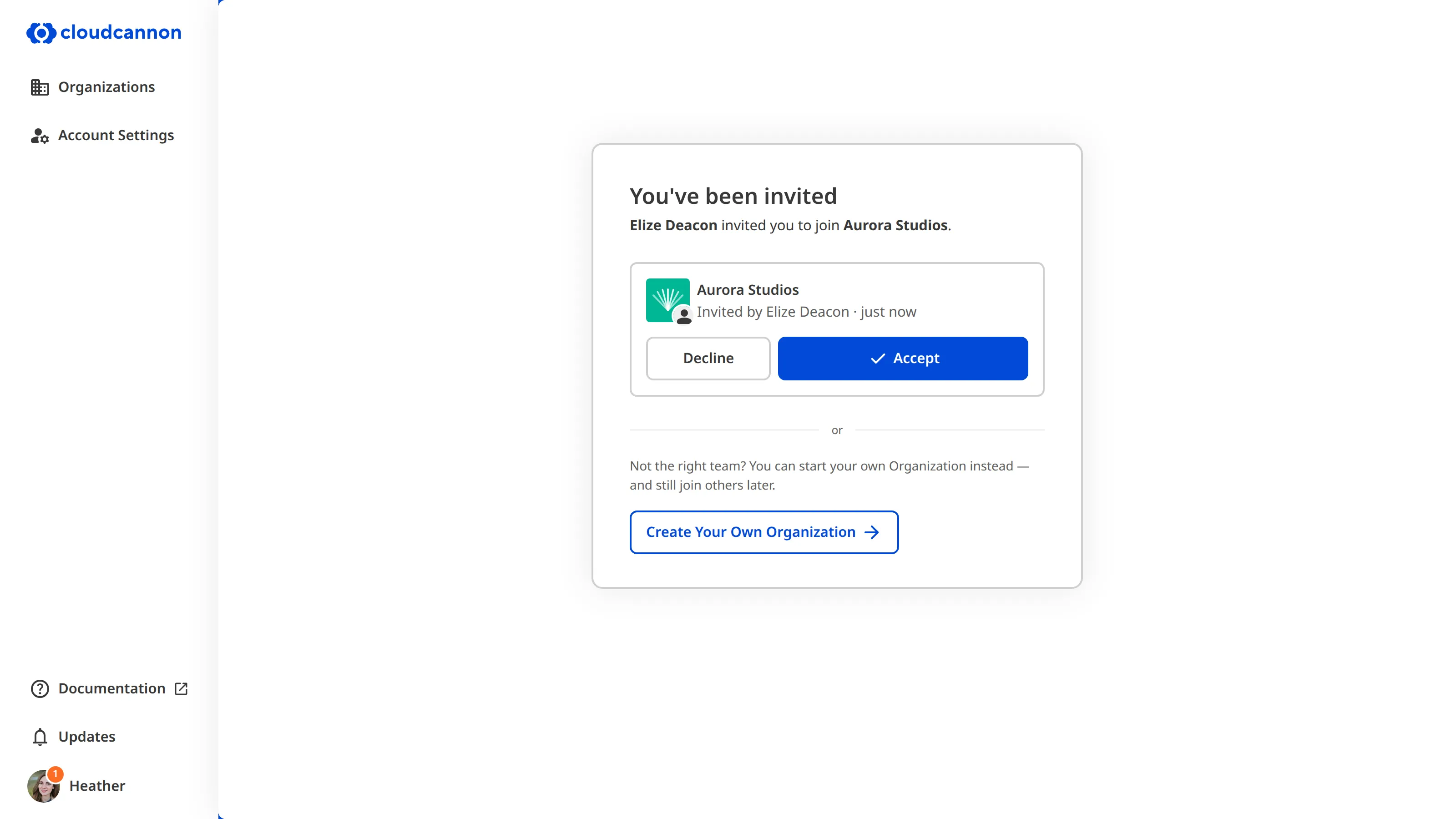
CloudCannon shows any *Organization* that has invited you under the *You've been invited* heading on the *Organizations* page. Each invitation shows the *Organization's* name, who invited you, and when, along with *Accept* and *Decline* buttons.
If you don't recognize any of the invitations, you can click the *Create Your Own Organization* button to start your own *Organization* instead.
### If you already have a CloudCannon account
When you have pending invitations, CloudCannon shows a number badge on your *Avatar* in the bottom left of the **App Sidebar**.

To accept an invitation from another *Organization* while you're logged in:
1. Click on your *Avatar* in the *App Sidebar* to open the *Account Menu*.
2. Select *Pending invitations*. CloudCannon will open the *Pending invitations* modal.
3. Click the *Accept* button next to the *Organization* you want to join.
CloudCannon will add you to the *Organization*.
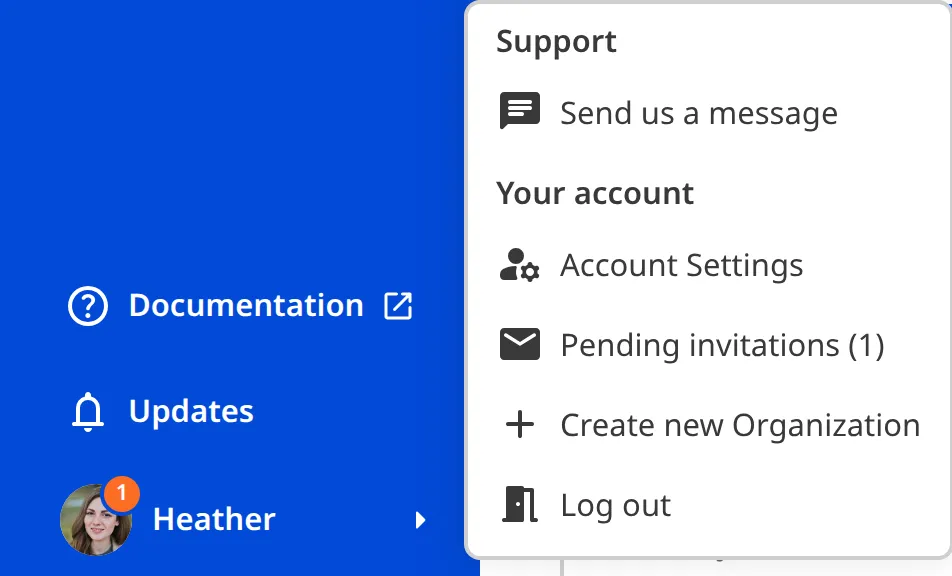
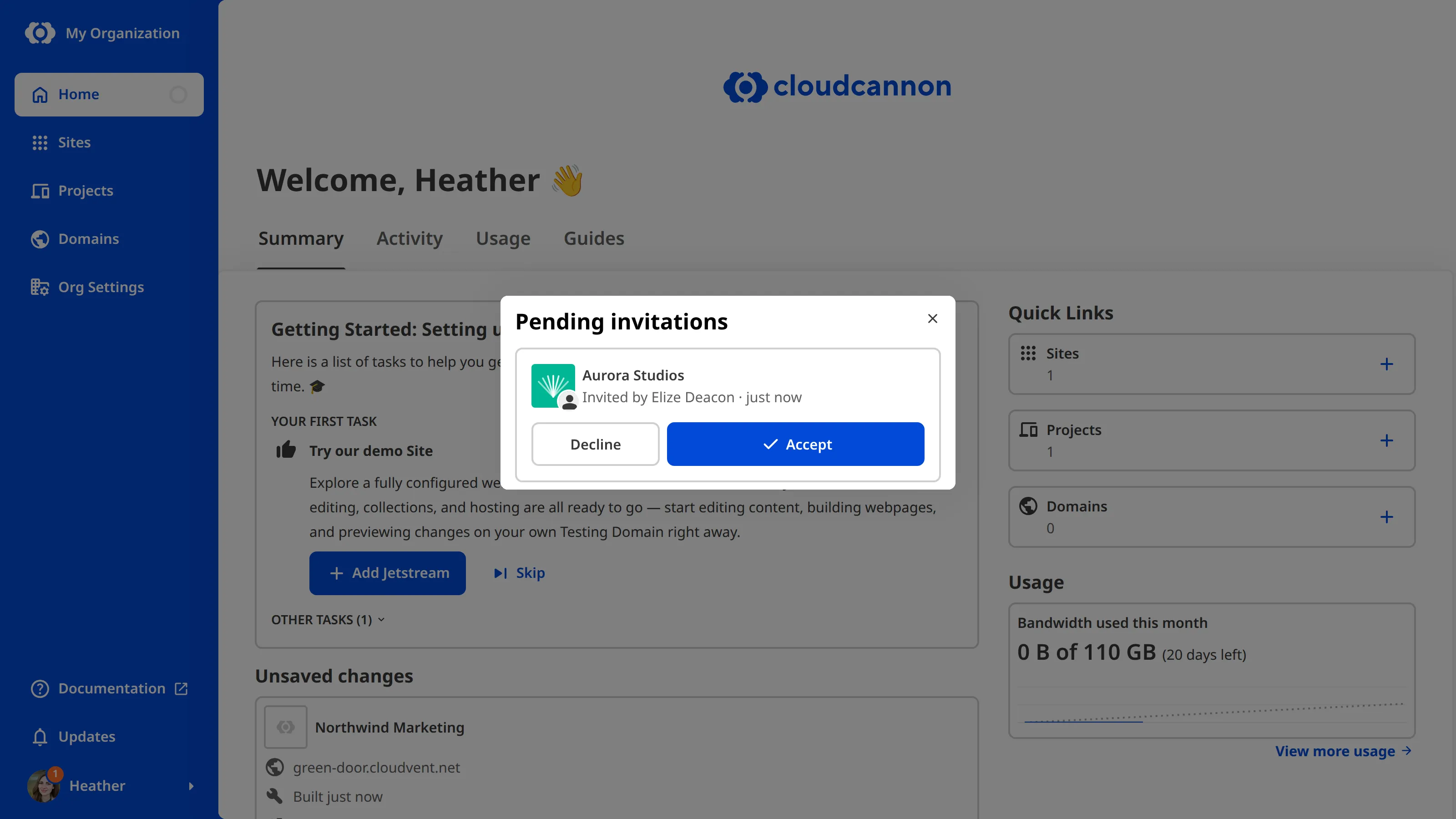
## Leave an Organization
> If you are the only **Owner** of an *Organization*, you cannot leave until you add another *Team Member* to the *Owners Permission Group*.
To leave an *Organization* in CloudCannon:
1. Navigate to the *My Permissions* page under *Org Settings*.
2. Click the *Leave Organization* button in the top right.
3. Click the *Leave Organization* button in the confirmation modal to confirm.
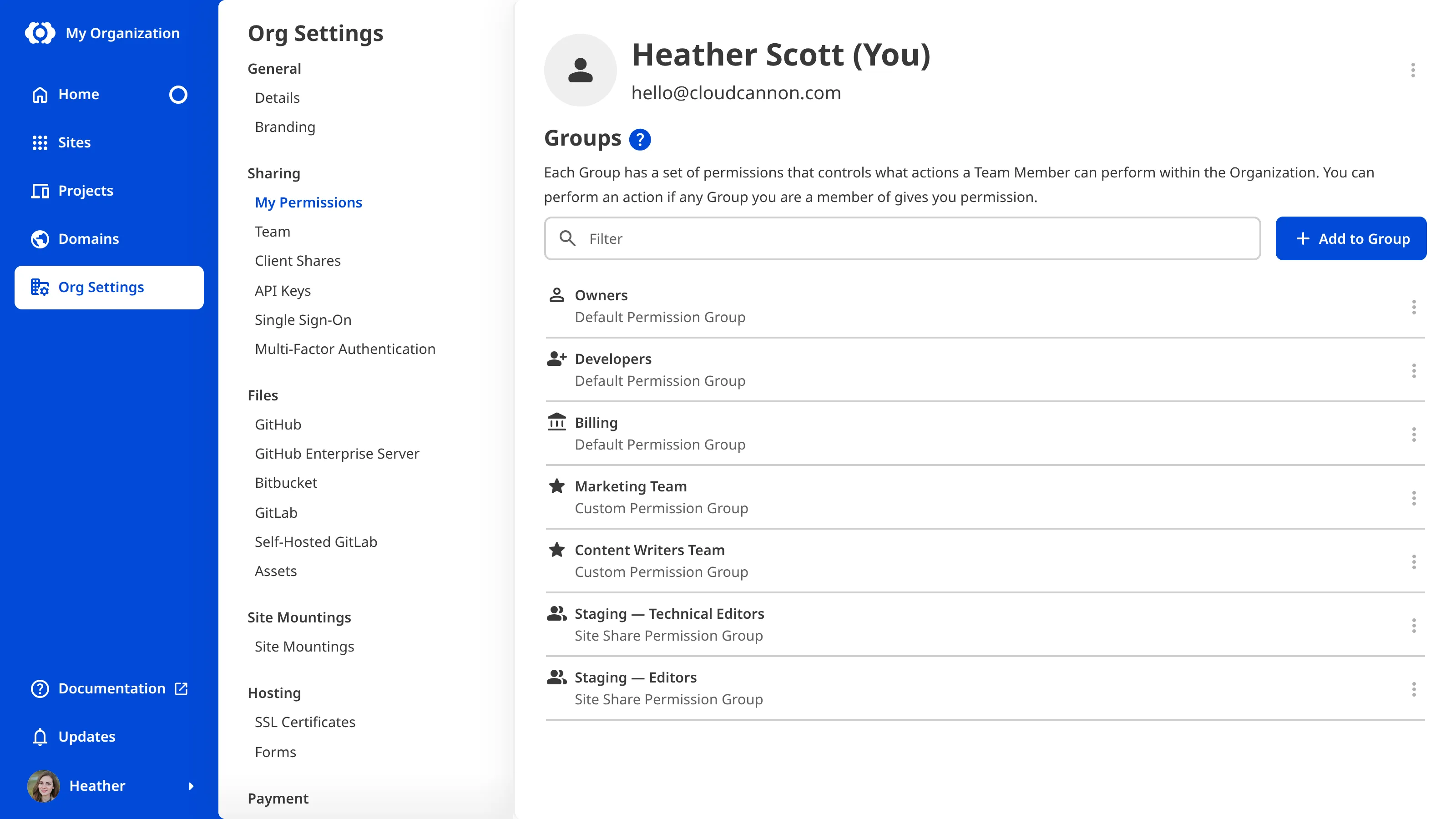
CloudCannon will remove you from this *Organization*.
---
---
title: Manage my permissions
description: Learn how to review the Permission Groups you belong to and leave a Permission Group.
url: https://cloudcannon.com/documentation/user-articles/manage-my-permissions/
content_type: user article
last_modified: 2026-07-22
---
Your **Permissions** determine what you can do in your [Organization](/documentation/user-articles/what-is-an-organization/), and they come from the [Permission Groups](/documentation/user-articles/what-are-permission-groups/) you belong to. On the *My Permissions* page under *Org Settings*, you can review the *Permission Groups* you're a member of and leave any you no longer need.
## Review my current Permission Groups
To view your current *Permissions*:
1. Navigate to the *My Permissions* page under *Org Settings*.
CloudCannon will show the *Permission Groups* you belong to.

## Leave a Permission Group
You can leave a *Permission Group* at any time. However, you may not have permission to add yourself to a *Group*. If you accidentally remove yourself from a *Permission Group*, please contact the appropriate member of your team or read our documentation on [adding a Team Member to a Permission Group](/documentation/user-articles/add-a-team-member-to-a-permission-group/).
To leave your *Organization* entirely, please read our documentation on [joining or leaving an Organization](/documentation/user-articles/join-or-leave-an-organization/).
> You must be a member of at least one *Permission Group* in each *Organization*. If you leave your last *Permission Group*, this action will also remove you from the *Organization*. If you are the only *Owner* of your *Organization*, you cannot leave the *Owners Permission Group* until you add another *Team Member* to it.
To leave a *Permission Group*:
1. Navigate to the *My Permissions* page under *Org Settings*.
2. Click the *Context Menu* on the *Permission Group* you want to leave.
3. Select the *Leave Group* option from the *Context Menu* dropdown.
4. Confirm that you want to leave this *Group* by clicking the *Leave Group* button in the confirmation modal.
CloudCannon will remove you from this *Permission Group*.
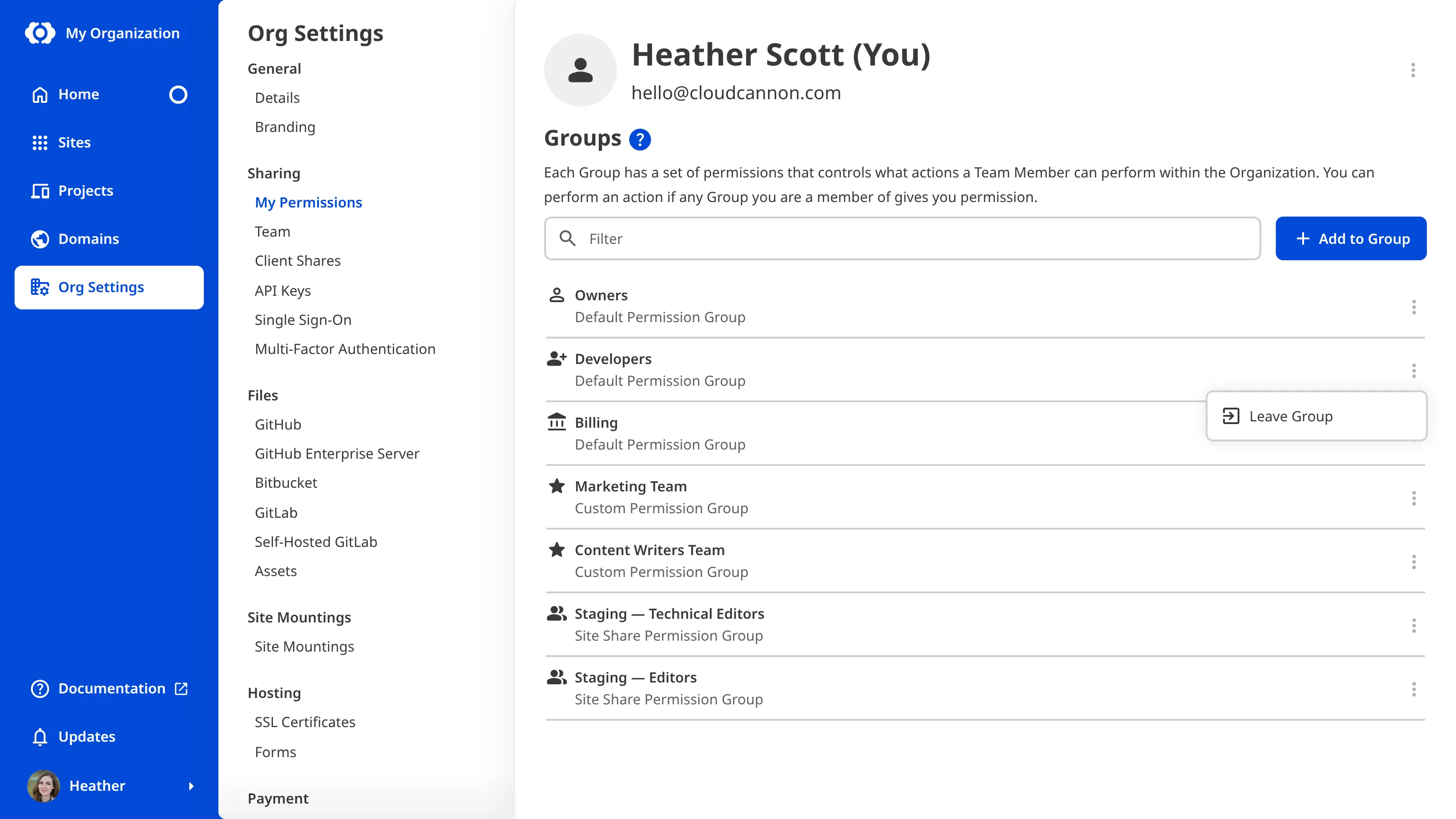
---
---
title: Manage spam form submissions
description: Learn how to manage spam form submissions in CloudCannon.
url: https://cloudcannon.com/documentation/user-articles/manage-spam-form-submissions/
content_type: user article
last_modified: 2026-04-02
---
CloudCannon runs your form submissions through a spam filter. Submissions flagged as spam are hidden from your *Sent* category.
To mark a spam submission as not spam:
1. Navigate to the *Spam* category tab in your *Inbox*.
2. Open the context menu for the submission by clicking the three dots.
3. Select *Mark as not spam*.
CloudCannon will move the submission to *Sent*.
To mark a submission as spam:
1. Open the context menu for the submission by clicking the three dots.
2. Select *Mark as spam*.
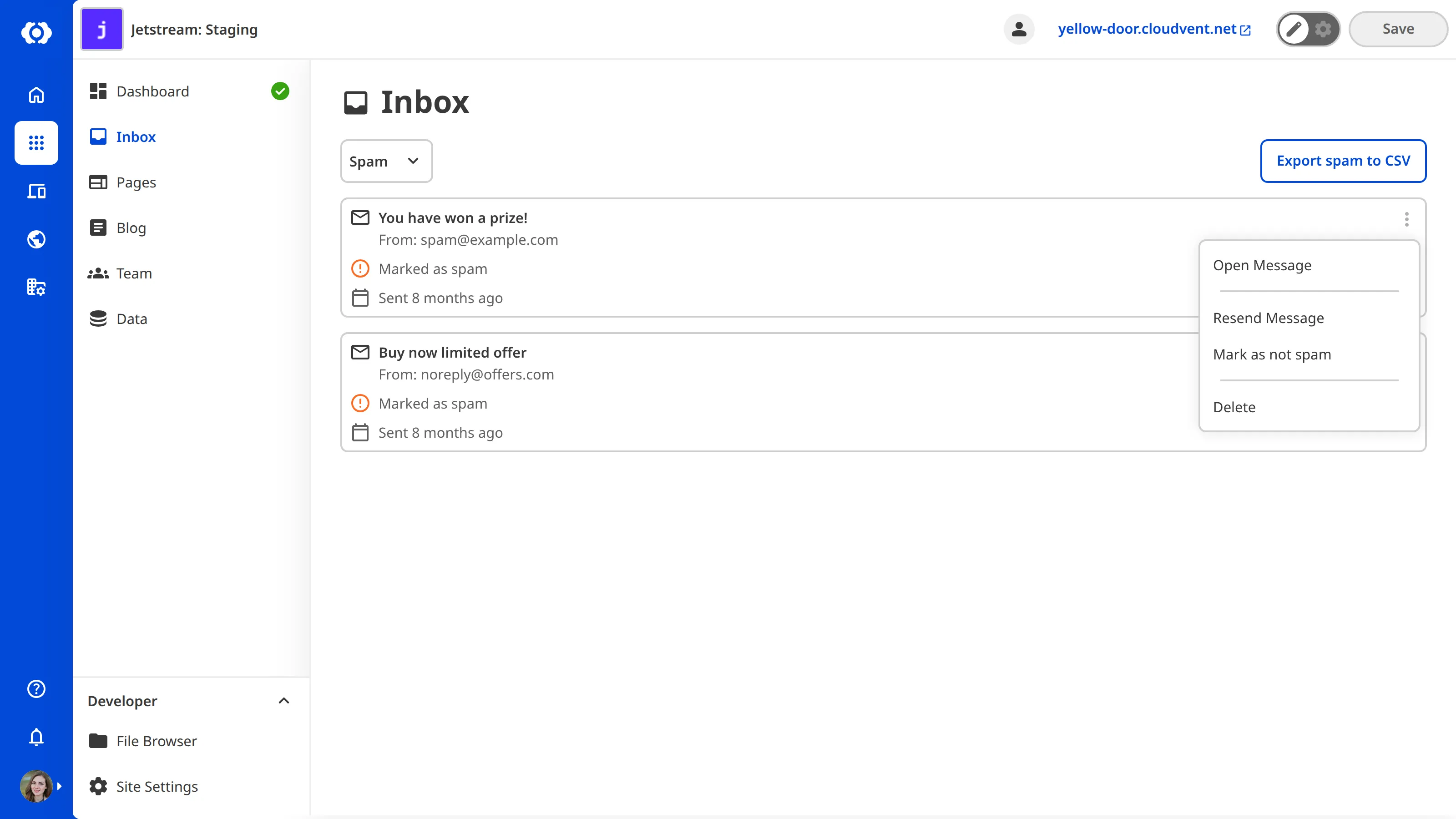
Marking submissions as spam or not spam helps the spam filter improve over time.
---
---
title: Manage your Add-Ons and Overages
description: Learn how to enable or disable Overages for your CloudCannon Organization and what happens when you reach a Subscription Plan limit.
url: https://cloudcannon.com/documentation/user-articles/manage-your-add-ons-and-overages/
content_type: user article
last_modified: 2026-08-04
---
> **Permissions required**
>
>
> Members of the *Owners* and *Billing* [Default Permission Groups](/documentation/user-articles/what-are-default-permission-groups/), or [Custom Permission Groups](/documentation/developer-articles/what-are-custom-permission-groups/) with the `org:billing:write` permission, can manage *Add-Ons* and *Overages*.
Turning **Overages** on or off controls both your **Hosting Bandwidth** and **Build Time** limits. When enabled, CloudCannon automatically extends these resources if your **Organization** exceeds the limits in your **Subscription Plan**. At the end of each month, CloudCannon will invoice you for the amount of *Overages* you used over your *Subscription Plan* limit in 1-hour or 100 GB bundles, rounded up.
For more information on the available *Overages* and what happens when you reach a limit, please read our documentation on [what Add-Ons and Overages are](/documentation/user-articles/what-are-add-ons-and-overages/).
To enable or disable *Overages*:
1. Navigate to the *Subscription* page under **Org Settings**.
2. Click the *Review your Subscription Plan* button in the billing summary. CloudCannon will open the *Your Subscription Plan* page.
3. Turn the *Overages* setting on or off.
4. Click the *Enable Overages* or *Disable Overages* button to save your change.
Your *Overage* settings will update immediately.
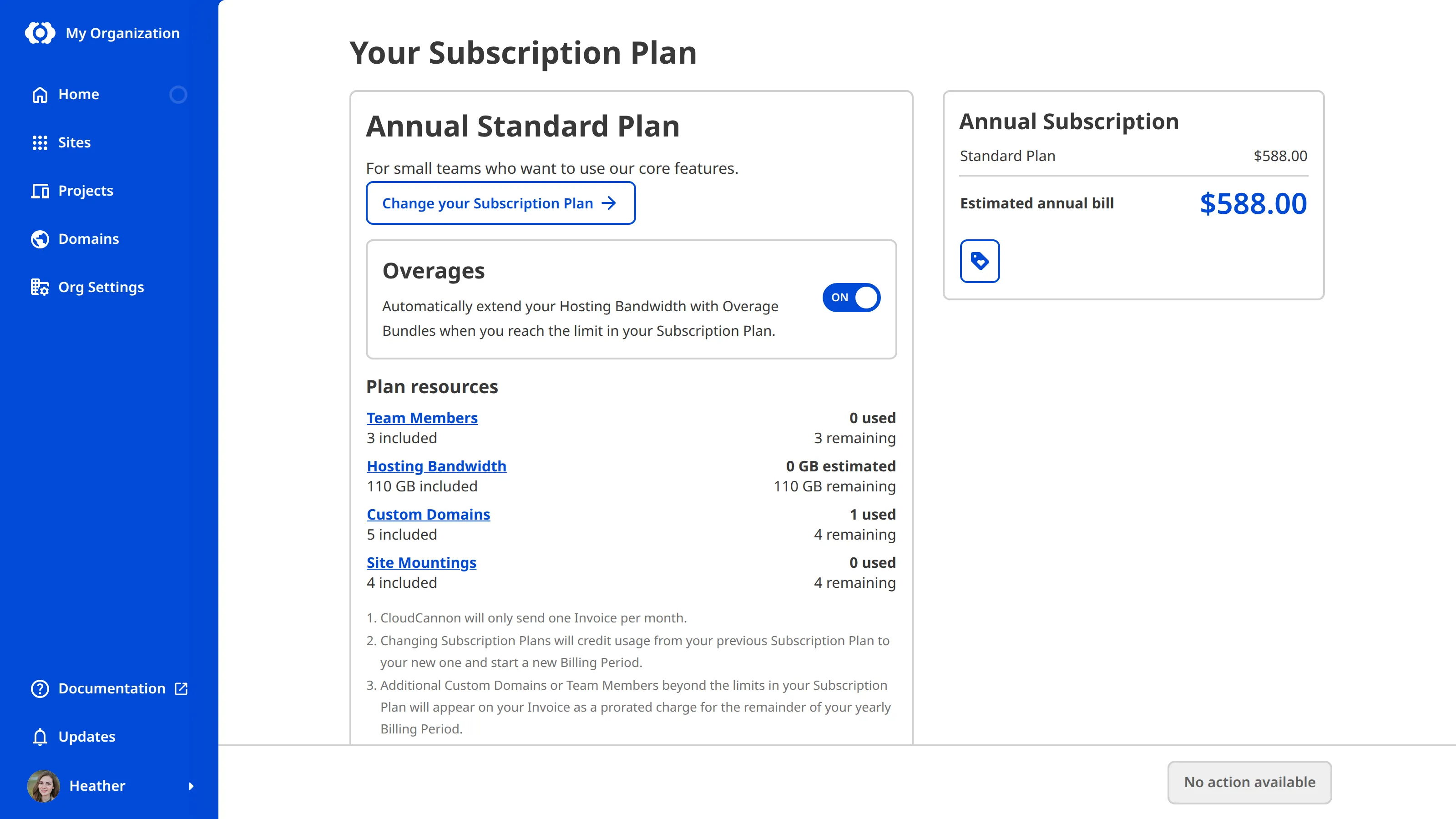
You can check what your *Subscription Plan* includes and how much you have used for each resource in the *Plan resources* section of this page.
> When *Overages* are disabled, your *Sites* go offline if you reach your bandwidth limit, and CloudCannon stops running builds once you reach your build time limit. You can still save your changes, but they will not build. Review your usage before you disable *Overages*.
---
---
title: Manage your payment methods
description: Learn how to add a credit card, switch which card CloudCannon charges, and remove a card.
url: https://cloudcannon.com/documentation/user-articles/manage-your-payment-methods/
content_type: user article
last_modified: 2026-08-04
---
> **Permissions required**
>
>
> Members of the *Owners* and *Billing* [Default Permission Groups](/documentation/user-articles/what-are-default-permission-groups/), or [Custom Permission Groups](/documentation/developer-articles/what-are-custom-permission-groups/) with the `org:billing:write` permission, can manage payment methods.
To access the features in a CloudCannon **Subscription Plan** or pay for [Add-Ons and Overages](/documentation/user-articles/what-are-add-ons-and-overages/), you must attach a credit card to your *Organization*. You can add cards, switch which card is charged, and remove cards at any time from the *Subscription* page under **Org Settings**. You cannot edit a saved card in CloudCannon. To update your card details, add a new card and remove the old one.
If a payment is declined, CloudCannon retries the credit card several times over the following weeks. If every retry fails, CloudCannon puts your *Subscription* on hold before canceling it. For more information, please read our documentation on [what happens when a payment fails](/documentation/user-articles/what-happens-when-a-payment-fails/).
> *Organizations* on the *Enterprise Plan* may have different billing arrangements organized directly with the CloudCannon team. If you have questions about your billing, please contact us via [support](https://cloudcannon.com/support/), Slack, or email.
## Add a credit card
To add a credit card to your *Organization*:
1. Navigate to the *Subscription* page under *Org Settings*.
2. Under *Billing Details*, click the *Add Credit Card* button to open the *Add your Credit Card* modal. If you already have a saved card, this button reads *Manage Credit Cards* instead. Click it, then click the *+ Add Credit Card* button.
3. Enter your card details and verify they are correct.
4. If your bank requires it, enter any *Additional info* needed to process payments.
5. Click the *Add Credit Card* button.
CloudCannon will verify your card and use it for your *Organization's* payments by default.
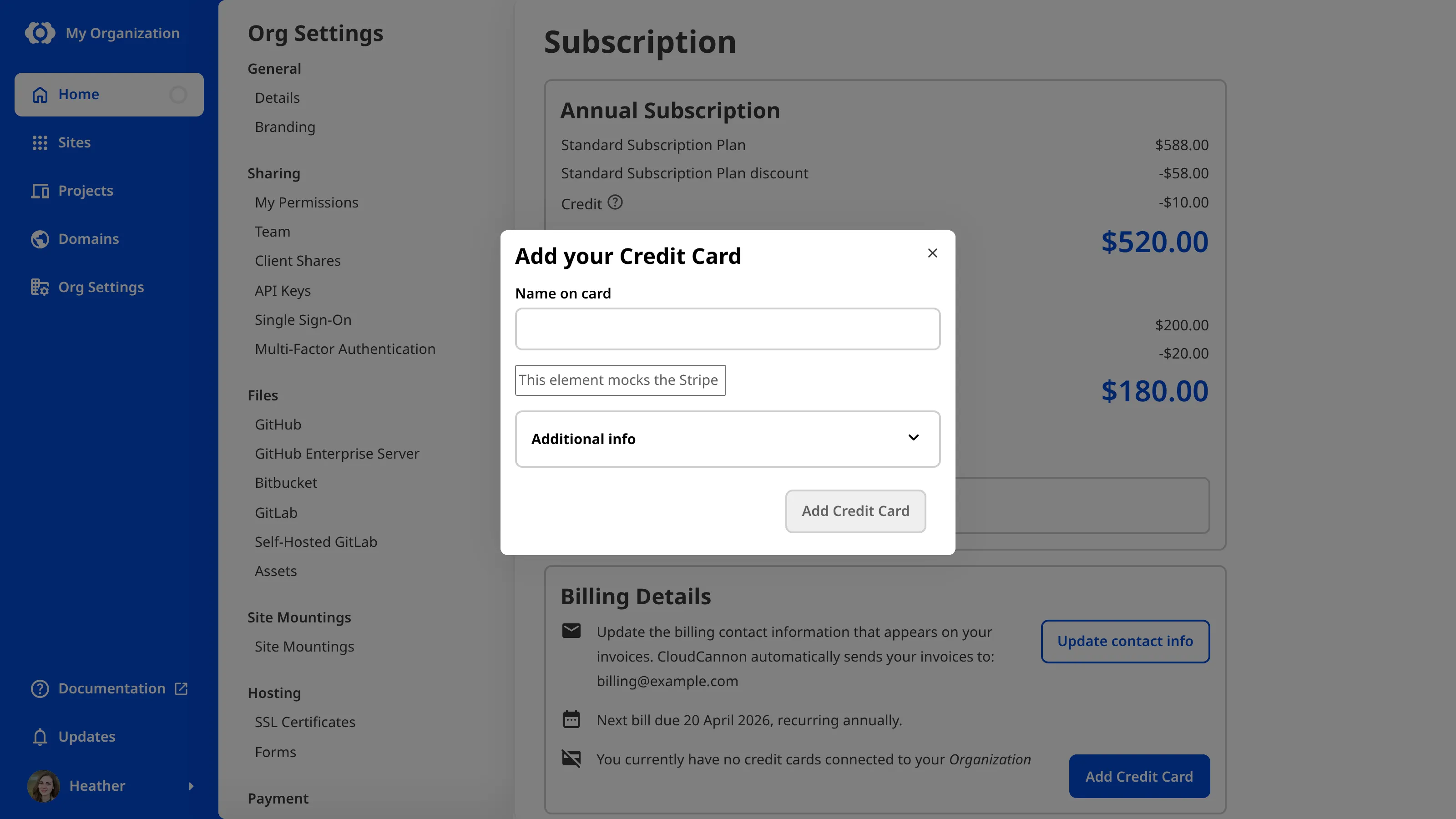
## Switch which credit card CloudCannon charges
To change which card CloudCannon charges:
1. Navigate to the *Subscription* page under *Org Settings*.
2. Click the *Manage Credit Cards* button under *Billing Details*. CloudCannon will open the *Manage Credit Cards* modal.
3. Click the *Use Card* button next to the card you want CloudCannon to charge.
CloudCannon will mark the selected card as *Currently in use* and charge it for your *Organization's* payments going forward.
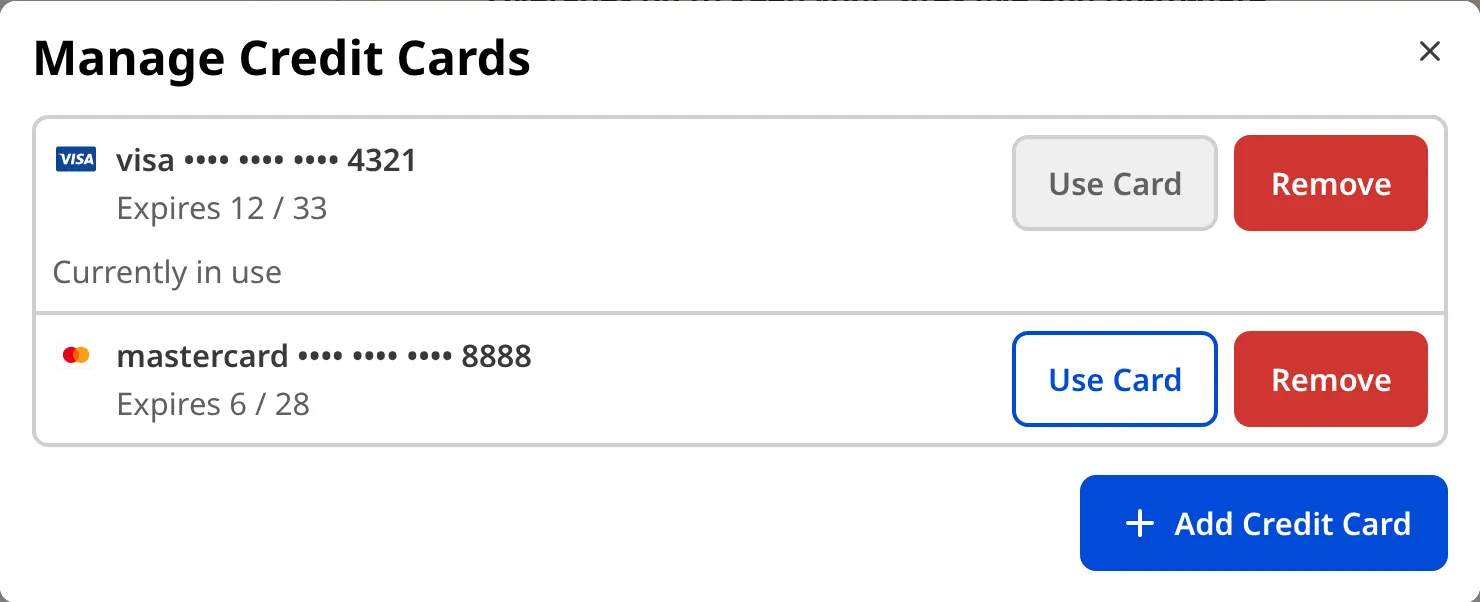
## Remove a credit card
> Keep at least one card on file. If you remove your only card, your *Organization* has no payment method and your next payment will fail. CloudCannon does not warn you before you remove your last card.
To remove a credit card from your *Organization*:
1. Navigate to the *Subscription* page under *Org Settings*.
2. Click the *Manage Credit Cards* button under *Billing Details*. CloudCannon will open the *Manage Credit Cards* modal.
3. Click the *Remove* button next to the card you want to delete.
CloudCannon will remove the card straight away. If you remove the card currently in use, CloudCannon will automatically charge another saved card for your *Organization's* payments.
---
---
title: Publish changes to a Publish Branch
description: Learn how to publish saved changes from your Site to its Publish Branch in CloudCannon, including what happens for Merge Immediately and Pull Request Publishing Methods.
url: https://cloudcannon.com/documentation/user-articles/publish-changes-to-a-publish-branch/
content_type: user article
last_modified: 2026-06-03
---
> **Permissions required**
>
> Members of the *Editors* and *Technical Editors* [Default Permission Groups](/documentation/user-articles/what-are-default-permission-groups/), or [Custom Permission Groups](/documentation/developer-articles/what-are-custom-permission-groups/) with the `site:publish:write` permission, can publish changes from a *Site* to its *Publish Branch*.
Publishing sends your saved changes from a **Site** to its **Publish Branch**. For more information, please read our documentation on [what publishing is](/documentation/user-articles/what-is-publishing/).
These instructions assume your *Site* has a connected *Publish Branch*, saved changes ready to publish, and you have updated your *Site* from its *Publish Branch*.
The steps below cover both *Publishing Methods*. The button on the *Publishing State Card* is *Publish* on *Sites* using *Merge Immediately*, or *Create Pull Request* on *Sites* using *Pull Request*. Steps 2 and 4 only apply to *Sites* using the *Pull Request* *Publishing Method*.
To publish your changes:
1. Click the *Publishing* link in the *Site Navigation*. CloudCannon will open the *Publishing* page.
2. (Optional, *Pull Request* only.) Fill out the *Title* and *Body* text fields to describe the changes on this *Site*.
3. Click the *Publish* or *Create Pull Request* button on the *Publishing State Card*.
4. (Optional, *Pull Request* only.) Once your *Pull Request* is approved on your *Git Provider*, click the *Publish pull request* button to merge it.
CloudCannon will move your saved changes from your current *Site* to its *Publish Branch*.


How your changes move from one *Site* to another will depend on which *Publishing Method* your *Site* uses. For more information, please read our documentation on [what Publishing Methods are](/documentation/user-articles/what-are-publishing-methods/).
---
---
title: Recover access to your Organization
description: Learn how to regain access to a CloudCannon Organization when the only Owner has left or is unreachable.
url: https://cloudcannon.com/documentation/user-articles/recover-access-to-your-organization/
content_type: user article
last_modified: 2026-09-10
---
If the only **Owner** of an **Organization** has left or become unreachable, you may need to recover access before anyone can manage the *Organization* again. How you recover access depends on whether you can still sign in to the original *Owner*'s account.
> This article covers recovering an *Organization* when its only *Owner* is gone. If you're locked out of your own account, such as after losing your **multi-factor authentication** device, please read our documentation on [generating new recovery codes](/documentation/user-articles/generate-new-recovery-codes/). If an agency set up and manages your *Organization*, please read our documentation on [taking over an Organization from a partner](/documentation/user-articles/take-over-your-organization-from-a-partner/).
The best protection is to avoid this situation altogether: keep more than one person in the **Owners Permission Group**, so ownership never depends on a single account. To set this up before an *Owner* leaves, please read our documentation on [transferring ownership of an Organization](/documentation/user-articles/transfer-ownership-of-an-organization/).
## Reset the password on the Owner's account
*Organizations* are often created with a shared company email address, such as `example@yourcompany.com`. If you can still receive email at that address, you can reset the password and sign in. To reset the password:
1. Open the [forgotten password form](https://app.cloudcannon.com/users/password/new).
2. Enter the email address on the *Owner*'s account.
3. Set a new password using the reset link CloudCannon sends you.
4. Sign in to the *Owner*'s account.
5. Add another person to the *Owners Permission Group*.
Your *Organization* now has more than one *Owner*, so access no longer depends on a single account. If the person you want to add isn't in your *Organization* yet, please read our documentation on [adding a team member to your Organization](/documentation/user-articles/add-a-team-member-to-your-organization/) and [adding a team member to a Permission Group](/documentation/user-articles/add-a-team-member-to-a-permission-group/).
If the *Owner*'s account has multi-factor authentication enabled and you don't have the device, resetting the password won't let you sign in. Ask our support team to help instead, as described below.
## Ask CloudCannon to transfer ownership
If you can't sign in to the original *Owner*'s account or receive its email, recovering ownership requires identity verification that only our support team can carry out. [Contact our support team](https://cloudcannon.com/support/) to request an ownership transfer, and have ready:
- your *Organization* name
- the email address on the *Owner*'s account
- proof of your connection to the *Organization*, such as an invoice number
If our support team can't confirm your identity and your connection to the *Organization*, they may be unable to transfer ownership.
---
---
title: Remove a Team Member from a Permission Group
description: Learn how to remove a Team Member from a Permission Group.
url: https://cloudcannon.com/documentation/user-articles/remove-a-team-member-from-a-permission-group/
content_type: user article
last_modified: 2026-07-22
---
> **Permissions required**
>
> Members of the *Owners* and *Developers* [Default Permission Groups](/documentation/user-articles/what-are-default-permission-groups/), or [Custom Permission Groups](/documentation/developer-articles/what-are-custom-permission-groups/) with the `group:member:write` permission, can remove *Team Members* from a *Permission Group*.
The [Permission Groups](/documentation/user-articles/what-are-permission-groups/) a [Team Member](/documentation/user-articles/what-is-a-team-member/) belongs to determine what they can do in your [Organization](/documentation/user-articles/what-is-an-organization/). *Permission Groups* are additive, so removing a *Team Member* from a *Group* revokes that *Group's* *Permissions* while leaving any they still have from other *Groups*.
To remove a *Team Member* from your *Organization* entirely, please read our documentation on [removing a Team Member from your Organization](/documentation/user-articles/remove-a-team-member-from-your-organization/).
> Each *Team Member* in your *Organization* must be a member of at least one [Permission Group](/documentation/user-articles/what-are-permission-groups/). If you remove a *Team Member* from the last *Permission Group* they were a member of, this action will also remove them from your *Organization*. You cannot remove the only *Owner* from the *Owners Permission Group*.
There are two ways to remove a *Team Member* from a *Permission Group*. The best method to use will depend on whether you want to:
- Remove a specific *Team Member* from multiple *Permission Groups*.
- Remove multiple *Team Members* from a specific *Permission Group*.
> Only members of the [Owners Permission Group](/documentation/user-articles/what-are-default-permission-groups/#owners) can update the members of the *Owners Group*.
## Remove a specific Team Member from Permission Groups
To remove a specific *Team Member* from one or more *Permission Groups*:
1. Navigate to the *Team* page under *Org Settings*.
2. Under the *Members* tab, click on the member you want to remove from a *Permission Group*. This will open their *Team Member* page.
3. Click the *Context Menu* on the *Permission Group* from which you want to remove this *Team Member*.
4. Select the *Remove from Group* option from the *Context Menu* dropdown.
5. Confirm that you want to remove this *Team Member* from this *Group* by clicking the *Remove from Group* button in the confirmation modal.
CloudCannon will remove the *Team Member* from this *Permission Group*.
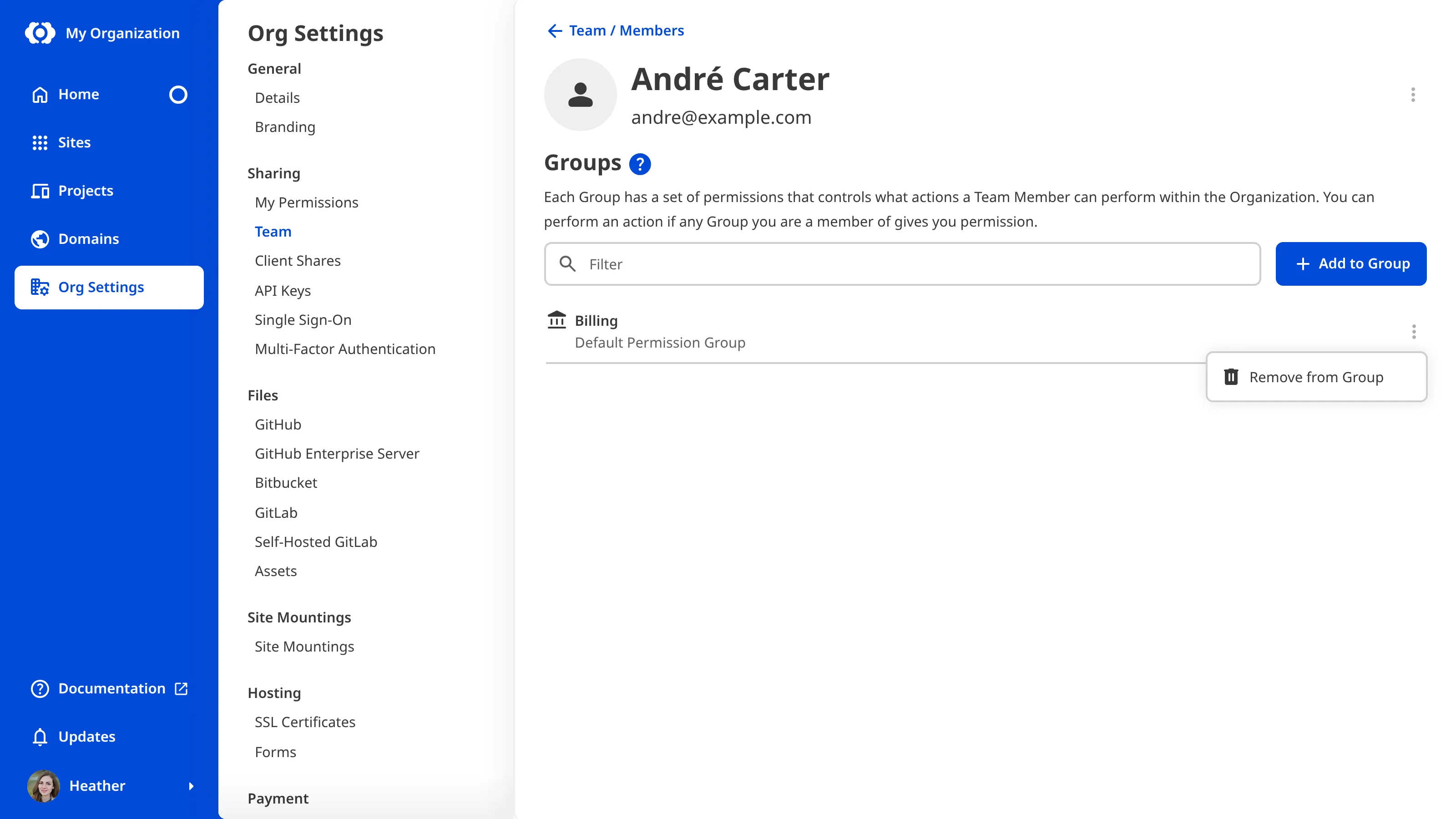
## Remove Team Members from a specific Permission Group
To remove a *Team Member* from a specific *Permission Group*:
1. Navigate to the *Team* page under *Org Settings*.
2. Click on the *Groups* tab.
3. Under the *Groups* tab, click on the *Permission Group* from which you want to remove members. This will open the *Permission Group* page.
4. Click the *Context Menu* on the *Team Member* you want to remove from this *Group*.
5. Select the *Remove from Group* option from the *Context Menu* dropdown.
6. Confirm that you want to remove this *Team Member* from this *Group* by clicking the *Remove from Group* button in the confirmation modal.
CloudCannon will remove the *Team Member* from this *Permission Group*.
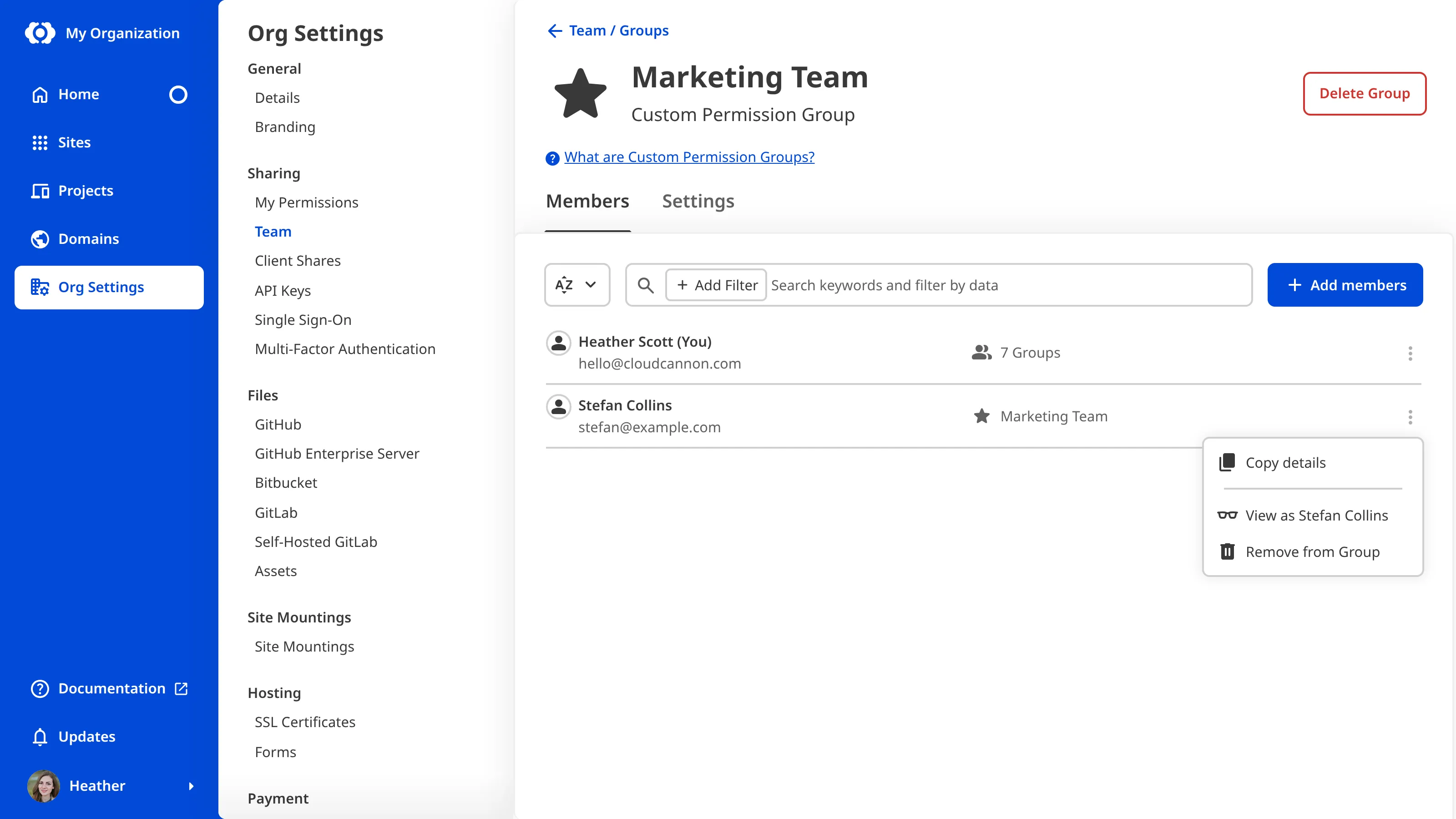
---
---
title: Remove a Team Member from your Organization
description: Learn how to remove a Team Member from your Organization.
url: https://cloudcannon.com/documentation/user-articles/remove-a-team-member-from-your-organization/
content_type: user article
last_modified: 2026-09-10
---
> **Permissions required**
>
> Members of the *Owners* and *Developers* [Default Permission Groups](/documentation/user-articles/what-are-default-permission-groups/), or [Custom Permission Groups](/documentation/developer-articles/what-are-custom-permission-groups/) with the `group:member:write` permission, can remove *Team Members* from your *Organization*.
When someone no longer needs access to your **Organization**, you can remove them as a **Team Member**. This revokes their access and removes them from every *Permission Group* they belong to.
To leave an *Organization* yourself rather than remove someone else, please read our documentation on [joining or leaving an Organization](/documentation/user-articles/join-or-leave-an-organization/).
To remove a *Team Member* from your *Organization*:
1. Navigate to the *Team* page under *Org Settings*.
2. Under the *Members* tab, click the *Team Member* you want to remove from this *Organization*.
3. Click the *Remove from Organization* button in the top right of the *Team Member* page.
4. Click the *Remove from Organization* button in the confirmation modal to confirm.
CloudCannon will remove the *Team Member* from your *Organization*.
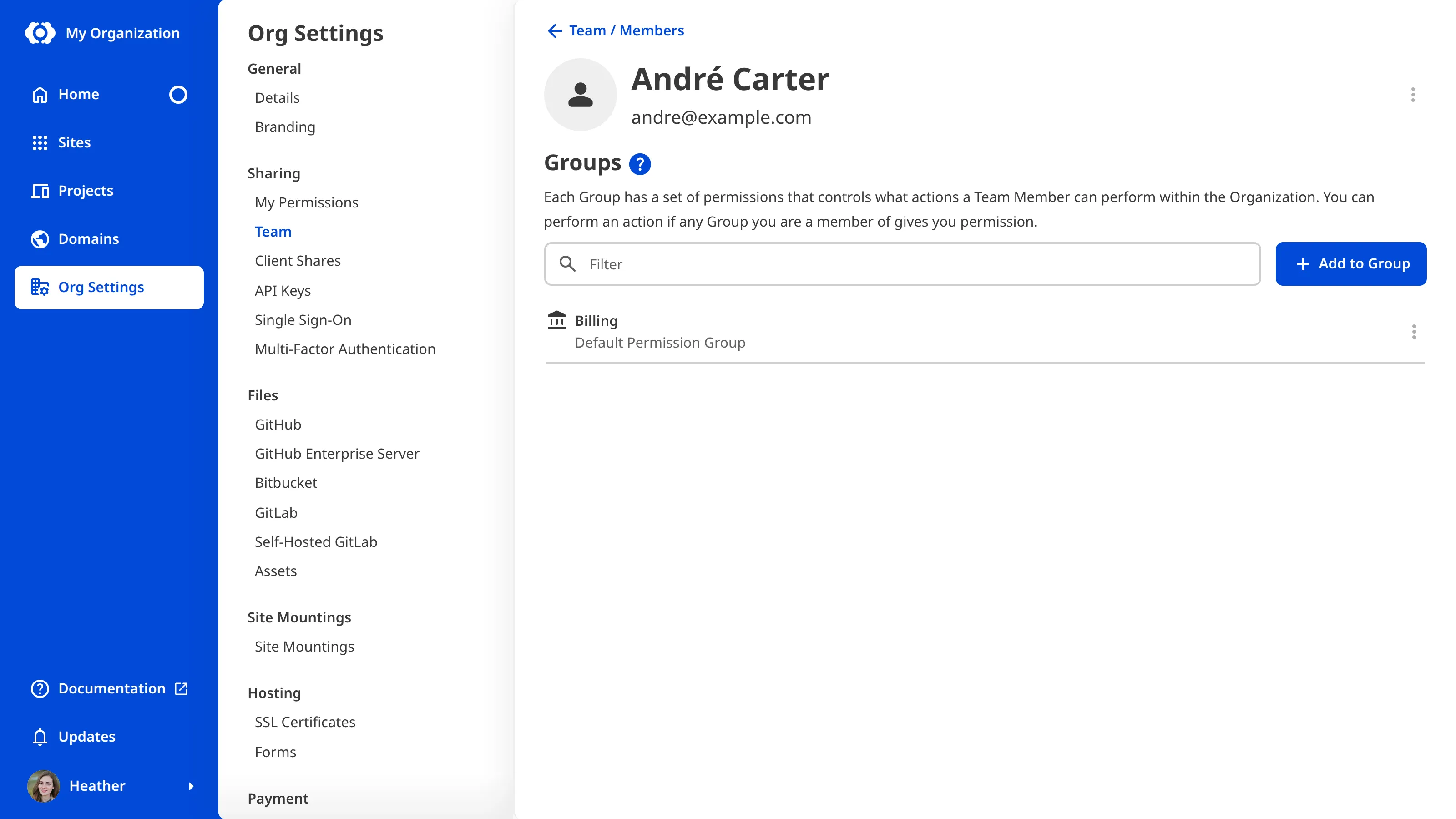
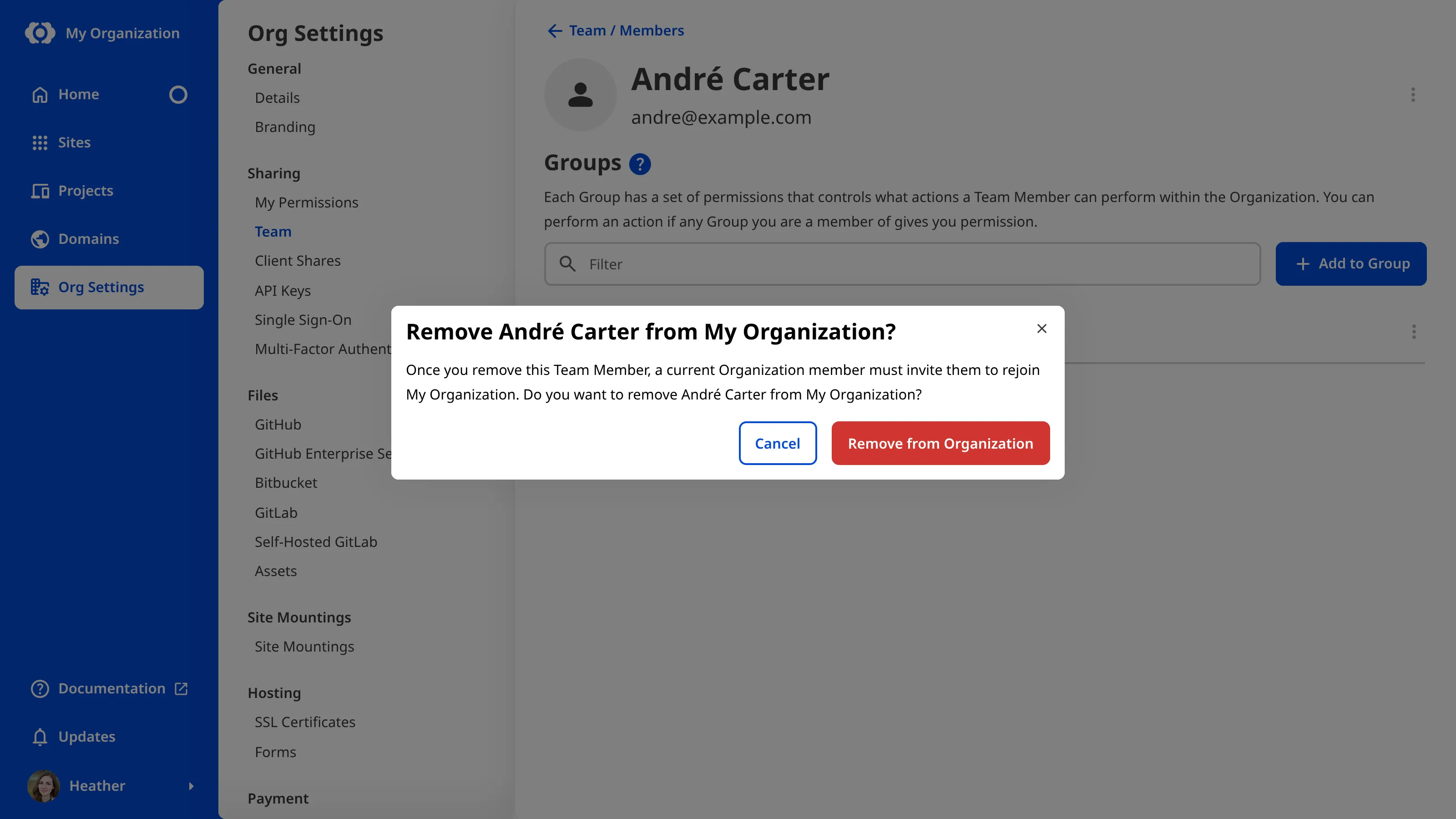
Alternatively, you can remove a *Team Member* from the *Team* page by clicking the *Context Menu* in the top right of a member card and selecting *Remove from Organization*.
> Your **Subscription Plan** includes a set number of *Team Members*, but you can pay for extra seats if you need to invite more. Removing a *Team Member* will only lower your bill if they used an additional seat. Unlike adding a *Team Member*, removing one does not show a billing confirmation modal.
You can remove multiple people from your *Organization* at once by deleting a *Permission Group*. This only works if:
- You have *Custom Permission Groups*, AND
- All the *Team Members* you want to remove from your *Organization* are only members of a single *Permission Group*.
For more information, please read our documentation on [what Custom Permission Groups are](/documentation/developer-articles/what-are-custom-permission-groups/).
To check that a removal worked, you can export an *Access Review* and look for the person's email address. For more information, please read our documentation on [exporting your Access Review](/documentation/user-articles/export-your-access-review/).
---
---
title: Rename your Organization
description: Learn how to rename your Organization in CloudCannon from the Details page of Org Settings.
url: https://cloudcannon.com/documentation/user-articles/rename-your-organization/
content_type: user article
last_modified: 2026-07-22
---
> **Permissions required**
>
> Members of the *Owners* and *Developers* [Default Permission Groups](/documentation/user-articles/what-are-default-permission-groups/), or [Custom Permission Groups](/documentation/developer-articles/what-are-custom-permission-groups/) with the `org:settings:details:write` permission, can rename an *Organization*.
Your **Organization**'s name appears across CloudCannon, including at the top of the **App Sidebar** and in the *Switch Organization* menu. You manage your *Organization*'s name from the *Details* page of *Org Settings*, which you open from the *App Sidebar*.
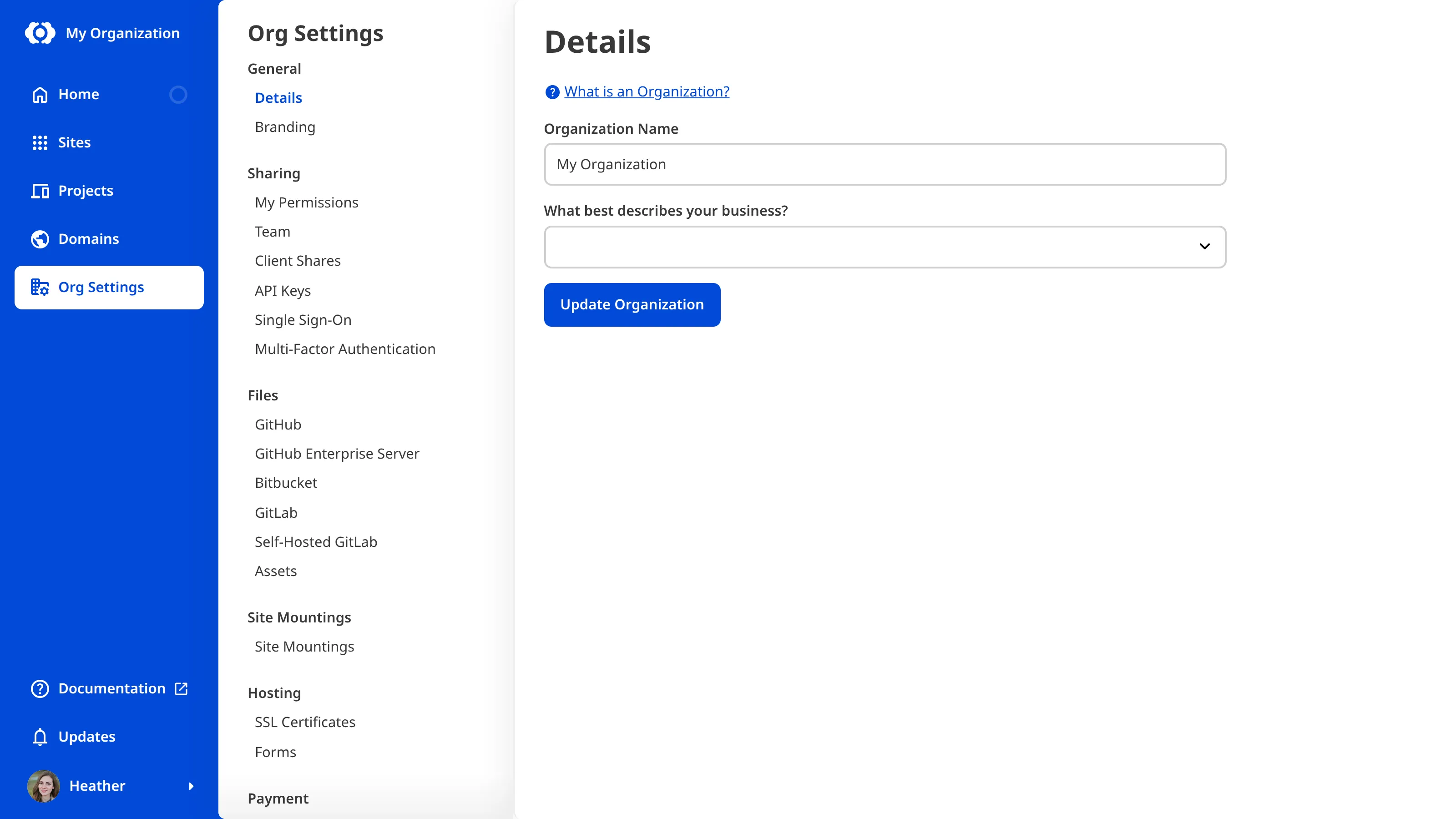
To rename your *Organization*:
1. Navigate to the *Details* page under *Org Settings*.
2. Update the name in the *Organization Name* field.
3. Click *Update Organization* to confirm.
CloudCannon will save the new name and update it everywhere your *Organization* appears.
To customize your *Organization*'s brand color, badge, and logo, please read our documentation on [customizing your Organization branding](/documentation/user-articles/customize-your-organization-branding/).
---
---
title: Resend errored form submissions
description: Learn how to resend errored form submissions in CloudCannon.
url: https://cloudcannon.com/documentation/user-articles/resend-errored-form-submissions/
content_type: user article
last_modified: 2026-04-02
---
Sometimes a submission fails to send to one or more targets. These submissions appear in the *Errored* category. A common reason for errored submissions is an incorrectly configured target. For more information, please read our documentation on [connecting your Site to an Inbox](/documentation/developer-articles/connecting-your-site-to-an-inbox/).
To resend an errored submission:
1. Navigate to the *Errored* category tab in your *Inbox*.
2. Open the context menu for the submission by clicking the three dots.
3. Select *Resend*.
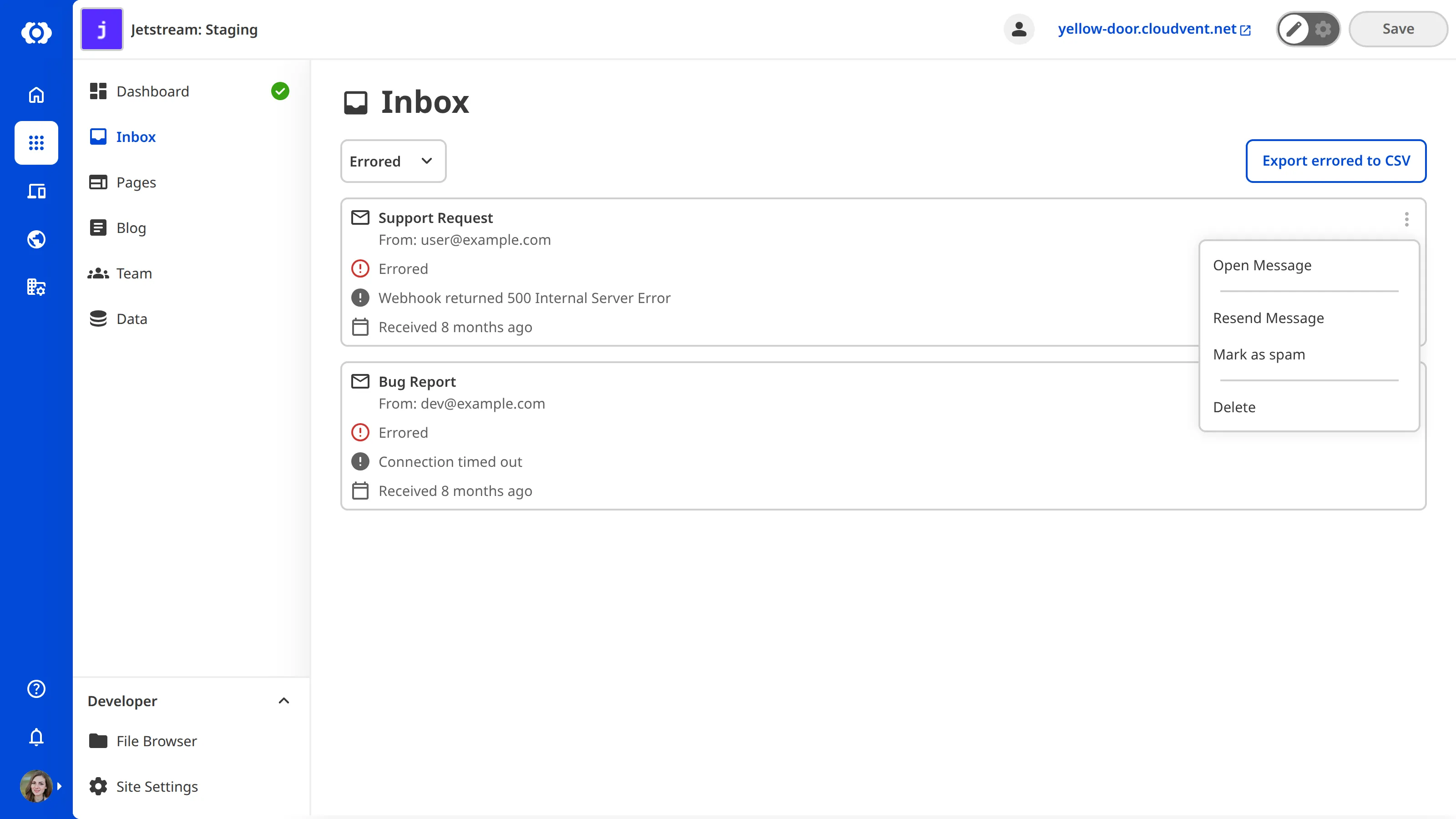
---
---
title: Resolve ownership over a Custom Domain
description: Learn how to resolve ownership conflicts when another Organization is using a Custom Domain you own.
url: https://cloudcannon.com/documentation/user-articles/resolve-ownership-over-a-custom-domain/
content_type: user article
last_modified: 2026-07-22
---
Occasionally a **Custom Domain** you own ends up connected to a CloudCannon **Organization** you no longer control, such as after a team dispute or a lapsed agency relationship. If you can still reach the other *Organization*, the quickest fix is for them to transfer the **Site** to you, which moves the domain and its SSL certificate at the same time. For more information, please read our documentation on [transferring a Site between Organizations](/documentation/user-articles/transfer-a-site-between-organizations/).
If you can't reach the *Organization* currently using the domain, CloudCannon's support team can help you recover the domain once you prove you own it.
It is important to note two things:
- If you use a **Git Repository** or storage provider, your website files are safely stored there. Losing access to a *Custom Domain* will not affect that. For this reason, we highly recommend connecting a *Git Provider* when you create your *Site*.
- How you prove you own the domain depends on whether you use *CloudCannon DNS* or *External DNS*.
## When to contact support
Contact our [support team](https://cloudcannon.com/support/) if a *Custom Domain* you own is connected to an *Organization* you can't reach or no longer control. Have ready:
- the domain name
- access to your domain registrar, and to your DNS provider if you use *External DNS*
Support will tell you how to prove you own the domain. The exact method depends on how your domain's DNS is configured. If you use *External DNS*, support will give you a TXT record to add at your DNS provider; being able to add it demonstrates you own the domain. If you use *CloudCannon DNS*, the DNS records sit inside the *Organization* you can't reach, so you prove ownership through your domain registrar rather than through CloudCannon.
## Recreate your Site
Once CloudCannon's support team transfers the domain to an *Organization* you control, a developer can recreate your *Site* from your files and re-host it on the domain. For more information, please read our documentation on [getting started with CloudCannon](/documentation/developer-guides/getting-started-with-cloudcannon/) and [adding a Custom Domain to your Site](/documentation/developer-articles/add-a-custom-domain-to-your-site/).
---
---
title: Resolve Publishing Conflicts
description: Learn how to resolve a Publishing Conflict when updating your Site from its Publish Branch.
url: https://cloudcannon.com/documentation/user-articles/resolve-publishing-conflicts/
content_type: user article
last_modified: 2026-06-03
---
> **Permissions required**
>
> Members of the *Owners*, *Developers*, or *Technical Editors* [Default Permission Groups](/documentation/user-articles/what-are-default-permission-groups/), or [Custom Permission Groups](/documentation/developer-articles/what-are-custom-permission-groups/) with the `site:source-editor:write` and `site:publish:upstream:write` permissions, can resolve *Publishing Conflicts*.
*Publishing Conflicts* occur when changes to a file on your *Site* conflict with incoming changes to the same file from your [Publish Branch](/documentation/user-articles/what-is-publishing/). CloudCannon can detect *Publishing Conflicts* after you try to [update your Site from its Publish Branch](/documentation/user-articles/update-from-a-publish-branch/).
> To prevent CloudCannon from detecting *Publishing Conflicts* while someone is editing your *Site*, you cannot attempt to update from your *Publish Branch* while you have unsaved changes.
CloudCannon will alert you if it detects a *Publishing Conflict* with the *Conflicts* notification on the *Publishing* link in your *Site Navigation*. Clicking on the *Publishing* link will take you to the *Publishing* page, where CloudCannon lists all files with incoming changes, including files with conflicts.

After CloudCannon has detected a *Publishing Conflict*, you cannot publish to your *Publish Branch* or save your files until you resolve the conflict by merging the conflicting changes in affected files or abandon the update attempt.
These instructions assume that CloudCannon has detected a *Publishing Conflict* after you attempted to [update your Site from its Publish Branch](/documentation/user-articles/update-from-a-publish-branch/).
To merge conflicted files:
1. Navigate to the *Publishing* page by clicking the *Publishing* link in your *Site Navigation*.
2. Identify which files have conflicts. These files will have the *Conflict* file badge.
3. Click on a conflicted file. CloudCannon will open the *Source Editor* to display the file contents and highlight the conflicted sections. CloudCannon will highlight the changes to the file from your current branch in red and the incoming changes from the *Publish Branch* in green.
4. Select which changes you want to keep by clicking the *Use current* or *Use incoming* buttons to replace one change with another, or clicking into the *Source Editor* to make a hybrid of the changes manually.
5. (Optional.) Click the *Scroll to next conflict* button to move to the next conflict in a file with multiple conflicts.
6. Click the *Mark resolved* button after resolving all conflicts in a file.
7. Repeat steps 3 - 6 for each conflicted file.
8. Click the *Update from Publish Branch* button when you have resolved all conflicted files.
CloudCannon will complete the update from your *Publish Branch*, including all resolved and unaffected files.


## Abandon an update attempt
You can abandon the update attempt if you do not want to resolve your *Publishing Conflicts* immediately. Abandoning an update attempt will allow you to save new changes to your *Site* and dismiss the warnings about *Publishing Conflicts*. However, you will lose all your current unsaved changes.
> Avoid editing your files after CloudCannon detects a *Publishing Conflict*. Abandon the update attempt to continue editing, or wait until after the conflicts are resolved.
You can abandon a merge attempt at any time. However, you must still resolve all *Publishing Conflicts* before you can publish changes from this *Site* to your *Publish Branch*. CloudCannon will remind you about any *Publishing Conflicts* the next time you try to publish from this *Site* or update from your *Publish Branch*.
To abandon the update attempt:
1. Navigate to the *Publishing* page by clicking the *Publishing* link in your *Site Navigation*.
2. Click the *Abandon update attempt* button. CloudCannon will open the *Abandon your update attempt?* modal.
3. Confirm your choice by clicking the *Abandon update attempt* button.
CloudCannon will return to the app state before you attempted to update from your *Publish Branch*.

## *Publishing Conflicts* CloudCannon cannot resolve
In some cases, CloudCannon cannot resolve a *Publishing Conflict*. If CloudCannon detects a *Publishing Conflict* that you cannot solve in the *Source Editor* (e.g., a conflict in an image file), a warning notification will appear on the *Publishing* page.
In this case, CloudCannon will immediately abandon the attempt to update your *Site* from its *Publish Branch*.
You cannot publish to your *Publish Branch* until you resolve the conflict in your local development environment.
You can find more information about the conflict in your most recent Syncing log on the *Syncs* tab of the *Status* page.
---
---
title: Resume Syncing
description: Learn how to address conflicting updates in CloudCannon so you can save your changes when two sources attempt to update the same file.
url: https://cloudcannon.com/documentation/user-articles/resume-syncing/
content_type: user article
last_modified: 2026-03-23
---
If an incoming change from your Git repository affects a file with unsaved changes, CloudCannon will [pause Syncing](/documentation/user-articles/why-is-syncing-paused/) to prevent incoming changes from overwriting your unsaved changes.
> Currently, you cannot use CloudCannon to read incoming changes before you resume Syncing. Please speak to your developer to determine the incoming changes to your files.
CloudCannon will notify you about a Syncing Conflict using the *Syncing paused* warning notification above the *Save* button in your *Site Navigation*.

Before you can save any changes to unaffected files, you must allow CloudCannon to resume Syncing by saving the files with incoming changes.
To resolve a Syncing Conflict:
1. Click the *Save* button. CloudCannon will open the *Review changes* modal.
2. Select all affected files. These will be highlighted in orange.
3. Click either the *Save selected* or the *Discard selected* button.
CloudCannon will save or discard your unsaved changes, then proceed with updating your files using the incoming changes.
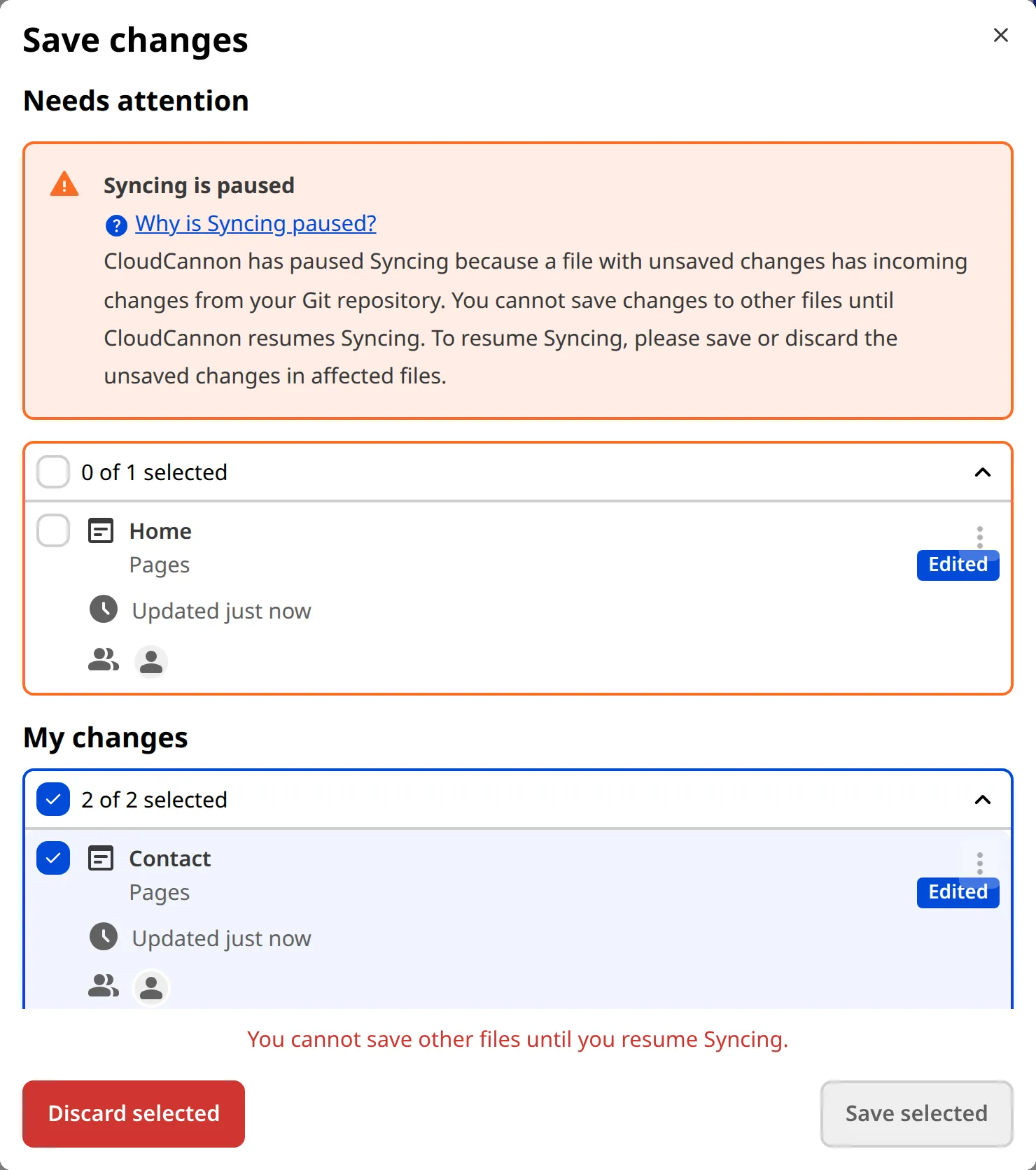
> When you resume Syncing by saving or discarding files with incoming changes, you can also select unaffected files and apply the same action. However, you cannot select only unaffected files. You must save or discard unsaved changes to all files with incoming changes before CloudCannon will allow you to save changes to unaffected files.
In some cases, CloudCannon will be unable to update your Site with the incoming changes even after you try to resume Syncing by saving your changes. For more information, please read our documentation on [resolving Syncing Errors](/documentation/developer-articles/resolve-syncing-errors/).
---
---
title: Save your changes
description: Learn how to save your changes in CloudCannon, see the changes live on your site, and commit to your Git repository.
url: https://cloudcannon.com/documentation/user-articles/save-your-changes/
content_type: user article
last_modified: 2026-03-29
---
Whenever you [edit your files](/documentation/user-articles/edit-your-files/), CloudCannon will remember any updates you make in-app. To see your updates live on your site or commit them to your Git repository, you must save your changes.
Any team member can review and save file changes, even if they did not contribute to those edits.
> It is important to save your changes often, as unsaved changes can prevent other updates to your site. We recommend saving your site after every editing session.

To save your changes:
1. Click the *Save* button in the *Site navigation* sidebar or the top right of your editing interface. CloudCannon will open the *Review changes* modal.
2. Review all unsaved changes and select the files you would like to save. Any file you contributed to will be selected by default.
3. Once you are happy with your selection, click the *Save selected* button.
CloudCannon will rebuild your site and commit your changes to your Git repository. Once the build is complete, your changes will be live on your [Testing Domain](/documentation/user-articles/what-is-a-testing-domain/) and any [Custom Domain connected to your site](/documentation/developer-articles/what-is-a-custom-domain/).
## Review your changes
Clicking the *Save* button will open the *Review changes* modal and provide a comprehensive list of the unsaved changes to your site.
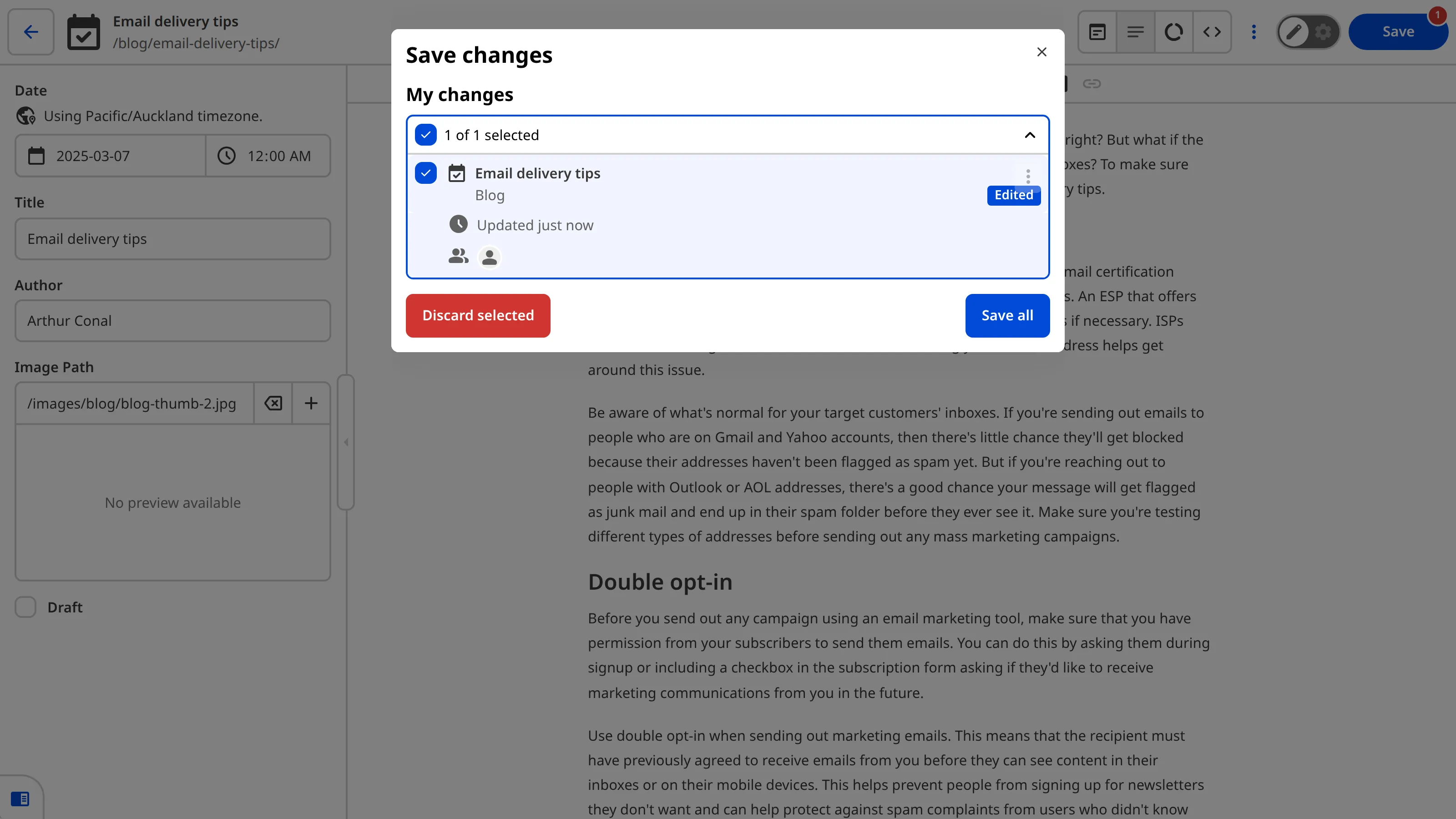
Each file with unsaved changes appears in the *Review changes* modal as a [file card](/documentation/developer-articles/configure-your-card-previews/). Each card shows the title, collection (if applicable), filename, the avatar of each team member who contributed to unsaved changes, and when the file was last updated. The file card will also show a *New*, *Edited*, or *Deleted* [badge](/documentation/user-articles/edit-your-files/#file-badges-in-the-collection-browser) to summarize the unsaved changes to that file.
Each file is grouped into one of three headings: *My changes*, *Other changes*, and *Needs attention*. The *My changes* heading lists all the files where you contributed to unsaved changes. These files are selected by default when you open the *Review changes* modal. The *Other changes* heading lists all the files where you have not contributed to unsaved changes.
You can select as many or as few files as you like using the checkboxes by each heading or file card. The *Save selected* and *Discard selected* buttons at the bottom of the modal allow you to save or discard your selected files as a group. You can also discard unsaved change on individual items using the *Context Menu* in the top right of the file card.
### Needs Attention
In some cases, you may see a *Needs attention* heading. This occurs when an incoming change from outside your *Site* (i.e., from your Developer's coding environment or another connected CloudCannon *Site*) conflicts with your unsaved changes. To protect your unsaved changes, CloudCannon will [pause Syncing](/documentation/user-articles/why-is-syncing-paused/).

To resume syncing and save changes to other files on your *Site*, you must save the changes in the affected files or discard those changes. For more information, read our documentation on [resuming Syncing](/documentation/user-articles/resume-syncing/).
### Inputs
Depending on how your developer have configured your *Site*, some file cards may have required input fields before you can save your changes.
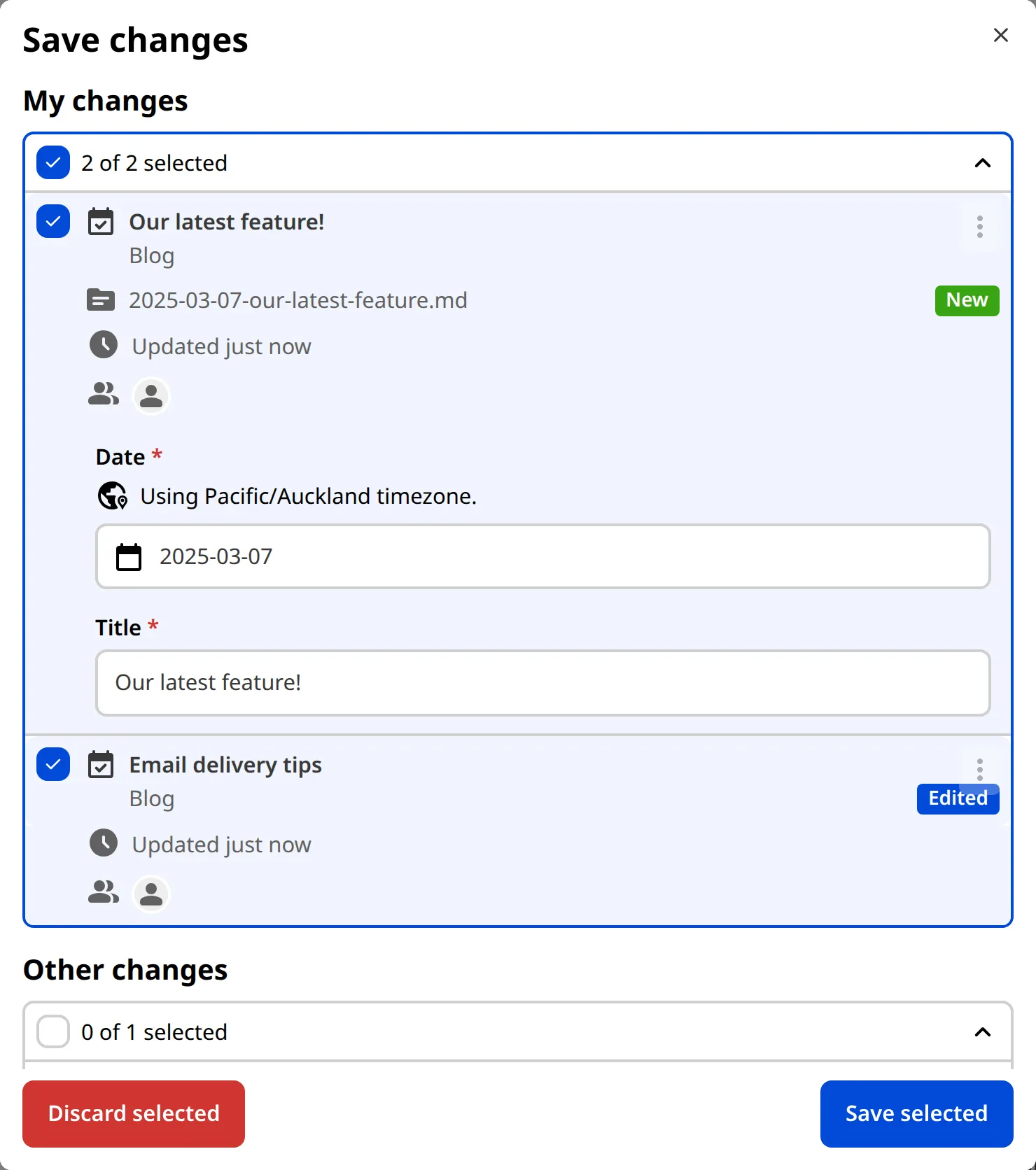
Common examples of required inputs are file name, title, and date. Which inputs are required depends on how you have configured your site, particularly the [default path for new files](/documentation/developer-articles/set-the-path-for-new-files/).
### Commit messages
If you or a team member has [configured commit messages](/documentation/developer-articles/configure-your-commit-messages/) for your site, your *Review changes* modal will have a commit message field. This field may be required before you can save your changes.
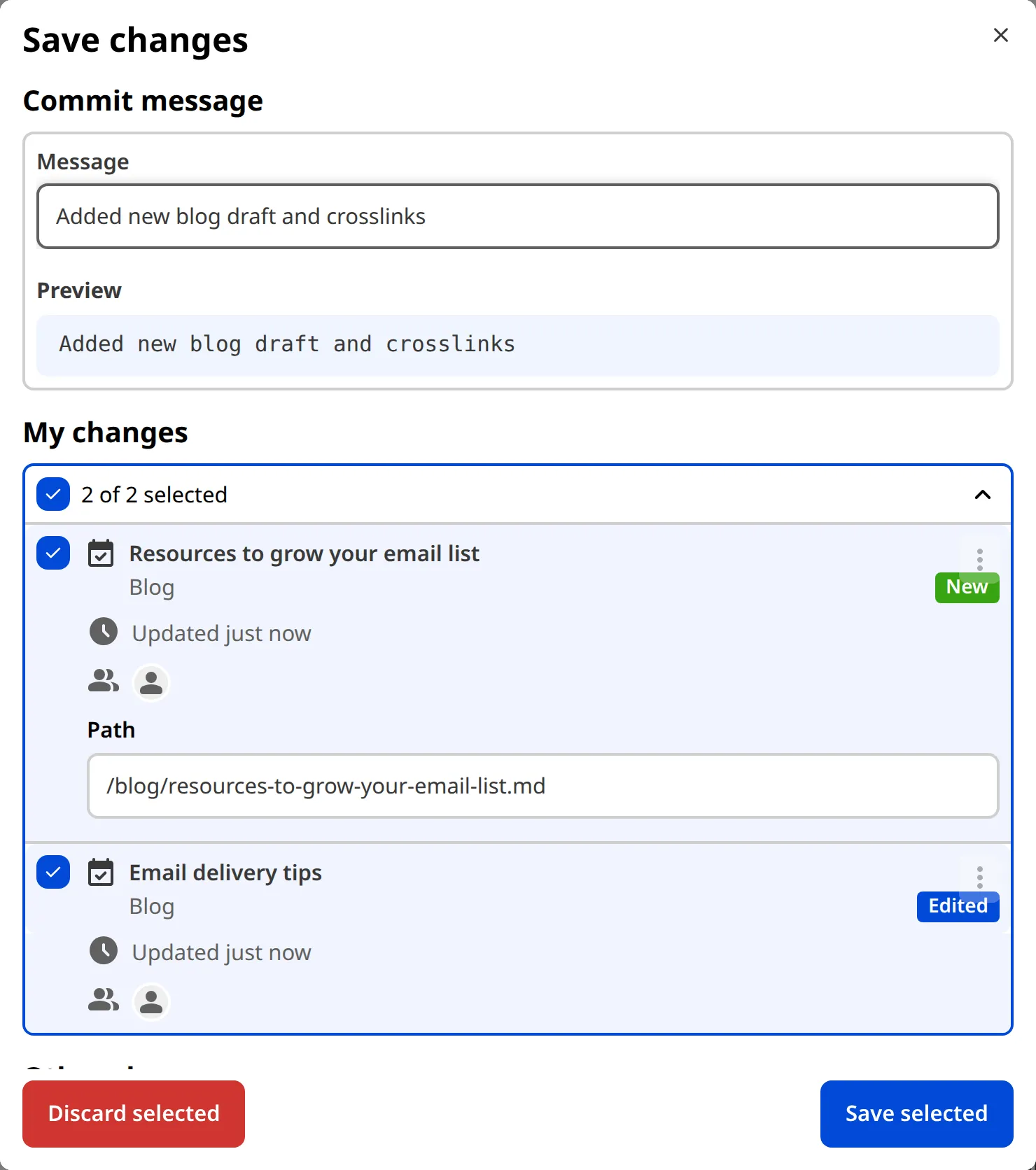
A commit message should summarize the theme of your changes. Good commit messages will help you and other team members in the future by providing a record of why you updated your site. For example:
“Added a profile image and updated the Staff and Contact pages to include our new consultant, Deborah.”
We recommend the following best practices for commit messages:
- Clearly state the purpose of your changes by using verbs (e.g., Added, Updated, Deleted, Fixed, etc.).
- Avoid vague descriptions like “updated code” or “fixed typo”. Be specific.
- Reference any relevant context, such as issue numbers, discussions, or contacts.
---
---
title: Set your Project's Display URL
description: Learn how to add a Display URL to your CloudCannon Project, so your team can open a related external link from the Projects Browser or Project page.
url: https://cloudcannon.com/documentation/user-articles/set-your-projects-display-url/
content_type: user article
last_modified: 2026-06-03
---
> **Permissions required**
>
> Members of the *Owners* and *Developers* [Default Permission Groups](/documentation/user-articles/what-are-default-permission-groups/), or [Custom Permission Groups](/documentation/developer-articles/what-are-custom-permission-groups/) with the `project:settings:details:write` permission, can set your *Project's* *Display URL*.
The *Display URL* is an external link CloudCannon shows alongside your **Project** in two places: on your *Project Card* in the *Projects Browser*, and at the top of your *Project* page. It is a convenient way to point your *Team Members* at a related resource, such as your live website, a staging environment, or an analytics dashboard. CloudCannon does not visit or check the URL — it is purely for your team's reference.
The *Display URL* is a single URL. If you want to share a list of useful links with your *Team Members* — for example, analytics dashboards, documentation, or FAQs — please read our documentation on [adding related links to your Project](/documentation/user-articles/add-related-links-to-your-project/) instead.
To set your *Project's* *Display URL*:
1. Click *Projects* in the *App Sidebar*. CloudCannon will open the *Projects Browser*.
2. Select the *Project* you want to update by clicking on the *Project Card*. CloudCannon will open the *Project Sites Browser*.
3. Click the *Project Settings* tab.
4. Select *Details* from the *Section Navigation*.
5. Enter your URL in the *Display URL* field.
6. Click the *Update Project* button.
CloudCannon will save your *Display URL* and show it as a link button on your *Project Card* and your *Project* page. Clicking the button opens the URL in a new browser tab.

You can remove the *Display URL* at any time by clearing the *Display URL* field and clicking *Update Project*.
---
---
title: Share a Site with Site Sharing
description: Share a single Site with your team members.
url: https://cloudcannon.com/documentation/user-articles/share-a-site-with-site-sharing/
content_type: user article
last_modified: 2026-06-24
---
Site Sharing allows you to invite a [team member](/documentation/user-articles/what-is-a-team-member/) to view, edit, and publish content for a specific Site. With Site Sharing, you can control what a team member can interact with by limiting access to a single Site.
You can share an unlimited number of Sites to a team member.
When you add a team member to a Site in your Organization, CloudCannon will prompt you to add them to a [Permission Group](/documentation/user-articles/what-are-permission-groups/). CloudCannon provides two [Default Permission Groups](/documentation/user-articles/what-are-default-permission-groups/) per Site for Site Sharing, which have identical permissions to the [Technical Editors](/documentation/user-articles/what-are-default-permission-groups/#technical-editors) and [Editors](/documentation/user-articles/what-are-default-permission-groups/#editors) Groups except with a Site scope. These Permission Groups are named after the Site they allow access to.
> If you want to give someone access to all Sites in your Organization or give them more permissions than a Technical Editor, consider [adding them to a Global Permission Group](/documentation/user-articles/add-a-team-member-to-a-permission-group/).
You can see a list of all the team members invited to a Site on the *Site Sharing* page under *Site Settings.*
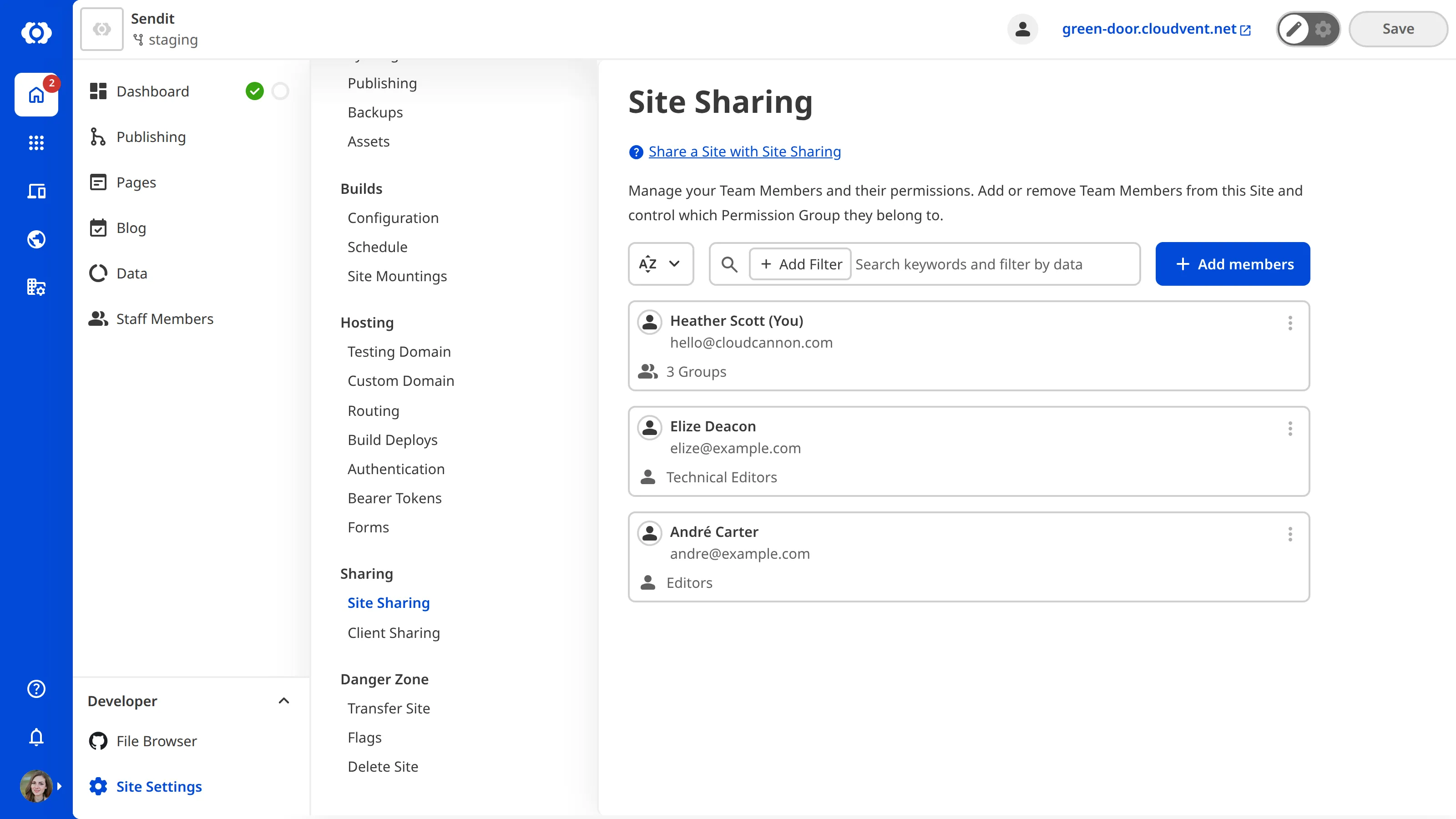
Site Sharing Permission Groups will appear under the *Groups* tab on the *Team* page if there is one or more members.
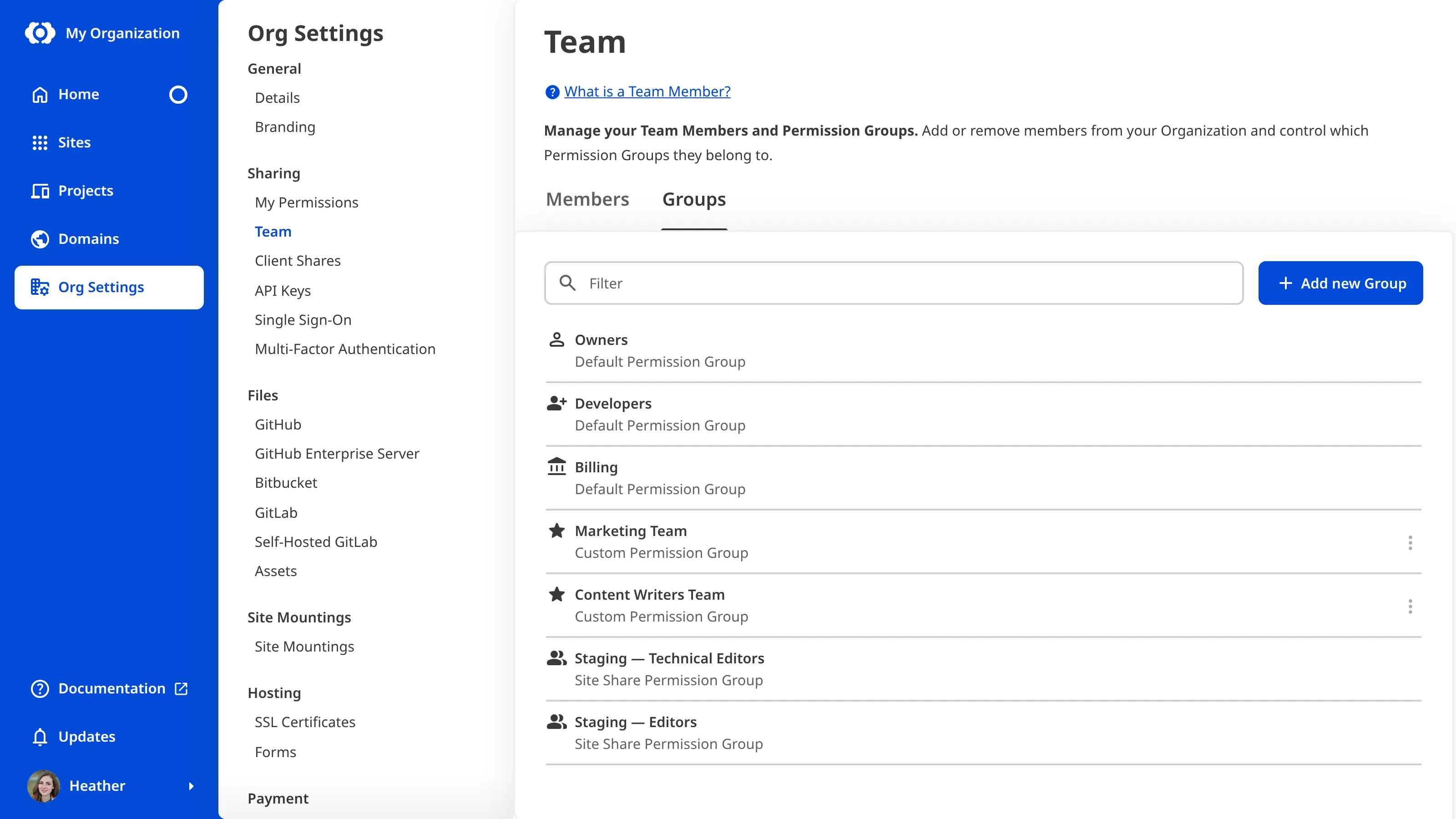
Team members can see the list of Sites they have access to, [review their permissions](/documentation/user-articles/manage-my-permissions/#review-my-current-permission-groups), and [leave an Organization](/documentation/user-articles/manage-my-permissions/#leave-a-permission-group) through the *My permissions* page under *Org settings*.
## Site Sharing vs. Custom Permission Groups
Using Site Sharing, you can limit access to a single Site in your Organization. You can also achieve this with [Custom Permission Groups](/documentation/developer-articles/what-are-custom-permission-groups/).
With Custom Permission Groups, you can select which resources to add to each Group, define what actions are allowed for each resource (Read, Write, or Create), alter the scope of a permission, and add file globs and exceptions.
Custom Permission Groups can do everything Site Sharing does and more. For [Team and Enterprise customers](https://cloudcannon.com/pricing/), we recommend using Custom Permission Groups rather than Site Sharing for finer control over your content.
---
---
title: Sign out of all Login Sessions
description: Learn how to sign out of your active Login Sessions on CloudCannon.
url: https://cloudcannon.com/documentation/user-articles/sign-out-of-all-login-sessions/
content_type: user article
last_modified: 2026-05-08
---
A *Login Session* is an instance of logging in to your CloudCannon account. You can view all your current, active, and previous logins on the *Sessions* page under *Account Settings*. You can control where you are logged into CloudCannon using the *Logout of all sessions* button.
To sign out of all active *Login Sessions*.
1. Navigate to your *Account Settings* by clicking on the *Avatar* at the bottom of the *App Sidebar* and selecting *Account Settings* from the *Account Menu*.
2. Open the *Sessions* page.
3. Click the *Logout of all sessions* button. CloudCannon will open the confirmation modal.
4. Click *Confirm*.
CloudCannon will sign you out of every active session across all devices. If your current session was included, you will be redirected to the login page.
---
---
title: Social inputs
description: These inputs are for editing plain text in your data. Each input includes a specific brand icon.
url: https://cloudcannon.com/documentation/user-articles/social-inputs/
content_type: user article
last_modified: 2026-05-12
---
> From July 2024 CloudCannon cannot guarantee support for this input. This is a deprecated input. Please consider using a [Text](/documentation/user-articles/what-is-a-text-input/) or [URL input](/documentation/user-articles/what-is-a-url-input/).
These inputs are for editing plain text in your data. Each input includes a specific brand icon.
## Facebook
Single line input with a Facebook logo for short text values.
Facebook inputs are shown for inputs configured with the type `facebook`, or for input keys matching:
- `facebook`
- `*_facebook`
- `facebook_username`
- `*_facebook_username`
- `facebook_url`
- `*_facebook_url`
File: `Naming convention`
```yaml
facebook: CloudCannon
facebook_username: CloudCannon
facebook_url: 'https://www.facebook.com/CloudCannon'
```
File: `Input configuration`
```yaml
social_handle: CloudCannon
_inputs:
social_handle:
type: facebook
```
## Twitter
Single line input with a Twitter logo for short text values.
Twitter inputs are shown for inputs configured with the type `twitter`, or for input keys matching:
- `twitter`
- `*_twitter`
- `twitter_username`
- `*_twitter_username`
- `twitter_url`
- `*_twitter_url`
File: `Naming convention`
```yaml
twitter: CloudCannon
twitter_username: CloudCannon
twitter_url: 'https://twitter.com/@jekyllrb'
```
File: `Input configuration`
```yaml
social_handle: CloudCannon
_inputs:
social_handle:
type: twitter
```
## Instagram
Single line input with an Instagram logo for short text values.
Instagram inputs are shown for inputs configured with the type `instagram`, or for input keys matching:
- `instagram`
- `*_instagram`
- `instagram_username`
- `*_instagram_username`
- `instagram_url`
- `*_instagram_url`
File: `Naming convention`
```yaml
instagram: purenewzealand
instagram_username: purenewzealand
instagram_url: 'https://www.instagram.com/purenewzealand/'
```
File: `Input configuration`
```yaml
social_handle: CloudCannon
_inputs:
social_handle:
type: instagram
```
## GitHub
Single line input with a GitHub logo for short text values.
GitHub inputs are shown for inputs configured with the type `github`, or for input keys matching:
- `github`
- `*_github`
- `github_username`
- `*_github_username`
- `github_url`
- `*_github_url`
File: `Naming convention`
```yaml
github: CloudCannon
github_username: CloudCannon
github_url: 'https://github.com/jekyll'
docs_github_url: 'https://github.com/CloudCannon/Documentation'
```
File: `Input configuration`
```yaml
social_handle: CloudCannon
_inputs:
social_handle:
type: github
```
## Pinterest
Single line input with a Pinterest logo for short text values.
Pinterest inputs are shown for inputs configured with the type `pinterest`, or for input keys matching:
- `pinterest`
- `*_pinterest`
- `pinterest_username`
- `*_pinterest_username`
- `pinterest_url`
- `*_pinterest_url`
File: `Naming convention`
```yaml
pinterest: pinterest
default_pinterest: pinterest
pinterest_url: 'https://www.pinterest.com/pinterest/'
```
File: `Input configuration`
```yaml
social_handle: CloudCannon
_inputs:
social_handle:
type: pinterest
```
### Options
Social inputs have the following available options:
**`Text Empty Type`** string
This key defines how an 'empty' value will be saved. Does not apply to existing empty values.
**Default:** `null`
[Full reference](/documentation/developer-reference/configuration-file/types/_inputs/*/options/empty_type(text)/)
## Valid values
Documented below are the valid formats for **facebook**, **twitter**, **instagram**, **github**, and **pinterest** inputs.
The lists of examples are non-exhaustive.
**YAML:**
Empty/null value:
- `social: `
Any valid string (quoted or unquoted):
- `social: ""`
- `social: ''`
- `social: twitter.com/CloudCannon`
- `social: "twitter.com/CloudCannon"`
- `social: 'twitter.com/CloudCannon'`
- `social: "https://twitter.com/CloudCannon"`
Social URLs containing `:` must be surrounded by quotes
**TOML:**
Any valid string:
- `social = ""`
- `social = ''`
- `social = "twitter.com/CloudCannon"`
- `social = 'twitter.com/CloudCannon'`
- `social = "https://twitter.com/CloudCannon"`
**JSON:**
Null value:
- `"social": null`
Any valid string:
- `"social": ""`
- `"social": "twitter.com/CloudCannon"`
- `"social": "https://twitter.com/CloudCannon"`
---
---
title: Switch between your Organizations
description: Learn how to move between the Organizations you belong to using the Switch Organization menu in the App Sidebar.
url: https://cloudcannon.com/documentation/user-articles/switch-between-your-organizations/
content_type: user article
last_modified: 2026-07-22
---
An **Organization** is your home base, bringing together all your resources in CloudCannon. You can be a member of several *Organizations* and switch between them at any time. You can see if you are a member of multiple *Organizations* by whether there is an arrow next to your *Organization* name in the top of the *App Sidebar*.
To switch *Organizations*:
1. Click your current *Organization* at the top of the *App Sidebar*. CloudCannon will open the *Switch Organization* menu.
2. Select the *Organization* you want to open.
3. If the *Organization* you want isn't listed, click *View more*. CloudCannon will open the *Organizations* modal.
4. Choose the *Organization* you want to open from the *Organizations* modal.
CloudCannon will open the *Organization* you selected.
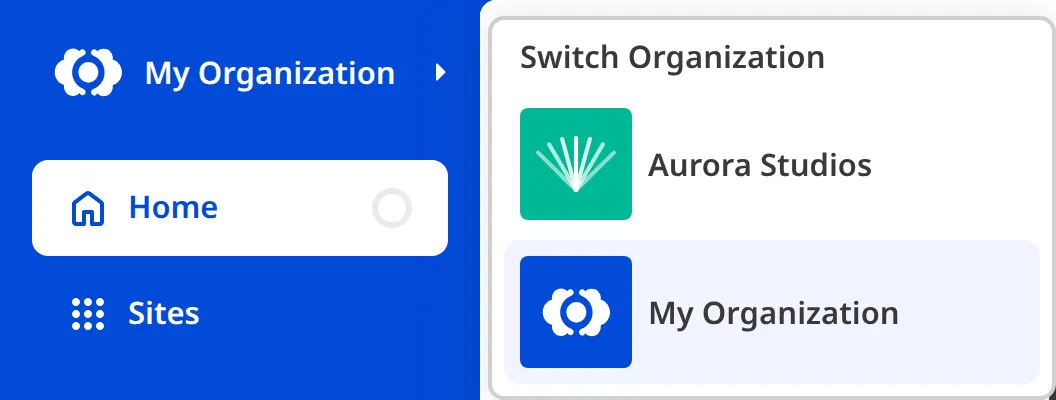
> If you only belong to one *Organization*, clicking on your *Organization* at the top of the *App Sidebar* won't open the *Switch Organization* menu (there is no visible arrow on the right of your *Organization* name), because there's nowhere else to switch to. To create another *Organization*, please read our documentation on [creating a new Organization](/documentation/user-articles/create-a-new-organization/).
>
> 
## Switching to a Site shared with you
If another CloudCannon user shares one of their **Sites** with you through [Site Sharing](/documentation/user-articles/share-a-site-with-site-sharing/), their *Organization* will appear in your *Switch Organization* menu alongside your own. When you switch to it, you see only the *Site* or *Sites* they shared with you, not the rest of their *Organization*.
## Switching between Partner and Client Organizations
If you are in CloudCannon's Partner Program and working inside a **Client Organization**, this menu is labeled *Switch Client*, and you can move between *Client Organizations* the same way you switch between *Organizations*.
Clicking on your *Partner Organization* name in the *App Sidebar* takes you to its *Organization Home* page. If you belong to more than one *Organization*, separate from any *Client Organizations* you manage, clicking your *Partner Organization* name instead opens a menu where you can choose which one to open.
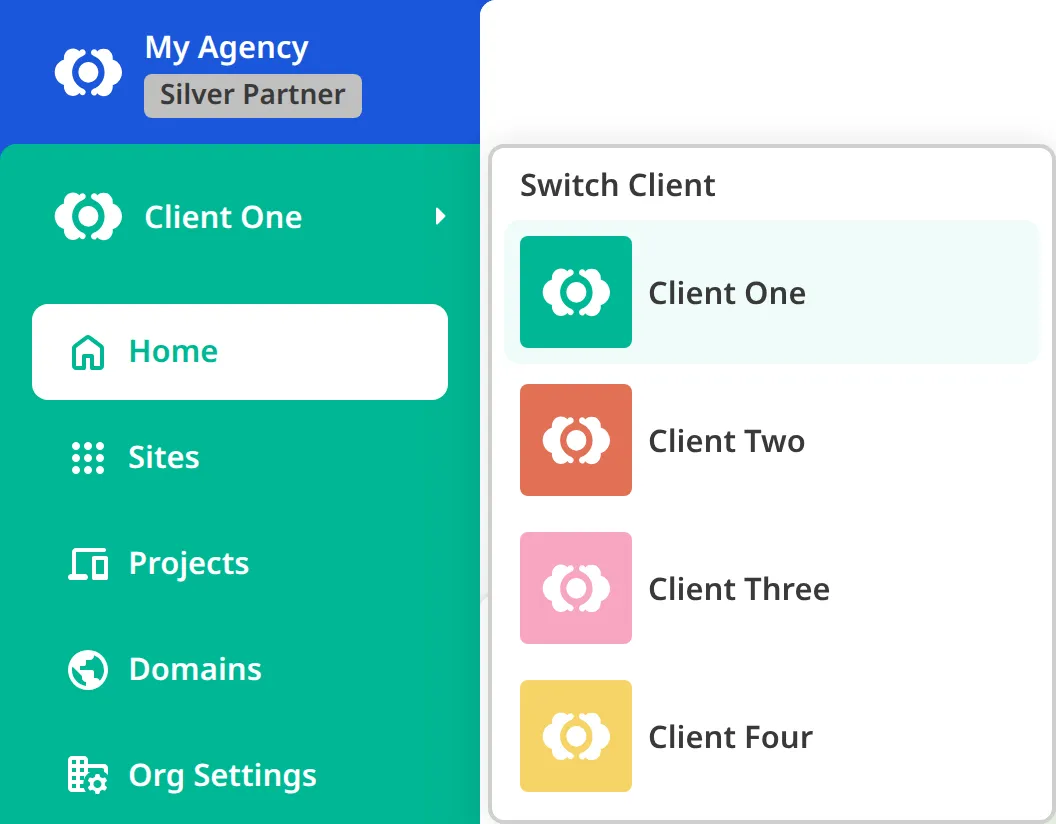
---
---
title: Take over your Organization from a partner
description: Learn how to take control of an Organization set up and managed by an agency in the CloudCannon Partner Program.
url: https://cloudcannon.com/documentation/user-articles/take-over-your-organization-from-a-partner/
content_type: user article
last_modified: 2026-09-09
---
If a web design or development agency built your website, your **Organization** may be a **Client Organization**, set up and managed for you through the CloudCannon **Partner Program**. Your *Organization* is yours: it has its own **Subscription Plan**, invoices, **Team Members**, and **Sites**. The agency keeps management access alongside you so they can build and maintain your website.
You can see that access on the *Groups* tab of the *Team* page under *Org Settings*, where the *Partner Permission Group* sits at the top of the list, named *Partner*. CloudCannon only shows you the **Permission Groups** you belong to, unless you're in the **Owners Permission Group**. If the agency hasn't added you there yet, the *Partner Permission Group* won't appear for you.
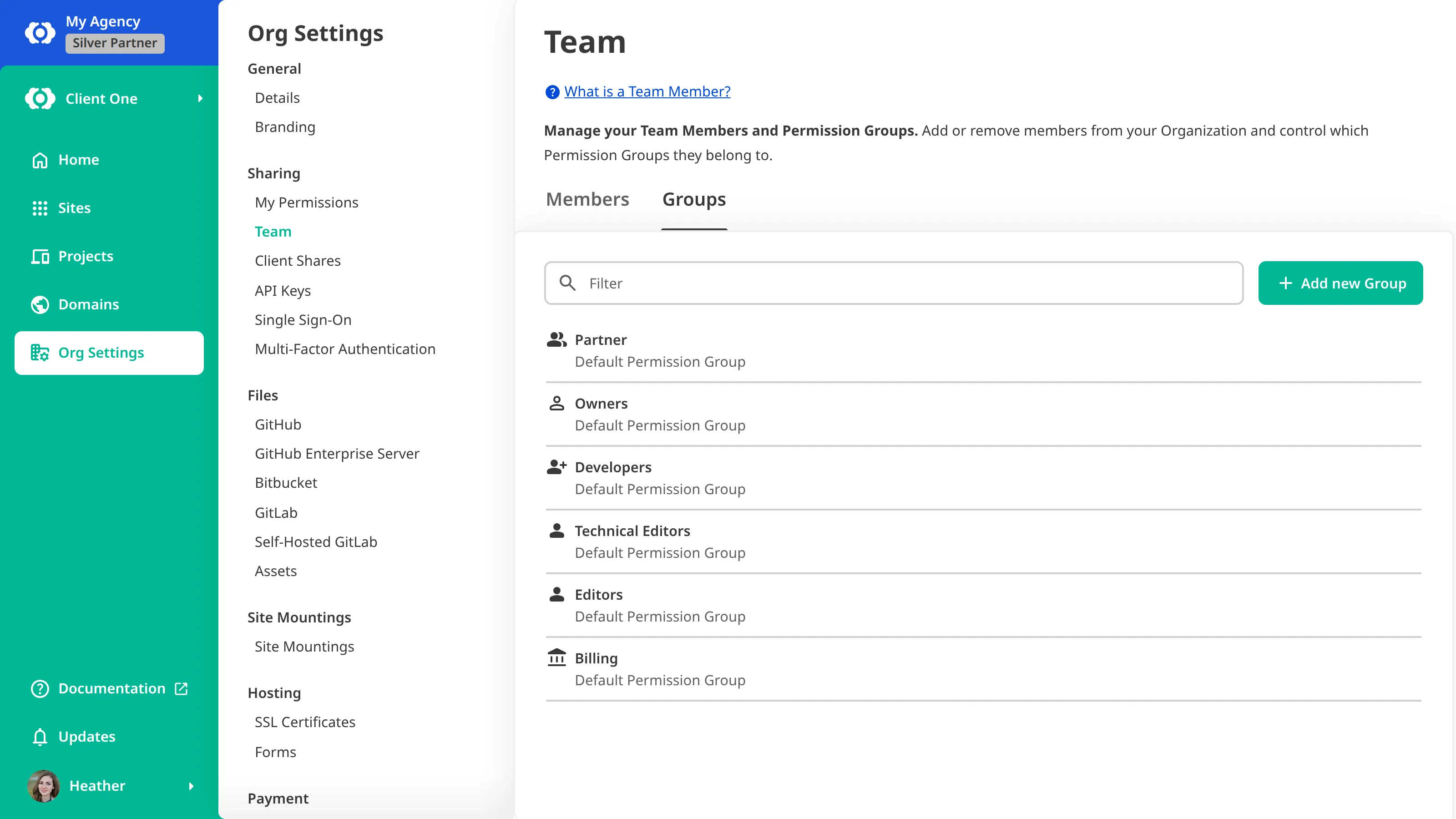
No one inside your *Organization* can edit or remove the *Partner Permission Group*, including its *Owners*. CloudCannon manages that group for you and mirrors the agency's own *Owners* into it, so the only way to end the agency's access is to detach your *Organization* from theirs.
## Ask your partner first
Start with the agency that set up your *Organization*. They hold the relationship and can arrange both parts of a handover:
- **Handing over control** — The agency adds you to the *Owners Permission Group*, so you can manage the *Organization*, its team, and its billing yourself. This does not change the agency's own access, so you can take control while they keep maintaining your website.
- **Detaching** — CloudCannon breaks the link between your *Organization* and the agency's, and removes the *Partner Permission Group*. The agency no longer has management access.
You can do the first without the second. Ending the relationship completely usually means both, in that order.
Detaching is not a self-serve action, so the agency arranges it with our support team.
Being in the *Owners Permission Group* also lets you move your website out instead of keeping this *Organization*. You can transfer the *Sites* to another *Organization* you belong to, and send and accept the transfer yourself. For more information, please read our documentation on [transferring a Site between Organizations](/documentation/user-articles/transfer-a-site-between-organizations/).
## When to contact support
Contact our [support team](https://cloudcannon.com/support/) if the agency that set up your *Organization* is unreachable, has closed, or will not arrange the handover. Have ready:
- your *Organization* name
- the agency or partner that set up your *Organization*
- evidence of your relationship to the *Organization*, such as an invoice or contract
If our support team cannot confirm your identity and your connection to the *Organization*, they may be unable to hand it over.
## After your Organization is independent
Once your *Organization* is detached, the *Partner Permission Group* is gone, and anyone from the agency who reached your *Organization* only through that group loses access. Anyone the agency added to your other *Permission Groups* keeps the access they had.
While the agency managed your *Organization*, their people didn't count toward the *Team Members* included in your *Subscription Plan*. Once you detach, anyone from the agency still in one of your *Permission Groups* starts counting, and CloudCannon updates your **Subscription** straight away rather than at your next renewal. If that takes you over the *Team Members* your *Subscription Plan* includes, your cost changes from that point. To remove someone who no longer needs access, please read our documentation on [removing a Team Member from your Organization](/documentation/user-articles/remove-a-team-member-from-your-organization/).
Detaching does not change which payment method your *Organization* uses. If the agency was paying for your *Subscription*, add your own payment method to keep it active. For more information, please read our documentation on [managing your payment methods](/documentation/user-articles/manage-your-payment-methods/).
---
---
title: The File Browser
description: Learn about the CloudCannon File Browser.
url: https://cloudcannon.com/documentation/user-articles/the-file-browser/
content_type: user article
last_modified: 2026-07-29
---
The *File browser* allows you to view all the folder and files in your Site using the same structure as your Git repository. The *File browser* is not filtered by your [Source folder](/documentation/developer-articles/what-is-the-cloudcannon-configuration-file/#the-source-folder), and will show every file in your Git repository, including files for other Sites nested in the same repository.
The *File browser* is similar to a [Collection](/documentation/user-articles/what-is-a-collection/) browser but with fewer restrictions. For this reason, team members must be given [permission](/documentation/user-articles/what-are-permission-groups/) to access the *File browser*, either by being a member of the Technical Editor [default Permission Group](/documentation/user-articles/what-are-default-permission-groups/) or higher, or using the `site:source-editor:read` permission in a [Custom Permission Group](/documentation/developer-articles/what-are-custom-permission-groups/).
You can access the File browser in CloudCannon by clicking *Files* in your *Site Navigation* under the *Developer* heading.
The *File browser* shows you all the folders and files in your Site, with each file represented by a Card. These file Cards will show:
- The filename.
- An icon based on the file extension.
- Some metadata associated with that file (e.g., date created, last updated, and file size).
- A preview, if the file is an image.
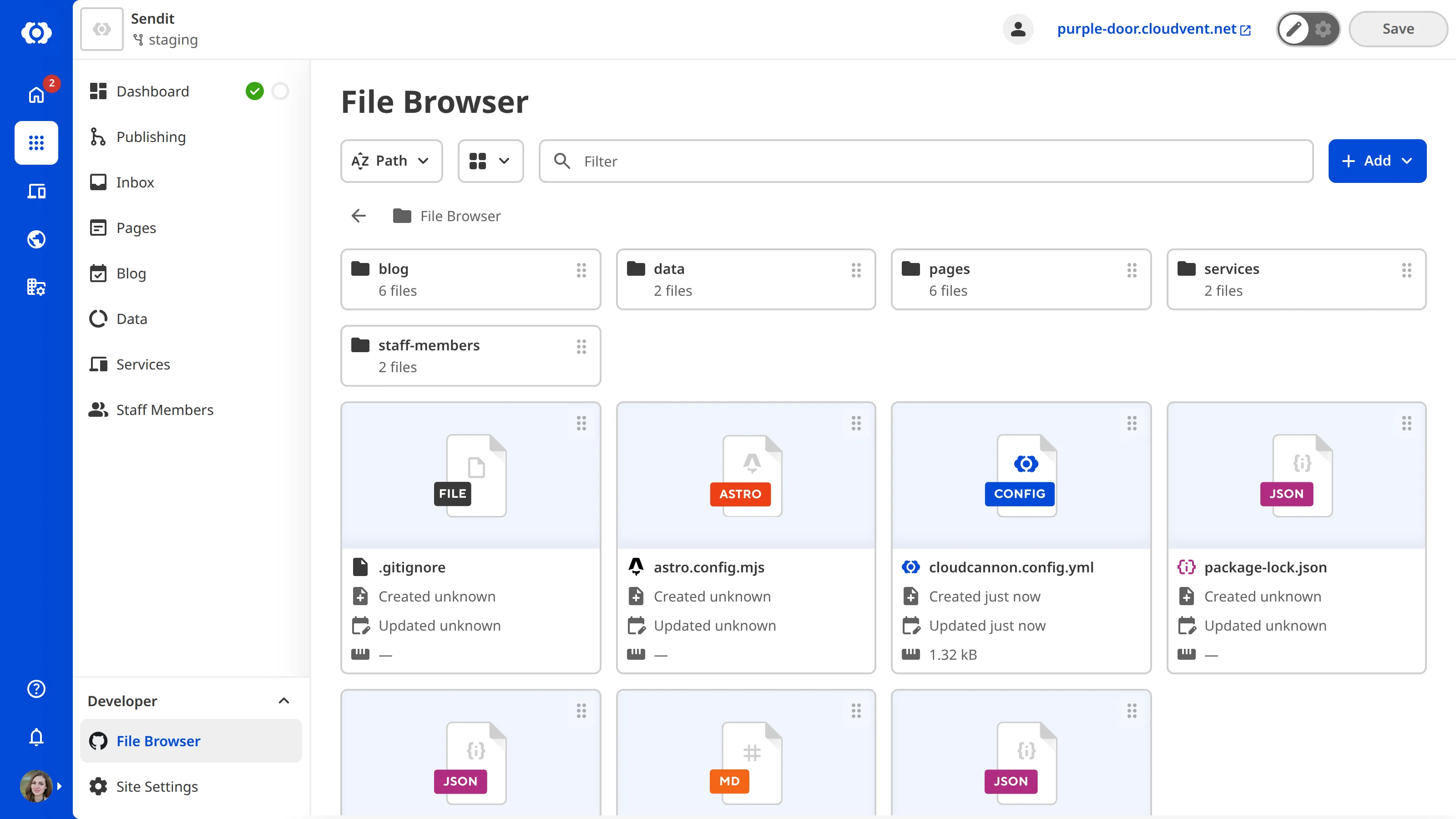
> Unlike the *Collection browser*, you cannot configure the appearance of file Cards in the *File browser*.
The *Sort* dropdown, the *View* dropdown, and the *File filter* search bar are at the top of the File browser. These tools allow you to customize the order in which your files appear, switch between *List*, *Card*, or *Gallery* view, and search for specific files.
The File also has an *+ Add* button at the top right to add and upload files and subfolders to your Site. You can access additional file actions by opening the *Context Menu* at the top right of any folder or file card.
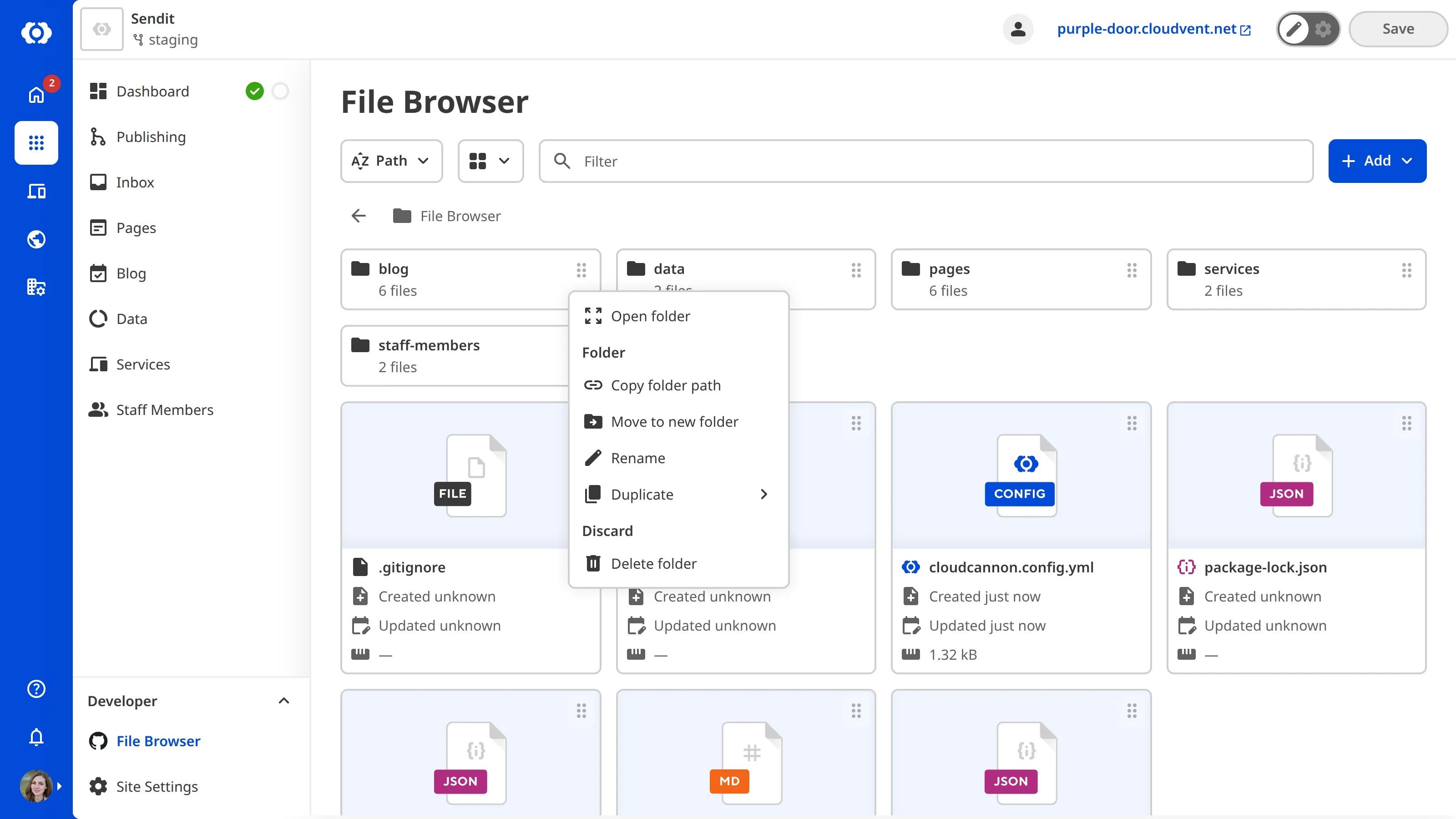
Clicking on a file will open it in CloudCannon's [Source Editor](/documentation/user-articles/what-is-the-source-editor/) by default. From your *File browser*, your team members can [add files](/documentation/user-articles/add-a-file/), [edit files](/documentation/user-articles/edit-your-files/), and [delete files](/documentation/user-articles/delete-a-file/).
As you make changes to your files, CloudCannon will help you keep track of those changes by adding a New, Edited, or Deleted *File Badge* to your file Cards. When you [save your changes](/documentation/user-articles/save-your-changes/), CloudCannon will update your Git repository and remove the *File Badges*.
---
---
title: Transfer a Site between Organizations
description: Learn how to transfer a Site to another Organization with a transfer request, and how to accept, decline, or cancel one.
url: https://cloudcannon.com/documentation/user-articles/transfer-a-site-between-organizations/
content_type: user article
last_modified: 2026-09-08
---
> **Permissions required**
>
> Members of the *Owners* and *Developers* [Default Permission Groups](/documentation/user-articles/what-are-default-permission-groups/), or [Custom Permission Groups](/documentation/developer-articles/what-are-custom-permission-groups/) with the `org:transfer:write` permission, can transfer a *Site*, and accept or decline incoming transfers.
You can transfer a **Site** from one **Organization** to another. Transferring a *Site* moves everything needed to run it, which can include its SSL certificates, **Custom Domains**, **Inboxes**, **DAMs**, and any other *Sites* that share those resources. However, permissions don't move with it: anyone who could access the *Site* through a **Permission Group** in the original *Organization* loses that access, and the receiving *Organization* grants access through its own *Permission Groups*.
> You can only transfer a *Site* to an *Organization* you already belong to.
Transferring happens in two steps: you send a transfer request from the *Site*, and someone in the receiving *Organization* accepts it.
## Send a transfer request
To send a transfer request:
1. Navigate to the *Transfer Site* page under *Site Settings*.
2. Select the *Organization* you want to transfer the *Site* to.
3. Click *Send Transfer Request*.
4. Confirm the transfer request.
CloudCannon will send the request to the receiving *Organization*. The transfer completes once someone there accepts it.

## Accept a transfer request
> Accepting a transfer moves billing for the *Site* to your *Organization*, and it can require a plan change before you can accept:
>
> - Your *Organization* starts paying for the transferred *Site* and its resources, so your bill may go up.
> - If the *Site* brings more *Custom Domains* than your Plan includes, you must confirm the extra cost and add a payment method first.
> - If the *Site* uses a DAM your Plan doesn't include, you must upgrade first.
> - If your *Organization* is on a **Free Trial**, accepting a transfer that adds billable resources ends your trial.
>
> Adding a payment method or upgrading your Plan needs billing access, so you may need a member of the *Billing Permission Group* or the *Owners Permission Group* to make these changes first.
To accept a *Site* into your *Organization*:
1. Navigate to the *Transfer Requests* page under *Org Settings*.
2. Find the incoming request.
3. Click *Accept*.
4. If accepting the transfer increases your bill, CloudCannon asks you to confirm the billing change. Confirm it to continue.
CloudCannon will move the *Site* and its resources into your *Organization*.

> Once the receiving *Organization* accepts a transfer, you can't undo it. To move the *Site* back, someone in that *Organization* has to transfer it to you.
## Decline a transfer request
If you don't want to accept an incoming request, you can decline it. To decline a transfer request:
1. Navigate to the *Transfer Requests* page under *Org Settings*.
2. Find the incoming request.
3. Click *Decline*.
4. Confirm you want to decline the request.
CloudCannon will decline the request, and the *Site* stays in the sending *Organization*.
## Cancel a transfer request
You can cancel a request you sent, but only before the receiving *Organization* accepts it. To cancel a transfer request:
1. Navigate to the *Transfer Requests* page under *Org Settings*.
2. Find the outgoing request.
3. Click *Remove*.
CloudCannon will withdraw the request.

---
---
title: Transfer ownership of an Organization
description: Learn how to transfer ownership of an Organization by adding a new Owner and then removing yourself.
url: https://cloudcannon.com/documentation/user-articles/transfer-ownership-of-an-organization/
content_type: user article
last_modified: 2026-09-10
---
> **Permissions required**
>
> Only members of the *Owners Permission Group* can add or remove other *Owners*.
CloudCannon doesn't have a single "transfer ownership" button. Instead, you transfer ownership by adding the new person to the **Owners Permission Group**, then stepping down once they're in place.
The new *Owner* must already be a member of your **Organization**. If they aren't, invite them first. For more information, please read our documentation on [adding a team member to your Organization](/documentation/user-articles/add-a-team-member-to-your-organization/).
To make someone an *Owner* from their *Member* page:
1. Navigate to the *Team* page under *Org Settings*.
2. Select the person you want to make an *Owner* to open their *Member* page.
3. Click the *Add to Group* button. CloudCannon will open the *Add to Groups* modal.
4. Select the *Owners* group, then click *Add to Group* button.
CloudCannon will add that *Team Member* to the *Owners Permission Group*.
To add one or more people from the *Owners* *Group* page instead:
1. Navigate to the *Team* page under *Org Settings*.
2. Open the *Groups* tab.
3. Select the *Owners* group.
4. Click *Add members*.
5. Select the people you want to make *Owners*, then click *Add to Group*.
CloudCannon will add tose *Team Members* to the *Owners Permission Group*.
Anyone you add to the *Owners* group now has full control of the *Organization*.
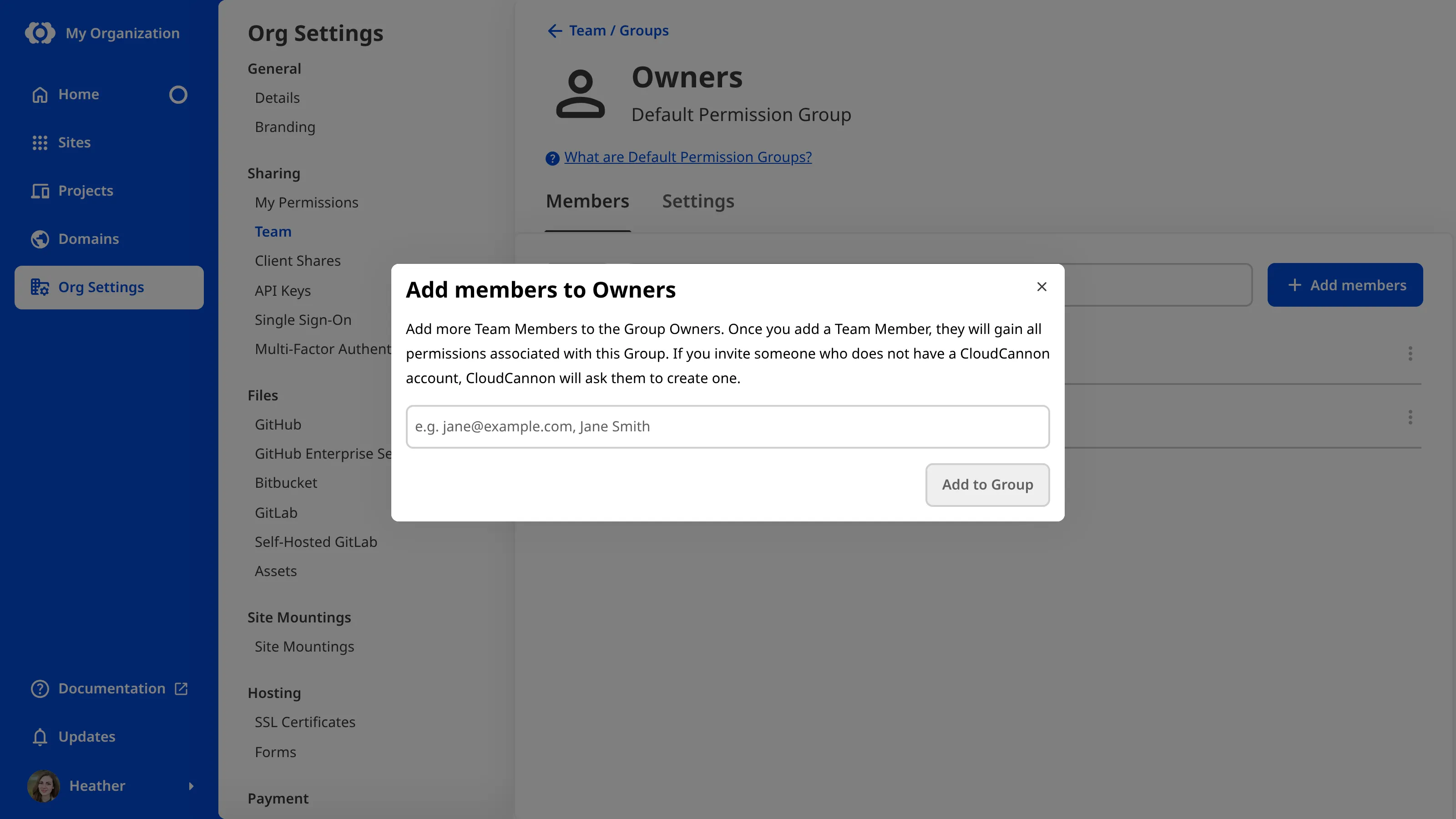
> An *Organization* must always have at least one *Owner*. While you're the only *Owner*, CloudCannon won't let you give up ownership or leave the *Organization*, so you must add another *Owner* first. After that, stepping down is still hard to reverse: to regain access, the new *Owner* would need to invite you back. If you're locked out, please read our documentation on [recovering access to your Organization](/documentation/user-articles/recover-access-to-your-organization/).
Once the new *Owner* is in place, you can step down in one of two ways:
- To give up *Owner* access but stay in the *Organization*, remove yourself from the *Owners Permission Group*. On the *My Permissions* page under *Org Settings*, find the *Owners* group in the *Groups* section and click *Leave Group*. You keep any other *Permission Groups* you belong to.
- To leave the *Organization* entirely, open the *My Permissions* page under *Org Settings* and click *Leave Organization*.

You don't have to step down at all. To share ownership, stay in the *Owners* group alongside the new *Owner*, so the *Organization* has more than one *Owner*.
---
---
title: Understand your CloudCannon invoice
description: Learn what the line items on your CloudCannon invoice mean, including your Subscription Plan, Add-Ons, Overages, credits, and discounts.
url: https://cloudcannon.com/documentation/user-articles/understand-your-cloudcannon-invoice/
content_type: user article
last_modified: 2026-08-11
---
Your CloudCannon invoice is a record of what your **Organization** owes CloudCannon. You can [download your invoices](/documentation/user-articles/download-invoices-and-receipts/) at any time or have them sent to your email address automatically by [adding billing contact information](/documentation/user-articles/add-billing-contact-information/) to your *Organization*.
Your invoice total is calculated as the cost of your *Organization's* **Subscription Plan**, plus any **Add-Ons** and **Overages**, minus any credits and discounts, plus any applicable tax. Depending on these adjustments, your total payment may be more or less than the base cost of your *Subscription Plan*. CloudCannon breaks your invoice down into line items so you can see where each charge comes from. Before these charges appear on your invoice, you can preview them in the billing summary on the *Subscription* page, which shows an estimate of your next bill.
> Enterprise *Organizations* use custom billing, and their invoices may differ from what this article describes. If your *Organization* is on the *Enterprise Plan*, contact our [support team](https://cloudcannon.com/support/) with your *Organization* name and invoice number.
## Subscription Plan and Add-Ons
Your *Subscription Plan* and any *Add-Ons* you pay for are invoiced in advance of your **Billing Period**. For example, if your *Organization* uses a monthly *Billing Period*, the invoice on the 1st of May would be for the month of May, whereas on a yearly *Billing Period* it would be for the 12 months beginning in May. For more information, please read our documentation on [what a Subscription Plan is](/documentation/user-articles/what-is-a-subscription-plan/) and [what Add-Ons and Overages are](/documentation/user-articles/what-are-add-ons-and-overages/).
The cost of your *Subscription Plan* appears as a line item under your *Subscription Plan's* name, "[name] Subscription Plan", and *Add-Ons* will appear as "Team Member" or "Custom Domain".
> If your *Organization* uses one of CloudCannon's legacy *Subscription Plans*, that *Subscription Plan* will not appear on the [CloudCannon pricing page](https://cloudcannon.com/pricing/), but your invoice will still use that *Subscription Plan's* name. If you're unsure which *Subscription Plan* your *Organization* uses, contact our friendly [support team](https://cloudcannon.com/support/) with your *Organization* name.
## Overages
Any *Overages* you pay for are invoiced retrospectively every month, even if you have a yearly *Billing Period*. For example, the invoice on the 1st of May would be for the *Overages* used between April 1st and April 30th. For more information, please read our documentation on [what Add-Ons and Overages are](/documentation/user-articles/what-are-add-ons-and-overages/).
The cost of your *Overages* will appear as "[amount] x 100 GB Hosting Bandwidth Bundle" or "[amount] x 1 Hour Build Time Bundle" with the period of time you used them in brackets.
## Credits and discounts
CloudCannon issues a credit when you reduce your **Subscription** partway through a *Billing Period*, such as by downgrading your *Subscription Plan* or removing an *Add-On*. The credit covers the unused portion of what you have already paid and will appear as a line item on your next invoice, reducing the total.
Credits appear in your billing summary on the *Subscription* page under **Org Settings**. If a credit is larger than the total of your next invoice, CloudCannon will hold the remaining balance as *Organization* credit and apply it to your future invoices.
A discount comes from a coupon applied to your *Subscription*. Depending on the coupon, a discount takes a percentage or a fixed amount off your total, and may apply to a single invoice, a set number of months, or every invoice. A discount also appears as a negative line item that reduces your total. For more information, please read our documentation on [adding a coupon to your Subscription](/documentation/user-articles/add-a-coupon-to-your-subscription/).
---
---
title: Update from a Publish Branch
description: Learn how to update your branch to match upstream changes on your Publish Branch.
url: https://cloudcannon.com/documentation/user-articles/update-from-a-publish-branch/
content_type: user article
last_modified: 2026-06-03
---
CloudCannon will detect when you or a *Team Member* has updated your [Publish Branch](/documentation/user-articles/what-is-publishing/). You should update your current *Site* whenever updates are available, particularly if you have long-lived branches or are working on the same files across different branches. For more information, please read our documentation on [why to update from a Publish Branch](/documentation/user-articles/why-update-from-a-publish-branch/).
When updates from your *Publish Branch* are available, a notification icon will appear next to the *Publishing* link in your *Site Navigation*.

> Updating your *Site* from its *Publish Branch* is important to keep your content consistent with changes from other branches, especially if your team separates projects onto different branches that contribute to the same *Publish Branch*.
To update your *Site* from its *Publish Branch*:
1. Click the *Publishing* link in the *Site Navigation*. CloudCannon will open the *Publishing* page.
2. On the *Updates available from your Publish Branch* notification, click the *Update from Publish Branch* button and click again to confirm.
CloudCannon will attempt to update your *Site* from its *Publish Branch*.

In some cases, CloudCannon cannot immediately update your *Site* from its *Publish Branch*, such as when it detects a *Publishing Conflict*. For more information, please read our documentation on [Publishing Conflicts](/documentation/user-articles/what-are-publishing-conflicts/) and how to [resolve publishing conflicts](/documentation/user-articles/resolve-publishing-conflicts/).
---
---
title: Update your Billing Period
description: Learn how to switch between monthly and yearly billing in CloudCannon and what happens when you change your Billing Period.
url: https://cloudcannon.com/documentation/user-articles/update-your-billing-period/
content_type: user article
last_modified: 2026-09-09
---
> **Permissions required**
>
>
> Members of the *Owners* and *Billing* [Default Permission Groups](/documentation/user-articles/what-are-default-permission-groups/), or [Custom Permission Groups](/documentation/developer-articles/what-are-custom-permission-groups/) with the `org:billing:write` permission, can change the *Billing Period* of an *Organization*.
Your **Billing Period** defines how often CloudCannon bills your **Organization** for its **Subscription Plan**. Changing your *Billing Period* affects when and how much you are charged, but not the features included in your *Subscription Plan*.
Paid *Subscription Plans* are billed monthly or yearly:
- **Monthly** — Your card is charged at the start of each month for the month ahead.
- **Yearly** — Your card is charged once a year for the year ahead. The yearly price works out cheaper per month than paying monthly.
> Even if you select *Yearly* as your *Billing Period*, CloudCannon still invoices you monthly for any **Overages** you use. For more information, please read our documentation on [what Add-Ons and Overages are](/documentation/user-articles/what-are-add-ons-and-overages/).
You can switch between *Billing Periods* at any time. When you change your *Billing Period* partway through a *Billing Period*, CloudCannon prorates the difference, and any adjustment appears on your next invoice.
> If your *Organization* is on a **Free Trial**, every *Subscription Plan* shows a *Select [Plan Name]* button, including your current one. Set the *Billing Period* toggle, then click *Select [Plan Name]* on the *Subscription Plan* you want.
To update your *Billing Period*:
1. Navigate to the *Subscription* page under **Org Settings** in the **App Sidebar**.
2. Click the *Review your Subscription Plan* button in the billing summary. CloudCannon will open the *Your Subscription Plan* page.
3. Click the *Change your Subscription Plan* button. CloudCannon will open the *Update your Subscription Plan* page.
4. Use the *Billing Period* toggle at the top of the page to choose *Monthly* or *Yearly* billing.
5. On your current *Subscription Plan*, click the *Switch to annual pricing* or *Switch to monthly pricing* button. CloudCannon will open the *Your Subscription Plan* page.
6. Review the *Plan resources* and *Estimated bill*.
7. Click the *Complete checkout* button.
CloudCannon will update your *Billing Period* immediately.
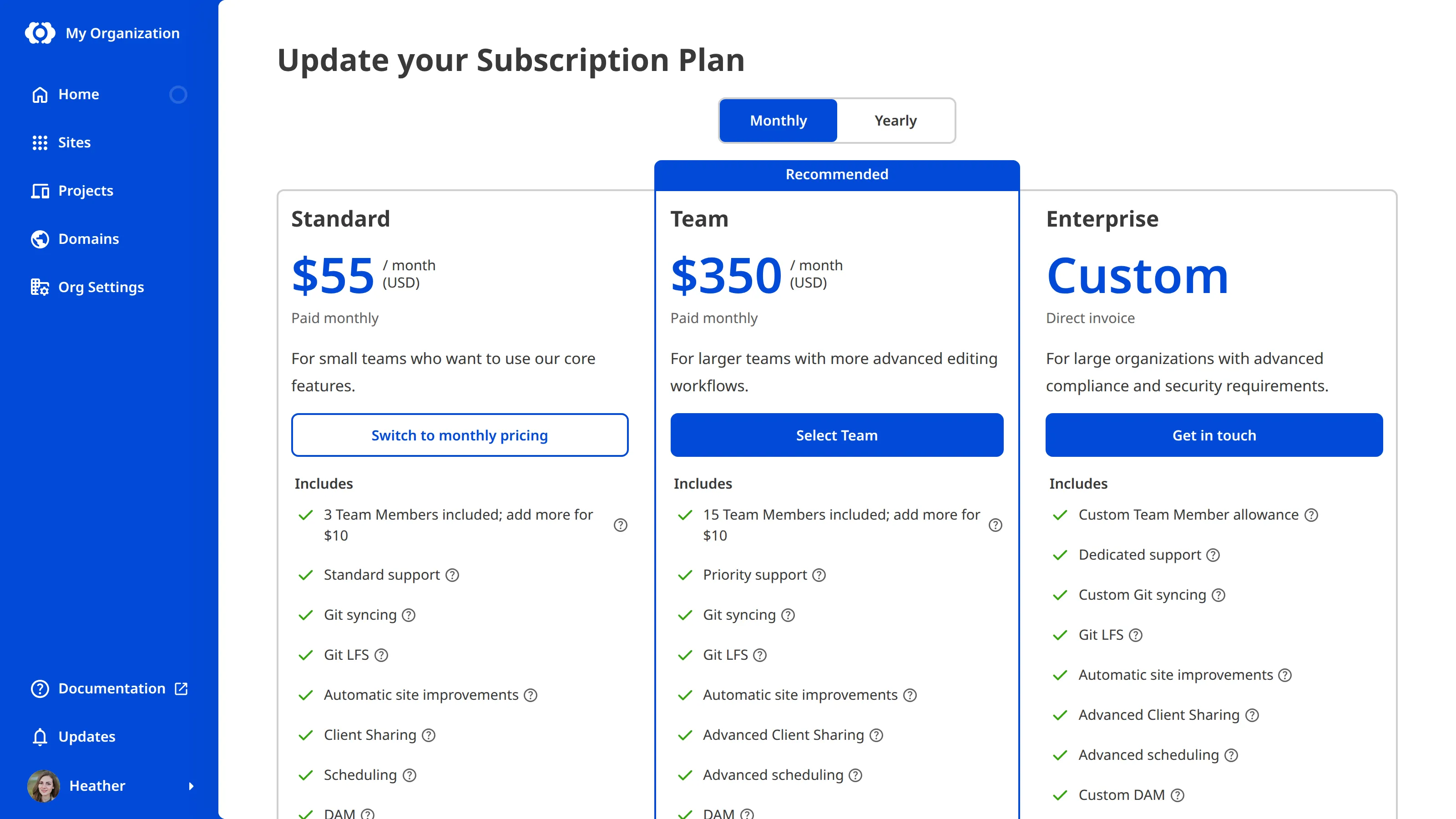
> If your *Organization* is on an *Enterprise Plan*, your billing is arranged directly with your CloudCannon account manager. Self-serve *Billing Period* changes aren't available. For questions about Enterprise billing, please contact us via [support](https://cloudcannon.com/support/), Slack, or email with your *Organization* name and the change you would like to make.
---
---
title: Update your Subscription Plan
description: Learn how to upgrade or downgrade your CloudCannon Subscription Plan and what happens to your resources when you change Plans.
url: https://cloudcannon.com/documentation/user-articles/update-your-subscription-plan/
content_type: user article
last_modified: 2026-09-09
---
> **Permissions required**
>
>
> Members of the *Owners* and *Billing* [Default Permission Groups](/documentation/user-articles/what-are-default-permission-groups/), or [Custom Permission Groups](/documentation/developer-articles/what-are-custom-permission-groups/) with the `org:billing:write` permission, can change the *Subscription Plan* of an *Organization*.
A **Subscription Plan** defines a set of features available to your **Organization**, the monthly usage limits for resources, and the price you pay for access to those features and resources, monthly or annually. You can upgrade or downgrade your *Subscription Plan* at any time. For what each *Subscription Plan* includes, please see the [CloudCannon pricing page](https://cloudcannon.com/pricing/).
> When you change *Subscription Plans* partway through a **Billing Period**, CloudCannon prorates the difference, and any adjustment appears on your next invoice.
To switch between monthly and yearly billing without changing your *Subscription Plan*, please read our documentation on [updating your Billing Period](/documentation/user-articles/update-your-billing-period/).
To upgrade or downgrade your *Subscription Plan*:
1. Navigate to the *Subscription* page under **Org Settings** in the **App Sidebar**.
2. Click the *Review your Subscription Plan* button in the billing summary. CloudCannon will open the *Your Subscription Plan* page.
3. Click the *Change your Subscription Plan* button. CloudCannon will open the *Update your Subscription Plan* page.
4. Use the *Billing Period* toggle at the top of the page to choose *Monthly* or *Yearly* billing.
5. Click the *Select [Plan Name]* button under the *Subscription Plan* you want. CloudCannon will open the *Your Subscription Plan* page.
6. Review the *Plan resources* and *Estimated bill*.
7. Click the *Complete checkout* button.
CloudCannon will apply the updated *Subscription Plan* to your *Organization* immediately.

> Downgrading your *Subscription Plan* will reduce the number of features and the resource limits available to your *Organization*. If your current resource usage puts you above the new *Subscription Plan's* allocation of **Team Members**, **Hosting Bandwidth**, **Custom Domains**, or **Build Time**, CloudCannon will warn you before you can update your *Subscription Plan*. You must reduce your usage, or enable [Add-Ons and Overages](/documentation/user-articles/what-are-add-ons-and-overages/) before you can complete checkout.
## Legacy Subscription Plans
CloudCannon supports several legacy *Subscription Plans* that are no longer available to new customers, enabling backwards compatibility for older *Organizations*. If your *Organization* uses one of these legacy *Subscription Plans*, you will not be able to return to it if you update your *Subscription Plan*. Please make sure your new *Subscription Plan* meets your needs before you update.

> If your *Organization* is on an *Enterprise Plan*, your billing is arranged directly with your CloudCannon account manager. Self-serve *Subscription Plan* changes and payment method management aren't available. For questions about Enterprise billing, please contact us via [support](https://cloudcannon.com/support/), Slack, or email with your *Organization* name and the change you would like to make.
---
---
title: View your form submissions
description: Learn how to view your form submissions in CloudCannon.
url: https://cloudcannon.com/documentation/user-articles/view-your-form-submissions/
content_type: user article
last_modified: 2026-04-02
---
Once you have [connected an Inbox to your Site](/documentation/developer-articles/connecting-your-site-to-an-inbox/), it appears under *Inboxes* in your *Site Navigation*. If you have multiple forms, each *Inbox* appears as a separate item.
To view your form submissions:
1. Click on the *Inbox* name under *Inboxes* in your *Site Navigation*.
2. Click on a submission to view its details. CloudCannon will open a modal with the submission data and target information.

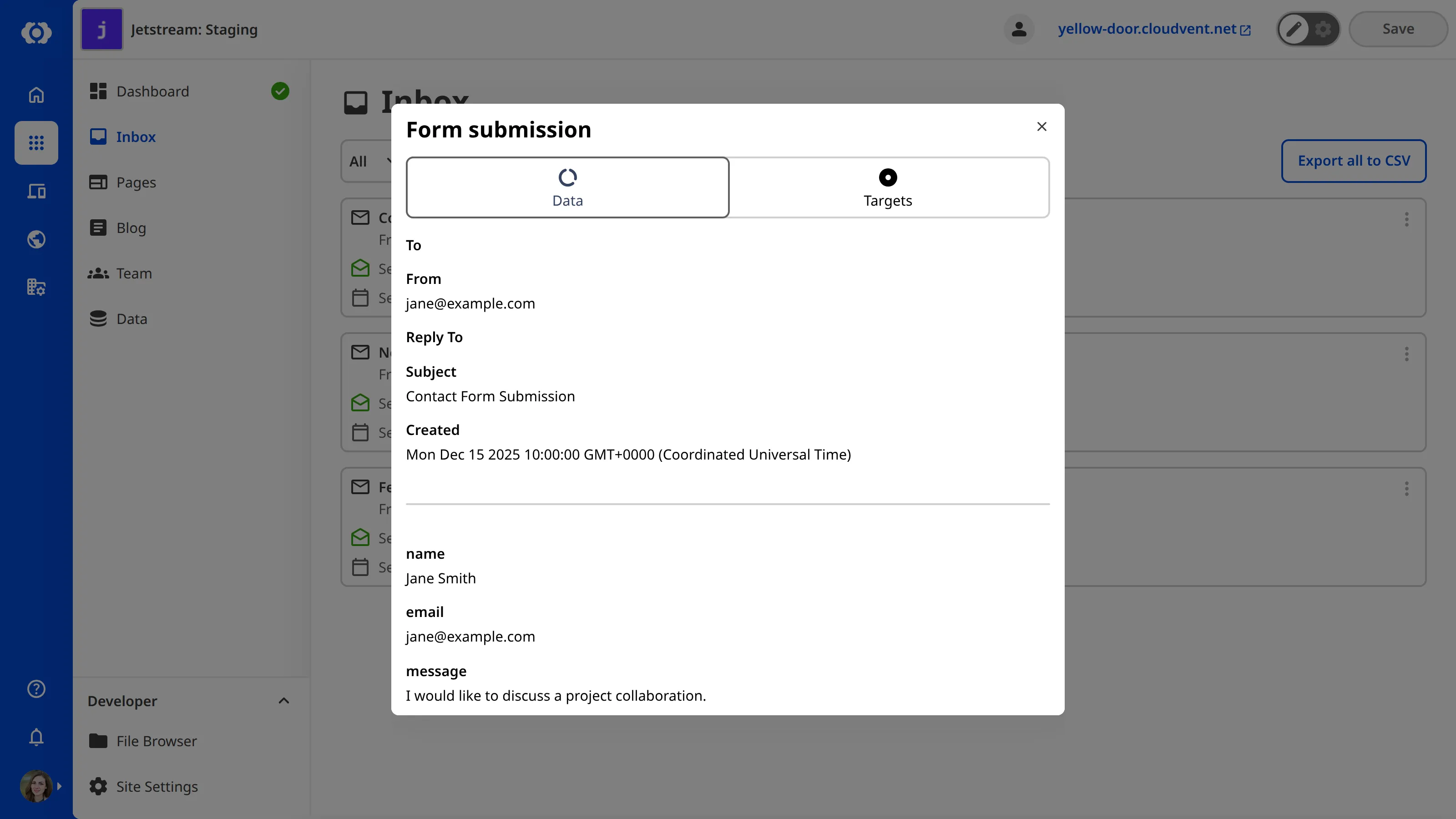
The details modal has two tabs: *Data* and *Targets*. The *Data* tab shows the form fields submitted by the visitor. The *Targets* tab shows the delivery status for each target integration.
Each submission also has a context menu with more options. Open it by clicking the three dots on the submission.
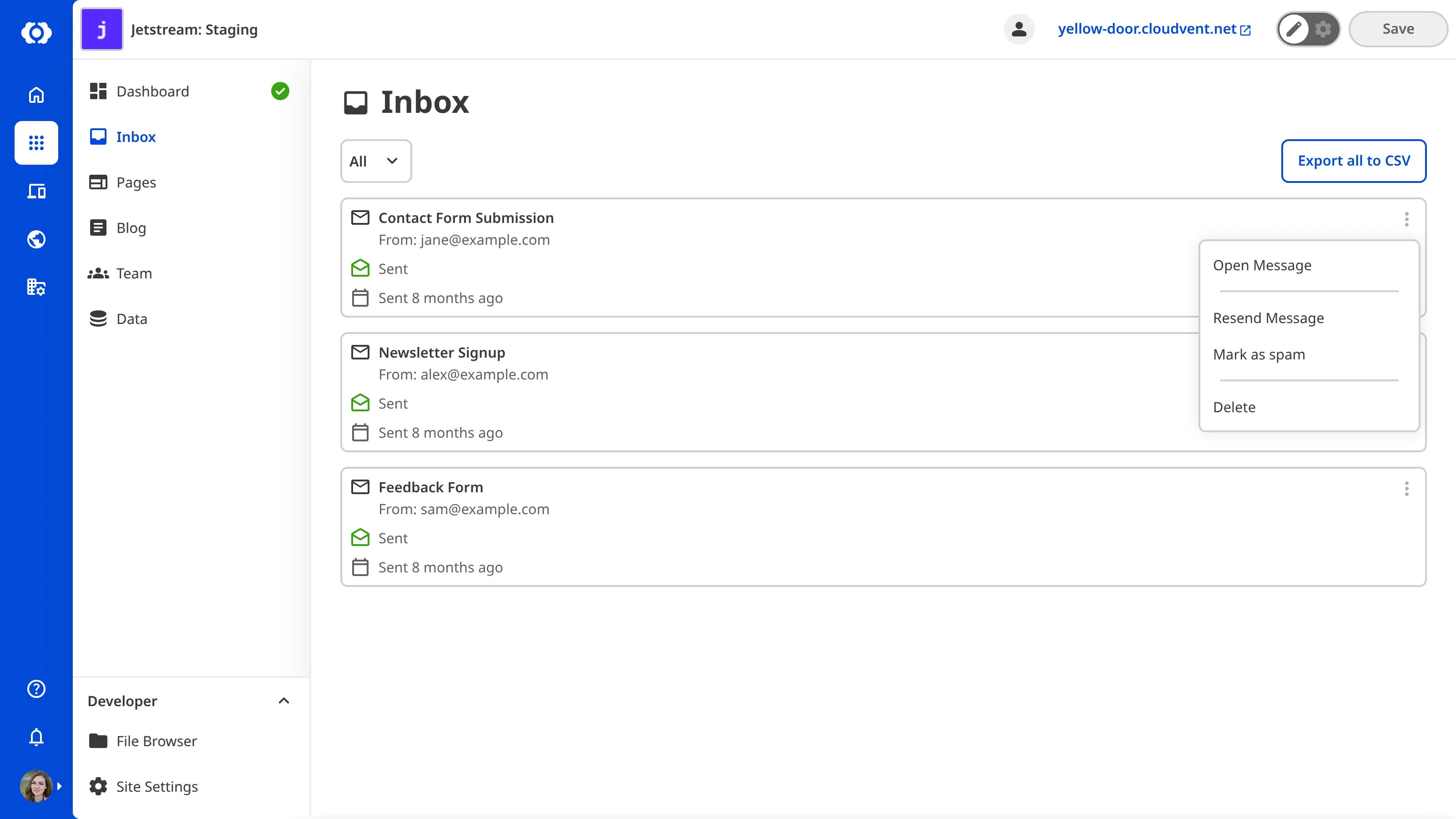
### Categories
Your *Inbox* is organized into categories, displayed as tabs near the top of the page:
- **All** — Every submission in the *Inbox*
- **Sent** — Submissions that were successfully sent to all targets
- **Pending** — Submissions that are currently being processed
- **Spam** — Submissions flagged as spam by the spam filter
- **Errored** — Submissions that failed to send to one or more targets
For more information, please read our documentation on [managing spam submissions](/documentation/user-articles/manage-spam-form-submissions/), [resending errored submissions](/documentation/user-articles/resend-errored-form-submissions/), and [exporting submissions](/documentation/user-articles/export-your-form-submissions/).
---
---
title: View your Organization as a Team Member
description: Learn how to view your Organization as one of your Team Members to preview their exact permission set.
url: https://cloudcannon.com/documentation/user-articles/view-your-organization-as-a-team-member/
content_type: user article
last_modified: 2026-09-10
---
> **Permissions required**
>
> Members of the *Owners* and *Partner* [Default Permission Groups](/documentation/user-articles/what-are-default-permission-groups/) can view your *Organization* as another *Team Member*. [Custom Permission Groups](/documentation/developer-articles/what-are-custom-permission-groups/) cannot be granted this permission.
The [Permission Groups](/documentation/user-articles/what-are-permission-groups/) a [Team Member](/documentation/user-articles/what-is-a-team-member/) belongs to determine what they can see and do in your [Organization](/documentation/user-articles/what-is-an-organization/). **View As** mode allows you to see the CloudCannon interface as it appears and functions for another *Team Member*, so you can confirm what they can access, either before or after you change their *Permissions*.
*View As* mode only changes which resources you can open and edit in CloudCannon. It does not sign you in as that *Team Member*. Any changes you make while viewing CloudCannon as some one else are still logged under your name. Switching *Organizations* or logging out of CloudCannon will end *View As* mode.
## Start viewing as a Team Member
To view your *Organization* as another *Team Member*:
1. Navigate to the *Team* page under *Org Settings*.
2. Under the *Members* tab, click the *Context Menu* on the card for the *Team Member* you want to view as.
3. Select the *View as [Team Member Name]* option. CloudCannon will open the *View as [Team Member Name]* modal.
4. Click the *View as [Team Member Name]* button to confirm.
CloudCannon will reload and display your *Organization* with that *Team Member's* permissions, with a *Viewing as* banner pinned to the top of the page.
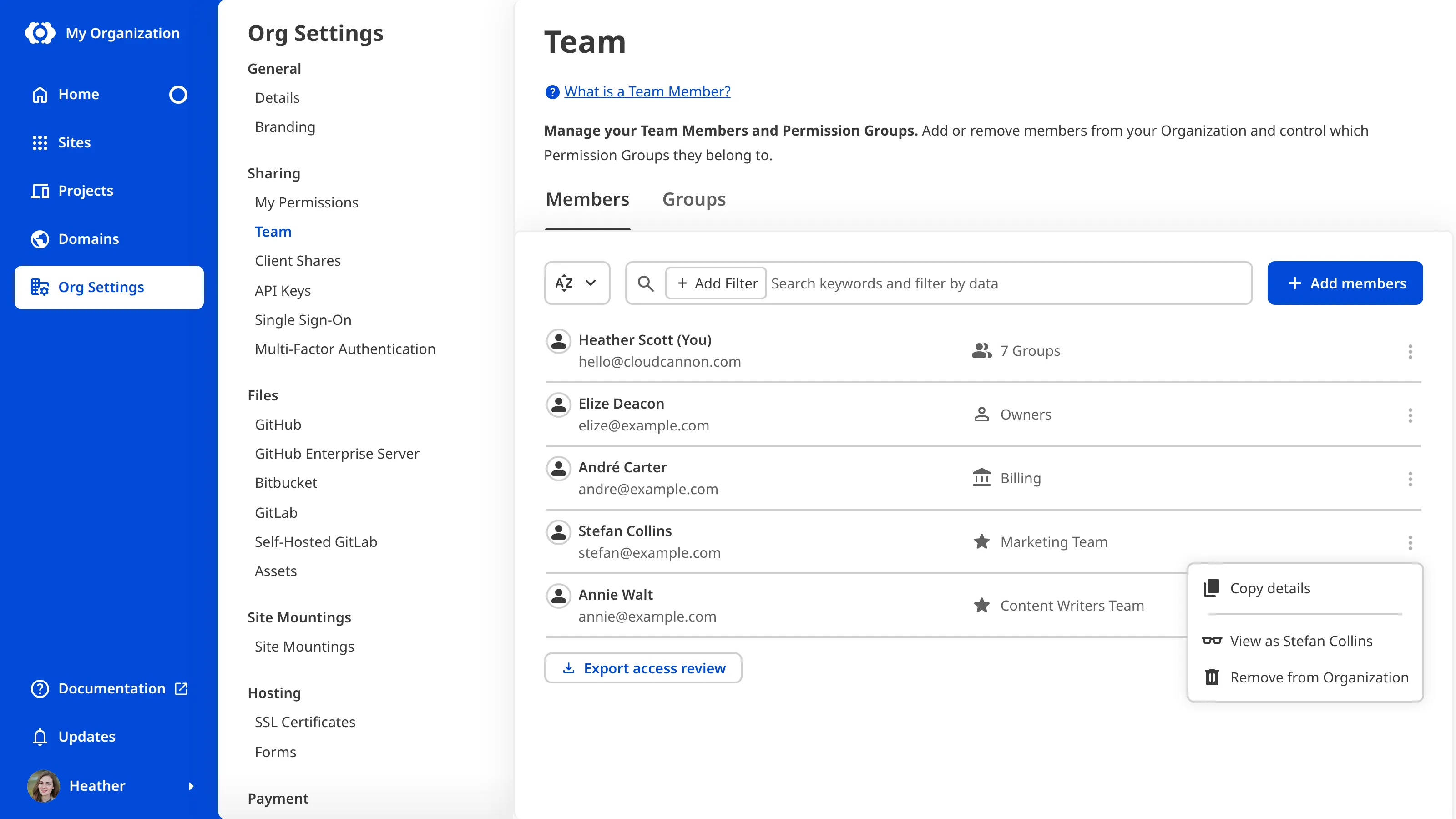
While viewing as a *Team Member*, you can only reach the areas of CloudCannon their *Permissions* allow. Options that need *Permissions* they do not have are hidden, and opening a page they cannot access shows a *Permission denied* message.
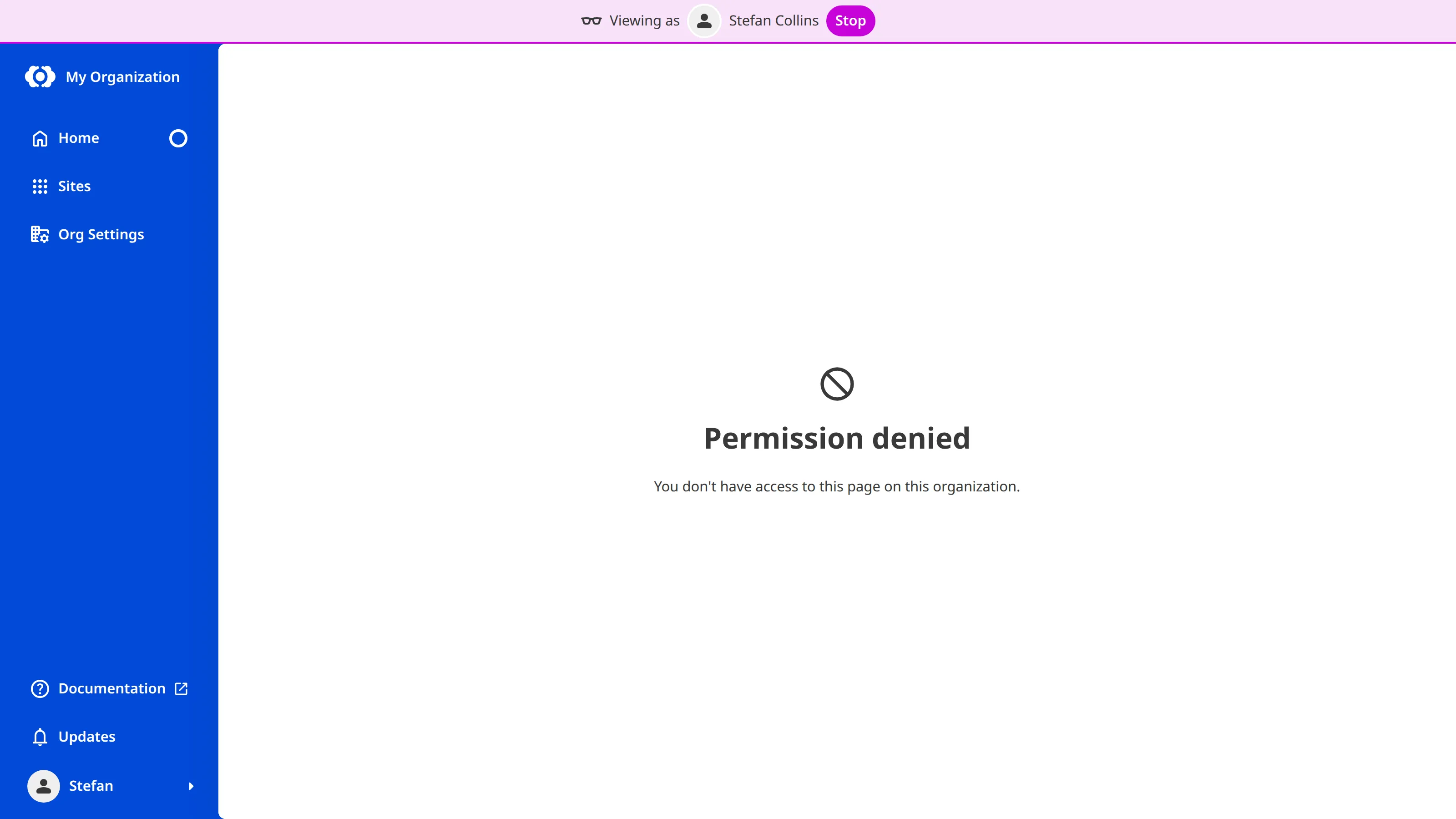
## Stop viewing as a Team Member
To stop viewing as a *Team Member*:
1. Click the *Stop* button in the *Viewing as* banner at the top of the page.
CloudCannon will reload and return you to your regular view.
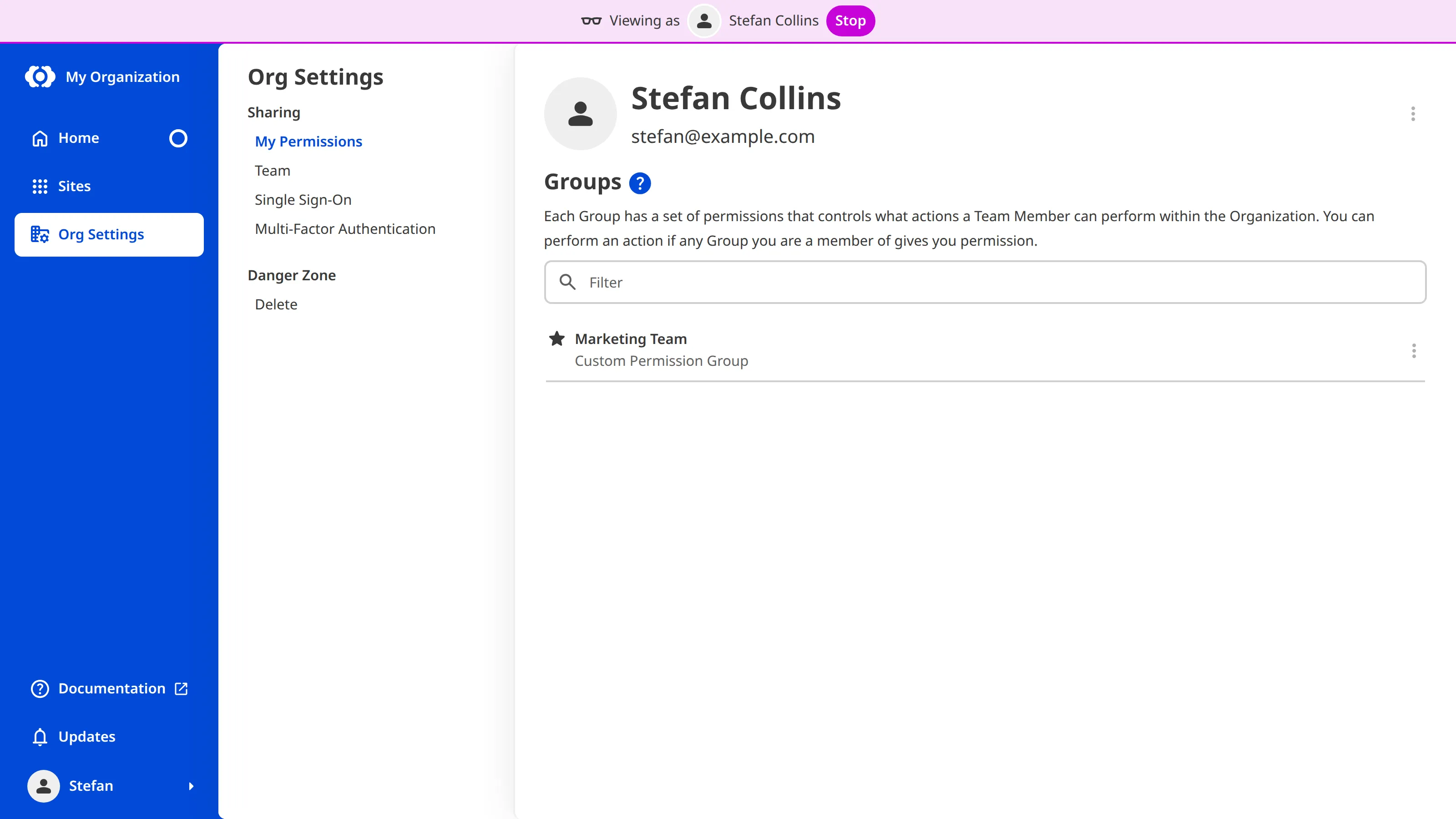
> You can also stop viewing as a *Team Member* from the account menu in the *App Sidebar* by selecting the *Stop viewing as [Team Member Name]* option.
---
---
title: View your Testing Domain
description: Learn about the free .cloudvent.net Testing Domain.
url: https://cloudcannon.com/documentation/user-articles/view-your-testing-domain/
content_type: user article
last_modified: 2026-02-10
---
A Testing Domain is a free *.cloudvent.net* URL that CloudCannon assigns to every Site. You can see your Testing Domain any time after your first successful [Site build](/documentation/developer-articles/what-is-a-site-build/).
To view the home page of your Site on your Testing Domain:
1. Open the Site you want to view in CloudCannon.
2. Click the *Live Site Preview* button the header of your *Site Navigation*.
CloudCannon will open the home page of your Site on your Testing Domain in another tab.

If the file has an output URL, you can also view specific pages on your Testing Domain.
To view a specific file on your Testing Domain:
1. Open the Site you want to view in CloudCannon.
2. Navigate to the *Collection browser* that contains your file.
3. Identify the file card for your file and click the *Context Menu* icon in the top right of the card. Alternatively, you can open the file in an editing interface by clicking on the card and then click the *Context Menu* icon in the top right of the editing interface.
4. Select the the *Open URL* option in the file *Context Menu*.
CloudCannon will open the page on your Testing Domain in another tab.

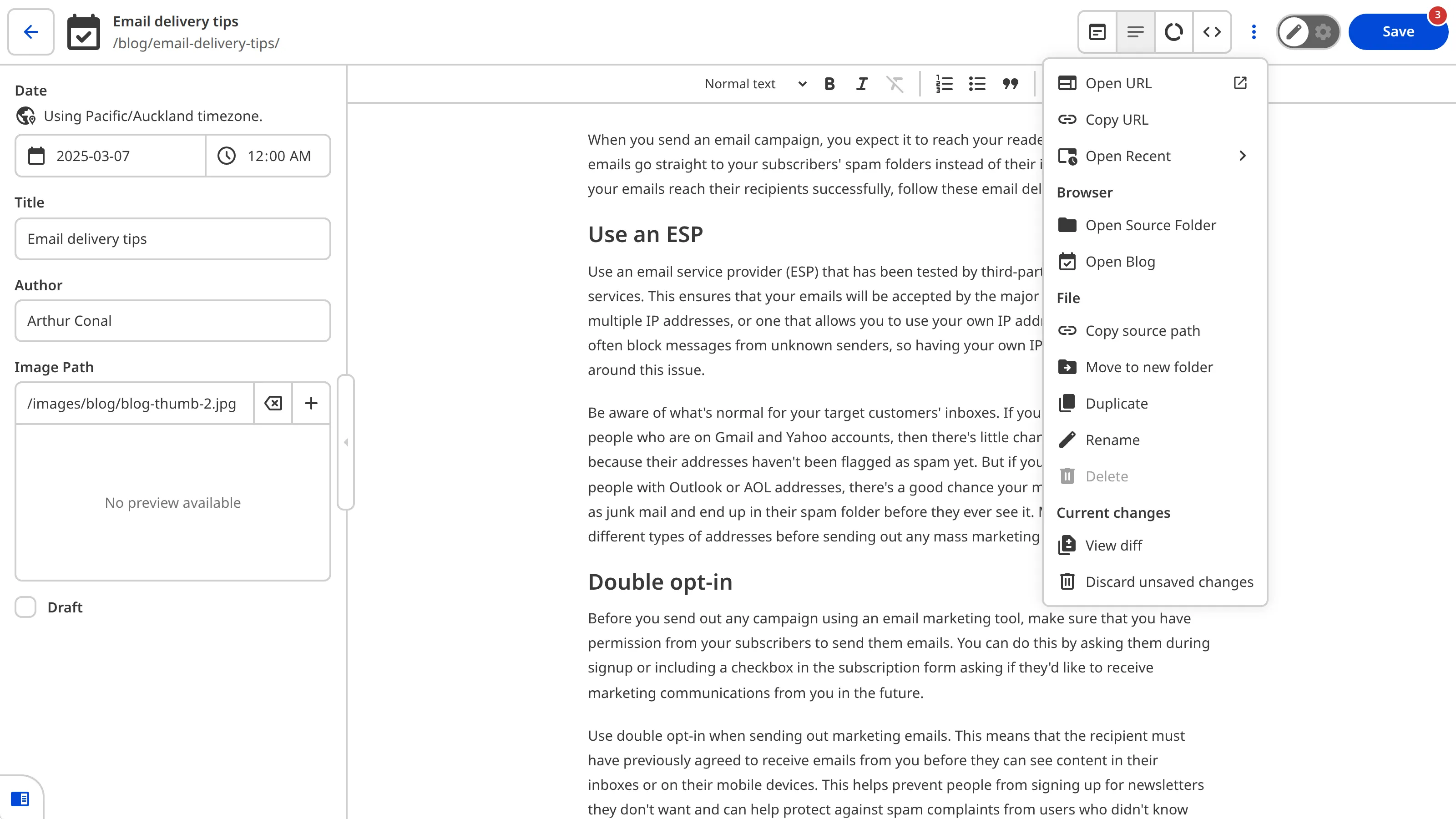
---
---
title: What are Add-Ons and Overages?
description: Learn about Add-Ons and Overages in CloudCannon, how they extend your Subscription Plan limits, and where extra usage appears on your bill.
url: https://cloudcannon.com/documentation/user-articles/what-are-add-ons-and-overages/
content_type: user article
last_modified: 2026-07-31
---
Every **Subscription Plan** includes a set amount of **Team Members**, **Custom Domains**, **Build Time**, and **Hosting Bandwidth**. If your **Organization** needs more than your *Subscription Plan* provides, you can pay for more resources. For more information about the cost of **Add-Ons** and **Overages**, please see the [CloudCannon pricing page](https://cloudcannon.com/pricing/).
You can extend your *Subscription Plan* limits and resources in two ways:
- Add an additional *Team Member* or *Custom Domain* (called *Add-Ons*)
- Enable *Overages* to remove *Build Time* and *Hosting Bandwidth* limits and pay for what your *Organization* uses

You can extend each of these resources:
- **Team Members** — Add people who can access, edit, or create content for your *Organization*. This includes people you invite to your *Organization*, people you invite to a single *Site* through **Site Sharing**, and each *Site* with **Client Sharing** enabled.
- **Custom Domains** — Add additional *Custom Domains* to your *Organization*, which you can connect to any number of *Sites*. This includes your apex domain and any subdomains (e.g., `jetstream.com`, `www.jetstream.com`, `shop.jetstream.com`) but not subpaths (e.g., `jetstream.com/blog`).
- **Build Time** — Allow your *Team Members* to spend more time on *Site* builds, in 1-hour bundles rounded up to the next full bundle. This only applies to *Subscription Plans* that limit *Build Time*.
- **Hosting Bandwidth** — Allow your *Sites* to serve additional website traffic, in 100 GB bundles rounded up to the next full bundle.
For more information on these topics in general, please read our documentation on [what Team Members are](/documentation/user-articles/what-is-a-team-member/), [what Custom Domains are](/documentation/developer-articles/what-is-a-custom-domain/), [what Build Time is](/documentation/developer-articles/what-is-build-time/), and [what Hosting Bandwidth is](/documentation/user-articles/what-is-hosting-bandwidth/).
> CloudCannon will prompt you to attach a [payment method](/documentation/user-articles/manage-your-payment-methods/) to your *Organization* before you can use *Add-Ons* or *Overages*.
## How do Add-Ons work?
There is no button to purchase *Add-Ons*. Instead, CloudCannon automatically adds them to your *Subscription Plan* when you [add a Team Member to your Organization](/documentation/user-articles/add-a-team-member-to-your-organization/) or [connect a Custom Domain to your Organization](/documentation/developer-articles/connect-a-custom-domain-to-your-organization/). When adding either of these resources would put you over your *Subscription Plan's* limits, CloudCannon shows the *Confirm Billing Change* modal.

The increased capacity from adding an extra *Team Member* or *Custom Domain* takes effect immediately, as you specify the person or domain you want to add during this process. When you are billed for these *Add-Ons* depends on whether your *Organization* uses a monthly or yearly **Billing Period**.
If your *Organization* uses a monthly *Billing Period*, the prorated cost of your *Add-Ons* for that month is added to your next invoice. Your next invoice will also include the cost of your *Add-Ons* for the following month, and these will be billed in advance as part of your regular invoices going forward.
If your *Organization* uses a yearly *Billing Period*, you are billed the prorated cost of your *Add-Ons* immediately. For example, if you add a *Team Member* when you are 5 months into your *Subscription Plan*, CloudCannon will invoice you for the remaining 7 months of the year. Your *Add-Ons* will then be billed in advance as part of your regular invoices going forward.
*Add-On* charges appear as separate line items on your invoice. For more information on reading your bill, please read our documentation on [understanding your CloudCannon invoice](/documentation/user-articles/understand-your-cloudcannon-invoice/).
## How do Overages work?
> *Overages* are relevant if you build and host your website through CloudCannon, rather than through a third-party service. For more information, please read our documentation on [what a Site build is](/documentation/developer-articles/what-is-a-site-build/) and [what web hosting is](/documentation/user-articles/what-is-web-hosting/).
You can control whether *Overages* are enabled or disabled for your *Organization*, which encompasses both *Build Time* and *Hosting Bandwidth*. When *Overages* are enabled, your *Organization* is not limited to the amount in your *Subscription Plan*. At the end of each month, CloudCannon will invoice you for the amount of *Overages* you used over your *Subscription Plan* limit in 1-hour or 100 GB bundles, rounded up.
Most of CloudCannon's *Subscription Plans* include unlimited *Build Time*, so on those plans you are only ever invoiced for *Hosting Bandwidth* *Overages*.
If you do not have *Overages* enabled, and reach the resource limit in your *Subscription Plan*, CloudCannon will prevent you from using more.
- When you reach your *Build Time* limit, CloudCannon stops running *Site* builds for the remainder of the month or until you enable *Overages*. You can still save your changes, but they will not build.
- When you reach your *Hosting Bandwidth* limit, CloudCannon will stop serving the *Sites* on your *Organization* to website visitors for the remainder of the month or until you enable *Overages*. Instead, visitors to your website will see a hosting error message.
> We recommend enabling *Overages* in all cases to prevent your *Sites* from going down.

> **How much Hosting Bandwidth do I need?**
>
> *Hosting Bandwidth* is the amount of data transferred from your website's servers at CloudCannon to your website visitor. The amount of data each webpage needs is measured in megabytes (MB), and mostly depends on how many image/media files are on the page and how optimized your website is. For example, a 4 MB webpage with several images or media files will serve 25,000 page views with 100 GB of *Hosting Bandwidth*. Most optimized webpages are smaller than this, so 100 GB will go further.
CloudCannon will warn you if your *Overages* are disabled. To turn *Overages* on or off, please read our documentation on [managing your Add-Ons and Overages](/documentation/user-articles/manage-your-add-ons-and-overages/).
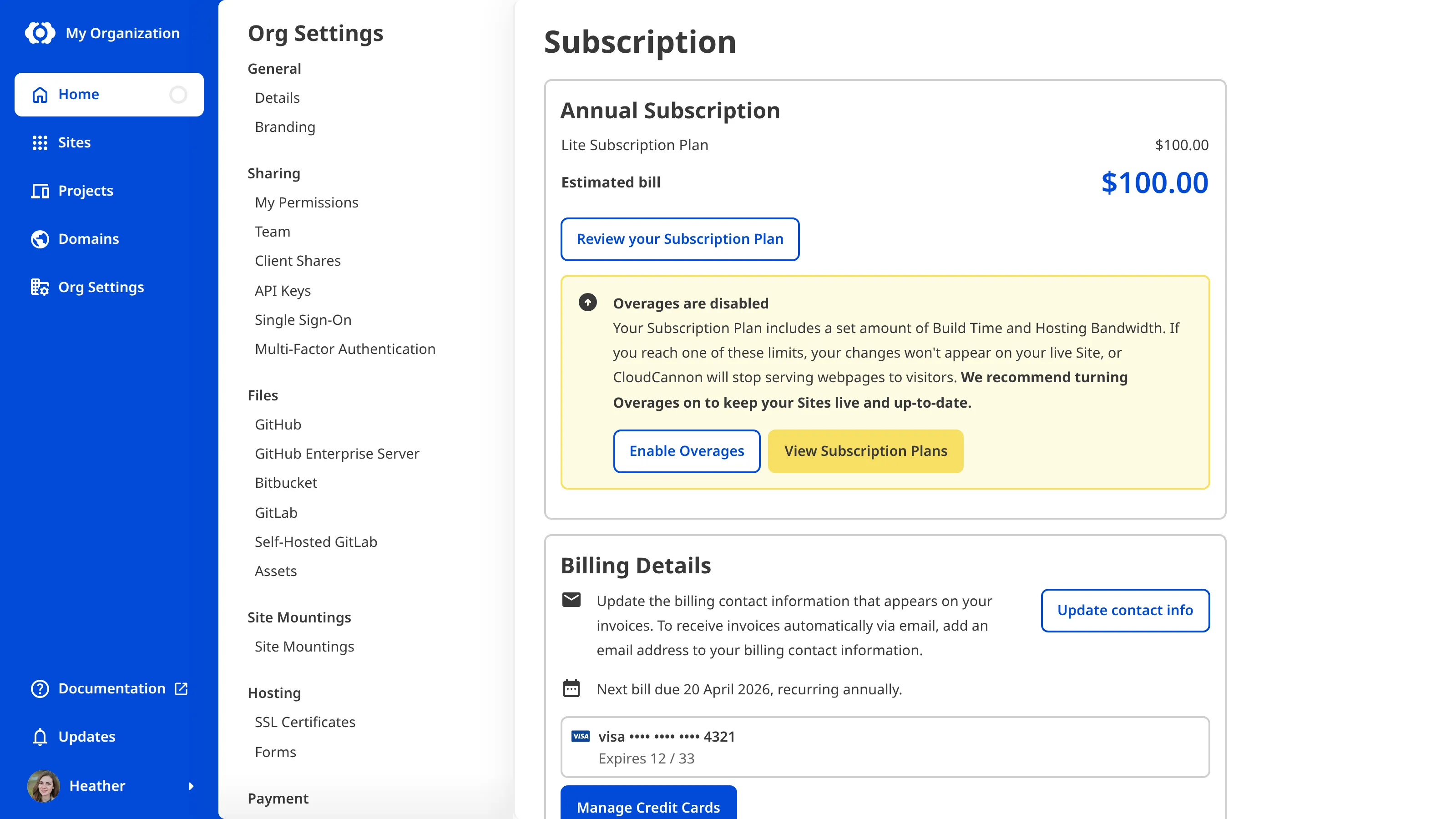
You can track your *Hosting Bandwidth* and *Build Time* each month using the *Usage* tab on your *Organization Home* page or *Site Dashboard*. Checking these graphs regularly helps you anticipate when your *Organization* or *Site* might exceed its *Subscription Plan* limits and decide whether to add capacity, enable *Overages*, or change your *Subscription Plan*.
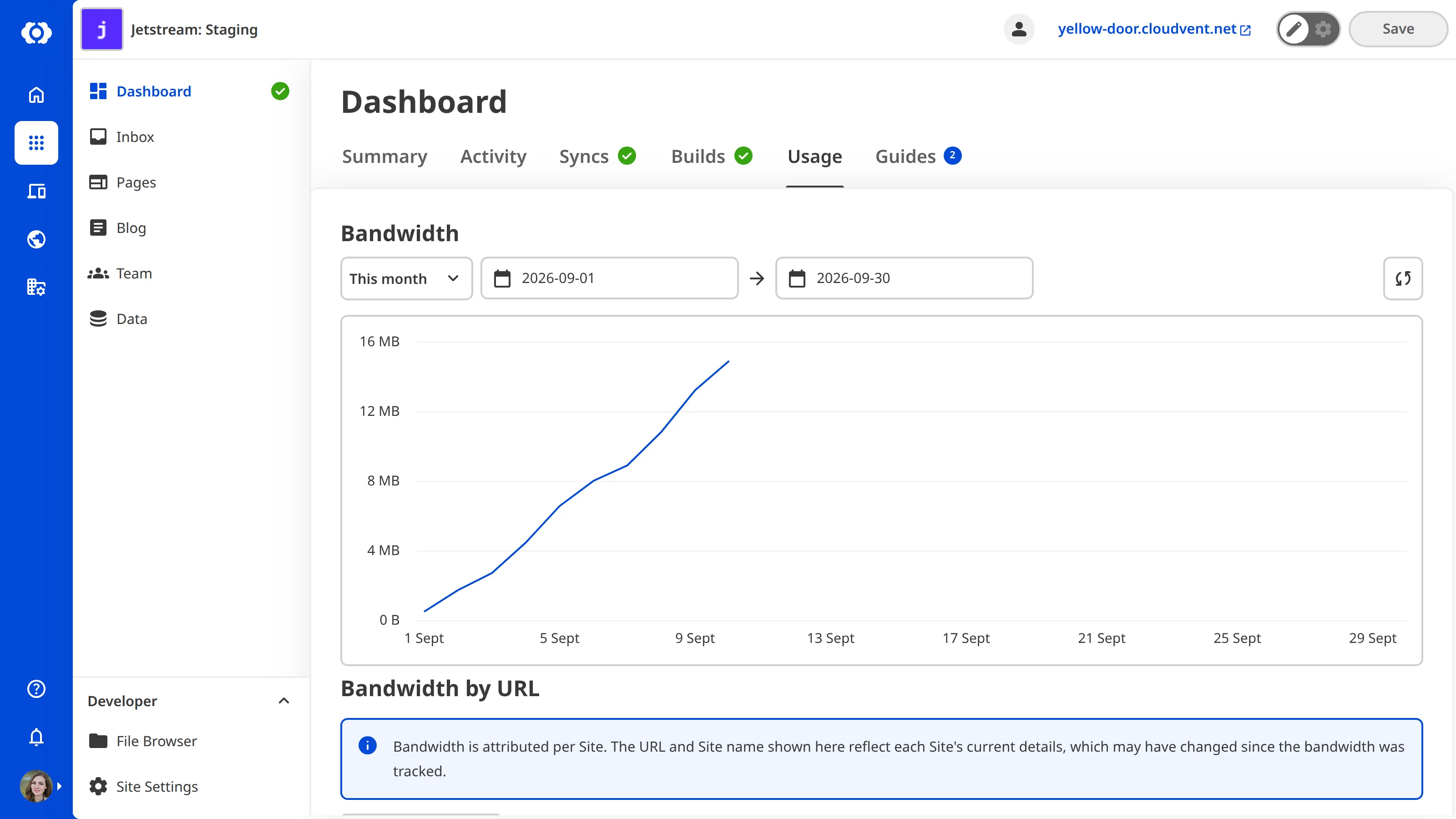
> Several CloudCannon *Subscription Plans* have unlimited *Build Time*. However, CloudCannon may monitor usage with regard to the fair use of CloudCannon infrastructure, in line with our [Terms of Service](https://cloudcannon.com/terms/).
---
---
title: What are Date and Time inputs?
description: Learn about Date and Time inputs for editing structured data, including how they work in CloudCannon.
url: https://cloudcannon.com/documentation/user-articles/what-are-date-and-time-inputs/
content_type: user article
last_modified: 2026-06-30
---
Date and Time inputs are editing interfaces for date and time values. You can use these inputs in the Data Editor, Content Editor, or Visual Editor to edit structured data in data files or front matter.
There are three types of Date and Time inputs:
- Datetime
- Date
- Time
## Date and Time input types
### Datetime
The Datetime input provides an editing interface for date and time values.
You can edit the value of a Datetime input by clicking the date or time text field. Clicking on the date text field will open a calendar for selecting dates.


The Timezone for your Datetime input appears above the input text field.
### Date
The Date input provides an editing interface for date values only.
You can edit the value of a Date input by clicking the date text field. Clicking on the date text field will open a calendar for selecting dates.


The Timezone for your Date input appears above the input text field.
### Time
The Time input provides an editing interface for time values only.
You can edit the value of a Datetime input by typing into the time text field.

## Date and Time input appearance and behavior
You can customize the label, comment, documentation link, and context box for all inputs regardless of type.
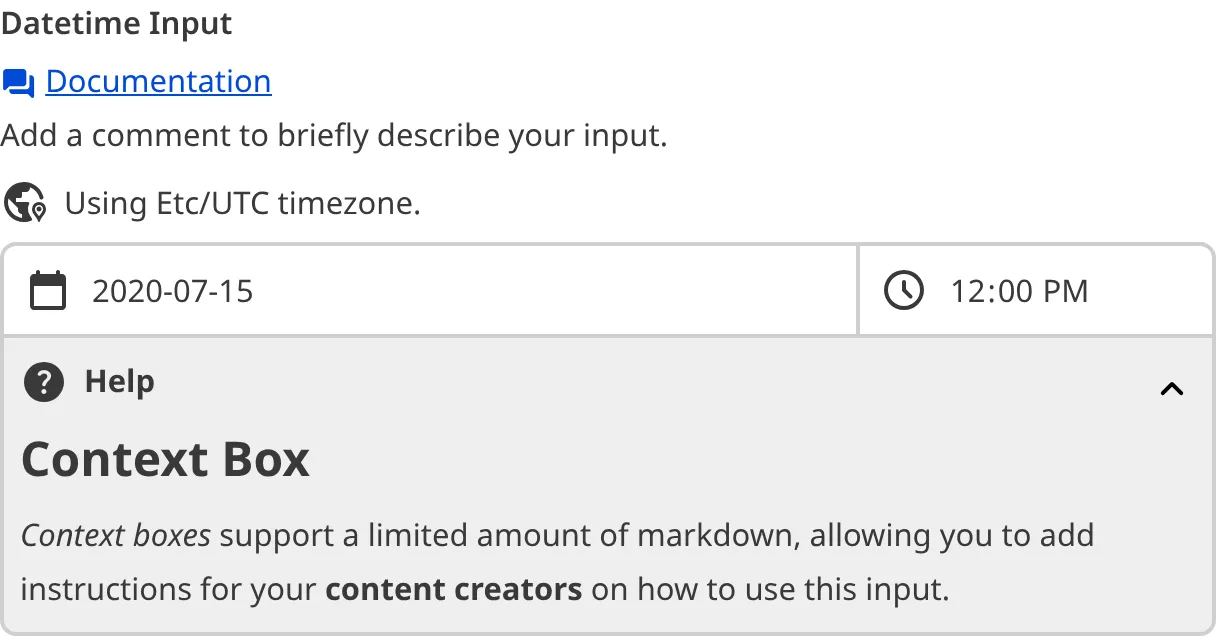
Depending on how your developer configured the input, your Date or Time input may have a different Timezone.

### Input validation
Your Date or Time input may also have input validation, which requires the value to match predefined criteria before you can save your changes.
CloudCannon will show a red `*` next to the name of your Date or Time input if a value is required.
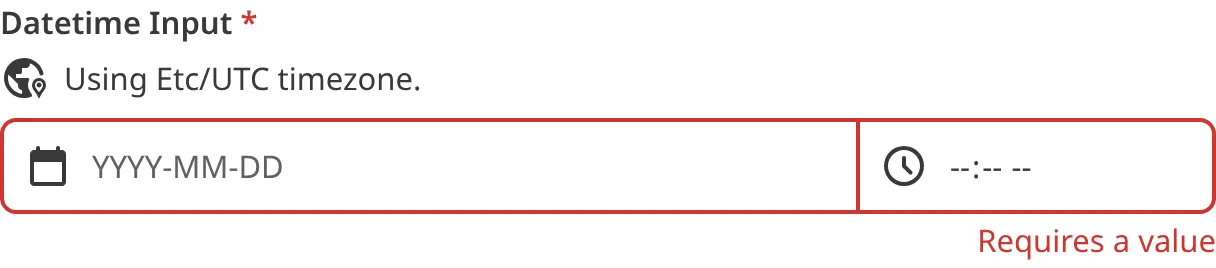
If you enter a value before the earliest allowed date or after the latest allowed date, CloudCannon will display an error message in red text under the input field.
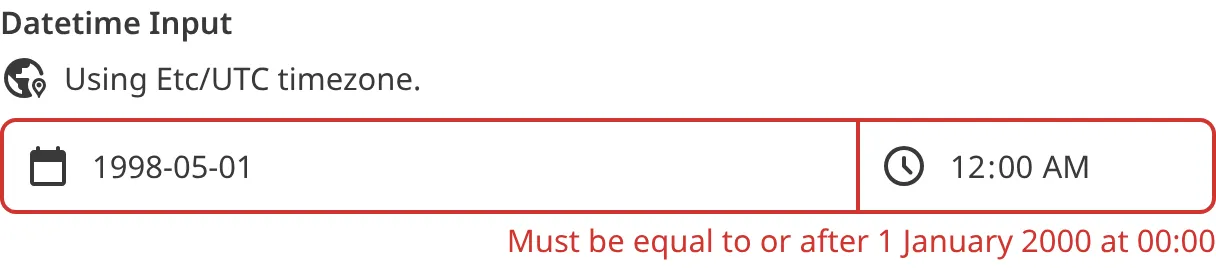
For more information on configuration options, valid input values, and unconfigured input behavior, please read our developer documentation on [configuring a Date or Time input](/documentation/developer-articles/configure-a-date-or-time-input/) .
## Misconfigured Date and Time inputs
You will see an orange warning box if your Date or Time input is misconfigured.
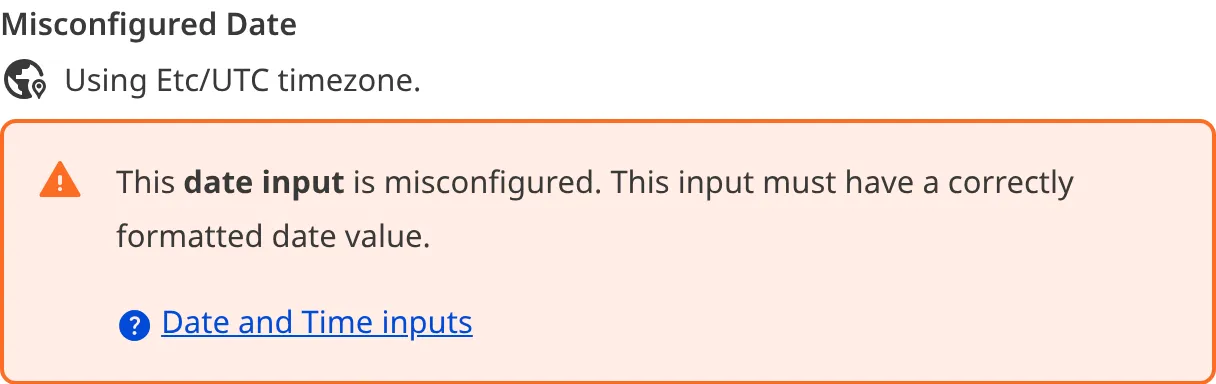
Date and Time inputs are misconfigured if:
- The value of a Datetime or Date is not a valid [ISO8601](https://www.iso.org/iso-8601-date-and-time-format.html) format.
- The value of a Time input is not a string.
For more information on how to fix a misconfigured Date or Time input, please read our developer documentation on [configuring a Date or Time input](/documentation/developer-articles/configure-a-date-or-time-input/).
---
---
title: What are Default Permission Groups?
description: Learn about the Default Permission Groups in every Organization. Permission Groups determine what permissions your Team Members have.
url: https://cloudcannon.com/documentation/user-articles/what-are-default-permission-groups/
content_type: user article
last_modified: 2026-09-04
---
CloudCannon provides several [Permission Groups](/documentation/user-articles/what-are-permission-groups/) by default, allowing you to select which level of access is appropriate for each **Team Member**. Each *Group* has a defined *Scope* and set of *Permissions*. These *Groups* are:
- Five *Permission Groups* with Global *Scope* (*Owners*, *Developers*, *Technical Editors*, *Editors*, and *Billing*).
- Two *Permission Groups* per **Site**, each with a *Site* *Scope* for *Site Sharing* (*Technical Editors* and *Editors*).
- One *Permission Group* per *Site* with *Site* *Scope* for *Client Sharing*.
- One *Permission Group* with Global *Scope* in each *Client Organization*, for the *Partner Organization* that manages it (*Partner*).
In general, a *Permission Group* is a *Default Permission Group* when:
- **Created by CloudCannon** — CloudCannon adds the *Group* for you, and you cannot create a new *Default Permission Group* yourself.
- **Defined by CloudCannon** — you cannot change the *Resources* or *Scope* the *Group* covers. The exception is the *Permission Group* for *Client Sharing*, which you can customize per *Site* on our [Team or Enterprise Plan](https://cloudcannon.com/pricing/).
- **Independent of your Subscription Plan** — *Default Permission Groups* are available whichever *Subscription Plan* you are on, whereas creating *Custom Permission Groups* requires our [Team or Enterprise Plan](https://cloudcannon.com/pricing/).
This article covers the five *Default Permission Groups* with Global *Scope* that every *Organization* has. For more information on the other *Default Permission Groups*, please read our documentation on [sharing a Site with Site Sharing](/documentation/user-articles/share-a-site-with-site-sharing/), [what Client Sharing is](/documentation/user-articles/what-is-client-sharing/), and [how Partners access their Client Organizations](/documentation/partner-articles/how-do-partners-access-their-client-organizations/).
Four of the *Default Permission Groups* with Global *Scope* are hierarchical: *Owners*, *Developers*, *Technical Editors*, and *Editors*. This means that each *Group* contains the *Permissions* of all the *Groups* below it in the hierarchy, with the *Owners Group* containing all *Permissions* and the *Editors Group* containing the smallest subset of *Permissions*.
The last *Default Permission Group*, *Billing*, contains a specific set of *Permissions* to enable its members to manage your CloudCannon subscription. Because you can be a member of multiple *Permission Groups*, *Team Members* of any technical level can be part of the *Billing Permission Group*.

For a description of every *Resource* available in CloudCannon, please read our [Permissions](/documentation/developer-reference/permissions/) reference documentation. To see which *Resources* are enabled for a particular *Permission Group* in CloudCannon, click on a *Permission* under the *Settings* tab on any *Group* page. To see how CloudCannon looks for a member of a particular *Group*, please read our documentation on [viewing your Organization as a Team Member](/documentation/user-articles/view-your-organization-as-a-team-member/).
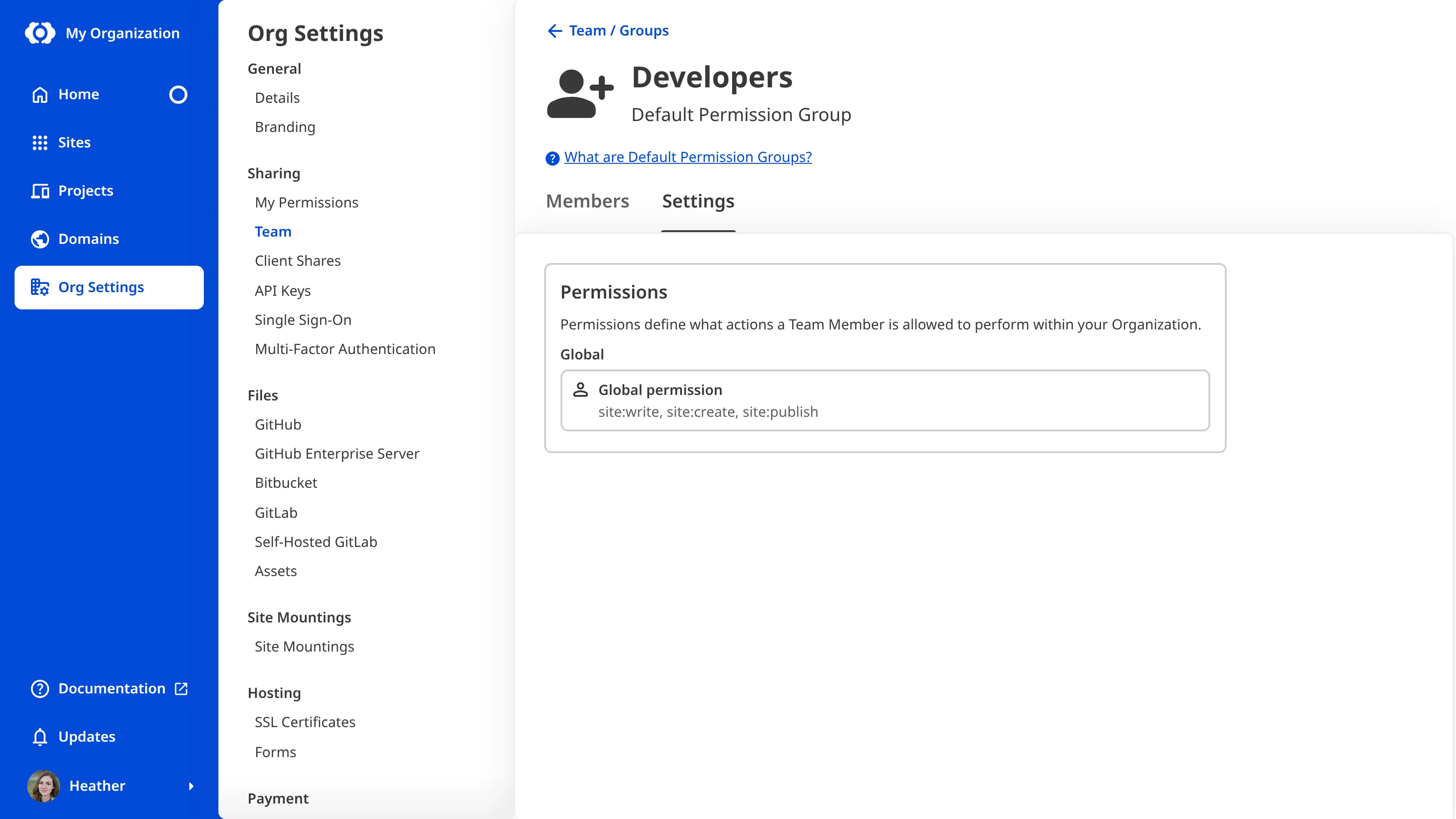
## Editors
The *Editors Permission Group* has the lowest level of access in your **Organization**. This *Group* is for *Team Members* who want to edit content on your *Sites* without worrying about the technical aspects.
Members of the *Editors Permission Group* can:
- Create a *Site* by branching an existing one.
- See the details and activity history for each *Site*.
- Edit, add, and delete files from *Sites*.
- See the build history, build deploy history, and sync status for each *Site*.
- Publish content through **Pull Requests** or the *Merge changes immediately* option.
- Upload to DAMs connected to your *Sites*.
- Manage responses in your *Site* Inboxes.
- See the details for *Permission Groups* they belong to.
- View basic details about your **Projects** and *Organization*.
## Technical Editors
The *Technical Editors Permission Group* is similar to the *Editors Group*, except members have more detailed technical information about the *Sites* they update.
Members of the *Technical Editors Permission Group* can do everything *Editors* can do, as well as:
- Edit files using the *Source Editor*.
- Trigger builds, syncs, and build deploys for each *Site*, and view logs associated with these functions.
- View analytics, including the bandwidth and build time usage for each *Site*.
- Create a downloadable backup for each *Site*.
- View the *Pull Requests* for each *Project*.
## Developers
The *Developers Permission Group* provides access to most of your *Organization*. This *Permission Group* is for *Team Members* you trust to handle all the elements of web design and development.
Members of the *Developers Permission Group* can do everything *Editors* and *Technical Editors* can do, as well as:
- See and edit *Base Domain* settings.
- Create new *Sites* and delete existing ones, independently of branching and *Publishing Workflows*.
- Manage settings for each *Site*, including enabling *Site Sharing* and *Client Sharing*, *Site Mounting*, adding DAMs and forms, configuring authentication, and more.
- Manage *Permission Group* membership, including adding and removing *Team Members* and editing which *Permission Groups* a *Team Member* belongs to.
- Add and remove *Team Members* from your *Organization*.
- Create, delete, and edit the settings for *Projects*, including details and Git repository settings.
- Manage *Organization* settings, including branding, SSL certificates, Git repository settings, connecting new DAMs, creating new Inboxes, and managing transfer requests for transferring *Sites* between *Organizations*.
## Owners
The *Owners Permission Group* has complete control over everything in your *Organization*.
Members of the *Owners Permission Group* can do everything *Editors*, *Technical Editors*, and *Developers* can do, as well as:
- Manage billing settings, including subscription details, payment methods, and invoices, as well as view the bandwidth and build time usage reports for the entire *Organization*.
- Delete an *Organization*.
- On our [Team or Enterprise Plan](https://cloudcannon.com/pricing/), *Owners* can also create new [Custom Permission Groups](/documentation/developer-articles/what-are-custom-permission-groups/).
When you create an *Organization*, your account is automatically added to the *Owners Permission Group*. There must always be at least one *Team Member* in the *Owners Permission Group*.
## Billing
The *Billing Permission Group* has a specific set of *Permissions* for *Team Members* who manage the financial side of CloudCannon.
Members of the *Billing Permission Group* can:
- View and edit all billing details, including bandwidth, build time usage, subscription details, payment methods, and invoices.
---
---
title: What are inputs?
description: Learn about inputs in CloudCannon, including the twelve types of inputs.
url: https://cloudcannon.com/documentation/user-articles/what-are-inputs/
content_type: user article
last_modified: 2026-03-29
---
An input is an editing interface for structured data in your data files or the front matter of markup files. Inputs appear in the [Data Editor](/documentation/user-articles/what-is-the-data-editor/) and the sidebar or data panels in the [Content Editor](/documentation/user-articles/what-is-the-content-editor/) and [Visual Editor](/documentation/user-articles/what-is-the-visual-editor/).
- **Structured data** — Data organized in a clear, predefined, and consistent format. This can be quantitative (e.g., numbers) or qualitative (e.g., text, links, or file paths).
- **Front matter** — Structured data that precedes the main content in a markup file (e.g., a Markdown or MDX file). This data contains information about the file that should not be in the content body, such as the file title, author, or SEO information.
An input could be a text field for the description of your file, a date field for the day a blog was published, a select field with predefined tags for your content, or more.
Inputs allow your team to edit structured data in their files without using the Source Editor. By configuring each input, you can control its appearance and functionality, creating a custom editing interface for the variables your team needs.
You can configure inputs at any level of the configuration cascade, allowing you to define a default configuration for use anywhere in the Site and then override that default for specific Collections or files. In this way, you can control the scope and priority for a given input configuration.
For more information, please read our documentation on the [configuration cascade](/documentation/developer-articles/using-the-configuration-cascade/) and [configuring your inputs](/documentation/user-articles/what-are-inputs/).
## Basic input configuration
Every input has some basic configuration: the label, comment, context, and type. The label, comment, and context allow you to describe the intended purpose of the input, while the type determines its functionality.
CloudCannon supports twelve types of inputs.
- [Boolean](/documentation/user-articles/what-is-a-boolean-input/) — Define a true or false value using a checkbox or a switch.
- [Code](/documentation/user-articles/what-is-a-code-input/) — Add a code editor.
- [Color](/documentation/user-articles/what-is-a-color-input/) — Add a color using a color picker with spectrum and transparency controls.
- [Date and Time](/documentation/user-articles/what-are-date-and-time-inputs/) — Define a date and/or time.
- [File](/documentation/user-articles/what-is-a-file-input/) — Upload a file, such as an image or a document, and store the file path.
- [Number](/documentation/user-articles/what-is-a-number-input/) — Add a number using a text box or a range slider.
- [Object](/documentation/user-articles/what-is-an-object-input/) — Group inputs under a single Object.
- [Array](/documentation/user-articles/what-is-an-array-input/) — Create a list of inputs or input groups.
- [Select and Multiselect](/documentation/user-articles/what-is-a-select-input/) — Select one or more options from a predefined list.
- [Text](/documentation/user-articles/what-is-a-text-input/) — Write plain text content.
- [Rich Text](/documentation/user-articles/what-is-a-rich-text-input/) — Write and format markup content in HTML or Markdown.
- [URL](/documentation/user-articles/what-is-a-url-input/) — Add a relative or absolute URL.
Each type of input has additional configuration options. For more information, please read our documentation on each input type.
## Input validation
For some inputs, you may want to ensure that content creators have entered a value before they save their changes, or that a value meets a list of prerequisite criteria. By configuring input validation, CloudCannon will prevent you from saving an input with an invalid value.
In some cases, the CloudCannon UI will change to prevent you from adding invalid input values. For example, CloudCannon will disable the *Add* button on an Array input to prevent you from exceeding the maximum allowed number of items, or prevent you from selecting a date outside of the allowed range in a Datetime input.
For more information on what validation methods are available, please read our documentation on each input type.
## Default behavior for unconfigured inputs
If you have not configured your inputs, CloudCannon will attempt to determine the correct editing interface for your data using the input value and key name.
The value of an unconfigured input can help CloudCannon determine its type. For example, CloudCannon will interpret a key with a `true` or `false` value as a Boolean input and a string value as a Text input. CloudCannon can use this method to determine [Boolean](/documentation/user-articles/what-is-a-boolean-input/), [Number](/documentation/user-articles/what-is-a-number-input/), [Object](/documentation/user-articles/what-is-an-object-input/), [Array](/documentation/user-articles/what-is-an-array-input/), and [Text inputs](/documentation/user-articles/what-is-a-text-input/).
Most input types also have a naming convention that allows CloudCannon to determine the input type by the key name. For example, CloudCannon will interpret any key name ending in `_color` or `_hex` as a Color input and any key name ending in `_path` or `_image` as a File input. Each input type has multiple naming conventions. CloudCannon can use this method to determine [Code](/documentation/user-articles/what-is-a-code-input/), [Color](/documentation/user-articles/what-is-a-color-input/), [Date and Time](/documentation/user-articles/what-are-date-and-time-inputs/), [File](/documentation/user-articles/what-is-a-file-input/), [Number](/documentation/user-articles/what-is-a-number-input/), [Select and Multiselect](/documentation/user-articles/what-is-a-select-input/), [Text](/documentation/user-articles/what-is-a-text-input/), [Rich Text](/documentation/user-articles/what-is-a-rich-text-input/), and [URL inputs](/documentation/user-articles/what-is-a-url-input/).
Using these methods, you can add inputs to your files without the need for configuration. This behavior is convenient if you have simple inputs or do not want to configure inputs. It is also beneficial for new websites on CloudCannon where you have yet to create any CloudCannon-specific configuration.
The default input behavior may not be suitable for you if:
- Your value or key name is not specific enough for CloudCannon to determine your desired input type.
- You want to customize the user experience for your input.
We recommend [configuring your inputs](/documentation/user-articles/what-are-inputs/) to overcome these limitations and for greater control over their functionality and appearance.
---
---
title: What are Login Sessions?
description: Learn about Login Sessions and how you can view all current and previous logins on your CloudCannon account.
url: https://cloudcannon.com/documentation/user-articles/what-are-login-sessions/
content_type: user article
last_modified: 2026-09-10
---
A *Login Session* is an instance of logging in to your CloudCannon account. You can view all your current, active, and previous logins on the *Sessions* page under *Account Settings*.

The *Sessions* page shows two lists of *Session Cards*: *Active sessions* and *Previous sessions*. Each session card shows the following information:
- **Browser and operating system** — The browser and OS CloudCannon detected when the session was created (e.g., Chrome on Windows).
- **IP address** — The IP address used to sign in.
- **Signed in** — How long ago the session was created.
- **Last active / Ended** — For active sessions, how long ago the session was last used. For previous sessions, when the session ended.
- **Login method** — The method used to sign in (Email, GitHub, GitLab, Bitbucket, or SAML/SSO).
- **MFA** — Shown if multi-factor authentication was used during sign-in.
Your current session is highlighted with a *Current* tag.
> You can filter *Sessions* by IP Address using the *Search by IP address* searchbar.
You can control where you are logged into CloudCannon using the *Logout of all sessions* button. For more information, please read our documentation on [signing out of all Login Sessions](/documentation/user-articles/sign-out-of-all-login-sessions/).
*Login Sessions* cover your own account. If you manage an *Organization* and need the equivalent information for everyone in it, including how each *Team Member* signs in and when they were last active, please read our documentation on [what an Access Review is](/documentation/user-articles/what-is-an-access-review/).
---
---
title: What are Permission Groups?
description: Learn about Permission Groups in CloudCannon and how they determine what actions your team can perform.
url: https://cloudcannon.com/documentation/user-articles/what-are-permission-groups/
content_type: user article
last_modified: 2026-09-04
---
In CloudCannon, **Permissions** control what actions your [Team Members](/documentation/user-articles/what-is-a-team-member/) can perform within your [Organization](/documentation/user-articles/what-is-an-organization/). The **Permission Group** a *Team Member* belongs to determines their *Permissions*.
A *Permission Group* defines a set of *Permissions* for each member of that *Group*. Every *Team Member* in your *Organization* must be a member of at least one *Group*. When you [invite a Team Member to your Organization](/documentation/user-articles/add-a-team-member-to-your-organization/), CloudCannon will prompt you to select a *Permission Group* to add them to.
CloudCannon provides several [Default Permission Groups](/documentation/user-articles/what-are-default-permission-groups/), but you can create [Custom Permission Groups](/documentation/developer-articles/what-are-custom-permission-groups/) on the [Team and Enterprise Plans](https://cloudcannon.com/pricing/). You can see the full list of *Permission Groups* in your *Organization* on the *Groups* tab of the *Team* page, under *Org Settings*.

## What is a permission?
All *Permission Groups* consist of a list of *Permissions*. *Permissions* define which **Resources** the members can access, the **Scopes** those *Resources* apply to, and the actions members can take with regard to those *Resources*.
- **Resource** — Anything a *Team Member* could possibly interact with in CloudCannon. A *Resource* could be an individual **Site**, **Pull Request** settings, billing information, and more.
- **Scope** — This defines how broadly a *Permission* is applied across an *Organization* in CloudCannon. Every *Permission* in a *Permission Group* has a single *Scope* from one of five levels: Global, *Project*, *Site*, *Group*, and **Base Domain**. Which *Scopes* are available will depend on whether you are using [Default](/documentation/user-articles/what-are-default-permission-groups/) or [Custom Permission Groups](/documentation/developer-articles/what-are-custom-permission-groups/).
Each *Resource* in a *Permission Group* also has one or more associated actions: Read, Write, or Create.
- **Read** — The capacity to see a *Resource* and open it to view its contents. Read is the most basic level of a *Resource*. If you do not have Read for a particular *Resource*, that *Resource* will not appear anywhere in CloudCannon.
- **Write** — The capacity to edit a *Resource*. If you have Write for a particular *Resource*, CloudCannon will automatically allow you to Read.
- **Create** — The capacity to create more instances of a *Resource*. Create only applies to a few *Resources*. When you create an instance of a *Resource*, CloudCannon will automatically give you permission to Read and Write that instance.
For a complete list of *Resources* and their associated *Scopes* and actions, please read our [Permissions](/documentation/developer-reference/permissions/) reference documentation.
> When you configure a *Custom Permission Group*, you can only set the Create action at a Global *Scope* for most *Resources*. The exception is `site-branch`, which you can also set at a *Site* or *Project* *Scope*.
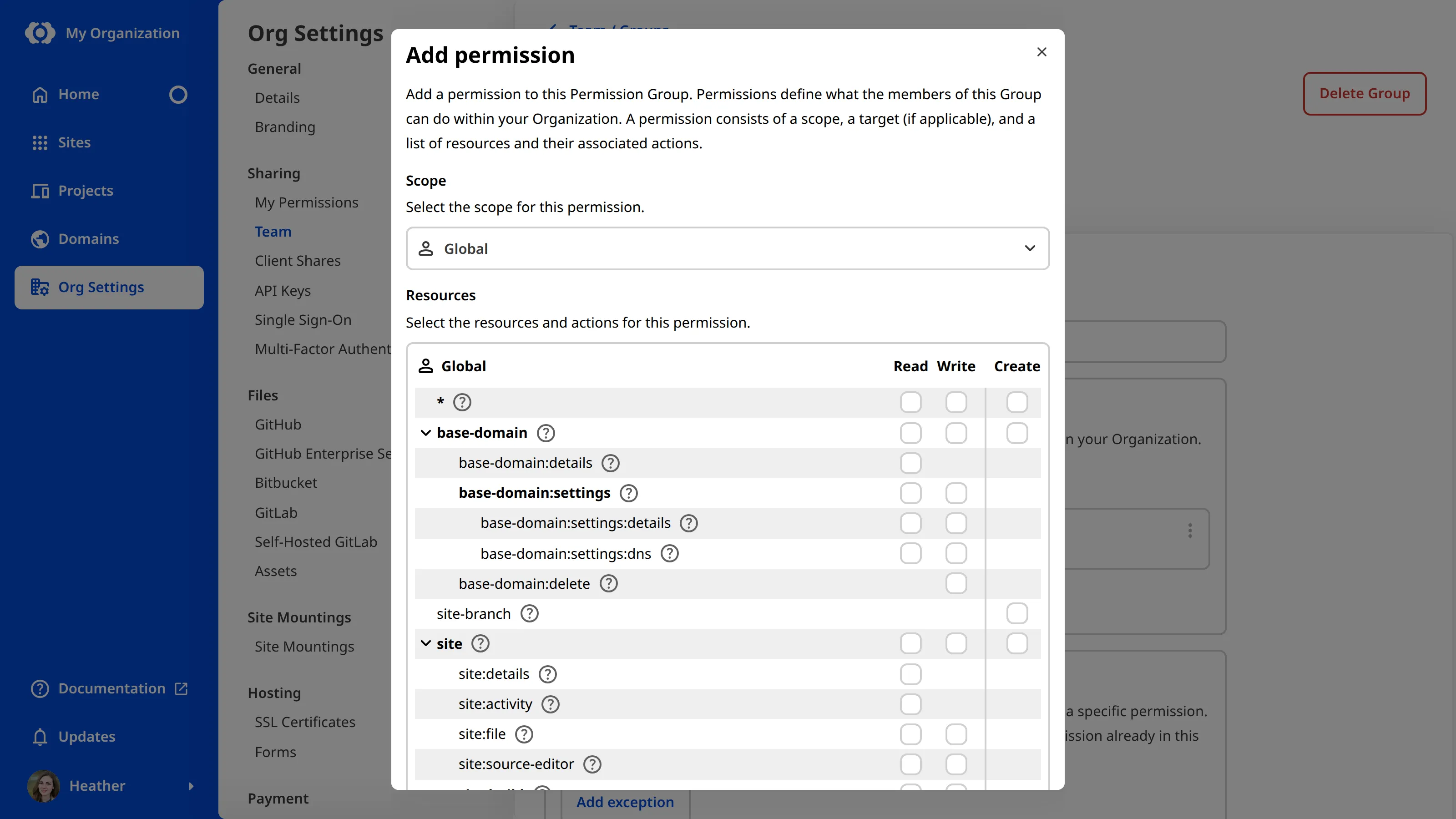
## Default Permission Groups
CloudCannon provides several *Default Permission Groups*:
- Five *Groups* with Global *Scope* (*Owners*, *Developers*, *Technical Editors*, *Editors*, and *Billing*)
- Two *Groups* per *Site* with *Site* *Scope* for [Site Sharing](/documentation/user-articles/share-a-site-with-site-sharing/)
- One *Group* per *Site* with *Site* *Scope* for [Client Sharing](/documentation/user-articles/what-is-client-sharing/)
- One *Group* with Global *Scope* in each *Client Organization*, for the [Partner Organization](/documentation/partner-articles/how-do-partners-access-their-client-organizations/) that manages it
Each of these *Permission Groups* has a defined set of *Permissions* so that you can select the appropriate level of control for each *Team Member*. In general, CloudCannon creates *Default Permission Groups* for you, decides the *Resources* and *Scope* they cover, and makes them available whichever *Subscription Plan* you are on. Members of the *Owners* or *Developers Permission Group* can [invite Team Members to your Organization](/documentation/user-articles/add-a-team-member-to-your-organization/) and [update which Permission Group Team Members belong to](/documentation/user-articles/add-a-team-member-to-a-permission-group/).
For more information, please read our documentation on [what Default Permission Groups are](/documentation/user-articles/what-are-default-permission-groups/).
## Custom Permission Groups
On the [Team and Enterprise Plans](https://cloudcannon.com/pricing/), you can create *Custom Permission Groups*, which give you fine-grained control over the *Permissions* in your *Organization*.
Using *Custom Groups*, you can add multiple *Permissions* to a *Group* and alter the *Scope* of each *Permission* from Global to *Project*, *Site*, *Group*, or *Base Domain*. You can also define **File Globs** and **Exceptions** for each *Group* for more precise *Permissions*.
A file glob is a pattern that matches a set of files, so you can grant access to specific folders or file types rather than an entire *Site*. For example, you could let a *Team Member* edit only the blog posts on a *Site*, and nothing else.
An *Exception* lets you grant a broad *Permission* and then take it away for specific *Resources*. For example, you could give a *Team Member* permission to edit every *Site* in a *Project* except your live *Site*.
For more information, please read our documentation on [what Custom Permission Groups are](/documentation/developer-articles/what-are-custom-permission-groups/).
## Multiple Permission Groups
You can be a member of multiple *Permission Groups*.
*Permission Groups* are always additive. In other words, *Permissions* from one *Group* do not negate *Permissions* from another. CloudCannon will allow an action if a *Team Member* has permission from at least one *Group*.
Here is an example.
You are a member of *Permission Group A*, allowing you to access [the Source Editor](/documentation/user-articles/what-is-the-source-editor/) editing interface. You are also a member of *Permission Group B*, which does not include permission to use the *Source Editor*. In this example, CloudCannon will still allow you to use the *Source Editor* because you have permission to do so from at least one *Permission Group*.
The additive nature of *Permission Groups* is less relevant for four of the *Default Permission Groups* (*Owners*, *Developers*, *Technical Editors*, and *Editors*), because each *Group* also contains the *Permissions* of all *Groups* below it. However, the *Billing Group* sits outside this hierarchy: if you belong to both the *Technical Editors* and *Billing Groups*, you can manage billing through your *Billing Group* membership, even though your *Technical Editors Group* has no billing *Permissions*.
Finally, [Exceptions](/documentation/developer-articles/what-are-custom-permission-groups/#exceptions) from one *Custom Permission Group* do not prevent you from accessing a *Resource* if you have permission to do so from a second *Permission Group*.
## Partner Permission Groups
The [CloudCannon Partner Program](https://cloudcannon.com/partner-program/) allows agencies or freelancers specializing in web design/development to set up their clients in CloudCannon.
CloudCannon will automatically add *Owners* from a *Partner Organization* to linked **Client Organizations** as members of a special *Partner Permission Group*. *Partner Organization* *Owners* can add *Team Members* to a *Client Organization*, allowing them to give developers from their agency access to their client's *Sites*.
*Partner Organization* members in a *Client Organization* do not contribute to the [maximum number of Team Members allowed per Organization](https://cloudcannon.com/pricing/) and, therefore, do not affect billing for the *Client Organization*.
---
---
title: What are Publishing Conflicts?
description: Learn about Publishing Conflicts in CloudCannon and how they occur.
url: https://cloudcannon.com/documentation/user-articles/what-are-publishing-conflicts/
content_type: user article
last_modified: 2026-06-10
---
In CloudCannon, a *Publishing Conflict* occurs when there are two versions of the same file on two different but connected branches, one on your CloudCannon *Site* and one on your [Publish Branch](/documentation/user-articles/what-is-publishing/).
> A [Publish Branch](/documentation/user-articles/what-is-publishing/) is the branch immediately "upstream" of the branch you are working on, and is the copy of your website to which you want to publish your changes. *Publishing Conflicts* can occur if you [connect a Publish Branch](/documentation/developer-articles/connect-a-publish-branch/) to your *Site*.
When you attempt to [update your Site from its Publish Branch](/documentation/user-articles/update-from-a-publish-branch/), CloudCannon can detect if incoming changes conflict with the changes saved to your current *Site*. To prevent one version of the file from overwriting the other, CloudCannon will pause your update attempt and alert you to the *Publishing Conflict*.
- **Publishing Conflict** — When incoming changes to a file from your [Publish Branch](/documentation/user-articles/what-is-publishing/) conflict with changes to the same file on your *Site*.
- **Incoming changes** — These are changes to your *Site* files originating from outside the branch you are working on, such as from a different branch, CloudCannon *Site*, or your *Git Repository*. All incoming changes are made by a member of your team.
> *Publishing Conflicts* aren't dangerous to your content or website — they're CloudCannon's way of letting you know that there are two versions of your file, and that you need to choose how to proceed.
CloudCannon will notify you about a *Publishing Conflict* using the *Conflicts* warning notification next to the *Publishing* link in your *Site Navigation*.

On the *Publishing* page, the *Publishing Conflict* appears as a warning card listing the affected files:

You must resolve the *Publishing Conflict* before CloudCannon will allow you to save any changes to files on your *Site*. For more information, please read our documentation on [resolving publishing conflicts](/documentation/user-articles/resolve-publishing-conflicts/).
## Example
Here is an example of how a *Publishing Conflict* can occur.
_[Diagram: Two task Sites — one deleting a product page, one renaming the products section — both publish to the same Staging Site.]_
Imagine you want to remove a product page from your website. You create a new branched *Site* to work on your changes without affecting the live *Site*. On your branched *Site*, you delete the product page and edit the `products.html` page to remove the link to the page you just deleted from the list of available products. You save these changes to your *Site*.
Coincidentally, a *Team Member* is updating the `products.html` file at the same time. They are changing the main website navigation and want to rename the `/products/` page to `/services/`. This effectively deletes the `products.html` file and replaces it with the `services.html` file.
Before you can publish your changes to the *Publish Branch* (i.e., the "Staging website"), your *Team Member* publishes their changes to the same *Publish Branch*. CloudCannon detects that someone has updated the *Publish Branch* and notifies you that updates are available for your *Site*. When you try to update from your *Publish Branch*, CloudCannon detects the conflicting versions of the `products.html` file.
You updated the file's contents by removing a link, while your *Team Member* deleted the file entirely and replaced it with `services.html`.
CloudCannon will notify you about the *Publishing Conflict* on the *Publishing* link and on the *Publishing* page.
Before you can save any changes to files on your *Site* or complete the update from your *Publish Branch*, you need to resolve the *Publishing Conflict* for `products.html` by choosing which version of the file to keep: the changes on your current *Site*, the incoming changes from the *Publish Branch*, or a hybrid of the two. In this example, you might create a hybrid of the two commits (remove the link from the new `services.html` file and delete the `products.html` file) and let CloudCannon complete the update from your *Publish Branch*.
---
---
title: What are Publishing Methods?
description: Learn about the two Publishing Methods in CloudCannon — Merge Immediately and Pull Request — and how each affects what happens when you publish.
url: https://cloudcannon.com/documentation/user-articles/what-are-publishing-methods/
content_type: user article
last_modified: 2026-06-03
---
A *Publishing Method* describes how CloudCannon moves saved changes from one **Site** to its **Publish Branch**. Every *Site* connected to a *Publish Branch* will have a *Publishing Method*, either *Merge Immediately* or *Pull Request*.
Your developer can [change your Publishing Method](/documentation/developer-articles/change-your-publishing-method/) and choose the default *Publishing Method* for branched *Sites* in a *Project* by updating the [Branch Defaults](/documentation/developer-articles/what-are-branch-defaults/). For more information on publishing in general, please read our documentation on [what publishing is](/documentation/user-articles/what-is-publishing/) and [publishing changes to a Publish Branch](/documentation/user-articles/publish-changes-to-a-publish-branch/).
## Merge Immediately
When you publish a *Site* configured with the *Merge Immediately* *Publishing Method*, CloudCannon sends your changes straight to the *Publish Branch*, with no review or approval required. This method is useful for smaller teams, or for changes that don't require approval.
If your *Site* uses the *Merge Immediately* *Publishing Method*, the *Publishing* page will show a *Publish* button on the *Publishing State Card*.

## *Pull Request*
When you publish a *Site* configured with the *Pull Request* *Publishing Method*, you have to request approval to publish your changes. CloudCannon opens a **Pull Request** on your **Git Provider** instead of merging your changes right away. The *Pull Request* must be reviewed and approved by another *Team Member* in your *Git Provider* before the changes can reach your *Publish Branch*. Once approved, you can merge your changes from the *Publishing* page in CloudCannon or your *Git Provider*. This method is useful for larger teams, or for changes that are important to review (e.g., changes moving from a "Staging" *Site* to your public "Production" *Site* in a *Publishing Workflow*).
If your *Site* uses the *Pull Request* *Publishing Method*, the *Publishing* page will show a *Create Pull Request* button on the *Publishing State Card*, and fields for filling out information about the changes you want to publish.

---
---
title: What are the optional Project tabs?
description: Learn what the Publishing, Pull Requests, and Branches tabs show in your CloudCannon Project, including how to read each tab.
url: https://cloudcannon.com/documentation/user-articles/what-are-the-optional-project-tabs/
content_type: user article
last_modified: 2026-06-24
---
Every **Project** in CloudCannon has three optional tabs in its top-level navigation: *Publishing*, *Pull Requests*, and *Branches*. These tabs are turned off by default. Your developer can enable any combination of them from the *Details* section under *Project Settings*.
## The Publishing tab
The *Publishing* tab shows a graph of how the **Sites** in your *Project* publish to each other. Each **Card** in the graph represents a *Site*; each arrow shows the **Publish Branch** relationship. A *Site* without a connected *Publish Branch* appears as a *Card* with no outgoing arrow.

This tab illustrates where content moves to after you publish it, whether you have a single *Site* publishing to your **Main Branch**, a tiered setup where draft *Sites* publish to a staging *Site* and the staging *Site* publishes to production, or several branched *Sites* layered onto a release *Site*.
Clicking a *Card* opens that *Site* in CloudCannon. Clicking the **Context Menu** icon on the top right of a *Card* opens a menu with up to three actions:
- **Live site preview** — opens the *Site's* **Testing Domain** in a new browser tab.
- **Branch site** — opens the *Create a Site* page so you can start a new branched *Site* from this *Site*. This action only appears when [*Allow all branching*](/documentation/developer-articles/what-is-allow-all-branching/) is turned on for your *Project*.
- **Begin publish** — opens the *Publishing* page for this *Site*, where you can review and publish changes. This action only appears when the *Site* has a connected *Publish Branch*.
For more information, please read our documentation on [what publishing is](/documentation/user-articles/what-is-publishing/) and [what Publishing Methods are](/documentation/user-articles/what-are-publishing-methods/).
## The *Pull Requests* tab
> **The *Pull Requests* tab is available on our [Team or Enterprise plan](https://cloudcannon.com/pricing/).**
>
> Want to chat about whether this feature is right for you? Our support team is always [happy to hear from you](mailto:success@cloudcannon.com?subject=A%20question%20about%20Projects).
The *Pull Requests* tab lists open and draft **Pull Requests** in the **Git Repository** connected to your *Project*, alongside any *Sites* connected to each.
To see the *Pull Requests* tab, a *Team Member* needs the `project:pull-requests:read` permission on the *Project*. *Team Members* without the permission will not see the tab even when it is turned on. If you cannot see the *Pull Requests* tab in a *Project* where it should be visible, ask your administrator to check your permissions.

Each *Pull Request* appears as its own *Card*, showing its title, number, state icon, head branch, base branch, author, and the time it was last updated. Draft *Pull Requests* are marked with a *Draft* tag. Each *Card* has two buttons:
- **Open on [*Git Provider*]** — opens the *Pull Request* in your *Git Provider* in a new browser tab.
- **Create a Site** — opens the *Create a Site* page so you can connect the *Pull Request's* head branch as a new *Site* in your *Project*.
If a *Site* is already connected to the *Pull Request's* head branch, it appears inside the *Pull Request* *Card*, showing its name, *Testing Domain*, and build and sync status.
### *Pull Requests* from outside contributors
The *Pull Requests* tab groups *Pull Requests* opened by contributors outside your **Git Provider** organization into a separate *Pull Requests from outside contributors* section. This makes outside contributions stand apart from internal *Pull Requests* in the list, so your team can recognize them at a glance and review them with appropriate care.
If you have *Deploy Previews* enabled for your *Project*, CloudCannon can automatically create *Sites* whenever someone opens a *Pull Request* in the connected *Git Repository*. However, CloudCannon does not automatically create *Sites* for *Pull Requests* from outside contributors. For more information, please read our documentation on [using Deploy Previews to trigger Site creation and deletion](/documentation/developer-articles/use-deploy-previews-to-trigger-site-creation-and-deletion/).
## The Branches tab
The *Branches* tab lists every branch in the *Git Repository* connected to your *Project*, grouped into four sections: your *Main Branch*, *Connected Branches* (branches that have a *Site* connected), *Orphaned Branches* (branches that have a *Site* connected but no longer exist in the *Git Repository*), and *Other Branches* (branches without a connected *Site*).

This tab gives you a single place to see what is in your *Project's* *Git Repository* alongside what your team has built in CloudCannon.
Each branch appears as its own *Card*, showing the branch name and the time it was last updated. If a *Pull Request* is open against the branch, the *Card* also shows a link to that *Pull Request* on your *Git Provider*. Each *Card* has two buttons:
- **Open on [*Git Provider*]** — opens the branch in your *Git Provider* in a new browser tab.
- **Create a Site** — opens the *Create a Site* page so you can connect this branch as a new *Site* in your *Project*.
If the branch already has *Sites* connected to it, those *Sites* appear inside the branch *Card*, each showing its name, *Testing Domain*, and build and sync status.
The *Orphaned Branches* section lists branches that *Sites* in your *Project* are connected to but which no longer exist in the *Git Repository* — for example, if someone deleted or renamed the branch in your *Git Provider*. Reconnect each *Site* in this section to an existing branch, or delete the *Site*.
---
---
title: What happens when a payment fails?
description: Learn what happens when a payment fails, what the payment warning banners mean, and how to resume a subscription on hold.
url: https://cloudcannon.com/documentation/user-articles/what-happens-when-a-payment-fails/
content_type: user article
last_modified: 2026-08-04
---
Credit cards sometimes decline unexpectedly. When a payment fails, CloudCannon gives you time to fix it before changing your **Subscription**.
After a failed payment, CloudCannon retries the charge several times over the following weeks. During that time, your *Subscription* stays active and your **Sites** keep working. If every retry fails, CloudCannon puts your *Subscription* on hold. If your *Subscription* stays on hold for a prolonged period, CloudCannon cancels it automatically.
## Payment warning states
When there is a payment issue, CloudCannon shows a warning banner on your *Subscription* page with a *Review payment* button. You might see:
- **Additional confirmation needed** — The banner reads *Your bank has requested additional confirmation.* Your payment needs an extra verification step, such as 3D Secure.
- **Payment failed** — The banner reads *Your payment has failed.* Your card was declined.
- **Subscription on hold** — The banner reads *Your CloudCannon Subscription is on hold due to a payment issue.* CloudCannon could not collect payment after several attempts.
In each of these cases, you can click the *Review payment* button to resolve the issue.
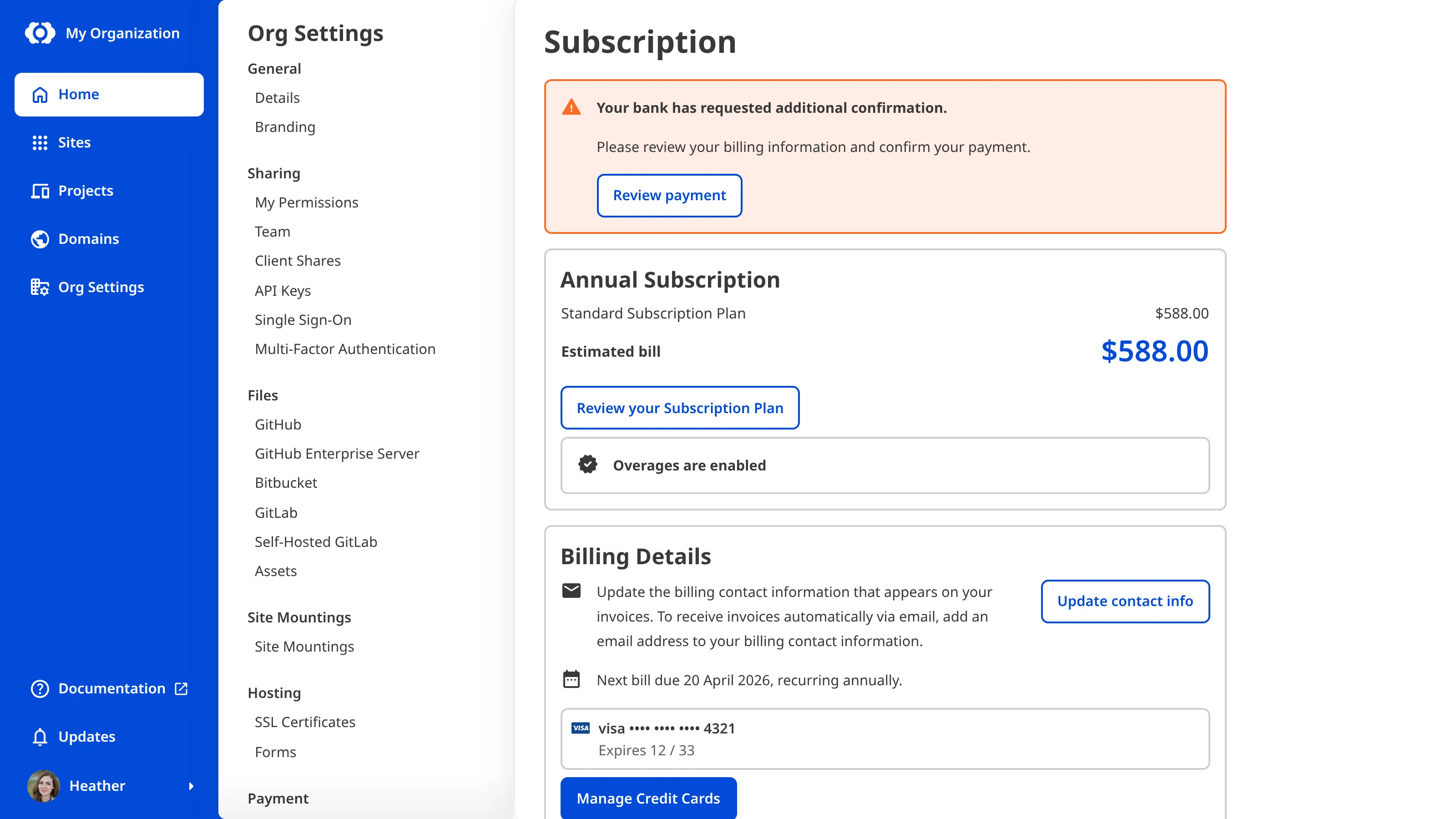
A *Subscription* that is on hold after a failed payment is different from a paused *Subscription*. If your [Free Trial](/documentation/user-articles/what-is-cloudcannons-free-trial/) ends without a payment method on file, CloudCannon pauses your *Subscription* and you see a banner noting that your trial period has ended.
## What happens when your Subscription is on hold
When your *Subscription* is on hold because of failed payments:
- You cannot open or edit your *Sites*, and most pages will show a *Billing issue* message that points you to the payment problem.
- CloudCannon will stop hosting content on your *Custom Domains* and *Testing Domains* and show an error message instead.
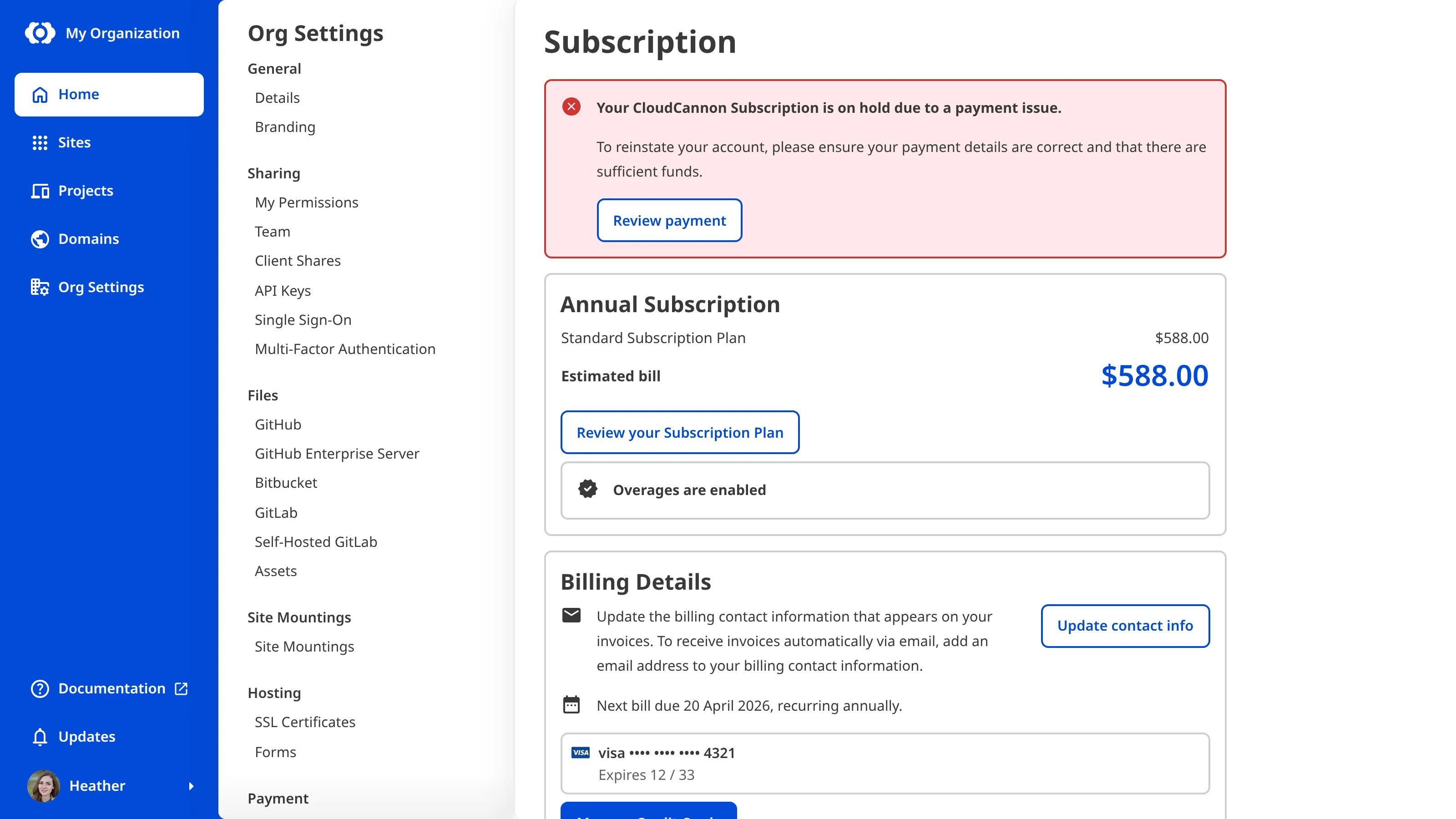
Visitors to your hosted websites see an unavailable page until you resolve the payment issue.

## What you can still do while on hold
Even while your *Subscription* is on hold, you can still retrieve your content or move it elsewhere. From a *Site*'s settings, you can still:
- Download a backup of your *Site* files.
- Transfer a *Site* to another **Organization**.
- Delete a *Site*.
- Manage your custom domains.
- Manage *Site Sharing* and *Client Sharing*.
- Manage *Site Mountings*.
Each of these actions still requires the relevant *Site* settings permission.
Backups are download-only. CloudCannon does not restore a *Site* from a backup for you — download the backup to keep a copy of your files, or get your content from your connected Git repository. A backup must already exist for you to download it.
## Resume a Subscription on hold
> Resuming a *Subscription* requires billing permissions. If you can't complete these steps, ask a member of the *Owners* and *Billing* [Default Permission Groups](/documentation/user-articles/what-are-default-permission-groups/) to resume it.
To resume your *Subscription* after a payment failure:
1. Navigate to the *Subscription* page under **Org Settings**.
2. Click the *Review payment* button in the warning banner.
3. Add a new card or update your existing payment method.
4. Click the *Confirm payment* button.
CloudCannon reactivates your *Organization* and restores access to your *Sites* and hosted websites.
## If your Subscription stays on hold
If you do not resolve the payment issue, CloudCannon eventually cancels your *Subscription* automatically. When your *Subscription* is canceled:
- Your saved credit cards stay on file, so you can resubscribe quickly.
- You must resubscribe to a **Subscription Plan** to use CloudCannon again.
- Your *Sites* and files are not deleted.
To start paying again, return to the *Subscription* page and select a *Subscription Plan*. Please read our documentation on [updating your Subscription Plan](/documentation/user-articles/update-your-subscription-plan/) for the steps, and on [canceling your Subscription](/documentation/user-articles/cancel-your-subscription/) for how a canceled *Subscription* differs from one that is on hold, including that canceling manually removes your saved credit cards.
For more information, please read our documentation on [managing your payment methods](/documentation/user-articles/manage-your-payment-methods/). If your payment issue persists after you update your card, contact our [support team](https://cloudcannon.com/support/) with your *Organization* name.
---
---
title: What is a Boolean input?
description: Learn about Boolean inputs for editing structured data, including how they work in CloudCannon.
url: https://cloudcannon.com/documentation/user-articles/what-is-a-boolean-input/
content_type: user article
last_modified: 2026-02-10
---
A Boolean input is an editing interface for true or false values. You can use this input to edit structured data in data files or front matter using the [Data Editor](/documentation/user-articles/what-is-the-data-editor/), or data panels and the sidebar in the [Content Editor](/documentation/user-articles/what-is-the-content-editor/) or [Visual Editor](/documentation/user-articles/what-is-the-visual-editor/).
There are two types of Boolean input:
- Checkbox
- Switch
## Boolean input types
### Checkbox
The Checkbox Boolean input provides an editing interface for true or false values. True values have a checked box, while false values have an unchecked box.
You can change the value of a Checkbox input by clicking on the checkbox.


### Switch
The Switch Boolean input provides an editing interface for true or false values. True values show the switch to the right with the text "ON", while false values show the switch to the left with the text "OFF".
You can change the value of a Switch input by clicking on the switch.


## Boolean input appearance and behavior
You can customize the label, comment, documentation link, and context box for all inputs regardless of type.
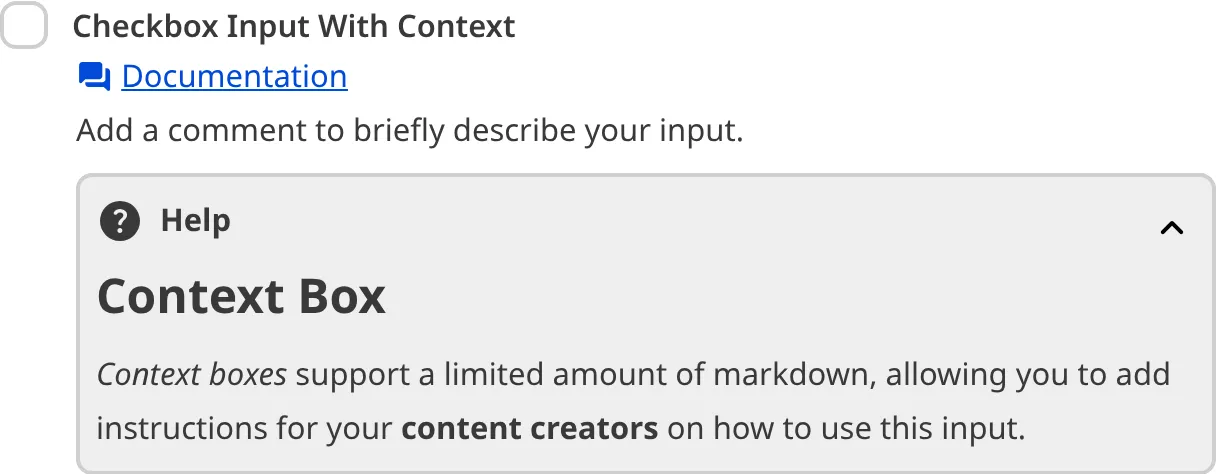
Boolean inputs are simple. You cannot configure additional input behavior besides the general configuration options.
For more information on configuration options, valid input values, and unconfigured input behavior, please read our developer documentation on [configuring a Boolean input](/documentation/developer-articles/configure-a-boolean-input/) .
## Misconfigured Boolean inputs
You will see an orange warning box if your Boolean input is misconfigured.
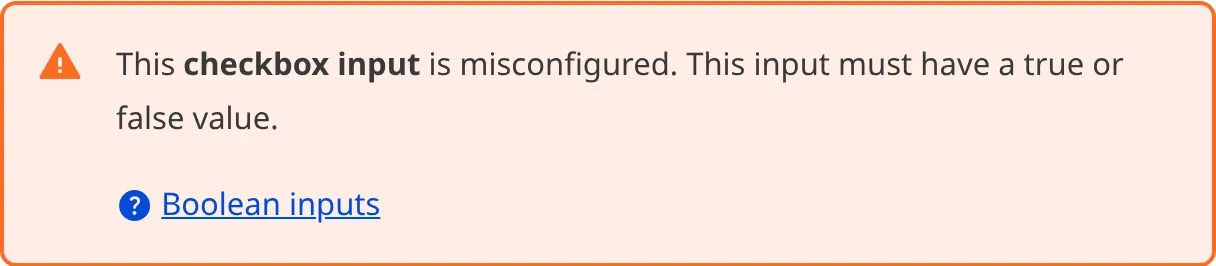
Boolean inputs are misconfigured if:
- The value is not `true` or `false`.
For more information on how to fix a misconfigured Boolean input, please read our developer documentation on [configuring a Boolean input](/documentation/developer-articles/configure-a-boolean-input/).
---
---
title: What is a Code input?
description: Learn about Code inputs for editing structured data, including how they work in CloudCannon.
url: https://cloudcannon.com/documentation/user-articles/what-is-a-code-input/
content_type: user article
last_modified: 2026-02-10
---
A Code input is an editing interface for code or mono-spaced plain text. You can use this input in the Data Editor, Content Editor, or Visual Editor to edit structured data in data files or front matter.
There is only one type of Code input:
- Code
## Code input types
### Code
The Code input provides an editing interface for code or mono-spaced plain text content.
You can edit the value of a Code input by typing in the code area.
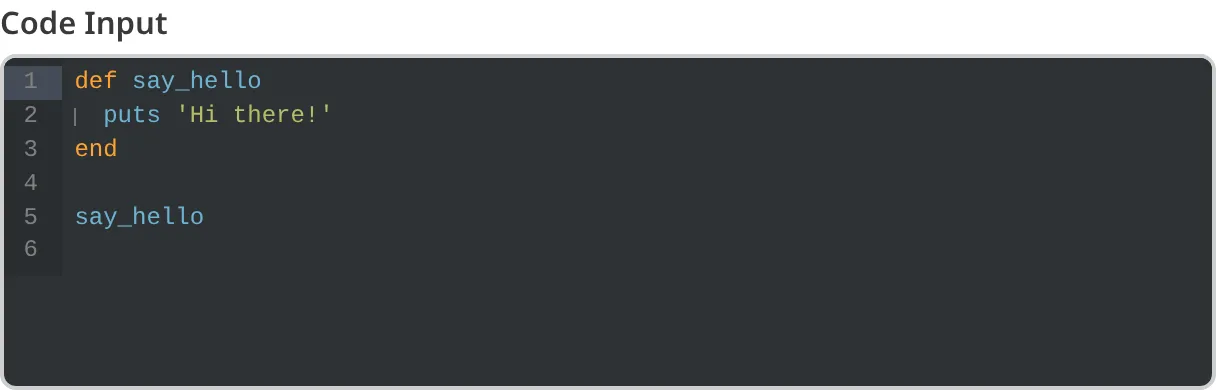
## Code input appearance and behavior
You can customize the label, comment, documentation link, and context box for all inputs regardless of type.
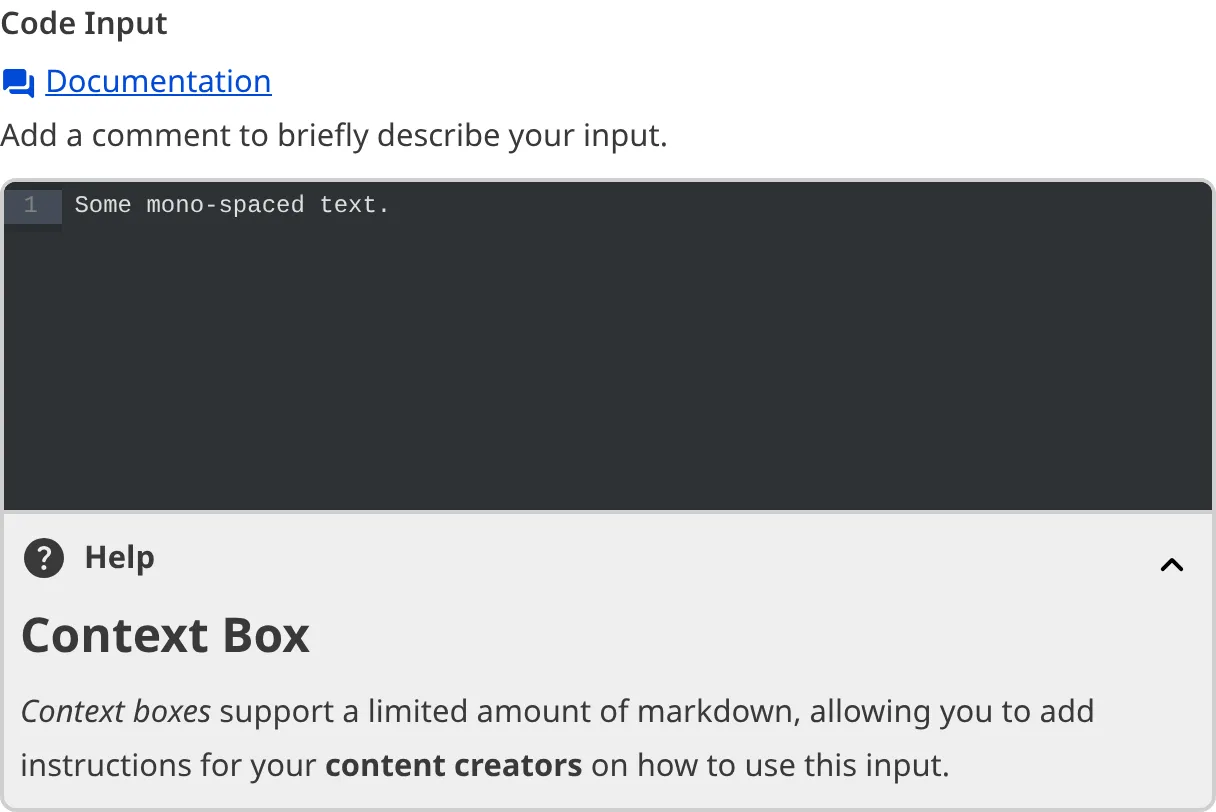
Depending on how your developer configured the input, your Code input may have a different height for the code area, tab size, theme color, gutter visibility, or syntax highlighting.

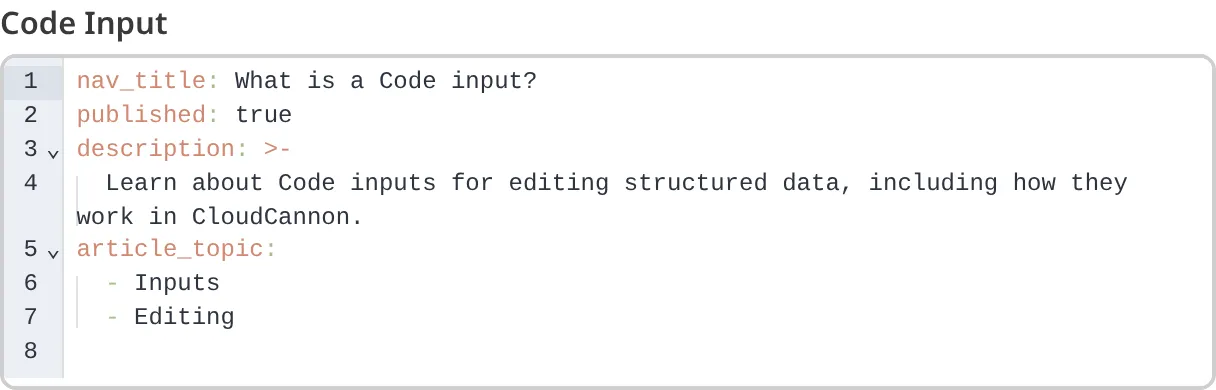
### Input validation
Your Code input may have input validation, which requires the input value to meet predefined criteria before you can save your changes. CloudCannon will warn you if your input value is invalid and provide directions on how to fix it.
CloudCannon will show a red `*` next to the name of your Code input if a value is required.
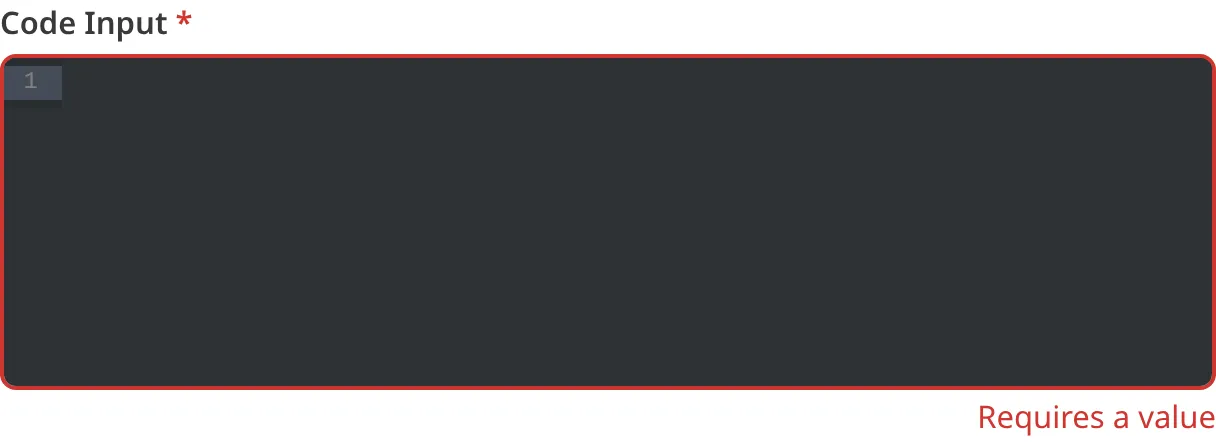
If you enter a value under the minimum or over the maximum character count, CloudCannon will display an error message in red text under the input field.
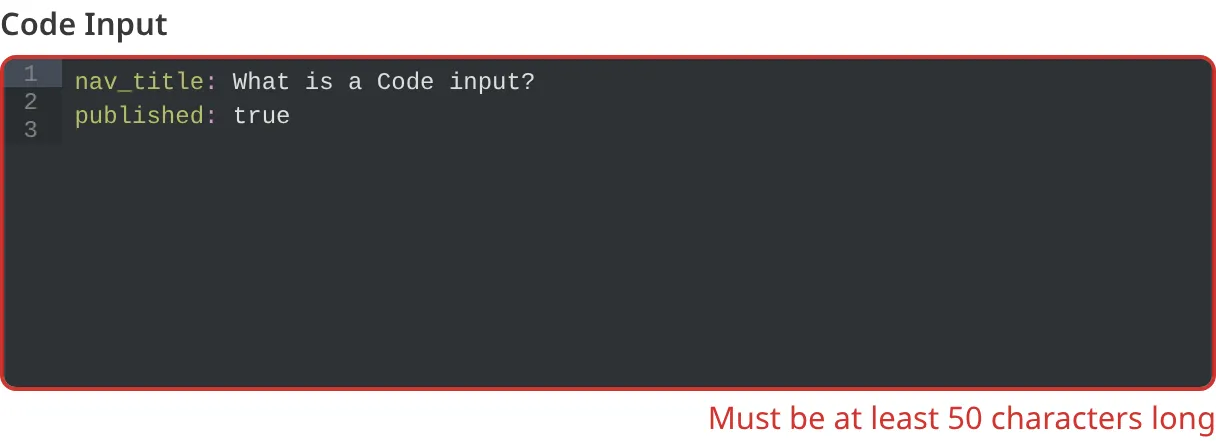
If your developer has configured a pattern for your input value, CloudCannon will warn you when the value does not match the pattern. CloudCannon will show any error messages underneath the code area in red.
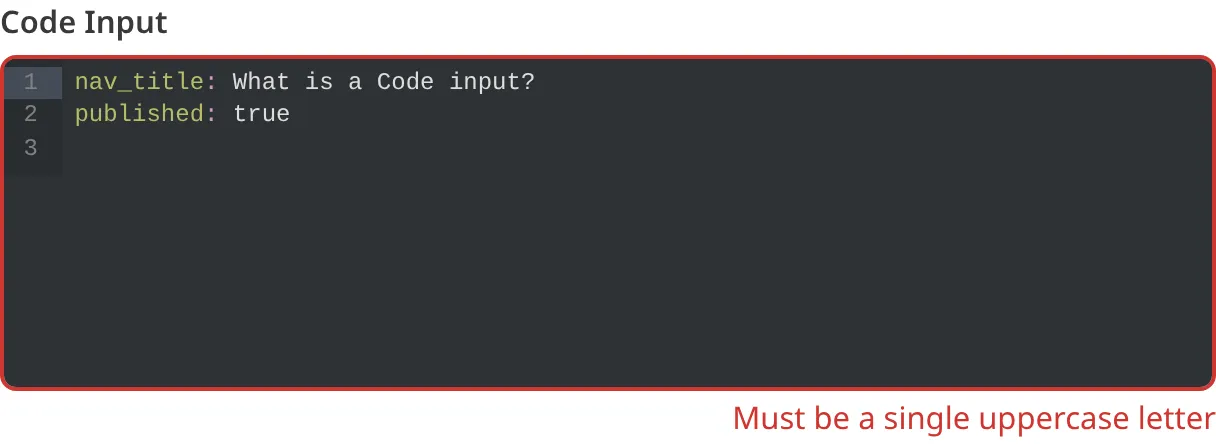
For more information on configuration options, valid input values, and unconfigured input behavior, please read our developer documentation on [configuring a Code input](/documentation/developer-articles/configure-a-code-input/) .
## Misconfigured Code inputs
You will see an orange warning box if your Code input is misconfigured.
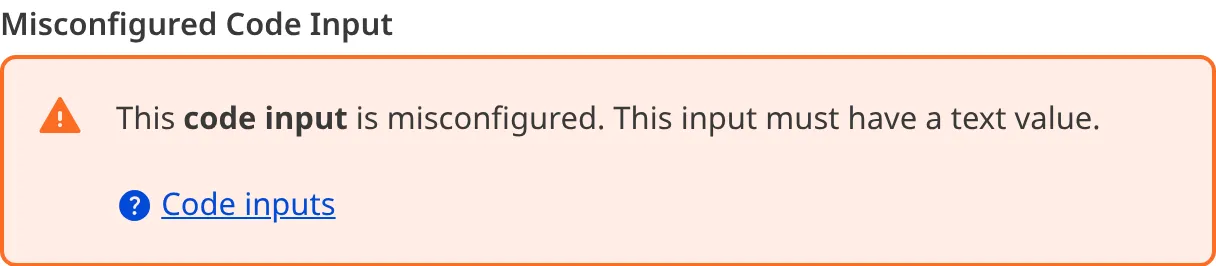
Code inputs are misconfigured if:
- The value is not a string.
For more information on how to fix a misconfigured Code input, please read our developer documentation on [configuring a Code input](/documentation/developer-articles/configure-a-code-input/).
---
---
title: What is a Collection?
description: Learn about Collections in CloudCannon, your home for content files.
url: https://cloudcannon.com/documentation/user-articles/what-is-a-collection/
content_type: user article
last_modified: 2026-03-29
---
A Collection is a group of related files with a similar format (e.g., a folder of pages, blog posts, or data files). Collections are a core part of your CloudCannon CMS experience.
By default, CloudCannon automatically detects your Collections when you first create your [CloudCannon configuration file](/documentation/developer-articles/what-is-the-cloudcannon-configuration-file/) by searching your files for folders of similar content. You can [configure your Collections]() when you first create your Site or at any time by opening your CloudCannon configuration file in the [Data Editor](/documentation/user-articles/what-is-the-data-editor/) or [Source Editor](/documentation/user-articles/what-is-the-source-editor/).
In CloudCannon, your Collections appear in the *Site Navigation* for easy access. Each Collection has a name and icon.
Clicking on a Collection will open the *Collection browser*. The *Collection browser* shows you all the files in your Collection, with each file represented by a Card. Depending on how you have configured your Site, these file Cards will show:
- The title of your file.
- An icon.
- Some metadata associated with that file (e.g., the output URL).
- An image within the file or a preview screenshot of the webpage to which the file outputs.
This allows your team members to see all your content at a glance.
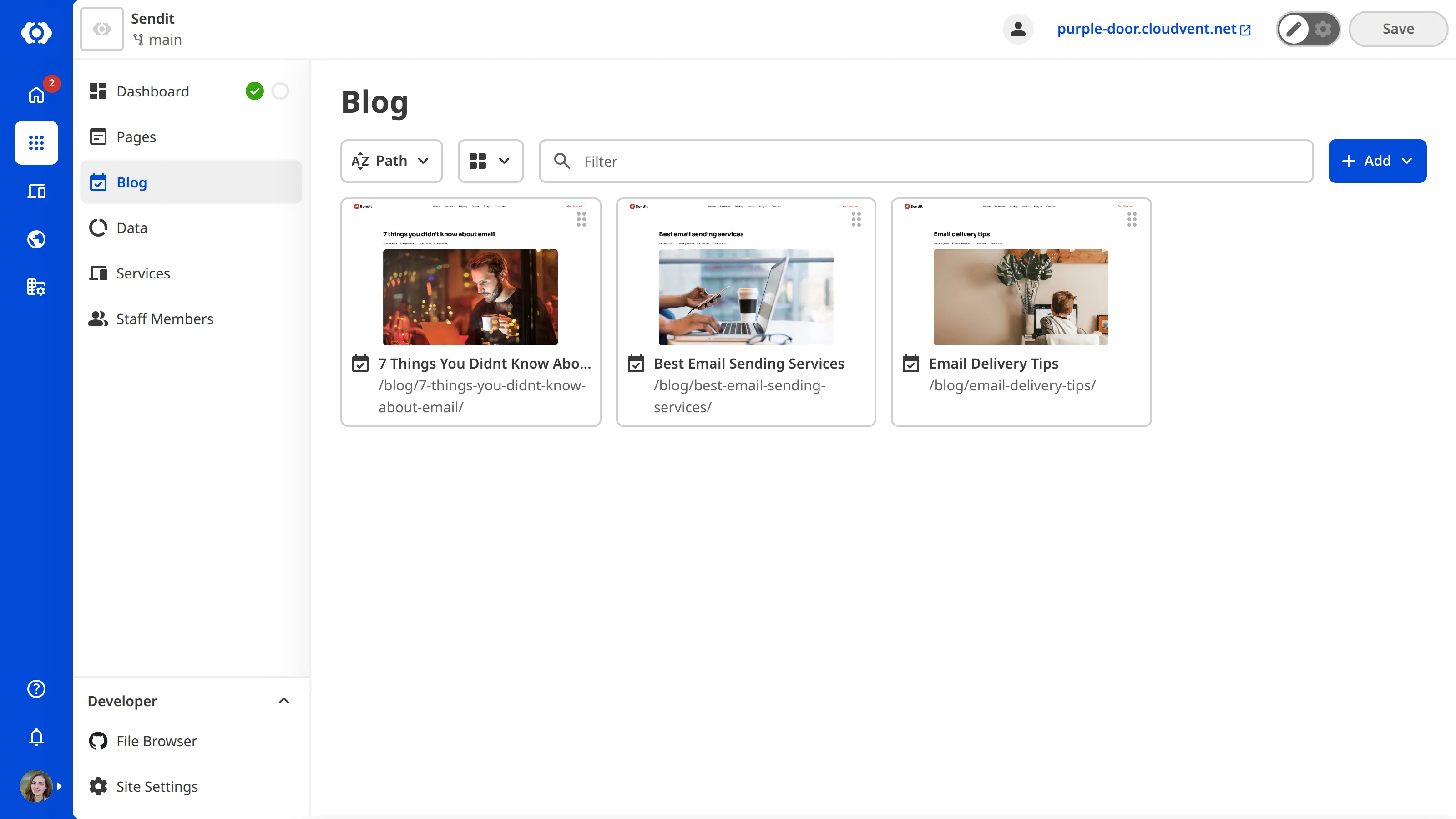
> For more information on configuring how your files look in the *Collection browser*, please read our documentation on [configuring your card previews](/documentation/developer-articles/configure-your-card-previews/).
The *Sort* dropdown, the *View* dropdown, and the *Collection filter* search bar are at the top of the Collection browser. These tools allow you to customize the order in which your files appear, switch between *List*, *Card*, or *Gallery* view, and search for specific files.
By default, Collections also has an *+ Add* button at the top right to add files and subfolders to your Collection. You can access additional file actions by opening the *Context Menu* at the top right of a file card.

From your *Collection browser*, your team members can [add files](/documentation/user-articles/add-a-file/), [edit files](/documentation/user-articles/edit-your-files/), and [delete files](/documentation/user-articles/delete-a-file/). Clicking on a file will open it in one of CloudCannon's four editing interfaces: the [Visual Editor](/documentation/user-articles/what-is-the-visual-editor/), the [Content Editor](/documentation/user-articles/what-is-the-content-editor/), the [Data Editor](/documentation/user-articles/what-is-the-data-editor/), or the [Source Editor](/documentation/user-articles/what-is-the-source-editor/).
As you make changes to your files, CloudCannon will help you keep track of those changes by adding a New, Edited, or Deleted *File Badge* to your file Cards. When you [save your changes](/documentation/user-articles/save-your-changes/), CloudCannon will update your Git repository and remove the *File Badges*.

You can configure your Collections in multiple ways to create an intuitive editing experience for your team members. This includes configuring the Collection name and icon, adding a description or documentation link, changing how new files are created, or adding a file glob or Schema.
For more information, please read our documentation on [configuring your Collections](/documentation/developer-articles/configure-your-collections/).
---
---
title: What is a Color input?
description: Learn about Color inputs for editing structured data, including how they work in CloudCannon.
url: https://cloudcannon.com/documentation/user-articles/what-is-a-color-input/
content_type: user article
last_modified: 2026-02-10
---
A Color input is an editing interface for color information. You can use this input in the Data Editor, Content Editor, or Visual Editor to edit structured data in data files or front matter.
There is only one type of Color input:
- Color
## Color input types
### Color
The Color input provides an editing interface for color values.
You can edit the value of a Color input by typing in the input text field.

## Color input appearance and behavior
You can customize the label, comment, documentation link, and context box for all inputs regardless of type.
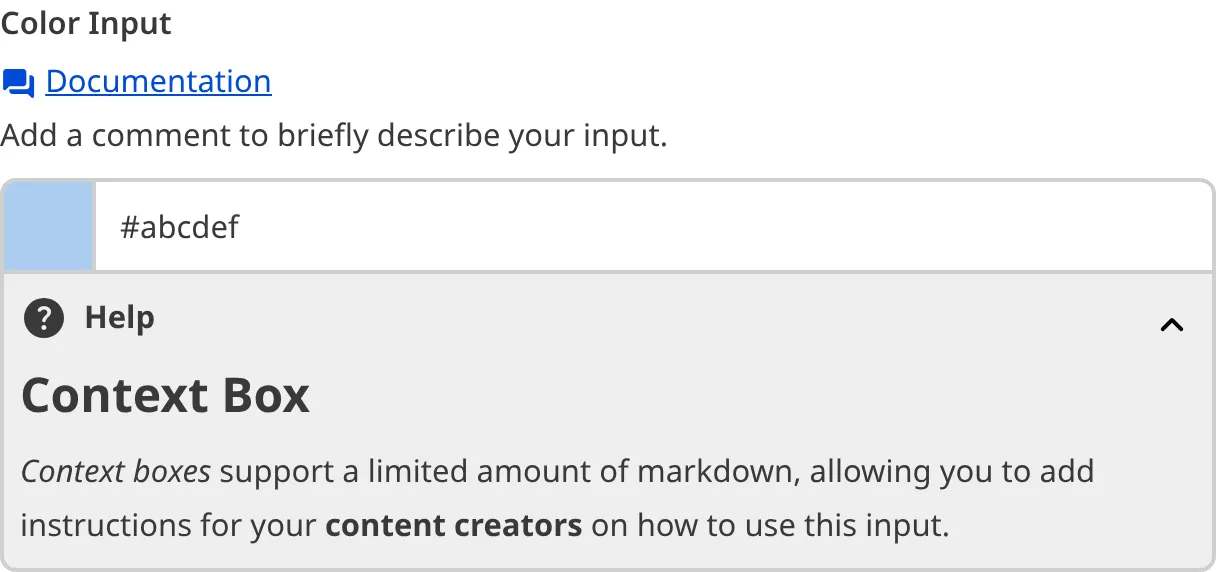
Depending on how your developer configured the input, your Color input may have a different color format or color transparency controls.

### Input validation
Your Color input may also have input validation, which requires the value to match predefined criteria before you can save your changes.
CloudCannon will show a red `*` next to the name of your Color input if a value is required.

If you enter a value under the minimum or over the maximum character count, CloudCannon will display an error message in red text under the input field.

For more information on configuration options, valid input values, and unconfigured input behavior, please read our developer documentation on [configuring a Color input](/documentation/developer-articles/configure-a-color-input/) .
## Misconfigured Color inputs
You will see an orange warning box if your Color input is misconfigured.
Color inputs are misconfigured if:
- The value is not a string.
For more information on how to fix a misconfigured Color input, please read our developer documentation on [configuring a Color input](/documentation/developer-articles/configure-a-color-input/).
---
---
title: What is a File input?
description: Learn about File inputs for editing structured data, including how they work in CloudCannon.
url: https://cloudcannon.com/documentation/user-articles/what-is-a-file-input/
content_type: user article
last_modified: 2026-03-29
---
A File input is an editing interface for file paths, allowing you to upload a file to your repository or [DAM](/documentation/developer-articles/integrating-your-dam-with-cloudcannon/), select a previously uploaded file, or add a link to an external file. You can use this input in the Data Editor, Content Editor, or Visual Editor to edit structured data in data files or front matter.
There are three types of File input:
- File
- Document
- Image
## File input types
### File
The File input provides an editing interface for uploading files to your repository or DAM and browsing existing assets.
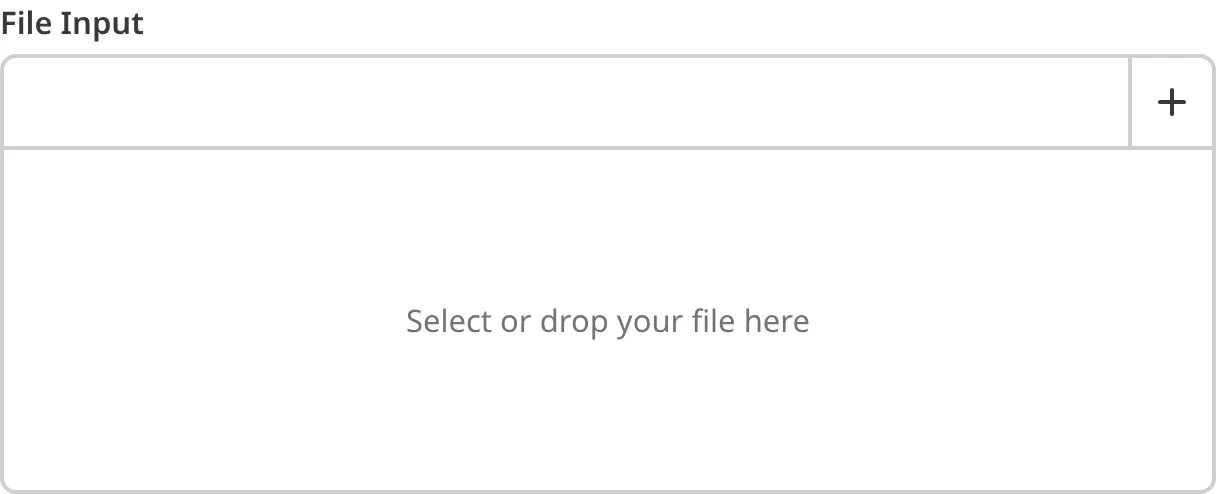
You can upload a file by dragging and dropping it from your local storage over the File input, or by clicking the *Add file* button at the top right of the input and selecting the *Upload a new file* option. CloudCannon will upload your file to your repository or [DAM](/documentation/developer-articles/integrating-your-dam-with-cloudcannon/).
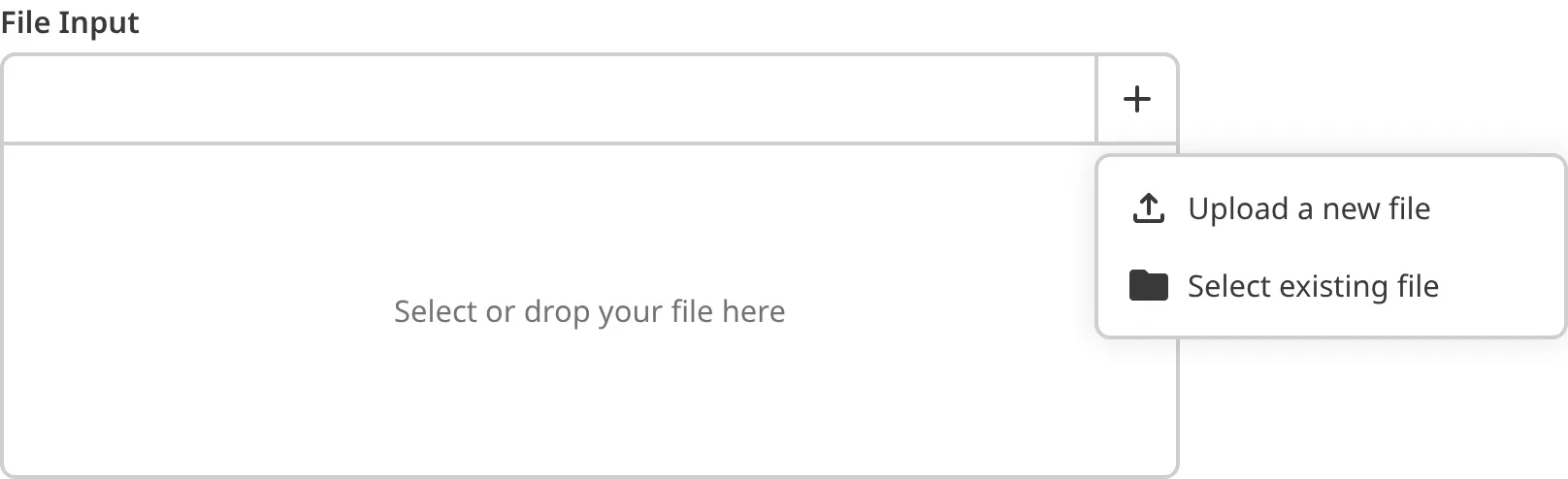
You can select an existing file by selecting the Select existing files option. CloudCannon will open the *Files browser* to the upload folder in your repository or [DAM](/documentation/developer-articles/integrating-your-dam-with-cloudcannon/).
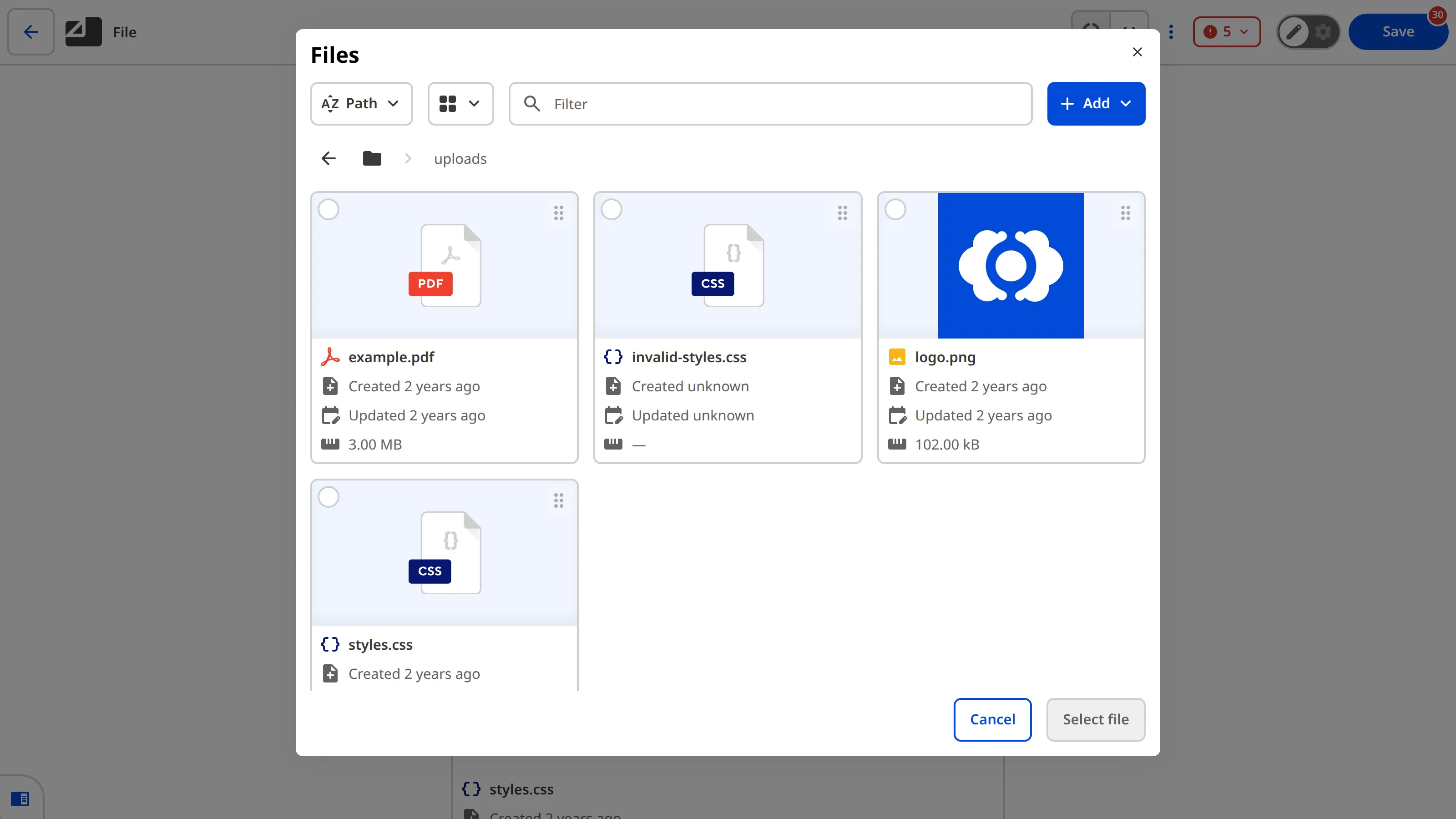
When you select a file from your repository or DAM, the File input will display a preview of the image if it is an image file, or file metadata if it is a document file.
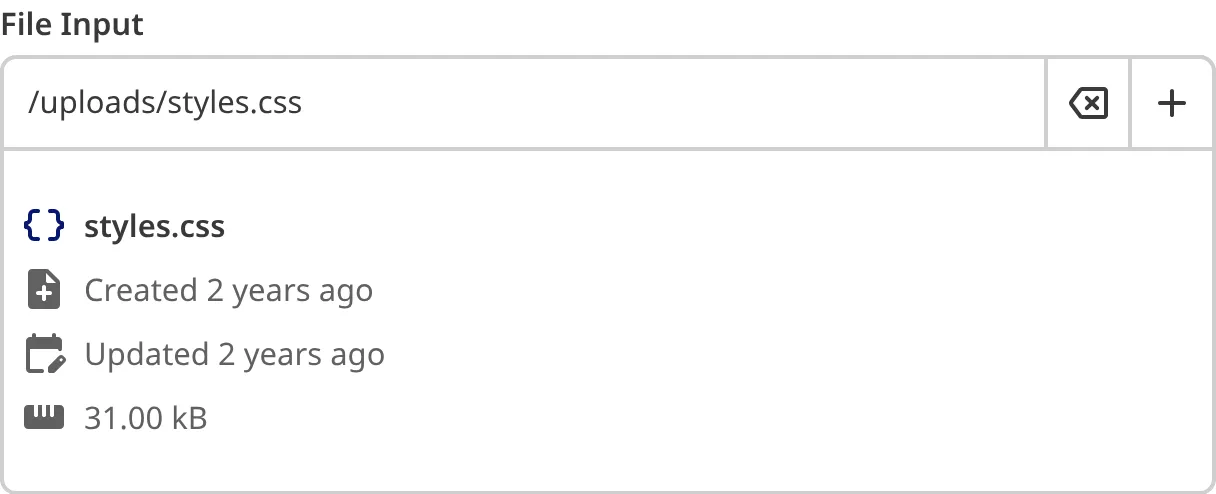
Alternatively, you can link to an externally hosted file by pasting the file URL into the text field of the File input. CloudCannon will display the title, description, and image for the URL.
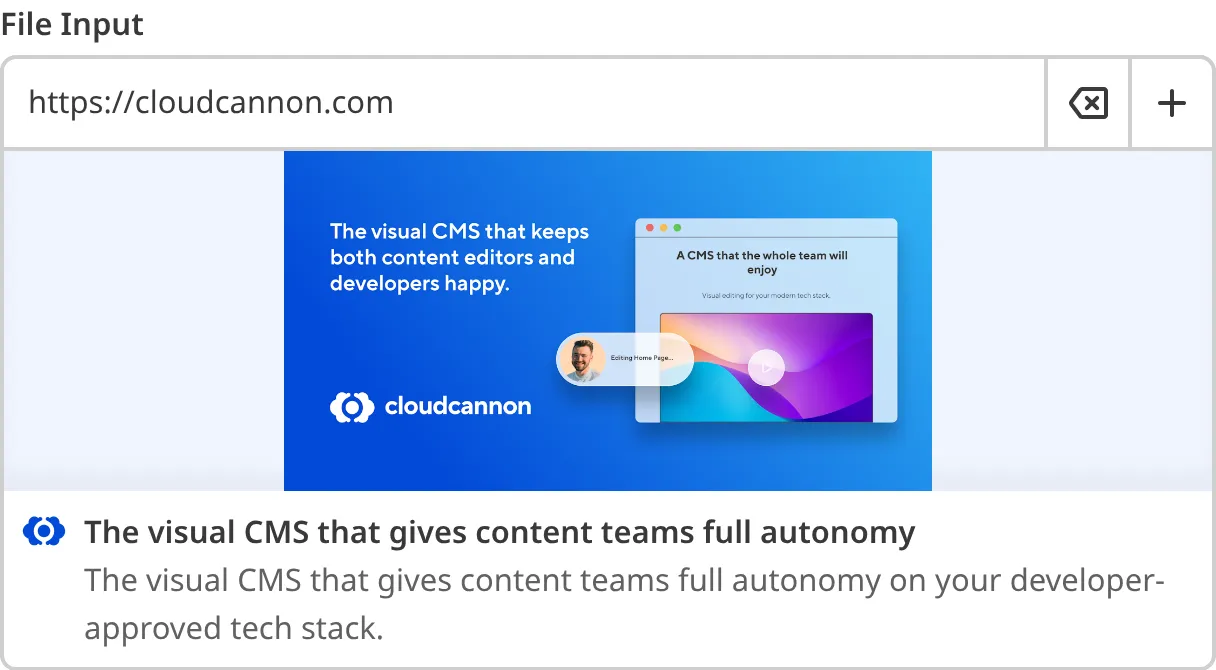
You can edit the file path of an internal or external file by typing in the text field. To clear the selected file, you can click the *Clear* button at the top right of the input.
### Document
The Document input provides an editing interface for uploading document files to your repository or DAM and browsing existing assets.
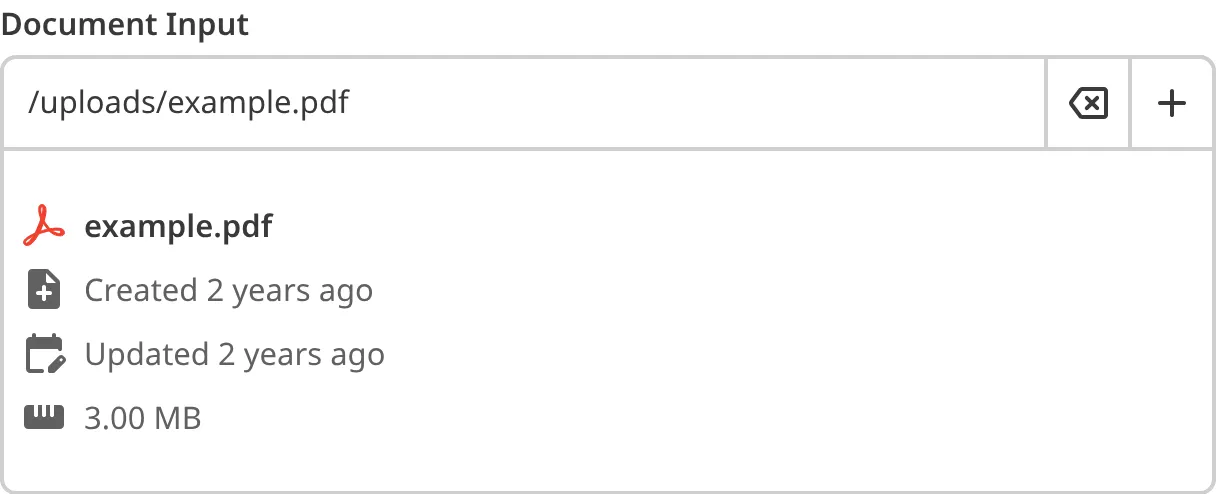
> Document Inputs are similar to File Inputs, except they have different defaults and configuration options. For more information, please read our developer documentation on [configuring a File Input](/documentation/developer-articles/configure-a-file-input/).
You can use a Document input in the same way as a File input. When you select a document file from your repository or DAM, the Document input will display the metadata of the document file, including the name, last updated time, and file size.
### Image
The Image input provides an editing interface for uploading image files to your repository or DAM and browsing existing assets.
> Image Inputs are similar to File Inputs, except they have different defaults and configuration options. For more information, please read our developer documentation on [configuring a File Input](/documentation/developer-articles/configure-a-file-input/).
You can use an Image input in the same way as a File input. When you select an image file from your repository or DAM, the Image input will display a preview of the image.
## File input appearance and behavior
You can customize the label, comment, documentation link, and context box for all inputs regardless of type.
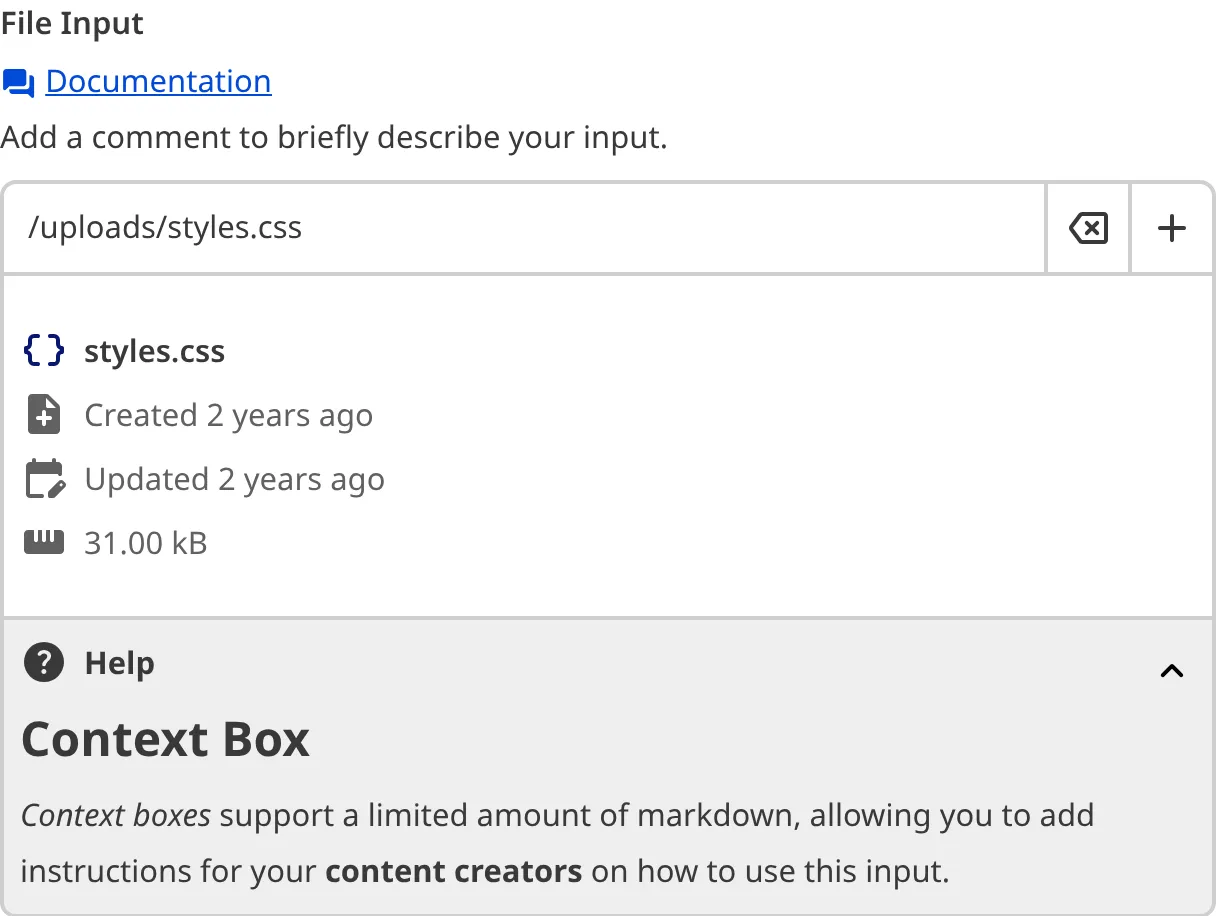
Depending on how your developer configured the input, your File input may have a different default location for uploading new files or browsing existing files. You might also be limited to uploading or selecting a specific file type.
For Image inputs, CloudCannon may prompt you to crop or resize your image when you upload or select one.
CloudCannon may also create additional copies of an image of different sizes when you upload or select an image using Image input.
### Input validation
Your File input may also have input validation, which requires the value to match predefined criteria before you can save your changes.
CloudCannon will show a red `*` next to the name of your File input if a value is required.
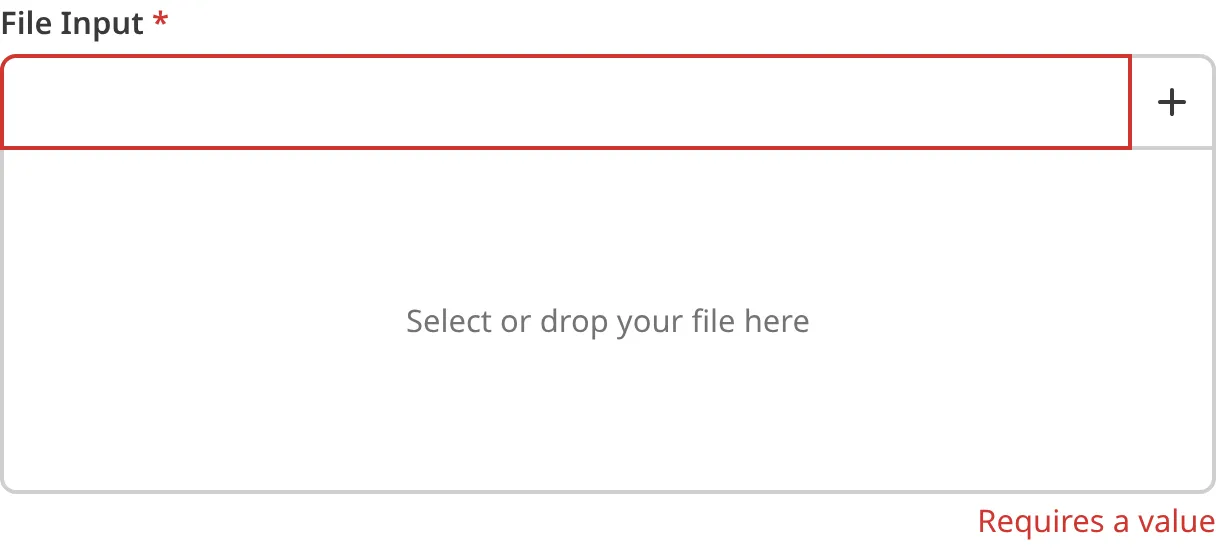
If you enter a value under the minimum or over the maximum character count, CloudCannon will display an error message in red text under the input field.
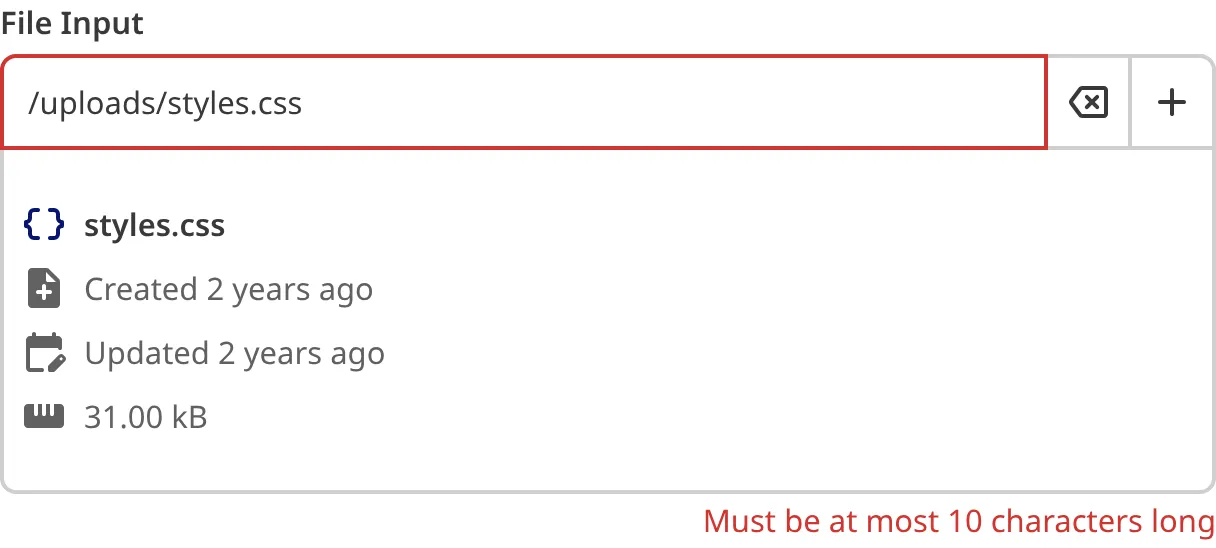
If you select a file that exceeds the maximum file size limit, CloudCannon will display an error message in red text under the input field.
If your developer has configured a pattern for your input value (such as specific file extensions), CloudCannon will warn you when the value does not match the pattern. CloudCannon will show any error messages underneath the input field in red.
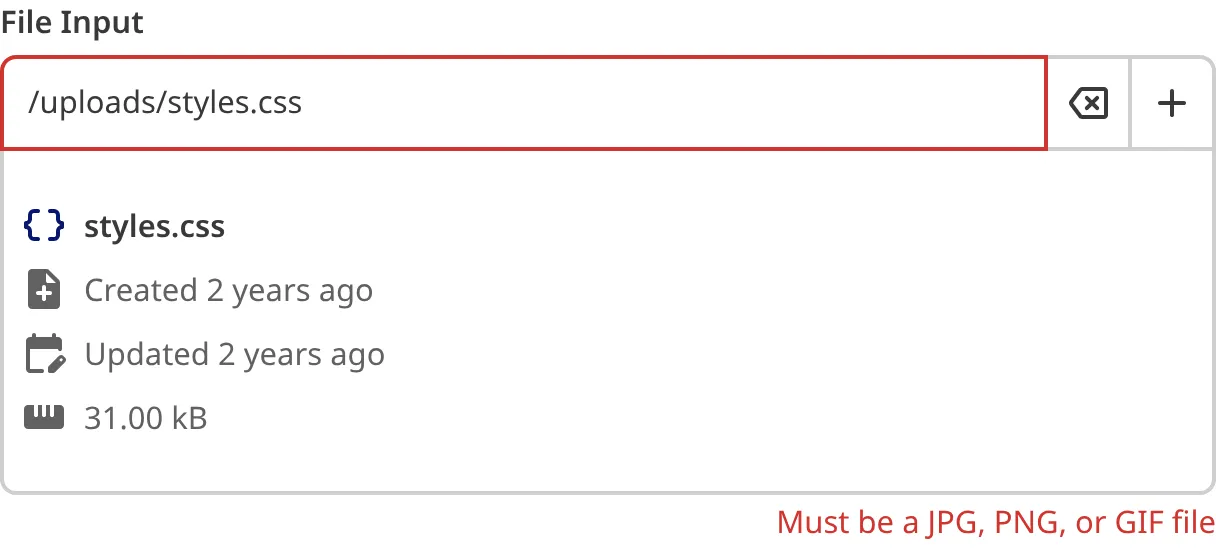
For more information on configuration options, valid input values, and unconfigured input behavior, please read our developer documentation on [configuring a File input](/documentation/developer-articles/configure-a-file-input/) .
## Misconfigured File inputs
You will see an orange warning box if your File input is misconfigured.
File inputs are misconfigured if:
- The value is not a string.
For more information on how to fix a misconfigured File input, please read our developer documentation on [configuring a File input](/documentation/developer-articles/configure-a-file-input/).
---
---
title: What is a Number input?
description: Learn about Number inputs for editing structured data, including how they work in CloudCannon.
url: https://cloudcannon.com/documentation/user-articles/what-is-a-number-input/
content_type: user article
last_modified: 2026-03-29
---
A Number input is an editing interface for numeric values. You can use this input in the Data Editor, Content Editor, or Visual Editor to edit structured data in data files or front matter.
There are two types of Number input:
- Number
- Range
## Number input types
### Number
The Number input provides an editing interface for numeric values.
You can edit the value of a Number input by typing in the text field or clicking the up and down arrows to the right of the text field.

### Range
The Range input provides a slider interface for selecting a numeric value.
You can edit the value of a Range input by typing in the text field or clicking and dragging the circle left or right along the bar.

## Number input appearance and behavior
You can customize the label, comment, documentation link, and context box for all inputs regardless of type.
### Input validation
Your Number input may also have input validation, which requires the value to match predefined criteria before you can save your changes.
CloudCannon will show a red `*` next to the name of your Number input if a value is required.

If you enter a value under the minimum or over the maximum allowed number, CloudCannon will display an error message in red text under the input field.

For more information on configuration options, valid input values, and unconfigured input behavior, please read our developer documentation on [configuring a Number input](/documentation/developer-articles/configure-a-number-input/) .
## Misconfigured Number inputs
You will see an orange warning box if your Number input is misconfigured.
Number inputs are misconfigured if:
- The value is not a number.
- The `max`, `min`, or `step` configuration keys are not defined for a Range Input.
For more information on how to fix a misconfigured Number input, please read our developer documentation on [configuring a Number input](/documentation/developer-articles/configure-a-number-input/).
---
---
title: What is a Project?
description: Learn about Projects in CloudCannon, including how they organize multiple Sites of the same website and coordinate publishing across your team.
url: https://cloudcannon.com/documentation/user-articles/what-is-a-project/
content_type: user article
last_modified: 2026-06-24
---
> ***Projects* are available on all plans. *Site* branching and *Publishing Workflows* are available on our [Team or Enterprise plan](https://cloudcannon.com/pricing/).**
>
> Want to chat about whether this feature is right for you? Our support team is always [happy to hear from you](mailto:success@cloudcannon.com?subject=A%20question%20about%20Projects).
A **Project** is a way to group and organize multiple **Sites** on CloudCannon when they are all copies of the same website. For example, a *Project* might consist of a Production *Site* (i.e., the version you want website visitors to see), a Staging *Site* (i.e., the version where you preview every *Team Member's* changes before they go live), and any branched *Sites* your team is using to draft changes.
_[Diagram: Three task Sites — writing a blog, removing a product page, and updating Site navigation — publish to a Staging Site, which publishes to the Production Site.]_
You can access the *Projects Browser* using the *Projects* link in the *App Sidebar*. For a tour of the *Project* interface, including the *Projects Browser*, *Project Sites Browser*, *Publishing* tab, and *Project Settings* tab, please read our documentation on [what the Project Browser is](/documentation/user-articles/what-is-the-project-browser/).
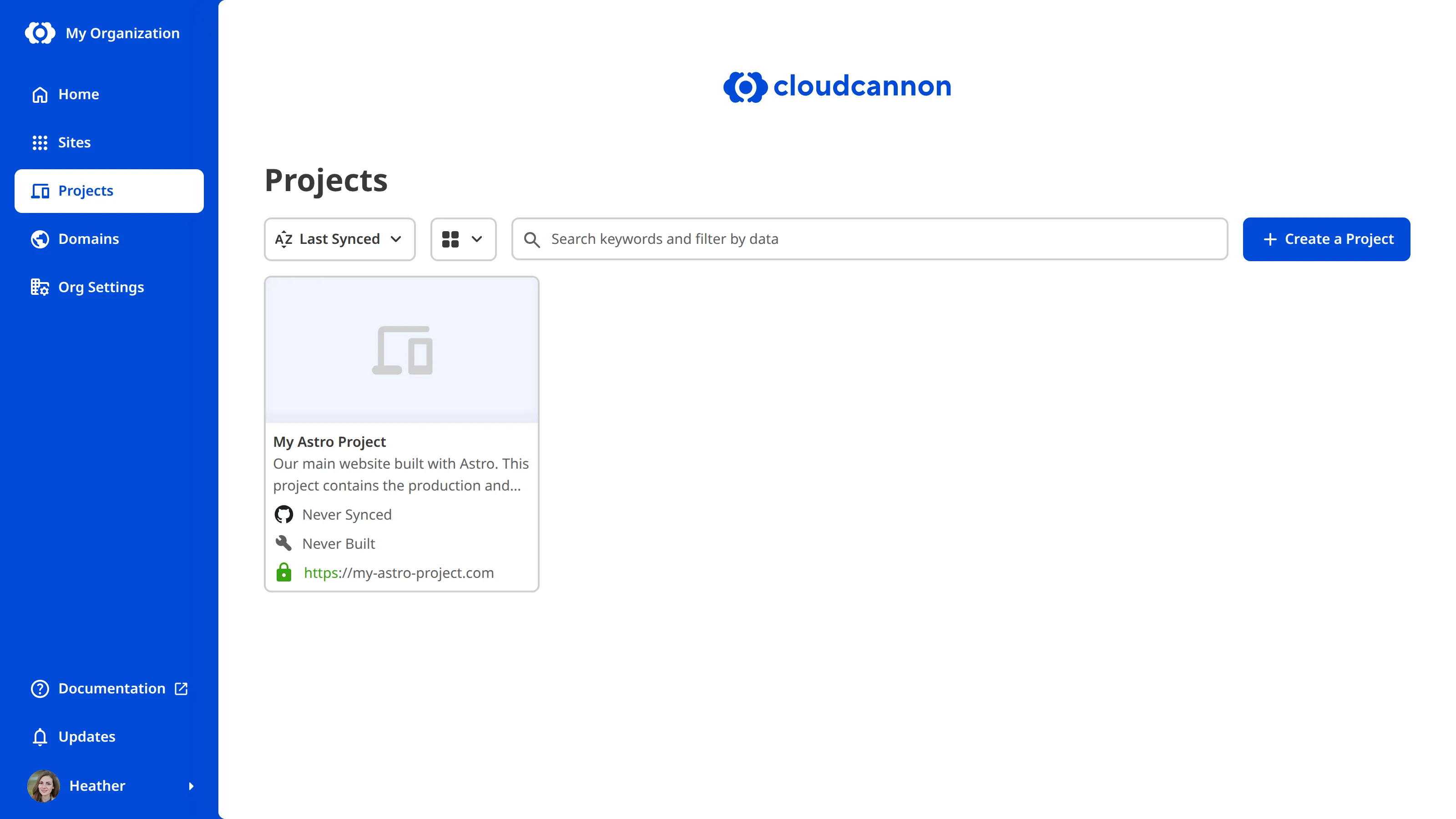
## Why use a Project?
*Projects* are useful when you want multiple *Team Members* to work on content independently without affecting the live website. Common scenarios include:
- **Create a Staging workflow** — Maintain a Production *Site* for your live website and a Staging *Site* where your team previews changes. *Team Members* create their own branched *Sites* from Staging to draft changes, then [publish](/documentation/user-articles/introduction-to-syncing-and-publishing/) those changes to Staging for review before they go live on Production.
- **Make content changes in parallel** — Multiple *Team Members* can create their own branched *Sites* from your **Main Branch**, work on changes independently, and publish their changes when ready.
- **Control Branch Defaults** — Set the default *Publishing Method*, authentication, and permissions for all branched *Sites* in your *Project* using [Branch Defaults](/documentation/developer-articles/what-are-branch-defaults/).
Without a *Project*, you would need to configure each *Site*, its publishing settings, and its branching workflow individually.
For more information on *Projects*, please read our documentation on [creating a Project](/documentation/developer-articles/create-a-project/) or [deleting a Project](/documentation/developer-articles/delete-a-project/). For more information on how CloudCannon makes copies of *Sites* so *Team Members* can work independently, please read our documentation on [what branching is](/documentation/user-articles/what-is-branching/).
---
---
title: What is a Rich Text input?
description: Learn about Rich Text inputs for editing structured data, including how they work in CloudCannon.
url: https://cloudcannon.com/documentation/user-articles/what-is-a-rich-text-input/
content_type: user article
last_modified: 2026-03-29
---
A Rich Text input is an editing interface for markup content. You can use this input in the Data Editor, Content Editor, or Visual Editor to edit structured data in data files or front matter.
Rich Text inputs have a text area for your content and a WYSIWYG toolbar for formatting your content. You can configure the WYSIWYG toolbar for a Rich Text input in the same way you configure the toolbar for the [Content Editor](/documentation/user-articles/what-is-the-content-editor/). For more information, please read our documentation on [configuring your Rich Text editors](/documentation/developer-articles/configure-your-rich-text-editors/).
There are two types of Rich Text input:
- HTML
- Markdown
> Are you looking for [What is a Text input?](/documentation/user-articles/what-is-a-text-input/)
>
> Rich Text and Text inputs are similar, except Text inputs are designed for plain text content.
## Rich Text input types
> From a content creator's perspective, the HTML and Markdown Rich Text inputs have the same functionality. The only difference is the format CloudCannon uses to store your data. Whether you use an HTML or Markdown input only depends on your developer's preference.
### HTML
The HTML Rich Text input provides an editing interface for HTML markup content.
You can edit the value of an HTML input by typing in the text area, and apply styles to your text using tools in the WYSIWYG toolbar.
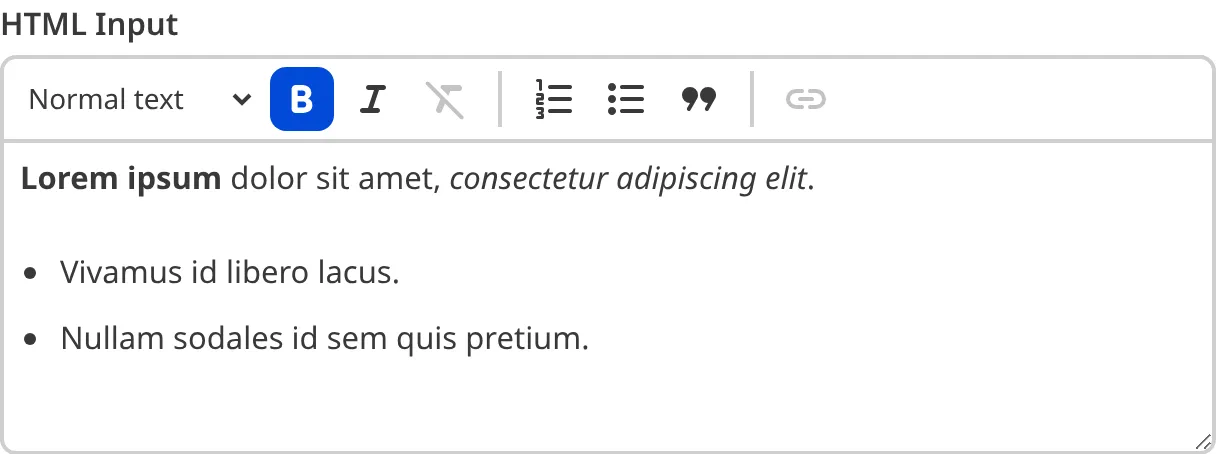
### Markdown
The Markdown Rich Text input provides an editing interface for Markdown markup content.
You can edit the value of an Markdown input by typing in the text area, and apply styles to your text using tools in the WYSIWYG toolbar.
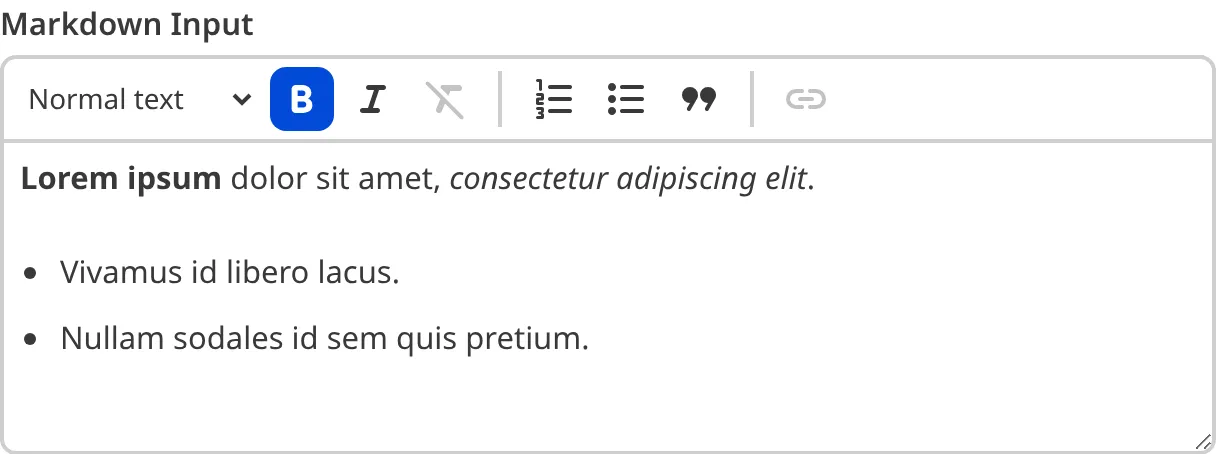
## Rich Text input appearance and behavior
You can customize the label, comment, documentation link, and context box for all inputs regardless of type.
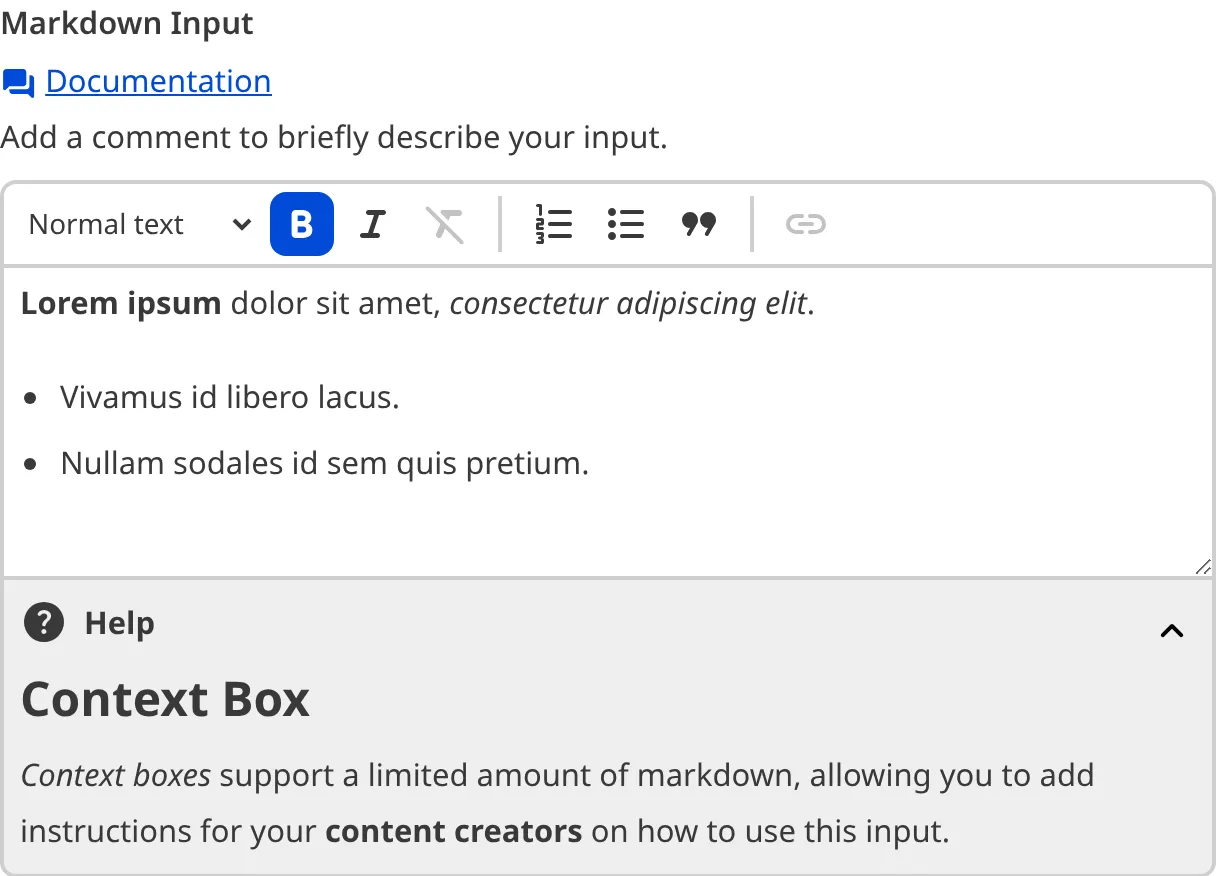
Depending on how your developer configured the input, your Rich Text input may have different options in the WYSIWYG toolbar, a different height text area, or allow you to resize the text area.
### Input validation
Your Rich Text input may have input validation, which requires the input value to meet predefined criteria before you can save your changes. CloudCannon will warn you if your input value is invalid and provide directions on how to fix it.
CloudCannon will show a red `*` next to the name of your Rich Text input if a value is required.
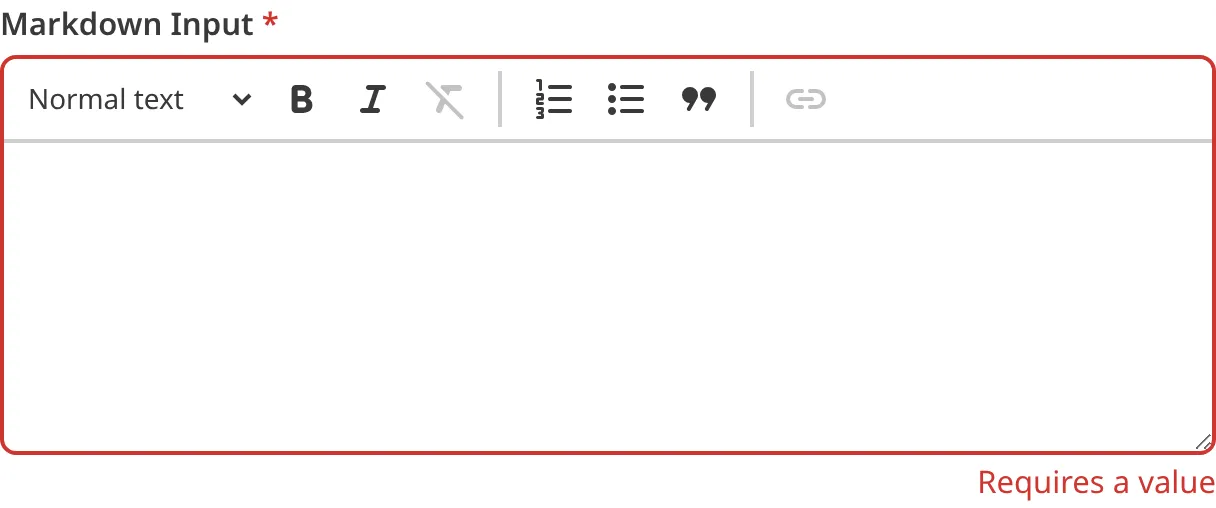
If you enter a value under the minimum or over the maximum character count, CloudCannon will display an error message in red text under the input field.
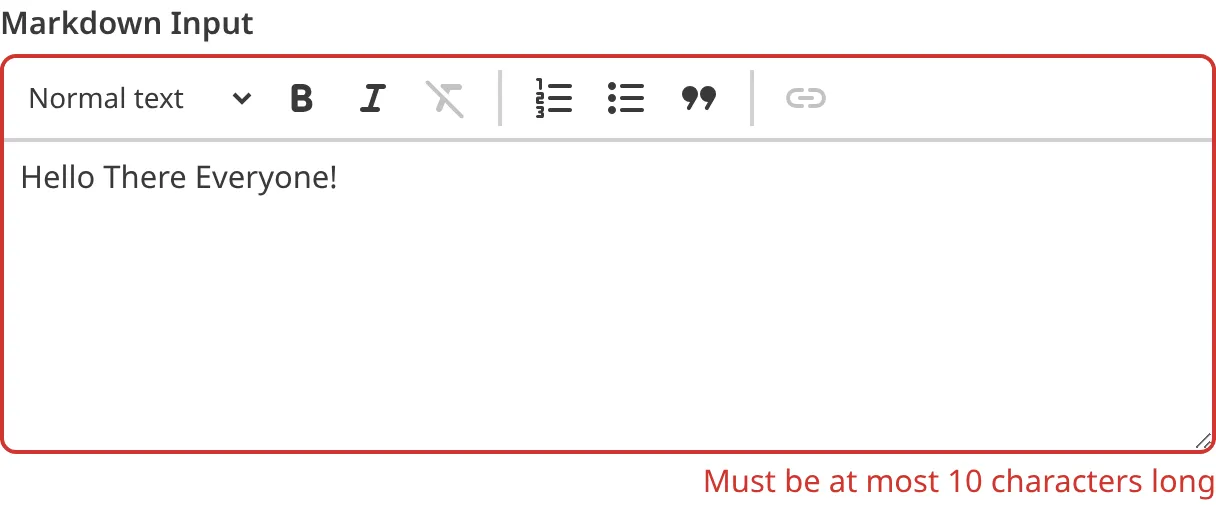
If your developer has configured a pattern for your input value, CloudCannon will warn you when the value does not match the pattern. CloudCannon will show any error messages underneath the text area in red.
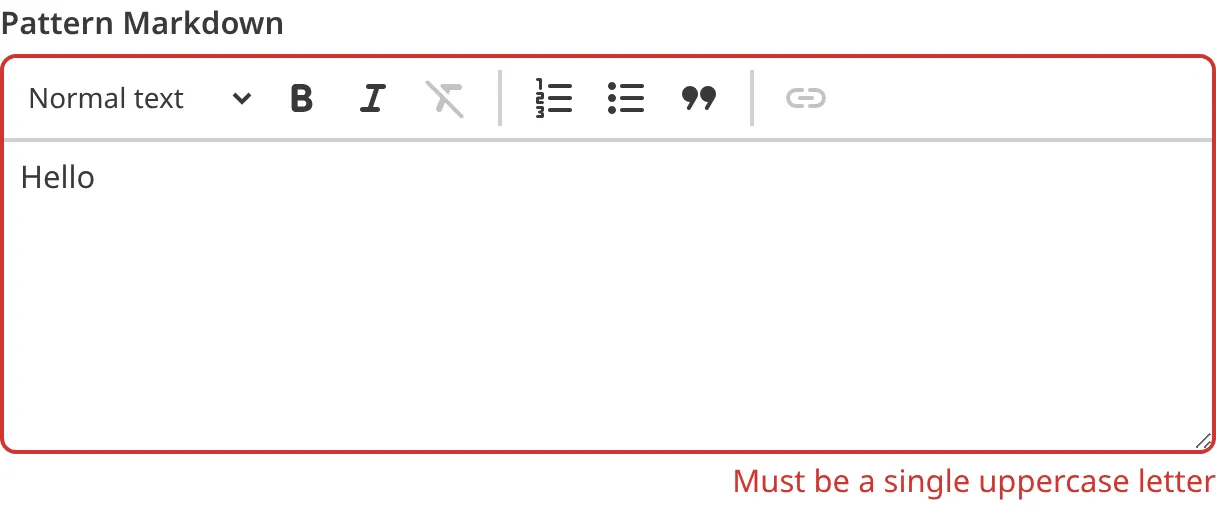
For more information on configuration options, valid input values, and unconfigured input behavior, please read our developer documentation on [configuring a Rich Text input](/documentation/developer-articles/configure-a-rich-text-input/) .
## Misconfigured Rich Text inputs
You will see an orange warning box if your Rich Text input is misconfigured.
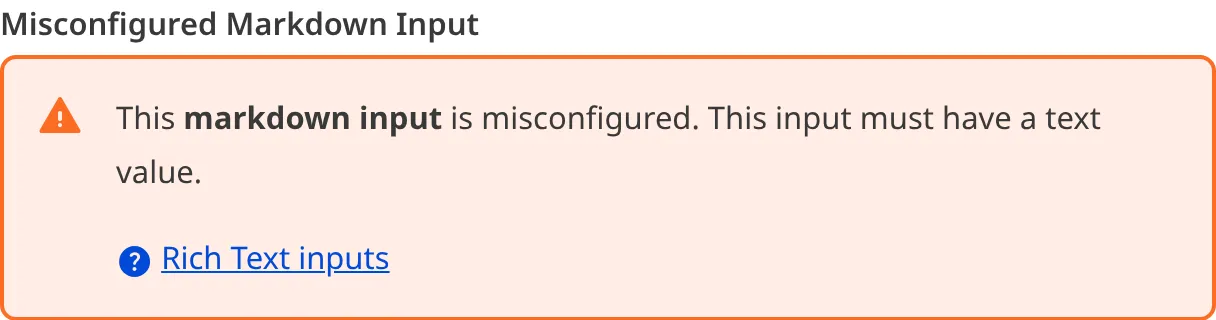
Rich Text inputs are misconfigured if:
- The value is not a string.
For more information on how to fix a misconfigured Rich Text input, please read our developer documentation on [configuring a Rich Text input](/documentation/developer-articles/configure-a-rich-text-input/).
---
---
title: What is a Select input?
description: Learn about Select inputs for editing structured data, including how they work in CloudCannon.
url: https://cloudcannon.com/documentation/user-articles/what-is-a-select-input/
content_type: user article
last_modified: 2026-03-29
---
Select inputs are editing interfaces for selecting values from predefined lists. You can use these inputs in the Data Editor, Content Editor, or Visual Editor to edit structured data in data files or front matter.
There are four types of Select inputs:
- Select
- Multiselect
- Choice
- Multichoice
## Select input types
### Select
The Select input provides an editing interface for data with multiple predefined options. This input has the same function as a Choice input but a different appearance.
Select inputs only allow one value.
You can edit the value of a Select input by clicking on the text field and selecting an option from the dropdown menu. Alternatively, you can type into the text field to filter the options in the dropdown menu.
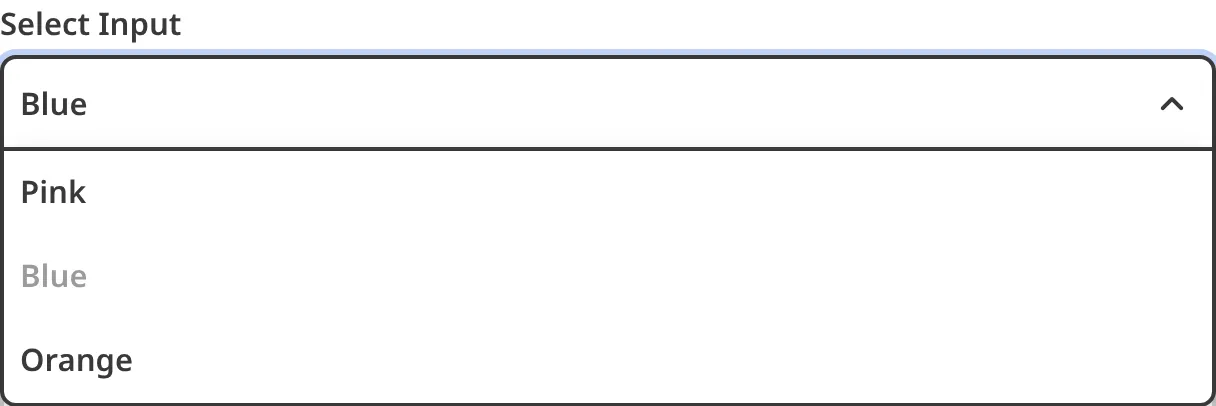
### Multiselect
The Multiselect input provides an editing interface for data with multiple predefined options. This input has the same function as a Multichoice input but a different appearance.
Multiselect inputs allow several values.
You can edit the value of a Multiselect input by clicking on the text field and selecting an option from the dropdown menu. Alternatively, you can type into the text field to filter the options in the dropdown menu.
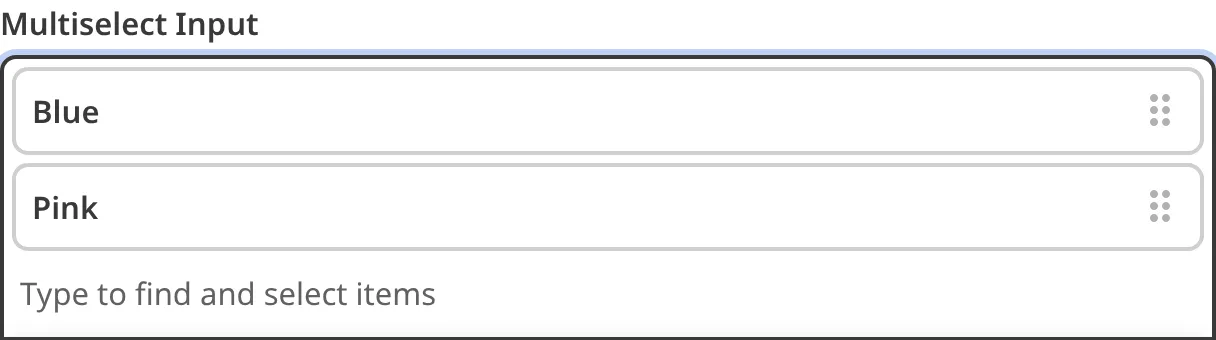
### Choice
The Choice input provides an editing interface for data with multiple predefined options. This input has the same function as a Select input but a different appearance.
Choice inputs only allow one value.
You can edit the value of a Choice input by clicking the button for the value you want.

### Multichoice
The Multichoice input provides an editing interface for data with multiple predefined options. This input has the same function as a Multiselect input but a different appearance.
Multichoice inputs allow several values.
You can edit the value of a Multichoice input by clicking the button for each value you want.

## Select input appearance and behavior
You can customize the label, comment, documentation link, and context box for all inputs regardless of type.
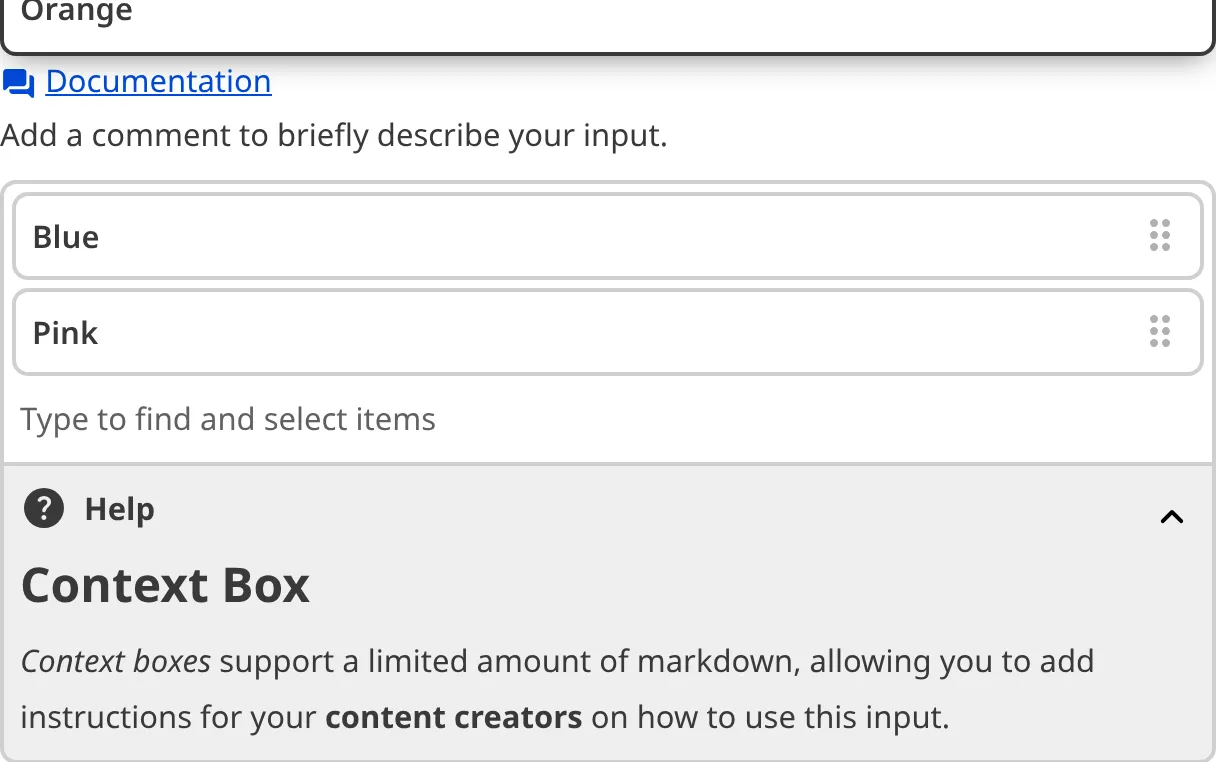
Depending on how your developer configured the input, your Select inputs may allow you to create new values.
Depending on how your developer configured the input, your Choice, Multichoice, and Multiselect inputs may have a custom preview appearance for Cards and buttons, including the text, subtext, icon, icon color, icon background color, or image.

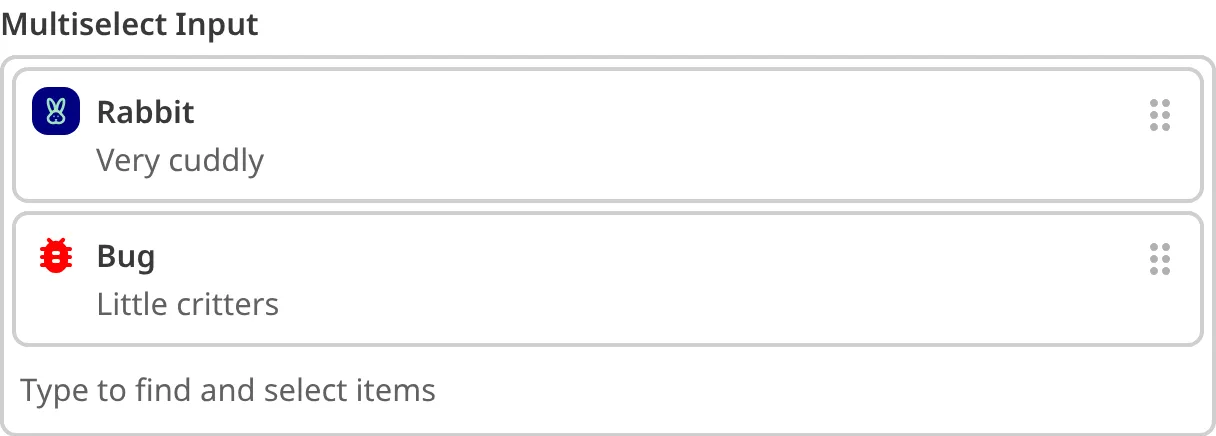
### Populating a Select input
All Select inputs need a method for defining the list of available value options. Depending on how your developer has configured the input, the value options for your Select input will come from one of three places: a fixed data set, a [Collection](/documentation/user-articles/what-is-a-collection/), or a data file.
If your Select input uses a fixed data set, these options are probably defined in the [CloudCannon Configuration File](/documentation/developer-articles/what-is-the-cloudcannon-configuration-file/) or somewhere in the [configuration cascade](/documentation/developer-articles/using-the-configuration-cascade/). Your developer may use a fixed data set when the value options for a Select input do not change often, or they do not want non-technical users updating the list of available options.
If your Select input uses a Collection, you can edit the list of available value options by adding or removing files from the Collection to which your Select Input is connected. Select Inputs connected to Collections are great for referencing other pages on your website.
If your Select input uses a data file, you can edit the list of available value options by changing the content of the data file to which your Select input is connected.
For more information, please read our developer documentation on [populating a Select input](/documentation/developer-articles/populate-a-select-input/).
### Input validation
Your Select inputs may have input validation, which requires the input value to meet predefined criteria before you can save your changes. CloudCannon will warn you if your input value is invalid and provide directions on how to fix it.
CloudCannon will show a red `*` next to the name of your Text input if a value is required.

If you select a number of options under the minimum or over the maximum item number in a Multiselect or Multichoice input, CloudCannon will display an error message in red text under the input field.

If your Select input allows you to create new values and you enter a value under the minimum or over the maximum character count, CloudCannon will display an error message in red text under the input field.

For more information on configuration options, valid input values, and unconfigured input behavior, please read our developer documentation on [configuring a Select input](/documentation/developer-articles/configure-a-select-input/) .
## Misconfigured Select inputs
You will see an orange warning box if your Select input is misconfigured.
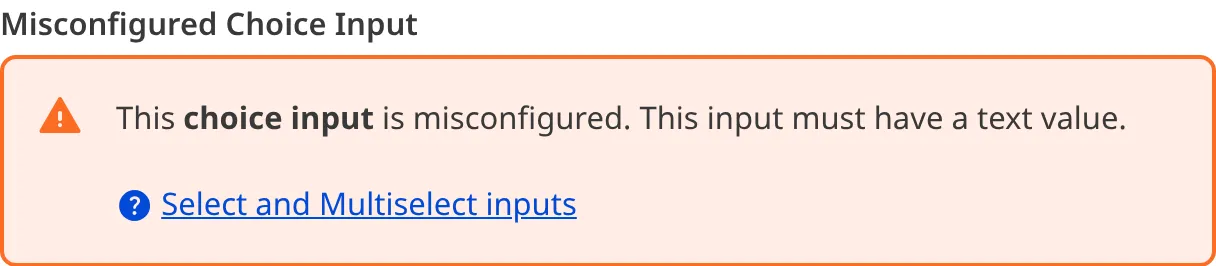
Select inputs are misconfigured if:
- The value of a Select or Choice input is not a string.
- The value of a Multiselect or Multichoice input is not an array of strings.
For more information on how to fix a misconfigured Select input, please read our developer documentation on [configuring a Select input](/documentation/developer-articles/configure-a-select-input/).
---
---
title: What is a Subscription Plan?
description: Learn about Subscription Plans in CloudCannon, including Billing Periods and where to manage your Organization's billing.
url: https://cloudcannon.com/documentation/user-articles/what-is-a-subscription-plan/
content_type: user article
last_modified: 2026-09-09
---
> **For current *Subscription Plans*, features, and pricing, see the [CloudCannon pricing page](https://cloudcannon.com/pricing/).**
A **Subscription Plan** defines a set of features available to your **Organization**, the monthly usage limits for resources, and the price you pay for access to those features and resources, monthly or annually. Each *Organization* in CloudCannon can have one *Subscription Plan*, and can update or cancel at any time.
> As each *Organization* has its own *Subscription Plan*, owning multiple *Organizations* results in separate billing.
## What are CloudCannon's Subscription Plans?
CloudCannon offers a range of *Subscription Plans*. The features and usage limits in these *Subscription Plans* are designed for teams of different sizes and requirements:
- *Standard Plan* — CloudCannon's core editing, publishing, and collaboration features, with resource limits appropriate for small teams.
- *Team Plan* — Everything on the *Standard Plan*, plus advanced publishing workflows, **Custom Permission Groups**, and priority support, with higher resource limits for larger teams.
- *Enterprise Plan* — Everything on the *Team Plan*, plus **Single Sign-On**, custom billing arrangements, and a dedicated account manager, with à la carte resource limits and options for teams with advanced security and compliance requirements.
Each *Subscription Plan* allocates the *Organization* an amount of **Team Members**, **Custom Domains**, **Hosting Bandwidth**, and **Build Time**. You can also pay for extra resources at any time. For more information, please read our documentation on [what Add-Ons and Overages are](/documentation/user-articles/what-are-add-ons-and-overages/).
> You can try CloudCannon for free before committing to a paid *Subscription Plan*, without adding a payment method. Your **Free Trial** of the *Standard Plan* starts automatically when you [create a new Organization](/documentation/user-articles/create-a-new-organization/), however you can upgrade it to the *Team Plan* to try more features. For more information, including how long the trial lasts, please read our documentation on [what CloudCannon's Free Trial is](/documentation/user-articles/what-is-cloudcannons-free-trial/).
Many features in CloudCannon are visible in read-only mode regardless of what *Subscription Plan* your *Organization* uses. If you encounter a feature that requires a higher *Subscription Plan*, CloudCannon will prompt you to upgrade to access that feature. For more information, please read our documentation on [updating your Subscription Plan](/documentation/user-articles/update-your-subscription-plan/).
## What Subscription Plan does my Organization use?
> **Permissions required**
>
>
> Members of the *Owners* and *Billing* [Default Permission Groups](/documentation/user-articles/what-are-default-permission-groups/), or [Custom Permission Groups](/documentation/developer-articles/what-are-custom-permission-groups/) with the `org:billing:read` permission, can see the *Subscription* page under *Org Settings*.
You can see the *Subscription Plan* your *Organization* uses on the *Subscription* page under **Org Settings**. This page will show:
- Your current *Subscription Plan*
- Your **Billing Period** (monthly or annually)
- Any monthly *Overages* for *Hosting Bandwidth* and *Build Time* you have incurred
- Your estimated amount and date for your next invoice
- Any discounts or credits applied to your *Subscription Plan* or *Overages*
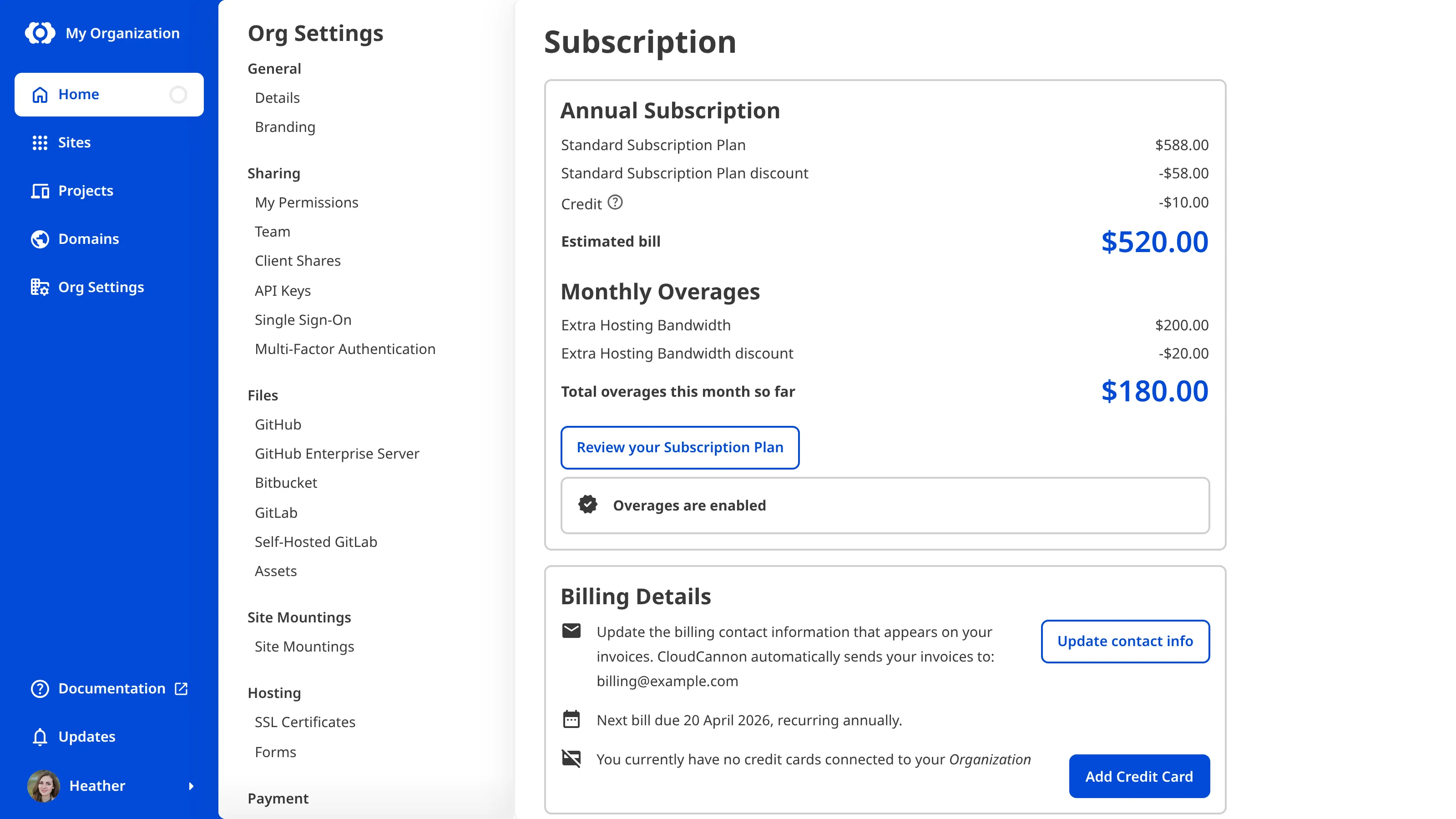
For more information on these topics, please read our documentation on [updating your Billing Period](/documentation/user-articles/update-your-billing-period/), [what Add-Ons and Overages are](/documentation/user-articles/what-are-add-ons-and-overages/), [adding a coupon to your subscription](/documentation/user-articles/add-a-coupon-to-your-subscription/), and [understanding your CloudCannon invoice](/documentation/user-articles/understand-your-cloudcannon-invoice/).
> If your *Organization* is on an *Enterprise Plan*, your billing is arranged directly with your CloudCannon account manager. Self-serve *Subscription Plan* changes and payment method management aren't available. For questions about Enterprise billing, please contact us via [support](https://cloudcannon.com/support/), Slack, or email.
---
---
title: What is a Team Member?
description: Learn about Team Members in CloudCannon and what they can do for your Organization.
url: https://cloudcannon.com/documentation/user-articles/what-is-a-team-member/
content_type: user article
last_modified: 2026-09-10
---
**Team Members** are people you have invited to your [Organization](/documentation/user-articles/what-is-an-organization/). Your *Team Members* will help you edit and review your content, maintain your **Sites**, and manage your *Organization*. Each *Team Member* has their own CloudCannon account and an individual history of all the changes they have made to your *Sites*. When you [invite a Team Member to your Organization](/documentation/user-articles/add-a-team-member-to-your-organization/), CloudCannon will ask you to assign them to a [Permission Group](/documentation/user-articles/what-are-permission-groups/).
## How many Team Members can my Organization have?
The maximum number of *Team Members* allowed per *Organization* depends on your [Subscription Plan](https://cloudcannon.com/pricing/). If you need to exceed this number, you can pay to add extra *Team Members* to your *Organization* using *Add-Ons*.
Your *Team Member* allowance is consumed in two ways:
- Each person in your *Organization* counts as one *Team Member*, whether you invite them directly or share a *Site* with them through **Site Sharing**.
- Each *Site* with **Client Sharing** enabled counts as one *Team Member*, no matter how many people use that *Site's* client password.
You can see how many *Team Members* are included in your *Subscription Plan* on the *Your Subscription Plan* page, including the total seats, seats used, seats remaining, and how many extra seats you have added on top of your *Subscription Plan*.
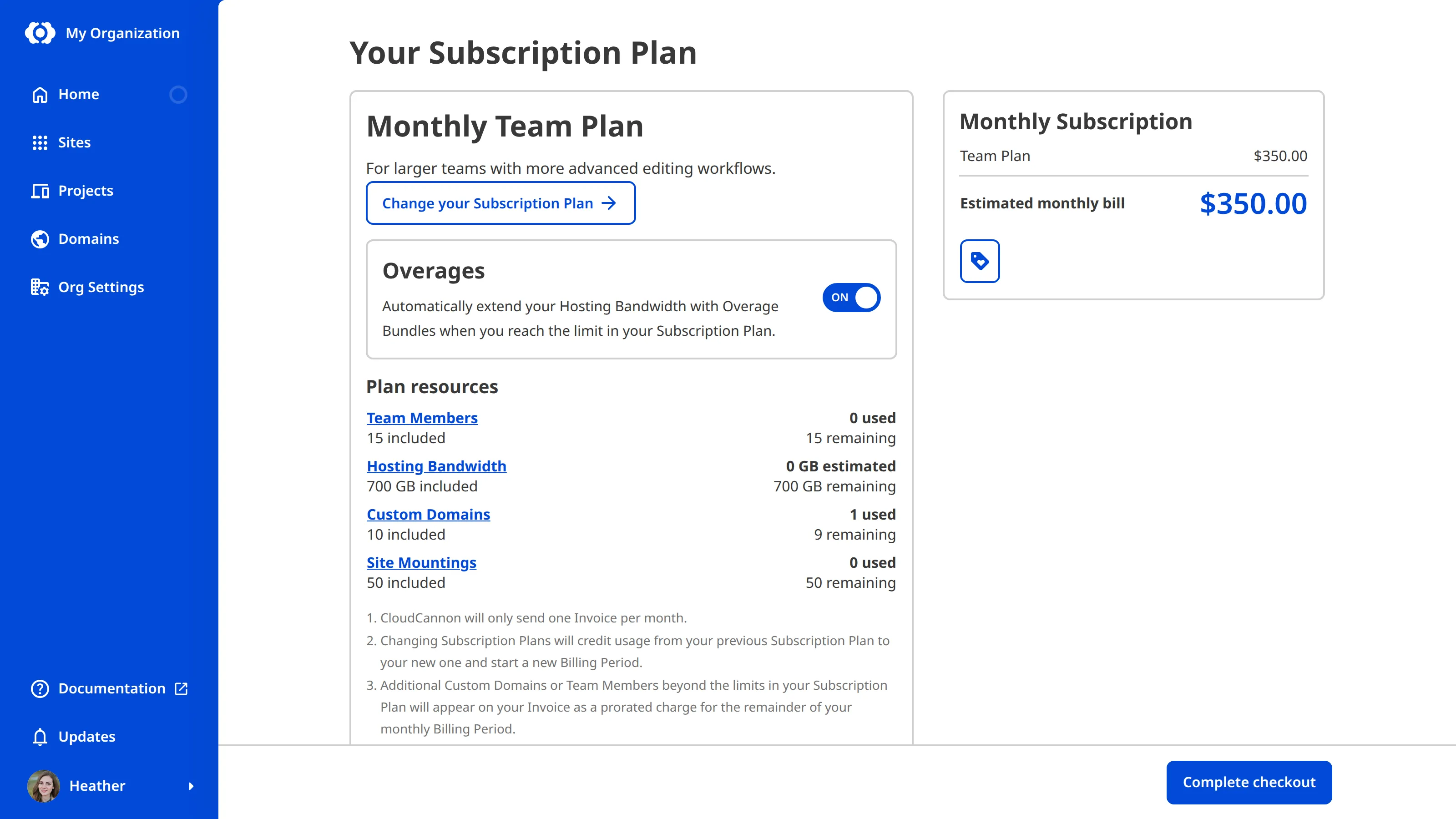
## Where can I see my Team Members?
The *Team* page under *Org Settings* lists everyone in your *Organization* under the *Members* tab. Each *Team Member* has a card showing their name and avatar, along with details such as how long ago they were last active and who invited them. Anyone you have invited who hasn't accepted yet appears with an *Invitation pending* label until they join. Select a *Team Member's* card to open their page, where you can see the *Permission Groups* they belong to, depending on your own permissions.

If you want the same list as a file you can search, sort, or keep as a record, please read our documentation on [exporting your Access Review](/documentation/user-articles/export-your-access-review/).
## What can Team Members do?
In CloudCannon, **Permissions** control what actions your *Team Members* can perform within your *Organization*. The *Permission Groups* a *Team Member* belongs to determine their *Permissions*. Each *Permission Group* contains a set of *Permissions* that apply to all the members of that *Group*. Every *Team Member* in your *Organization* must be a member of at least one *Permission Group*.
> If you want to give someone permission to access an individual *Site* without making them a member of your *Organization*, you can use *Site Sharing* or *Client Sharing*. For more information, read our documentation on [sharing a Site with Site Sharing](/documentation/user-articles/share-a-site-with-site-sharing/) and [what Client Sharing is](/documentation/user-articles/what-is-client-sharing/).
---
---
title: What is a Testing Domain?
description: Learn about the free .cloudvent.net Testing Domain.
url: https://cloudcannon.com/documentation/user-articles/what-is-a-testing-domain/
content_type: user article
last_modified: 2026-06-24
---
A Testing Domain is a free *.cloudvent.net* URL that CloudCannon assigns to every Site. Each Testing Domain uses a randomly generated adjective and noun separated by a hyphen (i.e., [grey-grouse.cloudvent.net](https://grey-grouse.cloudvent.net/) or [brave-submarine.cloudvent.net](https://brave-submarine.cloudvent.net/)).
Testing Domains are useful for seeing your content live after a successful [Site build](/documentation/developer-articles/what-is-a-site-build/). If you use a [publishing workflow](/documentation/developer-guides/staging-workflow-guide/), your Testing Domain will allow you to see the content for each branch on its own domain.
You can [view your Testing Domain](/documentation/user-articles/view-your-testing-domain/) any time after your first successful Site build.

> To stop serving content on your Testing Domain, you can [set a password](/documentation/developer-articles/enable-password-authentication/) to prevent unauthorized visitors, enable [Headless Mode](/documentation/developer-articles/what-is-headless-mode/), or contact our friendly [support team](https://cloudcannon.com/support/).
You can use your CloudCannon Testing Domain as your primary domain; however, we don't recommend doing this for two reasons.
One, you cannot change the automatically generated domain name without creating a new Site on CloudCannon. The automatically generated domain may not be right for you or your Site. You can generate a new one by creating a new Site with the same files, but this can be inefficient.
Two, by default, CloudCannon automatically de-indexes Testing Domains so that they do not appear in search engines. CloudCannon does this by serving a *robots.txt* file on all Testing Domains.
File: `robots.txt`
```
User-agent: *
Disallow: /
noindex: /
```
## Custom Testing Domains
> **This feature is available on specific plans.** Custom Testing Domains are only available on our [Team and Enterprise plans](https://cloudcannon.com/pricing/) and for members of our [Partner Program](https://cloudcannon.com/partner-program/).
Custom Testing Domain lets you choose the domain name for your `.cloudvent.net` URL. Choosing your Testing Domain improves your branding if you are sharing the URL outside of your Organization (e.g., sending a test Site to a client).
For access to this feature, please contact our friendly [support team](https://cloudcannon.com/support/). We'll set you up with a unique handle for your Organization. This handle will become the suffix for all Testing Domains (e.g., `prefix-company-name.cloudvent.net`).
Whenever you create a new Site, the *Create a Site* page will ask you to enter a unique prefix to prepend to your custom Testing Domain.
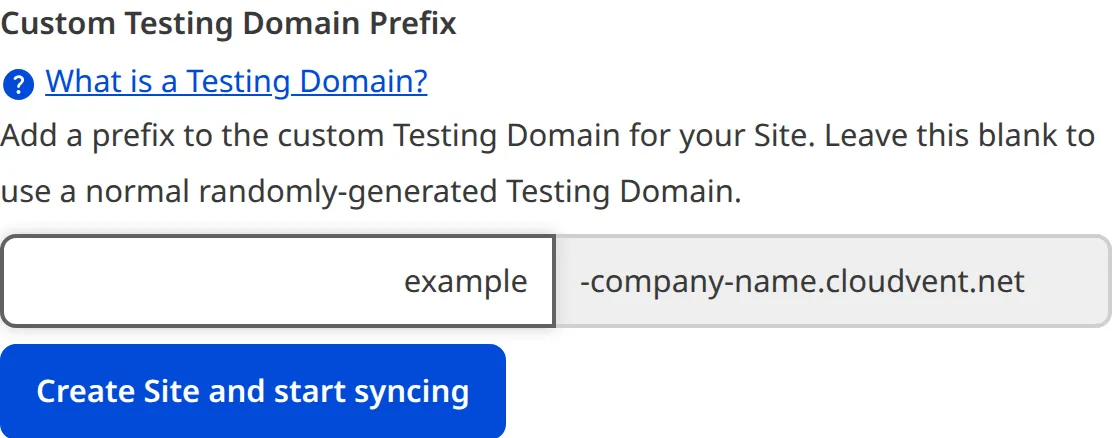
Take care when adding a custom Testing Domain to a new Site. Each full domain can only be used once, so you will never be able repeat that combination of "prefix" and "suffix".
---
---
title: What is a Text input?
description: Learn about Text inputs for editing structured data, including how they work in CloudCannon.
url: https://cloudcannon.com/documentation/user-articles/what-is-a-text-input/
content_type: user article
last_modified: 2026-03-29
---
A Text input is an editing interface for plain text content. You can use this input in the Data Editor, Content Editor, or Visual Editor to edit structured data in data files or front matter.
There are three types of Text input:
- Text
- Textarea
- Email
> Are you looking for [What is a Rich Text input?](/documentation/user-articles/what-is-a-rich-text-input/)
>
> Text and Rich Text inputs are similar, except Rich Text inputs are designed for markup text content and contain a WYSIWYG toolbar.
## Text input types
### Text
The Text input provides a simple editing interface for plain text.
You can edit the value of an Text input by typing in the text area.

### Textarea
The Textarea input provides an editing interface for plain text.
You can edit the value of an Textarea input by typing in the text area, and new lines with the *Enter* key, and resize the text area.
### Email
The Email input provides an editing interface for plain text with an email icon for context.
You can edit the value of an Email input by typing in the text area.

## Text input appearance and behavior
You can customize the label, comment, documentation link, and context box for all inputs regardless of type.
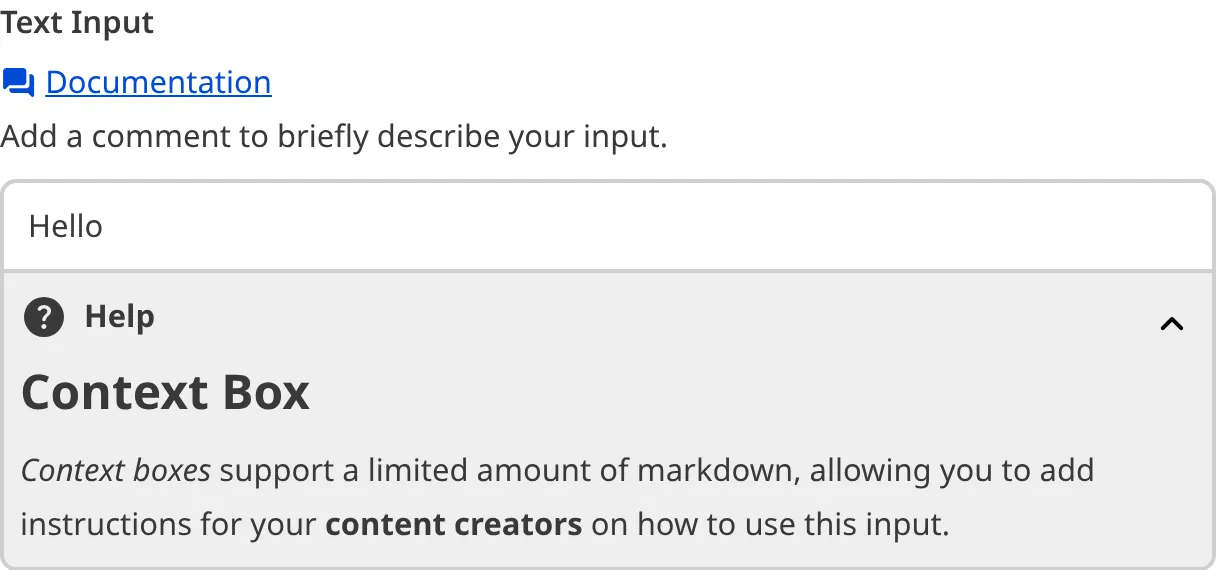
Depending on how your developer configured the input, your Textarea input may have a character counter in the top right of the text area.
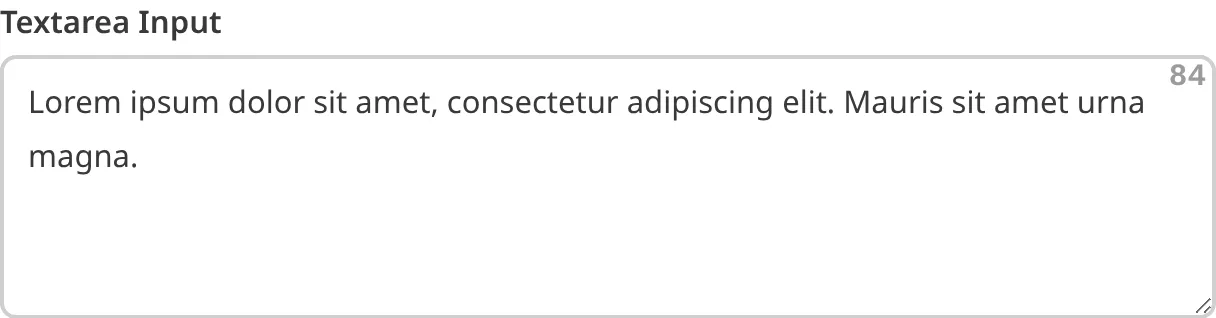
### Input validation
Your Text input may have input validation, which requires the input value to meet predefined criteria before you can save your changes. CloudCannon will warn you if your input value is invalid and provide directions on how to fix it.
CloudCannon will show a red `*` next to the name of your Text input if a value is required.

If you enter a value under the minimum or over the maximum character count, CloudCannon will display an error message in red text under the input field.

If your developer has configured a pattern for your input value, CloudCannon will warn you when the value does not match the pattern. CloudCannon will show any error messages underneath the text area in red.

For more information on configuration options, valid input values, and unconfigured input behavior, please read our developer documentation on [configuring a Text input](/documentation/developer-articles/configure-a-text-input/) .
## Misconfigured Text inputs
You will see an orange warning box if your Text input is misconfigured.
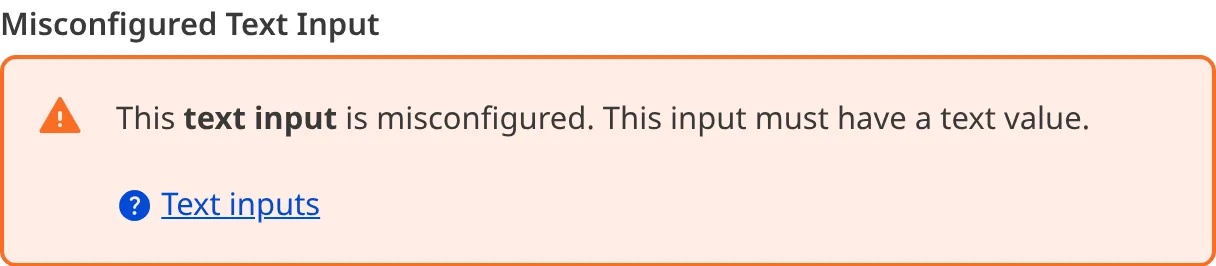
Text inputs are misconfigured if:
- The value is not a string.
For more information on how to fix a misconfigured Text input, please read our developer documentation on [configuring a Text input](/documentation/developer-articles/configure-a-text-input/).
---
---
title: What is a URL input?
description: Learn about URL inputs for editing structured data, including how they work in CloudCannon.
url: https://cloudcannon.com/documentation/user-articles/what-is-a-url-input/
content_type: user article
last_modified: 2026-03-29
---
A URL input is an editing interface for relative, absolute, and fully qualified URLs. You can use this input in the Data Editor, Content Editor, or Visual Editor to edit structured data in data files or front matter.
There is only one type of URL input:
- URL
## URL input types
### URL
The URL input provides an editing interface for relative, absolute, and fully qualified URLs.
You can edit the value of a URL input by typing in the text field. To clear the selected file, you can click the *Clear* button at the top right of the input.
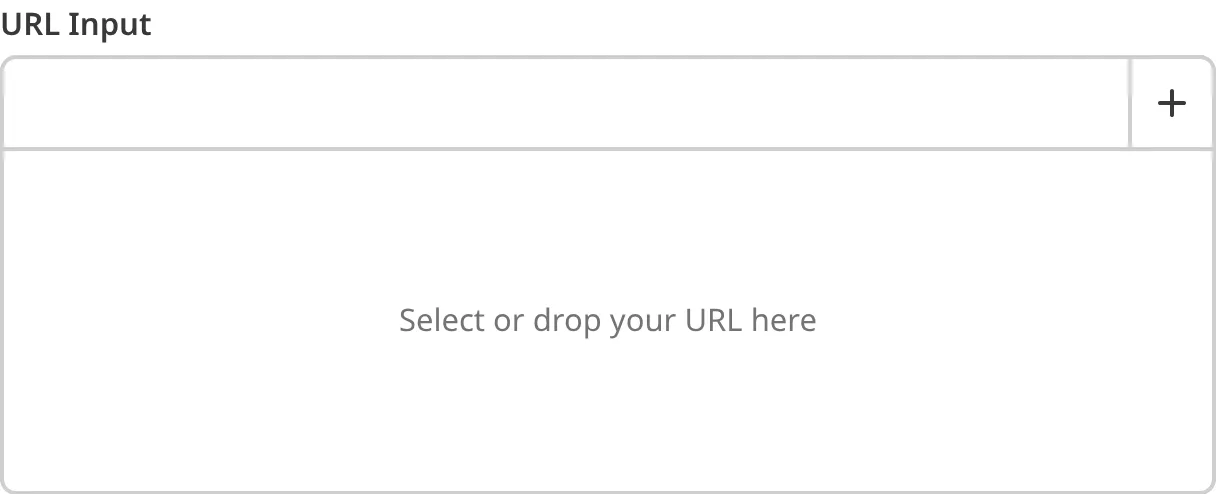
You can link to existing files in your repository or DAM, pages on your website, or email addresses, using the dropdown menu from the *Add URL* button at the top right. You can also upload a file to your repository or [DAM](/documentation/developer-articles/integrating-your-dam-with-cloudcannon/) by selecting the *Upload a new file* option.
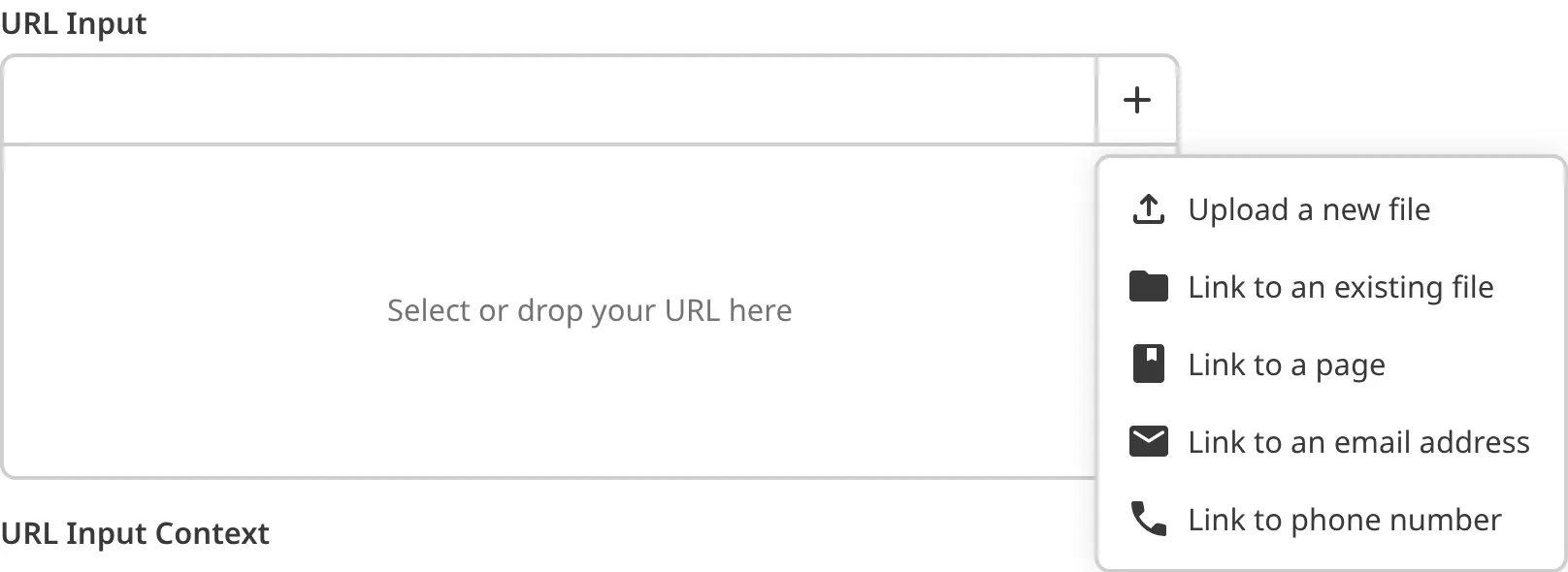
When you link to an external URL, the URL input will display the title, description, and image for the URL.
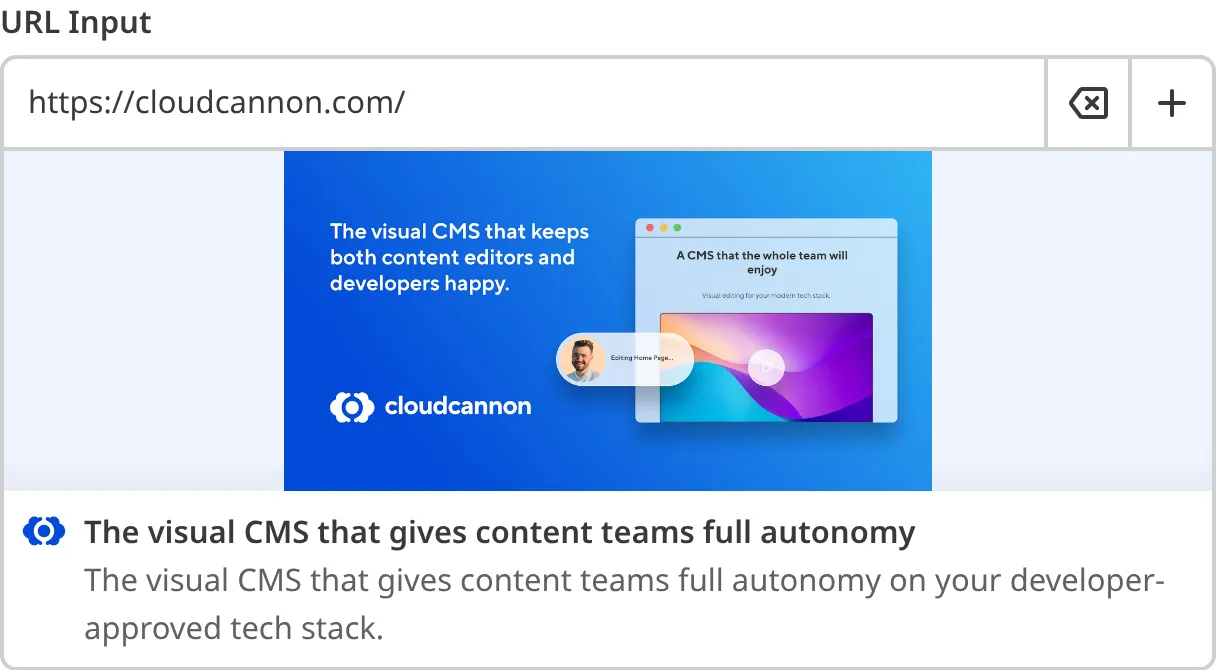
When you link to a relative URL (i.e., a page on your website), the URL input will show a preview screenshot of the page's output URL, the title, and the output path.
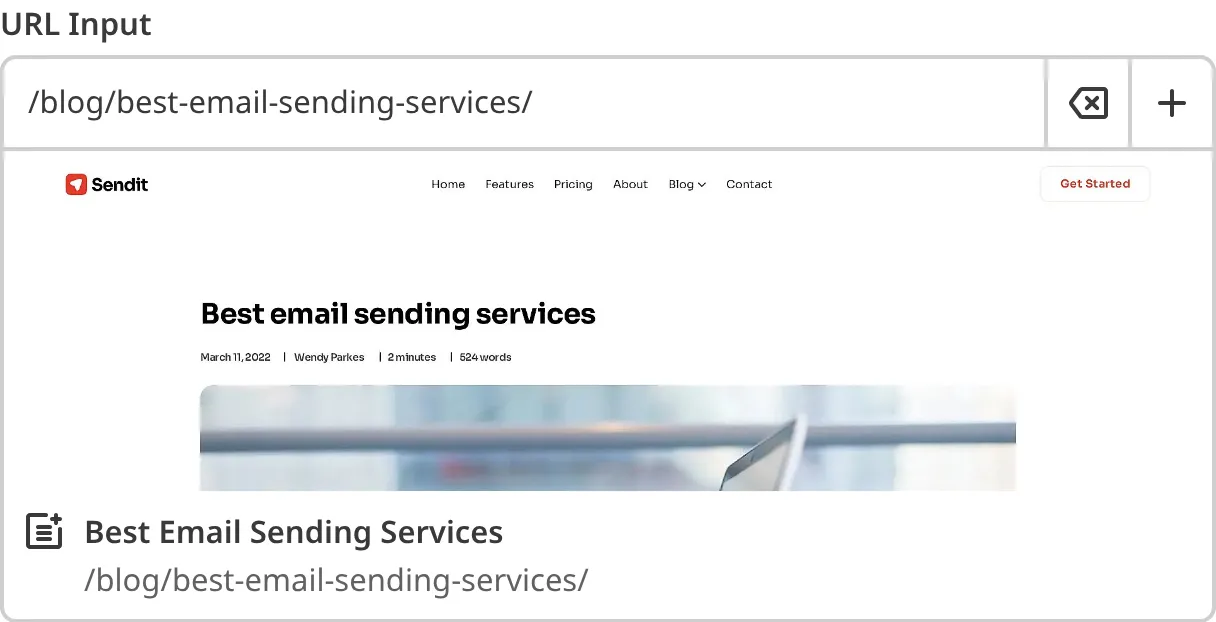
## URL input appearance and behavior
You can customize the label, comment, documentation link, and context box for all inputs regardless of type.
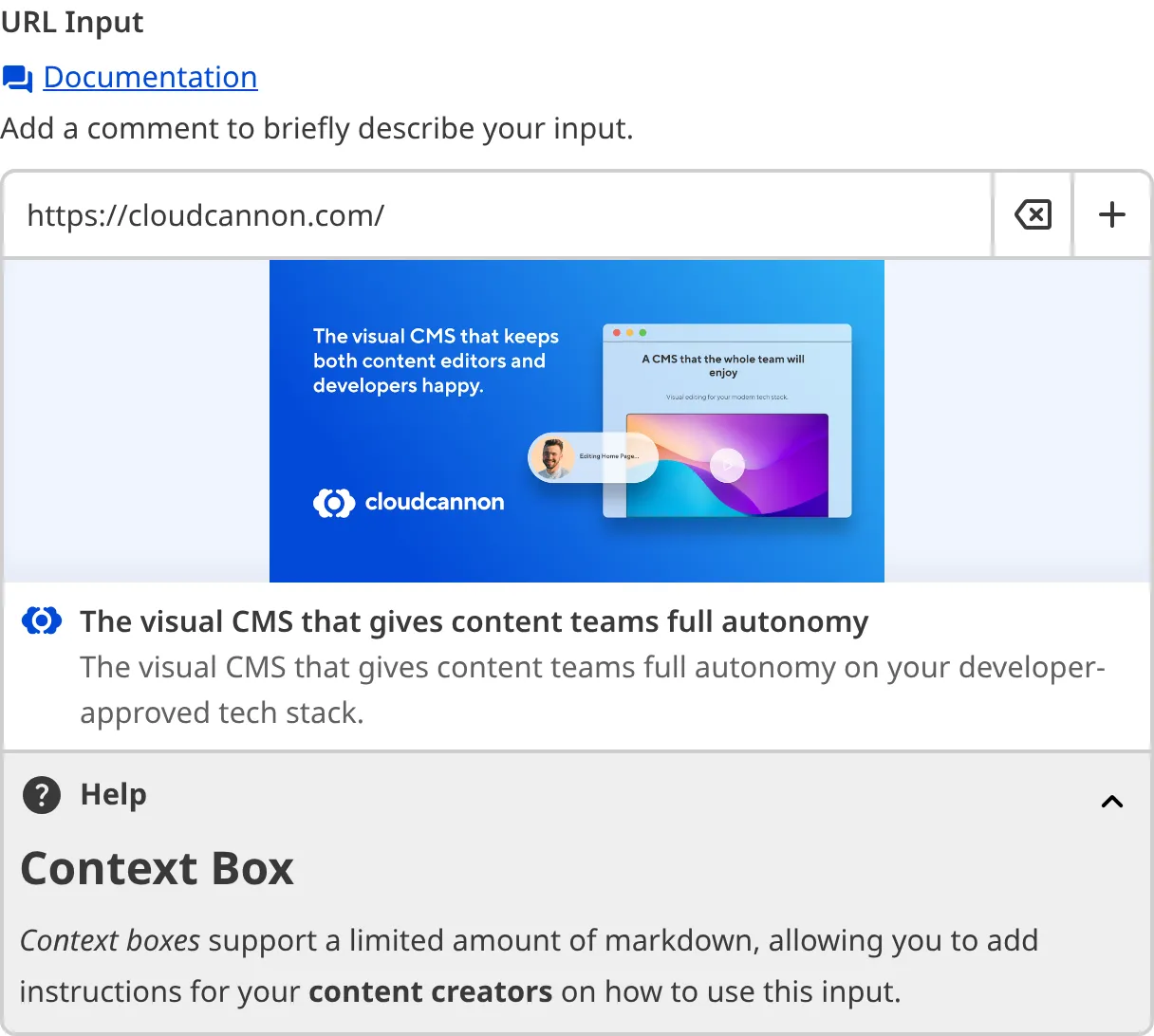
Depending on how your developer configured the input, your URL input may have different options in the *Add URL* button dropdown menu.
### Input validation
Your URL input may also have input validation, which requires the value to match predefined criteria before you can save your changes.
CloudCannon will show a red `*` next to the name of your URL input if a value is required.
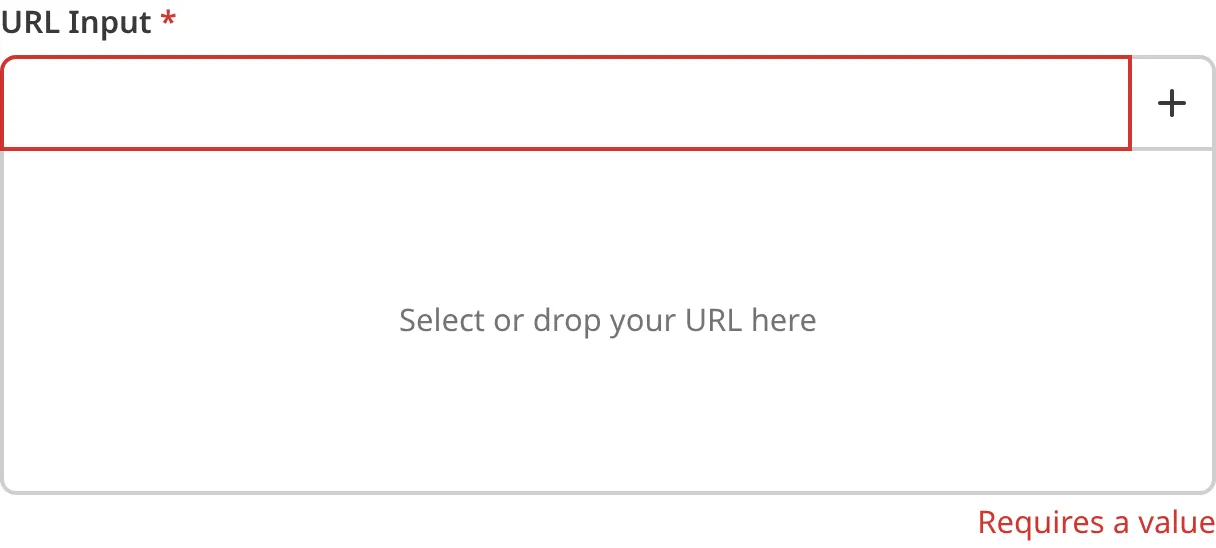
If you enter a value under the minimum or over the maximum character count, CloudCannon will display an error message in red text under the input field.
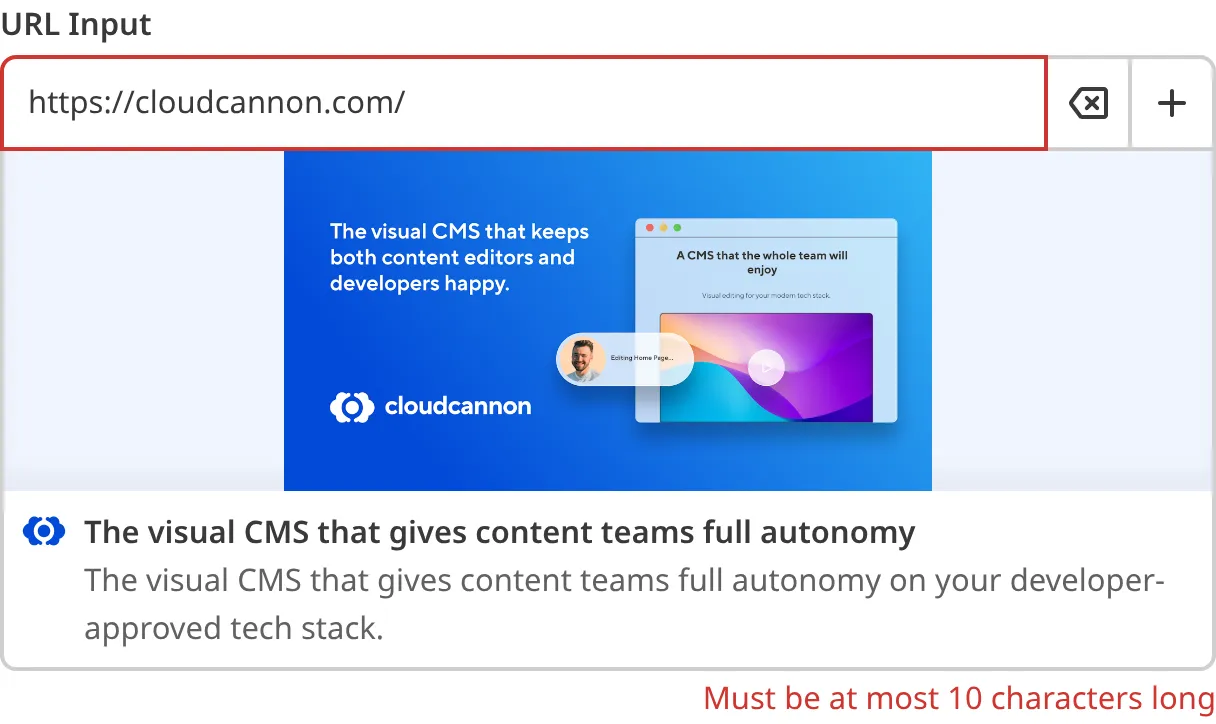
If you select a file that exceeds the maximum file size limit, CloudCannon will display an error message in red text under the input field.
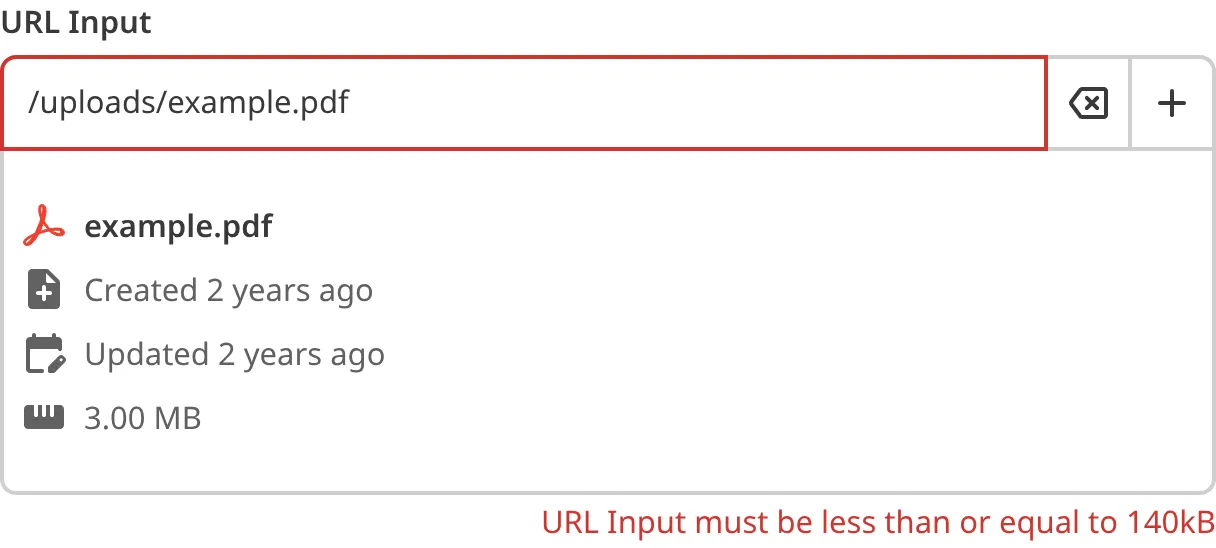
If your developer has configured a pattern for your input value (such as specific file extensions), CloudCannon will warn you when the value does not match the pattern. CloudCannon will show any error messages underneath the input field in red.
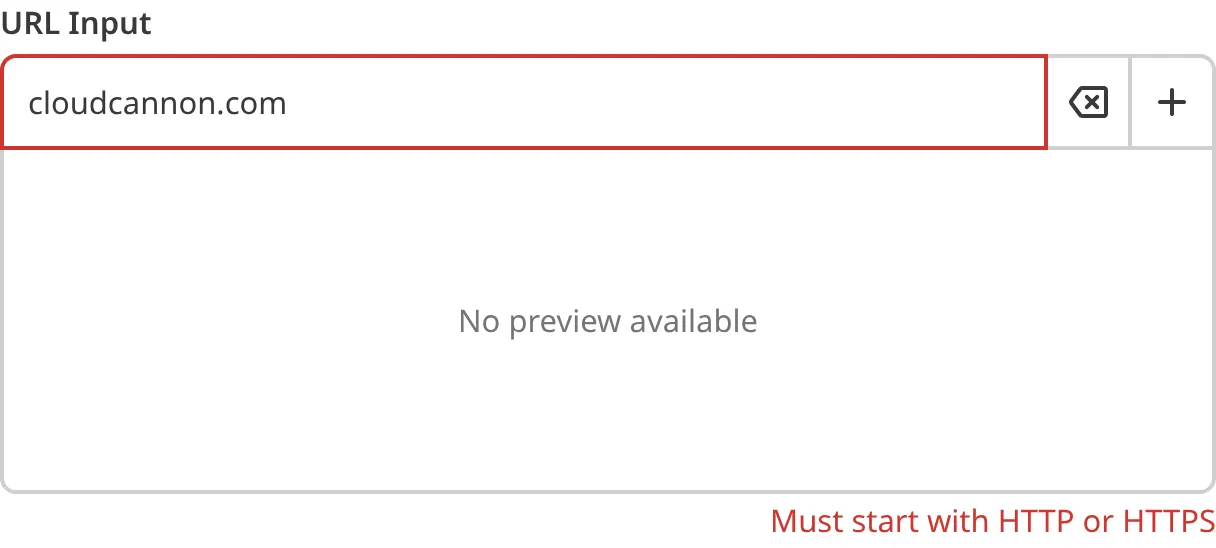
For more information on configuration options, valid input values, and unconfigured input behavior, please read our developer documentation on [configuring a URL input](/documentation/developer-articles/configure-a-url-input/) .
## Misconfigured URL inputs
You will see an orange warning box if your URL input is misconfigured.
URL inputs are misconfigured if:
- The value is not a string.
For more information on how to fix a misconfigured URL input, please read our developer documentation on [configuring a URL input](/documentation/developer-articles/configure-a-url-input/).
---
---
title: What is an Access Review?
description: Learn what an Access Review contains, who appears in it, and what each column means.
url: https://cloudcannon.com/documentation/user-articles/what-is-an-access-review/
content_type: user article
last_modified: 2026-09-10
---
An **Access Review** is a **CSV** file listing everyone with access to your **Organization**, how they sign in to CloudCannon, and when they were last active. It lets you confirm who currently has access and what kind, and produce evidence for a security audit. Members of the **Owners Permission Group**, or the *Partner Permission Group* in a *Client Organization*, can export one. For more information, please read our documentation on [exporting your Access Review](/documentation/user-articles/export-your-access-review/).

## What the Access Review covers
An *Access Review* covers everyone with a **Permission Group** membership in your *Organization*, including **Team Members** who access your content through **Site Sharing**, and anyone you have invited who has not accepted yet. It does not cover people who reach a **Site** through **Client Sharing**, who have no CloudCannon account to list, or **API Keys**, which belong to your *Organization* rather than to a person. For more information, please read our documentation on [what Client Sharing is](/documentation/user-articles/what-is-client-sharing/), [what API Keys are](/developer-articles/what-are-api-keys/), and [sharing a Site with Site Sharing](/documentation/user-articles/share-a-site-with-site-sharing/).
An *Access Review* contains one row for each *Permission Group* membership, not one row for each person. A *Team Member* who belongs to five *Permission Groups* appears on five rows, one per *Group*, with the same email address each time. Rows for pending *Team Members* are listed after current ones, and contain less information.
**`Email Address`** `string`
The email address on the *Team Member's* CloudCannon account or, for a pending member, the address you sent the invitation to.
**`User Name`** `string`
The name on the *Team Member's* CloudCannon account. A name is optional, so this is empty for pending members, who have no account yet, and for anyone who has not set one.
**`Access Type`** `string`
`Organization` for someone with access to your whole *Organization*, or `Site` for someone with access to a single *Site* through *Site Sharing*.
**`Site Sharing Site ID`** `string`
The numeric ID of the shared *Site*, the same ID that appears in that *Site's* CloudCannon URL. Empty on every row where *Access Type* is `Organization`.
**`Site Sharing Site Name`** `string`
The name of the shared *Site*. Empty on every row where *Access Type* is `Organization`.
**`Permission Group Name`** `string`
The *Permission Group* whose membership this row records. For more information, please read our documentation on [what Permission Groups are](/documentation/user-articles/what-are-permission-groups/).
**`Date Invited`** `string`
When you sent the invitation. Empty on every current member row, where the equivalent date is in the *Date Accepted* column.
**`Date Accepted`** `string`
When the person accepted their invitation and joined this *Permission Group*. Empty on every pending member row, where the invitation date is in the *Date Invited* column.
**`SSO Login`** `boolean`
`true` when the *Team Member* signs in to CloudCannon with **SSO** rather than a password. For more information, please read our documentation on [adding SSO/SAML authentication](/documentation/developer-articles/add-sso-saml-authentication/).
**`MFA Enabled`** `boolean`
`true` when the *Team Member* has turned on **multi-factor authentication** for their account. For more information, please read our documentation on [enforcing multi-factor authentication](/documentation/developer-articles/enforce-multi-factor-authentication/).
**`Last Active`** `string`
The most recent date CloudCannon recorded activity for the *Team Member* in this *Organization*. Empty when there is no recorded activity, and on every pending member row.
> Read the *SSO Login* and *MFA Enabled* columns on current member rows only. Both columns describe a CloudCannon account, and a pending member has not created one yet, so both columns read `false` on every pending member row, whichever way that person signs in once they join.
The *SSO Login* and *MFA Enabled* columns describe the account as it stands when you run the export, not any particular sign-in. A `true` value in *MFA Enabled* means the *Team Member* has multi-factor authentication turned on now, not that they used it the last time they signed in. To see the method and date of individual sign-ins, please read our documentation on [what Login Sessions are](/documentation/user-articles/what-are-login-sessions/).
## If the Last Active column is empty
An empty *Last Active* cell means CloudCannon has no recorded activity for that *Team Member* in this *Organization*. Pending members have no activity to record, so their cells are always empty.
If *Last Active* is empty on every row, including rows for *Team Members* you know are active, treat the column as unavailable rather than as evidence that nobody has used your *Organization*. [Contact our support team](https://cloudcannon.com/support/) with your *Organization* name and the date and time you ran the export.
---
---
title: What is an Array input?
description: Learn about Array inputs for editing structured data, including how they work in CloudCannon.
url: https://cloudcannon.com/documentation/user-articles/what-is-an-array-input/
content_type: user article
last_modified: 2026-03-29
---
An Array input is an editing interface for lists of inputs or input groups. You can use this input in the Data Editor, Content Editor, or Visual Editor to edit structured data in data files or front matter. Array inputs can contain nested inputs of any type, including other Arrays and Objects. There is no limit to how many nested layers you can create within an Array.
There is only one type of Array input:
- Array
## Array input types
### Array
The Array input provides a user interface for lists of inputs or input groups. Each item in an Array is sometimes called an "entry". Entries in an Array can be a single value, an input, or an Object containing several inputs. Array inputs appear as a series of cards in the Data Editor or sidebar of the Visual or Content Editor. For entries that use a key name (i.e., Objects, Arrays, or single inputs), the card will preview some of the content within the key. This can include images, strings, and key names. You can configure the preview settings for these cards.
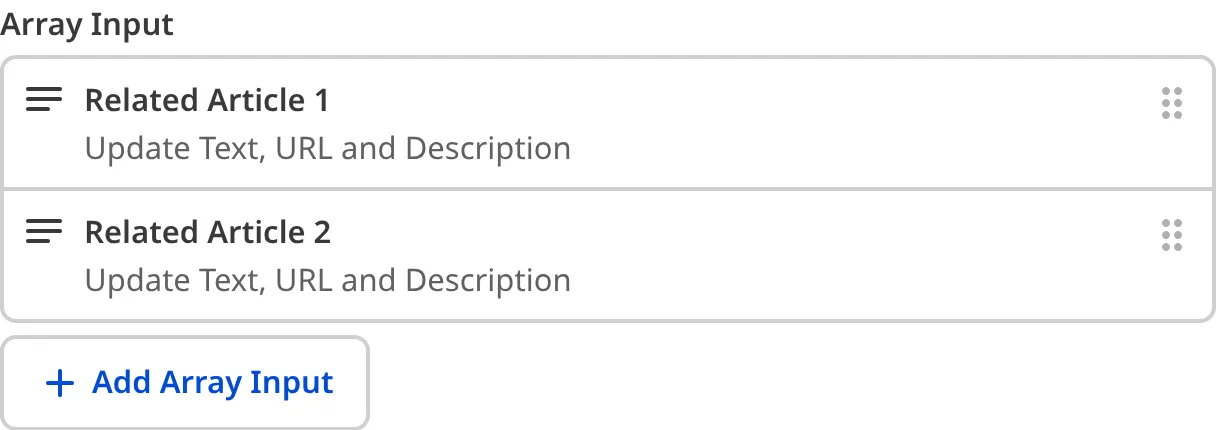
Simpler entries with no key name, such as text, number, or boolean values, do not use cards. Instead, they appear as editable inline fields.
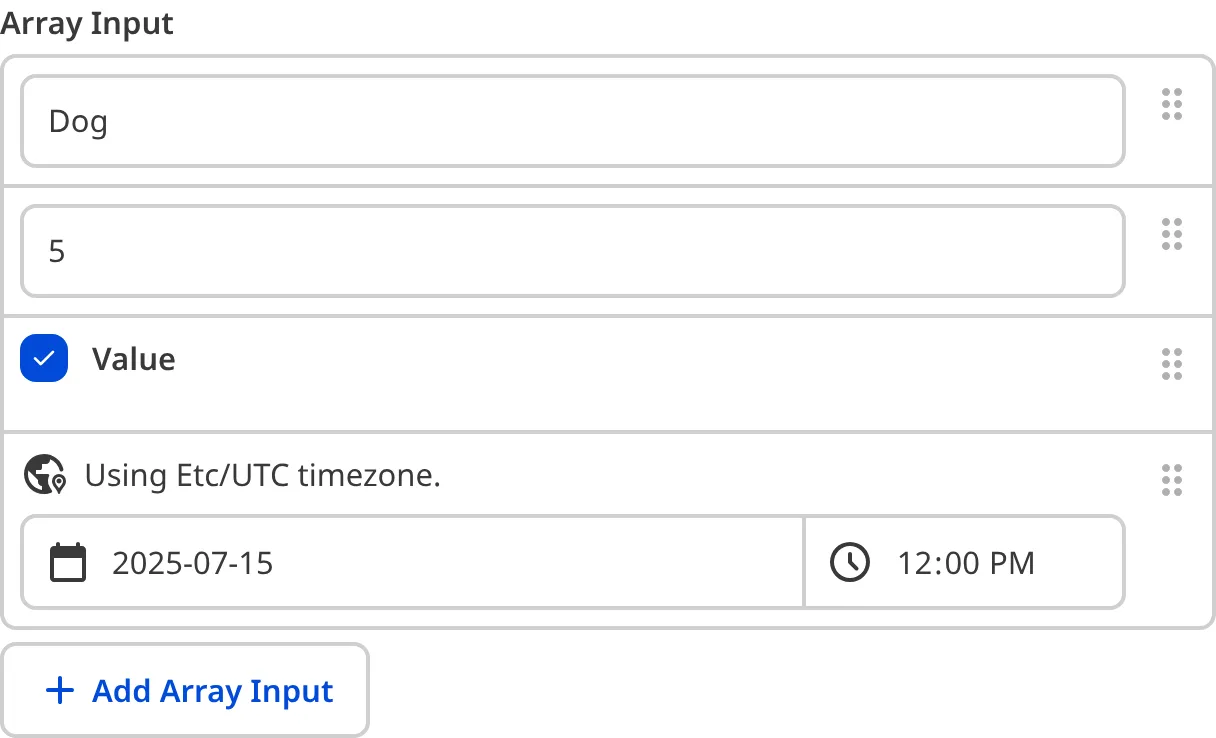
Array inputs can contain a mixture of inline fields and cards simultaneously.
You can reorder, clone, add, and delete new entries in the list using the *Context Menu*. You can also add new entries using the *+ Add* button below the Array — the text on this button will differ depending on the key name of your Array input.
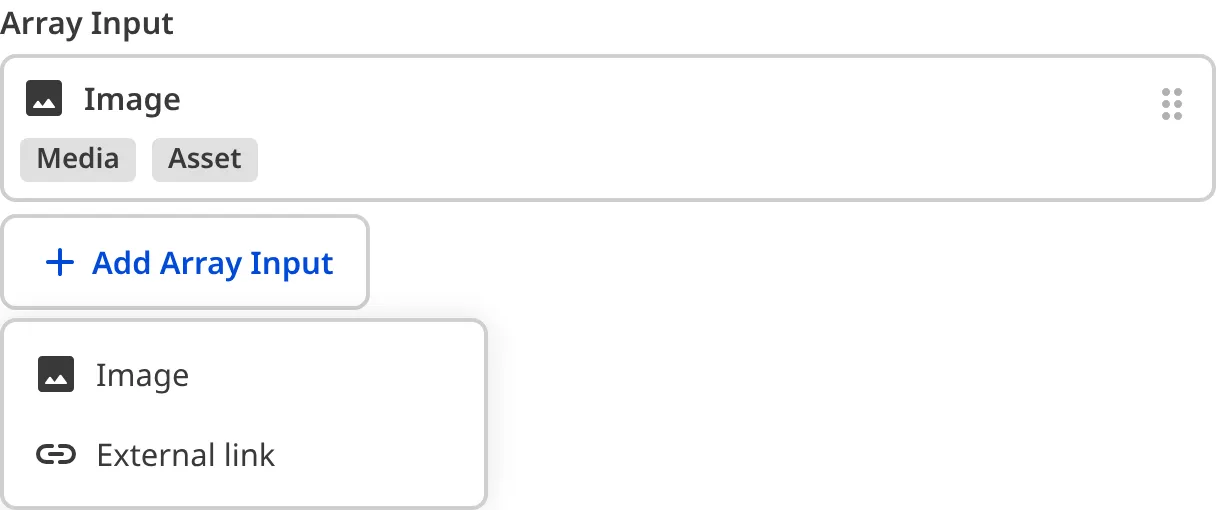
When you click on a card in the Array, it will open to show the nested inputs within that Array entry. The *Back* button at the top of the entry will return you to the parent scope.
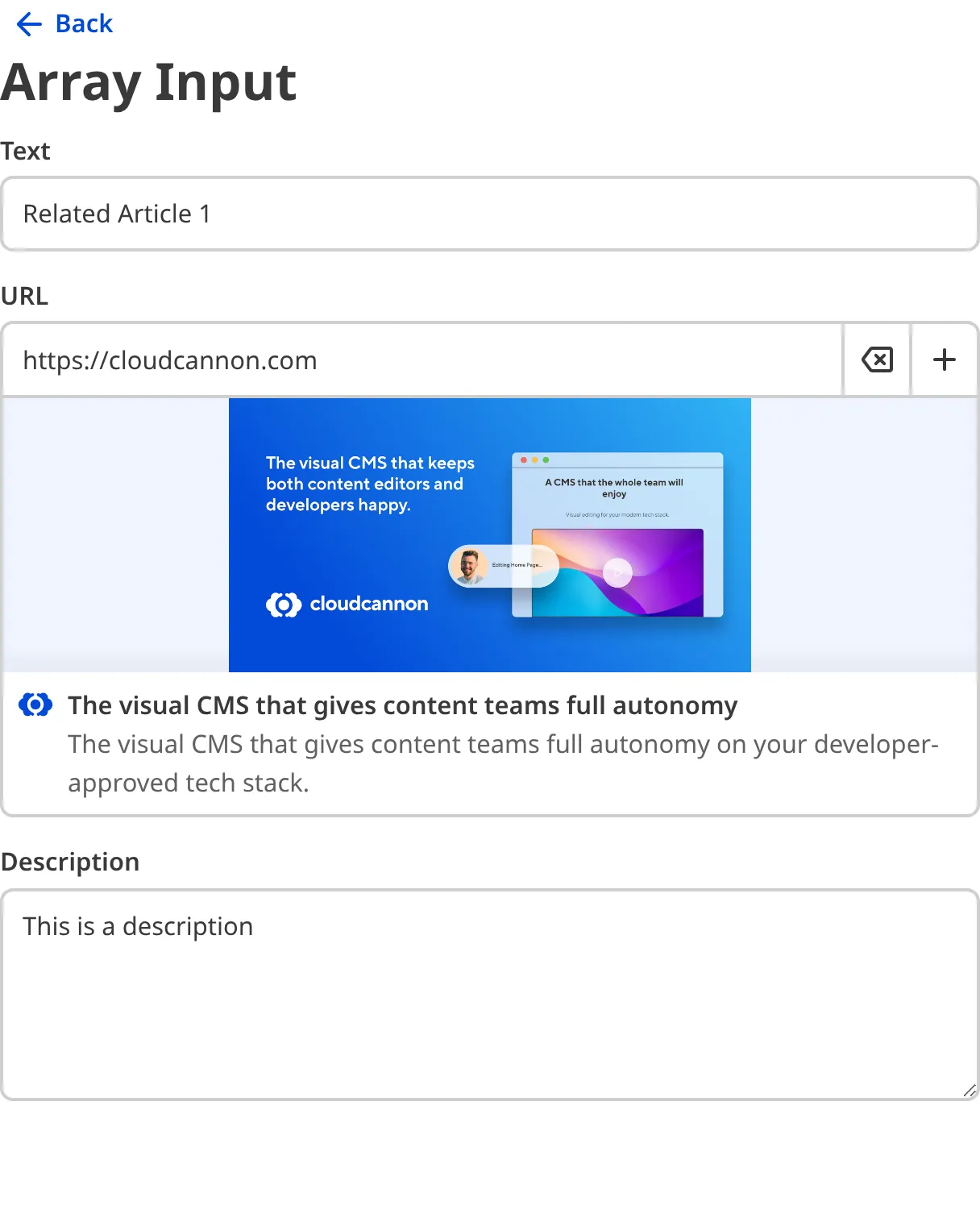
Depending on how your developer has configured the Array input, clicking the *+ Add* button will either clone the last entry in the Array, allow you to choose from predefined [Structures](/documentation/developer-articles/what-is-a-structure/), or add an entry that matches the Entry Input Type.
## Array input appearance and behavior
You can customize the label, comment, documentation link, and context box for all inputs regardless of type.
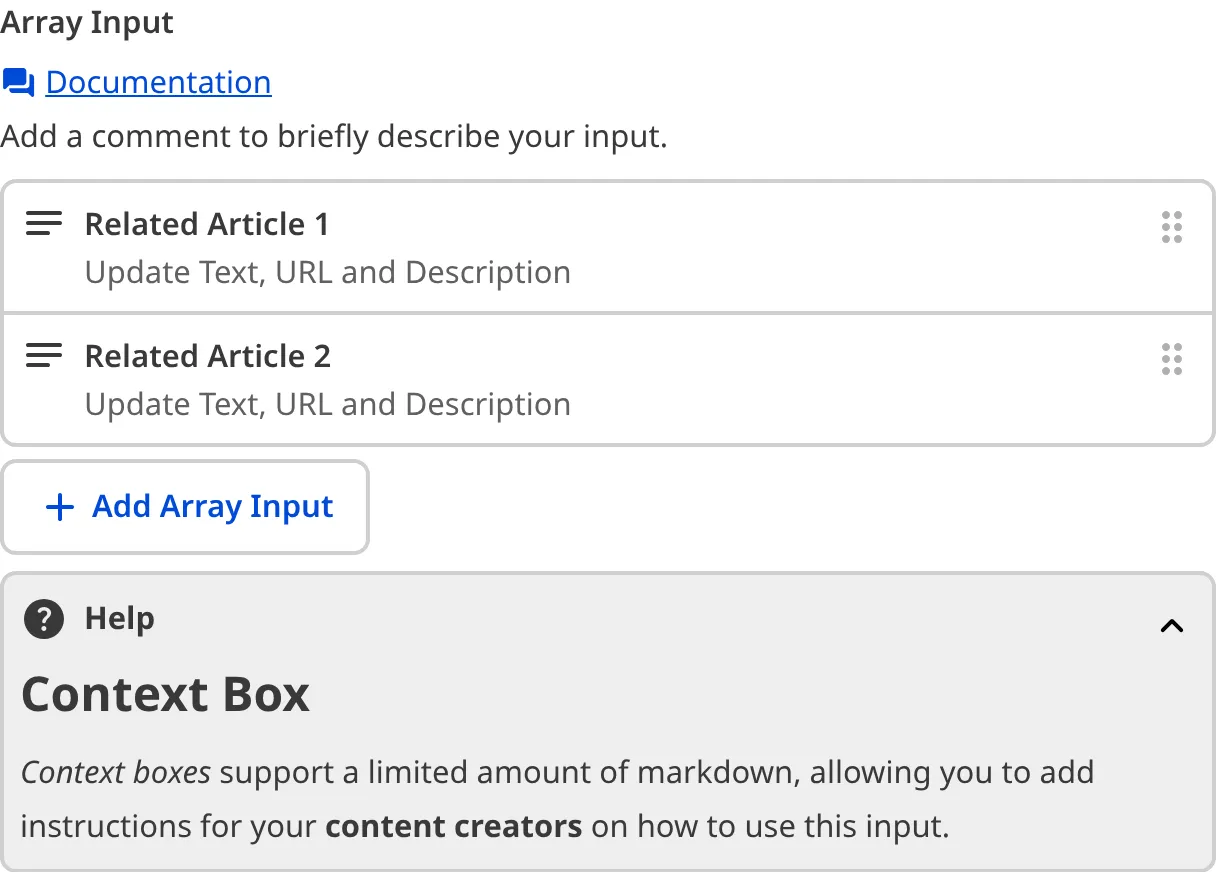
Depending on how your developer configured the input, your Array input may have a custom preview appearance for entry Cards, including the text, subtext, icon, icon color, icon background color, or image.
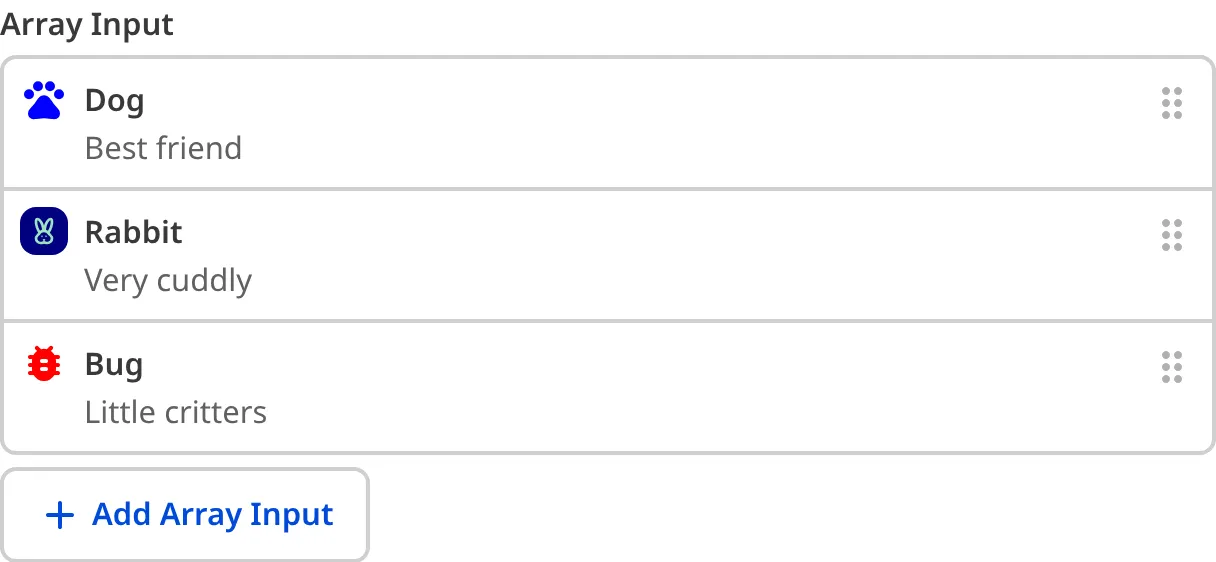
### Populating an Array input
Array inputs need a method for populating new entries. Depending on how your developer has configured the input, when you click the *+ Add* button to add a new entry, CloudCannon will populate new entries in one of three ways: cloning another Array item, using a [Structure](/documentation/developer-articles/what-is-a-structure/), or using an entry Input type.
If your Array input uses the cloning method, clicking the *+ Add* button will clone the format of the most recent entry in the Array and remove the data content. This method is the simplest and allows you to maintain the format of your Array entries, but has some drawbacks. One, you can't use multiple formats for different entries and, two, your input needs at least one entry to clone.
If your Array input uses a Structure, you can select a predefined template to populate a new entry. This method allows you to have many entry templates that are as complex as you require.
If your Array input uses an entry Input type, clicking the *+ Add* button will add an Input of a predefined type as your new entry. This method is suitable for simple Arrays where each entry should be the same Input type.
For more information, please read our developer documentation on [populating an Array input](/documentation/developer-articles/populate-an-array-input/).
### Input validation
Your Array inputs may have input validation, which requires the input value to meet predefined criteria before you can save your changes. CloudCannon will warn you if your input value is invalid and provide directions on how to fix it.
CloudCannon will show a red `*` next to the name of your Array inputs if a value is required.
CloudCannon will warn you that errors need attention when an input nested within an Array fails input validation.
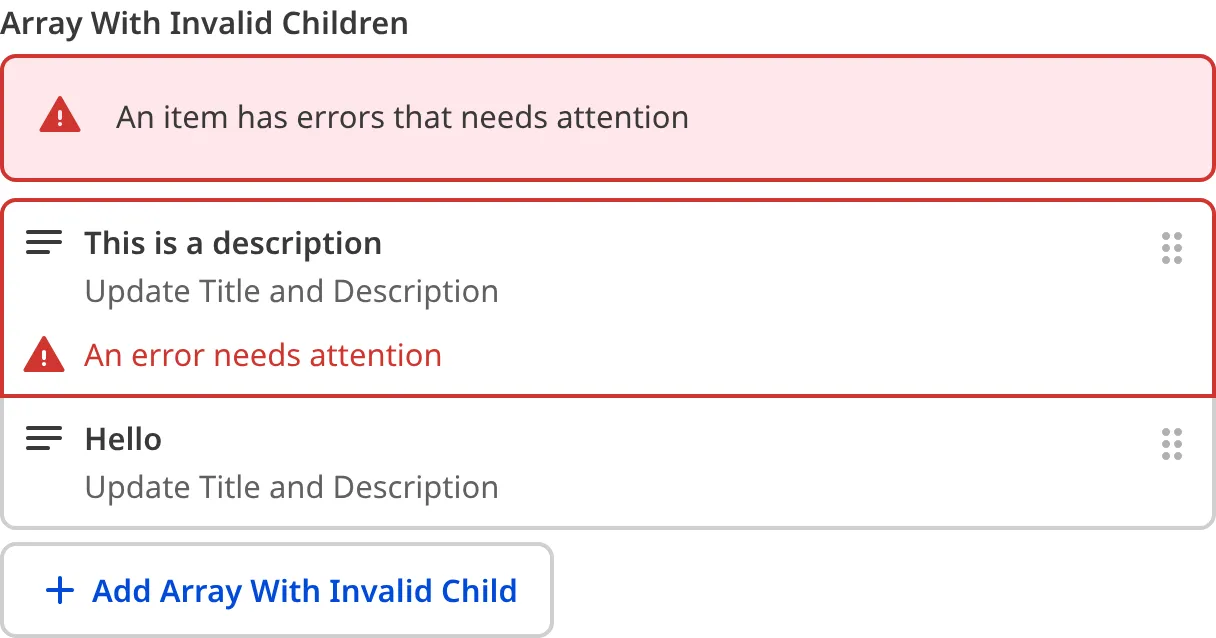
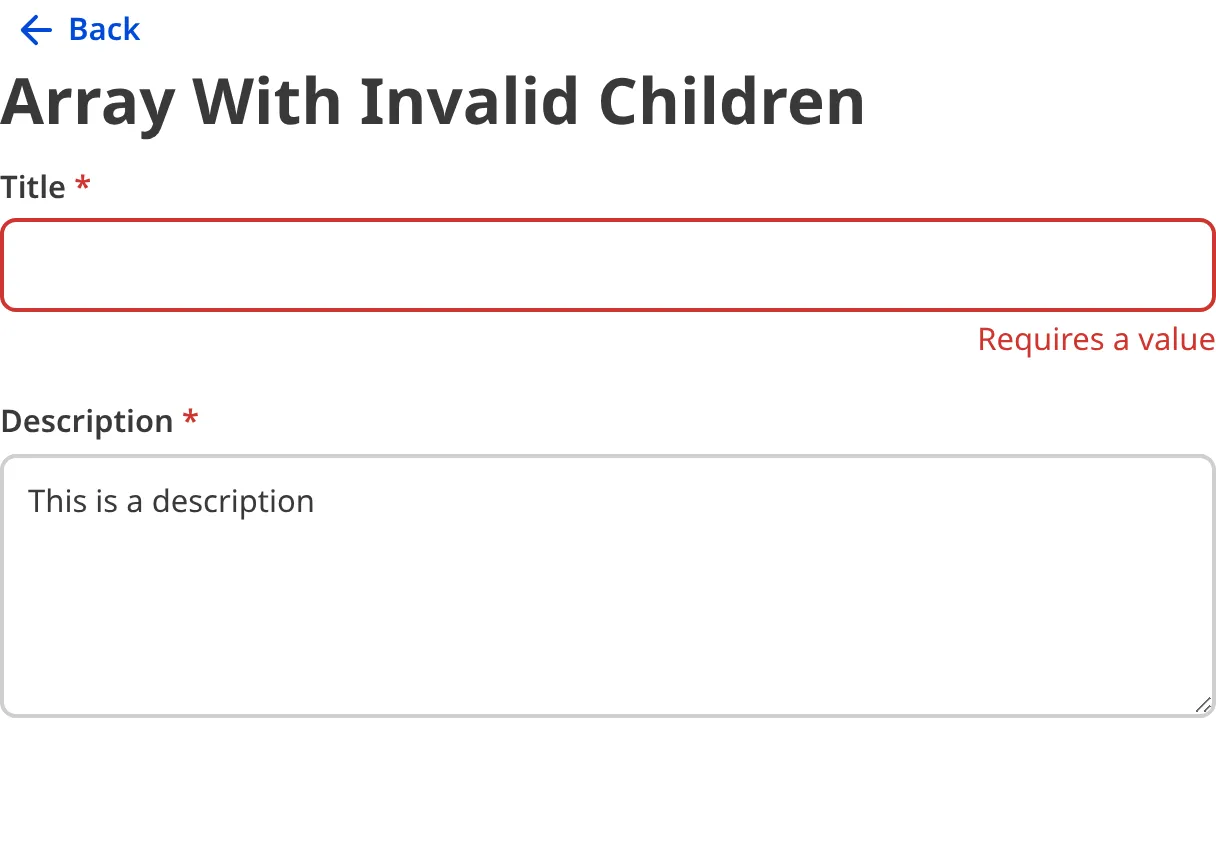
If you select a number of options under the minimum or over the maximum item number, CloudCannon will display an error message in red text under the input field.
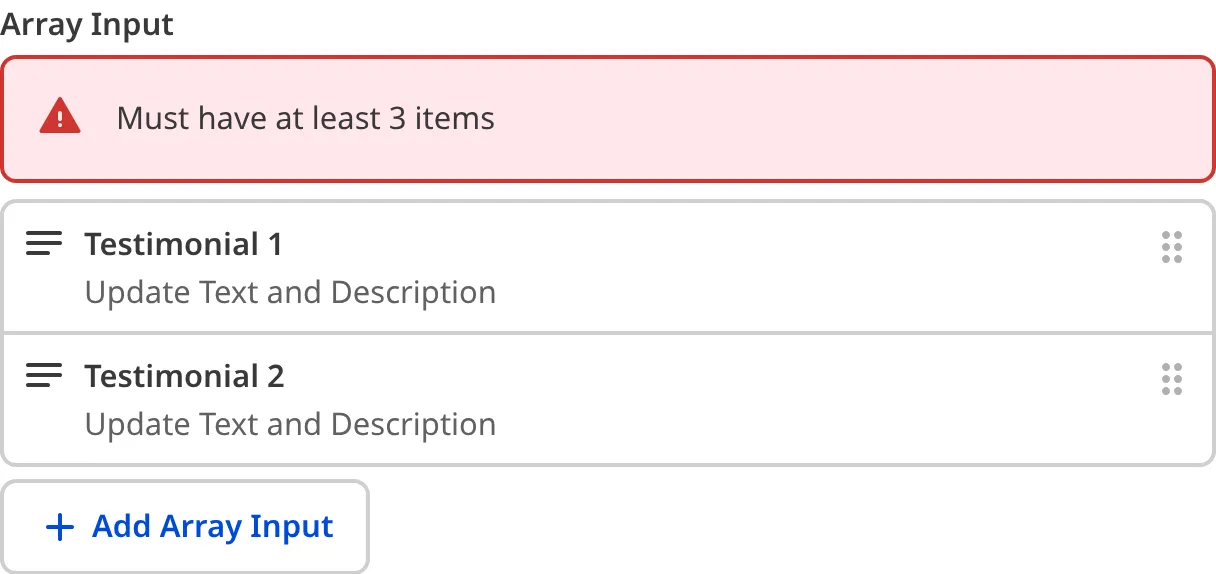
If your input requires unique values, CloudCannon will warn you when two or more values are not unique.
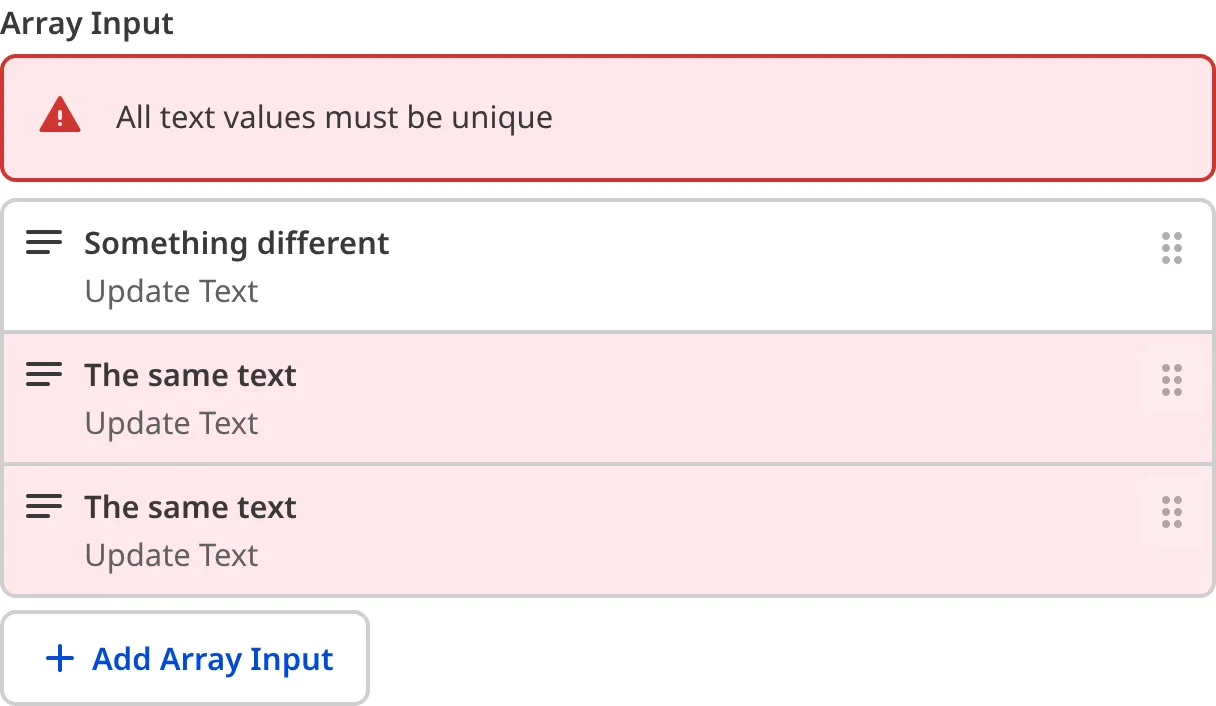
For more information on configuration options, valid input values, and unconfigured input behavior, please read our developer documentation on [configuring an Array input](/documentation/developer-articles/configure-an-array-input/).
## Misconfigured Array inputs
You will see an orange warning box if your Array input is misconfigured.
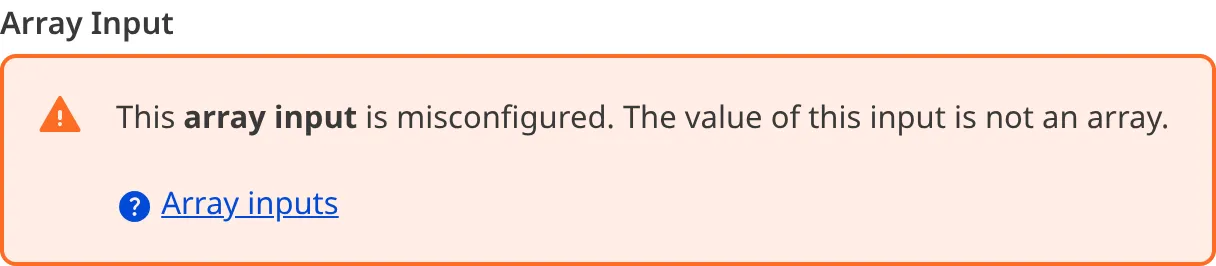
Array inputs are misconfigured if:
- The value is not an array of strings, numbers, booleans, or keys.
- There is no value, and you have not configured a Structure or entry input type to populate the Array.
For more information on how to fix a misconfigured Array input, please read our developer documentation on [configuring an Object input](/documentation/developer-articles/configure-an-array-input/).
---
---
title: What is an Object input?
description: Learn about Object inputs for editing structured data, including how they work in CloudCannon.
url: https://cloudcannon.com/documentation/user-articles/what-is-an-object-input/
content_type: user article
last_modified: 2026-03-29
---
An Object input is an editing interface for structured data. You can use this input in the Data Editor, Content Editor, or Visual Editor to edit structured data in data files or front matter.
Object inputs can contain nested inputs of any type, including other Objects and Arrays. There is no limit to how many nested layers you can create within an Object. Grouping inputs under an Object is useful for organizing your data or hiding complicated or infrequently edited data.
Unlike other input types, the Object input has one type but three subtypes:
- Object
- Tabbed Object
- Mutable Object
## Object input subtypes
### Object
The Object input provides a user interface for a group of inputs.
Object inputs appear as [Cards](/documentation/developer-articles/configure-your-card-previews/) in the Data Editor or sidebar of the Visual or Content Editor, previewing some of the content they contain.

When you click on the Object card, it will open to show the nested inputs within that Object. The *Back* button at the top of the input will return you to the parent scope.
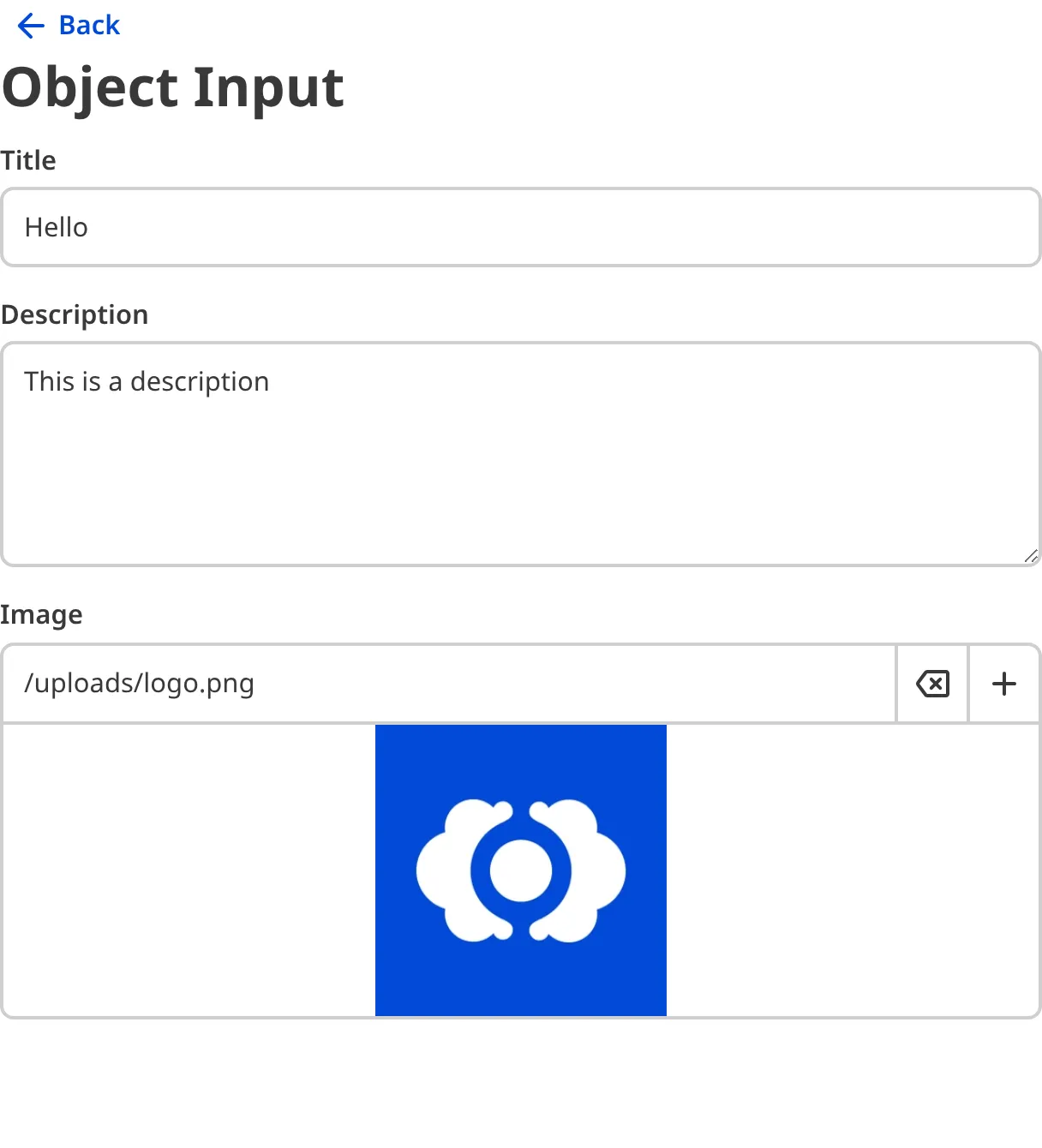
### Tabbed Object
The Tabbed Object input provides a user interface for a group of inputs with two or more layers of nested keys. Tabbed Objects are useful if you want to display Objects with two or more layers of nested keys in a more intuitive manner.
The Object input appears as a Card in the Data Editor or sidebar of the Visual or Content Editor.

Clicking on the Object Card shows each first-level nested key as a tab at the top of the input, as well as all nested inputs within your first-level keys.
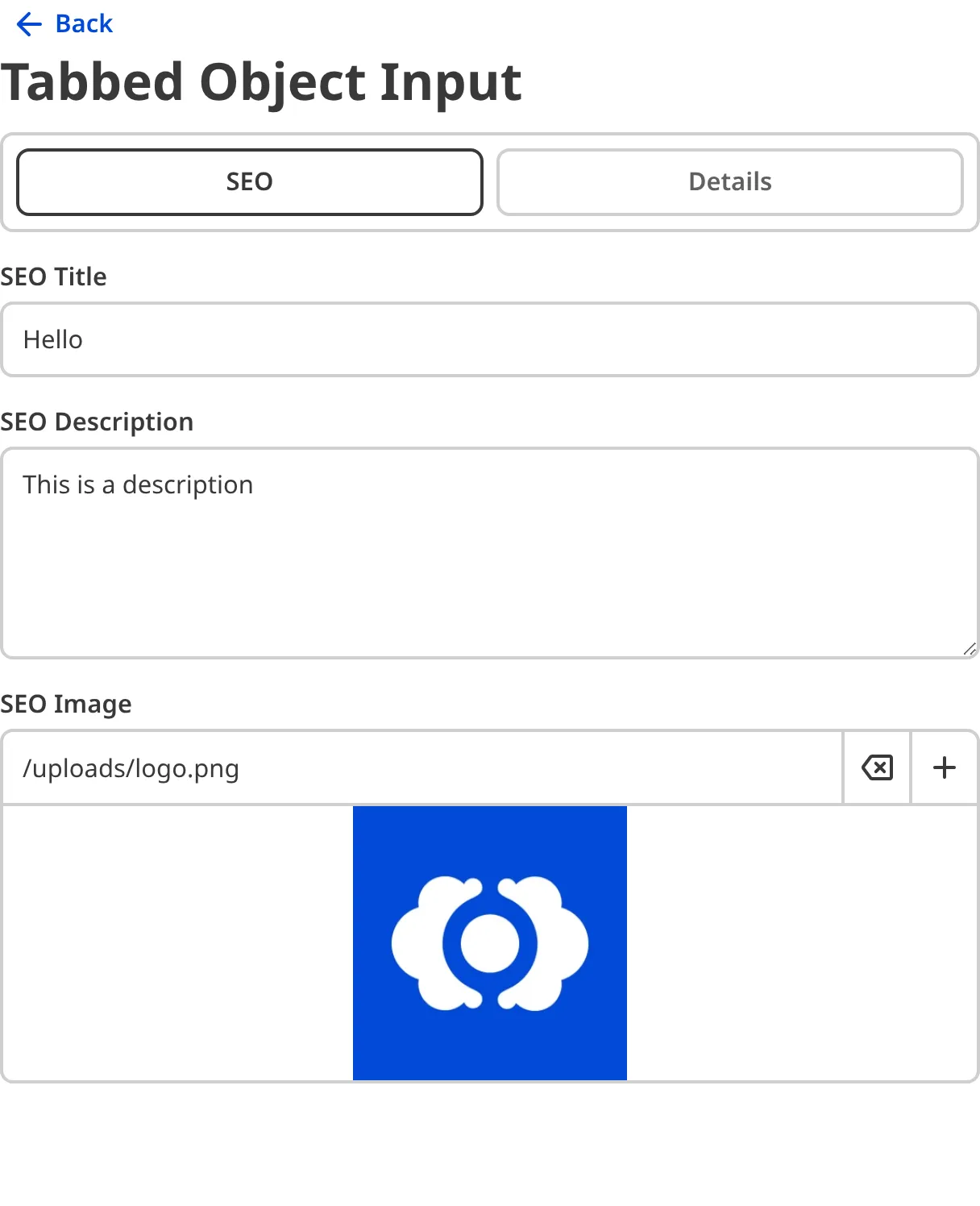
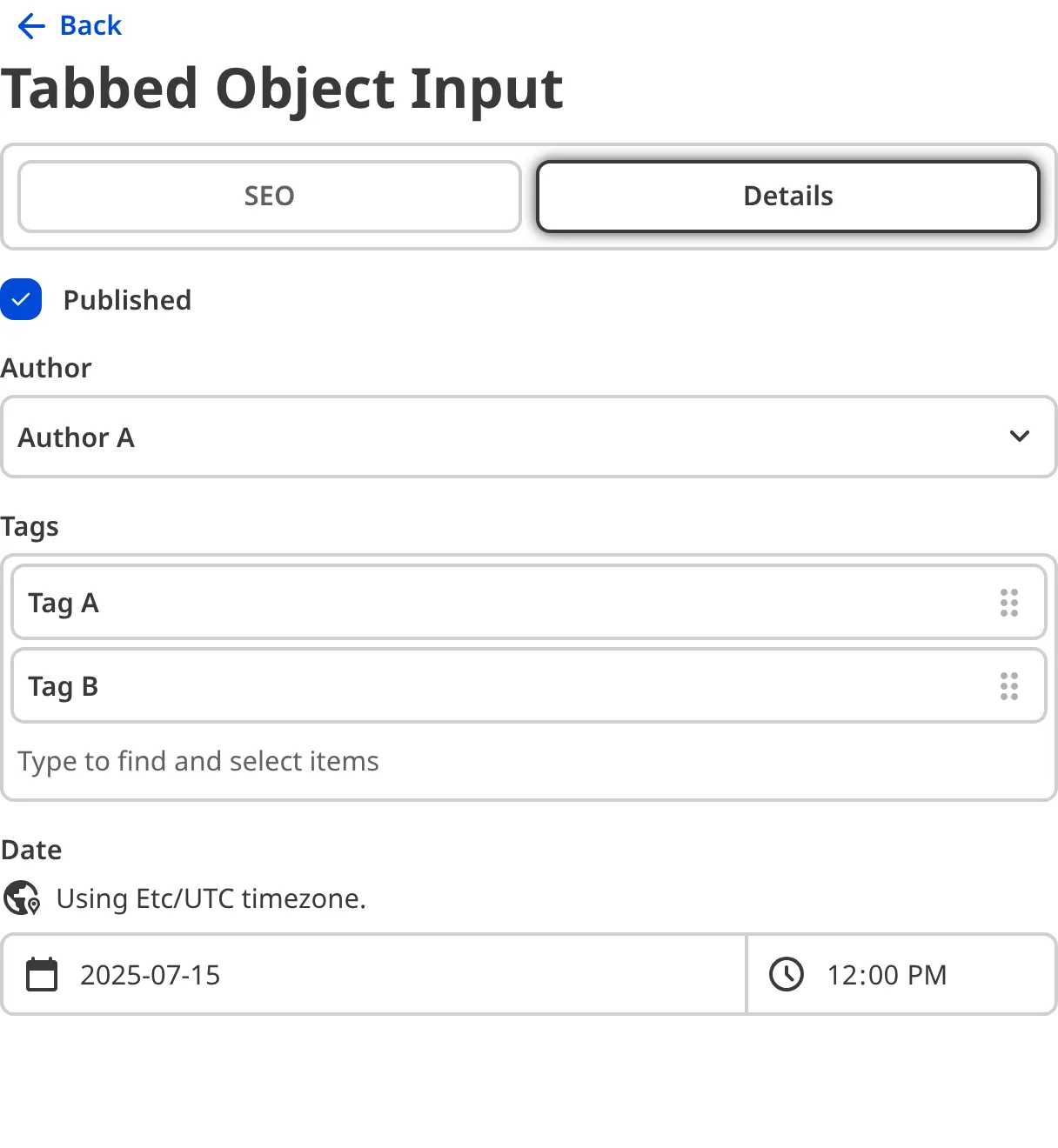
### Mutable Object
The Mutable Object input provides a user interface for a group of inputs. Rather than clicking on the Object input card to view the nested keys, such as in an Object or Tabbed Object input, all the nested keys in a Mutable Object are visible at the top scope of the input.
You can edit the value of a Mutable Object input by adding, deleting, cloning, renaming, and reordering nested keys. Mutable Objects function similarly to [Array inputs](/documentation/user-articles/what-is-an-array-input/), except they do not allow multiple nested keys with the same name.
## Object input appearance and behavior
You can customize the label, comment, documentation link, and context box for all inputs regardless of type.
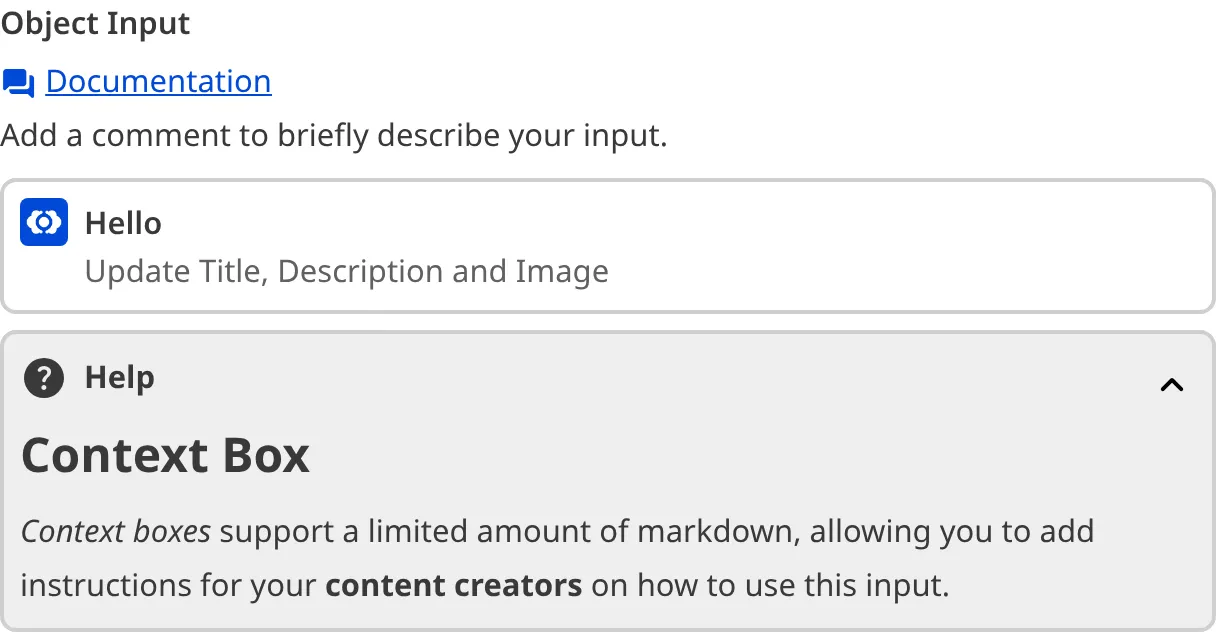
Depending on how your developer configured the input, your Object input may have groups for nested inputs, including headings, comments, and links, or a custom preview appearance for Object Cards.
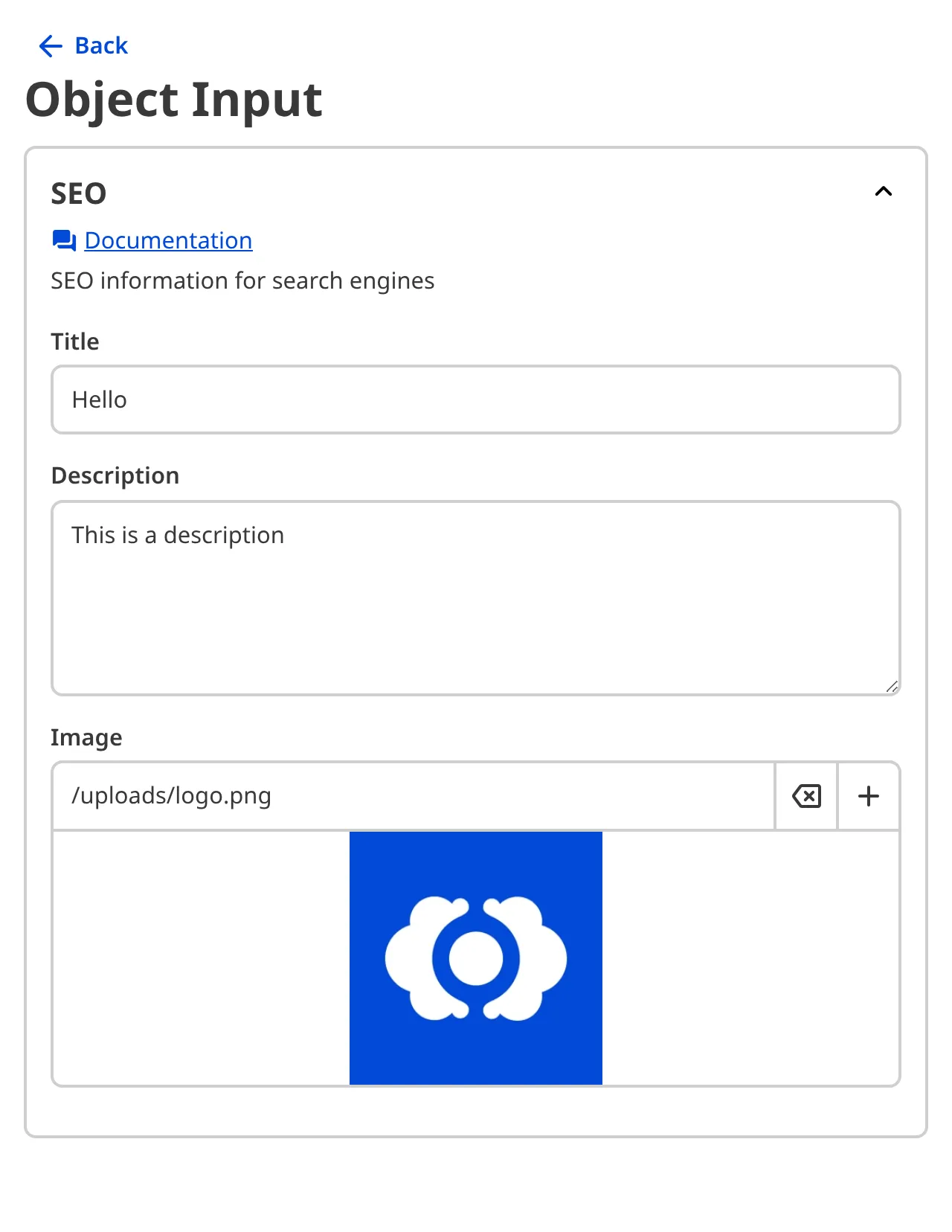
### Input validation
Your Object input may also have input validation, which requires the value to match predefined criteria before you can save your changes.
CloudCannon will show a red `*` next to the name of your Object input if a value is required.
CloudCannon will warn you that errors need attention when an input nested within an Object fails input validation.
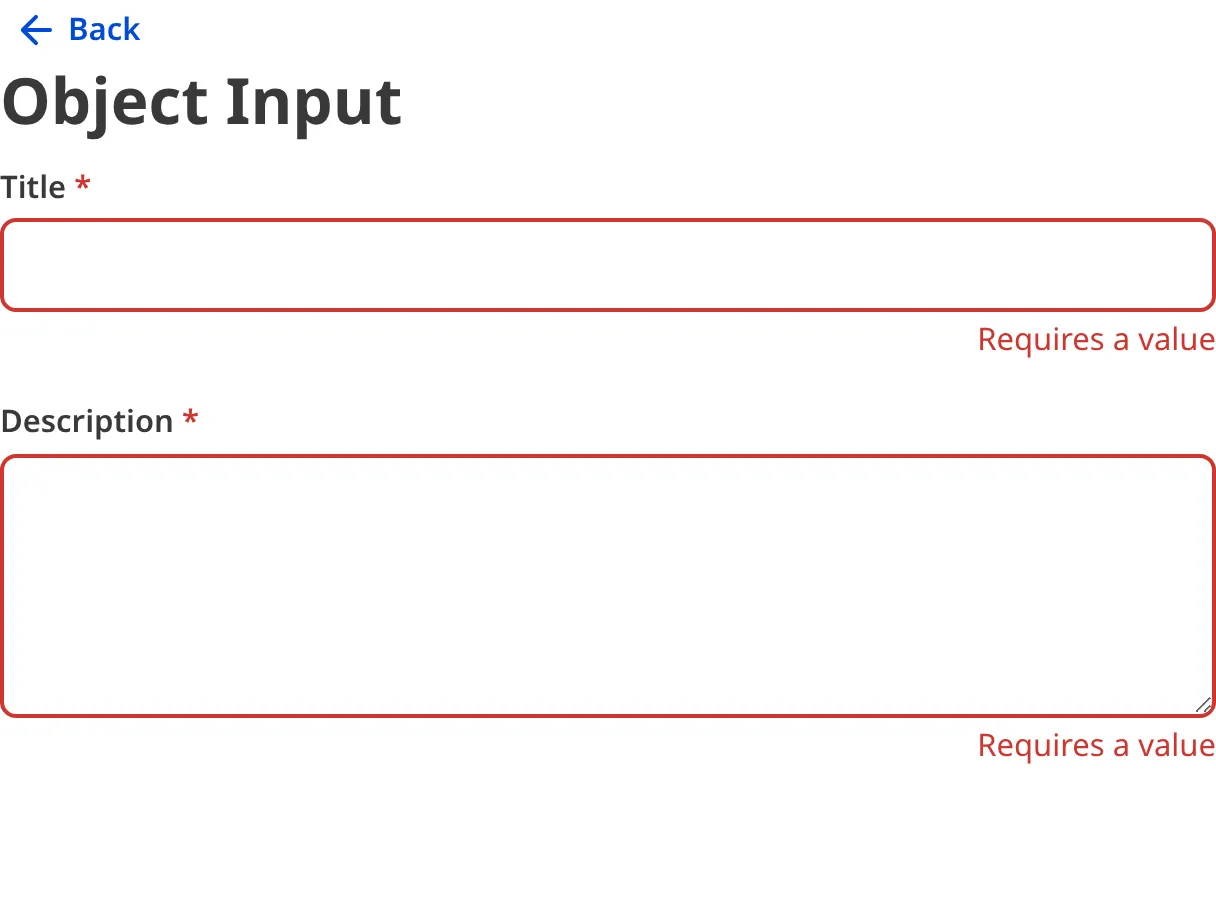
For more information on configuration options, valid input values, and unconfigured input behavior, please read our developer documentation on [configuring an Object input](/documentation/developer-articles/configure-an-object-input/) .
## Misconfigured Object inputs
You will see an orange warning box if your Object input is misconfigured.

Object inputs are misconfigured if:
- The value is not a nested key(s).
For more information on how to fix a misconfigured Object input, please read our developer documentation on [configuring an Object input](/documentation/developer-articles/configure-an-object-input/).
---
---
title: What is an Organization?
description: Organizations help you organize your team, Sites, and resources in one place.
url: https://cloudcannon.com/documentation/user-articles/what-is-an-organization/
content_type: user article
last_modified: 2026-08-20
---
An *Organization* is your home base, bringing together all your resources in CloudCannon.
Each *Organization* contains:
- A Subscription Plan — Each Plan includes a price and a list of features, designed for teams of different sizes and requirements. All the work you do on an *Organization* is billed under a single invoice.
- **Sites** — The websites you build and publish. Copies of the same website, such as its live and draft versions, are grouped into a [Project](/documentation/user-articles/what-is-a-project/).
- [Custom Domains](/documentation/developer-articles/what-is-a-custom-domain/) — The web addresses for your *Sites* (e.g., example.com or company.net).
- [Digital Asset Managers (DAMs)](/documentation/developer-articles/introduction-to-assets-and-dams/) — The external locations where you store your media, so you can access and reuse images and files across all your *Sites*.
- [Inboxes](/documentation/developer-articles/what-is-a-form/) — A place to collect, view, and manage all the form submissions from your *Sites* (e.g., "Contact Us" or "Join our Newsletter").
- [Team Members](/documentation/user-articles/what-is-a-team-member/) — Everyone you invite to CloudCannon, whether they create content, manage your settings, or develop your *Sites*. [Permission Groups](/documentation/user-articles/what-are-permission-groups/) determine which **Resources** each *Team Member* can access.
> An *Organization* can hold up to 50 *Sites* by default. If you need more, contact our [support team](https://cloudcannon.com/support/) to raise this limit.
Your *Organization* also holds shared settings that apply across everything inside it, such as your brand customization, **Single Sign-On**, and **Multi-Factor Authentication**.
The *Organization Home* page shows you a summary of what's going on in your *Organization*, including all the resources it contains. You can open it by clicking *Home* in the *App Sidebar*.
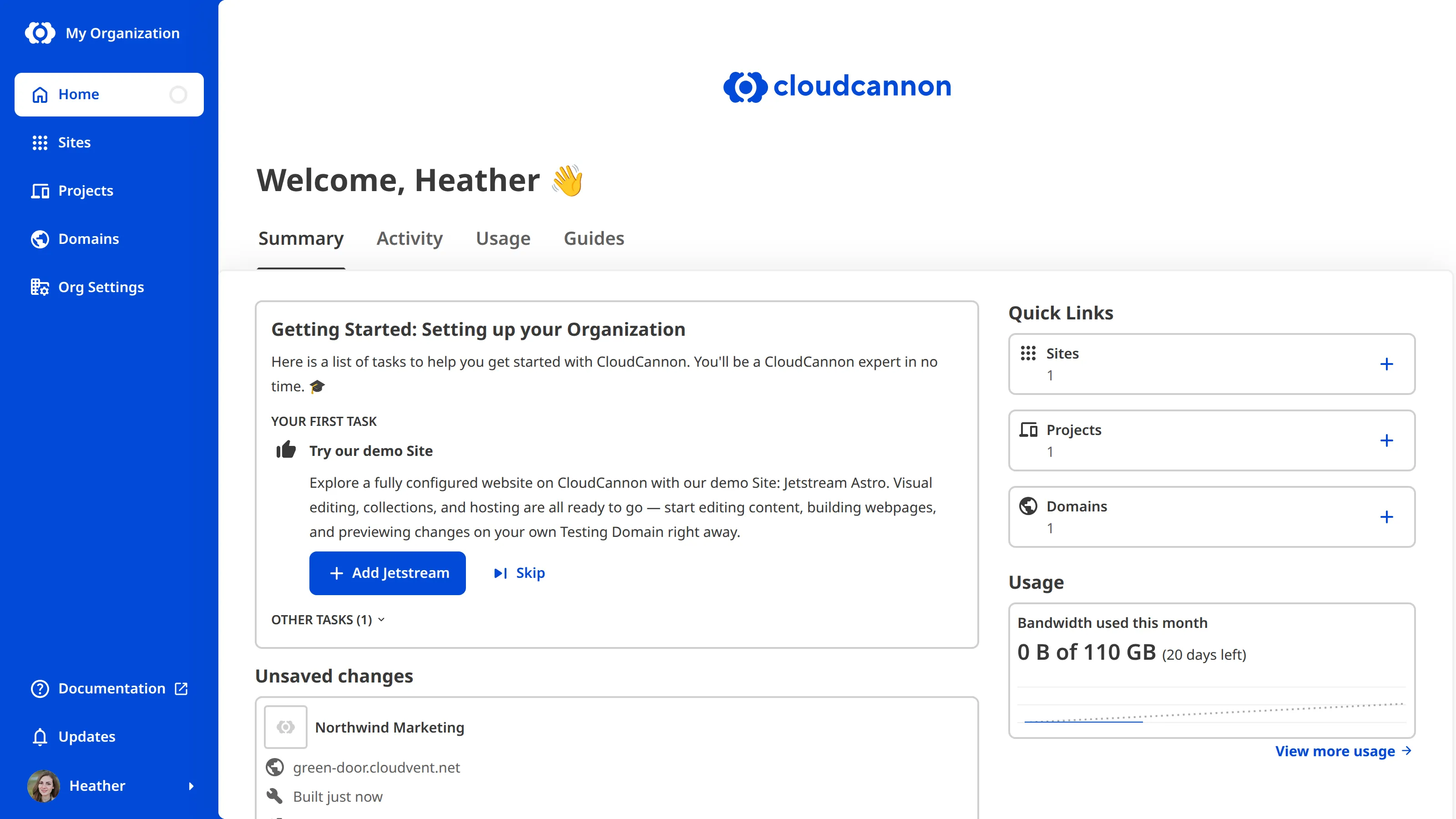
> When you [create a CloudCannon account](/documentation/user-articles/create-a-cloudcannon-account/), your first *Organization* is usually created for you. However, if you create your account by responding to someone's invitation, CloudCannon adds you to their *Organization* rather than creating a new one.
## How Organizations, Projects, and Sites fit together
*Organizations*, *Projects*, and *Sites* form a natural hierarchy.
An *Organization* holds everything you do in CloudCannon. One *Organization* might represent a single company, group, or club — for example, a local business. That business might run two websites: their main company website (company.com) and a separate site for an outreach program they sponsor (get-involved.com). Each of these websites is a *Project*.
A *Site* is a single copy of a website, and a *Project* groups the copies of one website together. Depending on the size of the *Organization*, a *Project* might contain a single *Site* or many. As a team grows, a *Project* might contain a live *Site* that visitors see, plus a separate *Site* where each *Team Member* drafts their changes.
In short:
- An *Organization* holds everything.
- A *Project* groups the *Sites* that are copies of a single website, such as its live and draft versions.
- A *Site* is one copy of a website.
## Working in multiple Organizations
You can create, own, and be a *Team Member* in multiple *Organizations* at a time. For example, you might belong to one *Organization* for your company and own another for your personal work. Separate *Organizations* are useful whenever different teams, brands, departments, or clients need their own *Subscription Plan*, billing, and access. You can [switch between your Organizations](/documentation/user-articles/switch-between-your-organizations/) or [create a new Organization](/documentation/user-articles/create-a-new-organization/) at any time.
In most cases, *Organizations* are entirely independent from one another. However, if your *Organization* is linked to a *Partner Organization*, *Team Members* in that *Partner Organization* can access yours. For more information, please read our documentation on [what the CloudCannon Partner Program is](/documentation/partner-articles/what-is-the-cloudcannon-partner-program/).
---
---
title: What is branching?
description: Learn how branching in CloudCannon copies content from existing Sites to new ones, including how a Main Branch defines the default content source for new branches.
url: https://cloudcannon.com/documentation/user-articles/what-is-branching/
content_type: user article
last_modified: 2026-06-24
---
> ***Site* branching from within a *Project* is available on our [Team or Enterprise plan](https://cloudcannon.com/pricing/).** On our Standard plan, your developer can set up additional *Sites* on different branches manually.
>
> Want to chat about whether this feature is right for you? Our support team is always [happy to hear from you](mailto:success@cloudcannon.com?subject=A%20question%20about%20branching).
*Branching* is the process of copying information (e.g., content, code, and CloudCannon settings) from an existing **Site** to a new *Site*. Each branched *Site* is independent, so you and your *Team Members* can work on different tasks without affecting each other's work, and without affecting your live website. To create branched *Sites* yourself, your developer needs to have [created a Project](/documentation/developer-articles/create-a-project/) for your website.
## What is a Main Branch?
The *Main Branch* is the branch in your **Git Repository** that your developer selected as the primary branch when they created your *Project*. By default, you can only branch from the *Main Branch*. You can change this branch at any time by [setting the Main Branch for your Project](/documentation/developer-articles/set-the-main-branch-for-your-project/).
If your developer has turned on *Allow all branching*, you can also branch from any other *Site* in your *Project*. This means you can start your work from a *Site* with unreleased changes on it, such as a *Team Member's* in-progress branched *Site*.
You can see the name of your *Project's* *Main Branch* in the *Source branch* field when you create a new branched *Site*. For more information, please read our documentation on [creating a branched Site](/documentation/user-articles/create-a-branched-site/).

## What happens when you branch a Site
A branched *Site* starts as an exact copy of the *Site* it was branched from, stored in the *Git Repository* managed by your developer, alongside the source *Site*. CloudCannon handles communicating with the repository for you; you don't need access to your **Git Provider** to branch a *Site* or edit and save content.
You can create a copy of your website at any time, without help from your developer, by branching a *Site* in your *Project*. Any changes you make on the branched *Site* stay separate from any other *Site* until you are ready to publish them. As you work, only the parts you and your *Team Members* have intentionally changed will diverge from the source *Site*. You can view your changes on the branched *Site's* dedicated [Testing Domain](/documentation/user-articles/what-is-a-testing-domain/) and, when you are ready, publish them back to the branched *Site's* **Publish Branch**. For more information, please read our documentation on [what publishing is](/documentation/user-articles/what-is-publishing/).
## Who can branch?
Once a developer has set up the *Publishing Workflow* for your *Project*, anyone in [Default Permission Groups](/documentation/user-articles/what-are-default-permission-groups/) (except *Billing*) can create a branched *Site* from the *Project Sites Browser*. However, if your *Organization* uses [Custom Permission Groups](/documentation/developer-articles/what-are-custom-permission-groups/), you will need permission to branch. For more information, please read our documentation on [creating a branched Site](/documentation/user-articles/create-a-branched-site/).
## An example of branching
_[Diagram: A branching workflow where Production is branched to a Staging Site, which is branched to three project Sites.]_
In the diagram above, there are five *Sites*. "Production" is the live version of your website; the other four are branched *Sites*.
"Staging" is a branched copy of "Production". The three *Sites* below — "Write a new blog", "Remove a product page", and "Update Site navigation" — are each branched from "Staging". Different *Team Members* can work on each one independently without affecting the others or the live website.
For more information, please read our documentation on [creating a branched Site](/documentation/user-articles/create-a-branched-site/).
---
---
title: What is Client Sharing?
description: Learn how to share a site with your Clients without them needing to create a CloudCannon account.
url: https://cloudcannon.com/documentation/user-articles/what-is-client-sharing/
content_type: user article
last_modified: 2026-07-31
---
Client Sharing allows you to invite someone from outside your [Organization](/documentation/user-articles/what-is-an-organization/) (called a Client) to view, edit, and publish content for a specific Site. Clients do not need to have a CloudCannon account. Instead, they log into CloudCannon using a site-specific password.
Clients will log in using a [password you set for your Site](/documentation/developer-articles/turn-on-client-sharing-for-a-site/) and a dedicated Client Login Page. By default, the URL for the Login Page is the Site domain with the suffix "/update" (e.g., www.example.com/update). CloudCannon will use your [.cloudvent.net test domain](/documentation/user-articles/what-is-a-testing-domain/) if your Site does not have a custom domain. If you want to change the URL subpath, you can [configure the URL for the Login Page](/documentation/developer-articles/configure-the-client-login-page/).

> **Client Sharing and Headless Mode**
>
> [Headless Mode](/documentation/developer-articles/what-is-headless-mode/) disables building and hosting for your Site, so [Testing Domains](/documentation/user-articles/what-is-a-testing-domain/) are not available. CloudCannon will forward clients trying to login to a headless Site using the .cloudvent.net link to the appropriate app.cloudcannon.com/update link.
Once a Client has logged in to your Site, they can access a simple version of the CloudCannon Site Dashboard. You can [configure the links in the *Site Navigation* of the Client Dashboard](/documentation/developer-articles/configure-the-client-dashboard-support-links/) to support your Clients.
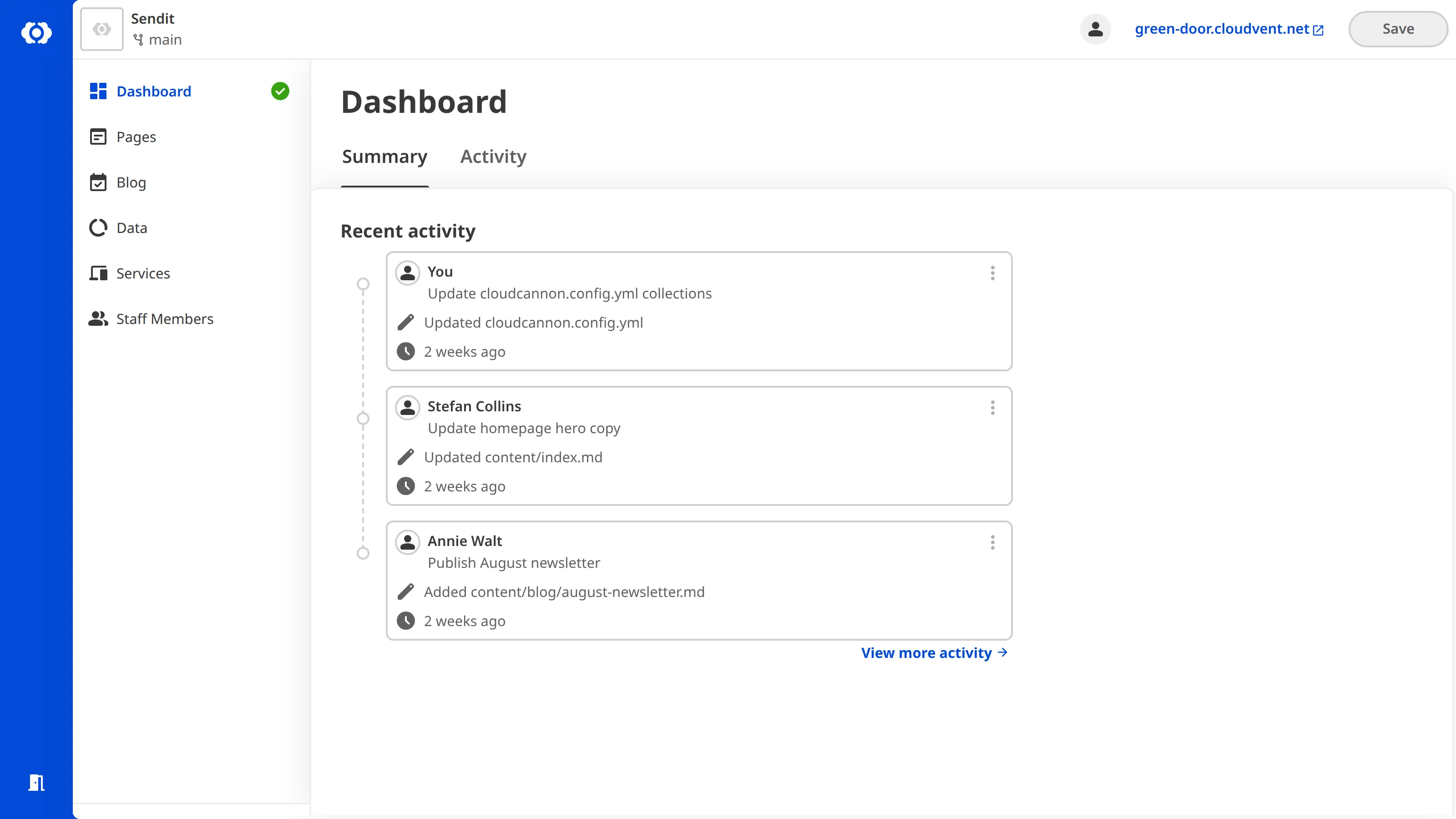
Each *Site* with *Client Sharing* enabled counts as one *Team Member* in your *Organization*, no matter how many people use the *Site's* password. Each *Subscription Plan* includes a number of *Team Members*, and you can extend that limit with paid *Add-Ons* at any time.
> Although an unlimited number of people can use a Client Sharing password to log in to a Site, we do not recommend giving a Client Sharing password to multiple people. If multiple people share a password, you cannot determine which Client was responsible for which changes.
There is one [Permission Group](/documentation/user-articles/what-are-permission-groups/) per Site for Client Sharing, scoped to the Site you want to share.
[Team and Enterprise customers](https://cloudcannon.com/pricing/) can customize the permissions in the Client Sharing Permission Group for each Site.
You can see a list of all Sites with Client Sharing enabled on the *Client Shares* page under *Organization Settings*. To manage the *Client Sharing* settings for a specific card, click on the Site card or navigate to the *Client Sharing* page in your *Site Settings*.
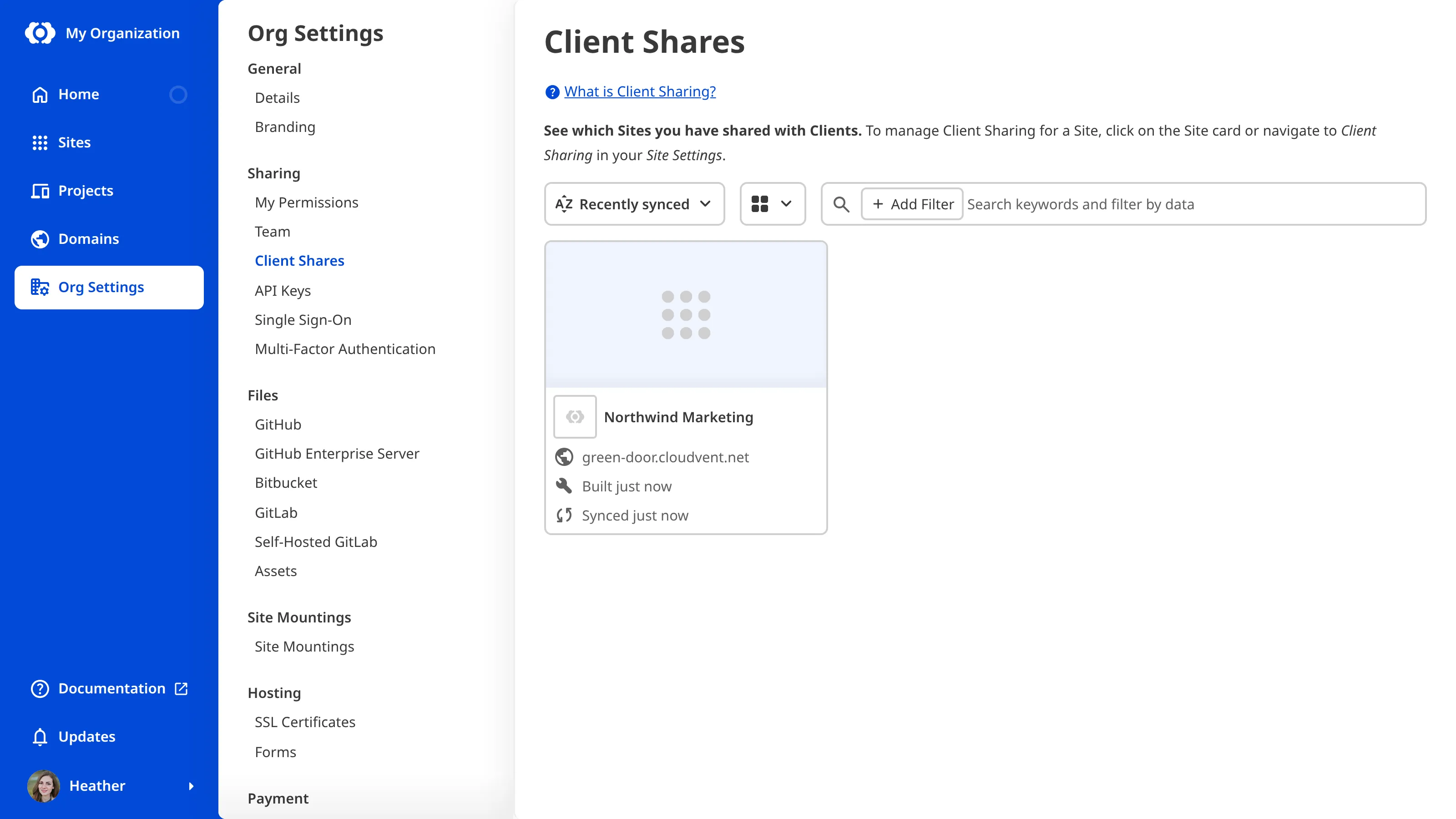
---
---
title: What is CloudCannon's Free Trial?
description: Learn about CloudCannon's Free Trial of the Standard Plan, including how to start it, how to extend it, and what happens when it ends.
url: https://cloudcannon.com/documentation/user-articles/what-is-cloudcannons-free-trial/
content_type: user article
last_modified: 2026-09-10
---
CloudCannon offers a 21-day **Free Trial** on every new **Organization**. This trial allows you to explore CloudCannon's features and determine if it is the right fit for you, without entering any payment details. **Client Organizations** are the exception, and start on a six-month *Free Trial* instead.
By default, your *Free Trial* starts on the *Standard Plan*. If you want to try more features, you can upgrade to the *Team Plan* at any time during your *Free Trial*. For more information about the features available on each **Subscription Plan**, please read the [CloudCannon pricing page](https://cloudcannon.com/pricing/).
Upgrading to the *Team Plan* does not extend your trial period. If you are a member of the **Owners Permission Group** of the *Organization*, you can track how many days remain using the *Trial Countdown* in the **App Sidebar**.

## How can I start a Free Trial?
> For a step-by-step walkthrough of starting a trial and setting up billing, please read our guide on [subscribing to CloudCannon](/documentation/user-guides/subscribe-to-cloudcannon/).
CloudCannon automatically starts a *Free Trial* for each *Organization* you create. This includes your first *Organization*, which CloudCannon creates when you [create an account](/documentation/user-articles/create-a-cloudcannon-account/), and every [new Organization you create](/documentation/user-articles/create-a-new-organization/) afterward.
The exception is joining someone else's *Organization* by responding to an invitation. That *Organization* already belongs to someone else, so no *Free Trial* starts for you. If you go on to create your own *Organization*, it starts a *Free Trial* as normal.
## What happens when a Free Trial ends?
CloudCannon shows a banner on the *Subscription* page with the number of days remaining on your *Free Trial*. This banner prompts you to [add a payment method](/documentation/user-articles/manage-your-payment-methods/) if you want to continue to use the features on your *Subscription Plan*.

If you add a payment method, CloudCannon will begin billing you for your *Subscription Plan* once the *Free Trial* has ended. Your features, resources, and **Billing Period** will depend on the details you selected. For more information, please read our documentation on [updating your Subscription Plan](/documentation/user-articles/update-your-subscription-plan/).
If you do not add a payment method, CloudCannon will pause the **Subscription** for your *Organization*. Your *Organization*, **Sites**, and files remain intact. You must add a payment method to resume your *Subscription* or select a different *Subscription Plan*. For more information about ending your *Subscription*, please read our documentation on [canceling your Subscription](/documentation/user-articles/cancel-your-subscription/).
> You can always access your code and content, even when your *Subscription* is *Paused* or *Canceled*.
## Can I extend my Free Trial?
If you need more time to evaluate CloudCannon, contact our friendly [support team](https://cloudcannon.com/support/) to request a trial extension. Let them know your *Organization* name and how much more time you need.
If you are a member of CloudCannon's [Partner Program](https://cloudcannon.com/partner-program/), you do not need to ask. Every *Client Organization* you create starts on a six-month *Free Trial* automatically. Your **Partner Organization** itself still starts on the standard 21-day *Free Trial*. Some actions shorten a *Client Organization's* six-month trial to three days. For more information, please read our documentation on [creating a Client Organization](/documentation/partner-articles/create-a-client-organization/) and [how billing works in the Partner Program](/documentation/partner-articles/how-does-billing-work-in-the-partner-program/).
---
---
title: What is Hosting Bandwidth?
description: Learn what Hosting Bandwidth is in CloudCannon, what affects how much you use, and what happens if you reach your Subscription Plan's limit.
url: https://cloudcannon.com/documentation/user-articles/what-is-hosting-bandwidth/
content_type: user article
last_modified: 2026-07-31
---
*Hosting Bandwidth* is the total amount of data transferred from your hosted **Site** to your visitors' internet browsers. Every time someone loads a page, CloudCannon serves the HTML, images, and other files that make up that webpage, and the size of everything served counts toward your *Hosting Bandwidth*.
How much bandwidth your *Site* uses depends on how many people visit it and how large your pages are. Media-heavy pages, large images, and file downloads use it fastest, while lightweight, text-based pages use the least. CloudCannon serves your *Site* through a Content Delivery Network (CDN), so returning visitors are often served cached copies, but all data served still counts toward your usage.
Each **Subscription Plan** includes a set amount of *Hosting Bandwidth* each month. For the amount included in each *Subscription Plan*, see the [CloudCannon pricing page](https://cloudcannon.com/pricing/).
> **How much Hosting Bandwidth do I need?**
>
> The amount of data each webpage needs is measured in megabytes (MB), and mostly depends on how many image or media files are on the page and how optimized your website is. For example, a 4 MB webpage with several images or media files will serve around 25,000 page views with 100 GB of *Hosting Bandwidth*. Most optimized webpages are smaller than this, so a 100 GB bundle will go further.
## What happens if I reach my bandwidth limit?
If your **Organization** needs more bandwidth than your *Subscription Plan* includes, you can enable **Overages**. CloudCannon then serves traffic beyond your included amount and bills you for the extra in fixed-size bundles.
If *Overages* are disabled and you reach your limit, your *Sites* are taken offline for the remainder of the month or until you enable *Overages*. Visitors to your *Custom Domains* or *Testing Domains* will see an error message. For more information, please read our documentation on [what Add-Ons and Overages are](/documentation/user-articles/what-are-add-ons-and-overages/).

## Track your Hosting Bandwidth
You can monitor your *Hosting Bandwidth* on the *Usage* tab, which shows your cumulative usage over the current month alongside your included limit. Checking it regularly helps you see when you are approaching your limit and decide whether to enable *Overages*, add capacity, or change your *Subscription Plan*.

You can find usage in two places: the *Usage* tab on your *Site Dashboard* shows a single *Site*, and the *Usage* tab on your *Organization Home* page shows every *Site* in your *Organization*.
---
---
title: What is multi-factor authentication?
description: Learn about multi-factor authentication and how it improves the security of your CloudCannon account.
url: https://cloudcannon.com/documentation/user-articles/what-is-multi-factor-authentication/
content_type: user article
last_modified: 2026-04-11
---
Multi-factor authentication (MFA) provides an extra layer of security to your CloudCannon account. By enabling MFA, you can require someone logging into your CloudCannon account to provide multiple forms of identity authentication before they can access your account.
Logging in with MFA enabled relies on something you know (your account password) and something you have (e.g., a device with your authentication app, a secure token, a biometric). This reduces the chances of someone else gaining access to your CloudCannon account.
## Third-party authentication apps
[Multi-factor authentication in CloudCannon](/documentation/developer-articles/enable-multi-factor-authentication/) uses a third-party authentication app. Authentication apps generate one-time passcodes, which you can use to log in to CloudCannon. These passcodes regenerate often (normally every thirty seconds), meaning that someone trying to log in to your account would need the device with your authentication app to be successful.
Common authentication apps include:
- 1Password
- Authy
- Microsoft Authenticator
You should do your own research on these third-party apps and choose the one that is best for you.
---
---
title: What is publishing?
description: Learn how publishing in CloudCannon moves changes between Sites, including how Publish Branches and Publishing Workflows define where your changes go.
url: https://cloudcannon.com/documentation/user-articles/what-is-publishing/
content_type: user article
last_modified: 2026-06-24
---
> ***Publishing Workflows* are available on our [Team or Enterprise plan](https://cloudcannon.com/pricing/).** *Sites* on our Standard plan can still publish to a *Publish Branch*; for setup, please follow the [Getting Started with CloudCannon](/documentation/developer-guides/getting-started-with-cloudcannon/) guide.
>
> Want to chat about whether this feature is right for you? Our support team is always [happy to hear from you](mailto:success@cloudcannon.com?subject=A%20question%20about%20publishing).
*Publishing* is the process of moving content changes from one **Site** to another. When you publish, CloudCannon copies the changes from the *Site* you have been working on to its **Publish Branch**: the *Site* immediately "upstream" that you want your changes to reach.
Moving changes between *Sites* like this is called a **Publishing Workflow**, and allows you to draft changes on an independent copy of your *Site* without affecting the work of other *Team Members* or the live website your visitors see. To use a *Publishing Workflow*, a developer needs to set up a [Project](/documentation/user-articles/what-is-a-project/) for your website.
## What is a Publish Branch?
A *Publish Branch* is the destination *Site* for your changes. Each *Site* in your *Project* has one *Publish Branch* assigned to it. When you publish, CloudCannon sends your changes from the *Site* you are working on to that destination *Site*. Often the *Publish Branch* is the *Site* you branched from, allowing you to start with an exact copy of a *Site*, make intentional changes on that separate copy, and then move them back. For more information, please read our documentation on [what branching is](/documentation/user-articles/what-is-branching/).
You can see the name of your *Site's* *Publish Branch* on the *Publishing* page, alongside any changes ready to publish to it. For more information, please read our documentation on the [Publishing page](/documentation/user-articles/what-is-the-publishing-page/).

## What happens when you publish
When you publish a *Site*, CloudCannon copies your changes to the *Site's* *Publish Branch*. There are two methods for publishing changes: *Merge Immediately* and *Pull Request*. *Merge Immediately* allows CloudCannon to move changes from one *Site* to another without any review process. *Pull Request* requires the person publishing the changes to submit a request for those changes to move from one *Site* to another, which requires approval by another *Team Member* through your *Git Provider*. Your developer selects which *Publishing Method* your *Project* should use. For more information, please read our documentation on [what Publishing Methods are](/documentation/user-articles/what-are-publishing-methods/).
If multiple *Team Members* are making changes to the same parts of your website on different branched *Sites*, publishing your changes may lead to a *Publishing Conflict*. For more information, please read our documentation on [what Publishing Conflicts are](/documentation/user-articles/what-are-publishing-conflicts/) and [how to resolve them](/documentation/user-articles/resolve-publishing-conflicts/).
Also, if new changes were published to your *Publish Branch* since you created your *Site*, CloudCannon will ask you to update your branched *Site* to match. For more information, please read our documentation on [updating from a Publish Branch](/documentation/user-articles/update-from-a-publish-branch/).
## Who can publish?
Once a developer has set up the *Publishing Workflow* for your *Project*, anyone in [Default Permission Groups](/documentation/user-articles/what-are-default-permission-groups/) (except *Billing*) can publish changes from one *Site* to another via the *Publishing* page. However, if your *Organization* uses [Custom Permission Groups](/documentation/developer-articles/what-are-custom-permission-groups/), you will need permission to publish. For more information, please read our documentation on [publishing changes to a Publish Branch](/documentation/user-articles/publish-changes-to-a-publish-branch/).
## An example of a Publishing Workflow
_[Diagram: Three task Sites publish to a Staging Site, which publishes to a Production Site.]_
The diagram above shows a common *Publishing Workflow* with five *Sites*. "Production" is the live version of your website. "Staging" is a branched copy of "Production", and the three *Sites* below — "Write a new blog", "Remove a product page", and "Update Site navigation" — are each branched from "Staging".
In this workflow:
- The three draft *Sites* share a *Publish Branch*: "Staging". *Team Members* working on each draft can publish their changes to "Staging" when they are happy with them, without affecting each other's work.
- "Staging" has its own *Publish Branch*: "Production". Once the combined changes on "Staging" are ready to go live, you can publish them to "Production".
This layered approach is a common publishing pattern. The draft *Sites* protect your *Team Members* from each other's in-progress changes, while "Staging" protects your live website from changes you haven't reviewed together yet.
> Not every team needs three layers in their *Publishing Workflow*. Smaller teams may publish directly from draft *Sites* to "Production", without a "Staging" *Site* in between.
---
---
title: What is the Content Editor?
description: Learn about the Content Editor, a rich text interface for editing content-heavy files.
url: https://cloudcannon.com/documentation/user-articles/what-is-the-content-editor/
content_type: user article
last_modified: 2026-03-29
---
The Content Editor is a rich text editor for clean, distraction-free editing of content-heavy files. This editing interface is most useful for Markdown and MDX files, with or without front matter.
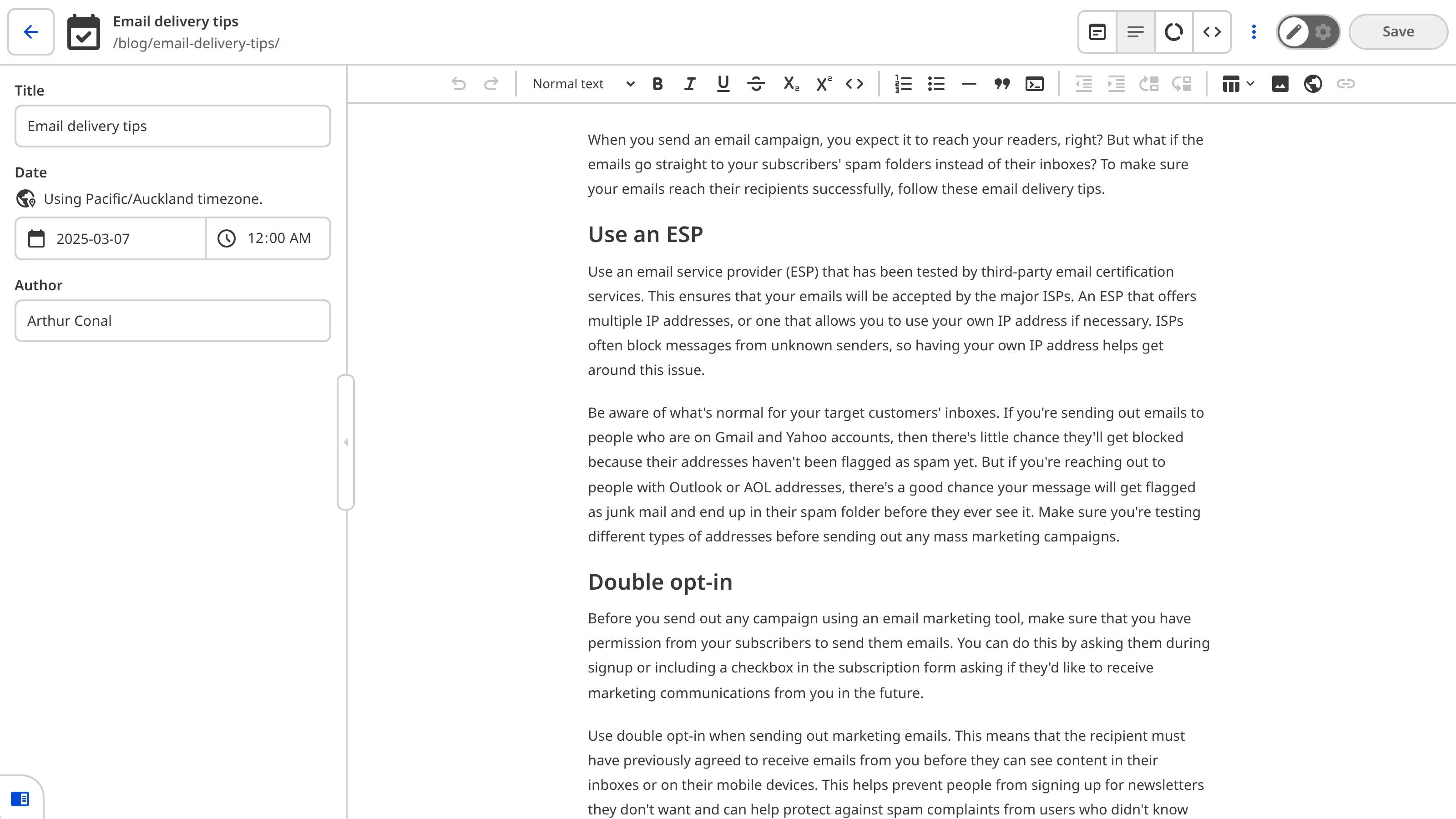
> Depending on your SSG and site configuration, you may not have access to the Content Editor for all files. An editing interface may not be available because:
>
> - The file you want to open is not a markup file (e.g. YAML, TOML, JSON, CSS, etc.).
> - A Developer on your team has [specified which editing interfaces are enabled](/documentation/developer-articles/set-a-default-editing-interface/) for a particular [collection](/documentation/user-articles/what-is-a-collection/) or [schema.](/documentation/developer-articles/what-is-a-schema/)
## Content Editor features
The Content Editor might remind you of other rich text editors, like Google Docs or Microsoft Word. Writing the next piece of content for your website, and adding images, links, and other content blocks is easy. The Content Editor is a WYSIWYG editor, meaning that the way you format the content in the editor will resemble the way it will look on your website page (WYSIWYG is an acronym for What-You-See-Is-What-You-Get).
For more information about the *Editing interface navigation* and the *Context Menu* at the top of the Content Editor, read our documentation on [editing your files](/documentation/user-articles/edit-your-files/).
### The WYSIWYG toolbar

The *WYSIWYG toolbar* is found at the top of all rich text editors in CloudCannon (i.e., the Content Editor and [rich text inputs](/documentation/user-articles/what-is-a-rich-text-input/)). This toolbar is populated with tools to help you format your content. This might include adding images, links, and lists, changing the alignment of your text, or simple tools such as bolding, italicizing, or underlining text.
To use these tools, click to place your cursor in the content area of the editor (or, in some cases, highlight your existing text) and then click the icon for the tool you want to use. The number of tools available in your *WSYIWYG toolbar* will depend on how your site is configured.
For more information on how to customize your *WYSIWYG toolbar*, read our documentation on [configuring your rich text editors](/documentation/developer-articles/configure-your-rich-text-editors/).
### The sidebar
The Content Editor sidebar allows you to edit the front matter content of your file. Front matter fields contain data that does not appear in the main body of the content.
For example, a blog post might have the content of the blog in the main body of the file, and fields for title, author, and date in the front matter. You or your developer can use front matter data to populate other areas of your webpage, outside of the main body of content.
You can open or close the sidebar using the arrow button on the right of the panel.
> The sidebar in the [Visual](/documentation/user-articles/what-is-the-visual-editor/) and Content Editor shows the same information as the [Data Editor](/documentation/user-articles/what-is-the-data-editor/).
For more information on how to customize your front matter fields, read our documentation on [inputs](/documentation/user-articles/what-are-inputs/).
### Snippets
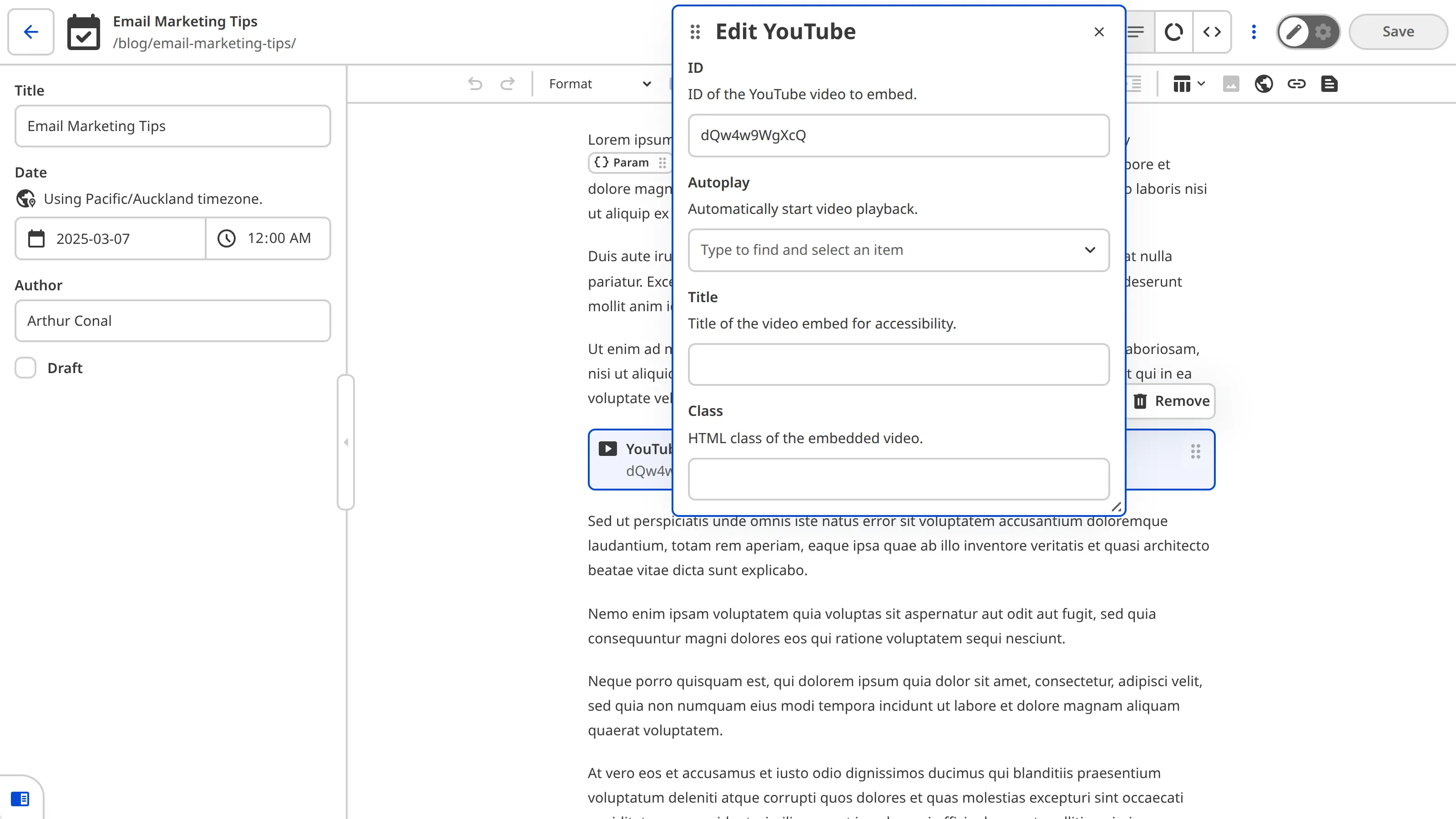
A [snippet](/documentation/developer-articles/what-is-a-snippet/) is a structured component that complements your rich text content. Snippets can accomplish a variety of tasks, such as adding a video link, a highlighted section of text, or a code block. Adding snippets to your content is a great way to build complex, rich text documents without the need for team members to touch the underlying code.
Once you have configured your snippets, you can add them to your rich text files using the *Insert snippet* tool in the *WYSIWYG toolbar*. Snippets appear as inline or paragraph-level blocks in the Content Editor.
For more information on snippets, please read our documentation on [snippets](/documentation/developer-articles/what-is-a-snippet/).
---
---
title: What is the Data Editor?
description: Learn about the Data Editor, an editing interface for structured data or front matter in your markup files.
url: https://cloudcannon.com/documentation/user-articles/what-is-the-data-editor/
content_type: user article
last_modified: 2026-06-24
---
The Data Editor offers a simple way to manage structured data files and the front matter of markup files. The Data Editor is most useful for YAML, TOML, JSON, CSV, and TSV file types, and Markdown or MDX files with front matter.
This editing interface also doubles as the sidebar and data panels in the [Visual](/documentation/user-articles/what-is-the-visual-editor/) and [Content Editors](/documentation/user-articles/what-is-the-content-editor/).
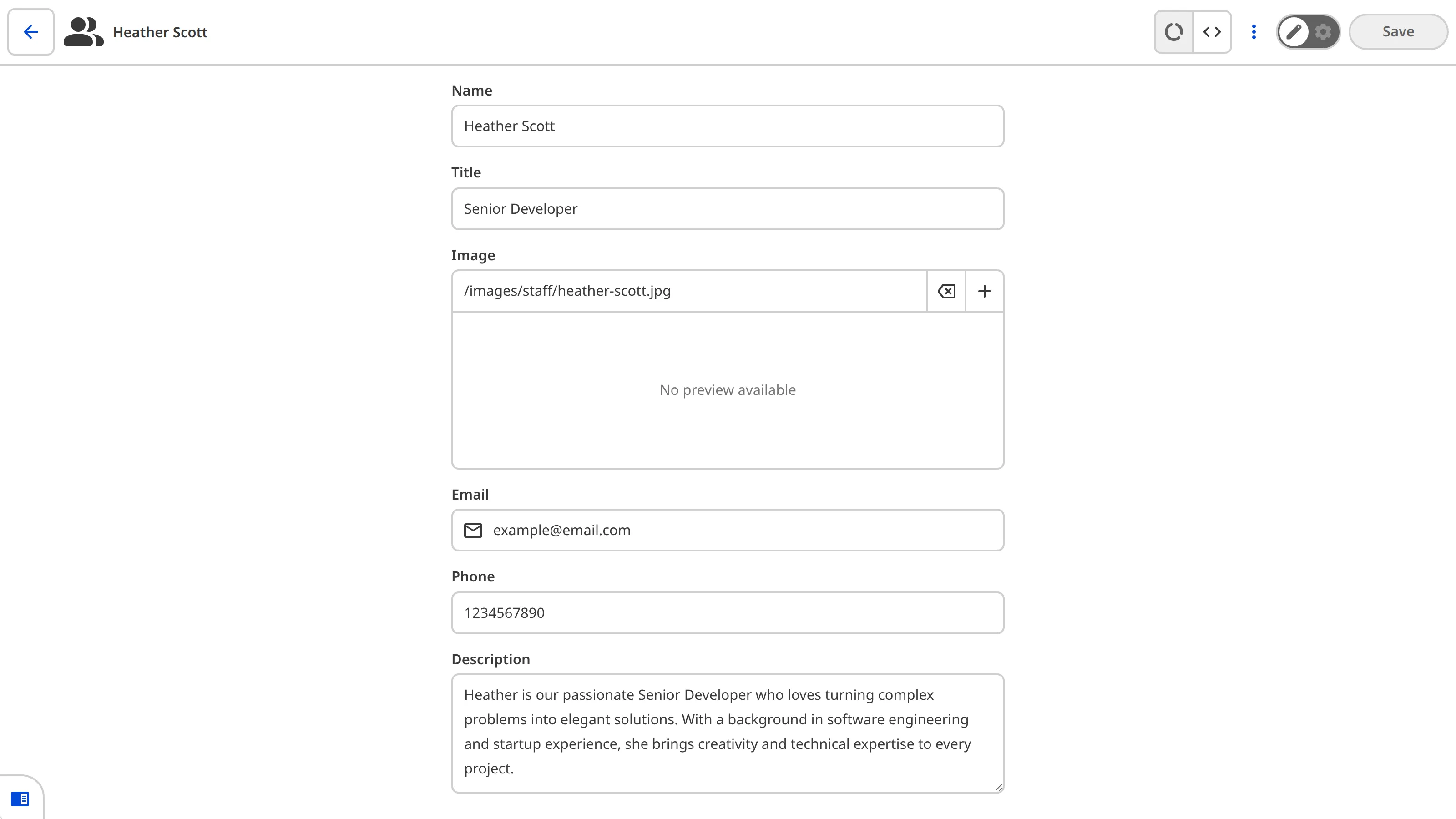
> Depending on your SSG and site configuration, you may not have access to the Data Editor for all files. An editing interface may not be available because:
>
> - The file you want to open does not contain structured data (e.g., Markdown or MDX files with no front matter).
> - A developer on your team has [specified which editing interfaces are enabled](/documentation/developer-articles/set-a-default-editing-interface/) for a particular [collection](/documentation/user-articles/what-is-a-collection/) or [schema.](/documentation/developer-articles/what-is-a-schema/)
### What is front matter?
Front matter is structured data that precedes the main content in a markup file (e.g., a Markdown or MDX file).
Front matter data contains information about the file. This information can range from simple data like file title and author to SEO information to custom variables created by you or your team. Front matter is useful for providing context to your file's content.
For most SSGs, front matter is stored at the top of a file between two sets of triple-dash characters (`---`), although this can vary.
## Data Editor features
The Data Editor is a simple interface for editing the values of your structured data through [inputs](/documentation/user-articles/what-are-inputs/). Each input in the Data Editor corresponds to a key in your front matter or data file, providing an editing interface for those values.
For example, you could use the Data Editor to edit:
- Array inputs in your site navigation file, updating the URLs of the pages you want to list.
- Image inputs in the front matter of your blog post, updating the thumbnail image.
For more information about the types of inputs available in CloudCannon, read our documentation on [inputs](/documentation/user-articles/what-are-inputs/).
> By default, you cannot add or delete inputs in the Data Editor. You can configure this functionality using [mutable objects](/documentation/user-articles/what-is-an-object-input/#mutable-object).
For more information about the *Editing interface navigation* and the *Context Menu* at the top of the Data Editor, read our documentation on [editing your files](/documentation/user-articles/edit-your-files/).
### The sidebar in the Visual or Content Editor

You can edit the front matter and content of markup files in the same editing interface using the [Visual](/documentation/user-articles/what-is-the-visual-editor/) or [Content Editor](/documentation/user-articles/what-is-the-content-editor/). Data from the front matter of your file will appear in the editor sidebar. The sidebar is the same interface as the Data Editor, just smaller.
You can open or close the sidebar using the arrow button on the right of the panel.
### Data panels in the Visual or Content Editor
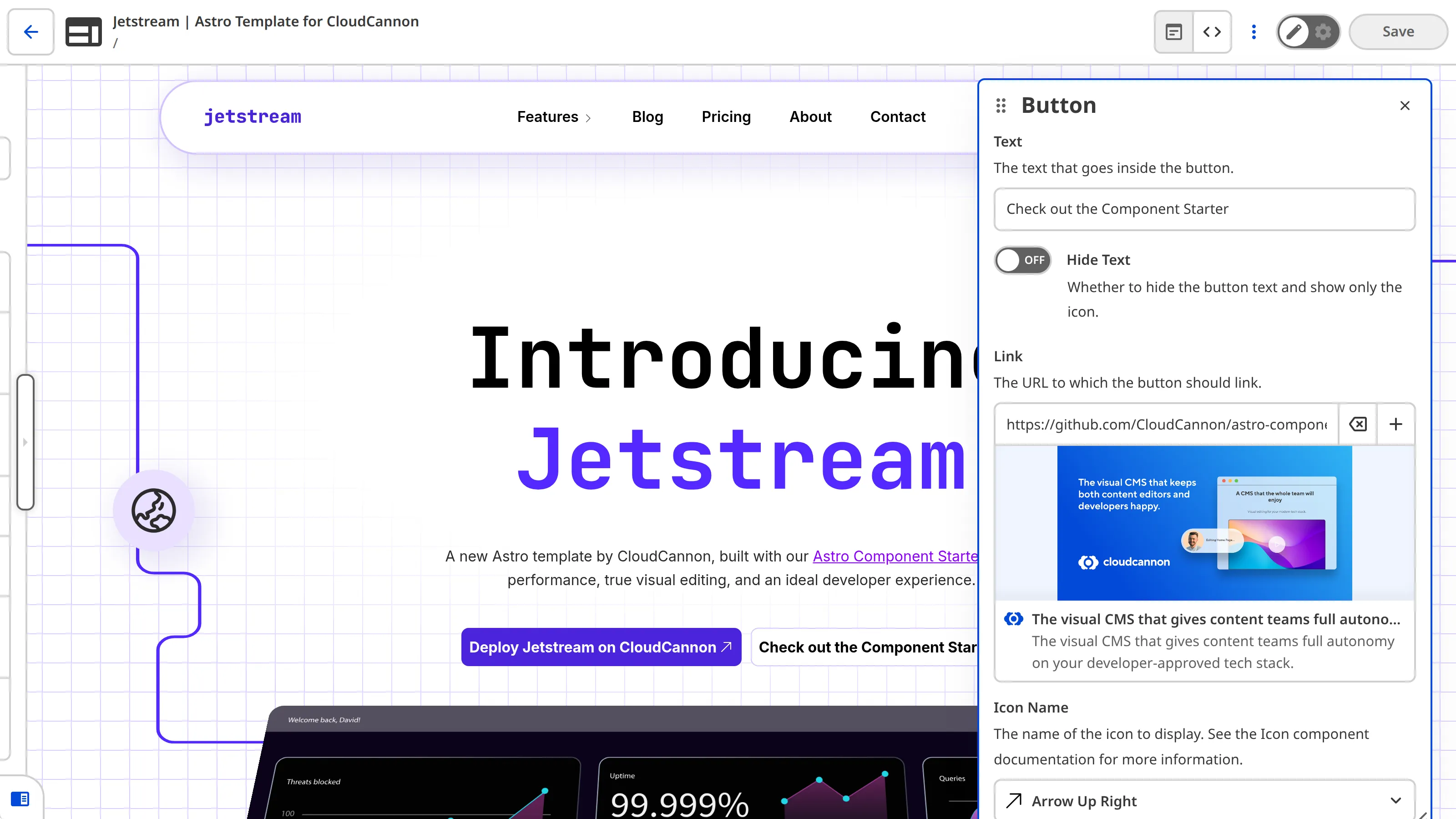
Data panels appear in the Visual and Content Editors.
In the Visual Editor, you can edit page components using the data panels if you have [visual data bindings](/documentation/developer-articles/what-are-visual-data-bindings/) and [previews](/documentation/developer-articles/what-are-visual-data-previews/) configured. You can see your changes as you edit. CloudCannon will update the page in the Visual Editor each time you alter the input values in a data panel.
In the Content Editor, you can edit images and links using their data panels. The image data panel contains fields for alternate and title text, while the link data panel has fields for title and other attributes.
You can move the data panel around the screen by clicking and dragging the panel header.
---
---
title: What is the Project Browser?
description: Learn about the Projects Browser and the Project Sites Browser in CloudCannon.
url: https://cloudcannon.com/documentation/user-articles/what-is-the-project-browser/
content_type: user article
last_modified: 2026-06-24
---
> **The *Pull Requests* tab and *Deploy Previews* settings are available on our [Team or Enterprise plan](https://cloudcannon.com/pricing/). Other parts of the *Project Browser* are available on all plans.**
>
> Want to chat about whether this feature is right for you? Our support team is always [happy to hear from you](mailto:success@cloudcannon.com?subject=A%20question%20about%20Projects).
A **Project** is a way to group multiple **Sites** from the same **Git Repository**. The *Projects Browser* lists all your *Projects*, and each *Project* page contains tabs for browsing *Sites*, visualizing publishing, reviewing *Pull Requests*, exploring branches, and managing your *Project's* settings.
## The *Projects Browser*

The *Projects Browser* lists all the *Projects* in your *Organization*. You can access the *Projects Browser* by clicking the *Projects* link in the *App Sidebar*.
From the *Projects Browser*, you can:
- View all your *Projects* at a glance
- Sort and filter *Projects* by name, URL, or last synced date
- Click a *Project Card* to open the *Project Sites Browser*
- Create a new *Project* using the *Create a Project* button
## The *Project Sites Browser*

The *Project Sites Browser* is the main view for an individual *Project*. It shows all the *Sites* connected to your *Project* and provides access to the *Publishing*, *Pull Requests*, *Branches*, and *Project Settings* tabs.
For each *Site*, the *Project Sites Browser* shows:
- The *Site* name and branch name
- The domain or testing URL
- The build and sync status
- Which branch the *Site* publishes to (e.g., "publishes to main")
You can switch between card and list views, and use the *Create a Site* button to [add a new Site to your Project](/documentation/developer-articles/add-a-site-to-your-project/).
## The *Project Settings* tab

The *Project Settings* tab allows you to manage your *Project* across several sections:
- **Details** — Update your *Project Name*, *Display URL*, *Description*, *Related Links*, and optional *Project* tabs.
- **Repository** — View or change the connected *Git Provider* and *Repository*, toggle *Allow all branching*, and [set the Main Branch](/documentation/developer-articles/set-the-main-branch-for-your-project/).
- **Branch Defaults** — Configure default settings for new branch *Sites*, including the publishing method, authentication, and permissions.
- **Deploy Previews** — Configure *Pull Request* comments and automatic *Site* creation for *Pull Requests*. For more information, please read our documentation on [Deploy Previews](/documentation/developer-articles/what-are-deploy-previews/).
- **Danger** — Delete your *Project*. This does not delete the *Sites* within it.
## Optional *Project* tabs
By default, new *Projects* show only the *Sites* and *Project Settings* tabs. There are also three optional *Projects* tabs, which your developer can enable from the *Details* section under *Project Settings*:
- **Publishing** — Shows a graph of how the *Sites* in your *Project* publish to each other.
- **Pull Requests** — Shows all open and draft *Pull Requests* in the *Git Repository* connected to your *Project*, alongside any *Sites* connected to each.
- **Branches** — Shows all branches in the *Git Repository* connected to your *Project*, grouped by status, alongside any *Sites* connected to each.
For more information, please read our documentation on [what optional Project tabs are](/documentation/user-articles/what-are-the-optional-project-tabs/) and [turning on optional Project tabs](/documentation/developer-articles/turn-on-optional-project-tabs/).
---
---
title: What is the Publishing page?
description: Learn what the Publishing page in CloudCannon shows, including the Publish Branch, pending changes, and commit history for your Site.
url: https://cloudcannon.com/documentation/user-articles/what-is-the-publishing-page/
content_type: user article
last_modified: 2026-06-03
---
The *Publishing* page is where you publish your changes from a **Site** to its **Publish Branch**. From this page, you can review what changes are ready to publish, see when your *Publish Branch* has new updates available, resolve *Publishing Conflicts*, and trigger a publish when you are ready. For more information about publishing, please read our documentation on [what publishing is](/documentation/user-articles/what-is-publishing/).
You can open the *Publishing* page by clicking *Publishing* in the *Site Navigation*. If your *Site* does not have a *Publish Branch*, the *Publishing* page will not appear in the *Site Navigation*.

## The Summary tab
The *Summary* tab is the default view when you open the *Publishing* page. This tab provides the tools for publishing your changes to the *Site's* *Publish Branch* and summarizes those changes, including how many files on your *Site* have saved changes, the three most recent files changed, and the two most recent commits.
At the top of the tab is the *Publishing State Card*, which shows:
- The name of your *Site's* *Publish Branch*.
- The number of changes ready to publish (e.g., "1 commit from staging into public").
If your *Site* uses the *Merge Immediately* *Publishing Method*, the *Publishing State Card* will also show:
- The *Publish* button to send your changes to the *Publish Branch*.
- A *Compare changes* link to your *Git Provider* to review the changes.
If your *Site* uses the *Pull Request* *Publishing Method*, the *Publishing State Card* will also show:
- Fields for entering a *Pull Request* title and body.
- The *Create Pull Request* button to submit a request through your *Git Provider* to move changes to your *Publish Branch*. If a *Pull Request* is already open, you will see the *Publish pull request* and *Close pull request* buttons instead.
- A link to your *Git Provider* to review the changes, labeled *Compare changes* when no *Pull Request* is open, or *See more* once one is.

Once a *Pull Request* is open, the *Publishing State Card* shows the *Publish pull request* and *Close pull request* buttons instead:

### Update from *Publish Branch*
When new changes have arrived on your *Publish Branch* since you last updated, the *Summary* tab shows an *Updates available from your Publish Branch* notice with an *Update from Publish Branch* button. Updating pulls those changes into your *Site* so it stays in sync with your *Team Members'* work on other branched *Sites*. For more information, please read our documentation on [updating from a Publish Branch](/documentation/user-articles/update-from-a-publish-branch/).

### Publishing Conflicts
If your *Site* and your *Publish Branch* have different changes to the same file, the *Summary* tab shows a **Publishing Conflict** warning and prompts you to choose which version of the file to keep. You will need to resolve the conflict before you can publish or update from your *Publish Branch*. For more information, please read our documentation on [what Publishing Conflicts are](/documentation/user-articles/what-are-publishing-conflicts/) and [how to resolve them](/documentation/user-articles/resolve-publishing-conflicts/).

When your *Site* is in sync with its *Publish Branch*, the *Summary* tab shows no changes to publish:

## The Changes tab
The *Changes* tab lists all the files with saved changes on your *Site*. At the top, you can see how many total files have changes. Each *Card* in the list represents a file with saved changes, showing the name of the file, the number of lines changed, and the `edit`, `add`, `delete`, or `file_copy` icon, depending on the type of change. For more information on making changes, please read our documentation on [adding a file](/documentation/user-articles/add-a-file/), [editing a file](/documentation/user-articles/edit-your-files/), and [deleting a file](/documentation/user-articles/delete-a-file/).

## The Commits tab
The *Commits* tab lists all the commits made on your *Site* since the last publish. CloudCannon creates a commit every time you click the *Save* button. Each *Card* in the list represents a single save, showing the commit message (if applicable), the author, and a timestamp. For more information, please read our documentation on [saving your changes](/documentation/user-articles/save-your-changes/).

---
---
title: What is the Site Header?
description: Learn about your Site Header in CloudCannon.
url: https://cloudcannon.com/documentation/user-articles/what-is-the-site-header/
content_type: user article
last_modified: 2026-02-27
---
At the top of your Site is your **Site Header** in gray. This UI element displays key information about your Site on the left, such as Site icon, name, branch, and project, and important tools on the right, including the *Avatar* list, **Testing Domain** link, **Configuration Mode switch**, and **Save button**.

Some of these sections may not appear depending on your *Site's* configuration.
## *Site Header* sections
### Site details
On the left of your *Site Header* are your *Site* details, including the *Site Icon*, *Site Name*, *Branch*, and *Project* (if configured).
The *Site Icon* and *Site Name* enable you to identify the site you have open and help you distinguish between sites in the *Sites Browser*. The *Branch* tells you which branch of your **Git repository** this *Site* is connected to.
If your *Site* is part of a **Project**, the *Branch* and *Project* name will become a link. Clicking on the *Project* name will open the *Project pop-up*, allowing you to navigate to your *Project* page easily. For more information about the *Projects*, please read our documentation on [Projects](/documentation/developer-articles/create-a-project/).
### The *Avatar list*
The first tool on the right side of your Site Header in the *Avatar list* displays the avatars for any [team members](/documentation/user-articles/what-is-a-team-member/) active on your *Site*. Clicking on an avatar will display a list of files they have open, with an eye icon indicating files they are viewing and a pencil icon indicating files they are editing.
### The *Testing Domain link*
If your *Site* has a successful [build](/documentation/developer-articles/what-is-a-site-build/), a link to your *Testing Domain* will appear in the *Site Header*. If you have a **Custom Domain** as well, the *Open URL dropdown* will appear instead, allowing you to choose which domain you want to open. For more information about hosting on a domain, please read our documentation on [Testing Domains](/documentation/user-articles/what-is-a-testing-domain/) and [Custom Domains](/documentation/developer-articles/what-is-a-custom-domain/).
### The *Configuration Mode switch*
If you want to customize the appearance and functionality of your Site, you can turn on *Configuration Mode* using the *Configuration Mode switch* in the *Site Header*. This will reveal purple *Edit Configuration buttons* that enable you to add content to your *CloudCannon Configuration File*. For more information, please read our documentation on [Configuration Mode](/documentation/developer-articles/what-is-configuration-mode/).
### The *Save* *button*
The *Save button* on the right of the *Site Header* allows you to save changes to your files. The *Save button* is also in the same place when you have any editing interface. For more information, please read our documentation on [Saving your Changes](/documentation/user-articles/save-your-changes/).
---
---
title: What is the Site Navigation?
description: Learn about your Site Navigation in CloudCannon.
url: https://cloudcannon.com/documentation/user-articles/what-is-the-site-navigation/
content_type: user article
last_modified: 2026-06-03
---
The *Site Navigation* is one of the main UI elements on each *Site* in CloudCannon. It is located on the left of the *Site*, just in from the *App Sidebar*.
The primary purpose of your *Site Navigation* is to provide links to all the pages you'll need to manage your website content. If you have many navigation items, the *Site Navigation* is scrollable.
The *Site Navigation* will always have a link to your *Site Dashboard* at the top, your *Collections* in the middle, and links to *Developer* pages like *File Browser* and *Site Settings* at the bottom. Depending on your configuration, it can also show links to the *Publishing* page and any *Inboxes* connected to your *Site*.
## *Site Navigation* Sections
### *Dashboard*, *Publishing*, and *Inboxes*
At the top of your *Site Navigation* are links to your *Site Dashboard*, *Publishing* page, and *Inboxes* (if configured).
The *Site Dashboard* is the hub for key information about your *Site*. The *Dashboard* is broken down into several tabs, including *Summary*, *Activity*, *Syncs*, *Builds*, *Build Deploys*, and *Guides*. You can click on these tabs to navigate between them.
The *Publishing* page is where you will find information about your **Publishing Workflow**, if you have one configured (i.e., your *Site* is connected to a [Publish Branch](/documentation/user-articles/what-is-publishing/)). The *Publishing* page has several tabs: *Summary*, *Commits*, and *Changes*.
The *Inbox* page is where you will find all your visitor submissions from a CloudCannon form, if you have one configured. If you have multiple forms, each inbox will appear as a separate item in your *Site Navigation* under the *Inboxes* heading. For more information about *Inboxes*, please read our documentation on [forms](/documentation/developer-articles/what-is-a-form/).
### *Collections*

In the middle of your *Site Navigation* are links to each *Collection* on your *Site*. *Collections* are groups of files you want to edit in CloudCannon, such as a folder of pages, blog posts, product descriptions, or data files. Clicking on one of these links in your *Site Navigation* will open the *Collection Browser* for that collection of files.
For more information about *Collections*, please read our documentation on [Collections](/documentation/user-articles/what-is-a-collection/) in general.
### *Developer*
> The *Developer* section of your *Site Navigation* is only visible to members of the Owners, Developers, or Technical Editors [Default Permission Groups](/documentation/user-articles/what-are-default-permission-groups/), or [Custom Permission Groups](/documentation/developer-articles/what-are-custom-permission-groups/) with the `site:source-editor` permission.

At the bottom of your *Site Navigation* are links to your *File Browser* and *Site Settings*. These links are under a pinned and collapsable *Developer* heading. These links are important for managing the *Site* itself, rather than its content.
The *File Browser* allows you to see all the website files CloudCannon has synced from your Git provider. You can browse, sort, and filter these files, as well as open them directly in the Source Editor. For more information about the *File Browser*, please read our documentation on the [File Browser](/documentation/user-articles/the-file-browser/).
The *Site Settings* page contains all the settings for your *Site*, including your builds, hosting, sharing, and more.
---
---
title: What is the Source Editor?
description: Learn about the Source Editor, an editing interface for in-browser code changes to your files.
url: https://cloudcannon.com/documentation/user-articles/what-is-the-source-editor/
content_type: user article
last_modified: 2026-05-12
---
The Source Editor is an in-browser code editor that is great for making minor changes to the source code of your files. This editing interface is useful for all text-based files.
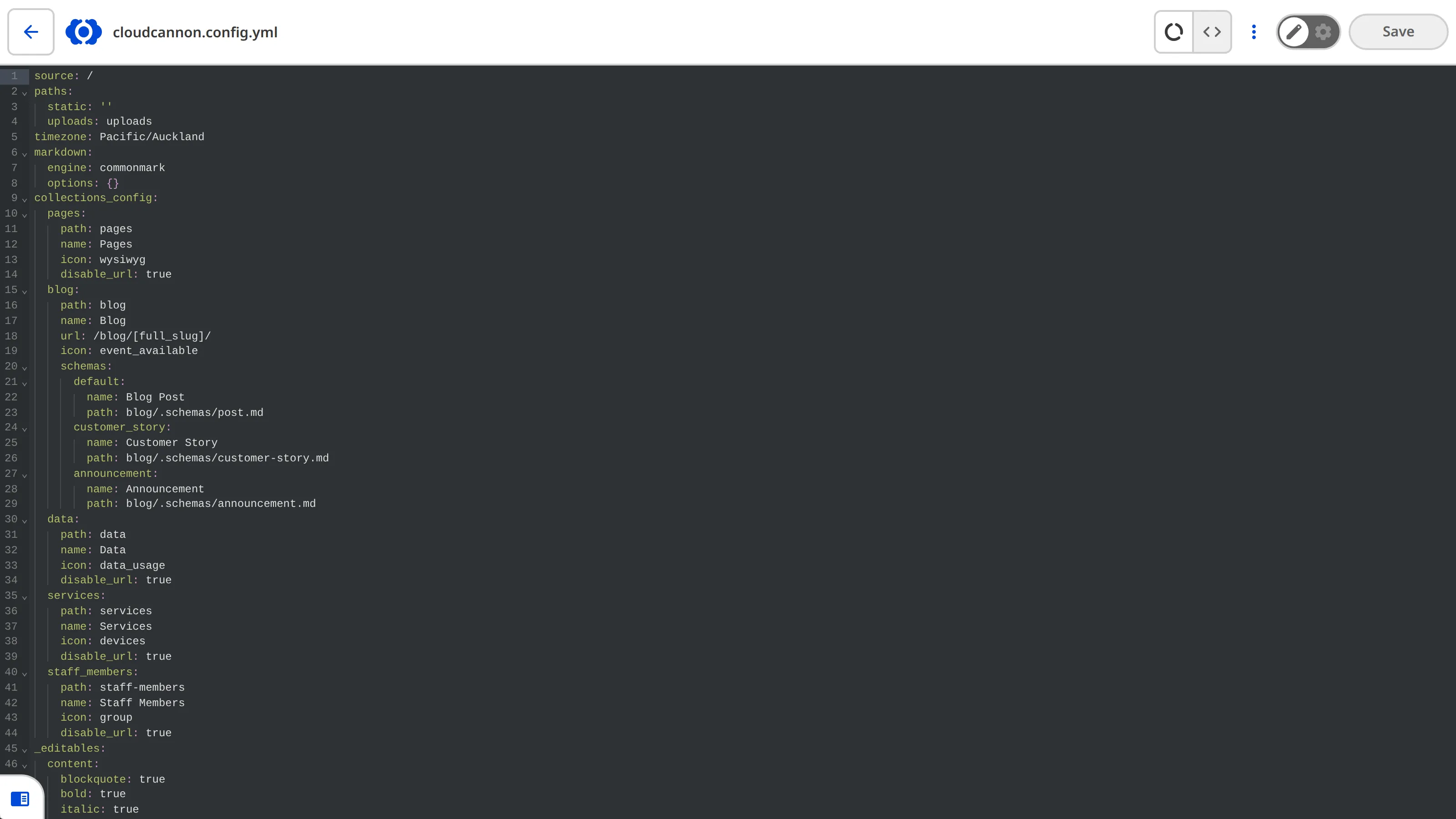
> Depending on your site configuration, you may not have access to the Source Editor for all files. An editing interface may not be available because:
>
> - Some Permission Groups cannot access the Source Editor (e.g., unavailable to the [Editors Default Permission Group](/documentation/user-articles/what-are-default-permission-groups/#editors) or to [Clients](/documentation/user-articles/what-is-client-sharing/)).
## Source Editor features
The Source Editor displays the raw content of text-based files. Syntax highlighting in the Source Editor is automatically detected based on the file extension.
For more information about the *Editing interface navigation* and the *Context Menu* at the top of the Source Editor, read our documentation on [editing your files](/documentation/user-articles/edit-your-files/).
### Appearance and behavior
You can configure the appearance and behavior of the Source Editor using the `source_editor` key in your [CloudCannon configuration file](/documentation/developer-articles/create-your-cloudcannon-configuration-file/).
File: `cloudcannon.config.yml`
```YAML
source_editor:
tab_size: 2
show_gutter: false
theme: eclipse
```
The Source Editor has the following configuration options available:
**`source_editor`** object
This key defines the appearance and behavior of the Source Editor.
For more information, please read our documentation on the [Source Editor](/documentation/articles/what-is-the-source-editor/).
[Full reference](/documentation/developer-reference/configuration-file/source_editor/)
**`source_editor.show_gutter`** boolean
This key toggles the gutter on the left of the editing interface, displaying line numbers and code folding controls.
**Default:** `true`
[Full reference](/documentation/developer-reference/configuration-file/source_editor/show_gutter/)
**`source_editor.soft_wrap`** boolean
This key toggles whether CloudCannon will enable soft wrapping of code in the Source Editor.
Setting this key to `true` will enable soft wrapping of code, allowing long lines to wrap to the next line without horizontal scrolling.
**Default:** `false`
[Full reference](/documentation/developer-reference/configuration-file/source_editor/soft_wrap/)
**`source_editor.tab_size`** number
This key defines the auto-indentation of each line and how many spaces a tab indentation counts as.
**Default:** `2`
[Full reference](/documentation/developer-reference/configuration-file/source_editor/tab_size/)
**`source_editor.theme`** string
This key defines the color theme for syntax highlighting.
**Default:** `basic_dark`
[Full reference](/documentation/developer-reference/configuration-file/source_editor/theme/)
---
---
title: What is the Visual Editor?
description: Learn about the Visual Editor, an editing interface for editing content directly ona preview of your webpage.
url: https://cloudcannon.com/documentation/user-articles/what-is-the-visual-editor/
content_type: user article
last_modified: 2026-07-06
---
The Visual Editor provides a user-friendly way of updating your website files on an interactive preview of your webpage. In the Visual Editor, you can navigate around your website preview using links/buttons, as you would on the live version, and edit your content inline on the page, or with the data panel or sidebar.
The primary benefit of visual editing is that what you see in CloudCannon it what your website visitors will see on your live webpages, so you can make editing decisions in context with surrounding page elements.
[Video: The Visual Editor with editable regions](https://player.vimeo.com/progressive_redirect/playback/1124969057/rendition/1080p/file.mp4?loc=external&signature=18a05ed71665768fa94851c72a31cf574e4079284b8ce0579885d8f3b47c4a8d)
The Visual Editor requires some configuration before you can use it, including a successful [Site build](/documentation/developer-articles/what-is-a-site-build/) and visual editing configuration with [Editable Regions](/documentation/developer-articles/what-are-editable-regions/) or Bookshop. We recommend reading our [Set up Visual Editing](/documentation/developer-guides/set-up-visual-editing/) guide if you have not yet enabled visual editing on your *Site*.
> Depending on your SSG and site configuration, you may not have access to the Visual Editor for all files. An editing interface may not be available because:
>
> - A Developer on your team has [specified which editing interfaces are enabled](/documentation/developer-articles/set-a-default-editing-interface/) for a particular [collection](/documentation/user-articles/what-is-a-collection/) or [schema.](/documentation/developer-articles/what-is-a-schema/)
## Visual Editor features
Editing your content is easy. With the Visual Editor, you can instantly see what your content updates will look like live; the Visual Editor will automatically re-render to show you an accurate preview without needing to save your changes.
For more information about the tools in your *Editing Interface Header* at the top of the Visual Editor, please read our documentation on [editing your files](/documentation/user-articles/edit-your-files/).
### Inline editing
If your *Site* uses *Editable Regions* for visual editing, you will be able to see yellow boxes around content on your webpage preview. You can click into any of these yellow *Editable Regions* to edit inline. You can update plain or rich text, reorder array items, and click on images to open a data panel.
[Video: Array Editable Regions in the Visual Editor](https://player.vimeo.com/progressive_redirect/playback/1127384254/rendition/1080p/file.mp4?loc=external&signature=2a13816e5104cb323e411f0d83f84fe060f24975a7dc81fe5fe80155591af1a7)
> Inline editing is only available if your Visual Editor uses [Editable Regions](/documentation/developer-articles/what-are-editable-regions/). For more information, please contact your developer or our friendly [support team](https://cloudcannon.com/support/).
### The sidebar
The Visual Editor sidebar allows you to edit structured data in your file. When you edit a value in the sidebar, the webpage preview will update live to reflect the new value.
The sidebar contains an [Input](/documentation/user-articles/what-are-inputs/) for each piece of structured data in your file, providing an appropriate editing interface for the type of data (e.g., a text area for text, a upload area for picking an image, a dropdown when you want to select from a list of values, etc).
The sidebar in the Visual Editor shows the same information as the [Data Editor](/documentation/user-articles/what-is-the-data-editor/), and the sidebar in the [Content Editor](/documentation/user-articles/what-is-the-content-editor/). You can open or close the sidebar using the arrow button on the right of the panel.
### The data panel
In the Visual Editor, you can click on parts of your webpage to open a data panel, containing inputs for a specific section of structured data in your file. This could be image details like link, title, and alt text, or a single content block with text, images, or buttons.
Data panels are useful for editing data within a specific scope, or data that is not visible on the page (e.g., the URL for a link). Whatever data you update in a data panel, the preview of your webpage will automatically update to match.
---
---
title: What is web hosting?
description: Learn the basics of web hosting, and the option to host your Site through CloudCannon or an external service.
url: https://cloudcannon.com/documentation/user-articles/what-is-web-hosting/
content_type: user article
last_modified: 2026-06-30
---
Web hosting is where, after a successful [build](/documentation/developer-articles/what-is-a-site-build/), all your files are stored on a web server and made available to the public on the Internet. You can host your Site through CloudCannon or an external service.
Hosting your website requires a Domain Name, which you can purchase from any Domain Registrar.
- **Domain Name** — The address used to access a website (e.g., [cloudcannon.com](https://cloudcannon.com/)).
- **Domain Registrar** — A third-party company that handles the reservation of domain names and assigns IP addresses to domain names. Most CloudCannon users purchase a domain name from a Registrar (e.g., [Cloudflare Registrar](https://www.cloudflare.com/en-gb/products/registrar/), [NameCheap](https://www.namecheap.com/)).
The Domain Name of your website appears in the URL.
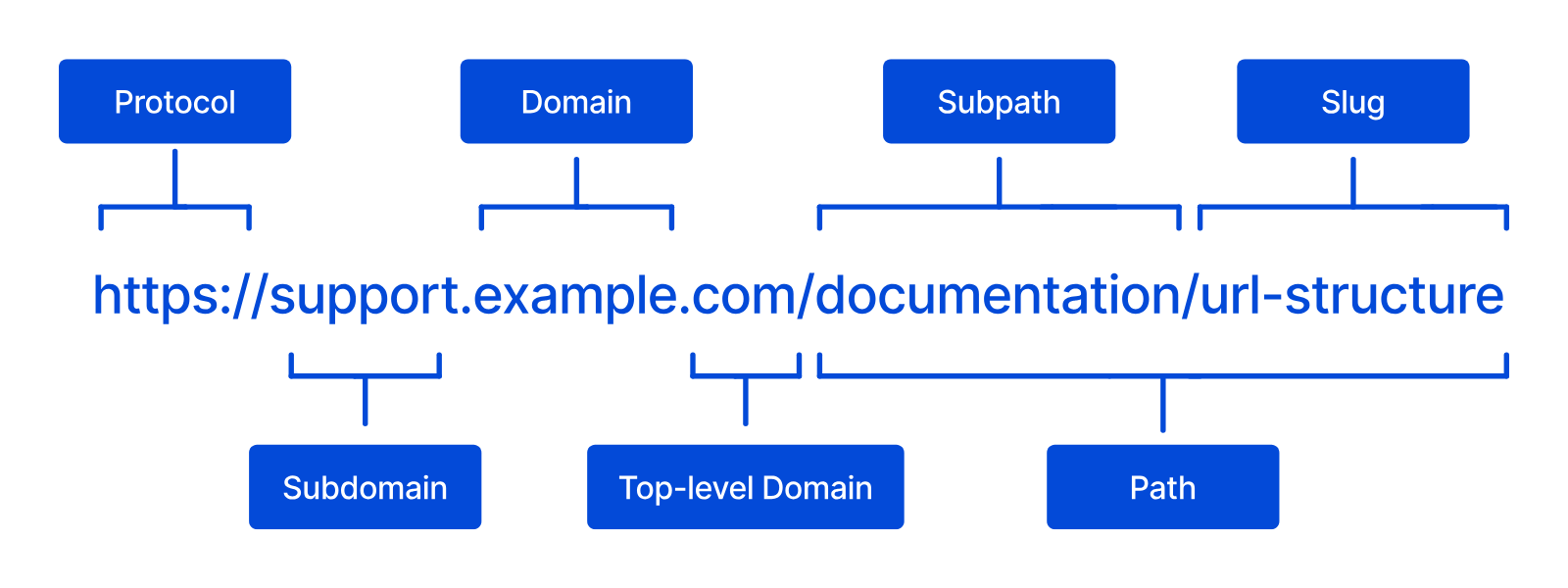
CloudCannon automatically assigns a free Domain Name to each Site, which you can use to preview your Site content live and share it with team members. However, most users also have a personal or business Domain Name that they connect to their Site. For more information, please read our documentation on [Testing Domains](/documentation/user-articles/what-is-a-testing-domain/) and [Custom Domains](/documentation/developer-articles/what-is-a-custom-domain/).
## Hosting on CloudCannon
To set up hosting on CloudCannon, you will need to:
- Connect a [Custom Domain](/documentation/developer-articles/what-is-a-custom-domain/).
- Configure a [DNS](/documentation/developer-articles/what-is-dns/) provider (either [CloudCannon DNS](/documentation/developer-articles/configure-cloudcannon-dns) or [external DNS](/documentation/developer-articles/configure-external-dns/)).
- Add an [SSL certificate](/documentation/developer-articles/what-is-an-ssl-certificate/) (either an [auto-generated SSL certificate](/documentation/developer-articles/add-an-auto-generated-ssl-certificate/) or a [custom SSL certificate](/documentation/developer-articles/add-a-custom-ssl-certificate/)).
Setting up your Custom Domain, DNS, and SSL certificate can be a circular process, requiring you to go back and forth as you configure your settings. To make it easier, here's a quick guide.
### Do you want to host on CloudCannon?
Hosting your Site on CloudCannon might be right for you if you want to keep your hosting settings on the same platform you use to edit your content.
CloudCannon uses a Cloudflare Content Delivery Network (CDN) for all Sites hosted on CloudCannon. A CDN is a globally distributed network of servers that improves your Site's loading time by caching your content. Visitors to your Site can then access a cached copy from a geographically closer server.
Whenever you update your Site, your hosting provider must also update these caches to prevent visitors from seeing out-of-date content. CloudCannon uses cache busting so that every time you update the content on your Site, CloudCannon will refresh all the cached copies as well.
If you don't want to host your Site on CloudCannon, you can use an external provider without interrupting your ability to edit your content in CloudCannon.
> If you want to host your Site externally, you can also disable builds on CloudCannon. For more information, please read our documentation on [Headless Mode](/documentation/developer-articles/what-is-headless-mode/).
### Which combination of DNS provider and SSL certificate is right for your Site?
Unless you are familiar with web hosting, we recommend reading our documentation [What is DNS?](/documentation/developer-articles/what-is-dns/) and [What is an SSL certificate?](/documentation/developer-articles/what-is-an-ssl-certificate/) before selecting a DNS provider or SSL certificate type.
DNS and SSL often work hand-in-hand. The correct combination of DNS provider and SSL certificate will depend on your desired Site configuration. Here are a few common examples:
1. **CloudCannon DNS and an auto-generated wildcard SSL certificate** (recommended) — Manage your domain settings and website security in the same place as your content: CloudCannon! Keep your DNS records up to date and protect all your domains and subdomains with a wildcard certificate.
2. **External DNS and an auto-generated wildcard SSL certificate** — Manage your domain settings through a trusted third-party service (e.g., Cloudflare) and generate your SSL certificate through CloudCannon. This option is good if you have existing DNS infrastructure.
3. **CloudCannon DNS and a custom SSL certificate** — Manage your domain settings through CloudCannon and generate your SSL certificate through a trusted third-party service.
4. **External DNS and a custom SSL certificate** — Manage your domain settings and generate your SSL certificate through a trusted third-party service. This option is good if you have existing DNS infrastructure and security policies that require you to have an SSL certificate from an internally approved authority.
For help setting up web hosting on CloudCannon, please contact our friendly [support team](https://cloudcannon.com/support/).
---
---
title: Why is Syncing paused?
description: Learn about Publishing Conflicts in CloudCannon and how they occur.
url: https://cloudcannon.com/documentation/user-articles/why-is-syncing-paused/
content_type: user article
last_modified: 2026-02-10
---
CloudCannon is constantly monitoring your branch in your Git repository. When someone saves a change to your branch, CloudCannon will sync that change to all CloudCannon Sites connected to that branch by overwriting the version of your file on your Site with the version from your Git repository. This behavior keeps your CloudCannon Site up to date with your Git repository.
To prevent incoming changes from overwriting your unsaved changes, CloudCannon will pause Syncing if an incoming change from your Git repository affects a file with unsaved changes.
- **Incoming changes** — These are changes to your Site files originating from outside the branch you are working on, such as from a different CloudCannon Site or your git repository. All incoming changes are made by a member of your team.
CloudCannon will notify you about a Syncing Conflict using the *Syncing paused* warning notification above the *Save* button in your *Site Navigation*.

> Incoming changes from your Git repository can affect multiple files. CloudCannon will pause Syncing for all files if one or more files have unsaved changes.
Before you can save any changes to unaffected files, you must allow CloudCannon to resume Syncing by saving the files with incoming changes. For more information, please read our documentation on [resume Syncing](/documentation/user-articles/resume-syncing/).
### Example
Let's go through an example.
We want to update the copy on our About webpage, so we open the `about.md` file in CloudCannon and start making changes. Coincidentally, another team member is also updating the `about.md` file at the same time. Our team member is a developer who is fixing some broken [inputs](/documentation/user-articles/what-are-inputs/) on several webpages, including the About page, using their local development environment.
> There are two ways to edit the same branch without being on the same CloudCannon Site.
>
> One, you could connect the same branch to more than one CloudCannon Site. Normally, each branch in your Git repository is connected to one Site in CloudCannon. However, you can connect multiple CloudCannon Sites to a single branch if that suits your workflow (e.g., you have multiple websites in a single Git repository, or "monorepo").
>
> Two, you could edit the same branch using a CloudCannon Site, your local development environment, or directly through your Git provider simultaneously. It's common for content creators to use CloudCannon to update their website, while developers use their local development environment or Git provider.
Before we can finish making our changes, our team member saves their changes to our website's Git repository. Our Git provider alerts CloudCannon that someone has updated several files and that CloudCannon should sync the new version of those files available on our Git repository to all connected CloudCannon Sites.
Because we have the About page open with unsaved changes, CloudCannon will pause Syncing notify us about the Syncing Conflict on the *Save* button and in the *Review changes* modal.
Before we can save any changes to other files or complete the sync to update all our files with incoming changes, we need to save or discard our changes to `about.md`. In this example, we want to save our unsaved changes and let CloudCannon complete the sync.
---
---
title: Why update from a Publish Branch?
description: Learn why you should update your Site from its Publish Branch in CloudCannon, and when CloudCannon will prompt you to do so.
url: https://cloudcannon.com/documentation/user-articles/why-update-from-a-publish-branch/
content_type: user article
last_modified: 2026-06-03
---
When a *Team Member* publishes new changes to your **Publish Branch** from another **Site** (or from outside CloudCannon), CloudCannon will prompt you to update your *Site*.
The *Publishing* page shows an *Updates available from your Publish Branch* notice, and a small down-arrow icon appears next to the *Publishing* link in the *Site Navigation*.

CloudCannon doesn't automatically update your *Site* when the upstream *Publish Branch* receives new changes; you choose when to update. Updating pulls those new changes from the *Publish Branch* into your *Site*.
Updating regularly keeps your *Site* up-to-date with the work published by other *Team Members*, or by you from another *Site*. Your branched *Site* started as a copy of its *Publish Branch*, and updating keeps it close to that source except for the parts you have intentionally changed. Without updating, your *Site* will fall behind.
For instructions on updating your *Site*, please read our documentation on [updating from a Publish Branch](/documentation/user-articles/update-from-a-publish-branch/).
> CloudCannon requires you to update from your *Publish Branch* before you are allowed to publish the changes on your *Site*, but you can update your *Site* whenever there are upstream changes available — even if you aren't ready to publish yet. Update your *Site* regularly to stay in sync with upstream changes.
For more information about publishing, please read our documentation on [what publishing is](/documentation/user-articles/what-is-publishing/).
## Publishing Conflicts
If the same file has been changed on both your *Site* and your *Publish Branch* since you last updated, CloudCannon will detect a *Publishing Conflict* and pause the update. You will need to choose which version of the file to keep before the update can complete. For more information, please read our documentation on [what Publishing Conflicts are](/documentation/user-articles/what-are-publishing-conflicts/) and [how to resolve them](/documentation/user-articles/resolve-publishing-conflicts/).
---
---
title: About Developer Articles
description: Learn about CloudCannon's Developer Documentation articles for customizing the UI, settings, and file management.
url: https://cloudcannon.com/documentation/developer-articles/
content_type: developer article
last_modified: 2026-09-09
---
Welcome to CloudCannon's Developer Documentation. These articles cover everything you need to know about customizing CloudCannon.
A Developer is anyone who customizes CloudCannon for their **team members** or clients by configuring the **UI**, settings, file management, **hosting**, and more. A Developer can also be a **User**, and even if you don't use CloudCannon, it is often helpful to understand the **CMS** experience from the User's perspective (see our [User Articles](/documentation/user-articles/)).
As a Developer, you can work in the CloudCannon web app ([https://app.cloudcannon.com/](https://app.cloudcannon.com/)) or your local development environment, whichever you prefer. For some settings, you will need to use CloudCannon's UI. The articles in this section of our documentation are designed to explain how CloudCannon works and provide instructions for configuring your CMS experience.
If you need any more help with your CloudCannon website, please don't hesitate to contact our friendly [support team](https://cloudcannon.com/support/).
## Syncing
Articles in the [Syncing](/documentation/developer-articles/introduction-to-syncing/) section cover how to connect your **Git Repository** to CloudCannon and manage the two-way sync between your source files and CloudCannon. Learn how to connect repositories from GitHub, GitLab, or Bitbucket, configure syncing for your **Sites**, and understand how CloudCannon tracks changes using **Git**. These articles are essential for setting up your development workflow and ensuring your team can collaborate effectively while maintaining version control.
## Sites
Articles in the [Sites](/documentation/developer-articles/introduction-to-sites/) section teach you how to create and configure **Sites** in CloudCannon. Learn how to create new Sites, configure initial Site settings, and manage Site configurations. These articles help you establish the foundation for your content management workflow and organize your Sites effectively.
## Editing
Articles in the [Editing](/documentation/developer-articles/introduction-to-editing/) section explain how to customize the CloudCannon editing experience for your **team members**. Learn how to configure editing interfaces, configure your **rich text editors** and **input types**, set up **Structures** and **Schemas** for content modeling, and add **editable regions** to your HTML to enable visual editing. These articles enable you to create an intuitive editing experience tailored to your team's needs.
## Assets
Articles in the [Assets](/documentation/developer-articles/introduction-to-assets-and-dams/) section cover how to manage large **files** and media assets using an external Digital Asset Manager (**DAMs**). Learn why storing assets outside your **Git Repository** can improve performance, how to integrate DAMs like S3, Cloudinary, Azure Blob Storage, and others with CloudCannon, and how to configure your **Sites** to use external asset storage. These articles are helpful for Sites with many images or large media files, as they help optimize **build** times and repository size.
## Publishing
Articles in the [Publishing](/documentation/developer-articles/introduction-to-publishing/) section cover how to set up publishing workflows for your **Sites**. Learn how to set up a **Project** to manage multiple **Sites** from the same repository, connect a **Publish Branch** to enable staging workflows, configure merging and **pull requests** , and manage how changes flow from branch Sites to your main Site. These articles are essential for teams that want to test changes before publishing them live, or for developers who need to review content changes before they go live.
## Sharing
Articles in the [Sharing](/documentation/developer-articles/introduction-to-sharing/) section cover how you can collaborate with others on CloudCannon. Learn how to create **Custom Permission Groups** to control exactly what resources each **team member** can access, configure **SSO/SAML** authentication, and manage how your team shares **Sites** and **Organizations**. These articles are useful for Developers who need to configure access controls and ensure team members have the appropriate level of permissions.
## Building
Articles in the [Building](/documentation/developer-articles/introduction-to-building/) section cover how to configure and extend the **build** process for your **Sites**. Learn how to set up your first build, configure build settings like environment variables and command-line options, extend builds with hooks, schedule builds manually or automatically, and use **Site Mounting** to share **files** between Sites. These articles are relevant for Sites that build on CloudCannon (building is optional).
## Hosting
Articles in the [Hosting](/documentation/developer-articles/introduction-to-hosting/) section cover the features available when you host your website on CloudCannon. Learn how to access your free **Testing Domain**, configure a **Custom Domain**, set up **DNS** (either CloudCannon DNS or external DNS), add SSL certificates, configure **routing** and redirects, and enable **authentication** methods to control visitor access. These articles are relevant for websites where you want to host your **Site** through CloudCannon and need to configure domain, security, and routing settings.
## Organizations
Articles in the [Organizations](/documentation/developer-articles/introduction-to-organizations/) section teach you everything you need to know about managing **Organizations** in CloudCannon. Learn how to create new Organizations, transfer **Sites** between Organizations, configure Multi-factor Authentication, and manage Organization-level settings. These articles are useful for Developers who need to organize multiple Sites or manage client Organizations with separate billing and access controls.
---
---
title: Access and list files, Collections, and Datasets with the Visual Editor API
description: Learn how to access and list files, Collections, and Datasets with the Visual Editor API using currentFile(), file(), collection(), dataset(), site-wide helpers, and type guards in CloudCannon.
url: https://cloudcannon.com/documentation/developer-articles/access-and-list-files-collections-and-datasets-with-the-visual-editor-api/
content_type: developer article
last_modified: 2026-08-11
---
> The *Visual Editor API* is designed for experienced CloudCannon developers. If you need help with custom integrations or your CloudCannon setup in general, please contact our friendly [support team](https://cloudcannon.com/support/).
CloudCannon's **Visual Editor API** exposes files, **Collections**, and **Datasets** from your **Site** code. This article covers how to access and list each one, and how to apply type guards before you call type-specific methods on mixed values.
This article assumes you know how to [initialize the Visual Editor API](/documentation/developer-articles/initialize-the-visual-editor-api/). For a complete list of API objects and methods, please read our reference documentation on the [Visual Editor API](/documentation/developer-reference/visual-editor-api/).
## Files
Calling `*.files()` on the **API Object** returns an array of every file across your *Site*. To access an individual file, use `*.currentFile()`, which returns the file currently open in the *Visual Editor*, or `*.file(path)`, which returns a specific file by its source path regardless of what is currently open.
To list all files:
1. Open your website files in your local development environment.
2. Open the JavaScript file where your *Visual Editor API* integration runs.
3. Call `await *.files()` for an array of every file in your *Site*.
File: `script.js`
```javascript
```
const api = window.CloudCannonAPI.useVersion('v1', true);
const allFiles = await api.files(); /*1*/
for (const file of allFiles) { /*2*/
const data = await file.data.get();
console.log(file.path, data?.title);
}
```
**[1]** Call `api.files()` to get an array of every file in your *Site*.
**[2]** Iterate over the files. Each file object has the same interface, so you can call `file.data.get()`, `file.data.set()`, `file.content.get()`, and all other file methods on it.
```
To access a file:
1. Open your website files in your local development environment.
2. Open the JavaScript file where your *Visual Editor API* integration runs.
3. Call `*.currentFile()` for the file open in the preview, or `*.file('/path/example.md')` with a path relative to your *Site* root.
File: `script.js`
```javascript
```
const current = api.currentFile(); /*1*/
const specific = api.file('/content/pages/about.md'); /*2*/
```
**[1]** Access the file currently open in the *Visual Editor*.
**[2]** Access the file `/content/pages/about.md`, regardless of what is currently open in the *Visual Editor*.
```
> Not every page in the *Visual Editor* has an associated file. If `*.currentFile()` is called for a page without an associated file, it throws an error. Wrap `*.currentFile()` in a `try`/`catch` block to handle this gracefully.
>
> If you call a method on a file object whose path does not back a real file (for example, `*.file('/does-not-exist.md').data.get()`), the method resolves to `undefined` instead of throwing. Check the return value before using it.
To handle a page with no associated file, wrap `*.currentFile()` in a `try`/`catch` and check the result before using it:
File: `script.js`
```javascript
```
let file;
try {
file = api.currentFile(); /*1*/
} catch (error) {
console.warn('No file is associated with this page.'); /*2*/
}
if (file) { /*3*/
const data = await file.data.get();
console.log(data);
}
```
**[1]** `api.currentFile()` throws when the current page has no associated source file, such as a generated pagination page, so call it inside a `try`/`catch`.
**[2]** Handle the no-file case here, rather than letting the error propagate. This example logs a warning.
**[3]** Only use `file` if it was assigned. The `catch` leaves it undefined when the page has no file.
```
## *Collections*
A [Collection](/documentation/developer-articles/configure-your-collections/) is a folder of files with a similar format, defined under `collections_config` in your *CloudCannon Configuration File*. Calling `*.collections()` on the *API Object* returns an array of every configured *Collection* on the *Site*, while `*.collection()` accesses one.
To list all *Collections*:
1. Open your website files in your local development environment.
2. Open the JavaScript file where your *Visual Editor API* integration runs.
3. Call `await *.collections()` for an array of every configured *Collection*.
File: `script.js`
```javascript
```
const allCollections = await api.collections(); /*1*/
for (const collection of allCollections) { /*2*/
console.log(collection.collectionKey);
}
```
**[1]** Call `api.collections()` to get an array of every configured *Collection* on the *Site*.
**[2]** Log each `collectionKey`, which matches the *Collections* in your *CloudCannon Configuration File*.
```
To access a *Collection* and list its files:
1. Open your website files in your local development environment.
2. Open the JavaScript file where your *Visual Editor API* integration runs.
3. Call `*.collection('example-key')`, where `example-key` is a *Collection* key under `collections_config` in your *CloudCannon Configuration File*.
4. Await `*.items()` on the returned object for an array of file objects.
File: `script.js`
```javascript
```
const posts = api.collection('posts'); /*1*/
const files = await posts.items(); /*2*/
for (const file of files) { /*3*/
const data = await file.data.get();
console.log(file.path, data?.title);
}
```
**[1]** Access the `posts` *Collection*. The key must match an entry under `collections_config` in your *CloudCannon Configuration File*.
**[2]** Call `posts.items()` to get an array of file objects in the *Collection*. *Collections* are always configured with a folder path, so `posts.items()` always returns an array.
**[3]** Iterate over the files. Each file object has the same interface as `api.currentFile()`, so you can call `file.data.get()`, `file.data.set()`, `file.content.get()`, and all other file methods on it.
```
## *Datasets*
A [Dataset](/documentation/developer-articles/define-your-data/) is a structured data file or folder defined under `data_config` in your *CloudCannon Configuration File*, such as navigation links, locale strings, or site settings. Calling `*.datasets()` on the *API Object* returns an array of every configured *Dataset* on the *Site*, while `*.dataset()` accesses one.
To list all *Datasets*:
1. Open your website files in your local development environment.
2. Open the JavaScript file where your *Visual Editor API* integration runs.
3. Call `await *.datasets()` for an array of every configured *Dataset*.
File: `script.js`
```javascript
```
const allDatasets = await api.datasets(); /*1*/
for (const dataset of allDatasets) { /*2*/
console.log(dataset.datasetKey);
}
```
**[1]** Call `api.datasets()` to get an array of every configured *Dataset* on the *Site*.
**[2]** Log each `datasetKey`, which matches the *Datasets* under `data_config` in your *CloudCannon Configuration File*.
```
To access a *Dataset* and list its files:
1. Open your website files in your local development environment.
2. Open the JavaScript file where your *Visual Editor API* integration runs.
3. Call `*.dataset('example-key')`, where `example-key` is a *Dataset* key under `data_config` in your *CloudCannon Configuration File*.
4. Await `*.items()` on the returned object. If the *Dataset* is a folder path, it returns an array; if it is a single file path, it returns one file object.
File: `script.js`
```javascript
```
const locales = api.dataset('locales'); /*1*/
const result = await locales.items(); /*2*/
if (Array.isArray(result)) { /*3*/
for (const file of result) {
const data = await file.data.get();
console.log(file.path, data?.title);
}
} else {
const data = await result.data.get(); /*4*/
console.log(result.path, data?.title);
}
```
**[1]** Access the `locales` *Dataset*. The key must match an entry under `data_config` in your *CloudCannon Configuration File*.
**[2]** Await `locales.items()` on the *Dataset* handle. `result` is either an array of file objects or one file object, depending on whether the *Dataset* is a folder path or a single file path.
**[3]** When `result` is an array, loop each file and call file methods such as `file.data.get()`, the same way you would with the files in a *Collection*.
**[4]** When `result` is a single file object, call file methods on that object directly.
```
Because `*.items()`, `*.files()`, `*.collections()`, and `*.datasets()` return arrays, you can filter, sort, or transform the results with standard JavaScript. For worked examples, including filtering a *Collection* by a field, please read our documentation on [common patterns for the Visual Editor API](/documentation/developer-articles/common-patterns-for-the-visual-editor-api/).
## Type guards
The *API Object* provides the `*.isAPIFile()`, `*.isAPICollection()`, and `*.isAPIDataset()` type guard functions to check whether an object is a file, *Collection*, or *Dataset*. These are useful when working with mixed results or when you need to narrow the type of an object before calling methods on it.
To branch on a value that might be a file, *Collection*, or *Dataset*:
1. Open your website files in your local development environment.
2. Open the JavaScript file where your *Visual Editor API* integration runs.
3. Pass the value to `*.isAPIFile()`, `*.isAPICollection()`, or `*.isAPIDataset()`.
When a guard returns `true`, call only the methods that exist on that type (for example, `*.data.get()` on a file object, or `await *.items()` on a *Collection* or *Dataset* handle), so TypeScript and the runtime agree on the object shape.
File: `script.js`
```javascript
```
if (api.isAPIFile(obj)) { /*1*/
const data = await obj.data.get();
}
if (api.isAPICollection(obj)) { /*2*/
const items = await obj.items();
}
if (api.isAPIDataset(obj)) { /*3*/
const items = await obj.items();
}
```
**[1]** `api.isAPIFile()` returns `true` if `obj` is a file object, allowing you to safely call file methods on it.
**[2]** `api.isAPICollection()` returns `true` if `obj` is a *Collection* object.
**[3]** `api.isAPIDataset()` returns `true` if `obj` is a *Dataset* object.
```
---
---
title: Add a Custom Domain to your Site
description: Learn how to add a Custom Domain name to your Site on CloudCannon.
url: https://cloudcannon.com/documentation/developer-articles/add-a-custom-domain-to-your-site/
content_type: developer article
last_modified: 2026-07-06
---
> **Permissions required**
>
> Members of the Developers and Owners [Default Permission Groups](/documentation/user-articles/what-are-default-permission-groups/), or [Custom Permission Groups](/documentation/developer-articles/what-are-custom-permission-groups/) with the `site:settings:hosting:write` permission, can add a Custom Domain to a Site.
A Custom Domain is a unique address used to identify a website (e.g., [cloudcannon.com](https://cloudcannon.com)). If you have [connected a Custom Domain to your Organization](/documentation/developer-articles/connect-a-custom-domain-to-your-organization/), you can host your website content at that web address by adding the Custom Domain to your Site.
You can host a CloudCannon Site on the base domain (e.g., example.com), a subdomain (e.g., docs.example.com), or a subpath (e.g., example.com/staff/).

> You can configure both a subdomain and a subpath for each Site on CloudCannon, if your configuration requires them.
These instructions assume you have [connected a Custom Domain to your Organization](/documentation/developer-articles/connect-a-custom-domain-to-your-organization/) and, if you want to host on a subdomain or subpath, that you already have a Site hosted on your base domain.
To add a Custom Domain to your Site:
1. Click the *Sites* button in the *App Sidebar*. CloudCannon will open the *Sites browser*.
2. Identify the Site to which you want to add a Custom Domain and click on the *Site* card. CloudCannon will open the *Dashboard* for that Site.
3. Navigate to the *Custom Domain* page under *Site Settings*.
4. Select the Custom Domain you want to add using the *Base Domain* dropdown.
5. (Optional.) If you want to host your Site on a subdomain or subpath of your Custom Domain, enter the subdomain in the *Subdomain* text field, or the subpath in the *Subpath* text field. Leave these fields blank if you do not want to configure a subdomain or subpath for your Site.
6. Click the *Add a Domain* button.
CloudCannon will begin hosting your website content on your Custom Domain.
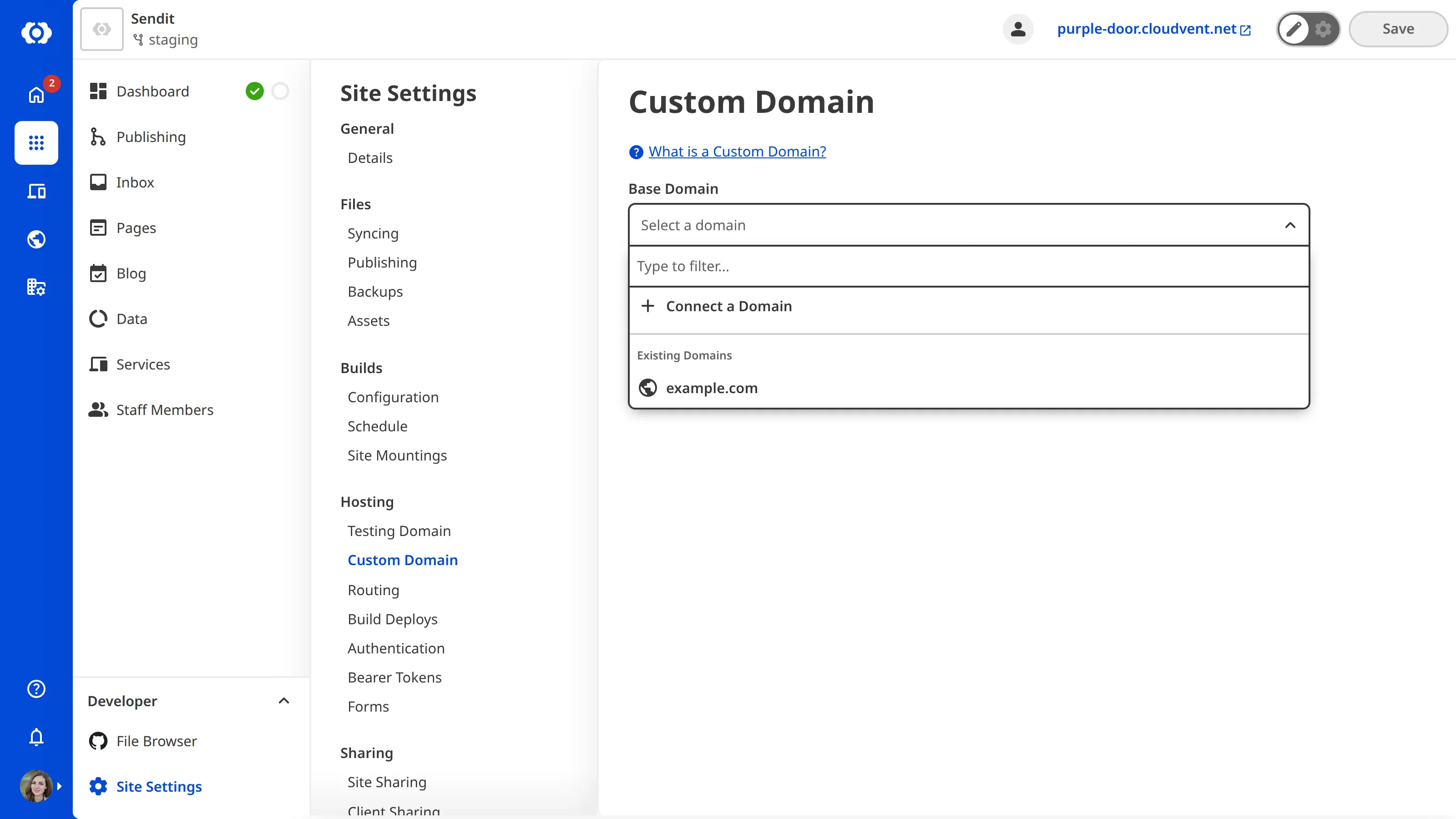
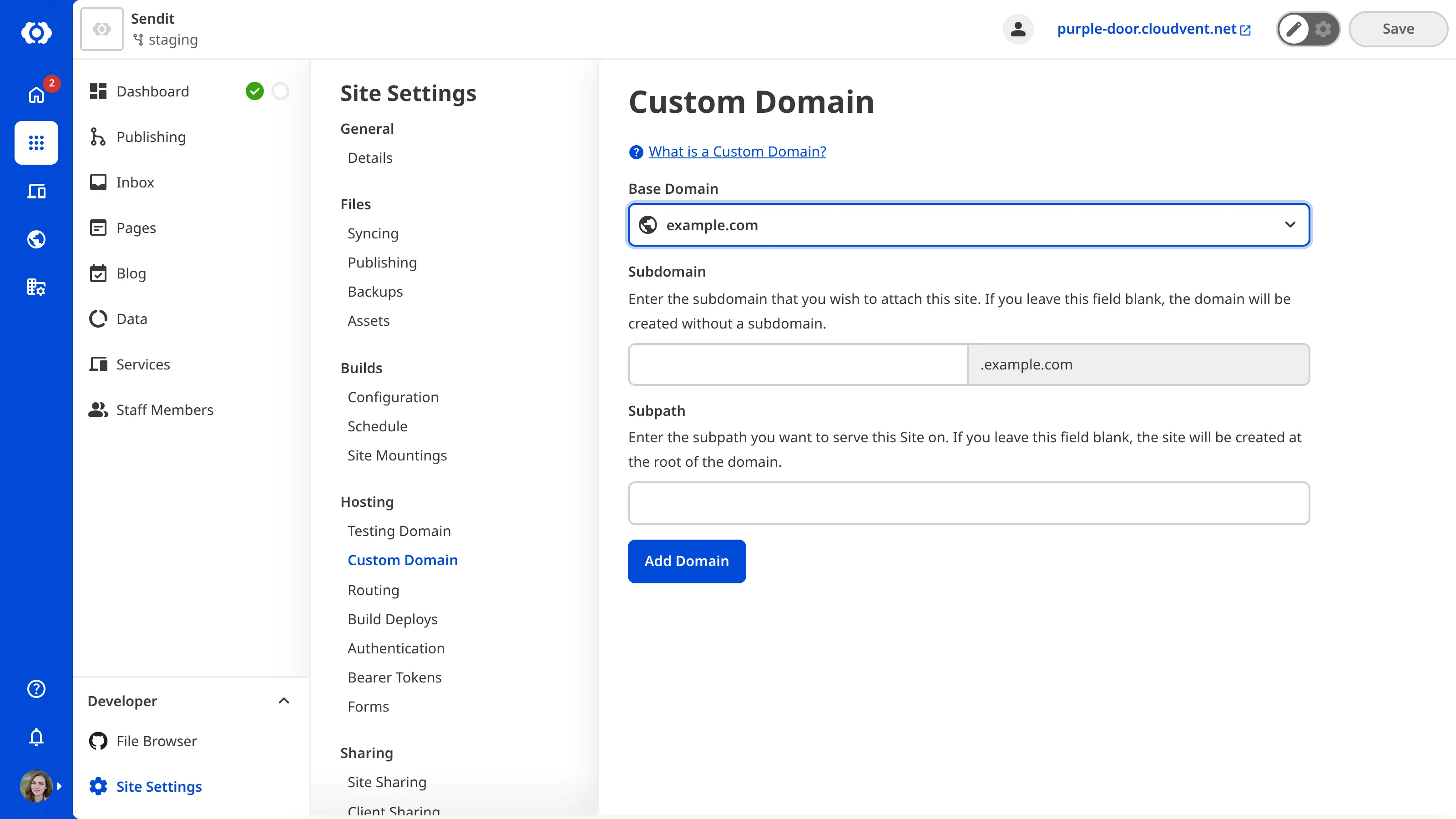
You can manage your Custom Domain settings, including subdomains and subpaths, on your Custom Domain's dedicated *Domain* page. To see your Custom Domain's *Domain* page, click on the card for your Custom Domain in the *Domains Browser*.
To stop hosting your Site on a Custom Domain, please read our documentation on [removing a Custom Domain from your Site](/documentation/developer-articles/remove-a-custom-domain-from-your-site/).
We also recommend adding an [SSL certificate](/documentation/developer-articles/what-is-an-ssl-certificate/) to your Site. For more information, please read our documentation on [adding an auto-generated SSL certificate](/documentation/developer-articles/add-an-auto-generated-ssl-certificate/) or [adding a custom SSL certificate](/documentation/developer-articles/add-a-custom-ssl-certificate/).
---
---
title: Add a custom SSL certificate
description: Learn how to add custom PEM-encoded SSL certificates to your Site in CloudCannon.
url: https://cloudcannon.com/documentation/developer-articles/add-a-custom-ssl-certificate/
content_type: developer article
last_modified: 2026-06-23
---
> Managing your SSL certificate on CloudCannon requires you to host your **Site** through CloudCannon. If you are hosting your *Site* through an external service, please review their documentation on SSL certification.
You can purchase a custom SSL certificate from a trusted third-party provider.
You need the following details to add your custom SSL certificate to a **Custom Domain** on CloudCannon.
- Name (i.e., Domain Name)
- Expires (formatted as YYYY-MM-DD)
- Public Key
- Private Key
- Certificate Chain
> Your private key should only be given to your **DNS** provider. Do not write down your private key in a publicly accessible or insecure place. If you think the security of your private key has been compromised, please generate a new SSL certificate.
SSL certificates last for about a year and should be renewed at yearly intervals to maintain your website's security. You can renew your SSL certificate more often, but most websites do not require this level of security.
Before you add an SSL certificate to your *Site*, you must [add a Custom Domain](/documentation/developer-articles/add-a-custom-domain-to-your-site/) to your **Organization**.
> If you have recently added your *Custom Domain* to your *Site*, CloudCannon may need a few minutes to fetch your domain details before you can add an SSL certificate. If this process takes more than a few minutes, please contact our friendly [support team](https://cloudcannon.com/support/).
To add a custom SSL certificate:
1. Navigate to the *Domains Browser* by clicking *Domains* in the *App Sidebar*.
2. Select the domain to which you want to add a certificate.
3. Under the *Subdomains* heading, click the card for the subdomain to which you want to add the certificate.
4. Click the *Configure* button under the *SSL* heading. CloudCannon will open the *Configure SSL* modal.
5. Select a version number from the *Minimum TLS Version* dropdown.
6. Select the *New custom SSL certificate* option from the *Custom SSL Certificate* dropdown. CloudCannon will open the *Add SSL Certificate* modal.
7. Enter the details for *Name*, *Expires*, *Public Key*, *Private Key*, and *Certificate Chain*.
8. Click the *Add SSL Certificate* button.
9. Click the *Update SSL* button.
CloudCannon will apply your custom SSL certificate to the selected subdomain.
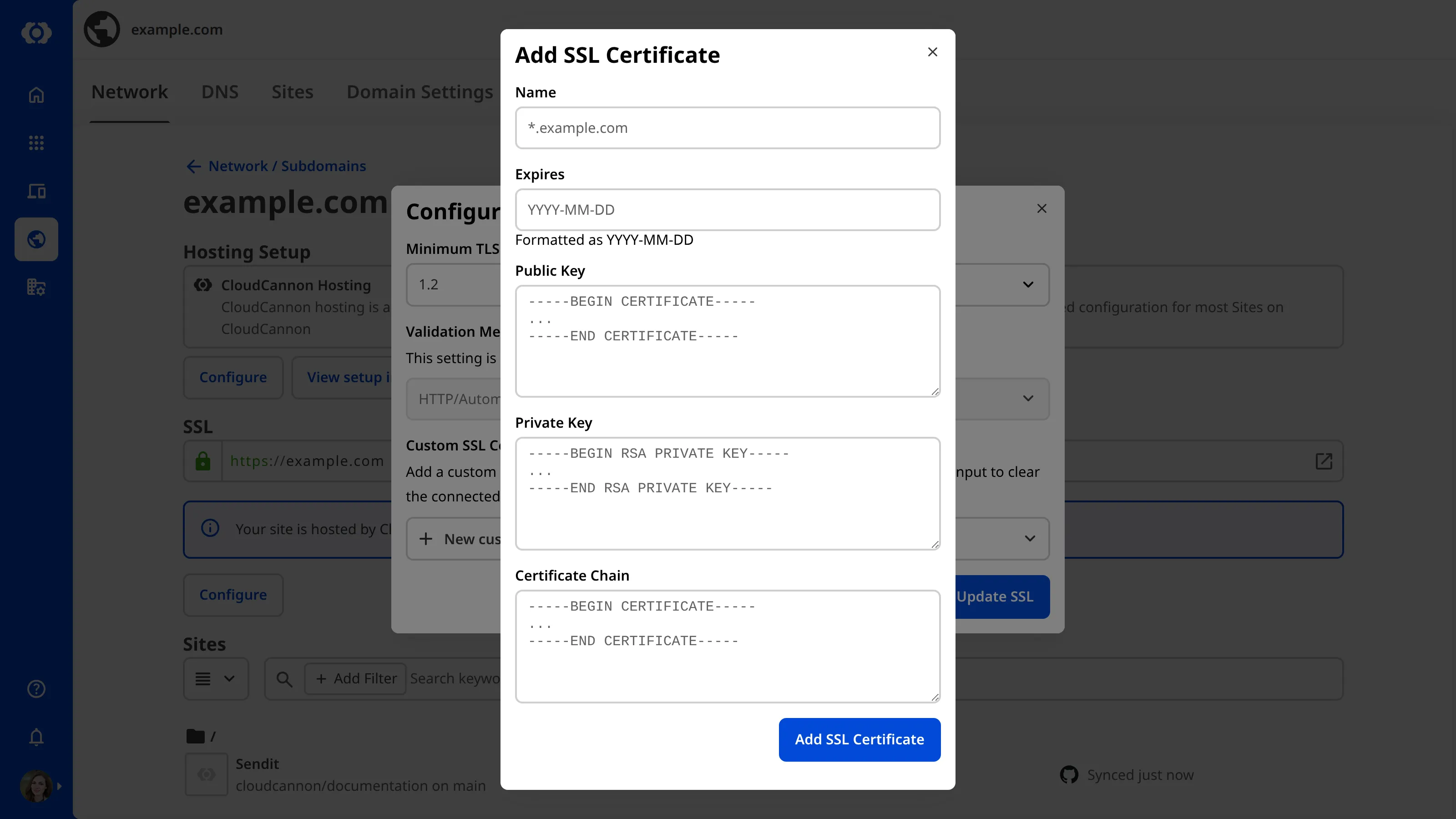
Alternatively, you can leave the *Custom SSL Certificate* dropdown blank, and CloudCannon will autogenerate an SSL certificate for you.
> All certificates must use PEM encoding. The placeholder text indicates the correct start and end headers.
## Redirect HTTP to HTTPS
Once your SSL certificate is enabled, users can visit your *Site* on the more secure [HTTPS](/documentation/developer-articles/what-is-an-ssl-certificate/#http-vs-https) URL. CloudCannon will redirect any users who request the **HTTP** URL. For more information on redirects, please read our documentation on [configuring HTTP redirects](/documentation/developer-articles/configure-http-redirects/).
---
---
title: Add a Site Dashboard README
description: Learn how to add and edit a README file on your Site Dashboard in CloudCannon.
url: https://cloudcannon.com/documentation/developer-articles/add-a-site-dashboard-readme/
content_type: developer article
last_modified: 2026-03-29
---
The [Site Dashboard README](/documentation/developer-articles/what-is-the-site-dashboard-readme/) file displays custom Markdown content on the *Summary* tab of your *Site Dashboard*, giving your team immediate access to project information.
You can add a README to your *Site Dashboard* from the *Site Dashboard* using **Configuration Mode**, or by creating the file directly in your **Local Development Environment**.
## Add a README from the *Site Dashboard*
To add a README using *Configuration Mode*:
1. Navigate to the *Summary* tab on your *Site Dashboard*.
2. Click the *Configuration Mode* switch on the right of the *Site Header* to turn it on.
3. Click the *Add README* button. CloudCannon will create a `.cloudcannon/README.md` file and open it in the **Content Editor**.
4. Add your content.
CloudCannon will automatically display your README content on the *Summary* tab of the *Site Dashboard*. When you are happy with your content, save your file back to your *Git Repository*.
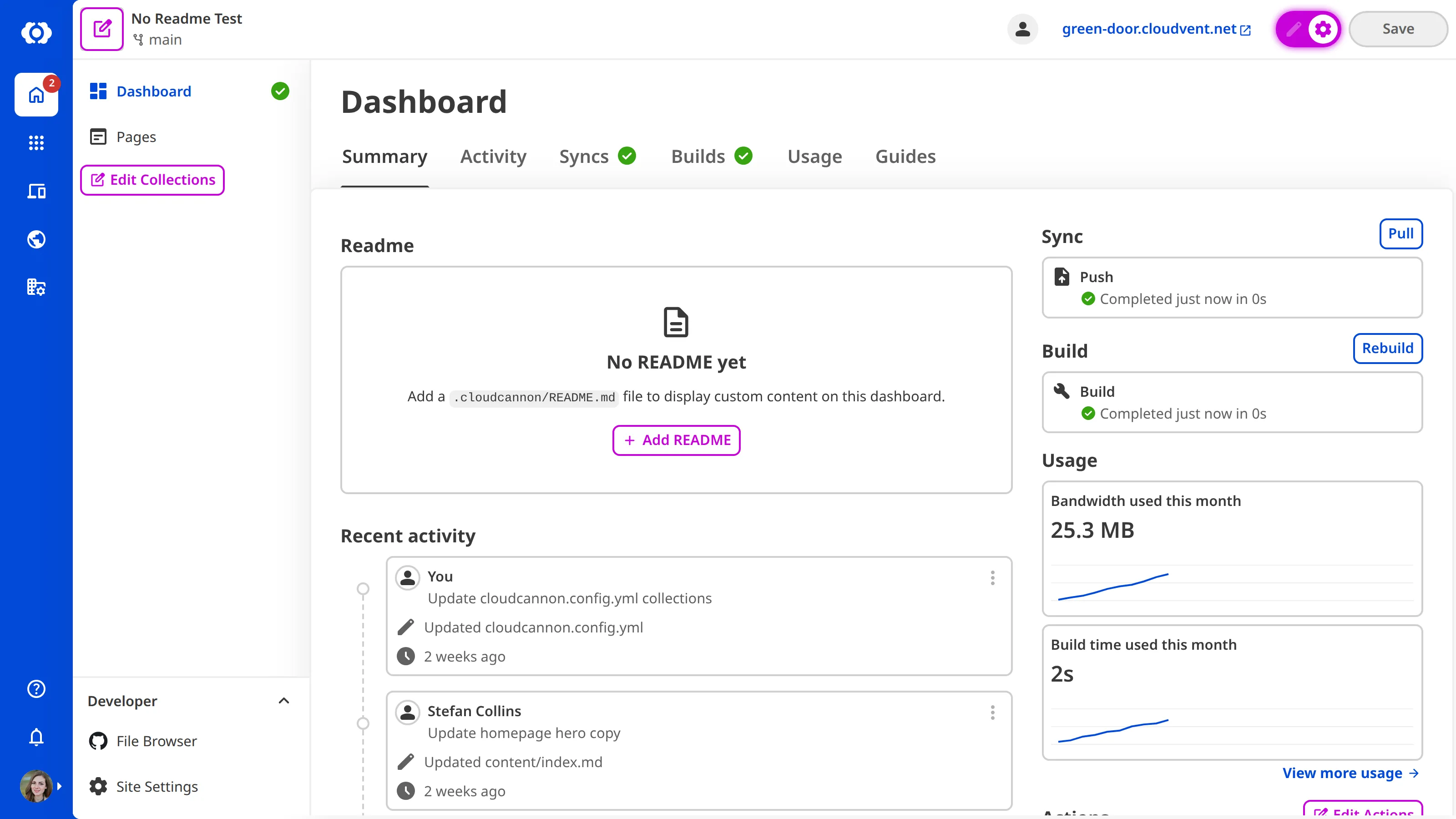
## Add a README from your IDE
To add a README directly in your repository:
1. Create a file at `.cloudcannon/README.md` in your Git repository.
2. Add your Markdown content and commit the file *Git Repository*.
CloudCannon will automatically sync the changes to your *Git Repository* and display your README content on the *Summary* tab of the *Site Dashboard*.
> The file path is case-insensitive. CloudCannon recognizes `.cloudcannon/README.md`, `.cloudcannon/readme.md`, and other case variations.
## Edit your README
You can edit your README file in CloudCannon using the [Content Editor](/documentation/user-articles/what-is-the-content-editor/). To open your README for in the *Content* *Editor*, turn on *Configuration Mode* and click the *Edit README* button on the *Site Dashboard*.
You can also edit the file directly in your *IDE* or through the *File Browser* in CloudCannon.
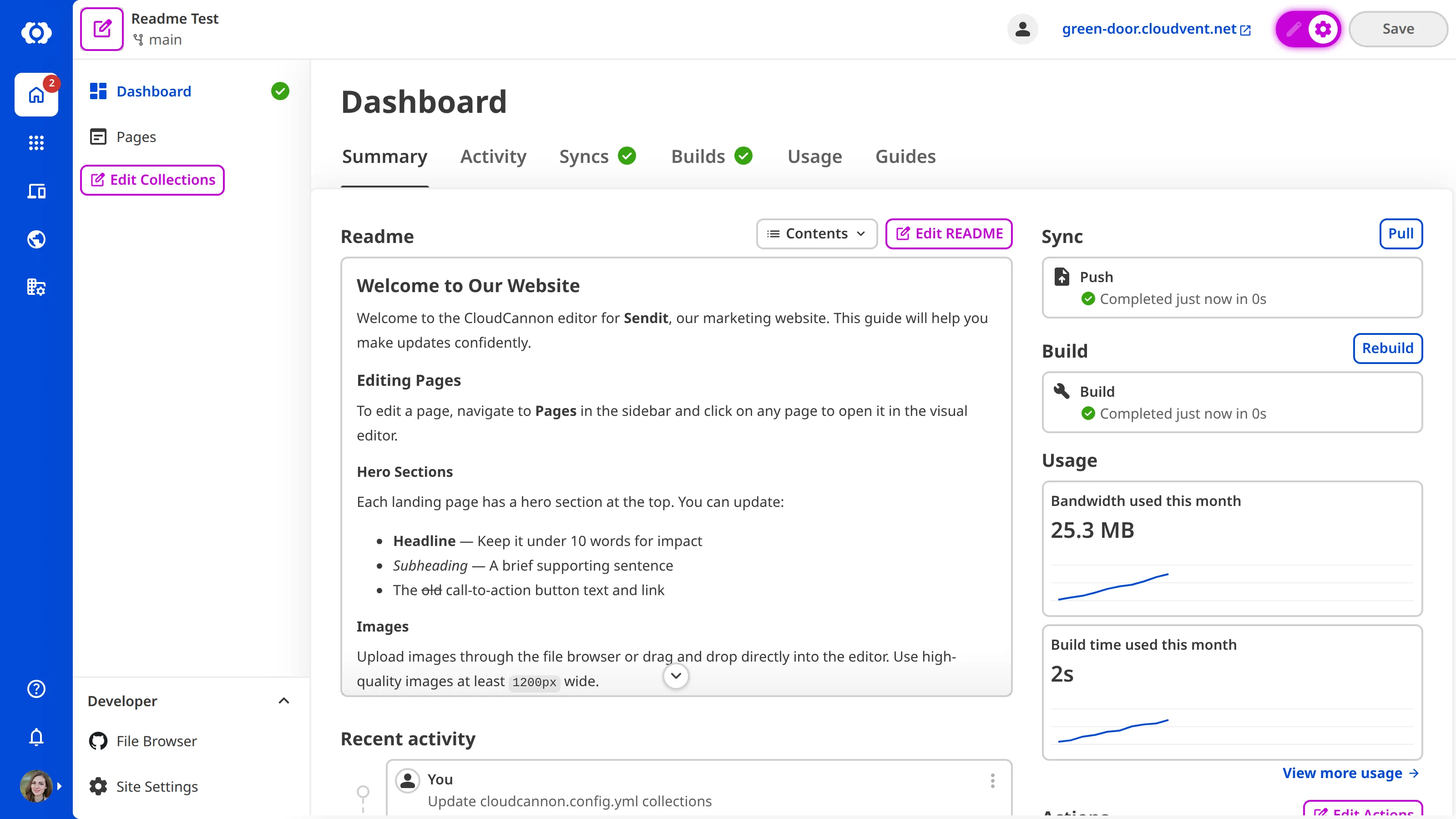
---
---
title: Add a Site to your Project
description: Learn how to add Sites to your CloudCannon Project, including connecting existing branches and creating new branch Sites.
url: https://cloudcannon.com/documentation/developer-articles/add-a-site-to-your-project/
content_type: developer article
last_modified: 2026-06-24
---
Once you have [created a Project](/documentation/developer-articles/create-a-project/), you can add **Sites** to it. There are two ways to add a *Site* to your **Project**: connect an existing branch from your repository, or create a new branch *Site* through CloudCannon.

## Connect an existing branch
If you already have a branch in your **Git Repository** that you want to add to your *Project* as a *Site*, this is the best option. This includes connecting your main branch or any other pre-existing branch.
1. Click the *Projects* button in the *App Sidebar*. CloudCannon will open the *Projects Browser*.
2. Select the *Project* to which you want to add a *Site* by clicking on the *Project Card*. CloudCannon will open the *Project Sites Browser*.
3. Click the *+ Create a Site* button. CloudCannon will open the *Create a Site* page.
4. Enter a name for your *Site* in the *New Site name* field. The branch will automatically receive the same name.
5. Select the *Use an existing branch* option.
6. Select the branch you want to connect using the *Branch* dropdown. CloudCannon automatically populates this using the branches in your *Git Repository*.
7. Click the *Create Site* button.
CloudCannon will create a new *Site* in your *Project*.
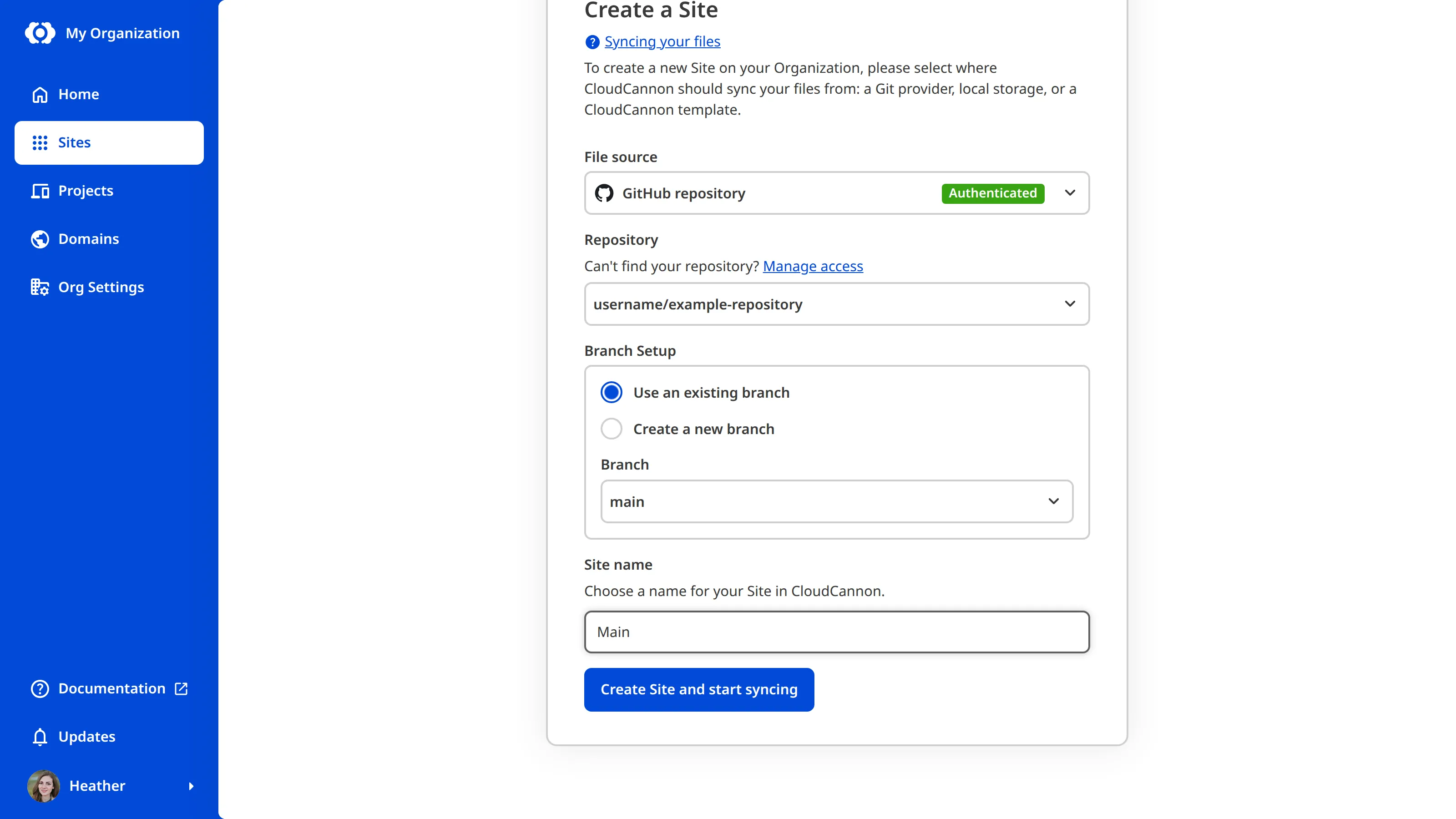
## Create a new branch Site
> **This feature is available on our** [Team or Enterprise plan](https://cloudcannon.com/pricing/).**
You can create a new branch *Site* from an existing *Site* in your *Project*. By allowing your team members to create *Sites* via branching in CloudCannon, you can enable them to work more independently and limit the number of people that require access to your *Git Provider*.
### Branching from the *Main Branch*
To use this branching method, you must have set a **Main Branch** for your *Project*. For more information, please read our documentation on [setting the Main Branch](/documentation/developer-articles/set-the-main-branch-for-your-project/).
1. Click the *Projects* button in the *App Sidebar*. CloudCannon will open the *Projects Browser*.
2. Select the *Project* to which you want to add a *Site* by clicking on the *Project Card*. CloudCannon will open the *Project Sites Browser*.
3. Click the *+ Create a Site* button. CloudCannon will open the *Create a Site* page.
4. Enter a name for your *Site* in the *New Site name* field. The branch will automatically receive the same name.
5. Select the *Create a new branch* option. CloudCannon will automatically populate the *Source branch* field with your *Main Branch*.
6. (Optional.) Enter a name for your new branch in the *New branch name* field, if it should be different from the *Site* name.
7. Click the *Create Site* button.
CloudCannon will create a new *Site* in your *Project*. Once you have made changes on the branched *Site*, you can publish them back to the main branch. For more information, please read our documentation on [publishing changes to a Publish Branch](/documentation/user-articles/publish-changes-to-a-publish-branch/).

### Branching from another Site
You can also create a branch from another branched *Site*. When the branch *Site* is published, the changes will push back into the *Site* it was branched from. This option requires *Allow all branching* to be enabled.
To branch from an existing *Site*:
1. Click the *Projects* button in the *App Sidebar*. CloudCannon will open the *Projects Browser*.
2. Select the *Project* to which you want to add a *Site* by clicking on the *Project Card*. CloudCannon will open the *Project Sites Browser*.
3. Find the *Site* you want to branch from in the *Project Sites Browser* and open the **Context Menu** by clicking the three-dot icon on the top right *Site* card.
4. Select the *Branch Site* option from the *Context Menu*. CloudCannon will open the *Create a Site* page.
5. Enter a name for your *Site* in the *New Site name* field. The branch will automatically receive the same name.
6. Select the *Create a new branch* option. CloudCannon will automatically populate the *Source branch* field with the *Site* you wanted to branch from.
7. (Optional.) Enter a name for your new branch in the *New branch name* field, if it should be different from the *Site* name.
8. Click the *Create Site* button.
CloudCannon will create a new *Site* in your *Project*.
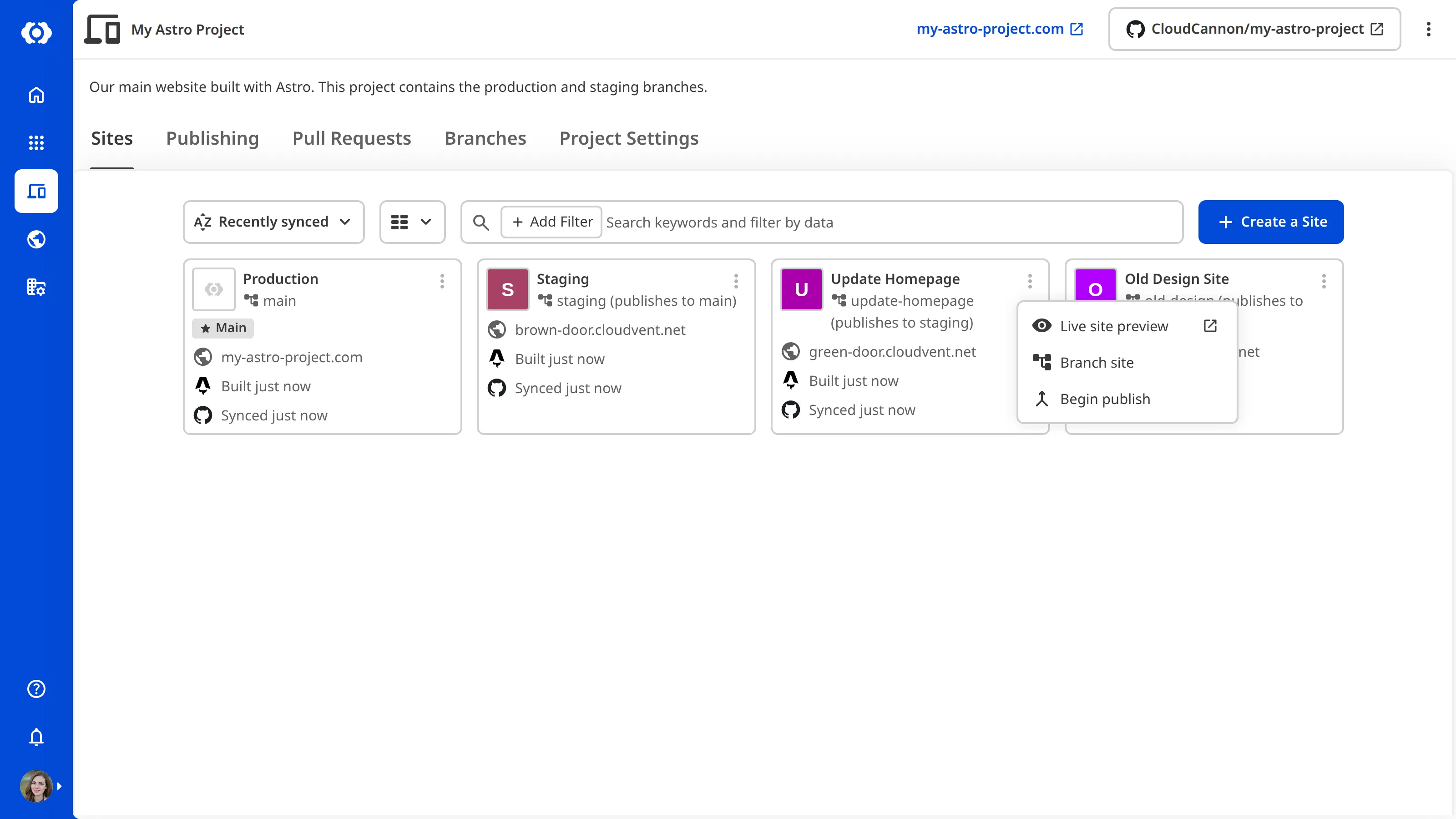
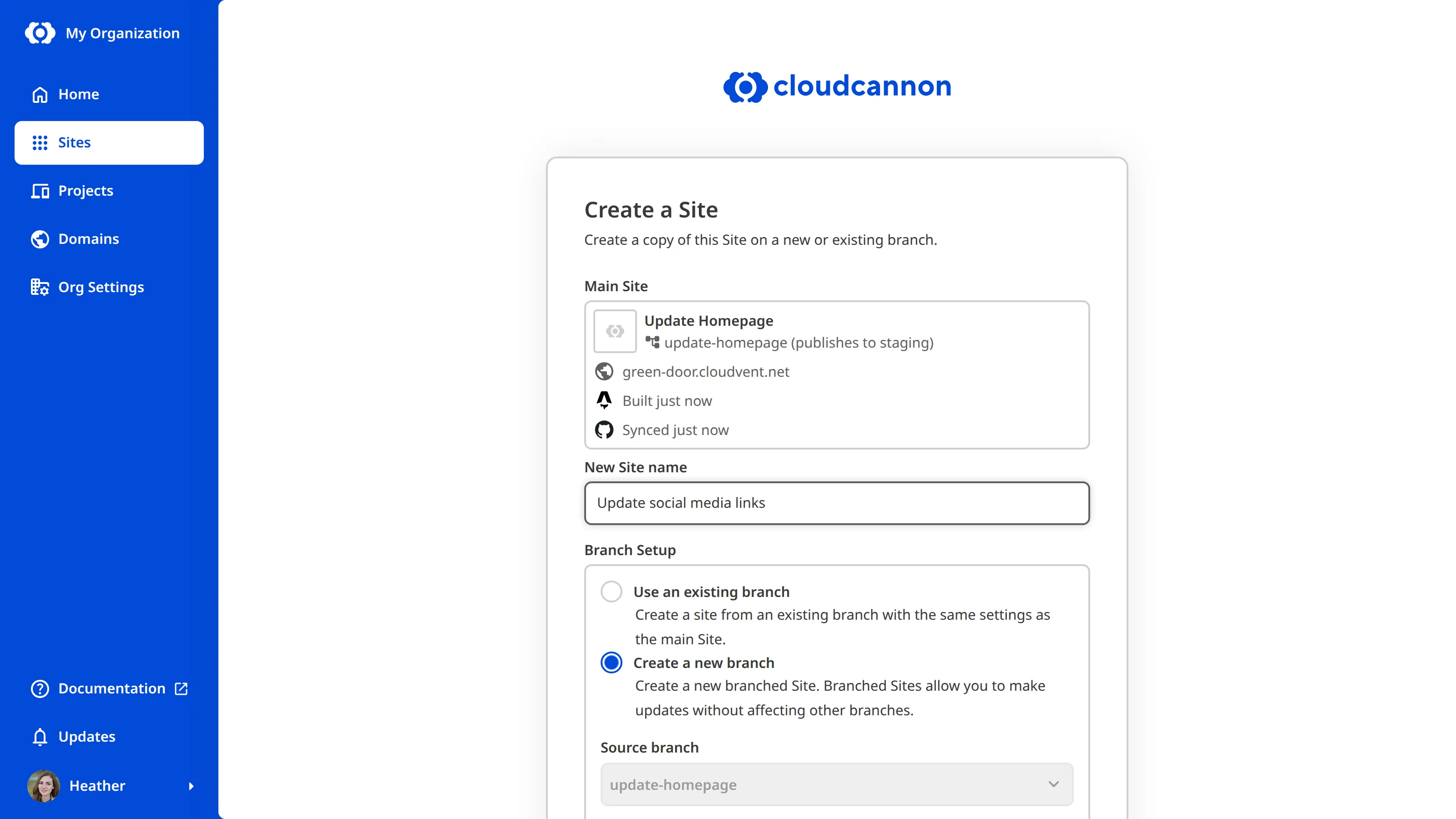
---
---
title: Add a team member to Site Sharing
description: Learn how to add team members to Site Sharing.
url: https://cloudcannon.com/documentation/developer-articles/add-a-team-member-to-site-sharing/
content_type: developer article
last_modified: 2026-07-31
---
**Site Sharing** allows you to manage which team members have access to your **Site** and control their permissions. You can add existing team members from your **Organization** or invite new users by email.
To add a team member to your *Site*:
1. Navigate to the *Site Sharing* page under *Site Settings* in the *App Sidebar*.
2. Click the *+ Add members* button. CloudCannon will open the *Invite team members to your Site* modal.
3. Enter the name of the team members you want to add to this *Site*. You can also enter the email addresses of new users you want to invite to your *Organization*.
4. Select the **Permission Group** to which you want to add these team members.
5. Click the *Add members* button.
CloudCannon will add the selected team members to your *Site* with the chosen *Permission Group*.
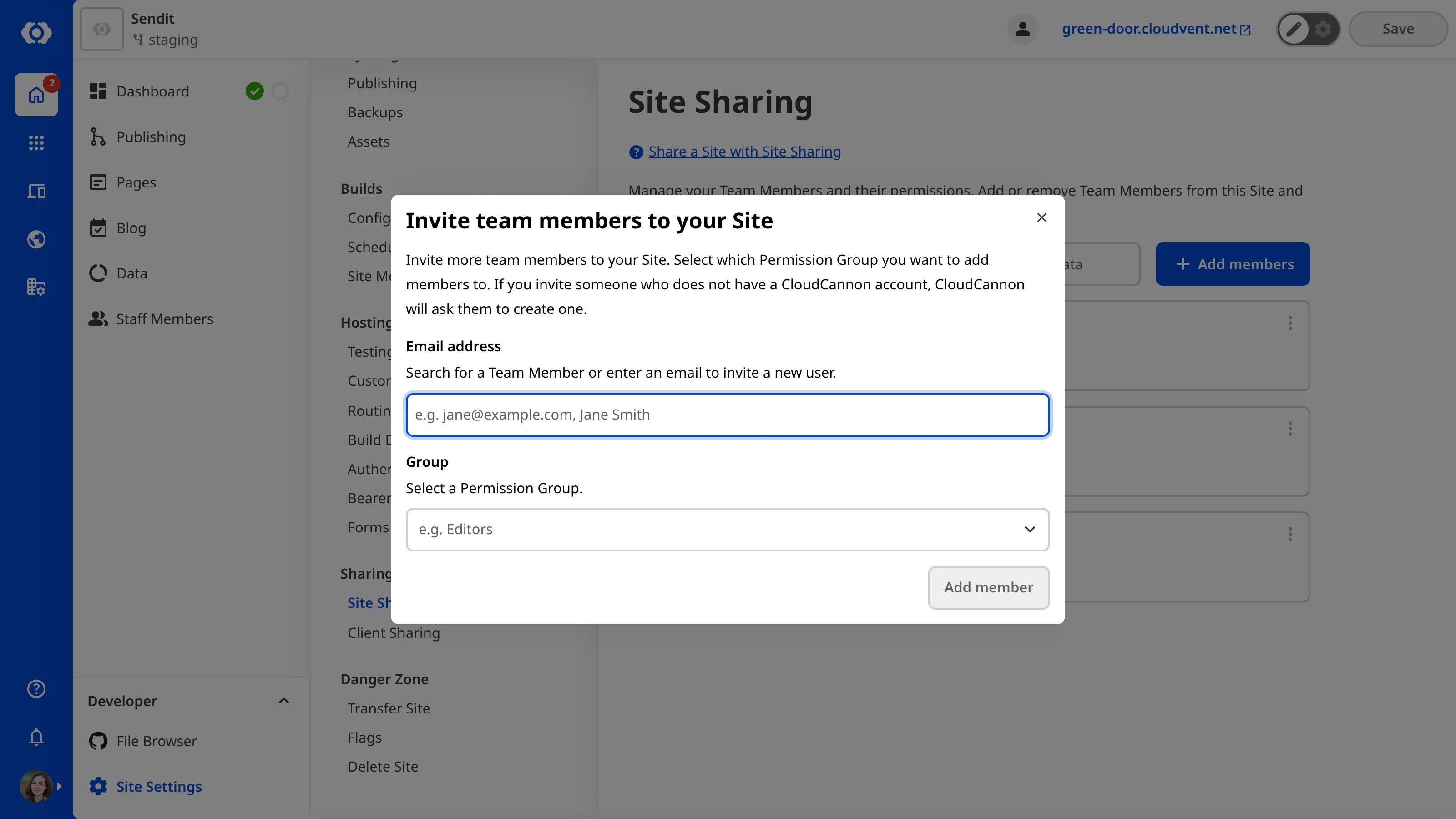
---
---
title: Add an auto-generated SSL certificate
description: Learn how to enable an auto-generated SSL certificate for your site, update DNS records, and redirect HTTP links to HTTPS.
url: https://cloudcannon.com/documentation/developer-articles/add-an-auto-generated-ssl-certificate/
content_type: developer article
last_modified: 2026-06-23
---
> Managing your SSL certificate on CloudCannon requires you to host your **Site** through CloudCannon. If you are hosting your *Site* through an external service, please review their documentation on SSL certification.
By default, CloudCannon will automatically generate an SSL certificate for all *Sites* hosted on CloudCannon through ZeroSSL and Cloudflare. This can be a wildcard SSL certificate or a single-domain SSL certificate. These certificates renew every 90 days automatically, so your *Site* is never insecure.
- **Wildcard SSL certificate** — A certificate that protects a single domain and all its subdomains (e.g., example.com and its subdomains blog.example.com, support.example.com, app.example.com, etc.).
- **Single-domain SSL certificate** — A certificate that protects a single domain. This is useful if you only have one CloudCannon *Site*, which is hosted on a subdomain.
> Wildcard SSL certificates are not available for [Sites hosted on a subdomain](/documentation/developer-articles/add-a-custom-domain-to-your-site/). If you have a CloudCannon *Site* hosted on your base domain, add a wildcard SSL certificate to that *Site*.
After adding an auto-generated SSL certificate, CloudCannon serves your *Site* over HTTPS. You can also redirect any users trying to access your website through the HTTP URL to the correct HTTPS URL.
Before you add an SSL certificate to your *Site*, you must [add a Custom Domain](/documentation/developer-articles/add-a-custom-domain-to-your-site/) to your **Organization**.
> If you have recently added your **Custom Domain** to your *Site*, CloudCannon may need a few minutes to fetch your domain details before you can add an SSL certificate. If this process takes more than a few minutes, please contact our friendly [support team](https://cloudcannon.com/support/).
To add an auto-generated SSL certificate to your *Site*:
1. Navigate to the *Domains Browser* by clicking *Domains* in the *App Sidebar*.
2. Select the domain to which you want to add a certificate.
3. Under the *Subdomains* heading, click the card for the subdomain to which you want to add the certificate.
4. Click the *Configure* button under the *SSL* heading. CloudCannon will open the *Configure SSL* modal.
5. Select a version number from the *Minimum TLS Version* dropdown.
6. Select the *DNS Text Record* option from the *Validation Method* dropdown.
7. (Optional) If you are adding an SSL certificate to a *Site* hosted on your base domain, ensure the *Generate a wildcard certificate to enable SSL on *example.com* checkbox is ticked. This option is not available for *Sites* hosted on a subdomain.
8. Click the *Update SSL* button.
CloudCannon will add an auto-generated SSL certificate to your domain.
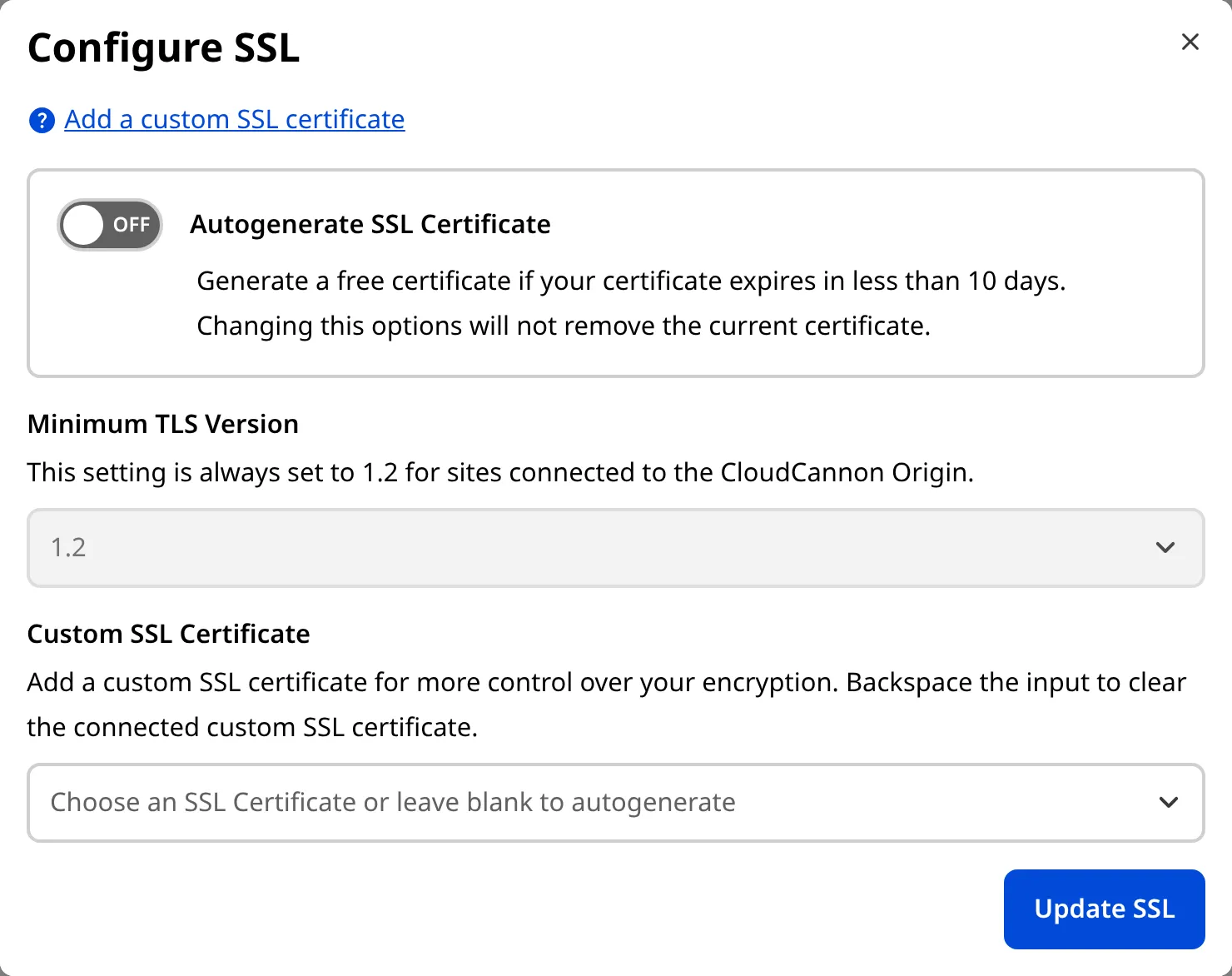
To switch between a wildcard SSL certificate and a single domain SSL, untick the *Generate a wildcard certificate to enable SSL on *example.com* checkbox and click the *Update SSL* button.
## Add TXT DNS records
> This step is only required if you are using an [external DNS provider](/documentation/developer-articles/configure-external-dns/) and a CloudCannon auto-generated SSL certificate.
[TXT record validation](/documentation/developer-articles/what-is-an-ssl-certificate/#validation-method) is a method of authenticating ownership of your domain, so unauthorized individuals cannot add an SSL certificate to your domain.
**DNS** TXT Records demonstrate control over a domain, as only authorized individuals should be able to update the records stored by your DNS provider. If you are using [CloudCannon DNS](/documentation/developer-articles/configure-cloudcannon-dns/), you do not need to add a TXT record, as CloudCannon will handle validation for you. If you are using an [external DNS provider](/documentation/developer-articles/configure-external-dns/), you will need to add the two TXT records provided by CloudCannon to your DNS provider.
To use TXT record validation through an external DNS provider:
1. Navigate to the *Domains Browser* by clicking *Domains* in the *App Sidebar*.
2. Select the domain for which you want to add TXT records.
3. Under the *Subdomains* heading, click the card for the subdomain to which the SSL certificate applies.
4. Copy the two TXT records provided by CloudCannon.
5. Log in to your third-party DNS provider.
6. Add two TXT records to your DNS provider.
CloudCannon will validate your SSL certificate once the new DNS records propagate from your DNS provider. This could take up to 24 hours.
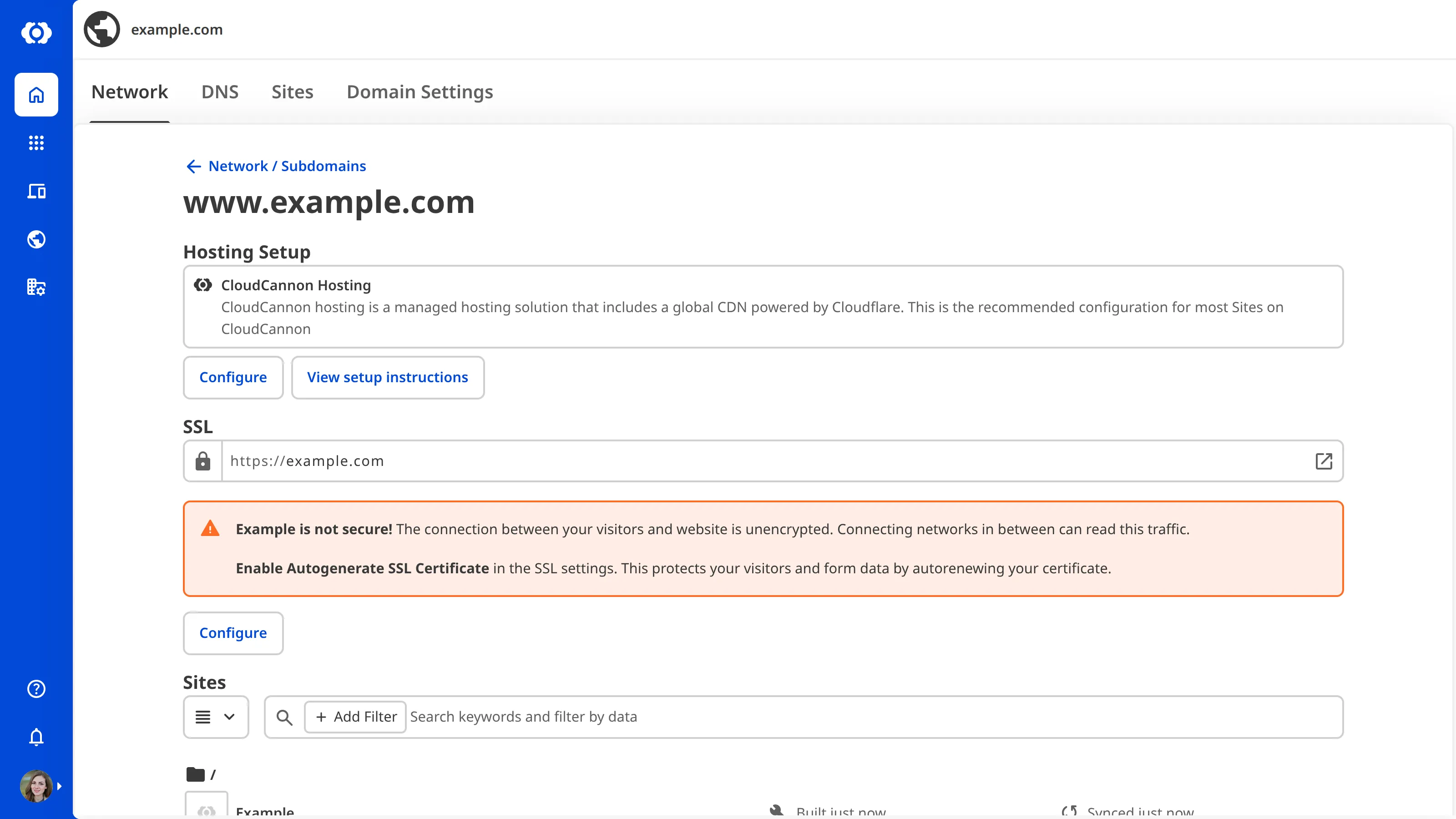
## Redirect HTTP to HTTPS
Once your SSL certificate is enabled, users can visit your *Site* on the more secure [HTTPS](/documentation/developer-articles/what-is-an-ssl-certificate/#http-vs-https) URL. CloudCannon will redirect any users who request the **HTTP** URL. For more information on redirects, please read our documentation on [configuring HTTP redirects](/documentation/developer-articles/configure-http-redirects/).
---
---
title: Add Files with Direct Upload
description: Need to test a site without Syncing? Learn how to directly upload files your source files.
url: https://cloudcannon.com/documentation/developer-articles/create-a-site-with-direct-upload/
content_type: developer article
last_modified: 2026-03-29
---
Uploading files through a web browser is a quick way to get a website live on CloudCannon.
When creating a new site:
1. Select **Upload a folder** or **Upload a zip file**
2. Click on **Select your folder** or **Select your zip file**
3. Click on **Sync Files**

> CloudCannon supports any file type uploaded or synced from a storage provider. The maximum size per file is 25 MB.
To upload files from the *File Browser*:
1. Open the *Add Files* menu
2. Select **Upload files** or **Upload a folder**
Uploading a folder uploads all files inside the folder, rather than the folder itself.

> Alternatively, drag and drop files into the File Browser.
Each file uploads individually to CloudCannon through your web browser.
> If your site is synced with a storage provider, CloudCannon will push the files there as well.
---
---
title: Add SSO/SAML authentication
description: Learn how to add Single Sign-On authentication for your CloudCannon Organization.
url: https://cloudcannon.com/documentation/developer-articles/add-sso-saml-authentication/
content_type: developer article
last_modified: 2026-06-24
---
> **This feature is available on our [Enterprise plan](https://cloudcannon.com/pricing/).**
>
> Want to chat about whether this feature is right for you? Our support team is always [happy to hear from you](mailto:success@cloudcannon.com?subject=A%20question%20about%20SSO%2FSAML).
To set up [SSO/SAML](/documentation/developer-articles/what-is-sso-saml/), you will need to copy data from CloudCannon to your Identity Provider and vice versa.
You must also identify which [Permission Group](/documentation/user-articles/what-are-permission-groups/) for new team members should be added to. This can be a [default](/documentation/user-articles/what-are-default-permission-groups/) or [Custom Permission Group](/documentation/developer-articles/what-are-custom-permission-groups/). CloudCannon will add new team members to this Permission Group if they join your Organization through SSO login rather than the CloudCannon email invitation link.
> SAML can be tricky to configure. If you need assistance setting-up SSO/SAML, please don’t hesitate to contact our [support team](https://cloudcannon.com/support/).
## Configure your Identity Provider
To configure your Identity Provider software:
1. Navigate to the *Single Sign-On* page under *Org settings*.
2. Copy the *Login URL* and *Consume URL (SSO URL)* links from CloudCannon and enter them into your Identity Provider.
3. Your Identity Provider will provide you with the details for *SAML 2.0 Endpoint (HTTP)*, *Issuer Suffix* (must begin with “cloudcannon.com/”), *Name ID Format*, *Authn Context*, and *X.509 Certificate*. Copy these details or download the XML file provided.
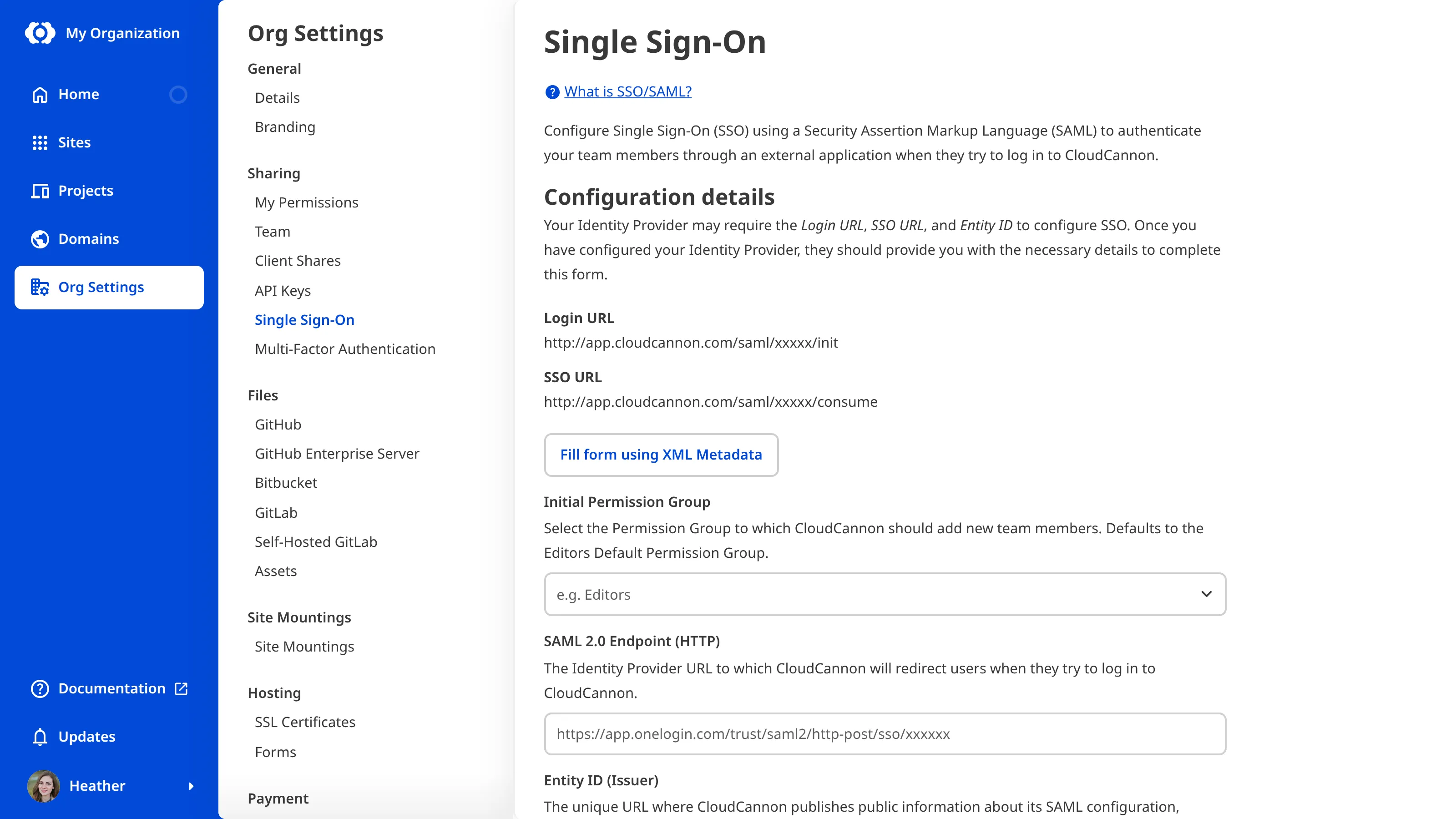
## Configure SAML
To configure SAML:
1. Navigate to the *Single Sign-On* page under *Org settings*.
2. Select the initial Permission Group for team members joining your Organization through SSO.
3. Enter the details for *SAML 2.0 Endpoint (HTTP)*, *Issuer Suffix* (must begin with “cloudcannon.com/”), *Name ID Format*, *Authn Context*, and *X.509 Certificate*. Alternatively, click the *Fill form using XML Metadata* button and upload your XML file.
4. Click the *Add Single Sign-On* button.
CloudCannon will provide additional details once you have set up SAML. Your identity provider may require these details.
---
---
title: Adjusting the uploads path
description: Learn how to configure where CloudCannon will upload new assets and define the default browser location for selecting existing files.
url: https://cloudcannon.com/documentation/developer-articles/adjusting-the-uploads-path/
content_type: developer article
last_modified: 2026-05-12
---
Upload paths control the location that new asset files are uploaded to. You can configure your upload paths using these options:
**`paths.dam_uploads`** string
This key defines the path for the default location of newly uploaded [DAM](/documentation/articles/introduction-to-assets-and-dams/)
files.
You can use [dynamic placeholders](/documentation/articles/configure-your-template-strings/) for `uploads` and `dam_uploads`.
[Full reference](/documentation/developer-reference/configuration-file/types/paths/dam_uploads/)
**`paths.dam_uploads_filename`** string
This key defines the path for the name of the uploaded file, when uploading [DAM](/documentation/articles/introduction-to-assets-and-dams/) files.
[Full reference](/documentation/developer-reference/configuration-file/types/paths/dam_uploads_filename/)
**`paths.static`** string
This key defines the path for the location of statically copied assets.
[Full reference](/documentation/developer-reference/configuration-file/types/paths/static/)
**`paths.uploads`** string
This key defines the paths for the default location of newly uploaded site files.
You can use [dynamic placeholders](/documentation/articles/configure-your-template-strings/) for `uploads` and `dam_uploads`.
**Default:** `uploads`
[Full reference](/documentation/developer-reference/configuration-file/types/paths/uploads/)
**`paths.uploads_filename`** string
This key defines the path for the name of the uploaded file.
[Full reference](/documentation/developer-reference/configuration-file/types/paths/uploads_filename/)
**`paths.uploads_use_relative_path`** boolean
This key toggles whether CloudCannon will use relative paths instead of absolute paths for uploaded files.
Setting this key to `true` will make CloudCannon use relative paths for uploaded files, which are relative to the file being edited rather than the repository root.
**Default:** `false`
[Full reference](/documentation/developer-reference/configuration-file/types/paths/uploads_use_relative_path/)
Uploads paths are configured alongside other paths in a number of places:
- Globally in the [CloudCannon Configuration file](/documentation/developer-articles/what-is-the-cloudcannon-configuration-file/).
- Per Content Editor or Editable Region with [editables configuration options](/documentation/developer-articles/define-editable-regions-in-your-html/#options).
- Per input with inputs configuration:
- [File input options](/documentation/user-articles/what-is-a-file-input/#options).
- [URL input options](/documentation/user-articles/what-is-a-url-input/#options).
- [Rich Text input options](/documentation/user-articles/what-is-a-rich-text-input/#options).
Here's an example for a fixed path:
```yaml
paths:
uploads: assets/uploads
dam_uploads: raw
```
Here's an example for a path that changes depending on where new assets files are uploaded:
```yaml
paths:
uploads: static/assets/[collection]/{title|slugify}
dam_uploads: raw/{date|year}-{date|month}-{date|day}
```
> The uploads path also defines the default location when selecting existing files.
## Placeholders
Uploads paths have a number of placeholders available, depending on whether you are configuring the upload directory (with `path.uploads` or `path.dam_uploads`) or the upload filename (with `path.uploads_filename` or `path.dam_uploads_filename`).
### Directory placeholders
There are two types of placeholders: file and data placeholders.
File placeholders are always available, and relate to the file the editor is open on:
- `[collection]` is the collection key the file is assigned to.
- `[path]` is the full path of the file, relative to site source.
- `[base_path]` is the path of the file excluding filename, relative to site source.
- `[slug]` is the filename, excluding extension. Is an empty string if this results in "index".
- `[filename]` is the filename, including extension.
- `[ext]` is the last extension.
- `[relative_path]` is the full path of the file, relative to the collection path.
- `[relative_base_path]` is the path of the file excluding filename, relative to the collection path.
- `[full_slug]` is an alias for `[relative_base_path]/[slug]`.
Data placeholders are populated from front matter or data values in the editor, and support a number of filters:
- `{title}` is the title from inside the file.
- `{id}` is the id from inside the file.
- `{title|lowercase}` is title from inside the file, lower cased.
- `{category|slugify}` is category from inside the file, slugified.
- `{tag|slugify|uppercase}` is tag from inside the file, slugified, then upper cased.
- `{date|year}` is date from inside the file, with the 4-digit year extracted.
- `{date|month}` is date from inside the file, with the 2-digit month extracted.
- `{date|day}` is date from inside the file, with the 2-digit day extracted.
The placeholders are processed when the new asset is added. This means that changes to front matter or data after adding an asset file are not updated for that processed upload path.
### Filename placeholders
- `[asset_filename]` is the full name of uploaded file (e.g. "my-document.pdf").
- `[asset_filename_without_ext]` is filename without any extension (e.g. "my-document").
- `[asset_ext]` is the file's extension without a "." (e.g. "png").
- `[date]`
- `[count]` becomes a hyphen and number if the processed file path clashes with an existing file (e.g. `my-document-1.pdf`)
You can use filters to transform these placeholders. For example `[asset_filename|slugify].[asset_ext]` will convert "My Document.pdf" into "my-document.pdf". You can read more about using placeholders, and see a list of all available filters, [in this article](/documentation/developer-articles/configure-your-template-strings/).
> Placeholders that result in empty values may result in sequential slashes — these are collapsed into one after applying placeholders.
## Migrating from old format
The `uploads_dir` option and legacy placeholders are an old configuration that we have since improved on. These are backwards compatible so there's no need to change anything. If you do want to update, the legacy placeholders and their new equivalents are:
- `:categories` is now `{categories|slugify}`.
- `:title` is now `{title|slugify}`.
- `:slug` is now `{slug}`.
- `:year` is now `{date|year}`.
- `:month` is now `{date|month}`.
- `:day` is now `{date|day}`.
- `:collection` is now `[collection]`.
---
---
title: Allow authenticated users to log out
description: Learn how CloudCannon detects if a user is authenticated and how to configure a logout button on your authenticated pages.
url: https://cloudcannon.com/documentation/developer-articles/allow-authenticated-users-to-log-out/
content_type: developer article
last_modified: 2026-04-11
---
> This feature is only available for Sites [hosted through CloudCannon](/documentation/user-articles/what-is-web-hosting/#hosting-on-cloud-cannon). If you host your Site externally, or use CloudCannon in [Headless Mode](/documentation/developer-articles/what-is-headless-mode/), this feature will not work.
When you [enable password authentication](/documentation/developer-articles/enable-password-authentication/), [enable user account authentication](/documentation/developer-articles/enable-user-account-authentication/), or [enable SAML authentication](/documentation/developer-articles/enable-saml-authentication/), CloudCannon attaches a cookie to the visitor's web browser when they have successfully logged in (i.e., authenticated). CloudCannon uses this cookie to allow access when a user requests an authenticated route.
> No sensitive authentication data is exposed through cookies.
This cookie is removed if a visitor clears their Internet browser cache.
You can allow authenticated users to log out by adding a logout link to your authenticated routes. CloudCannon reserves the `/logout` route on all Sites. The logout URL for your Site will be your domain name followed by `/logout`, even if you serve your Site on a [subdomain](/documentation/developer-articles/add-a-custom-domain-to-your-site/), or [subpath](/documentation/developer-articles/add-a-custom-domain-to-your-site/), CloudCannon w (e.g., `example.com/logout`, `app.example.com/logout`, or `example.com/documentation/logout`).
> CloudCannon reserves the `/logout` URL for all Sites hosted on CloudCannon, even if you do not have a CloudCannon authentication method enabled. You cannot serve any content on this URL.
When a visitor clicks the logout link, CloudCannon removes the cookie and redirects them to your home page.
You can create a logout button on your authenticated pages using the following link:
File: `index.html`
```html
Log out
```
If you use [authenticated routes](/documentation/developer-articles/configure-authenticated-routes/), your public pages may have a mix of authenticated and non-authenticated users. In this case, you can use JavaScript and CSS to show the logout button only to authenticated users.
File: `script.js`
```javascript
var isAuthenticated = document.cookie.indexOf("authenticated=true") >= 0;
if (isAuthenticated) {
document.body.classList.add("authenticated");
}
```
File: `styles.css`
```css
.logout {
display: none;
}
.authenticated .logout {
display: block;
}
```
File: `index.html`
```html
Log out
```
In the above example, the user's browser will add the `authenticated` class to the `body` element of your page if they have the `authenticated` cookie. The CSS file will only display elements with the `.logout` class if nested within an element with the `.authenticated` class.
---
---
title: Authenticate your Git provider
description: Learn how to authenticate a Git provider during Site creation or through your Org Settings.
url: https://cloudcannon.com/documentation/developer-articles/authenticate-your-git-provider/
content_type: developer article
last_modified: 2026-06-30
---
> **Permissions required**
>
> Members of the Owners or Developers [Default Permission Groups](/documentation/user-articles/what-are-default-permission-groups/), or [Custom Permission Groups](/documentation/developer-articles/what-are-custom-permission-groups/) with the `org:settings:git:provider` permission, can manage which Git providers are connected to an Organization.
For CloudCannon to sync your files from a Git repository, you must give it permission to access your Git provider. CloudCannon supports [GitHub](/documentation/developer-articles/connecting-a-github-repository-as-your-source/), [GitLab](/documentation/developer-articles/connecting-a-gitlab-respository-as-your-source/), or [Bitbucket](/documentation/developer-articles/connecting-a-bitbucket-respository-as-your-source/). You only need to authenticate your Git provider once, and you can authenticate multiple Git providers on an account (but not multiple accounts on the same provider).
There are two ways to authenticate a Git provider: when you create a new *Site*, and through your *Org Settings* page.
## Authenticate during *Site* creation
To authenticate a Git provider during *Site* creation:
1. Click the *Sites* button in the *App Sidebar*. CloudCannon will open the *Sites Browser*.
2. Click the *Create a Site* button. CloudCannon will open the *Create a Site* page.
3. Select an unauthenticated Git provider using the *File source* dropdown. CloudCannon will show you the *Authenticate* button. Authenticated providers have a green shield icon next to the option.
4. Click the *Authenticate* button and follow your Git provider's instructions to authenticate access.
5. Return to the *Create a Site* page on CloudCannon and continue following the prompts to create a *Site*.
Your Git provider is now authenticated, and CloudCannon will display all repositories available through that provider in the *Repository* dropdown.
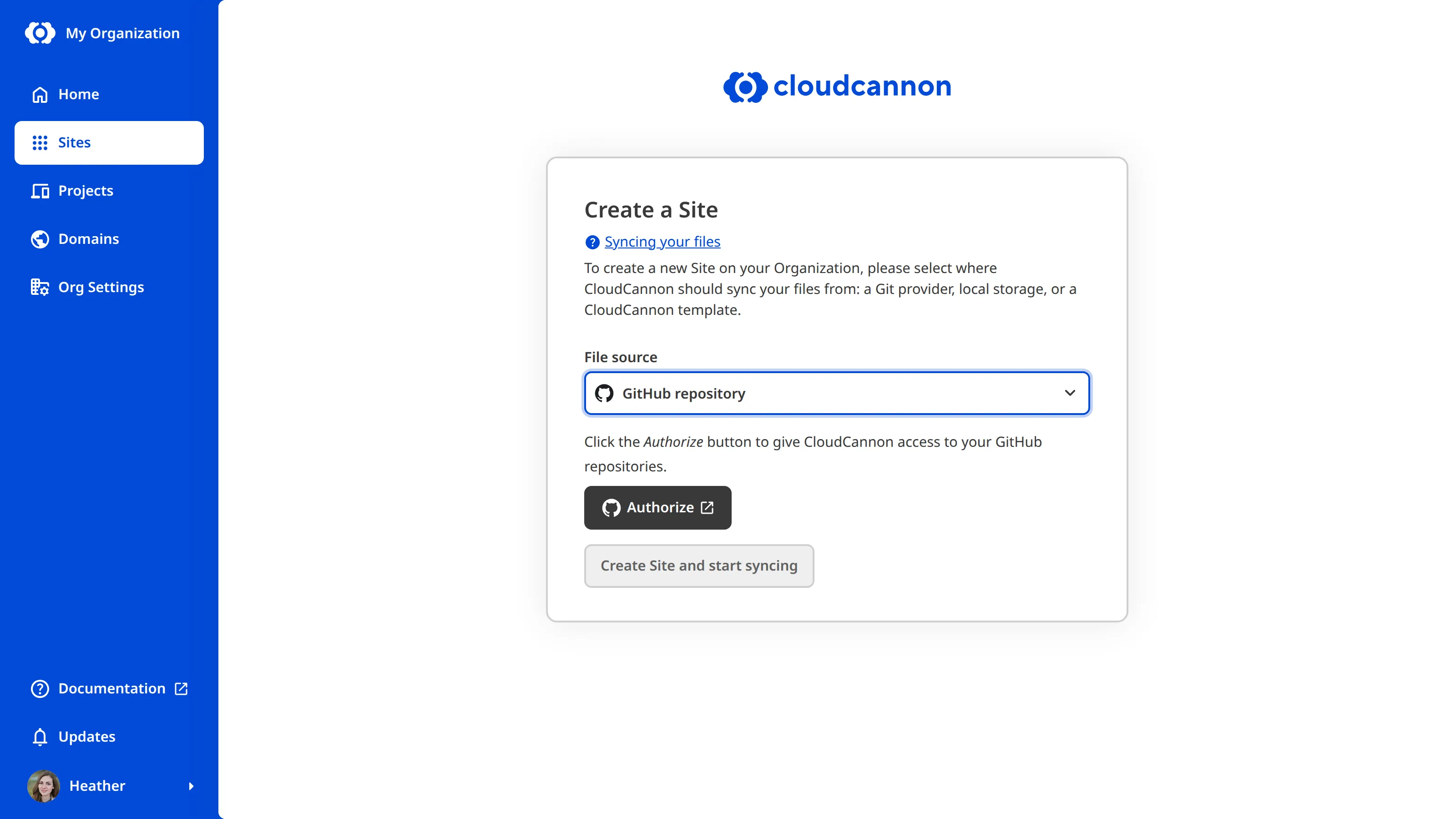
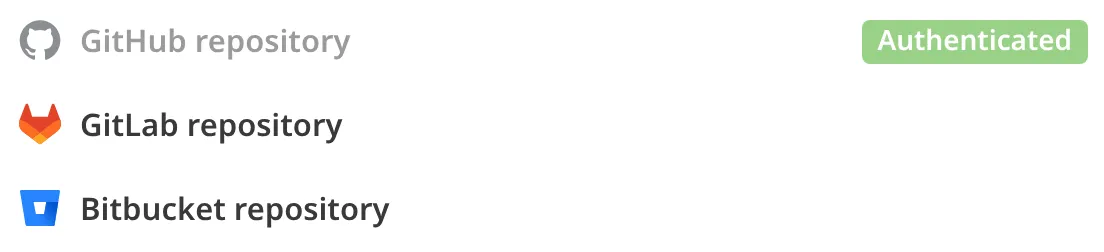
## Authenticate in your *Org Settings*
To authenticate a Git provider through your *Org Settings*:
1. Click the *Org Settings* button in the *App Sidebar*. CloudCannon will open the *Details* page.
2. Navigate to the *GitHub*, *Bitbucket*, or *GitLab* page under the *Files* heading, depending on which provider you want to authenticate.
3. Click the *Authenticate* button and follow your Git provider's instructions to authenticate access.
Your Git provider is now authenticated.
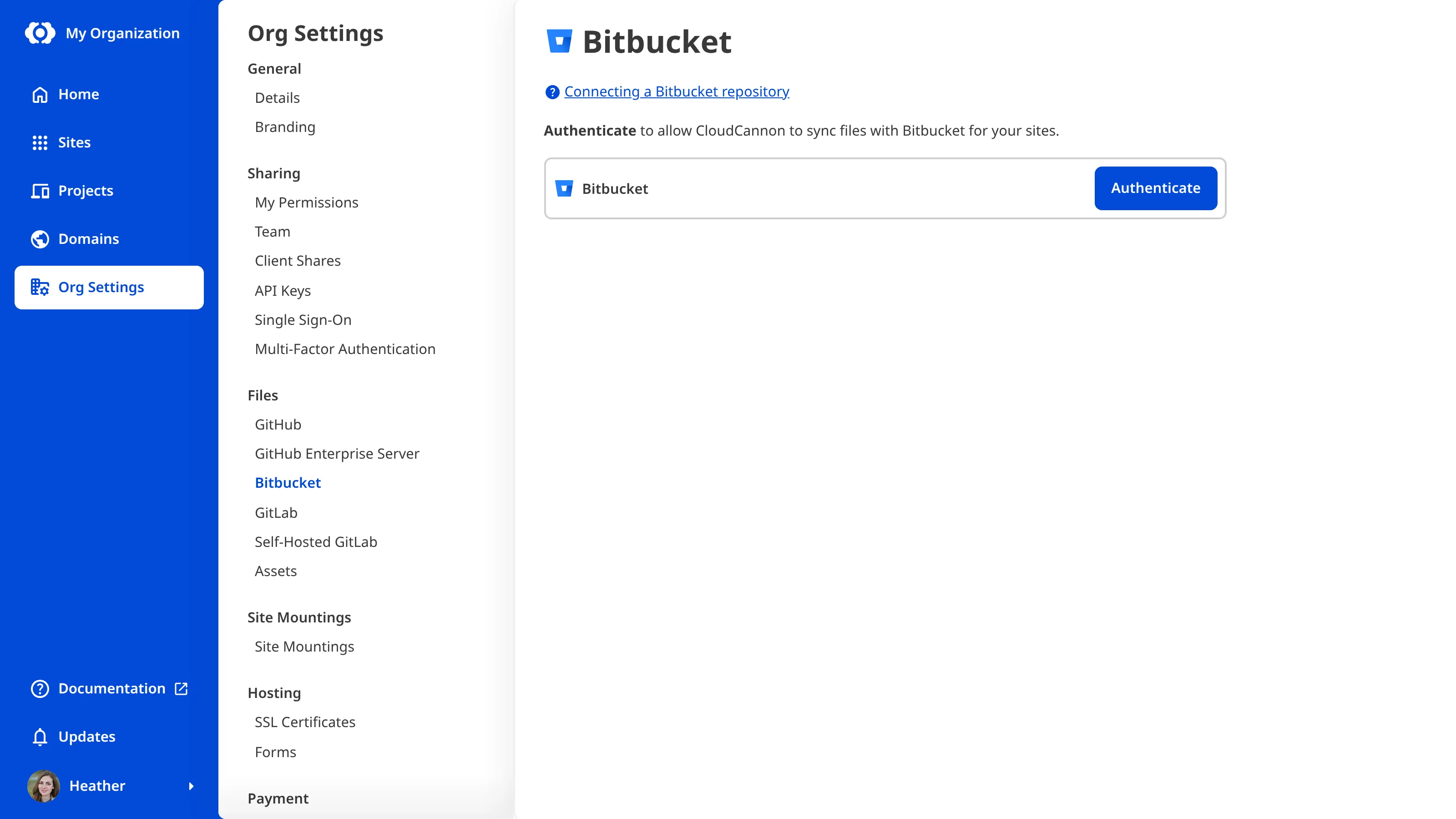
---
---
title: Best practice for splitting your Configuration File
description: Learn about the best practices for splitting your Configuration File.
url: https://cloudcannon.com/documentation/developer-articles/best-practice-for-splitting-your-configuration-file/
content_type: developer article
last_modified: 2026-02-10
---
It is important to find the right balance between organization and maintainability when [splitting your *Site* configuration](/documentation/developer-articles/split-your-configuration-file/) across multiple *Configuration Files*. If you split your configuration too granularly, finding a specific configuration can be as difficult as if it were all in the same file.
When you split your configuration, we recommend starting with a single section (e.g., one *Collection* under `collections_config` or your *Site*-scope Inputs under `_inputs`) and testing that the configuration behaves as expected before moving on to other sections.
Let's walk through a list of best practices to help you split your configuration. All these examples are optional, but might help you determine the right balance for splitting your *Site* configuration.
## Create a dedicated *Configuration File* for each *Collection*
If you have many *Collections* on your *Site*, scrolling through all your configuration to find the right one is not efficient. In this case, it might be easier to create a dedicated *Configuration File* for each *Collection*, rather than list each one in your main *CloudCannon Configuration File*.
In this example, we have two *Collections*: Pages and Posts.
File: `cloudcannon.config.yml`
```YAML
collections_config:
pages:
path: content
icon: wysiwyg
posts:
path: content/posts
icon: event
preview:
text:
- key: title
subtext:
- key: author
metadata:
- icon: event
text:
- template: Published on {date|date_long}
```
We can move all the content under each *Collection* key into the dedicated files, `pages.cloudcannon.collections.yml` and `posts.cloudcannon.collections.yml`, in a new folder, `.cloudcannon/collections/`. Then, we can reference all *Collection Configuration Files* in the new folder using the `collections_config_from_glob` key in our main *CloudCannon Configuration File.*
File: `cloudcannon.config.yml`
```YAML
collections_config_from_glob:
- '/.cloudcannon/collections/*.cloudcannon.collections.yml'
```
File: `pages.cloudcannon.collections.yml`
```YAML
pages:
path: content
icon: wysiwyg
```
File: `posts.cloudcannon.collections.yml`
```YAML
posts:
path: content/posts
icon: event
preview:
text:
- key: title
subtext:
- key: author
metadata:
- icon: event
text:
- template: Published on {date|date_long}
```
## Create chains of *Configuration Files*
When you split your *Site* configuration across multiple *Configuration Files*, your main *Configuration File* will point to other *Configuration Files* on your *Site* using `*_from_glob` keys.
However, you can also use `*_from_glob` key in any other *Configuration File*, allowing you to create chains of configuration across several files. As long as every *Configuration File* ultimately connects back to your main *Configuration File*, CloudCannon will be able to merge your configuration.
File: `cloudcannon.config.yml`
```YAML
collections_config_from_glob___1___:
- '/.cloudcannon/collections/*.cloudcannon.collections.yml'
```
File: `/.cloudcannon/collections/posts.cloudcannon.collections.yml`
```YAML
posts:
path: content/posts
icon: event
schemas_from_glob:
- '/.cloudcannon/schemas/blogPost.cloudcannon.schemas.yml'
- '/.cloudcannon/schemas/companyAnnouncement.cloudcannon.schemas.yml'
- '/.cloudcannon/schemas/caseStudy.cloudcannon.schemas.yml'
```
## Use negative globs for finer control
The value of each `*_from_glob` key is an array of strings, where each string is a glob pattern matching specific files on your *Site*. You can use the array to specify multiple files. However, if you want to match all files with a few exceptions, it is more efficient to use a negative glob.
In this example, we have several *Schema Configuration Files* in the `.cloudcannon/schemas/` folder (e.g., Announcement, Customer Story, Blog, Pages). We want to use most, but not all, of these *Schemas* in our Posts *Collection*.
File: `/.cloudcannon/collections/posts.cloudcannon.collections.yml`
```YAML
posts:
path: content/posts
icon: event
schemas_from_glob:
- '/.cloudcannon/schemas/*.cloudcannon.schemas.yml'
- '!/.cloudcannon/schemas/pages.cloudcannon.schemas.yml'
```
We can tell CloudCannon to use all *Schema Configuration Files* in this folder using the `*.cloudcannon.schemas.yml` glob, but exclude `pages.cloudcannon.schemas.yml` by prefixing the string with an `!` character to create a negative glob.
## Define related configuration in the same file
Your *Configuration Files* can contain multiple entries for object configuration keys, allowing you to store related configuration together in the same file.
File: `cloudcannon.config.yml`
```YAML
collections_config:
posts:
path: content/posts
icon: event
inputs_from_glob:
- '/.cloudcannon/inputs/seo.cloudcannon.inputs.yml'
- '/.cloudcannon/inputs/blog-details.cloudcannon.inputs.yml'
```
File: `/.cloudcannon/inputs/seo.cloudcannon.inputs.yml`
```YAML
seo_title:
type: text
options:
required: true
max_length: 50
seo_description:
type: textarea
options:
show_count: true
required: true
max_length: 125
seo_image:
type: image
options:
path:
uploads: images
accepts_mime_types:
- image/png
- image/jpeg
required: true
pattern: (?i)\.(jpe?g|png)$
pattern_message: Please select a JPG or PNG image file
```
## Use split and inline configuration in the same file
You don't have to split all your configuration into separate files. Instead, you can use inline configuration and reference other *Configuration Files* using `*_from_glob` keys simultaneously.
File: `cloudcannon.config.yml`
```YAML
_inputs_from_glob:
- '/.cloudcannon/inputs/seo.cloudcannon.inputs.yml'
- '/.cloudcannon/inputs/blog-details.cloudcannon.inputs.yml'
_inputs:
authors:
type: multiselect
options:
values: collections.authors
```
## Configuring Structures inside Inputs
It is important to note the correct places to use `_structures_from_glob` and `values_from_glob`. CloudCannon expects `.cloudcannon.structures.yml` *Configuration Files* need to have the *Structure* key at the root of the file, while `.cloudcannon.structure-value.yml` *Configuration Files* only contain the keys for a single array item.
Please use one of the following configurations:
File: `cloudcannon.config.yml`
```YAML
_structures:
staffTypes:
style: modal
values:
- label: Employee
value:
name:
job_description:
profile_picture:
_inputs:
staff:
type: array
options:
structures: _structures.staffTypes
```
File: `cloudcannon.config.yml`
```YAML
_structures_from_glob:
- /.cloudcannon/structures/staffTypes.cloudcannon.structure.yml
_inputs:
staff:
type: array
options:
structures: _structures.staffTypes
```
File: `cloudcannon.config.yml`
```YAML
_inputs:
staff:
type: array
options:
structures:
values_from_glob:
- /.cloudcannon/structures/staffTypes.cloudcannon.structure-value.yml
```
> The following configuration is incorrect, as the `_structures` key is not the same as the `_inputs.*.options.structures` key:
>
> File: `cloudcannon.config.yml`
>
> ```YAML
>
> _inputs:
> staff:
> type: array
> options:
> _structures_from_glob:
> - /.cloudcannon/structures/staffTypes.cloudcannon.structure.yml
>
> ```
---
---
title: Best practices for Custom Permission Groups
description: Learn about common pitfalls and best practices for creating Custom Permission Groups.
url: https://cloudcannon.com/documentation/developer-articles/best-practices-for-custom-permission-groups/
content_type: developer article
last_modified: 2026-09-03
---
> **This feature is available on our [Team and Enterprise plans](https://cloudcannon.com/pricing/).**
>
> Want to chat about whether this feature is right for you? Our support team is always [happy to hear from you](mailto:success@cloudcannon.com?subject=A%20question%20about%20custom%20Permission%20Groups).
[Custom Permission Groups](/documentation/developer-articles/what-are-custom-permission-groups/) give you fine-grained control over the permissions in your Organizations. When [creating a Custom Permission Group](/documentation/developer-articles/create-a-custom-permission-group/), there are some common pitfalls you can fall into. In this article, we will go over a few examples.
## Resources
A resource is something you can interact with in CloudCannon, such as an individual Site, Pull Request settings, or billing information. Each resource has one or more associated actions: Read, Write, or Create. In CloudCannon, you select which resources you want members to have access to using the resource permission tree.
### Minimum set of resources required to view a Site in CloudCannon
There is a minimum set of resources required to view a Site in CloudCannon.
Groups will need a permission containing the following resources for each Site you want members to access: `site:details:read`, `site:build:details:read`, and `site:sync:details:read`. If you have connected your Site to a DAM, you will also need `site:dam:read`.
> **Why is there not a single resource for viewing a Site in CloudCannon?**
>
> We separated the resources required to view a Site to support API access. The CloudCannon API can access any subset of resources without loading everything. For every available endpoint, see the [API reference](/documentation/developer-reference/api/).
## File globs
A file glob is a pattern used to identify matching files. File globs look similar to a file path with a mix of literal text and special characters such as `*` and `{ }`. In CloudCannon, you can specify read or write access to specific file globs in a Custom Permission Group for fine-grain control over reading and editing site files.
> If you need assistance setting-up file globs in your Organization, our [support team](https://cloudcannon.com/support/) is always happy to help.
Here are some common pitfalls when creating file globs.
### Adding a *Permission* file glob narrows access to matching files
Adding a file glob to a *Permission* narrows it to files that match the glob pattern(s), excluding all others. Because of this, you can unintentionally remove access to files when you begin adding file globs to a *Permission*.
By selecting `site:file:read` or `site:file:write` in the resource tree and specifying no file globs, you allow the members of a *Permission Group* to read or write all files within your permission scope. However, as soon as you add one file glob to the *Permission* (or *Exception*), CloudCannon will change which files they can access. For *Permissions*, CloudCannon will limit members of a *Permission Group* to only files that match the glob pattern(s). For *Exceptions*, CloudCannon allows members of a *Permission Group* to access all files except those that match the specified glob pattern(s). When used together, *Permission* file globs provide access to specific files, to the exclusion of all others, and *Exception* file globs limit access within the files that match the *Permission* pattern.
Let's walk through an example.
You have a *Custom Permission Group* with the *Permission* `site:file:write`. This allows members of that *Group* to read and write any file on the *Site* (as permission to write implicitly includes permission to read). By adding the `content/**/*` file glob to your *Permission*, members of the *Group* will lose read and write access to any file that is not in the `content` collection. Without permission to read other files, all other collections on your *Site* will not appear in CloudCannon.
To avoid this pitfall, carefully consider what files your Group members need access to and include a file glob for all these files.
### Multiple file globs are necessary to edit a single file
When giving access to a small number of files on your Site, you should consider how many file globs you need to achieve your goal. Some file globs are not immediately obvious but are required for CloudCannon to function as intended.
You should also allow access to:
- The Site icon file.
- The Schemas folder or specific Schema for any files you want Group members to be able to edit or create.
- Any folders in your repository for storing or uploading images and videos.
### Exceptions carve out files without needing a matching permission glob
An exception file glob removes only the files it matches — it does not switch the permission into whitelist mode. So if you select `site:file:read` or `site:file:write` in the permission resource tree (a permission with no file glob, covering every file) and add an exception file glob, members keep access to every file *except* those the exception matches.
For example, a permission with `site:file:write` selected plus an exception for the file glob `secrets/**` lets members edit every file except those under `secrets`.
You do not need to add a `**/*` permission glob for the exception to work — a globless `site:file:read` or `site:file:write` permission already covers all files, and the exception carves out from it. Remember that a read-level exception glob also removes write access to the matching files, while a write-level exception glob leaves read access in place.
### Specifying files but not subfolders
File globs include special characters such as `*` and `{ }`. The `*` character matches any file within a single folder. without crossing folder boundaries, while `/**/` matches any number of folders. When specifying a file, it is important to account for any subfolders in your *Collection*.
For example, the file glob `/posts/*` will match any file located immediately within the root of the “Posts” *Collection*, `/posts/*/*` will match any file located exactly one subfolder deep, and `/posts/**/*` will match any number of subfolders deep in your *Collection*. A glob ending in `/**`, such as `/posts/**`, is equivalent to `/posts/**/*`.
### Adding file globs but forgetting the read permission for your CloudCannon Configuration File
You need permission to read the [CloudCannon Configuration File](/documentation/developer-articles/what-is-the-cloudcannon-configuration-file/) to see *Collections* in your *Site Navigation*. As soon as you add a *Permission* file glob, CloudCannon narrows the generic `site:file:read` or `site:file:write` options to only files that match one of your *Permission* globs. If your globs do not cover the CloudCannon Configuration File, members of your *Custom Permission Groups* will be limited in their ability to use *Sites* on CloudCannon.
---
---
title: Best practices for HTML in rich text
description: Some HTML elements cannot be edited in the rich text editor.
url: https://cloudcannon.com/documentation/developer-articles/best-practices-for-rich-text/
content_type: developer article
last_modified: 2026-06-30
---
You can edit markup content in one of CloudCannon's three [rich text editors](/documentation/developer-articles/what-are-rich-text-editors/): the [Content Editor](/documentation/user-articles/what-is-the-content-editor/), [editable regions](/documentation/developer-articles/define-editable-regions-in-your-html/) in the [Visual Editor](/documentation/user-articles/what-is-the-visual-editor/), or [Rich Text inputs](/documentation/user-articles/what-is-a-rich-text-input/). However, CloudCannon will handle some markup content differently.
CloudCannon uses the following definitions:
- **Rich text content** — any HTML, Markdown, or MDX content you might want to edit in the Content Editor, an editable region in the Visual Editor, or a Rich Text input.
- **Custom markup** — any HTML, Markdown, or MDX structure that cannot be recreated in a rich text editor (e.g., `
` tags or style attributes). This is usually any structure that the *WYSIWYG toolbar* cannot produce.
Editing custom markup in a rich text editor comes with risk. This is because:
- You can unintentionally delete custom markup from your files. CloudCannon cannot render custom markup in the rich text editor; therefore, it would be easy to backspace or accidentally delete your HTML structures. Because the *WYSIWYG toolbar* cannot produce custom markup, it cannot be recreated if you accidentally delete it.
- Some custom markup structures pose a security risk to your Site by enabling cross-site scripting attacks (e.g., `
```
The script on this page will add the current time to the `
` within the editable region. The Visual Editor will recognize this as a change to the content of the editable region and will save it back to the source code, breaking the intended behavior.
#### How to fix
It's important to make sure no dynamic content is being added to an editable region. In this case, we could simply move the "editable" class onto the static text.
```HTML
Welcome. The time is
```
Another solution would be to prevent the script running inside the Visual Editor. See [this article for more information](/documentation/developer-articles/detect-the-visual-editor/) about checking whether a page is being loaded inside CloudCannon.
```HTML
Welcome. The time is
```
---
---
title: Define your data
description: Learn how to define data files or folders to populate your Select and Multiselect inputs.
url: https://cloudcannon.com/documentation/developer-articles/define-your-data/
content_type: developer article
last_modified: 2026-06-30
---
> As of October 2024, this documentation is only applicable to Sites using Unified Configuration.
> For Sites that have not migrated to Unified Configuration, please read the documentation on our [non-unified documentation website](https://non-unified.cloudcannon.com/documentation/developer-articles/define-your-data/).
You can use data files and folders to populate your [Select and Multiselect](/documentation/user-articles/what-is-a-select-input/) inputs. Using a data file or folder to populate your value options is useful when you want your [team members](/documentation/user-articles/what-is-a-team-member/) to be able to edit the available options.
> Data files/folders (i.e., `data_config`) are different to fixed data sets (i.e., `_select_data`).
>
> For more information about fixed data sets, please read our documentation on [Select and Multiselect inputs](/documentation/user-articles/what-is-a-select-input/).
You can define your data files and folder in the [CloudCannon configuration file](/documentation/developer-articles/what-is-the-cloudcannon-configuration-file/) under the `data_config` key.
To define a data file or folder:
1. Navigate to your CloudCannon configuration file.
2. Identify the `data_config` key at the root level of your configuration file, or add it if the key is not present.
3. Enter a key name for your data nested within the `data_config` key.
4. Add the `path` key within your data key and define the filepath to your data file or folder.
5. Save your changes.
Your data file or folder is now available for [Select and Multiselect](/documentation/user-articles/what-is-a-select-input/) inputs configured with this data key.
File: `cloudcannon.config.yml`
```YAML
```
data_config___1___:
authors:
path___2___: data/authors.csv
offices:
path___3___: data/offices
```
**[1]** Configure all data files or folders under the `data_config` key in your [CloudCannon configuration file](/documentation/developer-articles/what-is-the-cloudcannon-configuration-file/).
**[2]** Select and Multiselect inputs which use the `authors` key are populated by the contents of the `authors.csv` file.
**[3]** Select and Multiselect inputs which use the `offices` key are populated by the contents of each file in the `offices` folder.
```
## Options
Your data configuration has the following options available:
**`data_config`** object
This key defines which file or folder data in your Site is available to populate [Select Inputs](/documentation/articles/what-is-a-select-input/).
[Full reference](/documentation/developer-reference/configuration-file/data_config/)
**`data_config.*`** object
This key defines what data sets are available to populate *Select Inputs*.
[Full reference](/documentation/developer-reference/configuration-file/data_config/*/)
**`data_config.*.path`** string — Required
This key defines the path to a file or folder of files containing data.
[Full reference](/documentation/developer-reference/configuration-file/data_config/*/path/)
---
---
title: Defining the same key in multiple Configuration Files
description: Learn how CloudCannon handles configuration for the same key across multiple Configuration Files.
url: https://cloudcannon.com/documentation/developer-articles/defining-the-same-key-in-multiple-configuration-files/
content_type: developer article
last_modified: 2026-06-30
---
When you define a configuration key at the same level of the [configuration cascade](/documentation/developer-articles/using-the-configuration-cascade/) in multiple [CloudCannon Configuration Files](/documentation/developer-articles/what-is-the-cloudcannon-configuration-file/), CloudCannon will preferentially use configuration from the last file in the import order.
CloudCannon uses the [localeCompare()](https://developer.mozilla.org/en-US/docs/Web/JavaScript/Reference/Global_Objects/String/localeCompare) Javascript function when importing definitions for object keys in the main *Configuration File* and other *Configuration Files* referenced by a `*_from_glob` key. Any inline configuration in your *Configuration File* is used first, followed by the imported configuration from other files in alphabetical [Unicode](https://en.wikipedia.org/wiki/List_of_Unicode_characters) order.
Unicode order respects upper and lowercase letters, punctuation, locale-specific rules for special characters, and accented letters, ensuring proper ordering for international filenames.
## Multiple configurations for an array key
When you define multiple values for an array configuration key (e.g., `_structures.*.values`), CloudCannon will not overwrite any array item with another. Instead, array items referenced in another *Configuration File* using a `*_from_glob` key are appended to arrays defined in your main *Configuration File*. The order of array items in the array will follow the import order (i.e., inline configuration first, followed by configuration from other files in Unicode order).
File: `cloudcannon.config.yml`
```YAML
```
_structures:
staff:
style: modal
values_from_glob___1___:
- '/.cloudcannon/boardMember.cloudcannon.structure_value.yml'
values___2___:
- label: Employee
value:
name:
title:
profile_picture:
- label: Manager
value:
name:
title:
profile_picture:
url:
```
**[1]** The main *Configuration File* references another *Configuration File*, `board_member.cloudcannon.structure_value.yml`, using `_structures.staff.values_from_glob`.
**[2]** In the main *Configuration File*, there are two array items in `_structures.staff.values`, "Employee" and "Manager".
```
File: `/components/team/boardMember.cloudcannon.structure-value.yml`
```YAML
```
label___3___: Board
value:
name:
title:
profile_picture:
url:
description:
```
**[2]** In `boardMember.cloudcannon.structure-value.yml`, there is one array item, "Board". CloudCannon will append this value after the inline values defined in the main *Configuration File* as the `boardMember.cloudcannon.structure-value.yml` file is last in the import order (inline values are always first).
```
## Multiple configurations for an object key
When you define multiple values for an object configuration key (e.g., `_inputs`, `collection_config`), CloudCannon will preferentially use the configuration of the from the last file in the import order (i.e., inline configuration first, followed by configuration from other files in Unicode order).
This means, when you define conflicting object keys inline in your main *Configuration File* and in another *Configuration File* referenced by a `*_from_glob` key, CloudCannon will preferentially use the configuration defined outside of the main *Configuration File*.
File: `cloudcannon.config.yml`
```YAML
```
_inputs_from_glob___1___:
- '/.cloudcannon/contact_address.cloudcannon.inputs.yml'
_inputs___2___:
contact_address:
type: url
options:
hide_link_to_address___2___: true
```
**[1]** The main *Configuration File* references another *Configuration File*, `contact_address.cloudcannon.inputs.yml`, using `_inputs_from_glob`.
**[2]** The main *Configuration File* defines the `contact_address` Input inline. CloudCannon will not use this configuration as it is first in the import order.
```
File: `/.cloudcannon/contact_address.cloudcannon.inputs.yml'`
```YAML
```
_inputs:
contact_address:
type: url
options:
hide_link_to_address___3___: false
```
**[3]** The `contact_address.cloudcannon.inputs.yml` file also defines the `contact_address` Input inline. CloudCannon will use this configuration as it is last in the import order.
```
Additionally, if you define a conflicting object key in multiple *Configuration Files* referenced by a `*_from_glob` key, CloudCannon will preferentially use the configuration defined in files later in the import order. The order of files in your `*_from_glob` array does not affect import order.
File: `cloudcannon.config.yml`
```YAML
```
collections_config_from_glob___1___:
- '/.cloudcannon/posts.cloudcannon.collections.yml'
- '/.cloudcannon/blog.cloudcannon.collections.yml'
```
**[1]** The main *Configuration File* references two *Configuration Files* using `collections_config_from_glob`, `posts.cloudcannon.structures.yml` and `blog.cloudcannon.structures.yml`. However, both these *Configuration Files* define the same *Collection*, `content`.
```
File: `/.cloudcannon/posts.cloudcannon.collections.yml`
```YAML
```
content___2___:
path: content
icon: wysiwyg
```
**[2]** The `posts.cloudcannon.structures.yml` defines the `content` *Collection*. CloudCannon will use this configuration as it is last in the import order (`posts` is after `blog` in Unicode order).
```
File: `/.cloudcannon/blog.cloudcannon.collections.yml`
```YAML
```
content___3___:
path: content
icon: post_add
```
**[3]** The `blog.cloudcannon.structures.yml` also defines the `content` *Collection*. CloudCannon will not use this configuration as it is first in the import order (`posts` is after `blog` in Unicode order).
```
---
---
title: Delete a Custom Permission Group
description: Learn how to delete Custom Permission Groups from your Organization.
url: https://cloudcannon.com/documentation/developer-articles/delete-a-custom-permission-group/
content_type: developer article
last_modified: 2026-06-24
---
> **This feature is available on our [Team and Enterprise plans](https://cloudcannon.com/pricing/).**
>
> Want to chat about whether this feature is right for you? Our support team is always [happy to hear from you](mailto:success@cloudcannon.com?subject=A%20question%20about%20custom%20Permission%20Groups).
To delete a custom [Permission Group](/documentation/user-articles/what-are-permission-groups/) from your [Organization](/documentation/user-articles/what-is-an-organization/):
1. Navigate to the *Team* page under *Org settings*.
2. Click on the *Groups* tab.
3. Under the *Groups* tab, click on the Permission Group you want to delete. This will open the *Permission Group* page.
4. Click the *Delete Group* button at the top right of the page.
5. Confirm that you want to delete this Permission Group by double clicking the *Delete Group* button in the confirmation modal.
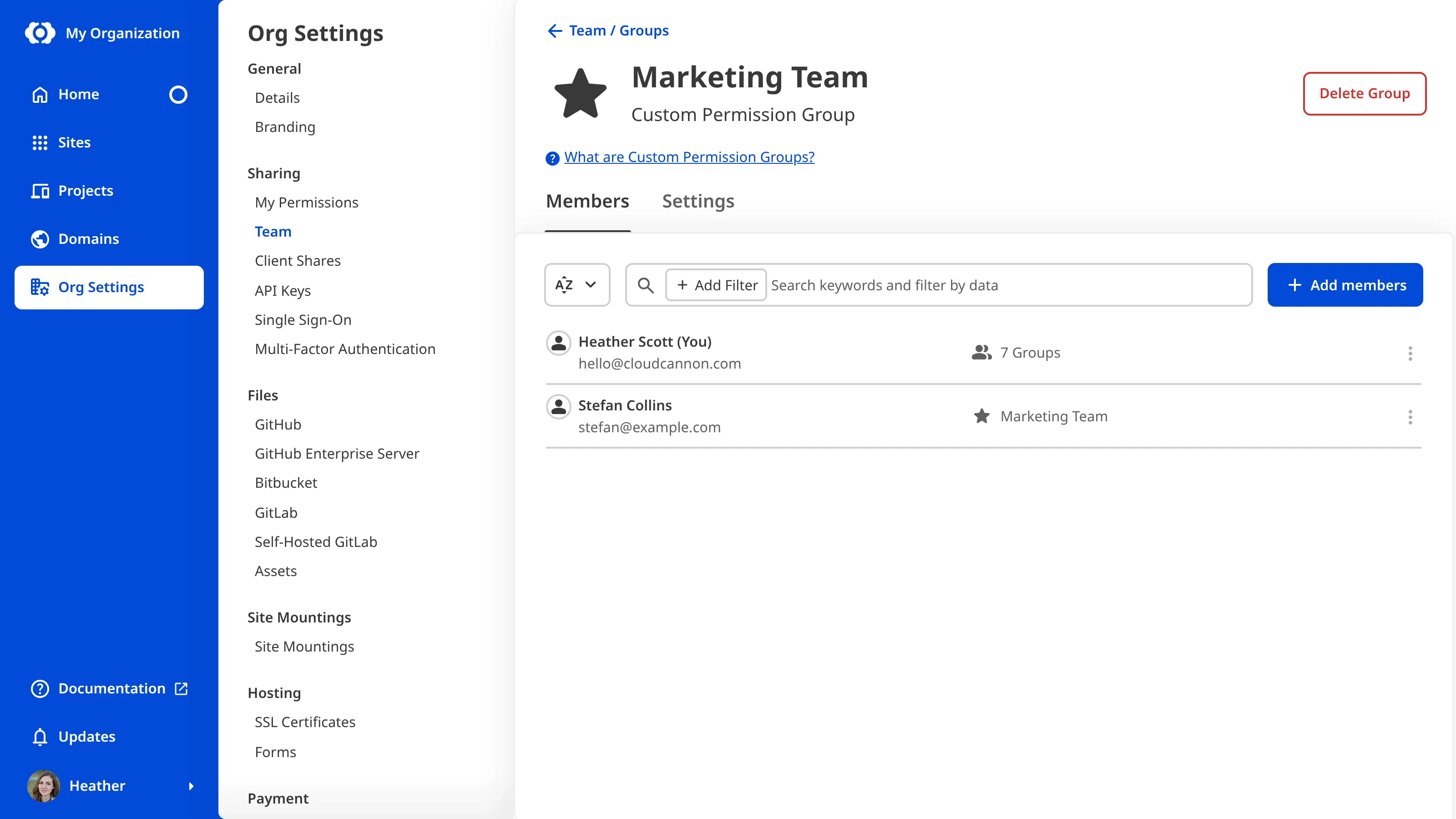
Alternatively, you can delete a Group from the *Team* page by clicking on the *Context Menu* in the top right of a Group card and selecting *Delete Group*.
CloudCannon will delete this Permission Group, and all members will lose any permissions associated with the Group.
> Each team member in your Organization must be a member of at least one Permission Group. If you delete a team member's last Permission Group, this action will also remove them from your Organization.
---
---
title: Delete a Project
description: Learn how to delete a Project in CloudCannon, including what is removed and what is preserved.
url: https://cloudcannon.com/documentation/developer-articles/delete-a-project/
content_type: developer article
last_modified: 2026-06-03
---
> **Permissions required**
>
> Members of the *Owners* [Default Permission Group](/documentation/user-articles/what-are-default-permission-groups/), or [Custom Permission Groups](/documentation/developer-articles/what-are-custom-permission-groups/) with the `project:delete:write` permission, can delete a *Project*.
Deleting a **Project** removes the *Project* from your *Organization*, leaving the connected **Sites** untouched. For more information, please read our documentation on [what a Project is](/documentation/user-articles/what-is-a-project/).
These instructions assume you have already [created a Project](/documentation/developer-articles/create-a-project/).
> Deleting a *Project* cannot be undone.
To delete a *Project*:
1. Click *Projects* in the *App Sidebar*. CloudCannon will open the *Projects Browser*.
2. Select the *Project* you want to delete. CloudCannon will open the *Project Sites Browser*.
3. Click the *Project Settings* tab.
4. Select *Danger* from the *Section Navigation*.
5. Click the *Delete [Project Name]* button. CloudCannon will open the *Please confirm this action* modal.
6. Click the *Confirm* button to delete the *Project*.
CloudCannon will delete your *Project* and return you to the *Projects Browser*.

## What happens when you delete a Project
Deleting a *Project* affects each part of the *Project* differently:
- **Connected *Sites*** — Not deleted. Each *Site* remains in your *Organization* as a standalone *Site* and continues to work as normal.
- ***Branch Defaults*** — Deleted. The default publish mode, authentication, and permission settings configured for the *Project* are removed.
- ***Deploy Preview* settings** — Deleted. The automation settings for *Pull Request* comments and automatically created *Sites* are removed.
- **Related links** — Deleted.
- ***Project* description** — Deleted.
- ***Custom Permission Groups*** — The groups themselves are not deleted, but any permissions scoped to this *Project* are removed from those groups.
---
---
title: Deprecated 301.txt Redirects
description: 301.txt redirects are deprecated, use routing.json to configure this with more options.
url: https://cloudcannon.com/documentation/developer-articles/deprecated-301-redirects/
content_type: developer article
last_modified: 2026-04-11
---
> This feature has been deprecated. It is highly recommended you update to use a [Routing file](/documentation/developer-articles/what-is-routing/).
301 redirects are inside the 301.txt file at the root of your built files. Redirects are specified using the following syntax:
`old-url new-url`
Redirect to external domains and wildcard matching with `*`. Here’s an example file:
File: `301.txt`
```
/about.html /about/
/category/* /new-category
/should-have-been-elsewhere/ https://example.com
```
Redirects will only occur if the redirect-from page/location no longer exists within the site. If the page/location still exists within your site, this will be served instead of performing a redirect.
> You can redirect to, but not from a URL fragment (e.g. #example-heading). The fragment is not passed to the server so, it cannot be processed by the redirect.
## Migrating to a Routing file
301.txt redirects still work to ensure backwards compatibility for older sites. Once a `.cloudcannon/routing.json` file has been added 301.txt will be ignored. 301.txt offers a subset of the options available in the Routing file. This feature will not be receiving any further improvements.
Upgrading will give access to the following improvements:
1. Regex redirects and regex parameters in the location
2. Redirects run before all other behaviour allowing easier configuration
3. More redirect status codes
4. Customise headers on existing routes
5. And more coming soon
For the above example, here is the equivalent:
File: `.cloudcannon/routing.json`
```json
{
"routes": [
{
"from": "/about.html",
"to": "/about/",
"status": 301,
"substitutions": false,
"forced": false
},
{
"from": "/category/*",
"to": "/new-category",
"status": 301,
"substitutions": false,
"forced": false
},
{
"from": "/should-have-been-elsewhere/",
"to": "https://example.com",
"status": 301,
"substitutions": false,
"forced": false
}
]
}
```
---
---
title: Detect the Visual Editor
description: Detect when your site is loaded in CloudCannon's Visual Editor using a CSS class or JavaScript flag.
url: https://cloudcannon.com/documentation/developer-articles/detect-the-visual-editor/
content_type: developer article
last_modified: 2026-08-11
---
> The *Visual Editor API* is designed for experienced CloudCannon developers. If you need help with custom integrations or your CloudCannon setup in general, please contact our friendly [support team](https://cloudcannon.com/support/).
Your website can detect whether it is loaded in a web browser or CloudCannon's **Visual Editor**, allowing you to show or hide content and run custom integrations in the *Visual Editor* but not on your live *Site*. There are two ways to detect if a page is loaded in the *Visual Editor*: a CSS class or a JavaScript flag. You can use either method, or both in conjunction.
This article assumes you have a CloudCannon *Site* with the *Visual Editor* configured. For more information, please read our documentation on [what Visual Editing is](/documentation/developer-articles/what-is-visual-editing/). For a complete list of API objects and methods, please read our reference documentation on the [Visual Editor API](/documentation/developer-reference/visual-editor-api/).
## CSS class
CloudCannon adds the `.cms-editor-active` class to the `` element of your page when the *Visual Editor* opens your website page. You can use this class to show or hide elements with CSS, without any JavaScript, by combining it with another CSS class.
Pick a class name and add it to the HTML elements you want hidden on the live *Site* but visible in the *Visual Editor*. The example below uses `.example-class`.
To use a CSS class to conditionally show elements in the *Visual Editor*:
1. Open your website files in your local development environment.
2. Add the following rules to your CSS file.
File: `styles.css`
```css
.example-class {
display: none;
}
.cms-editor-active .example-class {
display: block;
}
```
Elements with that class will appear in the *Visual Editor* after the iframe loads, and stay hidden on your live *Site*.
## JavaScript flag
When you open a file in the *Visual Editor*, CloudCannon injects a script that sets `window.inEditorMode` to `true` in the document before loading it into the iframe. The flag is available before your own scripts run. Use it for *Visual-Editor*-only logic such as initializing the **Visual Editor API**.
To run code in the *Visual Editor* with a JavaScript flag:
1. Open your website files in your local development environment.
2. Add the following `if` guard around the *Visual-Editor*-only code in your scripts.
File: `script.js`
```javascript
if (window.inEditorMode) {
// Your Visual Editor API code here
}
```
Once you can detect the *Visual Editor*, you can [initialize the Visual Editor API](/documentation/developer-articles/initialize-the-visual-editor-api/) to read and write content, listen for changes, and build custom integrations.
---
---
title: Disable CloudCannon window global in the Visual Editor
description: Learn how to disable the CloudCannon object injected onto the window in the Visual Editor.
url: https://cloudcannon.com/documentation/developer-articles/preventing-the-global-cloudcannon-live-editing-object/
content_type: developer article
last_modified: 2026-04-11
---
CloudCannon injects an object onto the window object when viewed in the Visual Editor. This article will show how to turn off this behaviour. This is helpful if you are using another global variable called `CloudCannon`.
To turn this off, we need to capture the `cloudcannon:load` event and call the `disableGlobalInstall` function.
```javascript
document.addEventListener('cloudcannon:load', function (e) {
const { CloudCannon } = e.details;
CloudCannon.disableGlobalInstall();
});
```
---
---
title: Disable output URL matching for a Collection
description: Learn how to disable output URL matching and turn off the Visual Editor or webpage screenshots for a Collection.
url: https://cloudcannon.com/documentation/developer-articles/disable-output-url-matching-for-a-collection/
content_type: developer article
last_modified: 2026-06-30
---
> **Permissions required**
>
> Members of the Owners, Developers, and Technical Editors [Default Permission Groups](/documentation/articles/what-are-default-permission-groups/), or [Custom Permission Groups](/documentation/articles/what-are-custom-permission-groups/) with the `site:source-editor:write` and `site:file:write` permissions, can edit your *CloudCannon Configuration File*. You can limit permission to specific files using [file globs](/documentation/articles/what-are-custom-permission-groups/#specify-a-file-glob).
An output URL is the URL your SSG outputs your files to during a [Site build](/documentation/articles/what-is-a-site-build/). After each successful build, CloudCannon automatically determines the likely output URL to match an [output file](/documentation/articles/what-is-an-output-file/) to a source file, enabling the [Visual Editor](/documentation/articles/what-is-the-visual-editor/) and screenshots in the *Collection Browser*.
You can disable this behavior for any *Collection* if you do not want CloudCannon to attempt to match output files to source files. If you disable the output URL for a *Collection*, files from that *Collection* will not be visible in the [Visual Editor](/documentation/articles/what-is-the-visual-editor/), or have screenshots in the *Collection Browser*, even if you have a template string configured for the *Collection*.
These instructions assume you want to build your *Site*, and have already grouped your files into *Collections*.
To disable output URL matching for a *Collection*:
1. Navigate to the *Collection* for which you want to disable output URL matching.
2. Turn on *Configuration Mode* using the switch on the right of the *Site Header*. Purple *Edit Configuration* buttons will appear in the *Collection Browser*.
3. Click the *Edit Advanced* in the top right of the *Collection Browser*. CloudCannon will open the *Edit Advanced* data panel.
4. Identify the *Disable URL* checkbox and ensure it is ticked.
5. Save the change to your *Site*.
CloudCannon will stop matching output files to source files, and disable the *Visual Editor* and webpage screenshots for that *Collection*.
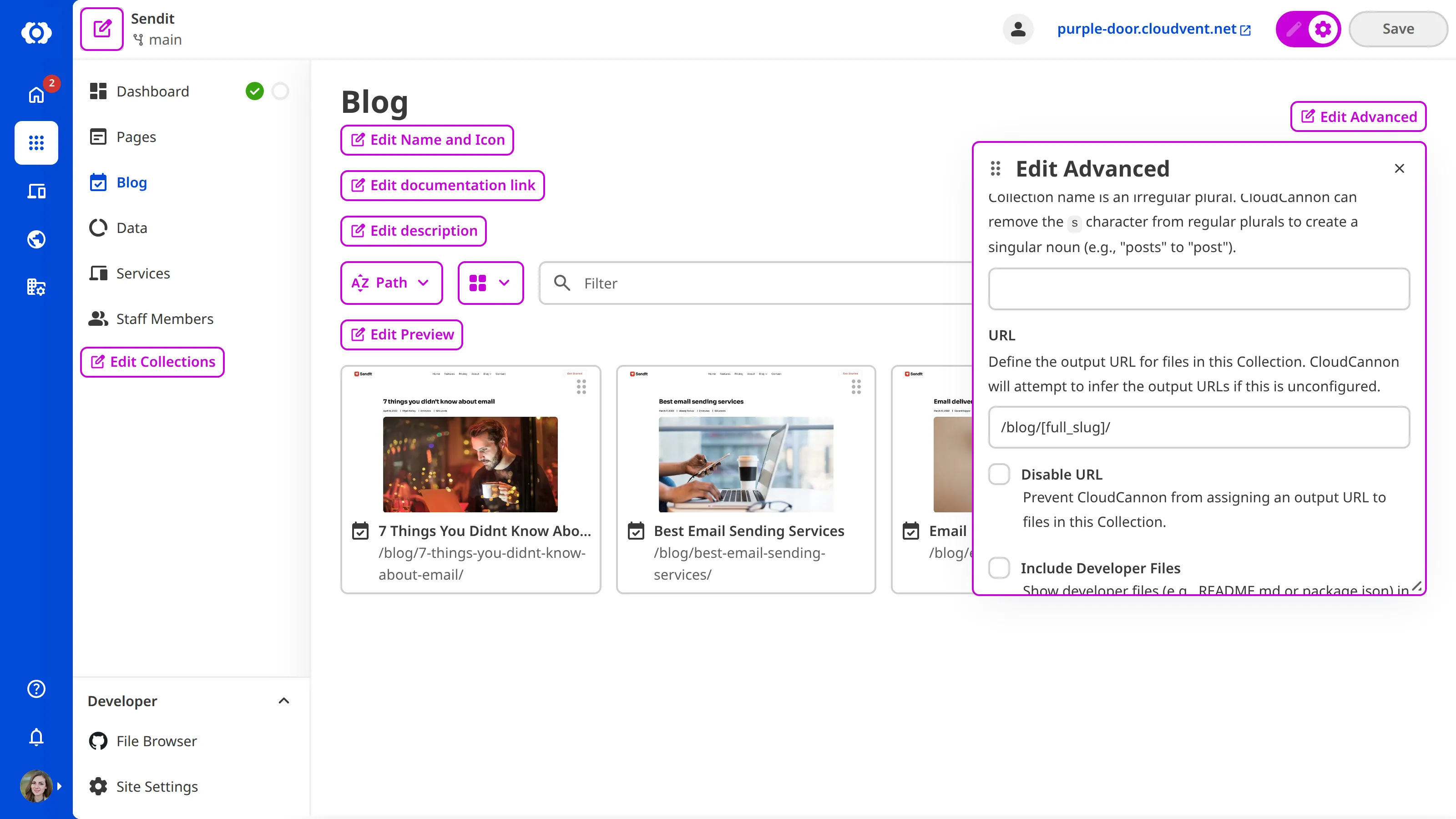
> The `disable_url` key does not determine whether your SSG will output a *Collection*.
---
---
title: Disconnect a Custom Domain from your Organization
description: Learn how to disconnect a Custom Domain from your Organization on CloudCannon.
url: https://cloudcannon.com/documentation/developer-articles/disconnect-a-custom-domain-from-your-organization/
content_type: developer article
last_modified: 2026-07-06
---
> **Permissions required**
>
> Members of the Owners [Default Permission Groups](/documentation/user-articles/what-are-default-permission-groups/), or [Custom Permission Groups](/documentation/developer-articles/what-are-custom-permission-groups/) with the `base-domain:delete:write` permission, can disconnect Custom Domains from an Organization.
A Custom Domain is a unique address used to identify a website (e.g., [cloudcannon.com](https://cloudcannon.com/)). If you have [connected a Custom Domain to your Organization](/documentation/developer-articles/connect-a-custom-domain-to-your-organization/) and [added the Custom Domain to your Site](/documentation/developer-articles/add-a-custom-domain-to-your-site/), CloudCannon will host your website content at that web address.
Disconnecting a Custom Domain from your Organization will allow you to add the domain to a different CloudCannon Organization.
> Disconnecting a Custom Domain from your CloudCannon Organization does not delete your domain, or affect any of the settings managed by your Domain Registrar.
To protect you from accidentally taking your website down by disconnecting your Custom Domain, CloudCannon prevents you from disconnecting the domain from your Organization until you have removed it from all CloudCannon Sites.
These instructions assume you have already [removed the Custom Domain from all CloudCannon Sites](/documentation/developer-articles/remove-a-custom-domain-from-your-site/).
To disconnect a Custom Domain from your Organization:
1. Log in to CloudCannon and select the Organization from which you want to disconnect the Custom Domain.
2. Click the *Domains* button in the *App Sidebar*. CloudCannon will open the *Domains Browser*.
3. Identify the domain you want to disconnect and click on the *Domain* card. CloudCannon will open the *Domain* page for this Custom Domain.
4. Navigate to the *Danger* section under the *Domain Settings* tab.
5. Click the *Disconnect Domain* button, and click again to confirm.
CloudCannon will disconnect the Custom Domain from your Organization.
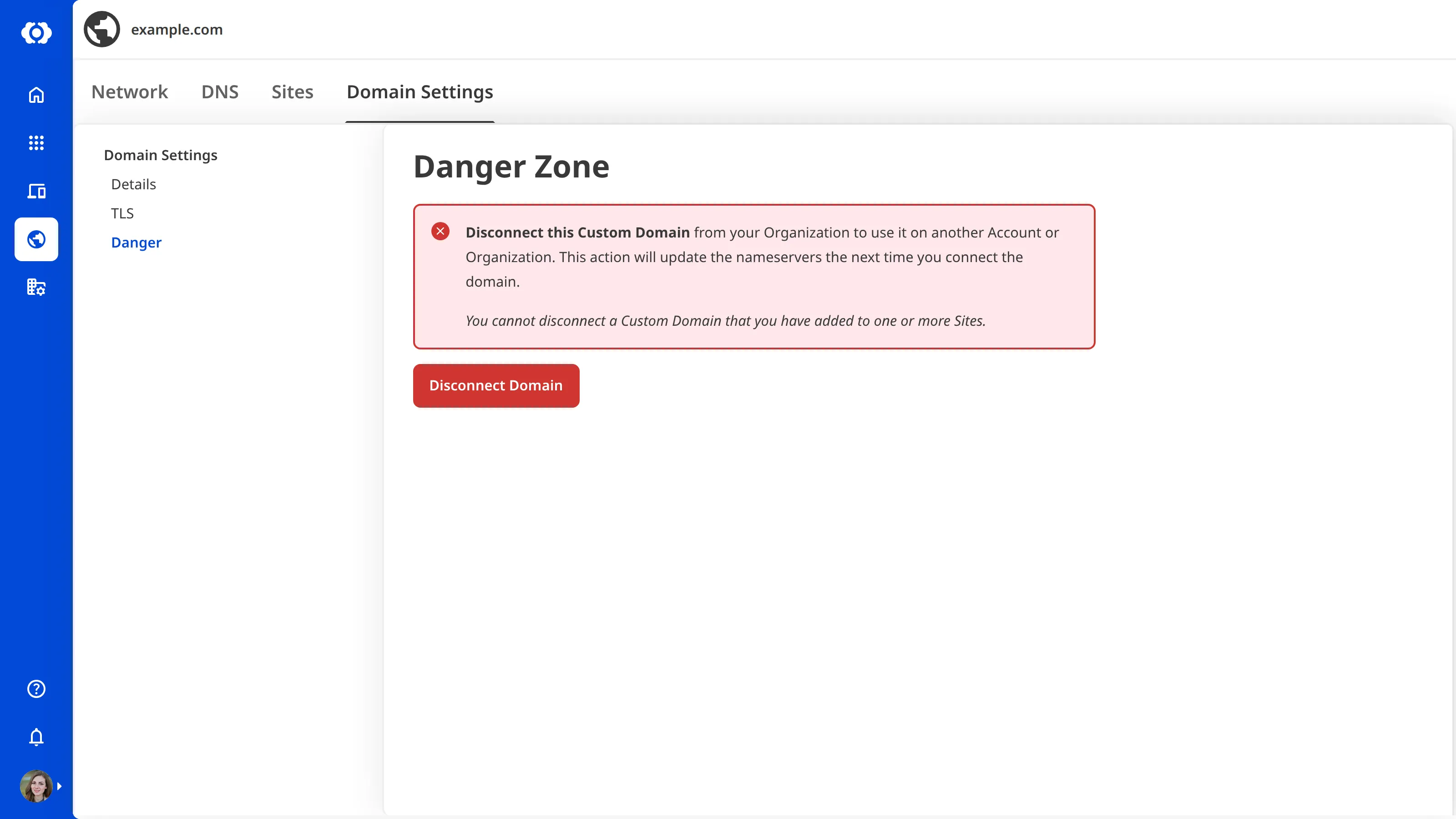
---
---
title: Edit a Custom Permission Group
description: Learn how to edit Custom Permission Groups for your Organization, including how to add, delete, and edit permissions.
url: https://cloudcannon.com/documentation/developer-articles/edit-a-custom-permission-group/
content_type: developer article
last_modified: 2026-08-12
---
> **This feature is available on our [Team and Enterprise plans](https://cloudcannon.com/pricing/).**
>
> Want to chat about whether this feature is right for you? Our support team is always [happy to hear from you](mailto:success@cloudcannon.com?subject=A%20question%20about%20custom%20Permission%20Groups).
## Add a permission or exception to a Custom Permission Group
To add a permission to an existing [Custom Permission Group](/documentation/developer-articles/what-are-custom-permission-groups/):
1. Navigate to the *Team* page under *Org settings*.
2. Click on the *Groups* tab.
3. Under the *Groups* tab, click on the Permission Group you want to delete. This will open the *Permission Group* page.
4. Click on the *Settings* tab.
5. Click on the *Add permission* or *Add exception* button to open the appropriate modal.
6. Select the scope using the *Scope* dropdown. If you select Base Domain, Group, Project, or Site, you must also choose the Target to that scope with the *Target* dropdown. Selecting a scope will automatically filter the resource tree.
7. Using the resource tree, select the resources you want to add and what actions you want to allow for each resource (i.e., Read, Write, or Create).
8. Click the *Add* button.
9. Once you are happy with the changes to your Permission Group, click the *Update group* button.
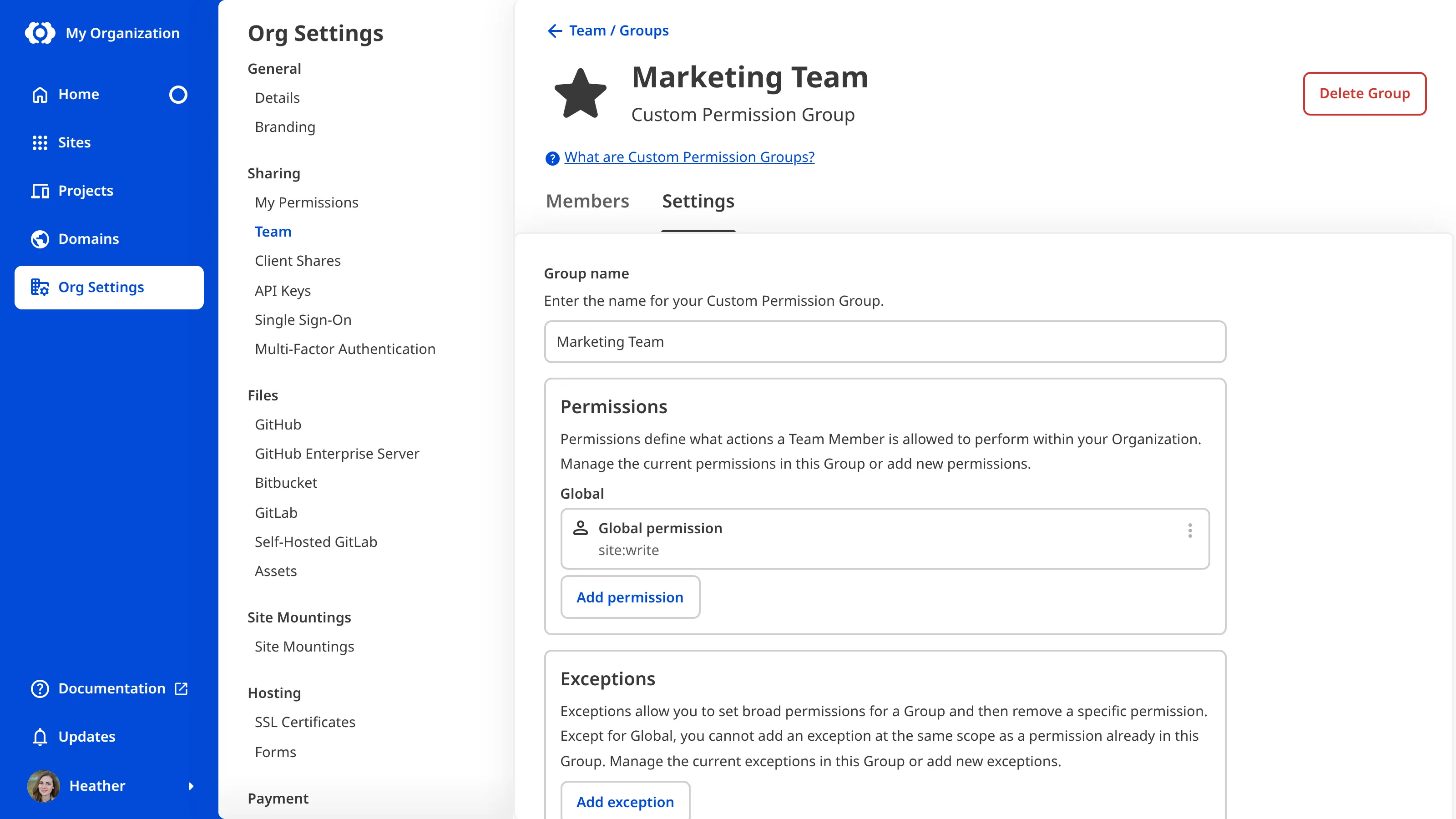
CloudCannon will add the new permission to your Custom Permission Group. All members of that group will automatically gain the new permission.
> When you create a *Custom Permission Group*, CloudCannon will prevent you from granting a *Permission* to that *Group* that you do not have at the selected *Scope*. This behavior prevents *Permission* escalation. For more information, please read our documentation on [selecting resources](/documentation/developer-articles/what-are-custom-permission-groups/#selecting-resources).
> Alternatively, you can add a new permission or exception by cloning an existing one. This method is more efficient when you need to create many similar permissions (e.g., several permissions with a Site scope targeting different Sites).
>
> To clone a permission or exception, click on the *Context Menu* and select *Clone*. You can now edit the cloned item.
## Delete a permission or exception from a Custom Permission Group
To delete a permission from an existing [Custom Permission Group](/documentation/developer-articles/what-are-custom-permission-groups/):
1. Navigate to the *Team* page under *Org settings*.
2. Click on the *Groups* tab.
3. Under the *Groups* tab, click on the Permission Group you want to delete. This will open the *Permission Group* page.
4. Click on the *Settings* tab.
5. Identify the permission or exception you want to delete and click on the *Context Menu*.
6. Select *Delete* from the dropdown menu.
7. Once you are happy with the changes to your Permission Group, click the *Update group* button.
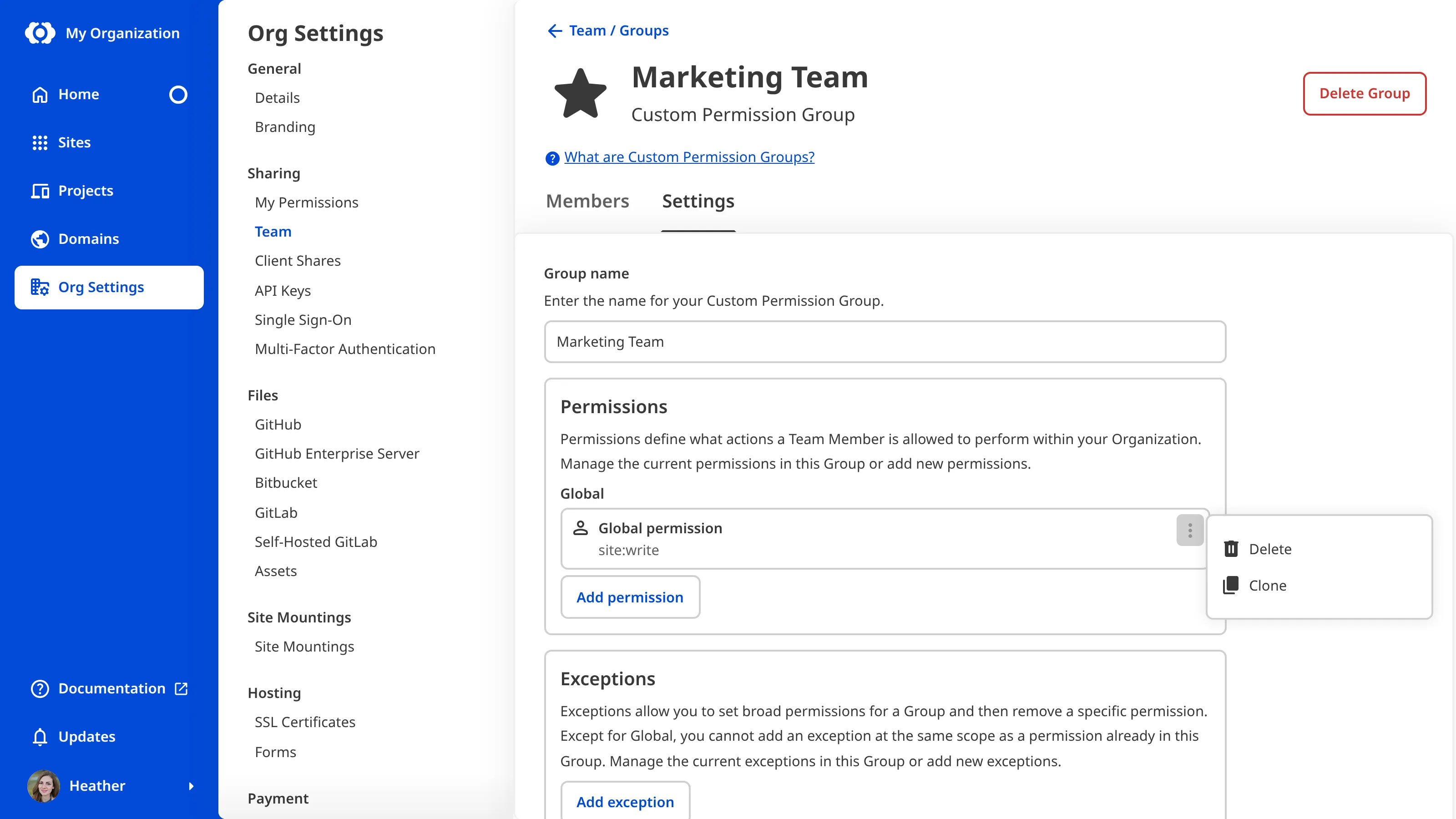
CloudCannon will delete the permission from your Custom Permission Group. All members of that group will automatically lose the permission.
> Removing an *Exception* file glob will restore access to a *Permission*, and removing a *Permission* file glob can allow for unrestricted *Permissions*.
>
> CloudCannon will prevent you from editing the file globs in a *Permission* if doing so would expand the *Custom Permission Group* beyond the access you have at the selected *Scope*. This behavior prevents *Permission* escalation. For more information, please read our documentation on [selecting resources](/documentation/developer-articles/what-are-custom-permission-groups/#selecting-resources).
## Edit a permission or exception in a Custom Permission Group
To edit a permission in an existing [Custom Permission Group](/documentation/developer-articles/what-are-custom-permission-groups/):
1. Navigate to the *Team* page under *Org settings*.
2. Click on the *Groups* tab.
3. Under the *Groups* tab, click on the Permission Group you want to delete. This will open the *Permission Group* page.
4. Click on the *Settings* tab.
5. Identify the permission or exception you want to edit and click on the card. This will open the *Edit permission/exception* modal.
6. Make your desired edits. If you alter the scope, CloudCannon will automatically filter the resource tree.
7. Click the *Update* button.
8. Once you are happy with the changes to your Permission Group, click the *Update group* button.
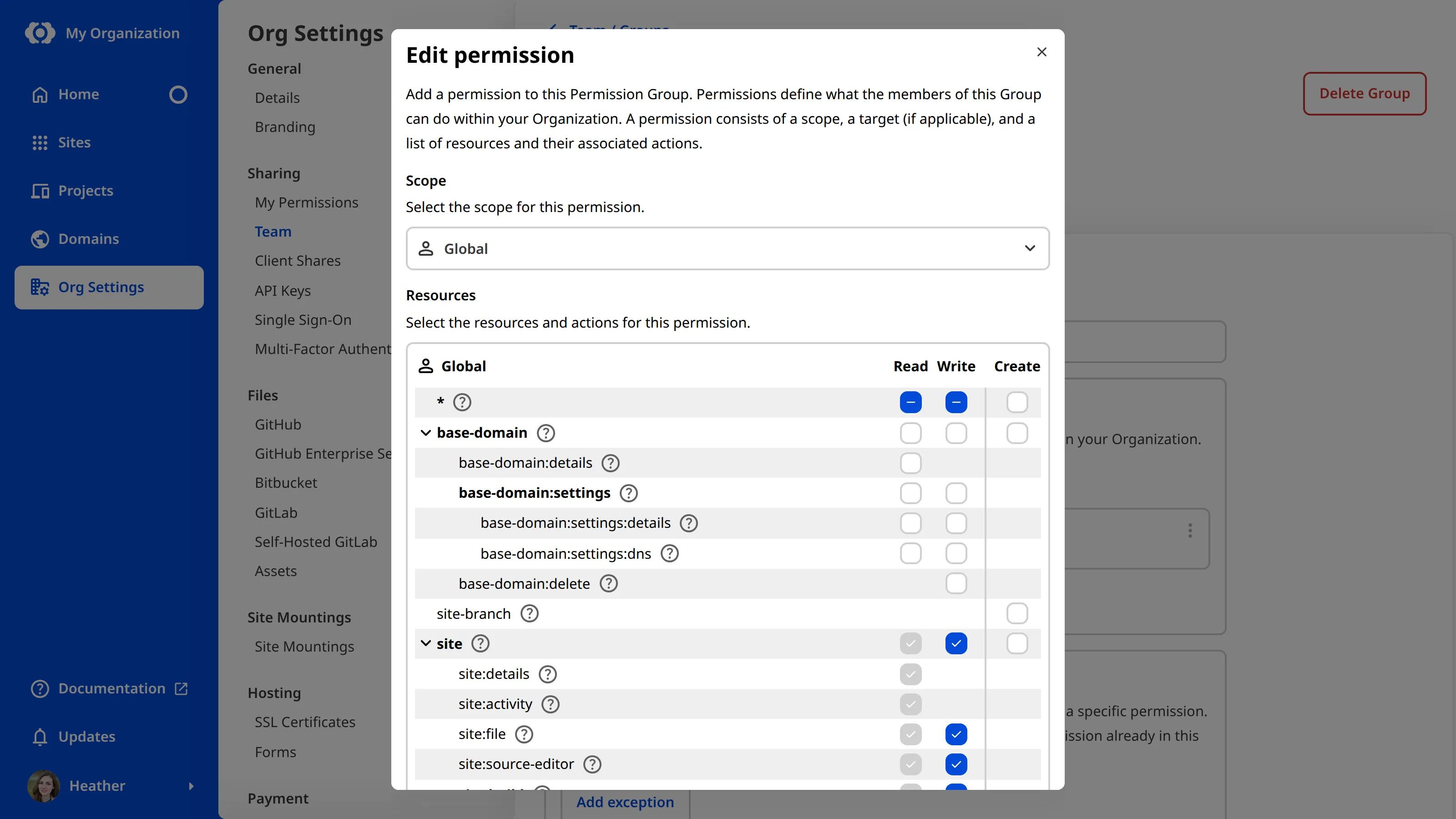
CloudCannon will update the permission in your Custom Permission Group. All members of that group will automatically gain the updated permission.
---
---
title: Edit a team member's Site Sharing Permission Group
description: Learn how to switch a team member's Permission Group for Site Sharing.
url: https://cloudcannon.com/documentation/developer-articles/edit-a-team-members-site-sharing-permission-group/
content_type: developer article
last_modified: 2026-03-29
---
There are two [Permission Groups](/documentation/user-articles/what-are-permission-groups/) available per Site for [Site Sharing](/documentation/user-articles/share-a-site-with-site-sharing/). These have identical permissions to the [Technical Editors](/documentation/user-articles/what-are-default-permission-groups/#technical-editors) and [Editors](/documentation/user-articles/what-are-default-permission-groups/#editors) Groups except with a Site scope. Site Sharing Permission Groups are named after the Site they provide access to.
> Members of the Owners or Developers [Default Permission Groups](/documentation/user-articles/what-are-default-permission-groups/) can update a team member’s Site Sharing Permission Group. If you are using [Custom Permission Groups](/documentation/developer-articles/what-are-custom-permission-groups/), any member with permission to access the `group:member:write` or `site:settings:site-sharing:write` resources can update a member's Site Sharing Permission Groups.
To switch which Permission Group your team member belongs to:
1. Navigate to the *Site Sharing* page under *Site settings*.
2. Click on the member whose permissions you want to update. This will open the *Update team member Permission Group* modal.
3. Select the Permission Group to which you want to add the team member.
4. Click the *Update Group* button.

---
---
title: Edit SSO/SAML authentication
description: Learn how to edit the Single Sign-On authentication settings for your CloudCannon Organization.
url: https://cloudcannon.com/documentation/developer-articles/edit-sso-saml-authentication/
content_type: developer article
last_modified: 2026-06-24
---
> **This feature is available on our [Enterprise plan](https://cloudcannon.com/pricing/).**
>
> Want to chat about whether this feature is right for you? Our support team is always [happy to hear from you](mailto:success@cloudcannon.com?subject=A%20question%20about%20SSO%2FSAML).
You can update the initial [Permission Group](/documentation/user-articles/what-are-permission-groups/) for SSO users and your X.509 Certificate at any time.
To edit your [SSO/SAML](/documentation/developer-articles/what-is-sso-saml/) settings:
1. Navigate to the *Single Sign-On* page under *Org settings*.
2. Click on the *Settings* tab.
3. Edit your settings.
4. Click the *Update SAML Configuration* button.
---
---
title: Editing markdown in the Visual Editor
description: Learn how to edit your markdown files as they would appear on your live site, with CloudCannon.
url: https://cloudcannon.com/documentation/developer-articles/editing-markdown-files-in-the-visual-editor/
content_type: developer article
last_modified: 2026-04-11
---
> Since October 2025, this method of visual editing has been deprecated. CloudCannon cannot guarantee support for this feature. Please consider using [Editable Regions](/documentation/developer-articles/what-are-editable-regions/) or Bookshop.
You can edit markdown files in the Visual Editor using an in-place Rich Text editor embedded on your page.
To do so, add the `data-cms-edit="content"` attribute to the relevant element on your site. For example:
File: `page.html`
```html
{{ content }}
```
When encountering this attribute, CloudCannon will replace the children of the tagged element with the Content Editor, connected to the Markdown content of the opened file.
---
---
title: Enable Git LFS
description: Learn how to enable Git LFS to store large files outside your repository for faster syncs and builds in CloudCannon.
url: https://cloudcannon.com/documentation/developer-articles/enable-git-lfs/
content_type: developer article
last_modified: 2026-06-30
---
[Git Large File Storage](https://git-lfs.github.com/) (Git LFS) enables you to store large files outside of your Git repository, but continue to access them as if they were within the repository. Enabling Git LFS is a great way to maintain a smaller repository size for faster syncing and building.
> A great way to use Git LFS is to track your uploads path, so new asset files in the editor are stored there. Running `git lfs track "uploads/**"` tracks all files inside of the `/uploads` folder.
Setting up Git LFS is a two part process:
1. Install Git LFS
2. Enable Git LFS in your CloudCannon Site Settings
To install Git LFS, follow the installation guide on the [Git Large File Storage website](https://git-lfs.github.com/). Alternatively, you can use the instructions provided by [Bitbucket](https://support.atlassian.com/bitbucket-cloud/docs/use-git-lfs-with-bitbucket/), [GitHub](https://docs.github.com/en/repositories/working-with-files/managing-large-files/installing-git-large-file-storage), or [GitLab](https://docs.gitlab.com/ee/topics/git/lfs/).
To enable Git LFS for your Site:
1. Navigate to the *Syncing* page under *Site Settings*.
2. Check the *Enable Git LFS* checkbox under *Additional Settings*.
3. Click the *Update Settings* button.
You have enabled Git LFS on CloudCannon.
> CloudCannon will prompt you to check the *Enable Git LFS* option in your Site Settings if it detects you have a `.gitattributes` file in your repository. This warning will appear in the *Needs Attention* section on your *Status* page.
---
---
title: Enable Headless Mode
description: Learn how to enable Headless Mode on your CloudCannon Site to disable hosting and builds.
url: https://cloudcannon.com/documentation/developer-articles/enable-headless-mode/
content_type: developer article
last_modified: 2026-04-11
---
> Headless Mode is only available for Sites using Unified Configuration. For more information, please read our [Unified Configuration migration guide](/documentation/developer-guides/unified-configuration-migration-guide/).
Headless Mode disables hosting and building for your Site.
To enable Headless Mode on your Site:
1. Navigate to the *Details* page under *Site Settings*.
2. Select the *Headless* option under *Mode*.
3. Click the *Update Site* button.
4. Click the *Turn off hosting and builds* button on the confirmation modal.
CloudCannon will immediately take down your live Site and prevents any further builds.
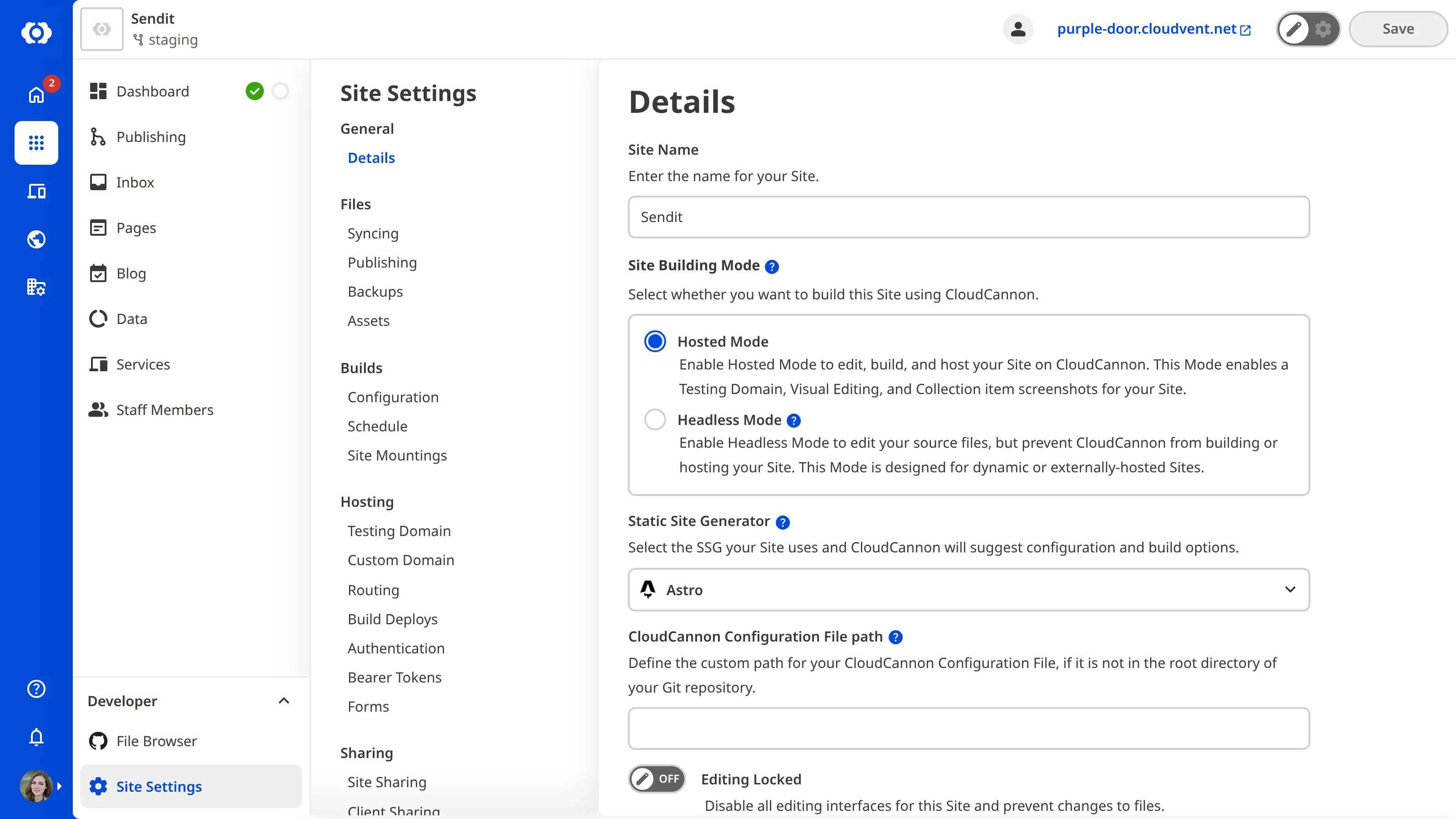
When your Site is in Headless Mode, CloudCannon will display a reduced set of pages in your *Site Settings*.
You can turn off *Headless Mode* at any time by selecting *Hosted* on the *Details* page under your *Site Settings*.
---
---
title: Enable multi-factor authentication
description: Learn how to enable multi-factor authentication in CloudCannon using a third-party authentication app.
url: https://cloudcannon.com/documentation/developer-articles/enable-multi-factor-authentication/
content_type: developer article
last_modified: 2026-06-23
---
These instructions assume that you have a third-party authentication app. For more information, please read our documentation on [multi-factor authentication](/documentation/user-articles/what-is-multi-factor-authentication/).
> You cannot disable this feature once you enable MFA for your CloudCannon account. For more information about MFA, please contact our [support team](https://cloudcannon.com/support/).
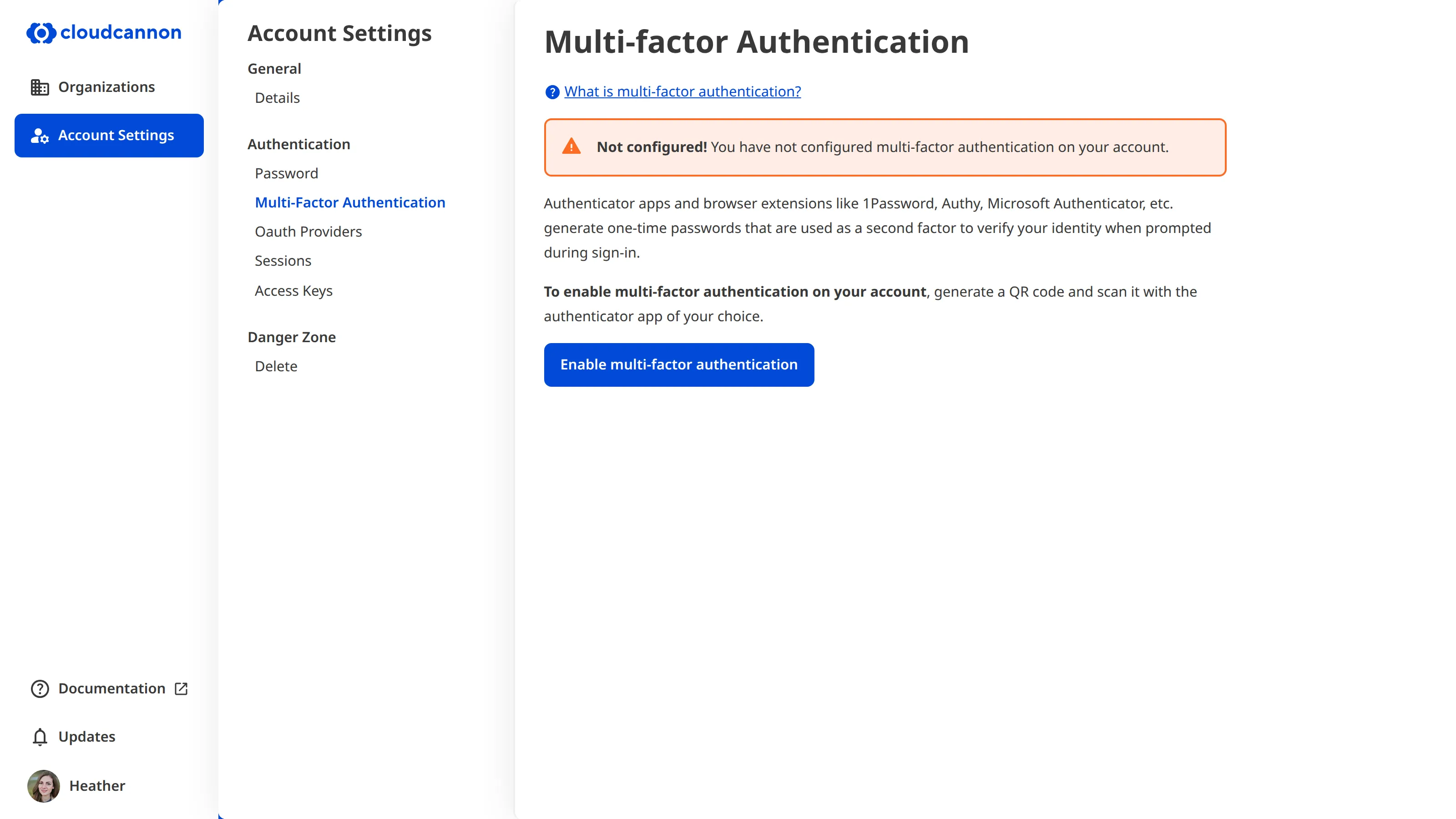
To enable multi-factor authentication:
1. Log in to CloudCannon.
2. Navigate to the *Multi-factor Authentication* page under *Account Settings.*
3. Click the *Enable multi-factor authentication* button.
4. Scan the QR code with your third-party authentication app and follow the setup instructions.
5. Enter the authentication app passcode into CloudCannon. (Note: this code is time-sensitive and will regenerate often.)
6. Click the *Verify* button.
7. CloudCannon will generate sixteen recovery codes for your account. Copy these recovery codes and store them in a secure location.
8. Click the *I have saved my recovery codes* button. If you cancel or click away from this modal before clicking this button, CloudCannon will not enable MFA for your account. You must explicitly agree that you have saved your recovery codes.
You have enabled multi-factor authentication for your CloudCannon account.
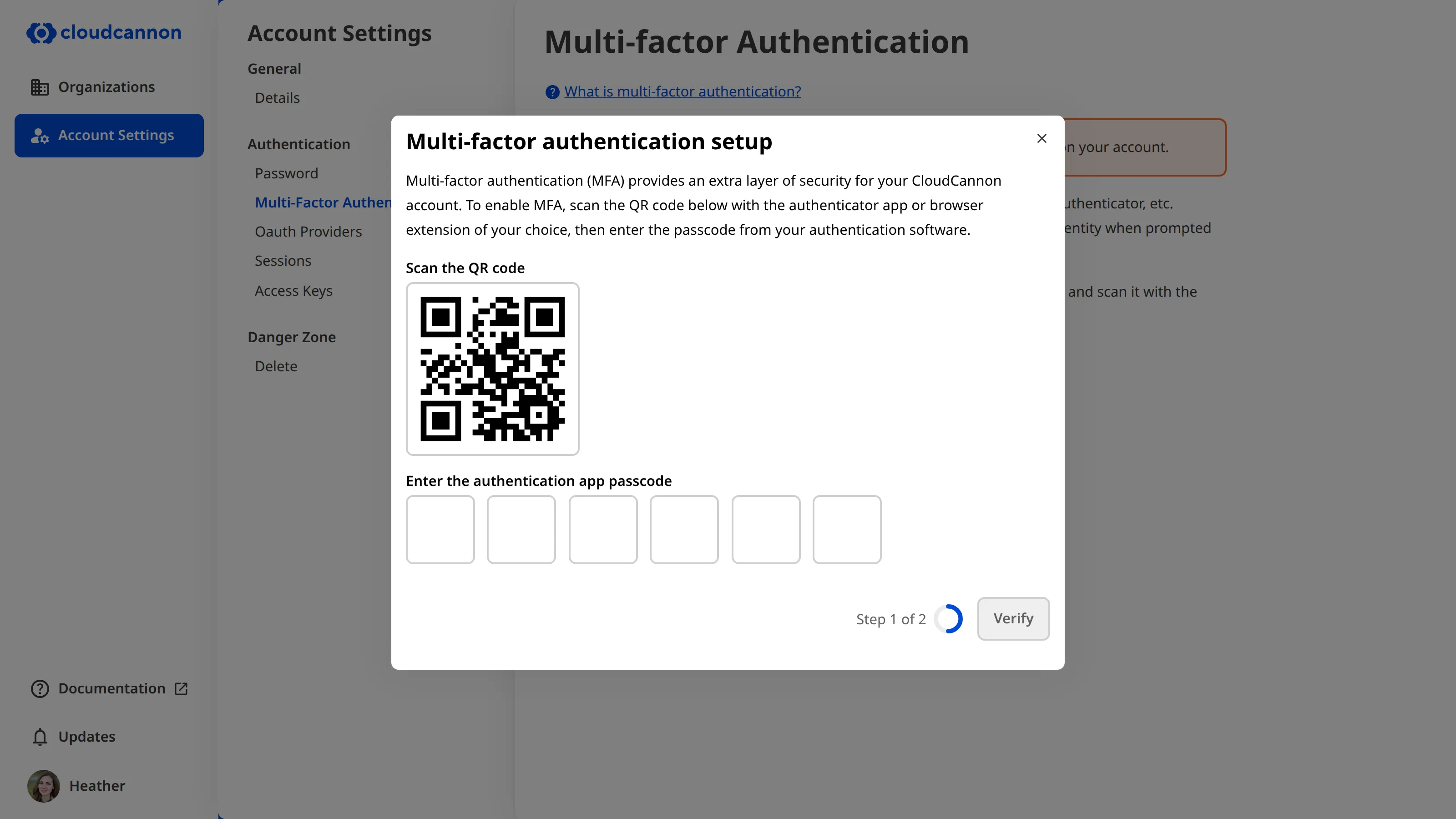
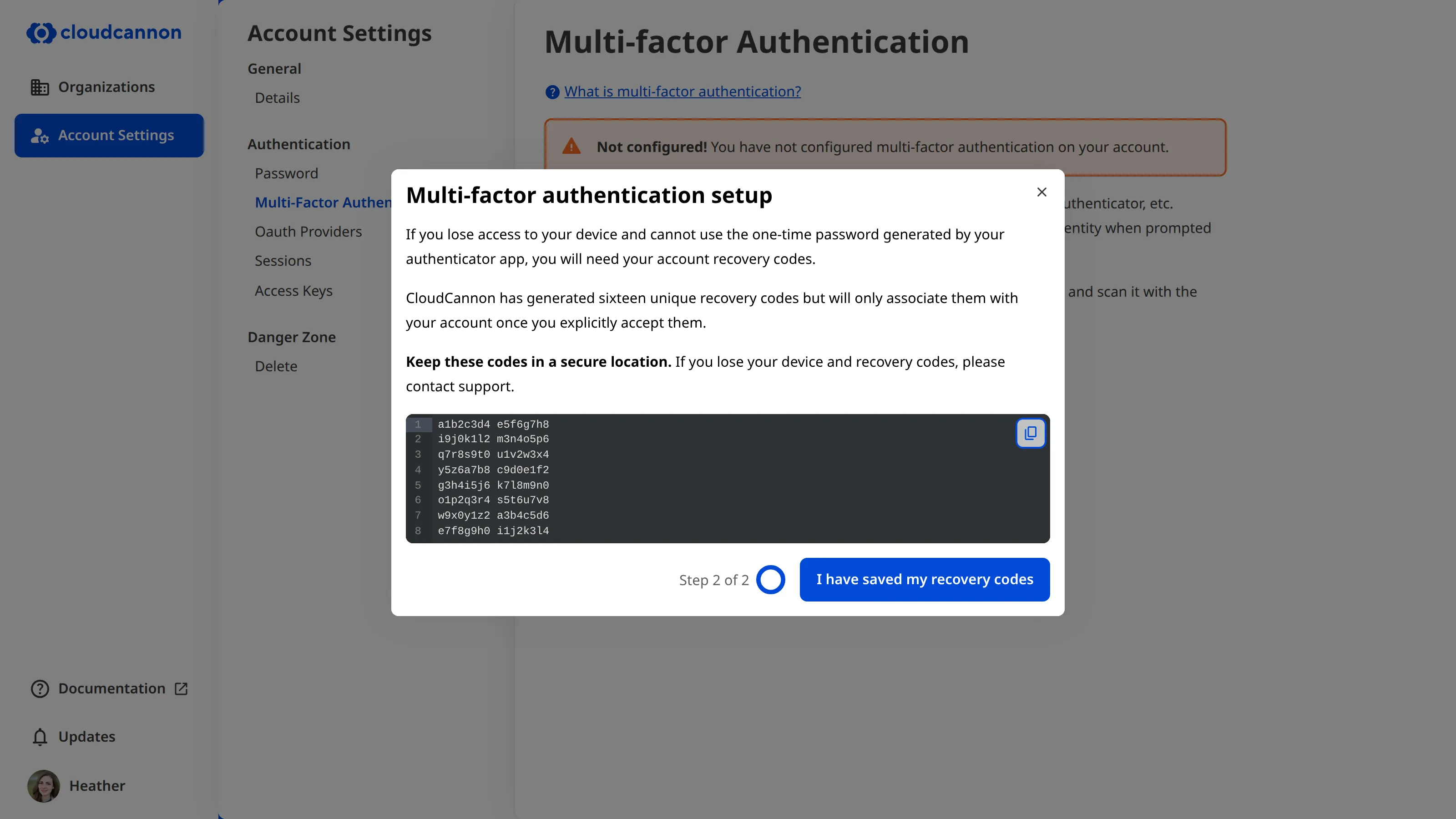
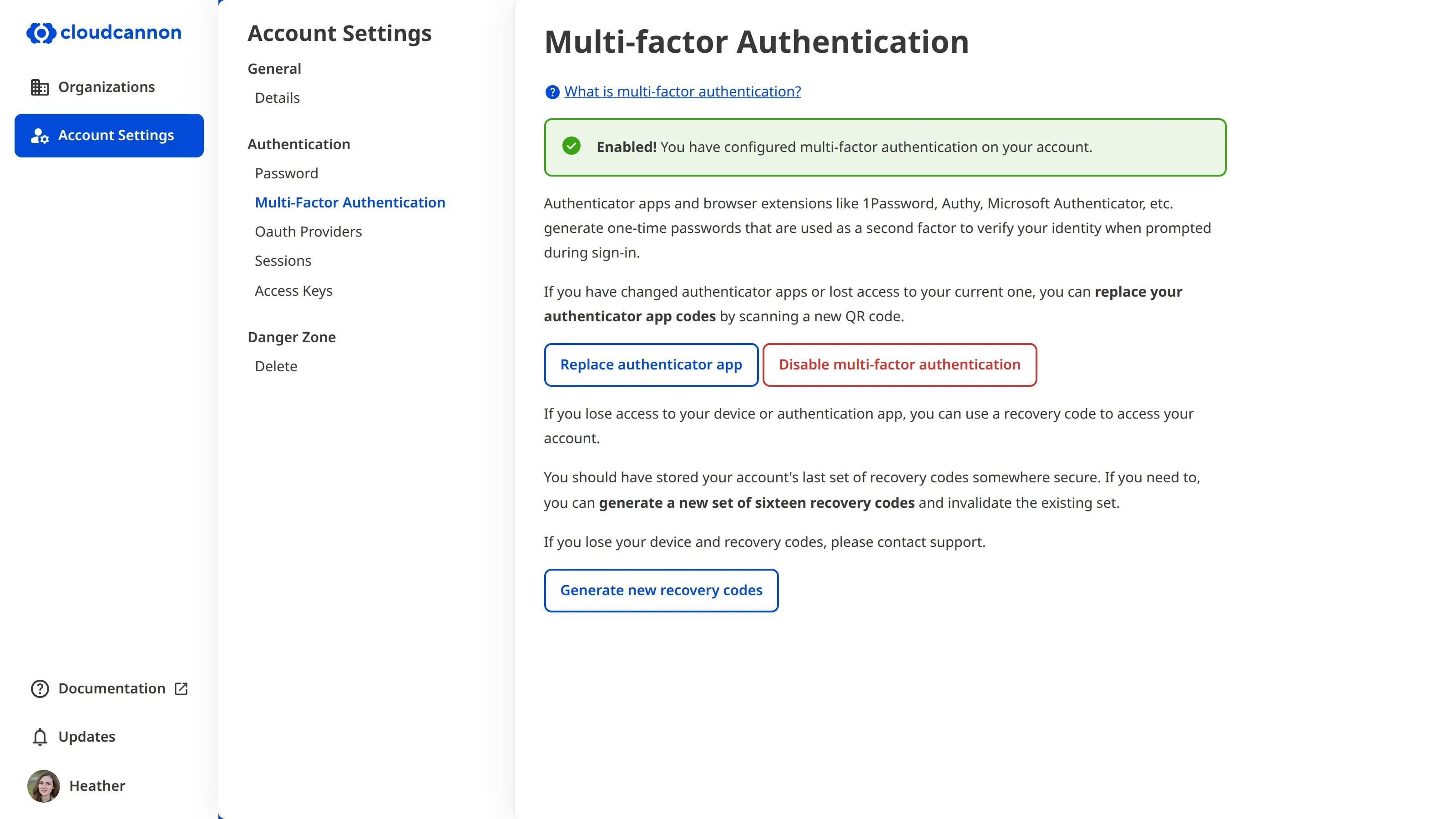
With multi-factor authentication enabled, CloudCannon will prompt you to enter a one-time passcode from your third-party authentication app each time you log in. These passcodes are unique and time-sensitive, regenerating often (normally every thirty seconds).
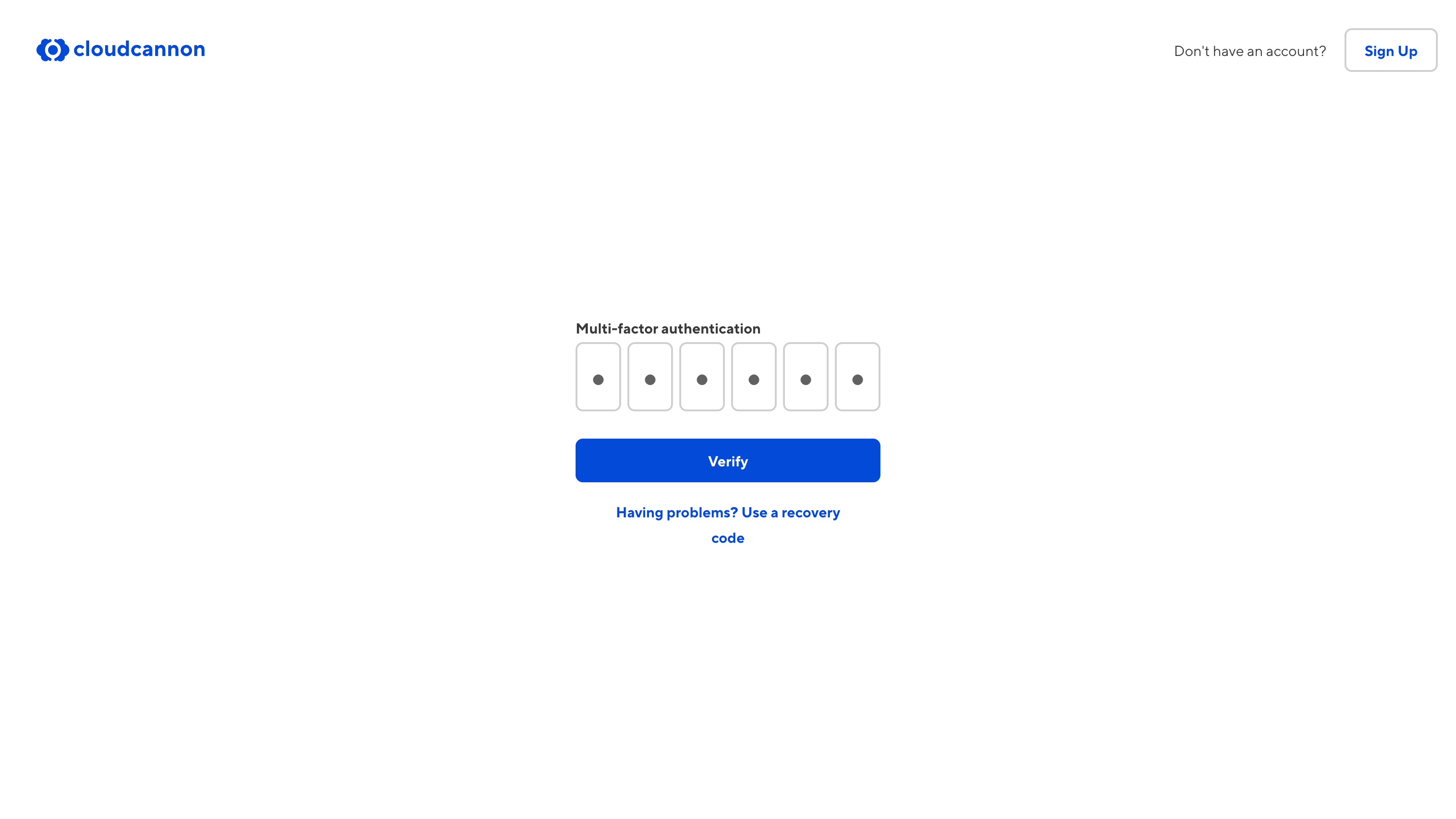
If you cannot access your device or authentication app, you can use one of your recovery codes to log in.
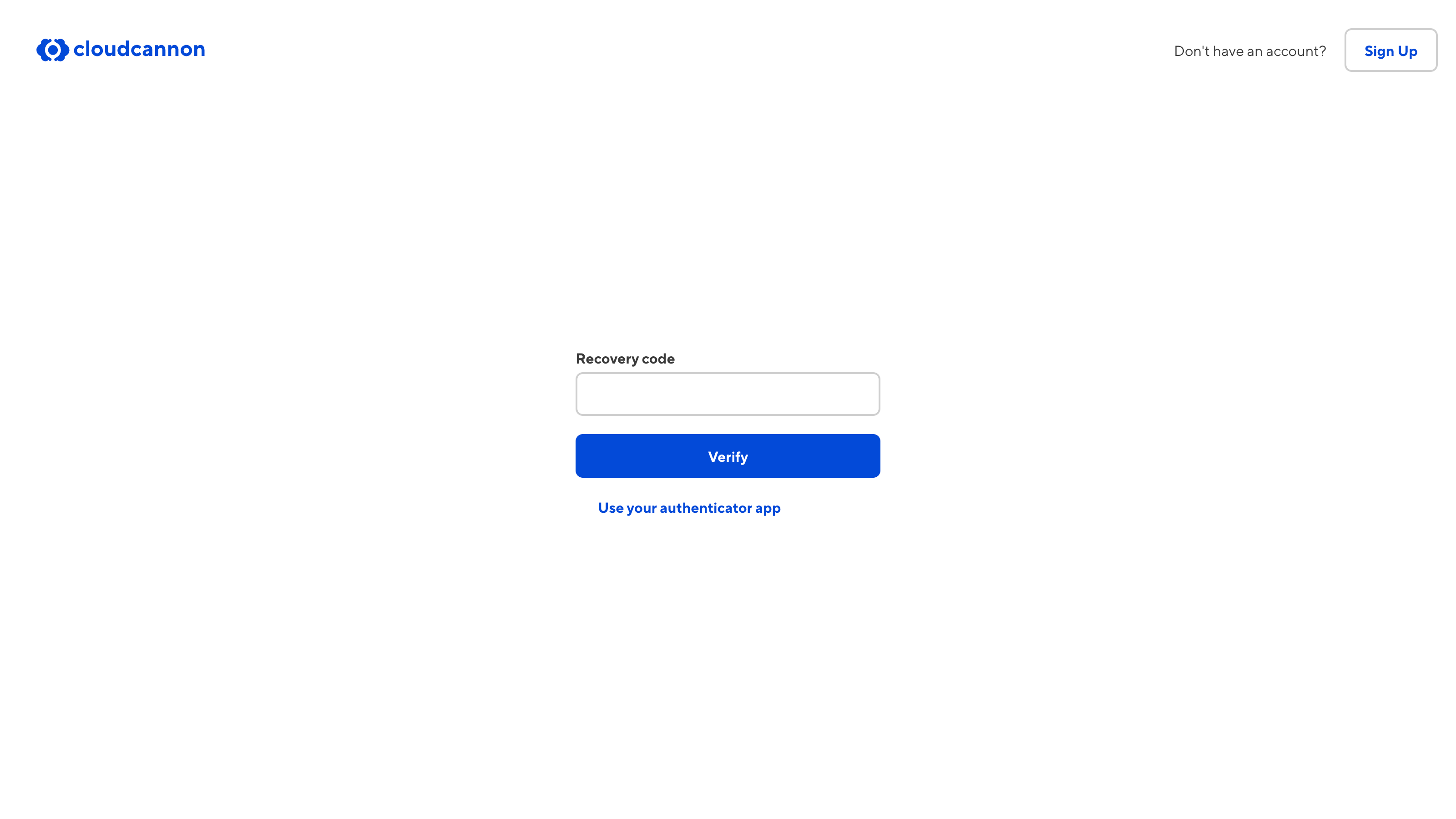
---
---
title: Enable or disable a flag
description: Learn about flags in CloudCannon and how you can use them to opt into app behavior.
url: https://cloudcannon.com/documentation/developer-articles/enable-or-disable-a-flag/
content_type: developer article
last_modified: 2026-06-23
---
> Flags can be tricky. If you need assistance, please don't hesitate to contact our friendly [support team](https://cloudcannon.com/support/).
To enable or disable a flag:
1. Navigate to the *Flags* page under *Site Settings*.
2. Identify the flag and use the checkbox to enable or disable the flag.
3. Click the *Update* button.
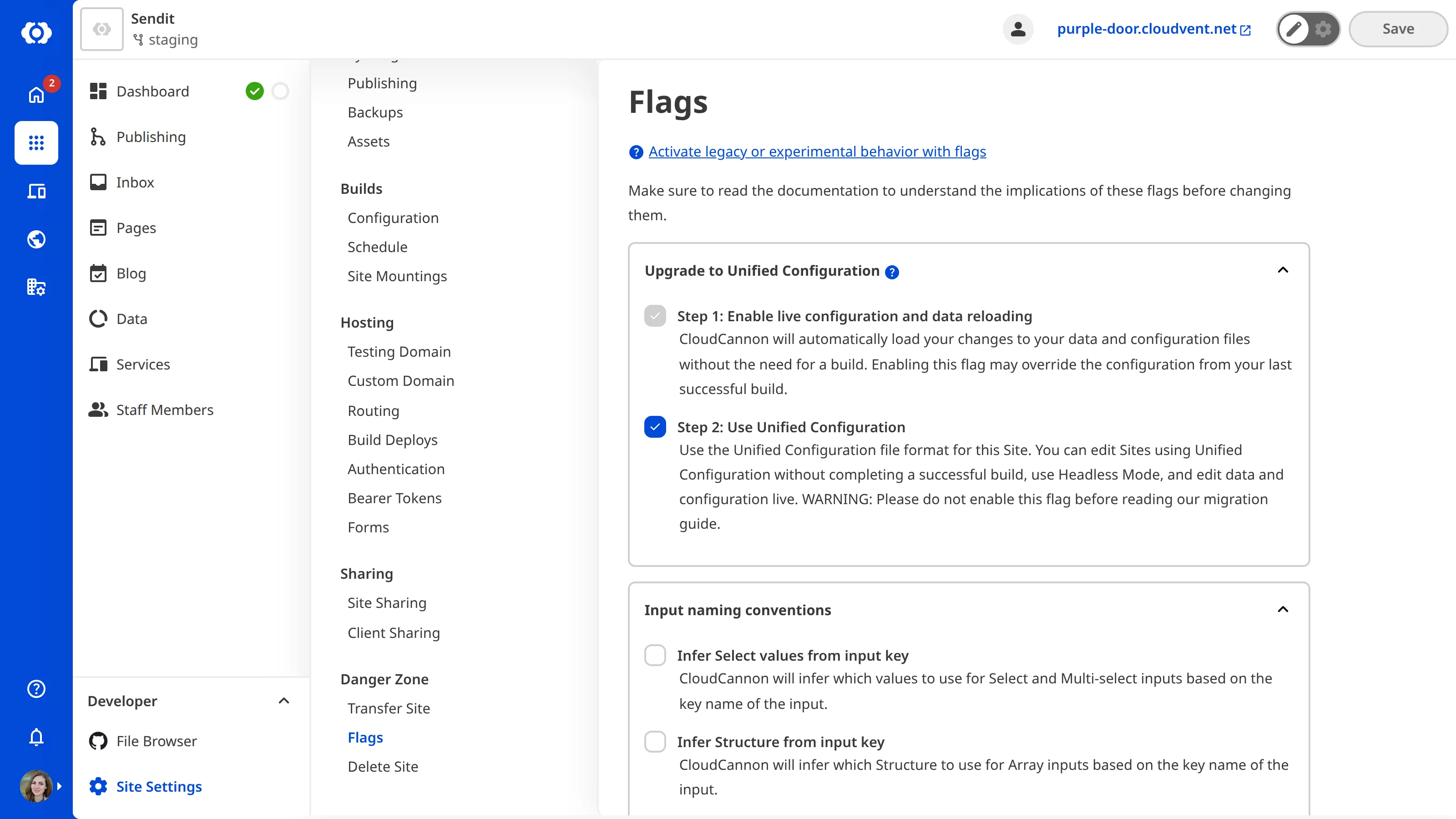
For more information about specific flags in CloudCannon, please read their dedicated documentation:
- [General Flags](/documentation/developer-articles/general-flags/)
- [Unified Configuration Flags](/documentation/developer-articles/unified-configuration-flags/)
- [Input Naming Convention Flags](/documentation/developer-articles/input-naming-convention-flags/)
- [Legacy Option Flags](/documentation/developer-articles/legacy-option-flags/)
---
---
title: Enable password authentication
description: Learn how to enable password authentication and require a password to visit your Site.
url: https://cloudcannon.com/documentation/developer-articles/enable-password-authentication/
content_type: developer article
last_modified: 2026-04-03
---
> This feature is only available for Sites [hosted through CloudCannon](/documentation/user-articles/what-is-web-hosting/#hosting-on-cloud-cannon). If you host your Site externally, or use CloudCannon in [Headless Mode](/documentation/developer-articles/what-is-headless-mode/), this feature will not work.
Password authentication requires visitors to your Site to enter a password before they can view any content.
By default, CloudCannon serves a simple Login page when a visitor requests your URL.
To enable password authentication for your Site:
1. Navigate to the *Authentication* page under *Site Settings*.
2. Click on the *Authentication method* dropdown and select the *Password* option.
3. Click the *Switch to Password authentication* button to confirm your choice.
4. Add the password of your choice in the *Site Password* text field.
5. Click the *Update Site Password* button.
CloudCannon will now require visitors to your Site to enter this password to see its content.
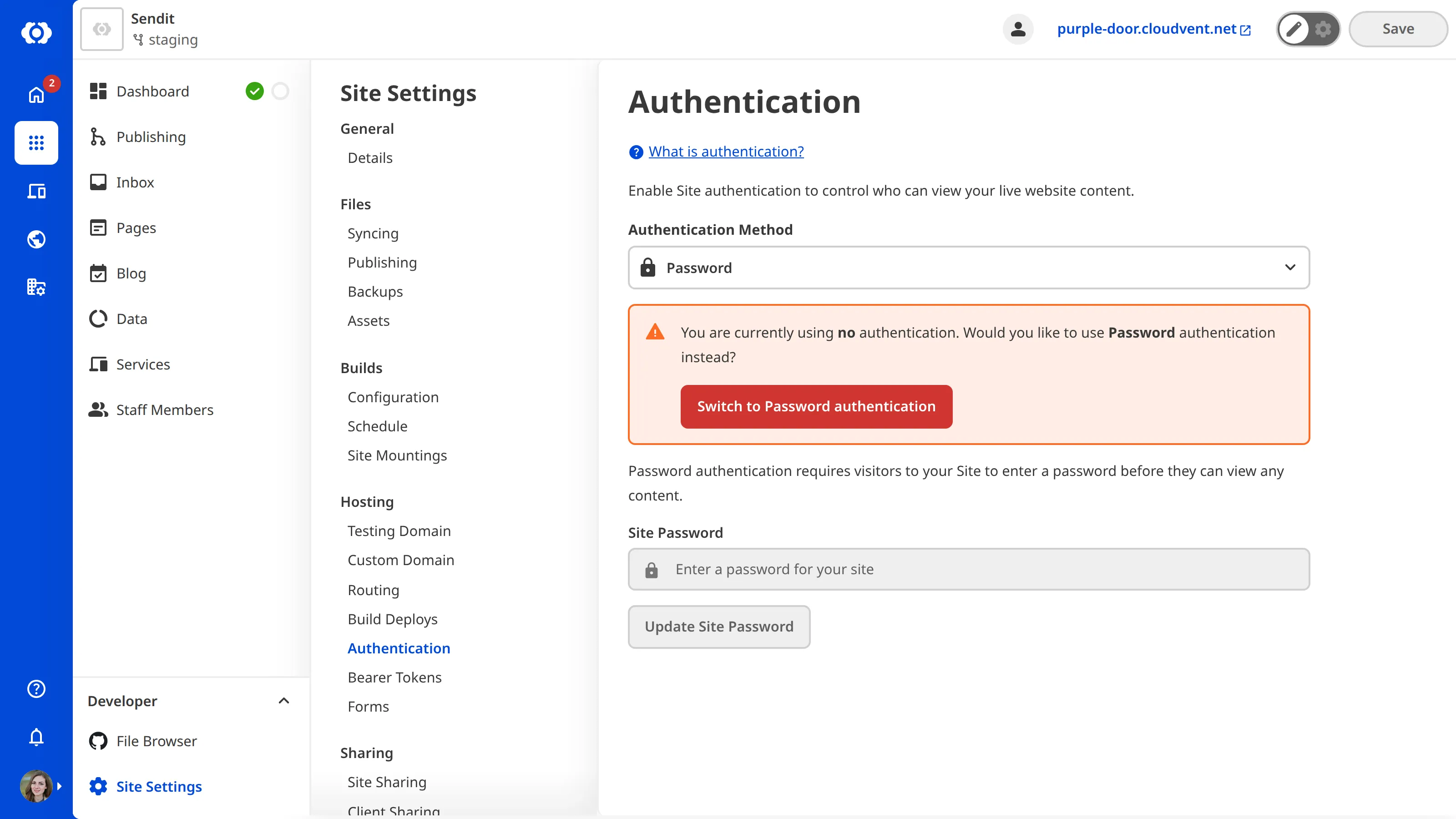
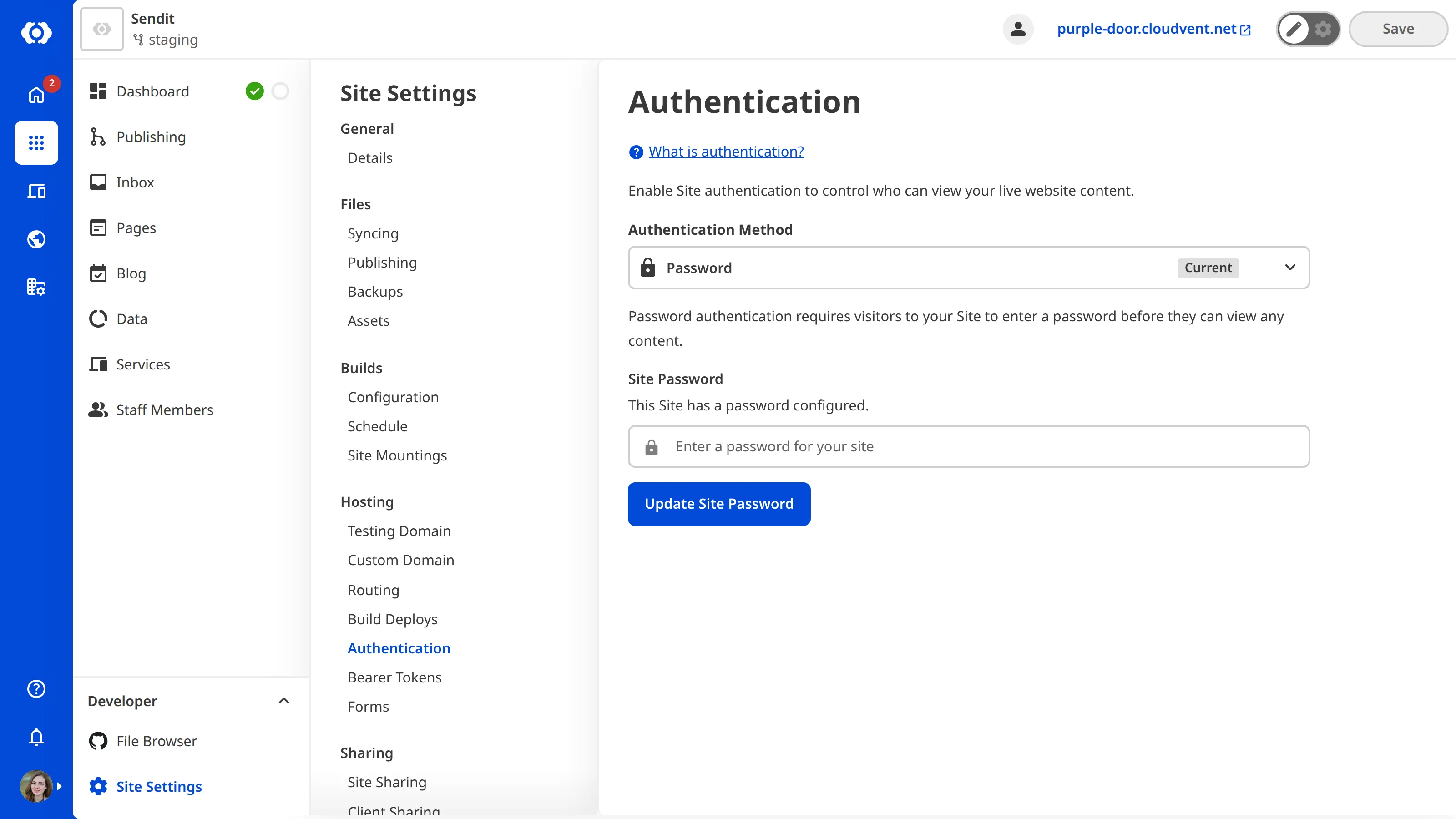
> If you enable Password Authentication without setting a password, visitors will not be able to access your content. You can resolve this by setting a password or turning off Password Authentication.
CloudCannon will warn you if you have enabled Password Authentication but have not set a password. CloudCannon will also show an Invalid Authentication warning on your live Site.
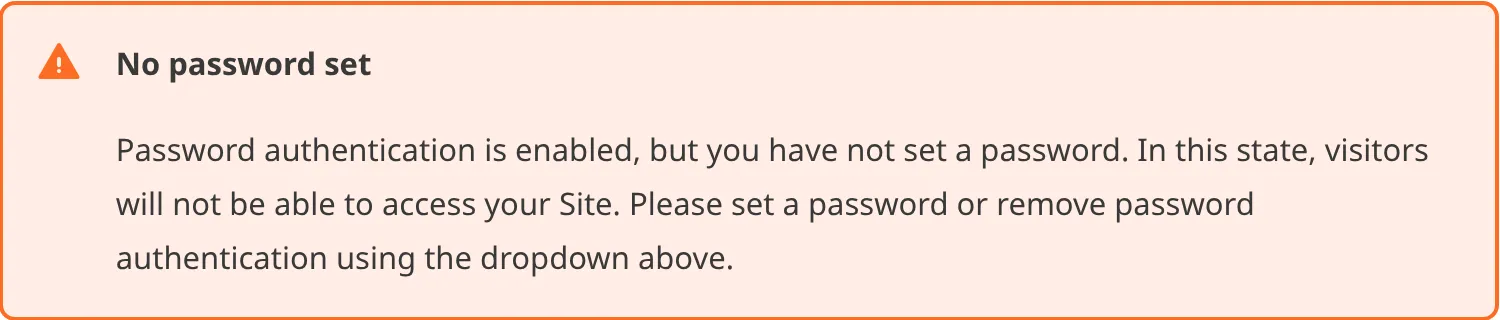
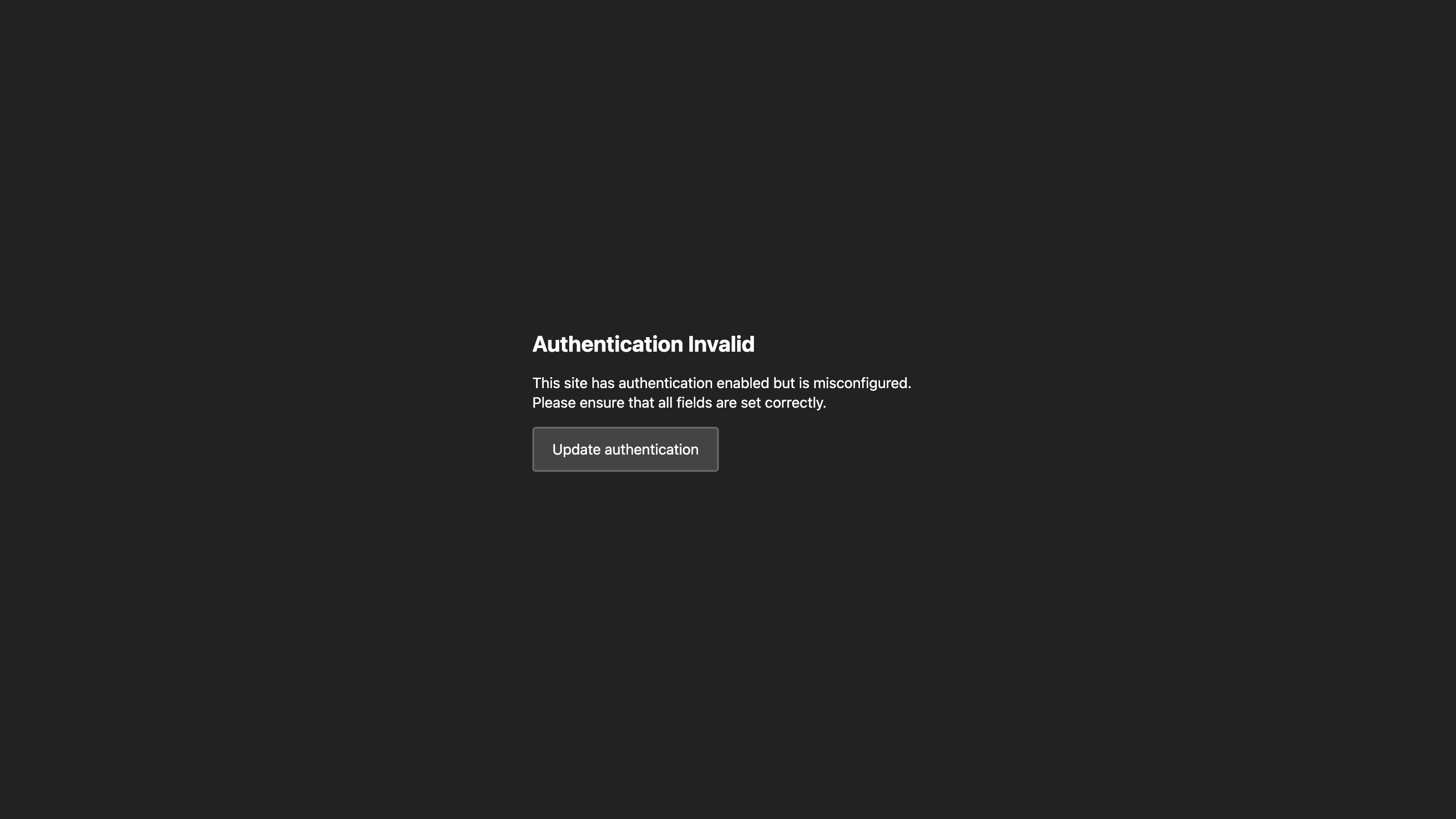
You can change the password for your Site at any time by entering a new password in the *Site Password* text field and clicking the *Update Site Password* button.
To disable password authentication, click on the *Authentication method* dropdown, select the *None* option, and then click the *Switch to no authentication* button to confirm your choice.
CloudCannon uses cookies to determine whether a visitor is logged in (i.e., authenticated). Visitors can log out using the log-out link. For more information, please read our documentation on [allowing authenticated users to log out](/documentation/developer-articles/allow-authenticated-users-to-log-out/).
## Configure a custom login page
You can customize the login page for your website by creating a `login.html` file. This file should be in the root directory of your output Site. Where this is in your Site repository will depend on your SSG (e.g., the root of the repository for Jekyll, the static folder for Hugo, etc.).
You can customize the `login.html` file to match your Site branding and provide helpful resources.
This page requires:
- A form input for `password`.
- A hidden from input for `username`.
- A `submit` input.
In the `login.html` file, CloudCannon requires a `
```
> You may already have a `login.html` file if you are switching from [user account authentication](/documentation/developer-articles/enable-user-account-authentication/) to password authentication. Make sure to update the contents of this file.
---
---
title: Enable SAML authentication
description: Learn how to enable SAML authentication for your Site and require visitors to log in using a third-party login service.
url: https://cloudcannon.com/documentation/developer-articles/enable-saml-authentication/
content_type: developer article
last_modified: 2026-06-24
---
> **This feature is available on our [Enterprise plan](https://cloudcannon.com/pricing/).**
>
> Want to chat about whether this feature is right for you? Our support team is always [happy to hear from you](mailto:success@cloudcannon.com?subject=A%20question%20about%20SSO%2FSAML).
>
> This feature is only available for Sites [hosted through CloudCannon](/documentation/user-articles/what-is-web-hosting/#hosting-on-cloud-cannon). If you host your Site externally, or use CloudCannon in [Headless Mode](/documentation/developer-articles/what-is-headless-mode/), this feature will not work.
Security Assertion Markup Language (SAML) authentication requires visitors to your Site to log in with a third-party Single Sign-On ([SSO](/documentation/developer-articles/what-is-sso-saml/)) account. SSO/SAML provides a way to authenticate a visitor's identity through an external application and communicate that authentication to your Site hosted on CloudCannon.
We recommend SAML authentication for websites primarily used by internal teams.
> To enable SAML authentication for your Site you must have a SAML certificate from an Identity Provider of your choice (e.g., Google sign in). Visitors to your Site must have an account with your Identity Provider to access your content.
To enable user account authentication for your Site:
1. Navigate to the *Authentication* page under *Site Settings*.
2. Click on the *Authentication method* dropdown and select the *SAML* option.
3. Click the *Switch to SAML authentication* button to confirm your choice.
4. Enter your SAML certificate details in the text fields for *SAML 2.0 Endpoint (HTTP)*, *Issuer Suffix*, and *X.509 Certificate*. Alternatively, you can add your certificate details automatically by clicking the *Fill cert using XML Metadata* button and uploading the XML file from your Identity Provider.
5. Click the *Update SAML Configuration* button.
CloudCannon will redirect visitors to your SSO login page.
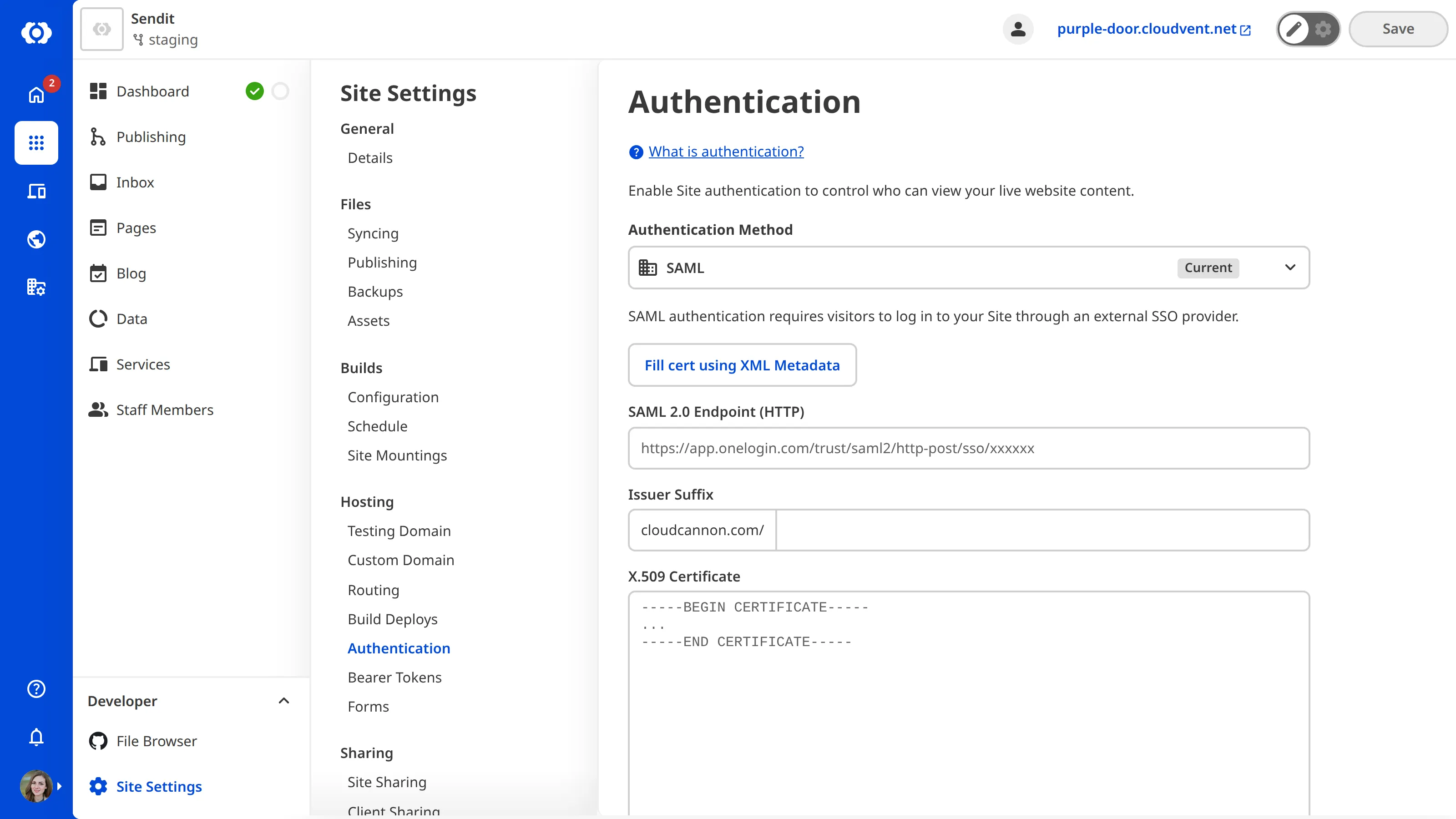
To disable SAML authentication, click on the *Authentication method* dropdown, select the *None* option, and then click the *Switch to no authentication* button to confirm your choice.
CloudCannon uses cookies to determine whether a visitor is logged in (i.e., authenticated). Visitors can log out using the log-out link. For more information, please read our documentation on [allowing authenticated users to log out](/documentation/developer-articles/allow-authenticated-users-to-log-out/).
---
---
title: Enable user account authentication
description: Learn how to enable user account authentication for your Site and restrict access to a list of invited users.
url: https://cloudcannon.com/documentation/developer-articles/enable-user-account-authentication/
content_type: developer article
last_modified: 2026-04-03
---
> This feature is only available for Sites [hosted through CloudCannon](/documentation/user-articles/what-is-web-hosting/#hosting-on-cloud-cannon). If you host your Site externally, or use CloudCannon in [Headless Mode](/documentation/developer-articles/what-is-headless-mode/), this feature will not work.
User account authentication allows you to specify a list of email addresses that can log in to view your website content.
By default, CloudCannon serves a simple Login page when a visitor requests your URL.
To enable user account authentication for your Site:
1. Navigate to the *Authentication* page under *Site Settings*.
2. Click on the *Authentication method* dropdown and select the *Accounts* option.
3. Click the *Switch to Account authentication* button to confirm your choice.
4. For each user you want to access your Site, enter their email address in the *Email Address* text field and click the *Add User* button.
CloudCannon will email each user and prompt them to create a personal password for your Site. If a user forgets their password, they can reset it using their email address.
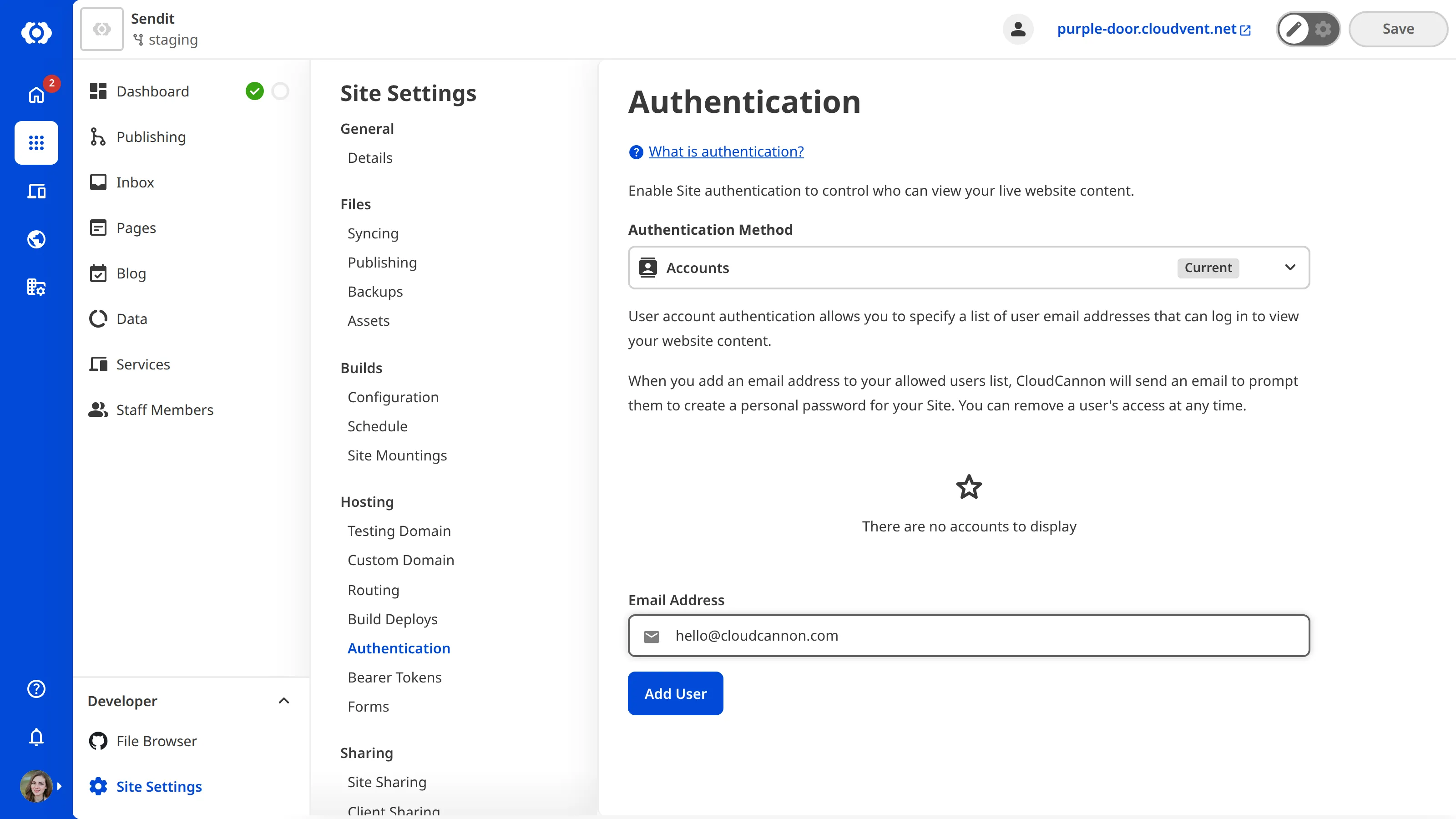
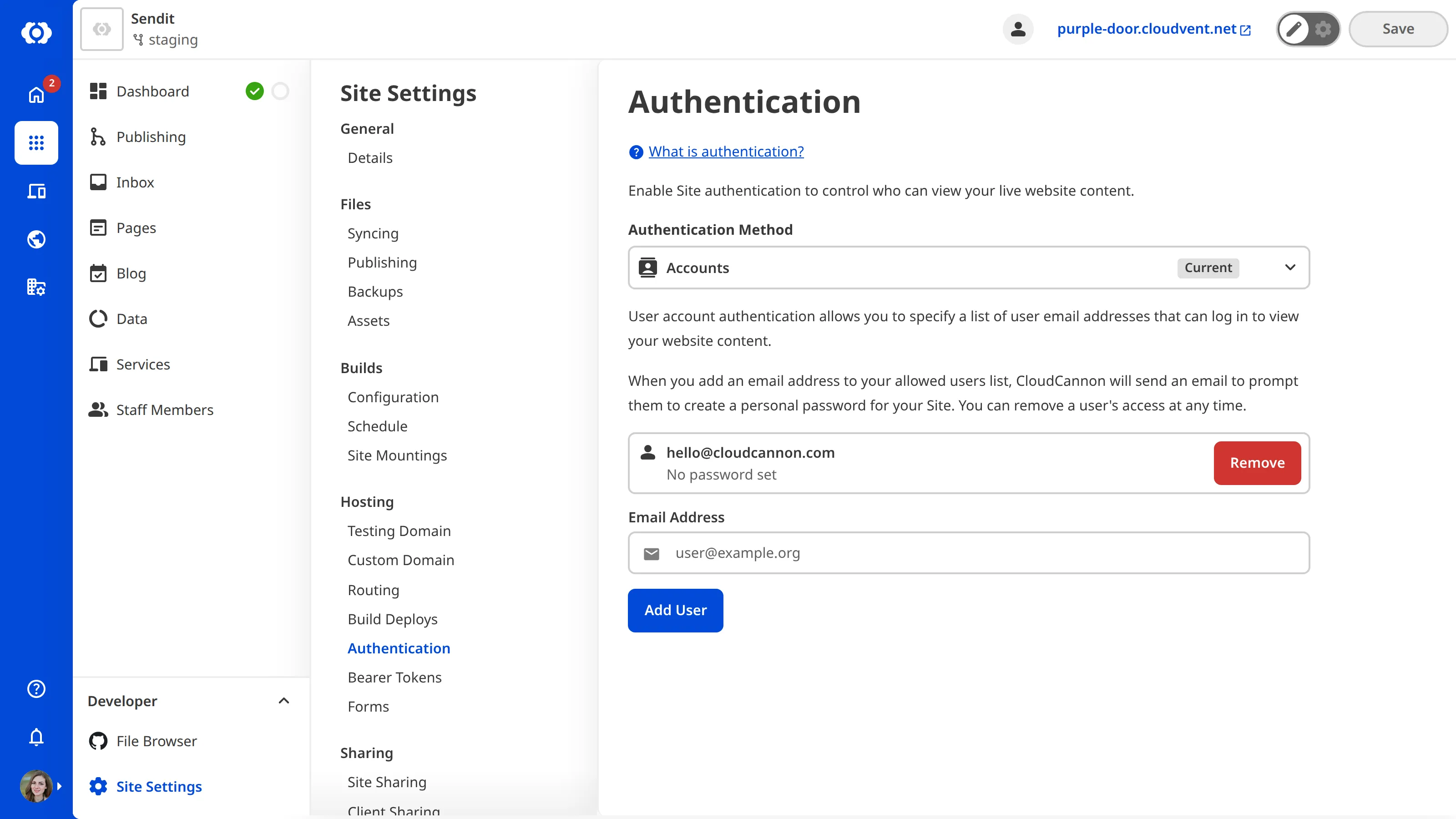
Once a user has set their personal password for your Site, CloudCannon will update the authenticated users list.

You can remove users at any time by clicking the *Remove* button next to their email address.
To disable user account authentication, click the *Authentication method* dropdown, select the *None* option, and then click the *Switch to no authentication* button to confirm your choice.
CloudCannon uses cookies to determine whether a visitor is logged in (i.e., authenticated). Visitors can log out using the log-out link. For more information, please read our documentation on [allowing authenticated users to log out](/documentation/developer-articles/allow-authenticated-users-to-log-out/).
## Configure custom login pages
You can customize the login pages for your website by creating the `login.html`, `set-password.html`, and `reset-password.html` files. These files should be in the root directory of your output Site. Where this is in your Site repository will depend on your SSG (e.g., the root of the repository for Jekyll, the static folder for Hugo, etc.).
You can customize these HTML files to match your Site branding and provide helpful resources.
In each file, CloudCannon requires a `
Forgot your password?
```
> You may already have a `login.html` file if you are switching from [password authentication](/documentation/developer-articles/enable-password-authentication/) to user account authentication. Make sure to update the contents of this file.
### Set Password page
The set password page allows visitors to set a personal password to log in to your Site. CloudCannon will email a link to this page to each user when you add them to your invited users list. Visitors can also access this page when they request a password reset. This page must be named `set-password.html`.
This page requires:
- Form inputs for `password` and `password-confirm`.
- A hidden form input for `token`.
- A `submit` input.
- The `/set-password` form action.
There are several message classes we recommend for this page: `has-password-mismatch`, `has-invalid-link`, `has-token-expired`, and `has-success`.
- The `has-password-mismatch` message class warns the user when the text in the password and password confirmation fields does not match.
- The `has-invalid-link` and `has-token-expired` message classes warn the user when their reset password link is invalid or expired.
- The `has-success` message class tells the user when they have successfully set a password.
Here is an example of a basic set password page:
File: `set-password.html`
```html
Set Password
Set Password
```
### Reset Password page
The reset password page allows visitors to reset their personal login password by entering an invited email address. CloudCannon will email a link to the set password page. This page must be named `reset-password.html`.
This page requires:
- A form input for `email`.
- A `submit` input.
- The `/reset-password` form action.
We highly recommend adding the `has-no-email` and `has-success` message classes.
- The `has-no-email` message class warns the user when they have
- The `has-success` message class tells the user when they have successfully entered their email to receive a reset link.
Here is an example of a basic reset password page:
File: `reset-password.html`
```html
Reset Password
Reset Password
```
---
---
title: Enforce multi-factor authentication
description: Learn how to enforce multi-factor authentication for your CloudCannon Organization.
url: https://cloudcannon.com/documentation/developer-articles/enforce-multi-factor-authentication/
content_type: developer article
last_modified: 2026-09-10
---
> **Enforced multi-factor authentication is available on our [Team or Enterprise Plan](https://cloudcannon.com/pricing/).**
>
> For questions about this feature, [contact our support team](mailto:support@cloudcannon.com?subject=A%20question%20about%20enforced%20MFA).
> **Permissions required**
>
> Members of the *Owners* and *Partner* [Default Permission Groups](/documentation/user-articles/what-are-default-permission-groups/) can enforce multi-factor authentication for an *Organization*. [Custom Permission Groups](/documentation/developer-articles/what-are-custom-permission-groups/) cannot be granted this permission.
Requiring your [Team Members](/documentation/user-articles/what-is-a-team-member/) to use [multi-factor authentication](/documentation/user-articles/what-is-multi-factor-authentication/) on CloudCannon can add an extra layer of security to your [Organization](/documentation/user-articles/what-is-an-organization/).
> MFA enforcement applies to everyone in your *Organization*, including you. If you do not have multi-factor authentication enabled on your own account when the date passes, you will lose access to the *Organization* until you enable it.
To enforce **multi-factor authentication** for your CloudCannon *Organization*:
1. Navigate to the *Multi-Factor Authentication* page under *Org Settings*.
2. Check the *Require multi-factor authentication (MFA) for everyone in your organization* checkbox.
3. In the *Require MFA after* field, enter the date after which CloudCannon will require multi-factor authentication to view your *Organization*, in `YYYY-MM-DD` format.
4. Click the *Update Organization* button.
CloudCannon will update your *Organization*.
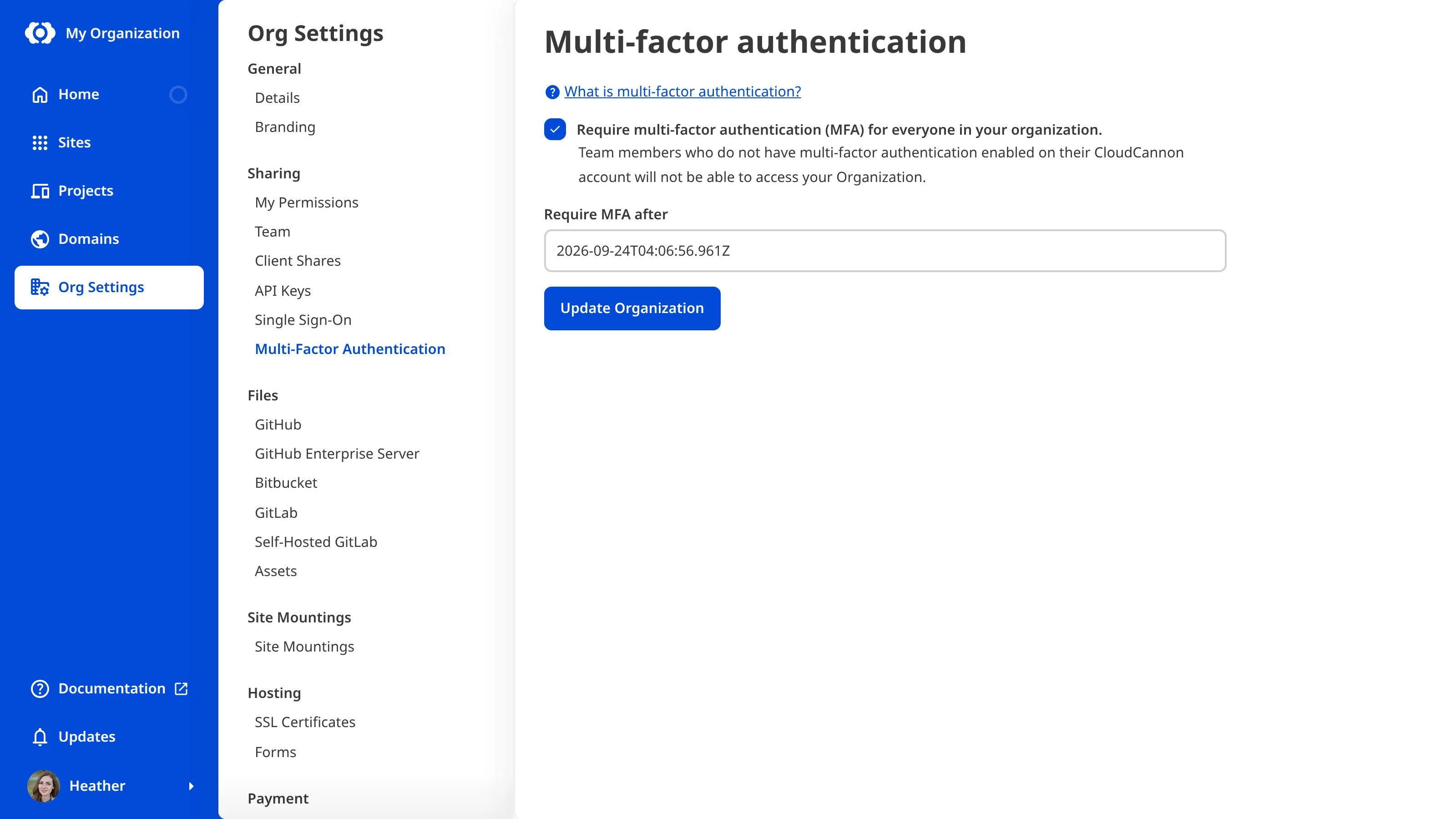
After the specified date, CloudCannon will require *Team Members* in your *Organization* to have [multi-factor authentication enabled](/documentation/developer-articles/enable-multi-factor-authentication/) to view your *Organization* and *Sites*. You can update the date and disable enforced multi-factor authentication at any time.
As the date approaches, *Team Members* who have not yet enabled multi-factor authentication will see a warning banner, informing them that your *Organization* will soon require multi-factor authentication.

If a *Team Member* has not enabled multi-factor authentication before that date, they can log in to CloudCannon but cannot access your *Organization*.
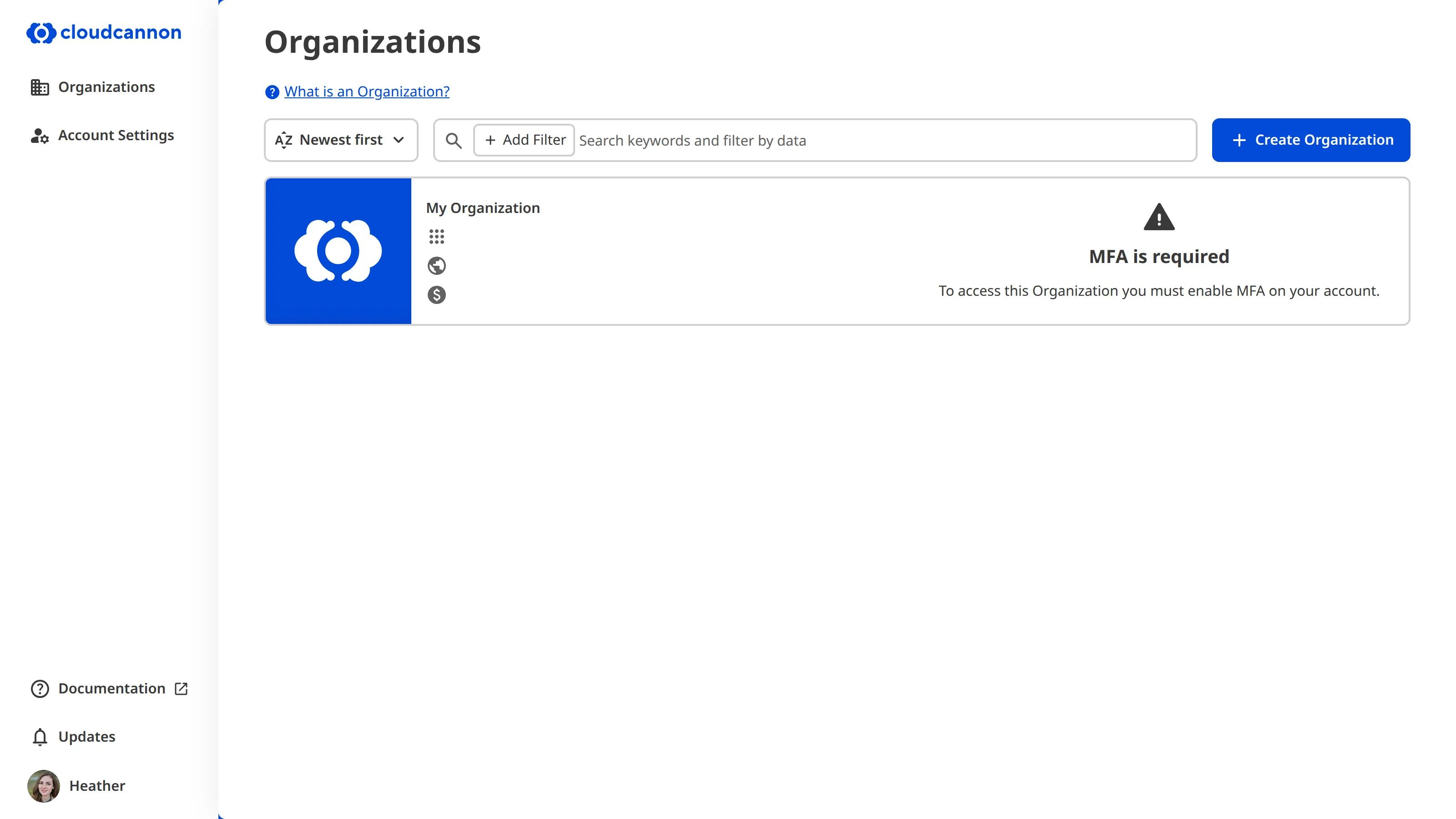
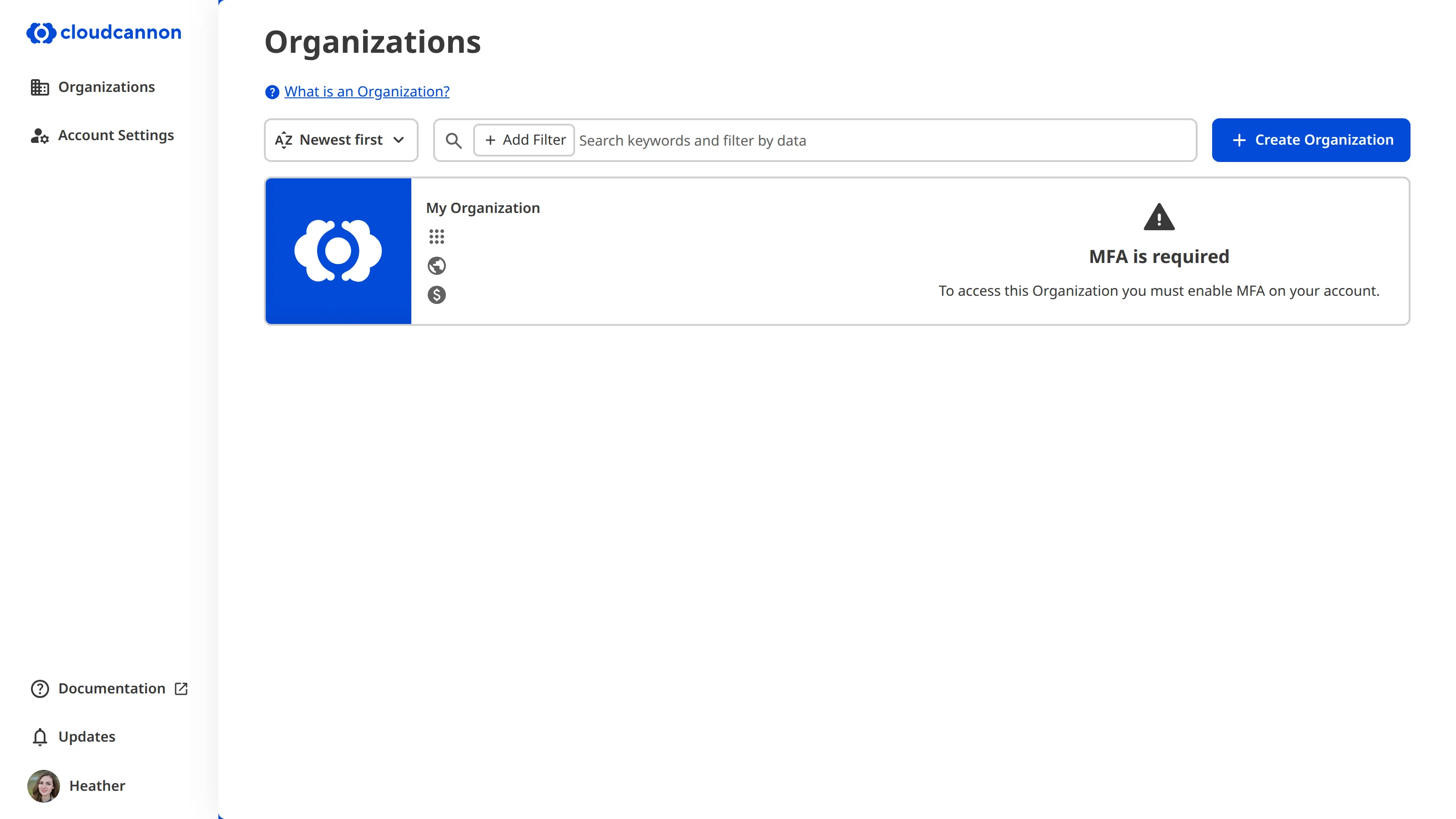
A *Team Member* can restore access to your *Organization* by [enabling multi-factor authentication](/documentation/developer-articles/enable-multi-factor-authentication/) on their CloudCannon account.
You can view which *Team Members* have multi-factor authentication enabled on the *Team* page under *Org Settings*.
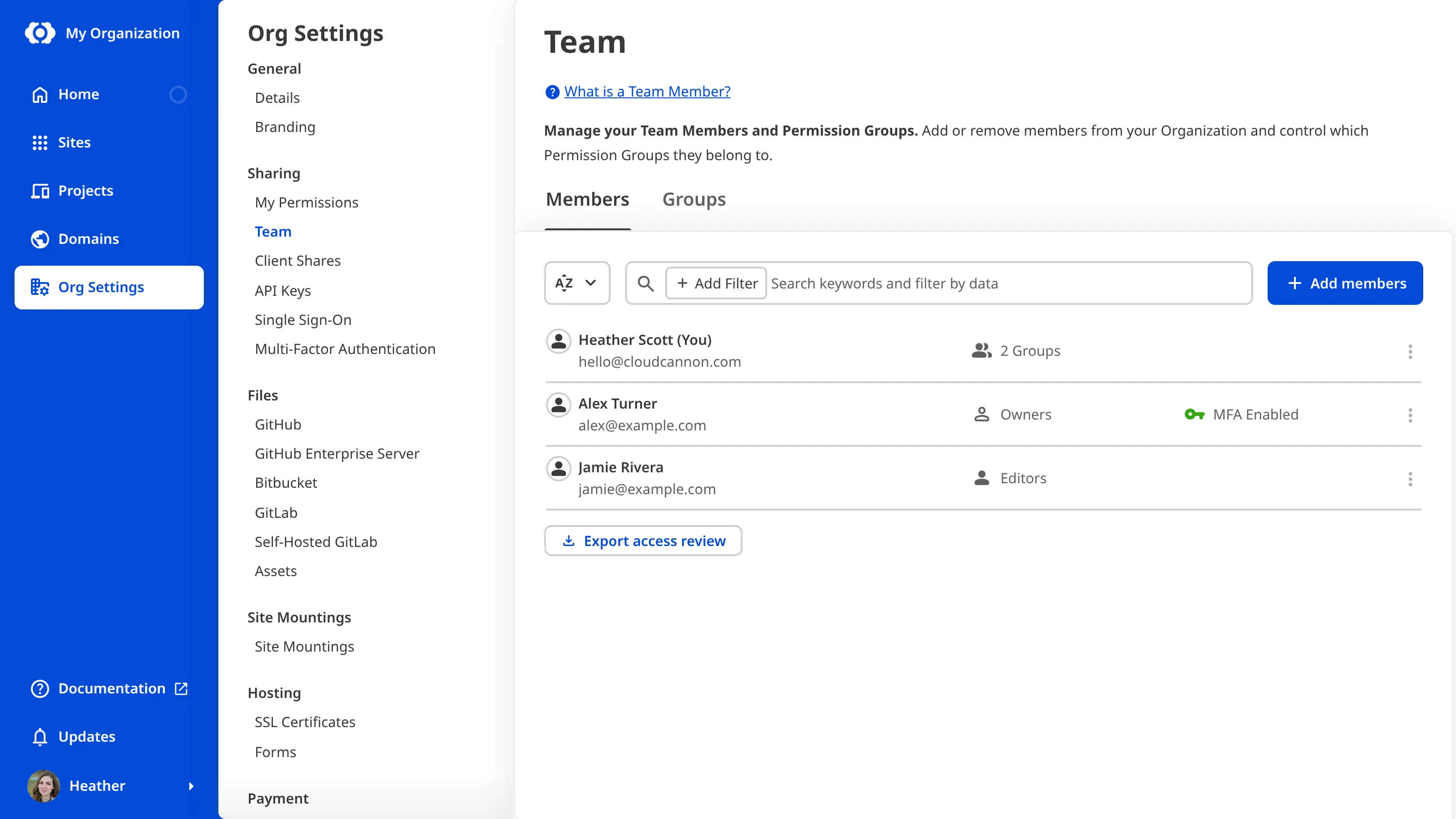
Alternatively, you can export an *Access Review* and use the *MFA Enabled* column to review which *Team Members* have multi-factor authentication turned on. For more information, please read our documentation on [what an Access Review is](/documentation/user-articles/what-is-an-access-review/).
---
---
title: Extending your build process with hooks
description: Learn how to run Preinstall, Prebuild, and PostBuild scripts to extend your build process in CloudCannon.
url: https://cloudcannon.com/documentation/developer-articles/extending-your-build-process-with-hooks/
content_type: developer article
last_modified: 2026-04-11
---
Bash scripts that run at different stages in the build to extend the functionality of your sites. There are three hooks available: Preinstall, Prebuild, and PostBuild. All three are configured using extensionless script files.
To run a hook script:
1. Create one of the named files in the `.cloudcannon` folder at the root of your file structure
2. Enter the commands you want to run at the specified step
### Preinstall
A script at `/.cloudcannon/preinstall` which runs after the files are available and before any install scripts.
Preinstall scripts are useful for configuring your install commands before they run.
### Prebuild
A script at `/.cloudcannon/prebuild` which runs after the install scripts and before any build commands.
Prebuild commands allow you to incorporate your favourite tools for building and pre-processing into CloudCannon. Some ideas for using this feature include:
- Bundling JavaScript
- Fetching API data
- Running build commands outside of your SSG
- Sending messages to your Slack channel
Here’s an example file that bundles JavaScript files using webpack:
File: `/.cloudcannon/prebuild`
```shell
#!/bin/bash
npm install webpack
npm install webpack-cli
./node_modules/.bin/webpack path/to/entry.js -o js/output.js
```
### Postbuild
A script at `/.cloudcannon/postbuild` which runs after your build is completed successfully before the files are uploaded to CloudCannon servers.
Postbuild scripts are useful for augmenting your built output or running postbuild webhooks.
> If your `postbuild` script adds, removes or updates files used by the editor, your editing experience may be compromised.
---
---
title: General Flags
description: Learn about the general flags and how they might affect your Site.
url: https://cloudcannon.com/documentation/developer-articles/general-flags/
content_type: developer article
last_modified: 2026-04-11
---
## Disable setup prompts
During the onboarding and Site creation process, CloudCannon will guide you using setup prompts in your *Site Navigation*. By default, these prompts disappear from the *Site Navigation* once you have completed you Site setup, but they can return if CloudCannon detects your Site no longer has the minimum recommended configuration (e.g., you delete your [CloudCannon configuration file](/documentation/developer-articles/what-is-the-cloudcannon-configuration-file/)).
You can disable these prompts by checking the *Disable setup prompts* flag on the *Flags* page of your Site, under *Site Settings*.
If you disable this flag, CloudCannon will not be able to warn you about incomplete setup in your *Site Navigation*. Instead you can find these warnings under the *Needs attention* section on your *Status* page.
---
---
title: Generate a bearer token
description: Learn about bearer tokens and how to generate them for your Site.
url: https://cloudcannon.com/documentation/developer-articles/generate-a-bearer-token/
content_type: developer article
last_modified: 2026-03-29
---
> This feature is only available for Sites [hosted through CloudCannon](/documentation/user-articles/what-is-web-hosting/#hosting-on-cloud-cannon). If you host your Site externally, or use CloudCannon in [Headless Mode](/documentation/developer-articles/what-is-headless-mode/), this feature will not work.
A bearer token is an alphanumeric string that allows trusted third-party applications (i.e., APIs) to circumvent authentication and access protected content. An application must pass the correct token in an HTTP Authorization header for CloudCannon to allow it to access your Site.
Here is an example bearer token and the Authorization header for a third-party application:
`Authorization: Bearer xxxxxxxx-xxxx-xxxx-xxxx-xxxxxxxxxxxx`
File: `shell`
```shell
curl -H "Authorization: Bearer xxxxxxxx-xxxx-xxxx-xxxx-xxxxxxxxxxxx" https://example.com/products.json
```
To generate a bearer token for your Site:
1. Navigate to the *Bearer Token* page under *Site Settings*.
2. Enter the name of your bearer token in the *Name* text field under *Create Token*. We recommend choosing a name that indicates which application will use the token.
3. Click the *Generate Bearer Token* button to generate a token. CloudCannon will open the *New token* modal.
4. Copy your bearer token from the modal and store it somewhere safe.
5. Click the *OK, I've copied it* button.
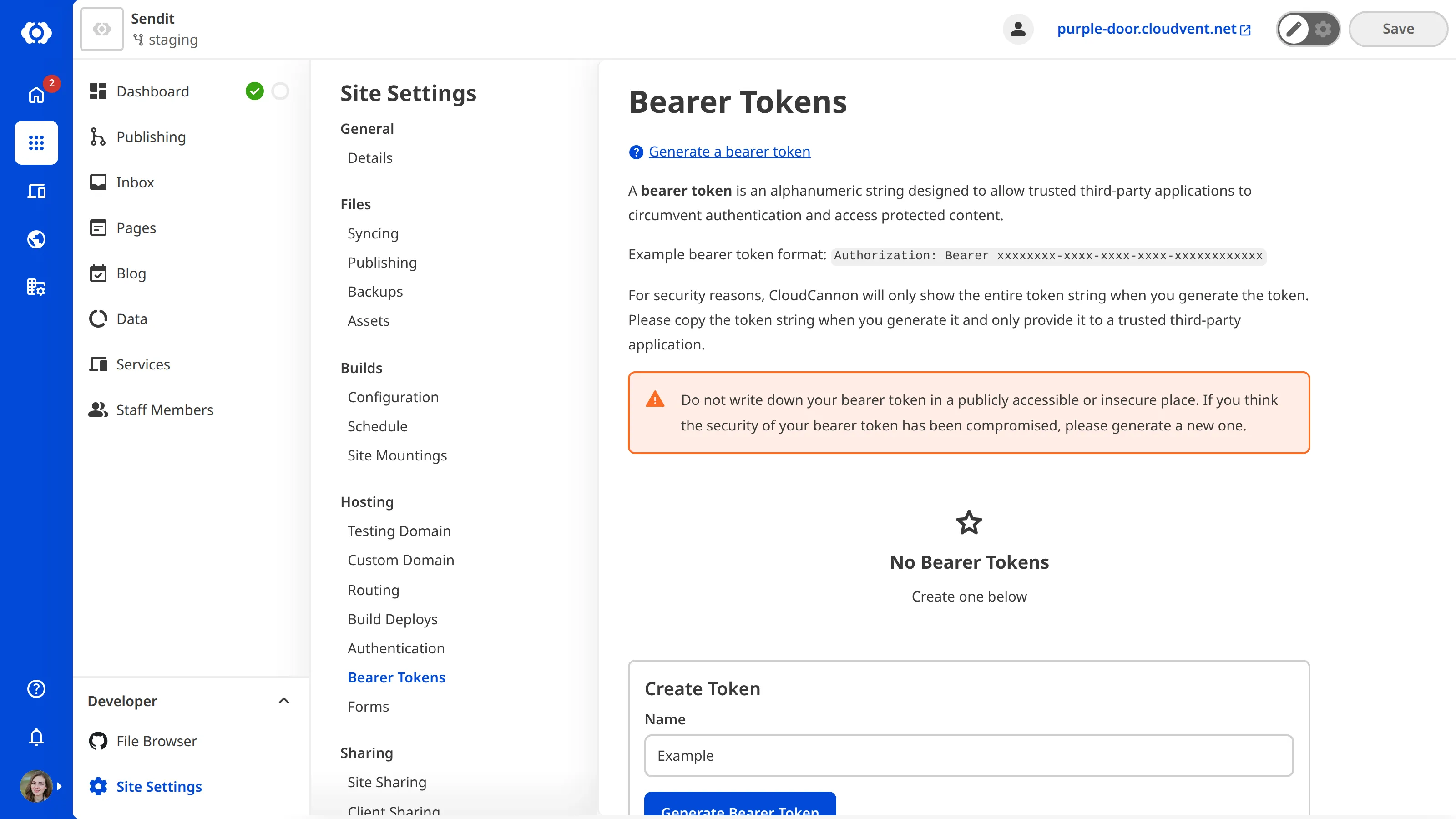
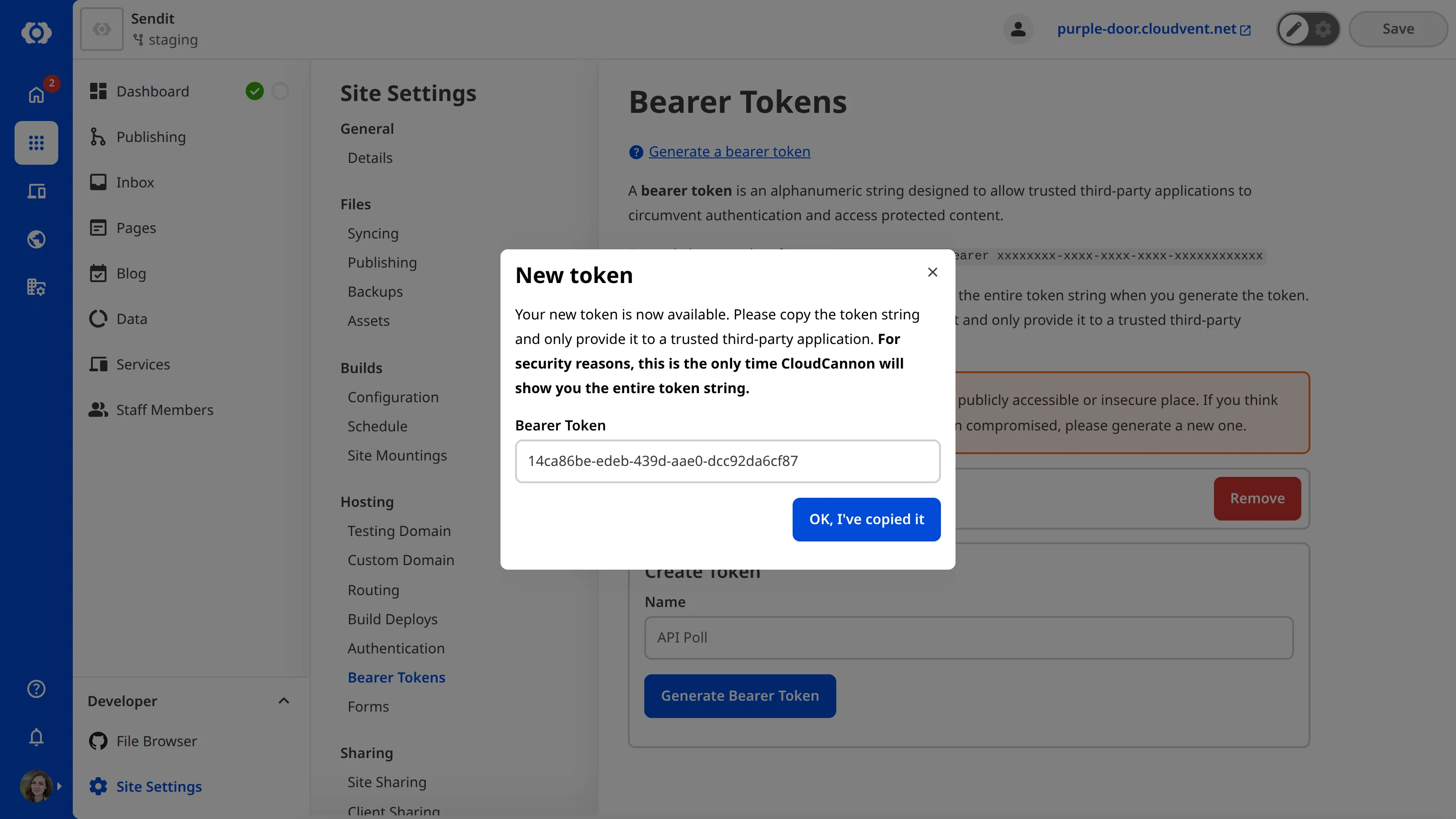
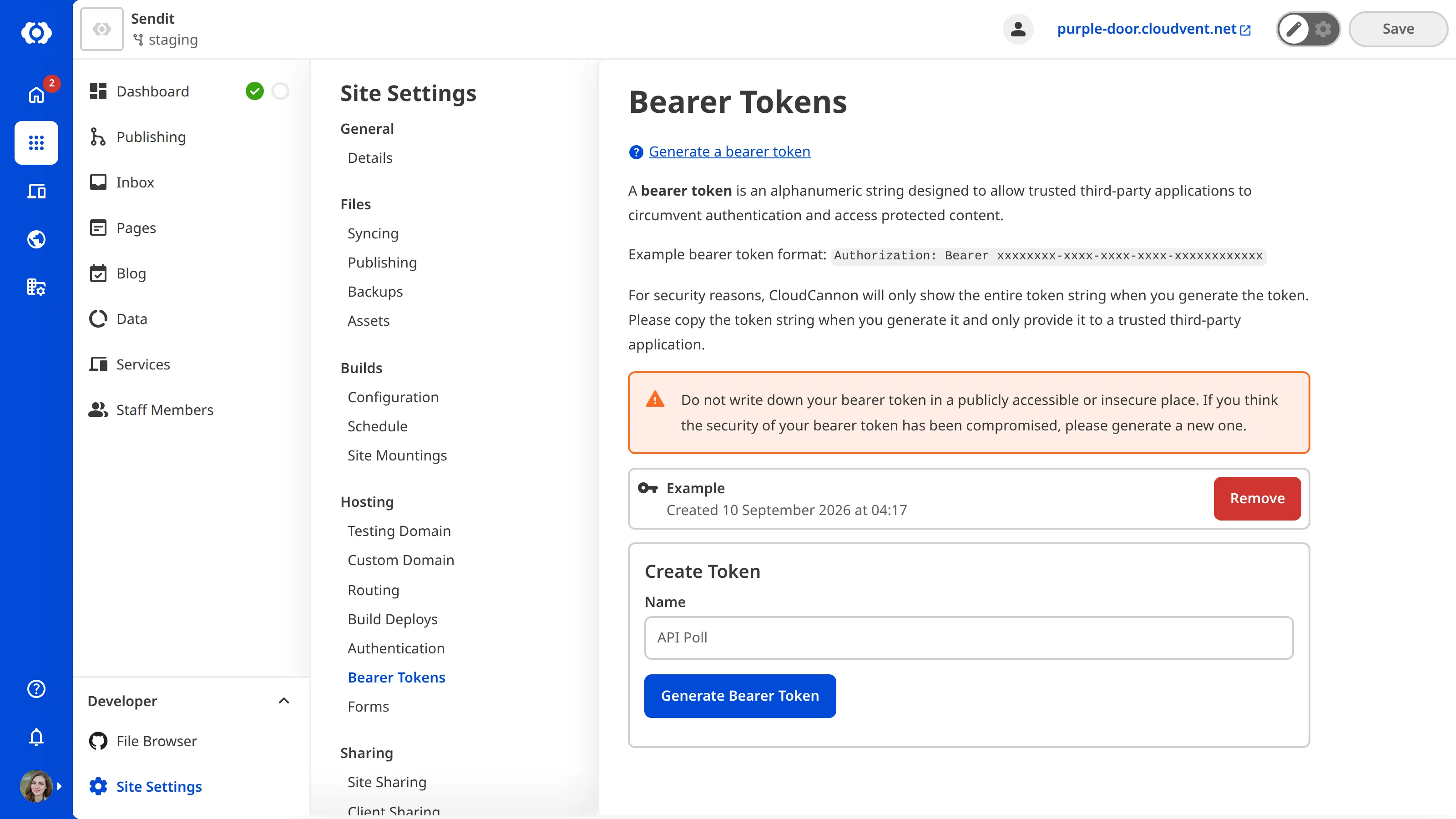
You can remove a bearer token at any time by clicking the *Remove* button and clicking again to confirm. Applications using that bearer token will no longer be able to access your Site.
---
---
title: Including git folder in your build
description: Include your site's .git folder in the build procecss
url: https://cloudcannon.com/documentation/developer-articles/including-git-folder-in-your-build/
content_type: developer article
last_modified: 2026-04-11
---
By default, CloudCannon will not include your `.git` directory in the build process.
If your site relies on information from your `.git` folder, you can use the **Include Git Folder** option.
1. Navigate to *Site Settings* / *Build*.
2. Open the *Advanced Options* menu.
3. Check *Include Git Folder* option.
4. Click the *Update Configuration* button at the bottom of the page.
---
---
title: Increase the minimum TLS version for your domains
description: Learn how to increase the minimum TLS version across every domain on your base domain from the Domain Settings page.
url: https://cloudcannon.com/documentation/developer-articles/increase-the-minimum-tls-version-for-your-domains/
content_type: developer article
last_modified: 2026-07-06
---
> **Permissions required**
>
> Members of the *Owners* or *Developers* [Default Permission Groups](/documentation/user-articles/what-are-default-permission-groups/), or [Custom Permission Groups](/documentation/developer-articles/what-are-custom-permission-groups/) with the `base-domain:settings:details:write` permission, can set the minimum TLS version for a base domain.
You can set a single minimum TLS version that applies to every domain on your base domain, rather than configuring it on each subdomain individually with an [auto-generated SSL certificate](/documentation/developer-articles/add-an-auto-generated-ssl-certificate/). This is useful when you host several *Sites* on one base domain and want a consistent security baseline across all of them. On CloudCannon, the minimum TLS version is either 1.2 by default, or 1.3. For more about the minimum TLS version and how to choose between 1.2 and 1.3, please read our documentation on [SSL certificates](/documentation/developer-articles/what-is-an-ssl-certificate/#tls-version).
> The minimum TLS version applies to domains on your base domain that CloudCannon serves through Cloudflare, whether they use an [auto-generated SSL certificate](/documentation/developer-articles/add-an-auto-generated-ssl-certificate/) or a [custom SSL certificate](/documentation/developer-articles/add-a-custom-ssl-certificate/). CloudCannon enforces the minimum TLS version separately from the certificate itself, and domains not served through Cloudflare are not affected.
When you change the minimum TLS version, CloudCannon lists the domains on your base domain that do not yet meet it, then raises those domains to your selected version when you confirm. Domains that already meet or exceed your selected minimum are left unchanged. If you want to return to a lower TLS version, you must do so manually for each subdomain via the [Configure SSL modal](/documentation/developer-articles/add-an-auto-generated-ssl-certificate/).
To increase the minimum TLS version for your domains:
1. Log in to CloudCannon and select the Organization that contains your base domain.
2. Click the *Domains* button in the *App Sidebar*. CloudCannon will open the **Domains Browser**.
3. Identify the domain you want to update and click on the *Domain* card. CloudCannon will open the *Domain* page for this **Custom Domain**.
4. Navigate to the *TLS* section under the *Domain Settings* tab.
5. Select a version number from the *Minimum TLS version* dropdown.
6. Review the list of domains that CloudCannon will update to your selected minimum TLS version.
7. Click the *Update minimum TLS* button.
CloudCannon will set the minimum TLS version across the listed domains on your base domain.
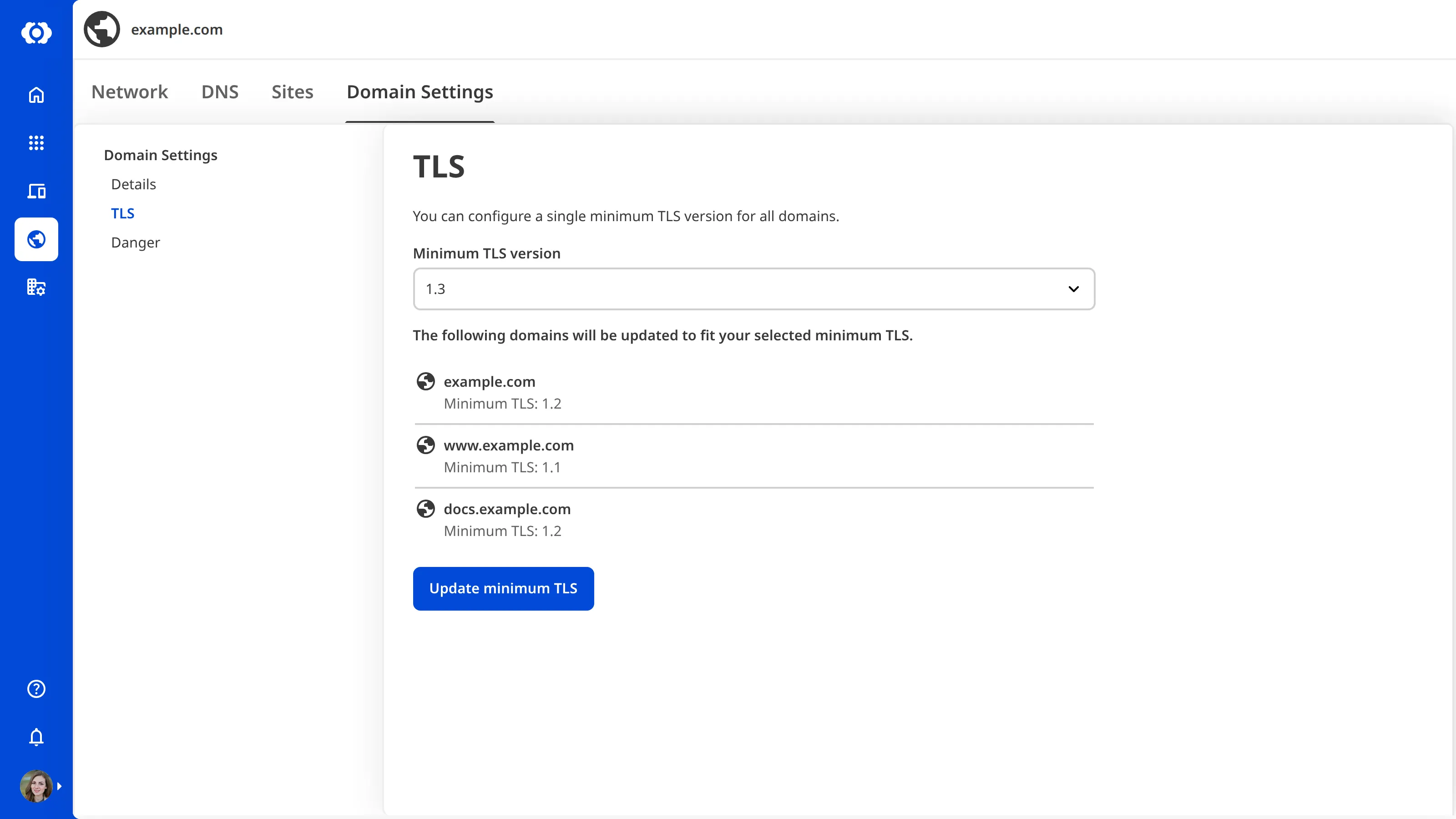
> When all domains on your base domain already use your selected minimum TLS version, CloudCannon displays a message confirming there are no domains to update, and the *Update minimum TLS* button is disabled.
---
---
title: Initialize the Visual Editor API
description: Install the Visual Editor API package and initialize the API in your site's JavaScript.
url: https://cloudcannon.com/documentation/developer-articles/initialize-the-visual-editor-api/
content_type: developer article
last_modified: 2026-08-11
---
> The *Visual Editor API* is designed for experienced CloudCannon developers. If you need help with custom integrations or your CloudCannon setup in general, please contact our friendly [support team](https://cloudcannon.com/support/).
CloudCannon's **Visual Editor API** allows you to read and write content, listen for changes, and build custom integrations in the **Visual Editor**. This article covers how to set up and initialize the *Visual Editor API* in your website's JavaScript.
This article assumes you know how to [detect the Visual Editor](/documentation/developer-articles/detect-the-visual-editor/) in your site's JavaScript. For a complete list of API objects and methods, please read our reference documentation on the [Visual Editor API](/documentation/developer-reference/visual-editor-api/).
## Install the package
The `@cloudcannon/visual-editor-api` package provides TypeScript declarations for the *Visual Editor API*. This package contains type definitions only, and no runtime code. The actual API is provided by CloudCannon when your website loads in the *Visual Editor*.
To install the package as a dev dependency:
1. Open your local terminal and navigate to the root folder of your website project.
2. Run the following command in your terminal:
File: `Terminal`
```shell
npm install --save-dev @cloudcannon/visual-editor-api
```
`npm` will install the type definitions for the *Visual Editor API*.
If your project uses TypeScript, please read our documentation on [using TypeScript with the Visual Editor API](/documentation/developer-articles/use-typescript-with-the-visual-editor-api/) for instructions on setting up type declarations and **IDE** autocomplete.
## Initialize the API
The *Visual Editor API* is available through `window.CloudCannonAPI` whenever you open a file in the *Visual Editor*. To use the API, you need to:
- Check if the *Visual Editor API* has loaded in the *Visual Editor* (your website's scripts may run before the API finishes loading),
- Get the v1 **API Object**,
- Use the returned object to call API methods.
You can detect whether the API has already loaded by the time your script runs by checking whether `window.CloudCannonAPI` already exists. You can also listen for the `cloudcannon:load` event on `document`, if your script runs before the API finishes loading.
To initialize the *Visual Editor API* in your JavaScript:
1. Open your website files in your local development environment.
2. Create a Promise that resolves with the v1 *API Object* once the API is ready.
3. Await the Promise in an async function and add your integration code.
File: `script.js`
```javascript
```
const apiPromise = new Promise((resolve) => { /*1*/
if (window.CloudCannonAPI) {
const api = window.CloudCannonAPI.useVersion('v1', true);
resolve(api);
} else {
document.addEventListener( /*2*/
'cloudcannon:load',
() => {
const api = window.CloudCannonAPI.useVersion('v1', true);
resolve(api);
},
{ once: true }
);
}
});
(async () => { /*3*/
const api = await apiPromise;
// Custom integration code here
})();
```
**[1]** Create a Promise that resolves with the v1 *API Object*. If `window.CloudCannonAPI` is already present when your script runs, it resolves immediately. Passing `true` as the second argument to `useVersion()` prevents the *API Object* from being assigned to `window.CloudCannon`.
**[2]** If the *API Object* is not present, the Promise waits for the `cloudcannon:load` event.
**[3]** Await `apiPromise` inside an async IIFE. The `api` variable holds the v1 *API Object* for use in your integration code.
```
> **The second argument for `useVersion()`**
>
> The `useVersion()` method accepts an optional second argument, `preventGlobalInstall`. When set to `true`, the returned *API Object* is not assigned to `window.CloudCannon`. Always pass `true` to avoid version conflicts, and access the API only through the returned object, especially if you are using `window.CloudCannon` in another integration:
>
> File: `script.js`
>
> ```javascript
> const api = window.CloudCannonAPI.useVersion('v1', true);
> // api is only accessible through the returned object, not through window.CloudCannon
> ```
This is one approach. You can adapt it to suit your project, for example by wrapping the await in a framework lifecycle hook. Alternatively, you can use a callback-based helper:
File: `script.js`
```javascript
```
function withCloudCannonApi(callback) { /*1*/
const setup = (router) => {
const api = router?.useVersion('v1', true);
if (api) callback(api);
};
if (window.CloudCannonAPI) {
setup(window.CloudCannonAPI);
return;
}
document.addEventListener(
'cloudcannon:load',
() => setup(window.CloudCannonAPI),
{ once: true }
);
}
withCloudCannonApi(async (api) => { /*2*/
// Custom integration code here
});
```
**[1]** The helper handles both cases: if `window.CloudCannonAPI` is already present when your script runs, it calls the callback immediately. If not, it listens for the `cloudcannon:load` event and calls the callback when the API is ready.
**[2]** Call `withCloudCannonApi()` with your callback. The callback receives the v1 *API Object*.
```
Once you have the API initialized, you can [read and write data](/documentation/developer-articles/read-and-write-data-with-the-visual-editor-api/), [listen for changes](/documentation/developer-articles/listen-for-changes-with-the-visual-editor-api/), [list files, Collections, and Datasets](/documentation/developer-articles/access-and-list-files-collections-and-datasets-with-the-visual-editor-api/), [create a custom data panel](/documentation/developer-articles/create-a-custom-data-panel-with-the-visual-editor-api/), [create custom inline editing](/documentation/developer-articles/create-custom-inline-editing-with-the-visual-editor-api/), and [manage loading, uploads, and previews](/documentation/developer-articles/manage-loading-uploads-and-previews-with-the-visual-editor-api/).
---
---
title: Input Naming Convention Flags
description: Learn about the input naming convention flags and how they might affect your Select inputs and Structures.
url: https://cloudcannon.com/documentation/developer-articles/input-naming-convention-flags/
content_type: developer article
last_modified: 2026-06-23
---
> As of October 2024, CloudCannon's input naming convention behavior changed for all new Sites and Sites using Unified Configuration. For more information, please read out guide on [migrating to Unified Configuration](/documentation/developer-guides/unified-configuration-migration-guide/) or contact our friendly [support team](https://cloudcannon.com/support/).
In older versions of CloudCannon, you could define which [Collections](/documentation/user-articles/what-is-a-collection/) or [data sets](/documentation/developer-articles/define-your-data/) populated a [Select input](/documentation/user-articles/what-is-a-select-input/) or which [Structures](/documentation/developer-articles/what-is-a-structure/) populated an [Object input](/documentation/user-articles/what-is-an-object-input/) or [Array input](/documentation/user-articles/what-is-an-array-input/) using a naming convention.
Sites using Unified Configuration may require you to configure this behavior rather than rely on the naming convention for CloudCannon to detect what should populate an input.
## Infer Select values from input key
The *Infer Select values from input key* flag controls whether CloudCannon uses the input naming convention to determine which Collections or data sets should populate a Select or Multiselect input.
This convention involved naming the input the singular noun of a Collection or data set name. For example, an unconfigured input named `author` will automatically become a Select input referencing a Collection named `authors`.
CloudCannon no longer uses this behavior by default. New Sites created after October 2024 and sites using Unified Configuration do not have this flag enabled. You can enable this behavior by checking the *Infer Select values from input key* flag on the *Flags* page of your Site, under *Site Settings*.
## Infer Structure values from input key
The *Infer Structure from input key* flag controls whether CloudCannon uses the input naming convention to determine which Structures should populate an Object or Array input.
This convention involved naming the Structure the same as an input. For example, an unconfigured input named `content_blocks` will automatically become an array of the structure named `content_blocks`.
CloudCannon enables this behavior by default to support older Site configurations. You can disable this behavior by checking the *Infer Structure from input key* flag on the *Flags* page of your Site, under *Site Settings*.
---
---
title: Integrating your DAM with CloudCannon
description: Learn how to connect your DAM to your sites in CloudCannon
url: https://cloudcannon.com/documentation/developer-articles/integrating-your-dam-with-cloudcannon/
content_type: developer article
last_modified: 2026-04-11
---
Learn how to connect your DAM to your sites in CloudCannon.
For information on setting up a DAM with a specific provider, read one of our guides below:
- [Creating a Cloudinary DAM](/documentation/developer-articles/creating-a-cloudinary-dam/)
- [Creating an S3 DAM](/documentation/developer-articles/creating-an-s3-dam/)
- [Creating a Cloudflare R2 DAM](/documentation/developer-articles/creating-a-cloudflare-r2-dam/)
- [Creating a DigitalOcean Spaces DAM](/documentation/developer-articles/creating-a-digitalocean-spaces-dam/)
- [Creating a Tenovos DAM](/documentation/developer-articles/creating-a-tenovos-dam/)
- [Creating an Azure Blob Storage DAM](/documentation/developer-articles/creating-an-azure-dam/)
- [Creating a Google Cloud Storage DAM](/documentation/developer-articles/creating-a-google-cloud-storage-dam/)
### Authenticating your DAM
To connect your DAM to your sites, you must first authenticate the DAM with your organisation.
1. In your Organisation settings, navigate to *Files* / *Assets*
2. Click **Authenticate a new DAM**
3. Select your provider from the dropdown, then fill out the relevant fields. Check your provider's documentation to see where you can find the relevant values
4. Click **Authenticate**.
You will then be able to manage your DAM within the scope of your organisation. To check the authentication went correctly:
1. In your Organisation settings, navigate to *Files* / *Assets*
2. Locate the relevant DAM, and click the **Manage** button next to its name
3. In the **Configuration tab**, click the **Open preview** button.
If your DAM successfully authenticated, a modal will open that will let your browse the files in your DAM. If something goes wrong, you may have entered your details incorrectly. Read below to learn how to configure an existing DAM with CloudCannon.
### Linking your DAM to a site in CloudCannon
Once you have authenticated your DAM with your CloudCannon organisation, you can then link it to any number of your sites.
To link a site:
1. Open your site in the CloudCannon app
2. In your site's settings, navigate to *Files* / *Assets*
3. In the box labelled *Link DAM*, select your authenticated DAM from the dropdown
4. Click **Link DAM**
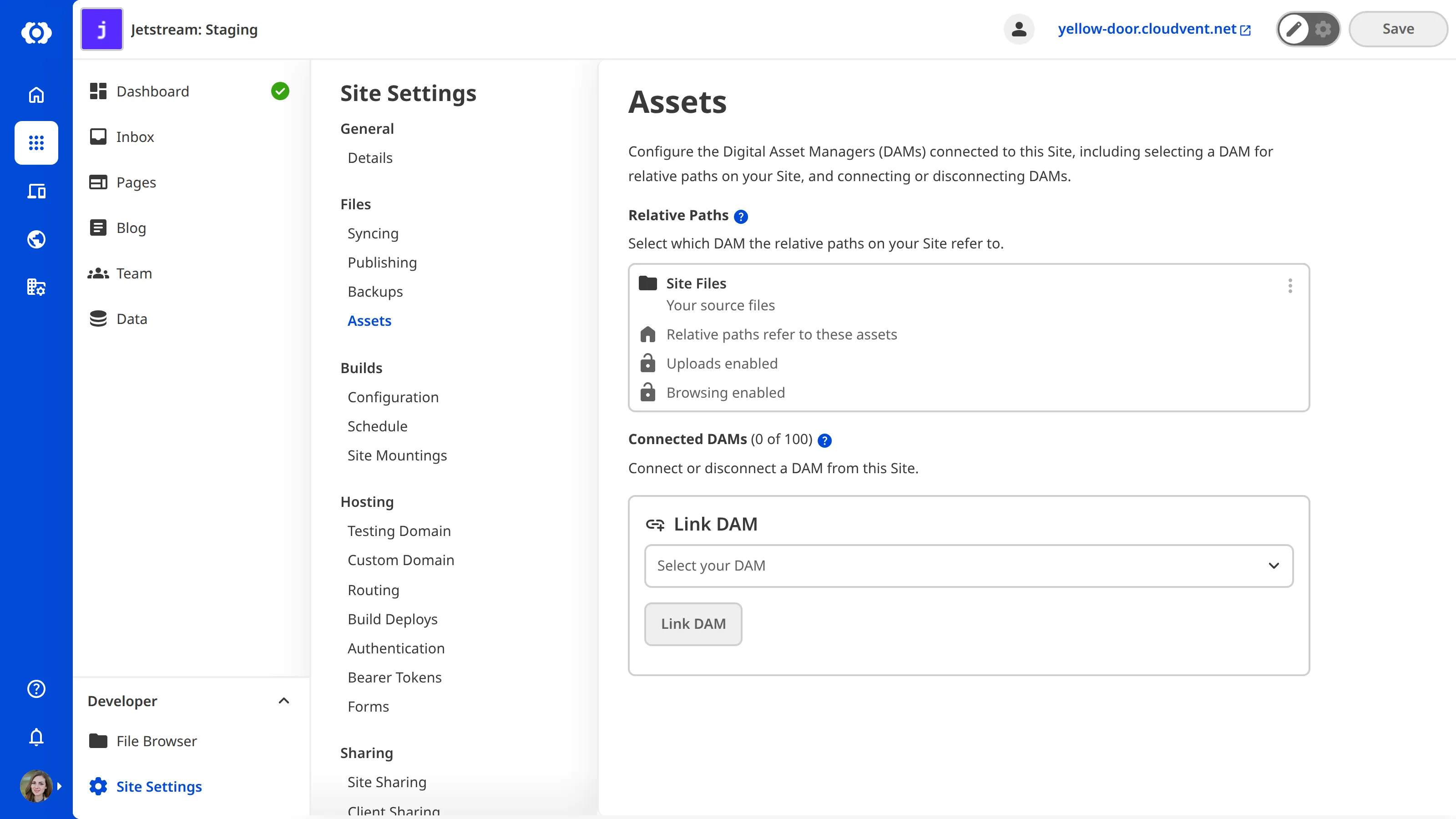
> You can prevent choosing existing files from and uploads to your site/repository files in the *Site Settings / Details* section.
---
---
title: Integrating your forms with email
description: Receive your form submissions by email.
url: https://cloudcannon.com/documentation/developer-articles/integrating-your-forms-with-email/
content_type: developer article
last_modified: 2026-04-11
---
You can choose to forward submissions from your CloudCannon forms to your email address by using the email Inbox target.
To create an email target:
1. Navigate to the forms menu in your Organization settings, under *Hosting > Forms.*
2. Open your Inbox settings by clicking the *Manage* button on the Inbox you want to receive email from.
3. Open the *Add new target* menu, and set the *Type* to *Email.*
4. Set the *Target* to the email address to send submissions to, then click *Add Inbox target*.
At this point, you should receive a validation link at that email address. Once you click that link, the target will be validated and begin receiving form submission emails.
### Special Fields
Use these fields to customize the email CloudCannon sends through the form. The fields can be hidden or visible, depending on your requirements.
`_replyto` — the value used for the Reply-To header in the email. Use this to ensure clients reply to the visitor rather than a default CloudCannon address.
File: `contact.html`
```html
```
`_subject` — the subject of the email.
File: `contact.html`
```html
```
---
---
title: Integrating your forms with IFTTT
description: Process your form submissions with IFTTT applets
url: https://cloudcannon.com/documentation/developer-articles/integrating-your-forms-with-ifttt/
content_type: developer article
last_modified: 2026-06-30
---
You can integrate your CloudCannon forms with your IFTTT applets using webhooks and the IFTTT Inbox target.
To create an IFTTT webhook:
1. If you haven't already, create an IFTTT account [here](https://ifttt.com/join).
2. In the IFTTT console, create a new applet by clicking the *Create* button.
3. Select the *Webhooks* service and then select *Receive a web request with a JSON payload* as your trigger.
4. Enter an event name and then click *Create Trigger*.
5. Add any actions you want to your applet, then click *Continue*. Give your applet a name and click *Finish.*
6. Navigate to *My Services > Webhooks*, then click the *Settings* button.
7. Go to the URL listed under the *Details* heading. Here you'll find your webhook URL. Replace `{event}` in the URL with the event name you gave your trigger, the resulting URL is the one you'll use to create the IFTTT target.
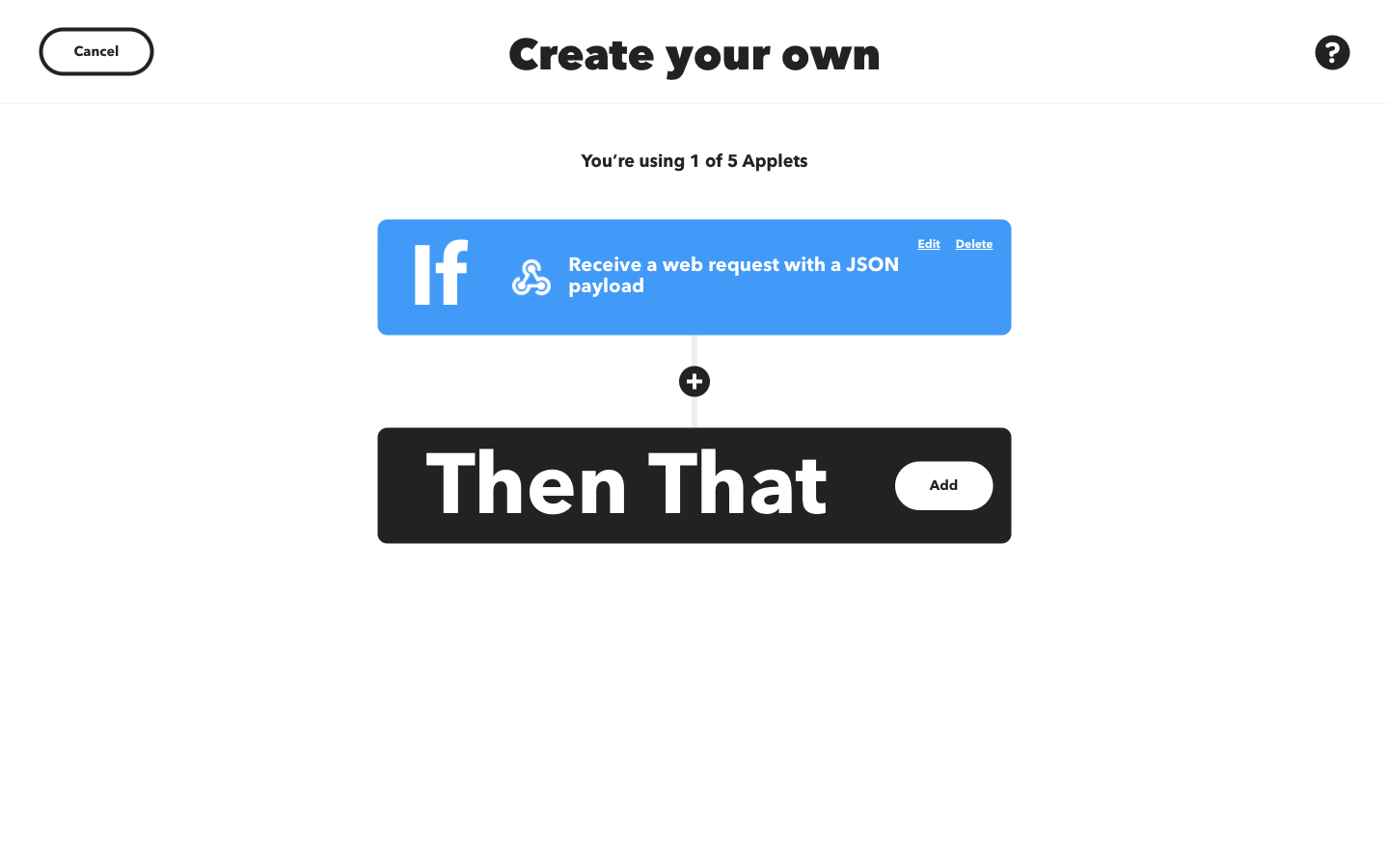
To create an IFTTT target:
1. Navigate to the forms menu in your Organization settings, under *Hosting > Forms.*
2. Open your Inbox settings by clicking the *Manage* button on the Inbox you want to connect to IFTTT.
3. Open the *Add new target* menu, and set the *Type* to *IFTTT.*
4. Set the *Target* to the webhook URL from your IFTTT webhook service, then click *Add Inbox target*.
Now if you submit to that Inbox, your applet will be triggered with the submission data.
---
---
title: Integrating your forms with Integromat
description: Process your form submissions using Integromat scenarios.
url: https://cloudcannon.com/documentation/developer-articles/integrating-your-forms-with-integromat/
content_type: developer article
last_modified: 2026-04-11
---
> If you're looking to migrate your Integromat organization to Make, see [here](/documentation/developer-articles/integrating-your-forms-with-make-formerly-integromat/) for a guide on integrating with Make
You can integrate your CloudCannon forms with your Integromat scenarios using webhooks and the Integromat Inbox target.
To create an Integromat webhook:
1. In the Integromat console, open the *Scenarios* menu from the sidebar and click the *Create a new scenario* button.
2. Add a *Webhooks* module and select *Custom webhook* as its type.
3. When prompted to select a webhook, click the *Add* button and create a new webhook.
4. After you've created your webhook, click the *Copy address to clipboard* button. You'll need this URL to create the Integromat target. If you need to refer back to this URL you can do so from the *Webhooks* menu in the sidebar.
5. Add any additional modules that you want, then save your scenario.
To create an Integromat target:
1. Navigate to the forms menu in your Organization settings, under *Hosting > Forms.*
2. Open your Inbox settings by clicking the *Manage* button on the Inbox you want to connect to Integromat.
3. Open the *Add new target* menu, and set the *Type* to *Integromat.*
4. Set the *Target* to the webhook URL from your Integromat scenario, then click *Add Inbox target*.
---
---
title: Integrating your forms with Make (formerly Integromat)
description: Process your form submissions using Make scenarios.
url: https://cloudcannon.com/documentation/developer-articles/integrating-your-forms-with-make-formerly-integromat/
content_type: developer article
last_modified: 2026-06-30
---
> If you're an existing Integromat user, see [here](/documentation/developer-articles/integrating-your-forms-with-integromat/) for a guide on integrating with Integromat
You can integrate your CloudCannon forms with your Make scenarios using webhooks and the Make Inbox target.
To create a Make webhook:
1. If you haven't already, create a Make account [here](https://www.make.com/en/register).
2. In the Make console, open the *Scenarios* menu from the sidebar and click the *Create a new scenario* button.
3. Add a *Webhooks* module and select *Custom webhook* as its type.
4. When prompted to select a webhook, click the *Add* button and create a new webhook.
5. After you've created your webhook, click the *Copy address to clipboard* button. You'll need this URL to create the Make target. If you need to refer back to this URL you can do so from the *Webhooks* menu in the sidebar.
6. Add any additional modules that you want, then save your scenario.
To create a Make target:
1. Navigate to the forms menu in your Organization settings, under *Hosting > Forms.*
2. Open your Inbox settings by clicking the *Manage* button on the Inbox you want to connect to Make.
3. Open the *Add new target* menu, and set the *Type* to *Make.*
4. Set the *Target* to the webhook URL from your Make scenario, then click *Add Inbox target*.
Now if you submit to that Inbox, your scenario will run on the submission data.
---
---
title: Integrating your forms with Slack
description: Send your form submissions to a Slack channel.
url: https://cloudcannon.com/documentation/developer-articles/integrating-your-forms-with-slack/
content_type: developer article
last_modified: 2026-06-30
---
You can integrate your CloudCannon forms with your Slack apps using webhooks and the Slack Inbox target.
To create a Slack webhook:
1. In the Slack API console, click the *Create an app* button and select *From Scratch* configuration.
2. Name your app and select your Slack Workspace then click *Create App*.
3. Under the *Add features and functionality menu*, click *Incoming Webhooks*.
4. Toggle *Activate Incoming Webhooks* to *On, *then click *Add New Webhook to Workspace.*
5. Select the Slack channel you want to forward submissions to, then click *Allow* to create your webhook.
6. After you've created your webhook, copy its URL. You'll need this URL to create the Slack target. If you need to refer back to this URL you can do so from the *Incoming Webhooks* menu in the sidebar.
To create a Slack target:
1. Navigate to the forms menu in your Organization settings, under *Hosting > Forms.*
2. Open your Inbox settings by clicking the *Manage* button on the Inbox you want to connect to Slack.
3. Open the *Add new target* menu, and set the *Type* to *Slack.*
4. Set the *Target* to the webhook URL from your Slack app, then click *Add Inbox target*.
Now if you submit to that Inbox, the submission data will be forwarded to Slack. See [here](https://api.slack.com/reference/messaging/payload) for a reference on the kinds of data that Slack accepts.
---
---
title: Integrating your forms with Zapier
description: Process your form submissions with Zapier zaps.
url: https://cloudcannon.com/documentation/developer-articles/integrating-your-forms-with-zapier/
content_type: developer article
last_modified: 2026-06-30
---
You can integrate your CloudCannon forms with your Zapier zaps using webhooks and the Zapier Inbox target.
To create a Zapier webhook trigger:
1. If you haven't already, create a Zapier account [here](https://zapier.com/sign-up).
2. In the Zapier console, click the *Create Zap* button.
3. Select *Webhooks* as your trigger app and *Catch Hook* as your trigger event.
4. Click the *Continue* button, then copy the webhook URL and click *Continue* again.
5. Zapier is now waiting to receive a sample submission to that webhook URL.
To finish setting up the Zap, you must first create the Zapier target in CloudCannon and send a sample submission.
To create a Zapier target:
1. Navigate to the forms menu in your Organization settings, under *Hosting > Forms.*
2. Open your Inbox settings by clicking the *Manage* button on the Inbox you want to connect to Zapier.
3. Open the *Add new target* menu, and set the *Type* to *Zapier.*
4. Set the *Target* to the webhook URL from your Zapier Zap, then click *Add Inbox target*.
Now, submit to that Inbox and then click *Test Trigger* in Zapier. At this point, you can click the *Continue* button and finish setting up your Zap.
---
---
title: Introduction to Assets and DAMs
description: CloudCannon Assets feature allows you to configure a different platform (DAM) that stores images and documents (e.g. S3, Cloudinary)
url: https://cloudcannon.com/documentation/developer-articles/introduction-to-assets-and-dams/
content_type: developer article
last_modified: 2026-02-24
---
**Assets** are often the most visually important part of your **Site**, but they can also be the largest. Storing large assets in your **Git repository** can become an issue, as most *Git Repositories* have a maximum storage amount, and larger *Repositories* have slower **Build** times.
You can configure a **Digital Asset Manager** to store your assets externally and connect it to your CloudCannon *Site*. *DAMs* also allow you to attach extra metadata to your assets, add complex sorting, and perform image transformations.
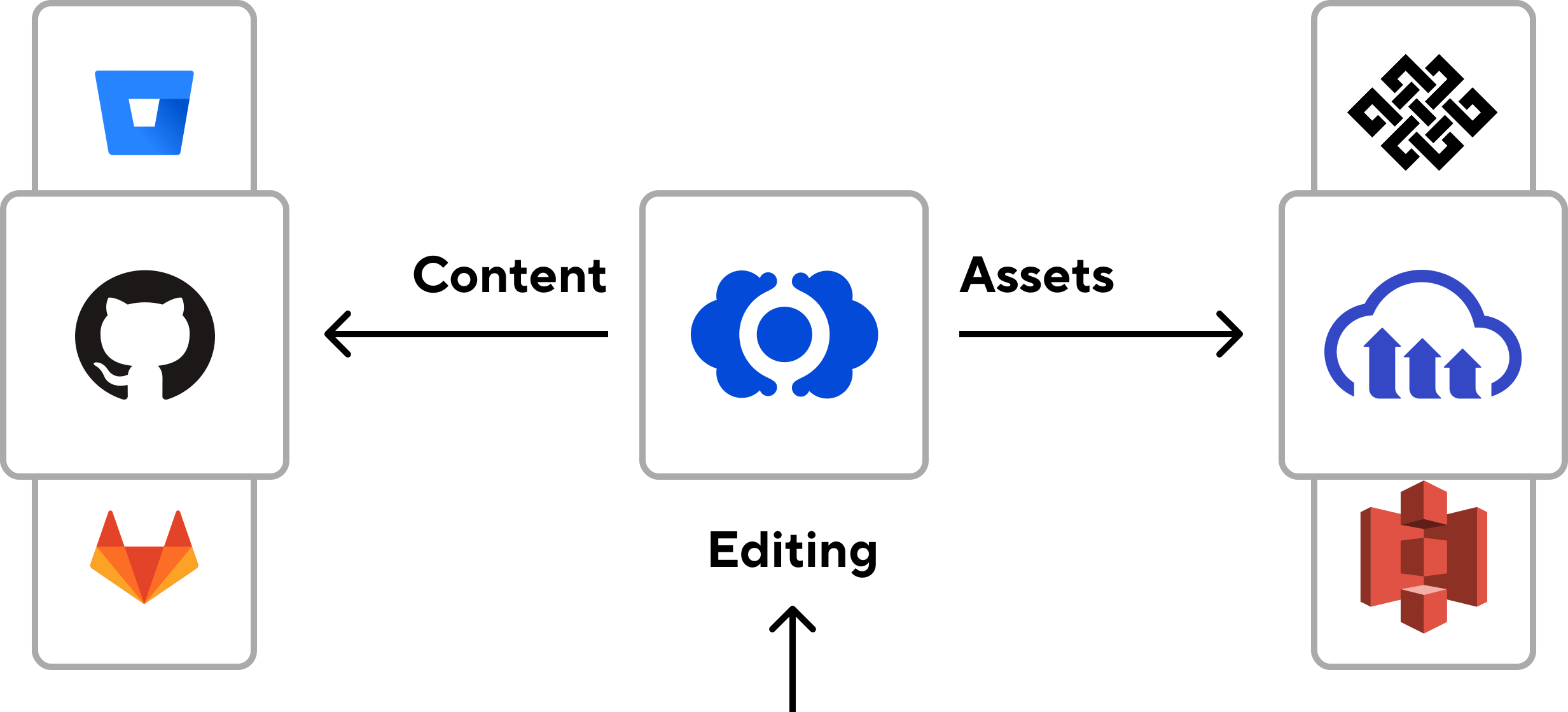
Articles in this section are useful for developers responsible for configuring asset storage and managing large files in CloudCannon.
In the Assets section of our Developer documentation, we cover:
- DAMs — Learn how to connect external storage like S3, Cloudinary, Azure, and more
- Configuring paths — Learn how to configure where assets are uploaded and how they are served
Let's briefly introduce a few of these topics.
## DAMs
CloudCannon integrates with several DAM providers to store your images and documents outside your Git repository. Your editors can upload and select assets from any editing interface, and the DAM serves them from a CDN.
For a more in-depth explanation of DAMs, including how to connect and configure them, please read our documentation:
- [Creating an Azure DAM](/documentation/developer-articles/creating-an-azure-dam/)
- [Creating a Cloudflare R2 DAM](/documentation/developer-articles/creating-a-cloudflare-r2-dam/)
- [Creating a Cloudinary DAM](/documentation/developer-articles/creating-a-cloudinary-dam/)
- [Creating a DigitalOcean Spaces DAM](/documentation/developer-articles/creating-a-digitalocean-spaces-dam/)
- [Creating a Google Cloud Storage DAM](/documentation/developer-articles/creating-a-google-cloud-storage-dam/)
- [Creating an S3 DAM](/documentation/developer-articles/creating-an-s3-dam/)
- [Creating a Tenovos DAM](/documentation/developer-articles/creating-a-tenovos-dam/)
- [Managing your connected DAMs](/documentation/developer-articles/managing-your-connected-dams/)
- [Integrating your DAM with CloudCannon](/documentation/developer-articles/integrating-your-dam-with-cloudcannon/)
## Configuring paths
For finer control of your assets, you can configure where CloudCannon will save new assets after a team member uploads one, and update the DAM asset URLs to use relative paths.
For a more in-depth explanation of upload paths and asset management, please read our documentation:
- [Adjusting the uploads path](/documentation/developer-articles/adjusting-the-uploads-path/)
- [DAM assets with relative paths](/documentation/developer-articles/dam-assets-with-relative-paths/)
---
---
title: Introduction to Building
description: Learn how building works in CloudCannon, including configuration, hooks, scheduling, and more.
url: https://cloudcannon.com/documentation/developer-articles/introduction-to-building/
content_type: developer article
last_modified: 2026-02-24
---
**Building** is when CloudCannon converts all your **Site** files into a single, functional website. *Building* through CloudCannon is optional; however, extra features are available if you enable *Building*. This includes preview screenshots of your pages in the *Collection Browser*, a [Testing Domain](/documentation/user-articles/what-is-a-testing-domain/) and [Custom Domain](/documentation/developer-articles/what-is-a-custom-domain/), and the [Visual Editor](/documentation/user-articles/what-is-the-visual-editor/).
Articles in this section are useful for developers responsible for configuring and managing Site builds in CloudCannon.
> Building is an optional step. If your Site is dynamic, or you only want to use CloudCannon as a CMS for your Git repository, you don’t need to build.
In the Building section of our Developer documentation, we cover:
- Configure your builds — Learn how to set up and manage your build settings
- Extend your builds — Learn how to add more functions to your build
- Schedule your builds — Learn how to schedule builds manually or automatically
- Output Files and URLs — Learn how CloudCannon matches output files to source files
- Headless Mode — Learn how to use CloudCannon as a CMS without building or hosting
- Site Mounting — Learn how to make files from one Site available to another at build time
Let’s briefly introduce a few of these topics.
## Configure your builds
CloudCannon needs to know a few details about your Site to build it, such as which **SSG** you are using and what commands to run. You can manage these settings on the *Site Details* and *Build Configuration* pages under *Site Settings*.
For a more in-depth explanation of build configuration, please read our documentation:
- [Configure your first build](/documentation/developer-articles/configure-your-first-build/)
- [Select your SSG](/documentation/developer-articles/select-your-ssg/)
- [Configure your command line options](/documentation/developer-articles/configure-your-command-line-options/)
- [Configure your environment variables](/documentation/developer-articles/configure-your-environment-variables/)
- [Pin your dependency version](/documentation/developer-articles/pin-your-dependency-version/)
- [Lock builds for your Site](/documentation/developer-articles/lock-builds-for-your-site/)
## Extend your builds
You can add more functions to your build to collect information from your Site, improve your build time, and more.
For a more in-depth explanation of the various ways you can extend your build, please read our documentation:
- [Build hooks](/documentation/developer-articles/extending-your-build-process-with-hooks/)
- [Including the .git folder](/documentation/developer-articles/including-git-folder-in-your-build/)
- [Initial Site settings](/documentation/developer-articles/configure-your-initial-site-settings/)
- [Committing build files](/documentation/developer-articles/saving-files-from-your-build-back-to-your-source/)
- [Configure caching between builds](/documentation/developer-articles/configure-caching-between-builds/)
- [Optimize your Site](/documentation/developer-articles/optimize-your-site/)
## Schedule your builds
Scheduling a build lets you edit your Site when you have time and release your changes later.
For a more in-depth explanation of build scheduling, please read our documentation:
- [Schedule your builds manually](/documentation/developer-articles/scheduling-your-builds-manually/)
- [Schedule your builds automatically](/documentation/developer-articles/scheduling-your-next-build-automatically/)
## Output Files and URLs
When you build your *Site*, your **SSG** creates the output files your visitors see on the Internet. CloudCannon uses these output files for the *Visual Editor* preview and *Collection Browser* screenshots. You can configure how CloudCannon matches output files to source files and controls output URLs for collections.
For a more in-depth explanation of output files and URLs, please read our documentation:
- [What is an output file?](/documentation/developer-articles/what-is-an-output-file/)
- [Update the output URL for a collection](/documentation/developer-articles/update-the-output-url-for-a-collection/)
- [Disable output URL matching for a collection](/documentation/developer-articles/disable-output-url-matching-for-a-collection/)
## Headless Mode
If you don't want to build your *Site* in CloudCannon, you can enable *Headless Mode*. This disables building and hosting on CloudCannon while still allowing CloudCannon to manage your content.
For a more in-depth explanation of Headless Mode, please read our documentation:
- [What is Headless Mode?](/documentation/developer-articles/what-is-headless-mode/)
- [Enable Headless Mode](/documentation/developer-articles/enable-headless-mode/)
## Site Mounting
**Site Mounting** makes files from one or more CloudCannon *Sites* available to another *Site* at build time, allowing you to share resources and trigger builds when the resources are updated.
For a more in-depth explanation of *Site Mounting*, please read our documentation:
- [What is Site Mounting?](/documentation/developer-articles/what-is-site-mounting/)
- [Mount a Site](/documentation/developer-articles/mount-a-site/)
- [Remove a mounted Site](/documentation/developer-articles/remove-a-mounted-site/)
---
---
title: Introduction to Editing
description: Learn how to configure the editing experience in CloudCannon, including Schemas, Inputs, Structures, and Visual Editing.
url: https://cloudcannon.com/documentation/developer-articles/introduction-to-editing/
content_type: developer article
last_modified: 2026-02-23
---
Editing in CloudCannon is how your team contributes to your website content. You can configure the editing experience to make it intuitive for your content team. This includes defining data structures, choosing **input** types, and enabling visual editing on your pages.
Articles in this section are useful for developers responsible for configuring the editing experience in CloudCannon.
In the Editing section of our Developer documentation, we cover:
- Markdown Engine — Learn how to configure how CloudCannon parses and saves your Markdown content
- Schemas — Learn how to define the structure of your content and which inputs appear
- Inputs — Learn how to configure how each field is edited in the Data Editor and sidebar
- Structures — Learn how to create reusable object templates for arrays and complex content
- Snippets — Learn how to add custom blocks to **rich text** in the Content Editor
- Rich Text Editors — Learn how to customize the WYSIWYG toolbar and options
- Visual Editing — Learn how to define which elements are editable in the Visual Editor
- Data — Learn how to configure global data files and their structure
Let's briefly introduce a few of these topics.
## Markdown Engine
CloudCannon parses Markdown content into HTML for previewing and editing, and saves it in a format your **SSG** recognizes. You can configure the Markdown engine (CommonMark or Kramdown) and its options to control how CloudCannon processes your content.
For a more in-depth explanation of the Markdown engine, please read our documentation:
- [Configure your Markdown engine](/documentation/developer-articles/configure-your-markdown-engine/)
## Schemas
Schemas define the structure of your content. They specify which keys appear in your **front matter** or data files and what type of input each key uses. Schemas can be applied to **collections**, individual files, or globally.
For a more in-depth explanation of Schemas, including how to create and configure them, please read our documentation:
- [What is a Schema?](/documentation/developer-articles/what-is-a-schema/)
- [Create a Schema](/documentation/developer-articles/create-a-schema/)
- [Set the path for new files](/documentation/developer-articles/set-the-path-for-new-files/)
- [Configure the add button in collections](/documentation/developer-articles/configure-the-add-button-in-collections/)
- [Configure your collections](/documentation/developer-articles/configure-your-collections/)
## Inputs
Inputs determine how each field in your content is edited. CloudCannon supports many input types: text, number, date, file, select, rich text, and more. You can configure labels, placeholders, and validation for each input.
For a more in-depth explanation of Inputs, please read our documentation:
- [What are Inputs?](/documentation/user-articles/what-are-inputs/)
- [Configure an Array Input](/documentation/developer-articles/configure-an-array-input/)
- [Configure a Boolean Input](/documentation/developer-articles/configure-a-boolean-input/)
- [Configure a Code Input](/documentation/developer-articles/configure-a-code-input/)
- [Configure a Color Input](/documentation/developer-articles/configure-a-color-input/)
- [Configure a Date or Time Input](/documentation/developer-articles/configure-a-date-or-time-input/)
- [Configure a File Input](/documentation/developer-articles/configure-a-file-input/)
- [Configure a Number Input](/documentation/developer-articles/configure-a-number-input/)
- [Configure an Object Input](/documentation/developer-articles/configure-an-object-input/)
- [Configure a Rich Text Input](/documentation/developer-articles/configure-a-rich-text-input/)
- [Configure a Select Input](/documentation/developer-articles/configure-a-select-input/)
- [Configure a Text Input](/documentation/developer-articles/configure-a-text-input/)
- [Configure a URL Input](/documentation/developer-articles/configure-a-url-input/)
- [Populate an Array Input](/documentation/developer-articles/populate-an-array-input/)
- [Populate a Select Input](/documentation/developer-articles/populate-a-select-input/)
## Structures
Structures are predefined object templates that your team can add to arrays. For example, you might have a structure for a testimonial block or a team member card. Structures make it easy to maintain consistent content structure.
For a more in-depth explanation of Structures, please read our documentation:
- [What is a structure?](/documentation/developer-articles/what-is-a-structure/)
- [Create a structure](/documentation/developer-articles/create-a-structure/)
- [Configure your structure previews](/documentation/developer-articles/configure-your-structure-previews/)
- [Structures in the configuration cascade](/documentation/developer-articles/structures-in-the-configuration-cascade/)
## Snippets
Snippets are custom blocks that can be inserted into rich text content. They appear in the Content Editor toolbar and allow your team to add structured components like image galleries or call-to-action blocks without editing code.
For a more in-depth explanation of Snippets, please read our documentation:
- [What is a Snippet?](/documentation/developer-articles/what-is-a-snippet/)
- [Snippets using Docusaurus components](/documentation/developer-articles/snippets-using-docusaurus-components/)
- [Snippets using Eleventy shortcodes](/documentation/developer-articles/snippets-using-eleventy-shortcodes/)
- [Snippets using Hugo shortcodes](/documentation/developer-articles/snippets-using-hugo-shortcodes/)
- [Snippets using MDX components](/documentation/developer-articles/snippets-using-mdx-components/)
- [Snippets using Python Markdown](/documentation/developer-articles/snippets-using-python-markdown/)
## Rich Text Editors
Rich Text Editors provide WYSIWYG editing for markup content. You can configure which formatting options appear in the toolbar, add custom Snippets, and control how content is saved.
For a more in-depth explanation of Rich Text Editors, please read our documentation:
- [What are Rich Text Editors?](/documentation/developer-articles/what-are-rich-text-editors/)
- [Configure your rich text editors](/documentation/developer-articles/configure-your-rich-text-editors/)
## Visual Editing
**Visual Editing** allows your team to click directly on content in a live preview to edit it. You define Editable Regions in your HTML to specify which elements are editable. This creates an intuitive, WYSIWYG experience.
For a more in-depth explanation of Visual Editing, please read our documentation:
- [What is Visual Editing?](/documentation/developer-articles/what-is-visual-editing/)
- [What are Editable Regions?](/documentation/developer-articles/what-are-editable-regions/)
- [Configure array editable regions](/documentation/developer-articles/configure-array-editable-regions/)
- [Configure component editable regions](/documentation/developer-articles/configure-component-editable-regions/)
- [Configure image editable regions](/documentation/developer-articles/configure-image-editable-regions/)
- [Configure source editable regions](/documentation/developer-articles/configure-source-editable-regions/)
- [Configure text editable regions](/documentation/developer-articles/configure-text-editable-regions/)
## Data
CloudCannon can manage standalone data files in addition to content with front matter. You can configure how global data files are structured and which inputs appear when editing them.
For a more in-depth explanation of Data configuration, please read our documentation:
- [Define your data](/documentation/developer-articles/define-your-data/)
---
---
title: Introduction to Hosting
description: Learn how hosting works in CloudCannon, including Testing and Custom Domains, DNS, and SSL certificates.
url: https://cloudcannon.com/documentation/developer-articles/introduction-to-hosting/
content_type: developer article
last_modified: 2026-06-24
---
**Hosting** through CloudCannon can make your website content available on the Internet. *Hosting* through CloudCannon is optional, however, it can be convenient to manage your website hosting and content editing through the same software.
Articles in this section are useful for developers responsible for configuring hosting, domains, and security for CloudCannon Sites.
> Hosting your Site through CloudCannon is optional. You can always edit your Site using CloudCannon as your CMS and host your content through an external hosting service.
In the Hosting section of our Developer documentation, we cover:
- Web Hosting — Learn the basics of getting your website live on the Internet for visitors
- Custom Domains — Learn how to add a Custom Domain, subdomain, or host on a subpath
- DNS — Learn how to configure CloudCannon DNS or external DNS
- SSL Certificates — Learn how to add an auto-generated or custom SSL certificate to your domain
- Routing — Learn how to configure custom routing, a 404 page, extensionless URLs, geolocation, and HTTP redirects
- Authentication — Learn how to enable password, user account, or SAML authentication for your hosted Site
- External Hosting — Learn how to host your Site outside CloudCannon while using CloudCannon for editing
- Forms — Learn how to receive form submissions and integrate with external providers
Let's briefly introduce a few of these topics.
## What is web hosting?
Web hosting is where, after a successful [build](/documentation/developer-articles/what-is-a-site-build/), all your files are stored on a web server and made available to the public on the Internet. You can host your Site through CloudCannon, or through an external service.
For a more in-depth explanation of web hosting, please read our documentation:
- [What is web hosting?](/documentation/user-articles/what-is-web-hosting/)
## Custom Domains
A **Custom Domain** is a unique address used to identify a website (e.g., [cloudcannon.com](https://cloudcannon.com/)). To host your website through CloudCannon, you will need to connect your *Custom Domain* purchased from a *Domain Registrar*.
For a more in-depth explanation of Custom Domains, please read our documentation:
- [What are Custom Domains?](/documentation/developer-articles/what-is-a-custom-domain/)
- [Connect a Custom Domain to your Organization](/documentation/developer-articles/connect-a-custom-domain-to-your-organization/)
- [Disconnect a Custom Domain from your Organization](/documentation/developer-articles/disconnect-a-custom-domain-from-your-organization/)
- [Add a Custom Domain to your Site](/documentation/developer-articles/add-a-custom-domain-to-your-site/)
- [Remove a Custom Domain from your Site](/documentation/developer-articles/remove-a-custom-domain-from-your-site/)
- [Update the Fallback Redirect for your Custom Domain](/documentation/developer-articles/update-the-fallback-redirect-for-your-custom-domain/)
## DNS
The **Domain Name System** allows your computer to translate a human-readable domain name into a machine-readable IP address. *DNS providers*, like CloudCannon or other external providers, allow you to manage your domain's DNS records.
For a more in-depth explanation of DNS, including how to configure CloudCannon or external DNS, please read our documentation:
- [What is DNS?](/documentation/developer-articles/what-is-dns/)
- [Configure CloudCannon DNS](/documentation/developer-articles/configure-cloudcannon-dns/)
- [Configure external DNS](/documentation/developer-articles/configure-external-dns/)
## SSL
An SSL certificate (or a TLS certificate) is a periodically regenerated digital certificate that supports your website's authenticity and enables encryption for greater security between your web server and the visitor's browser. On CloudCannon, any Site with a [Custom Domain](/documentation/developer-articles/what-is-a-custom-domain/) can use an auto-generated or custom SSL certificate.
For a more in-depth explanation of SSL certificates, please read our documentation:
- [What is an SSL certificate?](/documentation/developer-articles/what-is-an-ssl-certificate/)
- [Add an auto-generated SSL certificate](/documentation/developer-articles/add-an-auto-generated-ssl-certificate/)
- [Add a custom SSL certificate](/documentation/developer-articles/add-a-custom-ssl-certificate/)
## Routing
Routing is the process that determines what content a visitor to your Site should see when they enter a URL in their Internet browser. On CloudCannon, you can configure custom routing to extend default routing behavior.
For a more in-depth explanation of routing, please read our documentation:
- [What is routing?](/documentation/developer-articles/what-is-routing/)
- [Configure custom routing](/documentation/developer-articles/configure-custom-routing/)
- [Configure a 404 page](/documentation/developer-articles/configure-a-404-page/)
- [Configure extensionless URLs](/documentation/developer-articles/configure-extensionless-urls/)
- [Configure geolocation](/documentation/developer-articles/configure-geolocation/)
- [Configure HTTP redirects](/documentation/developer-articles/configure-http-redirects/)
## Authentication
If you host your Site on CloudCannon, you can require visitors to your website to authenticate their identity before they can view the webpage content.
For a more in-depth explanation of authentication, please read our documentation:
- [What is authentication?](/documentation/developer-articles/what-is-authentication/)
- [Enable password authentication](/documentation/developer-articles/enable-password-authentication/)
- [Enable user account authentication](/documentation/developer-articles/enable-user-account-authentication/)
- [Enable SAML authentication](/documentation/developer-articles/enable-saml-authentication/)
- [Allow authenticated users to log out](/documentation/developer-articles/allow-authenticated-users-to-log-out/)
- [Configure authenticated routes](/documentation/developer-articles/configure-authenticated-routes/)
- [Generate a bearer token](/documentation/developer-articles/generate-a-bearer-token/)
## External Hosting
You can use CloudCannon as your CMS and host your Site through an external provider such as Netlify or Vercel. This allows you to leverage CloudCannon's editing experience while using your preferred hosting infrastructure.
For a more in-depth explanation of external hosting, please read our documentation:
- [Output a built Site from CloudCannon to an external provider](/documentation/developer-articles/output-a-built-site-from-cloudcannon-to-an-external-provider/)
- [Netlify hosting with CloudCannon editing](/documentation/developer-articles/netlify-hosting-with-cloudcannon-editing/)
## Forms
CloudCannon forms allow you to receive form submissions from visitors to your website. You can view submissions in your CloudCannon inbox, forward them to email, or integrate with external providers such as IFTTT, Make, Zapier, or Slack.
For a more in-depth explanation of forms, please read our documentation:
- [What is a form?](/documentation/developer-articles/what-is-a-form/)
- [Creating an Inbox to receive your forms](/documentation/developer-articles/creating-an-inbox-to-receive-your-forms/)
- [Connecting your Site to an Inbox](/documentation/developer-articles/connecting-your-site-to-an-inbox/)
---
---
title: Introduction to Organizations
description: Learn how to manage Organizations in CloudCannon, including creating Organizations and using the Partner Program.
url: https://cloudcannon.com/documentation/developer-articles/introduction-to-organizations/
content_type: developer article
last_modified: 2026-09-09
---
**Organizations** are the billing unit in CloudCannon, containing all your *Sites*, *Team Members*, and *Custom Domains*.
_[Diagram: A diagram shows an Organization containing its Sites, Team Members, Custom Domains, and billing.]_
Articles in this section are useful for developers responsible for setting up *Organizations* and managing client accounts.
In the Organizations section of our Developer documentation, we cover:
- Organizations — Learn how to create and manage *Organizations*
- Partner Program — Learn how to manage web agency clients in CloudCannon
Let's briefly introduce a few of these topics.
## Organizations
When you create a CloudCannon account, CloudCannon automatically creates an *Organization* for you. You can also create and be a member of as many *Organizations* as you want.
For a more in-depth explanation of *Organizations*, please read our documentation:
- [Create a new Organization](/documentation/user-articles/create-a-new-organization/)
- [Best practices for structuring client Sites](/documentation/partner-articles/best-practices-for-structuring-client-sites/)
## Partner Program
CloudCannon's [Partner Program](https://cloudcannon.com/partner-program/) is designed for agencies to manage client websites while providing independent editing and billing. As a member of the *Partner Program* you will have access to exclusive features to make managing several *Organizations* easier.
For a more in-depth explanation of the Partner Program in app, please read our documentation:
- [what the CloudCannon Partner Program is](/documentation/partner-articles/what-is-the-cloudcannon-partner-program/)
- [Create a Client Organization](/documentation/partner-articles/create-a-client-organization/)
---
---
title: Introduction to Publishing
description: Learn how publishing works in CloudCannon, including commit messages, projects, and branching workflows.
url: https://cloudcannon.com/documentation/developer-articles/introduction-to-publishing/
content_type: developer article
last_modified: 2026-06-24
---
CloudCannon is a **Git-backed** **CMS**, allowing you to store your website source files securely on a *Git Provider*. One benefit of *Git* is the capacity to work on content changes in parallel with separate *Branches* and control when changes are published to your live website. In CloudCannon, you can configure a **Project** for managing **Sites** connected to *Branches* in a single **Git Repository**, including designating a *Main Branch* and defining **Publishing Workflows**.
Articles in this section are useful for developers responsible for configuring *Publishing Workflows*, commit messages, and branching in CloudCannon.
In the Publishing section of our Developer documentation, we cover:
- *Projects* — Learn how to group multiple *Sites* connected to a single *Git Repository* and enable upstream publishing
- *Publishing Methods* — Learn how to configure the method of publishing changes from one branch to another
- *Pull Requests* — Learn how to configure *Pull Request* templates and review and merge *Pull Requests* opened by CloudCannon
- *Deploy Previews* — Learn how CloudCannon can comment on *Pull Requests* and automatically create *Sites* for them
Here is a brief introduction to each of these topics.
## *Projects*
> ***Projects* are available on all plans. *Site* branching and *Allow all branching* are available on our [Team or Enterprise plan](https://cloudcannon.com/pricing/).**
In CloudCannon, a **Project** is a group of *Sites* connected to *Branches* from a single *Git Repository*. Creating a *Project* allows you to designate a *Main Branch* in your *Repository* and define branching rules.
For a more in-depth explanation of *Projects*, please read our documentation:
- [Create a Project](/documentation/developer-articles/create-a-project/)
- [Add a Site to your Project](/documentation/developer-articles/add-a-site-to-your-project/)
- [Turn on optional Project tabs](/documentation/developer-articles/turn-on-optional-project-tabs/)
- [Set the Main Branch for your Project](/documentation/developer-articles/set-the-main-branch-for-your-project/)
- [What is Allow all branching?](/documentation/developer-articles/what-is-allow-all-branching/)
- [Turn on Allow all branching](/documentation/developer-articles/turn-on-allow-all-branching/)
- [What are Branch Defaults?](/documentation/developer-articles/what-are-branch-defaults/)
- [Configure Branch Defaults for your Project](/documentation/developer-articles/configure-branch-defaults-for-your-project/)
- [Delete a Project](/documentation/developer-articles/delete-a-project/)
## *Publishing Methods*
> **This feature is available on our [Standard plan](https://cloudcannon.com/pricing/).**
You can refine your *Publishing Workflows* in CloudCannon, choosing which **Publish Branch** each *Site* should publish to, selecting whether publishing is automatic or requires a **Pull Request**, and defining templates for *Pull Requests* for documenting your website changes.
For a more in-depth explanation of *Publishing Methods*, please read our documentation:
- [Connect a Publish Branch](/documentation/developer-articles/connect-a-publish-branch/)
- [Change your Publishing Method](/documentation/developer-articles/change-your-publishing-method/)
- [Turn on Delete after Publishing](/documentation/developer-articles/turn-on-delete-after-publishing/)
- [Review and merge a Pull Request](/documentation/developer-articles/review-and-merge-a-pull-request/)
## *Pull Requests*
You can configure *Pull Request* templates for *Sites* using the *Pull Request* *Publishing Method*, so your team can pre-fill the title, body, and other details when opening a *Pull Request* from CloudCannon.
For a more in-depth explanation of *Pull Request* templates, please read our documentation:
- [What is a Pull Request template?](/documentation/developer-articles/what-is-a-pull-request-template/)
- [Configure a Pull Request template](/documentation/developer-articles/configure-a-pull-request-template/)
## *Deploy Previews*
> **This feature is available on our [Team or Enterprise plan](https://cloudcannon.com/pricing/).**
When a *Pull Request* is opened in your *Git Repository*, CloudCannon can post a *Deploy Preview* comment with build and editor links, create a branch *Site* for the *Pull Request* automatically, and clean that *Site* up when the *Pull Request* is closed or merged.
For a more in-depth explanation of *Deploy Previews*, please read our documentation:
- [What are Deploy Previews?](/documentation/developer-articles/what-are-deploy-previews/)
- [Use Deploy Previews to trigger Site creation and deletion](/documentation/developer-articles/use-deploy-previews-to-trigger-site-creation-and-deletion/)
- [Use Deploy Previews to comment on a Pull Request](/documentation/developer-articles/use-deploy-previews-to-comment-on-a-pull-request/)
- [Configure Deploy Previews](/documentation/developer-articles/configure-deploy-previews/)
---
---
title: Introduction to Sharing
description: Learn how sharing works in CloudCannon, including Permission Groups, Site Sharing, and Client Sharing.
url: https://cloudcannon.com/documentation/developer-articles/introduction-to-sharing/
content_type: developer article
last_modified: 2026-06-24
---
Sharing your CloudCannon *Sites* allows you to provide everyone on your team with access to your content. You can configure which resources they have access to, what actions they can perform, and how they log in to CloudCannon.
Articles in this section are helpful for developers responsible for configuring access to CloudCannon.
In the Sharing section of our Developer documentation, we cover:
- Custom Permission Groups — Learn how to create your own *Permission Groups* and specify which resources Group members can access
- Site Sharing — Learn how to give a team member permission to access a specific *Site* in your Organization
- Client Sharing — Learn how to create a site-specific password to share your content with people outside of CloudCannon
- SSO/SAML — Learn how to set up Single Sign-On for greater security
- Multi-factor Authentication — Learn how to add an extra layer of security to your account and require MFA for Organization members
Let’s briefly introduce a few of these topics.
## Custom Permission Groups
> **This feature is available on our** [**Team and Enterprise plans**](https://cloudcannon.com/pricing/)**.**
CloudCannon provides Default Permission Groups for every **Organization**, but for more fine-grained permission control, you can use *Custom Permission Groups*. **Custom Permission Groups** allow you to define exactly what resources its members can access and what actions they can perform.
For a more in-depth explanation of *Custom Permission Groups*, please read our documentation:
- [What are Custom Permission Groups?](/documentation/developer-articles/what-are-custom-permission-groups/)
- [Create a Custom Permission Group](/documentation/developer-articles/create-a-custom-permission-group/)
- [Delete a Custom Permission Group](/documentation/developer-articles/delete-a-custom-permission-group/)
- [Edit a Custom Permission Group](/documentation/developer-articles/edit-a-custom-permission-group/)
- [Best practices for Custom Permission Groups](/documentation/developer-articles/best-practices-for-custom-permission-groups/)
## Site Sharing
You can share a specific *Site* with collaborators from outside your CloudCannon *Organization* without giving them access to all your *Sites*. There are two *Default Permission Groups* for *Site Sharing*, equivalent to the *Technical Editors* and *Editors* groups.
For a more in-depth explanation of *Site Sharing*, please read our documentation:
- [Add a team member to Site Sharing](/documentation/developer-articles/add-a-team-member-to-site-sharing/)
- [Remove a team member from Site Sharing](/documentation/developer-articles/remove-a-team-member-from-site-sharing/)
- [Edit a team member's Site Sharing Permission Group](/documentation/developer-articles/edit-a-team-members-site-sharing-permission-group/)
## Client Sharing
You can share a specific *Site* with collaborators who do not have CloudCannon accounts and configure a simplified *Site* interface for them. Clients can log in using a Site-specific password and make changes to your content.
For a more in-depth explanation of *Client Sharing*, please read our documentation:
- [Turn on Client Sharing for a Site](/documentation/developer-articles/turn-on-client-sharing-for-a-site/)
- [Configure the commit details for clients](/documentation/developer-articles/configure-the-commit-details-for-clients/)
- [Customize the Client Sharing Permission Group](/documentation/developer-articles/customize-the-client-sharing-permission-group/)
- [Configure the Client login page](/documentation/developer-articles/configure-the-client-login-page/)
- [Configure the Client Dashboard support links](/documentation/developer-articles/configure-the-client-dashboard-support-links/)
## SSO/SAML
> **This feature is available on our** [**Enterprise plans**](https://cloudcannon.com/pricing/)**.**
CloudCannon supports **Single Sign-On** using a Security Assertion Markup Language (SAML). By configuring SSO/SAML, you can authenticate your team members through an external application when they log in to CloudCannon.
For a more in-depth explanation of SSO/SAML, please read our documentation:
- [What is SSO/SAML?](/documentation/developer-articles/what-is-sso-saml/)
- [Add SSO/SAML authentication](/documentation/developer-articles/add-sso-saml-authentication/)
- [Edit SSO/SAML authentication](/documentation/developer-articles/edit-sso-saml-authentication/)
- [Remove SSO/SAML authentication](/documentation/developer-articles/remove-sso-saml-authentication/)
## Multi-factor Authentication
Multi-factor Authentication (MFA) adds a second factor to your login process, typically a code from an authenticator app. This helps protect your account even if your password is compromised. Organization Owners can optionally require MFA for all team members.
For a more in-depth explanation of Multi-factor Authentication, please read our documentation:
- [Enable Multi-factor Authentication](/documentation/developer-articles/enable-multi-factor-authentication/)
- [Enforce Multi-factor Authentication](/documentation/developer-articles/enforce-multi-factor-authentication/)
---
---
title: Introduction to Sites
description: Learn how Sites work in CloudCannon, including configuration files, collections, and site customization.
url: https://cloudcannon.com/documentation/developer-articles/introduction-to-sites/
content_type: developer article
last_modified: 2026-02-20
---
You can edit content on CloudCannon through **Sites**. Each *Site* is connected to a *Branch* in your **Git Repository** and you can connect multiple *Sites* to a single *Branch*. You can customize the appearance and function of each *Site* to create the editing experience best suited to your team.
Articles in this section provide information about the *CloudCannon Configuration File* and are useful for developers responsible for customizing CloudCannon.
In the Sites section of our Developer documentation, we cover:
- CloudCannon Configuration Files — Learn about the configuration file at the heart of your CloudCannon experience.
- Configuration Mode — Learn how to edit your *Site* configuration from any page and see it update in real time.
- Collections — Learn how to group related files and configure your Collection Browser
- Cards — Learn how to configure card previews in your Collection Browser
- Commit Messages — Learn how to configure how commit messages are generated when your team saves
- Backups — Learn how to create archives of your source files
- Flags — Learn how to fine-tune Site behavior with configuration options
- Template Strings — Learn how to use placeholders to create dynamic strings for paths, card previews, and commit messages
Let's briefly introduce a few of these topics.
## CloudCannon Configuration Files
The **CloudCannon Configuration File** allows you to define preferences and settings for your *Site* to customize its functionality and appearance. CloudCannon supports `.yml` (recommended), `.yaml`, and `.json` *Configuration Files,* and you can have one or several files depending on your desired workflow and permissions.
For a more in-depth explanation of the *CloudCannon Configuration File*, please read our documentation:
- [What is the CloudCannon Configuration File?](/documentation/developer-articles/what-is-the-cloudcannon-configuration-file/)
- [Create your CloudCannon configuration file](/documentation/developer-articles/create-your-cloudcannon-configuration-file/)
- [Define a custom Configuration File path](/documentation/developer-articles/define-a-custom-configuration-file-path/)
- [Why split your Configuration File?](/documentation/developer-articles/why-split-your-configuration-file/)
- [Defining the same key in multiple Configuration Files](/documentation/developer-articles/defining-the-same-key-in-multiple-configuration-files/)
- [Best practice for splitting your Configuration File](/documentation/developer-articles/best-practice-for-splitting-your-configuration-file/)
- [Split your Configuration File](/documentation/developer-articles/split-your-configuration-file/)
## Configuration Mode
The **Configuration Mode** switch in the top right of your *Site Header* or *Editing Interface Header* toggles the visibility of *Configuration Buttons* in the app. You can use these to modify the configuration of specific elements and see your changes update the **UI** in real time.
For a more in-depth explanation of *Configuration Mode*, please read our documentation:
- [What is Configuration Mode?](/documentation/developer-articles/what-is-configuration-mode/)
- [Using the configuration cascade](/documentation/developer-articles/using-the-configuration-cascade/)
## Collections
Your **Collections** are groups of related files with a similar format, such as product pages, blog posts, staff profiles, and more. You can access your *Collections* via the *Site Navigation* and configure your *Collection Browser* to help your team members find their files easily.
For a more in-depth explanation of *Collections*, please read our documentation:
- [Configure your collections](/documentation/developer-articles/configure-your-collections/)
- [Set a default editing interface](/documentation/developer-articles/set-a-default-editing-interface/)
## Cards
In your *Collection Browser*, each file is represented by a customizable **File Card**. You can configure how these *Cards* display information, including gallery images, titles, subtitles, and metadata, to help your team members visually differentiate between files.
For a more in-depth explanation of *Cards*, please read our documentation:
- [Configure your card previews](/documentation/developer-articles/configure-your-card-previews/)
## Commit Messages
When you or a team member saves changes in CloudCannon, those changes are committed to your **Git Repository**. **Commit messages** allow you to describe each change and provide a record for you and your team. You can configure commit message templates to maintain a consistent format across your team's edits.
For a more in-depth explanation of *Commit Messages*, please read our documentation:
- [Configure your commit messages](/documentation/developer-articles/configure-your-commit-messages/)
- [Configure an upstream commit message template](/documentation/developer-articles/configure-an-upstream-commit-message-template/)
## Backups
CloudCannon can create archives of your **Site** source files at any point in time. Backups protect against unintentional deletions and give you a snapshot of your files as they were at a specific date and time.
For a more in-depth explanation of Backups, please read our documentation:
- [Creating backups of your source files](/documentation/developer-articles/creating-backups-of-your-source-files/)
## Flags
**Flags** are configuration options that control specific behaviors in CloudCannon. They allow you to fine-tune how your Site works, from **input** behavior to editing interface options.
For a more in-depth explanation of Flags, please read our documentation:
- [What are Flags?](/documentation/developer-articles/what-are-flags/)
## Template Strings
Template strings are a mixture of literal text and dynamic placeholders that are replaced with data. You can use template strings when configuring create paths for new files, upload paths for assets, card previews in the Collection Browser, and commit messages. Placeholders reference front matter or fixed CloudCannon data to populate the string.
For a more in-depth explanation of template strings, please read our documentation:
- [Configure your template strings](/documentation/developer-articles/configure-your-template-strings/)
---
---
title: Introduction to Syncing
description: Learn how CloudCannon syncs your files from your Git Repository, or upload a website from your local storage.
url: https://cloudcannon.com/documentation/developer-articles/introduction-to-syncing/
content_type: developer article
last_modified: 2026-02-20
---
CloudCannon is a **Git-backed** **Content Management Software**, allowing you to store your website source files securely on a *Git Provider*. CloudCannon will automatically **Sync** your files whenever you create a *Site*, trigger a *Sync*, or your website files are updated via CloudCannon or an **IDE**. This means that no matter what software your team uses, everyone always has access to the latest version of your files.
Articles in this section are helpful for team members responsible for setting up *Sites* in CloudCannon and managing website files.
> You can upload your website files directly from your local storage, but we highly recommend using a *Git Provider* like GitHub, GitLab, or Bitbucket.
In the Syncing section of our Developer documentation, we cover:
- Git — Learn how to get your website files from your *Git Repository* onto CloudCannon
- Direct Upload — Learn how to upload your website files from local storage to CloudCannon
- Syncing Errors — Learn how to resolve *Syncing Errors* when CloudCannon detects that incoming changes conflict with recently saved content
Let's briefly introduce a few of these topics.
## Git
CloudCannon supports several cloud and self-hosted *Git Providers*. You can authenticate your provider, control which repository a *Site* syncs from, and enable large file storage for faster syncing.
For a more in-depth explanation of *Git* in CloudCannon, please read our documentation:
- [Authenticate your Git Provider](/documentation/developer-articles/authenticate-your-git-provider/)
- [Connect a GitHub repository](/documentation/developer-articles/connecting-a-github-repository-as-your-source/)
- [Connect a GitHub Enterprise Server repository](/documentation/developer-articles/connecting-a-github-enterprise-server-repository-as-your-source/)
- [Connect a Bitbucket repository](/documentation/developer-articles/connecting-a-bitbucket-respository-as-your-source/)
- [Connect a GitLab repository](/documentation/developer-articles/connecting-a-gitlab-respository-as-your-source/)
- [Connect a self-hosted GitLab repository](/documentation/developer-articles/connecting-a-self-hosted-gitlab-repository-as-your-source/)
- [Enable Git LFS](/documentation/developer-articles/enable-git-lfs/)
- [Creating backups of your source files](/documentation/developer-articles/creating-backups-of-your-source-files/)
## Direct Upload
Although not technically syncing, you can upload your website files directly from your local storage when you create a Site. You can still use the majority of CloudCannon's features, except for *Syncing* and *Publishing*.
For a more in-depth explanation of connecting your repository, please read our documentation:
- [Add files with Direct Upload](/documentation/developer-articles/create-a-site-with-direct-upload/)
## Syncing Errors
CloudCannon will [pause automatic syncing](/documentation/user-articles/why-is-syncing-paused/) when incoming changes from your *Git Repository* conflict with unsaved changes on your CloudCannon *Site*. If saving those changes doesn't resolve this issue, there are several solutions for *Syncing Errors*.
For a more in-depth explanation of syncing errors, please read our documentation:
- [Resolve Syncing Errors](/documentation/developer-articles/resolve-syncing-errors/)
---
---
title: Legacy form documentation
description: Create forms on your site and send the submissions to an email address or integrate with your own workflows.
url: https://cloudcannon.com/documentation/developer-articles/legacy-form-documentation/
content_type: developer article
last_modified: 2026-06-30
---
> Legacy forms are deprecated. It is recommended that you migrate to the new forms feature. This will speed up your build process and enable a new range of features. Legacy forms will not work with all SSGs.
Create forms on your site and send the submissions to an email address or integrate with your own workflows.
To create a form:
1. Add an HTML form to a page
2. Set the `method` attribute to **post**
3. Set the `action` to where the visitor is redirected after the form submission
4. Add form fields with `name` attributes to collect data from visitors
File: `contact.html`
```html
```
CloudCannon sends named form data to email addresses of your choosing. Alternatively, [use a hook](/documentation/developer-articles/extending-your-build-process-with-hooks/#webhooks) to integrate with services like Zapier or IFTTT.
## Special Fields
Use these fields to customize the email CloudCannon sends through the form. The fields can be hidden or visible, depending on your requirements.
`_to` *(required)* - the address (or addresses) that CloudCannon sends the email to. Send the email to multiple addresses by separating them with commas.
If a `_hook` is defined, this field will not be used.
File: `contact.html`
```html
```
`_replyto` or `email` - the value used for the Reply-To header in the email. Use this to ensure clients reply to the visitor rather than a default CloudCannon address.
File: `contact.html`
```html
```
`_subject` - the subject of the email.
File: `contact.html`
```html
```
`_cc` - the value used for the CC header in the email. Use this to send a copy in another address (or addresses) without sending it directly. Send a copy of the email to multiple addresses by separating them with commas.
File: `contact.html`
```html
```
`_hook` - instead of sending an email, a webhook can be supplied for the data to be sent to. See [Webhooks](#using-webhooks) for configuration details.
File: `contact.html`
```html
```
`_gotcha` - honeypot field for preventing untargeted spam. CloudCannon does **not** send the email if this field has a value. Hide it with CSS to prevent visitors filling it out.
File: `contact.html`
```html
```
> For better spam prevention try using [Google reCAPTCHA](/documentation/developer-articles/reducing-spam-by-adding-google-recaptcha/).
## Security
these fields are encrypted before being served to protect your information and prevent spam.
- `_to`
- `_cc`
- `_hook`
## Submitting with AJAX
Submitting a form with JavaScript saves a page load after sending a message, providing a seamless experience. Viewers without JavaScript enabled will fall back to the normal flow.
To submit your form with JavaScript:
1. Build and test your form
2. Override the submit event on your form
3. Change the page to notify your viewers the message was sent
Start with this JavaScript snippet and adapt it for your site:
File: `script.js`
```javascript
// Helper function to get form data in the supported format
function getFormDataString(formEl) {
var formData = new FormData(formEl),
data = [];
for (var keyValue of formData) {
data.push(encodeURIComponent(keyValue[0]) + "=" + encodeURIComponent(keyValue[1]));
}
return data.join("&");
}
// Fetch the form element
var formEl = document.getElementById("contact-form");
// Override the submit event
formEl.addEventListener("submit", function (e) {
e.preventDefault();
if (grecaptcha) {
var recaptchaResponse = grecaptcha.getResponse();
if (!recaptchaResponse) { // reCAPTCHA not clicked yet
return false;
}
}
var request = new XMLHttpRequest();
request.addEventListener("load", function () {
if (request.status === 302) { // CloudCannon redirects on success
// It worked
}
});
request.open(formEl.method, formEl.action);
request.setRequestHeader("Content-Type", "application/x-www-form-urlencoded");
request.send(getFormDataString(formEl));
});
```
## Using Webhooks
Create your own workflow around form submissions.
The `_hook` field allows you to supply a webhook that you control to process the form submission. The data is sent as a **POST** request with the Content Type `application/json`.
We currently allow hooks from the following platforms to be used:
- [Zapier](https://zapier.com/) - *[Documentation](https://zapier.com/help/create/code-webhooks)*
- [IFTTT](https://ifttt.com/) - *[Help Page](https://help.ifttt.com/hc/en-us/articles/115010230347-The-Webhooks-Service)*
If you have use cases beyond these platforms, [send us a message](https://cloudcannon.com/support/).
#### IFTTT
Note that IFTTT does not support custom **JSON** keys. Webhook Applets have access to the three keys `value1`, `value2` and `value3`, the quantity and naming is fixed. This means that you will have to reflect this structure in your form. For example:
File: `contact.html`
```html
```
Zapier does not have a limitation on the number of fields or custom keys.
## Rate Limiting
Forms hosted on CloudCannon are limited to 750 submissions per 10 days. [Contact us](https://cloudcannon.com/contact) if you need this limit expanded.
---
---
title: Legacy Forms migration guide
description: A guide to migrating from legacy CloudCannon forms to the new CloudCannon forms
url: https://cloudcannon.com/documentation/developer-articles/legacy-forms-migration-guide/
content_type: developer article
last_modified: 2026-04-11
---
The new CloudCannon forms offer improved compatibility with new SSGs, reduced build times, and increased security. This guide will provide you with all the resources you need to safely migrate your existing legacy forms to the new CloudCannon forms.
If you were using legacy forms on a site, CloudCannon will have automatically created and attached a new forms Inbox to that site. That Inbox will have a single *Legacy* target, so your forms will continue working normally until you're ready to migrate.
### Migrating email forms
To migrate a legacy email form, you can follow this guide for forwarding from an Inbox to email. Your target value will be the email address in your `_to` input. The new email target only supports a single address, so if you have multiple addresses in your `_to` input or you're using the `_cc` input you'll have to create a target for each of those addresses individually.
### Migrating hooks forms
To migrate a legacy webhook form, you can follow the guide for integrating CloudCannon forms with your specific service:
- [IFTTT](/documentation/developer-articles/integrating-your-forms-with-ifttt/)
- [Integromat](/documentation/developer-articles/integrating-your-forms-with-integromat/)
- [Zapier](/documentation/developer-articles/integrating-your-forms-with-zapier/)
Your target value will be the webhook URL in your `_hook` input.
### Removing your legacy target
Once you have set up your new targets, you're now ready to remove your *Legacy* target from your Inbox.
To remove your *Legacy* target:
1. Remove all `_to`, `_cc`, and `_hook` inputs from your legacy forms. It's important to do this first so that you don't leak any private information after you delete your *Legacy* target and the form is no longer encrypted.
2. Navigate to the forms menu in your Organization settings, under *Hosting > Forms.*
3. Click the *Manage* button on the Inbox connected to your site.
4. Open the context menu for the *Legacy* target with the three dots button, and click *Delete.*
With the *Legacy* target removed, CloudCannon will skip the encrypting forms on your site for all future builds. Your form's previously encrypted details will persist until your site next builds.
---
---
title: Legacy Option Flags
description: Learn about flags that enable CloudCannon legacy behavior to support older Site configuration.
url: https://cloudcannon.com/documentation/developer-articles/legacy-option-flags/
content_type: developer article
last_modified: 2026-04-11
---
## Image size attributes default behaviour
Older versions of CloudCannon would automatically add size attributes (width, height, sizes) to the HTML for images uploaded in the [Content Editor](/documentation/user-articles/what-is-the-content-editor/) and [Editable Regions](/documentation/developer-articles/define-editable-regions-in-your-html/). This flag sets this as the default behavior, and will be turned on for some *Sites* where these attributes must be added to rich text images by default.
In most cases, this flag will be turned off, meaning that the attributes will not be injected for any editing interface that does not have `image_size_attributes: true`.
> We do not recommend turning this flag on. Please consider using the `image_size_attributes` key instead.
As an alternative to turning this flag on, you can use the `image_size_attributes: true` configuration option anywhere in the [Configuration Cascade](/documentation/developer-articles/using-the-configuration-cascade/) for the Content Editor, [Rich Text inputs](/documentation/user-articles/what-is-a-rich-text-input/#block-content), and Editable Regions. When `image_size_attributes` is `true`, CloudCannon will inject width and height attributes onto images added to rich text through the editor.
A benefit of enabling `image_size_attributes` is that Internet browsers can size `` elements before loading CSS and images. This prevents "pop-in" where the webpage shifts around in front of the viewer as images are loaded and elements are resized. Additionally, these attributes are required for `srcset` to work correctly. Browsers assume that the width of an image is 100vw by default. If the image has a `srcset` but no explicit size attributes, it will appear full-width regardless of the `srcset`.
One notable disadvantage of `image_size_attributes` is that, depending on the Markdown engine used by your *Site*, Markdown-formatted images may need to be converted to HTML.
If adding size attributes to your images is not right for you, some simple CSS can ensure that your images are sized correctly on the page. Define a width for your images, then set `height` to `auto`. This will allow the browser to calculate the appropriate height for your image based on the width.
File: `styles.css`
```css
img {
max-width: 100%;
height: auto;
}
```
## Legacy Collections Value Key
When you use a select input to reference a collection item, the value saved in your front matter is determined by [options.value_key](/documentation/user-articles/what-is-a-select-input/#value_key) configured for your input. If this option has not been configured, the value will fallback to look for one of several sensible keys to pull from, like "id" and "title".
This flag exists to provide legacy behaviour to sites created before 25 November 2021. If turned on, select inputs that reference collection items, and which do not have `options.value_key` configured, will save a combination of the collection item's path, slug and id.
**It is not recommended to turn this flag on.** Instead, configure `options.value_key` for any select inputs that reference collections on your site.
## Hide link to telephone on URL inputs
`hide_link_to_telephone` is a configuration option that can be set on [URL inputs](/documentation/developer-articles/configure-a-url-input) to hide the option to link to a telephone number.
This flag sets the default behaviour, when `hide_link_to_telephone` is not explicitly configured. If this flag is turned on, the telephone option will be hidden for any URL input that does not explicitly have `hide_link_to_telephone` configured.
---
---
title: Linking to CloudCannon views
description: Learn how to link to CloudCannon pages from the Visual Editor to create edit buttons and speed up navigation.
url: https://cloudcannon.com/documentation/developer-articles/extending-in-app-navigation-with-editor-links/
content_type: developer article
last_modified: 2026-04-11
---
> Since October 2025, this method of visual editing has been deprecated. CloudCannon cannot guarantee support for this feature. Please consider using [Editable Regions](/documentation/developer-articles/what-are-editable-regions/) or Bookshop.
Editor Links allow you to link to other sections of the CloudCannon interface from within the [Visual Editor](/documentation/user-articles/what-is-the-visual-editor/). Use them to create edit buttons for your collection items and blog posts to quickly navigate the app. You can also add front matter Editor Links to open the front matter Editor at specified fields.
Editor Links are using the [CloudCannon link protocol](/documentation/developer-articles/cloudcannon-protocol/).
## Linking to front matter
Create a link to open a data editor at a specific input:
File: `index.html`
```html
Edit the title
Edit the first array item
Create a new item in an array
Edit a variable within an object
Edit an array within an object
Edit the title of the first array item within an object
```
> You can edit hidden inputs by using popout-style editor links.
### Open the sidebar instead
Front matter can be highlighted within the data editor in the sidebar, or displayed standalone in a panel (default). To change open an editor link in the sidebar:
1. Add the `data-cms-bind-style` attribute
2. Set the attribute’s value to **sidebar** (optional)
File: `index.html`
```html
Edit the title
```
## Linking to other views
To have edit links for posts in a list, add an Editor Link in the blog post loop:
File: `index.html`
```html
Edit all staff
Edit Jane Doe
Edit Welcome Post
Link to Site Status and Recent Activity
```
Front matter Editor Links are prefixed with `cloudcannon:#` and use a common syntax to reference them, for example:
File: `index.html`
```html
Edit the title
Edit the first array item
Create a new item in an array
Edit a variable within an object
Edit an array within an object
Edit the title of the first array item within an object
```
### Posts Example
To insert edit links for posts in a list, add an Editor Link in the blog post loop
For example, a Hugo site would implement this as:
File: `posts.html`
```html
```
---
---
title: Listen for changes with the Visual Editor API
description: Learn about change and delete events in the Visual Editor API, listener scopes from root through files and Collections to Datasets, and patterns for refreshing or cleaning up a custom integration in CloudCannon.
url: https://cloudcannon.com/documentation/developer-articles/listen-for-changes-with-the-visual-editor-api/
content_type: developer article
last_modified: 2026-08-11
---
> The *Visual Editor API* is designed for experienced CloudCannon developers. If you need help with custom integrations or your CloudCannon setup in general, please contact our friendly [support team](https://cloudcannon.com/support/).
CloudCannon's **Visual Editor API** exposes `change` and `delete` events on the API root, on individual files, and on **Collections** and **Datasets**. Add listeners with `addEventListener` and remove them with `removeEventListener` when your custom UI or preview is torn down.
This article assumes you know how to [initialize the Visual Editor API](/documentation/developer-articles/initialize-the-visual-editor-api/) and [access files, Collections, and Datasets](/documentation/developer-articles/access-and-list-files-collections-and-datasets-with-the-visual-editor-api/). For a complete list of API objects and methods, please read our reference documentation on the [Visual Editor API](/documentation/developer-reference/visual-editor-api/).
## Event types and scopes
You can listen to two types of events using the *Visual Editor API*: `change`, which fires when a file in your *Site* is created or updated, or `delete`, which fires when a file is deleted. Both use the standard `addEventListener` and `removeEventListener` interface from `EventTarget`.
Each event carries a `detail` object. Because `change` fires for both new and updated files, check `event.detail.isNew` to tell them apart. The value is `true` when the file was newly created and `false` when an existing file was updated. Every event also carries `event.detail.sourcePath`, the path of the file that changed, which is most useful on root, *Collection*, and *Dataset* listeners, where one listener covers many files.
You can also attach listeners at multiple levels, depending on how broad or narrow you need your events to be, including root, file, *Collection*, and *Dataset*.
### Root level events
Calling `*.addEventListener()` on the **API Object** allows you to receive events for any change across your entire *Site*.
File: `script.js`
```javascript
```
const api = window.CloudCannonAPI.useVersion('v1', true);
api.addEventListener('change', (event) => { /*1*/
console.log('Something changed');
console.log(event.detail.sourcePath); /*2*/
console.log(event.detail.isNew); /*3*/
});
```
**[1]** Call `api.addEventListener()` with `'change'` to listen for any create or update event across your entire *Site*.
**[2]** `event.detail.sourcePath` is the path of the file that changed, relative to your *Site* root.
**[3]** `event.detail.isNew` is `true` when the file was newly created, and `false` when an existing file was updated.
```
### File level events
You can listen to a specific file object using `*.addEventListener()` to receive events for that file only.
File: `script.js`
```javascript
```
const file = api.currentFile(); /*1*/
file.addEventListener('change', () => { /*2*/
console.log('Current file changed');
});
file.addEventListener('delete', () => { /*3*/
console.log('Current file was deleted');
});
```
**[1]** Create a `file` variable to access the file currently open in the *Visual Editor* using `api.currentFile()`.
**[2]** Call `file.addEventListener()` with `'change'` to listen for create or update events on `file`.
**[3]** Call `file.addEventListener()` with `'delete'` to listen for delete events on `file`.
```
### *Collection* and *Dataset* level
Calling `*.addEventListener()` on a *Collection* or *Dataset* allows you to receive events for any file within it.
For more information about how *Collections* and *Datasets* work with the *Visual Editor API*, please read our documentation on [listing files, Collections, and Datasets with the Visual Editor API](/documentation/developer-articles/access-and-list-files-collections-and-datasets-with-the-visual-editor-api/).
File: `script.js`
```javascript
```
const posts = api.collection('posts'); /*1*/
posts.addEventListener('change', (event) => { /*2*/
console.log('A post was created or updated');
console.log(event.detail.sourcePath, event.detail.isNew); /*3*/
});
posts.addEventListener('delete', () => { /*4*/
console.log('A post was deleted');
});
```
**[1]** Create a `posts` variable to access the `posts` *Collection*.
**[2]** Call `posts.addEventListener()` with `'change'` to listen for create or update events on any file in the *Collection*.
**[3]** `event.detail.sourcePath` is the path of the file that changed, and `event.detail.isNew` is `true` for newly created files and `false` for updates. *Dataset* events carry the same `detail` fields.
**[4]** Call `posts.addEventListener()` with `'delete'` to listen for delete events on any file in the *Collection*.
```
File: `script.js`
```javascript
```
const locales = api.dataset('locales'); /*1*/
locales.addEventListener('change', () => { /*2*/
console.log('A locale was created or updated');
});
locales.addEventListener('delete', () => { /*3*/
console.log('A locale was deleted');
});
```
**[1]** Create a `locales` variable to access the `locales` *Dataset*.
**[2]** Call `locales.addEventListener()` with `'change'` to listen for create or update events on any file in the *Dataset*.
**[3]** Call `locales.addEventListener()` with `'delete'` to listen for delete events on any file in the *Dataset*.
```
## Update your custom integration after a change
A common pattern is to re-render your custom integration whenever data changes. For worked examples of re-rendering on `change` and `delete` events, debouncing frequent updates, and reading the file that changed, please read our documentation on [common patterns for the Visual Editor API](/documentation/developer-articles/common-patterns-for-the-visual-editor-api/).
## Clean up listeners
Remove event listeners when your custom integration is no longer active to avoid memory leaks and unexpected behavior. Always store your listener in a variable so you can pass the same reference to `removeEventListener`.
File: `script.js`
```javascript
```
const onChange = () => { /* ... */ }; /*1*/
api.addEventListener('change', onChange); /*2*/
window.addEventListener('beforeunload', () => { /*3*/
api.removeEventListener('change', onChange);
});
```
**[1]** Store your listener in a variable so you can reference it when removing it. Passing an inline arrow function to `removeEventListener` will not work, as it will not match the original function reference.
**[2]** Register the listener on the *API Object*.
**[3]** Remove the listener when the page is about to unload.
```
If you are building with a framework, clean up listeners in the appropriate lifecycle hook. The following examples use React and Vue, but the approach is the same in any framework: add the listener when the component mounts, and remove it when the component unmounts. Both examples use the `withCloudCannonApi` helper from [initializing the Visual Editor API](/documentation/developer-articles/initialize-the-visual-editor-api/).
File: `React`
```javascript
```
useEffect(() => {
let api; /*1*/
const onChange = () => { /* ... */ };
withCloudCannonApi((cloudCannon) => {
api = cloudCannon;
api.addEventListener('change', onChange);
});
return () => api?.removeEventListener('change', onChange); /*2*/
}, []);
```
**[1]** Declare `api` and `onChange` in the effect so the cleanup function can reach them, then capture the *API Object* inside the helper callback.
**[2]** Return a cleanup function from `useEffect` to remove the listener when the component unmounts. Returning it from inside the `withCloudCannonApi` callback instead would not work, as `useEffect` never receives it.
```
File: `Vue`
```javascript
```
let api;
const onChange = () => { /* ... */ };
onMounted(() => {
withCloudCannonApi((cloudCannon) => {
api = cloudCannon; /*1*/
api.addEventListener('change', onChange);
});
});
onUnmounted(() => {
api?.removeEventListener('change', onChange); /*2*/
});
```
**[1]** Declare `api` and `onChange` at setup scope so both lifecycle hooks can reach them, then capture the *API Object* here.
**[2]** Call `removeEventListener` in `onUnmounted` to clean up the listener when the component is destroyed.
```
---
---
title: Lock builds for your Site
description: Learn how to lock build for your Site if you want to manage deployment manually.
url: https://cloudcannon.com/documentation/developer-articles/lock-builds-for-your-site/
content_type: developer article
last_modified: 2026-04-11
---
You can prevent a Site from building each time you [save your changes](/documentation/user-articles/save-your-changes/) by turning on *Building Locked* in the *Site Settings*. Locking builds on your Site is useful if you want to manage deployment manually.
CloudCannon uses your most recent, successful build to generate previews for the [Visual Editor](/documentation/user-articles/what-is-the-visual-editor/), the [Test Domain](/documentation/user-articles/what-is-a-testing-domain/), and screenshots in your [Collection](/documentation/user-articles/what-is-a-collection/) browser. When you lock builds on your Site, previews from the most recent successful build will remain live but will be out-of-date with any subsequent changes.
> CloudCannon automatically locks builds if you have not [configured your first build](/documentation/developer-articles/configure-your-first-build/) or selected [Headless Mode](/documentation/developer-articles/what-is-headless-mode/) on your Site.
To lock builds for your Site:
1. Navigate to the *Build configuration* page under *Site Settings*.
2. Check the *Building Locked* checkbox.
3. Click the *Update Site* button.
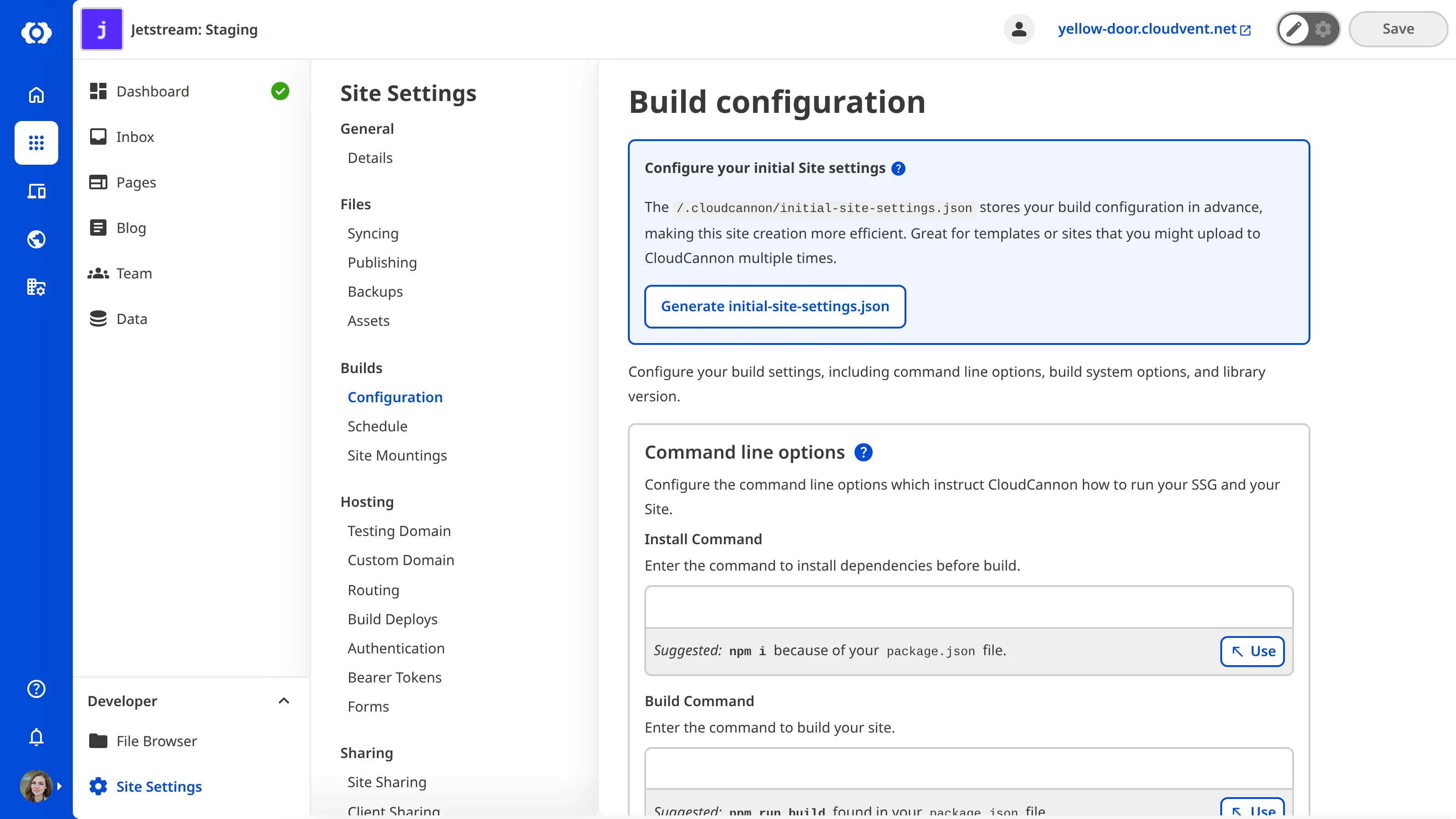
You can enable builds again by unchecking the *Building Locked* checkbox at any time.
---
---
title: Manage loading, uploads, and previews with the Visual Editor API
description: Learn how to use setLoading, uploadFile, and getPreviewUrl with the Visual Editor API in CloudCannon.
url: https://cloudcannon.com/documentation/developer-articles/manage-loading-uploads-and-previews-with-the-visual-editor-api/
content_type: developer article
last_modified: 2026-08-11
---
> The *Visual Editor API* is designed for experienced CloudCannon developers. If you need help with custom integrations or your CloudCannon setup in general, please contact our friendly [support team](https://cloudcannon.com/support/).
CloudCannon's **Visual Editor API** exposes methods for managing your integration's loading state, uploading files, and getting preview URLs. This article covers how to use each of these in your custom integration.
This article assumes you know how to [initialize the Visual Editor API](/documentation/developer-articles/initialize-the-visual-editor-api/). For custom inline editing, read [Create custom inline editing with the Visual Editor API](/documentation/developer-articles/create-custom-inline-editing-with-the-visual-editor-api/). For a complete list of API objects and methods, please read our reference documentation on the [Visual Editor API](/documentation/developer-reference/visual-editor-api/).
## Control the loading state
Calling `*.setLoading()` allows you to show or hide the **Visual Editor**'s loading indicator. This is useful when your custom integration needs time to initialize.
File: `script.js`
```javascript
```
const api = window.CloudCannonAPI.useVersion('v1', true);
await api.setLoading('Initializing custom integration...'); /*1*/
// Do async setup work
await api.setLoading(undefined); /*2*/
```
**[1]** Pass a string to `api.setLoading()` to show the loading indicator with a message.
**[2]** Pass `undefined` to clear the loading indicator when your integration is ready.
```
## Upload a file
Calling `*.uploadFile()` allows you to upload a file through CloudCannon's file handling system.
File: `script.js`
```javascript
```
const input = document.querySelector('input[type="file"]'); /*1*/
const file = input.files[0]; /*2*/
const path = await api.uploadFile(file, undefined); /*3*/
console.log('Uploaded to:', path);
```
**[1]** Get the file input element from the DOM.
**[2]** Get the selected file from the input.
**[3]** Call `api.uploadFile()` to upload the file. Pass `undefined` as the second argument to use default upload behavior, or pass an *Input* configuration object (the same shape as an *Input* in your *CloudCannon Configuration File*) to control where the file is uploaded and which asset sources or DAMs are offered.
```
## Get a preview URL
Calling `*.getPreviewUrl()` allows you to get a working URL for a file that may not yet be committed to your *Site*, such as an image uploaded in the current editing session. Use this instead of the source path directly when displaying images in the *Visual Editor*.
File: `script.js`
```javascript
```
const previewUrl = await api.getPreviewUrl('/images/hero.jpg'); /*1*/
```
**[1]** Pass a source path to `api.getPreviewUrl()` to get a URL that works within the *Visual Editor*, including for files that haven't yet been committed to the *Site*.
```
---
---
title: Managing your connected DAMs
description: Learn how to update the details of your connected DAMs
url: https://cloudcannon.com/documentation/developer-articles/managing-your-connected-dams/
content_type: developer article
last_modified: 2026-03-29
---
Learn how to update the details of your connected DAMs.
## Updating your DAM details
To update the details that are stored in CloudCannon for connecting to your DAM:
1. In your Organization settings, navigate to *Files* / *Assets*
2. Locate the relevant DAM, and click the **Manage** button next to its name
3. In the **Configuration tab**, edit your details, then click **Update** to save your changes.
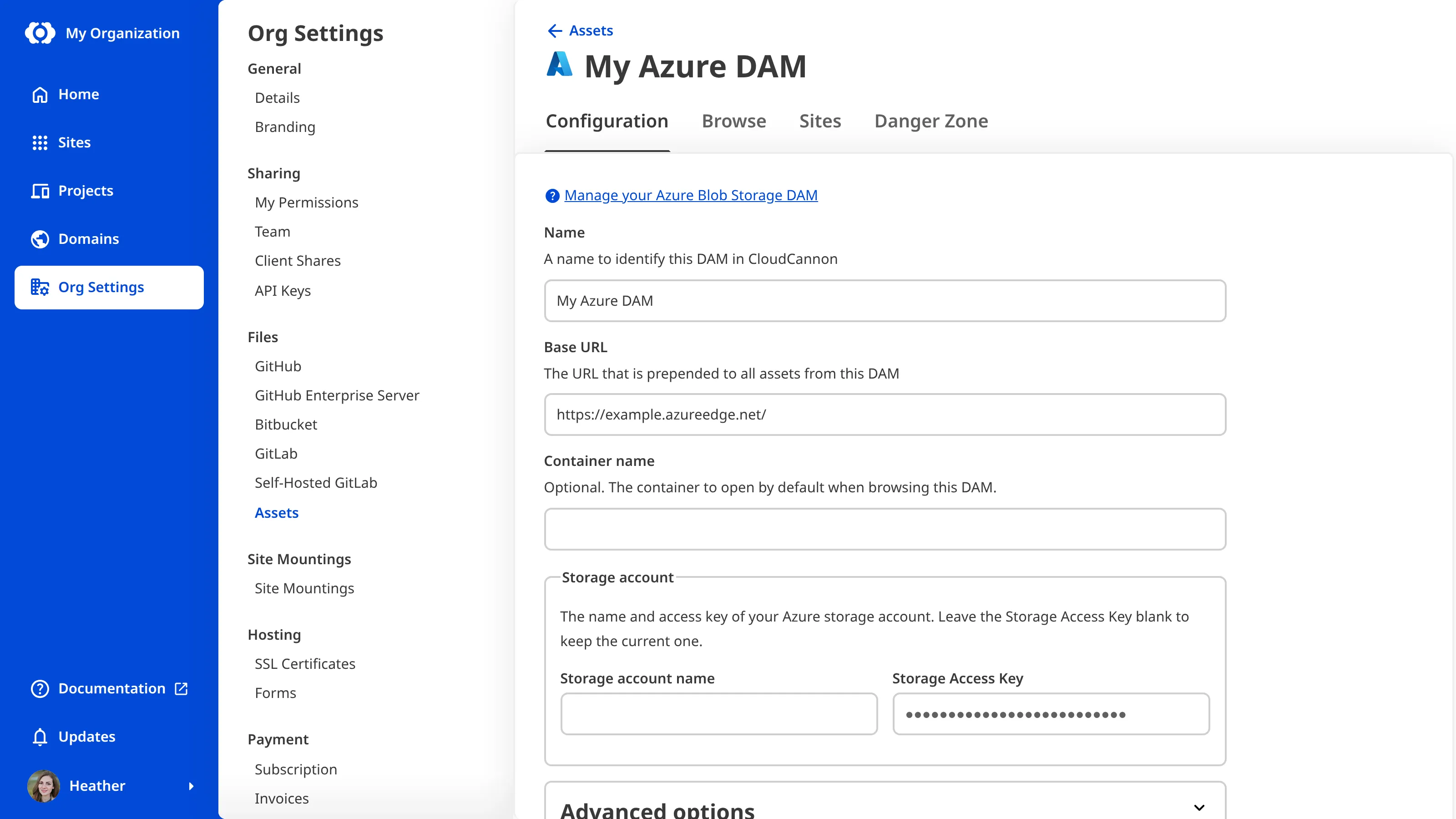
### Limiting size of uploads to your DAM
You can use the **Maximum size for uploaded files** setting to prevent uploads exceeding a pre-determined size. This should be set in bytes. For example, to limit uploads to 1 GB you could set this to 1,000,000,000.
## Updating DAMs connected to your sites
To update the settings for using your DAM, on a site-by-site basis:
1. In your site’s settings, navigate to *Files* / *Assets*.
2. Locate your DAM from the list, and click the three dots in the top right corner.
3. From the context menu, click **Settings**
4. Edit the settings in the modal that appears, then click **Update** to save your changes.
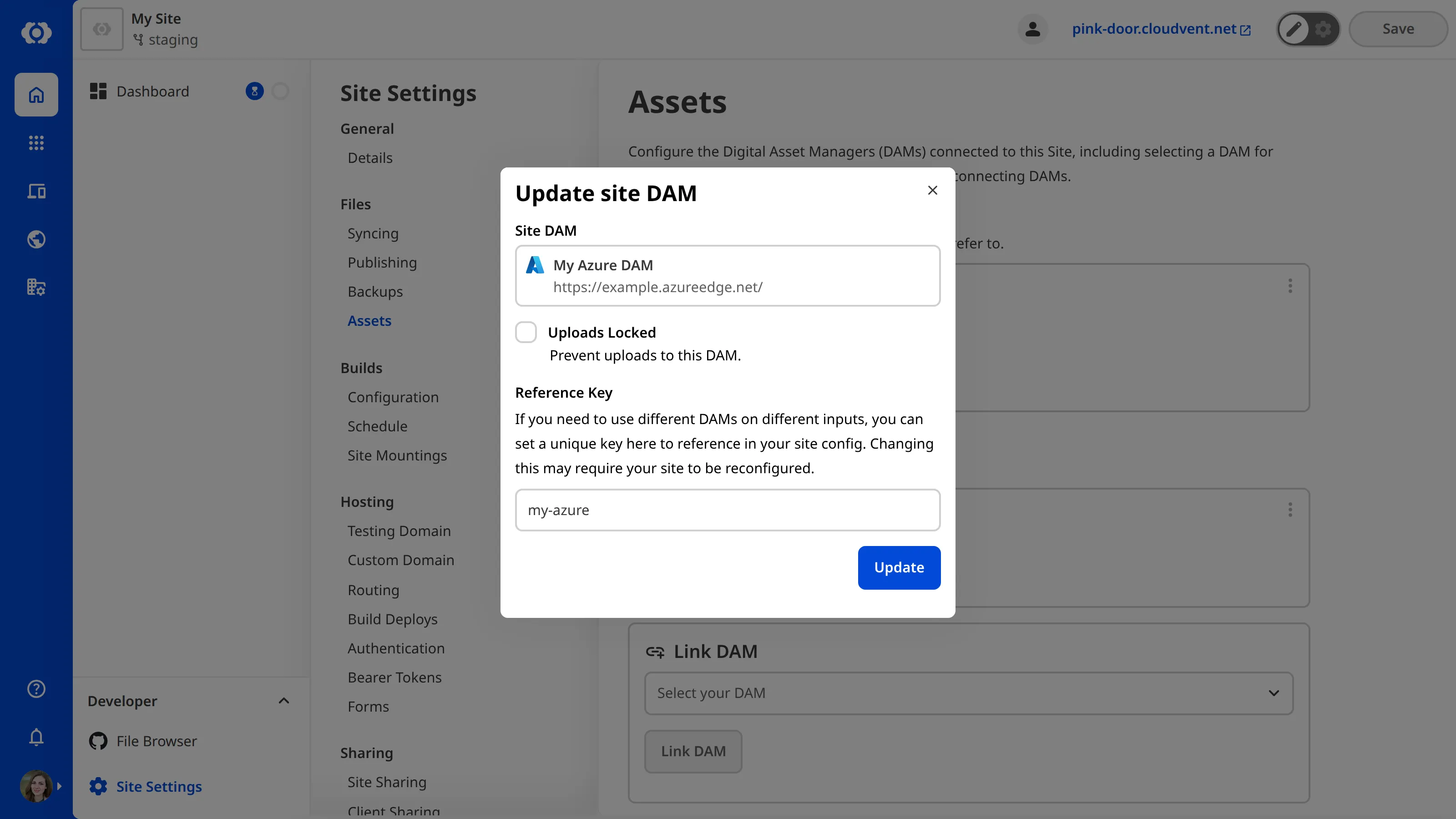
### Prevent uploads to your DAM
> **Tenovos** DAMs do not support uploading within CloudCannon.
You check the **Uploads Locked** option to prevent your editors from uploading assets to the DAM from within the CloudCannon app. This is set per-site.
### Determine where on the site your DAM can be used
The `allowed_sources` configuration option can allow you to choose which "sources" (i.e. DAMs and site files) are available for different editing interfaces across a single site. To use this, you'll need to set a **Reference Key** in the site-level DAM configuration, which you can then reference in the `allowed_sources` array when configuring your inputs and editable regions.
The configuration might look something like this:
File: `cloudcannon.config.yml`
```YAML
_inputs:
image:
options:
allowed_sources:
- 'my-cloudinary-dam'
- 'site-files'
```
The reference key can be any string, except for `site-files` which is reserved to refer to the files from your site. You also cannot have two DAMs with the same reference key on one site.
For more information, see the documentation for:
- [Configuring editable regions in your HTML](/documentation/developer-articles/define-editable-regions-in-your-html/#image-options)
- [Using rich text inputs](/documentation/user-articles/what-is-a-rich-text-input/#image-options)
- [Using upload inputs](/documentation/user-articles/what-is-a-file-input/)
---
---
title: Manually configure URLs
description: Learn how to disable CloudCannon's automatic URL detection and manually configure your URLs for faster builds.
url: https://cloudcannon.com/documentation/developer-articles/manually-configure-urls/
content_type: developer article
last_modified: 2026-08-06
---
By default, CloudCannon automatically detects the output URLs for your files and assigns them at [build](/documentation/developer-articles/what-is-a-site-build/) time. This is useful because you do not need to assign an output URL to each file yourself.
However, this behavior may not be right for your **Site** if it has a large number of files or a custom *Site* configuration. On these *Sites*, automatic URL detection can slow down your build time. To avoid this, you can disable automatic URL detection and configure your output URLs manually.
> Before disabling CloudCannon's automatic URL detection, you must configure the `collections_config.[*].url` key for all output [Collections](/documentation/user-articles/what-is-a-collection/).
You can set the output URL for a **Collection** in the *Data Editor* by opening your `cloudcannon.config.yml` file from your **File Browser**, or from the **Collection Browser** by turning on **Configuration Mode** and clicking the *Edit Advanced* button. Enter a value in the *URL* field for every output *Collection* on your Site. For more information, please read our documentation on [updating the output URL for a Collection](/documentation/developer-articles/update-the-output-url-for-a-collection/).
To disable automatic URL detection:
1. Navigate to the *Configuration* page under *Site Settings*.
2. Check the *Manually Configure URLs* checkbox under *Build system options*.
3. Click the *Update Configuration and Build* button.
CloudCannon will immediately build your Site using the manually configured URLs.
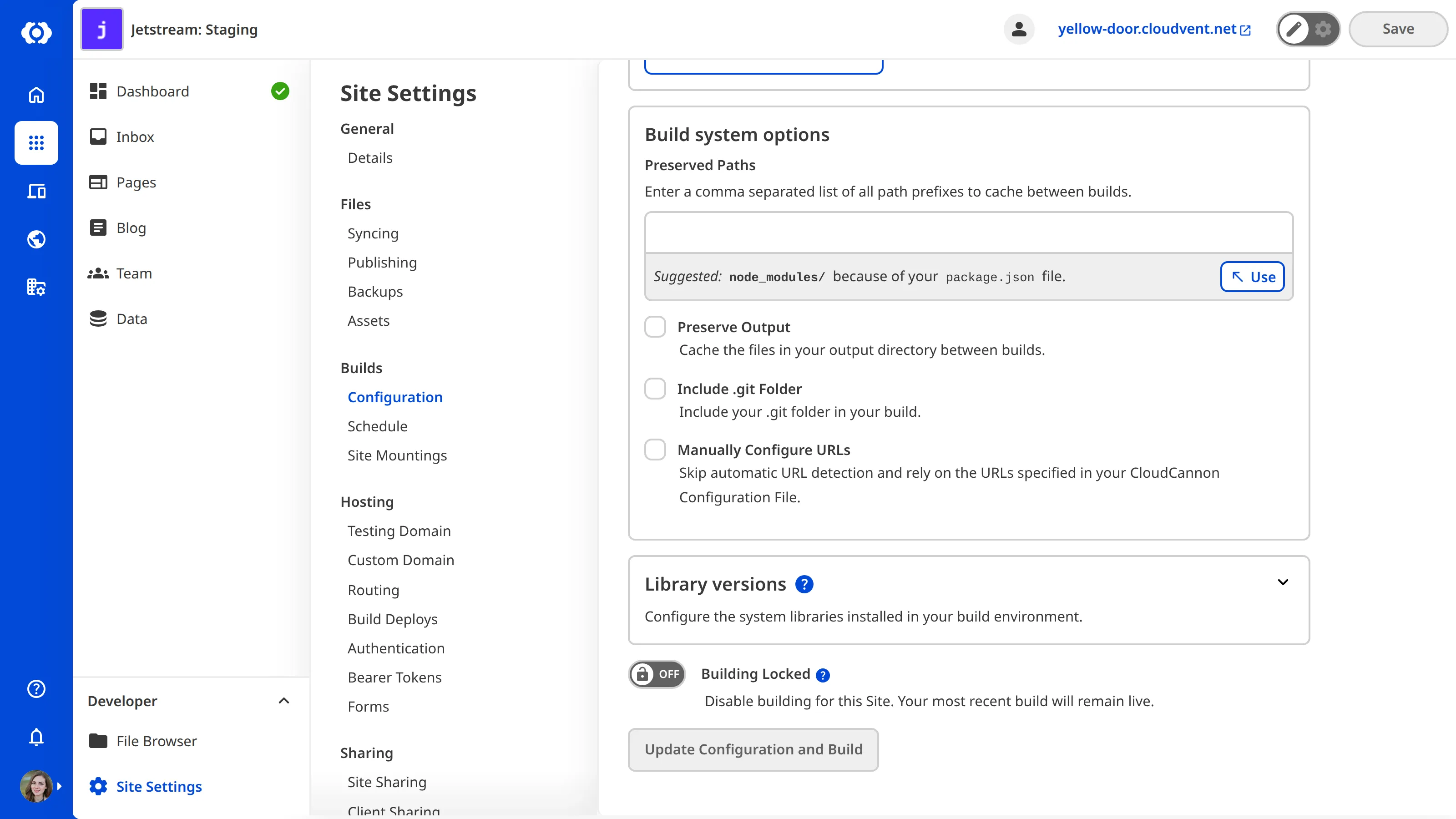
If you would prefer to configure the output URLs for your *Collections* in the *Source Editor* or your local development environment, you can achieve the same configuration with the following code:
File: `cloudcannon.config.yml`
```YAML
```
collections_config:
blog:
path: content/blog
url___1___: /travel/[slug].html
```
**[1]** With automatic URL detection disabled, CloudCannon will use the explicitly configured output URL `/travel/[slug].html` for files in this Collection.
```
---
---
title: Migrating to global configuration files
description: Learn how to migrate from SSG-based config to a CloudCannon Configuration File.
url: https://cloudcannon.com/documentation/developer-articles/migrating-to-global-configuration-files/
content_type: developer article
last_modified: 2026-04-11
---
> This article is deprecated.
How you set global configuration in CloudCannon has changed. We recommend updating, but the previous configuration will continue to work. CloudCannon now uses specific files rather than relying on your SSG configuration files. This allows us to provide a consistent experience across SSGs as we add more. This also separates the configuration itself, making your sites more maintainable.
To migrate, [create your CloudCannon configuration file with these instructions](/documentation/developer-articles/create-your-cloudcannon-configuration-file/), then move your configuration here.
Many of the configuration keys are the same. You can fin these keys in the [CloudCannon configuration file reference](/documentation/developer-reference/configuration-file/) documentation. Globally-scoped [configuration cascade values](/documentation/developer-articles/using-the-configuration-cascade/) must also be moved to your CloudCannon configuration file.
Here are the notable changes for your specific SSG:
> **For Jekyll sites**
>
> CloudCannon used to read global configuration from your `_config.yml` file.
>
> Base collection configuration is still automatically read from Jekyll itself. Collection settings are now set under `collections_config` in your global configuration file rather than in `collections` or `cloudcannon.collections` inside `_config.yml`. The contents are the same, except for [these renamed keys](#renamed-keys). Read more about [configuring your collections](/documentation/developer-articles/configure-your-collections/).
>
> Including data files is now set in `data_config` in your global configuration file rather than in `cloudcannon.data` in `_config.yml`. The format is the same.
>
> Your global uploads path is now set in `paths.uploads` in your global configuration file rather than in `uploads_dir` in `_config.yml`. The format is the same.
> **For Hugo sites**
>
> CloudCannon used to read global configuration from your `config.toml` file.
>
> Base collection configuration is still automatically read from Hugo top-level content sections. Collection configuration is now set under `collections_config` in your global configuration file rather than in `cloudcannon.collections` inside `config.toml`. The contents are the same, except for [these renamed keys](#renamed-keys). Read more about [configuring your collections](/documentation/developer-articles/configure-your-collections/).
>
> Including data files is now set in `data_config` in your global configuration file rather than in `cloudcannon.data` in `config.toml`. The format is the same.
>
> Your global uploads path is now set in `paths.uploads` in your global configuration file rather than in `uploads_dir` in `config.toml`. The format is the same.
> **For Eleventy sites**
>
> CloudCannon used to read global configuration from your `_data/cloudcannon.*` file.
>
> Base collection configuration is still automatically read from Eleventy itself. Collection configuration is now set under `collections_config` in your global configuration file rather than in `collections` inside `_data/cloudcannon.*`. The contents are the same, except for [these renamed keys](#renamed-keys). Read more about [configuring your collections](/documentation/developer-articles/configure-your-collections/).
>
> By overwhelming demand, **defining collection configuration no longer overrides automatically-discovered collections**. If you want to restore this behavior, use the `collections_config_override` global setting.
>
> Including data files is now set in `data_config` in your global configuration file rather than in `data` in `_data/cloudcannon.*`. The format is the same.
>
> Your global uploads path is now set in `paths.uploads` in your global configuration file rather than in `uploads_dir` in `_data/cloudcannon.*`. The format is the same.
> **For all other sites**
>
> CloudCannon already reads global configuration from your `cloudcannon.config.*` file for other SSGs. There are a couple of extra renamed keys here:
>
> - `collections-config` to `collections_config`
> - `data-config` to `data_config`
> - `base-url` to `base_url`
### Renamed keys
Since collection-level configuration is now always defined separately, there's no longer any risk of clashing with SSG-specific configuration. We've taken this chance to clean up and rename the configuration keys that started with underscores in an effort to reduce that risk:
- `_collection_groups` to `collection_groups`
- `_source_editor` to `source_editor`
- `_subtext_key` to `subtext_key` inside `collections_config`
- `_image_key` to `image_key` inside `collections_config`
- `_image_size` to `image_size` inside `collections_config`
- `_singular_name` to `singular_name` inside `collections_config`
- `_singular_key` to `singular_key` inside `collections_config`
- `_disable_add` to `disable_add` inside `collections_config`
- `_icon` to `icon` inside `collections_config`
- `_add_options` to `add_options` inside `collections_config`
- `_sort_key` to `sort_key` inside `collections_config`
`sort_key` has been superseded by `sort` and `sort_options` [has been introduced](/documentation/developer-articles/configure-your-collections/).
The remaining underscore-prefixed configuration keys are not renamed so they can be identified as part of the [configuration cascade](/documentation/developer-articles/using-the-configuration-cascade/).
---
---
title: Migrating to input configuration
description: Learn how to migrate your input configuration to the consolidated _inputs key format in CloudCannon.
url: https://cloudcannon.com/documentation/developer-articles/migrating-to-input-configuration/
content_type: developer article
last_modified: 2026-04-11
---
How you configure inputs in CloudCannon has changed. We recommend updating, but **the previous configuration will continue to work**. There's now a consolidated key called `_inputs` that encompasses our previous keys:
- `_options`
- `_comments`
- `_instance_values`
- `_select_data`
- `_structures` (renamed from `_array_structures`)
Having the configuration keys at the top level forced you to redefine your input key multiple times, and spread the configuration for an input across multiple places. This proved to be progressively harder to maintain as you configured more inputs.
The `_inputs` configuration flips the input and configuration keys from the previous convention, allowing you to define everything for an input in one place.
We've also introduced two new configuration settings, `type` and `label`. These let you choose which kind of input you want, and what label text is shown separately from the naming conventions.
File: `Input configuration`
```yaml
anything:
_inputs:
anything:
type: markdown
label: Main Content
```
## Examples
It's often easier to just see the before and after. Here are some examples covering the previous and current configurations:
### Comments
Now set with the `comment` key.
File: `Old configuration`
```yaml
brand_color: '#034ad8'
_comments:
brand_color: Use a bold color here
```
File: `New configuration`
```yaml
brand_color: '#034ad8'
_inputs:
brand_color:
comment: Use a bold color here
```
### Options
Now set with the `options` key.
File: `Old configuration`
```yaml
hero_image: /uploads/hero.png
_options:
hero_image:
width: 500
height: 600
```
File: `New configuration`
```yaml
hero_image: /uploads/hero.png
_inputs:
hero_image:
options:
width: 500
height: 600
```
### Instance Values
Now set with the `instance_value` key.
File: `Old configuration`
```yaml
_instance_values:
_uuid: UUID
created_at: NOW
```
File: `New configuration`
```yaml
_inputs:
_uuid:
instance_value: UUID
created_at:
instance_value: NOW
```
### Select data
There are no changes to `_select_data` itself:
File: `Input configuration`
```yaml
animal: Cow
_select_data:
animals:
- Cat
- Cow
```
You can now choose the select values (separately from the naming convention) for a [Select input](/documentation/user-articles/what-is-a-select-input/) with `values`. Either define the values directly:
File: `Input configuration`
```yaml
animal: Cow
_inputs:
animal:
type: select
options:
values:
- Cat
- Cow
```
Or reference `_select_data` defined anywhere in the [configuration cascade](/documentation/developer-articles/using-the-configuration-cascade/):
File: `Input configuration`
```yaml
animal: Cow
_inputs:
animal:
type: select
options:
values: _select_data.mammals
_select_data:
mammals:
- Cat
- Cow
```
### Structures
Array Structures are now called [Structures](/documentation/developer-reference/configuration-file/types/_structures/), and configured with `_structures` instead of `_array_structures`. Outside of this rename, there are no changes to the configuration itself:
File: `Input configuration`
```yaml
gallery:
_structures:
gallery:
style: modal
values:
- label: Image
icon: image
value:
image: /uploads/placeholder.png
caption:
- label: External link
icon: link
value:
url:
title:
```
You can now choose the structures (separately from the naming convention) for an [Array input](/documentation/user-articles/what-is-an-array-input/) with structures. Either define the values directly:
File: `Input configuration`
```yaml
gallery:
_inputs:
gallery:
type: array
options:
structures:
style: modal
values:
- label: Image
icon: image
value:
image: /uploads/placeholder.png
caption:
- label: External link
icon: link
value:
url:
title:
```
Or reference `_structures` defined anywhere in the [configuration cascade](/documentation/developer-articles/using-the-configuration-cascade/):
File: `Input configuration`
```yaml
gallery:
_inputs:
gallery:
type: array
options:
structures: _structures.media_items
_structures:
media_items:
style: modal
values:
- label: Image
icon: image
value:
image: /uploads/placeholder.png
caption:
- label: External link
icon: link
value:
url:
title:
```
## Where to configure inputs
The `_inputs` configuration is set alongside the inputs in the examples above. You can set it anywhere in the [configuration cascade](/documentation/developer-articles/using-the-configuration-cascade/), just as the previous keys allowed. The keys inside `_inputs` entries are merged across the cascade, allowing you to overwrite or combine more specific configurations (e.g. setting comments globally and options per file).
> `_select_data` and `_structures` are defined in the [configuration cascade](/documentation/developer-articles/using-the-configuration-cascade/) as well, so you can set them with or separately to `_inputs`.
## Other changes
- [Color inputs](/documentation/user-articles/what-is-a-color-input/) have new `format` and `alpha` options, falling back to the naming convention if these options are not set.
- [Hiding inputs](/documentation/developer-reference/configuration-file/types/_inputs/*/hidden/) is now set with `hidden` in an `_inputs` entry rather than an option, since it's available for any input type. This key also supports a string where the input is hidden based on the value of another input. This can start with a `!` to reverse the value.
- [Object structures are now supported](/documentation/user-articles/what-is-an-object-input/). These allow you to configure objects between an empty state (`null`) and a selection of object formats. Useful if you have components with a limited number of sub-components.
- Two new inputs: [Range number input](/documentation/user-articles/what-is-a-number-input/) and a [Switch boolean input](/documentation/user-articles/what-is-a-boolean-input/). These are only available with the new inputs config. More input types coming soon, contact support if you have specific requests.
- Comments now support a limited set of Markdown: links, bold, italic, subscript, superscript and inline code elements are allowed. Links in this block also support [Editor Links](/documentation/developer-articles/extending-in-app-navigation-with-editor-links/).
---
---
title: Migrating to preview options
description: How to migrate from our legacy preview option keys to the latest consolidated preview option.
url: https://cloudcannon.com/documentation/developer-articles/migrating-to-preview-options/
content_type: developer article
last_modified: 2026-04-11
---
How you configure previews in CloudCannon has changed. We recommend updating, but **the previous configuration will continue to work**. There’s now a consolidated key called `preview` that encompasses our previous keys:
- `text_key`
- `text`
- `subtext_key`
- `subtext`
- `icon_key`
- `icon`
- `image_key`
- `image`
- `image_size`
- `preview_image`
- `description`
As our configuration has grown, many of these keys were used inconsistently across different locations. We now offer [a single option called preview that contains each of these options](/documentation/developer-articles/configure-your-card-previews/) in a cascading process.
You can now define more than one option value for each preview option. Each option value is processed in order until a data value is found.
This is used in a number of places so far:
1. [Hugo Shortcodes](/documentation/developer-articles/snippets-using-hugo-shortcodes/) (Snippets)
2. Snippet Picker
3. [Structures](/documentation/developer-articles/what-is-a-structure/) inside [Array inputs](/documentation/user-articles/what-is-an-array-input/)
4. [Structure Picker](/documentation/developer-articles/create-a-structure/)
5. [Select-style inputs](/documentation/user-articles/what-is-a-select-input/)
6. [Object inputs](/documentation/user-articles/what-is-an-object-input/)
7. Non-structure items inside [Array inputs](/documentation/user-articles/what-is-an-array-input/)
## Examples
Here are a number of examples to show the difference before and after migrating.
### Collection items
Changing how collection items look in the collection file list:
File: `cloudcannon.config.yml (legacy)`
```yaml
collections_config:
posts:
text_key: heading
subtext_key: author
icon: event_available
image_key: thumbnail
image_size: contain
```
File: `cloudcannon.config.yml`
```YAML
collections_config:
posts:
icon: event_available
preview:
text_key:
- key: heading
subtext_key:
- key: author
icon: event_available # redundant here - defaults to icon above
image: # Alternatively, migrate to preview.gallery.image
- key: thumbnail
```
Changing how a collection item with a schema appears in the collection file list:
File: `cloudcannon.config.yml (legacy)`
```yaml
collections_config:
posts:
schemas:
default:
path: schemas/post.md
news:
path: schemas/news-post.md
text_key: heading
icon: newspaper
image_key: cover_image
image_size: cover
```
File: `cloudcannon.config.yml`
```YAML
collections_config:
posts:
schemas:
default:
path: schemas/post.md
news:
path: schemas/news-post.md
preview:
text:
- key: heading
icon: newspaper
gallery:
image:
- key: cover_image
fit: cover
```
### Object and Array inputs
Changing how an object input appears in the Data Editor before opening:
File: `cloudcannon.config.yml (legacy)`
```yaml
seo:
title: About us
description: A longer description of the page that is all about us.
image: /uploads/seo-cover.png
_inputs:
seo:
text_key: title
subtext_key: description
icon: search
image_key: image
```
File: `cloudcannon.config.yml`
```YAML
seo:
title: About us
description: A longer description of the page that is all about us.
image: /uploads/seo-cover.png
_inputs:
seo:
preview:
text:
- key: title
subtext:
- key: description
icon: search
image:
- key: image
```
Changing how a non-structure item within an array input appears in the Data Editor before opening:
File: `cloudcannon.config.yml (legacy)`
```yaml
quotes:
- message: Great product!
author: Jane
image: /uploads/jane.png
- message: Highly recommended.
author: John
image: /uploads/john.png
_inputs:
quotes:
text_key: message
subtext_key: author
icon: format_quote
image_key: image
```
File: `cloudcannon.config.yml`
```YAML
quotes:
- message: Great product!
author: Jane
image: /uploads/jane.png
- message: Highly recommended.
author: John
image: /uploads/john.png
_inputs:
quotes:
preview:
text:
- key: message
subtext:
- key: author
icon: format_quote
image:
- key: image
```
### Structures
Changing how a structure item appears when choosing a new one to add in the Data Editor:
File: `cloudcannon.config.yml (legacy)`
```yaml
_structures:
gallery:
style: modal
values:
- label: Image
description: Full width image
preview_image: https://example.com/image-screenshot.png
image: /path/to/image.png
icon: image
text_key: caption
subtext_key: image
image_key: image
image_size: cover
tags:
- Media
- Asset
value:
image: /uploads/placeholder.png
caption:
- label: External link
icon: link
tags:
- Media
value:
url:
title:
```
File: `cloudcannon.config.yml`
```YAML
_structures:
gallery:
style: modal
values:
- label: Image
icon: image
tags:
- Media
- Asset
value:
image: /uploads/placeholder.png
caption:
preview:
text:
- key: caption
icon: image
subtext:
- key: image
- Full width image
gallery:
image:
- key: image
- /path/to/image.png
fit: cover
picker_preview:
gallery:
image: https://example.com/image-screenshot.png
- label: External link
icon: link
tags:
- Media
value:
url:
title:
```
---
---
title: Mount a Site
description: Learn how to add Site Mounting with CloudCannon.
url: https://cloudcannon.com/documentation/developer-articles/mount-a-site/
content_type: developer article
last_modified: 2026-04-11
---
You can customize your settings on the *Site Mountings* page.
To mount a site:
1. Open the local site.
2. Navigate to *Site Mountings* under *Site Settings*.
3. Select your *Remote Site*. This site must be within the same Organization as the Local Site.
4. Select your *Remote artifact*, *Remote path*, and *Local path*.
5. Click the *Mount site* button.
6. CloudCannon will add the site to your *Sites mounted* list.
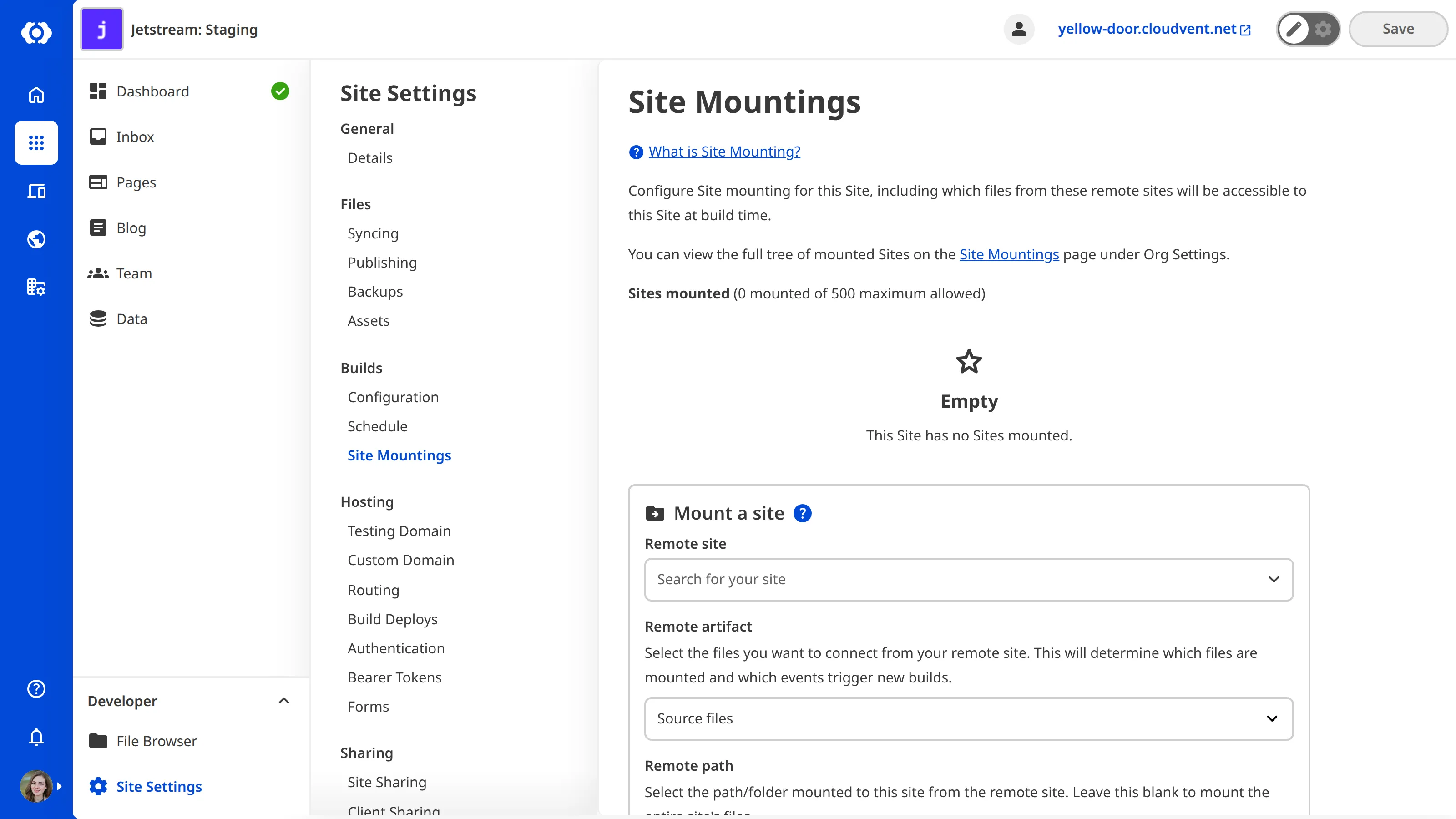
---
---
title: Netlify Hosting with CloudCannon Editing
description: Connect CloudCannon and Netlify to the same Git repo to enable both CloudCannon editing and Netlify builds and deployment.
url: https://cloudcannon.com/documentation/developer-articles/netlify-hosting-with-cloudcannon-editing/
content_type: developer article
last_modified: 2026-03-29
---
CloudCannon can enable editing of your Netlify-hosted static site by connecting to the same Git repo. CloudCannon pushes all content updates to your Git repo, which triggers your Netlify build and deploy.
### Setting up CloudCannon
CloudCannon works with SSG-based content. Any builder available on Netlify is available on CloudCannon. The first step is to select your Git repository.
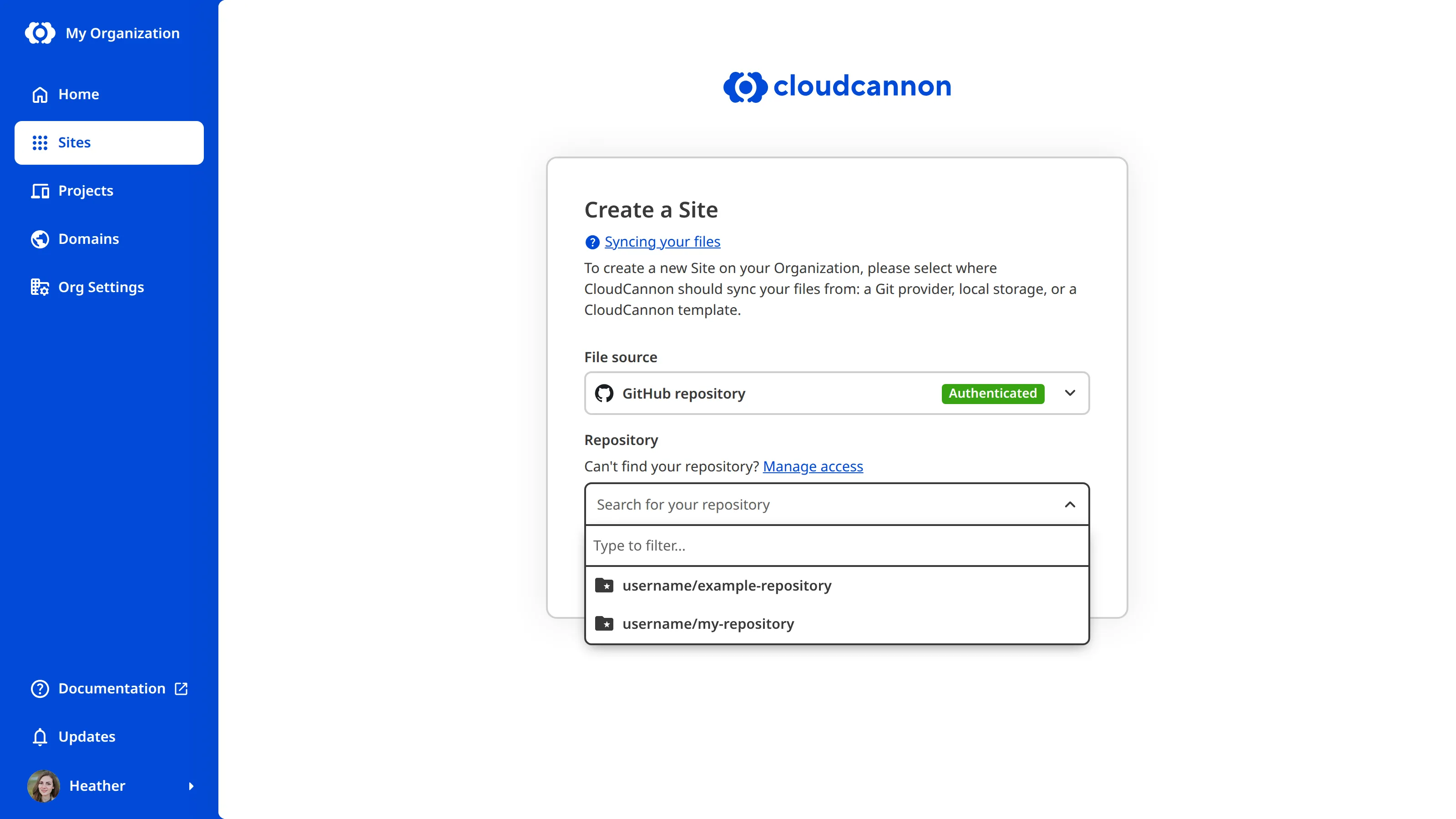
The next step is to select your SSG of choice; this is very similar to the build step in Netlify. If you want custom build commands we recommend using the “Custom” option. For options like Jekyll, Eleventy and Hugo, we automatically configure editing options out of the box. For more build configuration, use build hooks for prebuild, preinstall, and postbuild steps.
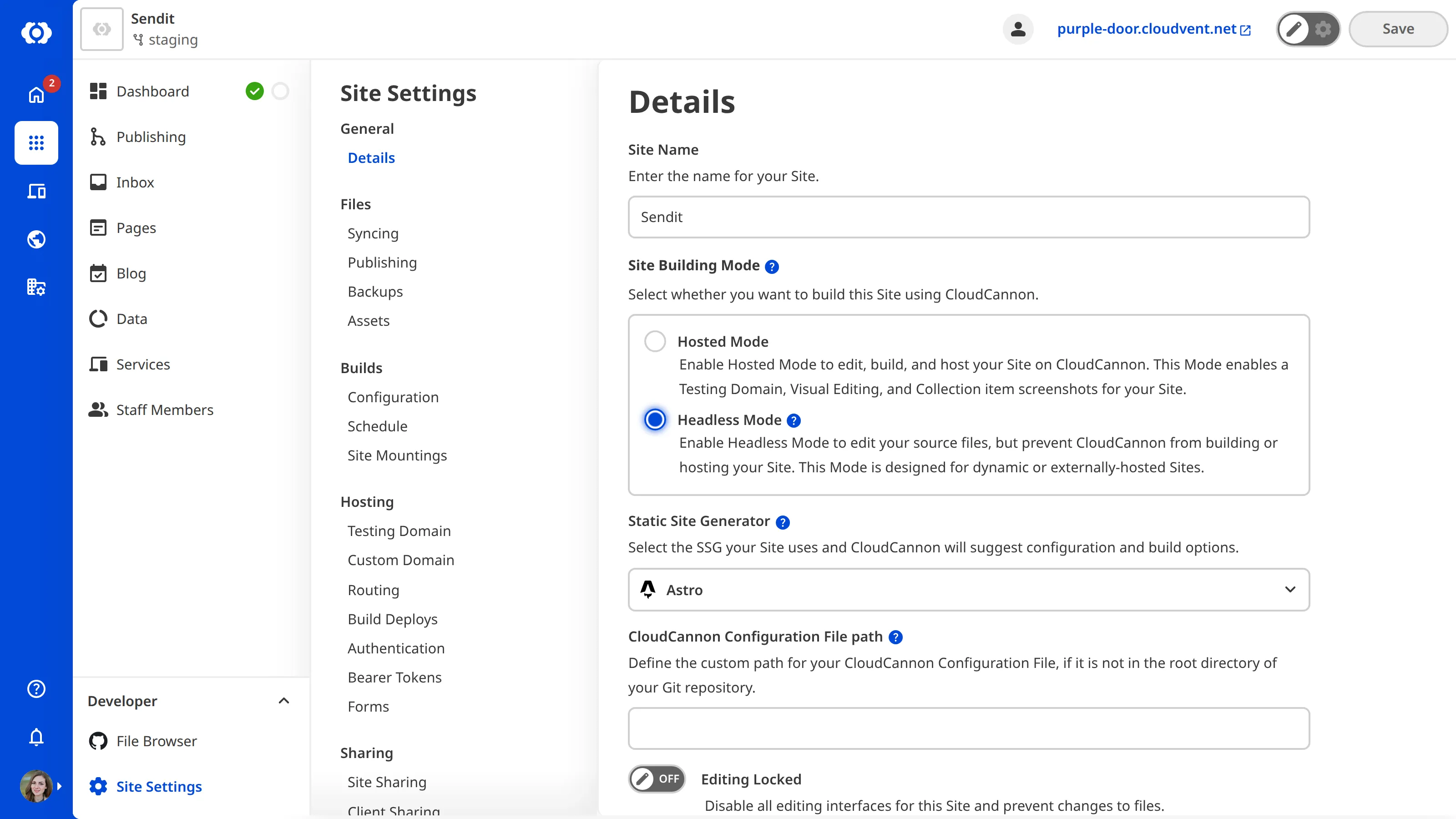
Once built you can configure your site and editing interface to your liking. Most of CloudCannon's interfaces are all configurable to your needs. See configuration options for more information.
### Setting up Netlify
Netlify works as a hosting provider connected to your Git site. If you need more advanced hosting for your site, Netlify offers a deep range of features. The first step is to connect your Git repository in Netlify. This needs to be the same repository that is connected to CloudCannon.
The next step is to select your SSG of choice. This is very similar to the build step in CloudCannon.
Once built, any new commits from CloudCannon will trigger the build. CloudCannon enables your editors to push edits just like a developer. No webhooks or custom interactions required, just Git!
---
---
title: Optimize your Site
description: Learn how CloudCannon can optimize your site for faster loading by minifying CSS and JavaScript.
url: https://cloudcannon.com/documentation/developer-articles/optimize-your-site/
content_type: developer article
last_modified: 2026-06-30
---
CloudCannon optimizes sites to load as fast as possible. CloudCannon minifies CSS with [clean-css](https://github.com/GoalSmashers/clean-css) and JavaScript with [esbuild](https://esbuild.github.io/). Externally hosted assets are not optimized.
> Filenames containing -min or .min are not minified, as the filename suggests they have been minified already.
All files output from a build are hosted on our CDN. Assets referenced in the HTML and CSS are rewritten to include a unique hash in the URL, which will be seen as `?cchid=abfc7a...`. This hash allows files that haven't changed between subsequent builds of your site to remain in the cache, while all other files are purged.
Optimizations are on by default, to toggle optimizations for your site:
1. Go to the *Site Settings* / *Compressor* section
2. Toggle **Minify and serve assets from CDN**
3. Click **Update Build Details**
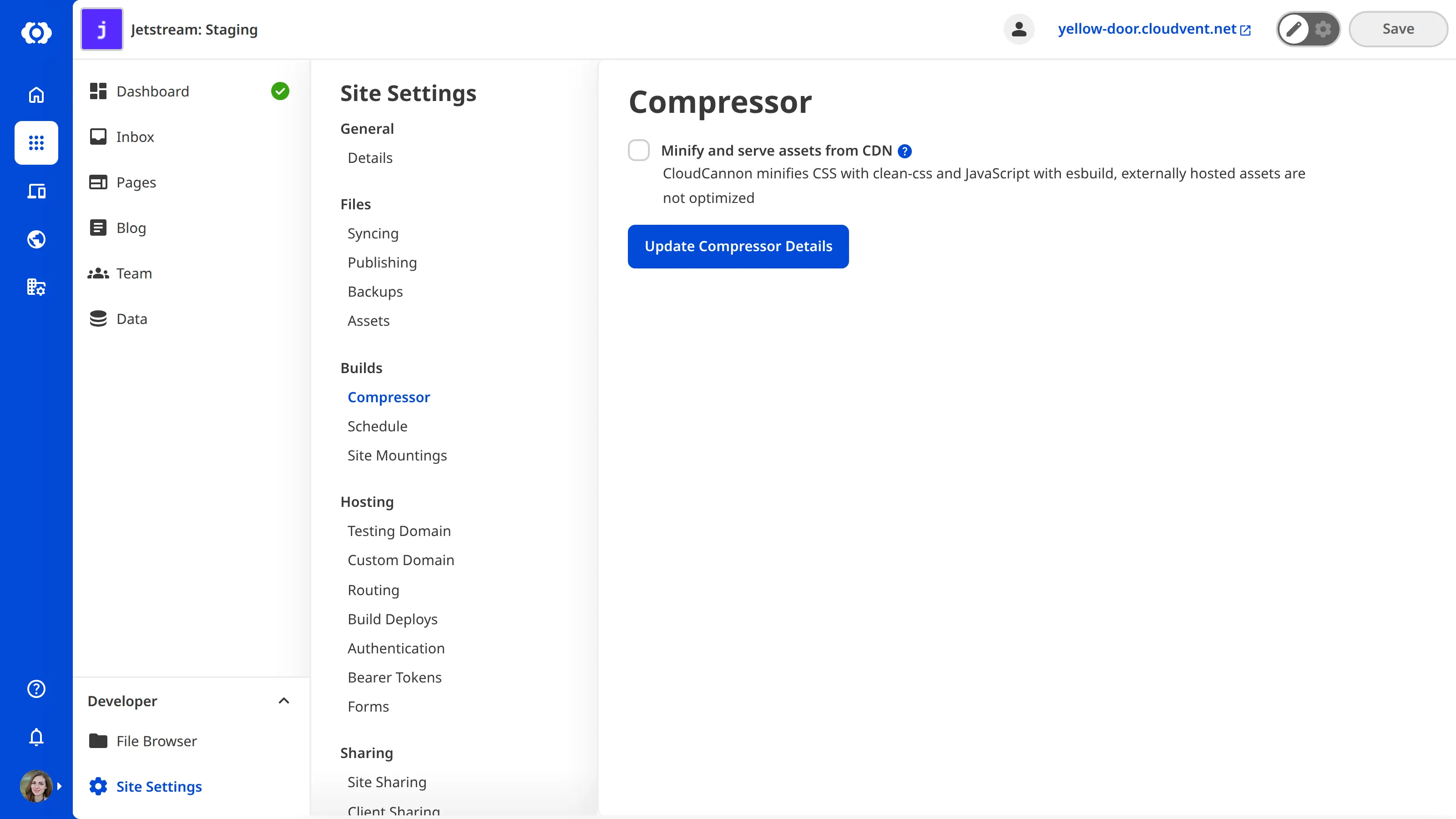
To turn off optimizations on individual elements, add the `.cms-no-rewrite` class to the element.
File: `index.html`
```html
Download Latest Newsletter
```
The element will not have the URL changed to append the `cchid`, but will have reduced cache performance.
---
---
title: Patching YAML number parsing for Jekyll
description: Learn how to apply a SafeYAML patch so Jekyll parses comma-separated numbers (e.g. 1,234) as strings in CloudCannon.
url: https://cloudcannon.com/documentation/developer-articles/patching-yaml-number-parsing-for-jekyll/
content_type: developer article
last_modified: 2026-04-11
---
This is a patch for SafeYAML (Jekyll YAML parser) to fix a parsing error.
Updating a text input in CloudCannon to 1,234 saves the value unquoted, allowed by the YAML specification. Jekyll then parses this as a number which can case unexpected results. This patch removes the comma when testing for a number.
File: `_plugins/patch.rb`
```ruby
# This is a patch for SafeYAML to fix a parsing error.
# It ensures the following is parsed as a string rather than a number:
#
# a_string: 1,234
#
# Rendering this with {{ page.a_string }}
# Unpatched is: 1234
# Patched is: 1,234
module SafeYAML
class Transform
class ToInteger
MATCHERS = Deep.freeze([
/\A[-+]?(0|([1-9][0-9_]*))\Z/, # decimal
/\A0[0-7]+\Z/, # octal
/\A0x[0-9a-f]+\Z/i, # hexadecimal
/\A0b[01_]+\Z/ # binary
])
def transform?(value)
MATCHERS.each_with_index do |matcher, idx|
return true, Integer(value) if matcher.match(value)
end
try_edge_cases?(value)
end
end
end
end
```
---
---
title: Pin your dependency version
description: Learn how to pin dependency versions for Node, Hugo, Ruby, Python, and Deno builds on CloudCannon.
url: https://cloudcannon.com/documentation/developer-articles/pin-your-dependency-version/
content_type: developer article
last_modified: 2026-06-30
---
## Node.js
The following [Node.js](https://nodejs.org/) versions are installed:
- `14.21.3`
- `16.20.2`
- `18.20.8`
- `20.20.2`
- `22.23.2`
- `24.20.0`
Each Node.js version has the following packages preinstalled globally:
- [Rosey](https://www.npmjs.com/package/rosey)
- [Reseed](https://www.npmjs.com/package/reseed)
- [Yarn](https://classic.yarnpkg.com/lang/en/)
- [pnpm](https://pnpm.io/)
### Specifying your version
To specify the Node.js version used on your site:
1. Navigate to the *Build configuration* page under *Site Settings*.
2. Under *Library versions*, set *Node version* to the desired version from the list.
3. Click the *Update Site* button.
If you have your version already specified in a `.nvmrc` file in your repository, you can select the `Use my .nvmrc file` option in the *Node version* selector.
### Using alternative package managers
CloudCannon has npm, pnpm, and yarn pre-installed. Other package managers are not installed by default.
You can use `/.cloudcannon/preinstall` to add other package managers prior to your build/install commands. For more information, please read our documentation on [build hooks](/documentation/developer-articles/extending-your-build-process-with-hooks/#preinstall).
## Go
The following [Go](https://go.dev/) versions are installed:
- `1.21.6`
## Hugo
The preinstalled [Hugo](https://gohugo.io/) version available in the build environment is `0.128.1` (extended).
CloudCannon always installs the [extended](https://gohugo.io/installation/linux/#editions) version of Hugo.
The build environment also supports the Hugo Dart Sass transpiler with [Embedded Dart Sass](https://github.com/sass/dart-sass-embedded) preinstalled. The current supported version of [Embedded Dart Sass](https://github.com/sass/dart-sass-embedded) is `1.49.9`
### Specifying your version
To specify the Hugo version used on your site:
1. Navigate to the *Build configuration* page under *Site Settings*.
2. Under *Library versions*, set *Hugo version* to the desired version.
3. Click the *Update Site* button.
## Ruby
The following [Ruby](https://www.ruby-lang.org/) versions are installed:
- `2.6.7`
- `2.7.3`
- `3.0.1`
- `3.1.3`
- `3.2.0`
- `3.3.10`
- `3.4.8`
- `4.0.1`
### Specifying your version
To specify the Ruby version used on your site:
1. Navigate to the *Build configuration* page under *Site Settings*.
2. Under *Library versions*, set *Ruby version* to the desired version from the list.
3. Click the *Update Site* button.
If you have your version already specified in a `.ruby-version` file in your repository, you can select the `Use my .ruby-version file` option in the *Ruby version* selector.
## Python
The following [Python](https://go.dev/) versions are installed:
- `2.7.18`
- `3.10.12`
The following [pip](https://pypi.org/project/pip/) versions are installed:
- `22.0.2`
The following [pipenv](https://pipenv.pypa.io/en/latest/) versions are installed:
- `2026.8.0`
## Deno
The following [Deno](https://deno.com/) versions are installed:
- `1.44.4`
- `2.2.13`
- `2.7.1`
- `2.9.6`
- `2.9.7`
### Specifying your version
To specify the Deno version used on your site:
1. Navigate to the *Build configuration* page under *Site Settings*.
2. Under *Library versions*, set *Deno version* to the desired version from the list.
3. Click the *Update Site* button.
If you have your version already specified in a `.dvmrc` file in your repository, you can select the `Use my .dvmrc file` option in the *Deno version* selector.
---
---
title: Populate a Select input
description: Learn how to configure Select and Multiselect inputs to use fixed or dynamic lists from your data files or front matter.
url: https://cloudcannon.com/documentation/developer-articles/populate-a-select-input/
content_type: developer article
last_modified: 2026-03-29
---
> **Permissions required**
>
> Members of all [Default Permission Groups](/documentation/user-articles/what-are-default-permission-groups/), or [Custom Permission Groups](/documentation/developer-articles/what-are-custom-permission-groups/) with the `site:file:write` permission, can configure inputs in all locations in the configuration cascade. You can limit permission to specific locations in the configuration using [file globs](/documentation/developer-articles/what-are-custom-permission-groups/#specify-a-file-glob).
[Select inputs](/documentation/user-articles/what-is-a-select-input/) are editing interfaces for selecting values from predefined lists. By configuring your inputs, you can customize the appearance and functionality for a better editing experience.

> For a complete list of configuration keys available for inputs please read our [Inputs](/documentation/developer-reference/configuration-file/types/_inputs/) reference documentation.
All Select and Multiselect inputs must have a predefined list of value options from which to select. There are three ways to populate the list of options:
- Fixed data sets
- Collection items
- Data files
### Fixed data sets
A fixed data set is an array of predefined value options for your Select or Multiselect input, defined in the same place you configure your input. Fixed data sets are best suited to inputs with values that do not change often.
There are two ways to define a fixed data set: within the input configuration using the `options.values` key or anywhere in the [configuration cascade](/documentation/developer-articles/using-the-configuration-cascade/) using the `_select_data` key.
To define the fixed data set within your input configuration, add your array of value options within the `values` key in the input `options`.
File: `cloudcannon.config.yml`
```YAML
```
_inputs:
pets___1___:
type: multichoice
options:
values___2___:
- Dog
- Cat
- Rabbit
```
**[1]** This Multichoice input is called `pets`.
**[2]** You can configure a fixed data set directly inside your input under the `options.values` key. This fixed data set contains the options "Dog", "Cat", and "Rabbit".
```
To define your fixed data set elsewhere in the [configuration cascade](/documentation/developer-articles/using-the-configuration-cascade/), create a nested key and array of value options within `_select_data`.
File: `cloudcannon.config.yml`
```YAML
```
_select_data___1___:
animals___2___:
- Dog
- Cat
- Rabbit
```
**[1]** You can configure a fixed data set anywhere in the configuration cascade using the `_select_data` key.
**[2]** The fixed data set called `animals` contains the options "Dog", "Cat", and "Rabbit".
```
Using the `values` key in the input `options`, you can reference a fixed data set defined elsewhere in the configuration cascade. Use the value `_select_data.key_name`, replacing `key_name` with the key name of your data set.
File: `cloudcannon.config.yml`
```YAML
```
_inputs:
pets___1___:
type: multichoice
options:
values___2___: _select_data.animals
```
**[1]** This Multichoice input is called `pets`.
**[2]** You can reference a fixed data set configured elsewhere in the configuration cascade using the `options.values` key. This input references a fixed data set called `animals`.
```
### Collections
A [Collection](/documentation/user-articles/what-is-a-collection/) is a single folder of files with a similar format. You can find your Collections in the *Site Navigation* sidebar. Using a Collection to populate your value options is useful when you want to reference pages or other content files created by team members (e.g., blogs, staff pages, or products).
You can reference a Collection for your Select or Multiselect input using the `values` key in the input `options`. Use the value `collections.key_name`, replacing `key_name` with the key name of your Collections.
File: `cloudcannon.config.yml`
```YAML
```
_inputs:
product_carousel___1___:
type: multiselect
options:
values___2___: collections.products
```
**[1]** This Multiselect input is called `product_carousel`.
**[2]** This input references a Collection called `products`.
```
> You must have [configured your Collections](/documentation/developer-articles/configure-your-collections/) for this configuration to work.
### Data files
A data file stores structured data. You can populate your input using a dedicated data file, which you can open and edit this file using the CloudCannon File Browser. Using a data file to populate your value options is useful when you want your team members to be able to edit the available options easily.
> Your Site may encounter issues if a team member removes an option from your data file that is in use by an input.
Data files must contain arrays of strings or objects. The Select or Multiselect input will use the strings if the data file contains an array, and the key names if it contains objects.
File: `theme_colors.yml`
```YAML
- Blue
- Green
- Red
```
You can reference a data file for your Select or Multiselect input using the `values` key in the input `options`. Use the value `data.key_name`, replacing `key_name` with the key name of your data file.
File: `cloudcannon.config.yml`
```YAML
```
_inputs:
block_theme_color___1___:
type: select
options:
values___2___: data.theme_colors
```
**[1]** This Select input is called `block_theme_color`.
**[2]** This input references a data file called `theme_colors`.
```
> You must have [defined your Data](/documentation/developer-articles/define-your-data/) for this configuration to work.
## Filters
A filter allows you to limit the available values for a Select or Multiselect input to a subset of possible values. Filters are available for any string value of `options.values` including fixed data sets defined under `_select_data`, Collections, or data files.
Filters use structured data keys to determine the correct subset of values. Let's walk through a few examples.
In our first example, we want to create two inputs populated by different subsets of the same fixed data set. We have the following fixed data set containing important information for our Site:
File: `cloudcannon.config.yml`
```YAML
```
_select_data___1___:
food:
- name: apple
color: red
- name: banana
color: yellow
- name: pineapple
color: yellow
```
**[1]** We have defined our fixed data set under the `_select_data` key in our CloudCannon configuration file.
```
We want to configure:
1. A Multiselect input populated by all the entries in the `food` array and uses the `name` key in the input search bar to identify each entry.
2. A Choice input populated by a subset of the `food` array where the structured data key `color` has a value of `yellow` and uses the `name` key on the buttons to identify each entry.
We can configure the following filter on our input values:
File: `cloudcannon.config.yml`
```YAML
```
_inputs:
food:
type: multiselect
options:
values___1___: _select_data.food[*].name
yellow_food:
type: choice
options:
values___2___: _select_data.food[?(@.color == 'yellow')].name
```
**[1]** The `[*]` filter allows CloudCannon to use all items in the `food` fixed data set as values for the Mutiselect input `food`. By adding `.name` to the end of our value, we can specify that CloudCannon should use the `name` key to populate the input.
**[2]** The `[?(@.color == 'yellow')]` filter instructs CloudCannon to only use items in the `food` fixed data set where the `color` structured data key is equal to `yellow` as values for the Choice input `yellow_food`. By adding `.name` to the end of our value, we can specify that CloudCannon should use the `name` key to populate the input.
```
In our second example, we want to create a Multiselect input populated with the files in our `posts` Collection as value options. More specifically, we only want files where the structured data key `author` has a value of `Heather`. We can configure the following filter on our input values:
File: `cloudcannon.config.yml`
```YAML
```
_inputs:
heathers_posts:
type: multiselect
label: Heather's Posts
options:
values___1___: "collections.posts[?(@.author == 'Heather')]"
```
**[1]** The `[?(@.author == 'Heather')]` filter instructs CloudCannon to only use items in the `posts` Collection where the `author` structured data key is equal to `Heather` as values for the Mutiselect input `heathers_posts`.
```
In our third example, we want to use data from a data file in multiple inputs. We have the following data file containing important information for our Site:
File: `example_data_file.yml`
```YAML
animals:
- Cat
- Dog
- Bird
plants:
- Tree
- Vine
- Shrub
```
We want to configure a Select input populated by the data in `example_data_file.yml`. More specifically, we only want values from the `animals` array within that data file. We can configure the following filter on our input values:
File: `cloudcannon.config.yml`
```YAML
```
data_config___1___:
example_data:
path: data/example_data_file.yml
_inputs:
pets:
type: select
options:
values___2___: data.example_data.animals
```
**[1]** In order for CloudCannon to use data from a dedicated data file, you must define the file path. For more information, please read our documentation on [defining your data](/documentation/developer-articles/define-your-data/).
**[2]** By adding `.animals` to the end of our value, we can specify that CloudCannon should only use data from the `animals` array to populate the input.
```
---
---
title: Populate an Array input
description: Learn how to configure Array inputs to use entry input type or structures for new values.
url: https://cloudcannon.com/documentation/developer-articles/populate-an-array-input/
content_type: developer article
last_modified: 2026-03-29
---
## Populating an Array input
Without additional configuration, default Array inputs become misconfigured when empty.
In default Array inputs, CloudCannon will clone the last entry in the Array to add a new entry. This method is not possible with an empty Array. You can configure the entry input type or create a structure to avoid this issue and support empty Arrays.
### Entry input type
The entry input type defines what type of input CloudCannon should use to populate an Array or [Object](/documentation/user-articles/what-is-an-object-input/). Defining the entry input type for an Array input allows the Array to be empty without becoming misconfigured. All new entries added to an Array input will match the input type specified by the entry input type.
Array inputs with a defined entry input type avoid the issue of becoming misconfigured when empty. Because you have specified which input type to use in the Array, CloudCannon can repopulate the input if you delete the contents of the Array or create a new instance of that input.

You can configure the entry input type for your Array input under the `_inputs` key. To specify future entries within a particular Array, use the key name of the Array followed by the `[*]` characters. Define the type of input for those entries with the `type` key.
File: `cloudcannon.config.yml`
```YAML
```
_inputs:
gallery:
type: array
gallery[*]___1___:
type: image
```
**[1]** The entry input type determines how CloudCannon should populate an Array input. The entry input type for the `gallery` Array is `image` inputs.
```
### Structured Arrays
A structured Array allows your team to select a predefined template to populate the inputs.
> This input type relies on structures. For more information about how to configure structures, please read our [structures documentation](/documentation/developer-articles/what-is-a-structure/).
Structured Array inputs appear similar to the default input. However, unlike the default Array input, when you click the *+ Add* button to add a new array entry, CloudCannon will prompt you to select which structure to use.

Structured Array inputs avoid the issue of becoming misconfigured when empty. Because you have configured at least one structure and linked it to your input, CloudCannon can repopulate the input if you delete the contents of the Array or create a new instance of that input.
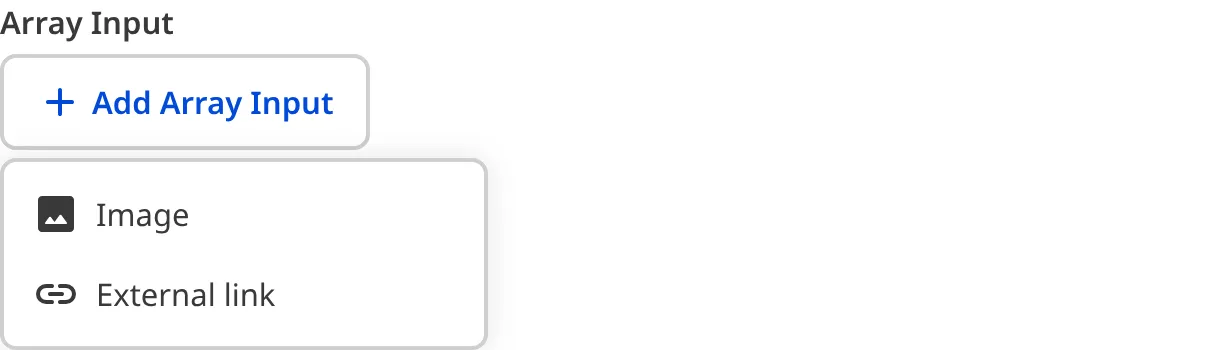
You can configure an Array input using the `structures` key. Define the `structures` key under `options` within your input key name. The value of the `structures` key can be a string or an object.
If you have defined your structures elsewhere under the `_structures` key, you can reference it by using the key name as the value (i.e., `_structures.key_name`).
File: `cloudcannon.config.yml`
```YAML
```
_inputs:
staff___1___:
type___2___: array
options:
structures___3___: _structures.staff_members
```
**[1]** This Object input is called `staff`.
**[2]** The value of the `type` key determines the input type. This is an `array` input.
**[3]** The `structures` option determines what should populate the input. In this case, it references the structure called `staff_members` defined under `_structures` elsewhere in the [configuration cascade](/documentation/developer-articles/using-the-configuration-cascade/).
```
Alternatively, you create an Array called `values` to define your structures directly within your input configuration.
File: `cloudcannon.config.yml`
```YAML
```
_inputs:
staff___1___:
type___2___: array
options:
structures___3___:
values:
- label: Manager
icon: face
value:
name:
job_description:
profile_picture:
url:
- label: Employee
icon: support_agent
value:
name:
job_description:
profile_picture:
```
**[1]** This Object input is called `feature_section`.
**[2]** The value of the `type` key determines the input type. This is an `object` input.
**[3]** The `structures` option determines what should populate the input. In this case, it is an object containing the `values` Array. For more information about how to configure structures, please read our [structures documentation](/documentation/developer-articles/what-is-a-structure/).
```
---
---
title: Read and write data with the Visual Editor API
description: Access file data, body content, and raw source through the Visual Editor API. Learn how to read, write, and edit structured data in CloudCannon's Visual Editor.
url: https://cloudcannon.com/documentation/developer-articles/read-and-write-data-with-the-visual-editor-api/
content_type: developer article
last_modified: 2026-08-11
---
> The *Visual Editor API* is designed for experienced CloudCannon developers. If you need help with custom integrations or your CloudCannon setup in general, please contact our friendly [support team](https://cloudcannon.com/support/).
CloudCannon's **Visual Editor API** exposes each website file as an object you open from your **Site** code. After you have that file reference, you can read and write structured data in **front matter** or data files, work with body content, read or replace raw source, read file metadata, add or remove array items or change their order, open the hosted **Data Panel** for a single field, and claim a file lock while you coordinate updates with other **Team Members** editing in the *Visual Editor*.
This article assumes you know how to [initialize the Visual Editor API](/documentation/developer-articles/initialize-the-visual-editor-api/) and [access files, Collections, and Datasets](/documentation/developer-articles/access-and-list-files-collections-and-datasets-with-the-visual-editor-api/). For a complete list of API objects and methods, please read our reference documentation on the [Visual Editor API](/documentation/developer-reference/visual-editor-api/).
## Read and write file data
You can read and write to your website files with the *Visual Editor API* using the following functions:
- Use `*.data.get()` and `*.data.set()` for structured data: the front matter of a content file, or the full contents of a data file (such as JSON or YAML).
- Use `*.content.get()` and `*.content.set()` for file body content.
- Use `*.get()` and `*.set()` for raw source.
- Use `*.metadata()` for file metadata (you cannot write to file metadata).
> The *Visual Editor API* has no method to save or publish. Writes such as `*.data.set()` and `*.content.set()` update the *Visual Editor* data model and mark the file as having unsaved changes. A *Team Member* using an integration made with the API must still save or publish the file as usual.
### Structured data
Calling `*.data.get()` returns the structured data in the accessed file: every field in the front matter of a content file, or the full contents of a data file (such as JSON or YAML). The *Visual Editor API* returns a JavaScript object, or a JavaScript array if the file's top-level value is a list.
File: `script.js`
```javascript
```
const api = window.CloudCannonAPI.useVersion('v1', true);
const file = api.currentFile(); /*1*/
const frontmatter = await file.data.get(); /*2*/
console.log(frontmatter); /*3*/
console.log(frontmatter.title); /*4*/
```
**[1]** Create a `file` variable to access the file currently open in the *Visual Editor* using `api.currentFile()`.
**[2]** Create a `frontmatter` variable to read the structured data in `file`.
**[3]** Log the full object returned by `file.data.get()` so you can inspect the structured data.
**[4]** Log the `title` value from the `file.data.get()` object.
```
> `*.currentFile()` throws if the current page has no associated source file, such as a generated pagination page. Wrap it in a `try`/`catch`, or use `*.file(path)` to target a specific file. For a `try`/`catch` example, please read our documentation on [accessing files, Collections, and Datasets](/documentation/developer-articles/access-and-list-files-collections-and-datasets-with-the-visual-editor-api/).
You can also read one field at a time by passing a `slug` option to `*.data.get()`. When you supply `{ slug: 'author' }`, CloudCannon returns only that field's value instead of the entire object.
File: `script.js`
```javascript
```
const file = api.currentFile();
const author = await file.data.get({ slug: 'author' }); /*1*/
console.log(author);
```
**[1]** Pass the `{ slug: 'author'}` option to `file.data.get()` to read the specific structured data field `author`.
```
Calling `*.data.set()` allows you to write to a structured data field in an accessed file by passing the field's `slug` and the new `value`. This updates the *Visual Editor* data model and marks the file as having unsaved changes. The change will be visible in any open *Editing Interfaces* (not only the *Visual Editor*).
File: `script.js`
```javascript
```
const file = api.currentFile(); /*1*/
await file.data.set({ /*2*/
slug: 'title', /*3*/
value: 'Updated title' /*4*/
});
```
**[1]** Create a `file` variable to access the file currently open in the *Visual Editor* using `api.currentFile()`.
**[2]** Call `file.data.set()` to write to a structured data field in `file`.
**[3]** Pass the `{ slug: 'title'}` option to specify the structured data field to update.
**[4]** Pass the `{ value: 'Updated title'}` option with the new value for the field.
```
`*.data.set()` updates one field per call. To update several fields, call it once for each field.
### Body content
Body content is the part of a file that comes after the front matter (for example, the Markdown body of a blog post).
Calling `*.content.get()` allows you to read the body content of an accessed file as a string, or `undefined` if the file does not exist.
File: `script.js`
```javascript
```
const file = api.currentFile(); /*1*/
const content = await file.content.get(); /*2*/
console.log(content); /*3*/
```
**[1]** Create a `file` variable to access the file currently open in the *Visual Editor* using `api.currentFile()`.
**[2]** Create a `content` variable to read the body content of `file` as a string.
**[3]** Log the body content of `file`.
```
Calling `*.content.set()` allows you to replace the body content of an accessed file by passing a string. This updates the *Visual Editor* data model and marks the file as having unsaved changes. The change will be visible in any open *Editing Interfaces*.
File: `script.js`
```javascript
```
const file = api.currentFile(); /*1*/
const content = await file.content.get(); /*2*/
await file.content.set(`${content}\n\nAppended paragraph.`); /*3*/
```
**[1]** Create a `file` variable to access the file currently open in the *Visual Editor* using `api.currentFile()`.
**[2]** Read the current body content of `file` as a string.
**[3]** Call `file.content.set()` to replace the body content of `file`, appending a new paragraph to the existing content (e.g., if content was "Hello world", the result passed to `set()` would be "Hello world\n\nAppended paragraph").
```
### Raw source
Calling `*.get()` allows you to read the entire raw source of an accessed file as a string, including both front matter and body content. Use this when you need access to the complete file rather than structured data or body content separately.
File: `script.js`
```javascript
```
const file = api.currentFile(); /*1*/
const raw = await file.get(); /*2*/
console.log(raw); /*3*/
```
**[1]** Create a `file` variable to access the file currently open in the *Visual Editor* using `api.currentFile()`.
**[2]** Create a `raw` variable to read the entire raw source of `file` as a string.
**[3]** Log the raw source of `file`.
```
Calling `*.set()` allows you to replace the entire raw source of an accessed file by passing a string. Use this for files that are not structured data, or that are not normally editable through CloudCannon. This updates the *Visual Editor* data model and marks the file as having unsaved changes. The change will be visible in any open *Editing Interfaces*.
File: `script.js`
```javascript
```
const file = api.file('/public/robots.txt'); /*1*/
const raw = await file.get(); /*2*/
await file.set(raw.replace('old text', 'new text')); /*3*/
```
**[1]** Use `api.file()` with a source path to access a specific file, regardless of which page is currently open in the *Visual Editor*.
**[2]** Read the entire raw source of `file` as a string.
**[3]** Call `file.set()` to replace the raw source of `file` with the updated string.
```
### File metadata
Calling `*.metadata()` allows you to read metadata about an accessed file, such as its file size and when it was created or last modified. File metadata is read-only. You cannot write to it using the *Visual Editor API*.
File: `script.js`
```javascript
```
const file = api.file('/content/pages/about.md'); /*1*/
const meta = await file.metadata(); /*2*/
console.log(meta); /*3*/
```
**[1]** Use `api.file()` with a source path to access a specific file. You can also use `api.currentFile()` to read the metadata of the file currently open in the *Visual Editor*.
**[2]** Create a `meta` variable to read the metadata of `file`.
**[3]** Log the metadata of `file`.
```
## Open the *Visual Editor* *Data Panel*
You can use *Data Panels* in CloudCannon's *Visual Editor* to edit the value of structured data fields in your files.

By calling `*.data.edit()` and passing a `slug` option, you can open a *Data Panel* for a specific field. This is useful when you want to use CloudCannon's built-in interface for your custom integration.
Optionally, pass a position object to anchor the *Data Panel* to the HTML element that triggered the action (for example, the element the *Team Member* clicked).
File: `script.js`
```javascript
```
const file = api.currentFile(); /*1*/
const element = document.querySelector('#hero-image'); /*2*/
element.addEventListener('click', (event) => { /*3*/
const rect = element.getBoundingClientRect(); /*4*/
file.data.edit({ /*5*/
slug: 'hero_image', /*6*/
position: { /*7*/
x: event.clientX,
y: event.clientY,
left: rect.left,
width: rect.width,
top: rect.top,
height: rect.height
}
});
});
```
**[1]** Create a `file` variable to access the file currently open in the *Visual Editor* using `api.currentFile()`.
**[2]** Select the element that should open the *Data Panel* when clicked, such as the image in your preview.
**[3]** Listen for a `click` on that element. The `event` provides the cursor coordinates.
**[4]** Call `element.getBoundingClientRect()` to get the element's size and position for anchoring the panel.
**[5]** Call `file.data.edit()` to open the editing panel for a field in `file`.
**[6]** Pass the `{ slug: 'hero_image' }` option to specify which field to open in the *Data Panel*.
**[7]** Optional. Pass a `position` object to tell CloudCannon where to anchor the editing panel relative to the element.
```
## Edit Array Inputs
You can use the *Visual Editor API* to add, remove, and reorder items in an [Array Input](/documentation/user-articles/what-is-an-array-input/), either in the front matter of a content file or in a data file.
### Add an item
Calling `*.data.addArrayItem()` allows you to add an item to an array field in an accessed file.
File: `script.js`
```javascript
```
const file = api.currentFile(); /*1*/
await file.data.addArrayItem({ /*2*/
slug: 'items', /*3*/
index: null, /*4*/
value: { title: 'New item', description: '' } /*5*/
});
```
**[1]** Create a `file` variable to access the file currently open in the *Visual Editor* using `api.currentFile()`.
**[2]** Call `file.data.addArrayItem()` to add an item to an array field in `file`.
**[3]** Pass the `{ slug: 'items'}` option to specify the array field to add an item to.
**[4]** Pass `index: null` to append the new item to the end of the array, or pass a number to insert it at a specific position.
**[5]** Pass a `value` option with the content of the new item.
```
### Remove an item
Calling `*.data.removeArrayItem()` allows you to remove an item from an array field in an accessed file.
File: `script.js`
```javascript
```
const file = api.currentFile(); /*1*/
await file.data.removeArrayItem({ /*2*/
slug: 'items', /*3*/
index: 2 /*4*/
});
```
**[1]** Create a `file` variable to access the file currently open in the *Visual Editor* using `api.currentFile()`.
**[2]** Call `file.data.removeArrayItem()` to remove an item from an array field in `file`.
**[3]** Pass the `{ slug: 'items'}` option to specify the array field to remove an item from.
**[4]** Pass an `index` option to specify the position of the item to remove.
```
### Move an item
Calling `*.data.moveArrayItem()` allows you to reorder items within an array field, or move items between different array fields, in an accessed file.
File: `script.js`
```javascript
```
const file = api.currentFile(); /*1*/
await file.data.moveArrayItem({ /*2*/
fromSlug: 'items', /*3*/
fromIndex: 0, /*4*/
toIndex: 3 /*5*/
});
```
**[1]** Create a `file` variable to access the file currently open in the *Visual Editor* using `api.currentFile()`.
**[2]** Call `file.data.moveArrayItem()` to move an item within or between array fields in `file`.
**[3]** Pass a `fromSlug` option to specify the array field containing the item to move. Pass a `toSlug` option to move the item to a different array field.
**[4]** Pass a `fromIndex` option to specify the current position of the item.
**[5]** Pass a `toIndex` option to specify the new position of the item.
```
## Lock editing on a file
Claiming a lock on a file gives your integration the editing lock for that file. Only one lock can be held at a time, so other *Team Members* working in the *Visual Editor* see the file as read-only while your integration holds it. Use `*.file()` to access the file you want to lock, call `claimLock()` before making changes, and `releaseLock()` when you are done.
File: `script.js`
```javascript
```
const file = api.file('/_data/settings.yml'); /*1*/
const lock = await file.claimLock(); /*2*/
if (lock && !lock.readOnly) { /*3*/
try {
await file.data.set({ slug: 'status', value: 'in-progress' });
} finally {
await file.releaseLock(); /*4*/
}
}
```
**[1]** Use `api.file()` to access the specific file you want to lock. File locking is most useful when your integration needs to modify a shared file that other *Team Members* might also be editing.
**[2]** Call `claimLock()` to request an editing lock on `file`. It resolves to an object with a `readOnly` property, or `undefined` if the file does not exist.
**[3]** Only write if you actually hold the lock. The check fails in two cases: `claimLock()` resolves to `undefined` when the file does not exist, or to `{ readOnly: true }` when another *Team Member* already holds the lock. Either way, your integration skips the write.
**[4]** Release the lock in a `finally` block so it is always released, even if the write throws partway through. Otherwise other *Team Members* are left viewing the file as read-only until they take the lock back manually.
```
A lock is cooperative, not absolute. A *Team Member* editing in the *Visual Editor* can take the lock from your integration at any time: when they open a file that is already being edited, CloudCannon shows them a banner with a *Switch to editing* button. Clicking it hands them the lock, moves your integration to read-only, and keeps any unsaved changes. Because a held lock is not a guarantee of exclusive access, call `claimLock()` again and check `readOnly` before resuming writes to confirm your integration still holds the lock. For how this looks to a *Team Member* in the *Visual Editor*, please read our documentation on [Editing sessions and collaboration](/documentation/user-guides/editing-in-cloudcannon/editing-sessions-and-collaboration/).

## Read Input configuration
Calling `*.getInputConfig()` allows you to read the resolved *Input* configuration for a field in an accessed file. Pass a `slug` option to specify the field.
File: `script.js`
```javascript
```
const file = api.currentFile(); /*1*/
const inputConfig = await file.getInputConfig({ slug: 'hero_image' }); /*2*/
console.log(inputConfig?.type);
```
**[1]** Create a `file` variable to access the file currently open in the *Visual Editor* using `api.currentFile()`.
**[2]** Call `file.getInputConfig()` with a `slug` option to get the resolved *Input* configuration for that field.
```
---
---
title: Reducing spam by adding Google reCAPTCHA
description: Protect form submissions from automated spam.
url: https://cloudcannon.com/documentation/developer-articles/reducing-spam-by-adding-google-recaptcha/
content_type: developer article
last_modified: 2026-07-29
---
[reCAPTCHA](https://developers.google.com/recaptcha/) embeds a CAPTCHA in your page to help prevent spam. [reCAPTCHA](https://developers.google.com/recaptcha/) requires additional configuration in the *Site Settings*.
To add [reCAPTCHA](https://developers.google.com/recaptcha/) to your site:
1. In your organisation settings, under *Hosting > Forms* either create a new inbox or select *manage* on an existing inbox
2. Select [reCAPTCHA](https://developers.google.com/recaptcha/) as your captcha provider.
3. Sign up for an API key at [https://developers.google.com/recaptcha/](https://developers.google.com/recaptcha/)
4. Enter your secret as your captcha secret key, and your site key as your captcha site key.
5. Add reCAPTCHA to that form by following the instructions in the [reCAPTCHA documentation](https://developers.google.com/recaptcha/intro)
Once configured, any form submissions that fails to validate will return a 401 error page.
## reCAPTCHA v3
Additional JavaScript is required to use reCAPTCHA v3 with CloudCannon forms. This is to add the required input named `g-recaptcha-response` before submitting. An example of how to set this up is:
1. Add your form to the HTML
2. Include the reCAPTCHA script tag with your Site Key
3. Add JavaScript to catch form submissions
4. Generate the recaptcha token
5. Add token to a new input named `g-recaptcha-response`
6. Resubmit the form
HTML Form:
File: `contact.html`
```html
```
JavaScript:
File: `contact.html`
```html
```
---
---
title: Reducing spam by adding hCaptcha
description: Protect form submissions from automated spam.
url: https://cloudcannon.com/documentation/developer-articles/reducing-spam-by-adding-hcaptcha/
content_type: developer article
last_modified: 2026-06-30
---
[hCaptcha](https://www.hcaptcha.com/) embeds a CAPTCHA in your page to help prevent spam. [hCaptcha](https://www.hcaptcha.com/) requires additional configuration in your Site and Inbox Settings.
### Adding [hCaptcha](https://www.hcaptcha.com/) to an inbox
1. In your organisation settings, under *Hosting > Forms* either create a new inbox or select *manage* on an existing inbox
2. Select [hCaptcha](https://www.hcaptcha.com/) as your captcha provider.
3. Sign up at [https://www.hcaptcha.com/](https://www.hcaptcha.com/)
4. Enter your secret as your captcha secret key, and your site key as your captcha site key.
### Adding [hCaptcha](https://www.hcaptcha.com/) to your site
1. Connect your site to your hCaptcha enabled inbox in your site settings, under *Hosting > Forms.*
2. Ensure that you have selected *Require Captcha* in your site inbox settings.
3. Add a form to your site and connect it to your inbox by following the install instructions in your site inbox settings.
4. Add hCaptcha to that form by following the instructions in the [hCaptcha documentation](https://docs.hcaptcha.com/#add-the-hcaptcha-widget-to-your-webpage)
Once configured, any form submissions that fails to validate will return a 401 error page.
---
---
title: Reducing spam by adding Turnstile
description: Protect form submissions from automated spam.
url: https://cloudcannon.com/documentation/developer-articles/reducing-spam-by-adding-turnstile/
content_type: developer article
last_modified: 2026-06-30
---
[Cloudflare Turnstile](https://developers.cloudflare.com/turnstile/) embeds a CAPTCHA in your page to help prevent spam. Turnstile requires additional configuration in your Site and Inbox Settings.
### Adding [Turnstile](https://developers.cloudflare.com/turnstile/) to an inbox
1. In your Org Settings, under *Hosting > Forms* either create a new inbox or select *manage* on an existing inbox
2. Select [Turnstile](https://developers.cloudflare.com/turnstile/) as your captcha provider.
3. Sign into Cloudflare and follow [this guide](https://developers.cloudflare.com/turnstile/get-started/) to get your Turnstile captcha keys.
4. In CloudCannon, enter your secret as your captcha secret key, and your site key as your captcha site key.
### Adding [Turnstile](https://developers.cloudflare.com/turnstile/) to your site
1. Connect your site to your Turnstile enabled inbox in your Site Settings, under *Hosting > Forms.*
2. Ensure that you have selected *Require Captcha* in your site inbox settings.
3. Add a form to your site and connect it to your inbox by following the install instructions in your site inbox settings.
4. Add Turnstile to that form by following the instructions in the [Turnstile documentation](https://developers.cloudflare.com/turnstile/get-started/)
Once configured, any form submissions that fails to validate will return a 401 error page.
---
---
title: Remove a Custom Domain from your Site
description: Learn how to remove a Custom Domain from your Site and stop hosting your website content.
url: https://cloudcannon.com/documentation/developer-articles/remove-a-custom-domain-from-your-site/
content_type: developer article
last_modified: 2026-06-24
---
> **Permissions required**
>
> Members of the Developers and Owners [Default Permission Groups](/documentation/user-articles/what-are-default-permission-groups/), or [Custom Permission Groups](/documentation/developer-articles/what-are-custom-permission-groups/) with the `site:settings:hosting:write` permission, can remove a Custom Domain from a Site.
A Custom Domain is a unique address used to identify a website (e.g., [cloudcannon.com](https://cloudcannon.com/)). You can connect a Custom Domain to your CloudCannon Organiation and add it to a Site to host your website content on that domain.
You may want to remove a Custom Domain from a CloudCannon Site to change the domain hosting your content, move a Custom Domain to a different CloudCannon Site, or to [disconnect a Custom Domain from your Organization](/documentation/developer-articles/disconnect-a-custom-domain-from-your-organization/).
> Removing a Custom Domain from your Site will stop all visitors from seeing your website and its content. Your website will go down until you add another a Custom Domain.
These instructions assume you have [connected a Custom Domain to your Organization](/documentation/developer-articles/connect-a-custom-domain-to-your-organization/) and [added a Custom Domain to your Site](/documentation/developer-articles/add-a-custom-domain-to-your-site/).
To remove a Custom Domain from your Site:
1. Click the *Sites* button in the *App Sidebar*. CloudCannon will open the *Sites browser*.
2. Identify the Site from which you want to remove a Custom Domain and click on the *Site* card. CloudCannon will open the *Dashboard* for that Site.
3. Navigate to the *Custom Domain* page under *Site Settings*.
4. Click the *Remove Custom Domain* button, and confirm your action in the *Click to confirm* modal.
CloudCannon will immediately stop hosting your website content on the Custom Domain.
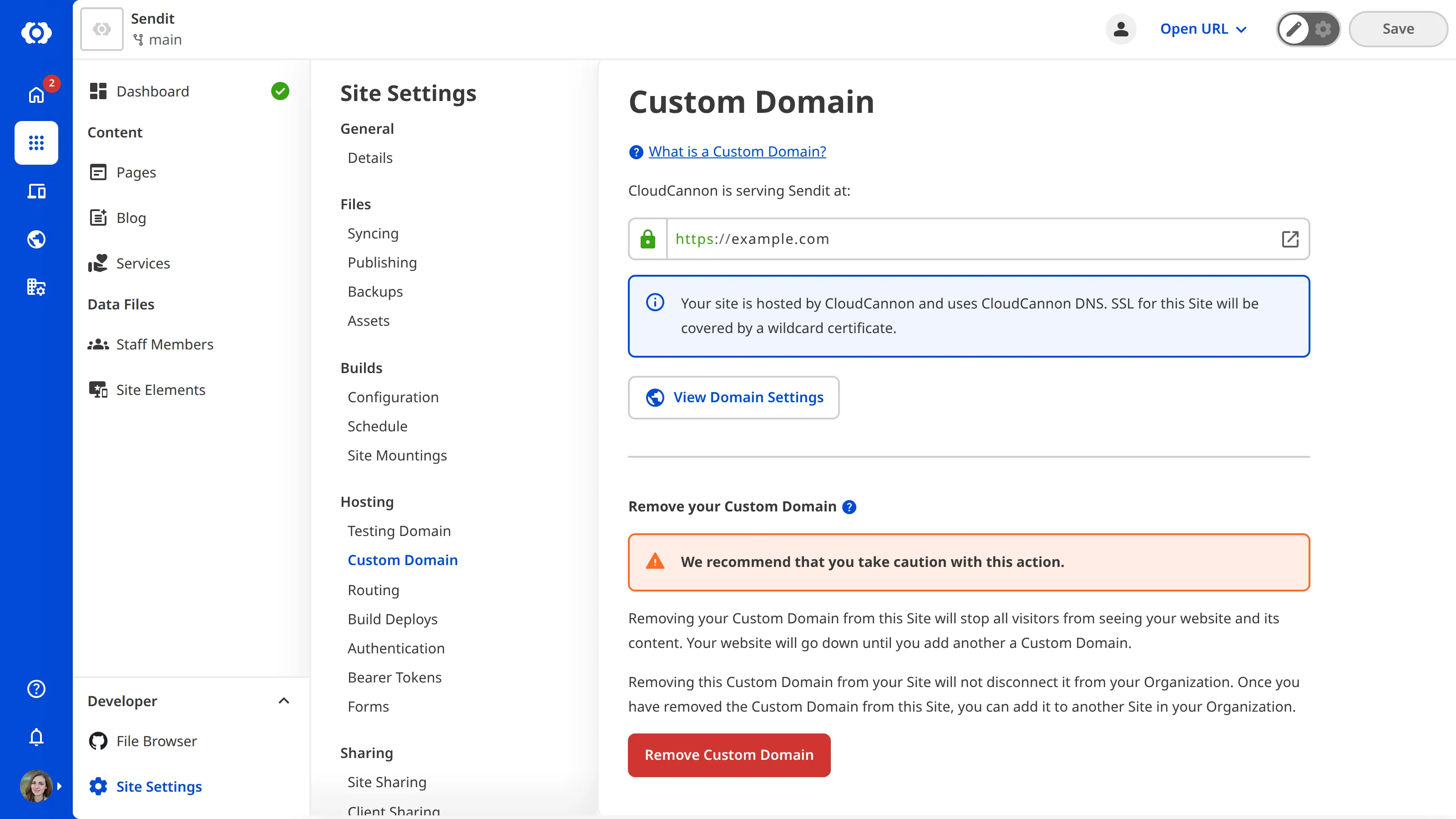
---
---
title: Remove a mounted Site
description: Learn how to add Site Mounting with CloudCannon.
url: https://cloudcannon.com/documentation/developer-articles/remove-a-mounted-site/
content_type: developer article
last_modified: 2026-03-29
---
You can customize your settings on the *Site Mountings* page.
To remove a mounted site:
1. Open the local site.
2. Navigate to *Site Mountings* under *Site Settings*.
3. Identify the mounted site you want to remove and click the *Context Menu* icon in the top right corner.
4. Click the *Unmount* button.
5. On the *Confirm unmount site* pop-up window, click *Unmount*. Click again to confirm.
6. CloudCannon will remove the site from your *Sites mounted* list.
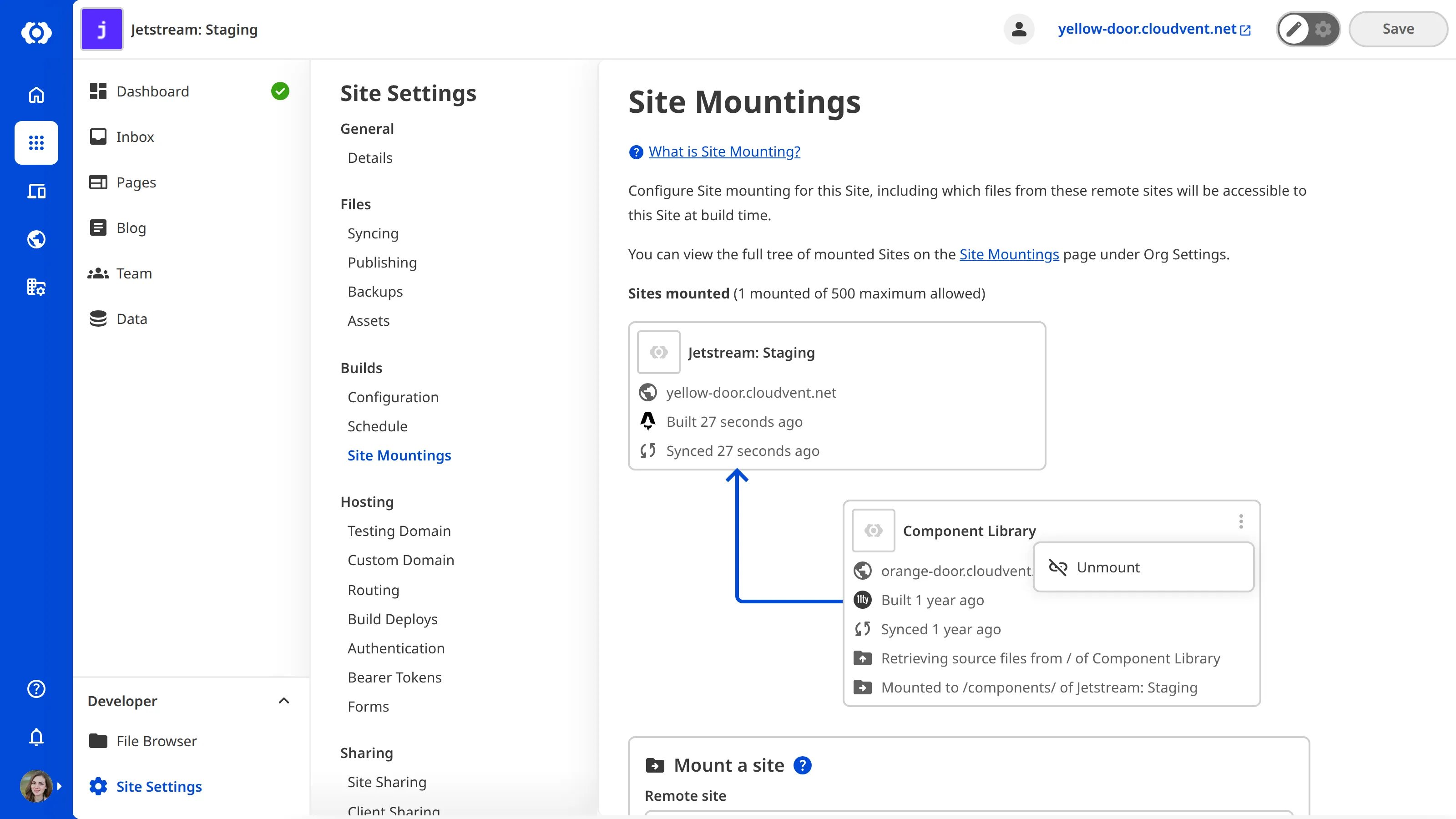
---
---
title: Remove a team member from Site Sharing
description: Learn how to remove team members from Site Sharing.
url: https://cloudcannon.com/documentation/developer-articles/remove-a-team-member-from-site-sharing/
content_type: developer article
last_modified: 2026-03-29
---
To remove a team member from your Site:
1. Navigate to the *Site Sharing* page under *Site settings*.
2. Identify the team member you want to remove from this Organization. Click on the *Context Menu* in the top right of the member card.
3. Select the *Remove from Site* option from the *Context Menu* dropdown.
4. Confirm that you want to remove this team member from your Organization by clicking the *Remove from Site* button in the confirmation modal.
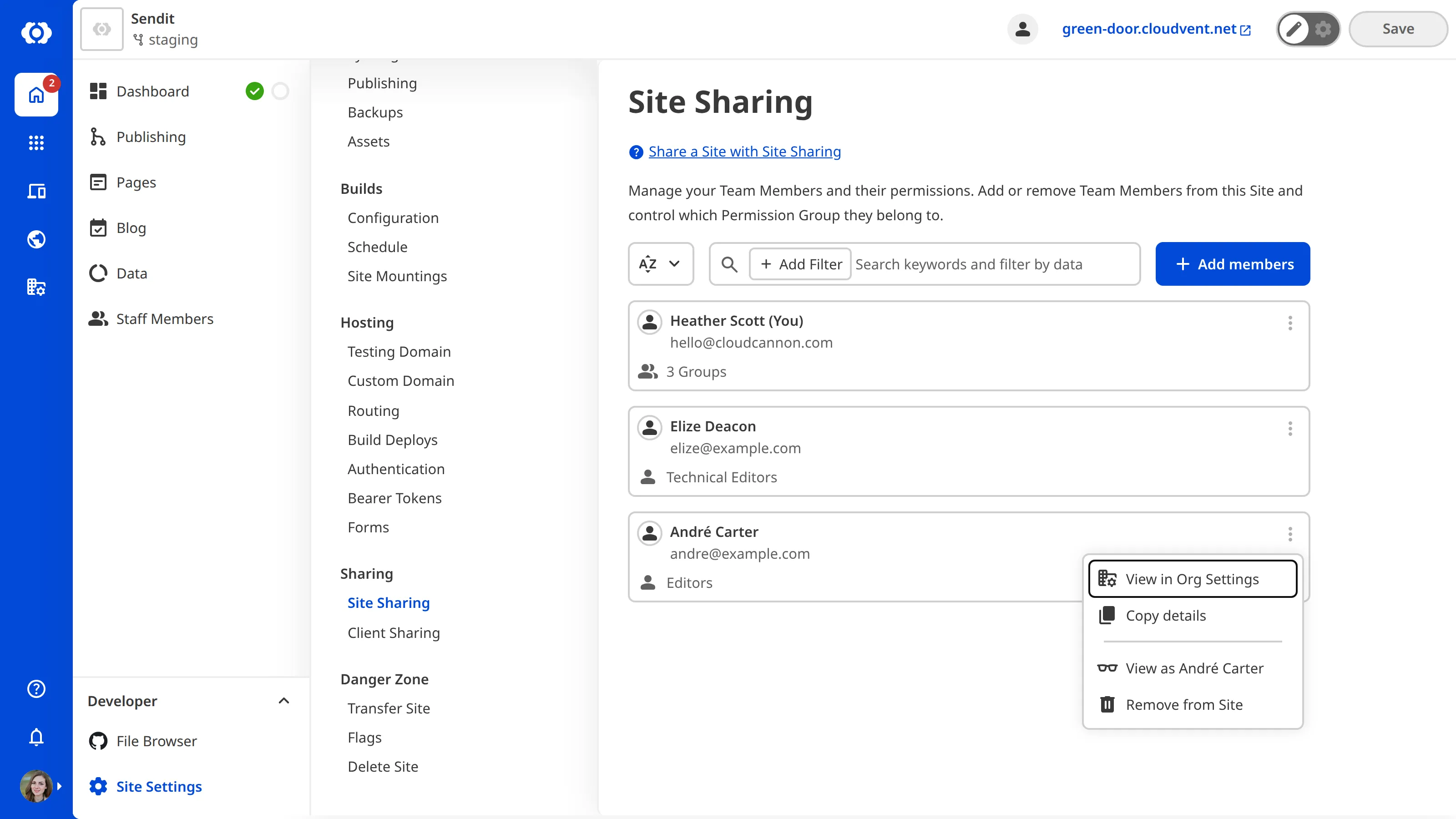
---
---
title: Remove SSO/SAML authentication
description: Learn how to remove Single Sign-On authentication from your CloudCannon Organization.
url: https://cloudcannon.com/documentation/developer-articles/remove-sso-saml-authentication/
content_type: developer article
last_modified: 2026-06-24
---
> **This feature is available on our [Enterprise plan](https://cloudcannon.com/pricing/).**
>
> Want to chat about whether this feature is right for you? Our support team is always [happy to hear from you](mailto:success@cloudcannon.com?subject=A%20question%20about%20SSO%2FSAML).
To remove [SSO/SAML](/documentation/developer-articles/what-is-sso-saml/) from your Organization:
1. Navigate to the *Single Sign-On* page under *Org settings*.
2. Click on the *Danger Zone* tab.
3. Click on the *Remove SAML Authentication* button. Click again to confirm you want to remove SSO/SAML from your Organization.
> You cannot remove SSO/SAML from your Organization while your team members are using this feature. Please remove any team members using SSO/SAML from your Organization before removing this feature.
---
---
title: Resolve SSL certificate errors
description: Learn how to diagnose and fix SSL certificates that fail to generate or stay pending validation on CloudCannon.
url: https://cloudcannon.com/documentation/developer-articles/resolve-ssl-certificate-errors/
content_type: developer article
last_modified: 2026-06-29
---
> Managing your SSL certificate on CloudCannon requires you to host your **Site** through CloudCannon. If you are hosting your *Site* through an external service, please review their documentation on SSL certification.
CloudCannon generates a free [auto-generated SSL certificate](/documentation/developer-articles/add-an-auto-generated-ssl-certificate/) for your *Site* through ZeroSSL and Cloudflare. Most certificates generate within a few minutes, but a certificate can stay pending validation or fail to generate when your domain is not configured correctly.
Most SSL certificate errors come down to **DNS** configuration: the certificate authority must confirm that your domain points at CloudCannon before it can issue a certificate.
## Check your SSL certificate status
CloudCannon shows the status of your certificate on the *Domain* page, under the *Subdomains* heading.
To check your SSL certificate status:
1. Navigate to the **Domains Browser** by clicking *Domains* in the *App Sidebar*.
2. Identify the domain you want to check and click on the *Domain* card. CloudCannon will open the *Domain* page for this **Custom Domain**.
3. Under the *Subdomains* heading, click the card for the subdomain you want to check.
4. Review the status message under the *SSL* heading.
The status message describes one of three states:
- **Secure** — CloudCannon has issued your certificate and your *Site* is served over HTTPS. No action is required.
- **Pending validation** — CloudCannon is waiting to confirm that your domain points at CloudCannon. This usually resolves on its own once your DNS records are correct and have propagated.
- **Failed to generate** — CloudCannon could not issue a certificate. The status message lists the specific errors and shows a *Try again* button.
## Resolve a certificate stuck on validation
A certificate stays in the pending validation state until the certificate authority can confirm your domain points at CloudCannon. Once your DNS records are correct, validation usually completes within a few minutes. However, if you have just added a *Custom Domain* or changed your DNS records, the certificate stays pending until those records propagate, which can take up to 24 hours.
To resolve a certificate stuck on validation:
1. Confirm your domain points at CloudCannon. If you use an [external DNS provider](/documentation/developer-articles/configure-external-dns/), check that you have added the two A Records and the CNAME Record that CloudCannon provides.
2. If your certificate uses TXT record validation, add the two [TXT records](/documentation/developer-articles/add-an-auto-generated-ssl-certificate/#add-txt-dns-records) shown under the *SSL* heading to your DNS provider.
3. Wait for your DNS records to propagate. New or changed DNS records can take up to 24 hours to propagate from your DNS provider.
Once your records propagate, CloudCannon validates your domain and issues the certificate automatically.
## Resolve a certificate that failed to generate
When a certificate fails to generate, CloudCannon displays the message "[Site name] failed to generate a certificate!" along with the specific errors returned by the certificate authority.
To resolve a certificate that failed to generate:
1. Read the error messages under the *SSL* heading to identify the cause.
2. Correct your DNS configuration based on the cause. See [Common causes of SSL certificate errors](#common-causes-of-ssl-certificate-errors) below.
3. Click the *Try again* button to retry certificate generation.
CloudCannon will attempt to generate the certificate again. If the certificate fails to generate after you have corrected your DNS configuration, contact our [support team](https://cloudcannon.com/support/).
## Common causes of SSL certificate errors
- **Missing or incorrect DNS records** — Your domain must point at CloudCannon. For an [external DNS provider](/documentation/developer-articles/configure-external-dns/), CloudCannon requires two A Records and a CNAME Record. For [CloudCannon DNS](/documentation/developer-articles/configure-cloudcannon-dns/), CloudCannon manages these records for you.
- **Missing TXT validation records** — If you use an external DNS provider with an auto-generated certificate, you must add the [TXT records](/documentation/developer-articles/add-an-auto-generated-ssl-certificate/#add-txt-dns-records) CloudCannon provides so it can verify you own the domain.
- **DNS records have not propagated** — Newly added or changed DNS records can take up to 24 hours to take effect.
- **A CAA record blocks the certificate authority** — A CAA record is a DNS record that restricts which certificate authorities are allowed to issue certificates for your domain. If your domain has a CAA record that does not include the authorities CloudCannon uses, certificate generation fails. To fix this, either remove the CAA record or update it to allow CloudCannon's certificate authorities. If you are unsure which authorities to allow, contact our [support team](https://cloudcannon.com/support/).
- **Cloudflare Proxy is enabled** — If you use Cloudflare as your DNS provider with its Proxy feature (Orange Cloud) enabled, your domain cannot connect directly to CloudCannon, which can prevent certificate validation. For more information, please read our documentation on [configuring Cloudflare Proxy](/documentation/developer-articles/configure-external-dns/#configure-cloudflare-proxy).
## Contact support
If your certificate still fails to generate after you have corrected your DNS configuration and waited for your records to propagate, contact our friendly [support team](https://cloudcannon.com/support/). To help us resolve your issue quickly, include the following details:
- The name of the affected *Site*.
- The domain name you are trying to secure.
- The exact error message shown under the *SSL* heading.
- Your DNS provider, and whether you use CloudCannon DNS or an external provider.
- When you added the *Custom Domain* or last changed your DNS records.
---
---
title: Resolve Syncing errors
description: Learn how to address conflicting updates in CloudCannon so you can save your changes when two sources attempt to update the same file.
url: https://cloudcannon.com/documentation/developer-articles/resolve-syncing-errors/
content_type: developer article
last_modified: 2026-04-11
---
A Syncing error occurs when CloudCannon is unable to update your Site with the incoming changes even after you try to [resume Syncing](/documentation/user-articles/resume-syncing/) by saving your changes, because the incoming changes conflict with the content you tried to save.
You cannot save unaffected files until you resolve the Syncing error and resume Syncing.
There are three was to resolve a Syncing error:
- Create a new branch and move the changes from your CloudCannon Site to it so that the current branch can sync from your Git provider. You can then attempt to merge the changes in your local development environment.
- Delete all changes on your CloudCannon Site and reset it using the version of your branch on your Git repository.
- Replace all the content on your CloudCannon Site by switching to a different branch. CloudCannon will immediately sync the files from the new branch, and will not delete any content previously deployed to the old branch.
Alternatively, you can ask your developer to resolve the Syncing error in their local development environment.
These instructions assume that [Syncing is paused](/documentation/user-articles/why-is-syncing-paused/) on your Site and you have attempted to resume Syncing by saving the changes to affected files.
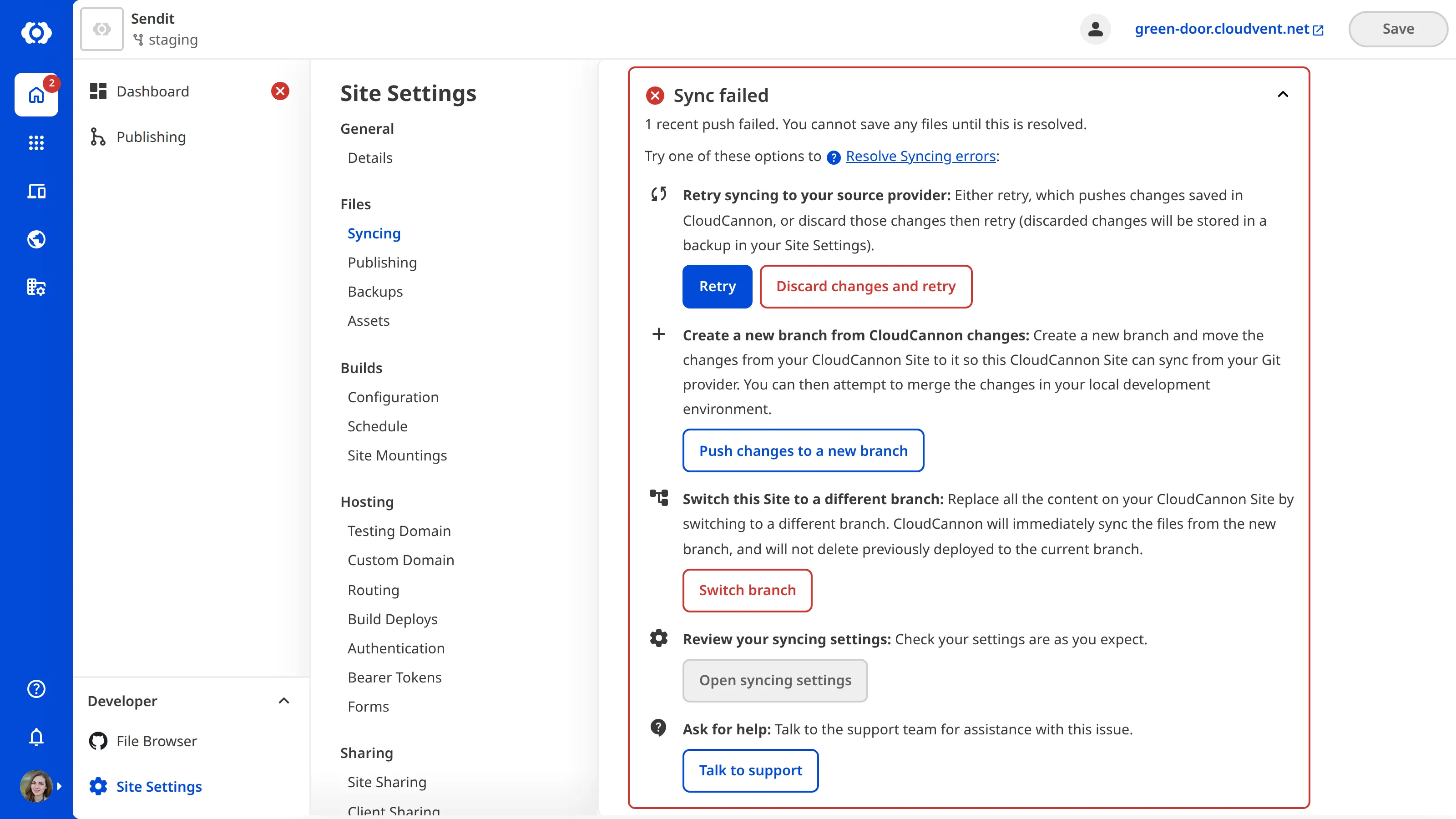
## Create a new branch
To resolve a Syncing error:
1. Navigate to the *Syncing* page, under *Site Settings*.
2. Under the *Syncing Error resolution options* section, click the *Push changes to a new branch* button under the *Create a new branch from CloudCannon changes* heading. CloudCannon will open the *Create a new branch* modal.
3. Enter the name for your new branch in the *New branch name* text field.
4. Click the *Create branch* button.
CloudCannon will immediately push the changes from your CloudCannon Site to the new branch, and sync the files from on your Git repository to the current branch.
## Reset your Site using the Git repository branch
To resolve a Syncing error:
1. Navigate to the *Syncing* page, under *Site Settings*.
2. Under the *Syncing Error resolution options* section, click the *Reset using Git repository* button under the *Reset your Site using the Git repository branch* heading. CloudCannon will open the *Reset using Git repository* modal.
3. Click the *Reset using Git repository* button.
CloudCannon will immediately sync the version of your Site on your Git repository.

## Switch to a different branch
To resolve a Syncing error:
1. Navigate to the *Syncing* page, under *Site Settings*.
2. Under the *Syncing Error resolution options* section, click the *Switch branch* button under the *Switch this Site to a different branch* heading. CloudCannon will open the *Switch branch* modal.
3. Use the *Branch* dropdown to select the branch to which you want to switch this Site.
4. Click the *Switch branch* button.
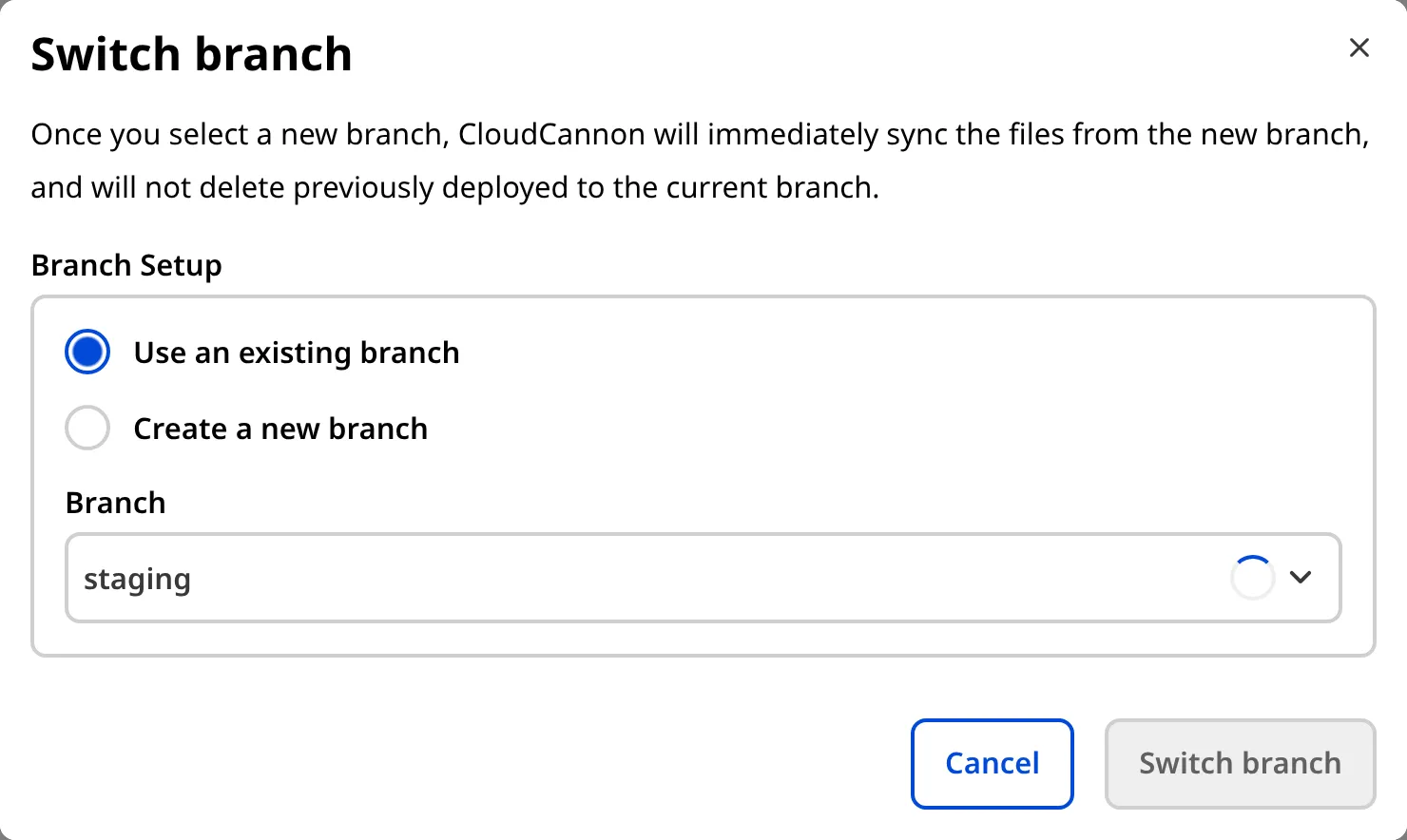
CloudCannon will immediately sync the files from your chosen branch, without deleting any file previously deployed to the old branch.
---
---
title: Review and merge a Pull Request
description: Learn how to review a Pull Request opened by CloudCannon on your Git Provider, and how to merge it from CloudCannon once approved.
url: https://cloudcannon.com/documentation/developer-articles/review-and-merge-a-pull-request/
content_type: developer article
last_modified: 2026-06-03
---
> **Permissions required**
>
> Members of the *Editors* and *Technical Editors* [Default Permission Groups](/documentation/user-articles/what-are-default-permission-groups/), or [Custom Permission Groups](/documentation/developer-articles/what-are-custom-permission-groups/) with the `site:publish:write` permission, can merge a *Pull Request* from CloudCannon. Additional restrictions configured on your *Git Provider* may also apply.
When a *Team Member* publishes from a branched **Site** configured with the *Pull Request* *Publishing Method*, CloudCannon opens a **Pull Request** on your **Git Provider**. Reviewing the *Pull Request*, including viewing the diff, leaving comments, and approving, happens on your *Git Provider*, not in CloudCannon.
For more information about *Publishing Methods*, please read our documentation on [what Publishing Methods are](/documentation/user-articles/what-are-publishing-methods/).
To review a *Pull Request*, open it on your *Git Provider* (GitHub, GitLab, or Bitbucket) using your *Git Provider's* review tools. From CloudCannon, you can navigate to a *Pull Request* in two places:
- The *Pull Requests* tab on your *Project*, which lists all open *Pull Requests* in the connected **Git Repository**.
- The *Publishing* page of a branched *Site* with an open *Pull Request*, which shows the *Pull Request* title, description, and changes.

Once a *Pull Request* is approved on your *Git Provider*, you can merge it from your *Git Provider* or from CloudCannon. To merge from CloudCannon, click the *Publish pull request* button on the branched *Site's* *Publishing* page. If your *Git Provider* has additional restrictions on the branch, CloudCannon will return an error when those restrictions are not met.
If you close the *Pull Request* — either on your *Git Provider* or by clicking *Close pull request* on the *Publishing* page — the branched *Site* will retain its saved changes until a *Team Member* updates the content or deletes the *Site*.
---
---
title: Saving files from your build back to your source
description: Learn how to commit built or generated files from your build back to your source repository.
url: https://cloudcannon.com/documentation/developer-articles/saving-files-from-your-build-back-to-your-source/
content_type: developer article
last_modified: 2026-04-03
---
You can configure CloudCannon to commit built/generated files back to your source repository. This ensures that any generated files are consistent between CloudCannon and your source repository.
For example, if your site uses `npm`, you may want to automatically commit `package-lock.json` to your repository whenever it changes (e.g., by updating `package.json`).
### SYNC_PATHS
To configure file updates:
1. Navigate to *Site Settings* / *Build*
2. Add a new environment variable called `CLOUDCANNON_SYNC_PATHS`.
3. Add a comma-separated list of files and/or folders.
CloudCannon will use the value of this variable to determine which file's updates should be committed when your site builds. If you set a folder to be updated its entire contents will also be updated.
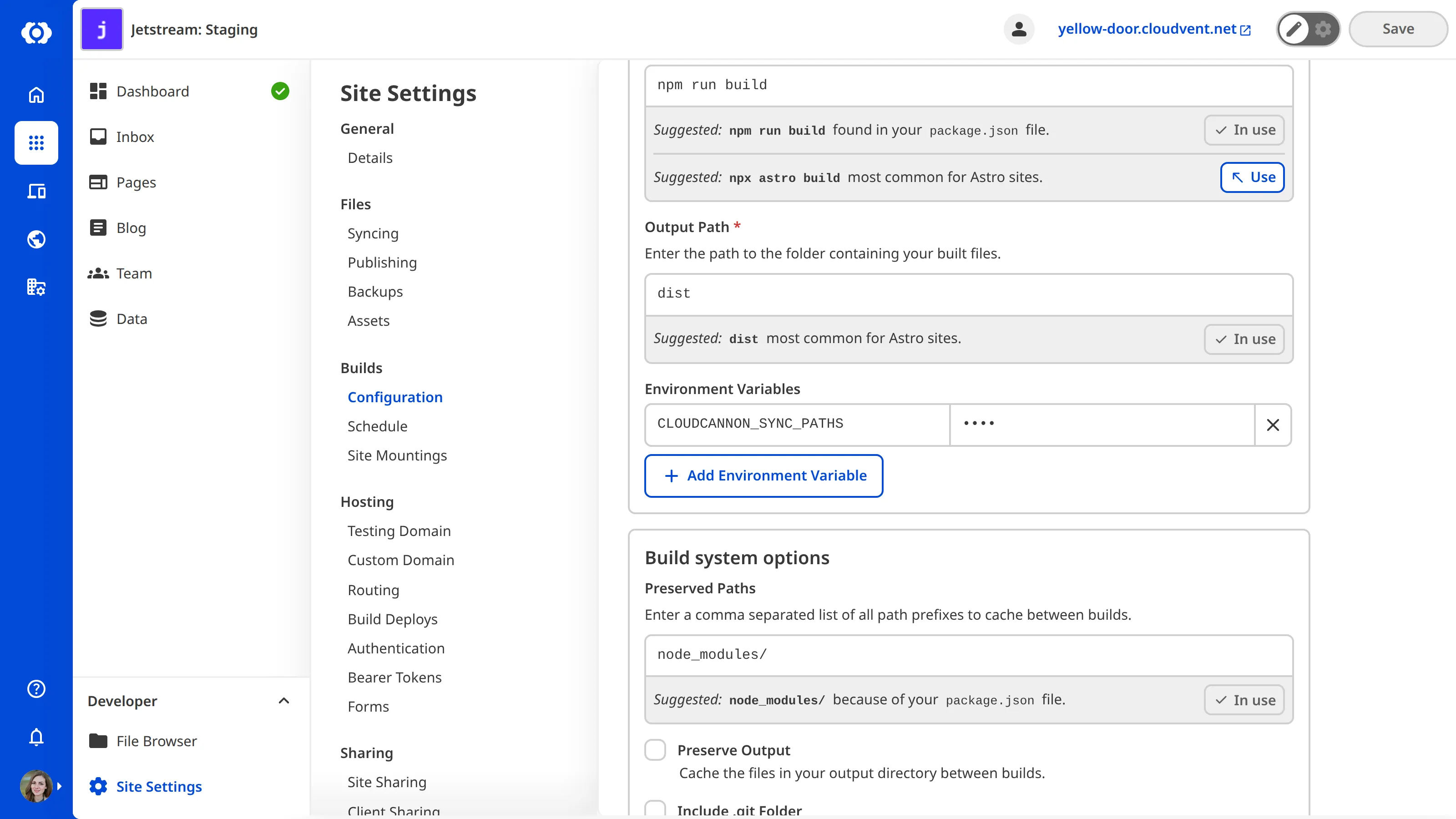
---
---
title: Scheduling your builds manually
description: Manually scheduled builds are configured in the CloudCannon UI. They are useful for regular period builds or one-off future builds.
url: https://cloudcannon.com/documentation/developer-articles/scheduling-your-builds-manually/
content_type: developer article
last_modified: 2026-03-29
---
Manually scheduled builds are configured in the CloudCannon UI. They are useful for regular period builds or one-off future builds.
To configure a manual build:
1. Go to *Site Settings* / *Schedule*
2. Select the **Manual** tab
3. Add a **name**
4. Enter the **date** and **time** for the build to first run
5. If you want the build to repeat on a regular interval, select a **Repeat Interval**
6. Click **Create Schedule** to create a scheduled build.
> Repeat Intervals work from the original date selected. If you select a daily interval and your original time was 2pm, all future builds will run at 2pm.
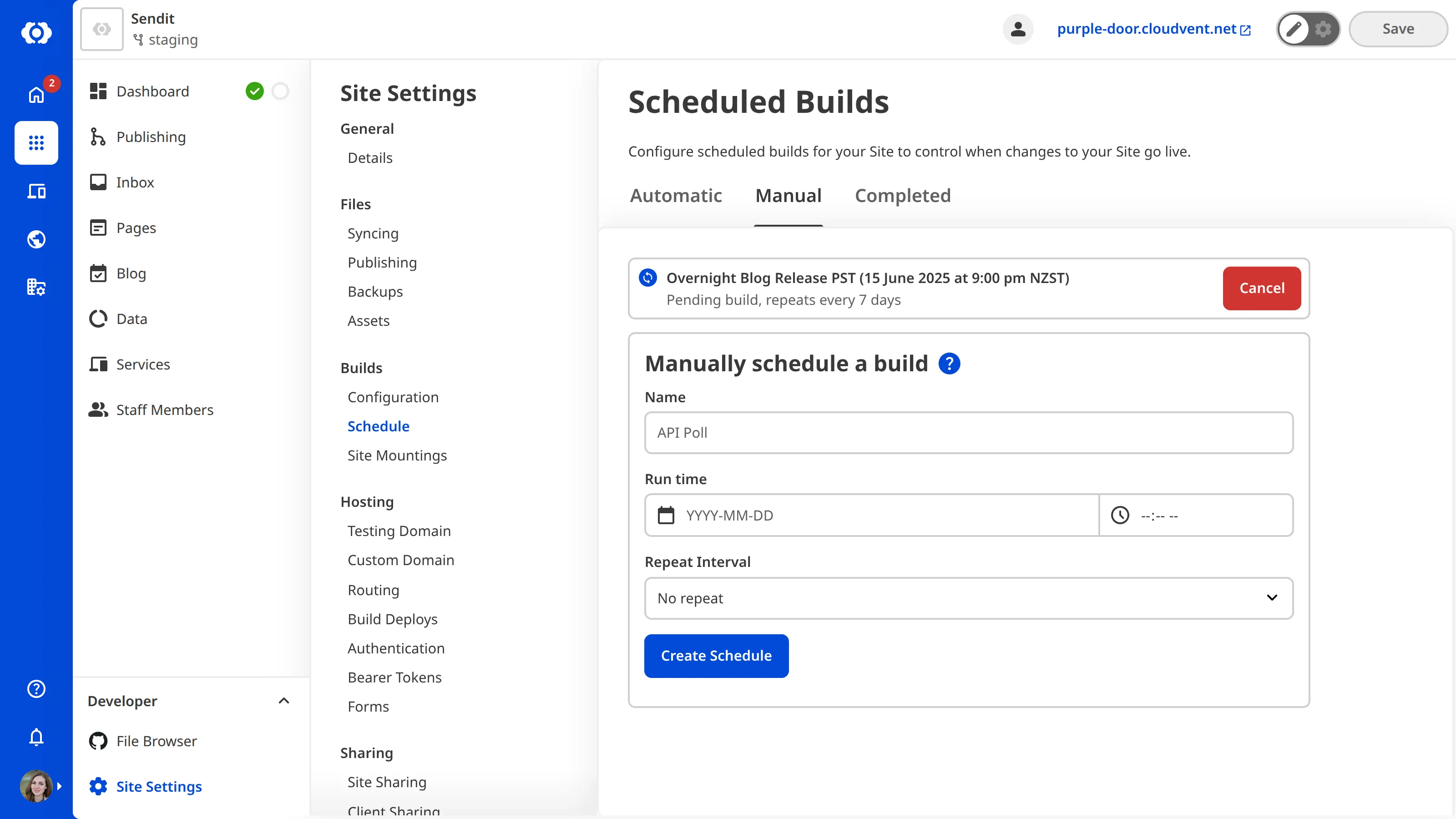
To remove a build:
1. Go to *Site Settings* / *Schedule*
2. Select the **Manual** tab
3. Click **Cancel** on your selected build and then click again to confirm
---
---
title: Scheduling your next build automatically
description: After building your site, CloudCannon will read your _schedule.txt file and automatically configure a build at the specified time.
url: https://cloudcannon.com/documentation/developer-articles/scheduling-your-next-build-automatically/
content_type: developer article
last_modified: 2026-06-30
---
Automatic builds are configured by creating a `_schedule.txt` file in your site. After building your site, CloudCannon will read your `_schedule.txt` file and automatically configure a build at the specified time. This is useful for future posts.
### Schedule file format
The `_schedule.txt` is a comma separated list of values. It contains three values, which are used to schedule a build and generate the management UI.
1. **Run date**: Defines the date and time your build will be scheduled for.
2. **Build name**: A label that will be shown in the Scheduled Builds UI in CloudCannon.
3. **Source filename**: Path to a source file. The UI will show a button linking to the editor for that file. This is useful if you're scheduling a build to publish a particular file.
For example:
File: `_schedule.txt`
```
2020-10-22T10:00:00+00:00,Publish Post,_posts/2020-10-22-because-of-the-internet.md
2020-11-22T10:00:00+00:00,Publish Post,_posts/2020-11-22-the-history-of-marketing.md
```
### Generating the schedule
For convenience, it's likely you'll want to generate `_schedule.txt` programmatically.
> For Jekyll sites we recommend using our plugin, [jekyll-cloudcannon-schedule](https://github.com/CloudCannon/jekyll-cloudcannon-schedule) to generate `_schedule.txt`. This will parse all posts set for the future and generate a build on that date.
>
> If automatic builds are not working, try adding the `–-future` flag to your Jekyll build command.
>
> [
>
> ](https://travis-ci.com/CloudCannon/jekyll-cloudcannon-schedule)
>
> Add the following to your `Gemfile`:
>
> File: `Gemfile`
>
> ```ruby
> group :jekyll_plugins do
> gem 'jekyll-cloudcannon-schedule'
> end
> ```
>
> Then add the following to your `_config.yml`:
>
> File: `_config.yml`
>
> ```yaml
> plugins:
> - jekyll-cloudcannon-schedule
> ```
>
> For Jekyll versions before 3.5.0, use `gems` instead of `plugins`.
### Viewing automatic builds
When `_schedule.txt` is correctly set up, your site will be built automatically at the specified times.
To view all available automatic builds:
1. Go to *Site Settings* / *Schedule*
2. Select the **Automatic** tab
3. Clicking **Update** will open the source filename in the content editor
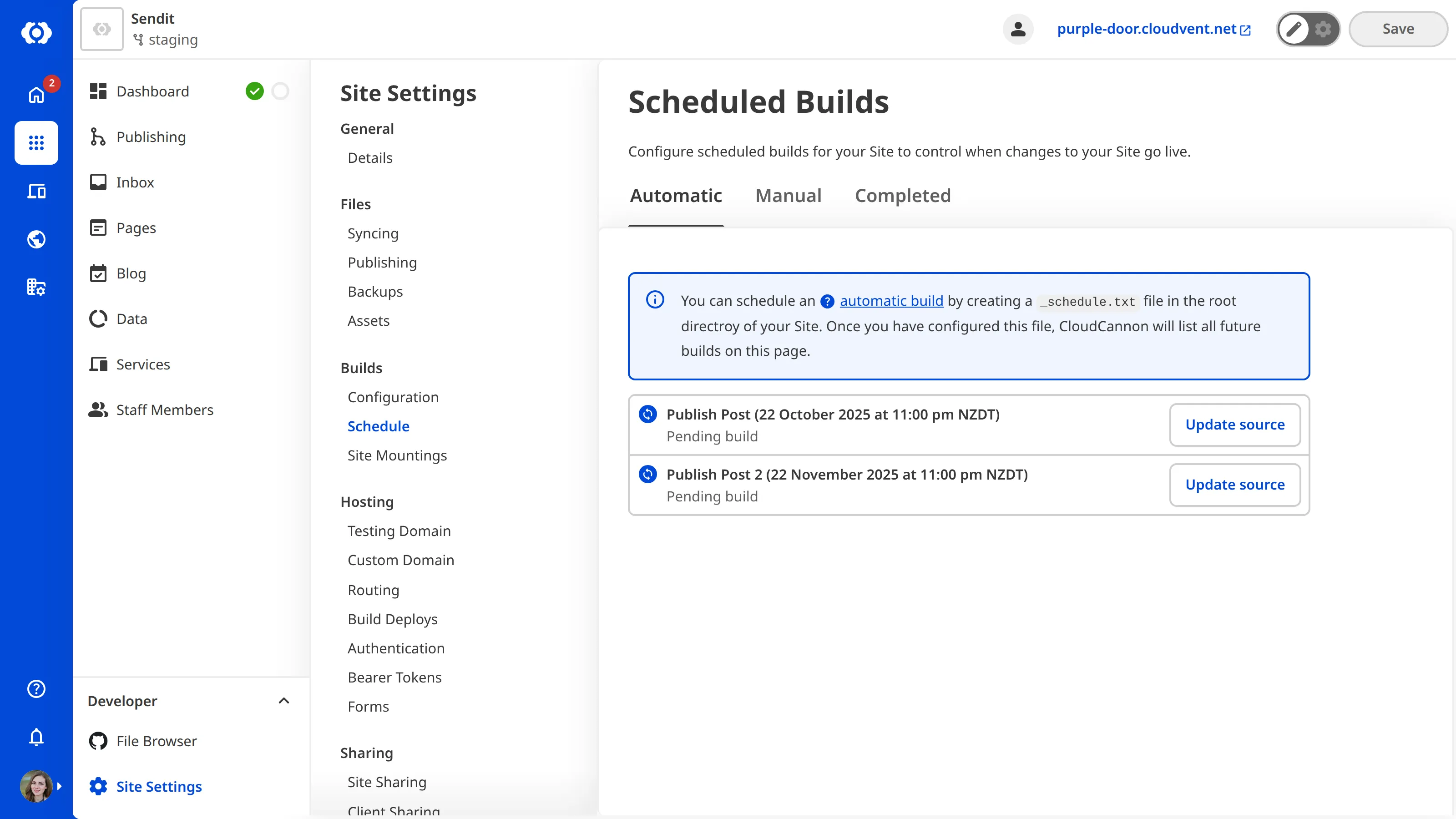
---
---
title: Select your Static Site Generator
description: Learn how to update your site's SSG in CloudCannon if it is incorrect or you are switching SSGs.
url: https://cloudcannon.com/documentation/developer-articles/select-your-ssg/
content_type: developer article
last_modified: 2026-04-11
---
When you first [create a Site](/documentation/developer-guides/getting-started-with-cloudcannon/), CloudCannon will attempt to predict your SSG based on your Site files. It is important to confirm which Static Site Generator (SSG) your Site uses. CloudCannon uses your SSG to determine how to handle your files and provide suggestions for your [build configuration](/documentation/developer-articles/configure-your-command-line-options/).
You may need to change which SSG your Site uses if CloudCannon has detected the incorrect one or if you are rewriting it to use a different SSG.
To select your SSG:
1. Navigate to the *Details* page under *Site Settings*.
2. Click on the *Static Site Generator* dropdown and select the correct SSG option.
3. Click the *Update Site* button.

> If your SSG is not available in the *Static Site Generator* dropdown, you should select *Custom*.
---
---
title: Set a default editing interface
description: Select the preferred editor and additional editors available to your team members for each file.
url: https://cloudcannon.com/documentation/developer-articles/set-a-default-editing-interface/
content_type: developer article
last_modified: 2026-05-12
---
Select the preferred editor and additional editors available to your team members for each file.
This option is set in the front matter of specific files. You can also set this [globally](/documentation/user-articles/introduction-to-editing/), or for all files in a collection when [configuring your collections](/documentation/developer-articles/configure-your-collections/).
**`_enabled_editors`** array
This key defines which editing interfaces are available by default for files at a given level of the configuration cascade.
Whether an editing interface is available for a specific file is determined by other factors.
Values can be one of the following: `visual`, `content`, or `data`.
Specifying one or more editing interfaces will disable all unspecified editing interfaces.
You cannot disable the Source Editor with this key.
By default, this key is set to `visual`, `content`, and `data`.
If undefined at higher levels of the [configuration cascade](/documentation/articles/using-the-configuration-cascade/), `_enabled_editables` will
default to any values configured in the [CloudCannon configuration file](/documentation/articles/what-is-the-cloudcannon-configuration-file/).
For more information, please read our documentation on the [Visual Editor](/documentation/articles/what-is-the-visual-editor/), [Content
Editor](/documentation/articles/what-is-the-content-editor/), [Data Editor](/documentation/articles/what-is-the-data-editor/), and [Source
Editor](/documentation/articles/what-is-the-source-editor/).
[Full reference](/documentation/developer-reference/configuration-file/types/_enabled_editors/)
**`_enabled_editors[*]`** string
This key defines the available editors in CloudCannon: visual, content, and data editors.
[Full reference](/documentation/developer-reference/configuration-file/types/_enabled_editors/[*]/)
File: `Front Matter`
```yaml
_enabled_editors:
- visual
- content
```
### Hiding the content area
When files only use the front matter, it is better to display a full-screen front matter editor. You can do this by specifying `data` as the first enabled editor, and then omitting `content` from the list of enabled editors.
For example, to hide the content editor for all files in a collection called `staff`:
File: `cloudcannon.config.yml`
```YAML
collections_config:
staff:
_enabled_editors:
- data
- visual
```
This will set files in `staff` to open in the Data Editor by default, while still allowing the post to be opened in the Visual Editor. The Content Editor will be disabled.

---
---
title: Set the Main Branch for your Project
description: Learn how to set or update the main branch for your CloudCannon Project.
url: https://cloudcannon.com/documentation/developer-articles/set-the-main-branch-for-your-project/
content_type: developer article
last_modified: 2026-06-03
---
Setting the **Main Branch** of your **Project** determines which branch CloudCannon will use as the default source when creating new **Sites**. You can set the *Main Branch* when you [create a Project](/documentation/developer-articles/create-a-project/), or update it at any time in *Project Settings*.
To set or update the *Main Branch*:
1. Click the *Projects* button in the *App Sidebar*. CloudCannon will open the *Projects Browser*.
2. Select the *Project* you want to update by clicking on the *Project Card*. CloudCannon will open the *Project Sites Browser*.
3. Navigate to the *Repository* section under the *Project Settings* tab.
4. Scroll down to the *Main Branch* dropdown and select the branch you want to use as your *Main Branch*.
5. Click the *Update Project* button.
CloudCannon will update your *Project* to use the new *Main Branch* for all new *Sites* when you use the *Create a Site* button.
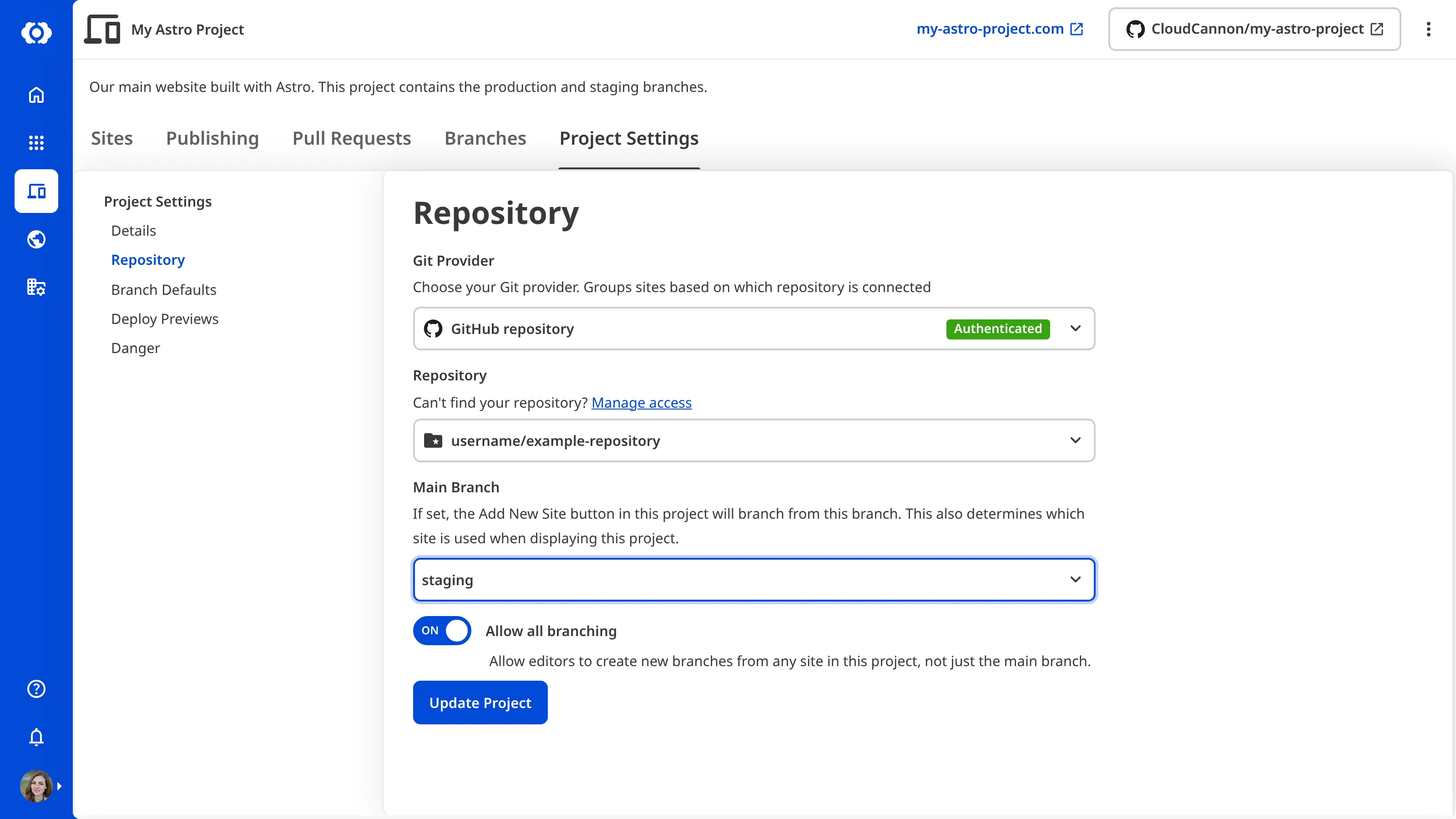
---
---
title: Set the path for new files
description: Learn how to configure Create Paths using a template string to control where CloudCannon should save new Collection files.
url: https://cloudcannon.com/documentation/developer-articles/set-the-path-for-new-files/
content_type: developer article
last_modified: 2026-07-29
---
When you create a file for a collection in CloudCannon, it is saved at a path generated from a configured pattern. These patterns are called "Create Paths". You can use these to keep your content files organized as your team members create them.
Create Paths are templates with a mixture of literal text and placeholders.
> [Placeholders](#placeholders) are dynamic parts of the create path that are replaced when saving the file. They are defined between these pairs of brackets: `[ ]` and `{ }`.
To change a create path:
- Open your global configuration file.
- Add create to a `collections_config` or `schemas` entry.
## Examples
Using the slugified title from inside the new file's front matter (or data):
File: `cloudcannon.config.yml`
```YAML
collections_config:
pages:
create:
path: '[relative_base_path]/{title|slugify}.md'
```
> The example above is the default value for `create` if not configured.
If you are only setting the path inside create, you can set it directly as a string instead of an object:
File: `cloudcannon.config.yml`
```YAML
collections_config:
pages:
create: '[relative_base_path]/{title|slugify}.md'
```
Using various data from new file's front matter (or data):
File: `cloudcannon.config.yml`
```YAML
collections_config:
archives:
create:
path: '[relative_base_path]/my-folder/{date|year}-{title|slugify}.md'
```
Using a fixed filename and a data-dependent folder:
File: `cloudcannon.config.yml`
```YAML
collections_config:
main_pages:
create:
path: '[relative_base_path]/pages/{slug|deburr|slugify}/_index.md'
```
Defining a `filename` data placeholder based on `date` and `title`, then slugifies that to remove the potential leading hyphens when `date` is unset (`slugify` removes leading and trailing hyphens):
File: `cloudcannon.config.yml`
```YAML
collections_config:
posts:
create:
extra_data:
filename: '{date|year}-{date|month}-{date|day}-{title}'
path: '[relative_base_path]/{filename|slugify}.[ext]'
```
> Entries in `extra_data` are processed before `path`. They are accessible as data placeholders in `path`.
Overriding the default Create Path for a specific schema only:
File: `cloudcannon.config.yml`
```YAML
collections_config:
posts:
schemas:
default:
path: schemas/post.md
news:
path: schemas/post-news.md
create:
path: 'news/{date|year}/{slug}[count].md'
```
Escaping brackets to use them in your output path:
File: `cloudcannon.config.yml`
```YAML
collections_config:
pages:
create:
path: '{section}/\[slug\].js'
```
## Placeholders
Create Paths have a number of placeholders available. There are two types of placeholders: file and data placeholders.
**File placeholders** are always available, are surrounded with `[ ]` brackets, and relate to the original file path the editor was opened at:
- `[slug]` is the original filename, excluding extension. Is an empty string if this results in “index”.
- `[filename]` is the original filename, including extension.
- `[ext]` is the last extension of the original file path.
- `[relative_path]` is the full original file path, relative to the collection path.
- `[relative_base_path]` is the original path excluding filename, relative to the collection path.
- `[full_slug]` is an alias for `[relative_base_path]/[slug]`.
- `[count]` becomes a hyphen and number if the processed file path clashes with an existing file (e.g. `file-1.md`)
**Data placeholders** are populated from front matter or data values in the editor. They are surrounded with `{ }` brackets. Here are some examples:
- `{title}` is the title from inside the file.
- `{id}` is the id from inside the file.
- `{title|lowercase}` is title from inside the file, lower cased.
- `{category|slugify}` is category from inside the file, slugified.
- `{tag|slugify|uppercase}` is tag from inside the file, slugified, then upper cased.
- `{date|year}` is date from inside the file, with the 4-digit year extracted.
- `{date|month}` is date from inside the file, with the 2-digit month extracted.
- `{date|day}` is date from inside the file, with the 2-digit day extracted.
Data placeholders support a number of **filters**. They are placed after a `|`, and multiple filters can be applied in sequence.
- `uppercase` transforms text to uppercase.
- `lowercase` transforms text to lowercase.
- `deburr` converts Latin-1 Supplement and Latin Extended-A letters to basic Latin letters and removes combining diacritical marks.
- `slugify` converts non-alphanumeric characters into hyphens, then collapses sequential hyphens, then removes leading/trailing and hyphens.
- `year` extracts the 4-digit year extracted from a date.
- `month` extracts the 2-digit month extracted from a date.
- `day` extracts the 2-digit day extracted from a date.
**Each data placeholder used in the Create Path adds an input to the save confirmation modal.**
> Changing the inputs in the save confirmation modal will also update those values in your data/front matter if those inputs are also present there.
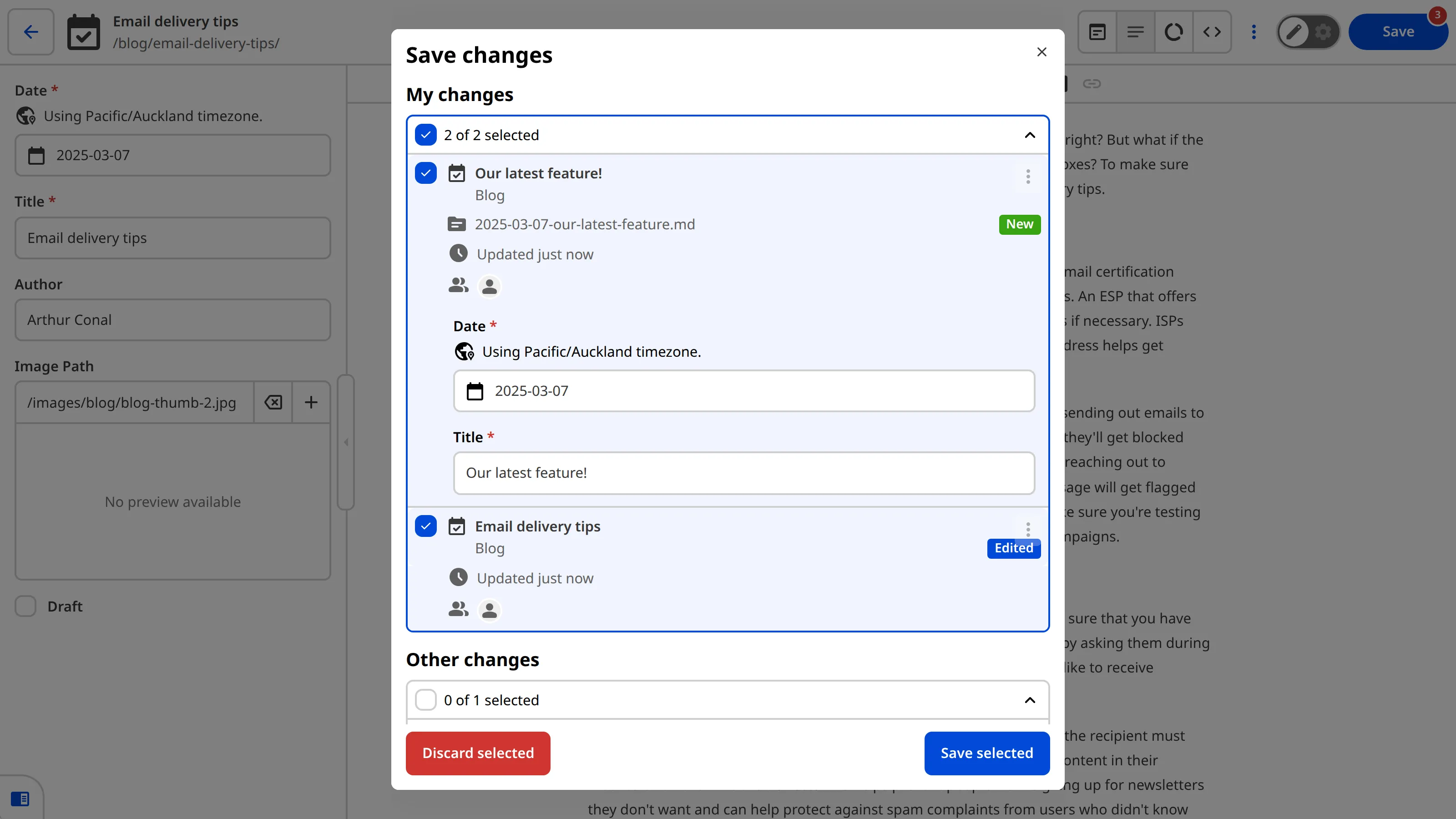
## Options
Create Paths have the following options available:
**`create.extra_data`** object
This key defines additional data placeholders for use in create path templates.
The value is an object where each property is a string that specifies a data placeholder. Entry values follow the same format as `path`, and are processed sequentially before `path`. These values are not saved back to your file.
For more information, please read our documentation on [Create Paths](/documentation/articles/set-the-path-for-new-files/).
[Full reference](/documentation/developer-reference/configuration-file/types/create/extra_data/)
**`create.extra_data.*`** string
This key represents an individual extra data property in the `create.extra_data` object.
The value is a string that specifies a data placeholder for use in create path templates. Entry values follow the same format as `path`, and are processed sequentially before `path`. These values are not saved back to your file.
[Full reference](/documentation/developer-reference/configuration-file/types/create/extra_data/*/)
**`create.path`** string
This key defines the raw template to be processed when creating files. Relative to the containing collection's path.
[Full reference](/documentation/developer-reference/configuration-file/types/create/path/)
**`create.publish_to`** string
This key defines a target collection when publishing.
When a file is published, the target collection's create definition is used instead.
[Full reference](/documentation/developer-reference/configuration-file/types/create/publish_to/)
The `create` entry is part of the [configuration cascade](/documentation/developer-articles/using-the-configuration-cascade/), extending the number of relevant [options available](/documentation/developer-articles/using-the-configuration-cascade/#options):
- `_inputs`
- `_select_data`
- `_structures`
File: `cloudcannon.config.yml`
```YAML
collections_config:
posts:
create:
path: 'news/{date|year}/{slug}[count].md'
_inputs:
date:
comment: Use the starting date here
slug:
comment: This is used for your filename
```
---
---
title: Snippets using Docusaurus Components
description: Learn how to add and edit components in the content of your Docusaurus website via CloudCannon.
url: https://cloudcannon.com/documentation/developer-articles/snippets-using-docusaurus-components/
content_type: developer article
last_modified: 2026-07-29
---
CloudCannon supports embedding rich Snippets in Markdown content when using the CloudCannon Content Editor. Once configured, Snippets in your content will be presented as blocks in rich text views, with the ability to add them as Snippets via the toolbar:

To start configuring Components in your MDX content, a Snippet configuration must be imported using the `_snippets_imports` key in your CloudCannon global configuration file.
File: `cloudcannon.config.yml`
```YAML
# Import the MDX Components Snippets:
_snippets_imports:
mdx: true
docusaurus_mdx: true
```
Docusaurus uses both regular MDX components along with custom extensions, so we import both the `mdx` Snippets and the `docusaurus_mdx` Snippets. You can find detailed documentation on the base `mdx` snippets on the [Editing with MDX Components](/documentation/developer-articles/snippets-using-mdx-components/) page.
By default, CloudCannon will show the `snippet` toolbar action in the content editor if snippets are available.
> If you have already customized which options are available via `_editables` in your CloudCannon config, you will need to include `snippet: true` for Snippets to be available. See the [Editables options documentation](/documentation/developer-articles/configure-your-rich-text-editors/) for more details.
## Disabling default Snippets
If you want to exclude specific default Snippets, you can add an `exclude` array to your configuration with the name of the snippet prefixed by `docusaurus_mdx_` (e.g., `docusaurus_mdx_truncate`).
File: `cloudcannon.config.yml`
```YAML
_snippets_imports:
mdx: true
docusaurus_mdx:
exclude:
- docusaurus_mdx_truncate
```
## Supported extensions
### Admonitions
With the Admonition snippet you can use Docusaurus [admonition syntax](https://docusaurus.io/docs/markdown-features/admonitions) to highlight rich content in the Content Editor.
File: `example.mdx`
```markdown
:::note Your Title
Some **content** with _Markdown_ `syntax`.
:::
```
### Code Blocks
The Code Block snippet allows you to create [Docusaurus code blocks](https://docusaurus.io/docs/markdown-features/code-blocks) with syntax highlighting, titles, and line numbers.
File: `example.mdx`
```markdown
```jsx title="/src/components/HelloCodeTitle.js" showLineNumbers
function HelloCodeTitle(props) {
return
Hello, {props.name}
;
}
```
```
### Content Tabs
The Content Tabs snippet provides support for adding tab separated content using the [Docusaurus Tabs component](https://docusaurus.io/docs/markdown-features/tabs). If you're using the Content Tab snippet we recommend registering it to the global scope by wrapping the MDX Component file. You can find [documentation on Docusaurus component scope](https://docusaurus.io/docs/markdown-features/react#mdx-component-scope) here.
File: `example.mdx`
```markdown
This is an apple 🍎
This is an orange 🍊
This is a banana 🍌
```
### Truncate
The Truncate snippet allows you to mark which content should be included in the blog post summary when using the [Docusaurus blog feature](https://docusaurus.io/docs/blog).
File: `example.mdx`
```markdown
```
---
---
title: Snippets using Eleventy Shortcodes
description: Learn how to add and edit Snippets in the content of your Eleventy website via CloudCannon.
url: https://cloudcannon.com/documentation/developer-articles/snippets-using-eleventy-shortcodes/
content_type: developer article
last_modified: 2026-08-06
---
CloudCannon supports embedding rich Snippets in Markdown content when using the CloudCannon Content Editor. Once configured, Snippets in your content will be presented as blocks in rich text views, with the ability to add them as Snippets via the toolbar:

To start configuring Snippets in your Eleventy content, a Snippet configuration must be imported using the `_snippets_imports` key in your CloudCannon global configuration file.
Currently, CloudCannon supports Snippets in the Nunjucks and Liquid templating languages, which can imported with the `eleventy_nunjucks` and `eleventy_liquid` keys:
File: `cloudcannon.config.yml`
```YAML
```
_snippets_imports:
eleventy_nunjucks___1___: true
eleventy_liquid___2___: true
```
**[1]** Import the Eleventy Nunjucks Snippets.
**[2]** Import the Eleventy Liquid Snippets.
```
CloudCannon provides support for the `raw` tag out of the box for both the `eleventy_nunjucks` and `eleventy_liquid` Snippet imports. If this isn't desired, you can exclude this snippet like so:
File: `cloudcannon.config.yml`
```YAML
```
_snippets_imports:
eleventy_nunjucks___1___:
exclude:
- eleventy_nunjucks_raw
eleventy_liquid___2___:
exclude:
- eleventy_liquid_raw
```
**[1]** Exclude the Nunjucks raw tag.
**[2]** Exclude the Liquid raw tag.
```
## Enabling snippets in the toolbar
By default, CloudCannon will show the `snippet` toolbar action in the content editor if snippets are available.
> If you have already customized which options are available via `_editables` in your CloudCannon config, you will need to include `snippet: true` for Snippets to be available. See the [Editables options documentation](/documentation/developer-articles/configure-your-rich-text-editors/) for more details.
## Custom Eleventy Shortcodes
After importing the `eleventy_liquid` Snippets configurations, any custom liquid tags in your content will be displayed in the Content Editor as an `Unknown Shortcode` or `Unknown shortcode pair`. The same is true for `eleventy_nunjucks` and nunjuck tags. This allows an editor to move and delete a Snippet, but prevents editing of its arguments or content:

To enable editing and provide the custom Snippet in the toolbar, your custom Snippet must be configured using the `_snippets` object in your CloudCannon global config file. CloudCannon Snippets can be built from scratch to support nearly any syntax or SSG, but importing a Snippet configuration provides a set of snippet templates for common use cases in Eleventy.
To help illustrate configuring custom Snippets, we will first cover a few examples. First, let's look a custom `tint` Snippet on our Eleventy site that takes a string and applies a color to it:
File: `post.md`
```markdown
# My Post
{% tint "#ff0000" %}This text should be red{% endtint %}
```
The first thing we need to do is decide which Snippet template to use, which we can determine from the following aspects:
- First, we want to configure this shortcode for the `Nunjucks` templating language
- Next, this is an Eleventy "shortcode" rather than an "include" or other tag
- Lastly, in Eleventy terms this is a "paired" shortcode, since it has a start and an end tag that wrap some content.
Looking at the list of [snippet templates](#eleventy-snippet-templates) further down this page, this means we should configure this snippet using the `eleventy_nunjucks_paired_shortcode_positional_args` template. A full example configuration for this Snippet thus might look like the following:
File: `cloudcannon.config.yml`
```YAML
# Import the Eleventy Nunjucks Snippet templates
_snippets_imports:
eleventy_nunjucks: true
_snippets:
eleventy_tint:
template: eleventy_nunjucks_paired_shortcode_positional_args
inline: true
preview:
text: Tint
definitions:
shortcode_name: tint
content_key: inner_text
positional_args:
- editor_key: tint_color
type: string
_inputs:
tint_color:
type: color
inner_text:
comment: This text will be tinted
```
Each snippet definition lives under a top level key, `eleventy_tint` in this example. This is the unique name that CloudCannon uses to identify this snippet, but is otherwise unused in the shortcode configuration itself.
We specify the template that this snippet should inherit from, and also specify that it is an `inline` snippet, since it can live anywhere in the content (such as in the middle of a sentence).
In the `preview` object we configure how this snippet is displayed while editing, using the [CloudCannon card preview options](/documentation/developer-articles/configure-your-card-previews/).
In `definitions` we need to specify some values that are required for the template we picked. For the `eleventy_nunjucks_paired_shortcode_positional_args` template, we need to specify:
- The `shortcode_name` — in this case we're configuring our `tint` shortcode
- The `content_key` — this controls the key that CloudCannon will use to edit the text in between the start and end tags of the shortcode.
- The `positional_args` — for our `tint` shortcode we need to configure that the first argument should be captured with the key `tint_color`
Finally, we can specify any other keys from the [CloudCannon configuration cascade](/documentation/developer-articles/using-the-configuration-cascade/) here. In this example, we configure the inputs for the keys that this snippet will generate. With that in place, we can now add and edit our tint shortcode anywhere on our site.
Next, let's quickly look at a shortcode with a different syntax:
File: `post.md`
```markdown
# My Post
{% include 'callout' type: 'info' message: 'This is my shortcode' %}
```
This time, we have an unpaired Liquid include that takes `type` and `message` argument keys. This syntax matches the `eleventy_liquid_include` template.
In CloudCannon, we could configure this snippet using the following global configuration:
File: `cloudcannon.config.yml`
```YAML
# Import the Eleventy Liquid Snippets:
_snippets_imports:
eleventy_liquid: true
_snippets:
callout:
template: eleventy_liquid_include
inline: false
preview:
text: Callout
definitions:
include_name: callout
named_args:
- source_key: type
editor_key: label
type: string
- editor_key: message
type: string
_inputs:
label:
type: select
options:
values:
- info
- warning
- error
```
This should now be familiar, but with a few changes:
- We want this snippet to be a block-level element in the editor, so we set `inline` to `false`.
- Since this include does not have an end tag, we have no `content_key`
- Instead of `positional_args`, we now have `named_args`
Configuring named arguments uses most of the same options as the positional arguments earlier, but here we can additionally specify `source_key` and `editor_key` separately. In this example, we want the key in our shortcode to be `type`, but tell CloudCannon to treat that value as the `label` key, which we then configure using our inputs configuration.
## Snippet options
The following options are available for Eleventy snippets:
**`template`** `string`
The template that this snippet should inherit, out of the available [Eleventy Snippet Templates](#eleventy-snippet-templates).
**`definitions`** `Object`
The variables required for the selected template.
**`inline`** `boolean`
Whether this Snippet can appear inline (within a sentence). Defaults to `false`, which will treat this Snippet as a block-level element in the content editor.
**`preview`** `Object`
A preview definition for displaying this Snippet in the CloudCannon editor. See the [preview options documentation](/documentation/developer-articles/configure-your-card-previews/).
**`_inputs`** `Object`
Input configurations for the keys contained in this Snippet.
## Eleventy Snippet Templates
The first step to configure your custom Snippet is to identify which Snippet template to use, as each Snippet template requires a set of `definitions` keys to be configured. The following Snippet templates are available:
### Shortcode with positional arguments
File: `example.md`
```markdown
# eleventy_nunjucks_shortcode_positional_args
{% custom_shortcode arg1 arg2 %}
# eleventy_liquid_shortcode_positional_args
{% custom_shortcode arg1, arg2 %}
```
#### Example config
File: `cloudcannon.config.yml`
```YAML
_snippets:
custom_snippet:
template: eleventy_nunjucks_shortcode_positional_args
inline: false
preview:
text: My Custom Snippet
definitions:
shortcode_name: custom_shortcode
positional_args:
- editor_key: argument_one
type: string
- editor_key: argument_two
type: string
```
#### Definitions
**`shortcode_name`** `string`
The name of your shortcode, as used in your Eleventy content files.
**`positional_args`** `Array`
An ordered list of each argument the shortcode takes.
### Paired shortcode with positional arguments
File: `example.md`
```markdown
# eleventy_nunjucks_paired_shortcode_positional_args
{% custom_shortcode arg1, arg2 %} content {% endcustom_shortcode %}
# eleventy_liquid_paired_shortcode_positional_args
{% custom_shortcode arg1 arg2 %} content {% endcustom_shortcode %}
```
#### Example config
File: `cloudcannon.config.yml`
```YAML
_snippets:
custom_snippet:
template: eleventy_liquid_paired_shortcode_positional_args
inline: false
preview:
text: My Custom Snippet
definitions:
shortcode_name: custom_shortcode
content_key: custom_key
positional_args:
- editor_key: argument_one
type: string
- editor_key: argument_two
type: string
```
#### Definitions
**`shortcode_name`** `string`
The name of your shortcode, as used in your Eleventy content files.
**`content_key`** `string`
The key to use in the data panel for editing the inner contents of the shortcode.
**`positional_args`** `Array`
An ordered list of each argument the shortcode takes.
### Shortcode with named arguments
File: `example.md`
```markdown
# Only supported in Nunjucks
# eleventy_nunjucks_shortcode_named_args
{% custom_shortcode arg="value" %}
```
#### Example config
File: `cloudcannon.config.yml`
```YAML
_snippets:
custom_snippet:
template: eleventy_nunjucks_shortcode_named_args
inline: false
preview:
text: My Custom Snippet
definitions:
shortcode_name: custom_shortcode
named_args:
- editor_key: arg
type: string
```
#### Definitions
**`shortcode_name`** `string`
The name of your shortcode, as used in your Eleventy content files.
**`named_args`** `Array`
A list of each key-value pair the shortcode takes.
### Paired shortcode with named arguments
File: `example.md`
```markdown
# Only supported in Nunjucks
# eleventy_nunjucks_paired_shortcode_named_args
{% custom_shortcode arg="value" %} content {% endcustom_shortcode %}
```
#### Example config
File: `cloudcannon.config.yml`
```YAML
_snippets:
custom_snippet:
template: eleventy_nunjucks_paired_shortcode_named_args
inline: false
preview:
text: My Custom Snippet
definitions:
shortcode_name: custom_shortcode
content_key: custom_key
named_args:
- editor_key: arg
type: string
```
#### Definitions
**`shortcode_name`** `string`
The name of your shortcode, as used in your Eleventy content files.
**`content_key`** `string`
The key to use in the data panel for editing the inner contents of the shortcode.
**`named_args`** `Array`
A list of each key-value pair the shortcode takes.
### Eleventy Include
File: `example.md`
```markdown
# eleventy_liquid_include
{% include 'custom_include' arg="value" %}
# eleventy_nunjucks_include
{% include 'custom_include.njk' %}
```
#### Example config
File: `cloudcannon.config.yml`
```YAML
_snippets:
custom_snippet:
template: eleventy_liquid_include
inline: false
preview:
text: My Custom Include
definitions:
include_name: custom_include
named_args:
- editor_key: arg
type: string
```
#### Definitions
**`include_name`** `string`
The name of the file being included.
**`named_args`** `Array`
Supported in liquid only, a list of each key-value pair the include takes.
### Eleventy Render
File: `example.md`
```markdown
# eleventy_liquid_render
{% render 'custom_render' arg="value" %}
```
#### Example config
File: `cloudcannon.config.yml`
```YAML
_snippets:
custom_snippet:
template: eleventy_liquid_render
inline: false
preview:
text: My Custom Render
definitions:
render_name: custom_render
named_args:
- editor_key: arg
type: string
```
#### Definitions
**`render_name`** `string`
The name of the file being rendered.
**`named_args`** `Array`
A list of each key-value pair the render takes.
### Eleventy Bookshop Tags
File: `example.md`
```markdown
# eleventy_liquid_bookshop_component
{% bookshop 'my_component' arg="value" %}
# eleventy_liquid_bookshop_include
{% bookshop_include 'my_helper' arg="value" %}
```
#### Example config
File: `cloudcannon.config.yml`
```YAML
_snippets:
custom_snippet:
template: eleventy_liquid_bookshop_component
inline: false
preview:
text: My Custom Render
definitions:
component_name: my_component
named_args:
- editor_key: arg
type: string
```
#### Definitions
**`component_name`** `string`
For components, the name of the component.
**`include_name`** `string`
For includes, the name of the include.
**`named_args`** `Array`
A list of each key-value pair the tag takes.
## Argument options
The following options are available for positional and named argument option objects:
**`editor_key`** `string`
Determines the key that will be used for this argument in the CloudCannon data panel.
**`source_key`** `string`
Determines the key of the key-value pair as it appears in the shortcode.
Only used for named arguments, and will default to the `editor_key` if unset.
**`default`** `any`
The default value that should be used for this argument when creating a new snippet in the CloudCannon editor.
**`type`** `string`
Restrict this argument to parse as the specified type. Useful to ensure booleans get parsed as the boolean value, rather than a string such as "true".
One of:
- string
- boolean
- number
- array
**`optional`** `boolean`
Whether this argument is required for the shortcode. If `false`, shortcodes in your templates missing this argument will not match this snippet definition.
Defaults to `false`.
**`remove_empty`** `boolean`
Whether this argument should be omitted from the output shortcode if the value is empty.
Only used for named arguments, defaults to `false`.
**`allowed_values`** `Array`
A list of values that this argument must be in order to match this snippet definition. Allows you to match different usages of the same shortcode to separate snippet definitions based on the value of an argument.
**`implied_boolean`** `boolean`
Output a boolean for whether this argument is present, rather than the value of the argument itself.
Only used for positional arguments.
---
---
title: Snippets using Hugo Shortcodes
description: Learn how to add and edit shortcodes in the content of your Hugo website via CloudCannon.
url: https://cloudcannon.com/documentation/developer-articles/snippets-using-hugo-shortcodes/
content_type: developer article
last_modified: 2026-08-06
---
CloudCannon supports embedding rich snippets in Markdown content when using the CloudCannon Content Editor. For sites built with Hugo, CloudCannon includes support for most of the built-in Hugo shortcodes without any configuration. Any existing shortcodes in your content will be presented as blocks in rich text views, with the ability to add the built-in shortcodes via the toolbar:

The builtin shortcodes can be configured via a `_snippets_imports` key in your CloudCannon global configuration file:
File: `cloudcannon.config.yml`
```YAML
```
_snippets_imports:
hugo___1___: false
```
**[1]** Exclude all builtin Hugo shortcodes.
```
File: `cloudcannon.config.yml`
```YAML
```
_snippets_imports:
hugo___1___:
include:
- hugo_youtube
- hugo_vimeo
```
**[1]** Exclude all shortcodes by default, but import the youtube and vimeo shortcodes specifically.
```
File: `cloudcannon.config.yml`
```YAML
```
_snippets_imports:
hugo___1___:
exclude:
- hugo_embed
```
**[1]** Import all shortcodes by default, but exclude the embed shortcode.
```
Hugo's `instagram` shortcode is excluded by default, as it is not functional without configuring an Instagram API key in your Hugo configuration. In other words, for sites configured to build with Hugo on CloudCannon, the following configuration will be applied by default:
File: `cloudcannon.config.yml`
```YAML
```
_snippets_imports:
hugo___1___:
exclude:
- hugo_instagram
```
**[1]** The default snippet import for Hugo sites.
```
To override this default and import all shortcodes, set `hugo: true` in your global `_snippets_imports`:
File: `cloudcannon.config.yml`
```YAML
```
_snippets_imports:
hugo___1___: true
```
**[1]** Force all shortcodes to be available.
```
## Enabling snippets in the toolbar
By default, CloudCannon will show the `snippet` toolbar action in the content editor if snippets are available.
> If you have already customized which options are available via `_editables` in your CloudCannon config, you will need to include `snippet: true` for Snippets to be available. See the [Editables options documentation](/documentation/developer-articles/configure-your-rich-text-editors/) for more details.
## Custom Hugo Shortcodes
By default, a custom shortcode in Hugo content will be displayed in the Content Editor as an `Unknown shortcode` or `Unknown shortcode pair`. This allows an editor to move and delete a shortcode, but prevents editing of its arguments or content:

To enable editing and provide the custom shortcode in the toolbar, your custom shortcode must be configured using the `_snippets` object in your CloudCannon global config file. CloudCannon Snippets can be built from scratch to support nearly any syntax or SSG, but a set of snippet templates are provided for Hugo shortcodes to cover most use cases in Hugo.
To help illustrate this configuration, we will first cover a few examples of custom shortcode configurations. First, let's look a custom `tint` shortcode on our Hugo site that takes a string and applies a color to it:
File: `post.md`
```markdown
# My Post
{{< tint "#ff0000" >}}This text should be red{{< /tint >}}
```
The first thing we need to do is decide which shortcode template to use, which we can determine from the following aspects:
- First, in Hugo terms this is a "paired" shortcode, since it has a start and end tag that wrap some content.
- Next, this shortcode takes "positional" arguments, so rather than using keys and values (like `color="#ff0000"`) we have the value `#ff0000` in the first position.
- Lastly, the fact that our shortcode uses the `<` and `>` characters means it outputs HTML, rather than the markdown that `%` characters would represent.
Looking at the list of [shortcode templates](#hugo-shortcode-templates) further down this page, this means we should configure this snippet using the `hugo_paired_shortcode_positional_args` template. A full example configuration for this shortcode thus might look like the following:
File: `cloudcannon.config.yml`
```YAML
_snippets:
hugo_tint:
template: hugo_paired_shortcode_positional_args
inline: true
preview:
text: Tint
definitions:
shortcode_name: tint
content_key: inner_text
positional_args:
- editor_key: tint_color
type: string
_inputs:
tint_color:
type: color
inner_text:
comment: This text will be tinted
```
Each snippet definition lives under a top level key, `hugo_tint` in this example. This is the unique name that CloudCannon uses to identify this snippet, but is otherwise unused in the shortcode configuration itself.
We specify the template that this snippet should inherit from, and also specify that it is an `inline` snippet, since it can live anywhere in the content (such as in the middle of a sentence).
In the `preview` object we configure how this snippet is displayed while editing, using the [CloudCannon card preview options](/documentation/developer-articles/configure-your-card-previews/).
In `definitions` we need to specify some values that are required for the template we picked. For the `hugo_paired_shortcode_positional_args` template, we need to specify:
- The `shortcode_name` — in this case we're configuring our `tint` shortcode
- The `content_key` — this controls the key that CloudCannon will use to edit the text in between the start and end tags of the shortcode.
- The `positional_args` — for our `tint` shortcode we need to configure that the first argument should be captured with the key `tint_color`
Finally, we can specify any other keys from the [CloudCannon configuration cascade](/documentation/developer-articles/using-the-configuration-cascade/) here. In this example, we configure the inputs for the keys that this snippet will generate. With that in place, we can now add and edit our tint shortcode anywhere on our site.

Next, let's quickly look at a shortcode with a different syntax:
File: `post.md`
```markdown
# My Post
{{< callout type="info" message="This is my shortcode" >}}
```
This time, we have an unpaired shortcode that takes `type` and `message` argument keys. This syntax matches the `hugo_shortcode_named_args` template.
In CloudCannon, we could configure this snippet using the following global configuration:
File: `cloudcannon.config.yml`
```YAML
_snippets:
callout:
template: hugo_shortcode_named_args
inline: false
preview:
text: Callout
definitions:
shortcode_name: callout
named_args:
- source_key: type
editor_key: label
type: string
- editor_key: message
type: string
_inputs:
label:
type: select
options:
values:
- info
- warning
- error
```
This should now be familiar, but with a few changes:
- We want this snippet to be a block-level element in the editor, so we set `inline` to `false`.
- Since this shortcode does not have an end tag, we have no `content_key`
- Instead of `positional_args` we have `named_args`
Configuring our named arguments uses most of the same options as the positional arguments earlier, but here we can additionally specify `source_key` and `editor_key` separately. In this example, we want the key in our shortcode to be `type`, but tell CloudCannon to treat that value as the `label` key, which we then configure using our inputs configuration.

## Snippet options
The following options are available for Hugo shortcode snippets:
**`template`** `string`
The template that this snippet should inherit, out of the available [Hugo Shortcode Templates](#hugo-shortcode-templates).
**`definitions`** `Object`
The variables required for the selected template.
**`inline`** `boolean`
Whether this shortcode can appear inline (within a sentence). Defaults to `false`, which will treat this shortcode as a block-level element in the content editor.
**`preview`** `Object`
A preview definition for displaying this shortcode in the CloudCannon editor. See the [preview options documentation](/documentation/developer-articles/configure-your-card-previews/).
**`_inputs`** `Object`
Input configurations for the keys contained in this shortcode. See the [input configuration documentation](/documentation/user-articles/what-are-inputs/).
## Hugo Shortcode Templates
Hugo allows a range of shortcode syntaxes, and each has a matching shortcode template provided by CloudCannon.
The first step to configure your custom shortcode is to identify which shortcode template to use, as each shortcode template requires a set of `definitions` keys to be configured. The following shortcode templates are available:
### Shortcode with positional arguments
File: `example.md`
```markdown
# hugo_shortcode_positional_args
{{< custom_shortcode arg1 arg2 >}}
# hugo_markdown_shortcode_positional_args
{{% custom_shortcode arg1 arg2 %}}
```
#### Example config
File: `cloudcannon.config.yml`
```YAML
_snippets:
custom_snippet:
template: hugo_shortcode_positional_args
inline: false
preview:
text: My Custom Snippet
definitions:
shortcode_name: custom_shortcode
positional_args:
- editor_key: argument_one
type: string
- editor_key: argument_two
type: string
```
#### Definitions
**`shortcode_name`** `string`
The name of your shortcode, as used in your Hugo content files.
**`positional_args`** `Array`
An ordered list of each argument the shortcode takes.
### Paired shortcode with positional arguments
File: `example.md`
```markdown
# hugo_paired_shortcode_positional_args
{{< custom_shortcode arg1 arg2 >}} content {{< /custom_shortcode >}}
# hugo_paired_markdown_shortcode_positional_args
{{% custom_shortcode arg1 arg2 %}} content {{% /custom_shortcode %}}
```
#### Example config
File: `cloudcannon.config.yml`
```YAML
_snippets:
custom_snippet:
template: hugo_paired_shortcode_positional_args
inline: false
preview:
text: My Custom Snippet
definitions:
shortcode_name: custom_shortcode
content_key: custom_key
positional_args:
- editor_key: argument_one
type: string
- editor_key: argument_two
type: string
```
#### Definitions
**`shortcode_name`** `string`
The name of your shortcode, as used in your Hugo content files.
**`content_key`** `string`
The key to use in the data panel for editing the inner contents of the shortcode.
**`positional_args`** `Array`
An ordered list of each argument the shortcode takes.
### Shortcode with named arguments
File: `example.md`
```markdown
# hugo_shortcode_named_args
{{< custom_shortcode arg="value" >}}
# hugo_markdown_shortcode_named_args
{{% custom_shortcode arg="value" %}}
```
#### Example config
File: `cloudcannon.config.yml`
```YAML
_snippets:
custom_snippet:
template: hugo_shortcode_named_args
inline: false
preview:
text: My Custom Snippet
definitions:
shortcode_name: custom_shortcode
named_args:
- editor_key: arg
type: string
```
#### Definitions
**`shortcode_name`** `string`
The name of your shortcode, as used in your Hugo content files.
**`named_args`** `Array`
A list of each key-value pair the shortcode takes.
### Paired shortcode with named arguments
File: `example.md`
```markdown
# hugo_paired_shortcode_named_args
{{< custom_shortcode arg="value" >}} content {{< /custom_shortcode >}}
# hugo_paired_markdown_shortcode_named_args
{{% custom_shortcode arg="value" %}} content {{% /custom_shortcode %}}
```
#### Example config
File: `cloudcannon.config.yml`
```YAML
_snippets:
custom_snippet:
template: hugo_paired_shortcode_named_args
inline: false
preview:
text: My Custom Snippet
definitions:
shortcode_name: custom_shortcode
content_key: custom_key
named_args:
- editor_key: arg
type: string
```
#### Definitions
**`shortcode_name`** `string`
The name of your shortcode, as used in your Hugo content files.
**`content_key`** `string`
The key to use in the data panel for editing the inner contents of the shortcode.
**`named_args`** `Array`
A list of each key-value pair the shortcode takes.
## Argument options
The following options are available for positional and named argument option objects:
**`editor_key`** `string`
Determines the key that will be used for this argument in the CloudCannon data panel.
**`source_key`** `string`
Determines the key of the key-value pair as it appears in the shortcode.
Only used for named arguments, and will default to the `editor_key` if unset.
**`default`** `any`
The default value that should be used for this argument when creating a new snippet in the CloudCannon editor.
**`type`** `string`
Restrict this argument to parse as the specified type. Useful to ensure booleans get parsed as the boolean value, rather than a string such as "true".
One of:
- string
- boolean
- number
- array
**`optional`** `boolean`
Whether this argument is required for the shortcode. If `false`, shortcodes in your templates missing this argument will not match this snippet definition.
Defaults to `false`.
**`remove_empty`** `boolean`
Whether this argument should be omitted from the output shortcode if the value is empty.
Only used for named arguments, defaults to `false`.
**`allowed_values`** `Array`
A list of values that this argument must be in order to match this snippet definition. Allows you to match different usages of the same shortcode to separate snippet definitions based on the value of an argument.
**`implied_boolean`** `boolean`
Output a boolean for whether this argument is present, rather than the value of the argument itself.
Only used for positional arguments.
---
---
title: Snippets using MDX Components
description: Learn how to add and edit components in the content of your MDX website via CloudCannon.
url: https://cloudcannon.com/documentation/developer-articles/snippets-using-mdx-components/
content_type: developer article
last_modified: 2026-08-06
---
CloudCannon supports embedding rich Snippets in Markdown content when using the CloudCannon Content Editor. Once configured, Snippets in your content will be presented as blocks in rich text views, with the ability to add them as Snippets via the toolbar:

To start configuring Components in your MDX content, a Snippet configuration must be imported using the `_snippets_imports` key in your CloudCannon global configuration file.
File: `cloudcannon.config.yml`
```YAML
# Import the MDX Components Snippets:
_snippets_imports:
mdx: true
```
## Enabling snippets in the toolbar
By default, CloudCannon will show the `snippet` toolbar action in the content editor if snippets are available.
> If you have already customized which options are available via `_editables` in your CloudCannon config, you will need to include `snippet: true` for Snippets to be available. See the [Editables options documentation](/documentation/developer-articles/configure-your-rich-text-editors/) for more details.
## Custom MDX Components
After importing the `mdx` Snippets configurations, any custom components in your content will be displayed in the Content Editor as an `Unknown Component`. This allows an editor to move and delete a Component, but prevents editing of its arguments or content:

To enable editing and provide the custom component in the toolbar, your custom component must be configured using the `_snippets` object in your CloudCannon global config file. CloudCannon Snippets can be built from scratch to support nearly any syntax or SSG, but importing a Snippet configuration provides a set of snippet templates for common use cases in MDX.
To help illustrate configuring custom Snippets, we will first cover a few examples. First, let's look a custom `Tint` component on our MDX site that takes a string and applies a color to it:
File: `post.md`
```markdown
# My Post
This text should be red
```
The first thing we need to do is decide which Snippet template to use. Looking at the list of [snippet templates](#mdx-component-templates) further down this page, we see that MDX has two templates `mdx_component` and `mdx_paired_component`. Our component has child content so we should configure this snippet using the `mdx_paired_component` template. A full example configuration for this Snippet thus might look like the following:
File: `cloudcannon.config.yml`
```YAML
# Import the MDX Snippet templates
_snippets_imports:
mdx: true
_snippets:
mdx_tint:
template: mdx_paired_component
inline: true
preview:
text: Tint
definitions:
component_name: tint
content_key: inner_text
named_args:
- editor_key: color
source_key: tint_color
type: string
_inputs:
tint_color:
type: color
inner_text:
comment: This text will be tinted
```
Each snippet definition lives under a top level key, `mdx_tint` in this example. This is the unique name that CloudCannon uses to identify this snippet, but is otherwise unused in the component configuration itself.
We specify the template that this snippet should inherit from, and also specify that it is an `inline` snippet, since it can live anywhere in the content (such as in the middle of a sentence).
In the `preview` object we configure how this snippet is displayed while editing, using the [CloudCannon card preview options](/documentation/developer-articles/configure-your-card-previews/).
In `definitions` we need to specify some values that are required for the template we picked. For the `mdx_paired_component` template, we need to specify:
- The `component_name` — in this case we're configuring our `tint` component.
- The `content_key` — this controls the key that CloudCannon will use to edit the text in between the start and end tags of the component.
- The `named_args` — for our `tint` component we need to configure that the `tint_color` should be captured with the key `color`
Finally, we can specify any other keys from the [CloudCannon configuration cascade](/documentation/developer-articles/using-the-configuration-cascade/) here. In this example, we configure the inputs for the keys that this snippet will generate. With that in place, we can now add and edit our tint component anywhere on our site.

Next, let's quickly look at a component with a different syntax:
File: `post.md`
```markdown
# My Post
```
This time, we have an unpaired component that takes `type` and `message` argument keys. This syntax matches the `mdx_component` template.
In CloudCannon, we could configure this component using the following global configuration:
File: `cloudcannon.config.yml`
```YAML
_snippets:
callout:
template: mdx_component
inline: false
preview:
text: Callout
definitions:
component_name: callout
named_args:
- source_key: type
editor_key: label
type: string
- editor_key: message
type: string
_inputs:
label:
type: select
options:
values:
- info
- warning
- error
```
This should now be familiar, but with a few changes:
- We want this snippet to be a block-level element in the editor, so we set `inline` to `false`.
- Since this component does not have an end tag, we have no `content_key`
In this example, we want the key in our component to be `type`, but tell CloudCannon to treat that value as the `label` key, which we then configure using our inputs configuration.

## Snippet options
The following options are available for MDX component snippets:
**`template`** `string`
The template that this snippet should inherit, out of the available [MDX Component Templates](#mdx-component-templates).
**`definitions`** `Object`
The variables required for the selected template.
**`inline`** `boolean`
Whether this component can appear inline (within a sentence). Defaults to `false`, which will treat this component as a block-level element in the content editor.
**`preview`** `Object`
A preview definition for displaying this component in the CloudCannon editor. See the [preview options documentation](/documentation/developer-articles/configure-your-card-previews/).
**`_inputs`** `Object`
Input configurations for the keys contained in this component.
## MDX Component Templates
The first step to configure your custom component is to identify which component template to use, as each component template requires a set of `definitions` keys to be configured. The following component templates are available:
### Component with named arguments
File: `example.md`
```markdown
```
#### Example config
File: `cloudcannon.config.yml`
```YAML
_snippets:
custom_snippet:
template: mdx_component
inline: false
preview:
text: My Custom Component
definitions:
component_name: CustomComponent
named_args:
- editor_key: arg1
type: string
- editor_key: arg2
type: string
```
#### Definitions
**`component_name`** `string`
The name of your component, as used in your MDX content files.
**`named_args`** `Array`
A list of each key-value pair the component takes.
### Paired component with named arguments
File: `example.md`
```markdown
content
```
#### Example config
File: `cloudcannon.config.yml`
```YAML
_snippets:
custom_snippet:
template: mdx_paired_component
inline: false
preview:
text: My Custom Component
definitions:
component_name: CustomComponent
content_key: custom_key
named_args:
- editor_key: arg1
type: string
- editor_key: arg2
type: string
```
#### Definitions
**`component_name`** `string`
The name of your component, as used in your MDX content files.
**`content_key`** `string`
The key to use in the data panel for editing the inner contents of the component.
**`named_args`** `Array`
A list of each key-value pair the component takes.
## Argument options
The following options are available for named argument option objects:
**`editor_key`** `string`
Determines the key that will be used for this argument in the CloudCannon data panel.
**`source_key`** `string`
Determines the key of the key-value pair as it appears in the component.
Will default to the `editor_key` if unset.
**`default`** `any`
The default value that should be used for this argument when creating a new snippet in the CloudCannon editor.
**`type`** `string`
Restrict this argument to parse as the specified type. Useful to ensure booleans get parsed as the boolean value, rather than a string such as "true".
One of:
- string
- boolean
- number
- array
**`optional`** `boolean`
Whether this argument is required for the component. If `false`, components in your templates missing this argument will not match this snippet definition.
Defaults to `false`.
**`remove_empty`** `boolean`
Whether this argument should be omitted from the output component if the value is empty.
Defaults to `false`.
**`allowed_values`** `Array`
A list of values that this argument must be in order to match this snippet definition. Allows you to match different usages of the same component to separate snippet definitions based on the value of an argument.
---
---
title: Snippets using Python Markdown
description: Learn how to add and edit snippets in the content of your Python website via CloudCannon.
url: https://cloudcannon.com/documentation/developer-articles/snippets-using-python-markdown/
content_type: developer article
last_modified: 2026-08-06
---
CloudCannon supports embedding rich Snippets in Markdown content when using the CloudCannon Content Editor. Once configured, Snippets in your content will be presented as blocks in rich text views, with the ability to add them as Snippets via the toolbar:

To start configuring Snippets in your Markdown content, a Snippet configuration must be imported using the `_snippets_imports` key in your CloudCannon global configuration file.
Your SSG and theme may not enable the full set of Python Markdown extensions so we recommend using the `include` option to import only the Snippets you're using.
File: `cloudcannon.config.yml`
```YAML
# Import the Python MarkdownSnippets:
_snippets_imports:
python_markdown_extensions:
include:
- ...
```
## Enabling snippets in the toolbar
By default, CloudCannon will show the `snippet` toolbar action in the content editor if snippets are available.
> If you have already customized which options are available via `_editables` in your CloudCannon config, you will need to include `snippet: true` for Snippets to be available. See the [Editables options documentation](/documentation/developer-articles/configure-your-rich-text-editors/) for more details.
## Supported extensions
### Abbreviations
The Abbreviation snippet allows you to add standard [Python Markdown abbreviations](https://python-markdown.github.io/extensions/abbreviations/) to your content.
File: `example.md`
```
The HTML specification is maintained by the W3C.
*[HTML]: Hyper Text Markup Language
*[W3C]: World Wide Web Consortium
```
#### Example Config
File: `cloudcannon.config.yml`
```YAML
# Import the Python MarkdownSnippets:
_snippets_imports:
python_markdown_extensions:
include:
- python_markdown_abbreviation
```
### Admonitions
The Admonition snippet allows you to add standard [Python Markdown admonitions](https://python-markdown.github.io/extensions/admonition/) to your content.
In addition, collapsible admonitions from the [Details extension](https://facelessuser.github.io/pymdown-extensions/extensions/details/) are supported
with the Collapsible Admonition snippet:
File: `example.md`
```
!!! note
Lorem ipsum dolor sit amet, consectetur adipiscing elit. Nulla et euismod
nulla. Curabitur feugiat, tortor non consequat finibus, justo purus auctor
massa, nec semper lorem quam in massa.
```
File: `example.md`
```
??? note
Lorem ipsum dolor sit amet, consectetur adipiscing elit. Nulla et euismod
nulla. Curabitur feugiat, tortor non consequat finibus, justo purus auctor
massa, nec semper lorem quam in massa.
```
#### Example Config
File: `cloudcannon.config.yml`
```YAML
# Import the Python MarkdownSnippets:
_snippets_imports:
python_markdown_extensions:
include:
- python_markdown_admonition
- python_markdown_collapsible_admonition
```
### Code Blocks
CloudCannon supports both fenced codeblocks with the Code Block snippet, and inline code highlighting from
the [InlineHilite extension](https://facelessuser.github.io/pymdown-extensions/extensions/inlinehilite/) with the
Inline Code snippet:
File: `example.md`
```
```py title="bubble_sort.py"
def bubble_sort(items):
for i in range(len(items)):
for j in range(len(items) - 1 - i):
if items[j] > items[j + 1]:
items[j], items[j + 1] = items[j + 1], items[j]
```
```
File: `example.md`
```
The `#!python range()` function is used to generate a sequence of numbers.
```
#### Example Config
File: `cloudcannon.config.yml`
```YAML
# Import the Python MarkdownSnippets:
_snippets_imports:
python_markdown_extensions:
include:
- python_markdown_code_block
- python_markdown_inline_code
```
### Content Tabs
The Tabs snippet supports creating tabbed content using the [Tabbed extension](https://facelessuser.github.io/pymdown-extensions/extensions/tabbed/).
File: `example.md`
```
=== "Unordered list"
* Sed sagittis eleifend rutrum
* Donec vitae suscipit est
* Nulla tempor lobortis orci
=== "Ordered list"
1. Sed sagittis eleifend rutrum
2. Donec vitae suscipit est
3. Nulla tempor lobortis orci
```
#### Example Config
File: `cloudcannon.config.yml`
```YAML
# Import the Python MarkdownSnippets:
_snippets_imports:
python_markdown_extensions:
include:
- python_markdown_tabs
```
### Footnotes
Footnote support consists of two snippets, a footnote snippet and a footnote marker snippet.
The footnote snippets lets you define the content of a footnote, and then the marker snippet allows
you to reference a footnote in text.
File: `example.md`
```
Lorem ipsum[^1] dolor sit amet, consectetur adipiscing elit.
[^1]: Lorem ipsum dolor sit amet, consectetur adipiscing elit.
```
#### Example Config
File: `cloudcannon.config.yml`
```YAML
# Import the Python MarkdownSnippets:
_snippets_imports:
python_markdown_extensions:
include:
- python_markdown_footnote
- python_markdown_footnote_marker
```
### Icons
The Icon snippet adds support for adding graphics with the [Emoji extension](https://facelessuser.github.io/pymdown-extensions/extensions/emoji/).
File: `example.md`
```
:smile: :heart: :thumbsup:
```
#### Example Config
File: `cloudcannon.config.yml`
```YAML
# Import the Python MarkdownSnippets:
_snippets_imports:
python_markdown_extensions:
include:
- python_markdown_icon
```
### Arithmatex
The Arithmatex snippets allow you to insert LaTeX style math equations which work with the [Arithmatex extension](https://facelessuser.github.io/pymdown-extensions/extensions/arithmatex/).
File: `example.md`
```
$$
\operatorname{ker} f=\{g\in G:f(g)=e_{H}\}{\mbox{.}}
$$
The homomorphism $f$ is injective if and only if its kernel is only the
singleton set $e_G$, because otherwise $\exists a,b\in G$ with $a\neq b$ such
that $f(a)=f(b)$.
```
#### Example Config
File: `cloudcannon.config.yml`
```YAML
# Import the Python MarkdownSnippets:
_snippets_imports:
python_markdown_extensions:
include:
- python_markdown_arithmatex
- python_markdown_inline_arithmatex
```
### Reference links
The first part of reference-style links support is the reference snippet, which allows you to create a named reference
and set its URL.
File: `example.md`
```
[my-reference]: markdownguide.org/basic-syntax/#reference-style-links
[my-image]: example.com/image.png
```
You can then use that reference in links in your page using the reference link snippet, or the reference template snippet
if your link title is the same as the reference name. If you're using reference links you must also include the regular link
snippet.
File: `example.md`
```
[my-reference]
[My link text][my-reference]
```
You can also use references in images with the reference image snippet, or the reference template image snippet
if image text is the same as the reference name. If you're using reference images you must also include the regular image
snippet.
File: `example.md`
```
![my-image]
![My image text][my-image]
```
File: `cloudcannon.config.yml`
```YAML
# Import the Python MarkdownSnippets:
_snippets_imports:
python_markdown_extensions:
include:
- python_markdown_reference
- python_markdown_reference_link
- python_markdown_reference_image
- python_markdown_link
- python_markdown_image
- python_markdown_reference_template_image
- python_markdown_reference_template
```
## Custom Snippets
Some Python extensions don't work out of the box and require additional configuration. These are the [Snippet extension](https://facelessuser.github.io/pymdown-extensions/extensions/snippets/) and the [Markdown in HTML extension](https://python-markdown.github.io/extensions/md_in_html/).
By default any instance of these extensions will be escaped into either an HTML element or an Unknown Snippet, this allows an editor to move and delete these Snippets, but prevents editing of their arguments or content:

To enable editing and provide the custom snippet in the toolbar, your custom snippet must be configured using the `_snippets` object in your CloudCannon global config file. CloudCannon Snippets can be built from scratch to support nearly any syntax or SSG, but importing a Snippet configuration provides a set of snippet templates for common use cases in Python Markdown.
To help illustrate configuring custom Snippets, we will first cover a few examples. First, let's look a custom glossary snippet that includes a set of abbreviations for our site:
File: `post.md`
```markdown
# My Post
--8<-- "glossary.html"
```
The first thing we need to do is decide which Snippet template to use. Looking at the list of [snippet templates](#python-markdown-templates)
further down this page, we see that Python Markdown has two templates `python_markdown_snippet` and `python_markdown_markdown_in_html`.
Our glossary is using the Snippet extension so we should configure this snippet using the `python_markdown_snippet` template. A full example configuration for this Snippet thus might look like the following:
File: `cloudcannon.config.yml`
```YAML
# Import the Python Markdown Snippet templates
_snippets_imports:
python_markdown_extensions:
_snippets:
glossary:
template: python_markdown_snippet
inline: false
preview:
text: Glossary
definitions:
snippet_name: glossary.html
```
Each snippet definition lives under a top level key, `glossary` in this example. This is the unique name that CloudCannon uses to identify this snippet, but is otherwise unused in the snippet configuration itself.
We specify the template that this snippet should inherit from, and also specify that it is not an `inline` snippet, so it can only be used on a line on its own.
In the `preview` object we configure how this snippet is displayed while editing, using the [CloudCannon card preview options](/documentation/developer-articles/configure-your-card-previews/).
In `definitions` we need to specify some values that are required for the template we picked. For the `python_markdown_snippet` template, we need to specify:
- The `snippet_name` — in this case we're configuring a snippet for the `glossary.html` file.
Finally, we can specify any other keys from the [CloudCannon configuration cascade](/documentation/developer-articles/using-the-configuration-cascade/) here. In this example, we configure the inputs for the keys that this snippet will generate. With that in place, we can now add and edit our glossary snippet anywhere on our site.

Next, let's quickly look at a snippet using Markdown in HTML:
File: `post.md`
```markdown
# My Post
[My figure](figure.png)
An example of a figure
```
This time, we have an HTML figure with a class attribute of diagram and we want to be able to edit its contents in Markdown. This syntax matches the `python_markdown_markdown_in_html` template.
In CloudCannon, we could configure this snippet using the following global configuration:
File: `cloudcannon.config.yml`
```YAML
_snippets_imports:
python_markdown_extensions:
_snippets:
diagram:
template: python_markdown_markdown_in_html
inline: false
preview:
text: Diagram
definitions:
tag_name: figure
content_key: content
tag_attributes:
- source_key: class
type: string
default: diagram
allowed_values:
- diagram
```
In this example, we want to ensure that our block has a class of `diagram` but we don't want the class to be editable in CloudCannon. By using `source_key` with no `editor_key` we prevent
the class from being editable in CloudCannon, then the `default` and `allowed_values` settings ensure that all instances of this snippet have class `diagram`.
## Snippet options
The following options are available for custom snippets:
**`template`** `string`
The template that this snippet should inherit, out of the available [Python Markdown Templates](#python-markdown-templates).
**`definitions`** `Object`
The variables required for the selected template.
**`inline`** `boolean`
Whether this snippet can appear inline (within a sentence). Defaults to `false`, which will treat this snippet as a block-level element in the content editor.
**`preview`** `Object`
A preview definition for displaying this snippet in the CloudCannon editor. See the [preview options documentation](/documentation/developer-articles/configure-your-card-previews/).
**`_inputs`** `Object`
Input configurations for the keys contained in this snippet.
## Python Markdown Templates
The first step to configure your custom snippet is to identify which snippet template to use, as each snippet template requires a set of `definitions` keys to be configured. The following snippet templates are available:
### Snippets
File: `example.md`
```markdown
--8<-- "filename.ext"
```
#### Example config
File: `cloudcannon.config.yml`
```YAML
_snippets:
custom_snippet:
template: python_markdown_snippet
inline: false
preview:
text: My Custom Snippet
definitions:
snippet_name: filename.ext
```
#### Definitions
**`snippet_name`** `string`
The file name of the snippet that you want to include.
### Markdown in HTML
File: `example.md`
```markdown
This is a *Markdown* Paragraph.
```
#### Example config
File: `cloudcannon.config.yml`
```YAML
_snippets:
custom_html:
template: python_markdown_markdown_in_html
inline: false
preview:
text: My Custom HTML
definitions:
tag_name: div
content_key: content
tag_attributes:
- source_key: class
default: result
allowed_values:
- result
```
#### Definitions
**`tag_name`** `string`
The HTML tag name of your element.
**`content_key`** `string`
The key to use in the data panel for editing the inner contents of the element.
**`tag_attributes`** `Array`
A list of the HTML attributes to include on your element.
## Argument options
The following options are available for named argument option objects:
**`editor_key`** `string`
Determines the key that will be used for this argument in the CloudCannon data panel.
**`source_key`** `string`
Determines the key of the key-value pair as it appears in the shortcode.
Will default to the `editor_key` if unset.
**`default`** `any`
The default value that should be used for this argument when creating a new snippet in the CloudCannon editor.
**`type`** `string`
Restrict this argument to parse as the specified type. Useful to ensure booleans get parsed as the boolean value, rather than a string such as "true".
One of:
- string
- boolean
- number
- array
**`optional`** `boolean`
Whether this argument is required for the shortcode. If `false`, shortcodes in your templates missing this argument will not match this snippet definition.
Defaults to `false`.
**`remove_empty`** `boolean`
Whether this argument should be omitted from the output shortcode if the value is empty.
Defaults to `false`.
**`allowed_values`** `Array`
A list of values that this argument must be in order to match this snippet definition. Allows you to match different usages of the same shortcode to separate snippet definitions based on the value of an argument.
---
---
title: Split your Configuration File
description: Learn how to split your Site configuration across multiple files.
url: https://cloudcannon.com/documentation/developer-articles/split-your-configuration-file/
content_type: developer article
last_modified: 2026-06-23
---
> **Permissions required**
>
> Members of the Owners, Developers, or Technical Editors [Default Permission Groups](/documentation/user-articles/what-are-default-permission-groups/), or [Custom Permission Groups](/documentation/developer-articles/what-are-custom-permission-groups/) with the `site:source-editor:write` and `site:file:write`permissions, can edit your *CloudCannon Configuration File*. You can limit permission to specific files using [file globs](/documentation/developer-articles/what-are-custom-permission-groups/#specify-a-file-glob).
You can split your [CloudCannon Configuration File](/documentation/developer-articles/what-is-the-cloudcannon-configuration-file/) into multiple files for easier maintenance. For more information, please read our documentation on [why you might split your Configuration File](/documentation/developer-articles/why-split-your-configuration-file/), [best practices for splitting your configuration](/documentation/developer-articles/best-practice-for-splitting-your-configuration-file/), and [defining the same key in multiple Configuration Files](/documentation/developer-articles/defining-the-same-key-in-multiple-configuration-files/).
These instructions assume your *Site* uses [Unified Configuration](/documentation/developer-guides/unified-configuration-migration-guide/).
To split your *CloudCannon Configuration File*:
1. Navigate to your *File Browser* and open your *CloudCannon Configuration File* in the Source Editor, or open it in your local development environment.
2. Identify the configuration key you want to split out into a new file (e.g., a *Collection* under `collections_config`).
3. Copy all the configuration content under the key to a new file with the appropriate `.cloudcannon.[].yml` file extension.
4. Reference the location of the new *Configuration File* (relative to the root of your repository) in the original *Configuration File* using the appropriate `*_from_glob` key. If the original *Configuration File* is not your main *CloudCannon Configuration File* (i.e., `cloudcannon.config.yml`), ensure that every *Configuration File* ultimately connects back to your main *Configuration File* using `*_from_glob` keys.
5. Save the changes to your *Site*.
Whenever you load your *Site* or update a *Configuration File*, CloudCannon will merge your configuration and apply it to your *Site*.
## Configuration keys
CloudCannon allows you to split the specific configuration keys into separate *Configuration Files*. Here is an example of two *Configuration Files* using some of the most commonly used keys for splitting configuration.
File: `cloudcannon.config.yml`
```YAML
source: /
collections_config_from_glob:
- '/.cloudcannon/collections/*.cloudcannon.collections.yml'
_inputs_from_glob:
- '/.cloudcannon/inputs/*.cloudcannon.inputs.yml'
_structures_from_glob:
- '/.cloudcannon/structures/*.cloudcannon.structures.yml'
```
File: `/.cloudcannon/collections/posts.cloudcannon.collections.yml`
```YAML
posts:
path: src/content/
schemas_from_glob:
- '/.cloudcannon/schemas/blogPost.cloudcannon.schemas.yml'
- '/.cloudcannon/schemas/companyAnnouncement.cloudcannon.schemas.yml'
- '/.cloudcannon/schemas/caseStudy.cloudcannon.schemas.yml'
```
For a complete list of configuration keys available for the *CloudCannon Configuration File*, please read our [Configuration File](/documentation/developer-reference/configuration-file/) reference documentation.
These keys configure which files CloudCannon should use for *Site* configuration.
**`_editables_from_glob`** array
This key defines globs that filter which files CloudCannon should use for configuring Rich Text formatting.
Values in this array are relative to the root of your repository (i.e., `/`, not the value of `source`) and must end in the file extension
`.cloudcannon.editables.yml`.
You can use this key anywhere you would use the `_editables` key in the configuration cascade.
This key has no default.
[Full reference](/documentation/developer-reference/configuration-file/types/_editables_from_glob/)
**`structure.values_from_glob`** array
This key defines globs that filter which files CloudCannon should use for *Structure* value configuration.
Values in this array are relative to the root of your repository (i.e., `/`, not the value of `source`) and must end in the file extension
`.cloudcannon.structure-value.yml` (note the singular form of "value").
You can use this key anywhere you would use the `_structures.*.values` key.
Please see our documentation on [structures_from_glob](/documentation/developer-reference/configuration-file/types/_structures_from_glob/) for defining a
*Structure* in a split *Configuration File*.
This key has no default.
[Full reference](/documentation/developer-reference/configuration-file/types/structure/values_from_glob/)
**`_inputs_from_glob`** array
This key defines globs that filter which files CloudCannon should use for *Input* configuration.
Values in this array are relative to the root of your repository (i.e., `/`, not the value of `source`) and must end in the file extension
`.cloudcannon.inputs.yml`.
You can use this key anywhere you would use the `_inputs` key in the configuration cascade.
This key has no default.
[Full reference](/documentation/developer-reference/configuration-file/types/_inputs_from_glob/)
**`_snippets_from_glob`** array
This key defines globs that filter which files CloudCannon should use for Snippet configuration.
Values in this array are relative to the root of your repository (i.e., `/`, not the value of `source`) and must end in the file extension
`.cloudcannon.snippets.yml`.
You can use this key anywhere you would use the `_snippets` key in the configuration cascade.
This key has no default.
[Full reference](/documentation/developer-reference/configuration-file/_snippets_from_glob/)
**`_snippets_imports_from_glob`** array
This key defines globs that filter which files CloudCannon should use for Snippet imports configuration.
Values in this array are relative to the root of your repository (i.e., `/`, not the value of `source`) and must end in the file extension
`.cloudcannon.snippets-imports.yml`.
You can use this key anywhere you would use the `_snippets_imports` key in the configuration cascade.
This key has no default.
[Full reference](/documentation/developer-reference/configuration-file/_snippets_imports_from_glob/)
**`_structures_from_glob`** array
This key defines globs that filter which files CloudCannon should use for *Structure* configuration.
Values in this array are relative to the root of your repository (i.e., `/`, not the value of `source`) and must end in the file extension
`.cloudcannon.structures.yml`.
You can use this key anywhere you would use the `_structures` key in the configuration cascade.
Please see our documentation on [values_from_glob](/documentation/developer-reference/configuration-file/types/structure/values_from_glob/) for defining individual
*Structure* values in a split *Configuration File*.
This key has no default.
[Full reference](/documentation/developer-reference/configuration-file/types/_structures_from_glob/)
**`collections_config.*.schemas_from_glob`** array
This key defines globs that filter which files CloudCannon should use for *Schema* configuration.
Values in this array are relative to the root of your repository (i.e., `/`, not the value of `source`) and must end in the file extension
`.cloudcannon.schemas.yml`.
You can use this key anywhere you would use the `schemas` key.
This key has no default.
[Full reference](/documentation/developer-reference/configuration-file/collections_config/*/schemas_from_glob/)
**`collections_config_from_glob`** array
This key defines globs that filter which files CloudCannon should use for *Collection* configuration.
Values in this array are relative to the root of your repository (i.e., `/`, not the value of `source`) and must end in the file extension
`.cloudcannon.collections.yml`.
[Full reference](/documentation/developer-reference/configuration-file/collections_config_from_glob/)
## Common errors
If you have any questions about configuring your *Site* on CloudCannon, don't hesitate to contact our friendly [support team](https://cloudcannon.com/support/).
### *Site* configuration is not loading
- Check that the glob pattern in your `*_from_glob` key correctly matches the name of your *Configuration File*.
- Check that the value of your `*_from_glob` key references the correct file extension (e.g., `collections_config_from_glob` must reference a file with the `.cloudcannon.collections.yml` extension).
- Ensure that the value of `*_from_glob` is relative to the root repository, not the source directory.
- Verify that your *Site* uses [Unified Configuration](/documentation/developer-guides/unified-configuration-migration-guide/).
### One configuration is unexpectedly overwriting another
- Check where you have defined you configuration. If you have defined a configuration key multiple times at the same level of the [configuration cascade](/documentation/developer-articles/using-the-configuration-cascade/), CloudCannon will preferentially use the configuration defined in files later in the [import order](/documentation/developer-articles/defining-the-same-key-in-multiple-configuration-files) (i.e., inline configuration first, followed by configuration from other files in Unicode order).
### Array items are missing
- Check that the glob pattern in your `*_from_glob` key correctly matches the name of your *Configuration File*.
- Array items referenced in another *Configuration File* using a `*_from_glob` key are appended to any array items defined in your main *Configuration File*. Check all array items are present in the files referenced by your `values_from_glob` key.
---
---
title: Structures in the configuration cascade
description: Learn how to create a structure at any level of the configuration cascade.
url: https://cloudcannon.com/documentation/developer-articles/structures-in-the-configuration-cascade/
content_type: developer article
last_modified: 2026-07-29
---
[Structures](/documentation/developer-articles/what-is-a-structure/) are part of the CloudCannon [configuration cascade](/documentation/developer-articles/using-the-configuration-cascade/). You can configure them for your site as a whole and for a specific page or collection. You can define your structures in the following places:
1. [The CloudCannon Configuration File](/documentation/developer-articles/create-your-cloudcannon-configuration-file/)
2. [Collection configuration](/documentation/developer-articles/configure-your-collections/)
3. [Schema configuration](/documentation/developer-articles/create-a-schema)
4. File front matter
5. Within another [structure](/documentation/developer-articles/what-is-a-structure/)
When you define a structure in multiple places, CloudCannon uses the highest priority source and does not merge the structures. For example, a structure defined in the front matter of a file will take priority over one defined in collections.
## Define a structure at the collection level
To configure for an individual collection, use the `_structures` key under your collection in `collections_config`.
Here is a structure configuration for the collection Blog:
File: `cloudcannon.config.yml`
```YAML
```
collections_config___1___:
blog___2___:
_structures___3___:
example___4___:
style: select
values:
- label: Product
value:
name:
description:
image:
```
**[1]** The `collections_config` key contains all the collections and any configuration for those collections.
**[2]** The `blog` key matches our collection “Blog”.
**[3]** The `_structures` key contains all the structures defined at a given level of the configuration cascade. In this code, structures defined here will only be available inside the collection “blog”.
**[4]** The key name for our structure group is `example`. Under example we have defined a single structure labelled “Product” with the fields for `name`, `description`, and `image`.
```
The structures defined under the key `example` will only be available for array or object inputs in the collection "Blog".
## Define a structure within another structure
You can nest structures by defining a structure within another structure. These “sub-structures” will only affect arrays within the containing structure.
For this example, we want to create a page builder called `page_sections`. Within the structure for the `page_sections` array, let’s create an option for a hero, content, and call-to-action section. Then, within the option for `content`, let’s define a second structure for the array `elements`. The `elements` structure will have the options for text and image.
Here is our structure configuration:
File: `home.md`
```markdown
---
page_sections: []
---
```
File: `cloudcannon.config.yml`
```YAML
```
_inputs___1___:
page_sections___2___:
type: array
options:
structures: _structures.page_sections
_structures___3___:
page_sections___4___:
values:
- label: Hero
icon: title
value:
_type: hero
title:
description:
- label___5___: Content
icon: subject
value:
_type: content
content___6___: []
_inputs___7___:
content:
type: array
options:
structures: _structures.elements
_structures___8___:
elements___9___:
values:
- label: Text
icon: article
value:
content:
_inputs:
content:
type: textarea
- label: Image
icon: image
value:
image:
description:
- label: Call to action
icon: smart_button
value:
_type: cta
url:
content:
```
**[1]** The `_inputs` key contains all the inputs defined at a given level of the configuration cascade.
**[2]** The key name of the array or object input which contains the sub-structure. In this code, we have called our input `page_sections`. The `options.structures` key is set to `_structures.page_sections`.
**[3]** The `_structures` key contains all the structures defined at a given level of the configuration cascade.
**[4]** The key name of your structure. In this code, we have called our structure `page_sections`.
**[5]** Under the key `page_sections` we have defined three structures. The second structure is labelled "Content", and contains a sub-structure.
**[6]** The Structure labelled "Content" contains an array named `content`. We will populate this array with a structure defined within a structure.
**[7]** The `_inputs` key contains all the inputs defined at a given level of the configuration cascade. In this case, inputs defined here are only available within the item "content".
**[8]** Within the structure labelled "Content", we have defined another structure.
**[9]** The key name of your sub-structure. In this code, we have called our sub-structure `elements`. The structures defined under `elements` will only be available within the item "Content" where `page_sections` is used in an array or object input.
```
Let’s populate the arrays for `page_sections` and `elements` with sample content to see this substructure in action. Here is how the arrays look in the sidebar of the Content Editor.
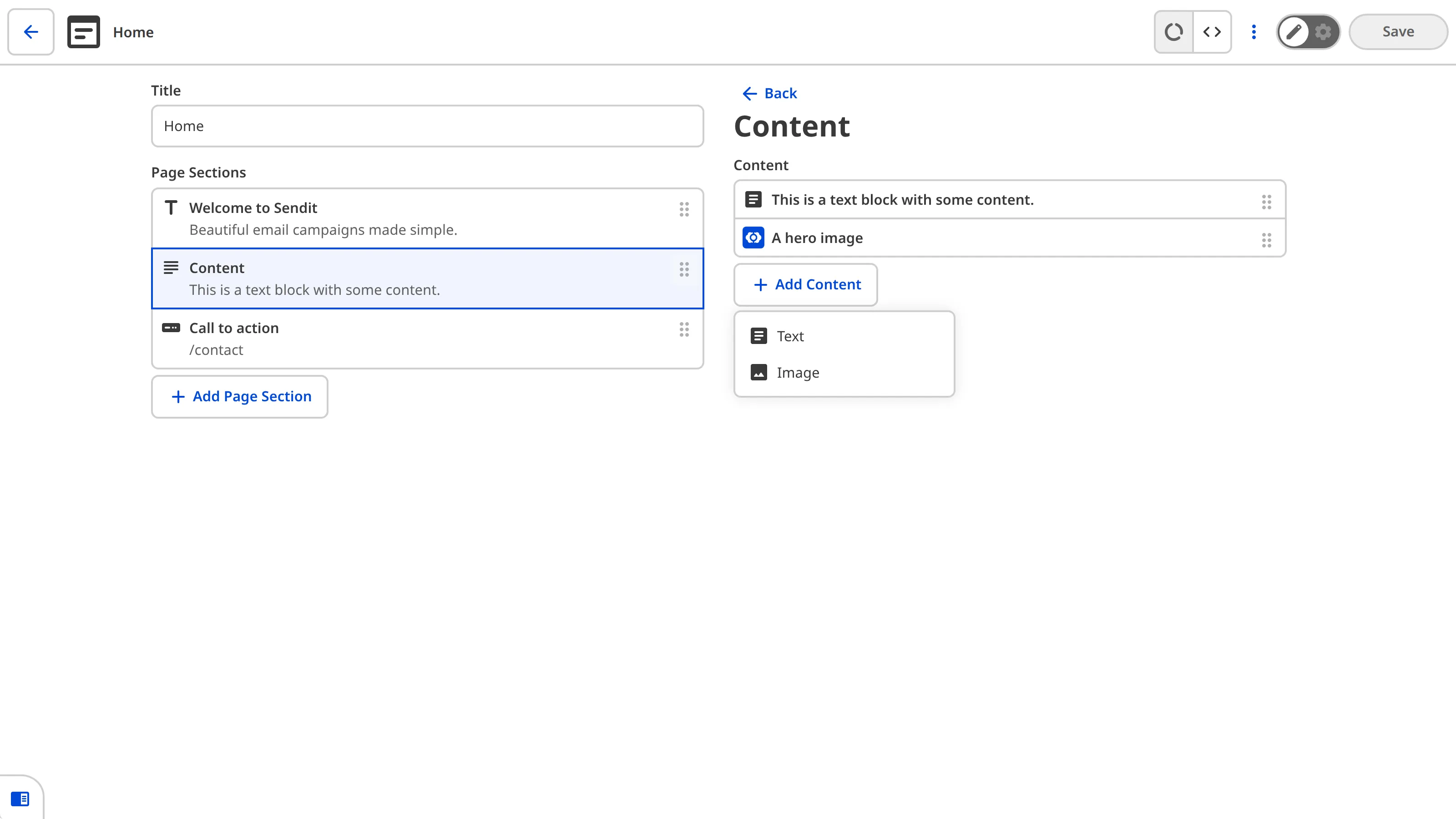
For more information, read our reference documentation on [using the configuration cascade](/documentation/developer-articles/using-the-configuration-cascade/).
---
---
title: Syncing build files from CloudCannon to an external provider
description: Configure a Build Deploy to commit the built version of your site to a repository.
url: https://cloudcannon.com/documentation/developer-articles/output-a-built-site-from-cloudcannon-to-an-external-provider/
content_type: developer article
last_modified: 2026-03-18
---
Configure a Build Deploy to commit the built version of your site to a repository. With a Build Deploy you can have CloudCannon handle your build and easily deploy the site to your own infrastructure.
## Adding a Build Deploy
1. First, create a repository that you would like to sync your site to, and connect it to a git provider.
2. Go to *Site Settings* / *Build Deploys* and choose your provider from the dropdown. If you have not yet authenticated CloudCannon with your provider, you will be prompted to do so.
3. Once authenticated, choose your repository from the dropdown, and choose an existing branch or create a new one.
4. Click **Connect and Sync** in the top right of the page.
> Your chosen branch will be overwritten once connected as a Build Deploy. Please ensure your chosen repository + branch is correct before proceeding.
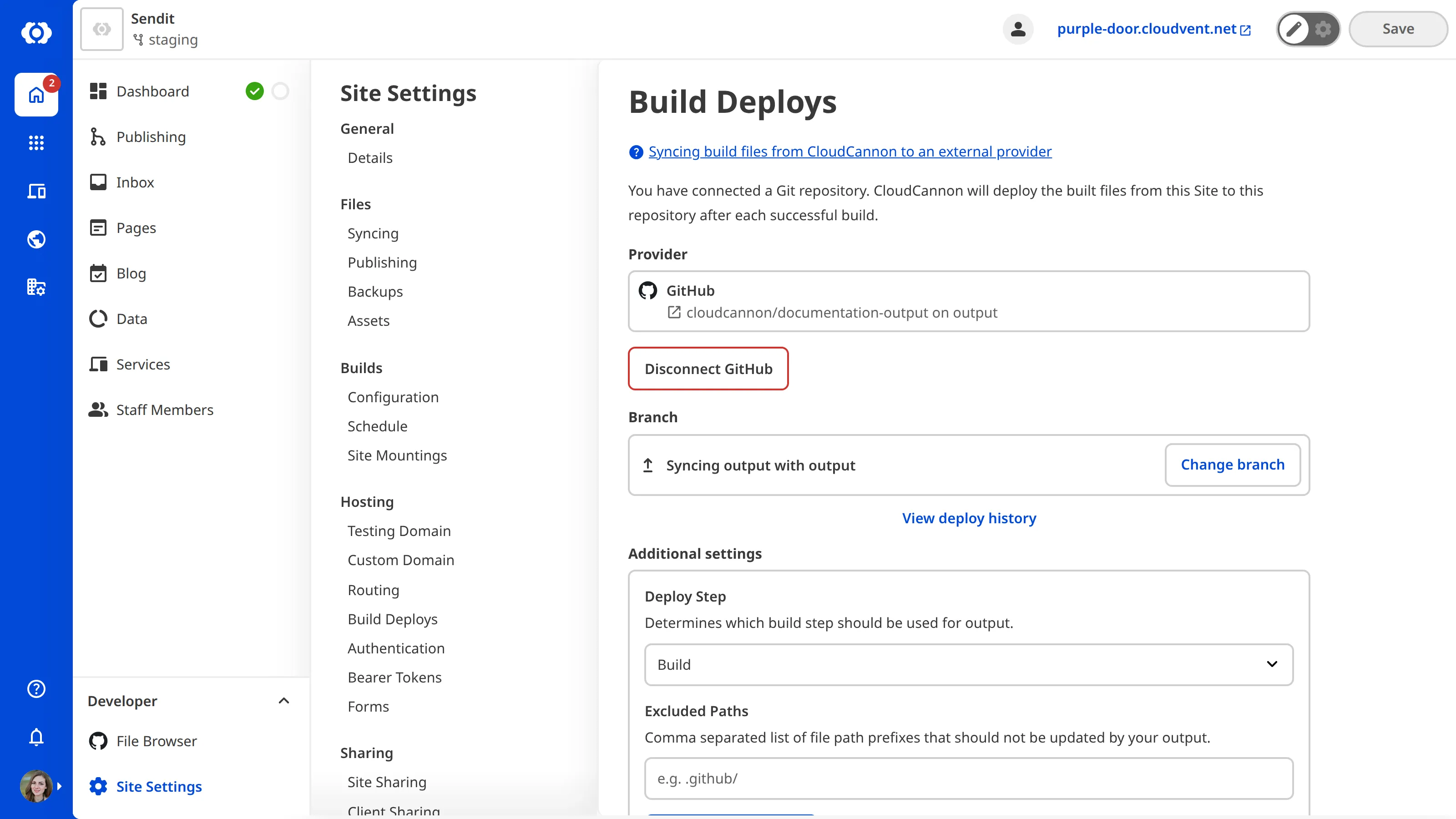
Once connected, your most recently compiled site will replace the contents of the configured branch. This process will repeat after every build.
You can change the what part of the build step is synced after selecting the provider. By default, the compiled output of the build step is synced.
## Select a Deploy Step
Once you have connected to your repository, you can select which build step you would like to be synced.
Go to *Site Settings* / *Build Deploys* and click the dropdown menu under *Deploy Step*. Select from one of the following:
- **Build**: Once built, your site will be synced to your output repository before any further work is done on it.
- **I18n**: Sync your built site after translations have been performed on it.
- **Process**: Sync your built site after encrypting form details.
- **Compress**: Sync your built site after assets have been minified.
Then click **Update Build Deploy**.
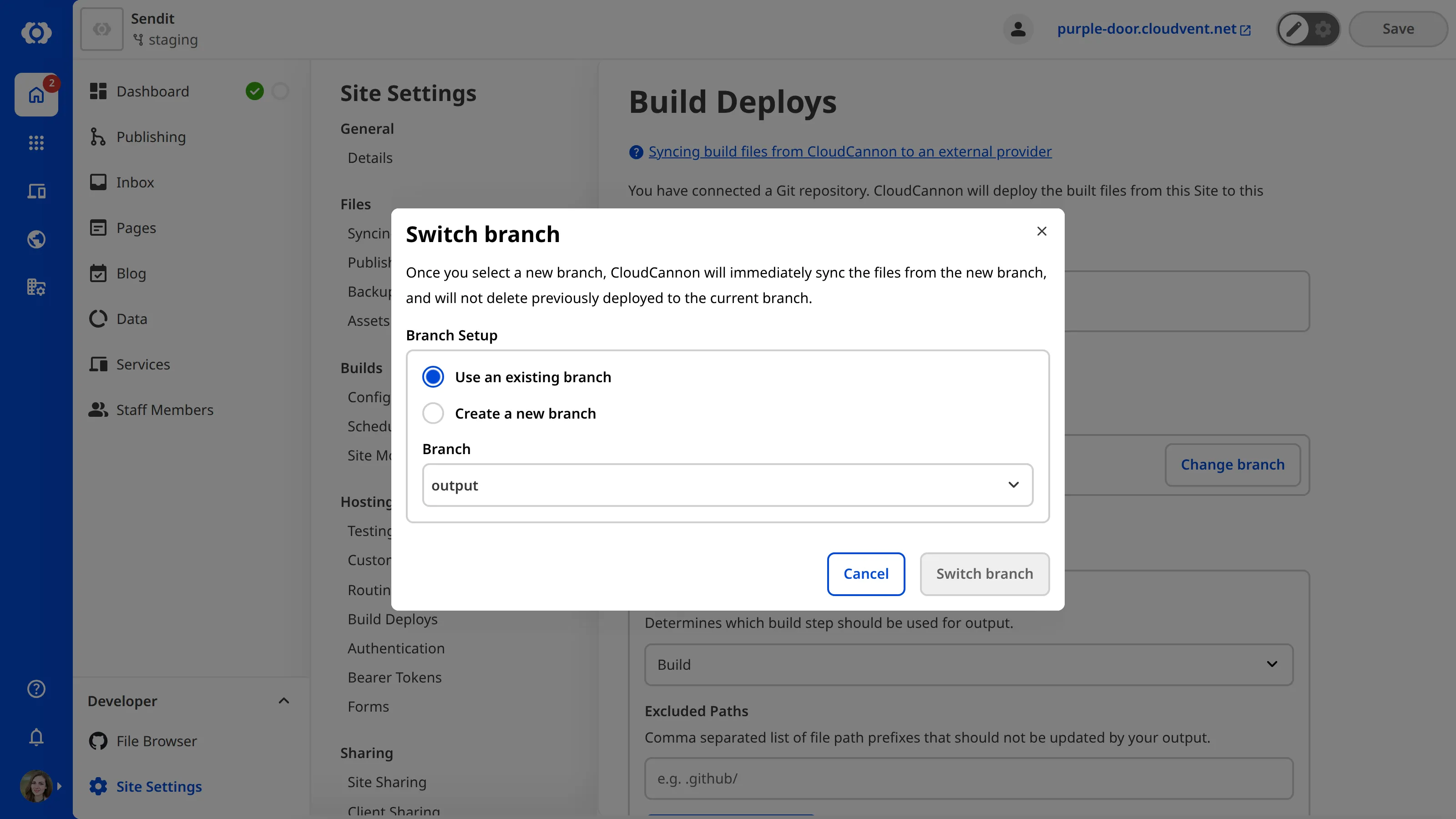
These options are listed in build-order. For example, selecting **Process** will sync your site once it has been built, translated, and processed, but before CloudCannon performs any compression.
In some cases the repo you're deploying to may contain special files you don't want to be overwritten by your deploy. The Excluded Paths setting allows you to specify a comma separated list of file prefixes, files matching one of these prefixes will not be updated by CloudCannon.
In the case that a file exists in your repo but not as part of your build, adding it as an excluded path will prevent if from being deleted by a deploy.
## Removing a Build Deploy
Go to *Site Settings* / *Build Deploys* and click **Disconnect **.
---
---
title: Turn on Allow all branching
description: Learn how to let Team Members create branched Sites from any Site in your Project, not just the Main Branch.
url: https://cloudcannon.com/documentation/developer-articles/turn-on-allow-all-branching/
content_type: developer article
last_modified: 2026-06-24
---
> ***Allow all branching* is available on our [Team or Enterprise plan](https://cloudcannon.com/pricing/).**
>
> Want to chat about whether this feature is right for you? Our support team is always [happy to hear from you](mailto:success@cloudcannon.com?subject=A%20question%20about%20branching).
> **Permissions required**
>
> Members of the *Owners* and *Developers* [Default Permission Groups](/documentation/user-articles/what-are-default-permission-groups/), or [Custom Permission Groups](/documentation/developer-articles/what-are-custom-permission-groups/) with the `project:settings:git:write` permission, can turn *Allow all branching* on or off.
By default, *Team Members* can only create branched *Sites* from your **Project's** **Main Branch**. With *Allow all branching* turned on, *Team Members* can branch from any *Site* in your *Project*.
This is useful when *Team Members* need to build on each other's in-progress work. For more information, please read our documentation on [what branching is](/documentation/user-articles/what-is-branching/).
These instructions assume you have [created a Project](/documentation/developer-articles/create-a-project/).
To turn on *Allow all branching*:
1. Click *Projects* in the *App Sidebar*. CloudCannon will open the *Projects Browser*.
2. Select the *Project* you want to configure. CloudCannon will open the *Project Sites Browser*.
3. Click the *Project Settings* tab.
4. Select *Repository* from the *Section Navigation*.
5. Switch the *Allow all branching* toggle on.
6. Click the *Update Project* button.
CloudCannon will save the setting, and *Team Members* will be able to branch from any *Site* in your *Project*.

You can use the same method to turn *Allow all branching* off, which limits *Team Members* to branching from your *Main Branch*. Existing branched *Sites* are not affected.
---
---
title: Turn on Client Sharing for a Site
description: Learn how to enable Client Sharing for your Site.
url: https://cloudcannon.com/documentation/developer-articles/turn-on-client-sharing-for-a-site/
content_type: developer article
last_modified: 2026-03-29
---
To add a [Client Sharing](/documentation/user-articles/what-is-client-sharing/) password to your Site:
1. Navigate to the *Client Sharing* page under *Site settings*.
2. Under the *Password* tab, set the password to log in to the Site. For security reasons, the password must be at least six characters long
3. Click the *Set password and turn on* button to enable Client Sharing for this Site.
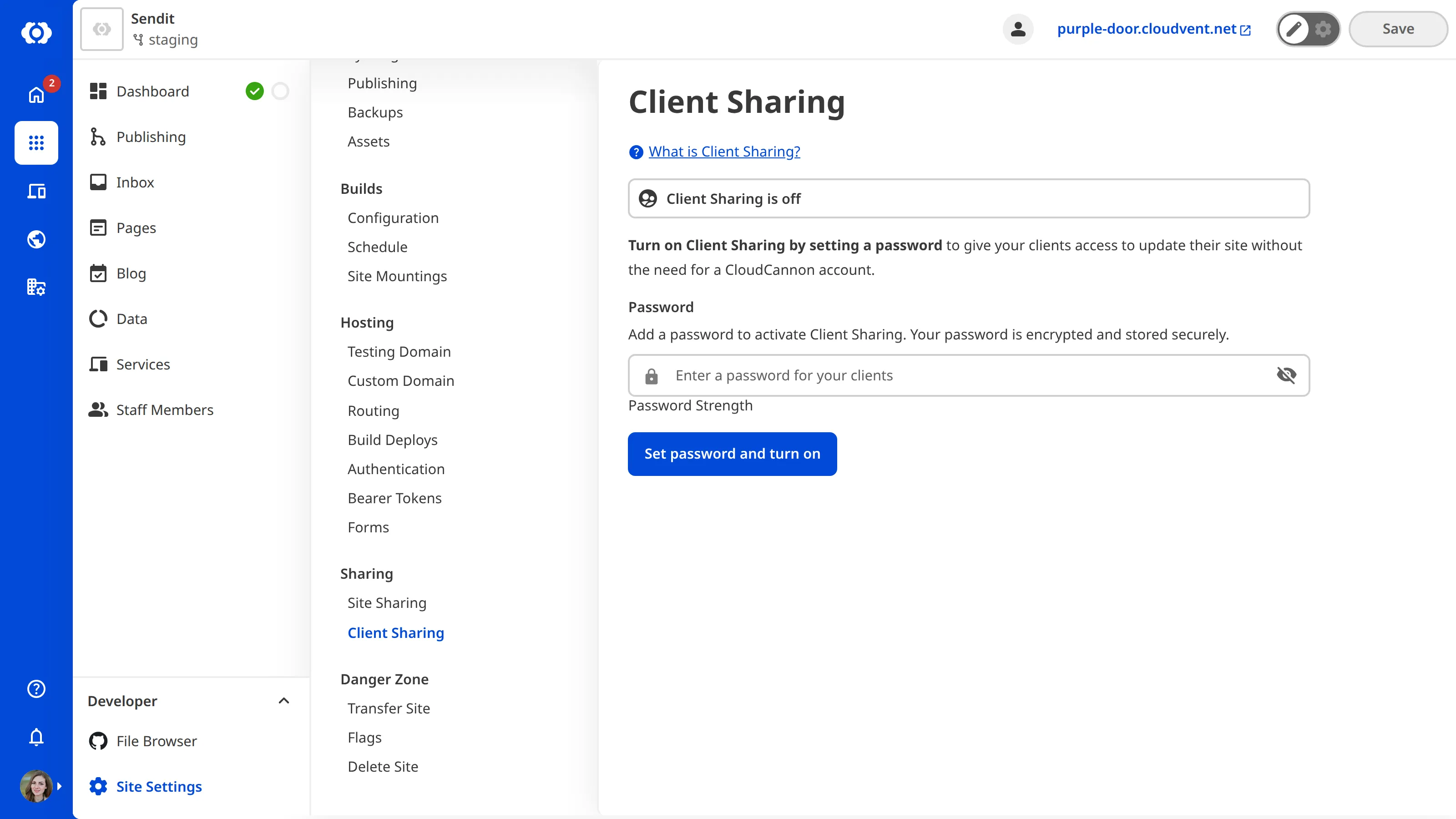
Clients can now log in to your Site on the Client Login Page using the password you set. The Client Login Page will be the Site domain with the suffix “/update” unless you have [configured the URL to use a different subpath](/documentation/developer-articles/configure-the-client-login-page/).
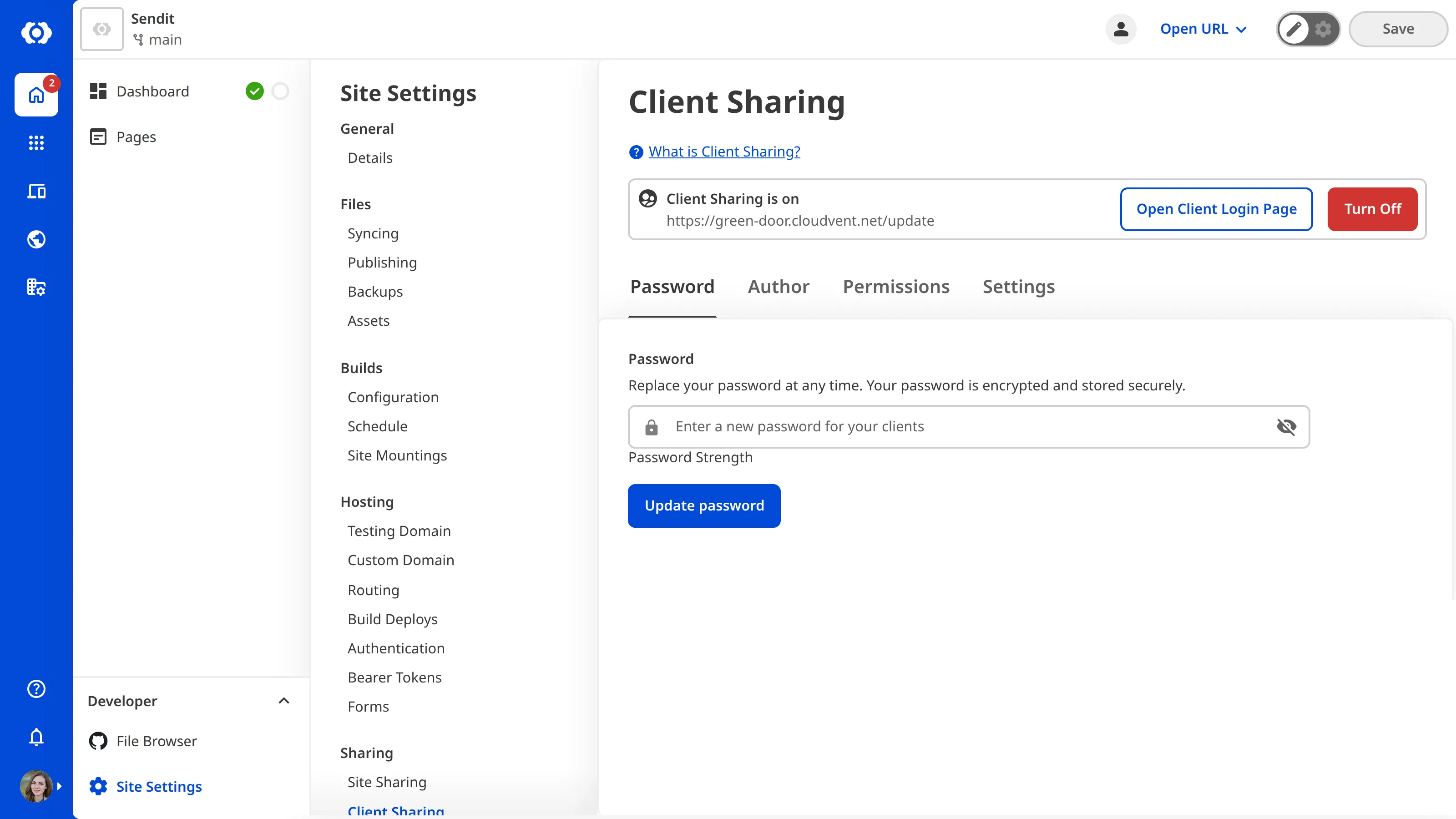
To open the Client Login Page for your Site, click the *Open Client Login Page* button.
To turn off Client Sharing for a Site, click the *Turn Off* button at the top of the *Client Sharing* page.
---
---
title: Turn on delete after publishing
description: Learn how to configure CloudCannon to delete a branched Site automatically after a successful publish.
url: https://cloudcannon.com/documentation/developer-articles/turn-on-delete-after-publishing/
content_type: developer article
last_modified: 2026-06-04
---
> **Permissions required**
>
> Members of the *Owners* and *Developers* [Default Permission Groups](/documentation/user-articles/what-are-default-permission-groups/), or [Custom Permission Groups](/documentation/developer-articles/what-are-custom-permission-groups/) with the `site:settings:git:write` permission, can change the post-publishing behavior for a *Site*.
You can configure CloudCannon to delete a branched **Site** automatically after a successful publish to its **Publish Branch**. This is useful for single-task branched *Sites* — for example, drafting a blog post or making a one-off content update — and keeps your *Project* tidy.
For new branched *Sites* in a [Project](/documentation/user-articles/what-is-a-project/) — whether you create them manually or CloudCannon creates them automatically from a *Pull Request* — *Delete this site after publishing* is turned on or off based on the [Delete branched site after publishing](/documentation/developer-articles/what-are-branch-defaults/) option in your *Branch Defaults*.
These instructions assume you have already [connected a Publish Branch](/documentation/developer-articles/connect-a-publish-branch/) to your *Site*.
To turn on delete after publishing for a *Site*:
1. From your *Site*, click *Site Settings* in the *Site Navigation*.
2. Click *Publishing* in the *Section Navigation*.
3. Under *Post-publishing behavior*, check the box labeled *Delete this site after publishing*.
4. Click *Update Publishing Settings*.
CloudCannon will save your post-publishing behavior preference for the *Site*. The next successful publish from this *Site* will delete it from CloudCannon, whether you publish by clicking the *Publish* button in CloudCannon or by merging a related *Pull Request* in your *Git Provider*.

This setting takes effect on the next successful publish — it does not retroactively delete *Sites* that have already published.
You can use the same method to turn delete after publishing off. Branched *Sites* will then remain in CloudCannon after publishing. *Sites* that have already been deleted by a previous successful publish are not restored.
---
---
title: Turn on optional Project tabs
description: Learn how to show or hide the Publishing, Pull Requests, and Branches tabs in your CloudCannon Project navigation.
url: https://cloudcannon.com/documentation/developer-articles/turn-on-optional-project-tabs/
content_type: developer article
last_modified: 2026-06-24
---
> **The *Pull Requests* tab is available on our [Team or Enterprise plan](https://cloudcannon.com/pricing/).**
>
> Want to chat about whether this feature is right for you? Our support team is always [happy to hear from you](mailto:success@cloudcannon.com?subject=A%20question%20about%20Projects).
> **Permissions required**
>
> Members of the *Owners* and *Developers* [Default Permission Groups](/documentation/user-articles/what-are-default-permission-groups/), or [Custom Permission Groups](/documentation/developer-articles/what-are-custom-permission-groups/) with the `project:settings:details:write` permission, can show or hide the optional *Project* tabs.
Each **Project** in CloudCannon has three optional tabs in its top-level navigation: *Publishing*, *Pull Requests*, and *Branches*. You can show or hide each tab independently from the *Details* section of the *Project Settings* page.
These instructions assume you have [created a Project](/documentation/developer-articles/create-a-project/).
To turn on optional *Project* tabs:
1. Click *Projects* in the *App Sidebar*. CloudCannon will open the *Projects Browser*.
2. Select the *Project* you want to configure. CloudCannon will open the *Project Sites Browser*.
3. Click the *Project Settings* tab.
4. Select *Details* from the *Section Navigation*.
5. Under the *Optional Project Tabs* heading, toggle on the *Publishing*, *Pull Requests*, or *Branches* tabs using the switches.
6. Click the *Update Project* button.
CloudCannon will make the tabs you selected visible in your *Project*.

You can use the same method to hide these tabs by toggling them off.
## Troubleshooting
### The *Pull Requests* toggle is disabled
The *Pull Requests* toggle in *Optional Project Tabs* can be disabled for two reasons:
- **Your Organization is not on the Team or Enterprise plan.** In this case, CloudCannon shows an *Upgrade to enable* link next to the toggle.
- **You don't have permission to view *Pull Requests* on this *Project*.** In this case, CloudCannon shows a *Permission needed* notice next to the toggle. Ask your administrator for the `project:pull-requests:read` permission on this *Project*.

### A *Team Member* can't see the *Pull Requests* tab
Even with the *Pull Requests* toggle enabled, a *Team Member* who doesn't have permission to view *Pull Requests* on the *Project* won't see the tab. Ask your administrator for the `project:pull-requests:read` permission on this *Project*.
---
---
title: Unified Configuration Flags
description: Learn about the live data and configuration editing flag and the Unified Configuration flag and how they might affect your Site
url: https://cloudcannon.com/documentation/developer-articles/unified-configuration-flags/
content_type: developer article
last_modified: 2026-07-29
---
> As of October 2024, CloudCannon uses the Unified Configuration format for your CloudCannon configuration file by default for all new Sites. Site created before this data can also upgrade to the Unified Configuration format.
>
> For more information, please read our guide on [migrating to Unified Configuration](/documentation/developer-guides/unified-configuration-migration-guide/) or contact our friendly [support team](https://cloudcannon.com/support/).
These flags may not be visible to all users depending on your Site and Organization configuration.
## Step 1: Enable live configuration and data reloading
The *Enable live configuration and data reloading* flag controls whether CloudCannon will automatically load changes to your data and configuration files without the need for a build. Enabling this flag may override the configuration from your last successful build.
All Sites can enable this behavior independently from migrating to the Unified Configuration file format. You can enable this behavior by checking the *Enable live configuration and data reloading* flag on the *Flags* page of your Site, under *Site Settings*.
For more information, please read our documentation on [Live Configuration and Data Editing](/documentation/developer-guides/unified-configuration-migration-guide/live-configuration-and-data-editing/).
## Step 2: Use Unified Configuration
> Please do not enable this flag before reading our [migration guide](/documentation/developer-guides/unified-configuration-migration-guide/).
The *Use Unified Configuration* flag controls whether CloudCannon will expect your CloudCannon configuration file to be in the Unified Configuration file format. All Sites created on new Organizations after October 2024 use Unified Configuration by default.
You can enable this behavior by checking the *Use Unified Configuration* flag on the *Flags* page of your Site, under *Site Settings*.
You can also enable this behavior on an Organization level checking the *Use Unified Configuration* flag on the *Flags* page of your Site, under *Org Settings*. This Organization level flag will ensure all new Sites created in your Organization use the Unified Configuration format.
---
---
title: Update the fallback redirect for your Custom Domain
description: Learn how to update the fallback redirect for your Custom Domain and prevent 404 errors.
url: https://cloudcannon.com/documentation/developer-articles/update-the-fallback-redirect-for-your-custom-domain/
content_type: developer article
last_modified: 2026-07-06
---
> **Permissions required**
>
> Members of the Developers and Owners [Default Permission Groups](/documentation/user-articles/what-are-default-permission-groups/), or [Custom Permission Groups](/documentation/developer-articles/what-are-custom-permission-groups/) with the `base-domain:settings:details:write` permission, can update the fallback redirect for a Custom Domain.
A Custom Domain is a unique address used to identify a website (e.g., [cloudcannon.com](https://cloudcannon.com)). If you have [connected a Custom Domain to your Organization](/documentation/developer-articles/connect-a-custom-domain-to-your-organization/), you can host your Site on a subdomain by [adding a Custom Domain to your Site](/documentation/developer-articles/add-a-custom-domain-to-your-site/). CloudCannon will use the fallback redirect domain for any subdomains you do not add to a CloudCannon Site.
- **Fallback redirect** — The domain to which CloudCannon will redirect visitors when they attempt to access an unconfigured subdomain.
The fallback redirect prevents your visitors from encountering 404 errors if they enter an incorrect domain name in their Internet browser. By default, CloudCannon will use your base domain as your fallback redirect (e.g., *.example.com will redirect to example.com).
You can configure which domain or subdomain is your fallback redirect on the *Network* tab of your Custom Domain's *Domain* page. To select a Custom Domain as your fallback redirect, you must add that domain to a CloudCannon Site.
These instructions assume you have connected the Custom Domain to your Organization and added the domain you want to use as your fallback redirect to a Site.
To configure your fallback redirect:
1. Log in to CloudCannon and select the Organization with the Custom Domain you want to update.
2. Click the *Domains* button in the *App Sidebar*. CloudCannon will open the *Domains Browser*.
3. Identify the domain you want to update and click on the *Domain* card. CloudCannon will open the *Domain* page for this Custom Domain.
4. On the *Network* tab, click the *Update fallback redirect* button under the *Fallback redirect* heading. CloudCannon will open the *Update your fallback redirect* modal.
5. Select the subdomain you want to use as your fallback redirect using the *Subdomain* dropdown.
6. Click the *Update fallback redirect* button.
CloudCannon will update you fallback redirect.
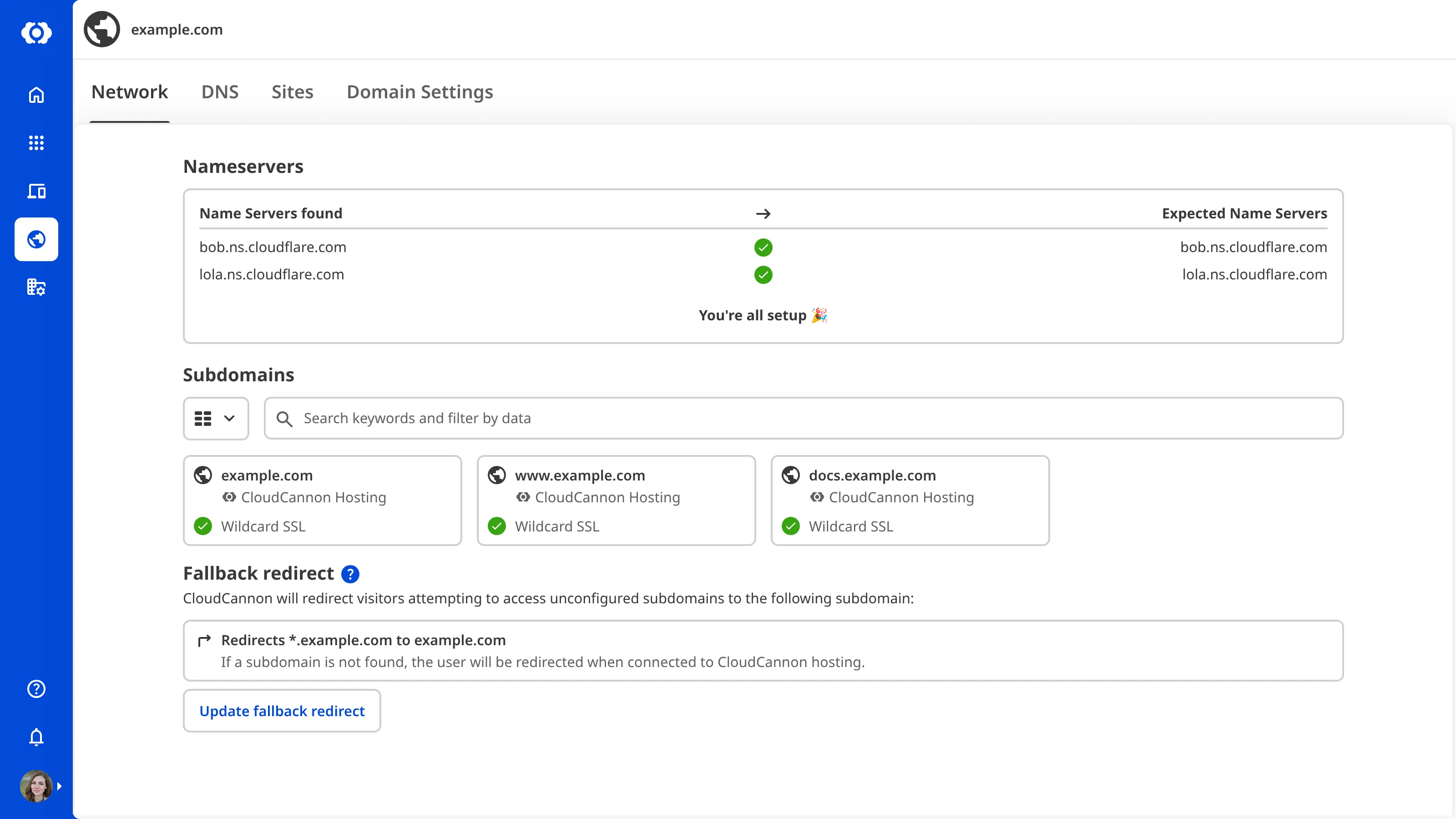
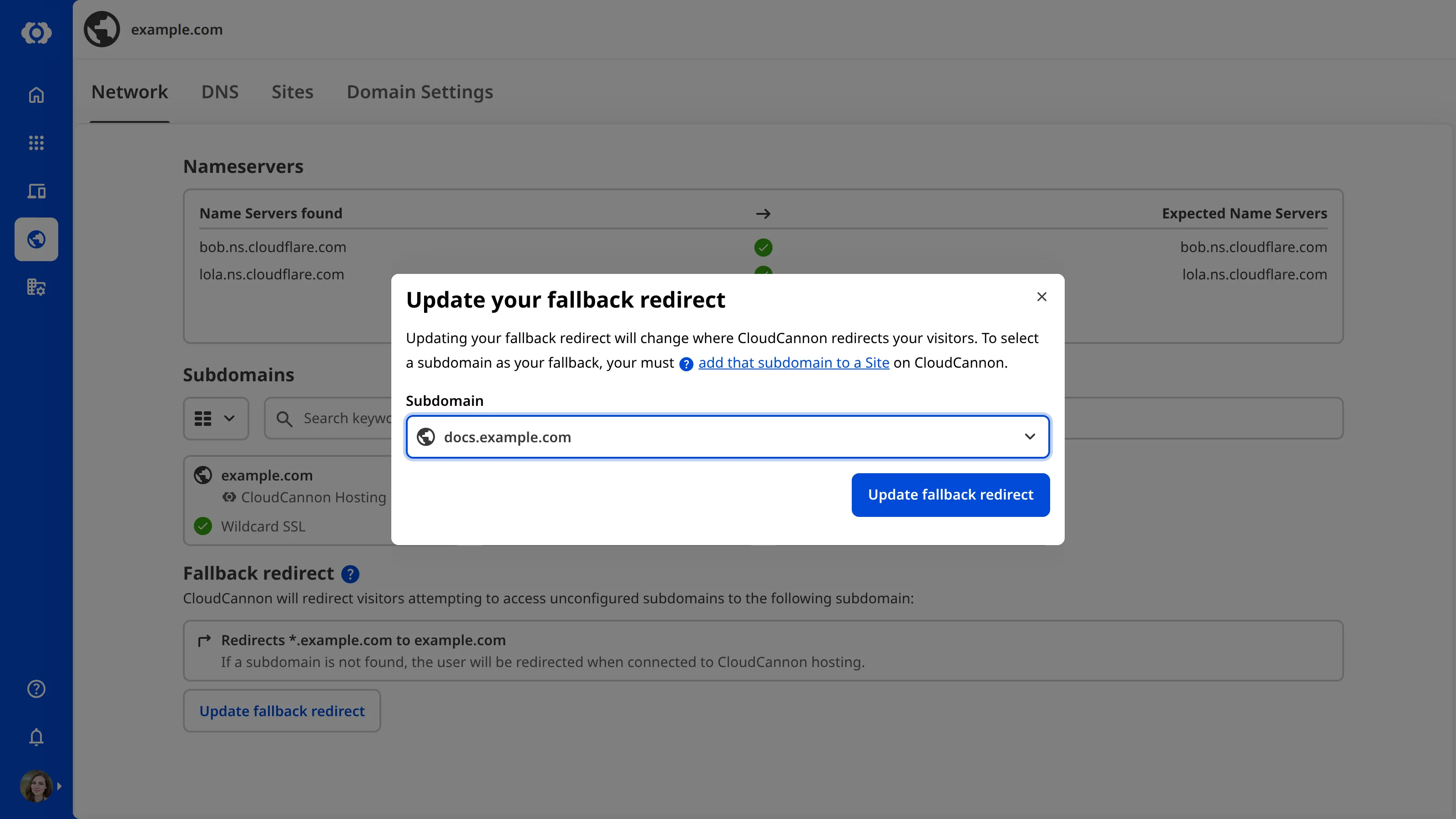
> If you have configured your [DNS](/documentation/developer-articles/what-is-dns/) to point a specific domain at a service outside of CloudCannon, CloudCannon will not be able to redirect that domain to your main domain.
---
---
title: Update the output URL for a Collection
description: Learn how to update the output URL CloudCannon uses to match output files to source files, enabling the Visual Editor and screenshots.
url: https://cloudcannon.com/documentation/developer-articles/update-the-output-url-for-a-collection/
content_type: developer article
last_modified: 2026-06-30
---
> **Permissions required**
>
> Members of the Owners, Developers, and Technical Editors [Default Permission Groups](/documentation/articles/what-are-default-permission-groups/), or [Custom Permission Groups](/documentation/articles/what-are-custom-permission-groups/) with the `site:source-editor:write` and `site:file:write` permissions, can edit your *CloudCannon Configuration File*. You can limit permission to specific files using [file globs](/documentation/articles/what-are-custom-permission-groups/#specify-a-file-glob).
An output URL is the URL your SSG outputs your files to during a [Site build](/documentation/articles/what-is-a-site-build/). After each successful build, CloudCannon automatically determines the likely output URL to match an [output file](/documentation/articles/what-is-an-output-file/) to a source file, enabling the [Visual Editor](/documentation/articles/what-is-the-visual-editor/) and screenshots in the *Collection Browser*.
If CloudCannon has incorrectly determined the output URL for your source files, you may notice the wrong webpage screenshot in the gallery section of your *File Cards* (or no screenshot), or that the *Visual Editor* opens to an incorrect webpage. To fix this issue, you can explicitly specify the output URL for each *Collection* using a template string.
To update the output URL CloudCannon uses to match a output files to source files:
1. Navigate to the *Collection* for which you want to update the output URL CloudCannon uses.
2. Turn on *Configuration Mode* using the switch on the right of the *Site Header*. Purple *Edit Configuration* buttons will appear in the *Collection Browser*.
3. Click the *Edit Advanced* in the top right of the *Collection Browser*. CloudCannon will open the *Edit Advanced* data panel.
4. Identify the *URL* text field and enter the template string for the correct output URL.
5. Save the change to your *Site*.
CloudCannon will automatically update which output URL it uses to match output files to source files for that *Collection*.

> Updating the `url` key does not change where your SSG will output your files.
## Template string placeholders
You can use a template string to define the correct output URL for matching output files in a *Collection*. Template strings allow you to use placeholders as well as plain text.
You can use fixed or data placeholders, and filters to modify the value of data placeholders, allowing you to reference structured data from your files to create the correct URL format.
### Fixed placeholders
The following fixed placeholders are available for your output URL template string:
- `[filename]` — Populated by the original filename including the file extension.
- `[slug]` — Populated by the original filename excluding the file extension. If the filename is "index", this will result in an empty string.
- `[relative_path]` — Populated by the original file name including the file extension, relative to the *Collection* path.
- `[relative_base_path]` — Populated by the original file name excluding the file extension, relative to the *Collection* path.
- `[full_slug]` — An alias for the template path `[relative_base_path]/[slug]`.
- `[path]` — Populated by the original file name including the file extension, relative to your *Site* source.
- `[base_path]` — Populated by the original file name excluding the file extension, relative to your *Site* source.
- `[collection]` — Populated by the key for the *Collection* to which the file belongs.
- `[ext]` — Populated by the last file extension in the original file path.
Let's go through an example.
The `url` template string `/[relative_bath_path]/[slug]/` for our "Pages" *Collection* will resolve to the following output URLs:
- The file `/pages/index.md` becomes the output URL `/` (e.g., a Home landing page).
- The file `/pages/about.md` becomes the output URL `/about`.
- The file `/pages/contact/index.md` becomes the output URL `/contact/`.
- The file `/pages/contact/book-an-appointment.md` becomes the output URL `/contact/book-an-appointment`
### Data placeholders
You can reference any front matter field from your file in your output URL template string by using the key name in curly brackets (e.g., `{key}`).
You can also apply filters to your data placeholders by using the `|` character after your front matter key name, followed by the name of the filter.
Let's go through an example.
The `url` template string `/news/{date|year}/{date|month}-{date|day}_{title|slugify}/` for our "News" *Collection* will resolve to the following output URLs:
- The file `/news/our-next-feature.md` with the front matter fields `title: Our next feature!` and `date:05/11/2026` becomes the output URL `/2026/05-11_our-next-feature`.
For a complete list of filters available for data placeholders in your output URL template string, please read our documentation on [template strings](/documentation/articles/configure-your-template-strings/).
---
---
title: Use Deploy Previews to comment on a Pull Request
description: Learn how CloudCannon posts and updates deploy preview comments on Pull Requests, and how to configure comment behavior for your Project.
url: https://cloudcannon.com/documentation/developer-articles/use-deploy-previews-to-comment-on-a-pull-request/
content_type: developer article
last_modified: 2026-06-24
---
> ***Deploy Previews* are available on our [Team or Enterprise plan](https://cloudcannon.com/pricing/).**
>
> Want to chat about whether this feature is right for you? Our support team is always [happy to hear from you](mailto:success@cloudcannon.com?subject=A%20question%20about%20pull%20request%20deploy%20previews).
CloudCannon can use **Deploy Previews** to automatically post a comment to the *Pull Request* in your *Git Provider*. Each comment includes the following details:
- The *Site Name* and the branch it tracks
- The *Site's* current *Build Status* on CloudCannon (e.g., Ready, Building, Build Failed, or Not configured)
- A *View Testing Domain* link that opens the *Site's* **Testing Domain**
- An *Open Site* link that opens the *Site Dashboard* in CloudCannon
- A *View Build Logs* link that opens the *Builds* tab on your *Site Dashboard*
- A *Latest Commit* link (shown as the short commit SHA) that opens the latest commit on your *Git Provider*
If multiple *Sites* are connected to the same branch, CloudCannon renders the details as a table with one row per *Site*, including both manually connected *Sites* and *Sites* that CloudCannon created automatically for the *Pull Request*.
> Normally, the *Latest Commit* is the same for each *Site*, because CloudCannon syncs changes from your *Git Repository* to every connected *Site*. A different *Latest Commit* on one row can mean syncing for that *Site* is blocked, paused, or filtered.
If no *Sites* are connected yet, the automatic comment links to your **Project** so you can connect one.
Automatic comments can be useful for teams where some members review *Pull Requests* in their *Git Provider* (e.g., developers reviewing code changes alongside the diff), and other members manage content from inside CloudCannon. *Deploy Previews* bridge this gap by posting the *Testing Domain*, *Build Status*, and links back to your *Site* directly on the *Pull Request*, so reviewers can preview changes and open the *Site* without leaving their *Git Provider*.

You can turn on *Pull Request* comments via *Deploy Previews* for any **Project** in CloudCannon by [configuring Deploy Previews](/documentation/developer-articles/configure-deploy-previews/), including custom footer content and whether CloudCannon does this for draft *Pull Requests*.
## Posting and updating *Pull Request* comments
By default, CloudCannon posts the *Pull Request* comment via *Deploy Preview* when a *Team Member* opens a *Pull Request* for a branch in your *Project*. CloudCannon updates that comment after any of the following triggers:
- A *Pull Request* event is received (opened, reopened, ready for review, edited, and so on).
- A *Site* linked to the *Pull Request* changes branch, is renamed, or has its stable domain updated.
- A *Site* is created for the *Pull Request* (including automatically created *Sites*).
- A build on a connected *Site* completes, so the status and commit information stay current.
Rather than create a new comment after any of these triggers, CloudCannon always updates the existing comment and moves the comment to the most recent event on your *Pull Request* timeline (e.g., your Conversation in GitHub, Discussion in GitLab, and Overview in Bitbucket). CloudCannon identifies its own comment using a hidden HTML marker scoped to your *Organization*. Editing or reacting to a comment from your *Git Provider* does not affect CloudCannon's ability to update it.
## Manually refreshing *Deploy Preview* comments
CloudCannon updates *Deploy Preview* comments automatically when *Pull Requests*, *Sites*, or builds change. *Refresh Deploy Preview comments* is an option in the *Context Menu* on the *Project* page that triggers an immediate refresh, without waiting for the next event.

Selecting this option re-runs the comment posting and updating flow for every *Site* on the *Project*. CloudCannon updates the comment on each open *Pull Request*.
> You must have permission to edit *Build Deploys* to use this option.
A manual refresh is useful when *Deploy Previews* settings change and existing comments should reflect the new content immediately, when CloudCannon's automatic comment failed to post or was deleted from the *Pull Request*, or when debugging *Deploy Preview* comment behavior.
## The comment footer
By default, each comment has a footer with the text "Deployed by CloudCannon." You can append extra content to this footer, for example, including useful links to internal review checklists, tagging reviewers, or pointing at documentation specific to your team.

## Skipping draft *Pull Requests*
You can skip automatic comment posting for draft *Pull Requests*. Once a *Pull Request* is marked as ready for review, CloudCannon posts a comment.
> This option is independent of the *Skip for draft Pull Requests* option for *Site* creation and destruction—you can, for example, create a *Site* for drafts but defer posting a comment until a *Pull Request* is ready.
## Disabling automatic comments
If you disable automatic comments on your *Project*, CloudCannon does not delete any existing comments in your *Git Repository*. Instead, CloudCannon reconciles every open *Pull Request* in the *Project* and rewrites its automatic comment with a short notice explaining that *Pull Request* comments have been disabled.
The same reconciliation runs if you mark a *Pull Request* as a draft or change the content of the comment footer. *Pull Requests* that were previously eligible are updated with the disabled notice, and *Pull Requests* that are newly eligible are back-filled with a fresh *Deploy Preview* comment.
> Reconciliation only touches comments that CloudCannon posted using the marker for your *Organization*. It never edits or deletes comments written by people or other integrations.
---
---
title: Use Deploy Previews to trigger Site creation and deletion
description: Learn how CloudCannon uses Pull Requests to automatically create and delete Sites, and how to configure this behavior for your Project.
url: https://cloudcannon.com/documentation/developer-articles/use-deploy-previews-to-trigger-site-creation-and-deletion/
content_type: developer article
last_modified: 2026-06-24
---
> ***Deploy Previews* are available on our [Team or Enterprise plan](https://cloudcannon.com/pricing/).**
>
> Want to chat about whether this feature is right for you? Our support team is always [happy to hear from you](mailto:success@cloudcannon.com?subject=A%20question%20about%20pull%20request%20deploy%20previews).
CloudCannon can use **Deploy Previews** to automatically create a **Site** when you open a **Pull Request**, and delete automatically created *Sites* when a *Pull Request* is merged or closed. Each *Site* created this way has its own build pipeline, **Testing Domain**, and editing experience.
Automatically created *Sites* can be useful for teams where some members create branches and open *Pull Requests* outside of CloudCannon (e.g., from a local *Git Repository*, an IDE, their *Git Provider's* interface, or through automated tooling), and other members need to review or edit content changes from inside CloudCannon. *Deploy Previews* bridge this gap by automatically creating a *Site* for each *Pull Request* that doesn't already have a *Site* on its head branch.
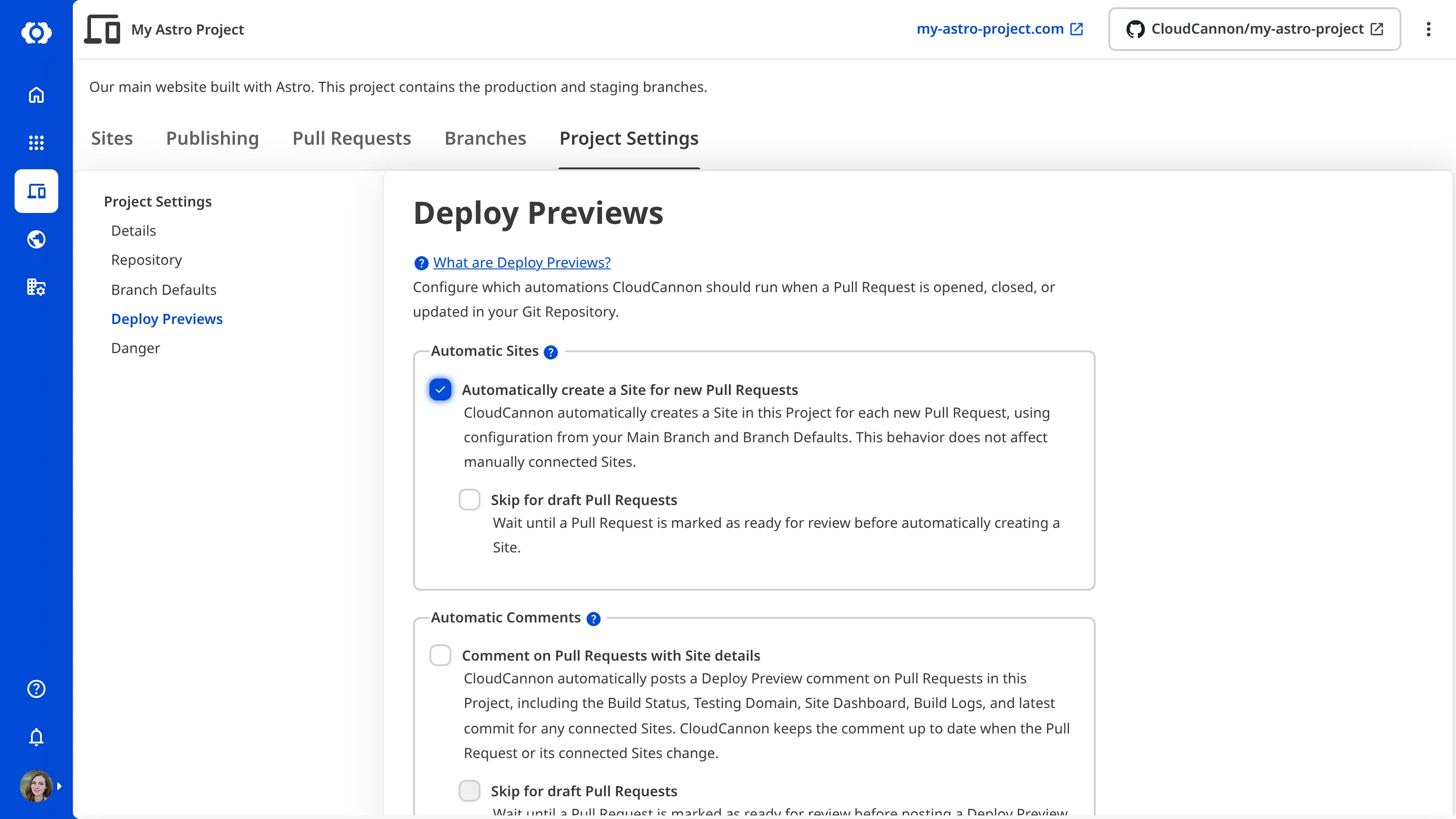
You can turn on automatic *Site* creation and deletion for any **Project** in CloudCannon by [configuring Deploy Previews](/documentation/developer-articles/configure-deploy-previews/), including whether CloudCannon does this for draft *Pull Requests*.
## Configuration for automatically created *Sites*
When CloudCannon automatically creates a *Site*, it reuses the configuration from your *Main Branch* and *Branch Defaults*, and information from the *Pull Request* in your **Git Repository**.
If you have [set a Main Branch for your Project](/documentation/developer-articles/set-the-main-branch-for-your-project/), CloudCannon copies the configuration for the *Publish Mode*, *Configuration File* path, **Static Site Generator**, *Editing Locked*, [build configuration](/documentation/developer-articles/configure-your-first-build/), [authentication](/documentation/developer-articles/what-is-authentication/), and [flags](/documentation/developer-articles/what-are-flags/).
*Branch Defaults* in your *Project Settings* can override your *Main Branch*. If you have *Branch Defaults* for authentication, stable password, and *Publish Mode*, the automatically created *Site* uses these instead.
CloudCannon uses the title and number of your *Pull Request* to generate the name of your *Site* (e.g., `PR #42: Add footer links`), truncated to 100 characters. It also uses the head branch and base branch of the *Pull Request* as the *Site Branch* and *Publish Branch*.
Automatically created *Sites* are also tagged with `create_source == pr_auto_create`, allowing CloudCannon to differentiate them from *Sites* you connected manually. If any *Site* in your *Project* — automatic or manually connected — already points at the *Pull Request's* head branch, CloudCannon reuses it rather than creating a duplicate.
## Syncing between a *Site* and a *Pull Request*
When CloudCannon creates an automatic *Site*, it stores the *Pull Request* number and the external *Pull Request* URL on the *Site*. This "hard-link" allows CloudCannon to reconcile the *Site* with a *Pull Request* event, rather than relying on the head branch name (which can change during the lifetime of a *Pull Request*).
As long as the hard-link is present, CloudCannon syncs the following attributes from your *Pull Request* to your *Site*:
- **Head branch** — If the *Pull Request's* head branch is renamed or rebased, CloudCannon updates the *Site Branch* to match. Manually connected *Sites* that were pointed at the old branch name are not affected.
- **Base branch** — If the *Pull Request's* base branch changes, CloudCannon updates the *Publish Branch* to match. Base branch changes are also logged server-side so you can audit them later.
- **Title** — If the *Pull Request's* title changes and the *Site Name* still follows the auto-generated `PR #N: …` format (where `N` is the *Pull Request* number), CloudCannon updates the *Site Name* to match.
- **External URL** — The stored *Pull Request* URL is kept up to date with whatever the *Git Provider* reports.
CloudCannon syncs these details after every non-closing *Pull Request* event.
> CloudCannon only reconciles *Sites* whose `create_source` is `pr_auto_create`. *Sites* you added yourself are never modified by *Pull Request* events, even if they happen to match a *Pull Request* number or branch name.
### Renaming an automatically created *Site*
If you rename an automatically created *Site* in CloudCannon away from the `PR #N: …` format, your custom *Site Name* takes precedence over the auto-generated name, and CloudCannon does not update the name from the *Pull Request* title.
You can re-enable automatic naming conventions by renaming the *Site* back to the `PR #N: …` format.
### Multiple *Pull Requests* on the same branch
CloudCannon tracks automatically created *Sites* by their head branch, so a second *Pull Request* opened against the same head branch reuses any existing *Site* on that branch rather than creating a new one. The first *Pull Request* still owns the hard-link, so attribute syncing (title, head and base branch, external URL) only follows that *Pull Request* — any other *Pull Request* sharing the branch is mentioned in its *Automatic Comment* without becoming the source of truth for the *Site*.
When any *Pull Request* on the shared branch is closed or merged, every *Site* on that branch with *Delete this site after publishing* enabled is destroyed. This applies to manually connected *Sites* on the same branch as well, so if you keep manual *Sites* alongside automatic ones on a shared branch and want them to survive a *Pull Request* close, leave *Delete this site after publishing* off for those *Sites*.
## Skipping draft *Pull Requests*
You can skip automatic *Site* creation for draft *Pull Requests*. This does not delete an automatically created *Site* if you mark a *Pull Request* as a draft after a *Site* is created. Once a *Pull Request* is marked as ready for review, CloudCannon creates a *Site*.
> This option is independent of the *Skip for draft Pull Requests* option for comments—you can, for example, post comments on drafts but defer *Site* creation until a *Pull Request* is ready.
## *Pull Requests* from outside contributors
CloudCannon does not automatically create *Sites* for *Pull Requests* opened from a fork of your *Git Repository*. Automatically built *Sites* run the *Pull Request's* prebuild script, which, on an unverified contribution, would let an outside contributor run code on CloudCannon's build infrastructure.
CloudCannon identifies a *Pull Request* as being from an outside contributor when its head branch is in a different repository than its base branch — that is, when the contributor pushed from a fork rather than directly to your repository. This works the same way on GitHub, GitLab, and Bitbucket.
Contributors who have push access to your repository (organization members, repository collaborators) open *Pull Requests* from branches in the repository itself rather than from a fork, so CloudCannon treats their *Pull Requests* as internal and creates *Automatic Sites* for them as normal.
When CloudCannon skips auto-creation for an outside contributor's *Pull Request*, the automatic comment (if enabled) is still posted on the *Pull Request*, with text explaining that no *Site* was created and pointing the team back to the *Project* in CloudCannon. The team can then review the *Pull Request* and decide whether to connect a *Site* to the branch in CloudCannon themselves.
The *Pull Requests* tab in CloudCannon includes a *Pull Requests from outside contributors* section that lists these *Pull Requests* together, so Team Members can triage them in one place rather than mixed in with internal *Pull Requests*.
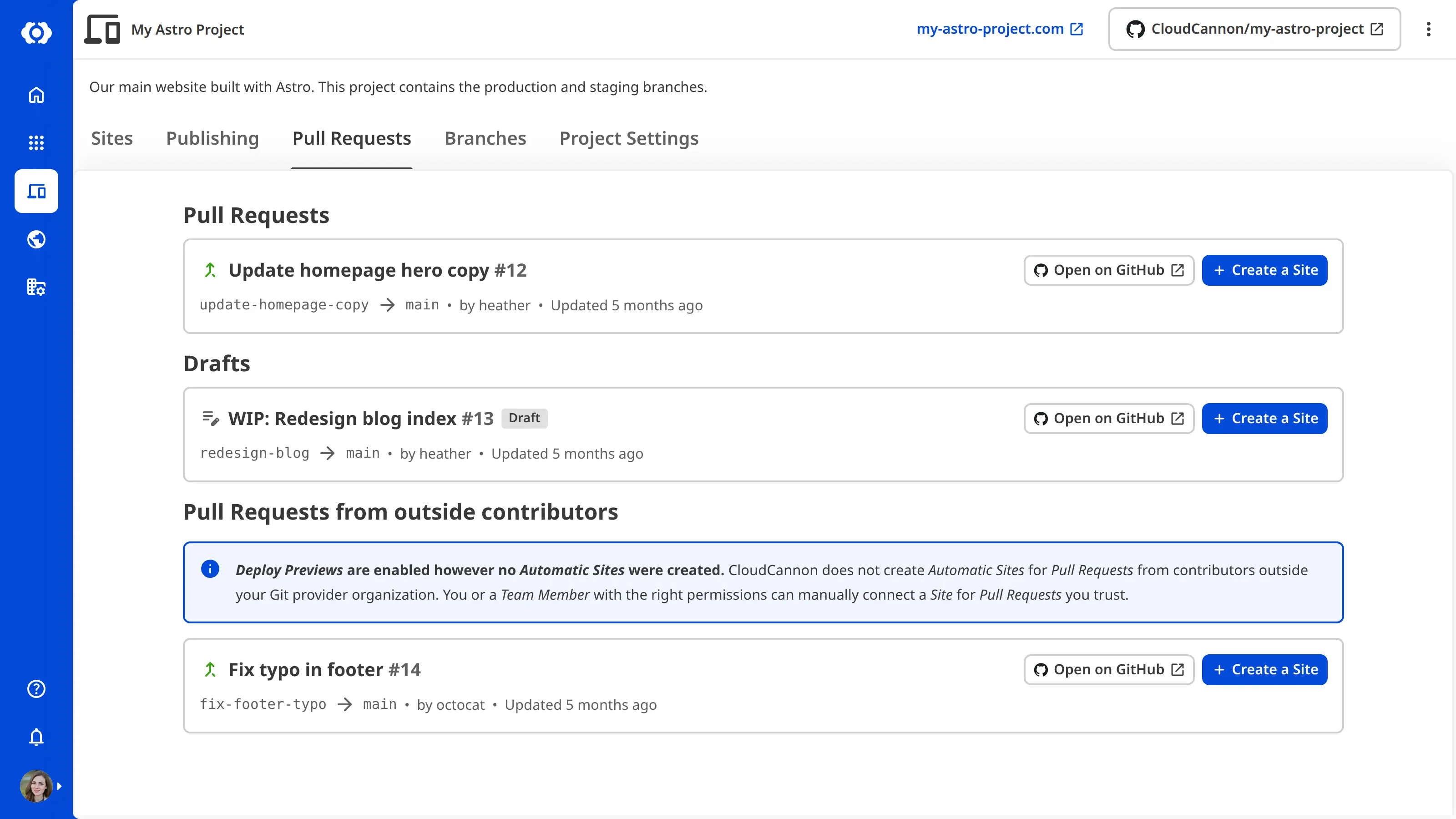
This behavior is the default for all *Projects* and is not configurable. *Sites* you have already automatically created for outside-contributor *Pull Requests* before this default applied are not affected — they remain in your *Project* unless you delete them manually or close the *Pull Request* while the *Site* has *Delete this site after publishing* enabled.
## Deleting *Sites* when a *Pull Request* closes
Each *Site* in your *Project* has a *Delete this site after publishing* setting on the *Publishing* page under *Site Settings*. When a *Pull Request* is closed or merged, CloudCannon destroys every *Site* connected to that head branch that has *Delete this site after publishing* enabled. This applies to both automatically created *Sites* and any manually connected *Sites* on the same branch.
New automatically created *Sites* take their default *Delete this site after publishing* value from the [Delete branched site after publishing](/documentation/developer-articles/what-are-branch-defaults/) option in your *Branch Defaults* — the same setting that seeds the default for manually branched *Sites*. You can override the setting on any individual *Site* after creation. To keep an automatically created *Site* in your *Project* past its *Pull Request* merge, [turn off Delete this site after publishing](/documentation/developer-articles/turn-on-delete-after-publishing/) for that *Site*.
> The head branch in your *Git Repository* is treated differently depending on how the deletion is triggered. Clicking the *Publish pull request* button in CloudCannon deletes both the *Site* and the head branch. Merging or closing the *Pull Request* directly in your *Git Provider* deletes the *Site* but leaves the head branch to be managed by your *Git Provider*.
---
---
title: Use TypeScript with the Visual Editor API
description: Add TypeScript type declarations for the Visual Editor API to your project for autocomplete and type checking in your IDE.
url: https://cloudcannon.com/documentation/developer-articles/use-typescript-with-the-visual-editor-api/
content_type: developer article
last_modified: 2026-08-11
---
> The *Visual Editor API* is designed for experienced CloudCannon developers. If you need help with custom integrations or your CloudCannon setup in general, please contact our friendly [support team](https://cloudcannon.com/support/).
The `@cloudcannon/visual-editor-api` package includes TypeScript declarations that give your **IDE** full autocomplete and type checking for the **Visual Editor API**. This article covers how to set up TypeScript support in your project.
This article assumes you know how to [initialize the Visual Editor API](/documentation/developer-articles/initialize-the-visual-editor-api/) and have already installed the `@cloudcannon/visual-editor-api` package. For a complete list of API objects and methods, please read our reference documentation on the [Visual Editor API](/documentation/developer-reference/visual-editor-api/).
> This approach requires your project to have a TypeScript compilation pipeline. Some SSGs (such as Astro, Next.js, SvelteKit, and Nuxt) include one out of the box. For others (such as Eleventy, Jekyll, and Hugo), you will need to add a build step (for example, using [esbuild](https://esbuild.github.io/) or [Rollup](https://rollupjs.org/)) to compile the helper module to JavaScript before it runs in the browser. Install `typescript` as a dev dependency if you have not already.
## Declare CloudCannon's globals on the Window type
The package alone does not teach TypeScript that `window` includes `CloudCannonAPI`. Default `Window` typings omit CloudCannon's globals, so a raw `window.CloudCannonAPI` reference is often flagged as an error or widened to `any`. You can address this by importing the `CloudCannonVisualEditorWindow` type from the package and re-declaring `window` with that type in the module that talks to the API.
To declare CloudCannon's globals:
1. Open your website files in your local development environment.
2. Open the script where your *Visual Editor API* integration runs.
3. Add a `declare const window` statement at the top of the file, then use `window.CloudCannonAPI` as normal:
File: `script.ts`
```typescript
```
import type { CloudCannonVisualEditorWindow } from '@cloudcannon/visual-editor-api'; /*1*/
declare const window: CloudCannonVisualEditorWindow & { inEditorMode: true | undefined }; /*2*/
const api = window.CloudCannonAPI?.useVersion('v1', true); /*3*/
```
**[1]** `import type` pulls the TypeScript declarations from `@cloudcannon/visual-editor-api`.
**[2]** `declare const window` re-declares the `window` global for this module. Combining `CloudCannonVisualEditorWindow` with `{ inEditorMode: true | undefined }` tells TypeScript that both `window.CloudCannonAPI` and `window.inEditorMode` are available without needing a cast. The declaration applies to this file only. Repeat it in any other module that talks to the API.
**[3]** `?.` skips the call when `CloudCannonAPI` is missing, returning `undefined` (for example, outside the *Visual Editor*). Passing `true` as the second argument to `useVersion()` prevents the *API Object* from being assigned to `window.CloudCannon`; see [Initialize the Visual Editor API](/documentation/developer-articles/initialize-the-visual-editor-api/) for context.
```
Once you have declared CloudCannon's globals, `window.CloudCannonAPI` and `window.inEditorMode` work with full autocomplete and type checking in the same module.
If you call the API from many modules, you can wrap the `window.CloudCannonAPI?.useVersion('v1', true)` call in a helper function and import it where you need it, rather than re-declaring `window` in every file.
---
---
title: Using arrays to make a gallery
description: Learn how to set the structure for new items in a gallery array.
url: https://cloudcannon.com/documentation/developer-articles/using-arrays-to-make-a-gallery/
content_type: developer article
last_modified: 2026-04-11
---
Create reusable components which content editors use to create their own feature-rich pages. To set up a structure, you define the different components available. CloudCannon then provides editors the option to select one of the components when adding an item to the array. This adds that component to the array where they can then fill out the inputs.
For example, set the structure for new items in a `gallery` array with:
File: `Configuration`
```yaml
_structures:
gallery:
style: modal
values:
- label: Image
icon: image
tags:
- Media
- Asset
value:
image: /uploads/placeholder.png
caption:
preview:
gallery:
image: /path/to/source-image.png
- label: External link
icon: link
tags:
- Media
value:
url:
title:
```
---
---
title: Using relative paths for DAM assets
description: Learn about using relative paths for DAM assets
url: https://cloudcannon.com/documentation/developer-articles/dam-assets-with-relative-paths/
content_type: developer article
last_modified: 2026-04-11
---
You can choose one DAM to use relative paths on your site. This means that your DAM URLs may start with "/", instead of being fully qualified. A fully qualified URL is a complete Internet address and must include a hostname and top-level domain.
By default, all the URLs for assets on your DAM need to be fully qualified in order to preview them on CloudCannon. Similarly, CloudCannon will always save fully qualified URLs in your code when you upload an asset to a DAM through the CMS. This behaviour can be turned off by choosing to use relative paths for your DAM.
This option can be useful if your SSG prepends the DAM's base url during the build.
### Using relative paths
By default, relative paths in your site must refer to the site files.
> If you choose to use relative paths with a DAM, you will not be able to browse assets from, or upload to, your site files in CloudCannon.
1. In your site’s settings, navigate to *Files/Assets*
2. Locate your DAM from the list, and click the three dots in the top right corner
3. From the context menu, click **Use Relative Paths**
4. Click the Confirm button
> When changing this setting, you might need to rewrite existing URLs on the site to avoid broken previews in CloudCannon.
To undo this change, repeat the steps above but use the context menu on *Site Files* in the list.
---
---
title: Using the configuration cascade
description: Learn how the configuration cascade lets you set options for Collections, Schemas, Files, and Structures.
url: https://cloudcannon.com/documentation/developer-articles/using-the-configuration-cascade/
content_type: developer article
last_modified: 2026-05-12
---
The configuration cascade is a set of sources containing customizable options for the editor. Each source has a different scope and priority. This allows you to set global defaults and override those for specific collections or files.
When CloudCannon needs an option you have set in the configuration cascade, it looks at each scope in order. In most cases, the cascade stops looking when an option is found. This means the most specific value is used in place of any less specific values.
> [Input configuration](/documentation/user-articles/what-are-inputs/) (i.e. `_inputs`) has a different cascading default, where CloudCannon continues looking over less specific sources to merge into a single option.
## Sources
The configuration cascade sources are as follows, from lowest priority to highest:
1. [CloudCannon configuration file](/documentation/developer-articles/create-your-cloudcannon-configuration-file/)
2. [Collection](/documentation/user-articles/what-is-a-collection/) configuration
3. [Schema](/documentation/developer-articles/what-is-a-schema/) configuration
4. Front matter
5. Containing [structure](/documentation/developer-articles/what-is-a-structure/)
### Global configuration
For configuring everywhere on your site. For example:
File: `cloudcannon.config.yml`
```YAML
_inputs:
image_path:
type: image
comment: Helpful message here
options:
width: 90
height: 120
_select_data:
colors:
- Red
- Blue
```
### Collection configuration
For configuring all files within a collection. For example:
File: `cloudcannon.config.yml`
```YAML
collections_config:
pages:
_inputs:
image_path:
type: image
comment: Helpful message here
options:
width: 90
height: 120
_select_data:
colors:
- Red
- Blue
```
### Schema configuration
For configuring all files within one of a collection's schemas. For example:
File: `cloudcannon.config.yml`
```YAML
collections_config:
pages:
schemas:
default:
path: 'schemas/page.md'
_inputs:
image_path:
type: image
comment: Helpful message here
options:
width: 90
height: 120
landing_page:
path: 'schemas/landing-page.md'
_select_data:
colors:
- Red
- Blue
```
### Front matter
For configuring a single file. For example:
File: `Configuration`
```yaml
image_path: /uploads/me.png
_inputs:
image_path:
type: image
comment: Helpful message here
options:
width: 90
height: 120
_select_data:
colors:
- Red
- Blue
```
### Containing structure
For configuring inputs inside a structure. For example:
File: `Configuration`
```yaml
_structures:
gallery:
values:
- label: Image
icon: image
_inputs:
image:
type: image
options:
width: 50
height: 50
caption:
comment: Applies inside this structure
_select_data:
colors:
- Red
- Blue
value:
image: /uploads/placeholder.png
caption:
color:
```
> For nested structured data, you can nest `_structures` alongside the other configuration groups inside a structure definition.
## Options
Since configuration cascade options can be defined alongside your data, they always begin with an underscore in an effort to avoid clashing with a key you would use.
The following configuration cascade options are available:
**`_editables`** object
This key defines which Rich Text editors have custom configuration for the associated WYSIWYG toolbar.
For more information, please read our documentation on [Rich Text editors](/documentation/articles/what-are-rich-text-editors/).
[Full reference](/documentation/developer-reference/configuration-file/types/_editables/)
**`_enabled_editors`** array
This key defines which editing interfaces are available by default for files at a given level of the configuration cascade.
Whether an editing interface is available for a specific file is determined by other factors.
Values can be one of the following: `visual`, `content`, or `data`.
Specifying one or more editing interfaces will disable all unspecified editing interfaces.
You cannot disable the Source Editor with this key.
By default, this key is set to `visual`, `content`, and `data`.
If undefined at higher levels of the [configuration cascade](/documentation/articles/using-the-configuration-cascade/), `_enabled_editables` will
default to any values configured in the [CloudCannon configuration file](/documentation/articles/what-is-the-cloudcannon-configuration-file/).
For more information, please read our documentation on the [Visual Editor](/documentation/articles/what-is-the-visual-editor/), [Content
Editor](/documentation/articles/what-is-the-content-editor/), [Data Editor](/documentation/articles/what-is-the-data-editor/), and [Source
Editor](/documentation/articles/what-is-the-source-editor/).
[Full reference](/documentation/developer-reference/configuration-file/types/_enabled_editors/)
**`_inputs`** object
This key defines which inputs are available at a given level of the configuration cascade.
This key has no default.
If undefined at higher levels of the [configuration cascade](/documentation/articles/using-the-configuration-cascade/), `_inputs` will default to any
values configured in the [CloudCannon configuration file](/documentation/articles/what-is-the-cloudcannon-configuration-file/).
[Full reference](/documentation/developer-reference/configuration-file/types/_inputs/)
**`_select_data`** object
This key defines defines fixed data sets to populate Select and Multiselect inputs at a given level of the configuration cascade.
This key has no default.
If undefined at higher levels of the [configuration cascade](/documentation/articles/using-the-configuration-cascade/), `_select_data` will default to
any values configured in the [CloudCannon configuration file](/documentation/articles/what-is-the-cloudcannon-configuration-file/).
For more information, please read our documentation on [Select and Multiselect inputs](/documentation/articles/what-is-a-select-input/#fixed-data-sets).
[Full reference](/documentation/developer-reference/configuration-file/types/_select_data/)
**`_structures`** object
This key defines which structures are available for [Object inputs](/documentation/articles/what-is-an-object-input/) and [Array
inputs](/documentation/articles/what-is-an-array-input/) at a given level of the configuration cascade.
This key has no default.
If undefined at higher levels of the [configuration cascade](/documentation/articles/using-the-configuration-cascade/), `_structures` will default to
any values configured in the [CloudCannon configuration file](/documentation/articles/what-is-the-cloudcannon-configuration-file/).
For more information, please read our documentation on [structures](/documentation/articles/what-is-a-structure/).
[Full reference](/documentation/developer-reference/configuration-file/types/_structures/)
---
---
title: Visual Data Bindings with Bookshop
description: Bookshop will automatically add data bindings when live editing in CloudCannon
url: https://cloudcannon.com/documentation/developer-articles/visual-data-bindings-with-bookshop/
content_type: developer article
last_modified: 2026-06-30
---
Bookshop defines a convention for building self-contained components in the templating languages supported by common static site generators. Using these conventions, Bookshop provides developer tooling that empowers you to integrate these components with your stack, build and browse UI components locally, and provide rich live editing experiences for your editors.
By default, Bookshop will automatically add data bindings when live editing. Read [the Bookshop Visual Data Bindings documentation for further information](https://github.com/CloudCannon/bookshop/blob/main/guides/visual-data-bindings.adoc).
---
---
title: Visual data bindings with React
description: React allows you to add the `data-cms-bind` attribute on any DOM element
url: https://cloudcannon.com/documentation/developer-articles/visual-data-bindings-with-react/
content_type: developer article
last_modified: 2026-06-30
---
React allows you to add the `data-cms-bind` attribute on any DOM element. It is recommended that these are added recursively into each object. If you are using an older version of React, you may need to forward this on differently. Please refer to the [React documentation](https://reactjs.org/blog/2017/09/08/dom-attributes-in-react-16.html#data-and-aria-attributes).
File: `heading.jsx`
```jsx
class Heading extends React.Component {
render() {
return (
{this.props.title}
);
}
}
```
It is recommended that you pass the parent binding as a prop. This way your component can be reused in any stack. For the base case a empty string should be used as the binding. If you have an array component and a component for each array, it is recommended to skip the array binding to reduce the number of editor clicks.
---
---
title: Visual data previews with Bookshop
description: Preview live changes to static websites using CloudCannon's Bookshop framework
url: https://cloudcannon.com/documentation/developer-articles/visual-data-previews-with-bookshop/
content_type: developer article
last_modified: 2026-06-30
---
Bookshop defines a convention for building self-contained components in the templating languages supported by common static site generators. Using these conventions, Bookshop provides developer tooling that empowers you to integrate these components with your stack, build and browse UI components locally, and provide rich live editing experiences for your editors.
Bookshop provides the ability for your editors to preview changes live while editing your page in CloudCannon. Read [the Bookshop live editing documentation to setup](https://github.com/CloudCannon/bookshop/blob/main/guides/live-editing.adoc).
---
---
title: Visual data previews with React
description: Live editing on CloudCannon with React. Edit Front Matter and see the changes show up live.
url: https://cloudcannon.com/documentation/developer-articles/using-live-editing-with-react/
content_type: developer article
last_modified: 2026-06-30
---
React is a great at receiving new data and rerendering components. To make this integration easier CloudCannon has developed an open source library for easy installation. [@cloudcannon/react-connector](https://github.com/CloudCannon/react-connector) is a higher order component that listens to live editing events and passes the new props to your component.
## Installation
Cloudcannon React Connector is available on npm. To install run:
File: `Shell`
```shell
npm i @cloudcannon/react-connector
```
## Next.js Integration
Update the code in `pages/_app.jsx` from:
File: `pages/_app.jsx`
```jsx
export default function App({ Component, pageProps }) {
return
}
```
to:
File: `pages/_app.jsx`
```jsx
import { CloudCannonConnect } from '@cloudcannon/react-connector'
export default function App({ Component, pageProps }) {
const AppComponent = CloudCannonConnect(Component);
return
}
```
This should make no difference to your development or production environment. Loading the site in CloudCannon's Visual Editor and changing front matter will push new changes directly into the page props.
Any issues, please contact support or [raise an issue on the GitHub repository](https://github.com/CloudCannon/react-connector/issues).
---
---
title: Visual data previews with Svelte
description: Data previews on CloudCannon with Svelte. Edit Front Matter and see the changes show up live.
url: https://cloudcannon.com/documentation/developer-articles/live-editing-with-svelte/
content_type: developer article
last_modified: 2026-06-30
---
Svelte is great at receiving new data and rerendering components. To make this integration work we hook into the Svelte lifecycle. onMount and onDestroy can set up event listeners that update the pages properties.
## Requirements for data previews
- Components must have an output URL. SvelteKit routes are a good example.
- Components must get their data from a data/content file somewhere in your project. This is critical, as the Visual Editor cannot open the components themselves.
- These data/content files must be configured as a CloudCannon Collection. See the [CloudCannon Reader documentation](https://github.com/CloudCannon/reader#readme) for more information.
- Components will need to use the Svelte `onDestroy` and `onMount` functions.
## Installation and Usage
The CloudCannon Svelte connector is [available on npm](https://www.npmjs.com/package/@cloudcannon/svelte-connector).
To install, run:
File: `Shell`
```shell
npm i @cloudcannon/svelte-connector
```
Next, add the following code to any component that you want to add live editing to:
File: `index.svelte`
```html
```
In the above code, `pageDetails` is an object that contains data for the markup portion of the component.
After loading the content file in the Visual Editor, changing the data in the sidebar will push the new props to `pageDetails`. This will display the new values in the Visual Editor immediately.
This should make no difference to your development or production environment.
For an example integration, check out our [Urban SvelteKit template](https://cloudcannon.com/community/themes/urban/). If you have any issues, please [contact support](https://cloudcannon.com/contact/), or [raise an issue on the GitHub repository](https://github.com/CloudCannon/svelte-connector/issues).
---
---
title: Visual data previews with vanilla JavaScript
description: Live editing on CloudCannon with vanilla JS. Create your own live previews by hooking into document events.
url: https://cloudcannon.com/documentation/developer-articles/using-live-editing-with-vanilla-js/
content_type: developer article
last_modified: 2026-06-30
---
Live editing in CloudCannon is all based on an injected JavaScript object `CloudCannon` and custom events triggered on the `document` object.
## CloudCannon Events
When your website is loaded in the Visual Editor, CloudCannon will trigger [CustomEvents on the global document object](https://developer.mozilla.org/en-US/docs/Web/Events/Creating_and_triggering_events). This is a feature available in all major browsers.
### Load Event
Triggers when CloudCannon live editing API is available. Triggers before the `CloudCannon` object is injected onto the `window` object."
```javascript
document.addEventListener('cloudcannon:load', function (e) {
onLiveEditorLoad(e.detail.CloudCannon);
});
```
Depending on when the JavaScript is run, the load event might have already been triggered. In this case, the CloudCannon object will be available on the global `window` object.
```javascript
if (!window.CloudCannon) {
document.addEventListener('cloudcannon:load', function (e) {
onLiveEditorLoad(e.detail.CloudCannon);
});
} else {
onLiveEditorLoad(window.CloudCannon);
}
```
### Update event
Using the `CloudCannon` object, we need to enable the other document events. To do this we need to use the following code:
Once this CloudCannon object is saved, you can enable live editing. To demonstrate, we are using the function called in the last code snippet.
```javascript
function onLiveEditorLoad(CloudCannon) {
CloudCannon.enableEvents();
}
```
With that enabled, we can register an event listener to the update event. The `cloudcannon:update` event is triggered after every front matter change.
```javascript
document.addEventListener('cloudcannon:update', async function (e) {
useNewPageProps(e.detail.CloudCannon);
});
```
All events provide the `CloudCannon` object available on the event details.
## The CloudCannon Object
All events provide the `CloudCannon` object available on the event details. Alternatively this object is available at `window.CloudCannon`. This object gives you access to the CloudCannon interface.
### Fetching the current front matter value
Using the `CloudCannon` object, we can fetch the latest value of the front matter. This paired with the update event is the key to live previews. To do this, we use the `CloudCannon.value()` function. This function returns a promise, when awaited will return a json object of the latest value.
```javascript
async function useNewPageProps(CloudCannon) {
const latestValue = await CloudCannon.value();
}
```
### Updating a front matter key
Using the `CloudCannon` object, we can set a value of a key in the front matter. This allows us to build custom controls directly on our page. To do this, we use the `CloudCannon.set(slug, value)` function.
```javascript
CloudCannon.set('title', 'new title value');
```
---
---
title: Visual data previews with Vue
description: Data previews on CloudCannon with Vue. Edit Front Matter and see the changes show up live.
url: https://cloudcannon.com/documentation/developer-articles/live-editing-with-vue/
content_type: developer article
last_modified: 2026-06-30
---
As a modern web framework, Vue is purpose-built to handle reactive components that re-render when their data changes.
This power can be used to configure live editing within the CloudCannon CMS.
> This guide will focus on components that use the [Vue Composition API](https://vuejs.org/guide/introduction.html#composition-api).
## Requirements for data previews
- Components must have an output URL. If your site is built with Nuxt using the Nuxt Content module, components in the `pages/` directory are a good example.
- Components must get their data from a data/content file somewhere in your project. This is critical, as the Visual Editor cannot open the components themselves.
- These data/content files must be configured as a CloudCannon Collection. See the [CloudCannon Reader documentation](https://github.com/CloudCannon/reader#readme) for more information.
- Components will need to use the Vue `onMounted` and `onBeforeUnmount` hooks.
## Installation
The CloudCannon Visual Editor connector is [available on npm](https://www.npmjs.com/package/@cloudcannon/visual-editor-connector).
To install, run:
File: `Shell`
```shell
npm i -D @cloudcannon/visual-editor-connector
```
## Integration
Below is a component with the bare minimum needed for live editing in the Visual Editing.
File: `pages/[...slug].vue`
```html
```
```
**[1]** `useContent()` is a function that is provided by [Nuxt Content's Document-driven mode](https://content.nuxtjs.org/guide/writing/document-driven).
It fetches the file in the `content/` directory that reflects the current URL. Replace this line with however you fetch page data.
**[2]** [Vue's ref function](https://vuejs.org/api/reactivity-core.html#ref) creates a mutable reactive object.
Whenever the value of `pageData` changes, any component that relies on that data will re-render.
**[3]** The `onCloudCannonChanges()` hook takes a callback function that is triggered whenever the page is edited in CloudCannon.
For example, editing the front matter of the corresponding page in the Data Editor will run the code here.
The callback takes the updated page data as a parameter, and assigns the new data to the `pageData` object.
Because `pageData` is reactive, this will re-render and display the updated component in the Visual Editor immediately.
**[4]** This needs to be run in the `onBeforeUnmount()` hook to tear-down listeners before the component is destroyed.
```
You should be able to make these additions with no difference to your build output or production environment.
For an example integration, check out our [Sendit Nuxt template](https://cloudcannon.com/community/themes/sendit/).
If you have any issues, please [contact support](https://cloudcannon.com/support/), or [raise an issue on the GitHub repository](https://github.com/CloudCannon/visual-editor-connector/issues).
---
---
title: What are Access Keys?
description: Learn what Access Keys are and how they let the CloudCannon CLI and SDK act in CloudCannon on your behalf.
url: https://cloudcannon.com/documentation/developer-articles/what-are-access-keys/
content_type: developer article
last_modified: 2026-08-12
---
An *Access Key* is a personal credential that lets other programs take action in CloudCannon on your behalf. You can use an *Access Key* to authenticate the official CloudCannon CLI, or a third-party program built with the CloudCannon *Software Development Kit* (SDK), so those tools can act without logging in through your internet browser. You create *Access Keys* on the *Access Keys* page under *Account Settings*. For more information, please read our documentation on [creating an Access Key](/documentation/developer-articles/create-an-access-key/).
> An *Access Key* is tied to your personal CloudCannon account and inherits your account's access and *Permissions*. Any program that holds it can take any action you can take across every **Organization** and **Site** you belong to.
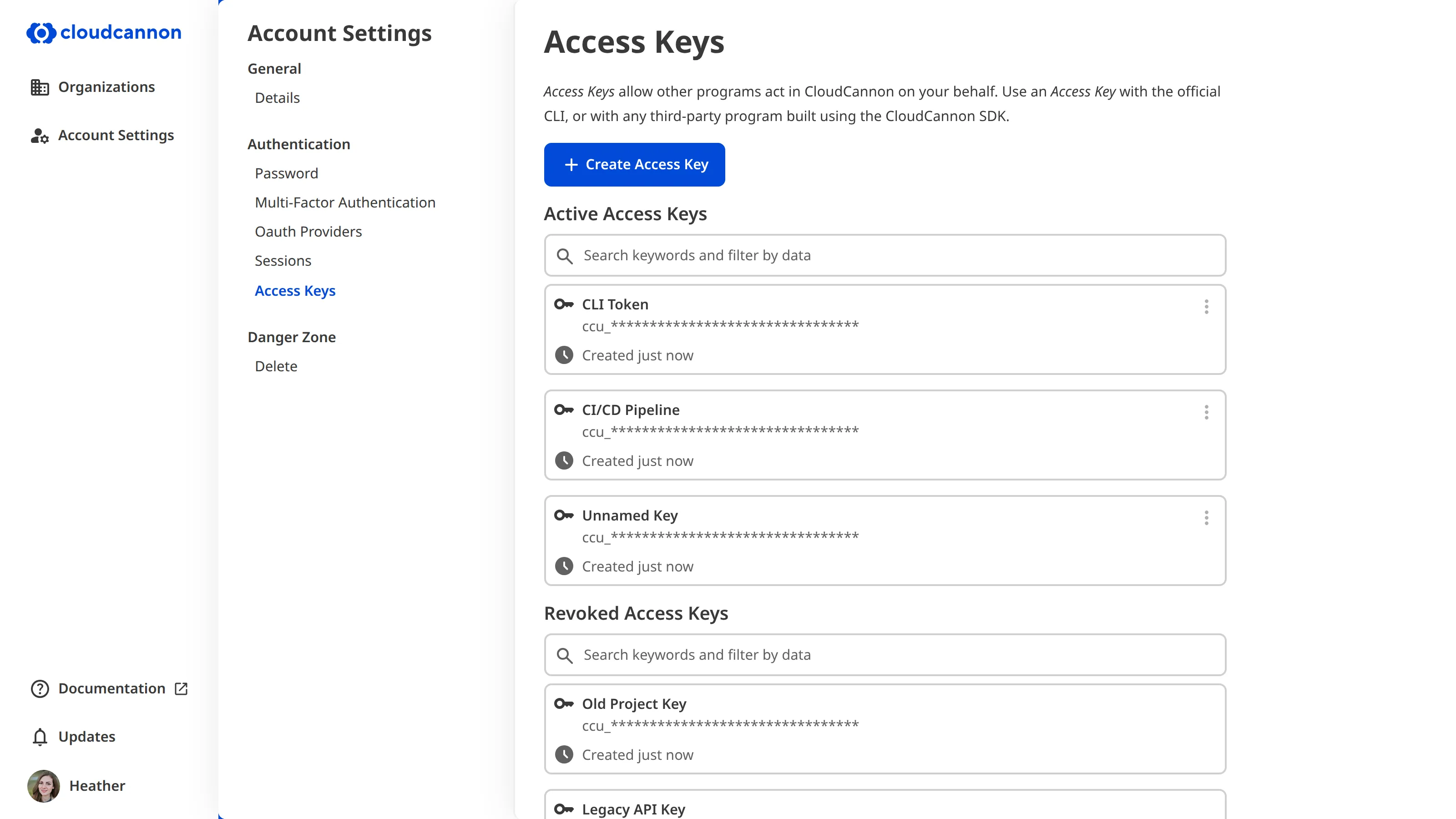
Each *Access Key* has two parts:
- **Access Key ID** — A public identifier that begins with `ccu_`. CloudCannon uses the ID to look up which key is making a request.
- **Access Key Secret** — A private value that proves the request is genuinely from you. CloudCannon shows your *Access Key Secret* only once, at the moment you create the key. Copy it and store it somewhere safe, such as a password manager. If you lose the secret, you cannot recover it.
When you set up the CLI or an SDK-based program, you provide your Access Key ID and Access Key Secret once. From then on, the tool uses these values to sign each request it sends to CloudCannon, and CloudCannon verifies the signature before allowing the request. You do not need to handle the signing yourself; the CLI and SDK do it for you.
## Permissions and security
An *Access Key* inherits your CloudCannon account's full permissions. There are no narrower scopes to limit what a key can do, so a program using your *Access Key* can take any action you can take. For this reason, treat each *Access Key* like a password, and create a separate key for each program so you can revoke one without affecting the others.
> You can only make an *Access Key* for your own account. *Access Keys* should never be shared.
> Access keys bypass multi-factor authentication and SSO enforcement. A request made with an *Access Key* is allowed even when your Organization enforces MFA or SAML SSO, because the key authenticates without an interactive login.
An *Access Key* does not expire on its own. It remains valid until you revoke it.
## Revoking *Access Keys*
You can revoke an *Access Key* at any time from the *Access Keys* page. When you revoke a key, CloudCannon moves it to the *Revoked Access Keys* list and rejects any request signed with it. Revoke a key whenever you suspect its secret has been exposed, or when the program using it no longer needs access.
CloudCannon keeps revoked keys in the *Revoked Access Keys* list for a short period so you can confirm which key you removed, then deletes them permanently 30 days after revocation.
---
---
title: What are API Keys?
description: Learn what API Keys are and how they let programs act on behalf of your Organization through the CloudCannon API.
url: https://cloudcannon.com/documentation/developer-articles/what-are-api-keys/
content_type: developer article
last_modified: 2026-09-08
---
An *API Key* is a credential that lets other programs act on behalf of your **Organization** through the CloudCannon **API**. You can use an *API Key* to authenticate the CloudCannon **Software Development Kit** (SDK) or your own program built on the CloudCannon API, so those tools can read and change content across your *Organization* without a person logging in. You create *API Keys* on the *API Keys* page in your *Organization Settings*. For more information, please read our documentation on [creating an API Key](/documentation/developer-articles/create-an-api-key/).
> An *API Key* belongs to a single *Organization*, not to your personal account. CloudCannon shows the key only once, at the moment you create it.
Unlike an *Access Key*, which inherits your full account access, an *API Key* is scoped to the permissions you choose when you create it. This lets you grant a program only the access it needs. For example, you can create a key that reads content but cannot publish it.
## How programs use an API Key
When you create an *API Key*, CloudCannon shows the key once. You store it somewhere safe, such as a password manager or a secret manager, and give it to the program that needs it. From then on, the program sends the key with each request it makes to the CloudCannon API, and CloudCannon checks the key and its permissions before allowing the request.
The [CloudCannon SDK](/documentation/developer-reference/sdk/) is the most direct way to use an *API Key*. The SDK is a typed client for the CloudCannon API that handles authentication and request signing for you. You can also use an *API Key* with the CloudCannon API directly, or with the CloudCannon CLI by setting the `CLOUDCANNON_API_KEY` environment variable.
To target your *Organization* through the API or SDK, you also need your *Organization UUID*, which appears on the *API Keys* page alongside your keys.
## Permissions and security
Only members of the *Owners Default Permission Group* can view, create, and delete *API Keys*. You can grant each of these actions to a *Custom Permission Group* separately, with the `org:api-key:read`, `org:api-key:create`, and `org:api-key:write` permissions.
Because an *API Key* can act on behalf of your *Organization*, treat it like a password. Store it securely, never commit it to source control, and never expose it in browser or client-side code. Create a separate key for each program so you can delete one without affecting the others.
An *API Key* does not expire on its own. It remains valid until you delete it from the *API Keys* page. When you delete a key, CloudCannon rejects any request made with it.
---
---
title: What are Branch Defaults?
description: Learn how Branch Defaults control the publish mode, authentication, and permissions CloudCannon applies to new branched Sites in your Project.
url: https://cloudcannon.com/documentation/developer-articles/what-are-branch-defaults/
content_type: developer article
last_modified: 2026-08-12
---
*Branch Defaults* are the settings CloudCannon applies to new branched **Sites** in a **Project**. When you or a *Team Member* creates a new branch *Site*, either by branching from the **Main Branch**, branching from another *Site*, or through **Deploy Previews**, CloudCannon reads your *Branch Defaults* to decide how the new *Site* should publish, authenticate, and grant permissions.

When you create a new branched *Site*, CloudCannon copies the source *Site's* configuration, then applies any default configuration set in your *Branch Defaults*. This separation lets you keep production settings on your *Main Branch* (for example, a public *Site* with no authentication) while applying stricter defaults to branched *Sites* (for example, password protection on every *Testing Domain*).
You can [configure Branch Defaults](/documentation/developer-articles/configure-branch-defaults-for-your-project/) at any time from *Project Settings*. *Branch Defaults* apply to *Sites* created after the change; existing *Sites* keep their current settings.
## Publish settings
*Publish settings* control the behavior of a branched *Site* when it publishes back to its *Publish Branch*. These are the same as the settings you can control per-*Site* from the *Publishing* page under *Site Settings*, except that they apply by default to all branched *Sites* in a *Project*.
*Default Publish mode* determines how CloudCannon merges changes from the branched *Site*. By default, this is set to *Inherit from branched site*, so a branched *Site* uses the same publish mode as the *Site* it was branched from. Alternatively, you can set it to *Merge changes immediately* or *Create a Pull Request for approval*, so the same publishing mode is used by all branched *Sites* in a *Project*. For more information, please read our documentation on [what Publishing Methods are](/documentation/user-articles/what-are-publishing-methods/).
The *Delete branched site after publishing* checkbox controls whether CloudCannon will clean up your *Project* by removing branched *Sites* after they have published to their *Publish Branch*. By default, this setting is unchecked. It seeds the default *Delete this site after publishing* setting on every new branched *Site* in your *Project*, including *Sites* CloudCannon creates automatically from *Pull Requests* through *Deploy Previews*. This behavior does not affect the branch in your *Git Repository*. For more information, please read our documentation on [turning on delete after publishing](/documentation/developer-articles/turn-on-delete-after-publishing/).
## Authentication settings
*Authentication settings* control who can see *Testing Domains* for *Sites* in your *Project* and how they can gain access to them. These are the same settings you can control per-*Site* from the *Authentication* page under *Site Settings*, except that they apply by default to all branched *Sites* in a *Project*.
*Default authentication method* determines whether a visitor needs to authenticate their identity to view a *Testing Domain*. By default, this is set to *Inherit from branched site*, so a branched *Site* uses the same authentication method (if any) as the *Site* it was branched from. Alternatively, you can set it to *CloudCannon* (requires an account in your *Organization*), *Password*, or *None*. For more information, please read our documentation on [Authentication](/documentation/developer-articles/what-is-authentication/).
The *Default site password* creates a shared password that applies to all branched *Sites* in the *Project* that use *Password* authentication.
## Permission settings
*Permission settings* are available for *Organizations* that use [Custom Permission Groups](/documentation/developer-articles/what-are-custom-permission-groups/).
By default, *Team Members* in *Custom Permission Groups* can always view, edit, or merge the branched *Sites* they create. CloudCannon does this by granting new permissions to their *Custom Permission Group* when they branch a *Site* inside a *Project*.
CloudCannon adds these permissions to each *Custom Permission Group* that gave the *Team Member* permission to create the branched *Site*. A group qualifies when it has the `site-branch:create` or `*:create` resource with a Global scope, or a *Site* or *Project* scope including the branched *Site*. Other *Permission Groups* are not updated, such as those scoped to a different *Project* or *Site*, groups where the branching resource is an exception, and groups without any branching permissions.
CloudCannon adds the following permissions to each qualifying *Custom Permission Group*, scoped to the new branched *Site*:
- `site:file:write` — Edit content files.
- `site:dam:write` — Edit assets in the *DAM*.
- `site:inbox:write` — Manage form submissions.
- `site:publish:write` — Publish changes back to the parent *Site*.
- `site:details:read` — View *Site* details.
- `site:activity:read` — View *Site* activity.
- `site:build:details:read` — View build details.
- `site:sync:details:read` — View sync details.
- `site:build-deploys:details:read` — View build deploy details.
You can see this list in CloudCannon by clicking the *Show permissions* button in the *Permission settings* section.

You can disable this behavior with the *Do not grant new permissions on Site branch* setting, which restricts *Team Members* to *Site* permissions defined specifically in their *Custom Permission Groups*.
---
---
title: What are Custom Permission Groups?
description: Learn about Custom Permission Groups in CloudCannon and fine-grained control over team permissions.
url: https://cloudcannon.com/documentation/developer-articles/what-are-custom-permission-groups/
content_type: developer article
last_modified: 2026-08-12
---
> **This feature is available on our [Team and Enterprise plans](https://cloudcannon.com/pricing/).**
>
> Want to chat about whether this feature is right for you? Our support team is always [happy to hear from you](mailto:success@cloudcannon.com?subject=A%20question%20about%20custom%20Permission%20Groups).
## What are Custom Permission Groups?
Custom Permission Groups give you fine-grained control over the permissions in your Organizations.
Using Custom Permission Groups, you can:
- Select which resources are available to each Group and define what actions are allowed (Read, Write, or Create).
- Alter the scope of a permission from Global to Project, Site, Group, or Base Domain.
- Define file globs and exceptions for each Group for more precise permissions.
- Add multiple permissions and exceptions at different scopes.
The maximum number of Custom Permission Groups you can create will depend on your [pricing plan](https://cloudcannon.com/pricing/). For more information on Permission Groups in general, please read our documentation on [Permission Groups](/documentation/user-articles/what-are-permission-groups/).
### Selecting resources
Custom Permission Groups use the same list of resources as [Default Groups](/documentation/user-articles/what-are-default-permission-groups/). A resource is something you can interact with in CloudCannon, such as an individual Site, Pull Request settings, or billing information. Each resource has one or more associated actions: Read, Write, or Create.
Custom Permission Groups can have multiple permissions, each with their own scope, resources, and allowed actions. When you create a Custom Permission Group, you must select which resources you want to add and what actions you want to allow for each resource. Adding a resource to a permission will allow all members of that Group to interact with that resource.

CloudCannon uses a tree structure to define resources. When you select a resource for your Custom Permission Group, you can choose a broad resource heading (e.g., `site:write`), or drill down to more specific resources (e.g., `site:settings:site-mounting:write` or `site:publish:pull-requests:merge:write`). Adding more specific resources allows your Permission Group to be as fine-grained as you require.
Let’s walk through an example.
We want to create a Permission Group where members cannot see any existing Sites in the Organization but can add new Sites, which they can then see and edit. This type of Permission Group might work well to keep teams within your Organization from accessing each other’s content. In this case, we should add the resource `site:create` but not `site:read` to our permission.
The create action allows you to create new instances of a resource (in this example, Sites). When you create an instance of a resource, CloudCannon automatically grants Read and Write permission for that instance to each Custom Permission Group that gave you permission to create it. All members of those Groups can then access the new instance. By choosing not to add `site:read` to this permission, existing Sites in our Organization will not appear in the CloudCannon interface.
You can only grant permissions that you already hold. When you create or edit a Custom Permission Group, CloudCannon checks each permission you add against your own permissions and blocks any resource you do not hold at that scope. For example, if you have `site:read` but not `site:write`, you cannot add `site:write` to a Group. The same rule applies to file globs — you can only grant access to files you can already read or write yourself, so a file glob you add must fall within your own file access. Adding an exception is not subject to this check, as an exception only removes access. This prevents team members from using Group management permissions to gain access they were never given.
How CloudCannon checks a file glob you grant depends on the scope of the permission:
- **Site scope** — CloudCannon compares the glob against your own file access on that Site. The grant succeeds when your access there covers the glob, whether you hold unrestricted file access or a permission glob matching the same files or more.
- **Project or Global scope** — the grant covers every Site in the scope, including Sites created in the future, so CloudCannon applies a stricter check. Your covering access must be held at the same scope or above: a Global permission glob covers a grant at any scope, a Project permission glob covers grants on that Project, and fully unrestricted file access covers everything. Access assembled Site by Site never qualifies, no matter how many Sites it spans — to delegate your Site-level access, grant a Site-scoped permission for each Site instead.
Exceptions make this check stricter. If an exception limits your file access, you cannot grant file globs for that action — even globs the exception does not touch. At Site scope, this only applies to exceptions affecting that Site; at Project or Global scope, any exception applies. Exceptions themselves can contain file globs at any scope, as they only remove access.
Let’s walk through an example.
We want to create a *Permission Group* that allows *Team Members* to add new *Sites* to the *Organization* (which they can then see and edit), but does not allow them to see any existing *Sites* in the *Organization*. This type of *Permission Group* might work well to keep teams within your *Organization* from accessing each other’s content.
When we create the *Permission Group*, we can add a *Permission* that omits `site:read`, preventing *Team Members* from seeing existing *Sites* in the *Organization*, but includes `site:create`.
All create actions allow you to create new instances of a resource and then read and write to it. In this example, CloudCannon automatically grants the `site:read` and `site:write` permissions for all *Sites* created using `site:create`. CloudCannon adds these new permissions to each *Custom Permission Group* that gave you permission to create it, and all members of those *Groups* can then access and edit that *Site*.
For more information, including a complete list of resources available, please read our [permissions](/documentation/developer-reference/permissions/) reference documentation.
### Permission scope
The scope of a permission defines how broadly it is applied. Permissions in the [Default Permission Groups](/documentation/user-articles/what-are-default-permission-groups/) have a Global scope. Permissions for [Site Sharing](/documentation/user-articles/share-a-site-with-site-sharing/) or [Client Sharing](/documentation/user-articles/what-is-client-sharing/) Groups have a Site scope.
With Custom Permission Groups, you can set a permission at one of five scopes: Global, Project, Site, Group, and Base Domain.
- **Global** — This scope encompasses your entire Organization (e.g., the resource `project:create` with the scope Global will allow all members of the Permission Group to create new Projects in your Organization, which they then have permission to edit).
- **Project** — This scope encompasses a specific Project (e.g., the resource `site:publish:pull-request:open:write` with a Project scope will allow all members of the Permission Group to create Pull Requests for any site within the chosen Project, but not merge them).
- **Site** — This scope encompasses a specific Site (e.g., the resource `site:analytics:read` with a Site scope will allow all members of the Permission Group to view the hosting and building analytics for the chosen Site).
- **Group** — This scope encompasses a specific Group (e.g., the resource `group:member:write` with a Group scope will allow all members of the Permission Group to edit the members of a specific Group).
- **Base Domain** — This scope encompasses a specific Base Domain (e.g., the resource `base-domain:settings:dns:write` with a Domain scope will allow all members of the Permission Group to edit DNS records for a specific domain).
*Custom Permission Groups* can include permissions with different *Scopes*. For example, you might want to create a *Group* that can approve *Pull Requests* for a specific *Project* and manage the *Custom Domain* associated with one *Site* in that *Project*. This *Permission Group* would contain two permissions: one with a *Project* scope and the resource `site:publish:pull-request:merge:write`, and one with a *Base Domain* scope and the resource `base-domain:write`.
*Scopes* can also have *Exceptions*. For example, you might want a *Group* to be able to create *Sites* across your *Organization*, except for in one *Project*. An *Exception* for `site:create` scoped to a *Project*, combined with a Global scope `site:create` *Permission* can accomplish this.
When you select Project, Site, Group, or Base Domain as a scope, CloudCannon will prompt you to select the Target of that scope.
- **Target** — Which instance you want a scope to pertain to (e.g., name the specific Site or Permission Group).
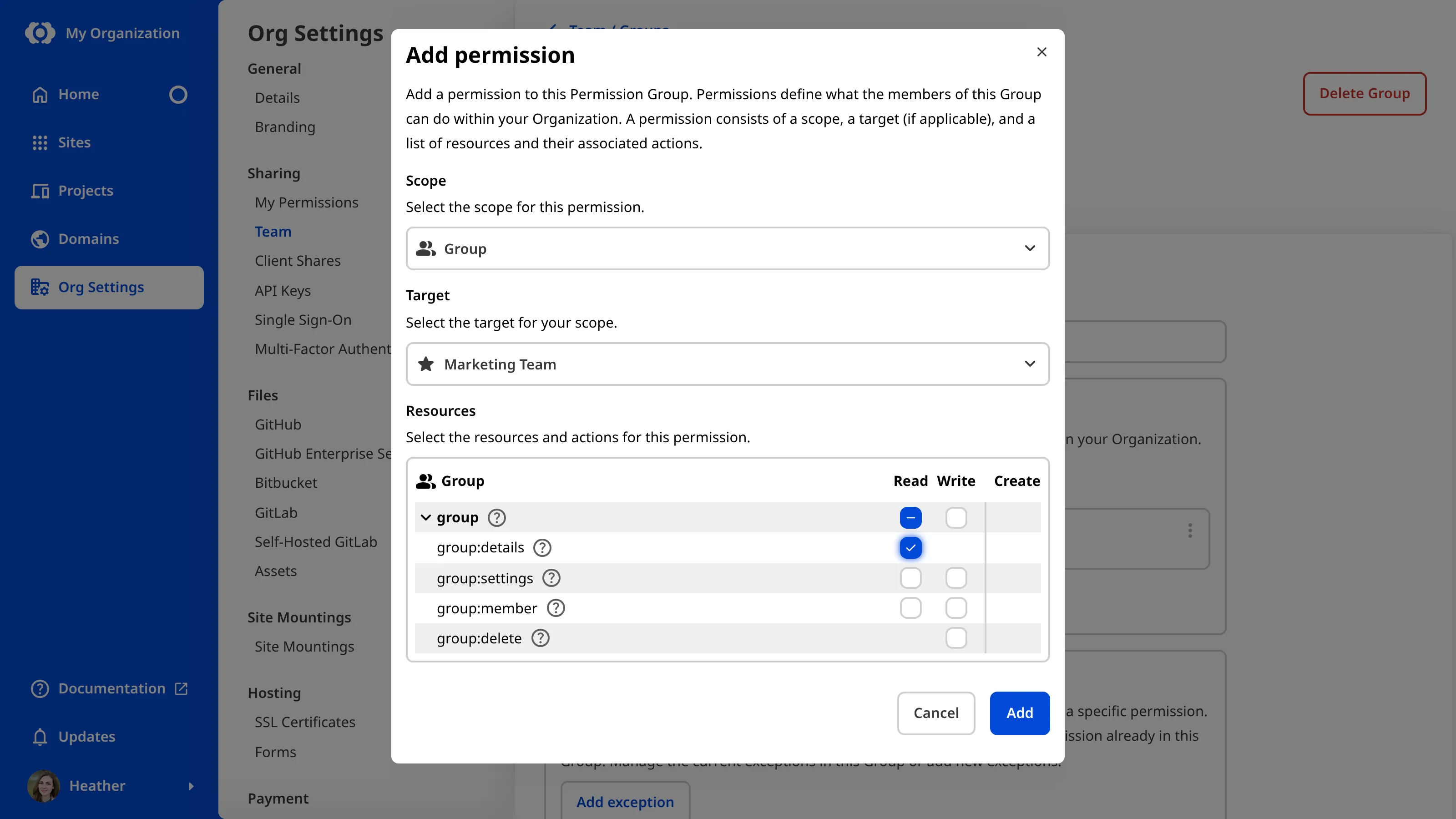
Not all resources work with all scopes. For example, you can’t give someone the resource `project:delete:write` with a Site scope, as Sites cannot contain Projects, or `org:billing:write` with a Group scope, as you cannot control billing at the Group level. When you create a Custom Permission Group, CloudCannon will filter out the resources that don’t apply to your scope.
For best practices and examples, please read our documentation on [best practices for selecting resources](/documentation/developer-articles/best-practices-for-custom-permission-groups/#resources).
### Exceptions
Exceptions allow you to set broad permissions and then remove specific permissions from a Group. For example, a team member might have permission to edit all Sites within a Project except for the Production Site.
You can add multiple exceptions to a Custom Permission Group. For each exception you must select a scope and a list of resources.
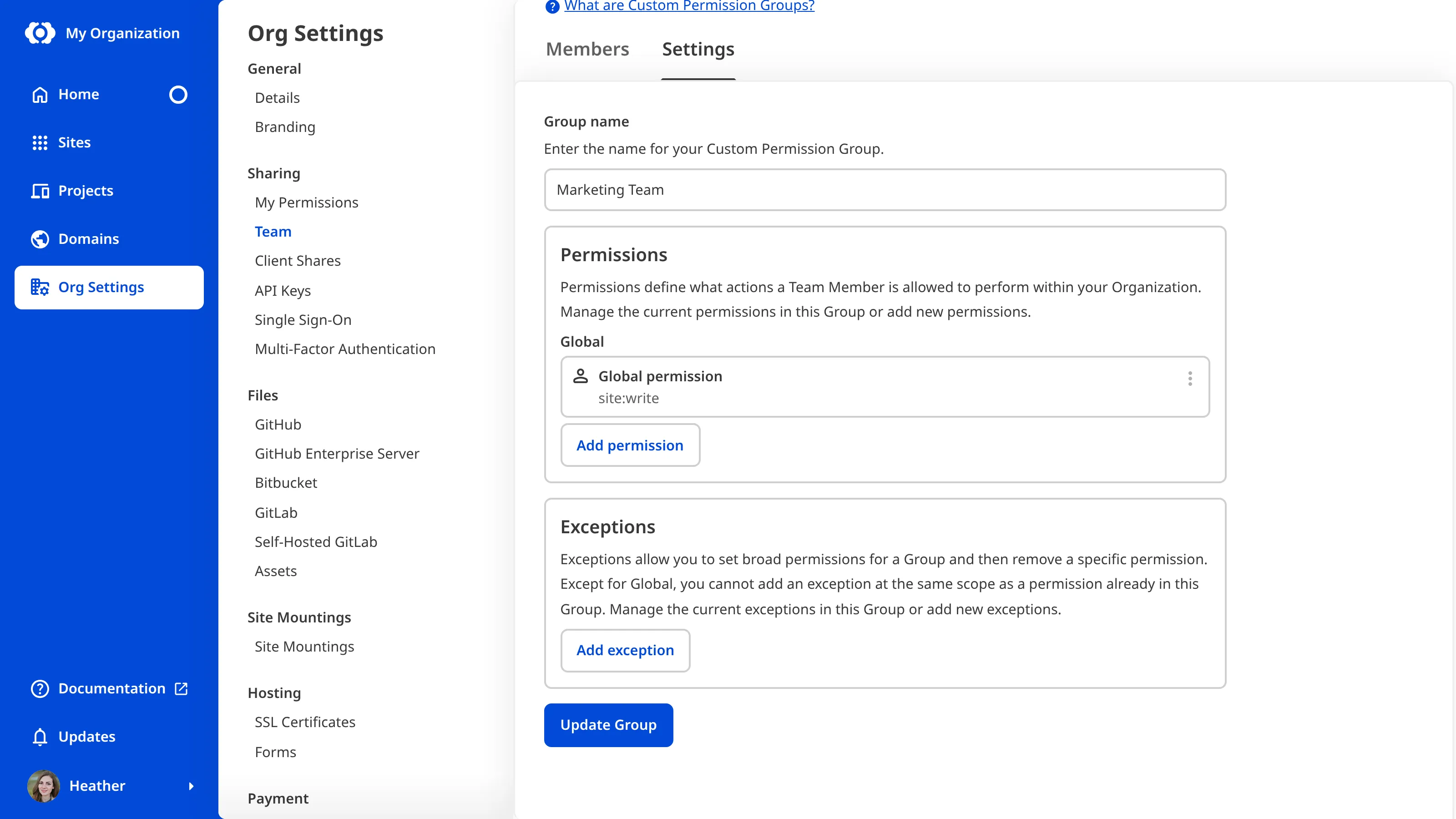
The action level of an exception determines what access it removes. Because permission to write implicitly includes permission to read, an exception at the read level removes both read and write access to its target. An exception at the write level only removes write access; members of the Group can still read the resource.
_[Diagram: A flowchart showing that a read-level exception removes both read and write access, while a write-level exception removes only write access and leaves read access in place.]_
Permission Groups are always additive. In other words, permissions or exceptions in one Group do not negate permissions or exceptions in another. If one Group allows an action, an exception in a second Permission Group does not prevent access to that resource.
Exceptions are more efficient than explicitly providing permission for many resources. Let’s walk through an example.
We want to prevent a team member from editing the Production site but enable editing for all other Sites within the Project. We could explicitly give permission for all those Sites. However, each time someone adds a new Site to the Project, we would need to update the Permission Group. Using an exception, we can remove permission for a single site and set the scope of the Permission Group as “Project” to allow editing permissions for all future Sites.
### Specify a file glob
A file glob is a pattern used to identify matching files. File globs look similar to a file path with a mix of literal text and special characters such as `*` and `{ }`. In CloudCannon, you can specify read or write access to specific file globs in a Custom Permission Group. You can specify which collections, folders, filenames, and file extensions a team member is allowed to read or edit, allowing for fine-grain control over reading and editing site files.
A read or write action is associated with each file glob. A `site:file:read` or `site:file:write` permission with no file glob covers every file within its scope. Adding file globs changes this:
- A file glob in a **permission** narrows that permission to a whitelist — members can only read or write files that match one of its globs.
- A file glob in an **exception** removes only the matching files, leaving the rest of the permission in place. A globless permission keeps its coverage of every other file.
Because specifying a file glob implicitly includes the `site:file` resource for read or write, the `site:file` checkbox in the resource tree is enabled by default.
As with other resources, read and write levels interact: a read-level file glob exception removes both read and write access to the matching files, while a write-level file glob exception removes only write access.
To create a file glob, type the file path of any files you want to determine access for. For more general file paths, you can create a glob using special characters. The `*` character matches any file within a single folder — it does not cross folder boundaries — while `/**/` matches any number of folders. A glob ending in `/**` (equivalent to `/**/*`) matches all files within a folder and all of its subfolders. Using the `{ }` brackets, you can specify a list of options separated by a comma.
For example, if we add a permission to write the file glob `/posts/**/*.{md,html}`, CloudCannon will allow members of this Permission Group to read and edit any Markdown or HTML files within any subfolders of the Collection "Posts".
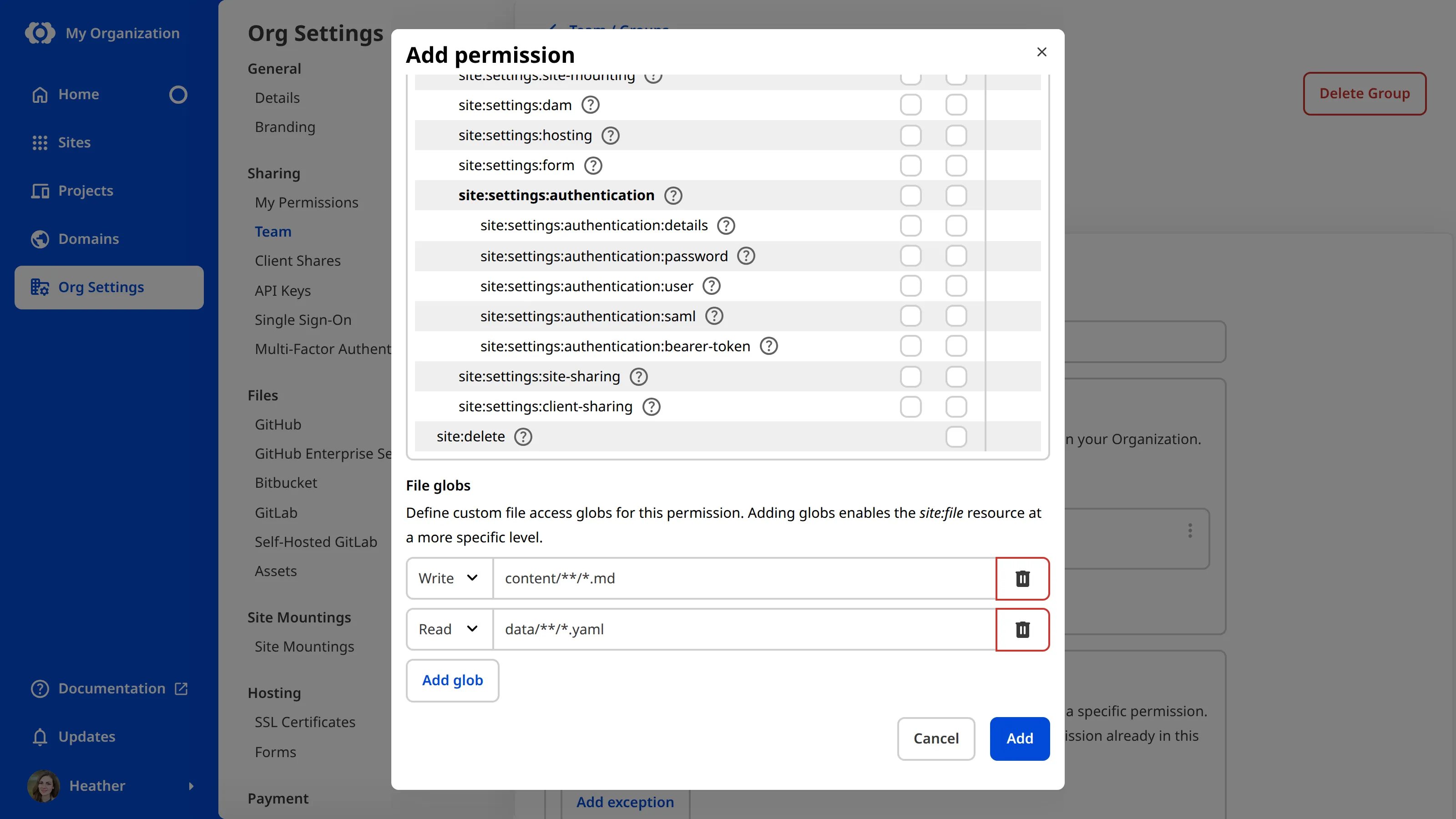
For best practices and examples of how to use file globs, please read our documentation on [file glob best practices](/documentation/developer-articles/best-practices-for-custom-permission-groups/#file-globs).
> If you need assistance setting up file globs in your Organization, our [support team](https://cloudcannon.com/support/) is always happy to help.
## Default vs. Custom Permission Groups
CloudCannon provides [Default Permission Groups](/documentation/user-articles/what-are-default-permission-groups/) on every pricing plan. Four of the Default Permission Groups (Owner, Developer, Technical Editor, and Editor) are hierarchical, meaning that each Group also contains the permissions of all Groups below it in the hierarchy. The fifth, Billing, sits outside this hierarchy and contains a specific set of permissions for managing your CloudCannon subscription. Default Permission Groups are convenient if you have fewer team members, less complex sharing requirements, or do not want to configure Custom Permission Groups.
The Default Permission Groups may not be right for you if:
- You want non-hierarchical Permission Groups.
- You want to define a subset of your Sites that team members can access (e.g., a project, all sites except the production Site, or a specific Site).
- You want to define who can perform specific actions (e.g., making vs approving pull requests, reading vs editing content, branching, inbox management).
- You want to prevent a team member from accessing existing Sites but allow them to create new Sites in your Organization, which they can edit.
- You want to define which files within a Site a team member can edit (e.g., a collection, specific file types, or a single file).
Because Default Permission Groups have a Global scope, CloudCannon will give Group members the same permissions for every Site in your Organization. Additionally, you cannot edit the permissions granted by Default Permission Groups.
You can overcome these limitations by creating Custom Permission Groups.
## Custom Permission Groups vs. Site Sharing
Using the four Global Default Permission Groups, you cannot limit access to an individual Site. You can address this problem using [Site Sharing](/documentation/user-articles/share-a-site-with-site-sharing/) or using Custom Permission Groups.
Site Sharing allows you to invite a team member to view, edit, and publish content for a specific Site. Each Site has two permission groups for Site Sharing, identical to the Technical Editor and Editor Default Permission Groups except with a Site scope.
Custom Permission Groups do everything Site Sharing does and more. For [Team and Enterprise customers](https://cloudcannon.com/pricing/), we recommend using Custom Permission Groups rather than Site Sharing for finer control over your content.
---
---
title: What are Deploy Previews?
description: Learn how CloudCannon responds to pull requests on your Project with deploy preview comments and automatically created Sites.
url: https://cloudcannon.com/documentation/developer-articles/what-are-deploy-previews/
content_type: developer article
last_modified: 2026-06-24
---
> ***Deploy Previews* are available on our [Team or Enterprise plan](https://cloudcannon.com/pricing/).**
>
> Want to chat about whether this feature is right for you? Our support team is always [happy to hear from you](mailto:success@cloudcannon.com?subject=A%20question%20about%20pull%20request%20deploy%20previews).
**Deploy Previews** are a set of automations that CloudCannon can run whenever a **Pull Request** is opened, closed, merged, or updated in your **Git Repository**. When you [configure Deploy Previews](/documentation/developer-articles/configure-deploy-previews/) for a **Project**, CloudCannon can respond to *Pull Requests* in that *Project* by:
- Creating a **Site** in CloudCannon for the *Pull Request* branch, and deleting that *Site* when the *Pull Request* is merged or closed.
- Posting a comment to the *Pull Request* in your *Git Provider* with the *Site Name*, *Build Status* (e.g., Ready), **Testing Domain**, *Site Dashboard*, *Build Logs*, and the latest commit.

You can independently enable the *Automatic Comments* and *Automatic Sites* automations. For more information, please read our documentation on [using Deploy Previews to trigger Site creation and deletion](/documentation/developer-articles/use-deploy-previews-to-trigger-site-creation-and-deletion/) and [using Deploy Previews to comment on a Pull Request](/documentation/developer-articles/use-deploy-previews-to-comment-on-a-pull-request/).
> *Deploy Previews* may take a few minutes to appear for recently created *Projects*, as CloudCannon needs to correctly connect the webhook from your *Git Provider*.
## Listening to *Pull Requests*
When you connect a *Project* to GitHub, GitLab, or Bitbucket, CloudCannon subscribes to *Pull Request* events on your *Git Repository*. CloudCannon processes the following events:
- **Opened** — A new *Pull Request* is created.
- **Reopened** — A previously closed *Pull Request* is reopened.
- **Ready for review** — A draft *Pull Request* is marked as ready (GitHub `ready_for_review`, GitLab `update`, Bitbucket `pullrequest:updated`).
- **Converted to draft** — A *Pull Request* is reverted to a draft.
- **Edited** — The *Pull Request* title, description, or base branch changes (GitHub `edited`, GitLab `update`, Bitbucket `pullrequest:updated`).
- **Closed or merged** — The *Pull Request* is closed without merging, or merged into its base branch.
Each event is routed to your *Project* based on the *Git Repository* identifier and your connected *Git Provider*. CloudCannon then reconciles your *Project* settings against the current state of the *Pull Request* and performs the enabled automations.
If both *Automatic Comments* and *Automatic Sites* are disabled for your *Project*, CloudCannon still logs these events, but takes no action.
## Enabling and disabling *Deploy Preview* automations
*Deploy Previews* are intentionally lazy. Turning these automations on does not retroactively process historical *Pull Requests*:
- Existing *Pull Requests* only receive an *Automatic Comment* on the next event (such as a new push or a reopen). If you need an immediate comment on an already-open *Pull Request*, trigger any small change to the *Pull Request*.
- CloudCannon does not backfill for existing *Pull Requests* when *Automatic Site* creation is turned on for a *Project*. *Sites* are only created on the next *Pull Request* event.
- CloudCannon does not delete existing *Automatic Sites* orphaned from previously closed *Pull Requests* when *Automatic Site* deletion is turned on for a *Project*. *Sites* are only deleted on future close or merge events.
Disabling an automation setting is similarly lazy, with one exception: disabling *Automatic Comments* or changing the comment footer runs a single reconciliation across every open *Pull Request*. Existing *Automatic Comments* are updated to show a disabled notice or refreshed with the new footer content (or lack thereof). For more information, please read our documentation on [using Deploy Previews to comment on a Pull Request](/documentation/developer-articles/use-deploy-previews-to-comment-on-a-pull-request/).
## Supported providers and repositories
*Deploy Previews* are supported for *Projects* connected to GitHub, GitLab, or Bitbucket. If your *Project* is connected through GitHub Enterprise Server, behavior matches GitHub Cloud. Self-hosted GitLab instances behave like GitLab Cloud provided the webhook is reachable from CloudCannon.
## Automation errors
Network failures and *Git Provider* API errors during *Automatic Comment* or *Automatic Site* operations are reported to CloudCannon's error tracker and do not abort the rest of the *Pull Request* event. This means a transient failure updating one *Site* will not prevent other *Sites* on the same *Pull Request* from being updated.
For step-by-step instructions on enabling these features, please read our documentation on [configuring Deploy Previews](/documentation/developer-articles/configure-deploy-previews/).
---
---
title: What are Editable Regions?
description: Learn about Editable Regions, including how they look in the Visual Editor.
url: https://cloudcannon.com/documentation/developer-articles/what-are-editable-regions/
content_type: developer article
last_modified: 2026-04-27
---
*Editable Regions* allow you to edit your content in the [Visual Editor](/documentation/user-articles/what-is-the-visual-editor/).
An *Editable Region* in the Visual Editor is signified by a yellow box around a piece of content. Clicking into the *Editable Region* will have a different result depending on the type of content it contains.
[Video: Visual Editor with editable regions](https://player.vimeo.com/progressive_redirect/playback/949770919/rendition/1080p/file.mp4?loc=external&signature=bef4d0471cb24f6c2370b8900c416e265e48c863df627ab7369f06c210777d8a)
In CloudCannon, defining *Editable Regions* in your files is as simple as adding an HTML attribute to any DOM element or inserting a web component on any file in your website that outputs to an HTML webpage after a [Site build](/documentation/developer-articles/what-is-a-site-build/). You can make an entire *Collection* of content files visually editable in minutes.
File: `BlogPost.astro`
```Astro
```
{title}
/*1*/
```
**[1]** We have added the `data-editable` and `data-prop` HTML attributes to the `
` tag in our Blog Post layout to create a Text *Editable Region* around the Title field.
```
> Want to add *Editable Regions* to your *Site*? Check out our guide: [Set up Visual Editing](/documentation/developer-guides/set-up-visual-editing/).
There are five types of *Editable Regions*:
- [Text Editable Regions](/documentation/developer-articles/configure-text-editable-regions/) — Allows you to edit text values stored in front matter, content, or HTML with plain text or rich text formatting options.
- [Image Editable Regions](/documentation/developer-articles/configure-image-editable-regions/) — Allows you to upload images from your local storage, select existing images from your repository or DAM, and manage image details like title or alt text.
- [Source Editable Regions](/documentation/developer-articles/configure-source-editable-regions/) — Allows you to edit rich text stored in HTML.
- [Array Editable Regions](/documentation/developer-articles/configure-array-editable-regions/) — Allows you to add, remove, and reorder array values stored in front matter and generated by HTML-like files with templating.
- [Component Editable Regions](/documentation/developer-articles/configure-component-editable-regions/) — Allows you to edit registered Astro or React components.
For a complete list of HTML attributes for configuring *Editable Regions*, please read our [Editable Regions](/documentation/developer-reference/editable-regions/) reference documentation.
> *Editable Regions* are built on the *Visual Editor API*. If you need custom *Data Panels* or other programmatic editing surfaces, see [Create a custom data panel with the Visual Editor API](/documentation/developer-articles/create-a-custom-data-panel-with-the-visual-editor-api/), [Create custom inline editing with the Visual Editor API](/documentation/developer-articles/create-custom-inline-editing-with-the-visual-editor-api/), and [Manage loading, uploads, and previews with the Visual Editor API](/documentation/developer-articles/manage-loading-uploads-and-previews-with-the-visual-editor-api/).
---
---
title: What are flags?
description: Learn about flags in CloudCannon and how you can use them to opt into app behavior.
url: https://cloudcannon.com/documentation/developer-articles/what-are-flags/
content_type: developer article
last_modified: 2026-06-23
---
Flags can enable optional behavior in CloudCannon. These optional settings are kept separate from other configuration for your Site because they have the potential to significantly alter your Site's behavior. This could be because a flag enables experimental or legacy behavior, or it enables a feature that could negatively affect your Site if misconfigured.
For this reason, we recommend you thoroughly understand the function of a flag before enabling it on your Site, or doing so on a separate branch to prevent flag behavior affecting your main Site.
> Flags can be tricky. If you need assistance, please don't hesitate to contact our friendly [support team](https://cloudcannon.com/support/).
You can find your Site Flags on the *Flags* page under *Site Settings*.

For more information about specific flags in CloudCannon, please read their dedicated documentation:
- [General Flags](/documentation/developer-articles/general-flags/)
- [Unified Configuration Flags](/documentation/developer-articles/unified-configuration-flags/)
- [Input Naming Convention Flags](/documentation/developer-articles/input-naming-convention-flags/)
- [Legacy Option Flags](/documentation/developer-articles/legacy-option-flags/)
---
---
title: What are rich text editors?
description: Learn about rich text editors in CloudCannon.
url: https://cloudcannon.com/documentation/developer-articles/what-are-rich-text-editors/
content_type: developer article
last_modified: 2026-03-29
---
A rich text editor is an interface for editing content on your Site, with tools to format and style your content. Rich text editors use a WYSIWYG editing area, meaning that the way you format the content in the editor will resemble the way it will look on your web page (WYSIWYG is an acronym for What-You-See-Is-What-You-Get). CloudCannon's rich text editors support Markdown, HTML, and MDX formats.
CloudCannon has three kinds of rich text editors:
- [The Content Editor](/documentation/user-articles/what-is-the-content-editor/)
- [Editable Regions](/documentation/developer-articles/define-editable-regions-in-your-html/) in the [Visual Editor](/documentation/user-articles/what-is-the-visual-editor/)
- [Rich Text Inputs](/documentation/user-articles/what-is-a-rich-text-input/)

For each rich text editor, you can configure the WYSIWYG toolbar (including which text and image formatting tools are available for each editor), the upload paths or filenames for any assets uploaded through an editor, and how CloudCannon should handle custom markup.
## The WYSIWYG toolbar

The *WYSIWYG toolbar* is found at the top of all rich text editors in CloudCannon. This toolbar is populated with tools to help you format your content. This might include adding images, links, and lists, changing the alignment of your text, or simple tools such as bolding, italicizing, or underlining text. The number of tools available in your *WSYIWYG toolbar* will depend on [how your rich text editor is configured](/documentation/developer-articles/configure-your-rich-text-editors/).
> As soon as you define one key for the WYSIWYG toolbar, CloudCannon will interpret any omitted keys as false and disable those options.
For a complete list of options available, please read our reference documentation on the [WYSIWYG toolbar in rich text editors](/documentation/developer-reference/configuration-file/types/_editables/).
## Paths
When you upload an asset through a rich text editor, you can specify which folder CloudCannon should upload that asset to. You can also define file names for those assets. For a complete list of options available, please read our reference documentation on [paths in rich text editors](/documentation/developer-reference/configuration-file/types/_editables/).
## Custom markup
Custom markup is any HTML or Markdown structure that cannot be recreated in the rich text editor (e.g., `
` tags or style attributes). This is normally any structure that cannot be produced by the *WYSIWYG toolbar*. Editing custom markup in a rich text editor is risky, as you can accidentally delete HTML objects that the rich text editor cannot recreate. For information about custom markup in rich text editors, please read our documentation on [best practices for rich text](/documentation/developer-articles/best-practices-for-rich-text/).
Each rich text editor has different defaults when editing custom markup. To configure how CloudCannon handles custom markup in your rich text editors, please read our reference documentation on [custom markup in rich text editors](/documentation/developer-reference/configuration-file/types/_editables/).
---
---
title: What are visual data bindings
description: Make your elements in the Visual Editor interact with their data in CloudCannon
url: https://cloudcannon.com/documentation/developer-articles/what-are-visual-data-bindings/
content_type: developer article
last_modified: 2026-07-29
---
> Since October 2025, this method of visual editing has been deprecated. CloudCannon cannot guarantee support for this feature. Please consider using [Editable Regions](/documentation/developer-articles/what-are-editable-regions/) or Bookshop.
Visual data bindings are a way to tell CloudCannon what elements correlate to what data. With this information CloudCannon can generate inline controls for editing directly onto the page. Editors can simply click what they want to edit, and change, remove, move, clone and add items directly. This, paired with visual data previews, means they can see what changes as they change it.
Data bindings tell CloudCannon to add overlays to the Visual Editor. These overlays are absolutely positioned on the page. Once clicked, the overlay is selected and the controls become available. These controls are dependent on the type of data that is bound. Edit, for example, will always be available. Clicking off the selected area will unselect the current element.
Elements that have data bindings can contain elements with data bindings. In this case, the child data bindings are only available to click once the parent is selected. This helps to keep the interface clean and reduce confusion.
## Adding a data binding
Data bindings are added by adding the `data-cms-bind` attribute to any element. The value of this attribute is the slug of object/key you want to edit. Starting from the base of your structure, name each item as a step towards your desired object. Each object or property is separated by a dot. An array item is denoted by an open square bracket, an integer starting from 0, followed by a closing square bracket (`[index]`). For example:
- `#title` Targets the title of the current page
- `#seo.title` Targets the title within the seo object
- `#people[0]` Targets the first array item in an array named people.
- `#people[0].title` Targets the title of the first array item within an array named people.
File: `index.html`
```html
Edit the title
```
## Working with arrays
Data bindings on arrays give a few extra controls:
1. Add/Clone above and below
2. Move up/down and left/right depending on their relative position from their siblings
3. Remove with a double click confirm
## Working with z-indexes
Data binding overlays can sometimes get in the way of important navigation elements. By default, overlays are positioned between a 9000 and 9010 z-index. The lower bound of this range can be configured with the `--editor-panel-zindex` CSS variable. If your navigation is at 100 z-index, we recommend using a 90 z-index. In this example, you can use the following code snippet:
File: `index.html`
```css
:root {
--editor-panel-zindex: 90;
}
```
---
---
title: What are visual data previews
description: Live editing on CloudCannon lets your editors see exactly what they are changing as they change it.
url: https://cloudcannon.com/documentation/developer-articles/what-are-visual-data-previews/
content_type: developer article
last_modified: 2026-04-11
---
CloudCannon sends events to your website when editors make changes to the front matter in the Visual Editor. Your JavaScript can capture these events and extend the functionality any way you want. Rerender your page as changes happen, or update your front matter with custom controls — CloudCannon puts the control in your hands.
---
---
title: What is a Custom Domain?
description: Learn about Custom Domains, subdomains, and subpaths, and whether you need one for your Site.
url: https://cloudcannon.com/documentation/developer-articles/what-is-a-custom-domain/
content_type: developer article
last_modified: 2026-07-31
---
A Custom Domain is a unique address used to identify a website. For example, CloudCannon's domain is [cloudcannon.com](https://cloudcannon.com/). The domain is the part of your URL that users will most likely remember. You can purchase a Domain Name from a Domain Registrar.
- **Domain Name** — The unique address used to access a website (e.g., [cloudcannon.com](https://cloudcannon.com/)). This is made of a name of your choice (normally your brand name) and a TLD from the [available list](https://www.icann.org/resources/pages/tlds-2012-02-25-en) (e.g., .com, .org, .site, .io).
- **Domain Registrar** — A third-party company that handles the reservation of domain names and assigns IP addresses to domain names. Most CloudCannon users purchase a domain name from a Registrar (e.g., [Cloudflare Registrar](https://www.cloudflare.com/en-gb/products/registrar/), [NameCheap](https://www.namecheap.com/)).

To use a Custom Domain on CloudCannon you can [connect a Custom Domain to your Organization](/documentation/developer-articles/connect-a-custom-domain-to-your-organization/), then [add a Custom Domain to your Site](/documentation/developer-articles/add-a-custom-domain-to-your-site/). Every time you [save changes](/documentation/user-articles/save-your-changes/) to your Site's content, CloudCannon will [build your Site](/documentation/developer-articles/what-is-a-site-build/) and serve the new content on your Custom Domain.
Each Subscription Plan includes a set number of Custom Domains, which you can extend with Add-Ons. If your Organization uses more Custom Domains than it has available, CloudCannon serves an unavailable page to visitors instead of your content. For more information, please read our documentation on [what Add-Ons and Overages are](/documentation/user-articles/what-are-add-ons-and-overages/).

## Do I need a Custom Domain?
Owning a Custom Domain for business or personal use is useful to improve brand recognition and search engine optimization.
You don't need to purchase a Custom Domain to create and edit a Site on CloudCannon, as CloudCannon automatically provides a free [Testing Domain](/documentation/user-articles/what-is-a-testing-domain/) to all Sites. However, we don't recommend using your Testing Domain as your primary URL for two reasons.
One, you cannot change the automatically generated testing domain name without creating a new Site on CloudCannon. The automatically generated domain may not be right for you or your Site. You can generate a new one by creating a new Site with the same files; however, this can be inefficient.
Two, by default, CloudCannon automatically de-indexes Testing Domains so that they do not appear in search engines.
## Using subdomains and subpaths
You can separate and organize your website content into multiple Sites on CloudCannon and serve that content on a specific subdomain or subpath of your Custom Domain.
- **Base Domain** — The unmodified domain name of a website, including the TLD (e.g., example.com or cloudcannon.com). Also called a root or apex domain.
- **Subdomain** — An additional name on the front of your URL, prefixing your base domain name (e.g., "docs" in docs.example.com or "blog" in blog.example.com).
- **Subpath** — An additional name prefixing your page slug and suffixing your base domain name (e.g., "articles" in example.com/articles/what-is-a-custom-domain/, or "staff" in example.com/staff/). Also called a subdirectory.
Separating your content onto different CloudCannon Sites can improve clarity for your content editors and users and enable you to use separate Git repositories for distinct areas of your website.
Let's walk through an example.
We want to separate the content on our website for our team members and users to improve clarity around the layout of information. To do this, we can create two CloudCannon Sites for our team members and two subdomains for our users.
- Site One: Our website's Marketing content. This is connected to our main domain (e.g., example.com) and uses our Marketing Git repository with branded page themes.
- Site Two: Our website's Documentation content. This is connected to a subdomain (e.g., docs.example.com) and uses our Documentation Git repository with simpler page themes.
We could also accomplish the same goal by hosting content on the dedicated subpaths (example.com and example.com/docs/). Whether you use subdomains or subpaths is a matter of personal preference.
> Having your website content on separate CloudCannon Sites means you can specify which content different teams are allowed to edit using [Custom Permission Groups](/documentation/developer-articles/what-are-custom-permission-groups/).
If you use [CloudCannon DNS](/documentation/developer-articles/configure-cloudcannon-dns/), CloudCannon will redirect all unconfigured subdomains to the main domain. For example, suppose you have one Site connected to example.com and another Site connected to the subdomain docs.subdomain.com. In that case, CloudCannon will redirect anyone trying to access an unconfigured subdomain (e.g., app.example.com) or a misspelled subdomain name to the main domain, example.com.
For more information on adding and managing subdomains and subpaths, please read our documentation on [adding a Custom Domain to your Site](/documentation/developer-articles/add-a-custom-domain-to-your-site/) and [updating the fallback redirect for your Custom Domain](/documentation/developer-articles/update-the-fallback-redirect-for-your-custom-domain/).
---
---
title: What is a form?
description: A brief introduction to forms on CloudCannon.
url: https://cloudcannon.com/documentation/developer-articles/what-is-a-form/
content_type: developer article
last_modified: 2026-04-11
---
> Forms are only available for Sites hosted through CloudCannon. If you host your Site externally, or use CloudCannon in [Headless Mode](/documentation/developer-articles/what-is-headless-mode/), Forms will not work.
CloudCannon forms allow you to receive form submissions from visitors to your website without requiring your own backend server. With CloudCannon forms, you can view your form submissions in CloudCannon, forward them to an email address, or integrate them with your workflow using webhooks. All submissions can be exported from within CloudCannon.
Forms are easy to set up and integrate a number of external providers. Spam checkers reduce the noise with optional extra security with Google ReCaptcha or hCaptcha.
CloudCannon integrates with four external providers at the moment:
1. IFTTT
2. Make
3. Slack
4. Zapier
Reach out if you need more from forms for your next project. We plan to build on forms in the future. Knowing we can help our customers could speed things up.
---
---
title: What is a Pull Request template?
description: Learn how Pull Request templates can configure the default and allowed values for Pull Requests on your Site.
url: https://cloudcannon.com/documentation/developer-articles/what-is-a-pull-request-template/
content_type: developer article
last_modified: 2026-06-03
---
If your *Site* uses the [Pull Request Publishing Method](/documentation/user-articles/what-are-publishing-methods/), you can [configure a Pull Request template](/documentation/developer-articles/configure-a-pull-request-template/) to define the default values for the title and body of your *Pull Requests*.
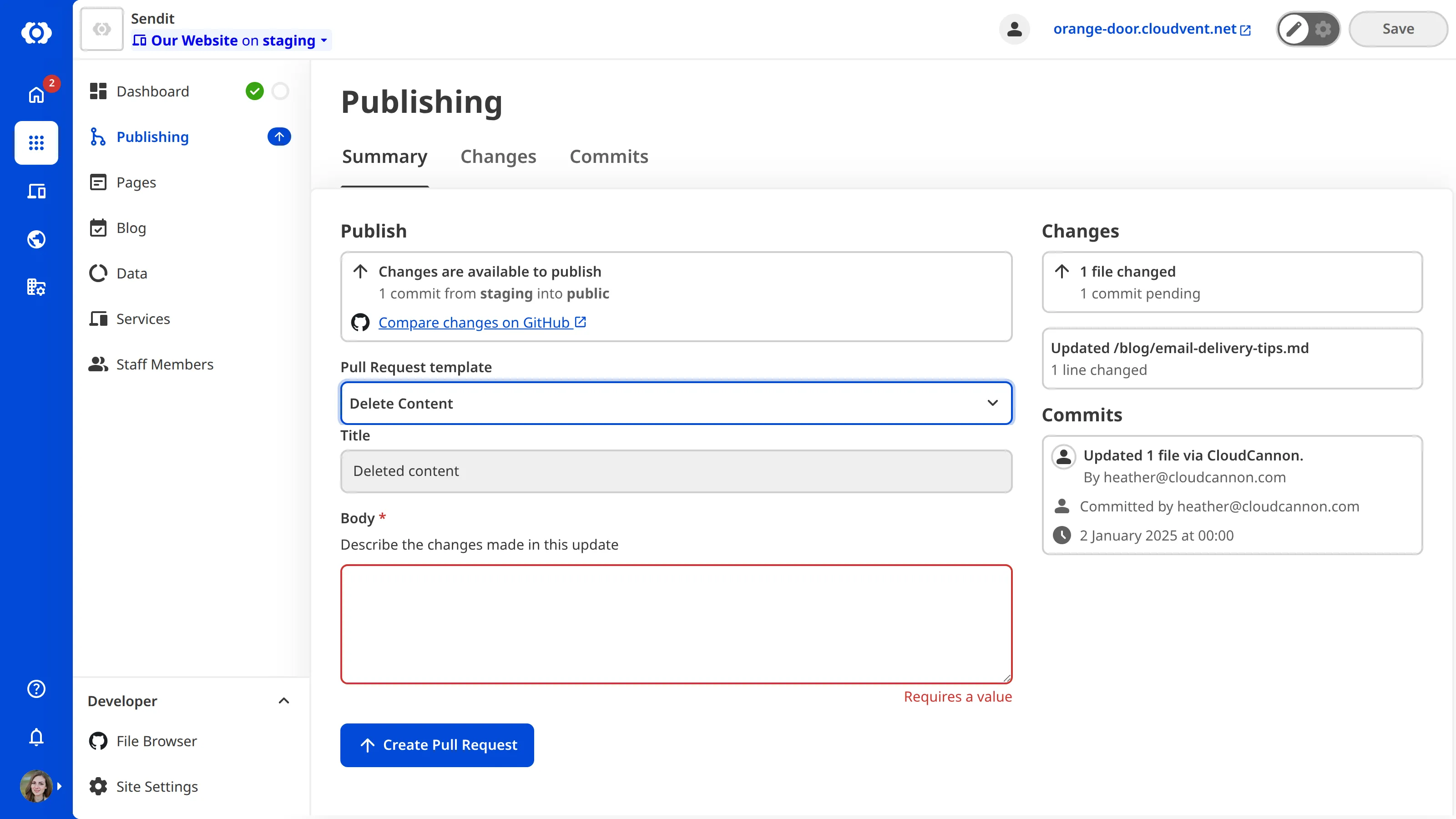
When you create a *Pull Request*, you can select which *Pull Request* template you want to use with the dropdown menu on the *Publishing* page.
By defining a *Pull Request* template, you can define the default values for title and body fields, make fields required, control which rich text formatting options are allowed in your *Pull Request*, and reference a Markdown file for more complex *Pull Request* content.
---
---
title: What is a schema?
description: Learn about schemas in CloudCannon.
url: https://cloudcannon.com/documentation/developer-articles/what-is-a-schema/
content_type: developer article
last_modified: 2026-03-29
---
A schema is a predefined template that determines what should populate a [collection](/documentation/user-articles/what-is-a-collection/) file. You can configure several schemas for each collection, creating a list of file templates for you and your team.
Schemas are excellent for creating files with consistent content and populating the initial contents of a new file. Schemas can apply to structured, markup, and combination files by containing both front matter and markup content or only data or markup content. When you use a schema to populate a new file, you can be sure that the inputs you need are available in the sidebar of the [Visual](/documentation/user-articles/what-is-the-visual-editor/) or [Content Editor](/documentation/user-articles/what-is-the-content-editor/).
A blog schema might contain title, author, and hero image inputs in the front matter. A changelog schema for a technical documentation site might contain a date input in the front matter and headings for “Features” and “Fixes” in the Markdown content. A review schema might contain inputs for title, author, and rating, and “Today, we are reviewing the…” as the opening line in the Markdown content.
Once you have configured your schemas, your team members can easily create new files for a collection by clicking the *+ Add* button in the top right of the collection browser and selecting the file template they want from a dropdown menu.

> Schemas are a good place to configure your [inputs](/documentation/user-articles/what-are-inputs/). Inputs configured in your schema will only affect files created with that schema.
For more information, including a list of all keys available for schema configuration, please read our reference documentation for [schemas](/documentation/developer-reference/configuration-file/collections_config/*/schemas/).
## Default behavior for new collection files
You can add new files to your collection without configuring a schema. Clicking the *+ Add* button in the top right of the collection browser will clone the last file in the collection and clear the content and values for any inputs in the front matter. This behavior is convenient if you have simple collection files or do not want to configure schemas.
The default behavior may not be right for you if:
- Your collection does not contain at least one file.
- You want to have different file types in your collection.
Because the default behavior clones existing files in a collection, CloudCannon cannot create a new file if the collection is empty. Additionally, cloning existing files does not allow for variation in file structure. You can manually add different inputs and content to your files. However, this can become inefficient to maintain.
You can overcome these limitations by configuring schemas for your collections.
---
---
title: What is a Site build?
description: Learn about Site builds in CloudCannon, including build logs and how building supports some CloudCannon features.
url: https://cloudcannon.com/documentation/developer-articles/what-is-a-site-build/
content_type: developer article
last_modified: 2026-09-03
---
A “build” is when CloudCannon converts all your Site files into a single, functional website. By building your Site in CloudCannon, you can make the most of features such as:
- [The Visual Editor](/documentation/user-articles/what-is-the-visual-editor/)
- Preview screenshots for pages in your [Collection](/documentation/user-articles/what-is-a-collection/) browser
- The [Testing Domain](/documentation/user-articles/what-is-a-testing-domain/)
- Hosting your Site on a [Custom Domain](/documentation/developer-articles/what-is-a-custom-domain/)
## What happens during a build?
CloudCannon uses a CI/CD (Continuous Integration/Continuous Delivery) system. Every time you trigger a build of your Site, CloudCannon will:
1. Download your files onto our server.
2. Run your selected install commands (e.g., `npm install`, `bundle install`).
3. Run your selected build commands (e.g., `npm run build`).
4. Index your output files.
5. Upload your output files to CloudCannon to generate previews (i.e., the test domain, visual editor, and in-app screenshots) and deliver them to your live domain (if you are [hosting with CloudCannon](/documentation/developer-articles/configure-cloudcannon-dns/)).
Additionally, you can [configure build hooks](/documentation/developer-articles/extending-your-build-process-with-hooks/) to run extra commands during your Site build. Build hooks are useful for downloading external data, running test commands, and more.
CloudCannon runs your build commands using `bash` in an isolated environment powered by `Ubuntu`. In addition to bash, CloudCannon includes several other programs and libraries your Site may need, such as Deno, Go, Node.js, and Ruby. You can [pin a version of these dependencies](/documentation/developer-articles/pin-your-dependency-version/) to maintain consistency between builds.
> For more information about CloudCannon's build environment, please contact our [support team](https://cloudcannon.com/support/).
## Starting a build
> **Permissions required**
>
> Members of the Owners, Developers, or Technical Editors [Default Permission Groups](/documentation/user-articles/what-are-default-permission-groups/), or [Custom Permission Groups](/documentation/developer-articles/what-are-custom-permission-groups/) with the `site:build` (or, more specifically, `site:build:trigger`) permission, can trigger a *Site* build.
Setting up your first Site build requires some configuration. For more information, please read our documentation on [configuring your first build](/documentation/developer-articles/configure-your-first-build/). Once you have completed your first build you can trigger subsequent builds at any time.
You can start a build by:
- Committing edits to your Git repository after [editing your files](/documentation/user-articles/edit-your-files/) in CloudCannon or locally
- Updating your build configuration, such as your [SSG](/documentation/developer-articles/select-your-ssg/), [command line options](/documentation/developer-articles/configure-your-command-line-options/), [caching options](/documentation/developer-articles/configure-caching-between-builds/), or [unlocking builds on your Site](/documentation/developer-articles/lock-builds-for-your-site/).
- Clicking the *Rebuild* button on the *Summary* tab of your *Site Dashboard*.
- Configuring [manual build scheduling](/documentation/developer-articles/scheduling-your-builds-manually/) or [automatic build scheduling](/documentation/developer-articles/scheduling-your-next-build-automatically/).
- Using the [CloudCannon API](/documentation/developer-reference/api/).
You can prevent a Site from building by [locking builds](/documentation/developer-articles/lock-builds-for-your-site/).
## Reading your build output logs
CloudCannon produces a log every time it runs a build. You can use your build log to follow CloudCannon's build process and diagnose your build if CloudCannon runs into an error.
While CloudCannon is building your Site, you can read the build output files by clicking on the *View Output* button in the notification at the bottom right of the app. This will open the build terminal.
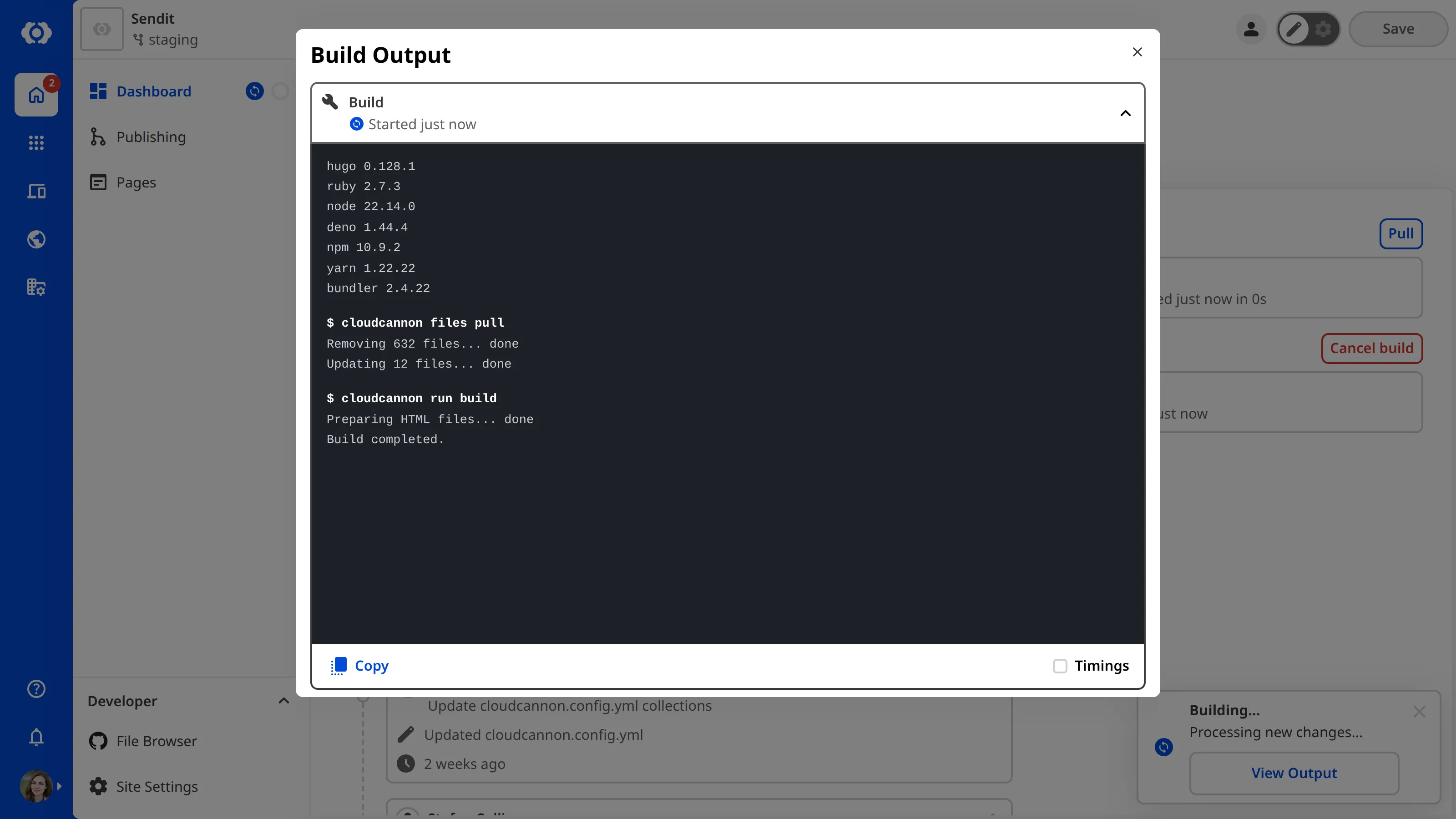
The build terminal has three tools: the *Copy Output* button and the checkboxes for *Scroll to bottom* and *Show timing*. The *Copy Output* button lets you copy your build log as plain text. The status of the *Scroll to bottom* and *Show timing* checkboxes will persist between builds. These checkboxes control whether the terminal displays the beginning or the end of the log by default and whether event times are logged, respectively.
You can view all your build logs on the *Builds* tab of your *Site Dashboard*.
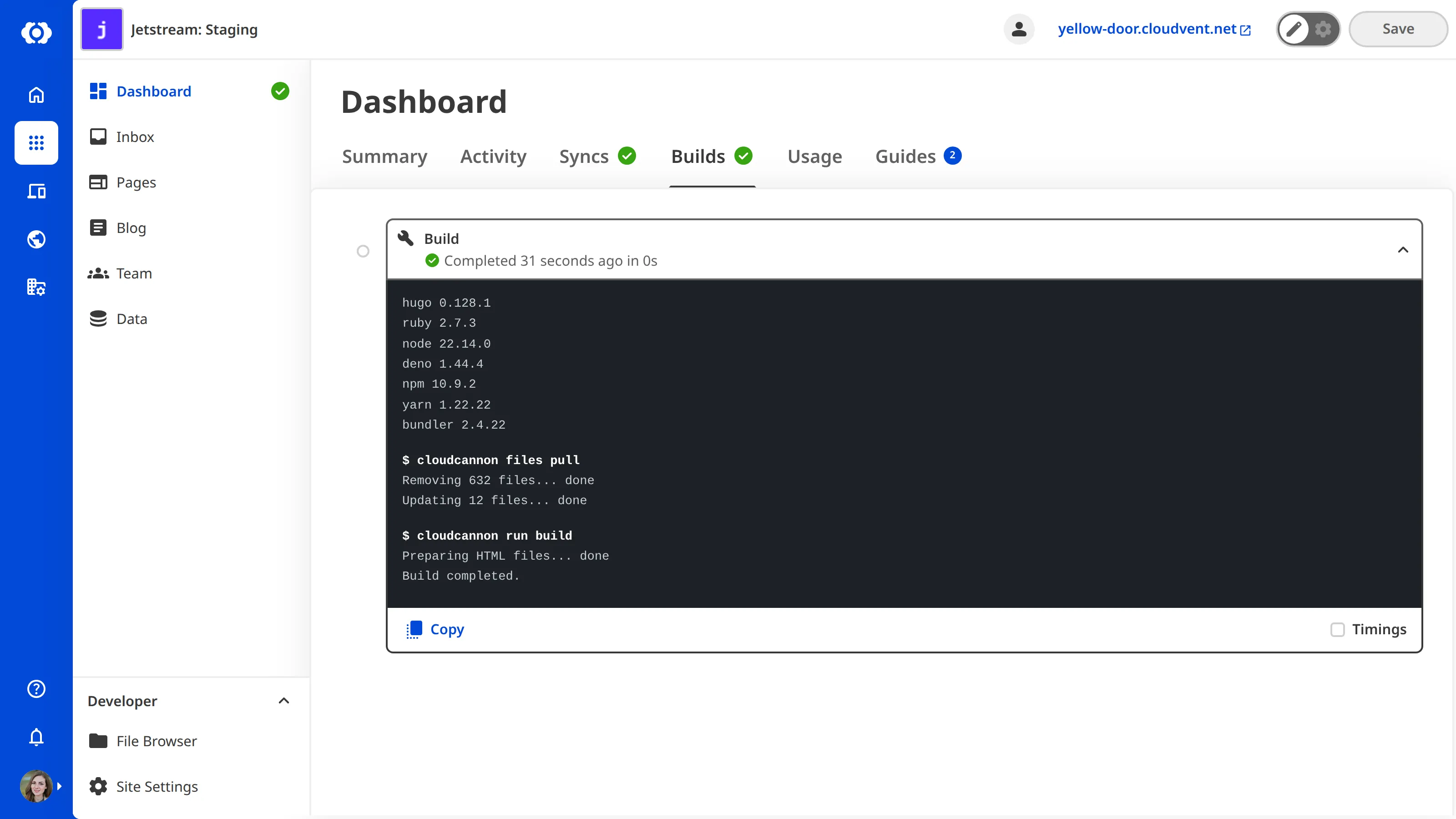
## Caching between builds
To improve the speed of your builds, CloudCannon attempts to send consecutive builds from a single Site to the same server. You can configure file caching so that CloudCannon only uses server time for files updated between builds. This allows you to skip expensive and repetitive operations.
Caching is great for minimizing the effect of build steps that are typically slow, such as image optimization, installing dependencies, and external data fetching. For more information, please read our documentation on [configuring caching between builds](/documentation/developer-articles/configure-caching-between-builds/).
---
---
title: What is a Snippet?
description: Learn how Snippets can improve your editing experience in CloudCannon. A Snippet is a component that complements your Markdown content.
url: https://cloudcannon.com/documentation/developer-articles/what-is-a-snippet/
content_type: developer article
last_modified: 2026-06-23
---
A Snippet is a predefined component that complements your Markdown content. Snippets are great for building an interactive page editing experience without touching the underlying code.
The name “Snippet” comes from “a snippet of source code” in your rich text content. However, Snippets in CloudCannon are not limited to just code. Snippets can accomplish many jobs. One might be a wrapper to contain shortcodes or templating language, while another might be a markup heading.
Snippets excel at providing a way to:
- Represent and create any HTML or Markdown structures in your rich text editor that you cannot add using the *WYSIWYG toolbar.*
- Edit the value of any HTML parameters in a component using a GUI (rather than directly interfacing with the code).
Although Snippets can accomplish a variety of tasks, all Snippets consist of three parts:
- Code in the Source Editor
- A preview block in the rich text editor
- A *Data panel* for editing the values of your Snippet

You can configure as many snippets as you need, creating a library of components for you and your team. A video snippet might utilize a Hugo shortcode to embed a YouTube video and allow you to add a video ID, title, class, and autoplay status. A callout snippet might highlight a section of text as a warning or as useful information depending on a select input in the Data Panel.
Snippets are most useful in the [Content Editor](/documentation/user-articles/what-is-the-content-editor/) and in [rich text inputs](/documentation/developer-articles/configure-your-rich-text-editors/), although they can appear in the [Visual](/documentation/user-articles/what-is-the-visual-editor/) and [Data Editors](/documentation/user-articles/what-is-the-data-editor/).
> We recommend using Snippets to create custom styles in your Markdown rather than [adding custom markup](/documentation/developer-articles/best-practices-for-rich-text/).
Once you have configured your Snippets, your team members can easily add them to any Markdown content by clicking the *Insert snippet* button in the *WYSIWYG toolbar* and selecting a Snippet from the searchable pop-up modal.

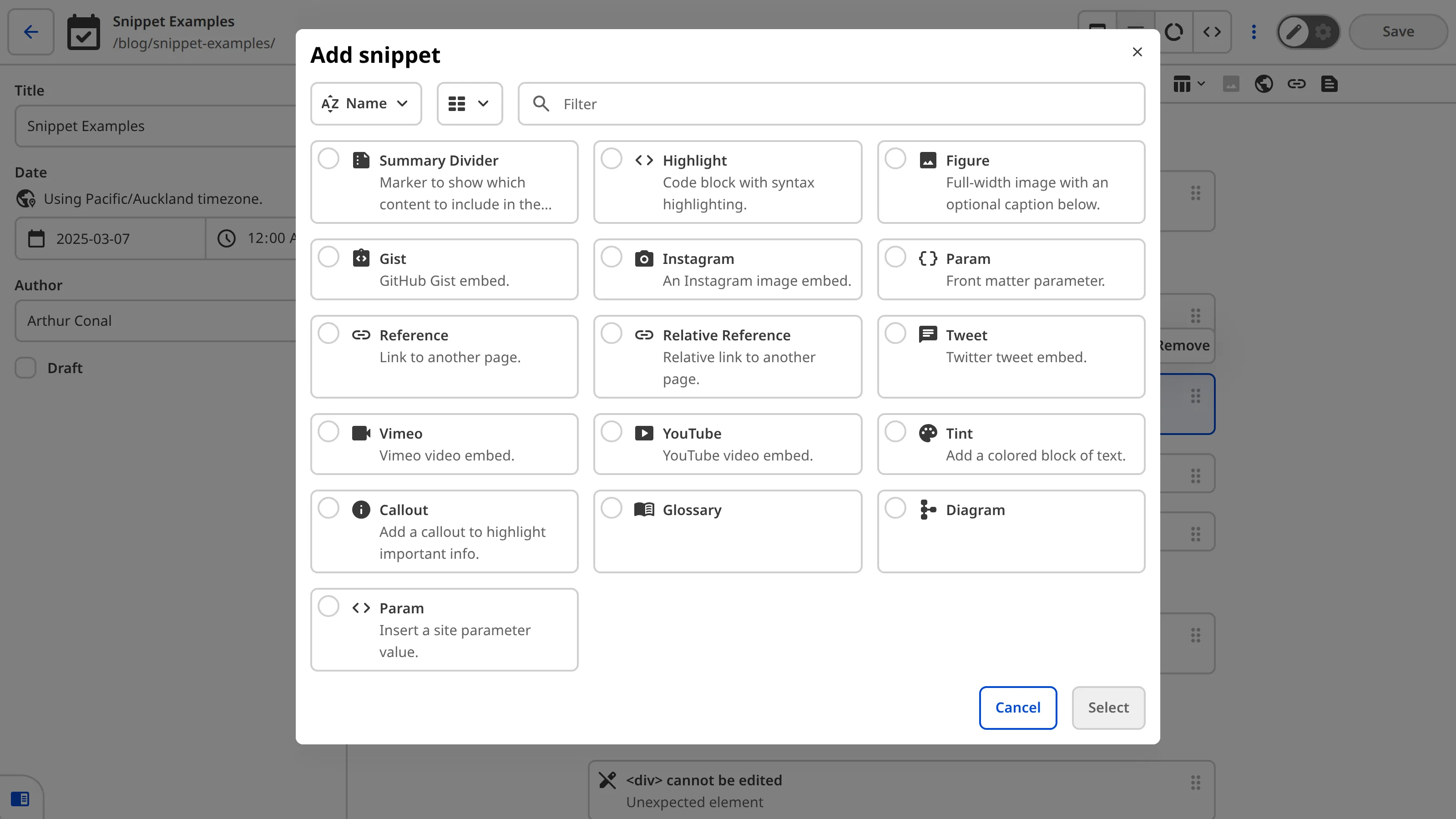
Snippets appear as inline or paragraph-level blocks in your rich text editor. Inline snippets are useful when you do not want to disrupt the surrounding text. Block snippets create clear sections in your Markdown files. By default, snippets will adapt to where they are inserted in the rich text editor: they will appear inline if inserted within a line of text, or as a block if inserted on their own line. You can configure this behavior to control whether a snippet always appears as inline or block.
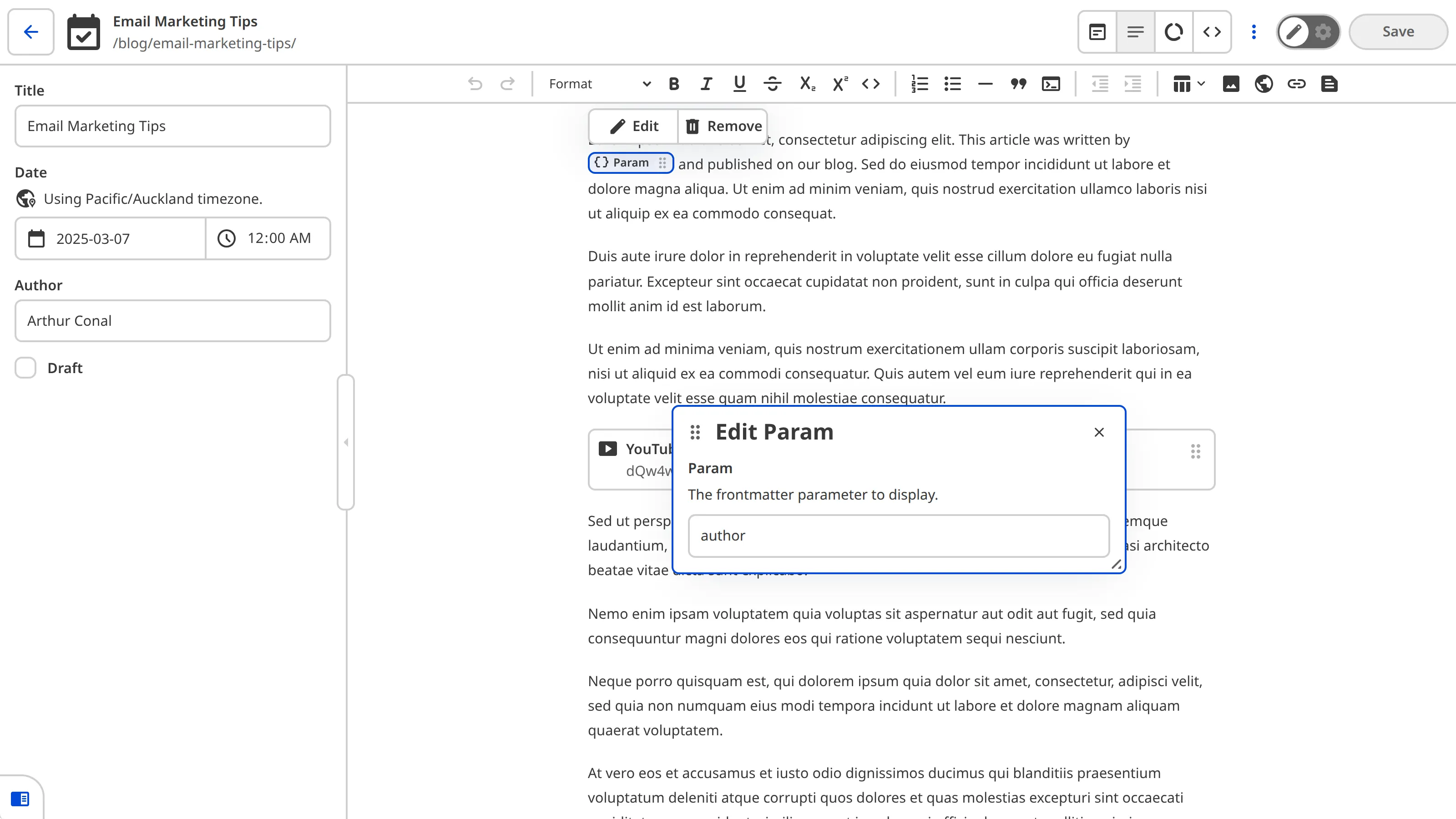
By clicking on the Snippet you can open the Snippet *Data panel*, which allows you to change the parameters of the Snippet. The *Data panel* provides an easy-to-use interface so non-technical content creators never need to interact with your code.
> You can insert snippets in any rich text editor. This includes the Content Editor and rich text inputs. As snippets can contain rich text inputs, you can even insert a snippet inside of a snippet!
## Snippet types
In CloudCannon, you can choose between Snippet templates and custom Snippets.
- **Snippet templates** — A predefined set of Snippets.
- **Custom Snippet** — A Snippet you create by configuring CloudCannon's underlying snippet parser.
Most sites can use Snippet templates. Snippet templates require little to no configuration. Some SSGs provide libraries of Snippets (also called shortcodes). Other Snippet templates, like MDX components, can be used for a variety of SSGs.
CloudCannon supports the following Snippet templates:
- [Docusaurus Components](/documentation/developer-articles/snippets-using-docusaurus-components)
- [Eleventy Shortcodes](/documentation/developer-articles/snippets-using-eleventy-shortcodes/)
- [Hugo Shortcodes](/documentation/developer-articles/snippets-using-hugo-shortcodes/)
- [MDX Components](/documentation/developer-articles/snippets-using-mdx-components/)
- [Python Markdown](/documentation/developer-articles/snippets-using-python-markdown/)
Custom Snippets are useful if you want to create something more complicated than templates allow or if no Snippet library is available for your SSG. Configuring custom Snippets is more complicated than using Snippet templates and is not necessary for most sites. However, it does provide more flexibility.
To create a custom Snippet, get in touch with our [support team](https://cloudcannon.com/support/).
## Enabling the Snippet button in the WYSIWYG toolbar
By default, CloudCannon will show the *Insert snippet* button in the *WYSIWYG toolbar* if you have at least one Snippet. The *WYSIWYG toolbar* appears in the [Content Editor](/documentation/user-articles/what-is-the-content-editor/) and in [rich text inputs](/documentation/user-articles/what-is-a-rich-text-input/).
If you have already [customized which options are available](/documentation/developer-articles/configure-your-rich-text-editors/) in your *WYSIWYG toolbar* using the `_editables` key in your [CloudCannon configuration file](/documentation/developer-articles/create-your-cloudcannon-configuration-file/), please ensure that `snippet: true` is included.
File: `cloudcannon.config.yml`
```YAML
_editables:
content:
# include all other toolbar keys here
snippet: true
```
For more information, read our documentation on [configuring your rich text editors](/documentation/developer-articles/configure-your-rich-text-editors/).
---
---
title: What is a structure?
description: Learn about structures in CloudCannon.
url: https://cloudcannon.com/documentation/developer-articles/what-is-a-structure/
content_type: developer article
last_modified: 2026-03-29
---
A structure is a predefined, custom template that determines what should populate an [Array](/documentation/user-articles/what-is-an-array-input/) or [object input](/documentation/user-articles/what-is-an-object-input/). With the click of a button, you can easily add fields to an array or object from your list of predefined structures.
Structures are excellent for creating items you want to repeat across your site. An image gallery structure might contain fields for an image, an author, and a caption. A testimonial structure might contain fields for a quote and an author. An array using page-building components might reference several structures for common content blocks, such as a hero image, call to action, or video block.
Once you have defined your structures, your team members can easily add, remove, reorder, and update structure content using the [Data Editor](/documentation/user-articles/what-is-the-data-editor/) or the sidebar of the [Visual](/documentation/user-articles/what-is-the-visual-editor/) or [Content Editor](/documentation/user-articles/what-is-the-content-editor/).

For more information, including a list of all keys available for structure configuration, please read our [structures](/documentation/developer-reference/configuration-file/types/_structures/) reference documentation.
## Structures and arrays
Structures and arrays go hand-in-hand. The [Array input](/documentation/user-articles/what-is-an-array-input/) contains an ordered list of related items, while a structure is a template that determines what data CloudCannon should add to new array items. By creating structures, you can define different objects that your team members can add to arrays within your site.
When you first connect your site files and make them editable in the Data Editor, CloudCannon will automatically detect arrays in your front matter and data files.
You can add new items to your arrays without the need for configuration. Clicking the *+ Add* button for an array will clone the last array item and clear the data from the new item to create a blank array object. This behavior is convenient if you have simple arrays, or do not want to configure structures.
The default array behavior may not be right for you if:
- Your array does not contain at least one object.
- You want to have different object types in your array.
Because the default behavior clones existing array items, CloudCannon will prevent you from removing the last item from an array if you do not have a structure configured. Additionally, cloning existing items does not allow for variation of object types. You can add different objects to the array manually using the [Source Editor](/documentation/user-articles/what-is-the-source-editor/). However, this can become inefficient to maintain.
You can overcome these limitations by configuring data structures to add to your arrays.
> Alternatively, configure inline [Array inputs](/documentation/user-articles/what-is-an-array-input/) to set which input is used for array items. Inline array inputs also allow an array to be empty.
## Structures and objects
Structures also work for individual objects. The [object input](/documentation/user-articles/what-is-an-object-input/) can contain a maximum of one value. After you reference a structure key from an object input, team members can select which structure they want to add to that object. Once a value is selected, you cannot add more until the value is replaced or deleted.
---
---
title: What is Allow all branching?
description: Learn how Allow all branching lets Team Members create branched Sites from any Site in your Project, not just the Main Branch.
url: https://cloudcannon.com/documentation/developer-articles/what-is-allow-all-branching/
content_type: developer article
last_modified: 2026-06-03
---
*Allow all branching* is a **Project** setting that controls where *Team Members* can create branched **Sites** from. By default, *Team Members* can only branch from your *Project's* **Main Branch**. With *Allow all branching* turned on, *Team Members* can branch from any *Site* in your *Project*, including other branched *Sites*.
*Allow all branching* is useful when *Team Members* need to start their work from a *Site* in your *Project* that is not your *Main Branch*. Two common cases:
- **Working in a *Project* with multiple staging *Sites*.** Your *Main Branch* can only point at one branch in your *Project*. With *Allow all branching* turned on, *Team Members* can branch from any of your staging *Sites*, not just the one you set as *Main*.
- **Building on another *Team Member's* in-progress work.** A *Team Member* is part-way through a longer change, and another *Team Member* needs to build on their unpublished work. With *Allow all branching* turned on, the second *Team Member* can branch from the in-progress *Site* without waiting for the first *Team Member* to publish.
When a *Team Member* branches from a *Site* that is not your *Main Branch*, the new branched *Site* publishes back to that source *Site* — not to the *Main Branch*. CloudCannon sets the source *Site* as the new *Site's* *Publish Branch* by default, so you can pull updates from the source as it changes and publish your changes back to it. For more information on the settings CloudCannon applies to new branched *Sites*, please read our documentation on [what Branch Defaults are](/documentation/developer-articles/what-are-branch-defaults/).
*Allow all branching* is turned off by default. You can turn it on or off at any time, and existing branched *Sites* are not affected by the change. For more information, please read our documentation on [turning on Allow all branching](/documentation/developer-articles/turn-on-allow-all-branching/).
---
---
title: What is an output file?
description: Learn about the output files your SSG creates and how CloudCannon uses them in the app.
url: https://cloudcannon.com/documentation/developer-articles/what-is-an-output-file/
content_type: developer article
last_modified: 2026-03-29
---
When you [build](/documentation/articles/what-is-a-site-build/) your *Site*, CloudCannon will run the build command appropriate for your Static Site Generator (SSG). Your SSG will build your source files into your output files. These output files are what your website visitors see on the Internet, with each file served on a unique output URL.
You can view your output files after each successful build using your [Testing Domain](/documentation/articles/what-is-a-testing-domain/), or [Custom Domain](/documentation/articles/what-is-a-custom-domain/) if you have one configured.
## How does CloudCannon use your output files?
CloudCannon uses your *Site's* output files in two places within the app: as the interactive webpage preview in the *Visual Editor* and as the webpage screenshots on *File Cards* in the *Collection Browser*.


To open the correct output file in the *Visual Editor* and show the correct screenshot on a *File Card*, CloudCannon needs to match the output files to the source files. However, most modern websites do not have a one-to-one relationship between source files and output files. For example, the output file for your "Home" page will be `index.html`, but the content for this file could be stored across multiple source files (e.g., one for navigation, another for the footer, and a third for page content).
Once your SSG has built your *Site*, CloudCannon automatically matches output files with their corresponding source files by determining the likely output URL for each file.
If CloudCannon did not determine the correct output URL for your source files, you may notice the wrong webpage screenshot in the gallery section of your *File Cards* (or no screenshot), or that the *Visual Editor* opens to an incorrect webpage. You can fix this issue by [updating the output URL](/documentation/articles/update-the-output-url-for-a-webpage-preview/) CloudCannon uses to match an output file to a source file.
If you don't want a *Collection* to use the *Visual Editor* or see screenshots in the *Collection Browser*, or if CloudCannon has incorrectly determined an output URL for a non-output *Collection*, you can [disable output URL matching for a Collection](/documentation/articles/disable-webpage-previews-for-a-collection/).
---
---
title: What is an SSL certificate?
description: Learn about SSL certificates and how they can protect user data on your website.
url: https://cloudcannon.com/documentation/developer-articles/what-is-an-ssl-certificate/
content_type: developer article
last_modified: 2026-07-06
---
> Managing your SSL certificate on CloudCannon requires you to host your **Site** through CloudCannon. If you are hosting your *Site* through an external service, please review their documentation on SSL certification.
An SSL certificate (or a TLS certificate) is a periodically regenerated digital certificate that supports your website's authenticity and enables encryption for greater security between your web server and the visitor's browser. SSL certification is important to:
- Prevent others from intercepting the information passing between the server and the browser.
- Help users distinguish between the real version of your website and any fake versions created by other people.
- Verify ownership of a website.
We recommend all websites edited on CloudCannon use an SSL certificate.
## HTTP vs HTTPS
**HTTP**, or the HyperText Transfer Protocol, is the primary method used by the internet to transfer information between a browser and a web server. The acronym HTTP appears at the beginning of a website's URL.
Websites with a valid SSL certificate use HTTPS instead, where the "S" stands for Secure. This means it is very easy to visually determine if a website is using a secure protocol.

Most browsers will automatically warn users before they attempt to visit an insecure website (i.e., HTTP instead of HTTPS). Depending on your browser, this can take the form of a white warning page where the user must explicitly choose to continue to the insecure website.
Warnings about insecure websites can lead to a higher user bounce rate (where users immediately "bounce" off your website before seeing any of your content). This might be because users are security conscious or because they lose interest due to an inefficient experience.
You can avoid these issues by adding an SSL certificate to your *Site* to enable HTTPS.
## How do SSL certificates work?
SSL certificates contain the following details about your *Site*:
- **Domain Name** — The address used to access a website (e.g., [cloudcannon.com](https://cloudcannon.com/)).
- **Certificate expiration date** — The date a certificate expires. This is normally a year after it was generated.
- **Public key** — A string used to encrypt data, protecting communication channels from unauthorized access. Data can only be decrypted with the corresponding private key.
- **Certificate Chain** — A sequence of certificates that links the SSL certificate for your *Site* to a trusted certificate authority, providing legitimacy to your SSL certificate.
SSL certificates also come with a private key, which is not shared with the user's browser.
- **Private key** — A string used to decrypt data.
> Your private key should only be provided to your DNS provider. Do not write down your private key in a publicly accessible or insecure place. If you think the security of your private key has been compromised, please generate a new SSL certificate.
When a browser attempts to connect to your website, it uses a process called a *TLS handshake*. This process validates the identity of the web server, the domain of your website, and prevents unauthorized access to the data passing between the user and your website.
In simple terms, the *TLS handshake* includes the following steps:
1. The user's browser contacts the web server hosting your website, specifying what version of TLS the browser is using and a random string called a "Client Random".
2. The web server replies to the browser with the SSL certificate and a random string called a "Server Random".
3. The browser will verify the SSL certificate with the certificate authority that issued it, confirming the authenticity of the web server and the domain.
4. The browser contacts the web server again with a random string encrypted with the public key from the SSL certificate.
5. The web server uses the corresponding private key to decrypt the message.
6. If the web server and the user's browser agree on the strings for Client Random, Server Random, and the decrypted message, then the web server will allow the browser to access the website in an encrypted session.
This process only takes milliseconds to complete, so it will not affect the user's experience on your website.
Depending on your browser, a padlock icon will appear near your URL once you add an SSL certificate to your website. You can click on this icon to review the publicly available certificate information.
## TLS version
To configure an SSL certificate for your *Site* on CloudCannon, you must specify the minimum TLS version.
- **Minimum TLS Version** — The minimum version of TLS that a visitor's internet browser must have to access your *Site*.
A higher TLS version is a stronger cryptographic standard, including fixes for known vulnerabilities in previous versions. On CloudCannon, the minimum TLS version you can use for your *Site* is 1.2, however 1.3 is available if you require it.
Raising the minimum TLS version improves security, but visitors using older internet browsers or devices that do not support that version can no longer reach your *Site*. TLS 1.2 is widely supported across current browsers, so raise the minimum to 1.3 only when you are confident your visitors' clients support it.
You can set the minimum TLS version on each subdomain when you [add an auto-generated SSL certificate](/documentation/developer-articles/add-an-auto-generated-ssl-certificate/), or [set the minimum TLS version for every subdomain on a domain](/documentation/developer-articles/increase-the-minimum-tls-version-for-your-domains/) connected to your *Organization*.
## Which SSL certificate is right for your domain?
On CloudCannon, any *Site* with a [Custom Domain](/documentation/developer-articles/what-is-a-custom-domain/) can use an [auto-generated SSL certificate](/documentation/developer-articles/add-an-auto-generated-ssl-certificate/) or a [custom SSL certificate](/documentation/developer-articles/add-a-custom-ssl-certificate/). Auto-generated SSL certificates can be either wildcard or single-domain certificates.
### Auto-generated SSL certificates
CloudCannon provides a free auto-generated SSL certificate by default for all *Sites*. An auto-generated SSL certificate can be a wildcard certificate or a single-domain certificate.
- **Wildcard SSL certificate** — A certificate that protects a single domain and all its subdomains (e.g., example.com and its subdomains blog.example.com, support.example.com, app.example.com etc.).
- **Single-domain SSL certificate** — A certificate that protects a single domain. This is useful if you only have one CloudCannon *Site* which is hosted on a subdomain.
CloudCannon offers auto-generated SSL certificates through ZeroSSL and Cloudflare, and will automatically renew your certificate every 90 days so your *Site* is never insecure.
A wildcard SSL certificate may be right for you if:
- You host multiple *Sites* on CloudCannon using a base domain and subdomains.
- You are using [CloudCannon DNS](/documentation/developer-articles/configure-cloudcannon-dns/).
A single-domain SSL certificate may be right for you if:
- You only host *Sites* on CloudCannon on subdomains.
- You are using [CloudCannon DNS](/documentation/developer-articles/configure-cloudcannon-dns/).
If you select an auto-generated SSL certificate for your *Site* hosted on CloudCannon, there are a few limitations you should consider.
- If you are using an [external DNS provider](/documentation/developer-articles/configure-external-dns/), some additional configuration is required. For more information, please read our documentation on [adding TXT DNS records](/documentation/developer-articles/add-an-auto-generated-ssl-certificate/#add-txt-dns-records).
For more information, please read our documentation on [adding an auto-generated SSL certificate](/documentation/developer-articles/add-an-auto-generated-ssl-certificate/).
### Custom SSL certificates
You can purchase a custom SSL certificate from a trusted third-party service and add your certificate details to CloudCannon.
- **Custom SSL certificate** — A certificate you have generated using a trusted third-party service (e.g., GoDaddy, Google, AWS, Cloudflare). Most web hosting services also provide the option to generate custom SSL certificates.
A custom SSL certificate may be right for you if:
- You already have an SSL certificate purchased through a third-party provider.
- Your company's security policies require you to have an SSL certificate from an internally approved authority.
For more information, please read our documentation on [adding a custom SSL certificate](/documentation/developer-articles/add-a-custom-ssl-certificate/).
---
---
title: What is authentication?
description: Learn about authentication in CloudCannon and how you can use it to control visitor access to your website.
url: https://cloudcannon.com/documentation/developer-articles/what-is-authentication/
content_type: developer article
last_modified: 2026-03-29
---
Authentication is the process of verifying a user's identity. When you host your Site on CloudCannon, you can enable an authentication method to control who is allowed to see the live content of your website.
CloudCannon supports three authentication methods: [password authentication](/documentation/developer-articles/enable-password-authentication/), [user account authentication](/documentation/developer-articles/enable-user-account-authentication/), and [SAML authentication](/documentation/developer-articles/enable-saml-authentication/).
- **Password Authentication** — Users must enter a Site password you configure to see your content.
- **User Account Authentication** — If you have invited a user to your Site, they must enter their email address and personal password to see your content.
- **SAML Authentication** — Users must log in through a third-party application (e.g., Google, OneLogin, etc.) to see your content.
> You must [host your Site on CloudCannon](/documentation/user-articles/what-is-web-hosting/#hosting-on-cloud-cannon) to use any of these authentication methods.
You can update the authentication method for your site on the *Authentication* page under *Site Settings*.

## Why enable authentication?
Authentication works well for Sites where you want to segregate what content your visitors have access to.
For example, if your Site is for internal company use only, you may want users to log in before they can see your website's content. Or, if your Site has a "Member's Only" section but still maintains public pages, you can authenticate a user's identity to access that section.
By default, CloudCannon's authentication methods affect every page on your Site. However, you can require authentication for a specific subset of pages using [authenticated routes](/documentation/developer-articles/configure-authenticated-routes/) or by hosting your Site on a [subpath](/documentation/developer-articles/add-a-custom-domain-to-your-site/).
## Machine users
In some cases, you may want a trusted third-party application to access your Site. This could be a machine user or script that uses resources from your Site to accomplish a task. Machine users can bypass authentication by providing the correct [bearer token](/documentation/developer-articles/generate-a-bearer-token/) when they request your webpage.
---
---
title: What is Build Time?
description: Learn what Build Time is in CloudCannon, what counts toward it, and what happens if you reach your Subscription Plan's limit.
url: https://cloudcannon.com/documentation/developer-articles/what-is-build-time/
content_type: developer article
last_modified: 2026-07-31
---
*Build Time* is the total time CloudCannon spends building your **Sites**, measured cumulatively across every build in a month.
CloudCannon runs a [build](/documentation/developer-articles/what-is-a-site-build/) whenever your *Site's* content or configuration changes. The time each build takes counts toward your *Build Time*, so larger *Sites* and more frequent builds use more of it.
Most **Subscription Plans** include unlimited *Build Time*. On *Subscription Plans* with a *Build Time* limit, each plan includes a set amount each month. For the amount included in each *Subscription Plan*, see the [CloudCannon pricing page](https://cloudcannon.com/pricing/).
## What happens if I reach my Build Time limit?
If your **Organization** needs more *Build Time* than your *Subscription Plan* includes, you can enable **Overages**. CloudCannon then keeps building beyond your included amount and bills you for the extra in fixed-size bundles.
If *Overages* are disabled and you reach your limit, CloudCannon stops running builds for the remainder of the month or until you enable *Overages*. You can still save your changes, but they will not build. For more information, please read our documentation on [what Add-Ons and Overages are](/documentation/user-articles/what-are-add-ons-and-overages/).
## Track your Build Time
You can monitor your *Build Time* on the *Usage* tab, which shows your cumulative usage over the current month alongside your included limit. Checking it regularly helps you see when you are approaching your limit and decide whether to enable *Overages*, add capacity, or change your *Subscription Plan*.

You can find usage in two places: the *Usage* tab on your *Site Dashboard* shows a single *Site*, and the *Usage* tab on your *Organization Home* page shows every *Site* in your *Organization*.
---
---
title: What is Configuration Mode?
description: Learn about Configuration Mode, which allows you to add content to your CloudCannon Configuration File.
url: https://cloudcannon.com/documentation/developer-articles/what-is-configuration-mode/
content_type: developer article
last_modified: 2026-03-20
---
*Configuration Mode* is a tool for updating the configuration of your *Site*. The *Configuration Mode switch* on the right of your *Site Header* allows you to toggle *Configuration Mode* on and off.

When *Configuration Mode* is on, CloudCannon will display *Edit configuration* buttons next to each element of the app you can configure. These *Edit configuration* buttons are all in purple, making them easy to find and visually distinct from other UI elements.

Clicking on one of the *Edit configuration* buttons will open a modal or data panel with fields for configuring the UI element. You will be able to see any visual changes in CloudCannon in real time, and all your changes will be added to your [CloudCannon Configuration File](/documentation/developer-articles/what-is-the-cloudcannon-configuration-file).
When *Configuration Mode* is off, CloudCannon hides all the *Edit configuration* buttons, creating an uncluttered interface for content creators. We recommend spending most of your time with *Configuration Mode* off for a better editing experience, but you can always turn it on to make a quick change your *Site* configuration.
> **Who can use*****Configuration Mode*****?**
>
> Turning on *Configuration Mode* only affects the way your Site looks for you; the purple *Edit configuration* buttons do not appear for other users of your *Site*.
>
> You can restrict the capacity to use *Configuration Mode* to specific team members using permissions. We recommend you check out this guide after you have finished *Getting Started*.
---
---
title: What is DNS?
description: Learn about DNS and how the user's browser gets the correct IP address for a website.
url: https://cloudcannon.com/documentation/developer-articles/what-is-dns/
content_type: developer article
last_modified: 2026-06-24
---
The Domain Name System (DNS) allows your computer to translate a domain name into an IP address. Domain names are easier for users to remember and recognize than IP addresses (e.g., 192.168.1.1 in IPv4, or 2400:cb00:2048:1::c629:d7a2 in IPv6).
- **Domain Name** — The unique address to access a website (e.g., [cloudcannon.com](https://cloudcannon.com/)).
- **Internet Protocol (IP) address** — A unique string used to identify a device connected to the internet (e.g., a user's computer or phone or the web server hosting your website).
When a user enters a domain name into their Internet browser or clicks a link to access a website, the domain name must be translated (or resolved) to a machine-friendly IP address in a process called *DNS lookup*.
## How does DNS lookup work?
The *DNS lookup* process involves several servers, each contributing to translating the domain name.
- **DNS Resolver** — The server responsible for translating a domain name into an IP address. This server is maintained by the user's Internet service provider. Also known as a recursive resolver or a DNS recursor.
- **Root Nameserver** — The first server in a DNS lookup. This server is an index for TLD Nameservers.
- **TLD Nameserver** — The server responsible for a specific TLD in a URL (i.e., .com, .net, .org, etc.). This server is an index for all Authoritative Nameservers with a given TLD.
- **Authoritative Nameserver** — The server responsible for maintaining the DNS records for a given domain. Often just called "the nameserver".
- **Web Server** — The server responsible for hosting your website content.
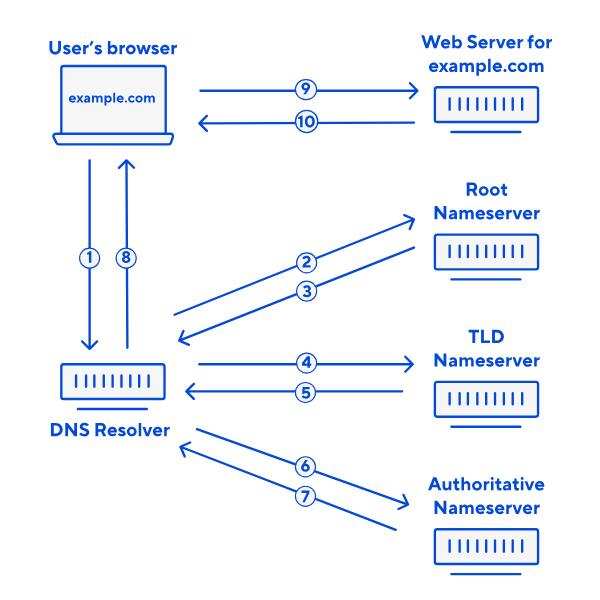
In simple terms, the *DNS lookup* includes the following steps:
1. The user's browser provides the domain name of the website they want to access (e.g., cloudcannon.com) to the DNS Resolver.
2. The DNS Resolver contacts the Root Nameserver and requests the list of TLD nameservers that manage the TLD (e.g., .com, .org) for a given domain.
3. The Root Nameserver replies to the DNS Resolver.
4. The DNS Resolver contacts a Top Level Domain (TLD) nameserver for the domain name and requests the Authoritative Nameserver that manages the domain name (e.g., cloudcannon.com).
5. The TLD Nameserver replies to the DNS Resolver.
6. The DNS Resolver contacts the Authoritative Nameserver and requests the IP address that matches the domain name.
7. The Authoritative Nameserver replies to the DNS Resolver.
8. The DNS Resolver provides the correct IP address for the domain name to the user's browser.
9. The user's browser contacts the Web Server for the domain name using the IP address and requests the website content.
10. The Web Server delivers the website content to the user's browser.
This process only takes milliseconds to complete, so it will not affect the user's experience on your website.
In many cases, the user's browser does not have to complete a *DNS lookup* at all, especially if the user is trying to visit a website they have been to before. After the browser has received the correct IP address for a domain name at least once, it caches that information for a period of time. If a user tries to access that domain while the IP address is cached, the browser can skip the *DNS lookup* process.
## What is a nameserver?
There are many nameservers involved in the *DNS Lookup* process; however, the word "Nameserver" typically refers to the authoritative nameserver, which manages all the DNS records for a particular Domain Name.
- **Nameserver** — Stores DNS records for a given Domain Name.
Almost all domains rely on multiple nameservers for redundancy, a primary and a secondary server. That means if one nameserver goes down, the other can still answer DNS queries.
All nameservers store identical DNS records for a Domain Name. Updating the DNS records for the primary nameserver will trigger an update in the secondary server.
## What are DNS records?
DNS records are instructions for a Domain Name managed by an authoritative nameserver. A DNS provider will allow you to access and edit these records.
- **DNS record** — A record of important information, which might include a domain's IP address, email routing, owner validation, and more.
- **DNS Provider** — A service that assigns IP addresses to domain names and manages DNS records.
Each DNS record has a Time-To-Live (TTL) value, which indicates how often a DNS server should refresh a record to check for updates from the domain owner.
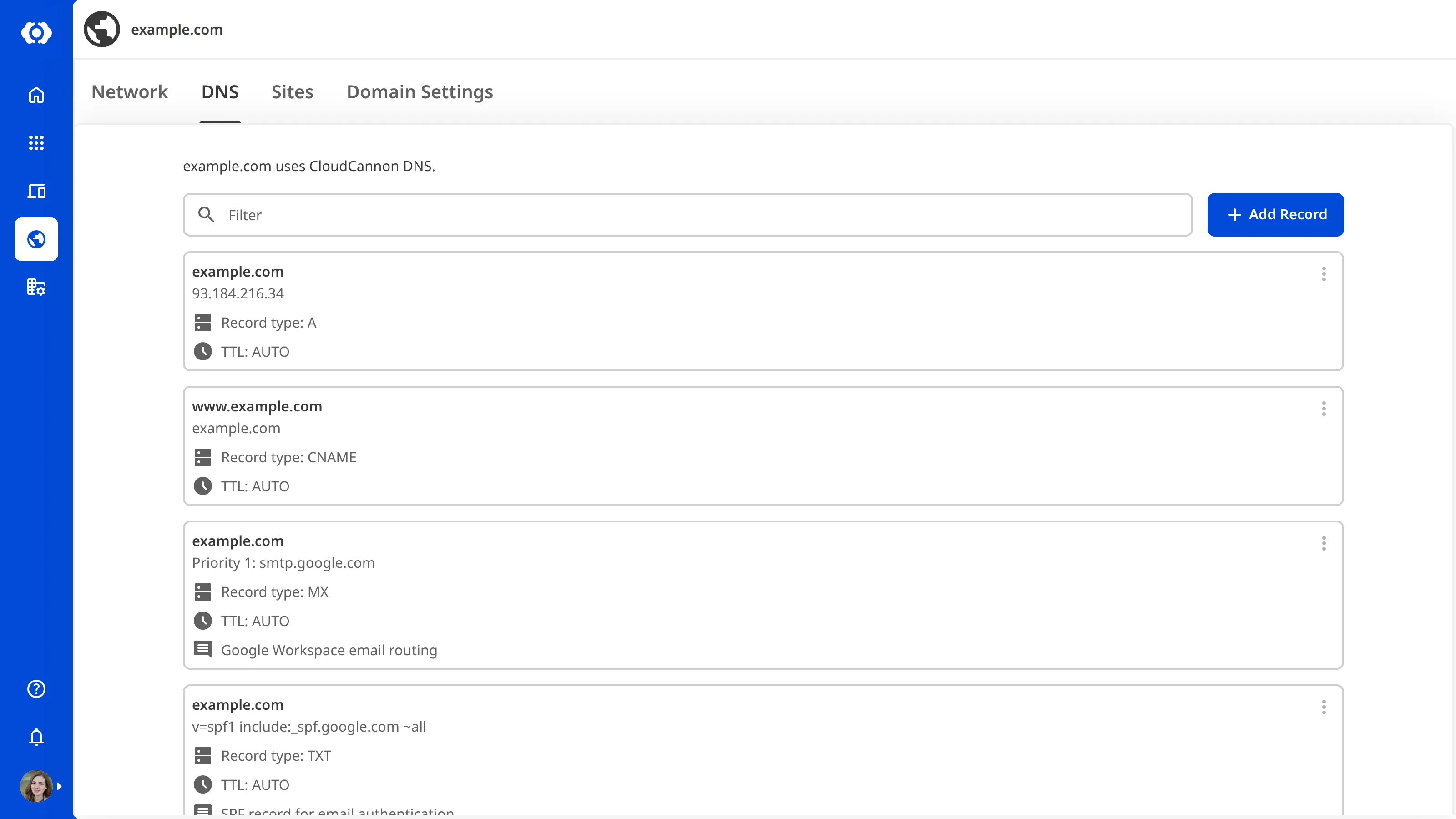
CloudCannon DNS supports the following DNS record types: *A*, *AAAA*, *CNAME*, *MX*, *SPF*, *SRV*, and *TXT*.
- **Address (A) Record** — Specifies the IP address for a given Domain Name in IPv4 format (e.g., 93.184.216.34). This record allows you to access a website if you only know the Domain Name or block mail from a specific source.
- **Address (AAAA) Record** — Specifies the IP address for a given Domain Name in IPv6 format (e.g., 3001:0db7:3c5d:0024:0000:0000:1a2f:3c1b). IPv6 is a newer format of IPv4, offering a longer string and more string combinations to increase the number of unique IP addresses available.
- **Canonical Name (CNAME) Record** — Specifies the canonical Domain Name for an alias domain. Often used for subdomains (e.g., users looking for the IP address for www.example.com will be redirected to example.com) or for hosting platforms.
- **Email Exchange (MX) Record** — Specifies where emails for a given Domain Name should be routed.
- **Sender Policy Framework (SPF) Record** — Specifies which servers are authorized to send emails from a given Domain Name.
- **Service (SRV) Record** — Specifies the host and port number for services the need to connect to a specific port.
- **Text (TXT) Record** — Can store any text string but is commonly used to verify ownership of a Domain Name.
Other record types include:
- **Nameserver (NS) Record** — Specifies which nameserver is authoritative for a given Domain Name.
Instead of configuring NS records in CloudCannon, you update your nameservers with your Domain Registrar. For more information, please read our documentation on [configuring CloudCannon DNS](/documentation/developer-articles/configure-cloudcannon-dns/).
## Which DNS provider is right for your Site?
On CloudCannon, any [Custom Domain](/documentation/developer-articles/what-is-a-custom-domain/) added to your [Organization](/documentation/user-articles/what-is-an-organization/) can use [CloudCannon DNS](/documentation/developer-articles/configure-cloudcannon-dns/) or an [external DNS](/documentation/developer-articles/configure-external-dns/).
### CloudCannon DNS
CloudCannon offers free DNS services by default through Cloudflare.
- **CloudCannon DNS** — Manage your DNS records through CloudCannon (recommended).
CloudCannon DNS may also be right for you if:
- You want to use an [auto-generated SSL certificate](/documentation/developer-articles/add-an-auto-generated-ssl-certificate/).
- You want to manage all your domain settings in the same place you edit your content.
For more information, please read our documentation on [configuring CloudCannon DNS](/documentation/developer-articles/configure-cloudcannon-dns/).
### External DNS
You can also use an external DNS provider for your Sites on CloudCannon.
- **External DNS** — Manage your DNS records through a trusted third-party service (e.g., Cloudflare).
An external DNS provider may be right for you if:
- You have existing DNS infrastructure with a trusted third-party provider.
- You want to use a [custom SSL certificate](/documentation/developer-articles/add-a-custom-ssl-certificate/).
If you select an external DNS provider for your Site hosted on CloudCannon, there are a few limitations you should consider.
- If you are using an [auto-generated SSL certificate](/documentation/developer-articles/add-an-auto-generated-ssl-certificate/), some additional configuration is required. For more information, please read our documentation on [adding TXT DNS records](/documentation/developer-articles/add-an-auto-generated-ssl-certificate/#add-txt-dns-records).
- If you use Cloudflare as your DNS provider and have the Cloudflare Proxy feature enabled, some additional configuration is required. For more information, please read our documentation on [configuring Cloudflare Proxy](/documentation/developer-articles/configure-external-dns/#configure-cloudflare-proxy).
For more information, please read our documentation on [configuring external DNS](/documentation/developer-articles/configure-external-dns/).
---
---
title: What is Headless Mode?
description: Learn what Headless Mode is and why you might enable it for your Site on CloudCannon.
url: https://cloudcannon.com/documentation/developer-articles/what-is-headless-mode/
content_type: developer article
last_modified: 2026-02-10
---
> Headless Mode is only available for Sites using Unified Configuration. For more information, please read our [Unified Configuration migration guide](/documentation/developer-guides/unified-configuration-migration-guide/).
Building your Site in CloudCannon is optional. If you do not want to build your Site, you can [enable Headless Mode](/documentation/developer-articles/enable-headless-mode/). Headless Mode disables building and hosting for your Site on CloudCannon.
A "headless" website is one where the frontend and backend are separated. In Headless Mode, CloudCannon still manages your content, but it doesn't affect any frontend activities, like building or hosting.
Headless Mode is useful if you want to host a website with server-side rendering (SSR), or a fully hosted API, using a third-party service while still using CloudCannon as your primary **CMS**.
Headless Mode may not be right for you if:
- You want to use the [Visual Editor](/documentation/user-articles/what-is-the-visual-editor/) to edit your content in CloudCannon.
- You want to see preview screenshots of your Site on file [cards](/documentation/developer-articles/configure-your-card-previews/) in the [Collection](/documentation/user-articles/what-is-a-collection/) browsers.
- You want to use a CloudCannon [Testing Domain](/documentation/user-articles/what-is-a-testing-domain/).
---
---
title: What is internationalization?
description: Learn what internationalization (i18n) is and how to add multilingual support to your static site on CloudCannon through SSG-native features and third-party tools.
url: https://cloudcannon.com/documentation/developer-articles/what-is-internationalization/
content_type: developer article
last_modified: 2026-08-11
---
**Internationalization** (abbreviated as i18n — 18 letters between the "i" and the "n") is the process of designing and building a website so it can be adapted for multiple languages, regions, and locales. **Localization** (l10n) is the process of applying those adaptations for a specific locale, such as translating text, reformatting dates, and adjusting content for a particular audience.
Together, internationalization and localization enable multilingual websites. You internationalize your site once by structuring it to support translation, then localize it for each language you want to support.
CloudCannon supports internationalization and multilingual websites. You can add multiple languages to any static site hosted on CloudCannon — either by using your **Static Site Generator**'s (SSG's) built-in i18n features, or by adding a dedicated tool to your build pipeline.
## SSG-native internationalization
Several popular SSGs include built-in i18n support that works with CloudCannon without additional tooling.
- Hugo has comprehensive built-in multilingual support. You can define multiple languages in your `hugo.toml` and organize content translations as separate files using language codes in filenames or directories. For more information, please read the official Hugo documentation about [built-in multilingual support](https://gohugo.io/content-management/multilingual/) or CloudCannon's [Hugo multilingual guide](/documentation/developer-guides/hugo-multilingual/).
- Astro includes built-in i18n routing from v3.5. You can configure supported locales in `astro.config.mjs` and use Astro's routing to serve localized content from language-specific directory structures. For more information, please read the official Astro documentation on [internationalization](https://docs.astro.build/en/guides/internationalization/).
- Next.js includes internationalized routing that supports both subpath routing (`/fr/about`) and domain routing strategies. You configure supported locales in `next.config.js` and Next.js handles routing automatically. For more information, please read the official Next.js documentation on [internationalization](https://nextjs.org/docs/pages/building-your-application/routing/internationalization).
If you're using one of these SSGs, you may not need additional tooling to build a multilingual site.
## Internationalization with *Rosey*
**Rosey** is an open-source i18n tool for static sites, developed and maintained by CloudCannon. *Rosey* works with any SSG — you tag translatable HTML elements with `data-rosey` attributes, and *Rosey* generates complete locale-specific versions of your site from JSON translation files at build time.
*Rosey* is CloudCannon's recommended approach for teams that want a flexible, SSG-agnostic translation workflow. You can make your locale JSON files editable directly in CloudCannon, either as a **Collection** or a **Dataset**. The optional **Rosey CloudCannon Connector** extends this further, adding inline translation editing and a locale switcher in the **Visual Editor**.
For more information, please read our documentation on [Add internationalization with Rosey](/documentation/developer-guides/add-internationalization-with-rosey/).
## Other tools
Because CloudCannon is a git-backed platform, your translation content lives in your Git repository alongside your site files. This makes CloudCannon compatible with a wide range of translation tools and services — including subscription-based translation layers, CI/CD-integrated translation management systems, on-demand professional translation services, and AI-powered localization tools. Which tool is right for your team will depend on your workflow, translation volume, or existing tooling.
- [Weglot](https://developers.weglot.com) adds a JavaScript-based translation layer to your site. It operates at the browser level rather than at build time, and requires a Weglot subscription.
- [Crowdin](https://support.crowdin.com) and [Lokalise](https://docs.lokalise.com/en/) are translation management platforms that integrate with your repository via CI/CD and help coordinate localization workflows across larger teams or where professional translation is involved.
- [Smartling](https://help.smartling.com/hc/en-us) is a professional translation service that combines a translation management platform with on-demand access to human translators and reviewers. It suits teams that need high-quality, managed translation at scale without maintaining their own translation team.
- [DeepL](https://developers.deepl.com/docs) and [Phrase](https://support.phrase.com/hc/en-us) offer AI-powered translation that can integrate into your build pipeline. DeepL provides high-quality neural machine translation via API, while Phrase is a translation management system with AI-assisted translation and quality assurance built in.
---
---
title: What is routing?
description: Learn about routing and how you can implement it for your website.
url: https://cloudcannon.com/documentation/developer-articles/what-is-routing/
content_type: developer article
last_modified: 2026-06-23
---
In web development, routing is the process that determines what content a visitor to your Site should see when they enter a URL in their Internet browser or change pages by clicking an internal link on your Site.
By default, when visitors enter a URL or click on a link, they will see the content for the file with a file name that matches the URL. In most cases, default routing will deliver the correct content to your user. However, you should employ custom routing in the following situations:
- You have updated the name of a page.
- You have updated your site architecture, specifically the subdirectories in your URL.
- You have deleted a page from your website.
- You want visitors to see a helpful, branded 404 page when they enter an incorrect URL.
On CloudCannon, you can:
- Use [custom routing](/documentation/developer-articles/configure-custom-routing/) to redirect old page URLs or configure extra headers on a route.
- Send visitors to a [404 page](/documentation/developer-articles/configure-a-404-page/) when they enter an incorrect URL.
- Remove the [URL extension](/documentation/developer-articles/configure-extensionless-urls/) to create a cleaner-looking URL.
- Use [geolocation](/documentation/developer-articles/configure-geolocation/) to detect which country your visitors are from.
For help setting up routing on your Site, please contact our friendly [support team](https://cloudcannon.com/support/).
---
---
title: What is Site mounting?
description: Learn how to add Site Mounting with CloudCannon.
url: https://cloudcannon.com/documentation/developer-articles/what-is-site-mounting/
content_type: developer article
last_modified: 2026-06-24
---
Site Mounting makes one site dependent on one or more other CloudCannon sites. Files from a remote site will be accessible to the local site at build time, and any updates to the remote site will trigger a build of the local site.
- **Local Site** — The recipient of files from another site.
- **Remote Site(s)** — The donor site.
- **Remote artifact** — This determines which files are mounted and which events trigger new builds. You can set this to either *Source files* or *Build output* (available on [Team and Enterprise plans](https://cloudcannon.com/pricing/)).
- **Remote path** — This determines the path/folder mounted to this site from the remote site. Leave this blank to mount the entire site's files.
- **Local path** — This determines where CloudCannon will mount the remote files. This cannot be left blank.
You can have several remote sites mounted to one local site at a time. You can also mount one site to several other sites to create a content lake or common component hub. The number of connections per site and total number of mounted sites per Organization depends on your CloudCannon Plan.
- **Standard** — 4 site mounts.
- **Team** — 50 site mounts and 5 mounts per site.
- **Enterprise** — 500 site mounts and unlimited mounts per site.
> CloudCannon will prompt you to reduce your total site mountings before you can alter your pricing plan to one with a lower mounting limit.
Site Mounting is an alternative to relying on Git submodules, build hooks, or custom APIs to manage your site dependencies. You can use Site Mounting to:
- Share components across multiple sites from a single source.
- Aggregate content from multiple sites into a single content lake.
- Set up a pre-generated headless API without GraphQL.
If you are on our [Team or Enterprise plan](https://cloudcannon.com/pricing/), Site Mounting also unlocks the ability to mount the build output of a site in addition to its source files.
---
---
title: What is SSO/SAML?
description: Learn about Single Sign-On and Security Assertion Markup Languages, and how they can benefit your enterprise.
url: https://cloudcannon.com/documentation/developer-articles/what-is-sso-saml/
content_type: developer article
last_modified: 2026-06-24
---
> **This feature is available on our [Enterprise plan](https://cloudcannon.com/pricing/).**
>
> Want to chat about whether this feature is right for you? Our support team is always [happy to hear from you](mailto:success@cloudcannon.com?subject=A%20question%20about%20SSO%2FSAML).
CloudCannon supports Single Sign-On (SSO) using a Security Assertion Markup Language (SAML) for customers on our [Enterprise plan](https://cloudcannon.com/pricing/). SSO/SAML provides a way to authenticate your team through an external application and communicate that authentication to CloudCannon.
- **User** — The team member who wants to access CloudCannon.
- **Identity Provider** — The cloud software that will authenticate the user’s identity. An Identity Provider could be an internal software or an external service, like Google. A member of your Organization already has a login for this software.
- **Service Provider** — The cloud application a user wants to log in to (i.e., CloudCannon).
With SSO/SAML, rather than logging in to CloudCannon directly, CloudCannon will authenticate the user’s identity using their Identity Provider software. While the user is logged in to their Identity Provider, they do not need to enter their CloudCannon password to log in. Instead, they can click a button, and CloudCannon will confirm their identity with their Identity Provider.
When you have a large team, managing their access can be tricky. SSO can benefit your enterprise in several ways. With SSO, you can:
- Reduce the number of password resets due to forgotten passwords.
- Improve the user experience with seamless access to many applications.
- Revoke access in a single location and know you have removed access to multiple applications.
SSO is also required for some security and compliance policies, as it reduces password-related vulnerabilities and puts authentication in the hands of a single Identity Provider rather than many applications.
---
---
title: What is the CloudCannon Configuration File?
description: Learn about the CloudCannon Configuration File.
url: https://cloudcannon.com/documentation/developer-articles/what-is-the-cloudcannon-configuration-file/
content_type: developer article
last_modified: 2026-06-30
---
> As of October 2024, this documentation is only applicable to Sites using Unified Configuration.
> For Sites that have not migrated to Unified Configuration, please read the documentation on our [non-unified documentation website](https://non-unified.cloudcannon.com/documentation/developer-articles/create-a-global-configuration-file/).
The *CloudCannon Configuration File* is the heart of your CloudCannon experience, allowing you to customize the functionality and appearance of your *Site*. Adding formatted content to your *Configuration File* lets you configure your *Site Navigation*, Editing Interfaces, file appearance in the app, how CloudCannon adds new files, and more.
Your *Configuration File* allows you to make CloudCannon your own, customizing your app experience for you and your [team members](/documentation/user-articles/what-is-a-team-member/).
CloudCannon supports the following configuration file types:
- `cloudcannon.config.json`
- `cloudcannon.config.yaml`
- `cloudcannon.config.yml` (recommended)
After syncing your *Site* files, creating your *CloudCannon Configuration File* should be the first thing you do. CloudCannon will prompt you to [create a configuration file](/documentation/developer-articles/create-your-cloudcannon-configuration-file/) using the *Getting Started* task list on your *Site Dashboard*.
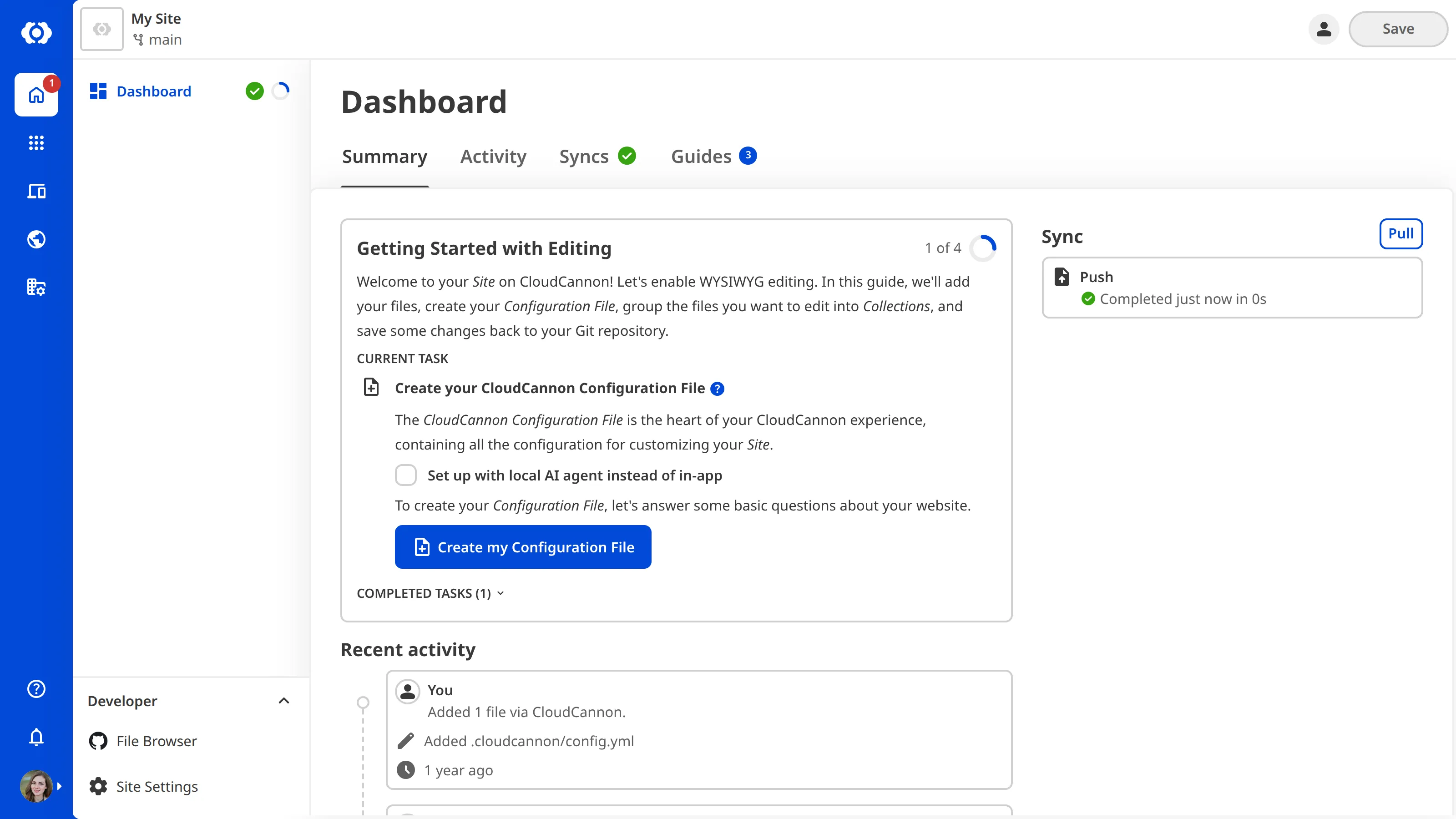
By default, CloudCannon assumes your *Configuration File* is in the root folder of your Git repository, however you can [define a custom Configuration File path](/documentation/developer-articles/define-a-custom-configuration-file-path/) if your file is within a nested folder.
You can edit your *CloudCannon Configuration File* using *Configuration Mode* or by finding the file in your *File Browser* and opening it in the Source Editor. For more information, please read out documentation on [Configuration Mode](/documentation/developer-articles/what-is-configuration-mode/) in general or the [Source Editor](/documentation/user-articles/what-is-the-data-editor/).
Here's an example of what your *CloudCannon Configuration File* might look like:
File: `cloudcannon.config.yml`
```YAML
source: /
paths:
uploads: public/uploads
static: public
collections_config:
pages:
path: pages
name: Pages
icon: wysiwyg
url: /[full_slug]/
blog:
path: blog
name: Blog
icon: post_add
url: /blog/[full_slug]/
services:
path: services
name: Services
icon: volunteer_activism
staff_members:
path: staff-members
name: Staff Members
icon: groups
data:
path: data
name: Site Elements
icon: important_devices
```
## Splitting your configuration
Rather than have a single *CloudCannon Configuration File*, you can split your configuration across multiple files. With a split *Configuration File*, you can organize your configuration more effectively, especially for larger sites or when working with shared configurations.
For more information, please read our documentation on [why splitting your Configuration File](/documentation/developer-articles/why-split-your-configuration-file/) might be right for your *Site*.
## The configuration cascade
The *CloudCannon Configuration File* is the first level in the *Configuration Cascade*, which means any configuration defined here will affect all the files on your *Site*. This makes it a great place to configure the default appearance and behavior you want. You can add more specific configuration at other levels of the cascade.
For more information, please read our documentation on the [Configuration Cascade](/documentation/developer-articles/using-the-configuration-cascade/).
## The source folder
The first key you should define in your *CloudCannon Configuration File* is `source`. This key determines the *Source Folder* for your website's files relative to the root of your Git repository. Your [Collections](/documentation/user-articles/what-is-a-collection/) are configured relative to your *Source Folder*. This is useful if you have multiple websites nested in a single repository.
---
---
title: What is the Site Dashboard README?
description: Learn about the Site Dashboard README and how it helps your team access important project information in CloudCannon.
url: https://cloudcannon.com/documentation/developer-articles/what-is-the-site-dashboard-readme/
content_type: developer article
last_modified: 2026-03-29
---
You can add more context and instructions to your *Site* by adding a the `.cloudcannon/README.md` **Markdown** file to your *Site*. When CloudCannon detects this file, it will render the contents on the *Summary* tab of your **Site Dashboard**.
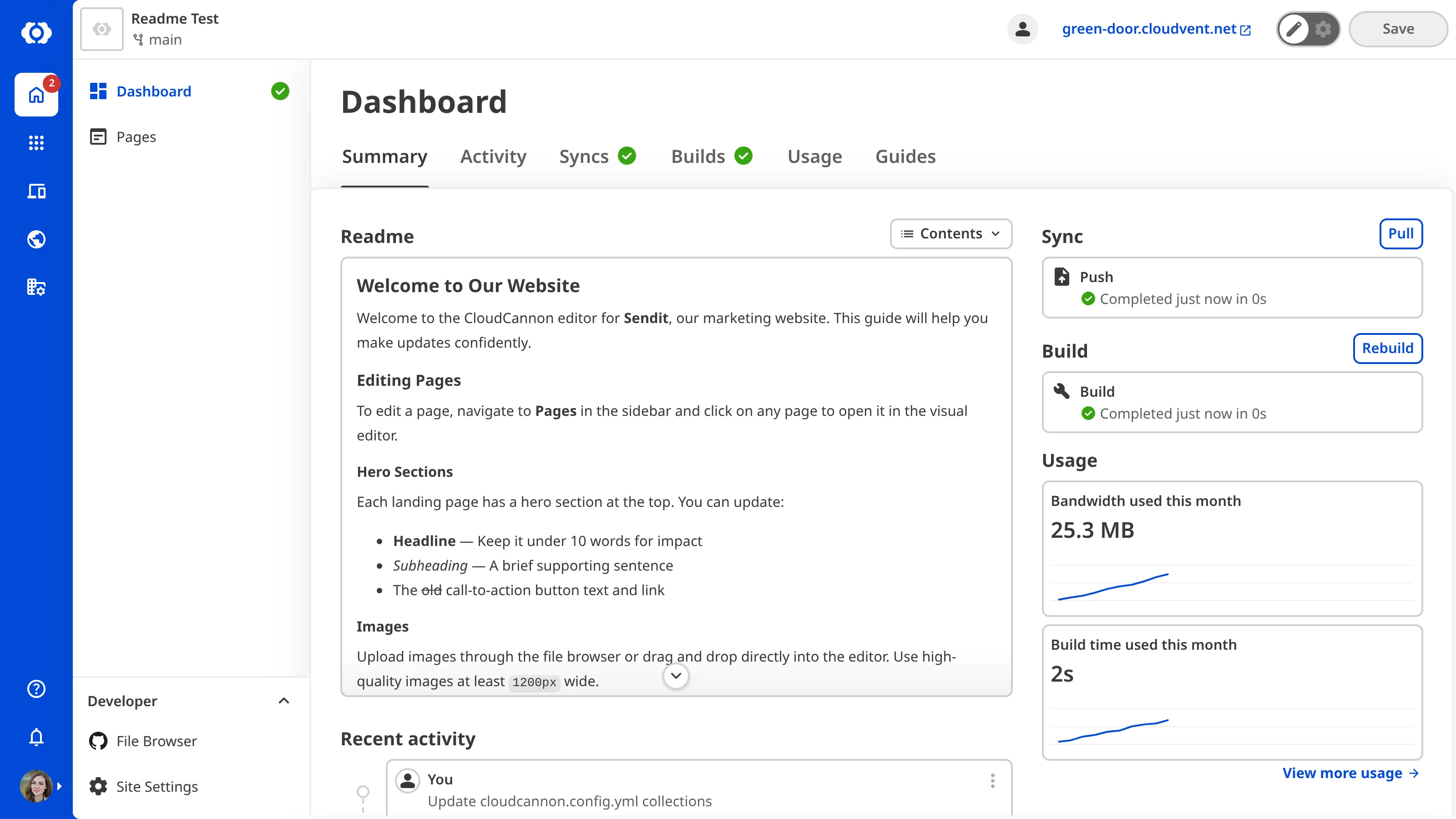
## Why add a README to your *Site Dashboard*?
The *Summary* tab of your *Site Dashboard* is a hub for information about your *Site*. It is the first page you see when you open your *Site*, and summarizes useful information such as *Recent Activity*, *Syncs*, *Builds*, and *Usage*. This make it an excellent page to add more information for your *Site* users.
A *Site Dashboard* README gives your team a single place to find essential project information without leaving CloudCannon. Instead of relying on external documents, emails, or team knowledge, you can put everything your team needs right where they work. You can use it to provide onboarding notes, project documentation, editing guidelines, or links to external resources for your team members. This is especially valuable for onboarding. When a new team member opens a *Site* for the first time, the README is the first thing they see on the *Summary* tab, giving them immediate context about the project and how to contribute.
You can include any information that helps your team work more effectively, such as:
- Onboarding notes for new team members
- Editing guidelines and content conventions (e.g., required front matter fields, recommended image dimensions)
- Links to external resources like design systems, brand guides, or project management boards
- Build or deployment notes relevant to the *Site*
- Contact information for the project owner or technical lead
Because the README is stored in your Git repository alongside your *Site* files, you can easily maintain versions of the file that are up to date with the rest of your project.
For instructions on how to create and edit your *Site* README, please read [add a Site Dashboard README](/documentation/developer-articles/add-a-site-dashboard-readme/).
## Supported formatting
The *Site Dashboard* README supports a wide range of Markdown formatting:
- Headings
- Bold, italic, strikethrough, subscript, superscript, and underline
- Links
- Blockquotes
- Bulleted and numbered lists
- Inline code
- Fenced code blocks with syntax highlighting
- Horizontal rules
- Tables
### Headings
CloudCannon automatically adjusts heading levels in your README to fit within the *Site Dashboard* layout. Your heading hierarchy is preserved, but levels are shifted so they appear as sub-headings within the dashboard. You can write headings naturally starting from `#` without worrying about the dashboard context.
For example, if your README contains `#`, `##`, and `###` headings, CloudCannon shifts them to render as smaller headings that sit beneath the dashboard page headings.
### Code blocks
Fenced code blocks in your README render with syntax highlighting using CloudCannon's styled code block component. Specify a language after the opening backticks for language-specific highlighting.
For example, the following Markdown in your README:
File: `.cloudcannon/README.md`
```Markdown
## Heading
Description:
```yaml
title: My Site
description: A great site
```
```
This renders on the *Site Dashboard* with a styled code block that includes syntax highlighting, line numbers, and a copy button.
### CloudCannon links
You can add links to CloudCannon pages using the [CloudCannon link protocol](/documentation/developer-articles/cloudcannon-protocol/). This allows you to link directly to a page on CloudCannon, such as a file or *Collection* on your *Site*, or to relevant pages outside your *Site*, such as the *Custom Domain* or *Project Browser*.
For example:
File: `.cloudcannon/README.md`
```Markdown
## Quick links
* [Edit the home page](cloudcannon:collections/pages/index.md)
* [View all blog posts](cloudcannon:collections/posts)
* [Site Settings](cloudcannon:settings)
```
---
---
title: What is the Visual Editor API?
description: Learn what the Visual Editor API is, how it works, and how you can use it to build custom integrations for CloudCannon's Visual Editor.
url: https://cloudcannon.com/documentation/developer-articles/what-is-the-visual-editor-api/
content_type: developer article
last_modified: 2026-08-11
---
An **Application Programming Interface** (API) is a set of methods and rules that allow one piece of software to interact with another using code rather than a graphical interface. APIs call specific functions to read data, trigger actions, or respond to events. You can use CloudCannon's public *Visual Editor API* to read and write content, listen for changes, and build custom integrations in the **Visual Editor**, all from code running inside your website files.
The *Visual Editor API* is designed for experienced CloudCannon developers who want to build their own custom integrations for the *Visual Editor* that go beyond what CloudCannon provides out of the box. If you need help using the API or with your CloudCannon setup in general, please contact our friendly [support team](https://cloudcannon.com/support/). For a complete list of API objects and methods, please read our reference documentation on the [Visual Editor API](/documentation/developer-reference/visual-editor-api/).
## How does the *Visual Editor API* work?

When you open a page in the *Visual Editor*, CloudCannon loads your site inside a sandboxed iframe. The *Visual Editor API* bridges communication between your website's JavaScript and the *Visual Editor* that surrounds it.
CloudCannon exposes an API router on `window.CloudCannonAPI`. You request the version you want with `useVersion()`, and the router returns an **API Object** you can use to interact with the *Visual Editor*.
## What can you do with the *Visual Editor API*?
The *Visual Editor API* provides methods to:
- [Access and list files, Collections, and Datasets](/documentation/developer-articles/access-and-list-files-collections-and-datasets-with-the-visual-editor-api/) across your **Site**.
- [Read and write](/documentation/developer-articles/read-and-write-data-with-the-visual-editor-api/) front matter, body content, and raw file source for any file, as well as lock files in the *Visual Editor*.
- [Listen for changes](/documentation/developer-articles/listen-for-changes-with-the-visual-editor-api/) on files, **Collections**, and **Datasets** to keep your integration in sync.
- [Create custom Data Panels](/documentation/developer-articles/create-a-custom-data-panel-with-the-visual-editor-api/) that support CloudCannon **Input** configuration.
- [Create custom inline editing](/documentation/developer-articles/create-custom-inline-editing-with-the-visual-editor-api/) directly on the webpage preview in the *Visual Editor*.
- [Manage loading, uploads, and previews](/documentation/developer-articles/manage-loading-uploads-and-previews-with-the-visual-editor-api/).
At CloudCannon, we use this API to build our own features. CloudCannon's [Editable Regions](/documentation/developer-articles/what-are-editable-regions/) are built on the same *Visual Editor API* that you have access to. For example, `*.createTextEditableRegion()` is the method that powers the `data-editable` attribute. It makes any HTML element inline-editable and connects it to the *Visual Editor*'s content model.
For more information on how to use the *Visual Editor API*, please read our documentation on [initializing the Visual Editor API](/documentation/developer-articles/initialize-the-visual-editor-api/), or the [Build custom Visual Editor integrations](/documentation/developer-guides/build-custom-visual-editor-integrations/) guide.
---
---
title: What is Visual Editing?
description: Learn about Visual Editing in CloudCannon, including how you can edit inline on a preview of your live website.
url: https://cloudcannon.com/documentation/developer-articles/what-is-visual-editing/
content_type: developer article
last_modified: 2026-06-24
---
Visual editing is a user-friendly way of updating your website files, allowing you to change your text, images, and arrays on a preview of your output webpage. The benefits of visual editing include providing a more intuitive experience (you can navigate around your website preview using links/buttons, as you would on the live version) and helping you make editing decisions in context with surrounding page elements.
In CloudCannon, you can use the [Visual Editor](/documentation/user-articles/what-is-the-visual-editor/) to visually edit any file that outputs to an HTML webpage at [build time](/documentation/developer-articles/what-is-a-site-build/).
## Generating the preview of your webpage
When you open a file, the Visual Editor displays a preview of your webpage, along with a sidebar on the left. But, where does CloudCannon get the preview?
CloudCannon generates a preview of all your webpages whenever you build your *Site*, allowing you to see the most up-to-date version of your website every time you use the Visual Editor.
A "build" is when CloudCannon converts all your *Site* files into a single, functional website. Building on CloudCannon is optional, but is required for specific features, such as the Visual Editor, preview screenshots for output files in your *Collection Browser*, and the Testing Domain and Custom Domain.
CloudCannon uses a CI/CD (Continuous Integration/Continuous Delivery) system. Every time you trigger a build of your Site, CloudCannon will:
1. Download your files onto our server.
2. Run your selected install commands (e.g., `npm install`, `bundle install`).
3. Run your selected build commands (e.g., `npm run build`).
4. Index your output files.
5. Upload your output files to CloudCannon to generate previews in the Visual Editor, Testing Domain, and *Collection Browser* screenshots, and deliver them to your live Custom Domain (if you are hosting with CloudCannon).
For more information about Site builds, please read our documentation on [builds](/documentation/developer-articles/what-is-a-site-build/) in general, [configuring your first site build](/documentation/developer-articles/configure-your-first-build/), or consider following our [Set up Visual Editing](/documentation/developer-guides/set-up-visual-editing/) guide.
## Editable regions, data panels, and the sidebar
There are several ways to edit your files in the Visual Editor: inline using editable regions on the preview of your webpage, with data panels for data that is not visible on the webpage, or using Inputs in the sidebar.
You can define which content you want your team to be able to edit inline by adding *Editable Regions* to your files. In the Visual Editor, *Editable Regions* are signified by a yellow box around a piece of content. If you have several *Editable Regions* near each other on your page, CloudCannon will show you the boundary of your region by turning the border green when you click or hover it.
Clicking into an *Editable Region* will have a different result depending on the type of content it contains. CloudCannon will show a WYSIWYG toolbar for rich text, open a data panel for images, and provide tools for editing array items.
[Video: The Visual Editor with editable regions](https://player.vimeo.com/progressive_redirect/playback/1124969057/rendition/1080p/file.mp4?loc=external&signature=18a05ed71665768fa94851c72a31cf574e4079284b8ce0579885d8f3b47c4a8d)
Data panels enable you to edit data that is not visible on your page, and therefore cannot be edited in-line. A good example of this is the path, alt text, or title of an image. You can move these data panels around your screen to ensure they don't cover the content you need.

Finally, the sidebar of the Visual Editor provides [Inputs](/documentation/user-articles/what-are-inputs/) for editing any structured data keys related to your webpage. You can open and close the sidebar as you need, giving you the option to see more of your webpage preview.
When you change the value on an Input in the sidebar, the preview of your webpage in the Visual Editor will immediately update to match the new value. The same will happen if you update the content of an *Editable Region* connected to a structured data key in your sidebar.
If you have not configured your Inputs, CloudCannon will attempt to determine the correct editing interface for your data using the Input value and key name.
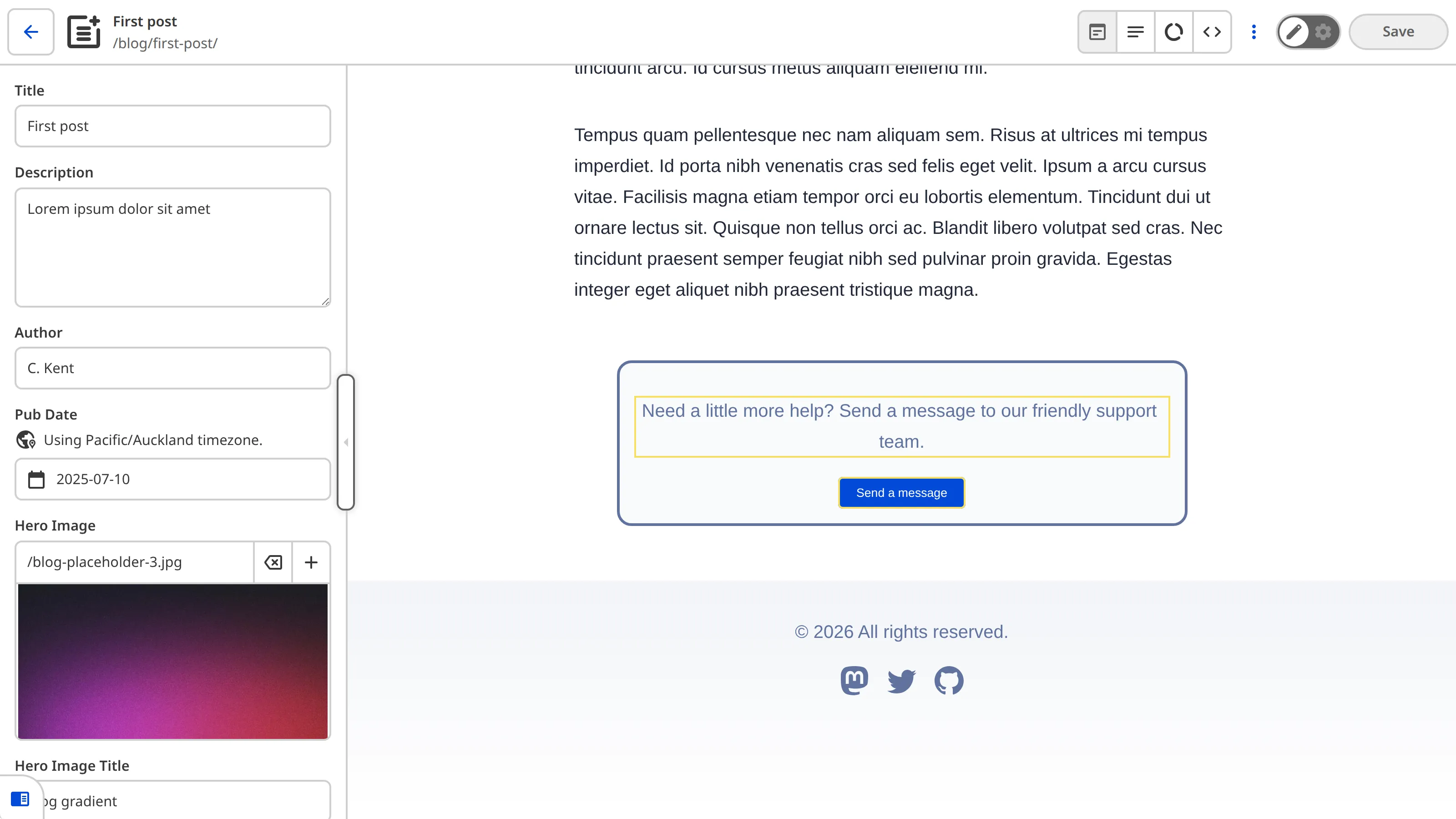
## The *Visual Editor API*
You can extend the functionality of the *Visual Editor* through custom integrations that use CloudCannon's public *Visual Editor API*. This lets you read and write content, listen for changes, and build custom editing interfaces.
For more information, please read our documentation on [what the Visual Editor API is](/documentation/developer-articles/what-is-the-visual-editor-api/).
---
---
title: Why split your Configuration File?
description: Learn about splitting your CloudCannon configuration across several files, including why split configuration might work for you.
url: https://cloudcannon.com/documentation/developer-articles/why-split-your-configuration-file/
content_type: developer article
last_modified: 2026-06-23
---
Rather than have a single [CloudCannon Configuration File](/documentation/developer-articles/what-is-the-cloudcannon-configuration-file/), you can split your configuration across multiple files. With a split *Configuration File*, you can organize your configuration more effectively, especially for larger sites or when working with shared configurations.
You can split the following configuration into dedicated *Configuration Files*:
- [Collections](/documentation/user-articles/what-is-a-collection/) (`_collection_config`)
- [Schemas](/documentation/developer-articles/what-is-a-schema/) (`collections_config.*.schemas`)
- [Inputs](/documentation/user-articles/what-are-inputs/) (`_inputs`
- [Structures](/documentation/developer-articles/what-is-a-structure/) and Structure values (`_structures`, `_structures.*.values.value`)
- [Snippets](/documentation/developer-articles/what-is-a-snippet/) (`_snippets`, `_snippets_imports`)
- [Rich Text](/documentation/developer-articles/what-are-rich-text-editors/) (`_editables`)
There are several reasons why splitting your CloudCannon configuration across multiple files might be right for your *Site*:
- Splitting your configuration across multiple files allows you to keep related configurations in dedicated files (e.g., Input configuration in one file and Schema configuration in another). When updating your *Site,* you can navigate directly to the file you need, without going through a single long *Configuration File*.
- Collaborating with your team is easier with split *Configuration Files*, as you can work on different parts of your *Site* configuration simultaneously.
- You can use [Custom Permission Groups](/documentation/developer-articles/what-are-custom-permission-groups/) to only allow your team members to edit specific *Site* configuration.
- Split *Configuration Files* also allow you to reduce configuration redundancy. For example, rather than defining a common Input under several *Collections*, you can reference a single *Inputs* *Configuration File* from each *Collection*.
For more information, please read our documentation on [best practices for splitting your configuration](/documentation/developer-articles/best-practice-for-splitting-your-configuration-file/), [defining the same key in multiple Configuration Files](/documentation/developer-articles/defining-the-same-key-in-multiple-configuration-files/), and [split your Configuration File](/documentation/developer-articles/split-your-configuration-file/), and our [Configuration File](/documentation/developer-reference/configuration-file/) reference documentation.
## How does splitting your *Configuration File* work?
When you split your *Site* configuration across multiple *Configuration Files*, CloudCannon still requires one main *Configuration File* (i.e., `cloudcannon.config.yml`). Your main *Configuration File* will point to other *Configuration Files* on your *Site* using `*_from_glob` keys.
File: `cloudcannon.config.yml`
```YAML
collections_config_from_glob:
- '/.cloudcannon/collections/*.cloudcannon.collections.yml'
```
Each *Configuration File* can reference any other *Configuration File* (as long as they all ultimately connect back to your main *Configuration File*), allowing you to organize your content to the level you require.
File: `/.cloudcannon/collections/posts.cloudcannon.collections.yml`
```YAML
path: content/posts
icon: event
schemas_from_glob:
- '/.cloudcannon/schemas/*.cloudcannon.schemas.yml'
- '!/.cloudcannon/schemas/pages.cloudcannon.schemas.yml'
_inputs_from_glob:
- '/.cloudcannon/inputs/seo.cloudcannon.inputs.yml'
- '/.cloudcannon/inputs/blog-details.cloudcannon.inputs.yml'
_inputs:
authors:
type: multiselect
options:
values: collections.authors
```
Whenever you load your *Site* or update a *Configuration File*, CloudCannon will merge your configuration and apply it to your *Site*.
## Limitations
There are a few reasons that split *Configuration Files* may not be right for your *Site.*
1. Currently, you can only split your *Configuration File* for *Sites* using [Unified Configuration](/documentation/developer-guides/unified-configuration-migration-guide/).
2. You cannot use `*_from_glob` keys in the front matter of content files.
3. While you can split out several sections of your *Configuration File*, the equivalent `*_from_glob` key for `_select_data` is intentionally not supported. Please use `data_config` instead.
If you have any questions about configuring your *Site* on CloudCannon, don't hesitate to contact our friendly [support team](https://cloudcannon.com/support/).
---
---
title: Text alignment options for Rich Text Editors
description: This release added an align option for Rich Text Editors, rebuilt the Inbox, Form, and Target setup screens, and clarified the copy for manually scheduled builds.
url: https://cloudcannon.com/documentation/changelog/2026/09/16/text-alignment-options-for-rich-text-editors/
content_type: changelog
last_modified: 2026-09-16
---
This release added an `align` option for *Rich Text Editors*, rebuilt the *Inbox*, *Form*, and *Target* setup screens, and clarified the copy for manually scheduled builds.
It also addressed several issues, including those affecting alignment controls in *Rich Text Editors*, input validation, *Subscription* banners, asset filtering for DAMs, SSO enforcement, and cache clearing for *Sites* on a subpath.
## Features & Improvements
- Added the `align` option to *Rich Text Editors*, allowing you to align blocks of text without configuring a class name for each alignment. CloudCannon saves alignment as a `text-align` style by default.
- The `align.left`, `align.center`, `align.right`, and `align.justify` keys each enable a control in the toolbar.
- The `align.default` key sets the alignment blocks of text have when no alignment is set, which allows a default other than left. Selecting that alignment in the toolbar removes any existing alignment.
- The `align.classes` key sets a class name for each alignment instead of a `text-align` style. The styles for these classes need to be listed in your `styles` file to take effect outside of the input.
- Alignment applies to list items as well as other blocks of text.
- Existing HTML content keeps its inline `text-align` styles when it loads into a *Rich Text Editor*.
- Deprecated the `left`, `center`, `right`, and `justify` keys in favor of `align`. Existing configuration using these keys continues to work.
File: `cloudcannon.config.yml`
```YAML
_inputs:
description:
type: markdown
options:
align:
left: true
center: true
right: true
justify: true
default: center
summary:
type: markdown
options:
align:
left: true
center: true
right: true
classes:
left: text-start
center: text-center
right: text-end
```
- Rebuilt the *Inboxes*, *Forms*, and *Targets* screens in *Site Settings* and *Org Settings* to make the relationship between them clearer.
- The *Inboxes* page in *Site Settings* shows a warning when a *Site* has a default *Inbox*, explaining that every POST request to that *Site* is accepted and stored there.
- Added explanatory labels and your *Site's* timezone to the manual build form on the *Builds* page in *Site Settings*. For more information, please read our documentation on [scheduling your builds manually](/documentation/articles/scheduling-your-builds-manually/).
- Updated the format of emails sent to *Inbox Targets* from *Forms* on your *Site*.
## Fixes
- Fixed an issue where the *Left align* control in a *Rich Text Editor* could only remove existing alignment, rather than explicitly aligning a block of text to the left.
- Fixed an issue where selecting all the text in a *Rich Text Editor* and then changing the alignment left the icon on the alignment control showing the previous alignment.
- Fixed an issue where the tooltip on the alignment control in a *Rich Text Editor* read *Justify*, rather than describing the control.
- Fixed an issue where leaving a *Number* or *Range Input* empty triggered the `min` and `max` validation errors, even when `required` was not set.
- Fixed an issue where the banner announcing a canceled *Subscription* stayed on screen after you reactivated that *Subscription*, until you refreshed the page.
- Fixed an issue where filtering assets in a DAM returned every asset, rather than only the assets matching your search term.
- Fixed an issue where removing the SAML configuration from your *Organization* did not clear the SSO requirement, so *Team Members* were still required to log in with SSO.
- Fixed an issue where updating or deleting a *Site* served from a subpath did not clear the cache for the *Site* above it, so that *Site* continued to serve outdated content.
- Fixed an issue where `file_config` entries ignored `_inputs_from_glob`, `_structures_from_glob`, and other `_from_glob` keys.
- Fixed an issue where scrolling the list of *Inboxes* when connecting one to your *Site* added a duplicate *New inbox* option.
- Fixed an issue where the *Visual Editor* preview sometimes showed outdated content for *Editable Regions*.
- Fixed an issue where *Mark as not spam* did not move a form submission out of *Spam* if CloudCannon had automatically marked it as spam.
- Fixed an issue where verifying an email *Target* with an expired link showed a decoding error, rather than sending you a new verification email.
- Fixed an issue where *Client Sharing* could cause *Syncing* to fail if you did not specify an email address for commits.
- Fixed an issue where renewing your *Subscription Plan* after cancelling did not remove the warning banner until you refreshed the page.
- Updated dependencies to patch security vulnerabilities.
---
---
title: Billing Permission Group emails
description: This release improved Site loading speed, added Subscription change emails for members of the Billing Permission Group, and added a record count and filter options to the Hosting Bandwidth Usage graph.
url: https://cloudcannon.com/documentation/changelog/2026/09/11/billing-permission-group-emails/
content_type: changelog
last_modified: 2026-09-11
---
This release improved *Site* loading speed, added *Subscription* change emails for members of the *Billing Permission Group*, and added a record count and filter options to the *Hosting Bandwidth Usage* graph.
It also addressed several issues, including those affecting *Site* transfers to *Client Organizations*, the *Hosting Bandwidth Usage* graph, the *Builds* tab on your *Site Dashboard*, and image loading in *Rich Text Editors*.
## Features & Improvements
- Members of the *Billing Permission Group* will now receive emails when *Subscription* details change, rather than just *Owners*.
- You can now use the environment variable `CLOUDCANNON_BRANCH` during a *Site* build to get the name of the Git branch.
- Improved *Site* loading speed, particularly for large *Sites*.
- Added a label showing the number of loaded records and filter options to the *Hosting Bandwidth Usage* graph.
## Fixes
- Fixed an issue where, when transferring a *Site* with connected *Team Members* or *Custom Domains* to a *Client Organization* on an extended *Free Trial* with fewer than three days left, CloudCannon would end the trial period and request credit card information.
- Fixed several UI issues affecting the *Hosting Bandwidth Usage* graph.
- Fixed an issue where, in some cases, the *Builds* tab on your *Site Dashboard* would fail to load after a *Build Error*.
- Fixed an issue preventing the `image_options.loading` configuration in *Rich Text Editors* from working.
- Updated dependencies to patch security vulnerabilities.
---
---
title: Sync Errors on the Site Dashboard
description: This release added Sync Errors and suggested resolution steps to the Site Dashboard, a new build error suggestion for Sites using Yarn or pnpm with a version of Node that is not preinstalled, and standardized date display and formats across CloudCannon.
url: https://cloudcannon.com/documentation/changelog/2026/08/28/sync-errors-on-the-site-dashboard/
content_type: changelog
last_modified: 2026-08-28
---
This release added *Sync Errors* and suggested resolution steps to the *Site Dashboard*, a new build error suggestion for *Sites* using Yarn or pnpm with a version of Node that is not preinstalled, and standardized date display and formats across CloudCannon.
It also addressed several issues, including those affecting the *Hosting Bandwidth* widget in the *Organization Browser*, CloudCannon in Safari version 27, and *Select* and *Number Inputs*.
## Features & Improvements
- The *Site Dashboard* now shows *Sync Errors* and suggests steps for resolution.
- Added a build error suggestion for *Sites* using a non-preinstalled version of Node, and Yarn or pnpm.
- Standardized display and formats for dates across the app UI and file formats.
## Fixes
- Fixed an issue where, in some cases, the *Hosting Bandwidth* widget on an *Organization* card in the *Organization Browser* would incorrectly show “Billing overdue”.
- Fixed an issue causing CloudCannon to freeze in Safari version 27.
- Fixed an issue where autocomplete for *Multi-factor Authentication* codes did not work on mobile.
- Fixed an issue where the tools in a *Browser* modal (e.g., *Snippets Browser* modal or *Array Item Browser* modal) did not stick to the top when scrolling.
- Fixed an issue where, in some cases, you could not type in a *Select Inputs* to search options.
- Fixed an issue where *Number Inputs* did not accept `min: 0`.
- Updated dependencies to patch security vulnerabilities.
---
---
title: Introduction
description: Learn how to set up and manage your CloudCannon subscription, from choosing a Subscription Plan to understanding your first bill.
url: https://cloudcannon.com/documentation/user-guides/subscribe-to-cloudcannon/
content_type: user guide
last_modified: 2026-09-23
---
Welcome to the Subscribe to CloudCannon guide!
This guide is for anyone setting up a paid CloudCannon **Subscription** for the first time. Whether you own an **Organization** and are setting up billing for your team, or you have been asked to manage the *Subscription*, we'll walk you through it step by step. No prior CloudCannon billing knowledge is assumed.
If you are already on a paid **Subscription Plan** and need to make a specific change, such as updating your card or switching *Subscription Plans*, please read our documentation on [billing in CloudCannon](/documentation/user-articles/introduction-to-billing/).
This guide walks through subscribing on the *Standard Plan* and *Team Plan*. If your *Organization* needs the *Enterprise Plan*, its billing is arranged directly with the CloudCannon team, so contact our [support team](https://cloudcannon.com/support/) to set it up. It helps to include your *Organization* name and a rough idea of your team size and resource needs, so they can prepare the right plan.
In this guide, we'll cover how to:
- Choose a *Subscription Plan* for your *Organization*
- Add a payment method to activate your *Subscription*
- Set up *Add-Ons* to extend your *Subscription Plan's* resource limits
- Understand your billing summary and invoices
Before we begin, this guide assumes you already have:
- **A CloudCannon account** — If you do not have one yet, you can [create an account](https://app.cloudcannon.com/register).
- **An Organization** — An *Organization* is your team's workspace in CloudCannon, and every account starts with one. If you need another, you can [create an Organization](/documentation/user-articles/create-a-new-organization/). Your *Organization* is where your *Sites*, *Team Members*, and *Subscription* live.
- **Billing permissions** — To manage billing, you need to be a member of the *Owners* or *Billing* [Default Permission Groups](/documentation/user-articles/what-are-default-permission-groups/), or a *Custom Permission Group* with billing permissions. If you created the *Organization*, you are already an *Owner*. Otherwise, ask an *Owner* to add you to a group that can manage billing.
In the first step of this guide, we'll cover what CloudCannon's **Free Trial** is, and choosing the right *Subscription Plan* for your *Organization*.
---
---
title: More resources
description: Explore more billing articles to help you manage your CloudCannon subscription.
url: https://cloudcannon.com/documentation/user-guides/subscribe-to-cloudcannon/more-resources/
content_type: user guide
last_modified: 2026-09-23
---
Congratulations! 🎉 You have finished the Subscribe to CloudCannon guide.
By following each step in this guide, you have set up a paid **Subscription Plan** and know where to manage your billing.
## User Articles
You can find more resources about the topics we covered in this guide under the [User Articles](/documentation/user-articles/) section of our documentation. Here are some specific articles you may find helpful:
### Change your subscription later
Your subscription isn't fixed. You can move between *Subscription Plans*, adjust how you pay, or cancel at any time.
- [Update your Subscription Plan](/documentation/user-articles/update-your-subscription-plan/) — Move to a higher or lower *Subscription Plan* as your team's needs change.
- [Update your billing period](/documentation/user-articles/update-your-billing-period/) — Switch between paying monthly and yearly.
- [Manage your payment methods](/documentation/user-articles/manage-your-payment-methods/) — Add, remove, or update the credit cards on your **Organization**.
- [Cancel your Subscription](/documentation/user-articles/cancel-your-subscription/) — End your **Subscription**, and learn what happens to your *Organization* and **Sites**.
### Learn more about billing
These articles explain how CloudCannon billing works in more detail.
- [What is a Subscription Plan?](/documentation/user-articles/what-is-a-subscription-plan/) — Understand what a *Subscription Plan* includes and how it's priced.
- [What are Add-Ons and Overages?](/documentation/user-articles/what-are-add-ons-and-overages/) — Learn how to extend your *Subscription Plan's* resource limits.
- [Download invoices and receipts](/documentation/user-articles/download-invoices-and-receipts/) — Find and download your billing history as PDFs.
- [Understand your CloudCannon invoice](/documentation/user-articles/understand-your-cloudcannon-invoice/) — See what each line item on your invoice means.
- [Add a coupon to your subscription](/documentation/user-articles/add-a-coupon-to-your-subscription/) — Apply a discount code to your *Subscription*.
## Next steps
Now that your subscription is set up, your team has full access to CloudCannon. Come back to this guide or the articles above whenever your billing needs change.
If you need help or have questions:
- Refer back to this guide or any of the articles linked above
- Ask an *Owner* of your *Organization* if you need [billing access](/documentation/user-articles/what-are-default-permission-groups/) you don't have
- Reach out to the friendly CloudCannon [support team](https://cloudcannon.com/support/) for help with your billing
- Check out the [CloudCannon Community](https://community.cloudcannon.com/)
You're all set!
---
---
title: Add a payment method
description: Add a credit card to activate your paid CloudCannon subscription.
url: https://cloudcannon.com/documentation/user-guides/subscribe-to-cloudcannon/add-a-payment-method/
content_type: user guide
last_modified: 2026-09-23
---
Before you can activate your CloudCannon **Subscription**, you must add a payment method. If you already have one attached to your **Organization**, you can skip ahead to completing checkout.
CloudCannon accepts credit card payments on the *Standard Plan* and *Team Plan*.
## Add your credit card
You confirmed your **Subscription Plan** on the *Your Subscription Plan* page, which is also where you complete checkout.
Scroll down to the *Payment details* section of the page and click the *Add Credit Card* button to open the *Add your Credit Card* modal.
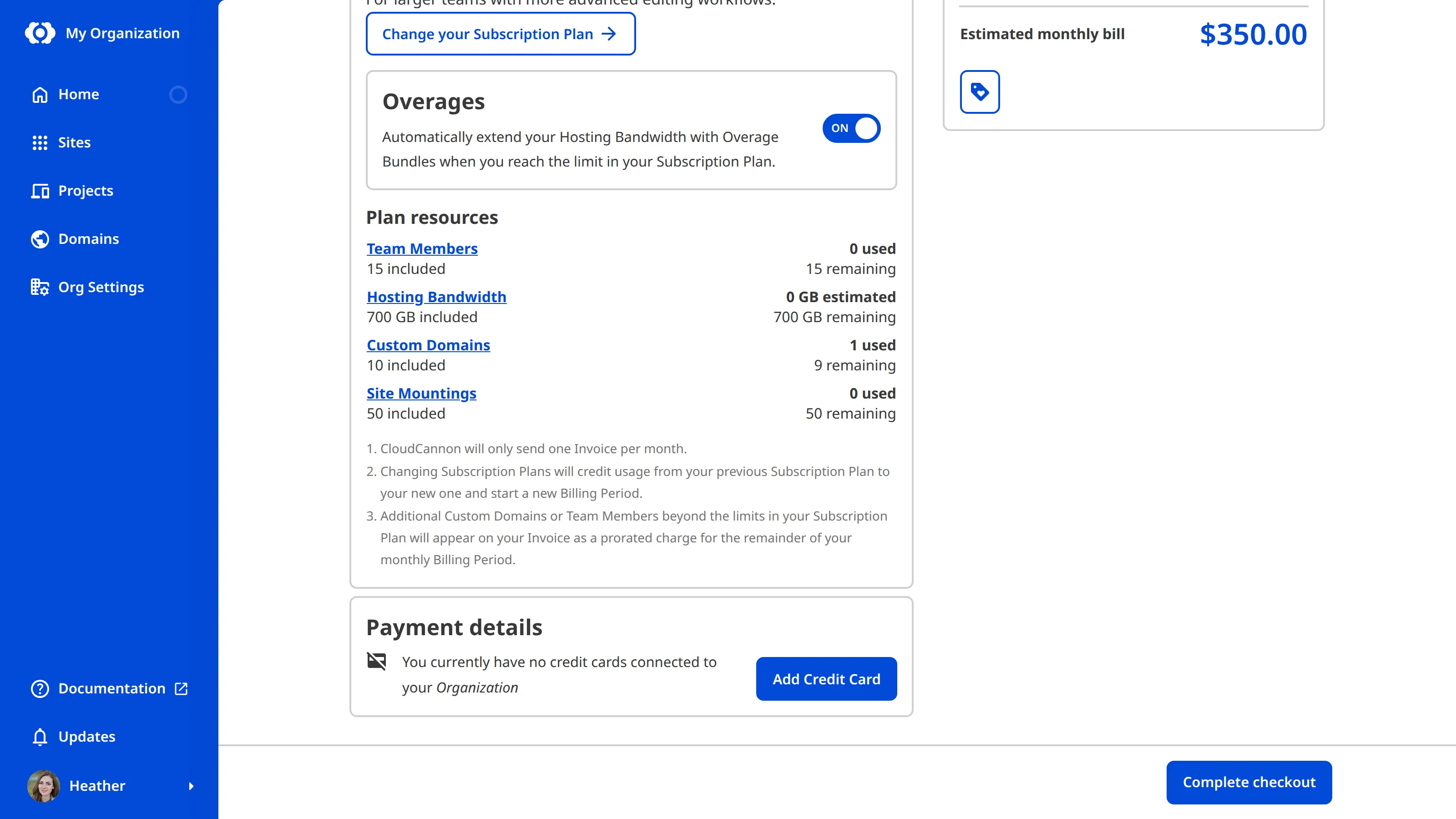
Enter your card details. The card form checks your card number, expiry date, and security code as you type, and highlights anything that isn't valid so you can correct it before submitting.
Some banks also require your billing address to approve a card, so if you run into trouble, expand the *Additional info* section and add your address.
When you are ready, click the *Add Credit Card* button. CloudCannon will confirm your card with your bank and add it to your *Organization*.
Click the *Complete checkout* button to start your paid *Subscription* and apply the **Overages** setting you chose in the previous step. CloudCannon confirms your payment and returns you to the *Subscription* page, where you can see your active *Subscription Plan* and estimated bill.
In the next step of this guide, we'll look at your billing summary and invoices.
---
---
title: Choose your Subscription Plan
description: Compare CloudCannon Subscription Plans and select the one that fits your team's needs.
url: https://cloudcannon.com/documentation/user-guides/subscribe-to-cloudcannon/choose-your-subscription-plan/
content_type: user guide
last_modified: 2026-09-23
---
Subscribing to CloudCannon gives you access to features that improve how your team edits content, collaborates, and publishes your *Sites*. As your team grows, you can move to a higher **Subscription Plan** to unlock more resources and features.
There are three *Subscription Plans* to choose from, each aimed at a different size of team, with different requirements. For the most up-to-date list of what each *Subscription Plan* includes, take a look at the [CloudCannon pricing page](https://cloudcannon.com/pricing/).
## Your Free Trial
When you created your **Organization**, CloudCannon automatically started a 21-day **Free Trial** on the *Standard Plan*, with no payment method required. This gives you time to explore CloudCannon before you commit to a paid **Subscription**.
If you own the *Organization*, you can track how many days you have left in the *Trial Countdown* in the **App Sidebar**, and on a banner on the *Subscription* page. For more information, please read our documentation on [what CloudCannon's Free Trial is](/documentation/user-articles/what-is-cloudcannons-free-trial/).


You can subscribe to CloudCannon at any time, whether your *Free Trial* is still running or has already ended:
- **Part way through your trial** — You can select a *Subscription Plan* and add a payment method whenever you are ready. CloudCannon will not bill you until after your *Free Trial* has ended.
- **After your trial has ended** — If your trial finishes without a payment method, CloudCannon pauses your *Subscription*. Your *Organization*, *Sites*, and files stay intact. Selecting a *Subscription Plan* and adding a payment method will start your *Subscription* immediately.
## Compare Subscription Plans
A *Subscription Plan* defines:
- A set of features available to your *Organization*.
- An amount of **Team Members** and **Custom Domains** for your *Organization*.
- The monthly usage limits for resources like **Hosting Bandwidth** and **Build Time**.
- The price you pay for access to those features and resources, monthly or annually.
Each *Subscription Plan* includes a set amount of these resources, and you can purchase more of any of them at any time:
- **Team Members** — Add people who can access, edit, or create content for your *Organization*. This includes people you invite to your *Organization*, people you invite to a single *Site* through **Site Sharing**, and each *Site* with **Client Sharing** enabled.
- **Custom Domains** — Add additional *Custom Domains* to your *Organization*, which you can connect to any number of *Sites*. This includes your apex domain and any subdomains (e.g., `jetstream.com`, `www.jetstream.com`, `shop.jetstream.com`) but not subpaths (e.g., `jetstream.com/blog`).
- **Build Time** — Allow your *Team Members* to spend more time on *Site* builds, in 1-hour bundles rounded up to the next full bundle. This only applies to *Subscription Plans* that limit *Build Time*.
- **Hosting Bandwidth** — Allow your *Sites* to serve additional website traffic, in 100 GB bundles rounded up to the next full bundle.
Which *Subscription Plan* is right for your *Organization* will depend on if you need access to a specific feature, expect to use a certain amount of resources, and whether you want to pay monthly or yearly.
> Each *Organization* in CloudCannon can have one *Subscription Plan*, and owning multiple *Organizations* results in separate billing.
To see the available *Subscription Plans* in the app, click **Org Settings** in the *App Sidebar* and open the *Subscription* page. In the billing summary, click the *Review your Subscription Plan* button to open the *Your Subscription Plan* page, then click the *Change your Subscription Plan* button to open the *Update your Subscription Plan* page.
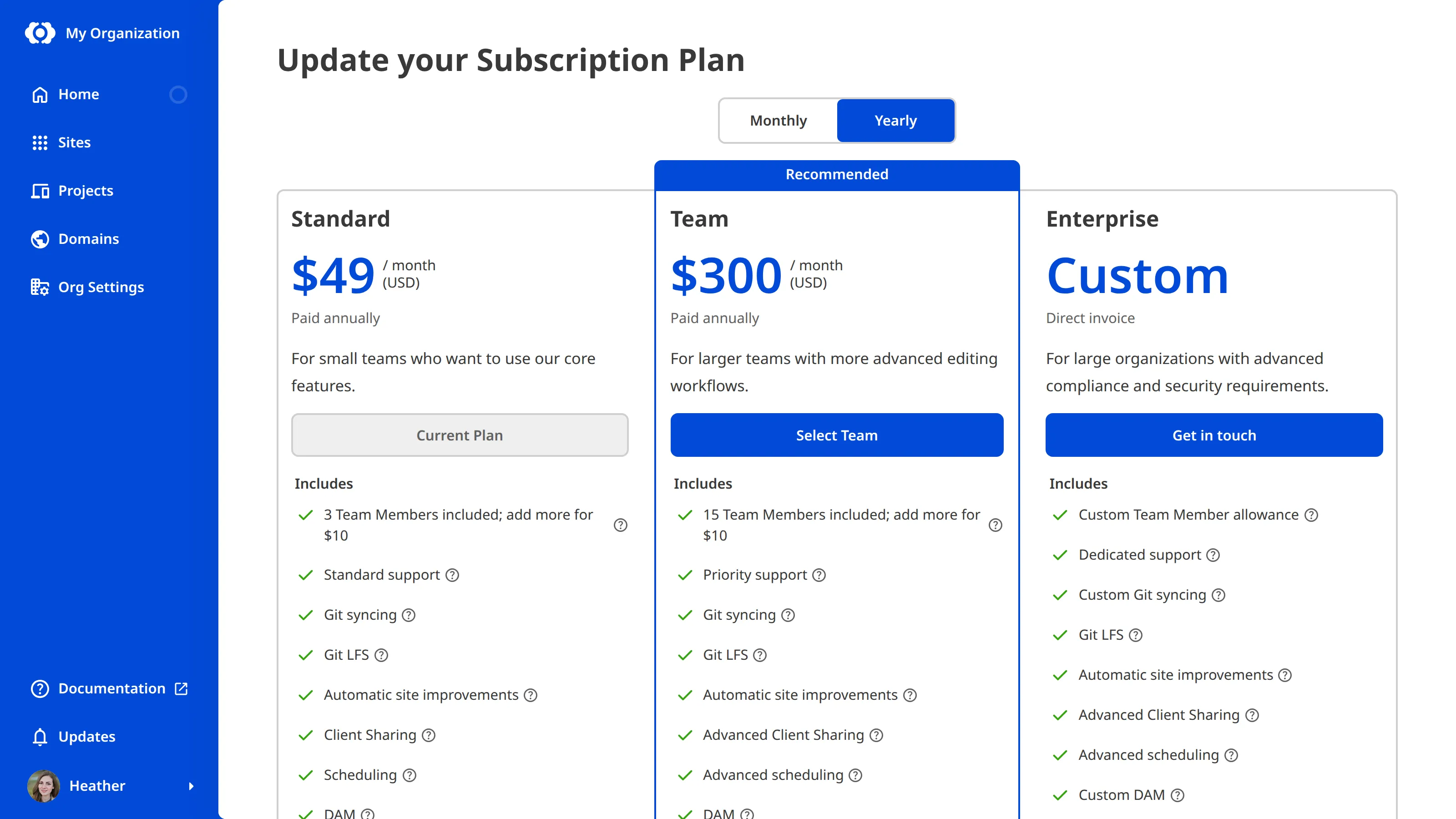
CloudCannon offers three paid *Subscription Plans*: the *Standard Plan*, *Team Plan*, and *Enterprise Plan*.
- The *Standard Plan* offers CloudCannon's core editing, publishing, and collaboration features, with resource limits appropriate for small teams and unlimited *Build Time*.
- The *Team Plan* offers everything from the *Standard Plan*, plus advanced publishing workflows, **Custom Permission Groups**, and priority support. It also includes more *Team Members*, *Custom Domains*, and *Hosting Bandwidth*.
- The *Enterprise Plan* offers everything from the *Team Plan*, plus **Single Sign-On**, custom billing arrangements, and a dedicated account manager, with à la carte resource limits and options for teams with advanced security and compliance requirements.
If your *Organization's* requirements fall between these *Subscription Plans*, choose based on the features you need, since you can add more resources to any *Subscription Plan*. We'll cover that further in the [next step of this guide](/documentation/user-guides/subscribe-to-cloudcannon/set-up-add-ons-and-overages/).
## Select a Subscription Plan
Once you have decided which *Subscription Plan* you want, you can select whether to pay for it on a monthly or yearly basis. This is called your **Billing Period**.
The *Billing Period* toggle at the top of the *Update your Subscription Plan* page allows you to see how the price of each *Subscription Plan* changes. Paying on a yearly *Billing Period* is discounted, compared to monthly.
Click the *Select [Plan Name]* button for the *Subscription Plan* and *Billing Period* you want.
Selecting a *Subscription Plan* takes you to the *Your Subscription Plan* page, where you confirm your choice.

In the next step of this guide, we'll set up *Add-Ons* and *Overages* for when you need more than your *Subscription Plan* includes.
---
---
title: Set up Add-Ons and Overages
description: Extend your Subscription Plan's resource limits with Add-Ons and decide how Overages work.
url: https://cloudcannon.com/documentation/user-guides/subscribe-to-cloudcannon/set-up-add-ons-and-overages/
content_type: user guide
last_modified: 2026-09-23
---
If the **Subscription Plan** you chose doesn't have the right amount of resources, you can extend it with **Add-Ons** and **Overages**. *Add-Ons* allow you to add extra **Team Members** or **Custom Domains** to your *Organization*. *Overages* allow you to go beyond your **Build Time** and **Hosting Bandwidth** limits and pay for what you use at the end of each month.
> *Overages* are relevant if you build and host your website through CloudCannon, rather than through a third-party service.
## Using Add-Ons
There is no button to purchase *Add-Ons*. Instead, CloudCannon automatically adds them to your *Subscription Plan* when you add a *Team Member* or connect a *Custom Domain* to your *Organization*.
You won't be charged for *Add-Ons* until you go over the amount in your *Subscription Plan*. When adding either of these resources would put you over your *Subscription Plan's* limits, CloudCannon shows the *Confirm Billing Change* modal.

We'll cover how to add *Team Members* and *Custom Domains* in a future guide.
## How Overages work
You can control whether *Overages* are enabled or disabled for your *Organization*, which encompasses both *Build Time* and *Hosting Bandwidth*. By default, *Overages* are disabled for all *Organizations*.
When *Overages* are enabled, CloudCannon will automatically extend your resources as you exceed your limits. At the end of each month, CloudCannon will invoice you for the amount of *Overages* you used over your *Subscription Plan* limit in 1-hour or 100 GB bundles, rounded up.
When *Overages* are disabled, and you reach the resource limit in your *Subscription Plan*, CloudCannon will prevent your *Organization* from using more:
- When you reach your *Build Time* limit, CloudCannon stops running *Site* builds for the remainder of the month or until you enable *Overages*. You can still save your changes, but they will not build.
- When you reach your *Hosting Bandwidth* limit, CloudCannon will stop serving the *Sites* on your *Organization* to website visitors for the remainder of the month or until you enable *Overages*. Instead, visitors to your website will see a hosting error message.

> **How much Hosting Bandwidth do I need?**
>
> *Hosting Bandwidth* is the amount of data transferred from your website's servers at CloudCannon to your website visitor. The amount of data each webpage needs is measured in megabytes (MB), and mostly depends on how many image/media files are on the page and how optimized your website is. For example, a 4 MB webpage with several images or media files will serve 25,000 page views with 100 GB of *Hosting Bandwidth*. Most optimized webpages are smaller than this, so 100 GB will go further.
## Turn Overages on or off
Even if you don't need *Overages*, we recommend enabling them to prevent your *Sites* from going down in the case that you do reach your limits.
Choosing your *Subscription Plan* took you to the *Your Subscription Plan* page, which is also where you set *Overages*.

Turn *Overages* on or off. You don't need to save this now. CloudCannon applies your choice when you complete checkout in the next step. To change *Overages* after you have subscribed, use the *Enable Overages* or *Disable Overages* button that appears on this page.
## Track your usage
After you subscribe, you can keep track of how much *Hosting Bandwidth* and *Build Time* you use each month from the *Usage* tab on your *Organization Home* page or *Site Dashboard*. There's no need to check it during checkout; it's somewhere to return to over time. Watching these graphs helps you anticipate when your *Organization* or *Site* might reach its *Subscription Plan* limits, and decide whether to enable *Overages* or change your *Subscription Plan*.

> Several CloudCannon *Subscription Plans* have unlimited *Build Time*. However, CloudCannon may monitor usage with regard to the fair use of CloudCannon infrastructure, in line with our [Terms of Service](https://cloudcannon.com/terms/).
In the next step of this guide, we'll add a payment method and complete checkout.
---
---
title: Find your invoices
description: Learn when your first invoice arrives, read your billing summary, and find your invoices.
url: https://cloudcannon.com/documentation/user-guides/subscribe-to-cloudcannon/find-your-invoices/
content_type: user guide
last_modified: 2026-09-23
---
Your first invoice arrives when your CloudCannon **Subscription** starts billing. When that happens depends on whether you subscribed before or after your **Free Trial** ended:
- **During your Free Trial** — CloudCannon doesn't charge you until the trial ends, so your first invoice is generated once your *Free Trial* is over. Until then, you keep full access but haven't been charged.
- **After your Free Trial has ended** — Your billing starts immediately, so CloudCannon generates your first invoice right away.
The *Subscription* page shows your current **Subscription Plan**, your *Estimated bill*, and your renewal date and **Billing Period**. This is the first place to look to confirm what you are paying and when.
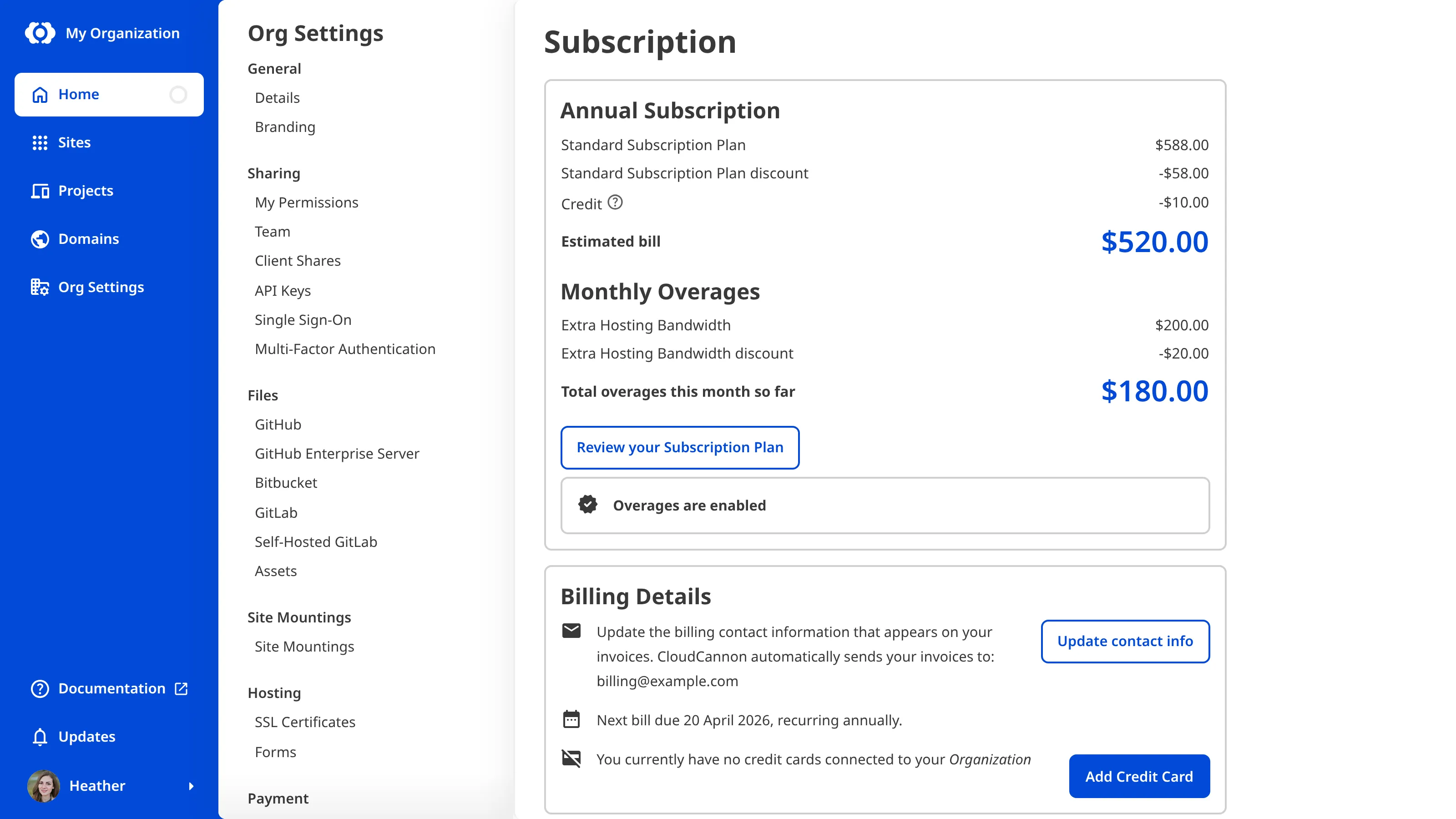
## Your invoices
CloudCannon keeps a record of your invoices. To find them, click **Org Settings** in the **App Sidebar**, then open the *Invoices* page.

A recently issued invoice shows a *Pending* button until it is finalized, after which the *View more* button appears. Click the *View more* button on an invoice to open it on a Stripe page, where you can download the invoice or receipt as a PDF. The invoice records the date your payment was due, and its matching receipt records the date it was paid.
Your invoice total is the cost of your *Subscription Plan*, plus any **Add-Ons** and **Overages**, minus any credits and discounts, plus any applicable tax. CloudCannon breaks this into line items:
- Your *Subscription Plan* and *Add-Ons* are billed in advance for the coming *Billing Period*, and appear as "[name] Subscription Plan", "Team Member", or "Custom Domain".
- *Overages* are billed at the end of each month, even on a yearly *Billing Period*, and appear as "[amount] x 100 GB Hosting Bandwidth Bundle" or "[amount] x 1 Hour Build Time Bundle".
- Credits from downgrading or removing an *Add-On* partway through a *Billing Period*, and discounts from a coupon, appear as negative line items that lower your total.
## Billing contact details
You can add billing contact details to your invoices and have CloudCannon send them to an email address automatically. On the *Subscription* page, under *Billing Details*, click the *Update contact info* button.

In the *Billing contact information* modal, enter the details you want on your invoices, then click the *Update contact information* button. If you added an email address, CloudCannon begins emailing your invoices to you automatically, and the *Billing Details* section then shows the address they are sent to and when your next invoice is due. CloudCannon only emails your invoices, so adding an address does not mean you will receive a physical copy.
In the next step of this guide, we'll cover what to do if a payment ever fails.
---
---
title: Recover from a failed payment
description: Understand what happens when a payment fails and how to get your Subscription and Sites back.
url: https://cloudcannon.com/documentation/user-guides/subscribe-to-cloudcannon/recover-from-a-failed-payment/
content_type: user guide
last_modified: 2026-09-23
---
Credit cards sometimes decline unexpectedly. If a payment fails, CloudCannon gives you time to fix it before changing your **Subscription**, so a single failed charge won't take your **Sites** offline right away.
## What happens when a payment fails
After a failed payment, CloudCannon retries the charge several times over the following weeks. During that time, your *Subscription* stays active and your *Sites* keep working. If every retry fails, CloudCannon puts your *Subscription* on hold, and if it stays on hold for a prolonged period, CloudCannon eventually cancels it.
While there is a payment issue, CloudCannon shows a warning banner with a *Review payment* button on the *Subscription* page. The banner tells you whether your bank needs to confirm the payment, your card was declined, or your *Subscription* is already on hold.

A *Subscription* on hold after a failed payment is not the same as a paused one. If your **Free Trial** ends without a payment method on file, CloudCannon pauses your *Subscription* instead. For more information, please read our documentation on [what CloudCannon's Free Trial is](/documentation/user-articles/what-is-cloudcannons-free-trial/).
## What happens while your Subscription is on hold
When your *Subscription* is on hold, you cannot open or edit your *Sites*, and CloudCannon stops hosting your **Custom Domains** and **Testing Domains**. Visitors to your websites see an unavailable page until you resolve the payment issue.

You can still download a backup of your *Site* files, transfer a *Site* to another **Organization**, or manage your domains and sharing settings while on hold, as long as you have the relevant *Site* settings permission.
## Get your Subscription back
> Recovering a *Subscription* requires billing permissions. If you can't complete these steps, ask a member of the *Owners* or *Billing* [Default Permission Groups](/documentation/user-articles/what-are-default-permission-groups/) to do it for you.
To bring your *Subscription* back, open the *Subscription* page under **Org Settings** and click the *Review payment* button in the warning banner. Add a new card or update your existing payment method, then click the *Confirm payment* button. CloudCannon reactivates your *Organization* and restores access to your *Sites* and hosted websites.
If your *Subscription* has already been canceled after a prolonged hold, your *Sites* and files are safe and your saved cards stay on file. You only need to select a **Subscription Plan** again to start paying.
For the full details, including everything you can still do while your *Subscription* is on hold and what to do if a payment issue persists, please read our documentation on [what happens when a payment fails](/documentation/user-articles/what-happens-when-a-payment-fails/).
In the next step of this guide, we'll point you to related resources.
---
---
title: Introduction
description: Learn how to edit and update your website using CloudCannon.
url: https://cloudcannon.com/documentation/user-guides/editing-in-cloudcannon/
content_type: user guide
last_modified: 2026-09-23
---
Welcome to the Editing in CloudCannon guide!
This guide is perfect for anyone new to CloudCannon who wants to learn how to edit and update their website content. We'll walk you through everything step by step, assuming no prior knowledge.
CloudCannon is a tool that makes it easy to edit your website content, even if you've never worked with websites before. CloudCannon is like a word processor for your website: you can update text, add images, create new pages, and make changes without needing to know how to code.
In this guide, we'll cover how to:
- Find your files using the *Collection Browser* and the *File Browser*
- Use CloudCannon's *Editing Interfaces* to update your content
- Use file actions to add, delete, and organize your content files
- Work together with your team members on the same files
- Save your changes and see them live on your website
- Publish your changes if your *Site* uses a branching workflow
Before we begin, this guide assumes that you already have a *Site* set up in CloudCannon and that you have permission to edit that *Site* (i.e., you are a member of the *Editors Permission Group* or higher). If you haven't created a *Site* yet or don't know what CloudCannon permissions you have, check out our [Getting Started with CloudCannon](/documentation/developer-guides/getting-started-with-cloudcannon/) guide, or ask your developer to get started.
---
---
title: Finding your files
description: Learn how to navigate the Collection Browser and File Browser to find the files you want to edit.
url: https://cloudcannon.com/documentation/user-guides/editing-in-cloudcannon/finding-your-files/
content_type: user guide
last_modified: 2026-09-23
---
CloudCannon provides two ways to browse the files on your *Site*: the *Collection Browser* and the *File Browser*. The *Collection Browser* is available to all users, while the *File Browser* is available to users with [Technical Editors](/documentation/user-articles/what-are-default-permission-groups/) permission levels and higher.
## The *Collection Browser*
*Collections* are groups of related files that have a similar format, making it easy to find and organize your content. For example, you might have a *Collection* for your blog posts, another for your webpages (e.g., Home, About, or Contact), and another for your product information.
Your *Collections* appear in the *Site Navigation* on the left side of your screen. Each *Collection* has a name and an icon to help you identify it quickly.

When you click on a *Collection*, CloudCannon opens the *Collection Browser*. At the top of the *Collection Browser*, you'll see the *Collection Header* with the collection name and any description or documentation link that's been configured.

Below the *Collection Header*, you'll find the *Collection Browser Controls* with several tools to help you find and manage your files.
The *Sort* menu lets you change how your files are organized in the *Collection Browser*. You can sort alphabetically, by date created, by date modified, or by file size.
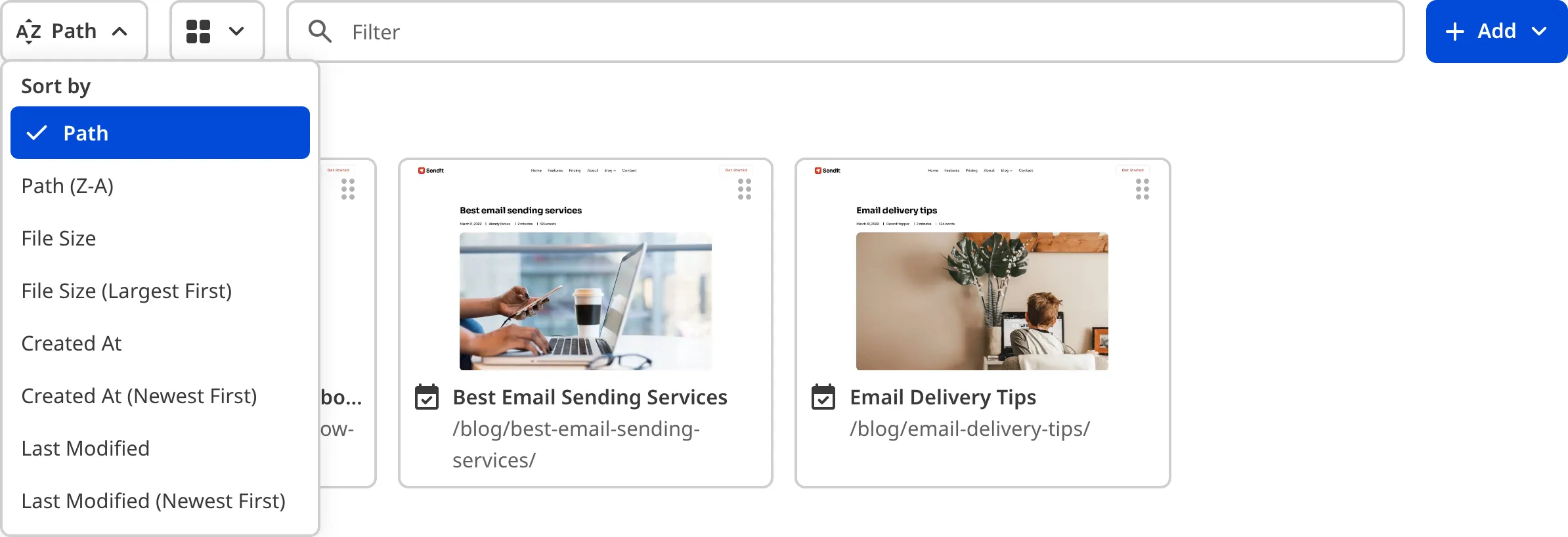
The *View* menu lets you switch between different *File Card* types: *List* view, *Card* view, or *Gallery* view.

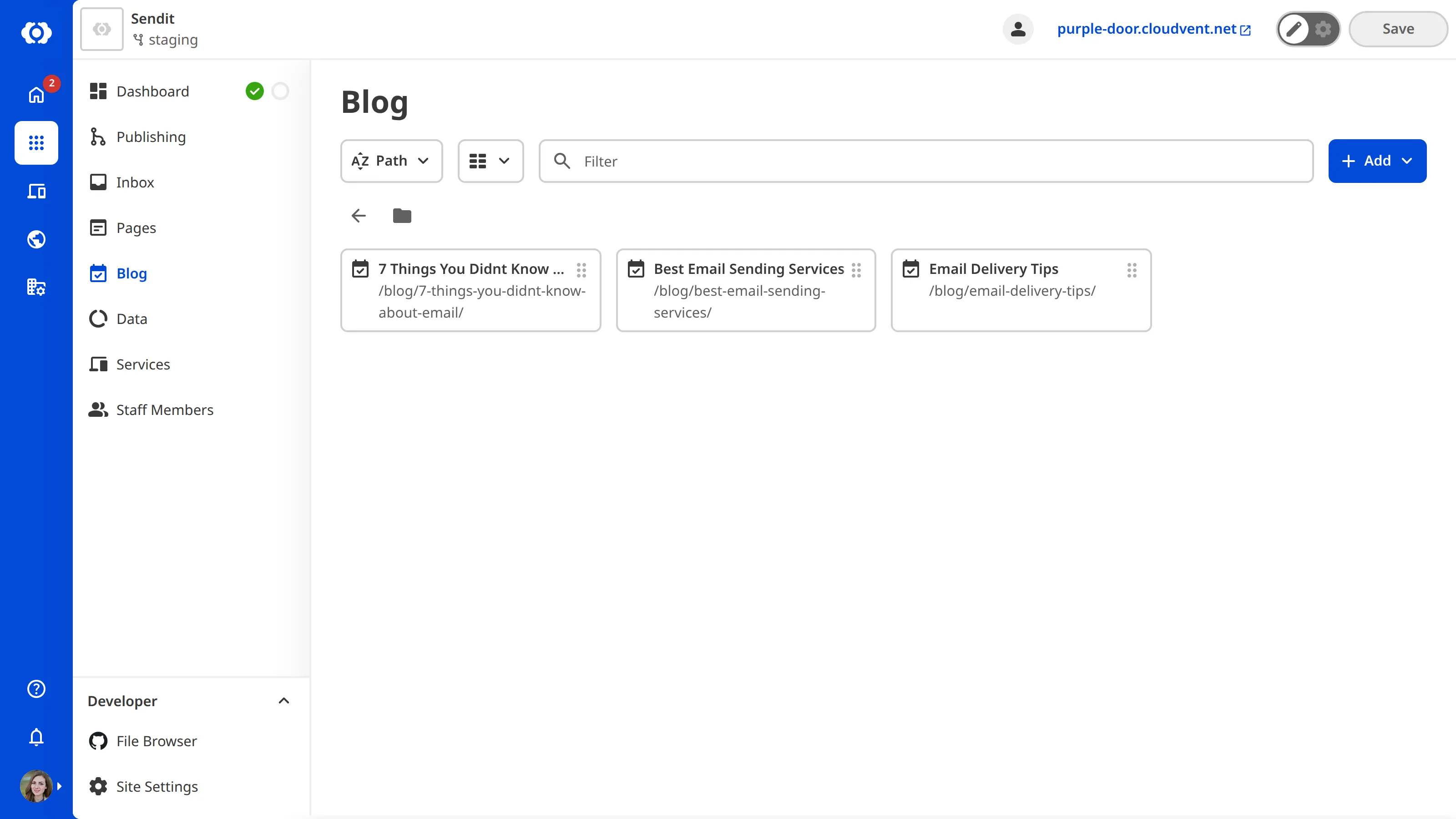
The *Filter* text field lets you search for specific files by typing part of the file name.
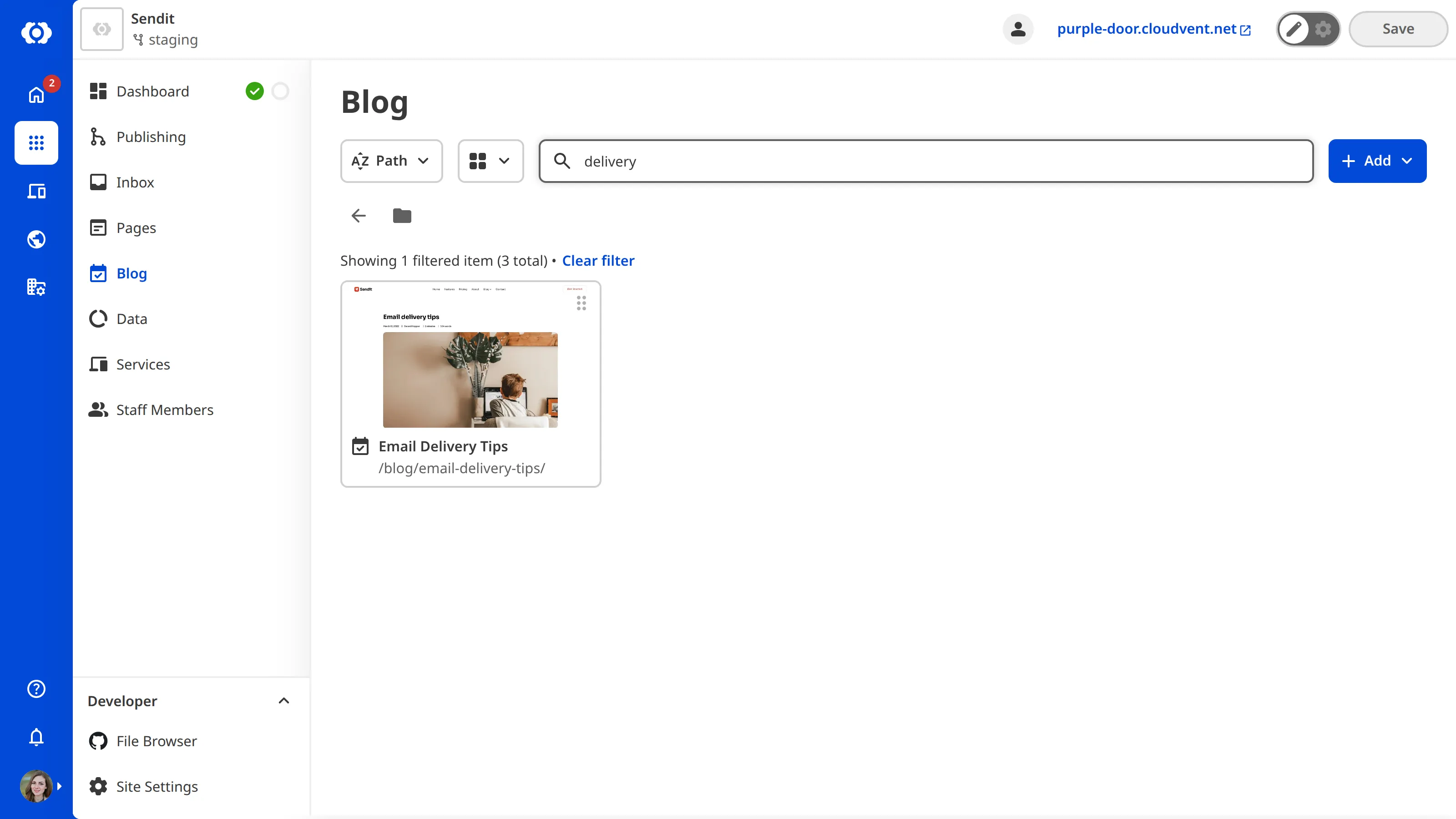
The *+ Add* button lets you create new files or folders in the *Collection*. We'll discuss this further [later in the guide](/documentation/user-guides/editing-in-cloudcannon/using-file-actions/).

The main area of your *Collection Browser* shows you all the files in that *Collection*, with each file displayed as a *File Card*. *File Cards* show you helpful information like your file title, an image preview (if available), and when the file was last updated.
Clicking on a *File Card* will open that file in one of CloudCannon's four *Editing Interfaces*. Clicking on the six dots in the top right of a *File Card* will open the *Context Menu*, containing several file actions. We'll cover file actions [later in this guide](/documentation/user-guides/editing-in-cloudcannon/using-file-actions/).

## The *File Browser*
Unlike *Collections*, which group similar files together, the *File Browser* shows you all the folders and files in your *Site* in a folder structure, similar to how files are organized on a computer.
You can access the *File Browser* by clicking *File Browser* in your *Site Navigation* under the *Developer* heading.

The *File Browser* is not visible to everyone. If you don't see the *File Browser* in your *Site Navigation*, you may not have the required permissions. Please contact your developer if you need access to the *File Browser*.
The *File Browser* also displays your files as *File Cards*, and you can use the *Sort* menu, *View* menu, and *Filter* text field to find the files you need.

One key difference is that the *File Browser* shows every file on your website, including files that might not be part of any *Collection* and technical files that control how your website looks and works (rather than the content).
## Which browser should you use?
Both the *Collection Browser* and the *File Browser* are useful, and you'll likely use both depending on what you're trying to do.
- Use the *Collection Browser* when you want to work with a specific type of content, like all your blog posts or all your pages. *Collections* make it easy to see related files together and are perfect for most content editing tasks.
- Use the *File Browser* when you need to find a specific file by its location in your website's folder structure, or when you're working with files that aren't part of a *Collection* (like technical files).
In the next step of this guide, we'll learn about CloudCannon's *Editing Interfaces* and how to use them to update your content.
---
---
title: More resources
description: Explore additional resources to help you continue learning about editing in CloudCannon.
url: https://cloudcannon.com/documentation/user-guides/editing-in-cloudcannon/more-resources/
content_type: user guide
last_modified: 2026-09-23
---
Congratulations! 🎉 You have finished the *Editing in CloudCannon* guide.
By following each step in this guide so far, you have all the skills you need to edit files, save your changes, and publish them to your live website.
## User articles
You can find more resources about the topics we covered in this guide under the [User Articles](/documentation/user-articles/) section of our documentation. Here are some specific articles you may find helpful:
### Core concepts
- [What is a Collection?](/documentation/user-articles/what-is-a-collection/) — Learn more about how *Collections* organize your content
- [What is the Site Navigation?](/documentation/user-articles/what-is-the-site-navigation/) — Understand all the features available in your *Site Navigation*
- [What is a Testing Domain?](/documentation/user-articles/what-is-a-testing-domain/) — Learn more about your free preview URL
### Editing interfaces
- [What is the Visual Editor?](/documentation/user-articles/what-is-the-visual-editor/) — Detailed guide to the *Visual Editor* and its features
- [What is the Content Editor?](/documentation/user-articles/what-is-the-content-editor/) — Learn more about the *Content Editor* and its formatting tools
- [What is the Data Editor?](/documentation/user-articles/what-is-the-data-editor/) — Understand how to edit organized information and file details
- [What is the Source Editor?](/documentation/user-articles/what-is-the-source-editor/) — For users who need to edit code (requires higher permissions)
### File management
- [Add a file](/documentation/user-articles/add-a-file/) — Comprehensive guide to adding files with multiple methods
- [Delete a file](/documentation/user-articles/delete-a-file/) — Detailed explanation of the deletion workflow
- [Edit your files](/documentation/user-articles/edit-your-files/) — Comprehensive guide to editing in CloudCannon
- [Save your changes](/documentation/user-articles/save-your-changes/) — Detailed article on the saving process
## Next steps
Now that you know how to edit in CloudCannon, you can start editing your website content, explore different *Editing Interfaces* to find which one works best for you, collaborate with your team members on files, and save (or publish) your changes.
If you need help or have questions:
- Refer back to this guide or any of the articles linked above
- Contact your developer if you have questions about your site's configuration
- Reach out to the friendly CloudCannon [support team](https://cloudcannon.com/support/) for assistance
- Check out the [CloudCannon Community](https://community.cloudcannon.com/)
You're all set! Happy editing!
---
---
title: Publishing your changes
description: Learn how to publish your changes to your live website when your site uses a branching workflow.
url: https://cloudcannon.com/documentation/user-guides/editing-in-cloudcannon/publishing-your-changes/
content_type: user guide
last_modified: 2026-09-23
---
> This step of the guide is optional.
Publishing workflows are an optional feature on CloudCannon. You can tell if your *Site* uses a publishing workflow by looking for the *Publishing* link in your *Site Navigation* on the left side of your screen. If you don't see a *Publishing* link, your *Site* doesn't use a publishing workflow, and you can skip this page of the guide.

## What is a Publishing workflow?
Publishing workflows allow everyone on your team to work on their own copy of your website while protecting your public website from unreviewed content changes.
By setting up a Publishing workflow, you can:
- Make changes to your content on a copy of your *Site* and see what the changes look like on the Internet without impacting your public website.
- When you are ready, publish those changes to your public website, or ask for a review from a team member before publishing.
Because everyone can have their own copy of your *Site* in CloudCannon, you can work on different projects simultaneously (or you can have different *Sites* for different projects).
### Where does CloudCannon publish your changes?
When you publish your changes, CloudCannon sends them to your *Publish Branch*. A *Publish Branch* is a copy of your website chosen by your developer. This could be:
- Your live public website
- A staging website where someone reviews changes made by multiple team members before making them public
- Another branch that other team members are also publishing to
### When do you need to publish vs just save?
Understanding the difference between saving and publishing will help you know who can see your changes.
When you save your changes, CloudCannon will:
- Creates a permanent record of your changes in your website's files (your developer can undo these changes, if necessary)
- Makes your changes visible on your *Testing Domain* (anyone with this URL will see them)
When you publish your changes, CloudCannon will:
- Move your saved changes to your *Publish Branch*
- If your *Publish Branch* is your public website, all your visitors will see your changes
## How to publish your changes
Before you can publish your changes, you must first save them. If you have unsaved changes, save them first using [the previous step](/documentation/user-guides/editing-in-cloudcannon/saving-your-changes/) of this guide.
Click the *Publishing* link in your *Site Navigation*. CloudCannon will open the *Publishing* page, which has three tabs: *Summary*, *Changes*, and *Commits*.
- The *Summary* tab gives you an overview of your publishing setup and buttons to publish your changes.
- The *Changes* and *Commits* tabs let you see all saved changes on your *Site*, organized by file or by editing session.

The *Summary* tab will always have an information box in the center that explains where CloudCannon will publish your changes. This information is mostly relevant to developers, but here is a quick overview:
- **Status message:** You'll see either "No changes available to publish" or "Changes available to publish" at the top of the box. If you see "No changes available to publish", you need to save your changes first before you can publish.
- **Commit summary:** The subtitle shows how many times you saved your editing session (called "commits") and the name of the *Publish Branch* CLoudCannon will publish to.
- **Compare link:** The "Compare changes on [Git provider]" link takes you to a detailed view of your changes. You may not have access to this because it requires access to your Git provider (a separate software your developer uses to manage your website's files).
Outside of the information box, the *Publishing* page will look slightly different depending on which *Publishing Mode* your developer configured for your *Site*: *Merge Immediately* or *Pull Request*.
### Merge Immediately
*Merge Immediately* is a *Publishing Mode* that lets you publish your changes to your *Publish Branch* immediately, without needing approval from another team member. This is great for small teams or for publishing changes quickly.
If your *Site* uses the *Merge Immediately* mode, the *Summary* tab will have a *Publish* button.

When you are ready, click the *Publish* button. CloudCannon will immediately publish your changes to your *Publish Branch*. Your changes will then be visible on your public website (or staging website, depending on what your *Publish Branch* is connected to).
### Pull Request
*Pull Request* is a *Publishing Mode* that lets you submit your changes for review before publishing to your *Publish Branch*. This is good for larger teams or when you need content oversight to ensure quality or compliance.
If your *Site* uses the *Pull Request* mode, the *Summary* tab will include a *Create Pull Request* button and a few text fields for your request details.

By default, CloudCannon will have a *Title* and a *Body* text field. Fill in these fields with information for the team member who will review your changes. This could be something like:
**Title:** Added new blog
**Body:** Wrote a new blog concerning our latest feature and updated other blog articles with crosslinks to the new blog.
> Your developer may have set up custom fields for your *Pull Request* instead of the standard *Title* and *Body*. You should still fill these in before publishing.
>
> 
When you are ready, click the *Create Pull Request* button. CloudCannon will send your *Pull Request* to your developer for review.
Once your developer has reviewed and approved your *Pull Request*, click the *Publish Pull Request* button. CloudCannon will publish your changes to your *Publish Branch*. Alternatively, if you change your mind about publishing your changes, you can click the *Close Pull Request* button to cancel the request.
## What's next?
Once you've published your changes, CloudCannon will rebuild your *Publish Branch* with your changes (this is often your public website). The rebuild process usually takes just a few minutes.
You can continue to make more changes while you wait for someone to approve your *Pull Request*, or create a new *Site* to work on another part of your content.
> Your developer may have configured CloudCannon to delete your *Site* once you publish your changes (i.e., click the *Publish and delete* or *Publish Pull Request* button).
>
> Don't worry! This is part of the *Publishing* workflow. You can easily create a new copy of your *Site* for your next round of changes.
And that's it! You're ready to start editing your website content in CloudCannon. In the next step, we'll share some additional resources to help you continue learning.
---
---
title: Saving your changes
description: Learn how to review and save your changes, and see them live on your website.
url: https://cloudcannon.com/documentation/user-guides/editing-in-cloudcannon/saving-your-changes/
content_type: user guide
last_modified: 2026-09-23
---
Once you are happy with the changes you have made to your files, you can save them so they appear on on the Internet. Saving your changes in CloudCannon is straightforward, but it's helpful to understand how the process works.
## The Save button
As you make changes, you'll notice a red notification appear on the *Save* button in the top right of your *Editing Interface* and *Site Header*. The *Save* button notification shows you how many files have unsaved changes.

Don't worry about saving after every single change. CloudCannon remembers all your edits, so you can make multiple changes across multiple files and save them all at once when you're ready.
## Why save your changes?
When you edit files in CloudCannon, your changes are stored temporarily until you save them. This means you can:
- Make multiple changes across different files
- Take breaks without losing your work, including closing the CloudCannon tab in your Internet browser
- Review all your changes before saving
- Work with your team on the same editing session
However, your changes won't appear on your live website until you save them. Saving your changes does two important things:
1. It creates a permanent record of your changes in your website's files (your developer can undo these changes, if necessary)
2. It triggers CloudCannon to rebuild your website, making your changes visible on your *Testing Domain* (your free preview URL) and any *Custom Domain* connected to your site
> It's important to save your changes regularly, as unsaved changes can prevent other updates to your site. We recommend saving after every editing session.
## How to save your changes
Once you are finished making changes to your *Site* content, click the *Save* button in the top right of your *Editing Interface* or *Site Header*. A red notification on the *Save* button will show you how many files have unsaved changes.
CloudCannon will open the *Review changes* modal, which shows you all the files with unsaved changes, organized into two sections: *My changes* and *Other changes*. These sections help you identify which files you contributed to during the editing sessions, and which files only have unsaved changes from other team members.
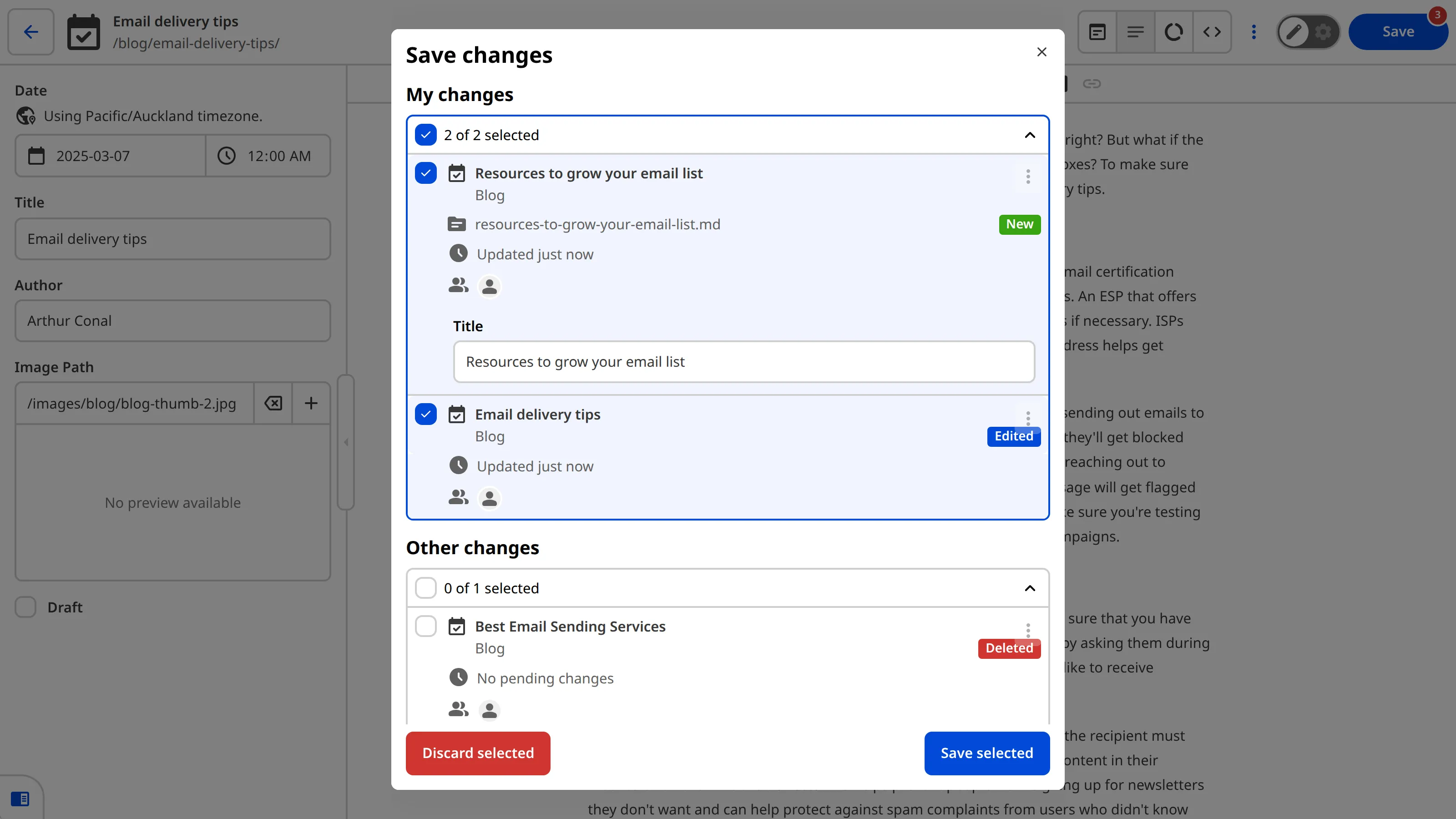
Review the list of files. Each file is represented by a *File Card* with the file name, *Collection*, which team members contributed to changes (shown as avatars), when the file was last updated, and a badge showing the type of change (*New*, *Edited*, or *Deleted*).
Select the files you want to save using the checkboxes in the top left of each *File Card*. By default, any files you contributed to will be selected. You can select or deselect individual files, or use the checkboxes under each section heading to select all files in that section.
Sometimes, your file might require you to fill in some information before you can save them (for example, if you did not add a file name). Also, if your developer has added validation rules to an Input in a file, you will need to make sure those Inputs have valid values before you can save. An example of Input validation might be that a Date field requires you to enter a publishing date on a blog, or a list of relevant links can only have a maximum of three items.
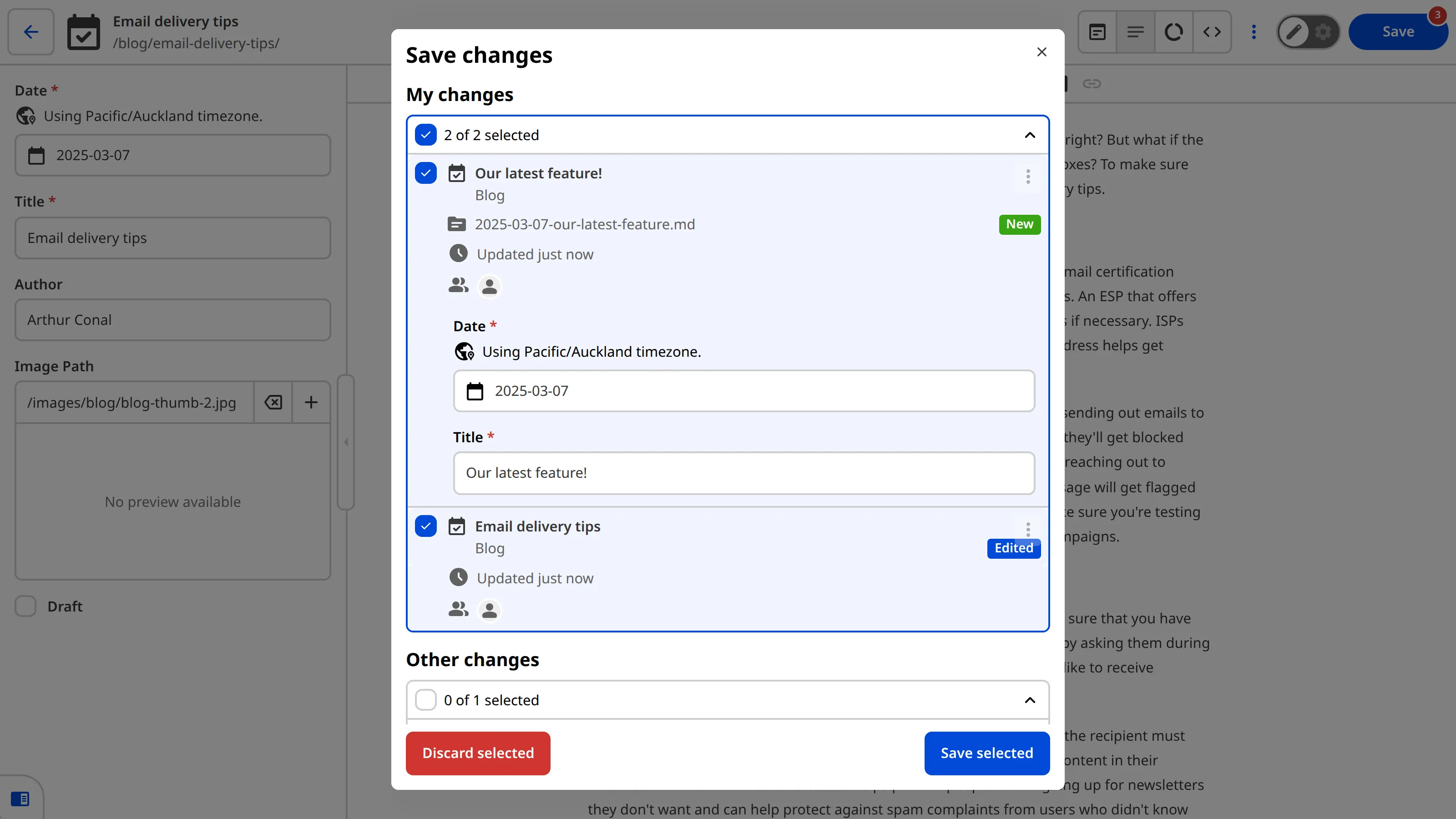
Some *Sites* have *Commit Messages* configured. A *Commit Message* is a note that CloudCannon will attach to the record of changes to your *Site*. You should use it to describe what you have changed, and why, for your team (or your future self). For example, "Updated the About page with new team member information" or "Added three new blog posts about new product features."
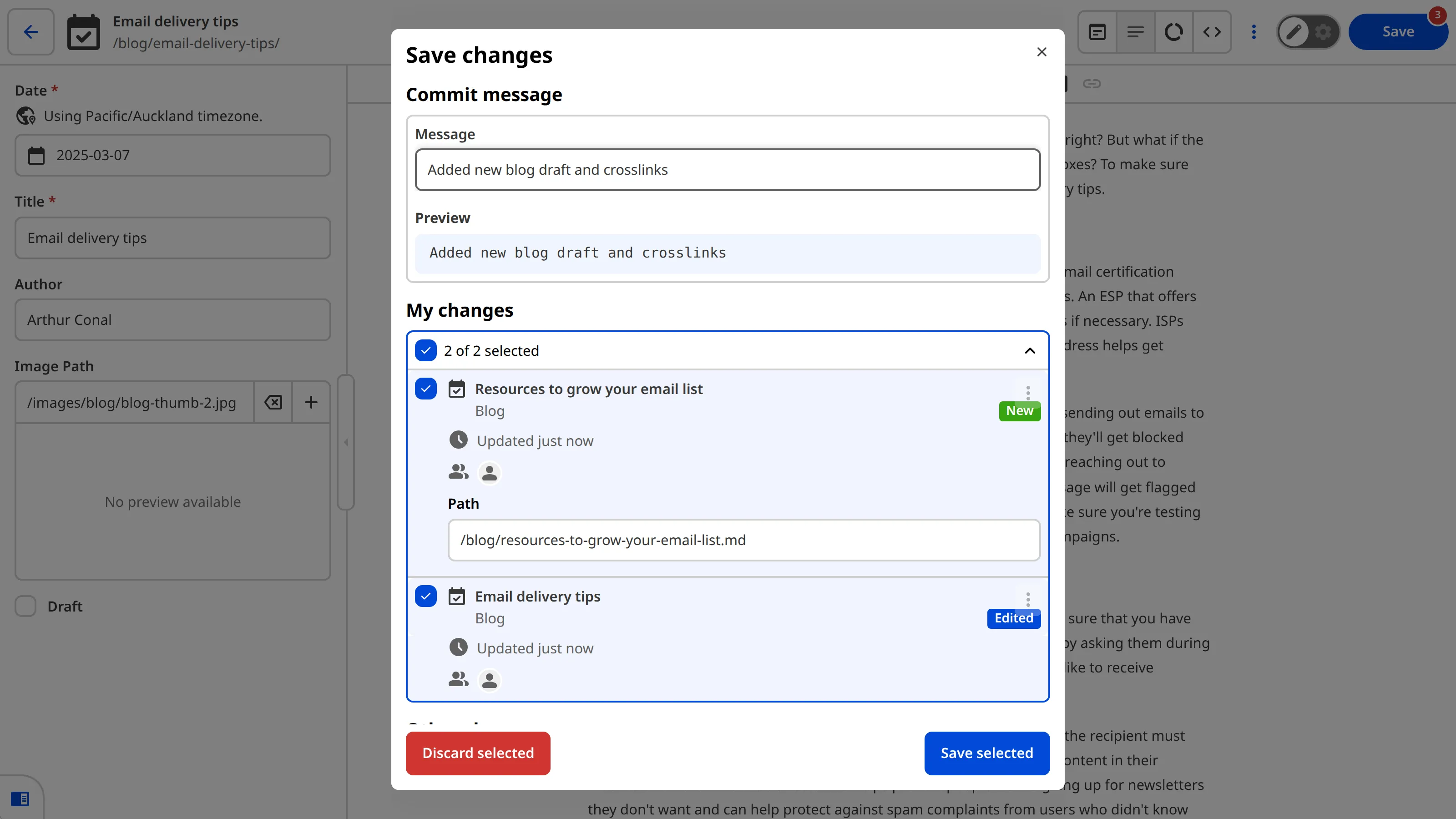
Once you're happy with the files you have selected, have filled in all the fields required by your developer, and added any *Commit Messages*, click the *Save selected* button.
CloudCannon will update your *Site* using your changes, remove the *New*, *Edited*, and *Deleted* badges from your *File Cards*, add a permanent record of your changes in your website's files, and make your changes live on your *Testing Domain* (your free preview URL) and any *Custom Domain* connected to your site.
The save process usually takes just a few moments, but it may take longer for larger sites or when many files have changed. You can then continue editing while your *Site* is saving, or take a break knowing your changes are safe.
## What if you want to undo a saved change?
If you accidentally save a change you didn't mean to, or change your mind, you can always undo that change by re-editing your files and saving again. However, if you need to return to a version of your files that was several changes ago, or undo a large change that would be difficult to do manually, talk to your developer. Because CloudCannon has a permanent record of all your changes, your developer will be able to help you restore a previous version.
## View your changes live on the Internet
Once you save your changes, CloudCannon will rebuild your *Site* and update the content live on the Internet. You can see your live website using your *Testing Domain* or *Custom Domain*.
A *Testing Domain* is a free preview website that CloudCannon gives to every *Site*. Each *Testing Domain* uses a randomly generated adjective and noun separated by a hyphen (e.g., grey-grouse.cloudvent.net or brave-submarine.cloudvent.net). A *Custom Domain* is a custom website URL chosen by your developer (e.g., cloudcannon.com). Your *Custom Domain* may also be the URL your visitors or customers use to see your content on the Internet.
You can open your *Testing Domain* or *Custom Domain* in a new tab by clicking the URL on the right of your *Site Header*. CloudCannon will open your live website in a new tab.

If your developer has set up a publishing workflow for your *Site*, the *Testing Domain* allows you to see your changes live on the Internet without affecting your public website. We'll cover what you need to know about publishing workflows in the next step of this guide.
---
---
title: Using CloudCannon's Editing Interfaces
description: "Learn about CloudCannon's Editing Interfaces: the Visual Editor, Content Editor, Data Editor, and Source Editor."
url: https://cloudcannon.com/documentation/user-guides/editing-in-cloudcannon/using-cloudcannons-editing-interfaces/
content_type: user guide
last_modified: 2026-09-23
---
CloudCannon provides four different *Editing Interfaces*, each designed for editing different types of content. Understanding these interfaces will help you choose the best one for what you're trying to do.
When you click on a file in a *Collection Browser* or the *File Browser*, CloudCannon will open that file in one of CloudCannon's *Editing Interfaces*. Which *Editing Interface* CloudCannon will open by default depends on your file type and how your *Site* is configured.

## The *Editing Interface Header*
At the top of every *Editing Interface*, you'll find the *Editing Interface Header*, which provides helpful information and tools.

From left to right, this includes:
- The *Return to Site* button — Returns you to the *Collection Browser* or *File Browser* where you opened the file.
- Your *File details* — The name and Output URL (if applicable) of the file you are editing.
- The *Update status* indicator — This shows you when CloudCannon last recorded an update to your file.
- The *Avatars* List — This displays the avatars of any team members who have this file open. One avatar is highlighted to show who is currently editing the file.
- The *Interface* buttons — These allow you to switch between CloudCannon's four *Editing Interfaces*: the *Visual Editor*, *Content Editor*, *Data Editor*, and *Source Editor*. You'll see between two and four options depending on your file type and *Site* configuration.
- The *Context Menu* — Clicking on the three dots icon will show you several file actions like duplicating, renaming, deleting, and more.
- The *Save* button — This opens the *Save changes* modal, allowing you to review all your unsaved changes before saving them to your website.
On smaller screen sizes, some of these tools will collapse into the *Context Menu* to save space.
> **The *Configuration Mode* switch**
>
> 
>
> The [Configuration Mode switch](/documentation/developer-articles/what-is-configuration-mode/) may also appear in your *Editing Interface Header* if you are a member of the Developer or Owner permission groups. This switch allows you to configure the editing experience for your Site, but it won't be visible to all users.
## The *Visual Editor*
The *Visual Editor* is the most intuitive way to edit your website. It allows you to edit your content directly on an interactive preview of your webpage. When you edit using the *Visual Editor*, you can see exactly what your visitors will see when they visit a webpage, and make editing decisions about your content in context. You can also navigate between pages by clicking links, just like on your live website.
The *Visual Editor* works best for files that output to a webpage. If your file doesn't create a webpage (like a data file), the *Visual Editor* won't be available for that file.
[Video: The Visual Editor with editable regions](https://player.vimeo.com/progressive_redirect/playback/1124969057/rendition/1080p/file.mp4?loc=external&signature=18a05ed71665768fa94851c72a31cf574e4079284b8ce0579885d8f3b47c4a8d)
In the *Visual Editor*, content that you can edit is marked with yellow boxes called *Editable Regions*. These yellow boxes show you exactly which parts of your webpage you can edit. When you hover over or click on an *Editable Region*, the border will turn green to help you see the boundaries of that region.
Clicking into an *Editable Region* will do different things depending on what type of content it contains:
- For text content, you can type directly on the page to edit the text. If it is rich text (as opposed to plain text), CloudCannon will also give you a formatting toolbar with options like bold, italic, headings, and lists.
- For image content, CloudCannon will open a Data Panel with options to replace the image or edit its properties like alt text and title.
- For arrays or lists, you'll see tools to add, remove, or reorder items.
You can also use the sidebar in the *Visual Editor* to edit file information (also called structured data or front matter), which is the details about your file that don't appear in the main content. This could be your file title, a date, tags, or other information for your content. Each piece of file information has an Input field in your sidebar. To edit this information, use the fields, buttons, and sliders in each Input. If you would like to add, remove, or change the Inputs in the sidebar, please talk to your developer.

The *Visual Editor* does require some configuration, and may not be available for all file types. If you have any questions about using the *Visual Editor* for a specific file, talk to your developer or the friendly CloudCannon [support team](https://cloudcannon.com/support/).
## The *Content Editor*
The *Content Editor* is a rich text editor that's perfect for editing content-heavy files like blog posts, articles, or documentation. It provides a clean, distraction-free interface that focuses on your content.

You can type directly into the editor. At the top of the *Content Editor* you will see the text formatting toolbar (also called a WYSIWYG toolbar, which stands for "What-You-See-Is-What-You-Get"). This toolbar might include adding images, links, or Snippets, changing the alignment of your text, or simple tools such as bolding, italicizing, or underlining text.

To use these tools, click to place your cursor in the content area of the editor (or, in some cases, highlight your existing text) and then click the icon for the tool you want to use. The number of tools available in your WYSIWYG toolbar will depend on how your *Site* is configured.
> *Snippets* are pre-built content blocks that you can add to your content with just a click. They are reusable templates for common content types like testimonials, call-to-action sections, or product cards. Your developer sets up *Snippets* for your *Site*, so if you don't see any *Snippets* available or want to add new ones, talk to your developer.
Just like the *Visual Editor*, you can use Inputs in the *Content Editor* sidebar to edit file information (like title, date, and tags).
## The *Data Editor*
The *Data Editor* is a simple interface for managing organized information. It's perfect for editing files that contain data like your website navigation menus, staff profiles, product details, or file information. The *Data Editor* also appears as the sidebar in the *Visual Editor* and *Content Editor*, where it helps you manage the file information associated with your content files.

The *Data Editor* uses Inputs for each piece of information. To edit your information, use the fields, buttons, and sliders in each Input. If you would like to add, remove, or change the Inputs, please talk to your developer.
## The *Source Editor*
The *Source Editor* is an in-browser code editor that's great for making minor changes to the source code of your files. It displays the raw content of text-based files with automatic syntax highlighting based on the file extension. You can edit the content directly by typing, just like you would in any code editor.

The *Source Editor* is useful when you need to make small code changes or when you're comfortable working with raw file content. This *Editing Interface* is available to users in Technical Editor [default Permission Group](/documentation/user-articles/what-are-default-permission-groups/) or higher. If you don't see the *Source Editor* as an option, you may not have the required permissions.
## Which interface should you use?
The best interface depends on what you're trying to do:
- Use the *Visual Editor* when you want to see your changes in context and edit directly on a preview of your webpage. This is great for seeing how your content will look to visitors.
- Use the *Content Editor* when you're working with longer written content like blog posts or articles and want a focused, distraction-free editing experience.
- Use the *Data Editor* when you're working with organized information files or need to update file details and settings. This is perfect for editing lists, menus, or product information.
- Use the *Source Editor* when you need to make small code changes or edit the raw content of your files. This interface is only available to users with higher permission levels.
> Some interfaces may not be available depending on your *Site's* configuration or your permissions. If you don't see an interface you expect, talk to your developer.
Don't worry if you're not sure which interface to use; you can always switch between them. CloudCannon will remember your changes no matter which interface you use.
## What if you make a mistake?
If you make a change you don't want to keep, don't worry. CloudCannon makes it easy to undo your changes:
- **Undo a single change:** If you just made a change and want to undo it, you can use your browser's undo function (usually Ctrl+Z or Cmd+Z on Mac).
- **Discard all changes to a file:** If you want to discard all unsaved changes to a specific file, you can use the *Context Menu* (the three dots icon) in the *Editing Interface Header* and select *Discard unsaved changes*. This will revert the file back to its last saved state.
- **Wait until you save:** Remember, your changes aren't saved until you click the *Save* button, so you can always close the file and come back to it later without saving.
In the next step of this guide, we'll learn how to add, delete, rename, and duplicate files with file actions.
---
---
title: Editing sessions and collaboration
description: Learn how to edit your files in CloudCannon, make changes, and work collaboratively with your team.
url: https://cloudcannon.com/documentation/user-guides/editing-in-cloudcannon/editing-sessions-and-collaboration/
content_type: user guide
last_modified: 2026-09-23
---
Now that you know how to find your files and edit them, let's look at how editing sessions work and how you can collaborate with your team members.
## Editing sessions
In CloudCannon, all your changes happen within an "editing session." An editing session starts when you or someone on your team makes the first change to any file, and it continues until someone clicks the *Save* button.
During each editing session, you can:
- Edit as many files as you want
- Switch between different *Editing Interfaces*
- Have multiple team members contribute to various files
- Take breaks, refresh your page, or close your browser — CloudCannon will remember all your unsaved changes
## Collaborating with team members
CloudCannon makes it easy to collaborate with your team. When someone opens a file, you'll see their avatar appear in the *Editing Interface Header* and over *File Cards* in the *Collection Browser*.

One person can edit a file at a time, while others can view the changes in real time. This means you can see what your teammate is editing as they make changes, which is great for reviewing content together or learning how to use CloudCannon.
If you are viewing a file while someone in your team is editing, CloudCannon will disable any Inputs in the *Editing Interface* while you're viewing. This means you can see the changes your team member is making, but you can't make edits simultaneously.
You will also see a banner at the bottom of the *Editing Interface* showing who is currently editing the file, and a *Switch to editing* button. If you want to take over editing, you can click this button to switch from viewing to editing mode.

Collaboration is especially useful when:
- You want to review changes before they're saved
- Multiple people are working on different files at the same time
- You're learning how to use CloudCannon and want to watch someone else edit
In the next step of this guide, we'll cover how to save your changes and see them live on your website.
---
---
title: Using file actions
description: Learn how to add, delete, duplicate, and rename files on your website.
url: https://cloudcannon.com/documentation/user-guides/editing-in-cloudcannon/using-file-actions/
content_type: user guide
last_modified: 2026-09-23
---
Sometimes you will need to do more than edit the content of your files. You might want to add a new file, delete a file you no longer need, or make a copy of an existing file. You can use the tools in the *Context Menu* to perform these file actions. You can find the *Context Menu* in the top right of a *File Card* in your *Collection Browser*, or in the top right of the *Editing Interface Header*.
## Adding new files
You might want to add a new file when you're creating a new blog post, adding a new page to your website, or uploading an image or document. There are several ways to add new files to your website in CloudCannon.
### Add a file to a Collection
The easiest way to add a new file is from the *Collection Browser*.
Navigate to the *Collection* to which you want to add the file and click the *+ Add* button in the top right of the *Collection Browser*. CloudCannon will open a dropdown menu with the options to add files or *Create a new folder*.

When you create a new file in the *Collection Browser*, CloudCannon will either copy the format of an existing file in your *Collection* or use a predefined template called a *Schema*. The default file format will often share the name of the *Collection* (e.g., the Blog *Collection* will have the *+ Add Blog* option), but each *Schema* will have a different name. If you would like to add, remove, or edit your *Schemas*, please speak with your developer.
Clicking on an *+ Add* option from this dropdown will create a new file, which CloudCannon will immediately open in an *Editing Interface*, ready for you to edit your content.
### Duplicate an existing file
If you want to create a new file that's similar to an existing one, you can duplicate it. Navigate to the file you want to duplicate using the *Collection Browser* or *File Browser* and open the *Context Menu* by clicking on the six-dot icon in the top right of the *File Card*. The *Duplicate* file action will be an option in the *Context Menu*.

You can also find the *Duplicate* option in any *Editing Interface* by clicking on the three-dot icon in the *Editing Interface Header* and opening the *Context Menu*.

When you select the *Duplicate* option from the *Context Menu*, CloudCannon will create a copy of the file with "-copy" added to the filename and open it in an *Editing Interface*. We recommend changing the name of the file before saving it to your *Site*.
### Upload a file
If you have files on your computer that you want to upload to your website, you can upload them using CloudCannon.
Navigate to the location to which you want to upload the file using the *File Browser* and click the *+ Add* button in the top right. Select the *Upload files* or *Upload a folder* option from the dropdown menu.

Next, select the file or folder from your computer. CloudCannon will ask you to review the files in a confirmation modal before you upload them to your *Site*.
CloudCannon will upload your files to the location you selected. You can also drag and drop files directly into the *File Browser* to upload them.
## Deleting files
You might want to delete a file when you no longer need it, such as removing an old blog post or an outdated page. When you delete a file in CloudCannon, it doesn't happen immediately. Instead, CloudCannon marks the file for deletion, which gives you a chance to change your mind before you save the changes to your *Site*. We'll cover saving your changes more [later in this guide](/documentation/user-guides/editing-in-cloudcannon/saving-your-changes).
### Marking a file for deletion
To delete a file, navigate to the file you want to delete using the *Collection Browser* or *File Browser* and open the *Context Menu* by clicking on the six-dot icon in the top right of the *File Card*.
Select the *Delete* option from the *Context Menu*. CloudCannon will mark the file for deletion the next time you save your changes.

You can also mark a file for deletion from any *Editing Interface*. Open the *Context Menu* by clicking the three dots icon in the top right of the *Editing Interface Header*, then select the *Delete* option from the dropdown menu.
### Restoring a deleted file
If you have marked a file for deletion, you can restore it at any time before you save your changes.
Navigate to the file with the *Deleted* badge and open the *Context Menu* by clicking the six-dot icon in the top right of the *File Card*. Select the *Restore file* option from the *Context Menu*.

You can also restore a file from any *Editing Interface*. Open the *Context Menu* by clicking the three dots icon in the top right of the *Editing Interface Header*, then select the *Restore file* option from the dropdown menu.
You can also click the *Restore file* button in the banner at the bottom of the *Editing Interface*.
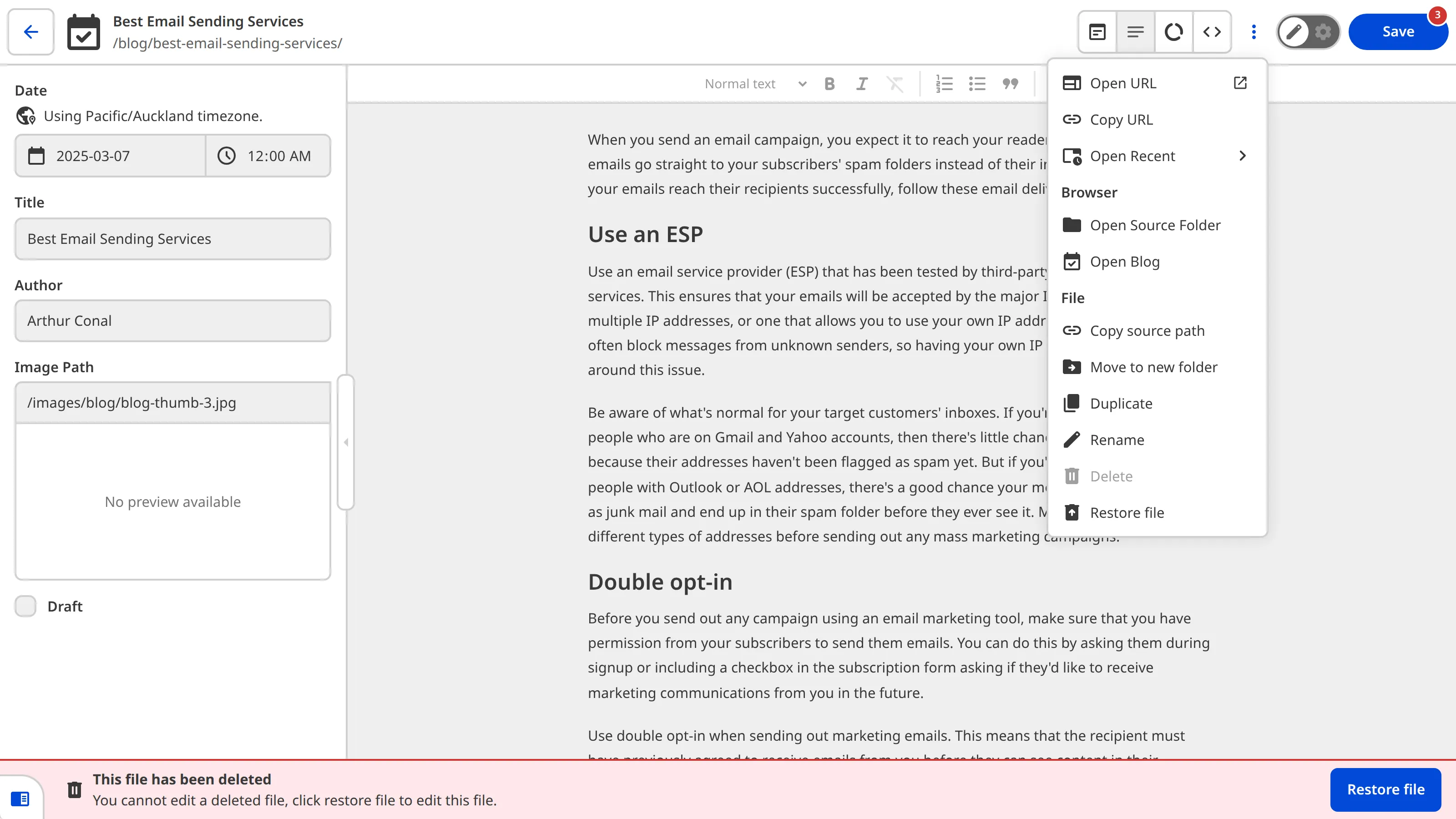
The *Deleted* badge will be removed, and the file will be restored.
### Files with unsaved changes
If a file has unsaved changes, you will need to discard those changes before you can mark it for deletion. This protects your work from being accidentally lost.
To discard unsaved changes, open the *Context Menu* for the file using the *Collection Browser* or an *Editing Interface*. Select the *Discard unsaved changes*. CloudCannon will ask you to review the action in a confirmation modal before you discard those changes from your *Site*.

You can also discard unsaved changes from any *Editing Interface*. Open the *Context Menu* by clicking the three dots icon in the top right of the *Editing Interface Header*, then select the *Discard unsaved changes* option from the dropdown menu.
> Discarding unsaved changes will destroy new files and content.
After discarding the changes, you will be able to delete the file using the option in the *Context Menu*.
## Rename a file
You might want to rename a file to better reflect its content, fix a typo in the filename, or organize your files more effectively.
To rename a file, navigate to the file you want to rename using the *Collection Browser* or *File Browser* and open the *Context Menu* by clicking on the six dot icon in the top right of the *File Card*.
Select the *Rename* option from the *Context Menu*. CloudCannon will open a pop-up window where you can edit the filename.
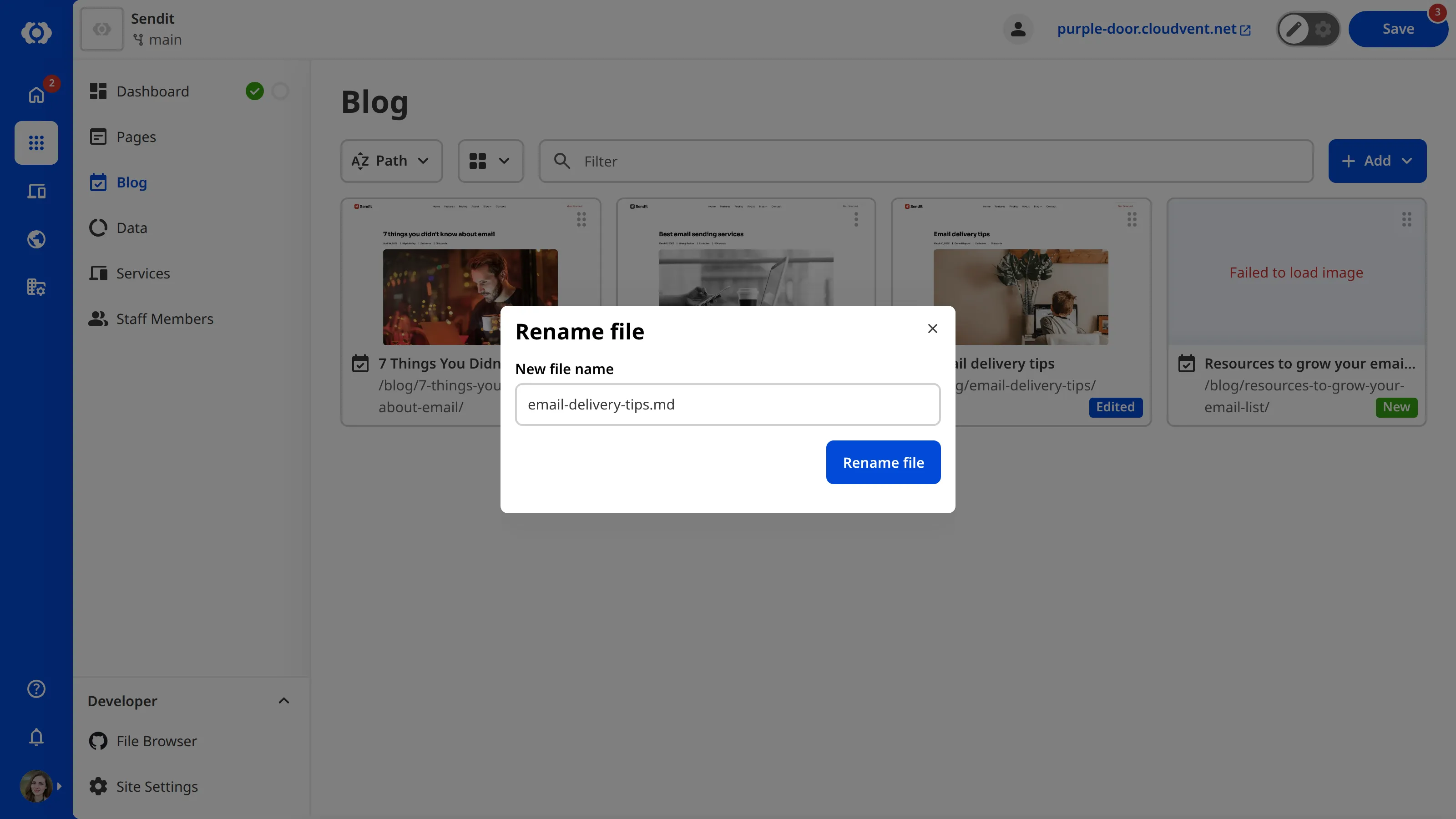
Enter the new filename and click *Confirm* to save your changes. The file will appear in your *Collection Browser* or *File Browser* with both the old and new filenames until you save your changes. The file with the new name will have a *New* badge, and the file with the old name will have a *Deleted* badge.
You can also rename a file from any *Editing Interface*. Open the *Context Menu* by clicking the three dots icon in the top right of the *Editing Interface Header*, then select the *Rename* option from the dropdown menu.
## Understanding file badges
CloudCannon uses badges on *File Cards* to help you keep track of which files have unsaved changes. These badges appear in your *Collection Browser* and *File Browser* to give you a quick visual indicator of each file's status.

The *New* badge appears on files that you've created but haven't saved yet. This includes files you've added to a *Collection* using the *+ Add* button, duplicated, uploaded, and renamed (the file with the new name will show a *New* badge).
The *Edited* badge appears on existing files that you've modified but haven't saved yet. This includes any changes you make to the file's content, whether you're editing text, images, structured data, or any other content.
The *Deleted* badge appears on files that you've marked for deletion but haven't saved yet. This includes files you've deleted using the *Context Menu* and files you've renamed (the file with the old name will show a *Deleted* badge).
We'll cover how to save your changes [later in this guide](/documentation/user-guides/editing-in-cloudcannon/saving-your-changes).
In the next step of this guide, we'll learn about editing sessions and how to collaborate with your team members.
---
---
title: User Guides
url: https://cloudcannon.com/documentation/user-guides/
content_type: user guide
last_modified: 2026-09-23
---
---
---
title: Developer Guides
url: https://cloudcannon.com/documentation/developer-guides/
content_type: developer guide
last_modified: 2026-09-23
---
---
---
title: Introduction
description: Learn the foundational Visual Editor API skills for custom integrations by walking through the Doodle Gallery example.
url: https://cloudcannon.com/documentation/developer-guides/build-custom-visual-editor-integrations/
content_type: developer guide
last_modified: 2026-09-23
---
Welcome to CloudCannon's guide on building custom integrations with the **Visual Editor**!
This guide teaches you the basics of CloudCannon's **Visual Editor API**, enabling you to build custom integrations with JavaScript. These integrations run inside the *Visual Editor* to read and write content, upload files, and build editing experiences tailored to your **Site**. We recommend this guide for experienced CloudCannon developers and power users looking to extend the *Visual Editor's* functionality.
The *Visual Editor API* provides a set of methods — what you do with these is up to you. In this guide, we'll use the CloudCannon repository "Doodle Gallery" as an example, but you are not limited to creating similar integrations. CloudCannon's [Editable Regions](/documentation/developer-articles/what-are-editable-regions/) and [Rosey CloudCannon Connector](/documentation/developer-guides/add-internationalization-with-rosey/what-is-the-rosey-cloudcannon-connector/) are examples of custom integration built with the *Visual Editor API*. Additionally, the Doodle Gallery is built with Astro and React, but the *Visual Editor API* skills transfer to any framework or static site generator.
The Doodle Gallery adds a drawing tool to the *Visual Editor*, where **Team Members** can sketch a doodle, give it a caption, and submit it to the *Site*. This tool is only visible inside the *Visual Editor*, appearing in the webpage preview but never on the live version of your website. When you submit a sketch, the *Visual Editor API* uploads the drawing as an image and adds it to a gallery data file that renders on the live webpage. You can find the complete example in the [doodle-example repository](https://github.com/CloudCannon/doodle-example).
In this guide, we'll cover how the *Visual Editor API* works, how to detect the *Visual Editor* and initialize the API, render a custom interface, upload a file, and write new data back to the *Site* without overwriting other people's changes.
Before we begin, this guide assumes you already have a *Site* whose pages render in CloudCannon's *Visual Editor*, and that you're comfortable writing JavaScript. If your *Site* isn't set up for visual editing yet, please read our documentation on [setting up visual editing](/documentation/developer-guides/set-up-visual-editing/) first. For a complete list of API objects and methods, please read our reference documentation on the [Visual Editor API](/documentation/developer-reference/visual-editor-api/).
---
---
title: More resources
description: Where to go next with the Visual Editor API, plus ideas for other custom integrations to build.
url: https://cloudcannon.com/documentation/developer-guides/build-custom-visual-editor-integrations/more-resources/
content_type: developer guide
last_modified: 2026-09-23
---
Congratulations — you've completed the Build custom **Visual Editor** integrations guide 🎉
We've covered the core skills behind any custom integration: how to detect the *Visual Editor*, initialize the API, render a custom interface, upload a file, and write new data back to your **Site**.
If you have any questions, please reach out to our friendly [support team](https://cloudcannon.com/support/) or check out the [CloudCannon Community](https://community.cloudcannon.com/). You can find the complete example in the [doodle-example repository](https://github.com/CloudCannon/doodle-example).
## Go further with the *Visual Editor API*
The Doodle Gallery only uses a handful of the methods the **Visual Editor API** provides. These articles cover the rest, so you can build integrations that react to changes, reuse CloudCannon's own editing surfaces, and work across many files.
- [Listen for changes](/documentation/developer-articles/listen-for-changes-with-the-visual-editor-api/) — Keep your integration in sync when content changes in the *Visual Editor*.
- [Create a custom Data Panel](/documentation/developer-articles/create-a-custom-data-panel-with-the-visual-editor-api/) — Open CloudCannon's own *Data Panels* from your integration.
- [Create custom inline editing](/documentation/developer-articles/create-custom-inline-editing-with-the-visual-editor-api/) — Make elements on the page directly editable.
- [List files, Collections, and Datasets](/documentation/developer-articles/access-and-list-files-collections-and-datasets-with-the-visual-editor-api/) — Access and work across many files in a *Collection* or *Dataset* at once.
- [Read and write data](/documentation/developer-articles/read-and-write-data-with-the-visual-editor-api/) — The full set of methods for file data, body content, and raw source.
## Try another integration
The same skills you used for the Doodle Gallery apply to all kinds of custom tools. Here are a few ideas for integrations of your own:
- A validation overlay that flags broken links or missing image alt text directly on the preview.
- A preview card that fetches a thumbnail or embed from a third-party service for a URL field, such as a YouTube video or social post.
---
---
title: Write data back
description: Finish the submit flow by reading the gallery array and appending the new doodle with addArrayItem.
url: https://cloudcannon.com/documentation/developer-guides/build-custom-visual-editor-integrations/write-data-back/
content_type: developer guide
last_modified: 2026-09-23
---
Using the same `submit()` function, we need to add the new doodle to the gallery by writing the path to the uploaded image to the array in `/src/data/doodles.json`. This file is already referenced by our previous work: `const file = cloudcannonApi.file('/src/data/doodles.json');`.
File: `src/data/doodles.json`
```json
{
"doodles": [
{
"src": "/favicon.png",
"caption": "COOL S"
},
{
"src": "/doodles/doodle-1.png",
"caption": "kat"
}
]
}
```
The Doodle Gallery integration can read the `doodles` array, then append a new item to it. Each item holds the uploaded image path and the caption a **Team Member** typed.
File: `src/components/doodle.tsx`
```typescript
```
const doodles = await file.data.get({ slug: 'doodles' }); /*1*/
if (typeof doodles !== 'object' || typeof doodles.length !== 'number') {
throw new Error('The data file is incorrectly formatted.');
}
await file.data.addArrayItem({ /*2*/
slug: 'doodles',
index: doodles.length, /*3*/
value: { src: uploadedPath, caption }, /*4*/
});
}
```
**[1]** Read the current `doodles` array from the data file with `file.data.get()`, passing the `slug` of the field we want.
**[2]** Add a new item to that array with `file.data.addArrayItem()`.
**[3]** Append to the end by using the current array length as the index.
**[4]** The new item carries the uploaded image path and the caption, matching the shape of the other doodles in the file.
```
The integration uses `file()` with a path, rather than `currentFile()`, because we're writing to a specific data file instead of the page open in the **Visual Editor**.
The `submit()` function is now complete, and its final job is to release the file lock on `doodles.json`. If your integration never releases the lock, other *Team Members* stay locked out until they take the lock back manually.
The Doodle Gallery wraps the steps from the previous two pages in a `try`/`catch`/`finally` and calls `releaseLock()` in the `finally` block. A `finally` block runs no matter how `submit()` exits, so the lock is released whether the write succeeds or throws partway through. The `file` reference sits outside the `try` so the `finally` block can still reach it on any exit path.
The same `submit()` function also keeps the *Team Member* informed. Claiming the lock, uploading the image, and writing the data each run asynchronously and take a moment, so without feedback a *Team Member* can't tell whether their doodle is saving, stuck, or failed. `submit()` updates a status message before each step, surfaces any error in the `catch`, and tells the *Team Member* what to do next on success. The component renders this message in a live region (`
`), so it updates as the function runs.
File: `src/components/doodle.tsx`
```typescript
```
async function submit() {
const file = cloudcannonApi.file('/src/data/doodles.json'); /*1*/
setCurrentStateMessage('Your doodle is being saved to the site...'); /*2*/
try {
setCurrentStateMessage('Claiming file lock...'); /*3*/
// Claim the lock, upload the image, and write the data,
// updating the message before each step.
} catch (error) {
const reason = error instanceof Error ? `: ${error.message}` : ''; /*4*/
setCurrentStateMessage(`Something went wrong${reason}`);
return;
} finally {
file.releaseLock(); /*5*/
}
setCurrentStateMessage(
'Ready! Click "Save" in the top-right, select all the files and confirm. Your doodle will appear on the site shortly after.',
); /*6*/
}
```
**[1]** Declare the `file` reference before the `try` block so the `finally` block can release its lock, regardless of where the code inside `try` exits.
**[2]** Set a message as soon as `submit()` starts, so the *Team Member* gets immediate feedback when they click *Add to the gallery*.
**[3]** Update the message before each asynchronous step (claiming the lock, uploading the image, and writing the data) so the *Team Member* can follow what the integration is doing.
**[4]** Surface the error in the `catch` block instead of failing silently. `error.message` gives the *Team Member* the specific reason, such as another *Team Member* holding the file lock.
**[5]** Release the lock in the `finally` block so it runs even when the code above throws. This frees the lock on every exit path, so a failed write never leaves another *Team Member* stranded with a read-only file.
**[6]** On success, tell the *Team Member* what to do next. The write marks the file as having unsaved changes but doesn't commit it. They still need to *Save* the *Site* for the doodle to go live.
```
As `submit()` runs, each status message appears in the live region in turn: when the *Team Member* clicks *Add to the gallery*, again while the image uploads, and once more on success to tell them what to do next.
The new doodle now appears in any open **Data Editor** and is written to `doodles.json`, ready to commit when a *Team Member* saves the **Site**. Because the gallery page renders straight from that data file, the new doodle shows up on the live webpage after the next **Build**.
The same `src/pages/index.astro` page we set up earlier renders that gallery. It reads the `doodles` array and maps each item to an image, using the same `src` and `caption` fields that `submit()` writes, so every new doodle appears automatically.
File: `src/pages/index.astro`
```astro
```
---
import { doodles } from '../data/doodles.json'; /*1*/
const colors = ['pink', 'cyan', 'yellow', 'blue', 'lime'];
---
{doodles.length ? ( /*2*/
Gallery
{doodles.map(({ src, caption }, index) => ( /*3*/
{caption}
))}
) : undefined}
```
**[1]** Import the same `doodles` array your integration writes to. CloudCannon rebuilds the page from this file, so it always reflects the latest data.
**[2]** Only render the gallery section once at least one doodle exists.
**[3]** Map over the array, reading the `src` and `caption` fields that `addArrayItem()` wrote. The shape matches on both ends: the integration writes it, and the page reads it.
```
In the next step of this guide, we'll point you to the full **Visual Editor API** reference and some ideas for other integrations to build.
---
---
title: How the Visual Editor API works
description: Learn what the Visual Editor API is, how it connects to your Site, and the building blocks it provides.
url: https://cloudcannon.com/documentation/developer-guides/build-custom-visual-editor-integrations/how-the-visual-editor-api-works/
content_type: developer guide
last_modified: 2026-09-23
---
CloudCannon's **Visual Editor API** is a JavaScript **API** that lets you read and write content, listen for changes, and build custom integrations in the **Visual Editor** — all from code running inside your website files.
## How does the *Visual Editor API* work?

When you open a page in the *Visual Editor*, CloudCannon loads your site inside a sandboxed iframe. The *Visual Editor API* bridges communication between your website's JavaScript and the *Visual Editor* that surrounds it.
CloudCannon exposes an API router on `window.CloudCannonAPI`. You request the version you want with `useVersion()`, and the router returns an *API Object* you can use to interact with the *Visual Editor*.
## What can you do with the API?
The *API Object* gives you a set of building blocks. The Doodle Gallery only uses a few of them, but it's worth knowing the whole toolbox so you can recognize what's possible:
- **Access files** — every file in your *Site* is exposed as an object you open from your code, whether it's the page currently open in the *Visual Editor* or any other file.
- **Read and write data** — read and update the **front matter** of a content file, the contents of a data file, the body content, or the raw file source.
- **Work with Collections and Datasets** — list and react to many files at once across a **Collection** or **Dataset**.
- **Listen for changes** — subscribe to change events so your integration stays in sync as content updates.
- **Build editing interfaces** — render your own UI, open CloudCannon's own **Data Panels**, or make elements on the page directly editable.
- **Upload files and manage loading** — upload new files into your *Site* and control the *Visual Editor's* loading state while your integration works.
CloudCannon's *Editable Regions* are built on the same *Visual Editor API* that you have access to. For example, `*.createTextEditableRegion()` uses the same underlying mechanism as the `data-editable` attribute — it makes any HTML element inline-editable and connects it to the *Visual Editor*'s content model.
## What does the Doodle Gallery use?
The Doodle Gallery is a deliberately small slice of the toolbox. In this guide, we'll cover how to detect the *Visual Editor*, access a data file, upload an image, and add a new item to a list.
It leaves the rest of the toolbox untouched, and uses only part of two more — and those are where other kinds of integrations come from:
- **Work with Collections and Datasets** — build a content dashboard that flags which files in a *Collection* are still in draft or missing a hero image.
- **Listen for changes** — show a live SEO or word-count preview that updates as a **Team Member** types.
- **Build editing interfaces** — the Doodle Gallery renders its own UI, but you could instead open CloudCannon's own *Data Panel* for a field, or make a heading on the page editable inline.
- **Upload files and manage loading** — the Doodle Gallery uploads images, but you could also show the *Visual Editor's* loading overlay while your integration fetches data from an external service.
In the next step of this guide, we'll detect the *Visual Editor* and initialize the API in code.
---
---
title: Detect the Visual Editor and initialize
description: Detect the Visual Editor and initialize the Visual Editor API before your integration runs.
url: https://cloudcannon.com/documentation/developer-guides/build-custom-visual-editor-integrations/detect-the-editor-and-initialize/
content_type: developer guide
last_modified: 2026-09-23
---
Custom integrations built with the **Visual Editor API** should only appear inside the **Visual Editor**, never on the live website.
In the Doodle Gallery example, the gallery of doodles appears as the first item on the webpage when you view it through your internet browser.
The drawing canvas only appears at the top of the webpage when loaded in the *Visual Editor*.


When you open a file in the *Visual Editor*, CloudCannon injects a script that sets `window.inEditorMode` to `true` in the document before loading it into the iframe, and leaves it `undefined` everywhere else. We can use this flag to keep custom integrations inside the *Visual Editor*. Once we know we're in the *Visual Editor*, we can request the API with `window.CloudCannonAPI.useVersion('v1', true)`.
> If you are writing in TypeScript, you can get [type checking and autocomplete with the Visual Editor API](/documentation/developer-articles/use-typescript-with-the-visual-editor-api/).
The Doodle Gallery imports the API's types from the `@cloudcannon/visual-editor-api` package. Because the types are only used at build time, install it as a dev dependency:
File: `Terminal`
```shell
npm install --save-dev @cloudcannon/visual-editor-api
```
File: `src/components/doodle.tsx`
```typescript
```
import { useState, useRef, useEffect } from 'react';
import type { CloudCannonVisualEditorAPIV1, CloudCannonVisualEditorWindow } from '@cloudcannon/visual-editor-api'; /*1*/
declare const window: CloudCannonVisualEditorWindow & { inEditorMode: true | undefined } /*2*/
export function Doodler() {
const apiRef = useRef(undefined); /*3*/
const canvasRef = useRef(null);
const [inCloudCannonEditor, setInCloudCannonEditor] = useState(false);
useEffect(() => {
if (!window.inEditorMode) { /*4*/
return;
}
setInCloudCannonEditor(true);
const initApi = () => {
apiRef.current = window.CloudCannonAPI?.useVersion('v1', true); /*5*/
};
if (window.CloudCannonAPI) { /*6*/
initApi();
return;
}
document.addEventListener('cloudcannon:load', initApi, { once: true }); /*7*/
return () => document.removeEventListener('cloudcannon:load', initApi);
}, []);
if (!inCloudCannonEditor) {
return undefined; /*8*/
}
// ...render the drawing tool
}
```
**[1]** Import the API and window types from the `@cloudcannon/visual-editor-api` package.
**[2]** Declare `window` with CloudCannon's types so `inEditorMode` and `CloudCannonAPI` are typed.
**[3]** Hold the *API Object* in a `useRef` so it persists across re-renders, ready for whenever a *Team Member* submits. `useRef(undefined)` touches no browser globals, so it's safe during a server-side build.
**[4]** Only run inside the *Visual Editor* — `window.inEditorMode` is `true` there and `undefined` on the live *Site* — and bail out early everywhere else.
**[5]** Request v1 of the API with `useVersion('v1', true)`. The `true` keeps the *API Object* off the global `window.CloudCannon`, so it won't clash with integrations using another API version.
**[6]** If `window.CloudCannonAPI` already exists, initialize immediately.
**[7]** Otherwise wait for the `cloudcannon:load` event, which CloudCannon dispatches after setting `window.CloudCannonAPI`. `{ once: true }` and the cleanup remove the listener once it fires or the component unmounts.
**[8]** Render nothing outside the *Visual Editor*, so the tool never appears for site visitors.
```
The *Visual Editor API* is available on `window.CloudCannonAPI` whenever a file is open in the *Visual Editor*. The Doodle Gallery initializes it inside a React `useEffect`, but the same approach works in any framework — the only requirement is that the code runs in the browser, not during a server-side build.
Depending on how your integration loads, `window.CloudCannonAPI` may not exist yet when your code first runs.
Before the Doodle Gallery integration performs any other actions, it checks whether the webpage is already running in the *Visual Editor*, then initializes the *Visual Editor API*. If not, it waits for the `cloudcannon:load` event, which CloudCannon dispatches after setting `window.CloudCannonAPI`. Because the *API Object* lives in a `useRef`, it's ready whenever a **Team Member** later submits a doodle, no matter which path initialized it.
In the next step of this guide, we'll render the custom interface *Team Members* use to draw a doodle.
---
---
title: Upload a file
description: Open the submit flow, lock the data file, and upload the doodle as an image with uploadFile.
url: https://cloudcannon.com/documentation/developer-guides/build-custom-visual-editor-integrations/upload-a-file/
content_type: developer guide
last_modified: 2026-09-23
---
Custom integrations often need to add new files to a **Site** and write changes back to existing files. Additionally, because more than one **Team Member** can edit a *Site* in the **Visual Editor** at once, you may need to claim a lock on a file before writing, so two people don't overwrite each other's work. The *Visual Editor API* allows you to do all of these.
In the Doodle Gallery, this happens when a *Team Member* clicks the *Add to the gallery* button: the `submit()` function uploads the drawing as an image, then adds that image to the gallery data file. It's defined inside the same `Doodler` component, so it can read the *API Object* from the `apiRef` we set up earlier. We'll build the upload here and finish the data write in the next step.
First, we open the write transaction: get a reference to the data file we'll be changing, then claim a lock on it. `claimLock()` returns `readOnly: true` if someone else already holds the lock, so we retry a few times and give up rather than interrupt their work.
> A file editing lock is cooperative, not absolute.
>
> A *Team Member* editing in the *Visual Editor* can take the lock from your integration at any time: when they open a file that is already being edited, CloudCannon shows them a banner with a *Switch to editing* button. Clicking it gives them the lock, moves your integration to read-only, and keeps any unsaved changes.
>
> Because a held lock is not a guarantee of exclusive access, call `claimLock()` again and check `readOnly` before resuming writes to confirm your integration still holds the lock. For how this looks to a *Team Member* in the *Visual Editor*, please read our documentation on [Editing sessions and collaboration](/documentation/user-guides/editing-in-cloudcannon/editing-sessions-and-collaboration/).
File: `src/components/doodle.tsx`
```typescript
```
async function submit() {
const cloudcannonApi = apiRef.current; /*1*/
if (cloudcannonApi === undefined) {
throw new Error("Can't access the CloudCannon API! Refresh and try again.");
}
const file = cloudcannonApi.file('/src/data/doodles.json'); /*2*/
let readOnly = true;
for (let fileLockAttempts = 0; readOnly; fileLockAttempts++) { /*3*/
readOnly = (await file.claimLock())?.readOnly ?? true;
if (readOnly) {
if (fileLockAttempts > 3) {
throw new Error('Someone else is editing this file. Try again in a second!');
}
await new Promise((resolve) => window.setTimeout(resolve, 1000));
}
}
const canvas = canvasRef.current;
if (!canvas) {
throw new Error('Lost reference to the canvas.');
}
const blob: Blob | null = await new Promise((resolve) => canvas.toBlob(resolve)); /*4*/
if (!blob) {
throw new Error("couldn't turn this drawing into an image file");
}
const uploadedPath = await cloudcannonApi.uploadFile( /*5*/
new File([blob], 'doodle.png'),
{
type: 'image',
options: {
paths: {
uploads: 'public/doodles',
uploads_filename: 'doodle[count].png',
static: 'public',
},
},
},
);
// ...continued in the next step
}
```
**[1]** Read the *API Object* from the `apiRef` we set on load, and bail out early if it isn't available — everything below depends on it.
**[2]** Get a reference to the data file we'll add the doodle to with `cloudcannonApi.file()`.
**[3]** Claim a lock before writing. We retry while `readOnly` is `true`, then give up after a few attempts so two *Team Members* can't overwrite each other.
**[4]** Turn the drawing on the canvas into a PNG image file.
**[5]** Upload the image with `uploadFile()`. It returns the path to the uploaded file, which we'll save as the doodle's image source.
```
The `paths` options tell CloudCannon where to store the upload and how to name it. They line up with the `paths` in your **Configuration File**, and `doodle[count].png` keeps each filename unique.
File: `cloudcannon.config.yml`
```YAML
paths:
static: public
uploads: public/doodles
```
In the next step of this guide, we'll wrap these calls in a `try`/`catch`/`finally` that releases the file lock and keeps *Team Members* looking at the *Visual Editor* informed as your `submit()` function runs, then finish the function by writing the new doodle into the gallery data file.
---
---
title: Build a custom interface
description: Render a custom drawing interface that only appears inside the Visual Editor.
url: https://cloudcannon.com/documentation/developer-guides/build-custom-visual-editor-integrations/build-a-custom-interface/
content_type: developer guide
last_modified: 2026-09-23
---
Now that we've detected the **Visual Editor** and have the API, we can render our own interface. The Doodle Gallery brings its own UI: a canvas to draw on, a caption field, and a submit button. Because we gated the component on `inCloudCannonEditor` in the previous step, this interface only renders inside the *Visual Editor*.
Render whatever markup your interface needs — CloudCannon doesn't require any particular wrapper or class.
File: `src/components/doodle.tsx`
```typescript
```
return (
);
```
**[1]** The Doodle Gallery styles this wrapper with its own striped background in `main.css`. The class name isn't special to CloudCannon — use whatever markup and styling you like.
**[2]** `DoodleCanvas` is a plain React component that captures the drawing and hands the strokes back through `finishDraw`. None of its code touches the *Visual Editor API*.
**[3]** Capture the caption a *Team Member* types. We'll save it alongside the image.
**[4]** The submit button calls our `submit()` function, which we'll cover in the next steps of this guide. It's disabled until a *Team Member* enters a caption, and stays disabled while a save is in progress, so they can't start a second save before the first finishes.
```
The Doodle Gallery renders this component on its homepage. In Astro, that means importing it and rendering `` — the `client:load` directive hydrates the component in the browser, where it can reach the **Visual Editor API**. Other frameworks and SSGs each have their own way to mount a client-side component; whichever you use, the only requirement is that your integration runs in the browser.
File: `src/pages/index.astro`
```astro
```
---
import { Doodler } from "../components/doodle.tsx"; /*1*/
---
/*2*/
```
**[1]** Import the component into the page where you want the tool to appear.
**[2]** Render it with `client:load` so the component hydrates in the browser.
```
Bringing your own UI like this gives you complete control over the experience. If instead you want to reuse CloudCannon's native editing surfaces, the *Visual Editor API* can also open its own **Data Panels** and make page elements directly editable.
In the next step of this guide, we'll start building the submit function, beginning by uploading the finished doodle as an image.
---
---
title: Introduction
description: Learn how to add internationalization to your static site on CloudCannon using Rosey.
url: https://cloudcannon.com/documentation/developer-guides/add-internationalization-with-rosey/
content_type: developer guide
last_modified: 2026-09-23
---
This guide covers how to add **internationalization (i18n)** and multilingual support to your static site on CloudCannon using **Rosey**. You'll learn how *Rosey* works, how to set it up, and how to optionally add the **Rosey CloudCannon Connector** for inline translation editing in the **Visual Editor**.
This guide is structured in two sections:
- **Rosey** — install and configure *Rosey* to build locale-specific versions of your *Site*
- **Rosey CloudCannon Connector** — optionally add inline translation editing to the *Visual Editor*
The *Rosey CloudCannon Connector* is not required to use *Rosey*. You can complete the first section and have a fully functional multilingual *Site* without it.
Before you begin, this guide assumes you already have a static *Site* connected to CloudCannon.
> This is a fresh setup guide. If you're migrating from CloudCannon's deprecated built-in i18n, see the [Rosey migration guide](/documentation/developer-guides/migrate-from-legacy-internationalization-to-rosey/) instead.
---
---
title: Configure URLs for Rosey
description: Configure your CloudCannon Collection URLs and Rosey URL options to control how your multilingual Site is served.
url: https://cloudcannon.com/documentation/developer-guides/add-internationalization-with-rosey/configure-urls-for-rosey/
content_type: developer guide
last_modified: 2026-09-23
---
When **Rosey** runs as a postbuild step, it moves your output files to language-prefixed paths — for example, `/en/about/` instead of `/about/`. This affects where the *Visual Editor* looks for your pages, and how your visitors reach your default language. You can address these issues by updating your *Collection* URLs so the *Visual Editor* can find your pages, and by configuring *Rosey*'s URL options to control how your default language is served.
> These configurations are independent — you can do one, both, or neither depending on your setup. Update your *Collection* URLs if you need the *Visual Editor* to work after a *Rosey* build. Configure *Rosey*'s URL options only if the defaults don't suit your use case.
## Fix the *Visual Editor* preview
*Rosey* moves your output files to language-prefixed paths, but CloudCannon's default *Collection* URL configuration doesn't account for this prefix. CloudCannon uses the output URL to match each source file to its output file — if the output URL is wrong, the webpage preview in the **Visual Editor** and the webpage screenshot on each *File Card* in the *Collection Browser* will both be incorrect. You can fix this by updating your *Collection* URLs to match *Rosey*'s output paths.
You can update your *Collection* URLs either through CloudCannon or by editing your *Configuration File* directly.
### Update *Collection* URLs in CloudCannon
Navigate to the relevant *Collection* in the *Collection Browser* and enable *Configuration Mode* using the switch on the right of the *Site Header* — purple *Edit Configuration* buttons will appear. Click *Edit Advanced* in the top right to open the *Edit Advanced* data panel. Enter your language-prefixed URL template in the *URL* field — for example, `/en/[slug]/` — then save your *Site*. Repeat this process for each *Collection* in your *Site*.

### Update *Collection* URLs in your *Configuration File*
To update your *Collection* URLs without using CloudCannon, edit the `url` key for each *Collection* in your `cloudcannon.config.yml`.
File: `cloudcannon.config.yml`
```YAML
collections_config:
pages:
url: /en/[slug]/
```
Add a `url` entry for each *Collection* in your *Site*, replacing `en` with your default locale code. Once you've updated the `url` for each *Collection*, the *Visual Editor* will load your pages correctly after every build.
## Use a staging workflow instead
If you prefer to keep your *Collection* URLs un-prefixed, you can use a staging workflow as an alternative — running *Rosey* only on your production branch and using a separate branch for content editing. See the [staging workflow guide](/documentation/developer-guides/staging-workflow-guide/) for guidance on configuring this in CloudCannon.
> The staging workflow is incompatible with the **Rosey CloudCannon Connector**. The Connector requires *Rosey* to have run on your editing branch so it can surface translations in the *Visual Editor*. If you intend to use the Connector, update your *Collection* URLs instead.
To restrict *Rosey* to your production branch, replace the postbuild script from the previous step with this version, which wraps the build in an environment variable check:
File: `.cloudcannon/postbuild`
```shell
if [[ $TRANSLATE == "true" ]];
then
echo "Translating site with Rosey"
mv ./_site ./_untranslated_site
npx rosey build --source _untranslated_site --dest _site
fi
```
Then add a `TRANSLATE` environment variable with the value `true` on your production *Site* in CloudCannon. You can do this in the *Environment variables* section under *Build* in your *Site Settings*. Leave the variable unset on your staging *Site* — *Rosey* won't run on any build where `TRANSLATE` is not `true`, which keeps the *Visual Editor* working correctly on your editing branch.
## Keep your default language at the root path
*Rosey* also gives you control over how the default language's URLs are structured. *Rosey* uses `en` as the default language unless you set a different value using the `default_language` key in your `rosey.yml`.
File: `rosey.yml`
```yaml
source: _site
tag: data-rosey
default_language: fr
```
By default, *Rosey* places your default language under a language code prefix (for example, `/en/index.html`) and generates a redirect page at `/index.html` that sends visitors to the correct locale. If you'd prefer your default language to live at the root path — for example, `/index.html` instead of `/en/index.html` — you can set the `default_language_at_root` option in your `rosey.yml`.
File: `rosey.yml`
```yaml
source: _site
tag: data-rosey
default_language: en
default_language_at_root: true
```
If your default language isn't `en`, set both keys together:
File: `rosey.yml`
```yaml
source: _site
tag: data-rosey
default_language: fr
default_language_at_root: true
```
> Setting `default_language_at_root` disables *Rosey*'s redirect page. Without the redirect page at `/index.html`, visitors arriving at the root of your *Site* won't be automatically sent to their locale — your default language content will be served there instead. Make sure this trade-off suits your use case before enabling this option.
With your *Collection* URLs configured, *Rosey* will build and serve a localized version of each page for every locale you've set up. This completes the *Rosey* section of the guide — your *Site* now has full multilingual support.
In the next step of this guide, we'll introduce the *Rosey CloudCannon Connector* — an optional add-on that lets you edit translations inline in the *Visual Editor*.
---
---
title: Set up Rosey
description: Set up Rosey on CloudCannon by tagging translatable content, creating locale files, and configuring your postbuild script.
url: https://cloudcannon.com/documentation/developer-guides/add-internationalization-with-rosey/set-up-rosey/
content_type: developer guide
last_modified: 2026-09-23
---
This page walks you through setting up **Rosey** on CloudCannon from scratch. By the end, you'll have a multilingual static site that generates locale-specific output as part of your CloudCannon build.
## Install *Rosey*
In your Terminal, navigate to your website project and initialize `npm` using the following command.
File: `Terminal`
```shell
npm init
```
Still in your Terminal, install *Rosey* using the following command.
File: `Terminal`
```shell
npm install rosey
```
## Tag translatable content
Add `data-rosey` attributes to the HTML elements in your site templates that you want *Rosey* to translate. The attribute value is a key that *Rosey* uses to look up the translation in your locale files. Choose key names that are descriptive and unique within your site.
*Rosey* can translate three types of content: text, images, and HTML attributes.
For text content, you can add `data-rosey` to any element to translate its inner text.
File: `layout.html`
```html
Welcome to our site
We build great things.
```
For images, you can add `data-rosey` to an `` element to swap the image itself per locale.
File: `layout.html`
```html
```
For HTML attributes, you can use `data-rosey-attr` and `data-rosey-attr-value` to translate attribute values such as `alt` text or `meta` descriptions.
File: `layout.html`
```html
```
## Configure *Rosey*
Create a `rosey.yml` file at the root of your project to tell *Rosey* where your built site lives and which attribute to look for.
File: `rosey.yml`
```yaml
source: _site
tag: data-rosey
```
The value of the `source` key tells *Rosey* where to find your SSG's built output. If you are using an SSG like Eleventy or Jekyll, the output will be `_site` (like the example above); however, you should set this to the appropriate value for your project.
The value of the `tag` key should match the HTML attribute on elements in your files.
## Test locally
Before adding locale files, you can verify that *Rosey* can read your tagged content by running a local build.
File: `Terminal`
```shell
npx rosey build --serve
```
*Rosey* will build your *Site* and start a local server. At this stage your *Site* will have no translations yet, but this confirms that *Rosey* is reading your output directory correctly.
## Generate your base locale file
Run the `rosey generate` command in your Terminal to produce a base locale JSON file. *Rosey* scans your built *Site* for all `data-rosey` tagged elements and outputs a JSON file listing every translatable string.
File: `Terminal`
```shell
npx rosey generate
```
This produces `rosey/base.json` by default. The file lists each key with its source text:
File: `rosey/base.json`
```json
{
"hero.heading": { "original": "Welcome to our site" },
"hero.subheading": { "original": "We build great things." }
}
```
## Create locale files
Create a file in `rosey/locales/` for each language you want to support. The filename should be a locale code (`fr.json`, `de.json`, `es.json`, etc.). Copy the structure from `base.json` and add translated values.
File: `rosey/locales/fr.json`
```json
{
"hero.heading": {
"original": "Welcome to our site",
"value": "Bienvenue sur notre site"
},
"hero.subheading": {
"original": "We build great things.",
"value": "Nous construisons de grandes choses."
}
}
```
## Set up the postbuild script
*Rosey* runs as a postbuild step on CloudCannon. Create a `.cloudcannon/postbuild` script to run *Rosey* after every build.
File: `.cloudcannon/postbuild`
```shell
echo "Translating site with Rosey"
mv ./_site ./_untranslated_site
npx rosey build --source _untranslated_site --dest _site
```
> `npx rosey build` runs the latest published version of *Rosey*, so a new release can change your build output. To keep your local and CloudCannon builds reproducible, add `rosey` to your `package.json` dependencies at a fixed version — your build then runs the pinned version instead of the latest.
Replace `_site` with your SSG's output directory if it differs. If your *Site* includes Chinese, Japanese, or Korean content, add the `--wrap` flag to the `rosey build` command for correct word-wrapping:
File: `.cloudcannon/postbuild`
```shell
npx rosey build --source _untranslated_site --dest _site --wrap
```
Because *Rosey* moves your output files to language-prefixed paths, the *Visual Editor* needs to be configured to find your pages after a build. The next step covers how to do this.
## Add locale files as a CloudCannon *Collection*
To make your locale files editable in CloudCannon, add them as a *Collection* in your *Configuration File*. This lets your team open and edit individual locale files in the *Data Editor*.
File: `cloudcannon.config.yml`
```YAML
collections_config:
translations:
path: rosey/locales
```
Each locale file (`fr.json`, `de.json`, etc.) will appear as a separate item in the *Collection*, where your team can update translation values directly in CloudCannon.
> You can also surface your locale files as a *Dataset* under `data_config` instead of a *Collection*. Both make the same JSON files editable — a *Collection* lists each locale file as a separate item, while a *Dataset* manages them as shared data. This guide uses a *Collection*.
## Check for stale translations
*Rosey* uses the `original` field in each locale file to detect stale translations. When your source text changes, you can run `rosey check` to find any locale entries that need updating.
File: `Terminal`
```shell
npx rosey check
```
*Rosey* outputs a `checks.json` report. Each locale gets a summary, a `states` count for every status — `"current"`, `"outdated"`, `"missing"`, and `"unused"` are always reported, even when zero — and a per-key status.
File: `checks.json`
```json
{
"de": {
"current": false,
"baseTotal": 2,
"total": 2,
"states": {
"current": 0,
"outdated": 1,
"missing": 1,
"unused": 0
},
"keys": {
"hero.heading": "outdated",
"hero.subheading": "missing"
}
},
"fr": {
"current": true,
"baseTotal": 2,
"total": 2,
"states": {
"current": 2,
"outdated": 0,
"missing": 0,
"unused": 0
},
"keys": {
"hero.heading": "current",
"hero.subheading": "current"
}
}
}
```
Review this file after updating your content to see which translations need attention.
## Attributes reference
*Rosey* uses the following `data-*` attributes on your HTML elements:
**`data-rosey`** String
Marks an element as translatable. The attribute value becomes the translation key in `base.json`, with the element's inner text captured as the source string.
File: `layout.html`
```html
```
Welcome to our site
We build great things.
```
**[1]** Adds the key `hero.title` to `base.json` with `"Welcome to our site"` as the source string.
**[2]** Adds a separate key `hero.subtitle` with `"We build great things."` as the source string.
```
**`data-rosey-ns`** String
Prepends a namespace segment to all child `data-rosey` keys, separated by colons. Namespaces stack — `data-rosey-ns="hero"` on a parent and `data-rosey="title"` on a child produces the key `hero:title`.
File: `layout.html`
```html
```
Home page title
Contact us
```
**[1]** Sets the top-level namespace. All child `data-rosey` keys are prefixed with `home:`.
**[2]** Produces the key `home:title` in `base.json`.
**[3]** Adds a second namespace segment, stacking onto `home`. Child keys are now prefixed with `home:contact-info:`.
**[4]** Produces the key `home:contact-info:title` — the same attribute value as annotation 2, but a distinct key due to the nested namespace.
```
**`data-rosey-root`** String
Resets the namespace at this element, replacing any inherited parent namespaces. Set to an empty string (`""`) to clear the namespace entirely for that subtree.
File: `layout.html`
```html
```
Home page title
Our features
Built for you.
```
**[1]** Sets the top-level namespace to `home`.
**[2]** Produces the key `home:title`.
**[3]** Resets the namespace to `features`, discarding the inherited `home` namespace.
**[4]** Produces the key `features:title`, not `home:features:title`.
**[5]** Resets the namespace to an empty string, clearing it entirely for this subtree.
**[6]** Produces the bare key `tagline` with no namespace prefix.
```
**`data-rosey-attr`** String
The name of the HTML attribute to translate. Use alongside `data-rosey-attr-value` on the same element — for example, `data-rosey-attr="alt"` with `data-rosey-attr-value="hero.image-alt"` translates the `alt` attribute using the key `hero.image-alt`.
File: `layout.html`
```html
```
```
**[1]** Translates the `alt` attribute using the key `hero.image-alt`. The attribute's current value is captured as the source string in `base.json`.
**[2]** Translates the `content` attribute using the key `meta.description`.
```
**`data-rosey-attr-value`** String
The translation key for the attribute named in `data-rosey-attr`. The attribute's current value is captured as the source string in `base.json`.
In the next step of this guide, we'll look at the URL configuration options available to you — including how to update your *Collection* URLs so the *Visual Editor* can find your pages, and how to control where your default language is served.
---
---
title: More resources
description: Further reading on Rosey, the Rosey CloudCannon Connector, and CloudCannon workflows.
url: https://cloudcannon.com/documentation/developer-guides/add-internationalization-with-rosey/more-resources/
content_type: developer guide
last_modified: 2026-09-23
---
Congratulations on completing the guide! Your *Site* now has full multilingual support powered by **Rosey**. 🎉
If you have any questions, please reach out to our friendly [support team](https://cloudcannon.com/support/) or check out the [CloudCannon Community](https://community.cloudcannon.com/).
## Go further with *Rosey*
*Rosey* has more features beyond what this guide covers. These resources will help you explore advanced configuration and manage translations at scale.
- [rosey.app](https://rosey.app) — Comprehensive *Rosey* documentation, including advanced configuration options and the full CLI reference.
## CloudCannon configuration
These articles cover the CloudCannon-specific setup from this guide and options for extending it further.
- [What is internationalization?](/documentation/developer-articles/what-is-internationalization/) — An overview of i18n on CloudCannon, covering SSG-native features and third-party tools including *Rosey*.
- [Update the output URL for a Collection](/documentation/developer-articles/update-the-output-url-for-a-collection/) — Explicitly configure the URL CloudCannon uses to match output files to source files, enabling the *Visual Editor* and screenshots.
- [Extending your build process with hooks](/documentation/developer-articles/extending-your-build-process-with-hooks/) — Learn how to run preinstall, prebuild, and postbuild scripts to extend your build process.
- [Staging workflow guide](/documentation/developer-guides/staging-workflow-guide/) — Set up separate staging and production branches if you prefer to run *Rosey* only on your production branch.
---
---
title: Set up the Rosey CloudCannon Connector
description: Install the Rosey CloudCannon Connector and configure inline translation editing in the Visual Editor.
url: https://cloudcannon.com/documentation/developer-guides/add-internationalization-with-rosey/set-up-the-rosey-cloudcannon-connector/
content_type: developer guide
last_modified: 2026-09-23
---
In this part of the guide, you will install the *Rosey CloudCannon Connector*, modify your *CloudCannon Configuration File* to define a *Dataset* for each locale, and update your postbuild script. For more information, see the [full documentation on GitHub](https://github.com/CloudCannon/rosey-cloudcannon-connector) or contact our friendly [support team](https://cloudcannon.com/support/).
## Install and initialize the Connector
In your Terminal, install the *Rosey CloudCannon Connector* into your project using the following command.
File: `Terminal`
```sh
npm install rosey-cloudcannon-connector
```
Run the `init` command in your terminal to install dependencies, generate the configuration required in your *CloudCannon Configuration File* for each locale, and create a `.cloudcannon/postbuild` script.
File: `Terminal`
```sh
npx rosey-cloudcannon-connector init
```
Your terminal will present some interactive prompts to help you initialize the Connector. You can skip these prompts by passing flags to accept default configuration options. Here are some common flags that might speed up the process:
- `--locales`, followed by the locale codes in a comma-separated list, generates the *Dataset* configuration the Connector requires in your *CloudCannon Configuration File*.
- `--collection` generates the optional `collections_config` entry in your *CloudCannon Configuration File* for editing locale files in the *Data Editor* or *Content Editor Sidebar*.
File: `Terminal`
```sh
npx rosey-cloudcannon-connector init --locales fr,de --collection
```
### Locale files as *Datasets*
The *Rosey CloudCannon Connector* needs a `data_config` entry in your *CloudCannon Configuration File* for each locale. CloudCannon's data API uses these entries to read and write locale JSON files, and the Connector uses them to discover available locale data at runtime.
The `init` command generates these entries automatically based on the locale codes you provide with `--locales`, or the ones you enter at the interactive prompt. For a complete list of locale codes, please read the [ISO 639 language code list on Wikipedia](https://en.wikipedia.org/wiki/List_of_ISO_639_language_codes).
File: `cloudcannon.config.yml`
```YAML
```
data_config:
locales_fr___1___:
path___2___: rosey/locales/fr.json
locales_de:
path: rosey/locales/de.json
```
**[1]** The key must follow the format `locales_{code}`. The Connector calls `api.dataset("locales_fr")` at runtime to load locale data, so the `locales_` prefix and locale code are not configurable.
**[2]** The path to the locale JSON file for this locale, relative to your project root.
```
You need one entry for each locale file you want the Connector to surface in the *Visual Editor*. If you add a new locale later, add its `data_config` entry before adding the locale file to `rosey/locales/`.
### Locale files as a *Collection*
Adding a *Collection* for your translations is optional. You might have made one earlier in this guide to edit locale files in the *Data Editor*, however there is some extra configuration when the *Rosey CloudCannon Connector* is installed.
The `init` command allows you to generate the optional `collections_config` entry in your *CloudCannon Configuration File* for editing locale files in the *Data Editor* or *Visual Editor Sidebar*. This is independent of the Connector — it doesn't affect how the Connector functions, but it's useful when a translation doesn't appear visually on the page (for example, `alt` text, `meta` descriptions, or other HTML attribute values that can't be clicked in the *Visual Editor*).
File: `cloudcannon.config.yml`
```YAML
```
collections_config:
translations:
path___1___: rosey/locales
name___2___: Locales
icon___3___: translate
disable_add___4___: true
disable_add_folder: true
disable_file_config: true
_inputs___5___:
value:
type___6___: html
label: Translation
cascade: true
original:
hidden___7___: true
cascade: true
_base_original:
disabled___8___: true
cascade: true
```
**[1]** The path to your locale files directory. Each file in this directory appears as a separate item in the *Collection*.
**[2]** The display name for the *Collection* in the *App Sidebar*.
**[3]** Sets the *Collection* icon in the *App Sidebar*.
**[4]** Prevents team members from creating, rearranging, or individually configuring locale files. Locale files are managed by *Rosey* and the Connector, not created manually.
**[5]** Configures how locale file fields appear in the *Data Editor* or *Visual Editor Sidebar*
**[6]** *Rosey* translations are always HTML — the SSG renders Markdown to HTML at build time before *Rosey* runs. Setting `type: html` ensures the rich-text editor is used rather than a plain text field.
**[7]** Fully hidden from the *Data Editor* interface. Team members don't need to see or modify this field — it's updated automatically when a translation is saved in the *Visual Editor*.
**[8]** Visible but read-only, so translators can see the current source text for reference while translating. This field is written by `write-locales` on every build and should not be edited manually.
```
Ensure there is an entry for each locale file you want to be able to update through the **Visual Editor**.
## Stale translation detection
Each locale entry stores three fields that the *Rosey CloudCannon Connector* and the build process use to track whether a translation is current: `value` (the translated text), `original` (the source text when the translation was last confirmed), and `_base_original` (the current source text from `base.json`, updated by `write-locales` on every build).
A translation is stale when `original` and `_base_original` differ. When source content changes, the next build updates `_base_original` to the new text while leaving `original` and `value` untouched. For example, a translator confirms a French translation when the heading reads "Welcome to Jetstream":
File: `rosey/locales/fr.json`
```json
{
"hero:title": {
"original": "Welcome to Jetstream",
"_base_original": "Welcome to Jetstream",
"value": "Bienvenue chez Jetstream"
}
}
```
After a team member updates the heading to "Welcome to Jetstream — Software for the future", the next build updates `_base_original` but leaves `original` and `value` unchanged:
File: `rosey/locales/fr.json`
```json
{
"hero:title": {
"original": "Welcome to Jetstream",
"_base_original": "Welcome to Jetstream — Software for the future",
"value": "Bienvenue chez Jetstream"
}
}
```
Because `original` and `_base_original` no longer match, the Connector highlights the element with an amber dashed border and increments the count badge on the locale switcher. You can resolve the stale indicator by editing the translation in the *Visual Editor* — the Connector automatically updates `original` to match `_base_original` on save. If the source change doesn't affect the meaning, you can mark the translation as reviewed instead, which clears the indicator without changing the translated text.
## Import the Connector script
Import the *Rosey CloudCannon Connector* script in your layout file so it loads when you open a page in the *Visual Editor*. Wrap the import in `window?.inEditorMode` so the script only loads in the *Visual Editor*:
File: `layout.html`
```html
```
> If your SSG has a JavaScript bundler pipeline (such as Astro, SvelteKit, or Next.js), you can import the package by name and your bundler will resolve it from `node_modules`. If your SSG does not bundle client-side JavaScript (such as Jekyll or Hugo without a JS pipeline), reference the module file directly:
>
> File: `layout.html`
>
> ```html
>
> ```
## Update the postbuild script
Add the `write-locales` step to your `.cloudcannon/postbuild` script so translation changes you save in the *Visual Editor* are written back to your locale JSON files before *Rosey* runs. Your postbuild script should include these steps in order:
File: `.cloudcannon/postbuild`
```sh
echo "Installing dependencies"
npm install
echo "Generating Rosey base"
npx rosey generate
echo "Writing locales"
npx rosey-cloudcannon-connector write-locales --source rosey --dest _site
echo "Translating site with Rosey"
mv ./_site ./_untranslated_site
npx rosey build --source _untranslated_site --dest _site --default-language en --default-language-at-root --exclusions "\.(html?)$"
```
## Attributes reference
The Connector uses the following `data-rcc-*` attributes to control behaviour in the *Visual Editor*:
**`data-rcc`** Boolean
Marks the snapshot boundary for locale switching. The Connector clones this element and swaps its content when changing locale. Defaults to `` if omitted.
File: `layout.html`
```html
```
...
```
**[1]** Marks this wrapper as the snapshot boundary, so the Connector clones the entire region — including navigation and footer — when switching locales. Without this attribute, only `` would be swapped.
```
**`data-rcc-ignore`** Boolean
Excludes this element from locale switching in the *Visual Editor*. The element is still translated at build time by *Rosey*.
File: `layout.html`
```html
```
SUMMER2026
```
**[1]** *Rosey* translates this element at build time, but the Connector does not make it editable inline in the *Visual Editor*. Useful for content such as codes or IDs that should be translated via locale files rather than edited directly.
```
**`data-rcc-exclude`** String
Hides specific locales from the switcher on this page. Accepts a comma-separated list of locale codes (e.g. `de,es`).
File: `layout.html`
```html
```
...
```
**[1]** Hides German and Spanish from the locale switcher on this page. Use this for pages that haven't been translated into those locales yet.
```
**`data-rcc-verbose`** Boolean
Enables detailed console logging prefixed with `RCC:` for debugging. Logs initialization, element tracking, and locale operations.
In the next step of this guide, we'll look at how to edit translations in the *Visual Editor* using the Connector.
---
---
title: Edit translations in the Visual Editor
description: Use the locale switcher, edit translations inline, and resolve stale translations in the Visual Editor.
url: https://cloudcannon.com/documentation/developer-guides/add-internationalization-with-rosey/edit-translations-in-the-visual-editor/
content_type: developer guide
last_modified: 2026-09-23
---
With the **Rosey CloudCannon Connector** installed and configured, your team can switch between locales, edit translations inline, and identify stale translations without leaving the **Visual Editor**.
## Use the locale switcher in the Visual Editor
When your *Site* loads in the *Visual Editor* with the Connector installed, a floating locale switcher appears in the corner of the preview.
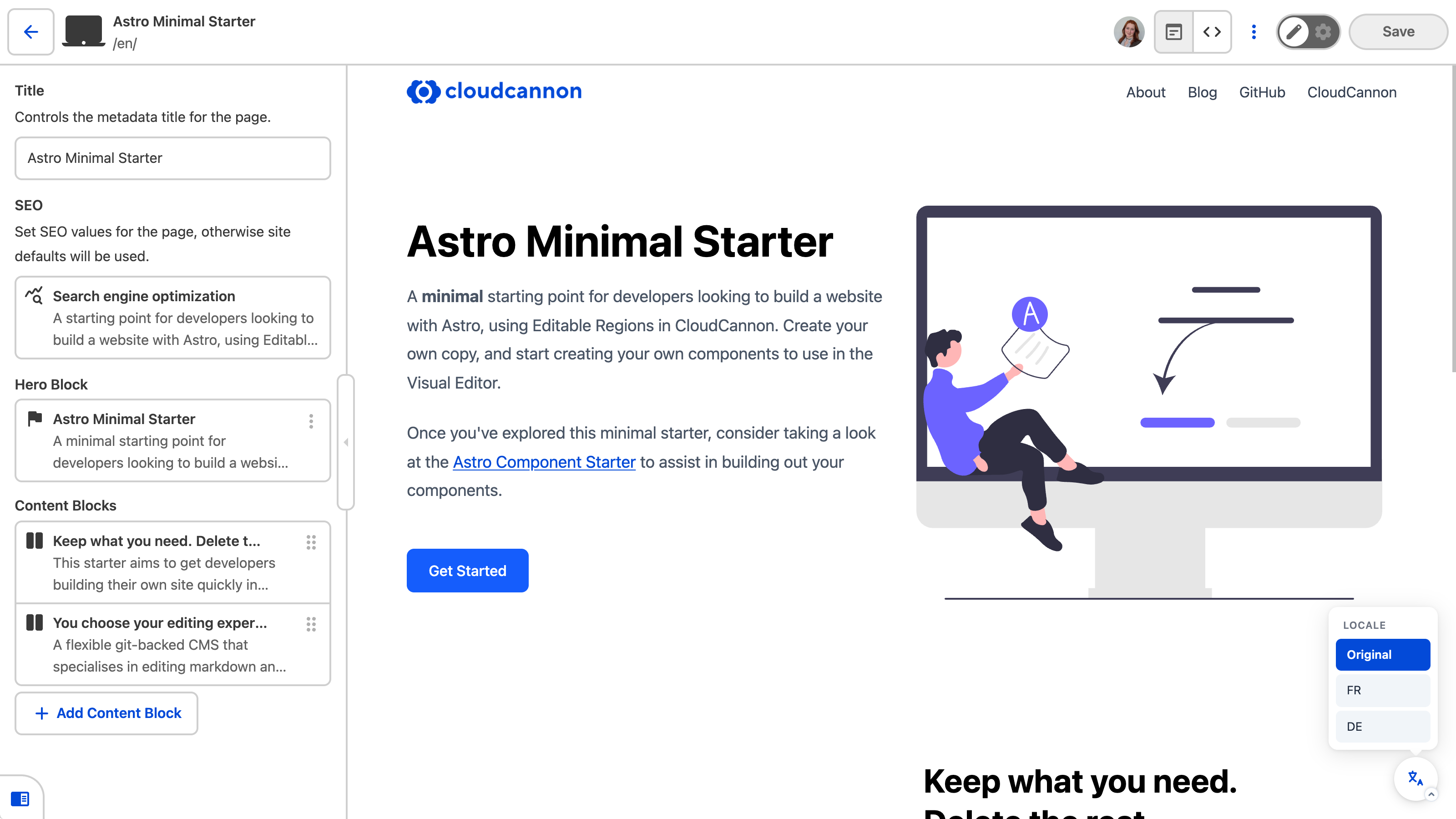
Click the locale switcher to open a list of your available locales. Selecting a locale reloads the preview in that language, showing the translated content inline.
## Edit translations inline
Click any element with a `data-rosey` attribute to open its inline translation input. The input shows the current source text and lets you enter or update the translation for the active locale.
When you save, the Connector writes the updated value back to the locale JSON file.
## Resolve stale translations
When source content changes after a translation has been saved, the Connector highlights the affected elements with amber dashed borders. A badge on the locale switcher shows how many stale translations exist on the current page.
To resolve a stale translation, click the highlighted element to open its inline translation input, review the updated source text, and enter a new translation. The amber highlight clears once the translation matches the current source text.
In the next step of this guide, we'll point you to further resources for extending and maintaining your multilingual *Site*.
---
---
title: What is the Rosey CloudCannon Connector?
description: The Rosey CloudCannon Connector enables inline translation editing in the Visual Editor for multilingual Rosey sites.
url: https://cloudcannon.com/documentation/developer-guides/add-internationalization-with-rosey/what-is-the-rosey-cloudcannon-connector/
content_type: developer guide
last_modified: 2026-09-23
---
The **Rosey CloudCannon Connector** is an optional add-on for *Rosey* sites that enables inline translation editing in the **Visual Editor**. It is not required to use *Rosey* — your multilingual *Site* will build and run correctly without it. The Connector is for teams who want to edit translations visually within CloudCannon rather than editing locale JSON files in the *Data Editor*.

The Connector is built using CloudCannon's [Visual Editor API](/documentation/developer-articles/what-is-the-visual-editor-api/).
When you load a *Site* with the *Rosey CloudCannon Connector* in the *Visual Editor*, you get:
- **A locale switcher** — a floating button that lets you switch between available locales directly in the *Visual Editor* preview
- **Inline translation editing** — clicking on any `data-rosey`-tagged element opens an inline editor connected to the corresponding locale JSON entry
- **Stale translation highlighting** — elements whose source text has changed since the translation was written are highlighted with amber borders, with a count badge and resolve panel to help you work through them
## How the Connector works
The *Rosey CloudCannon Connector* is a client-side JavaScript library that you load in your *Site*'s layout.
When the Connector detects a webpage is open in the *Visual Editor*, it highlights all the `data-rosey`-tagged elements on the page, and adds a floating locale-switching tool in the bottom right of the *Visual Editor*, allowing you to easily change which version of a page you are seeing. Because the Connector uses the *Visual Editor API*, all these editing interfaces are only visible within the *Visual Editor* — not on your live *Site*.
To use the *Rosey CloudCannon Connector*, you must already have *Rosey* set up on your *Site*.
> The Connector does not replace *Rosey*. It extends *Rosey* by connecting the *Visual Editor* to your locale JSON files. *Rosey* still handles the build-time translation process — generating localized output from your JSON files during the postbuild step.
In the next step of this guide, we'll install and configure the Connector on your *Site*.
---
---
title: What is Rosey?
description: Learn how Rosey manages translations and generates localized content for multilingual websites on CloudCannon.
url: https://cloudcannon.com/documentation/developer-guides/add-internationalization-with-rosey/what-is-rosey/
content_type: developer guide
last_modified: 2026-09-23
---
**Rosey** is an open-source **internationalization** (i18n) tool for static sites, developed and maintained by CloudCannon. *Rosey* works with any **Static Site Generator (SSG)** — you tag the HTML elements you want to **localize** with `data-rosey` attributes, and *Rosey* generates complete locale-specific versions of your *Site* from JSON translation files during the build process.
*Rosey* supports translation of:
- **Text content** — the inner text of any tagged HTML element
- **Images** — swap out images per locale using `data-rosey` on `` elements
- **HTML attributes** — translate `alt` text, `meta` descriptions, and other attributes
- **CJK languages** — use the `--wrap` flag for correct word-wrapping in Chinese, Japanese, and Korean
For comprehensive *Rosey* documentation, including advanced configuration options, see [rosey.app](https://rosey.app).
## How *Rosey* works
When you build your *Site*, *Rosey* reads your files and looks for elements tagged with the `data-rosey` attribute. For each tagged element, it consults locale files stored in your project (e.g., `rosey/locales/ja.json`) for the corresponding translation and replaces that content. It then outputs a separate directory for each locale, producing complete localized versions of your *Site* (e.g., `example.com/en/about/` and `example.com/ja/about/`).
You start by tagging translatable elements in your site templates with `data-rosey` attributes. Running `npx rosey generate` produces a base locale JSON file listing all tagged strings. Translators then create locale files (`fr.json`, `de.json`, etc.) with translated values in `rosey/locales/`. Finally, *Rosey* runs as a postbuild step on CloudCannon, generating a localized version of your *Site* for each locale.
## Stale translation detection
*Rosey* tracks when source content changes. If a tagged string changes after a locale file has been created, *Rosey* marks that translation as stale so translators know it needs updating. This keeps your translations in sync with your source content without manual tracking.
## Testing locally
You can test your translated *Site* locally before pushing to CloudCannon using `npx rosey build --serve`. *Rosey* builds your *Site* and starts a local server, letting you preview each locale without deploying.
## How *Rosey* fits into CloudCannon
After you set up *Rosey*, you can edit your locale files in the *Data Editor*, save, and see the changes on your live webpage for each localized version.
If you want to see your changes in context without saving and building your *Site*, you can edit each localized version of a page inline in the *Visual Editor* with the optional **Rosey CloudCannon Connector**, covered in the second section of this guide.
In the next step of this guide, we'll install *Rosey* and set it up on your *Site* from scratch.
---
---
title: Introduction
description: Learn how to connect Hugo Modules to your CloudCannon site.
url: https://cloudcannon.com/documentation/developer-guides/hugo-modules/
content_type: developer guide
last_modified: 2026-09-23
---
Welcome to the [Hugo Modules](https://gohugo.io/hugo-modules/) guide. If you want to use themes and components from other repositories on your site, you are in the right place! To configure CloudCannon so that your Hugo modules install correctly, you must customize how CloudCannon loads your modules into your build.
This guide assumes you already have a Hugo site on CloudCannon and are using GitHub as your module repository.
Hugo Modules can use public or private repositories.
For a public repository, you won't require any configuration in CloudCannon to build successfully. However, you might want to improve your experience by using CloudCannon's [Site Mounting](/documentation/developer-articles/what-is-site-mounting/) feature. With Site Mounting, a new build of your site is triggered every time the Hugo Module is updated.
For a private repository, you must give CloudCannon permission to access the repository at build time. There are two approaches for connecting a private repository.
If you have a simple module setup, such as a theme module containing layouts and components, you can emulate Hugo Modules using [Site Mounting](/documentation/developer-articles/what-is-site-mounting/) instead. With Site Mounting, your sites can benefit from CloudCannon's authenticated connection with your git provider, and you can trigger a build of your site every time the Hugo module is updated.
If you have a more complex setup, such as if your module has nested modules, replicating this with Site Mounting can become more difficult. In this case, we recommend using a GitHub access token to give your build permission to download your modules.
This guide will cover how to set up your site using Site Mounting in CloudCannon or a GitHub access token.
---
---
title: Emulate Hugo Modules with Site Mounting
description: Learn how to use CloudCannon's Site Mounting feature to emulate Hugo Modules.
url: https://cloudcannon.com/documentation/developer-guides/hugo-modules/modules-with-site-mounting/
content_type: developer guide
last_modified: 2026-09-23
---
With CloudCannon's [Site Mounting](/documentation/developer-articles/what-is-site-mounting/) feature, you can make one site dependent on one or more other CloudCannon sites. Files from a remote site are accessible to the local site at build time. For Hugo sites, you can use Site Mounting to emulate [Hugo Modules](https://gohugo.io/hugo-modules/).
Site Mounting may be preferable to Hugo Modules, especially if your site would benefit from the ability to:
- Trigger an automatic build whenever your modules are updated.
- Access your private module repository without the need to generate an authentication token.
In Site Mounting, CloudCannon refers to the donor site as the *Remote Site* and the site that receives files as the *Local Site*. In this example, the remote site will contain your modules. The local site is your main site.
> This setup requires that you own your site repository and the repositories for your modules. These repositories should be in the same GitHub organization. If you use a public repository owned by someone else, you must fork it into your GitHub organization.
## Disable the default Hugo Module import
To emulate Hugo Modules with Site Mounting, you must disable the default Hugo Module behavior in CloudCannon. The simplest method of disabling this behavior is to create a second Hugo configuration file for use in CloudCannon, which does not contain your module import.
Your configuration file will look something like this:
File: `hugo.cloudcannon.toml`
```toml
baseURL = 'https://example.com/'
# ... all other config
# module.imports commented out or removed
# [[module.imports]]
# path = 'github.com/my/module'
```
> If your site uses a [configuration directory](https://gohugo.io/getting-started/configuration/) for Hugo, another option is to add a `cloudcannon` environment.
## Turn your Hugo Module repository into a CloudCannon site
Site Mounting works between two CloudCannon sites. Add a new site to your CloudCannon account and connect it to your module repository.
The build settings for this site do not matter, as we will only mount the source files to our local site.
On the *Build Site* page, select Static from the SSG dropdown menu. This will allow your build to succeed without configuring a build command.
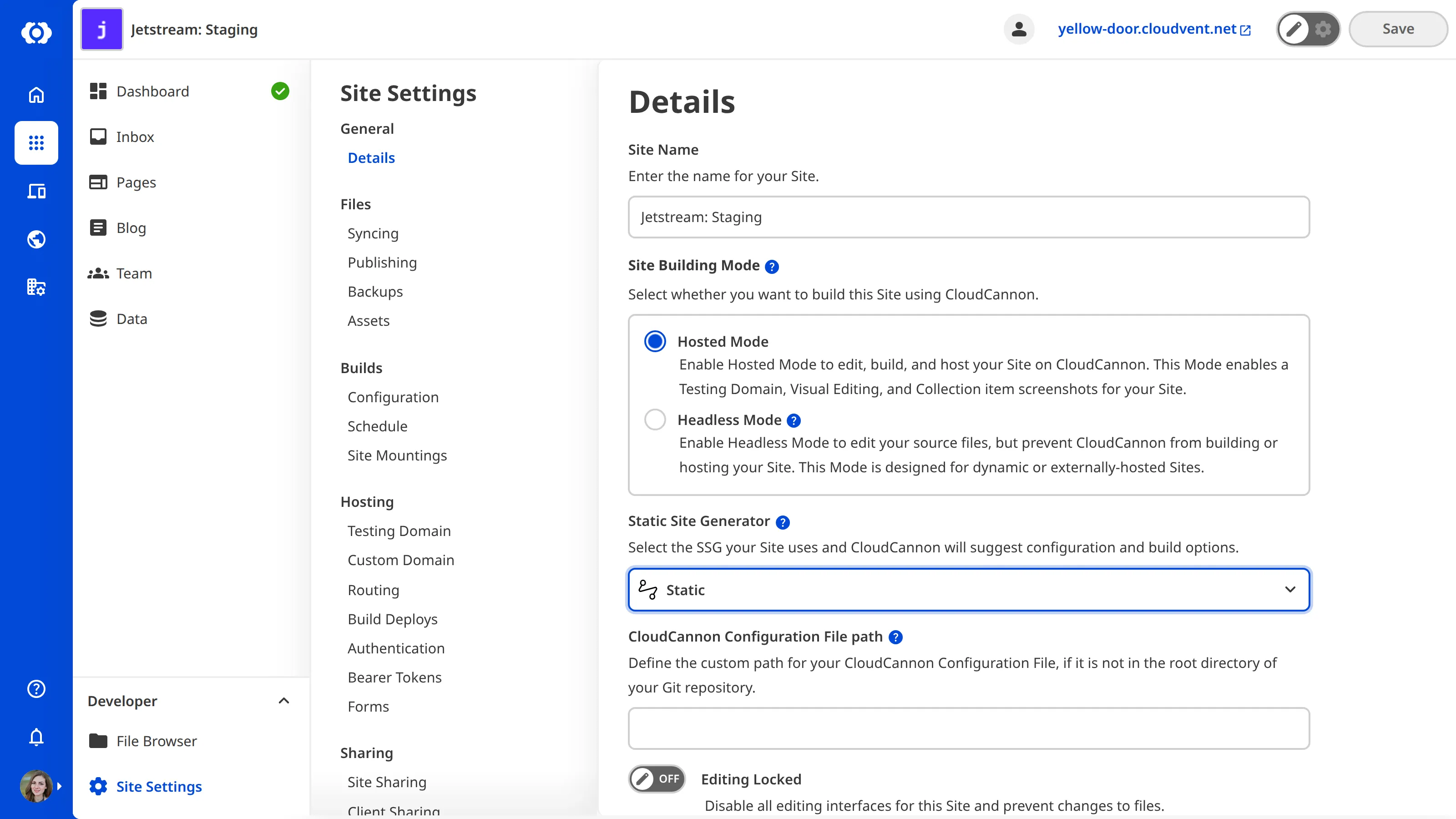
By default, these files are accessible on this site's [Testing Domain](/documentation/user-articles/what-is-a-testing-domain/). To prevent access to the testing domain, switch the module site to [password authentication](/documentation/developer-articles/enable-password-authentication/) and do not set a password.
## Mount the module site to your main site
Open your main site in CloudCannon. To configure your Site Mounting settings, navigate to the *Site Mountings* page under *Site Settings*, then *Builds*.

In the *Remote site* field, select the CloudCannon site that contains your module files.
Leave the *Remote artifact* field set to "Source files".
Enter the paths you want your module to mount for your *Remote* and *Local paths*. For example, given the following Hugo configuration:
File: `module/config.yml`
```yaml
module:
mounts:
- source: theme/layouts
target: layouts
```
If your module configuration were the code above, you would enter "theme/layouts" into the *Remote path* field and "layouts" in the *Local path* field.
Once you have completed your configuration, click the *Mount site* button.
## New build of your main site
In your main site on CloudCannon, navigate to the *Status* page. Click the *Rebuild* button. CloudCannon will mount the module content at the your specified path before running your Hugo build command.
Any changes to your module repository will trigger a new build of any site to which the content is mounted. You don't have to worry about keeping your sites up to date.
## Mounting multiple paths
In some cases, you may want to mount your module to multiple paths. For example, given the following Hugo configuration:
File: `module/config.yml`
```yaml
module:
mounts:
- source: layouts
target: layouts
- source: assets
target: assets
```
In CloudCannon, you can mount the same remote site multiple times at different paths. Repeat the above steps and specify a different *Remote* and *Local path* to mount it again.
If the paths you want to mount are more complicated or there are many paths, you can mount the entire module to a temporary location and use [CloudCannon's Build Hooks](/documentation/developer-articles/extending-your-build-process-with-hooks/) to move your module files to the correct location.
---
---
title: Access private modules with an access token
description: Learn how to use GitHub's access tokens to authenticate a private Hugo Modules repository.
url: https://cloudcannon.com/documentation/developer-guides/hugo-modules/modules-with-access-token/
content_type: developer guide
last_modified: 2026-09-23
---
Some Hugo Modules won't be a good fit for [Site Mounting](/documentation/developer-articles/what-is-site-mounting/), particularly if they belong to a different organization in GitHub, or require a complex setup. In this case, we can configure your CloudCannon site to install private Hugo Modules.
Let's enable Hugo Modules with GitHub's access token feature, CloudCannon's environment variables, and [CloudCannon's Build Hooks](/documentation/developer-articles/extending-your-build-process-with-hooks/) feature.
## Create a GitHub access token
Open GitHub and navigate to your [Fine-grained tokens settings](https://github.com/settings/tokens?type=beta). Click *Generate new token.*
When creating a token, you must select a name, expiry date, and which GitHub organization or user owns the private repository. Under *Repository access*, enable the *Only Select Repositories* option, and select the private repository that contains your Hugo Modules. In the *Repository permissions* field, set *Contents* to "Access: Read-only".
Click the *Generate token* button and copy the token to your clipboard.
## Add the token to CloudCannon
Open your site in CloudCannon and navigate to your *Configuration* under *Site Settings*, then *Builds*. Click on the *Command Line Options* card to expand it.
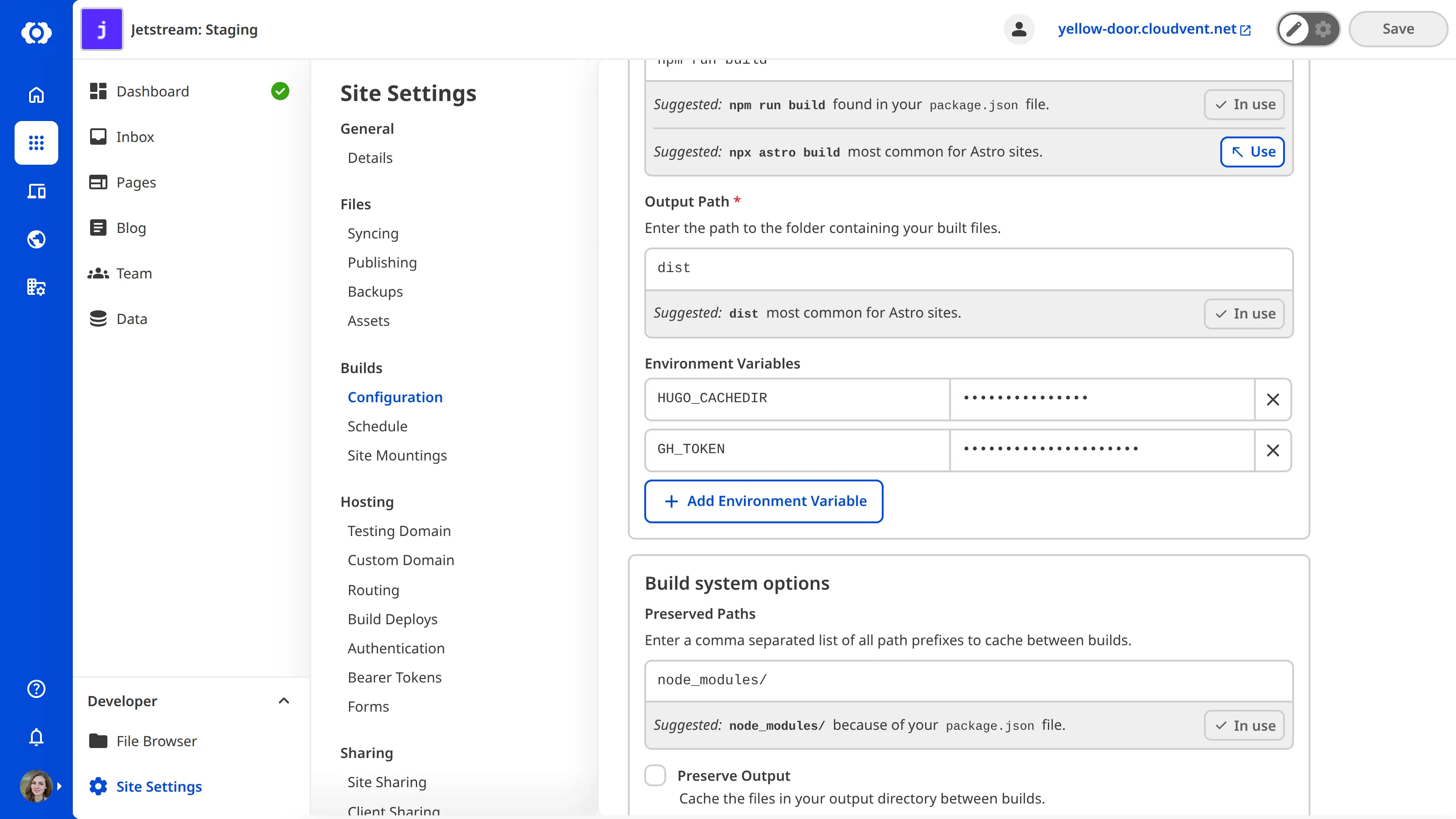
Add an environment variable to your site using the key "GH_TOKEN". Paste the GitHub token you generated into the value field. Click the *Update Configuration* button.
## Configure git to use your access token
Next, configure your git command to use this token when downloading your Hugo Modules using [CloudCannon's Build Hooks](/documentation/developer-articles/extending-your-build-process-with-hooks/).
Create a file inside a .cloudcannon folder in the root of your repository. Name this file "preinstall" and add the following:
File: `.cloudcannon/preinstall`
```bash
git config --global url."https://${GH_TOKEN}:x-oauth-basic@github.com".insteadOf "https://github.com"
```
Do not paste your access token here. Leave the text as `${GH_TOKEN}`.
CloudCannon will use the token from the environment variable set in the previous step. Git will use your access token whenever it interacts with https://github.com. Hugo will use this when downloading your modules.
Once you have committed this file to your repository, CloudCannon will trigger a new build of your site and download your Hugo Modules.
---
---
title: Introduction
description: Learn how to use the CloudCannon imgix integration with an Amazon S3 digital asset manager.
url: https://cloudcannon.com/documentation/developer-guides/imgix-guide/
content_type: developer guide
last_modified: 2026-09-23
---
No one likes slow web pages. Images and videos on your website can contribute to long loading times and negatively affect your user experience. Image and video content can also contribute to long build times in CloudCannon. Storing large visual files in your Git repository will quickly increase its size, which can affect your Site's performance.
It is important to deliver high-quality, optimized visual content on your website while minimizing the wait time for your users. For Sites with many large files, we recommend using an external Digital Asset Manager (DAM) and a content optimization tool. In this guide, we will teach you how to connect an Amazon S3 DAM and imgix to your CloudCannon Site.
Amazon Simple Storage Service ([Amazon S3](https://aws.amazon.com/s3/)) is a cloud asset storage solution. [imgix](https://www.imgix.com/) is an image and video processing tool that integrates with your Amazon S3 DAM and CloudCannon. By using an Amazon S3 DAM and imgix, you can:
- Improve your Site build times.
- Use the same assets across Sites with different Git repositories.
- Serve optimal-sized assets depending on your user's device and internet connection.
- Keep the assets in your S3 bucket private.
This guide assumes you already have imgix and AWS S3 accounts, as well as a CloudCannon Site and an Amazon S3 bucket. To create an Amazon S3 bucket, please read the [AWS documentation](https://docs.aws.amazon.com/AmazonS3/latest/userguide/creating-bucket.html).
---
---
title: Create IAM users
description: Learn how to create IAM users for your Amazon S3 DAM.
url: https://cloudcannon.com/documentation/developer-guides/imgix-guide/create-iam-users/
content_type: developer guide
last_modified: 2026-09-23
---
Identity and Access Management (IAM) users determine which services can access the content in your S3 bucket. Each user has three important components: an Access Key ID, a Secret Access Key, and a Policy. You created two policies in the previous step of this guide, one for CloudCannon and one for imgix.
Any software with the Access Key ID and Secret Access Key of an S3 user will be allowed to access the assets in your S3 DAM according to that user’s policies. You can view the Access Key ID for your S3 users any time, but the Secret Access Key is only visible during user creation.
> Take note of your Access Key IDs and Secret Access Keys for each user. Once you leave the *Create user* page, you cannot view the secret key again. You can [recreate your Access Key ID and Secret Access Key](https://docs.aws.amazon.com/IAM/latest/UserGuide/id_credentials_access-keys_retrieve.html) if you lose it. You can have a maximum of two access keys per user.
In this step, you will create two users and attach a policy to each.
1. Open the AWS console and navigate to *IAM* under the *Security, Identity, & Compliance* section in the main menu.
2. Navigate to *Users* under *Access management*.
3. Click the *Add Users* button.
4. Name the user “CloudCannon-to-S3”.
5. Set the *AWS credential type* as” Access key - Programmatic access”.
6. Click the *Next: Permissions* button.
7. Click *Attach existing policies directly* and select the “CloudCannon Access Policy” policy you created earlier.
8. Click the *Next: Tags* button, then the *Next: Review* button.
9. Click *Create user*.
10. Repeat steps 3 to 9 to create a second user. Name the user “S3-to-imgix” and select the “imgix Access Policy” you created earlier.
---
---
title: Connect imgix to your S3 bucket
description: Learn how to connect IMGIX to your Amazon S3 DAM.
url: https://cloudcannon.com/documentation/developer-guides/imgix-guide/connect-imgix-to-your-s3-bucket/
content_type: developer guide
last_modified: 2026-09-23
---
> Earlier in this guide, you created two S3 users. In this step, make sure to use the *Access Key ID* and *Secret Access Key* from the "S3-to-imgix" user when you connect your Amazon S3 DAM to imgix.
Although some integrations require your S3 bucket to be public, imgix does not. imgix connects to your DAM using the S3 user credentials created in the previous step, so you can keep your S3 bucket private.
For more information about connecting a source to imgix, please see their [documentation](https://docs.imgix.com/getting-started/setup/creating-sources/amazon-s3).
In this step, you will connect imgix to your S3 bucket.
1. Navigate to the [Sources page](https://dashboard.imgix.com/sources) in the imgix dashboard.
2. Click the New Source button.
3. Select *Amazon S3* from the DAM options.
4. Click the *Continue* button.
5. Enter the *Access Key ID* and *Secret Access Key* from your IAM user in the *IAM Access Key* and *IAM Access Secret* fields, respectively. If you created two users earlier in this guide, select the keys from the "S3-to-imgix" user.
6. Enter the *Bucket Name* and the *Path Prefix*, if you created one.
7. Click the *Continue* button.
8. Enter a name in the *imgix Subdomain* field for your imgix Base URL. This must be globally unique and cannot be reused.
9. Click the *Deploy Source* button.
---
---
title: Connect your S3 bucket to CloudCannon
description: Learn how to connect your Amazon S3 DAM to your CloudCannon Site.
url: https://cloudcannon.com/documentation/developer-guides/imgix-guide/connect-your-s3-bucket-to-cloudcannon/
content_type: developer guide
last_modified: 2026-09-23
---
> Earlier in this guide, you created two S3 users. In this step, make sure to use the *Access Key ID* and *Secret Access Key* from the "CloudCannon-to-S3" user when you connect your Amazon S3 DAM to CloudCannon.
In this step, you will connect CloudCannon to your S3 bucket.
1. Open the *Assets* page under *Site Settings*.
2. Select the *New DAM* option in the *Link DAM* dropdown menu.
3. Select the *Amazon S3* option in the *DAM provider* dropdown menu.
4. Enter a name to identify your DAM in CloudCannon.
5. Set the *Base URL* to the IMGIX base URL.
6. Set the *S3 Bucket Name* to the name of your bucket in S3.
7. Select the same *AWS Region* as your S3 bucket.
8. Enter the *Access Key ID* and *Secret Access Key* from your IAM user in the *IAM Access Key* and *IAM Access Secret* fields, respectively. If you created two users earlier in this guide, select the keys from the "CloudCannon-to-S3" user.
9. Click the *Authenticate* button to save and close the modal.
10. Click the *Link DAM* button.
IMGIX and your S3 bucket are now connected to your CloudCannon Site.
You can optionally set an *Extra Prefix* for your DAM. An extra prefix prepends a specific string to all asset paths, affecting all assets you upload to your DAM from this Site and the DAM browser in CloudCannon. This is useful if you want to ensure that your Site can only interact with a specific folder in your DAM.
To configure an *Extra Prefix,* navigate to the *Assets* page under *Site Settings*, click on the *Context Menu* for your linked Amazon S3 DAM, and select *Settings* from the menu. Enter the prefix in the *Extra prefix* field.
---
---
title: Edit your Cross-Origin Resource Sharing permissions
description: Learn how to edit your Cross-origin resource sharing settings to allow CloudCannon to interact with your S3 bucket.
url: https://cloudcannon.com/documentation/developer-guides/imgix-guide/edit-your-cross-origin-resource-sharing-permissions/
content_type: developer guide
last_modified: 2026-09-23
---
Cross-origin resource sharing (CORS) defines how web applications in one domain can interact with resources in a different domain. To allow CloudCannon to interact with your S3 bucket, you must explicitly enable cross-origin requests.
In this step, you will edit your CORS permissions.
1. Open AWS and select your S3 bucket.
2. Open the *Permissions* tab, scroll to the *Cross-origin resource sharing (CORS)* section, and click *Edit*.
3. Copy the following JSON code into your CORS settings.
File: `CORS.json`
```json
[
{
"AllowedHeaders": [
"*"
],
"AllowedMethods": [
"GET",
"PUT",
"POST",
"DELETE",
"HEAD"
],
"AllowedOrigins": [
"*"
],
"ExposeHeaders": []
}
]
```
4. Click save.
The above code does not restrict which URLs are allowed to access your S3 bucket. As an optional extra step, you can edit the `AllowedOrigins` key to restrict access to your Sites. Origins can match a single URL, such as `https://my-site.com`, or multiple URLs using wildcard characters, `https://*.my-site.com`.
If you edit your `AllowedOrigins` you must also include `https://app.cloudcannon.com`, to ensure that CloudCannon can upload to your bucket and pull previews of your assets within the editor.
Here is an example:
File: `CORS.json`
```json
"AllowedOrigins": [
"https://*.my-site.com",
"https://app.cloudcannon.com"
]
```
---
---
title: Create IAM policies
description: Learn how to edit your Identity and Access Management policies to allow CloudCannon and imgix to interact with your S3 bucket.
url: https://cloudcannon.com/documentation/developer-guides/imgix-guide/create-iam-policies/
content_type: developer guide
last_modified: 2026-09-23
---
Identity and Access Management (IAM) policies determine what actions are allowed for content in your S3 bucket. We must create policies to allow CloudCannon and imgix to perform specific actions for your bucket and any object stored within it. CloudCannon requires permission to upload, edit, and preview your assets, while imgix only requires permission to read and list content from your S3 bucket in order to serve your assets.
For more information about Amazon S3 policies, please see their [documentation](https://docs.aws.amazon.com/AmazonS3/latest/userguide/access-policy-language-overview.html).
In this step, you will create two policies, one for CloudCannon and one for imgix.
1. Open the AWS console and navigate to *IAM* under *Security, Identity, & Compliance* section in the main menu.
2. Navigate to *Policies* under *Access management*.
3. Click the *Create Policy* button.
4. Open the *JSON* tab of the new policy and paste the following JSON code. Make sure to replace “PlaceholderBucketName” with your S3 bucket name.
File: `policy.json`
```JSON
{
"Version": "2012-10-17",
"Statement": [
{
"Effect": "Allow",
"Action": [
"s3:PutObject",
"s3:GetBucketLocation",
"s3:GetObjectAcl",
"s3:GetObject",
"s3:ListBucketMultipartUploads",
"s3:AbortMultipartUpload",
"s3:ListBucket",
"s3:PutObjectAcl",
"s3:ListMultipartUploadParts"
],
"Resource": [
"arn:aws:s3:::",
"arn:aws:s3:::/*"
]
}
]
}
```
5. Click the *Next: Tags* button, then click *Next* again.
6. Name your policy “CloudCannon Access Policy”, then click *Create policy*.
7. Repeat steps 3 to 5 and paste the following JSON code. Make sure to replace “PlaceholderBucketName” with your S3 bucket name.
File: `policy.json`
```JSON
{
"Version": "2012-10-17",
"Statement": [
{
"Effect": "Allow",
"Action": [
"s3:GetBucketLocation",
"s3:GetObject",
"s3:ListBucket"
],
"Resource": [
"arn:aws:s3:::",
"arn:aws:s3:::/*"
]
}
]
}
```
8. Name your policy “imgix Access Policy”, then click *Create policy*.
---
---
title: S3 and imgix best practice
description: Learn about creating separate users and policies for access to your S3 content.
url: https://cloudcannon.com/documentation/developer-guides/imgix-guide/s3-and-imgix-best-practice/
content_type: developer guide
last_modified: 2026-09-23
---
To connect your S3 bucket to imgix or CloudCannon, you must create an S3 policy and user.
- **IAM Policy** — Determines what actions are allowed for content in your S3 bucket.
- **IAM User** — Has an Access Key ID, Secret Access Key, and Policy. Any software with this user’s keys can perform the actions permitted in the user’s policies.
CloudCannon, imgix, and AWS strongly recommend creating separate users for different tasks. This follows the principle of least privilege.
In this guide, you will create two users: one from CloudCannon to S3 and one from S3 to imgix. We recommend naming these users some variant of “CloudCannon-to-S3” and “S3-to-imgix”. As CloudCannon and imgix require different permissions, we recommend creating separate policies. This ensures that CloudCannon can upload to your S3 DAM and preview your assets, while imgix only has the permissions required to serve your assets.
> It is not necessary to create two users; one user will work. If you only want to create one user and one policy:
>
> - In Step Four of this guide, create the first policy, "CloudCannon Access Policy." You can rename this policy.
> - In Step Five of this guide, create one user and assign your single policy. You can rename this user.
> - In Steps Six and Seven of this guide, use your single user's Access Key ID and Secret Access Key to give imgix and CloudCannon the same access to your S3 content.
---
---
title: Introduction
description: Learn about migrating to Unified Configuration and enabling live configuration and data editing in CloudCannon.
url: https://cloudcannon.com/documentation/developer-guides/unified-configuration-migration-guide/
content_type: developer guide
last_modified: 2026-09-23
---
Welcome to the Unified Configuration migration guide! If you want to enable live configuration and data editing or update your existing Site to the Unified Configuration file format, you are in the right place.
Before we start, this guide assumes that you have an existing Site on CloudCannon that does not use the Unified Configuration file format.
In this guide we'll cover:
- What is live configuration and data editing and how do you enable it for your existing Sites?
- What is Unified Configuration and why would you migrate your existing Site to this file format?
- How do you migrate your Site configuration to the Unified Configuration file format?
You may not need to complete every step in this guide but please carefully review each step to see if it is applicable to your Site's configuration.
## What is live configuration and data editing?
Before the October 2024 Live configuration and data editing release, CloudCannon relied on a successful build to show you any updates to your configuration and data files in the app UI. This meant you had to wait for a build to see updates to your collections in the *App Navigation*, inputs in your editing interfaces, the appearance of your files, and more.
The live configuration and data editing feature allows you to see your changes live when you update your CloudCannon configuration files and data files — without the need to build your Site.
This means you can:
- Populate inputs with new Collections files before saving the file.
- Update your Input, Structure, and Schema configuration, and see those changes the next time you open a file in an editing interface.
- (Note: CloudCannon applies a Schema to a file when first opened during an editing session. You will not see live changes from an updated Schema if a file is already open with unsaved changes.)
- See changes quickly when you reconfigure the appearance of your file cards.
Live configuration and data editing provide a better editing experience for your team.
Live configuration and data editing are automatically included for new Sites created with the Unified Configuration file format. For Sites created before September 2024, this feature may not be enabled. We'll cover how to enable this feature for existing Sites in step two of this guide.
> Live configuration editing is unavailable for Sites using a JavaScript CloudCannon configuration file. Please switch to a YAML (recommended) or JSON format to access this feature.
## What is Unified Configuration?
The Unified Configuration file format simplifies Site setup. Sites created using a CloudCannon configuration file in the Unified Configuration file format require less information from you and use the same configuration options regardless of SSG. The Unified Configuration file format also enables you to manage your content in CloudCannon before your first build.
Unified Configuration also allows you to put your Site in Headless Mode, turning off builds and streamlining *Site Settings*. Headless Mode is ideal for Sites built and hosted externally or dynamic Sites that rely on server-side rendering.
These features mainly benefit new Sites (i.e., without a CloudCannon configuration file) and new CloudCannon customers. Additionally, you can benefit from live configuration and data editing on most existing Sites without migrating to the Unified Configuration file format. So why migrate your existing Sites?
If you have an existing Site on CloudCannon, migrating to Unified Configuration is optional, but there are some scenarios in which migration may benefit you.
### CloudCannon Documentation
The CloudCannon Documentation website prioritizes using the most up-to-date instructions and screenshots. If your Site does not use the Unified Configuration file format, some articles on the CloudCannon Documentation website may not match your experience in the app.
If you decide not to migrate to Unified Configuration and need assistance with your Site, our friendly [support team](https://cloudcannon.com/support/) is always available to help.
### Improved app loading times
The Unified Configuration file format improves the app's loading time for Sites. CloudCannon will open your Site faster when you click on a Site card on the *Sites* page or the *Sites* tab within a Project.
### Future copies of your Site
The Unified Configuration file format improves your experience when creating new Sites (i.e., not branching from an existing Site). This benefit is not relevant to most existing Sites on CloudCannon, unless you plan to create a new copy of your Site at any point in the future.
Perhaps you want to create a new Site using the file structure of your existing Site, or you maintain website templates for use on CloudCannon. Migrating to Unified Configuration will improve the onboarding experience for your new Site.
### Live configuration editing for Sites with a JavaScript configuration file
CloudCannon supports live configuration editing for Sites with YAML or JSON CloudCannon configuration files. If you want to benefit from this feature on your existing Site, you must switch to a YAML (recommended) or JSON CloudCannon configuration file.
Switching to a YAML or JSON CloudCannon configuration file is the first step of our Unified Configuration migration guide — it's up to you if you want to complete all the steps.
### Moving to Headless Mode
If you want to add dynamic elements to your Site, or decide to host it externally while still using CloudCannon as your primary CMS, you can enable Headless Mode to streamline the CloudCannon interface. Headless Mode is only available for Sites using Unified Configuration.
### Configuration maintenance
CloudCannon will suggest build configuration options for Sites using Unified Configuration, such as potential command line options or environment variable. These suggestions are based on your SSG choice and the content of your files and make it easier to maintain your build configuration.
Additionally, CloudCannon requires less information to build Sites using Unified Configuration. For example, you no longer need to specify build arguments for Sites using Eleventy, Hugo, or Jekyll. If you change your build arguments in the future, there is no risk that CloudCannon will use the incorrect ones.
### Future CloudCannon features
Going forward, CloudCannon will treat Sites that use the Unified Configuration file format as the default. Although we don't have any planned at the moment, future CloudCannon features may require your Site to use the Unified Configuration file format.
---
---
title: Collection configuration
description: Learn how to migrate your existing Site to CloudCannon's Unified Configuration file format.
url: https://cloudcannon.com/documentation/developer-guides/unified-configuration-migration-guide/collection-configuration/
content_type: developer guide
last_modified: 2026-09-23
---
> You may not need to complete every step in this guide but please carefully review each step to see if it is applicable to your Site's configuration.
## 1. Explicitly configure a path for every collection
CloudCannon no longer detects collections during your build step.
Previously, CloudCannon could infer the path for each collection during the Site build step (e.g., Jekyll Sites automatically assume your posts collection is in the `_posts` folder). Additionally, some build integrations could discover collections at build time (e.g., posts, page, and drafts on Jekyll Sites). CloudCannon no longer uses this behavior.
Please ensure that each collection in `collections_config` has the `path` key defined. The below code shows how to configure a path explicitly:
File: `cloudcannon.config.yml`
```YAML
collections_config:
blog:
path: content/blog
```
## 2. Replace parse_branch_index with a glob
> This step of the migration guide is only relevant to Sites using Hugo as their SSG.
CloudCannon no longer uses `parse_branch_index: true` to add index files from one collection to a pages collection. Instead, you can define a file glob to exclude your index files from their initial collection.
Most Hugo sites will have a pages collection defined with a path of `content`. Pages excluded from any collections that are subdirectories will be assigned to this pages collection.
By default, all content files within a specific path are included in the associated collection, unless they also fall under a more specific path. CloudCannon now uses files globs to customize which files belong to a collection and are visible in the collection browser. You can add a negative glob to the `collections_config.*.glob` key by prefixing your file name with the `!` character.
The below code shows how to configure the `glob` key to exclude the `_index.md` file for your collection:
File: `cloudcannon.config.yml`
```YAML
collections_config:
blog:
path: content/blog
glob:
- '!_index.md'
```
The above example ensures that all files within the blog folder are included in the blog collection, with the exception of `_index.md`.
## 3. Replace collection filters with globs
CloudCannon no longer uses the `_unlisted` or `collections_config.*.filter` keys to filter which files to show in a collection browser. All collections now show only collection-like files that explicitly belong to a collection, as per the old `filter.base: strict` configuration (i.e., will not show collection-like files from a different collection that are stored at the same collection path).
CloudCannon now uses file globs to determine which files belong to a collection and are visible in the collection browser. A file glob is a pattern used to identify matching files. The `collections_config.*.glob` key is an Array. Each entry in the array is a pattern that controls which files are visible in CloudCannon's collection browser. The glob pattern is relative to your collection path and can include negative values by adding the `!` character as a prefix.
The below code shows how to configure the `glob` key for your collection:
File: `cloudcannon.config.yml`
```YAML
collections_config:
blog:
path: content/blog
glob:
- '!**/*.yml'
```
The above example ensures that all YAML files within the blog folder and all subfolders are not included in the blog collection.
## 4. Explicitly configure your data collection
> This step of the migration guide is only relevant to Sites using Eleventy, Hugo, or Jekyll as their SSG.
CloudCannon no longer uses build integrations to set the following keys in `collections_config.data`:
1. `disable_url`
2. `disable_file_actions`
3. `disable_add_folder`
4. `disable_add`
You must explicitly set these keys.
## 5. Configure collection groups
CloudCannon no longer groups collections in your *Site Navigation* by default. If you want to retain your original grouping, add the `collection_groups` key to your CloudCannon configuration file.
The below code shows how to configure the `collection_groups` key:
File: `cloudcannon.config.yml`
```YAML
```
collection_groups:
- heading: Pages
collections___1___:
- pages
# other output collections here
- heading: Blogging
collections:
- posts
- drafts
- heading: Data
collections___2___:
- data
# other non-output collections here
```
**[1]** Add output collections here.
**[2]** Add non-output collections here.
```
## 6. Filter _defaults.md with a glob or schema
If you still use the deprecated `_defaults.md` file, CloudCannon will no longer filter this file from your collection by default. Please replace these files with the Schema feature, or use a collection glob (i.e., `collections_config.*.glob`) to filter the `_defaults.md` file from your collection browser.
## 7. Defunct configuration options
CloudCannon no longer uses some configuration options in the Unified Configuration file format. Although leaving these keys in your Site files will not harm your Site, they also will not function. If you want to maintain a clean configuration file, we recommend removing defunct configuration options.
We recommend updating the following keys to their new counterparts:
1. `collections_config.*.singular_key`
Please use `_inputs.*.options.values` rather than relying on naming conventions.
2. `collections_config.*.output`
Collections now default to being output if CloudCannon can determine an output URL. If you need to configure `output: false`, please use the `collections_config.*.disable_url` key set to `true`.
We recommend deleting the following keys:
1. `collections_config.*.parser`
2. `collections_config_override`
---
---
title: Data configuration
description: Learn how to migrate your existing Site to CloudCannon's Unified Configuration file format.
url: https://cloudcannon.com/documentation/developer-guides/unified-configuration-migration-guide/data-configuration/
content_type: developer guide
last_modified: 2026-09-23
---
> You may not need to complete every step in this guide but please carefully review each step to see if it is applicable to your Site's configuration.
## 1. Update the format of your *Dataset*s
> This step of the migration guide is only relevant to Sites using Eleventy, Hugo, or Jekyll as their SSG.
CloudCannon no longer exclusively reads *Dataset*s at build time. You must update your data configuration to allow CloudCannon to read your *Dataset*s at any time.
CloudCannon no longer uses the following data configurations:
File: `cloudcannon.config.yml`
```YAML
data_config: true
```
File: `cloudcannon.config.yml`
```YAML
data_config:
locations: true
```
File: `cloudcannon.config.yml`
```YAML
data_config:
locations:
path: data/locations.yml
parser: yaml
```
Please update `data_config` to:
File: `cloudcannon.config.yml`
```YAML
data_config:
locations:
path: data/locations.yml
```
## 2. Defunct configuration options
CloudCannon no longer uses some configuration options in the Unified Configuration file format. Although leaving these keys in your Site files will not harm your Site, they also will not function. If you want to maintain a clean configuration file, we recommend removing defunct configuration options.
We recommend deleting the following keys:
1. `data_config.*.parser`
---
---
title: Migration preparation and global configuration
description: Learn how to migrate your existing Site to CloudCannon's Unified Configuration file format.
url: https://cloudcannon.com/documentation/developer-guides/unified-configuration-migration-guide/migration-preparation-and-global-configuration/
content_type: developer guide
last_modified: 2026-09-23
---
> Migrating your existing Site is optional. You can use CloudCannon's [live configuration and data editing feature](/documentation/developer-guides/unified-configuration-migration-guide/live-configuration-and-data-editing/) without migrating your Site.
## Migration preparation
We recommend creating a new branch of your Site for this migration to avoid misconfiguration affecting your live Site.
To enable Unified Configuration:
1. Navigate to the *Flags* page under *Site Settings*.
2. Check the *Step 2: Use Unified Configuration* flag under *Upgrade to Unified Configuration*.
3. Click the *Update* button.
CloudCannon now expects your Site to use the Unified Configuration file format.

> Checking the *Use Unified Configuration* flag will automatically enable the *Enable live configuration and data reloading* flag.
In the short term, depending on how closely your Site configuration matches the Unified Configuration format, your Site may become misconfigured in CloudCannon. Misconfiguration could look like incorrect collection appearance or nonfunctional *Dataset*s in Select and Multiselect inputs. You will resolve this temporary state once you complete this migration guide.
One source of misconfiguration is opening your CloudCannon configuration file in the configuration GUI. As CloudCannon expects your configuration file to be in the Unified Configuration format, opening the file in the configuration GUI will strip content from your file (e.g., defunct keys). We highly recommend completing your migration in CloudCannon's Source Editor or your local development environment without using the configuration GUI.
## Global configuration
> You may not need to complete every step in this guide but please carefully review each step to see if it is applicable to your Site's configuration.
### 1. CloudCannon configuration file type
Your CloudCannon configuration file must be a YAML (recommended) or JSON file rather than JavaScript.
### 2. Explicitly configure source
> This step of the migration guide is only relevant to Sites using Eleventy, Hugo, or Jekyll as their SSG.
CloudCannon no longer detects your source folder at build time. Ensure the `source` key is configured in your CloudCannon configuration file, especially if your Site files are in a subfolder within your repository.
### 3. Update your initial Site settings file
If your Site uses an [initial Site settings file](/documentation/developer-articles/configure-your-initial-site-settings/), you must update the format of the file to use the `build` key instead of the `build_configuration` key. We have also added new configuration options such as `mode` and `manually_configure_urls`.
The below code shows an example `initial-site-settings.json` file:
File: `/.cloudcannon/initial-site-settings.json`
```JSON
{
"ssg": "hugo",
"mode": "hosted",
"build": {
"install_command": "[ -f package.json ] && npm i",
"build_command": "hugo -b /",
"output_path": "public",
"environment_variables": [
{
"key": "HUGO_CACHEDIR",
"value": "/usr/local/__site/src/.hugo_cache/"
}
],
"preserved_paths": "resources/,.hugo_cache/",
"preserve_output": false,
"include_git": false,
"manually_configure_urls": false,
"hugo_version": "0.128.1",
"ruby_version": "2.7.3",
"node_version": "18",
"deno_version": "1.40.2"
}
}
```
### 4. Add read permissions for your CloudCannon configuration file
If you use [Custom Permission Groups](/documentation/developer-articles/what-are-custom-permission-groups/), you must add the generic permission `site:file:read`, or a file glob to allow read permissions for your CloudCannon configuration file to any Permission Group that needs to see the Collections in your *Site Navigation*.
For more information about adding permissions to a Permission Group, please read our documentation on [editing Custom Permission Groups](/documentation/developer-articles/edit-a-custom-permission-group/).
---
---
title: Build configuration and conclusion
description: Learn how to reconfigure your build commands following a migration to the Unified Configuration file format.
url: https://cloudcannon.com/documentation/developer-guides/unified-configuration-migration-guide/build-configuration-and-conclusion/
content_type: developer guide
last_modified: 2026-09-23
---
Once you have completed the migration checklist, open your Site in CloudCannon and review your configuration. Once you are happy with your changes, you can merge your branch with your main Site branch.
Open your main Site in CloudCannon and check the *Step 2: Use Unified Configuration* flag in your *Site Settings*.
## Build configuration
CloudCannon uses a different build configuration for Sites with the Unified Configuration file format. We recommend reviewing your build configuration to familiarize yourself with the new page layout and see if you can simplify your build commands.
For Eleventy, Hugo, and Jekyll Sites, checking the *Use Unified Configuration* flag in your *Site Settings* will clear all your build commands. For these SSGs, reconfiguring your build commands is essential.
To configure your Site builds:
1. Navigate to the *Build configuration* page under *Site Settings*.
2. Under *Command line options*, enter your *Install Command*, *Build Command*, and *Output Path*. You can click on CloudCannon's suggested values to use them in your configuration.
3. Click the *Update Configuration and Build* button.
> CloudCannon will suggest command line options based on your SSG and the contents of your Site files.
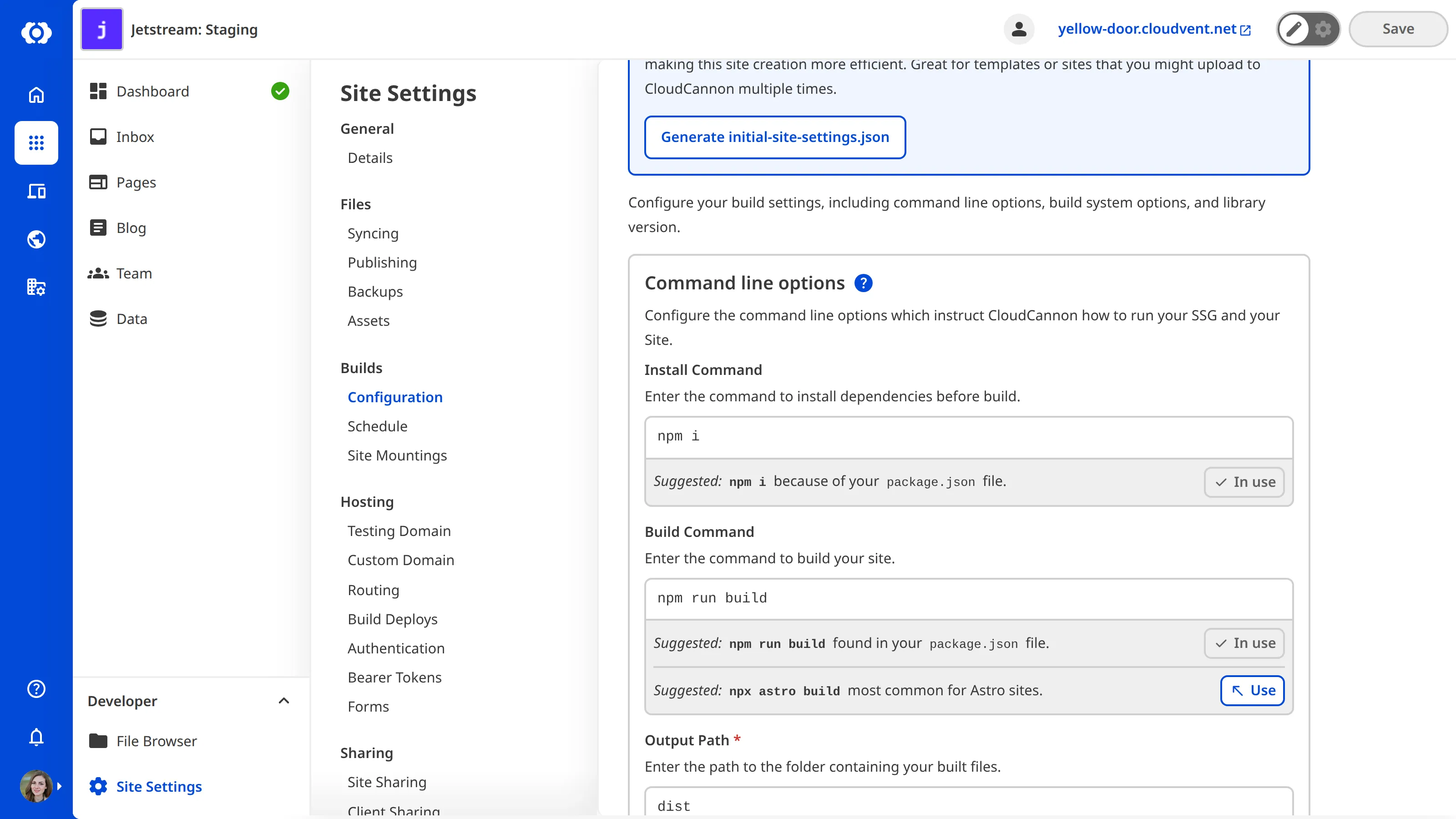
Finally, build your Site to remove any existing build integration output from previous builds. If you updated your build commands, CloudCannon will automatically trigger a build for you.
> Even if you are planning to switch to [Headless Mode](/documentation/developer-articles/what-is-headless-mode/), we recommend completing a final build before you switch.
## URL configuration
For Eleventy, Hugo, and Jekyll Sites, CloudCannon discovers URLs through a different mechanism when building with Unified Configuration.
Previously, CloudCannon would read output URLs from your SSG at build time. Using Unified Configuration, CloudCannon now determines output URLs using heuristics after building your Site.
This won't affect most Sites, however CloudCannon may fail to auto-detect the correct URLs. We recommend checking that the URLs displayed in CloudCannon are correct.
CloudCannon uses URLs when copying the output path of a collection item and when opening the Visual Editor for a file. If you experience any issues with these actions, we recommend [configuring explicit URLs for your collections](/documentation/developer-articles/configure-your-collections/#url).
## Migration conclusion
You have migrated your Site to the Unified Configuration file format!
If you have any questions about this migration guide or need assistance, please contact our friendly [support team](https://cloudcannon.com/support/). We're always here to help.
---
---
title: Live Configuration and Data Editing
description: Learn how to enable live configuration and data editing for existing Sites on CloudCannon.
url: https://cloudcannon.com/documentation/developer-guides/unified-configuration-migration-guide/live-configuration-and-data-editing/
content_type: developer guide
last_modified: 2026-09-23
---
You can enable live configuration and data editing on your existing Sites without completing a full migration to Unified Configuration.
To enable live configuration and data editing:
1. Navigate to the *Flags* page under *Site Settings*.
2. Check the *Step 1: Enable live config and data reloading* flag under *Upgrade to Unified Configuration*.
3. Click the *Update* button.
CloudCannon will now load changes to your data and configuration files, including your Inputs, Structures, and Schemas, without the need to save and build your Site.

## Why is this feature behind a flag?
CloudCannon resolves live updates to your configuration and data editing on-demand and merges these updates with data from your latest successful build. For example, let's assume you edit a single input in your CloudCannon configuration file. Opening that data file in the Data Editor will show you inputs from various sources: one resolved by CloudCannon in the interface following your update and the rest from your last successful build.
For this reason, you may see issues in CloudCannon if:
- You modify your CloudCannon configuration file or the front matter of your content files during your build.
- Your SSG generates or modifies data during your build.
In these cases, applying your configuration and data changes on-demand may override the modified values from your last successful build. This behavior could impact:
- How CloudCannon displays file cards in your collection browser.
- How Select and Multiselect inputs connected to a collection or *Dataset* display labels and save values.
- Any configuration modified in a way that CloudCannon could not merge.
Although we do not expect this issue to affect many existing Sites, we have made this feature opt-in out of an abundance of caution.
---
---
title: Input configuration
description: Learn how to migrate your existing Site to CloudCannon's Unified Configuration file format.
url: https://cloudcannon.com/documentation/developer-guides/unified-configuration-migration-guide/input-configuration/
content_type: developer guide
last_modified: 2026-09-23
---
> You may not need to complete every step in this guide but please carefully review each step to see if it is applicable to your Site's configuration.
## 1. Define the values for Select input value_key
Before Unified Configuration, CloudCannon could use build data to populate the [Select and Multiselect input](/documentation/user-articles/what-is-a-select-input/#options) option `value_key` values. As a successful build is no longer required to edit your files, you must define all values for the `value_key` option in the configuration cascade rather than use values generated by a build integration.
For example, `value_key: path` and `value_key: url` will continue to work, however Hugo's `value_key: content_path` and Jekyll's `value_key: id` will not work as CloudCannon generates these values during build time and Unified Configuration Sites no longer use information from build integrations.
> For Jekyll Sites, if you have not configured `value_key`, it is likely set to `id` by default.
## 2. Configure _inputs for Jekyll tags and collections
> This step of the migration guide is only relevant to Sites using Jekyll as their SSG.
CloudCannon no longer uses naming conventions and build integrations to create inputs for tags and collections.
The below code shows how to configure the categories and tags inputs:
File: `cloudcannon.config.yml`
```YAML
_inputs:
categories:
type: multiselect
options:
values: collections.posts[*].categories
allow_create: true
tags:
type: multiselect
options:
values: collections.posts[*].tags
allow_create: true
```
## 3. Configure tabbed Object inputs
CloudCannon no longer automatically creates tabbed Object inputs. You can configure a tabbed Object input using the new `tabbed` value for the `subtype` key.

The below code shows how to configure the `subtype` key for Object inputs:
File: `cloudcannon.config.yml`
```YAML
_inputs:
example:
type: object
options:
subtype: tabbed
```
If you want to configure tabs at the top-level of the Data Editor for multiple Object inputs, you can specify all Object inputs using the `$` key. The below code shows how to configure top-level tabs for the file `tabs.yml`.
File: `cloudcannon.config.yml`
```YAML
file_config:
- glob: data/tabs.yml
_inputs:
$:
type: object
options:
subtype: tabbed
```
## 4. Configure tabbed Structures
CloudCannon no longer automatically creates tabbed Object or Array inputs from Structures with two layers of nested keys under the `values.value` key. You can configure a tabbed Structure using the new `values.tabbed` key with a value of `true`.
The below code shows how to configure the `tabbed` key for Structures:
File: `cloudcannon.config.yml`
```YAML
_structures:
components:
values:
- label: Component
tabbed: true
value:
content:
title:
text:
style:
color:
font:
```
---
---
title: Other configuration
description: Learn how to migrate your existing Site to CloudCannon's Unified Configuration file format.
url: https://cloudcannon.com/documentation/developer-guides/unified-configuration-migration-guide/other-configuration/
content_type: developer guide
last_modified: 2026-09-23
---
> You may not need to complete every step in this guide but please carefully review each step to see if it is applicable to your Site's configuration.
## 1. Explicitly configure attributes for file content Editable Regions
CloudCannon no longer automatically applies Editable Regions to file content without an explicit attribute. Previously, CloudCannon would attempt to discover these regions automatically when it encountered a content variable as the only child of an element, for example:
File: `layout.html`
```HTML
{{ content }}
```
This markup detection was fragile in certain circumstances, and couldn't be explicitly toggled on or off.
For sites using Unified Configuration, CloudCannon will no longer discover these regions automatically. Instead, an explicit attribute now exists to add an Editable Region for the content of a file.
The below code shows how to configure the `data-cms-edit="content"` attribute to configure Editable Regions for your content:
File: `layout.html`
```HTML
{{ content }}
```
## 2. Configure _snippets_imports
> This step of the migration guide is only relevant to Sites using Hugo or Jekyll as their SSG.
Add the `_snippets_imports` corresponding to your SSG:
File: `cloudcannon.config.yml`
```YAML
_snippets_imports:
jekyll: true
```
File: `cloudcannon.config.yml`
```YAML
_snippets_imports:
hugo:
exclude:
- hugo_instagram
```
## 3. Configure path.static
> This step of the migration guide is only relevant to Sites using Hugo as their SSG.
CloudCannon no longer uses build integrations to set `path.static` automatically. Please set the `path.static` key to `static`.
File: `cloudcannon.config.yml`
```YAML
paths:
static: static
uploads: static/uploads
```
> To configure `paths.uploads`, you must also have configured `paths.static` first.
## 4. Configure your Markdown engine
> This step of the migration guide is only relevant to Sites using Jekyll or Hugo as their SSG.
CloudCannon supports two Markdown engines: CommonMark and Kramdown. Because most SSGs use CommonMark, CloudCannon assumes you are using this engine by default in the Unified Configuration file format.
Jekyll is on of the few SSGs which use Kramdown by default. If your Site uses Kramdown, you must specify your Markdown engine in your CloudCannon configuration file.
File: `cloudcannon.config.yml`
```YAML
markdown:
engine: kramdown
options:
treat_indentation_as_code: true
table: true
attributes: true
```
Previously CloudCannon used your SSG configuration and build to infer which `markdown.options` you would want. With Unified Configuration, this needs to be configured explicitly. Below is a list of suggestions about options that you might want to enable.
- For Hugo sites, check your Hugo config file
- `xhtml` should match `markup.goldmark.renderer.xhtml`.
- `breaks` should match `markup.goldmark.renderer.hardWraps`.
- `table` should match `markup.goldmark.extensions.table`.
- `strikethrough` should match `markup.goldmark.extensions.strikethrough`.
- `treat_indentation_as_code` should be set to `true`
- For Jekyll sites
- `breaks` should match `kramdown.hard_wrap` from your Jekyll config file
- `treat_indentation_as_code` should be set to `true`
- `table` should be set to `true`
- `attributes` should be set to `true`
## 5. Defunct configuration options
CloudCannon no longer uses some configuration options in the Unified Configuration file format. Although leaving these keys in your Site files will not harm your Site, they also will not function. If you want to maintain a clean configuration file, we recommend removing defunct configuration options.
We recommend deleting the following keys:
1. `paths.data`
2. `paths.collections`
3. `paths.layouts`
4. `paths.includes`
---
---
title: Introduction
description: Learn about the advantages of a staging-production workflow and how to set it up in CloudCannon.
url: https://cloudcannon.com/documentation/developer-guides/staging-workflow-guide/
content_type: developer guide
last_modified: 2026-09-23
---
> **Note:** publishing workflows in CloudCannon are only available on the [Standard plan](https://cloudcannon.com/pricing/) and above.
One of the advantages of using CloudCannon is being able to leverage workflows from Git when maintaining and updating your site. This guide will talk about the benefits of a staging workflow, then explore how to set this up in CloudCannon.
You can see [a list of supported Git providers here](/documentation/developer-articles/introduction-to-syncing/#supported-git-providers).
## What is a staging workflow
In a staging workflow, you'll keep two Git branches to serve as **production** and **staging** environments.
- The `production` branch is what you'll show to your end users (visitors to your site). You won't ever edit this branch directly.
- The `staging` branch is where you make all your edits. When your changes are ready, you use Git to merge into the `production` branch.
## Benefits of a staging workflow
One of the most obvious advantages of this workflow is that it allows you to work on the site without your end users seeing any unfinished changes.
You can also set protections on your `production` Git branch to ensure it isn't merged to without appropriate quality assurance. You might require Pull Requests to be issued to your branch, and those Pull Requests might require a suite of automated tests to pass and/or approval from another team member before merging is possible.
Another benefit is that you can tailor each environment according to its use. If your production site has a long postbuild step for compressing images or translating content in another language, you can use environment variables to only run this step on the `production` branch.
File: `.cloudcannon/postbuild`
```sh
if [[ $RUN_POSTBUILD == "true" ]];
then
npm run postbuild
fi
```
---
---
title: Connecting CloudCannon and Git
description: Connect your Git repository to CloudCannon.
url: https://cloudcannon.com/documentation/developer-guides/staging-workflow-guide/connecting-cloudcannon-and-git/
content_type: developer guide
last_modified: 2026-09-23
---
If you already have a CloudCannon site connected to Git that you want to use as your user-facing site, you can skip ahead to the next step.
## Create a production branch
If you haven't already, create a branch and push it to your Git provider. The name of this branch can be anything, but we've called it `production` to keep things clear.
```sh
git checkout -b production
git push -u origin production
```
Now we'll connect our `production` Git branch to a site on CloudCannon.
## Sync Git with CloudCannon
Navigate to *Sites* in the sidebar. Click the **Add new site** button, and choose **Build with your own files** in the menu that appears.
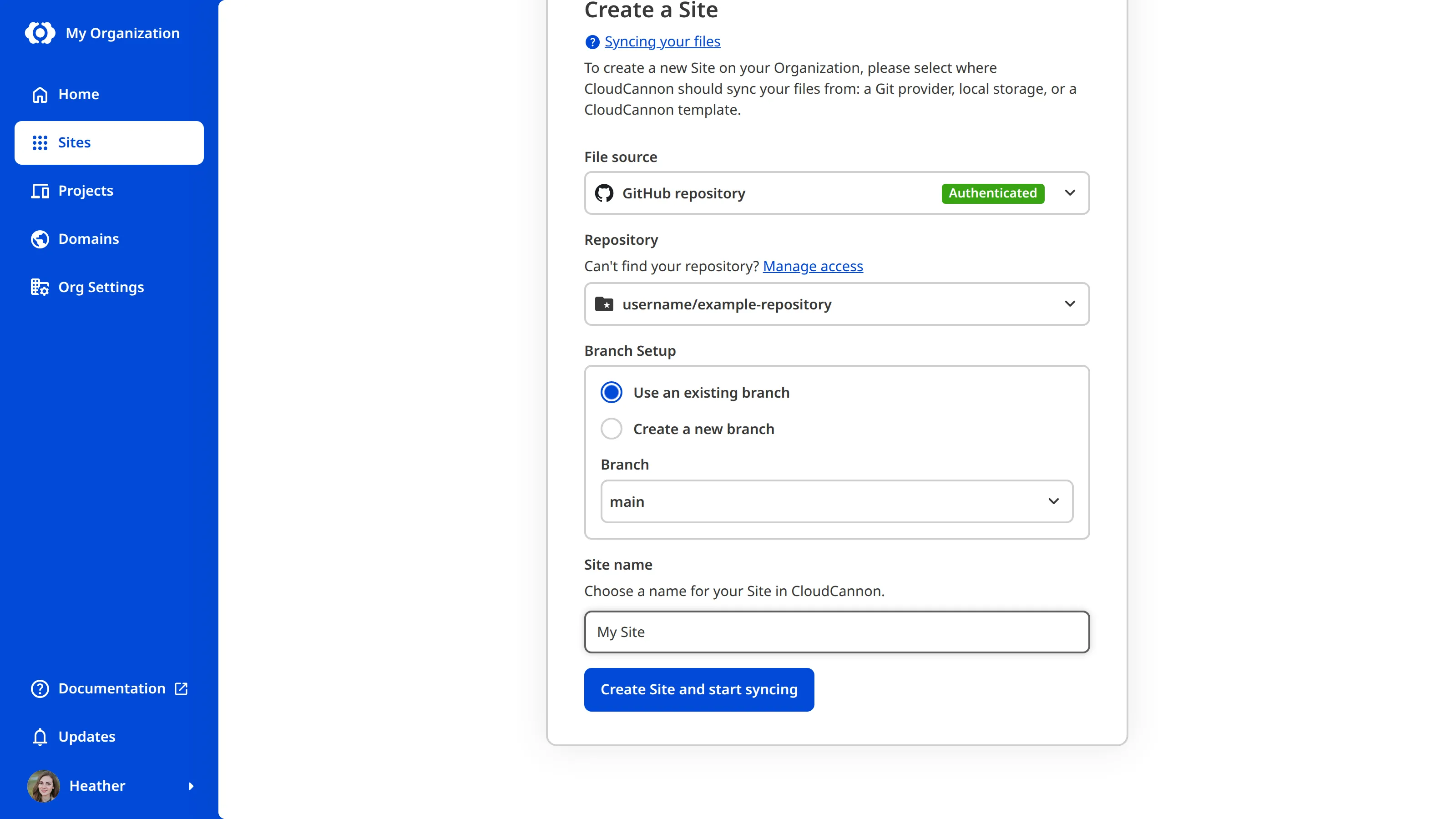
Choose your Git provider in the **File source** dropdown, and click the **Authenticate** button to begin connecting your Git provider to CloudCannon.
Once you've authenticated with Git, add a name for the site and click **Sync Files**.
This will pull your files from Git. You'll then be asked for the build settings for your site. [See more information about build settings](/documentation/developer-articles/introduction-to-building/) if you are not yet familiar with these options.
---
---
title: Multiple staging branches with projects
description: Use CloudCannon Projects to enable advanced publishing workflows.
url: https://cloudcannon.com/documentation/developer-guides/staging-workflow-guide/creating-a-project/
content_type: developer guide
last_modified: 2026-09-23
---
> **The advanced publishing workflow described on this page is available on our [Team or Enterprise plan](https://cloudcannon.com/pricing/).**
In some cases, a single staging environment might not be enough. If your team is working on multiple long-running projects at once, you might often find yourself in situations where finished changes are blocked by unrelated, unfinished changes on the same `staging` branch. Ideally you would publish these changes independently, but the `staging` branch can only be merged as a whole.
One solution to this problem is to create a new branch for each separate piece of work. This means you can merge each branch when it is ready, without being blocked by other pieces of work. This is a workflow that can be achieved in CloudCannon with [Projects](/documentation/developer-articles/create-a-project/).
In this guide, we'll extend our existing workflow so that your team can branch off, and merge back into, your `staging` branch. The production environment will still only be changed when merging from `staging` to `production`, which means you have one last chance to review all your changes together before they go out live. If this is too much administrative overhead for your team, it's just as easy to have multiple branches that merge straight into `production`, or any other workflow you can imagine with Git branches.
## Setting up a Project
Navigate to *Projects* in the *App Sidebar*, and click the *Create your first project* button (or *Create project* if this isn't your first).
Enter a descriptive name for your *Project*, and select the *Git Repository* you have already connected.
You will be asked to specify the *Main Branch* for the *Project*. This determines where to branch off from when creating new *Sites*. If you've been following along with this guide, this should be `staging`.
The *Preview Details* section allows you to configure the appearance of the *Project* overview in CloudCannon. You don't need to touch this for now.
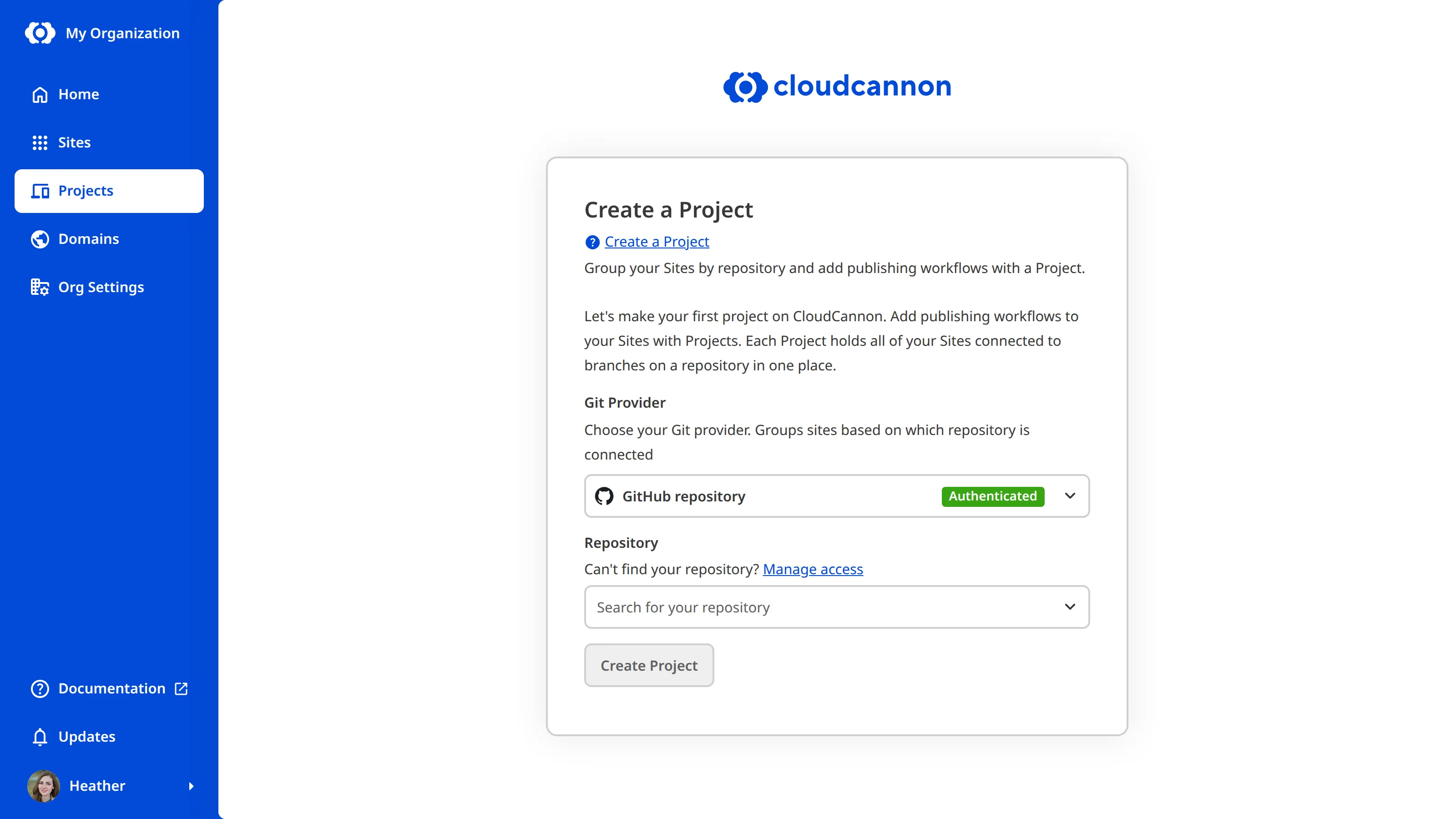
Click *Create Project* to finish creating the *Project*.
## Creating branch sites
Click *Create a Site* in the *Sites* tab of the *Project*. This will create a new Git branch, branching from `staging`, and immediately connect it to a new *Site* on CloudCannon with all the same build settings as your staging *Site*. This new *Site* will be automatically configured to publish back into the `staging` branch.
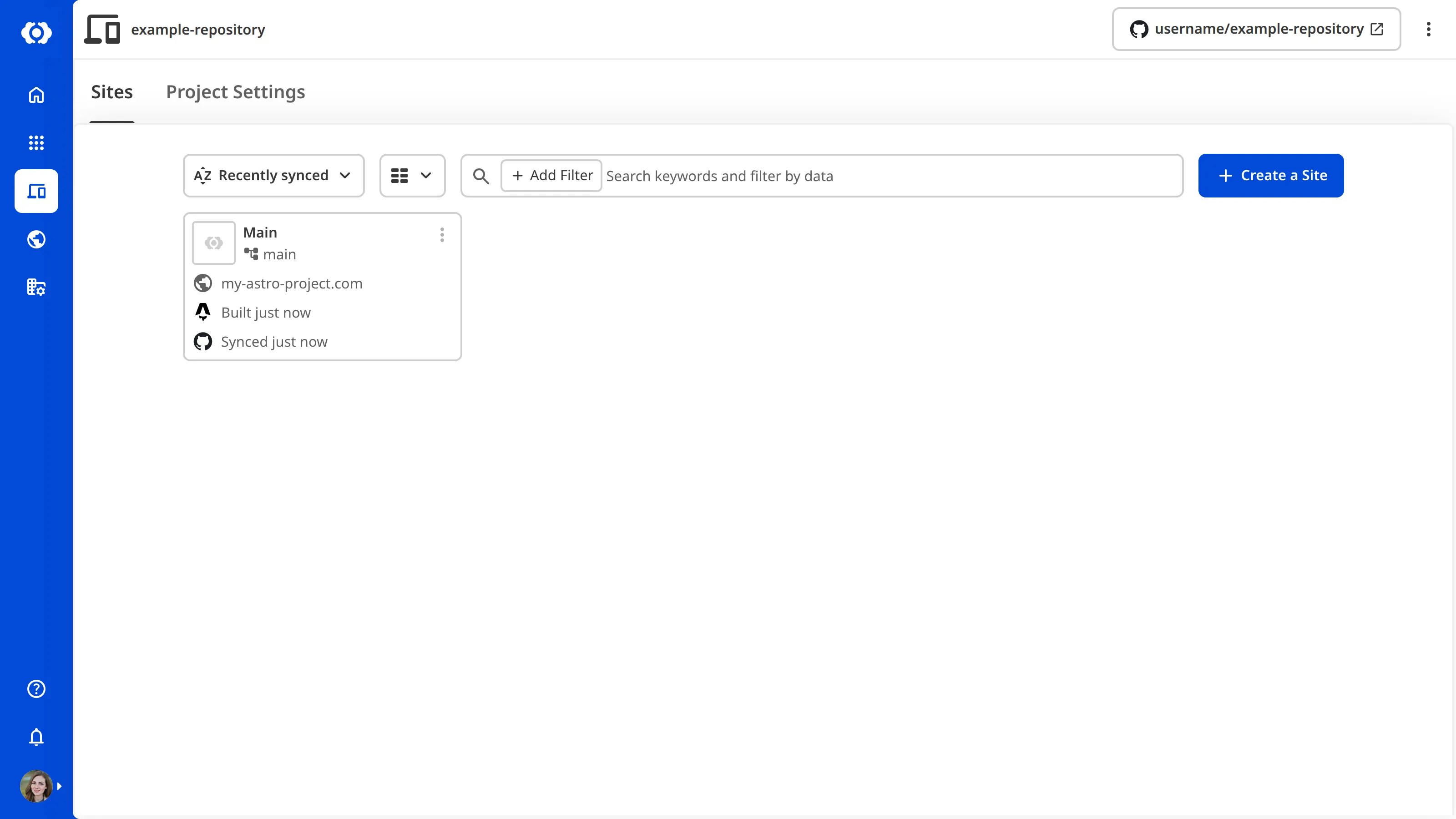
This enables a workflow where members of your team can easily:
1. Create a branched *Site*.
2. Make changes and preview them on a *Testing Domain*.
3. When ready, merge those changes into the `staging` branch.
4. When everything on the `staging` branch is ready to go, merge into `production`.
The immediate benefit of this workflow is that the `staging` branch will rarely have any unfinished changes, so you can merge from `staging` to `production` quite freely.
To prevent your *Organization* becoming cluttered with *Sites* representing finished and published changes, branched *Sites* will automatically have the *Delete this site after publishing* option turned on. You can toggle this in *Site Settings*, under *Publishing*.
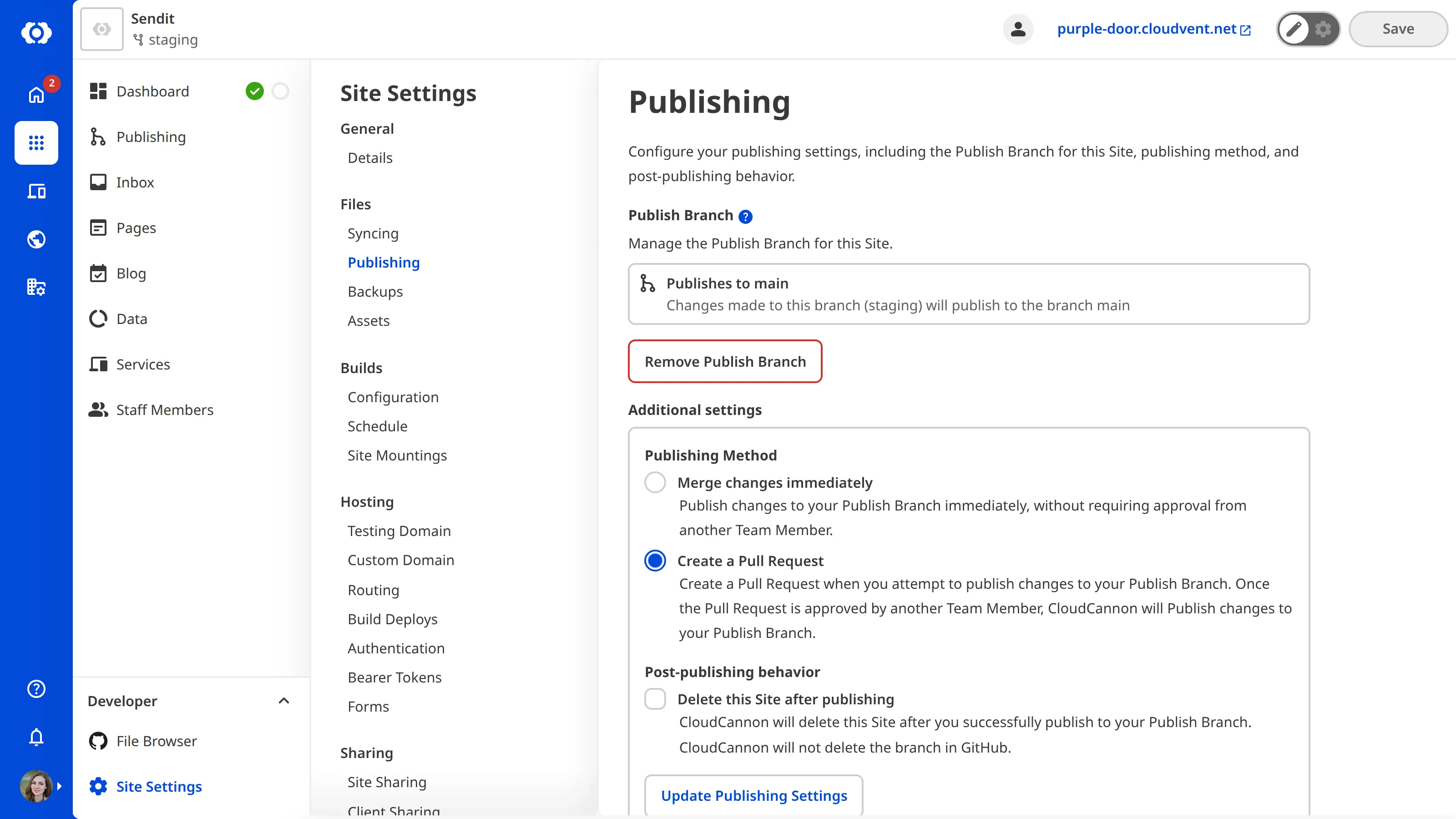
---
---
title: Configuring the production branch
description: Configure your production environment in CloudCannon.
url: https://cloudcannon.com/documentation/developer-guides/staging-workflow-guide/production-branch/
content_type: developer guide
last_modified: 2026-09-23
---
To get the most out of the staging/production workflow, you'll want to configure your `production` branch carefully.
## Prevent direct editing
In this workflow, your `production` branch can only be edited by merging from another branch.
If the `production` branch is edited directly, this could cause merge conflicts which can be difficult for non-technical team members to debug and fix.
To prevent editing of your site in CloudCannon, navigate to your site dashboard, then click *Settings*. In the *Details* section, check **Editing Locked** and click the **Update Site** button.

You might also want to set up protections on the branch from your Git provider. This will prevent developers on your team from committing directly to the branch. You can even ensure that certain quality assurance measures are met before changes can be merged in (for example, requiring approval from 2 team members, or requiring automated tests to pass).
Read more about the options available from your provider in the links below:
- [Managing protected branches in GitHub](https://docs.github.com/en/repositories/configuring-branches-and-merges-in-your-repository/managing-protected-branches/about-protected-branches)
- [Using branch permissions in Bitbucket](https://confluence.atlassian.com/bitbucketserver/using-branch-permissions-776639807.html)
- [Protected branches in GitLab](https://docs.gitlab.com/ee/user/project/protected_branches.html)
## Make this site user facing
The `production` branch is what you show to your end-users. You might do this by [adding a Custom Domain in CloudCannon](/documentation/developer-articles/what-is-a-custom-domain/) or [outputting the built files to another Git branch to be hosted elsewhere](/documentation/developer-articles/output-a-built-site-from-cloudcannon-to-an-external-provider/).
## Next steps
You have now ensured that your live site can only be altered by merging changes from another branch, adhering to any protections you might have configured.
In the next step, we'll look at setting up a staging site where you can make these changes, preview your work, and publish to the production environment through CloudCannon.
---
---
title: Configuring the staging branch
description: Create a staging environment and publishing workflow in CloudCannon.
url: https://cloudcannon.com/documentation/developer-guides/staging-workflow-guide/staging-branch/
content_type: developer guide
last_modified: 2026-09-23
---
The `staging` branch is where you can make edits and preview your changes before they go live.
## Creating a staging site
You'll need to create a new branch from `production`, push it to your Git provider, and connect it to a new CloudCannon site.
You can do this all at once in CloudCannon, through the site creation menu!
- Navigate to *Sites* in the sidebar.
- Click the **Add new site** button, and choose **Build with your own files** in the menu that appears.
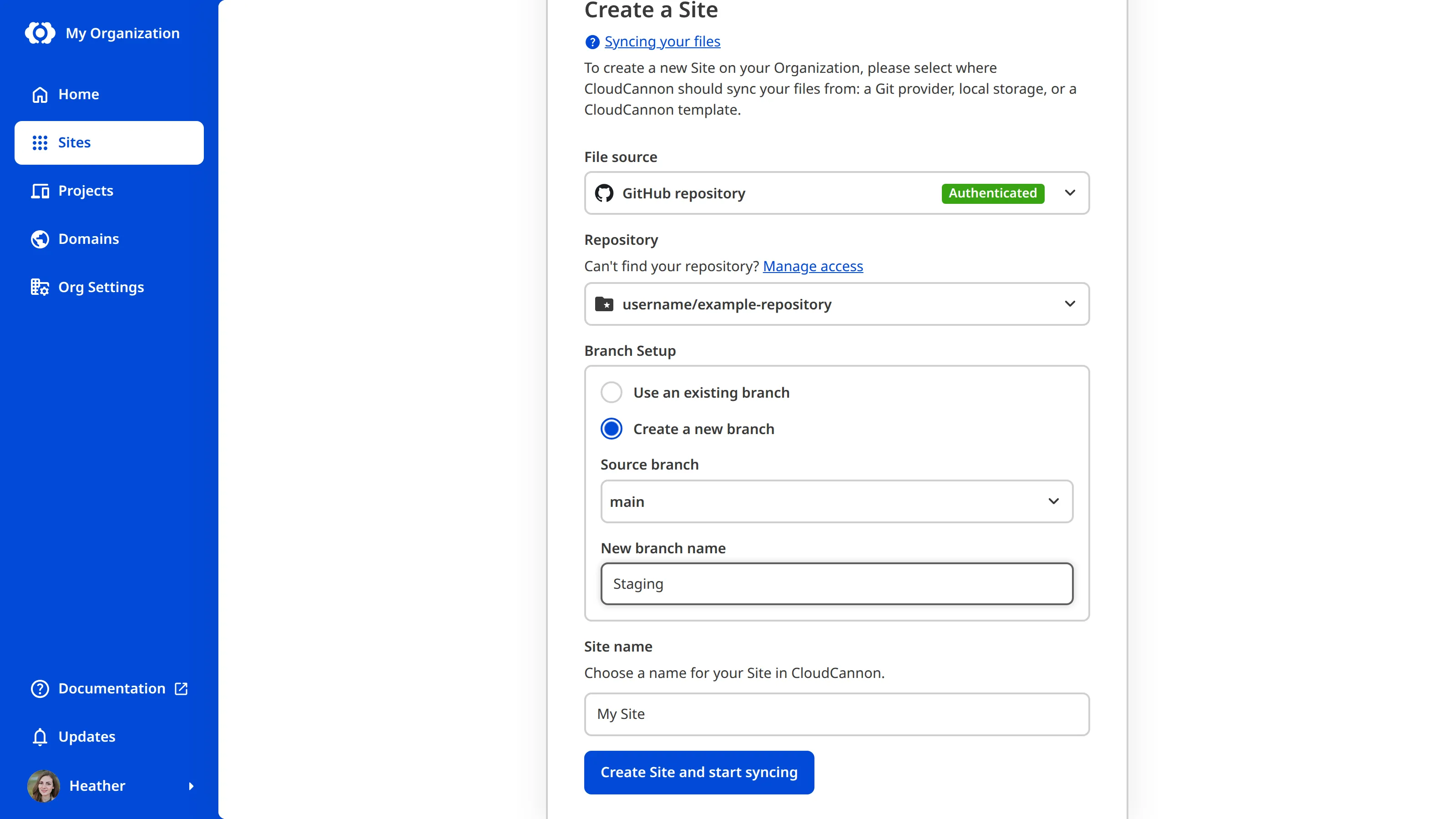
- Select your Git repo and choose **Create a new branch**. Select `production` as your source branch, and choose a name for your new branch (in this guide, we'll call it `staging`).
- Continue through the steps of syncing and building the new site.
## Set up publishing
"Publishing" is the term CloudCannon uses for merging one branch into another. For more details, read [our documentation on publishing](/documentation/developer-articles/connect-a-publish-branch/).
Navigate to your new staging site, and open the Site Settings. You'll see a section called "Publishing".

Here, you can choose a branch to merge into. Select the `production` branch.
You will also need to choose a Publish Mode. This simply means deciding whether you want to merge directly from CloudCannon, or to create a Pull Request before each merge.
Either way, you will see a new **Publish** button appears in the site sidebar, underneath the **Save** button. Click this button to review your pending changes and merge them into production.
### Merging via Pull Request
> **Note:** GitLab uses the terminology *Merge Request* for this action; these will display as *Pull Requests* in CloudCannon.
If you have selected *Pull Request* as your Publish Mode, you will be able to issue pull requests from CloudCannon. Enter a title and description and click **Create Pull Request**. You can see a list of the pending commits on the right.

Pending pull requests will be listed in this menu. You can click **Merge** to merge the branch, or **Close** to close the pull request. If you have set any branch protection rules with your Git provider which would be violated by this merge, the merge will fail and the pull request will stay open.

### Merging directly
If you want to be able to merge staging into production directly from CloudCannon, select **Merge** as the Publish Mode. In this case, the Publish menu will simply show a **Merge** button, with no intermediate steps.
## What's next?
You now have a staging/production workflow! You can preview your in-progress changes on the [Testing Domain](/documentation/user-articles/what-is-a-testing-domain/) for your staging site, and merge them into your user-facing production site only once you are ready.
The next step of the guide will explore ways to extend this workflow for more use cases. This is optional and may be useful depending on your particular project.
---
---
title: Introduction
description: Migrate from CloudCannon's deprecated built-in internationalization to Rosey.
url: https://cloudcannon.com/documentation/developer-guides/migrate-from-legacy-internationalization-to-rosey/
content_type: developer guide
last_modified: 2026-09-23
---
This guide is for teams migrating from CloudCannon's deprecated built-in i18n feature to **Rosey**. If you are adding **internationalization** to your **Site** for the first time without a prior i18n setup, see the [Add internationalization with Rosey](/documentation/developer-guides/add-internationalization-with-rosey/) guide instead.
CloudCannon's built-in i18n feature translated your *Site* at build time. You enabled it on the *I18n* page in your *Site Settings* using the *Use I18n* checkbox and set a *Default Locale* for the base language. You tagged translatable content in your HTML templates with `data-i18n` attributes and stored translation files in a `_locales` directory. CloudCannon built a translated version of your site for each locale and routed visitors based on their language settings.
> You can continue using CloudCannon's built-in i18n feature, but it is no longer actively supported and will not receive updates. CloudCannon recommends migrating to *Rosey*.
*Rosey* is an open-source i18n tool for static sites, developed and maintained by CloudCannon. It works with any static site generator and supports translating text content, images, and HTML attributes such as `alt` text and `meta` descriptions. *Rosey* also tracks stale translations, flagging strings that need updating when your source content changes, and you can test your translated site locally before pushing to CloudCannon.
In this guide, we'll walk through migrating your *Site* to *Rosey*. You'll rename your locale directory, convert your translation files to JSON, and retag your HTML elements. Your existing translation content carries over.
> When *Rosey* runs as a postbuild step, it moves your output files to language-prefixed paths — for example, `/en/about/` instead of `/about/`. CloudCannon uses the output URL to find each page, so until you update your *Collection* URLs to match, the webpage preview in the *Visual Editor* won't load correctly. You'll fix this later in the [update the output URL for Rosey](/documentation/developer-guides/migrate-from-legacy-internationalization-to-rosey/update-the-output-url-for-rosey/) step of this guide.
Before we begin, this guide assumes:
- Your *Site* uses CloudCannon's built-in i18n feature, with `data-i18n` attributes in your HTML templates and translation files in a `_locales` directory.
- You have `npm` available, or can initialize it on your project with `npm init`.
---
---
title: More resources
description: Further reading on Rosey and CloudCannon workflows.
url: https://cloudcannon.com/documentation/developer-guides/migrate-from-legacy-internationalization-to-rosey/more-resources/
content_type: developer guide
last_modified: 2026-09-23
---
Congratulations on completing the migration! Your *Site* is now running on **Rosey** for translations. 🎉
Thanks for working through this guide. If you have any questions, please reach out to our friendly [support team](https://cloudcannon.com/support/) or check out the [CloudCannon Community](https://community.cloudcannon.com/). We're always here to help.
## Go further with *Rosey*
*Rosey* has more features beyond the basics covered in this guide. These resources will help you manage translations and explore advanced configuration.
- [rosey.app](https://rosey.app) — Comprehensive *Rosey* documentation, including advanced configuration options.
## CloudCannon configuration
These articles cover the CloudCannon-specific configuration you set up during this guide, and options for extending your build process.
- [Update the output URL for a Collection](/documentation/developer-articles/update-the-output-url-for-a-collection/) — Explicitly configure the URL CloudCannon uses to match output files to source files, enabling the *Visual Editor* and screenshots.
- [Extending your build process with hooks](/documentation/developer-articles/extending-your-build-process-with-hooks/) — Learn how to run preinstall, prebuild, and postbuild scripts to extend your build process.
- [What is internationalization?](/documentation/developer-articles/what-is-internationalization/) — An overview of i18n on CloudCannon, covering SSG-native features and third-party tools including *Rosey*.
- [Staging workflow guide](/documentation/developer-guides/staging-workflow-guide/) — Set up separate staging and production branches if you prefer to run *Rosey* only on your production branch.
---
---
title: Migrate and configure Rosey
description: Migrate your locale files and HTML elements to Rosey, and set up the CloudCannon postbuild script.
url: https://cloudcannon.com/documentation/developer-guides/migrate-from-legacy-internationalization-to-rosey/migrate-and-configure-rosey/
content_type: developer guide
last_modified: 2026-09-23
---
Migrating to **Rosey** requires you to:
- install *Rosey* via `npm`,
- rename your `_locales` directory,
- convert your files to `.json`,
- add a *Rosey* configuration file,
- retag all your translatable elements with `data-rosey`.
Once your **Site** builds correctly locally, you can use CloudCannon's CI/CD workflow to build your *Site*.
In your Terminal, navigate to your website project and initialize `npm` using the following command.
File: `Terminal`
```shell
npm init
```
Still in your Terminal, install *Rosey* using the following command.
File: `Terminal`
```shell
npm install rosey
```
Open your project in your local development environment.
CloudCannon's deprecated i18n feature stores your locale files in the `_locales` directory. Rename this directory to `rosey/locales` and convert each file from the CloudCannon i18n format to **JSON**.
Next, you need to add the **YAML** configuration file `rosey.yml` at the root of your project. This file contains the `source` and `tag` keys.
File: `rosey.yml`
```yaml
source: _site
tag: data-rosey
```
The value of the `source` key tells *Rosey* where to find your SSG's built output. If you are using an SSG like Eleventy or Jekyll, the output will be `_site` (like the example above), however you should set this to the appropriate value for your project.
The value of the `tag` key should match the HTML attribute on elements in your files. CloudCannon's built-in i18n used `data-i18n`, and *Rosey* uses `data-rosey`.
> You can migrate gradually if you set `tag` to your old attribute while you retag, then switch to `data-rosey` once complete.
Go through your files and retag your **HTML** elements, replacing `data-i18n` with `data-rosey` throughout your templates.
File: `Before migration`
```html
Welcome
```
File: `After migration`
```html
Welcome
```
## Verify your translations migrated
After retagging, confirm your migrated locale files line up with your tagged source. Generate a fresh base locale file, then run *Rosey*'s `check` command:
File: `Terminal`
```shell
npx rosey generate
npx rosey check
```
`generate` writes `rosey/base.json` from every `data-rosey` tagged element in your built *Site*. `check` compares it against your `rosey/locales/*` files and writes a `checks.json` report — entries marked `"missing"` are tagged strings your migrated locale files don't yet cover, which usually means a key didn't line up during conversion. Resolve anything it flags before you cut over. For the full `checks.json` format, please read our documentation on [checking for stale translations](/documentation/developer-guides/add-internationalization-with-rosey/set-up-rosey/).
You can also preview your translated website locally before pushing:
File: `Terminal`
```shell
npx rosey build --serve
```
Push your changes to your *Git Repository*. CloudCannon will automatically sync these changes to your connected *Site*.
## Set up the postbuild script
*Rosey* runs as a postbuild step on CloudCannon. Create a `.cloudcannon/postbuild` script at the root of your project to run *Rosey* after every build.
File: `.cloudcannon/postbuild`
```shell
echo "Translating site with Rosey"
mv ./_site ./_untranslated_site
npx rosey build --source _untranslated_site --dest _site
```
> `npx rosey build` runs the latest published version of *Rosey*, so a new release can change your build output. To keep your local and CloudCannon builds reproducible, add `rosey` to your `package.json` dependencies at a fixed version — your build then runs the pinned version instead of the latest.
Replace `_site` with your SSG's output directory if it differs — this should match the `source` value in your `rosey.yml`.
## Disable CloudCannon's built-in i18n
Before disabling built-in i18n, confirm your migration is complete — `rosey check` reports no missing translations and your translated pages preview correctly. Until you disable it, your migration is reversible: revert your *Rosey* changes and your *Site* returns to its previous setup.
Once *Rosey* is running correctly, disable CloudCannon's built-in i18n on the *I18n* page in your *Site Settings*. Your *Site* is now configured to use *Rosey* for translations.
In the next step of this guide, we'll update your *Collection* URLs so the *Visual Editor* can find your pages after a *Rosey* build.
---
---
title: Update the output URL for Rosey
description: Update your CloudCannon Collection URLs to match Rosey's language-prefixed output paths so the Visual Editor finds your pages.
url: https://cloudcannon.com/documentation/developer-guides/migrate-from-legacy-internationalization-to-rosey/update-the-output-url-for-rosey/
content_type: developer guide
last_modified: 2026-09-23
---
Migrating to **Rosey** can cause the CloudCannon *Visual Editor* to become misconfigured.
CloudCannon uses your output files as the webpage preview in the *Visual Editor*. Because *Rosey* moves your output files from their original paths (e.g. `/about/`) to language-prefixed ones (e.g. `/en/about/`), the *Visual Editor* may no longer find them.
How you resolve this depends on where you want *Rosey* to serve your default language:
- **Under a language prefix** (e.g. `/en/about/`), which is *Rosey*'s default. Update your *Collection* URLs to match, using one of the methods below.
- **At the root path** (e.g. `/about/`), by setting `default_language_at_root` in your `rosey.yml`. Your default language's output URL doesn't change, so the *Visual Editor* continues to find those pages without a *Collection* URL update; only your non-default languages move to prefixed paths. Note that this disables *Rosey*'s redirect page, so visitors landing on `/` get your default language instead of being sent to their locale.
> If you prefer to keep your collection URLs un-prefixed, you can instead run *Rosey* only on your production branch and use a separate staging branch for content editing. See the [staging workflow guide](/documentation/developer-guides/staging-workflow-guide/) for guidance on setting this up.
## Update *Collection* URLs in CloudCannon
To update the URL in CloudCannon, navigate to the relevant *Collection* in the *Collection Browser* and enable *Configuration Mode* using the switch on the right of the *Site Header* — purple *Edit Configuration* buttons will appear. Click *Edit Advanced* in the top right to open the *Edit Advanced* data panel, enter the language-prefixed template string in the *URL* field, and save your *Site*. Repeat for each *Collection*.

## Update *Collection* URLs in your *Configuration File*
To update the URL in your local development environment, edit the `url` key for each *Collection* in `cloudcannon.config.yml`.
File: `cloudcannon.config.yml`
```yaml
collections_config:
pages:
url: /en/[slug]/
```
Once you've updated the `url` key for each *Collection*, the *Visual Editor* will be able to locate your pages correctly after every build.
In the next step of this guide, we'll point you to further resources for going deeper with *Rosey* and CloudCannon.
---
---
title: Introduction
description: Discover our recommended best practices for integrating multilingual Hugo sites.
url: https://cloudcannon.com/documentation/developer-guides/hugo-multilingual/
content_type: developer guide
last_modified: 2026-09-23
---
Hugo has two approaches to manage translated content with files:
- including the language code in the **filename**, or
- including the language code in the **content directory/folder**.
Note that Hugo does not support using both approaches at the same time.
Because CloudCannon collections are based around folders, the approach you choose will change the editing experience. This guide outlines the best practices for each approach.
> This guide focuses on integrating with CloudCannon, it does **not** cover:
>
> - Setting up a [multilingual Hugo](https://gohugo.io/content-management/multilingual/) site; we recommend [Hugo Multilingual Part 1: Content translation](https://www.regisphilibert.com/blog/2018/08/hugo-multilingual-part-1-managing-content-translation/) by Régis Philibert.
> - The Hugo `i18n` shortcode, which could be added as a [Snippet](/documentation/developer-articles/snippets-using-hugo-shortcodes/).
> - [Multihost](https://gohugo.io/content-management/multilingual/#configure-multilingual-multihost) introduces editing problems as a site on CloudCannon uses one domain. Using multiple sites in a staging-production workflow can work around this.
---
---
title: Translation by content directory
description: Managing multilingual Hugo sites translated by content directory/folder.
url: https://cloudcannon.com/documentation/developer-guides/hugo-multilingual/translation-by-content-directory/
content_type: developer guide
last_modified: 2026-09-23
---
This approach separates all languages, which can make it easier to find specific files. More configuration entries are required, however, resulting in a longer site navigation.
Hugo calls this [Translation by content directory](https://gohugo.io/content-management/multilingual/#translation-by-content-directory). Your files will be placed inside a top-level content folder for each language (e.g. `content/es/posts/my-post.md`).
The best practice here is to **define a collection per language and folder of related files** (e.g. Pages EN, Pages ES, Pages FR, Posts EN, Posts ES, Posts FR).
Here's an example with Pages and Posts:
```
├── ```
├── content
│ ├── en
│ │ ├── about.md
│ │ └── blog
│ │ └── first-post.md
│ ├── es
│ │ ├── about.md
│ │ └── blog
│ │ └── first-post.md
│ └── fr
│ ├── about.md
│ └── blog
│ └── first-post.md
└── ```
```
File: `cloudcannon.config.yml`
```YAML
```
collections_config:
pages_en:
name: Pages EN
icon: wysiwyg
path: content/en
parse_branch_index___1___: true
filter___2___: strict
pages_es:
name: Pages ES
icon: wysiwyg
path: content/es
parse_branch_index___1___: true
filter___2___: strict
pages_fr:
name: Pages FR
icon: wysiwyg
path: content/en
parse_branch_index___1___: true
filter___2___: strict
posts_en:
name: Posts EN
icon: event_available
paths: content/en/blog
posts_es:
name: Posts ES
icon: event_available
paths: content/es/blog
posts_fr:
name: Posts FR
icon: event_available
paths: content/fr/blog
```
**[1]** The `parse_branch_index` option is specific to Hugo sites on CloudCannon, and affects what collection `_index.*` files get assigned to.
By default these files do not get assigned to the closest collection, as they usually represent the landing pages of your site.
As such, they will be assigned to the global `pages` collection unless otherwise configured.
If a collection is tagged as `parse_branch_index: true`, any `_index.*` files in the collection path (and subdirectories) will be assigned
to it.
In this case, we want the `content/*/blog/_index.md` files to be in the `pages_*` collection for their language,
rather than in the global `pages` collection, or the inner `posts_*` collection.
**[2]** When you browse a collection in CloudCannon, all files within that folder will be shown by default.
Applying the `strict` filter to a collection instead limits the UI to show only the files that exactly match that collection.
In this case, it prevents files from the `posts_*` collections in the `content/*/blog/` subdirectories
from appearing when browsing the `pages` collection for that language.
```
---
---
title: Translation by filename
description: Managing multilingual Hugo sites translated by filename.
url: https://cloudcannon.com/documentation/developer-guides/hugo-multilingual/translation-by-filename/
content_type: developer guide
last_modified: 2026-09-23
---
This approach is similar to a non-multilingual configuration. Related content stays together, making it easier to see inconsistencies across languages. However, it may be harder to find or distinguish specific files.
Hugo calls this [Translation by filename](https://gohugo.io/content-management/multilingual/#translation-by-filename). You will need to specify a language per file, as an extension prefix (e.g. `content/blog/my-post.es.md`).
The best practice here is to **define a collection for each folder of related files** (e.g. Posts, Pages, Staff Members). Each collection contains the files from all languages.
You'll need a custom [create path](/documentation/developer-articles/set-the-path-for-new-files/) here to include the language code in new filenames.
Here's an example with Pages and Posts:
```
├── ```
├── content
│ ├── about.md
│ ├── about.es.md
│ ├── about.fr.md
│ └── blog
│ ├── first-post.md
│ ├── first-post.es.md
│ └── first-post.fr.md
└── ```
```
File: `cloudcannon.config.yml`
```YAML
```
collections_config:
pages:
path: content
filter___1___: strict
posts:
paths: content/blog
create___2___:
path: '[relative_base_path]/{title|slugify}{suffix}.md'
extra_data:
dot: '.'
suffix: '{dot|if=language}{language|lowercase}'
_inputs:
language___3___:
type: select
options:
allow_empty: true
value_key: lang_code
values:
- name: English
lang_code:
- name: Spanish
lang_code: es
- name: French
lang_code: fr
```
**[1]** When you browse a collection in CloudCannon, all files within that folder will be shown by default.
Applying the `strict` filter to a collection instead limits the UI to show only the files that exactly match that collection.
In this case, it prevents files from the Posts collection in the `content/blog/` subdirectory
from appearing when browsing the `pages` collection.
**[2]** The [create option](/documentation/developer-articles/set-the-path-for-new-files/) controls the filename and path when creating new content files.
Placeholders are specified inside curly braces, and editors will be prompted to supply values for them when saving the file for the first time.
If the placeholders share names with top level inputs in your front matter, editing them in the prompt also changes those values in the file contents.
In this case, editors will be prompted to add a `title` and `language` when saving the file for the first time.
When "English" is chosen, no language code is added to the filename - in this example English is the default language, and Hugo has no extra filename suffix for the default language.
**[3]** This `_inputs` entry restricts the language editors can choose to one of the specified languages. `language` would be a text input without this, which would work but is more prone to errors.
By selecting from a list of objects and setting the `value_key`, we allow the editor to select the option "English" while saving an empty value.
```
---
---
title: Introduction
description: Learn how to create a Site on CloudCannon and set up WYSIWYG editing for your website files.
url: https://cloudcannon.com/documentation/developer-guides/getting-started-with-cloudcannon/
content_type: developer guide
last_modified: 2026-09-23
---
Welcome to the Getting Started with CloudCannon guide!
This guide is an excellent starting point for developers new to CloudCannon. We recommend that you complete this guide first, as other developer guides on the CloudCannon Documentation website may rely on the steps outlined here.
CloudCannon is a Git-based Content Management System designed to help teams (or individuals) manage their website content and code. Developers can commit changes to a Git repository that syncs to CloudCannon. At the same time, CloudCannon provides an interface that allows non-technical team members to effortlessly update the content stored in your Git repository, without needing to know anything about Git, Markdown, or HTML. All your files are stored safely and securely in your Git repository — no vendor lock-in.
In this guide, we'll cover how to create an account, add your files to a *Site*, and set yourself up for success on CloudCannon with a *Configuration File* and *Collections*. By the end of this guide, you will have set up a basic *Site* in CloudCannon with WYSIWYG editing, ready for you to manage your content.
Before we begin, this guide assumes you already have a website and your files are uploaded to a Git repository. Although you can [upload files directly](/documentation/developer-articles/create-a-site-with-direct-upload/) from your local storage, we highly recommend using a Git repository.
---
---
title: Create an account
description: Learn how to create an account on CloudCannon.
url: https://cloudcannon.com/documentation/developer-guides/getting-started-with-cloudcannon/create-an-account/
content_type: developer guide
last_modified: 2026-09-23
---
Let's create an account on CloudCannon. If you already have a CloudCannon account, you can skip this step of the guide.
Open the [CloudCannon app](https://app.cloudcannon.com/register) using your Internet browser. You can create an account using your email, or your GitHub, Bitbucket, or GitLab account. In this guide, we will create an account using our email.
Click on the *Sign up with email* button.

Enter your email in the *Email address* field and click *Send Code*.
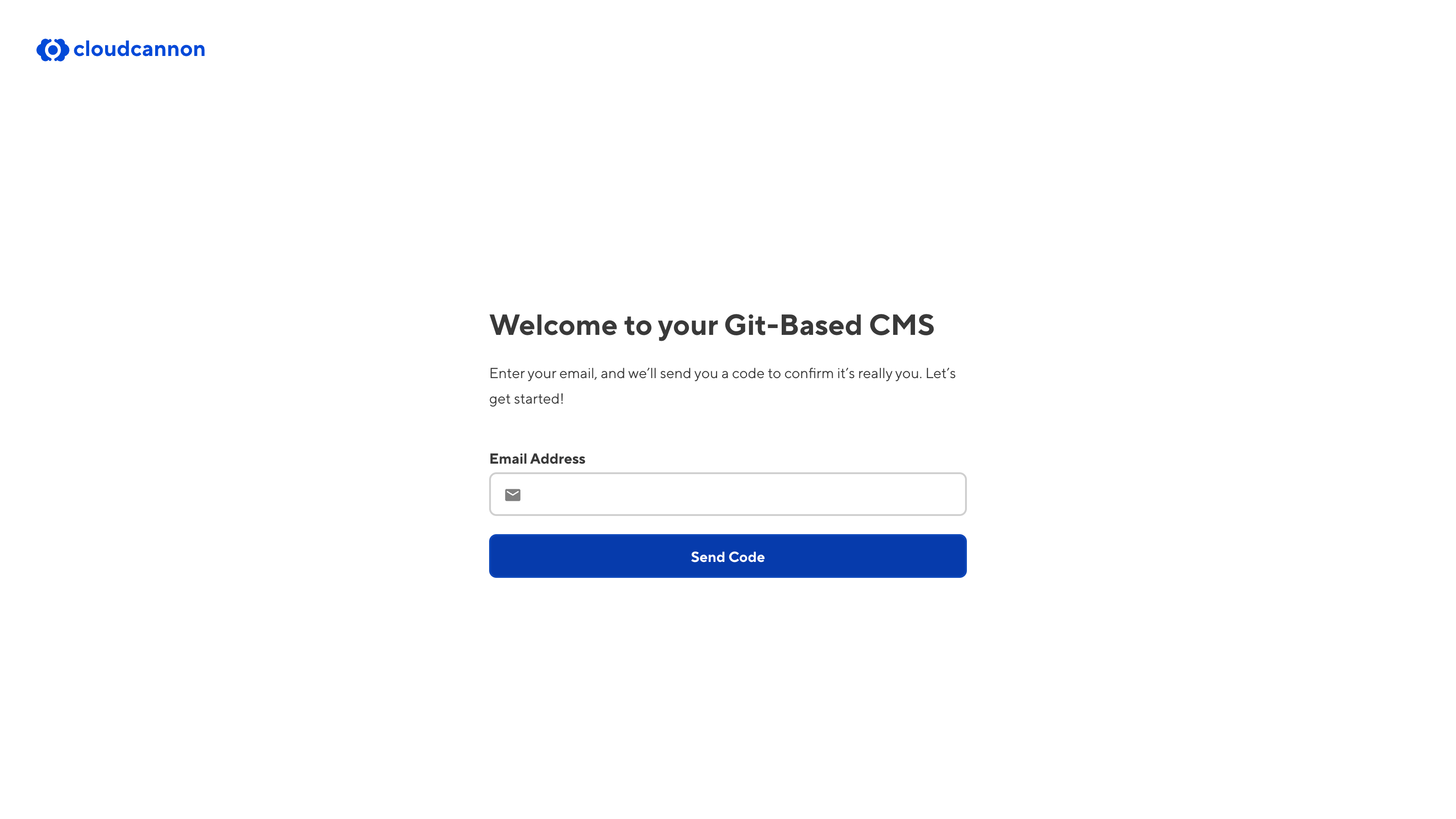
To validate your email address, CloudCannon will send a six-digit confirmation code to the email you provided. This validation email should arrive in your inbox quickly and will expire after 10 minutes.
Enter the code in the *Confirmation Code* field and click *Continue*.
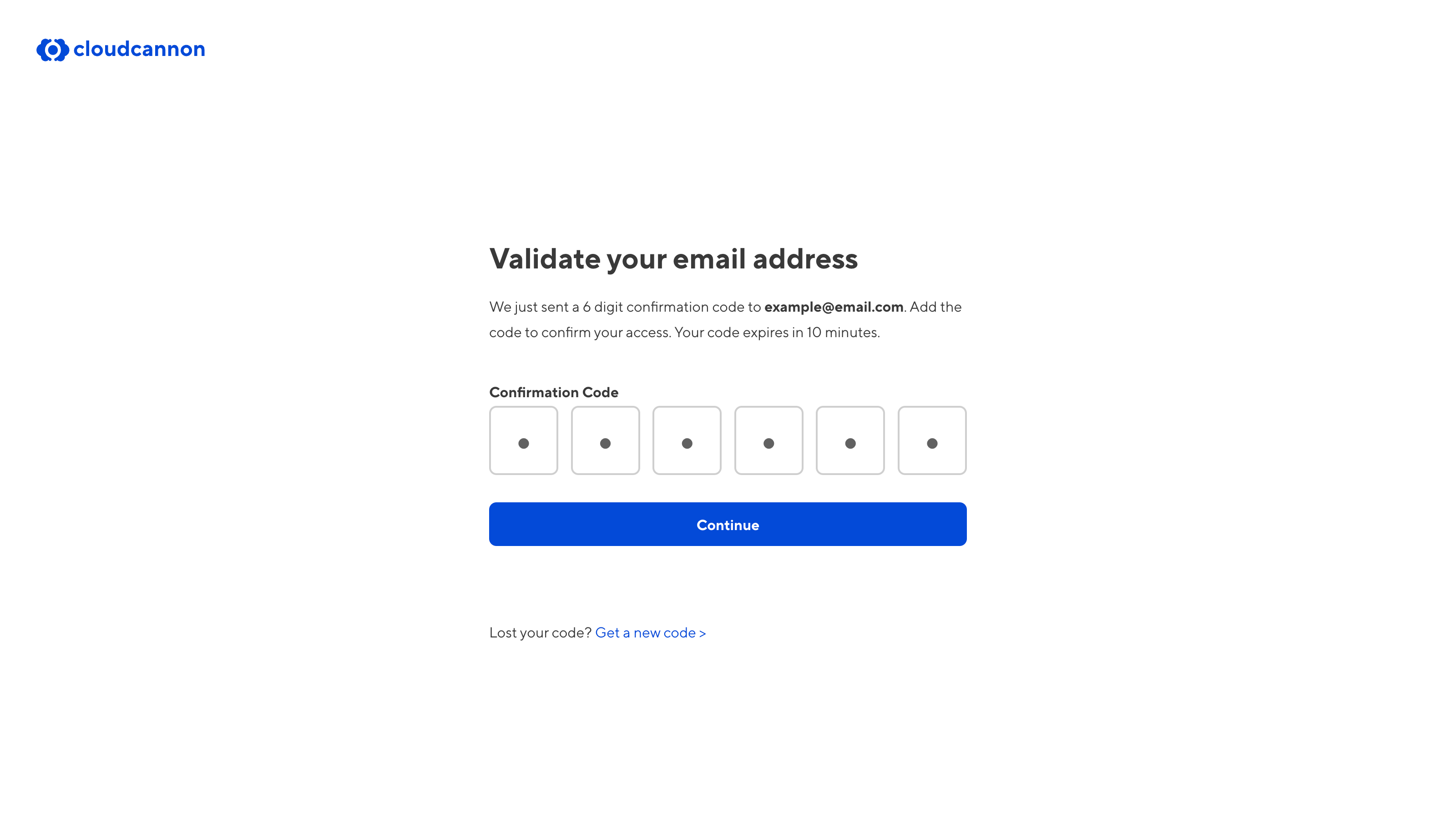
Once you have validated your email address, you can finish adding your account details, such as your first name, last name, and an account password, and whether you are a developer or a content editor.
Your password must be at least nine characters long.
> Do not share your CloudCannon password with anyone. CloudCannon employees will never ask you for your password.
Click *Create my account* to finish creating your account.

Congratulations, you have created your CloudCannon account! In the next step of this guide, we'll cover what an *Organization* is and how to navigate the *App Sidebar*.
---
---
title: Create your CloudCannon Configuration File
description: Learn about the CloudCannon Configuration File, including what it does and how to make one.
url: https://cloudcannon.com/documentation/developer-guides/getting-started-with-cloudcannon/create-your-cloudcannon-configuration-file/
content_type: developer guide
last_modified: 2026-09-23
---
The next task in the *Getting Started with Editing* in-app guide is to *Create your CloudCannon Configuration File*.

The *CloudCannon Configuration File* is the heart of your CloudCannon experience, allowing you to customize the functionality and appearance of your *Site*. You can configure your *Site Navigation*, Editing Interfaces, file appearance in the app, how CloudCannon adds new files, and more by adding formatted content to your *Configuration File*.
As we go through the later steps of this guide, we'll add more to our *Configuration File*. Let's create one.
Click the *+ Create my Configuration File* button in your in-app guide under the *Create your CloudCannon Configuration File* task. CloudCannon will open the *Create my Configuration File* modal.
The *CloudCannon Configuration File* is stored at the root of your website directory by default and can be YAML or JSON. When you answer the questions in this modal, CloudCannon will create the `/cloudcannon.config.yml` file in the root of your repository.
> **A quick note about Documentation...**
>
> CloudCannon links to helpful documentation in multiple places throughout the App. When you see the question mark symbol next to a link, or on its own next to a title, clicking on it will open the relevant page on the CloudCannon Documentation website in a modal.
>
> 
## Select your *Static Site Generator*
To start with, CloudCannon needs to know which **Static Site Generator** your *Site* uses. An SSG is a tool for generating a static HTML website from your files. CloudCannon supports various SSGs, from Astro, Eleventy, and Hugo to Jekyll, MkDocs, and Lume. You can choose whichever SSG is appropriate for your website files.
CloudCannon will use the information found in your files to suggest an *SSG*. You can click on the *Use* button under the right side of the *Static Site Generator* dropdown to populate it with CloudCannon's suggestion, or select an option from the list of CloudCannon's supported *SSGs*.
At the bottom of the *Create my Configuration File* modal is the *Preview* button. Clicking this button will show you a preview of the initial content of your *CloudCannon Configuration File*.
## Select your *Source Folder* (optional)
CloudCannon needs to know the base path for your SSG source files relative to the root of your directory, called the *Source Folder*. Most websites use the root of their repository as the *Source Folder*.
However, if your source is nested in your repository (such as if you have a mono-repo), you should check the *Use a custom source* box and enter the file path in the *Source Folder* text field.
## Select your *Collections*
Click the *Next* button on the bottom right of the *Create my Configuration File* modal.
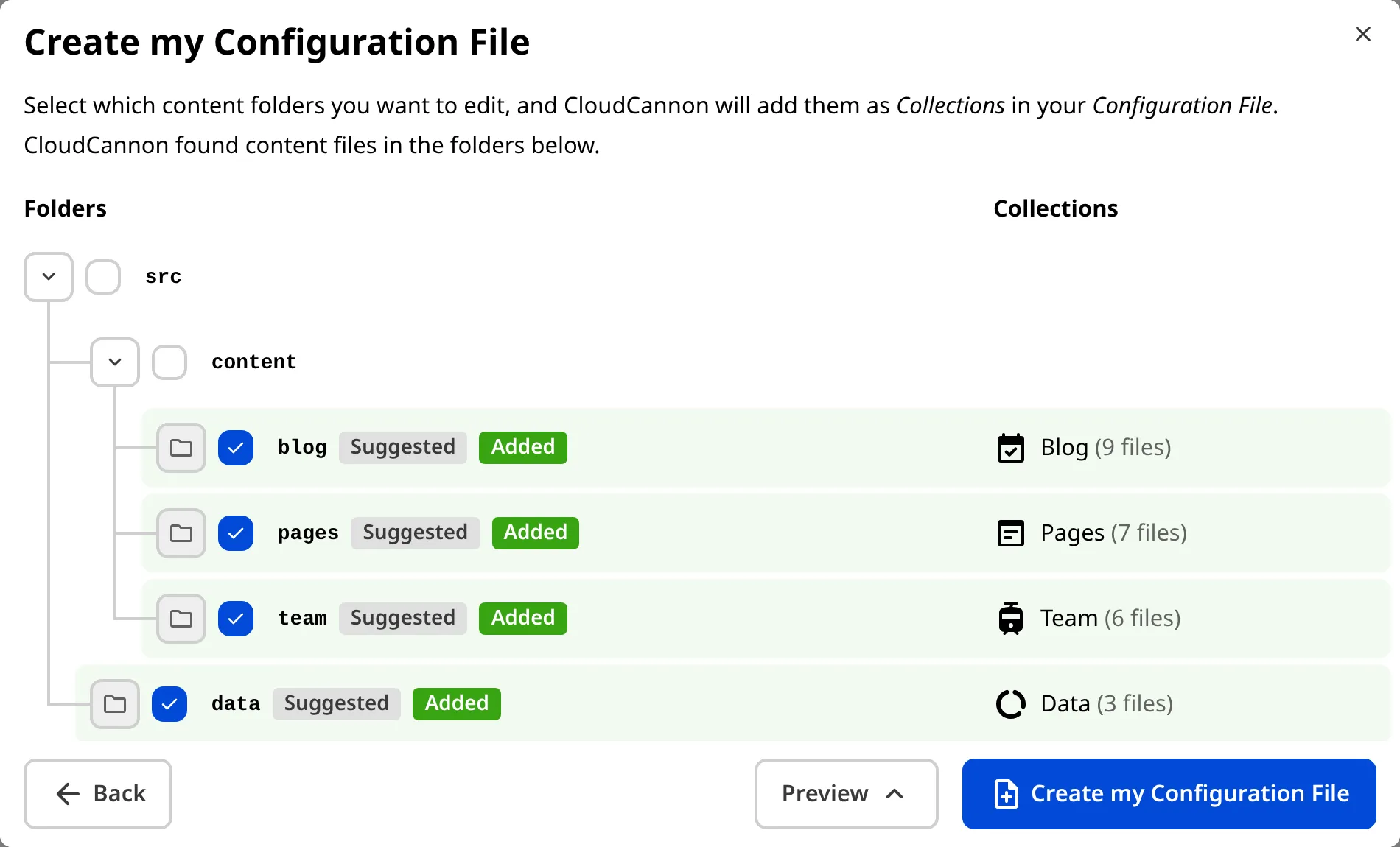
On the next page of the modal, CloudCannon asks you to select your *Collections*. A **Collection** is a group of files you want to edit in CloudCannon, and will match a folder in your *Git Repository* (e.g., a folder of pages, blog posts, product descriptions, or data files).
Once you select your *Collections,* they will appear in your *Site Navigation* for easy access. On the right of the modal, you can see a preview of the default name and icon CloudCannon will assign to each *Collection* (you can change these later), along with the number of content files each *Collection* will contain.

CloudCannon will automatically detect which folders in your *Git Repository* contain content files and suggest that you turn these into *Collections*. By default, suggested *Collections* are checked in the *Create my Configuration File* modal. Alternatively, you can deselect any folders you don't want to edit in CloudCannon using the checkbox.
> **What happens when you select one** ***Collection*** **nested inside of another?**
>
> Files can only belong to one *Collection* at a time. If you select two *Collections*, one nested inside another, the files will appear in the *Collection* with the most specific *Path*.
>
> Let's walk through an example.
>
> ```
> ├── ```
> ├── blog
> │ ├── post-1.md
> │ ├── post-2.md
> │ └── authors
> │ ├── author-1.md
> │ └── author-2.md
> └── ```
> ```
>
> Assume you have an `authors` folder nested in your `blog` folder (i.e., `/blog/authors/`). The `authors` folder contains non-output data files with profile information about your various blog authors. In addition to the `authors` folder, the `blog` folder also contains all your output blog files. In this case, both the `authors` and `blog` folders could be *Collections*.
>
> If you only add the "Blog" *Collection* with the path `/blog/`, all your output blog files will belong to this *Collection*, but so will all the data files inside `/blog/authors/`. All these files will appear as a sub-folder in your Blog *Collection Browser*.
>
> Adding the "Blog" *Collection* and the "Authors" *Collection* will separate these files, keeping your output blog files in one *Collection Browser* and your non-output data files in another.
Like the previous section of the *Create my Configuration File* modal, you can click the *Preview* button in the bottom right to preview the contents you are adding to your *CloudCannon Configuration File*.
Here's an example of what that configuration code might look like for a *Collection*:
File: `cloudcannon.config.yml`
```YAML
```
collections_config___1___:
news___2___:
path___3___: /blog/news/
icon___4___: breaking_news
```
**[1]** All *Collections* are defined under the `collections_config` key in your *CloudCannon Configuration File*.
**[2]** The *Key* for this *Collection* is `news`. All the configuration for this *Collection* is stored nder this *Key*.
**[3]** The *Path* for this *Collection* is `/blog/news/`, telling CloudCannon where to find the *Collection* files in your repository.
**[4]** The *Icon* for this *Collection* is `breaking_news`.
```
When you are happy with your selection, click the *Create my Configuration File* button at the bottom of the modal, and CloudCannon will add `cloudcannon.config.yml` to the root of your repository. Your *Collections* will appear in the *Site Navigation.*
Congratulations! You've made your first change to your website content: adding a file. You might notice that the *Save* button in the top right now has a red "1" notification. This indicates that you have made a change to one file. Don't click the *Save* button just yet—we'll talk about saving changes to your *Site* in the [save your Configuration File](/documentation/developer-guides/getting-started-with-cloudcannon/save-your-configuration-file/) step of this guide.

You might also notice a new UI element next to the *Save* button. This is the *Configuration Mode switch*. Now that we have a *Configuration File*, we can use *Configuration Mode* to customize our *Site* and store our preferences.
In the next step of this guide, we'll look at your new *Site* and introduce you to some important UI.
---
---
title: Create a Site
description: Learn about Sites on CloudCannon and how to create your first Site.
url: https://cloudcannon.com/documentation/developer-guides/getting-started-with-cloudcannon/create-a-site/
content_type: developer guide
last_modified: 2026-09-23
---
A *Site* is where you see, edit, and review all your website files. *Sites* are core to your CloudCannon experience and are where you and your content teams will spend the majority of your time.
The features of a *Site* are likely why you are looking for a CMS in the first place. *Sites* allow you to:
- See all your files in user-friendly editing interfaces, without the need to know Markdown, HTML, or Git.
- Organize files to create a more intuitive experience for your content creators.
- Create review processes for saving changes to your content.
- Track the who, when, and why for each change to your website.
In this step of the guide, we'll create your first *Site* by syncing your website files to CloudCannon from your Git repository and point out important UI during a tour of your new *Site*.
## Using a Git provider
When you create a *Site*, CloudCannon first needs to sync your website files from their current location. This could be your local computer storage, or a Git repository maintained using one of CloudCannon's supported Git providers: [GitHub](/documentation/developer-articles/connecting-a-github-repository-as-your-source/), [GitLab](/documentation/developer-articles/connecting-a-gitlab-respository-as-your-source/), or [Bitbucket](/documentation/developer-articles/connecting-a-bitbucket-respository-as-your-source/).
> We highly recommend using a Git provider for better security, version control, and collaboration.
This guide will cover how to create a *Site* from files stored in a Git repository.
## Create your first *Site*
Let's walk through how to authenticate your Git provider, select a repository and branch, name your *Site*, and sync your files. If you already have at least one *Site* on CloudCannon and are using this guide to create another, most of the instructions will be the same; however, some pages or UI may look different.
In the previous step of this guide, we introduced you to your *Organization Home* page and its two *Cards* for getting started. To create a *Site* from your own files, click the *Add your own files to CloudCannon* card.
CloudCannon will open the *Create a Site* page.
Here, you can use the *File source* dropdown to select your Git provider.
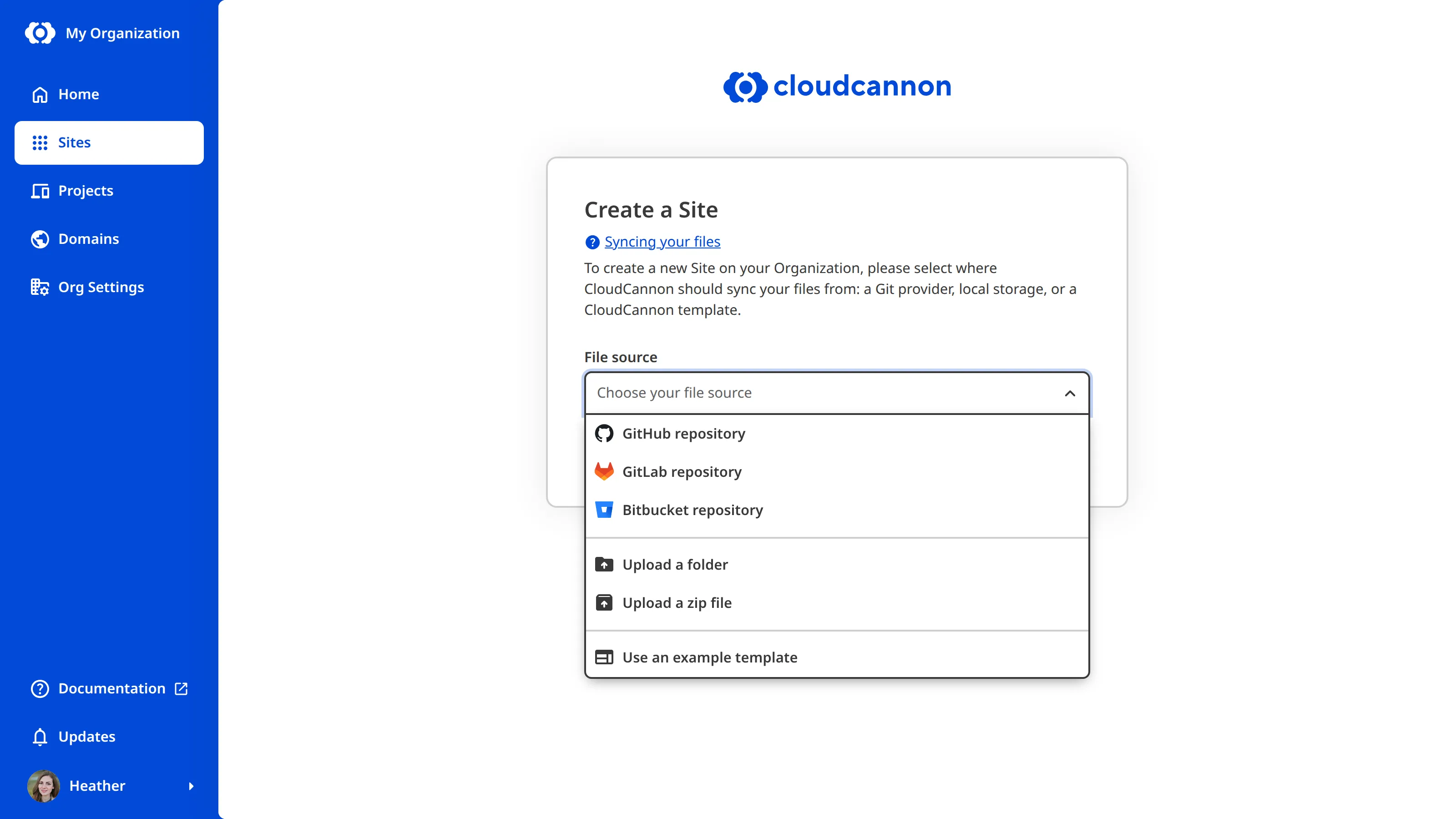
> If you already have one or more *Sites* associated with your *Organization*, the *Try our demo Site* or *Add your own files to CloudCannon* options will not appear on your *Organization Home* page. Instead, click the *Sites* button in the *App Sidebar* to open the *Sites Browser*. You can add a new Site to CloudCannon using the *+ Create a Site* button at the top right of the *Sites Browser*.
>
> 
### Authenticate your Git provider
For CloudCannon to sync your files, you must give it permission to access your Git provider. You can see which Git providers are authenticated by a green shield icon next to the option in the *File source* dropdown.

When you select an unauthenticated Git provider using the *File source* dropdown, CloudCannon will show you the *Authenticate* button.
Click this button and CloudCannon will forward you to your Git provider login screen. Follow your Git provider's instructions to authenticate access, then return to the *Create a Site* page on CloudCannon.

You only need to authenticate your Git provider once; CloudCannon will remember it for all other *Sites* you create.
### Select your repository and branch
Once you have selected an authenticated Git provider using the *File source* dropdown, the *Create a Site* page will show a *Repository* dropdown and *Branch Setup* section. The *Repository* dropdown will list all the available repositories from your authenticated Git provider account.
Select the correct repository from the list. You can type in the *Repository* text field to filter your options, if necessary.

As a Git-based CMS, CloudCannon uses branching for better security and version control, as well as to enable your team to work on updates in parallel. Each *Site* on CloudCannon is connected to a branch of your Git repository.
Use the *Branch setup* radio buttons to select either *Use an existing branch* or *Create a new branch*. You will most likely want to use an existing branch, but if you want to try CloudCannon without impacting your existing work, you can create a new one.
If you select *Use an existing branch*, use the *Branch* dropdown to select a branch from your repository.
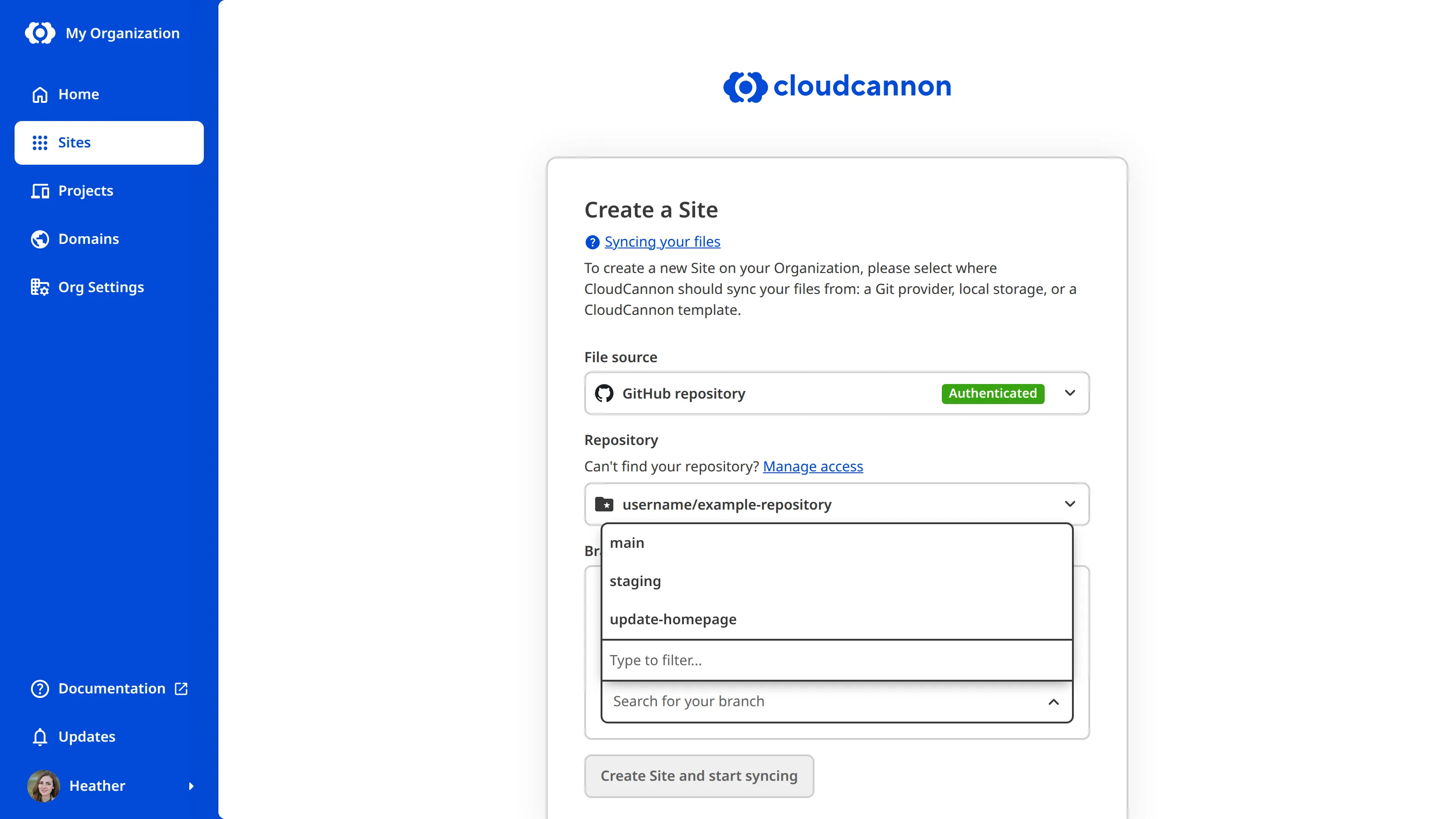
If you select *Create a new branch*, use the *Source branch* dropdown to select which branch from your repository to copy and enter a name for your new branch in the *New branch name* text field.

### Name your Site
The *Site name* text field determines the name for your *Site* in CloudCannon. This won't affect your repository or branch in your Git provider.
CloudCannon will automatically populate this field with the name of your repository, but you can choose any name for your *Site*. We recommend choosing a simple name that provides information about the purpose of the Site (e.g., "CloudCannon Marketing Website", "Production: CloudCannon Documentation", "Staging: CloudCannon Documentation").
Use the *Site name* field to add a name for your *Site*.

Click the *Create Site and start syncing* button at the bottom of the page.
### CloudCannon will sync your files
CloudCannon will begin syncing your files from your Git provider and open your *Site Dashboard*.
On your *Site Dashboard*, you'll see another in-app guide: *Getting Started with Editing*. This guide focuses on setting up the basics of your *Site.*
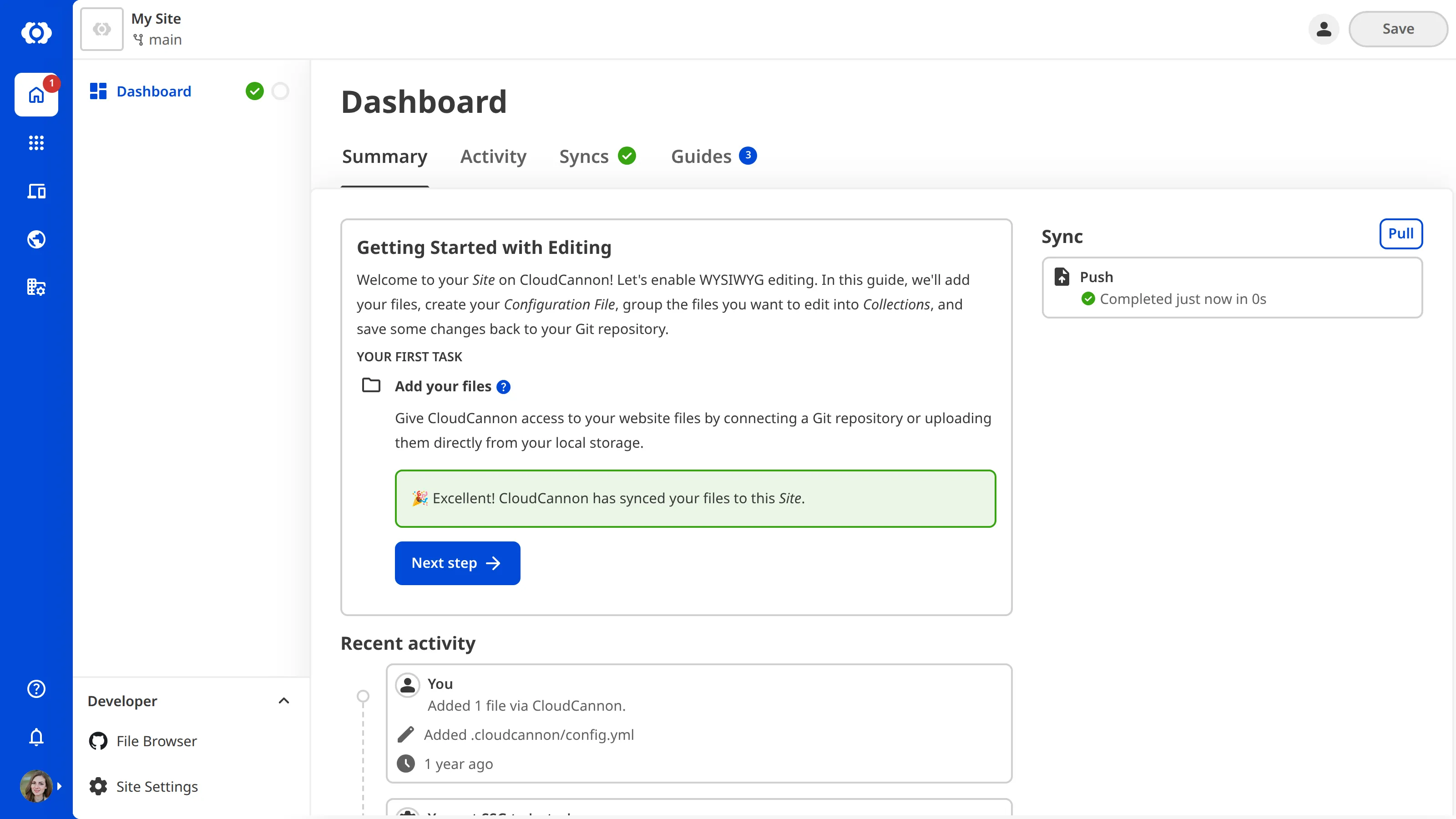
The first task in the *Getting Started with Editing* in-app guide is to *Add your files*. As CloudCannon is already syncing your files from your Git repository, you should see an in progress message under this step. This process is usually quick, but it may take a few minutes for larger repositories.
Once CloudCannon has finished syncing, you can click the *Next* button.
In the next step of this guide, we'll look at your new *Site* and introduce you to some important UI.
---
---
title: Your Organization on CloudCannon
description: Learn about Organizations on CloudCannon and familiarize yourself with the App Sidebar.
url: https://cloudcannon.com/documentation/developer-guides/getting-started-with-cloudcannon/your-organization-on-cloudcannon/
content_type: developer guide
last_modified: 2026-09-23
---
After you create your account, CloudCannon will automatically make you a default *Organization* and deliver you to your *Organization Home* page.
## What is an *Organization*?
An **Organization** is the highest level of content management on CloudCannon, containing all your websites, team members, and resources. Once you create your first *Site*, the *Organization Home* page will display summary information about all of these things but, for now, you'll only see two *Cards*. You can navigate back to your *Organization Home* page at any time by clicking the *Home* icon in the *App Sidebar*.
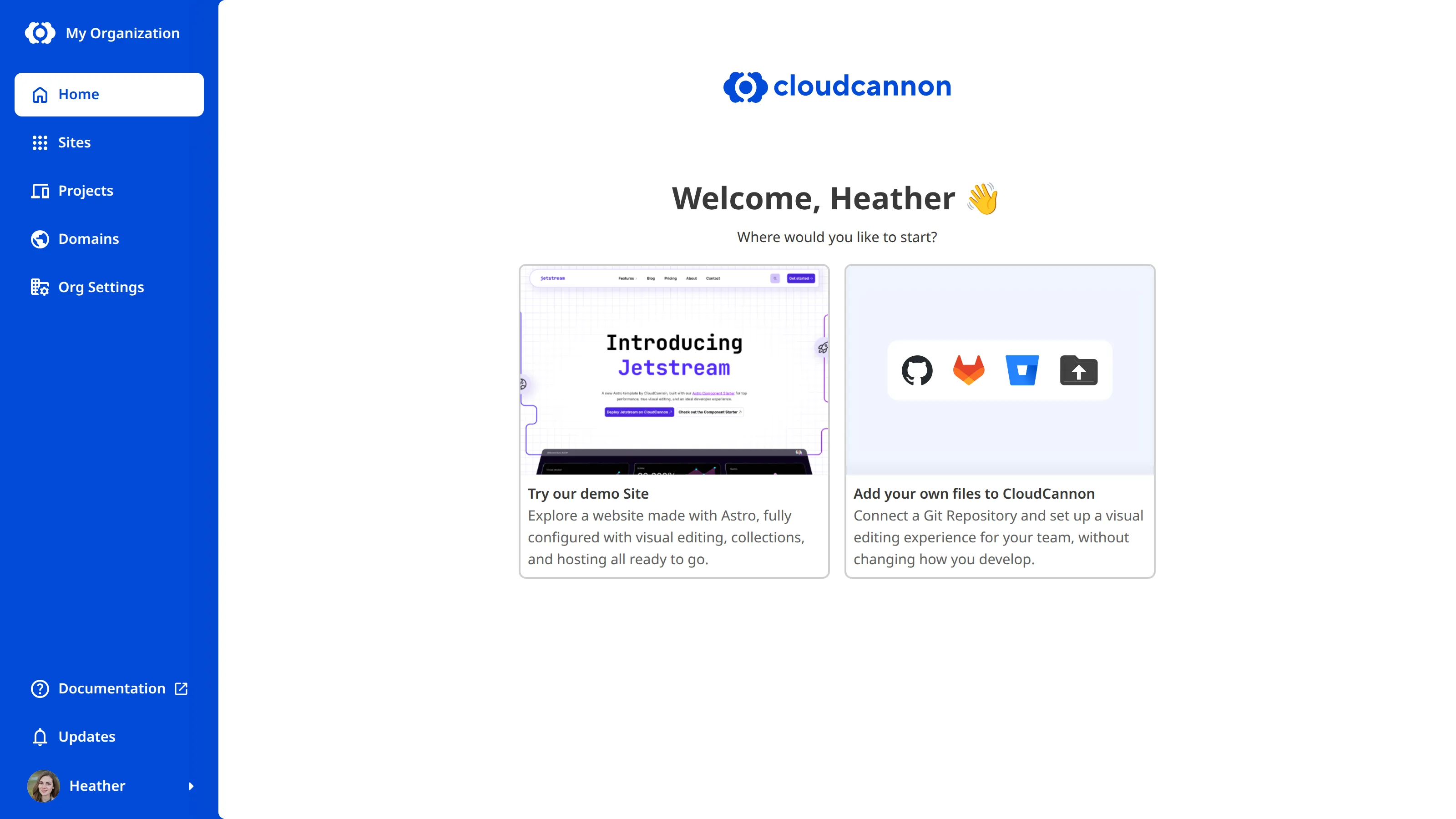
*Organizations* are also the billing unit in CloudCannon; each *Organization* has it's own subscription at one of CloudCannon's [pricing tiers](https://cloudcannon.com/pricing/). As a new account, your *Organization* will be on a *Free Trial*, so you have time to explore CloudCannon and decide what tier is right for your team.
You can also join other people's *Organizations* by invitation, which will allow you to manage their content.
## General *Organization* UI
Let's take a look at some of the UI for your *Organization*.
On the left is the *App Sidebar*. This contains several tools for managing your *Organization* and *Account*. At the top are links to your *Home*, *Sites*, *Projects*, *Domains*, and *Org Settings* pages. We'll cover each of these in greater detail later, or in other guides relevant to those sections. For now, it's important to note the link to the *Home* page at the top of the *App Sidebar*. If you get stuck, return to this page for more guidance.
At the bottom of the *App Sidebar* is the *Updates* button and your *Account Menu*. Clicking on the *Updates* button will open the *App Updates* modal with a list of CloudCannon's most recent changelogs.
Clicking on your *Avatar* and *Name* will open the *Account Menu*. Here you can find a link to your *Account Settings*, message our friendly [support team](https://cloudcannon.com/support/), and log out of CloudCannon with the *Log Out* button. Depending on your account, the *Account Menu* also lets you create a new Organization with the *Create new organization* option, or navigate to your other *Organizations* (if you are a member of multiple Orgs). When you have pending invitations, a *Pending invitations* option appears here too, along with a badge on your *Avatar*.

## Should I use a template or my own files?
Your *Organization Home* page presents two options for creating your first *Site*: *Try our demo Site* or *Add your own files to CloudCannon*.
To help you experience all of CloudCannon's features without needing to set up anything yourself, we've made the Jetstream template: a fully configured Astro website with visual editing, blogging, page building, and hosting.
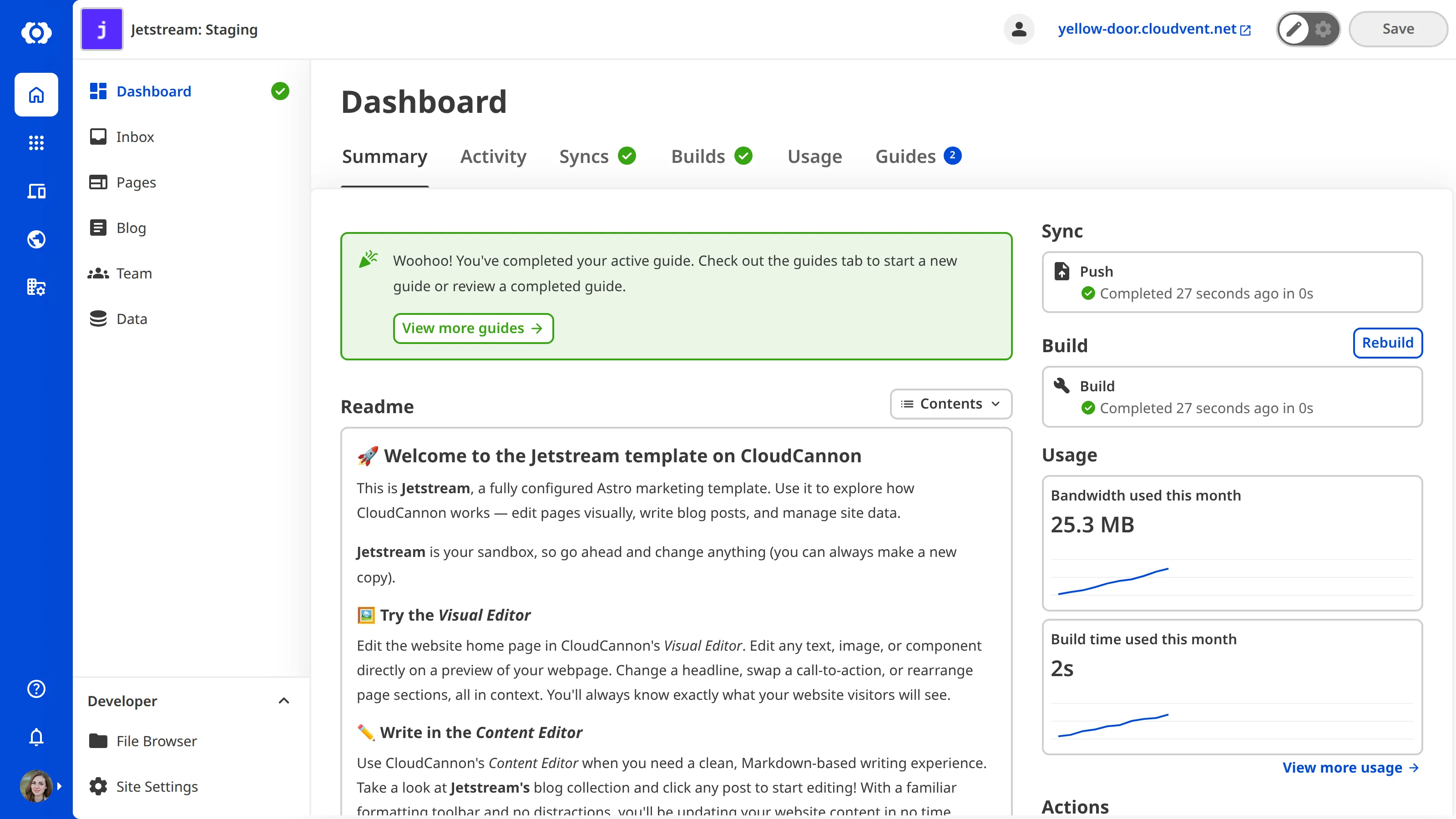
However, we highly recommend using your own files in CloudCannon.
Don't worry about choosing the "wrong" option here — you can always come back to your *Organization Home* page and try the other option later, and you can create as many *Sites* as you need.
In the next step of this guide, we'll create a *Site* by connecting a Git repository and syncing your files to CloudCannon.
---
---
title: Save your Configuration File
description: Learn how to save the changes to your Configuration File back to your Git Repository.
url: https://cloudcannon.com/documentation/developer-guides/getting-started-with-cloudcannon/save-your-configuration-file/
content_type: developer guide
last_modified: 2026-09-23
---
Over the course of this guide, we have added content to the *CloudCannon Configuration File* several times. CloudCannon will live update every time you add the *Configuration File*, but it is still important to save your changes back to your Git repository.
Let's commit the *CloudCannon Configuration File* and your CloudCannon preferences to your *Git Repository*.
The *Save* button is on the right of your *Site Header*, and will show a red notification with the number of files that have unsaved changes. In this case, the *CloudCannon Configuration File* is the only file with unsaved changes.

Click the *Save* button. CloudCannon will open the *Save changes* modal.
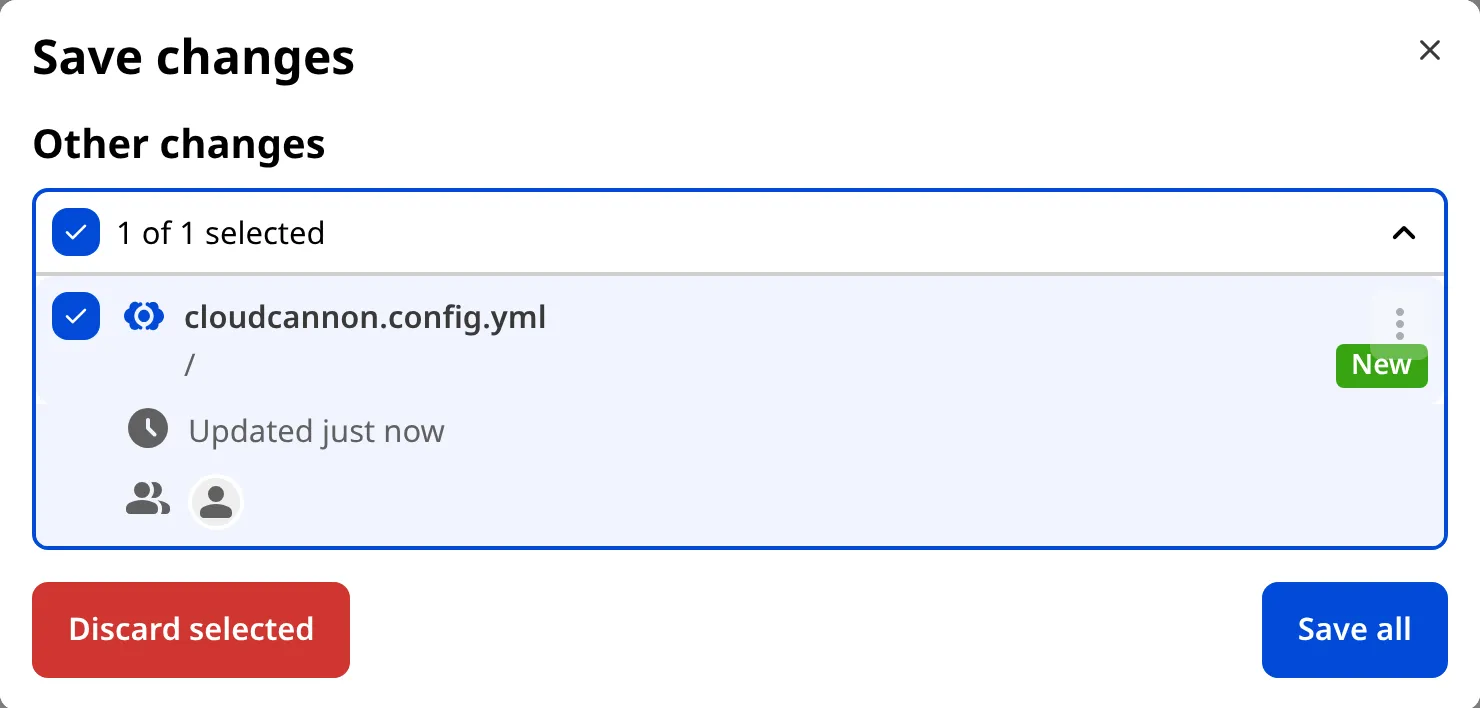
The *Save changes* modal allows you to review a summary of all unsaved changes on a *Site*. Each file with unsaved changes is represented by a *File Card*, including the name of the file, the *Collection* it belongs to, when it was last updated and by whom.
When you look at the files in the *Save changes* modal, you can see a three-dot icon at the top right of each *File Card*. This is the file *Context Menu*, containing a set of file actions that may be useful before you save your changes.
Depending on your *Site* configuration, the *Context Menu* will contain different options. For this guide, your *CloudCannon Configuration File* should have the following options:
- *Data Editor* — Open the file in the CloudCannon Data Editor.
- *Source Editor* — Open the file in the CloudCannon Source Editor.
- *View diff* — Review unsaved changes for a file in text format, with deleted content highlighted in red and new content highlighted in green.
- *Discard unsaved changes* — Discard all unsaved changes to a file.
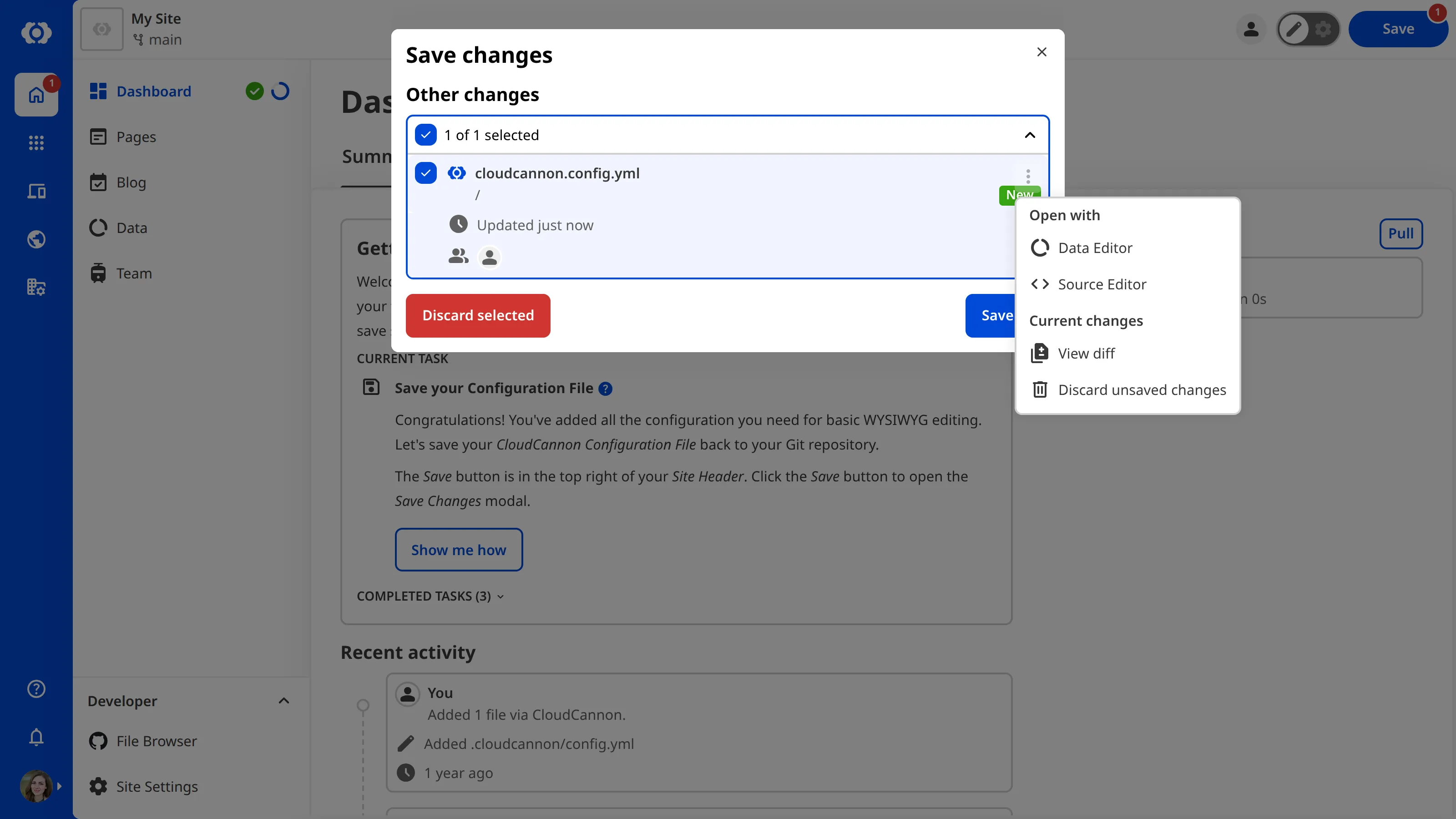
At the top left of each file Card is a checkbox, which controls whether the *Save* button will save changes to that file back to your Git repository. If you don't want to affect a particular file, you can untick the checkbox.
Click the *Save selected* button. CloudCannon will commit the changes to the selected files to your Git repository.
> We recommend saving the changes to your Site often, as this keeps your Git repository up to date.
And that's it! Your *Site* is all set up for WYSIWYG editing. In the next step of this guide, we'll direct you to resources for further configuration or user guides on how to edit your files in CloudCannon.
---
---
title: Tour your Site
description: Take a guided tour around the new Site you have made in CloudCannon.
url: https://cloudcannon.com/documentation/developer-guides/getting-started-with-cloudcannon/tour-your-site/
content_type: developer guide
last_modified: 2026-09-23
---
The next task in the *Getting Started with Editing* in-app guide is *Tour your new Site*, which points out important UI on your new *Site*. If you would rather continue configuring CloudCannon, feel free to skip this task.
Click the *Start your tour* button and let CloudCannon show you around.
## General *Site* UI
At the top of your *Site* is the *Site Header*, and on the left is the *Site Navigation* and *App Sidebar*.

The *Site Header* displays key information about your *Site* in the top left, such as your *Site* icon, name, and branch, and important tools in the top right, such as the *Avatars* of all the team members viewing a *Site* and the *Save* button. More tools will appear in your *Site Header* as you set up your *Site*.
The *Site Navigation* lists important pages on your *Site*, such as your *Site Dashboard*, *Collections*, *File Browser*, and *Site Settings*. More links can appear in your *Site Navigation* depending on the CloudCannon features you configure (e.g., *Publishing* or *Inbox*).

Finally, we introduced the *App Sidebar* in a [previous step of this guide](/documentation/developer-guides/getting-started-with-cloudcannon/your-organization-on-cloudcannon/) (the blue navigation bar on the far left). If you ever navigate away from your *Site* and need to find it again, you can click the *Sites* button in your *App sidebar* and use the *Sites Browser* to find it again.
## The *Site Dashboard*
The majority of your screen is taken up by your current *Site* page: in this case, the *Site Dashboard*. Your *Site Dashboard* is the homepage for your *Site*.
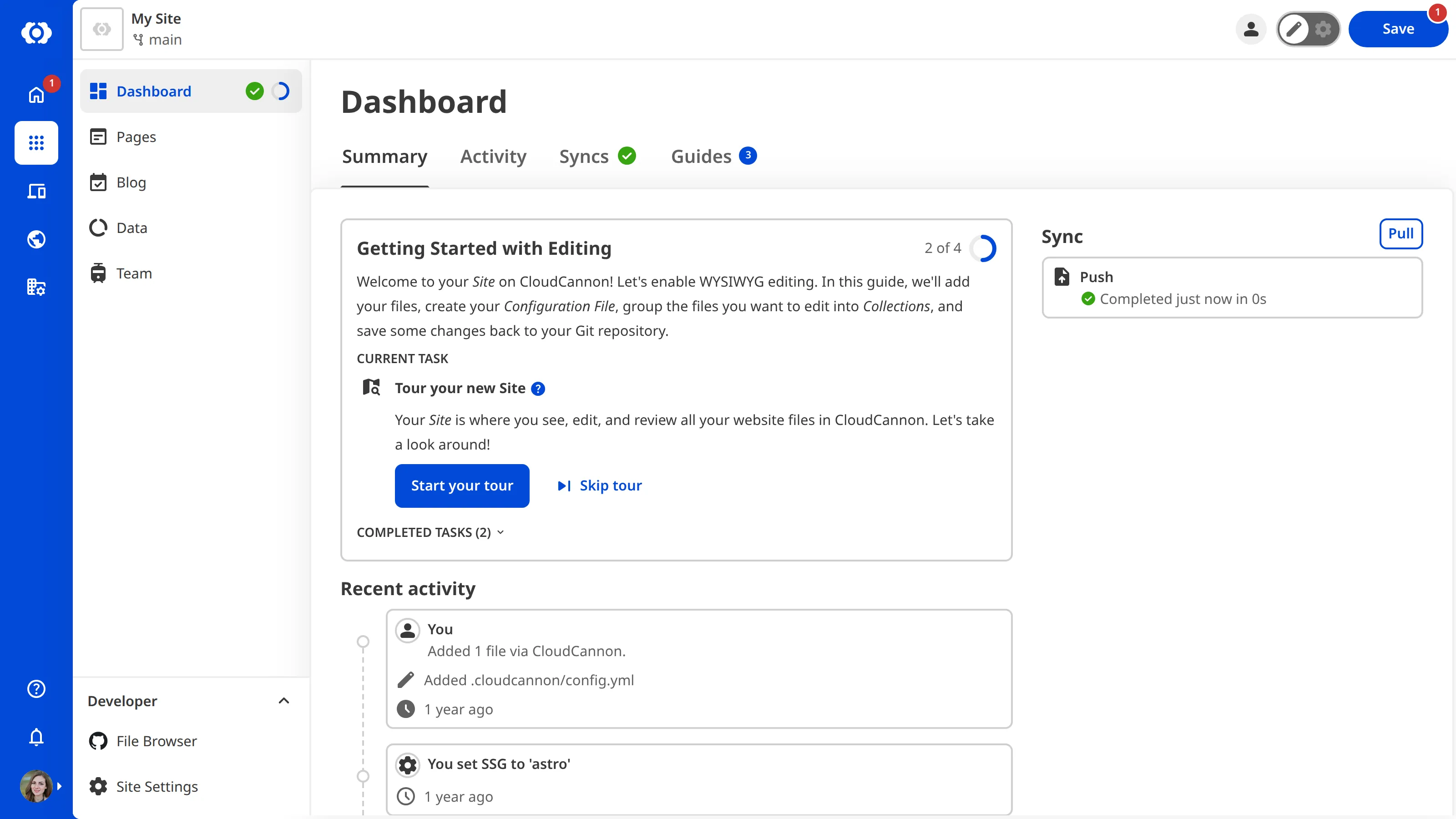
The *Site Dashboard* is the first link in your *Site Navigation*. Next to this link are the *Status* indicator and the *Guide progress* indicator, which show the status of your most recent sync or build, and how far you have progressed through your active in-app guide.

The *Site Dashboard* is broken down into several tabs, including *Summary*, *Activity*, *Syncs*, and *Guides*.

> Depending on how you configure your *Site*, additional tabs, such as *Builds* and *Build Deploys*, can appear on your *Site Dashboard*.
On the *Summary* tab of your *Site Dashboard*, CloudCannon will display summary information about your *Site*. For new *Sites*, CloudCannon has the *Getting Started with Editing* in-app guide in the center, with suggested tasks for configuring your *Site*. Underneath the in-app guide is a list of your recent activity. On the right, the *Summary* tab also gives a preview of your most recent sync.
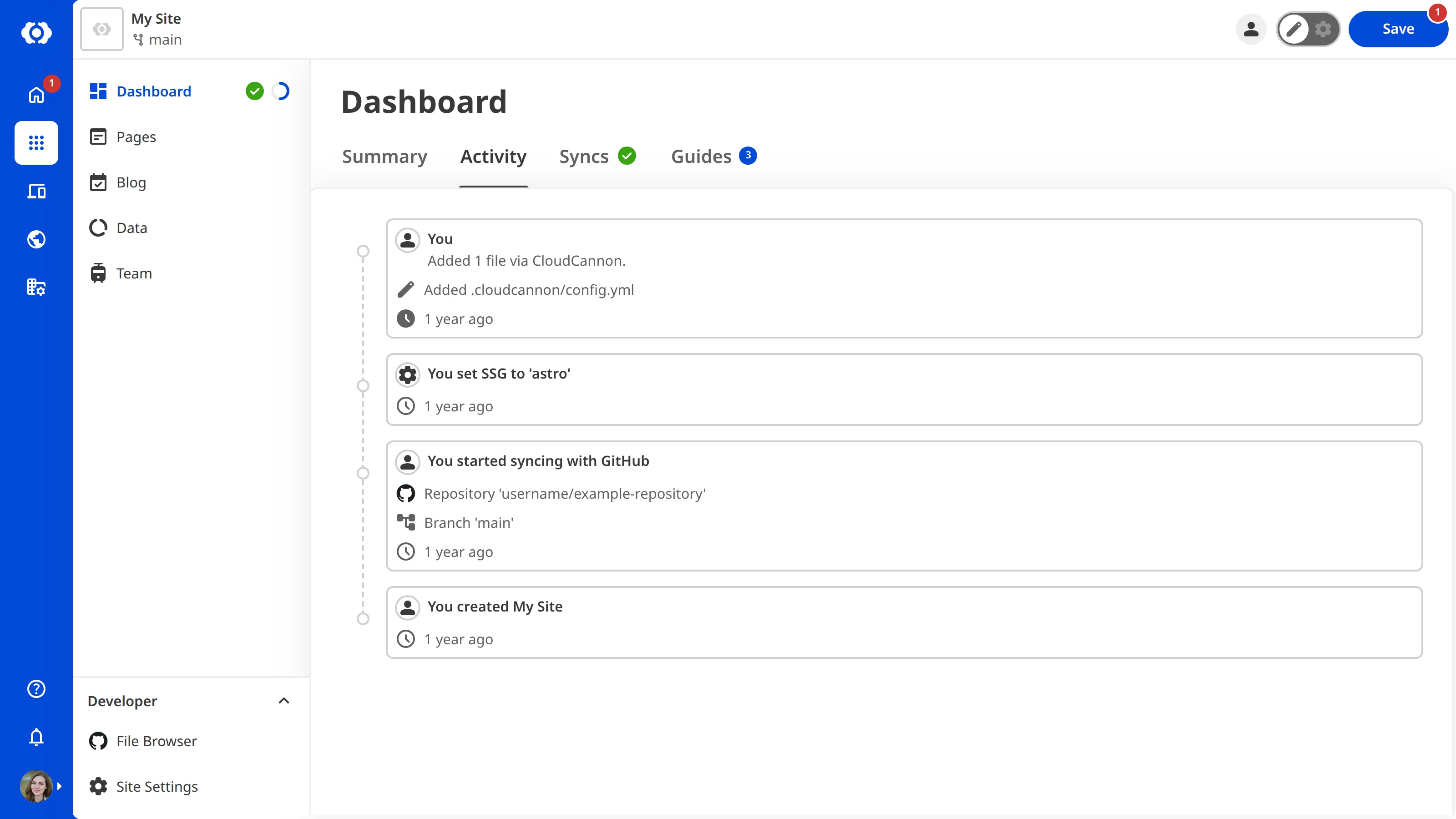
On the *Activity* tab of your *Site Dashboard*, CloudCannon will show you a list of recent activity on your *Site* in reverse chronological order. This list refreshes every time you sync your *Site* or update your *Site Settings*. This list includes:
- Every change made to your files from within CloudCannon or your Git provider (including the author, date, time, and commit message, if applicable).
- When your *Site* has Syncing or Output errors.
- Any changes made to your *Site Settings*, or *Branch* and *Publish Branch* settings.
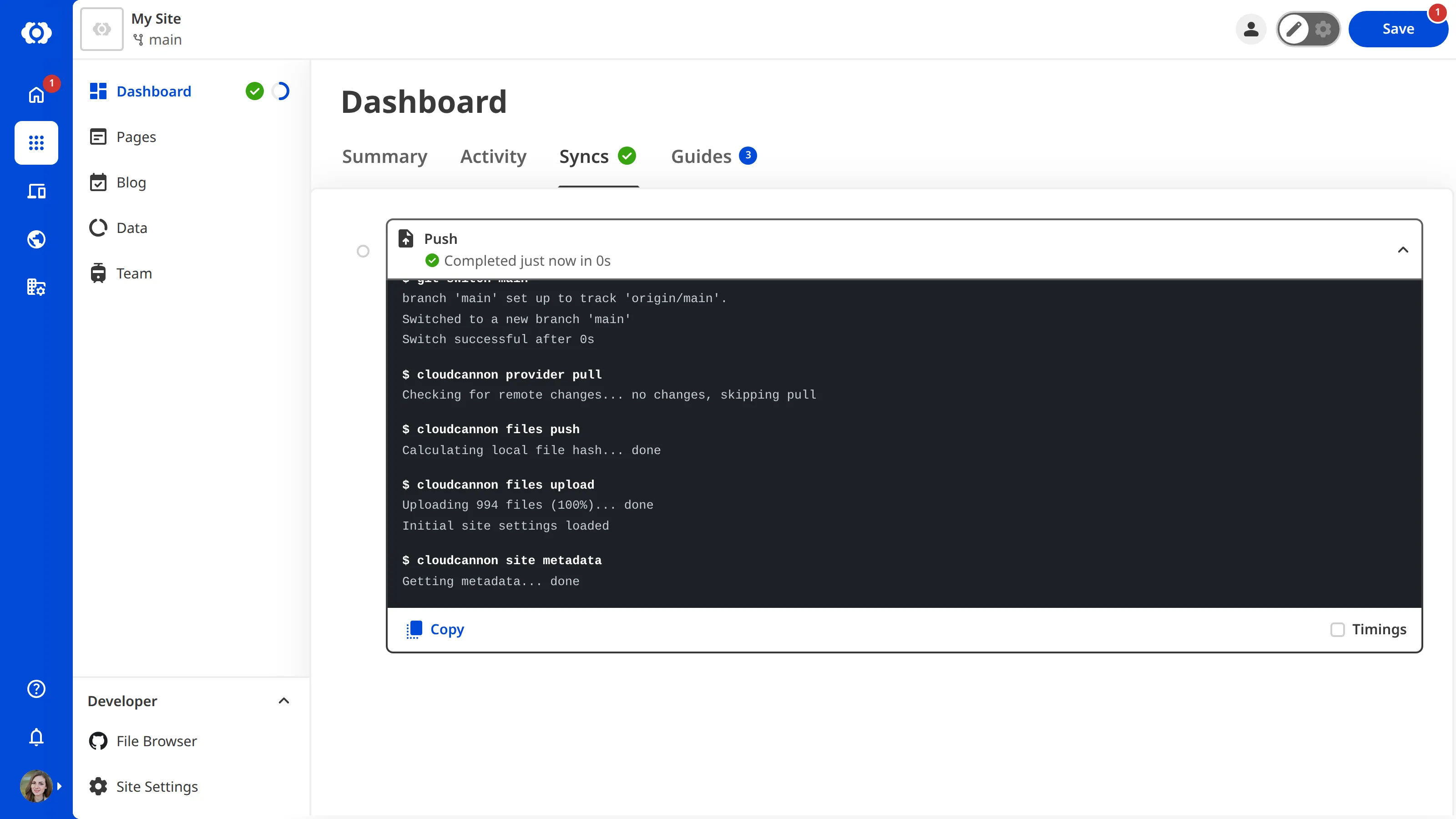
On the *Syncs* tab of your *Site Dashboard*, CloudCannon will show you a list of syncing logs for your *Site* in reverse chronological order.
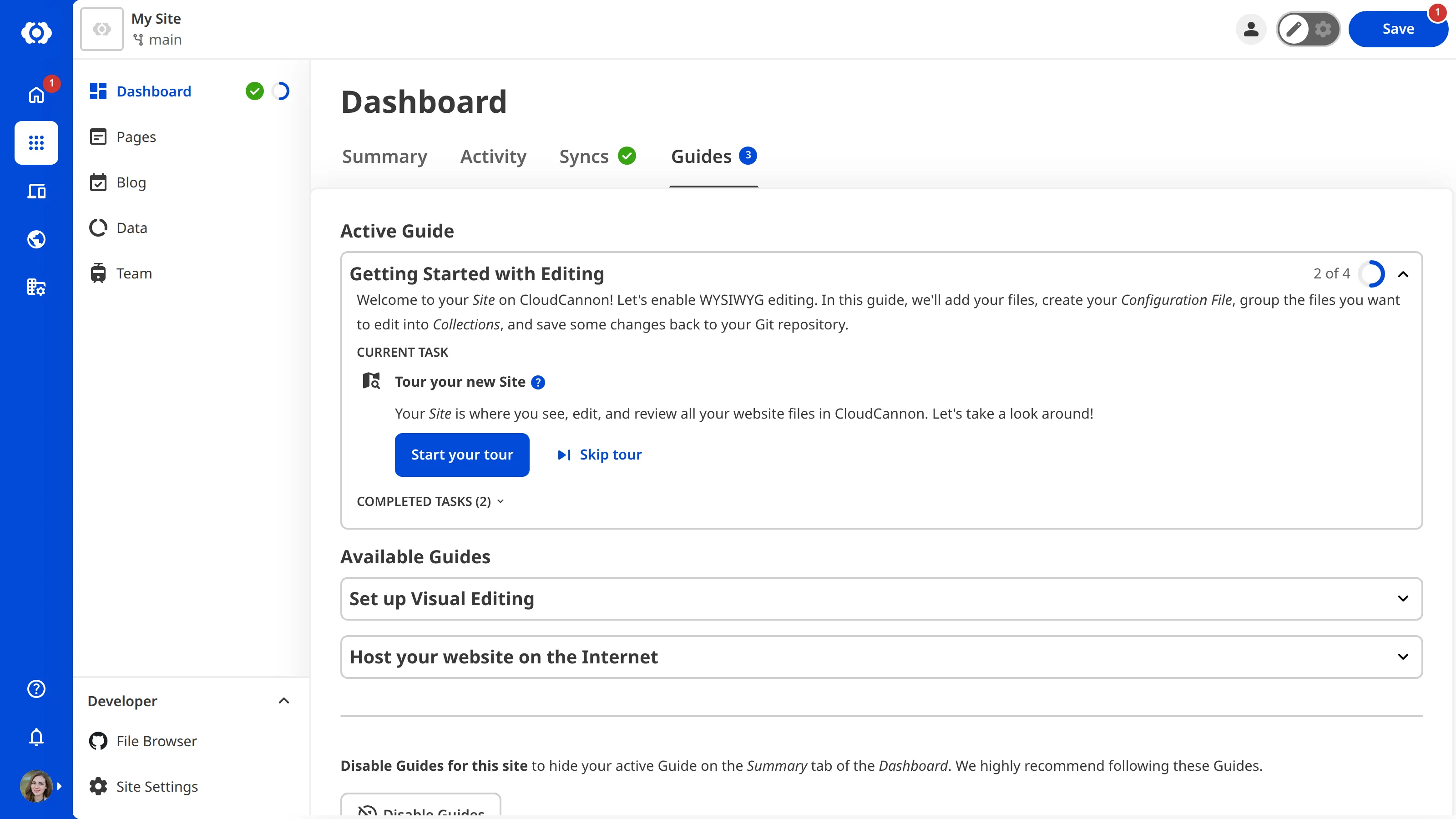
On the *Guides* tab of your *Site Dashboard*, CloudCannon will show you a list of in-app guides. You can see the number of available guides in a notification by the name of the tab.
Right now, we are working through *Getting Started with Editing*. There are several other guides you can follow to configure other features in CloudCannon after you have finished *Getting Started with Editing*.
## The *Collection Browser*
When you selected your *Collections* in the [previous step of this guide](/documentation/developer-guides/getting-started-with-cloudcannon/create-your-cloudcannon-configuration-file/), CloudCannon added them to your *Site Navigation*. Click on one to open your *Collection Browser.*
The *Collection Browser* allows you to browse, sort, and filter your *Collection* files, add new ones, and perform file actions like cloning or deleting. Each *Collection Browser* shows all the files in a single *Collection*, with each file represented by a customizable *File Card*.
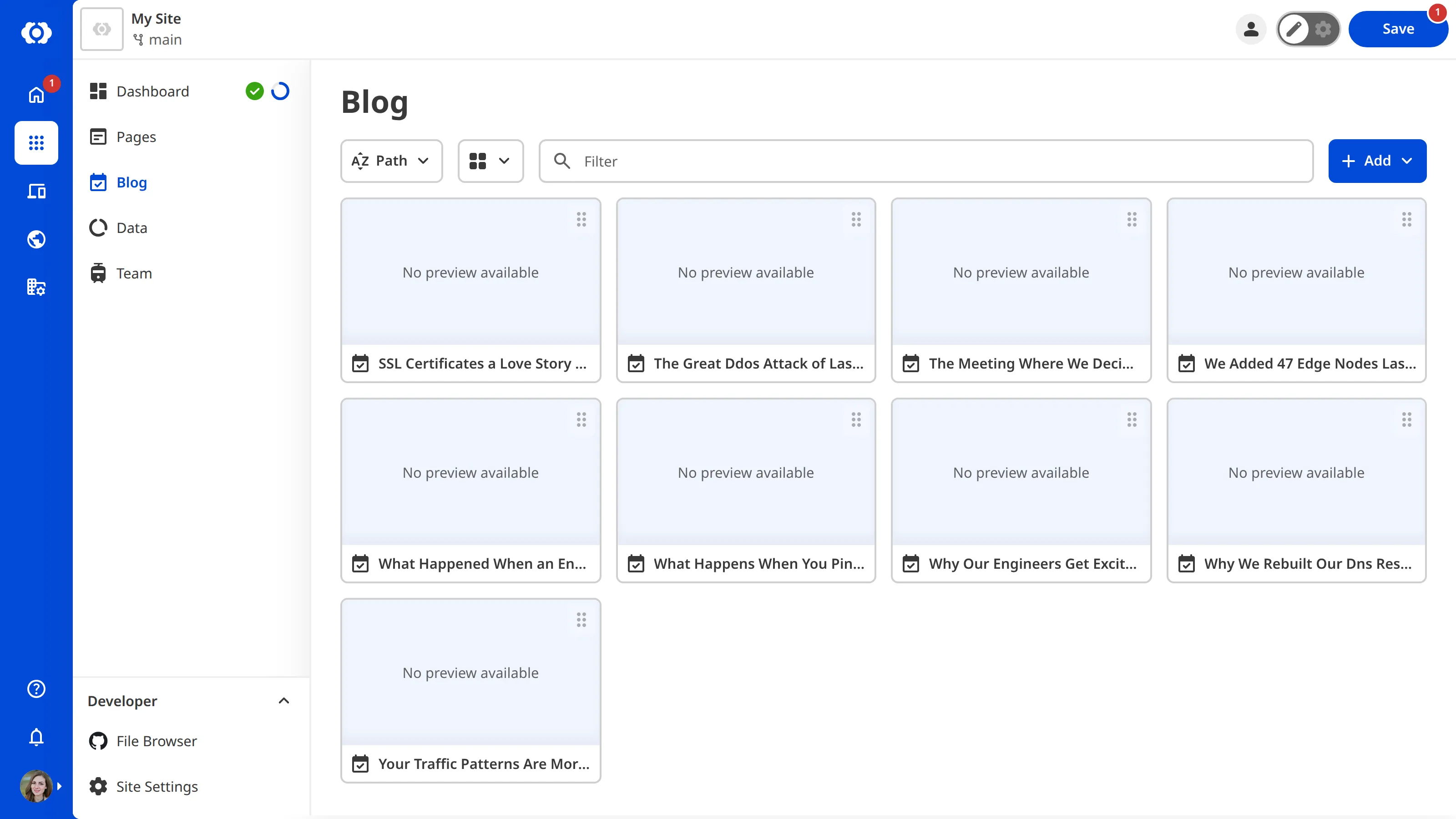
At the top of your *Collection Browser*, underneath your *Site Header*, is the *Collection Header*. This section contains important identifying information about your *Collection*, such as the *Name*, and *Documentation Link* or *Description* (if configured).
Under the *Collection Header* are the *Collection Browser Controls*: the *Sort* *menu*, *View* *menu*, *Filter* text field, and the *+ Add menu*.

The *Sort* *menu* lets you change how CloudCannon sorts your files in the *Collection Browser* (e.g., alphabetically by file path, numerically by file size, by date and time of file creation, or by date and time of last modification).
The *View* *menu* allows you to change how your files appear in the *Collection Browser*. You can switch between three view options: *List*, *Card*, and *Gallery*. By default, your *Collection Browser* uses the *Gallery* view. The gallery section of the *Card* can display an image from within the file or a preview screenshot of the webpage.
> The gallery section of your *File* *Card* can also display a "No preview available" or "Failed to load image" warning.
>
> "No preview available" indicates that the preview screenshot has not been configured. This will be the case for *Sites* that have not been built. We'll cover screenshots more in the [Set up Visual Editing](/documentation/developer-guides/set-up-visual-editing/) guide.
>
> "Failed to load image" indicates that an error has occurred, and CloudCannon could not load the preview screenshot. Refreshing your browser may fix this.
The *Filter* text field allows you to filter your *Collection* files to show file paths that match a given string.
The *+ Add* button allows you to add new files and folders to a Collection, which you can save back to your Git repository.
## Using *Configuration Mode*
CloudCannon allows you to customize almost everything about your *Site* to create the best editing experience for your team. Turn on *Configuration Mode* to configure your *Site* using the switch on the right of the *Site Header*.

When *Configuration Mode* is on, CloudCannon displays purple *Edit Configuration* buttons throughout the app. Each of these buttons allows you to configure a different UI element.
Let's take a look at the *Collection Browser*. Using *Configuration Mode*, you can update the name, icon, and description, the default file sorting, the appearance of your *File Cards*, and more.

You can also change your *Collections*. If you decide you want to add or remove a *Collection* from CloudCannon, you can return to the *Edit Collections* modal by clicking the *Edit Collections* button in the *Site Navigation*.
Go ahead and try configuring your *Collection*, or open a *Collection* file in an *Editing Interface* by clicking on the *File Card*. When you are ready, we'll cover saving your *Configuration File* back to your *Git Repository* in the next step of this guide.
---
---
title: More resources
description: Learn about other guides for setting up optional configuration in CloudCannon.
url: https://cloudcannon.com/documentation/developer-guides/getting-started-with-cloudcannon/more-resources/
content_type: developer guide
last_modified: 2026-09-23
---
Congratulations! 🎉
By following each step in this guide so far, you have set up basic WYSIWYG editing for your *Site* on CloudCannon. But there's a lot more to CloudCannon that we haven't covered yet. Check out the sections below for more resources to help you on your CloudCannon journey.
Thanks for finishing the *Getting Started with CloudCannon* guide! If you have any questions, please reach out to our friendly [support team](https://cloudcannon.com/support/) or check out the [CloudCannon Community](https://community.cloudcannon.com/). We're always here to help.
## User guides
Now that you have basic WYSIWYG editing set up on your *Site*, you can start using CloudCannon to manage your content. Here are a few guides to help you and your team learn important skills for working in CloudCannon.
- [Editing in CloudCannon](/documentation/user-guides/editing-in-cloudcannon/)— Learn how to edit your files in CloudCannon's Content, Data, or Source Editors and save those changes back to your *Git Repository*.
## Developer guides
There are so many more features you can configure in CloudCannon. While technically optional, we highly recommend reading through these other guides to figure out which configuration you need.
You can complete these guides in any order, but here's the order we suggest:
- [Set up Visual Editing](/documentation/developer-guides/set-up-visual-editing/) — Learn how to enable the Visual Editor by adding *Editable Regions* to your files, as well as configure builds for preview screenshots in your *Collection browsers*.
Most of these guides have in-app counterparts. You can find a complete list of guides that configure your *Site* (rather than your *Organization*) under the *Guides* tab on your *Dashboard*. You can also see your current in-app guide on the *Summary* tab by marking it as active.
---
---
title: Introduction
description: Learn how to set up Google Authentication for your CloudCannon Sites.
url: https://cloudcannon.com/documentation/developer-guides/google-saml-site-authentication/
content_type: developer guide
last_modified: 2026-09-23
---
At CloudCannon, we use Google Workspace (formerly G Suite) to manage our emails and calendars, as well as collaborate and share files through services like Google Drive. When new team members join, they receive access to our internal documentation and staging websites, hosted through CloudCannon.
These sites are secured with SAML authentication through Google, ensuring only authorized CloudCannon members can access them. When someone on our team leaves (😭), disabling their Google Workspace account automatically revokes their access to the internal websites.
You can use the same setup for your Site!
## What is SAML authentication?
SAML authentication is an excellent way to limit access to your website content to members of your team. SAML (or Security Assertion Markup Language) authentication requires visitors to your Site to log in with a third-party Single Sign-On ([SSO](/documentation/developer-articles/what-is-sso-saml/)) account.
SAML authentication works by allowing CloudCannon to authenticate a user's identity with an Identity Provider software (in this case, Google Workspace) when they try to log in to your website.
Here are some terms you will need to know:
- **User** — The person who wants to access the content on your website.
- **Identity Provider** — The cloud software that will authenticate the user’s identity, in this case Google Workspace. Users must already have a login for this software.
- **Service Provider** — The cloud application a user wants to log in to, in this case your CloudCannon-hosted website.
> CloudCannon also supports SAML authentication for CloudCannon app access. This feature is available on our [Enterprise plan](https://cloudcannon.com/pricing/). If this is what you're looking for, please read our documentation on [SSO/SAML](/documentation/developer-articles/what-is-sso-saml/) or reach out to our friendly [support team](https://cloudcannon.com/support/).
To configure SAML authentication for your Site, you will need to generate a certificate through Google Workspace.
In this guide, we'll teach you how to create a SAML App in Google Admin Console and configure SAML authentication for a Site hosted through CloudCannon. As a bonus, we'll also teach you how to create authenticated routes if you want some parts of your website to remain publicly available while others require authentication.
This guide assumes you already have a Site hosted on CloudCannon.
---
---
title: Add SAML authentication to your CloudCannon-hosted Site
description: Enter your SAML certificate details in CloudCannon.
url: https://cloudcannon.com/documentation/developer-guides/google-saml-site-authentication/configure-saml-authentication-for-cloudcannon/
content_type: developer guide
last_modified: 2026-09-23
---
Next, we'll enable SAML authentication on your CloudCannon-hosted Site using the details from the previous step.
1. Log in to [CloudCannon](https://app.cloudcannon.com/) and open your Site.
2. Navigate to the *Authentication* page under *Site Settings*.
3. Click on the *Authentication method* dropdown and select the *SAML* option.
4. Click the *Switch to SAML authentication* button to confirm your choice.
5. Enter the SAML certificate details:
- Enter the *SSO URL* in the *SAML 2.0 Endpoint (HTTP)* text field.
- Leave the *Issuer Suffix* field blank.
- Enter the IdP certificate in the *X.509 Certificate* text field. Alternatively, you can click the *Fill cert using XML Metadata* button to upload the certificate.
6. Click the *Update SAML Configuration* button.

CloudCannon will now redirect visitors to your Google Workspace login page.
Congratulations! Your site is now secured with Google authentication. Only members of your Google Workspace organization can access it. Test the setup by visiting your site and attempting to log in.
If you need any help with this setup, please contact our friendly [support team](https://cloudcannon.com/support/).
But what if you have a website that needs authentication for some pages (e.g., a Staff Only section) and leaves other pages publicly accessible? In the next step of this guide, we'll show you how to configure authenticated routes for your CloudCannon-hosted website.
---
---
title: Configure SAML authenticated routes
description: Configure authenticated routes to only require authentication on some parts of your website.
url: https://cloudcannon.com/documentation/developer-guides/google-saml-site-authentication/configure-saml-authenticated-routes/
content_type: developer guide
last_modified: 2026-09-23
---
> This step is optional!
If you want some parts of your website to require authentication and other parts to be publicly accessible, CloudCannon allows you to configure authenticated routes. You can control which pages, or groups of pages require authentication.
As we have already set our authentication method to SAML in the previous section of this guide, all the authenticated routes you configure will require visitors to sign in with their Google Workspace credentials.
## Create a list of paths that require authentication
You can specify which URLs on your Site require authentication using the URL path. URL paths are made up of zero or more subdirectories and the slug for the current web page. You can use the wildcard `*` character to specify any number of pages or subdirectories.

For this guide, we want to configure authentication for every page in the "Staff" section of our website, and the "Internal Announcements" page. The URLs for these pages are `https://example.com/staff/*` and `https://example.com/internal-announcements.html`.
We only need the path information to create authenticated routes, so we can remove the domain name from the URLs to leave the following:
- `/staff/*`
- `/internal-announcements.html`
Which paths require authentication on your Site? Create a list.
## Configure authenticated routes
In CloudCannon, you can specify authenticated routes in the `auth-routes.txt` file. This file should be in the root directory of your output Site. Where this is in your Site repository will depend on your SSG (e.g., the root of the repository for Jekyll, the static folder for Hugo, etc.).
1. Log in to [CloudCannon](https://app.cloudcannon.com/) and open your Site.
2. Navigate to the root directory of your output Site using the *File browser*.
3. Create a file called `auth-routes.txt`.
4. For each URL you want to authenticate, add the path on a new line of the file.
5. Save the file to your Site.
CloudCannon will now require authentication on the routes specified in the `auth-routes.txt` file.
Here is an example of a basic authenticated routes file:
File: `auth-routes.txt`
```
/staff/*
/internal-announcements.html
```
---
---
title: Create a Google Workspace SAML App
description: Create a custom SAML App in your Google Admin Portal to handle authentication requests from your website.
url: https://cloudcannon.com/documentation/developer-guides/google-saml-site-authentication/create-a-google-workspace-saml-app/
content_type: developer guide
last_modified: 2026-09-23
---
Google Workspace allows you to create a dedicated SAML App to handle authentication. If you want to, you can follow [Google’s instructions](https://support.google.com/a/answer/6087519?hl=en) directly.
> You need to be signed in with a super administrator’s account to complete this section of the guide.
## Create a custom SAML app
1. Log in to the [Google Admin Portal](https://admin.google.com/) using your super administrator account.
2. Under the *Menu*, select *Apps* then *Web and mobile apps*.
3. Click *Add App* and select the *Add custom SAML app* option from the dropdown.
4. On the *App details* page, enter the name of your app. We recommend something memorable, like "[website name] SAML authentication".
5. Click *Continue*.
6. On the *Google Identity Provider details* page, download or copy the following information:
- *IDP metadata*
- *Certificate*
- *SSO URL*
7. Click *Continue*.
For this guide, we want our users to be able to log in to our staging website: `staging.example.com`. Replace this example URL with the domain you want to authenticate.

8. On the *Service Provider Details* page, enter the following details:
- `https://staging.example.com/login/consume` in the *ACS URL* text field.
- `cloudcannon.com/` in the *Entity ID* text field.
- (Optional.) `https://staging.example.com/` in the *Start URL* field. This URL is where Google will redirect users to once they have logged in.
9. Check the *Signed response* box.
10. In the *Name ID format* dropdown, select the *EMAIL* option.
11. In the *Name ID* dropdown, select the *Basic Information > Primary email* option.
12. Click *Continue*.
13. On the *Attribute mapping* page, click the *Finish* button.
## Turn on the SAML app
1. Under the *Menu*, select *Apps* then *Web and mobile apps*.
2. Select the SAML App you just created, and click *User access*.
3. Click the *On for everyone* option, then *Save*.
Once you’ve saved your settings, it can take a few minutes for your changes to take effect.
---
---
title: Introduction
description: Learn how to set up visual editing for your website on CloudCannon.
url: https://cloudcannon.com/documentation/developer-guides/set-up-visual-editing/
content_type: developer guide
last_modified: 2026-09-23
---
Welcome to CloudCannon's Set up Visual Editing guide!
This guide covers everything you need to configure to edit files with CloudCannon's [Visual Editor](/documentation/user-articles/what-is-the-visual-editor/). Visual editing provides the most intuitive editing experience, allowing you to make changes directly on an interactive preview of your webpage.
[Video: The Visual Editor with editable regions](https://player.vimeo.com/progressive_redirect/playback/1124969057/rendition/1080p/file.mp4?loc=external&signature=18a05ed71665768fa94851c72a31cf574e4079284b8ce0579885d8f3b47c4a8d)
With the Visual Editor, you can update plain text, rich text, and images inline on your page, edit, reorder, and remove array items (including page building), and navigate between your webpages just as you would on your live website. The biggest benefit of visual editing is that what you see in the Visual Editor is exactly what your visitors will see on a webpage. This means you can make decisions about your content in context.
In this guide, we'll cover:
- How the Visual Editor works.
- How to generate the previews of your webpages by building your *Site* through CloudCannon.
- How to check your *Collection* files output to an HTML webpage.
- How to define editable regions on a webpage for your content managers to use in the Visual Editor.
Before we begin, this guide assumes that you have completed the *Getting Started with Editing* in-app guide, know the correct build settings for your *Site*, and are comfortable editing HTML layouts, either in CloudCannon's Source Editor or your local development environment.
This guide has an in-app counterpart, *Set up Visual Editing*, which you can find on the *Guides* tab of your *Site Dashboard*. We recommend you mark the in-app guide as active now, so you can follow configuration prompts in CloudCannon.

> **Don't have WYSIWYG editing set up yet?**
>
> If you aren't quite ready to configure Visual Editing, check out our [Getting Started](/documentation/developer-guides/getting-started-with-cloudcannon/) guide!
---
---
title: Configure your build settings
description: Learn how to enable Site builds on CloudCannon and configure your build settings for visual editing.
url: https://cloudcannon.com/documentation/developer-guides/set-up-visual-editing/configure-your-build-settings/
content_type: developer guide
last_modified: 2026-09-23
---
Before you can use the Visual Editor, you must have at least one successful build on CloudCannon.
Let's configure your build settings and complete a successful build. If you have already met these requirements, such as by completing the Host your website on the Internet guide, you can skip this step of the guide.
## Configure your build
To build your *Site*, CloudCannon needs to know a few details about how your website functions.
Click the *Configure your build* button in your in-app guide under the *Configure your Site's build settings* task.
CloudCannon will open the *Configure your build* modal.
CloudCannon can make suggestions for your build settings based on the SSG your *Site* uses and the contents of your files. You can enter your own build settings or accept a suggestion by clicking the *Use* button, and CloudCannon will populate the text field. If you are unsure about the correct build settings for your *Site*, please contact your developer or reach out to our friendly [support team](https://cloudcannon.com/support/).

Under the *Command line options* section, enter your *Install Command*, *Build Command*, *Output Path*, and *Environment Variables*. CloudCannon requires a value for *Output Path*.
Under the *Build system options* section, enter your *Preserved Paths*, and choose whether you want to enable the *Preserve Output*, *Include .git folder*, and *Manually Configure URLs* settings.
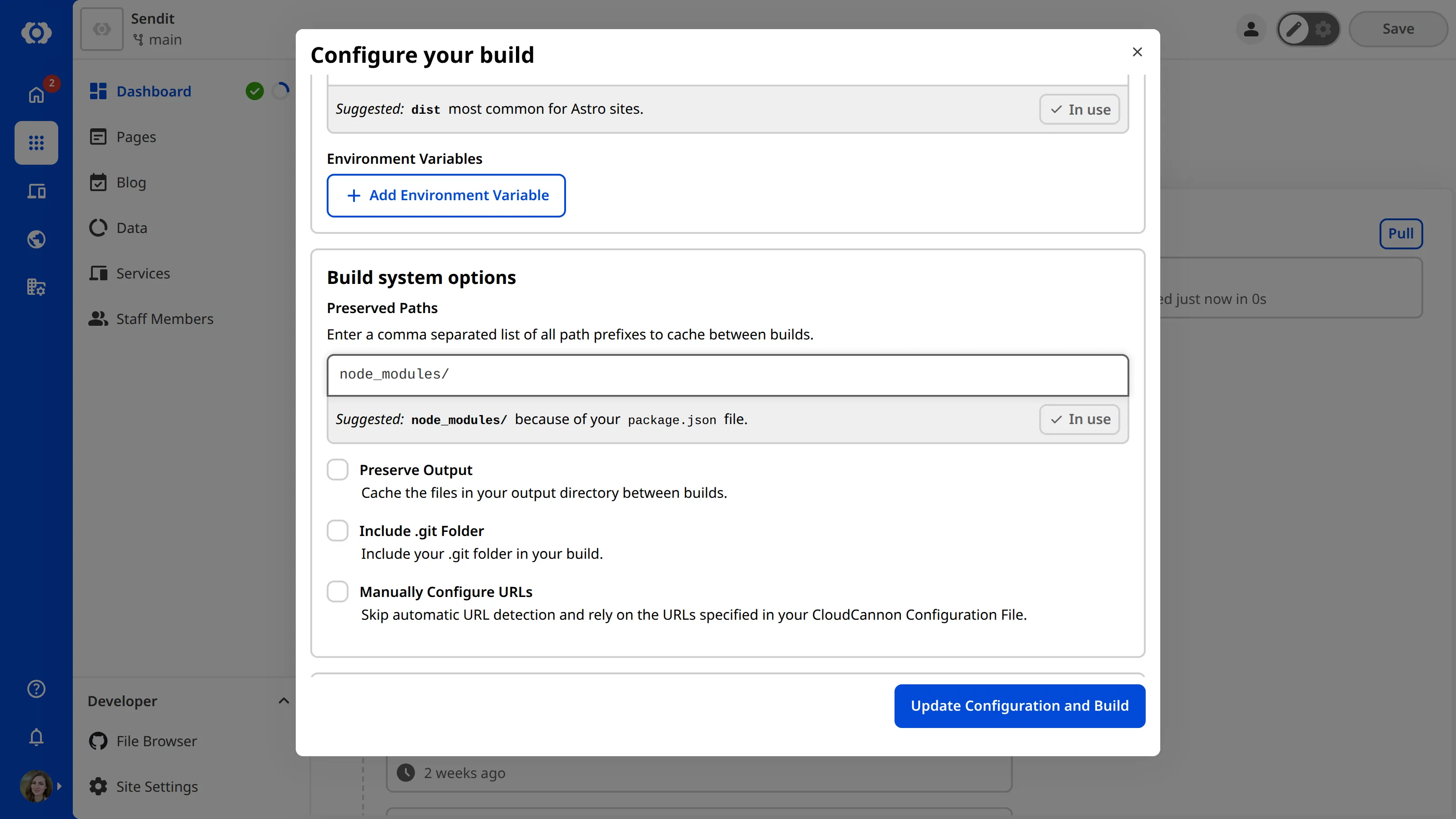
Finally, under the *Library Versions* section, review the versions of *Hugo*, *Ruby*, *Node*, and *Deno*. If your website uses any of these libraries, please ensure the version number is correct.
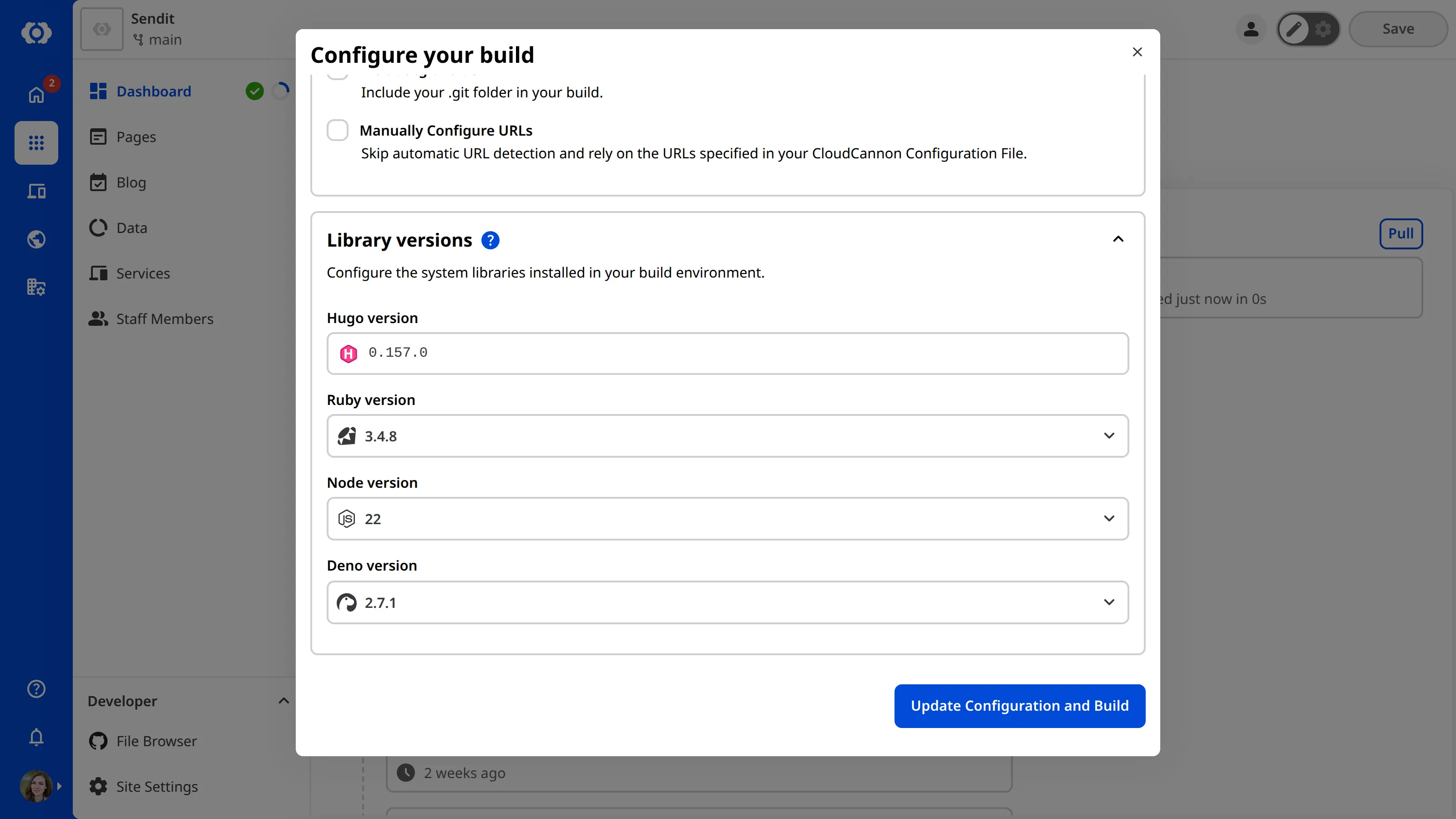
When you are happy with your answers, click the *Update Configuration and Build* button. CloudCannon will start your first *Site* build using the configuration you defined.
## Your first build
Your first *Site* build should start immediately.
Whenever CloudCannon is building your *Site*, the *Building...* notification will appear in the bottom right of your screen. Clicking on the *View output* button on this notification will open the *Build output* modal.

The *Build output* modal displays the *Build log* for your current build. *Build logs* are useful for keeping track of your build progress and diagnosing any issues if your build fails.

You can access a list of all your past *Build logs* on the *Builds* tab of your *Site Dashboard*. CloudCannon added this tab to your *Dashboard* after you configured your first build.

You can also see the progress of your most recent build on the *Summary* tab of your *Dashboard*, on the right under *Build*. You can trigger a new build at any time using the *Rebuild* button on the *Site Dashboard* or cancel a running build using the *Cancel build* button.
If your build fails, please reach out to our friendly [support team](https://cloudcannon.com/support/).
Once you have a successful build, a link to your [Testing Domain](/documentation/user-articles/what-is-a-testing-domain/) will appear in your *Site Header*. You can click on this to see your live website in a new tab.

In the next step of this guide, we'll take a look at your output files and make sure CloudCannon has generated all the webpage previews you need for the Visual Editor.
---
---
title: An overview of Editable Regions
description: Learn about the HTML attributes and web components used to define Editable Regions, including best practices for updating your files.
url: https://cloudcannon.com/documentation/developer-guides/set-up-visual-editing/an-overview-of-editable-regions/
content_type: developer guide
last_modified: 2026-09-23
---
*Editable Regions* enable you to define exactly which data should be visually editable. When you update content in an *Editable Region* (or using the data panel or sidebar), CloudCannon will re-render that section of your webpage to keep the preview up to date. It doesn't matter where you store your data; *Editable Regions* work for values in HTML, structured data in front matter or data files, and Markup content.
Defining *Editable Regions* in your files is as simple as adding an HTML attribute to any DOM element (e.g., `
`) or inserting a web component in any file in your website that outputs to HTML (e.g., ``). You can make an entire *Collection* of content files visually editable in minutes.
[Video: The Visual Editor with editable regions](https://player.vimeo.com/progressive_redirect/playback/1124969057/rendition/1080p/file.mp4?loc=external&signature=18a05ed71665768fa94851c72a31cf574e4079284b8ce0579885d8f3b47c4a8d)
Let's cover some of the basics of *Editable Regions*, including best practices for adding them to your files.
## Types of *Editable Regions*
There are six types of *Editable Region*, each of which can be defined by an HTML attribute or a web component.
- **Source Editable Regions** — Enable you to edit text values stored in HTML, with plain text or rich text formatting options.
- **Text Editable Regions** — Enable you to edit text values stored in structured data files, front matter, or Markup content, with plain text or rich text formatting options.
- **Image Editable Regions** — Enable you to edit image values stored in structured data files or front matter, including uploading images from your local storage, selecting existing images from your repository or DAM, and managing image details like title or alt text.
- **Array and Array Item Editable Regions** — Enable you to edit array values stored in structured data files or front matter, including adding, removing, and reordering array items. You can also nest Text, Image, Array, and Component *Editable Regions* inside array items to edit array content.
- **Component Editable Regions** — Enable you to edit registered Astro or React components. You can also nest Text, Image, Array, and Component *Editable Regions* inside your components to edit component content.
In this guide, we'll show you how to define each type of *Editable Region* using HTML attributes or web components. For a complete list of HTML attributes, please read our [Editable Regions](/documentation/developer-reference/editable-regions/) reference documentation.
## Best practices for defining *Editable Regions*
To avoid common pitfalls, here is a list of best practices for defining *Editable Regions*. If you have any questions, please don't hesitate to reach out to our friendly [support team](https://cloudcannon.com/support/) or start a conversation in the [CloudCannon Community](https://community.cloudcannon.com/).
### Don't change your data structure
When adding *Editable Regions* to your website files, you don't need to change your file structure or data format. *Editable Region* HTML attributes should work seamlessly with your existing layouts and files, and web components should integrate into your files with minimal disruption.
Additionally, you can migrate to visual editing gradually by adding a few *Editable Regions* for key values, then adding more as needed.
### Add *Editable Regions* to HTML and templating files
Depending on your SSG, the format and extension of the files in your website may differ (e.g., Astro uses `.astro` files, Eleventy uses `.liquid` files). As long as they output to an HTML file after a Site build, you can add *Editable Regions* to any file that contains HTML content and templating.
Many websites also have a content *Collection* (e.g., a blog) where each file has front matter and content that populate templating fields in a layout file at build time. You can make the whole *Collection* visually editable by adding *Editable Regions* to the layout file, rather than the content files themselves.
### Start from the root of your file
A key part of defining *Editable Regions* is telling CloudCannon where your data is stored. CloudCannon calculates the path to your data properties relative to parent elements in your file.
To avoid misconfiguration issues where CloudCannon cannot find the data property you want to edit, it is best to start from the values closest to the root of the file (i.e., work from the parent elements to child elements) when you add *Editable Regions* to your files.
We recommend the following process:
1. Choose a layout file you want to set up visual editing for.
2. Add all the *Editable Regions* required for values in this file, excluding any values nested inside an array or component/partial/include.
3. Add *Editable Regions* to parent elements that contain values you want to edit visually, such as arrays or components/partials/includes.
4. Finally, open any files referenced by the first layout and continue adding *Editable Regions* as per steps 2 and 3 until you reach the end of your file cascade.
Adding *Editable Regions* to a nested component first, without adding the appropriate *Editable Regions* for parent elements, will result in an error.
In the next step of this guide, we'll cover how to define *Editable Regions* for text values stored in HTML, structured data, or Markdown.
---
---
title: Visually edit complex arrays and page building
description: Learn how to define Array, Array Item, and Component Editable Regions to add, delete, and reorder array items in a complex array.
url: https://cloudcannon.com/documentation/developer-guides/set-up-visual-editing/visually-edit-complex-arrays-and-page-building/
content_type: developer guide
last_modified: 2026-09-23
---
We've covered how to use Array, Array Item, and Component *Editable Regions* in the previous steps of this guide. We can use these *Editable Regions* in conjunction to enable visual editing for a complex array.
Array items in complex arrays can have different structured data keys. Complex arrays are often used to create a page-building experience, where each array item represents a block of content on your page. To enable visual editing for a complex array, including adding, deleting, and reordering items in the Visual Editor, we need to add Array, Array Item, and Component *Editable Regions*.
> **Nested text or image values in an array**
>
> To avoid `data-prop` misconfiguration errors, it is best practice to define your *Editable Regions* from the root of your file first (i.e., from parent elements to child elements). If you want to edit text or image values in an array using the Visual Editor, you should define your Array and Array Item *Editable Regions* on the parent element before Text and Image.
## Arrays with different array items
Just like simple arrays, complex array content is defined using structured data keys in the front matter of hybrid files (e.g., `.mdx`) or in data files (e.g., `.yml`) and referenced by templating in a layout file. Simple arrays have the same structured data keys for every array item.
Let's take a look at an example.
Our website has an "About" page, where we display information about our company. We use a complex array to build this page, allowing us to add several different kinds of content blocks. The data for these content blocks is stored in the front matter of a Markdown file using array items with different structured data keys.
Here is our content file, `about.md`, containing the `contentBlocks` array.
File: `about.md`
```Markdown
---
layout: ../layouts/AboutLayout.astro
contentBlocks:
- _name: HeroBlock
title: We're on a mission
description: Lorem ipsum dolor sit amet, consectetur adipiscing elit. Fusce lobortis mi sed est dapibus, sit amet consectetur quam euismod. Cras pretium quam vitae malesuada placerat. Curabitur ac sagittis ligula. Nunc sed ultrices leo. Vestibulum malesuada lobortis nisl, a feugiat est viverra et.
- _name: StatsBlock
stats:
- figure: $200m
text: Venture capital raised
- figure: "2016"
text: Established in
- figure: 40+
text: Amazing team members
- figure: 44325+
text: Active users and growing
- _name: ContactBlock
text: Want to get in contact with us?
button: Click here
image: https://preview.astro.new/blog/_astro/blog-placeholder-about.BtEdEmGp_1cKsnD.webp
---
```
Content from each array item in the `contentBlocks` array populates a component specific to that block. Here are the component files we use for our three blocks: Hero, Stats, and Contact.
File: `HeroBlock.astro`
```Astro
---
const { title, description } = Astro.props;
---
```
Finally, our page layout file, `AboutLayout.astro`, loops over all the items in the `contentBlocks` array, finds the appropriate layout for each item and populates that component using values from `about.md`. Here is an excerpt from our About layout file.
File: `AboutLayout.astro`
```Astro
---
const components = {};
const componentImports = import.meta.glob("../components/**/*.astro", {
eager: true,
});
Object.entries(componentImports).forEach(([path, obj]) => {
const name = path.replace("../components/", "").split(".")[0];
components[name] = obj.default;
});
const { contentBlocks } = Astro.props.frontmatter;
---
{
contentBlocks.map((block) => {
const Component = components[block._name];
return (
);
})
}
```
Together, these files output a webpage that looks like this:

To enable visual editing for this complex array, we can add Array, Array Item, and Component *Editable Regions*.
Let's start by registering our content blocks as components.
Just like the [previous step of this guide](/documentation/developer-guides/set-up-visual-editing/visually-edit-components/), we need to install CloudCannon's *Editable Regions* NPM package and update our Astro config file (if applicable). Next, we can create a registration script including each of our content blocks, informing CloudCannon that they should be bundled for client-side use in the Visual Editor.
File: `src/scripts/register-components.js`
```JavaScript
```
import { registerAstroComponent } from '@cloudcannon/editable-regions/astro';
import '@cloudcannon/editable-regions/astro-react-renderer'; /*1*/
import HeroBlock from '../components/HeroBlock.astro';
import StatsBlock from '../components/StatsBlock.astro';
import ContactBlock from '../components/ContactBlock.astro';
// Register your components
registerAstroComponent('HeroBlock', HeroBlock);
registerAstroComponent('StatsBlock', StatsBlock);
registerAstroComponent('ContactBlock', ContactBlock);
```
**[1]** This import is only necessary if you use React components nested inside your Astro components.
```
Finally, we can add *Editable Regions* to our `AboutLayout.astro` file.
The `` element wraps the array in our layout file, with its contents looping over every array item stored under the `contentBlocks` key. Like a simple array, let's add the `data-editable="array"` and `data-prop="contentBlocks"` HTML attributes to the `` DOM element. For a complex array, we also need to add the `data-id-key` and `data-component-key` HTML attributes. The `data-id-key` attribute defines which structured data key CloudCannon should look at for each array item's unique identifier. The `data-component-key` defines which structured data key CloudCannon should look at for the name of the registered component. For simplicity's sake, we registered our components using the same name as the unique identifier, so the value for both these attributes is `_name`.
The `` element wraps each array item in our layout file. Like a simple array, let's add the `data-editable="array-item"` HTML attribute to the `` DOM element. For a complex array, we also need to add the `data-id` and `data-component` HTML attributes. These attributes define the unique identifier of an array item and the name of a component, respectively. We need these fields to populate for each array item at build time, so the value for both these attributes will be the templating `{block._name}`.
Here's what our layout file should look like:
File: `AboutLayout.astro`
```Astro
---
const components = {};
const componentImports = import.meta.glob("../components/**/*.astro", {
eager: true,
});
Object.entries(componentImports).forEach(([path, obj]) => {
const name = path.replace("../components/", "").split(".")[0];
components[name] = obj.default;
});
const { contentBlocks } = Astro.props.frontmatter;
---
{
contentBlocks.map((block) => {
const Component = components[block._name];
return (
);
})
}
```
If we also want to visually edit the text and images inside each array item, we can define Text and Image *Editable Regions* for in each of the layout files defining our content blocks: `HeroBlock.astro`, `StatsBlock.astro`, and `ContactBlock.astro`.
Once we save and rebuild our *Site*, CloudCannon will show a yellow *Editable Regions* box around each array item, and around the content inside each array item.
We can now build pages in the Visual Editor. We can add or delete content blocks, and reorder the content blocks in the array using the options in the *Edit* menu, or the *Drag* handler.
## Common errors
If you accidentally misconfigure your *Editable Regions*, CloudCannon will display a red warning box in the Visual Editor.
Here are a few common errors you might encounter with Array *Editable Regions*:
- You did not define the `data-prop` HTML attribute.
- You did not define the `data-id-key` or `data-id` HTML attributes for a complex array.
- You cannot render new array items in the Visual Editor, because you did not define the `data-component-key` or `data-component` HTML attributes.
- The *Editable Region* has an invalid data type (e.g., your Text region has a number or object, instead of a string).
- You have one or more orphaned Array Item *Editable Regions* that are not contained within an Array *Editable Region*.
And that's it! Your *Site* is built, has output *Collections*, and you have learnt how to apply every type of *Editable Region* to enable visual editing. In the next step of this guide, we'll direct you to resources for further configuration or user guides on how to edit your files in CloudCannon.
---
---
title: Visually edit components
description: Learn how to define Component Editable Regions to enable component live re-rendering in the Visual Editor.
url: https://cloudcannon.com/documentation/developer-guides/set-up-visual-editing/visually-edit-components/
content_type: developer guide
last_modified: 2026-09-23
---
> Currently, Component *Editable Regions* are only available for Astro and React. We are working to support more types. Please get in touch with our friendly [support team](https://cloudcannon.com/support/) to make a request.
Many static websites use reusable code components (a.k.a., partials) ranging from a small snippet of HTML, to UI elements like a header, profile card, or an entire page layout.
You can use the Component *Editable Regions* to re-render changes to your components in the Visual Editor, or enable inline editing of component text and images in conjunction with other *Editable Regions*. Let's cover how to define one.
> **Nested text or image values**
>
> To avoid `data-prop` misconfiguration errors, it is best practice to define your *Editable Regions* from the root of your file first (i.e., from parent elements to child elements). If you want to edit text or image values in a component using the Visual Editor, you should define your Component *Editable Region* on the parent element before Text and Image.
## Install the NPM package
Before you can use Component *Editable Regions*, you will need to install CloudCannon's *Editable Regions* NPM package.
With your website project open in your local development environment, run the following command in your terminal:
```
npm install @cloudcannon/editable-regions
```
> React is a dependency of this package. You may need to use `npm i` to install React if your local development environment is out of date.
For more information, you can visit CloudCannon's GitHub repository for the [Editable Regions NPM package](https://github.com/CloudCannon/editable-regions).
## Update Astro config file
If you use Astro, add the *Editable Regions* integration to your Astro config file:
File: `astro.config.mjs`
```JavaScript
import editableRegions from "@cloudcannon/editable-regions/astro-integration";
import { defineConfig } from "astro/config";
export default defineConfig({
integrations: [editableRegions()],
});
```
## Register your components
Next, you need to register your components with the NPM package. To do this, you'll need to create a registration script and include it in your layout.
If you use `.astro` component files, even if you have React components nested in them, you will need to import `{ registerAstroComponent }` in your registration script. Here's an example for the CTA component.
File: `src/scripts/register-components.js`
```JavaScript
```
import { registerAstroComponent } from '@cloudcannon/editable-regions/astro';
import '@cloudcannon/editable-regions/astro-react-renderer'; /*1*/
import CTA from '../components/CTA.astro';
// Register your components
registerAstroComponent('cta', CTA);
```
**[1]** This import is only necessary if you use React components nested inside your Astro components.
```
If you use `.tsx` or `.jsx` component files, you will need to import `{ registerReactComponent }` in your registration script. Here's an example for the CTA component.
File: `src/scripts/register-components.js`
```JavaScript
import { registerReactComponent } from '@cloudcannon/editable-regions/react';
import MyComponent from './MyComponent.jsx';
registerReactComponent('my_component', MyComponent);
```
Registering your components tells CloudCannon that those components should be bundled for client side use in the Visual Editor.
## Components in layout files
Components use templating to reference structured data keys. Layout files then reference a component file. At build time, CloudCannon populates the component with the correct values and outputs it to the layout's HTML webpage.
Let's take a look at an example.
This file is a blog post, containing the `cta` object to the front matter, and the structured data keys `description`, `link`, `buttonText`, and `buttonColor`.
File: `first-post.mdx`
```Markdown
---
title: 'First post'
author: 'C. Kent'
heroImage: '../../assets/blog-banner.jpg'
heroImageTitle: 'Blog gradient'
heroImageAlt: 'An eye-catching color gradient banner.'
cta:
description: "Need a little more help? Send a message to our friendly support team."
link: "https://cloudcannon.com/support/"
buttonText: "Send a message"
buttonColor: "#034AD8"
---
Lorem ipsum dolor sit amet, consectetur adipiscing elit, sed do eiusmod tempor incididunt ut labore et dolore magna aliqua. Vitae ultricies leo integer malesuada nunc vel risus commodo viverra.
```
Here is an excerpt from our blog layout file, containing a Call-To-Action component called `CTA` at the bottom of every blog post.
File: `BlogPost.astro`
```Astro
```
---
import CTA from '../components/CTA.astro';
---
/*1*/
```
**[1]** The `` component uses structured data in the front matter of the files in the Blog collection.
```
Finally, here's our component layout file, which contains HTML for the component and templating to populate elements with values from each blog file.
File: `components/CTA.astro`
```Astro
---
const { description, link, buttonText, buttonColor } = Astro.props;
---
{description}
```
Together, these files output a webpage that looks like this:

In this example, the `` component uses the properties in the `cta` object in each blog post. We can add a Component *Editable Regions* to our layout file to enable the Visual Editor to re-render any changes made with the data panel or sidebar.
First you need to import the component registration file you made earlier with a `
/*2*/
 ```
For HTML attributes, you can use `data-rosey-attr` and `data-rosey-attr-value` to translate attribute values such as `alt` text or `meta` descriptions.
File: `layout.html`
```html
```
For HTML attributes, you can use `data-rosey-attr` and `data-rosey-attr-value` to translate attribute values such as `alt` text or `meta` descriptions.
File: `layout.html`
```html
 ```
## Configure *Rosey*
Create a `rosey.yml` file at the root of your project to tell *Rosey* where your built site lives and which attribute to look for.
File: `rosey.yml`
```yaml
source: _site
tag: data-rosey
```
The value of the `source` key tells *Rosey* where to find your SSG's built output. If you are using an SSG like Eleventy or Jekyll, the output will be `_site` (like the example above); however, you should set this to the appropriate value for your project.
The value of the `tag` key should match the HTML attribute on elements in your files.
## Test locally
Before adding locale files, you can verify that *Rosey* can read your tagged content by running a local build.
File: `Terminal`
```shell
npx rosey build --serve
```
*Rosey* will build your *Site* and start a local server. At this stage your *Site* will have no translations yet, but this confirms that *Rosey* is reading your output directory correctly.
## Generate your base locale file
Run the `rosey generate` command in your Terminal to produce a base locale JSON file. *Rosey* scans your built *Site* for all `data-rosey` tagged elements and outputs a JSON file listing every translatable string.
File: `Terminal`
```shell
npx rosey generate
```
This produces `rosey/base.json` by default. The file lists each key with its source text:
File: `rosey/base.json`
```json
{
"hero.heading": { "original": "Welcome to our site" },
"hero.subheading": { "original": "We build great things." }
}
```
## Create locale files
Create a file in `rosey/locales/` for each language you want to support. The filename should be a locale code (`fr.json`, `de.json`, `es.json`, etc.). Copy the structure from `base.json` and add translated values.
File: `rosey/locales/fr.json`
```json
{
"hero.heading": {
"original": "Welcome to our site",
"value": "Bienvenue sur notre site"
},
"hero.subheading": {
"original": "We build great things.",
"value": "Nous construisons de grandes choses."
}
}
```
## Set up the postbuild script
*Rosey* runs as a postbuild step on CloudCannon. Create a `.cloudcannon/postbuild` script to run *Rosey* after every build.
File: `.cloudcannon/postbuild`
```shell
echo "Translating site with Rosey"
mv ./_site ./_untranslated_site
npx rosey build --source _untranslated_site --dest _site
```
> `npx rosey build` runs the latest published version of *Rosey*, so a new release can change your build output. To keep your local and CloudCannon builds reproducible, add `rosey` to your `package.json` dependencies at a fixed version — your build then runs the pinned version instead of the latest.
Replace `_site` with your SSG's output directory if it differs. If your *Site* includes Chinese, Japanese, or Korean content, add the `--wrap` flag to the `rosey build` command for correct word-wrapping:
File: `.cloudcannon/postbuild`
```shell
npx rosey build --source _untranslated_site --dest _site --wrap
```
Because *Rosey* moves your output files to language-prefixed paths, the *Visual Editor* needs to be configured to find your pages after a build. The next step covers how to do this.
## Add locale files as a CloudCannon *Collection*
To make your locale files editable in CloudCannon, add them as a *Collection* in your *Configuration File*. This lets your team open and edit individual locale files in the *Data Editor*.
File: `cloudcannon.config.yml`
```YAML
collections_config:
translations:
path: rosey/locales
```
Each locale file (`fr.json`, `de.json`, etc.) will appear as a separate item in the *Collection*, where your team can update translation values directly in CloudCannon.
> You can also surface your locale files as a *Dataset* under `data_config` instead of a *Collection*. Both make the same JSON files editable — a *Collection* lists each locale file as a separate item, while a *Dataset* manages them as shared data. This guide uses a *Collection*.
## Check for stale translations
*Rosey* uses the `original` field in each locale file to detect stale translations. When your source text changes, you can run `rosey check` to find any locale entries that need updating.
File: `Terminal`
```shell
npx rosey check
```
*Rosey* outputs a `checks.json` report. Each locale gets a summary, a `states` count for every status — `"current"`, `"outdated"`, `"missing"`, and `"unused"` are always reported, even when zero — and a per-key status.
File: `checks.json`
```json
{
"de": {
"current": false,
"baseTotal": 2,
"total": 2,
"states": {
"current": 0,
"outdated": 1,
"missing": 1,
"unused": 0
},
"keys": {
"hero.heading": "outdated",
"hero.subheading": "missing"
}
},
"fr": {
"current": true,
"baseTotal": 2,
"total": 2,
"states": {
"current": 2,
"outdated": 0,
"missing": 0,
"unused": 0
},
"keys": {
"hero.heading": "current",
"hero.subheading": "current"
}
}
}
```
Review this file after updating your content to see which translations need attention.
## Attributes reference
*Rosey* uses the following `data-*` attributes on your HTML elements:
**`data-rosey`** String
Marks an element as translatable. The attribute value becomes the translation key in `base.json`, with the element's inner text captured as the source string.
File: `layout.html`
```html
```
```
## Configure *Rosey*
Create a `rosey.yml` file at the root of your project to tell *Rosey* where your built site lives and which attribute to look for.
File: `rosey.yml`
```yaml
source: _site
tag: data-rosey
```
The value of the `source` key tells *Rosey* where to find your SSG's built output. If you are using an SSG like Eleventy or Jekyll, the output will be `_site` (like the example above); however, you should set this to the appropriate value for your project.
The value of the `tag` key should match the HTML attribute on elements in your files.
## Test locally
Before adding locale files, you can verify that *Rosey* can read your tagged content by running a local build.
File: `Terminal`
```shell
npx rosey build --serve
```
*Rosey* will build your *Site* and start a local server. At this stage your *Site* will have no translations yet, but this confirms that *Rosey* is reading your output directory correctly.
## Generate your base locale file
Run the `rosey generate` command in your Terminal to produce a base locale JSON file. *Rosey* scans your built *Site* for all `data-rosey` tagged elements and outputs a JSON file listing every translatable string.
File: `Terminal`
```shell
npx rosey generate
```
This produces `rosey/base.json` by default. The file lists each key with its source text:
File: `rosey/base.json`
```json
{
"hero.heading": { "original": "Welcome to our site" },
"hero.subheading": { "original": "We build great things." }
}
```
## Create locale files
Create a file in `rosey/locales/` for each language you want to support. The filename should be a locale code (`fr.json`, `de.json`, `es.json`, etc.). Copy the structure from `base.json` and add translated values.
File: `rosey/locales/fr.json`
```json
{
"hero.heading": {
"original": "Welcome to our site",
"value": "Bienvenue sur notre site"
},
"hero.subheading": {
"original": "We build great things.",
"value": "Nous construisons de grandes choses."
}
}
```
## Set up the postbuild script
*Rosey* runs as a postbuild step on CloudCannon. Create a `.cloudcannon/postbuild` script to run *Rosey* after every build.
File: `.cloudcannon/postbuild`
```shell
echo "Translating site with Rosey"
mv ./_site ./_untranslated_site
npx rosey build --source _untranslated_site --dest _site
```
> `npx rosey build` runs the latest published version of *Rosey*, so a new release can change your build output. To keep your local and CloudCannon builds reproducible, add `rosey` to your `package.json` dependencies at a fixed version — your build then runs the pinned version instead of the latest.
Replace `_site` with your SSG's output directory if it differs. If your *Site* includes Chinese, Japanese, or Korean content, add the `--wrap` flag to the `rosey build` command for correct word-wrapping:
File: `.cloudcannon/postbuild`
```shell
npx rosey build --source _untranslated_site --dest _site --wrap
```
Because *Rosey* moves your output files to language-prefixed paths, the *Visual Editor* needs to be configured to find your pages after a build. The next step covers how to do this.
## Add locale files as a CloudCannon *Collection*
To make your locale files editable in CloudCannon, add them as a *Collection* in your *Configuration File*. This lets your team open and edit individual locale files in the *Data Editor*.
File: `cloudcannon.config.yml`
```YAML
collections_config:
translations:
path: rosey/locales
```
Each locale file (`fr.json`, `de.json`, etc.) will appear as a separate item in the *Collection*, where your team can update translation values directly in CloudCannon.
> You can also surface your locale files as a *Dataset* under `data_config` instead of a *Collection*. Both make the same JSON files editable — a *Collection* lists each locale file as a separate item, while a *Dataset* manages them as shared data. This guide uses a *Collection*.
## Check for stale translations
*Rosey* uses the `original` field in each locale file to detect stale translations. When your source text changes, you can run `rosey check` to find any locale entries that need updating.
File: `Terminal`
```shell
npx rosey check
```
*Rosey* outputs a `checks.json` report. Each locale gets a summary, a `states` count for every status — `"current"`, `"outdated"`, `"missing"`, and `"unused"` are always reported, even when zero — and a per-key status.
File: `checks.json`
```json
{
"de": {
"current": false,
"baseTotal": 2,
"total": 2,
"states": {
"current": 0,
"outdated": 1,
"missing": 1,
"unused": 0
},
"keys": {
"hero.heading": "outdated",
"hero.subheading": "missing"
}
},
"fr": {
"current": true,
"baseTotal": 2,
"total": 2,
"states": {
"current": 2,
"outdated": 0,
"missing": 0,
"unused": 0
},
"keys": {
"hero.heading": "current",
"hero.subheading": "current"
}
}
}
```
Review this file after updating your content to see which translations need attention.
## Attributes reference
*Rosey* uses the following `data-*` attributes on your HTML elements:
**`data-rosey`** String
Marks an element as translatable. The attribute value becomes the translation key in `base.json`, with the element's inner text captured as the source string.
File: `layout.html`
```html
```